

Page 1

WEGMATTLLC dAISy 2+ AIS Receiver
Quick Start Guide
Thank you for purchasing the dAISy 2+ AIS Receiver.
Disclaimer: dAISy 2+ is a reliable, dual-channel AIS Receiver. However, under no circumstances it should
be solely relied on for collision avoidance or navigation. It’s the user’s responsibility to use the product
prudently. Neither Wegmatt LLC nor its dealers accept responsibility or liability to the product user or
their estate for any accident, loss, injury or damage whatsoever arising out of the use of this product.
Installation
1) No drivers are required on Windows 10, Mac OS X and Linux.
For Windows 8, 7, Vista and XP download and unpack the driver before starting the installation
http://www.wegmatt.com/files/daisyUSB%20inf%20v2.zip
2) Connect dAISy to a computer with the provided USB cable.
3) For Windows 8, 7, Vista and XP install the device driver when prompted.
4) The device will now be available as a virtual serial port. The serial port name can be found at:
a. Windows Device Manager, under Ports (COM & LPT) as generic “USB Serial Device”
(Windows 10) or “dAISy AIS Receiver” (Win 8, 7, XP)
b. On Mac OS X, the command “ls /dev/*usb*” in the terminal app will show dAISy as
“/dev/cu.usbmodemXYZ” where XYZ is a number depending on the environment
c. On Linux, the command “ls /dev/ttyACM*” in a terminal will show dAISy as
“dev/ttyACMxyz” where xyz is a number depending on the environment
5) Use the serial port identification to configure the receiving application, like for example
OpenCPN. Additional serial parameters that your application may require are:
Baud rate
38400
Data bits
8
Parity
None
Stop bits
1
Flow control
None
See the instruction manual for more detailed installation steps, particularly when not familiar with
Windows driver installation procedure.
The full instruction manual is available on our website: http://www.wegmatt.com
dAISy immediately starts receiving AIS messages when plugged in.
Page 2
Using the NMEA 0183 output
dAISy 2+ features a NMEA 0183 output to connect chartplotters and other marine equipment.
dAISy NMEA adapter
Chartplotter / boat
Comment
NMEA+
NMEA positive input
NMEA-
NMEA negative input
If your device only has one RX wire per port,
leave NMEA- unconnected
GND
Ground
If your device has only one RX wire or you
connect external power, ground must be
connected.
9-24V
Boat 12-24V power
system
External power for dAISy if you are not using
USB.
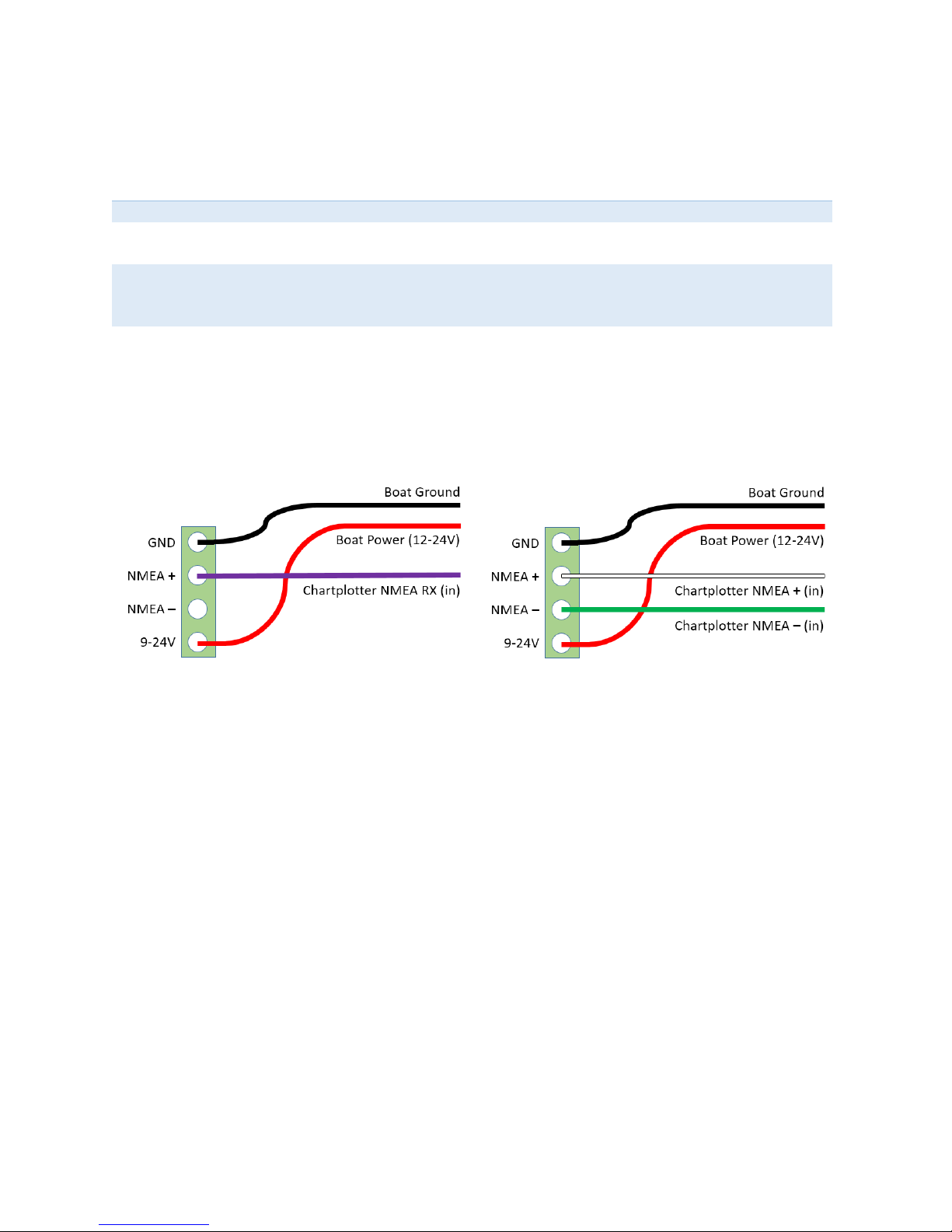
Below is an illustration on how to connect the dAISy NMEA output with a compatible device using singlewire or two-wire NMEA 0183 connection. Note that the colors may be different. Check the installation
instructions of your chartplotter to identify the proper connections.
single-wire NMEA connection
two-wire NMEA connection
By default, dAISy 2+ is configured to output at 38400 Baud (NMEA high speed). This can be changed to
other baud rates in the configuration and debug menu. You also need to check the configuration of your
chartplotter. In many models, the NMEA port needs to be enabled in the settings menu and set to the
correct protocol, like for example NMEA high speed).
NMEA 0183 is compatible with RS-422, which means that the NMEA adapter can also be used to
connect dAISy with RS-422 to serial, RS-422 to Ethernet and other RS-422 compatible equipment. You
may need to swap the NMEA+ and NMEA- leads.
Page 3

LED status indicator
dAISy features a red/green LEDs to indicate its status.
Indicator
Description
Green, short flash every 5 seconds
Device is in reception mode
Green, ¼ second flash
Device received a valid AIS message
Red, ¼ second flash
Device received an invalid message
Red, fast continuous blinking
Device error
No LED activity
Device is not in reception mode
Troubleshooting
Problem
Solution
No activity of the status LED
Verify the USB connection, also try a different
USB cable.
Device in reception mode, but not valid AIS
messages received (no ¼ second green flashes)
Verify the antenna connection and location.
Good AIS reception requires line-of-sight, verify
your setup from a location that is certain to have
traffic, e.g. near a harbor.
Device indicates valid AIS messages (¼ second
green flashes), but no messages received on PC
Verify that the serial port shows up on the PC. Try
a different USB cable if this is not the case.
Verify the serial configuration of your software.
Verify the serial communication with a serial
terminal program like Putty or screen.
Software receives positions, but fewer than
expected and/or with worse range than
expected.
Verify the antenna connection and location.
Good AIS reception requires line-of-sight, so the
higher up the antenna is positioned the better
the range. Move the antenna away from sources
of electrical noise.
After some time, dAISy indicates a device error
(fast blinking red LED)
Sometimes the device is not properly initialized
when the connected computer wakes up from
sleep mode. Unplug dAISy and plug in again to
resolve the error.
If a problem persists, contact Wegmatt LLC at [email protected].
Contact
Wegmatt LLC
6356 138th Ave NE #212
Redmond, WA
United States of America
Designed and assembled in USA
 Loading...