

Page 1
Installation guide for iPhone users
This manual will guide you thru the process of
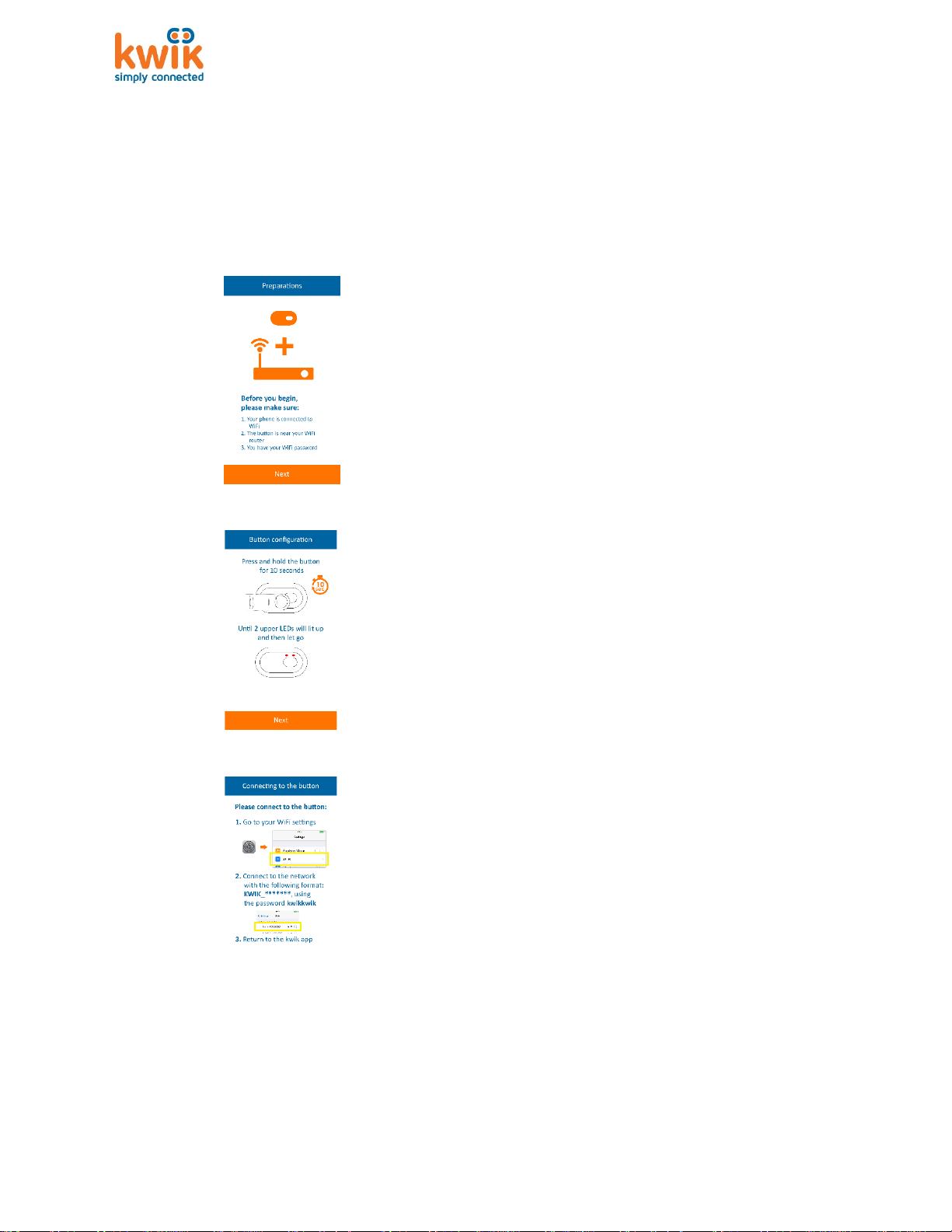
1. Install the kwik.me app
2. Open the app
3. Make sure that:
4. Press and hold the button for 10
5. Now you go to your iPhone’s WiFi
connecting the kwik button to the WiFi network
1. Your iPhone is connected to
WiFi network
2. The button and the iPhone are
near your router
3. You have the password to the
WiFi network
And click Next
seconds. After 10 seconds the ring
LED around the button will blink
slowly.
settings and connect to the kwik
button, like you would connect to
any other WiFi network. Click on
the kwik button network from the
WiFi list (the kwik button network
is in the format of kwik_******* ),
and enter the password kwikkwik
when prompted.
Once successfully connected to the
kwik button network, return to the
kwik.me app. You will be automatically
transferred to the next screen.
Page 2
Installation guide for iPhone users
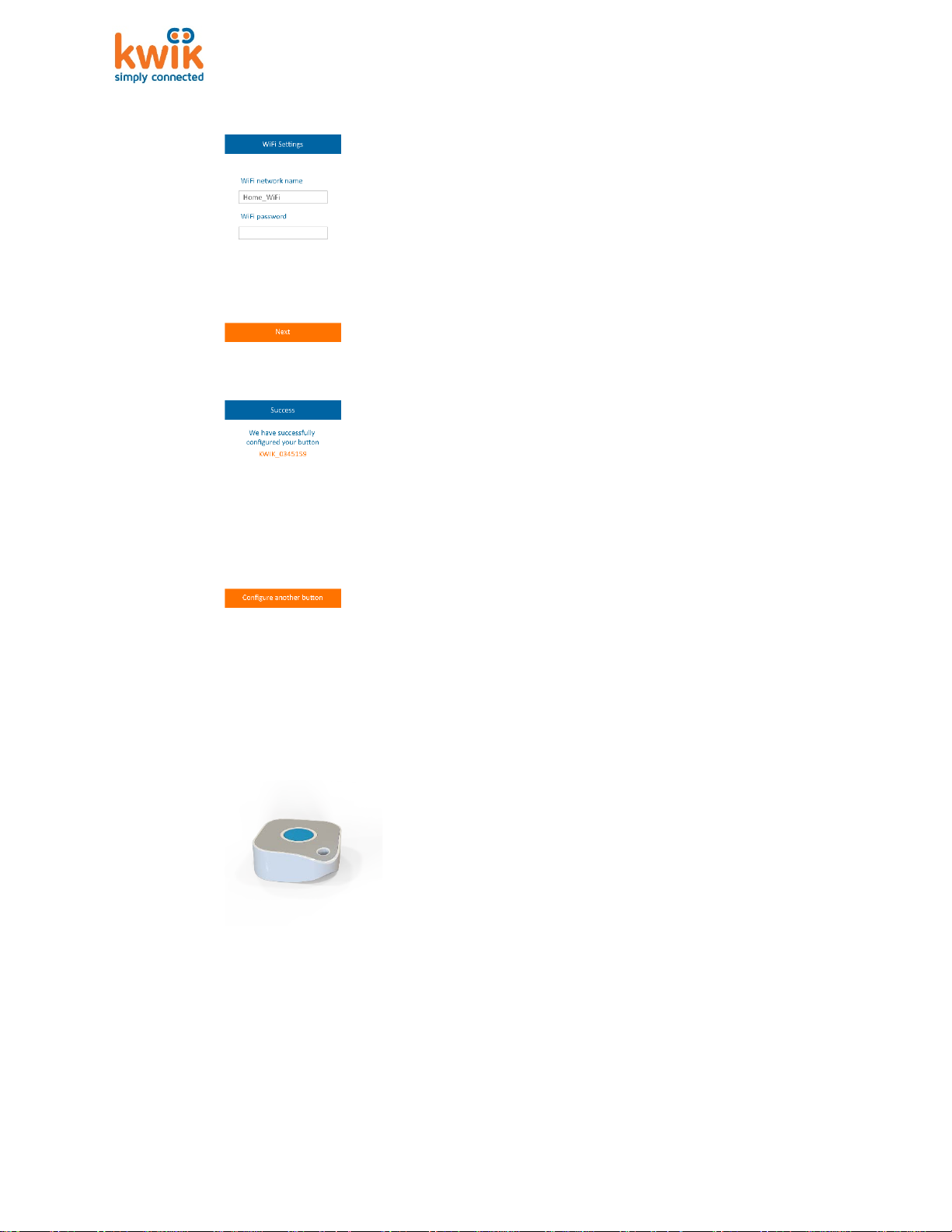
6. Enter your WiFi password and click
7. The One time WiFi setup is done.
8. When you want to use the button
configure the button again,
Next
The kwik button will receive the WiFi
credentials and configure itself. You
will be notified once the process is
finished
You have successfully configured
your button. Now you can close
the app or configure another
button.
just click it and follow the LEDs
feedback to check if it connects to
the internet.
Upon the click, the ring around the button
will lit up.
9. While waiting, the LED ring will
spin.
10. When the message from the
button is sent successfully to the
11. If the communication process will
internet, the ring LED will Blink
twice – fast
fail, the ring LED will blink 4 times.
In this case check the following:
1. Your WiFi network is
available
2. Your WiFi network is
connected to the internet
3. WiFi password – try to
Page 3

Installation guide for iPhone users
and make sure that the
DISPOSE OF USED BATTERIES ACCORDING TO THE
protection against harmful interference in residential
ent generates uses and can
Increase the distance between the device and the
expressly approved by the party responsible for
password is correct.
Caution:
RISK OF EXPLOSION IF BATT ER Y IS REPL ACED BY AN
INCORRECT TYPE.
INSTRUCTIONS.
FCC Compliance Statement
This device has been tested and found to comply with the
limits for a Class B digital device, pursuant to Part 15 of the
FCC Rules. These limits are designed to provide reasonable
installations. This equipm
radiate radio frequency energy and, if not installed and used
in accordance with the instructions, may cause harmful
interference to radio and television reception.
However, there is no guarantee that interference will not
occur in a particular installation. If this device does cause
such interference, which can be verified by turning the
device off and on, the user is encouraged to eliminate the
interference by one or more of the following measures:
– Re-orient or re-locate the receiving antenna.
–
receiver.
– Connect the device to an outlet on a circuit different from
the one that supplies power to the receiver.
– Consult the dealer or an experienced radio/TV technician.
WARNING! Changes or modifications to this unit not
compliance could void the user’s authority to operate the
equipment.
This device complies with FCC Rules Part 15: Operation
is subject to two conditions: (1) This device may not cause
harmful interference, and (2) this device must accept any
interference that may be received or that may cause
undesired operation.
 Loading...