

Page 1
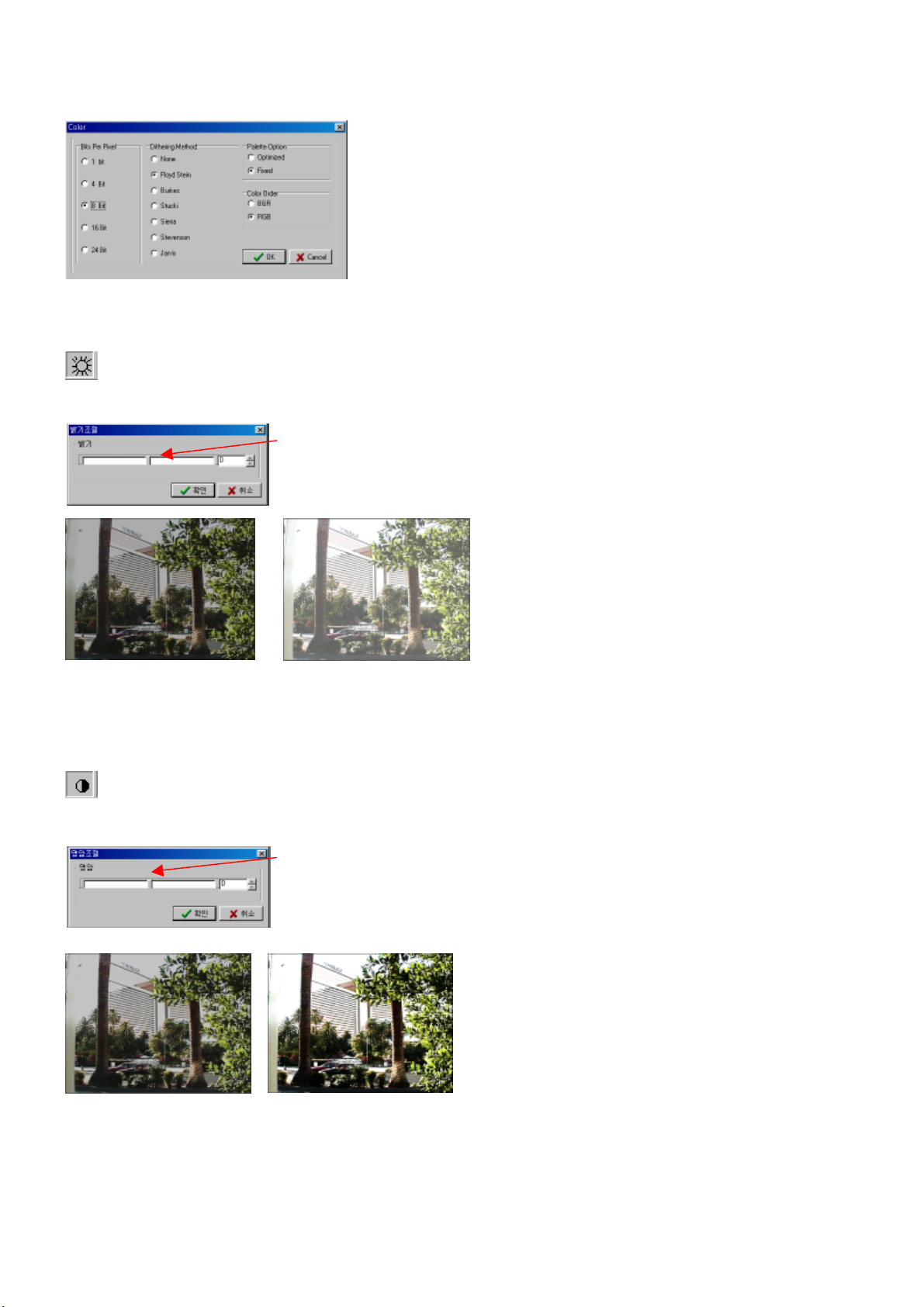
c) Color
Select color, and settle Bits Per
Pixel, Dithering Method,
Palette Option & Color Order.
.
d) Brightness
Click this or select Brightness, and “Adjust Brightness” is shown up as below. Positive number
means bright, and negative number dark.
On click and moving mouse, you can adjust brightness.
.
.
.
.
.
.
Brightness-33 Brightness +33
.
e) Contrast
Click this or select Contrast, and “Adjust Contrast” is shown up.
Positive number means high luminosity, and negative number low.
On click and moving mouse, you can adjust contrast.
.
.
.
.
.
.
Contrast –50 Contrast +50
.
.
.
.
.
.
25
Page 2

26
f) Inverse
.
.
g) Hue
Adjust Hue of image.
Actual color is inversed.
.
h) Gamma
Adjust Gamma of image.
11. About…
Click this, and you can get basic information about our product.
.
.
Page 3
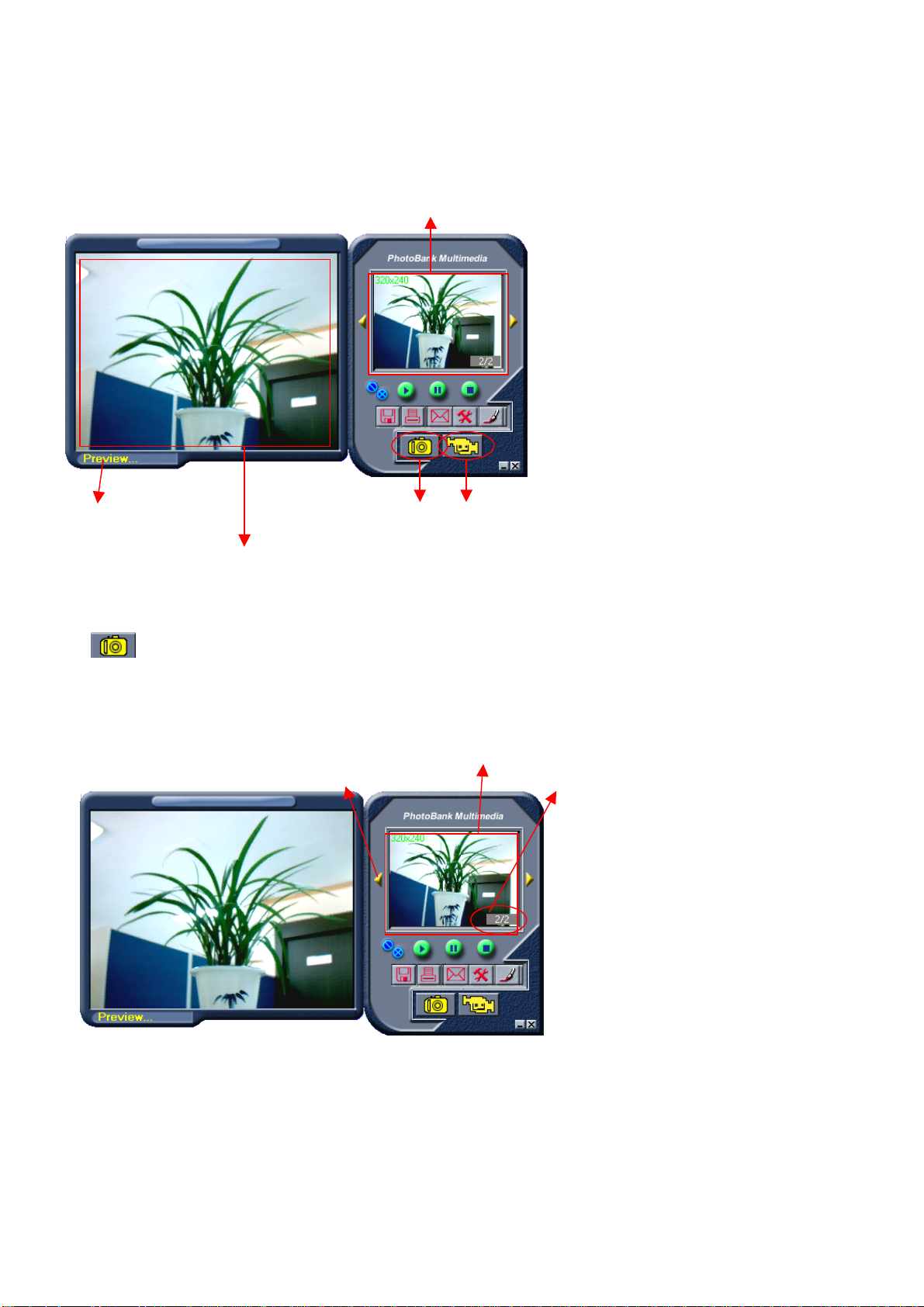
6. How to use VideoCap & Photo Sticker
The number of
captured images
.
‘start-programs-Fineshot-VideoCap.’
.
Captured Image
Progress Indicator
Preview : It shows you present sight through PC Camera
l VideoCap is not excuted in case stored the image in the camera. And then please excute and
Image Capture
Video Capture
eliminate the image in the camera
1) Still Image Capture
Click this, previewed sight is captured as a still image.
And, you can see the captured image as below.
.
Previous Page
.
Captured Still Image
Next Page
.
.
.
.
.
.
& present image
27
Page 4
28
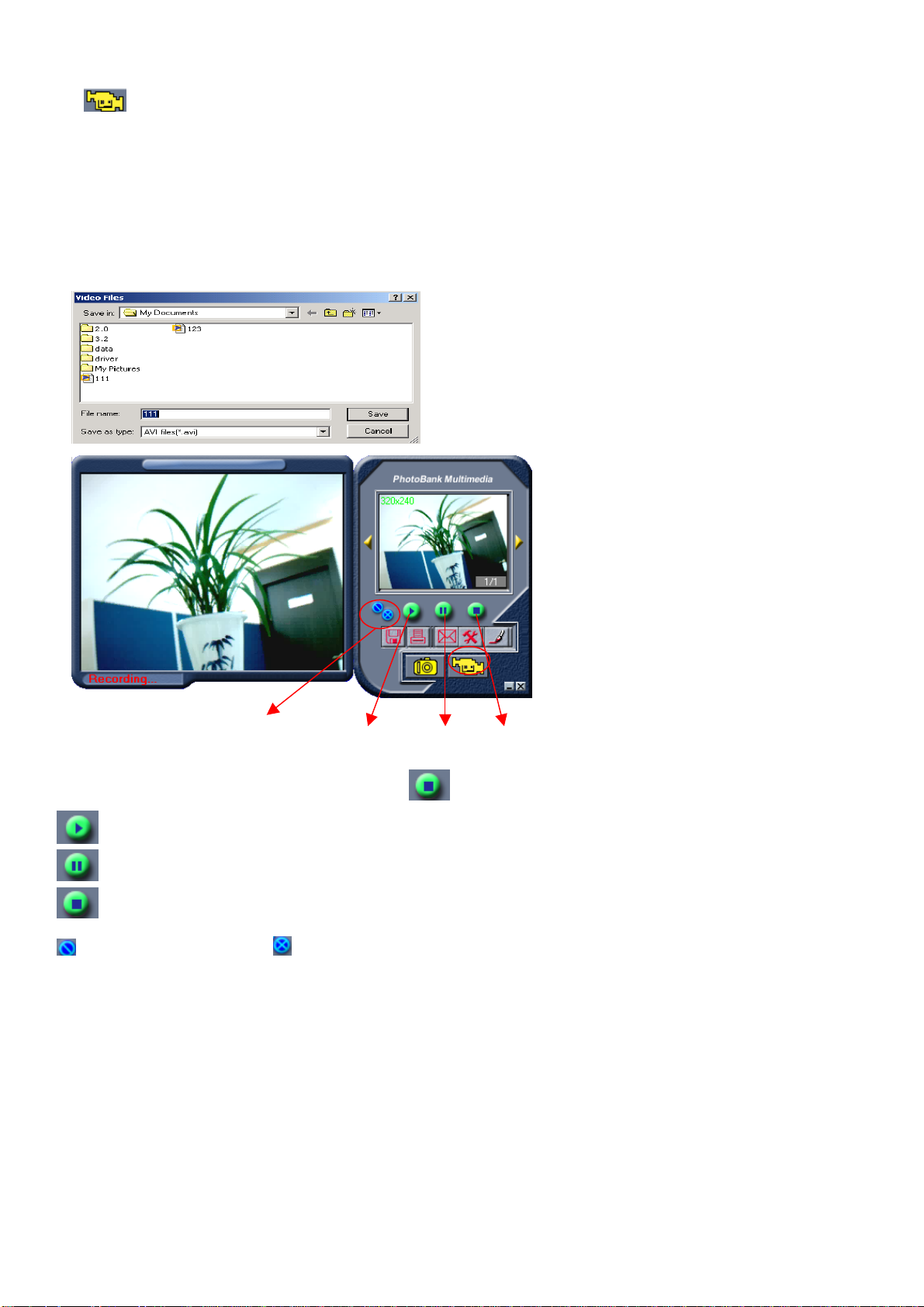
2) Video Capture
.
Click this icon, “Video Files” will be opened. Input file name and click “save”, then video capture will
be started. And “Progress Indicator” shows “Recording”. You can apply this captured video as
multimedia contents in sending e-mail, manufacturing multimedia album, personal CD title and etc.
.
A. Captured video is saved by *.avi .
delete/Delete All
Open Pause Stop
If you want to stop capture video, click this stop button.
Open (search & open file) & Play captured video files
Pause play video
Stop play video
Delete present image / Delete all captured images
.
.
.
.
.
.
.
Page 5
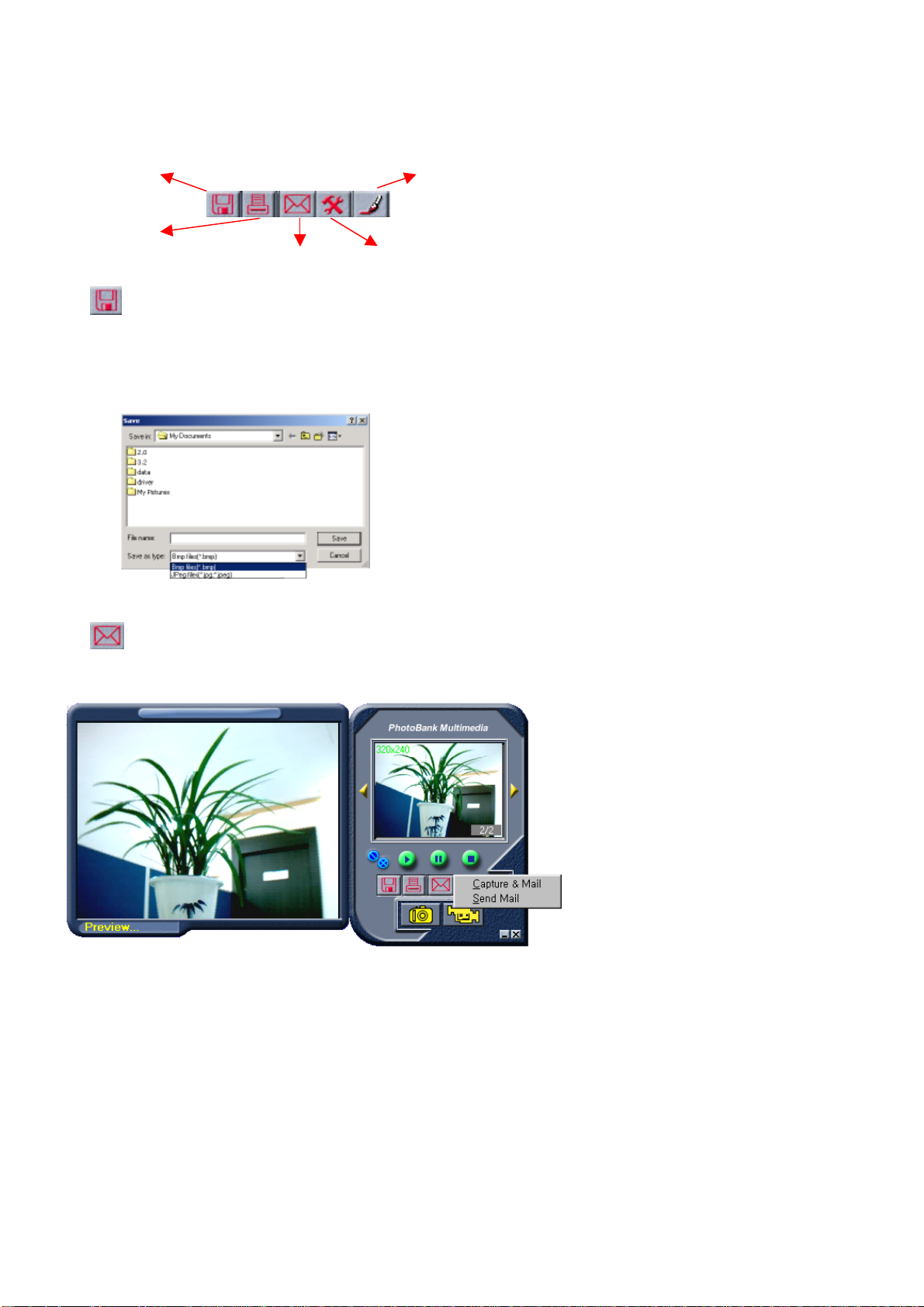
3) Basic Functions
E-mail
Print
.
.
.
A. Save
By click this icon, you can save captured still image.
Input file name, select file format (*.BMP, *.JPG, *.JPEG) and save it.
.
.
.
.
.
.
Save
Link to Photo Editor
.
Option
.
.
B. E-Mail
Click this icon, you can see two options as below.
* Capture & Mail : Capture video& Send it by e-mail continuously
* Send Mail : Send existing file by e-mail (by Compressed file)
(by Compressed file)
.
. .
..
.
.
.
.
.
.
.
.
a) Capture & Mail
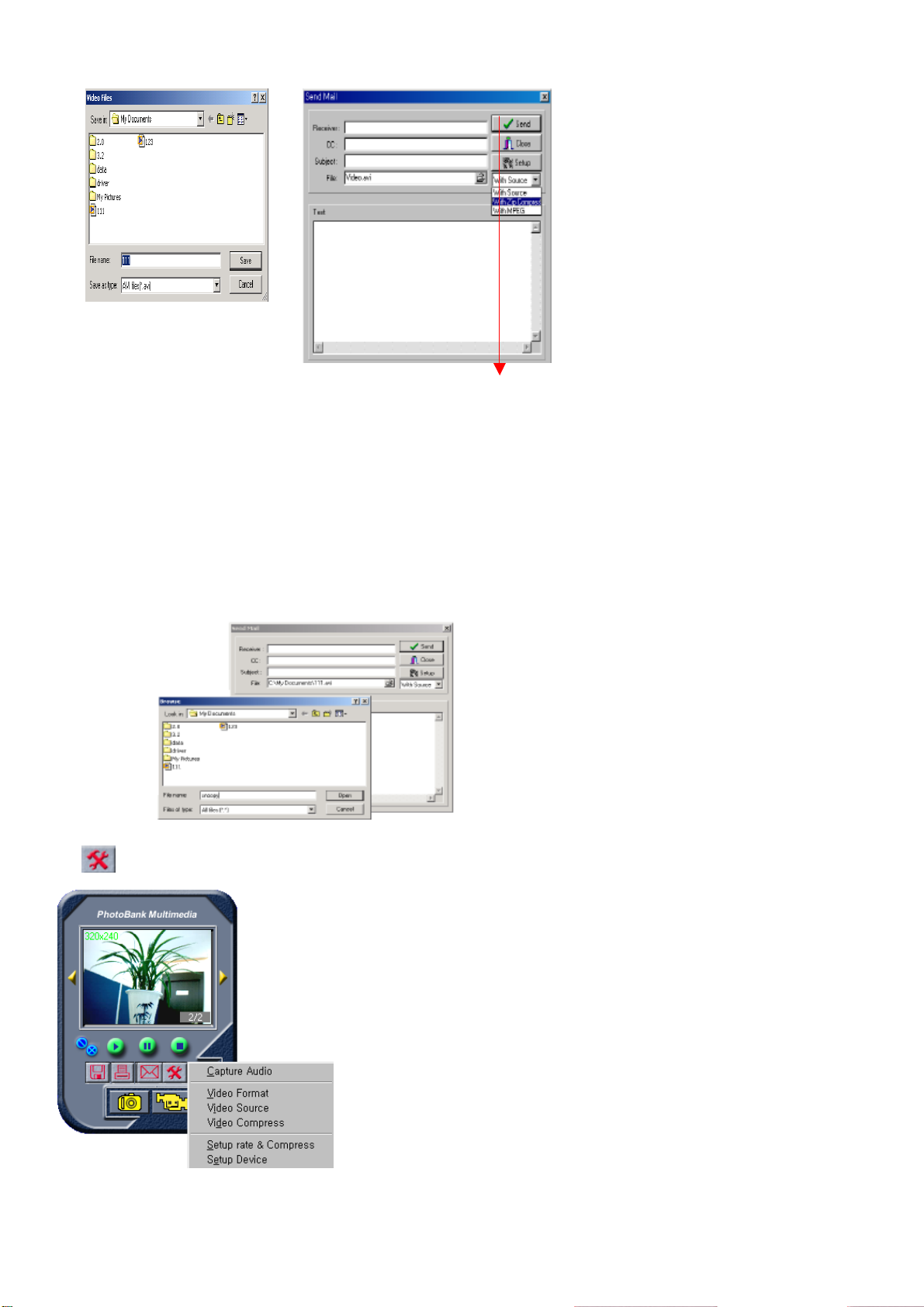
Select this, you can see “Video files” in the screen as below.
Input filename and start capture video. You can stop capture video by stop button, and “Send Mail” is shown up
as below if you stop capture video. .
.
.
29
Page 6
30
.
..
.
.
.
.
.
.
.
.
.
.
.
Input receiver, cc, subject & text, and select file format.
And then click “Send” button, you can send e-mail & file.
b) Send Mail
.
Select this option, and “Send Mail” is opened.
Click browser to search file, and select one you want to send. Then compress video file by MPEG or
ZIP, and send e-mail as above mentioned.
.
.
.
.
.
.
.
.
.
C. Option
.
.
.
.
a) Audio Capture
.
.
.
.
.
.
.
.
On capturing video, you
can also capture audio.
Page 7
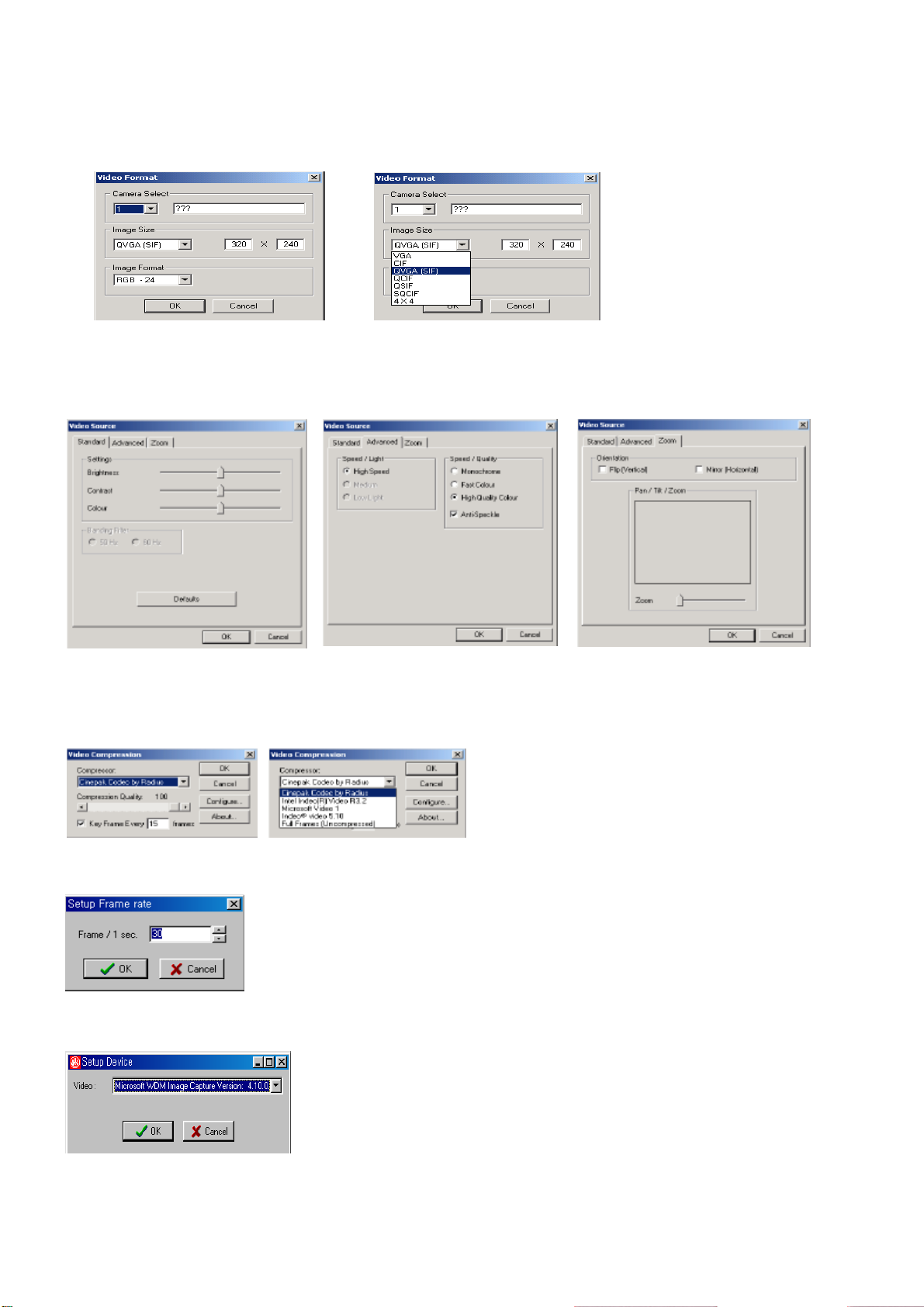
b) Video Format
Select video formats as below.
.
c) Video Source
Settle additional conditions of video source.
.
. .
.
.
.
.
.
.
.
.
.
.
.
d) Video Compression
.
Fix conditions of video compression as below.
e) Setup Frame rate & Compress
.
.
.
.
Settle frame rate per 1 second.
.
.
.
.
.
.
.
.
f) Setup Device
.
.
.
.
.
Setup Video device.
31
Page 8
32
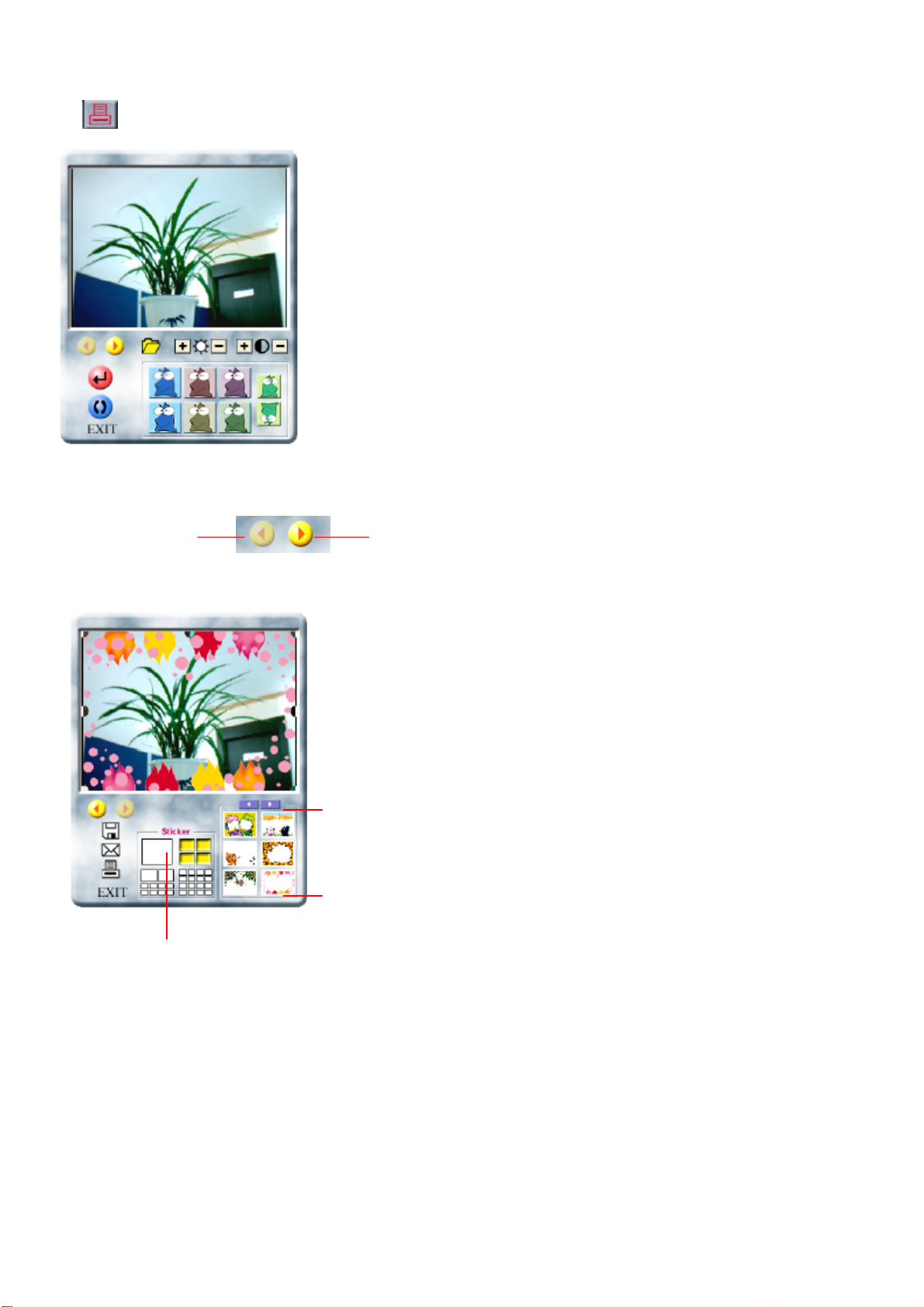
D. Print Click this icon, you will be moved to Photo Sticker.
Photo Sticker
Select one to divide screen, you can get divided
Click this button, you can
Select frame you want, frame
.
.
a) Move Page You can move previous & next page by using below two buttons.
.
Previous Page
.
.
.
Next Page
Move next page, then screen for edition is shown up as below.
.
.
.
.
.
.
.
.
.
.
see much more frames.
.
.
is composed on the image.
.
.
.
.
Page 9
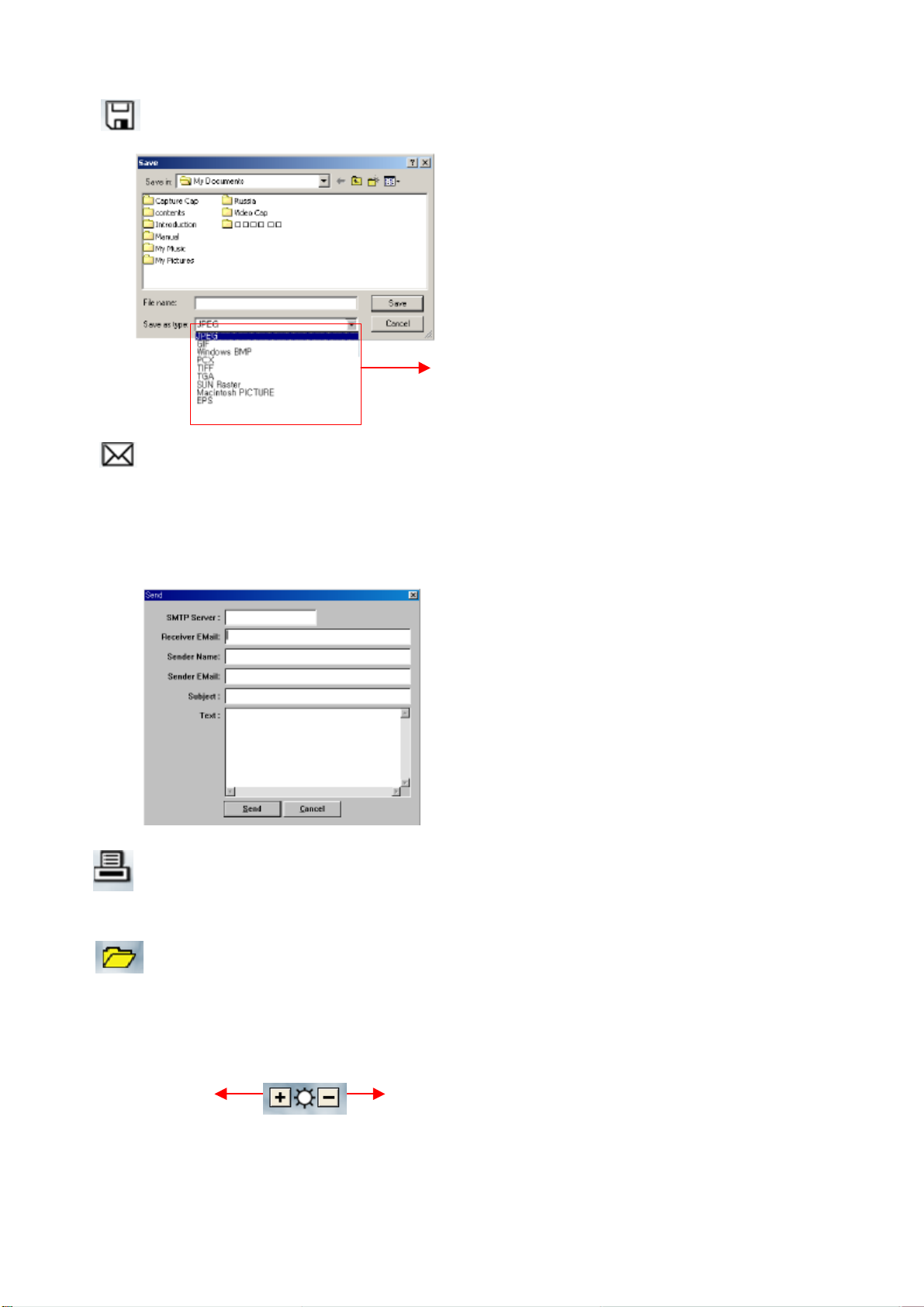
b) Save Save the composed image. (*.bmp, *.jpg , *jpeg)
.
.
.
.
.
.
.
.
.
.
Supported Formats
c) Send
This is the function to send composed image to someone by e-mail.
Click this icon, you can send e-mail as below. Input contents in the blank and click “Send”. Then,
this mail including composed image is forwarded to receiver.
.
.
.
.
.
.
.
.
d) Print Print composed image.
.
e) Open When you click this icon, you can search and open file.
.
(1) Adjust Brightness
Adjust brightness of images by using two buttons.
.
Increase Brightness
.
.
.
Decrease Brightness
33
Page 10
34
(2) Adjust Contrast
Adjust contrast of images by using two buttons.
.
.
.
.
Increase Contrast
.
Decrease Brightness
f) Undo
Cancel the operation that you’ve done just right before.
g) Revert
Cancel all operations and revert image to the first position.
.
h) Color
.
.
.
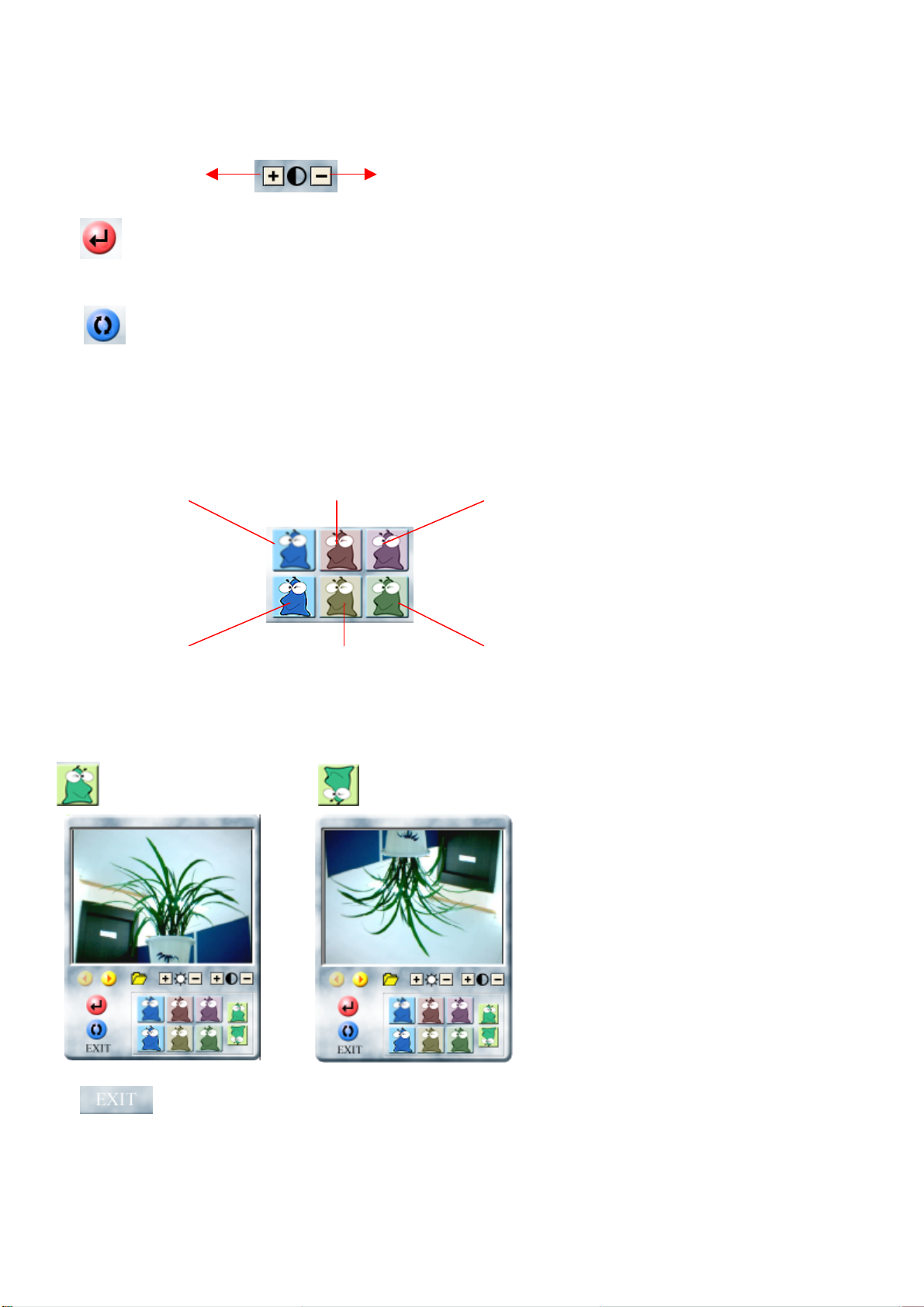
Blur
Red Pupple
.
.
.
.
.
Sharpen Sepia Tone Green Tone
i) Turn Image
.
Turn image horizontally. Turn image vertically.
j) Exit
Finish Studio for Sticker.
.
.
.
Page 11
7. Specification and warranty card
lf time#1/#2, Low/Hi Res, Picture del,
.
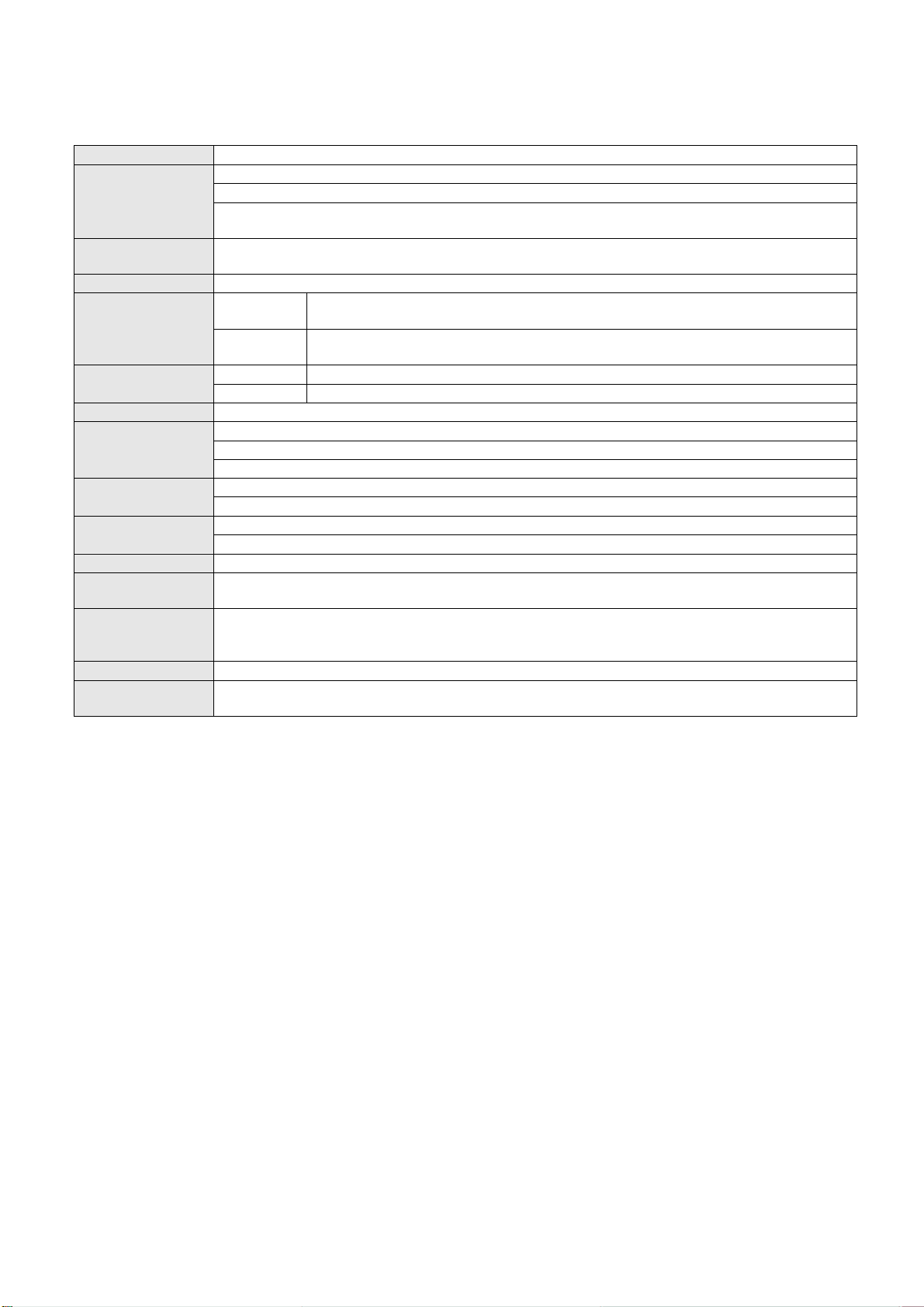
Image Sensor VGA 1/3" CMOS 318,000 Pixels
Focus:Normal(50Cm ~ infinity), Macro(10Cm ~ 15Cm)
Optical
AGC
S / N Ratio
Interface USB lnterface
Resolution
Picture Storage
Memory Internal SDRAM 64Mbit
White Balance Auto White Balance
Power
Frame Rate
Battery
backup battery 9~10Min
Voice
REC / PLAY
Mode
Event sound
(Voice Model)
Flash Gun Charging 10~12sEC
Dimension Weight
Focal Length : 6.4mm, F=2.4
Lens : 5 Group / 5 Elements (All Glass)
View Finder : 3 Group / 3 Elements(Target area)
+18dB
57dB
Digital
Camera
PC Camera
High Resolution Mode(VGA, 640 x 480)26 Pictures
Low Resolution Mode(QVGA, 320 x 240)107 Pictures
Digital Camera : DC 4.5V(AAA 1.5V x 3)
PC Camera : Power By PC USB Port(5V)
VGA : 2 ~ 3 fps, QVGA : Max 15fps
QSIF, SQCIF : Max 30fps
3.5h(Full Flash Mode) / 6H(Full Snap Mode)
60Day(Full Sleep Mode)
Max 13Min
Power On/Off, Good/Bad Picture,Memory Full, Se
Sound del, Cilp del, Clear memory, Confirm Action,
97mm(W) x 27.6mm(H) x 38mm(D)
56g (Exclude Battery)
640 x 480(VGA), 320 x 240(QVGA)
640 x 480(VGA), 352 x 288(CIF), 320 x 240(QVGA)
176 x 144(QCIF), 160 x 120(QSIF), 128 x 96(SQCIF)
.
35
Page 12
36
Warranty card
Product name FineShot D35 Model WTC-2111/VF
Purchase date Manufacture No.
Purchase place Warranty term 1 year after purchase
l Be sure to fill out this warranty card after purchasing the product and checking the product contents.
l Keep this warranty card because you have to present it for A/S.
l This warranty card is used only in Korea and will not be reissued.
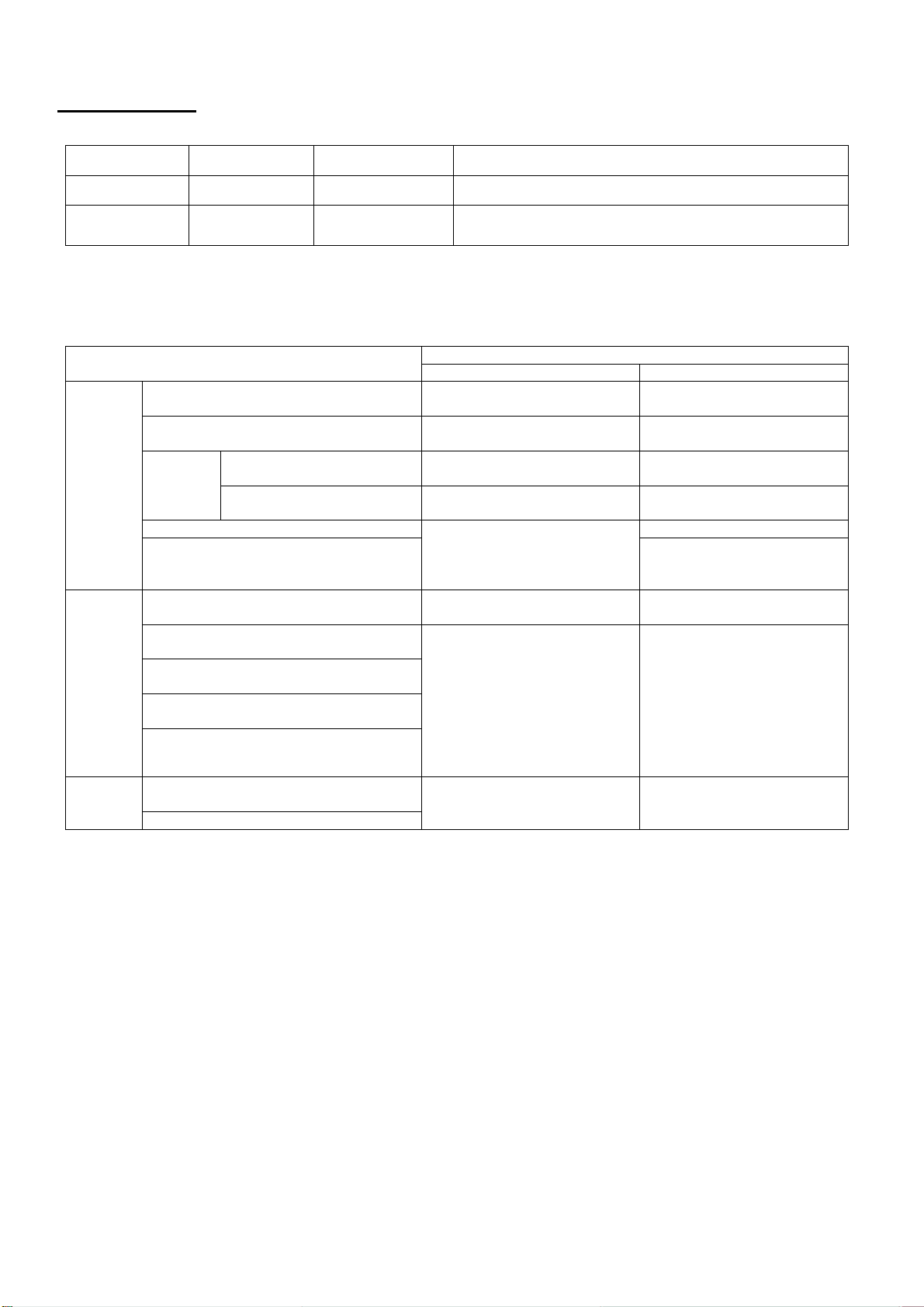
Examples of consumer loss compensation
Damage type of consumer
Occurrence of important malfunction
Troubles
with
perform
ance
and
function
under
normal
usage.
Troubles
with
perform
ance
and
function
due to
consum
er’s
mistake.
l In case of using the general product for commercial purpose, the warranty term is reduced by half.
l The parts holding term is 5 years after the model’s production is terminated.
within 10 days after purchase
Occurrence of important malfunction
within 1 month after purchase
Occurrence of malfunction
Repairab
le
Not repairable Replace after depreciation
Repair is impossible due to lack of
parts for repair (Within parts holding
term)
Malfunction is consumer’s fault,
random repair or reconstruction
Malfunction due to power failure and
faulty linked device
Malfunction by input of impurities in
product
Malfunction due to not observing the
cautions in User’s Guide
Malfunction due to external causes
and not product defects.
Malfunction due to natural disaster
(lightning, fire, or flood damage) Other
Life of consumptive parts has ended
3 times by same defect
Occurrence of malfunction
4 times by same defect
Within warranty term After warranty term
Replace or refund
Replace
Repair free of charge Repair with charge
Replace or refund Repair with charge
Replace or refund
Repair with charge Repair with charge
Repair with charge Repair with charge
Compensation
Add 10% and refund after
depreciation
WeberTech Co.,Ltd.
Gasan-dong, keumcheon-gu, Seoul
.
 Loading...