

Page 1

PL-2303 USB to Serial Adapt er
User Inst all ation Manual
(For Vendor Reference Only)
For Windows 98/ME/2000/XP
Release Version 1.0 ( 4/08/2002)
Contents
Introduction
Features & Specifications
System Requirements
Installing the Device
Verifying t he Installat ion
Uninstalling the De vice
Disclaimer
Introduction
The PL-2303 USB to Serial adapter is your smart and convenient accessory for
connecting RS-232 serial devices to your USB-equipped Windows host computer. It
provides a bridge connection with a standard DB 9-pin male serial port connector in
one end and a standard Type-A USB plug connector on the other end. You simply
attach the serial device onto the serial port of the cable and plug the USB connector
into your PC USB port. It allows a simple and easy way of adding serial connections
to your PC without having to go thru inserting a serial card and traditional port
configuration.
This USB to Serial adapter is ideal for connecting modems, cellular phones, PDAs,
digital cameras, card readers and other serial devices to your computer. It provides
serial connections up to 1Mbp s of data transfer rate. And since USB do es not require
any IRQ resource, more devices can be attached to the system without the previous
hassles of device and resource conflicts.
Finally, the PL-2303 USB to Serial adapter is a fully USB Specification compliant
device and therefore supports advanced power management such as suspend and
resume operat ions as well as remote wake up. The PL-2303 USB Serial cable adapter
is designed to work on all Windows operating systems.
Page 2

PL-2303 USB to Serial Adapter Installation Manual
Features & Specifications
Smart USB to Serial interface
Easy Plug and Play Installation
Full Compliance with the Universal Serial Bus Specification v1.1
Supports the Serial Interface
Supports automatic handshake mode
Over 1Mbps data transfer rate
Supports Remote Wake-up and Intelligent Power Management
Provides Dual Buffers for upstream and downstream data transfer
No IRQ resource required
Bus Powered – no separate power supply or battery required
System Requirements
Windows 98, Windows ME, Windows 2000, or Windows XP operating system
AMD or Intel Penti um 1 3 3MH z or bet te r ba sed computer
USB 1.1 or higher port
USB to RS-232 (Serial Port) Cable Adapter
USB to RS-232 Driver Utility Disk
Page 2
Page 3
PL-2303 USB to Serial Adapter Installation Manual
Installing the Device
This section will guide you on how to install the PL-2303 USB to Serial adapter under
Windows XP, Windows 20 00, Windows ME, and Windows 98 operating systems.
Note: Before you plug in the USB t o Seria l a da pt er for the first time, ma ke sur e that
you do not attach any serial device first to the adapter. You must only plug in the
USB to Serial adapter its elf.
The following steps will show how to insta ll the device under Windows XP. Basically,
the procedures are also somew ha t the same for other Windows operating syst ems .
1. Power on your computer and boot to Windows.
2. Locate the USB port of your computer and plug in the USB to Serial adapter.
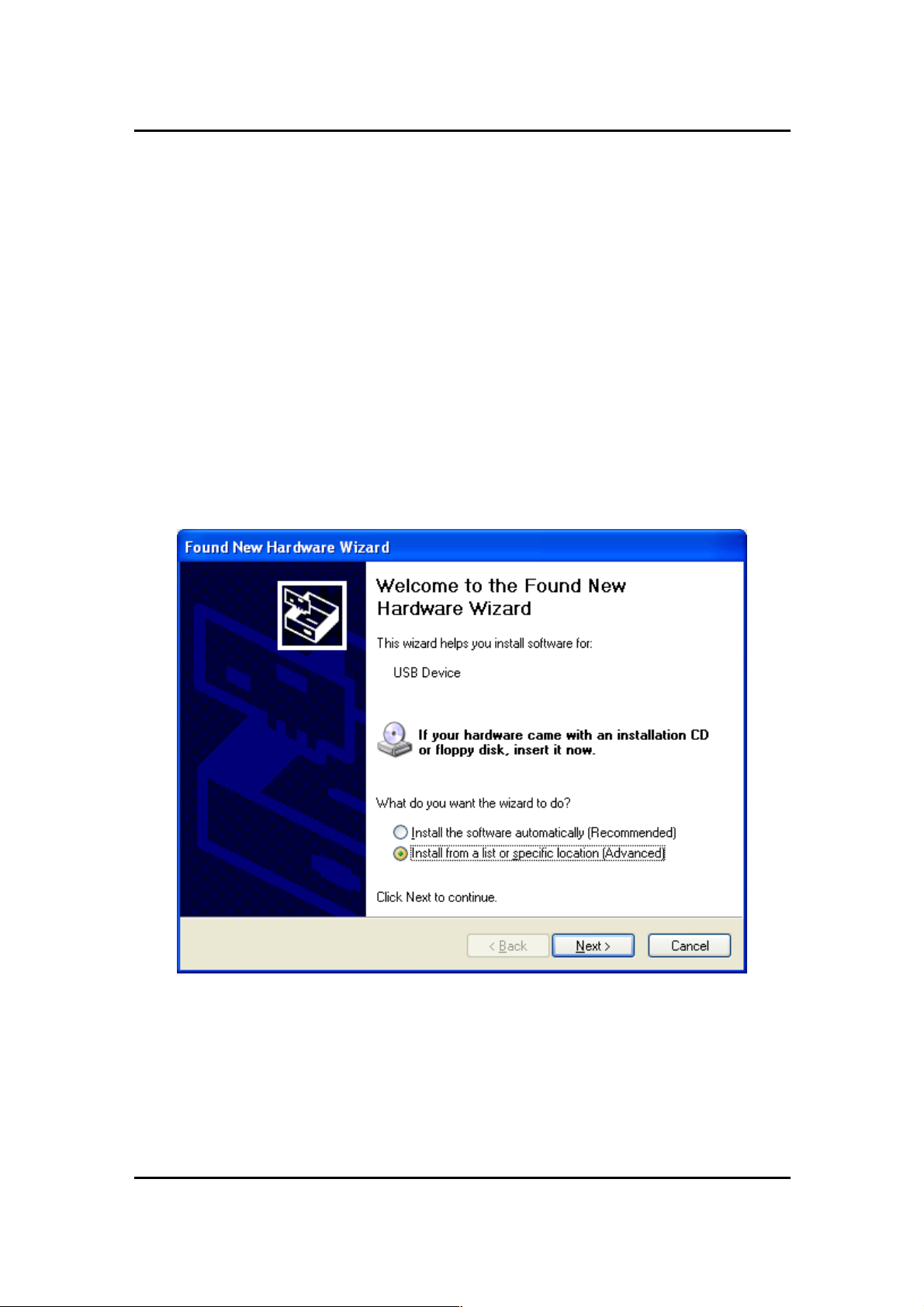
3. Windows will detect the new devic e an d will in it ia te the Fo und N ew Hardware
Wizard prompting you to install the software for the detected USB Device.
Select to install from a list or specific location. Click Next to continue.
Page 3
Page 4
PL-2303 USB to Serial Adapter Installation Manual
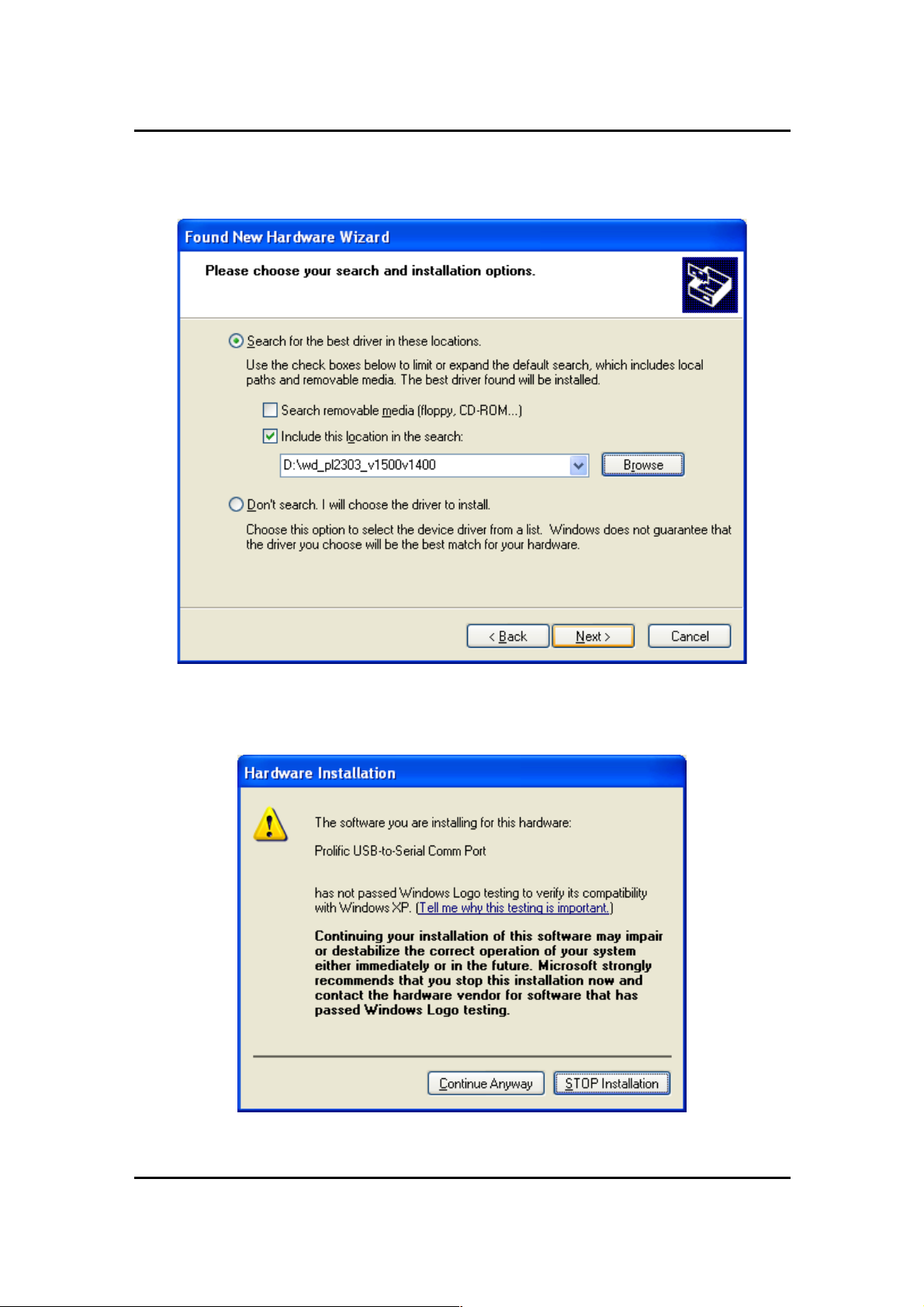
4. When prompted for the driver location of the de vice, click Browse and refer to
the USB to Serial driver disk or folder drive. Click Next to continue.
5. Windows should detect the driv er as Pr olific USB-to-Serial Comm Por t. Before
Windows installs this, it m ay pr om pt y ou that this device driver has not y et
passed Windows XP Logo compatibility. Click Continue Anyway.
Page 4
Page 5
PL-2303 USB to Serial Adapter Installation Manual
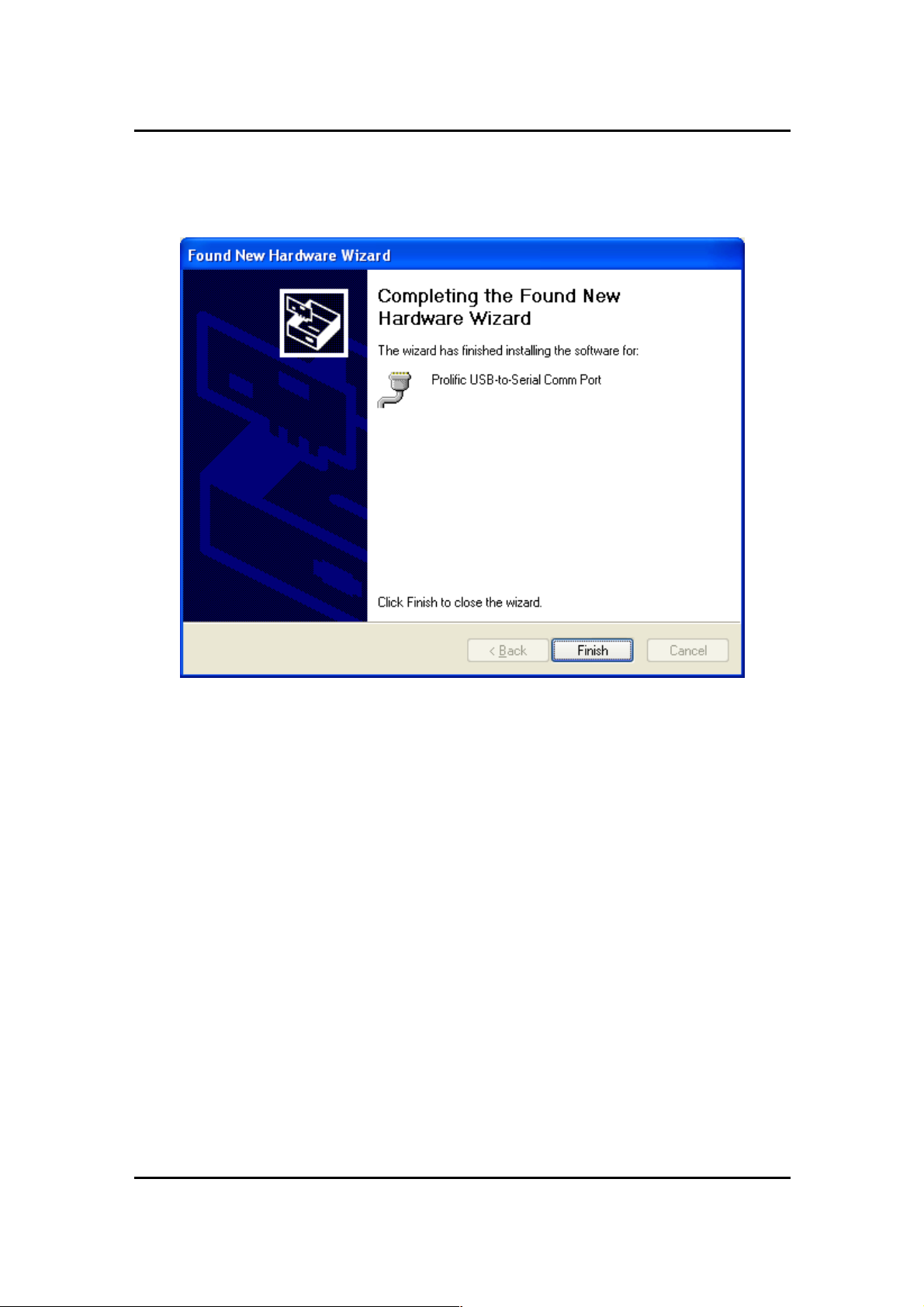
6. Windows will then start to install the driver for the US B - to-Ser ia l Com m Por t.
Once installation is complete, Windows will prompt you that it has finis hed
installing the software. Click Finish to continue.
Page 5
Page 6
PL-2303 USB to Serial Adapter Installation Manual
Verifying the Installation
This section will guide you on how to verify if the PL-2303 USB to Serial adapter was
properly installed. You will also need to determine the COM port assignment made by
Windows for the USB to Serial adapter.
Note: Before you plug in the USB t o Seria l a da pt er for the first time, ma ke sur e that
you do not attach any serial device first to the adapter. You must only plug in the
USB to Serial adapter its elf.
To verify if the device is properl y inst a l le d an d deter mine the COM port assignment
of the device:
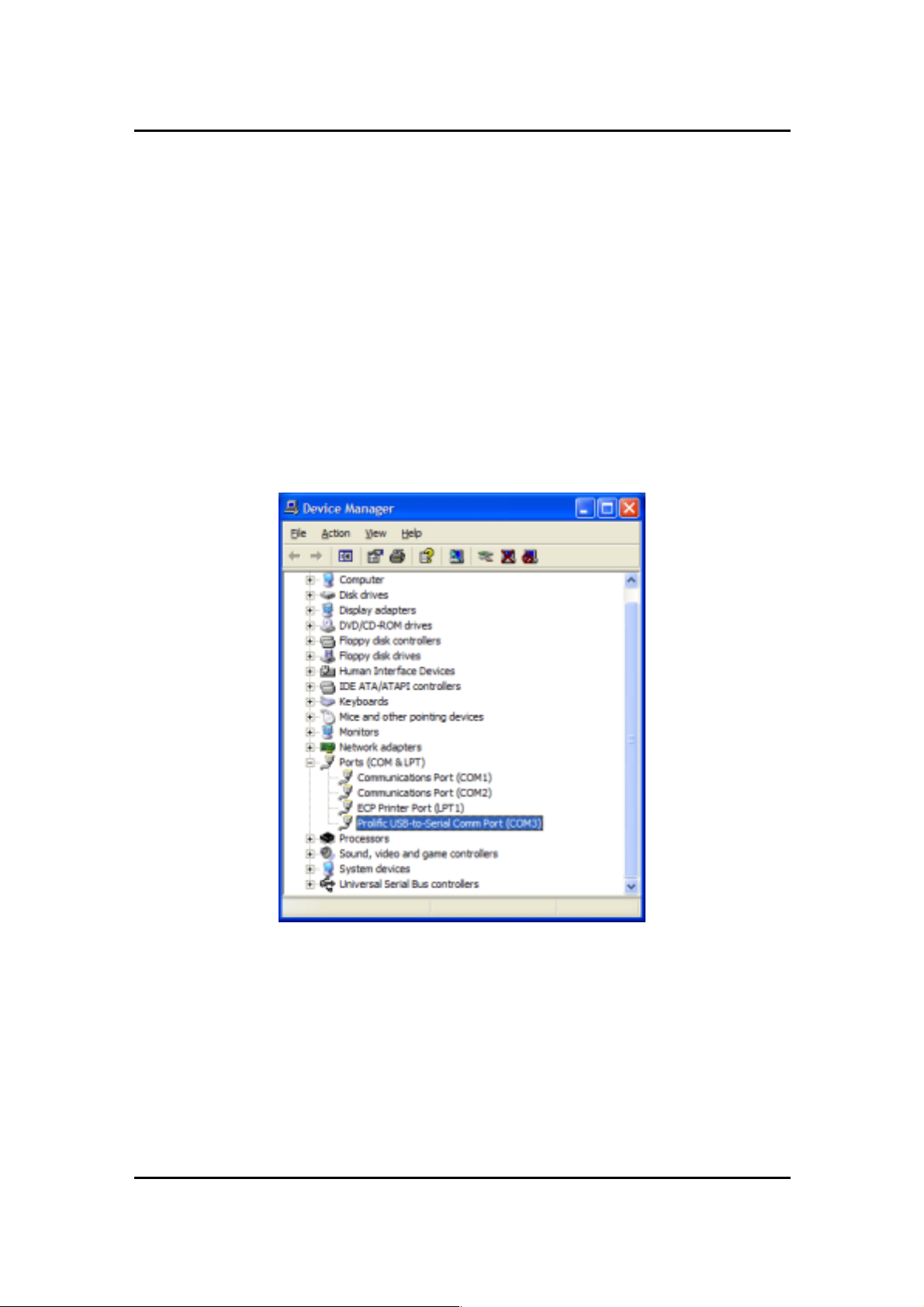
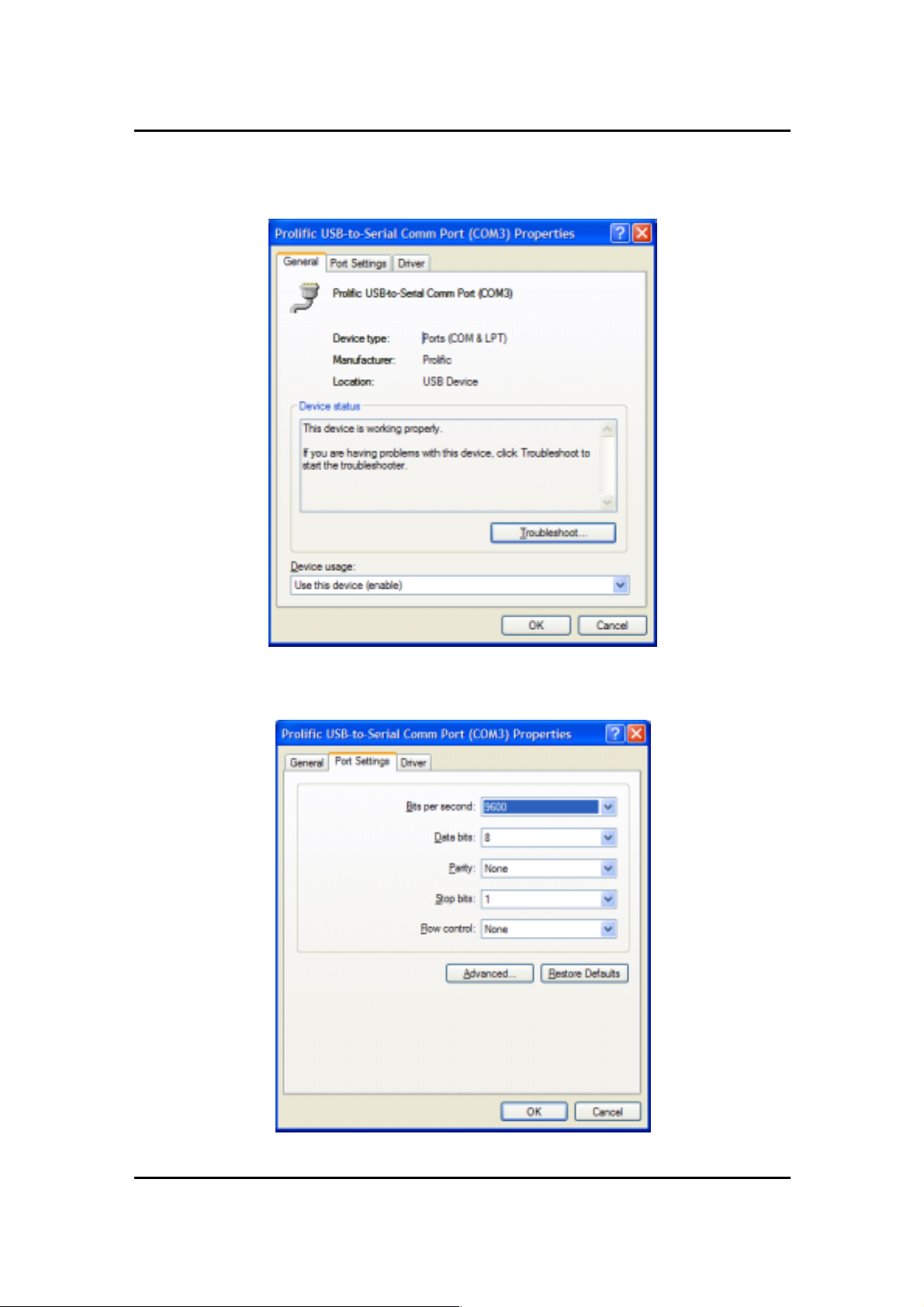
1. Click Start Control Panel System. Inside System Properties, click on
Device Manager. Double-click on Ports (COM & LPT1). You should see the
Prolific USB-to-Se rial Comm Port ( C O M3) device listing. Th is also means that
Windows has assigned the device to COM3 port.
Note: The COM port assignment of the USB to Serial adapter varies on your
computer hardware configuration. Windows will check what COM port are unused
or free in your computer and assigns that port number to the device.
Page 6
Page 7
PL-2303 USB to Serial Adapter Installation Manual
2. If you want to assign the COM Port of the device to another port number, you can
double-click on the device (Prolific USB-to-Serial Comm Port) to view properties.
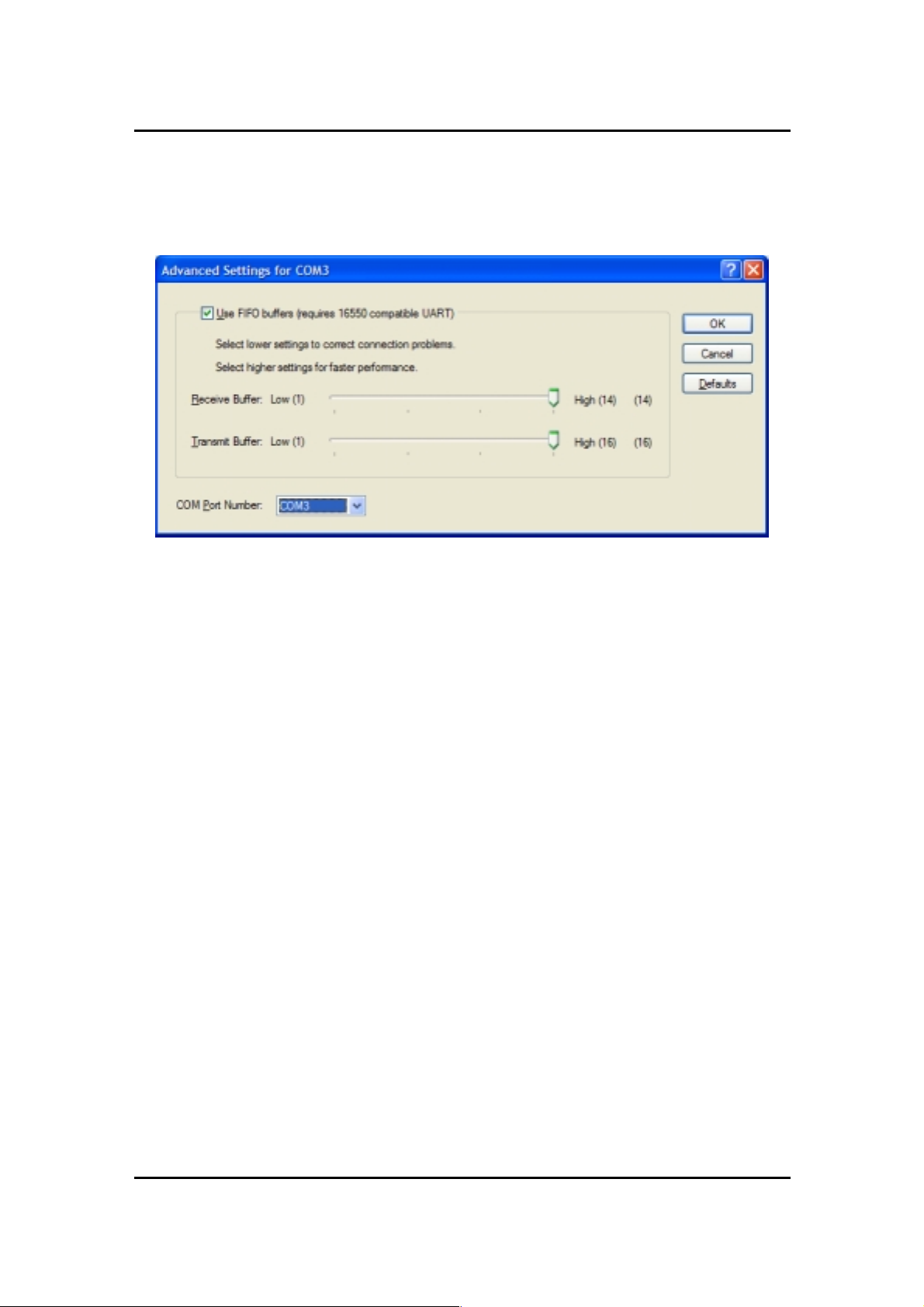
3. Inside the USB-to-Serial Comm Port Properties, click on the Port Settings tab.
Click on the Advanced button.
Page 7
Page 8
PL-2303 USB to Serial Adapter Installation Manual
4. Inside the Advanced Settings, click on the COM Port Number and check what
other port numbers are unu sed. If it so happens that Windows assigned a COM5
to the device, you may try to reassign it to a lower unused port number. Click OK
when finished. Try running HyperTerminal to test if the new port number is OK.
Note: Some software programs may only support up to COM4 and may not work
if the port is assigned to COM5 or higher.
5. Once you have verified the device to be properly installed, you may now proceed
to using the USB to Serial adapter in connecting to serial devices. Attached the
serial device to the serial port of the ada pt er an d then pl ug in the USB connector
to the USB port of your computer. Use the supplied driver of the serial device if
needed.
Page 8
Page 9
PL-2303 USB to Serial Adapter Installation Manual
Uninstalling the Device Driver
It is easy to uninstall the USB to Serial device driver:
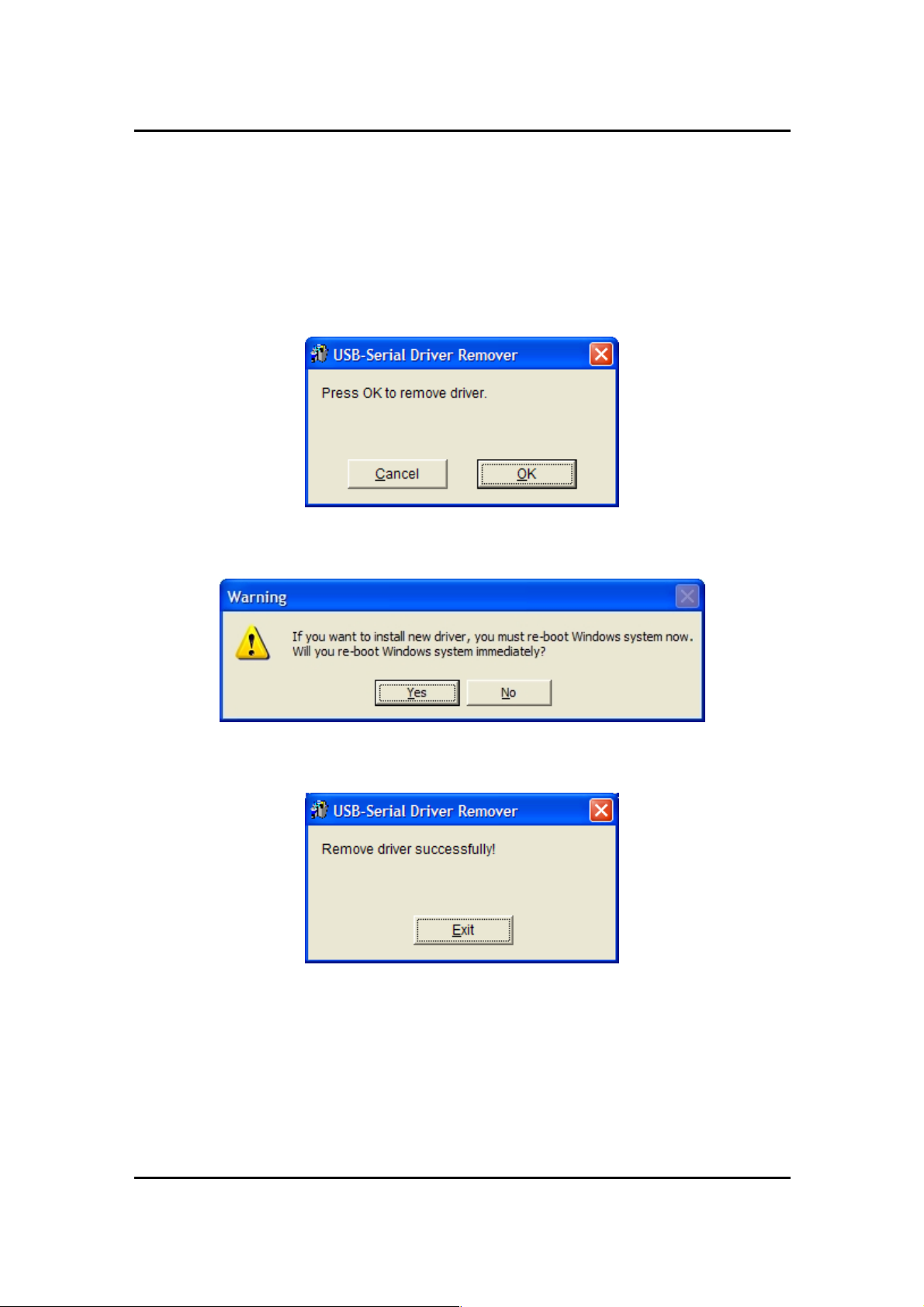
1. Run the DRemover98_2K.exe UnInstall program found on your driver utility CD
or diskette.
2. The uninstall program will then prompt you if you want to remove the utility
program. Click OK to continue.
3. After uninstall is complete, the program will prompt you to restart Windows.
Click Yes to continue. Make sure you remove the diskette from floppy drive.
4. Windows will also show a dialog box that the driver was removed successfully.
Wait for Windows to restart your computer.
Page 9
Page 10

PL-2303 USB to Serial Adapter Installation Manual
Disclaimer
Information in this document is subject to change without notice. The manufacturer
does not make any representations or warranties (implied or otherwise) regarding
the accuracy and completeness of this docume nt and shall in no event be liable for
any loss of profit or any other commercial damage, including but not limited to
special, incidenta l, con sequential, or other damages.
No part of this document may be reproduced or tra nsmitted in any form by any
means without the express written permission of the manufacturer.
All brand names and product names used in this document are trademarks or
registered trademarks of their respective holders.
Page 10
 Loading...