

Page 1
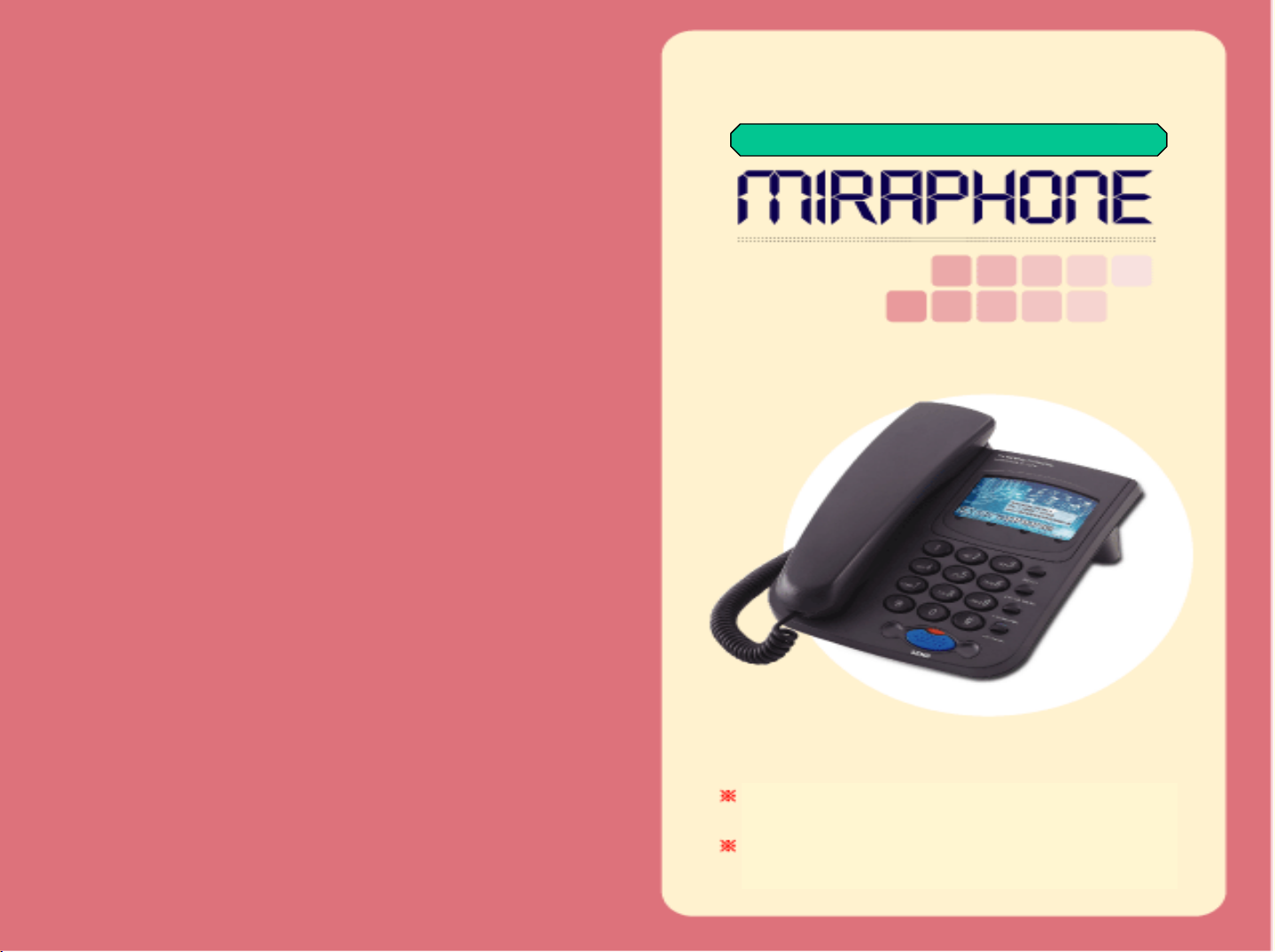
Quick & Easy Installation Internet Phone
Please read this manual before use.
The quality of voice of MiraPhone can be
affected by your internet environment.
Page 2
<< CONTENTS >>
Package Contents (p3)
Hardware Requirements (p4)
Features (p4)
Attentions (p4)
MiraPhone Installation (p5~p6)
Using MiraPhone (p7~p10)
FAQ (p11~p12)
Warranty (p13)
Page 3
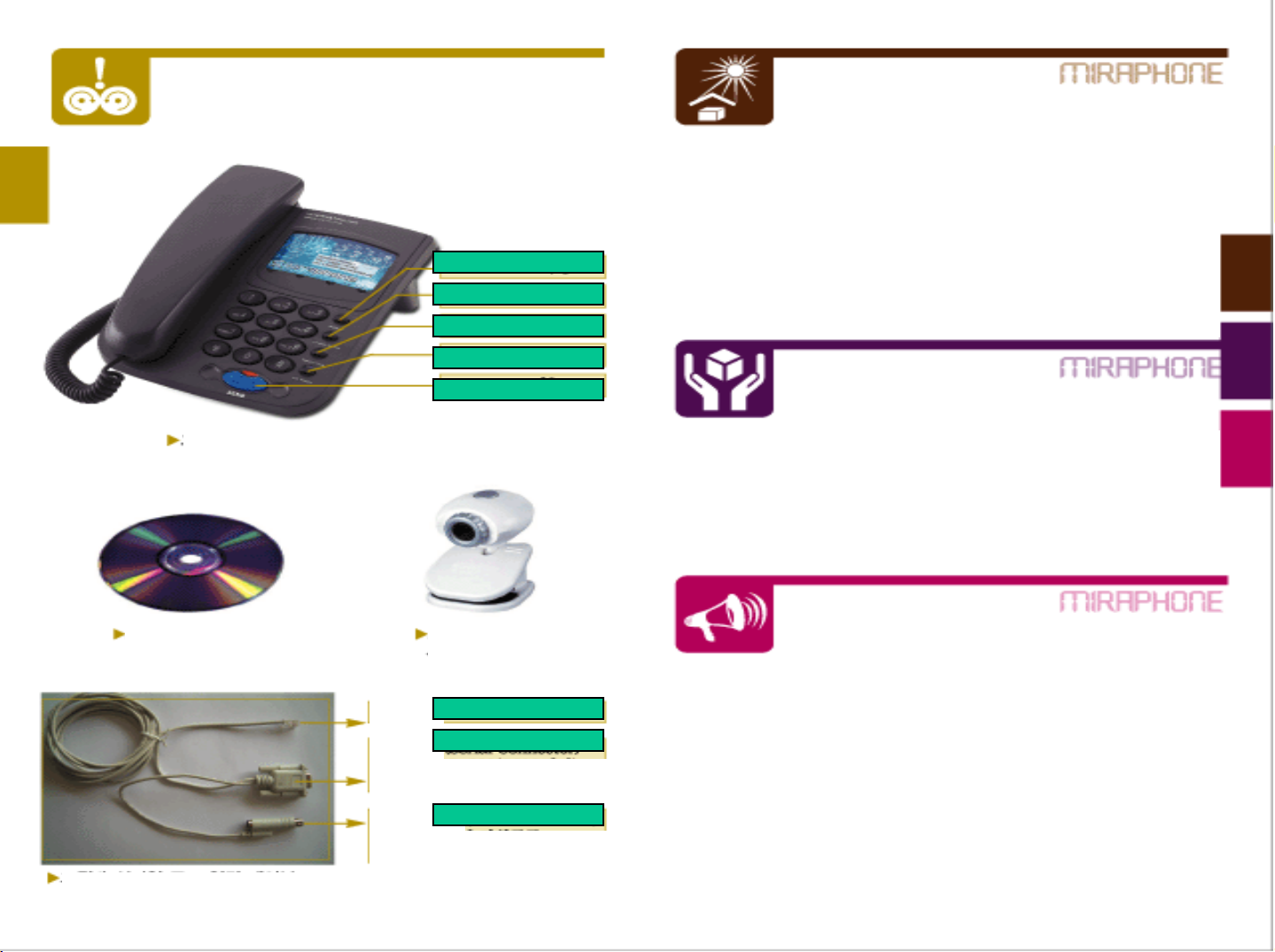
Package Con tents
Phone Book
Redial
Homepage
On Hook
Hardware Requirements
- CPU: Pentium II, III or higher
- OS:Windows 98SE/ME/2000/XP
- RAM: 64MB or higher
- HDD: 10MB Free Hard Dis k space
- Port: COM1 or COM2 enable
- Internet Connection: ADSL, xDSL, Cable, LAN, Dial-up modem
- Internet Speed: 45K byte (=36 Kbps ) or fa s ter
- Microsoft Internet Explorer 5.01 or h igher
MiraPhone
Program CD PC camera
Serial port connecter
Send
(not included)
Phone Connector
Serial Connector
Connect to RS-232 (COM port)
of your PC
PS/2 Connector
Connect to PS/2 port
of your PC
Features
- Easy to use just after login
- Excellent compatibility to other devices according to
H.323 international standard protocol
- Free calls between MiraPhones
- Useful functions : Phonebook/ Short key/ Redial/ On-Hook
Attentions
- Please turn off your PC power before installation.
- MiraPhone will w ork when y our PC is working properly.
- Keep your MiraPhone away from hum idity or moisture.
- Do not drop MiraPhone. Rough handling can break internal circuit.
- Do not store MiraPhone in hot area. High temperatures can cause
afire.
- Do not attempt to open MiraPhon e. MiraPhone may get damage.
- Keep MiraPhone out of Water, Benzene, Alcohol, Thinner.
- Turn off your PC when MiraPhone makes noise, smell, smoke and
contact our service center.
- Do not use any other cables or connectors which are not provided.
Page 4
MiraPhone Installation [1] MiraPhone Installation [2]
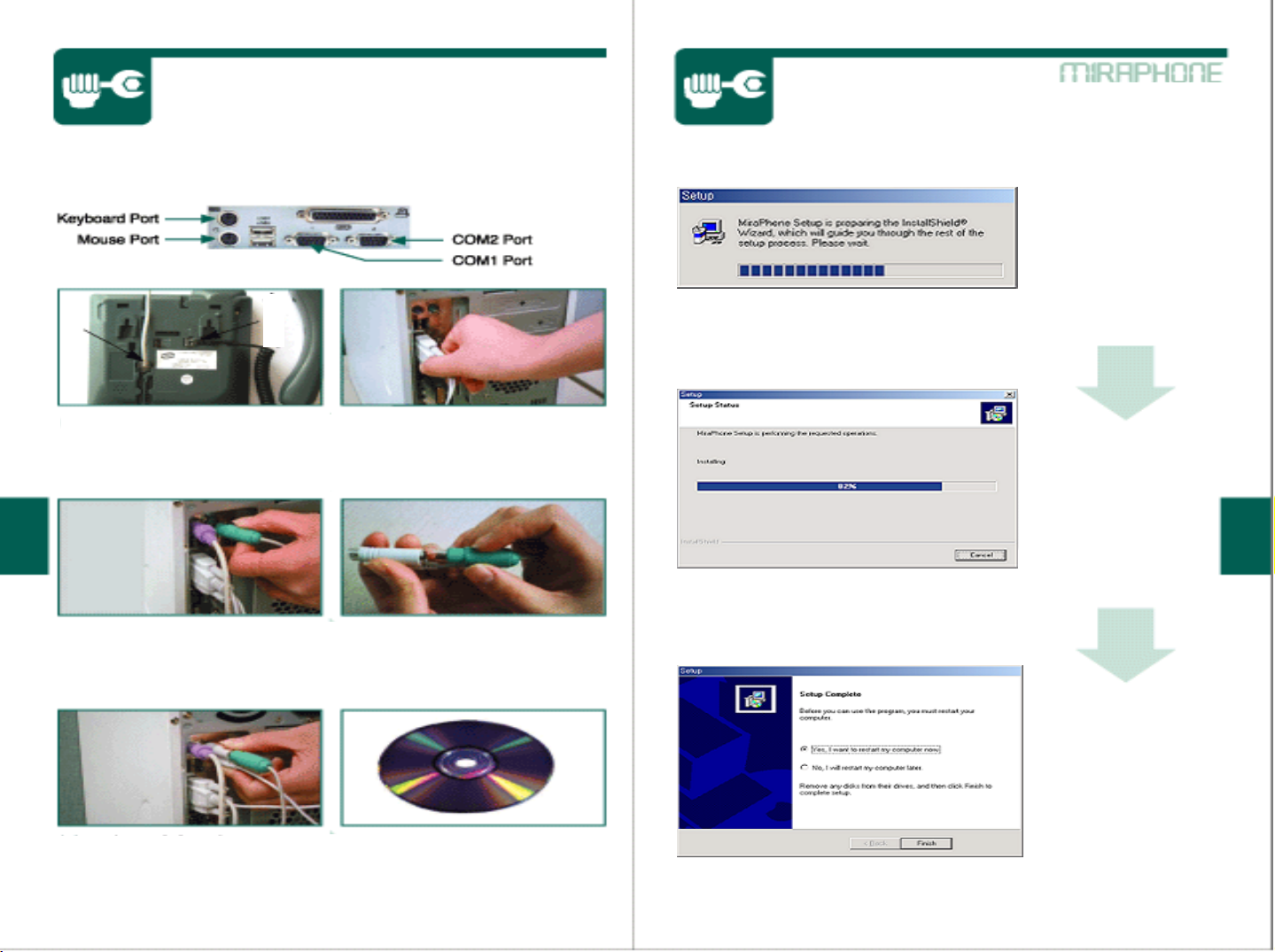
<Computer Port Configuration>
Installation is running.
Phone
Jack
Connect the phone jack
to MiraPhone.
Pull out the port jack from
Mouse port or Key board port.
Receiver
Jack
Connect serial cable to COM
port of your PC.
Files are copied.
Connec t Mouse or Key board
Jack to the PS/2 connector.
Installation is
completed. Click on
the button “Finish” and
MiraPhone will work.
Connect the PS/2 connector
To Mouse or Key board port.
Put MiraPhone installation CD
and the program will be
automatically installed.
Page 5
Using MiraPhone [1] Using MiraPhone [2]
Please register first by click ing “Register” button if you are not
a MiraPhone service subscriber. You w ill get A NI number and
password after registration.
ANI number means your given number to use MiraPhone.
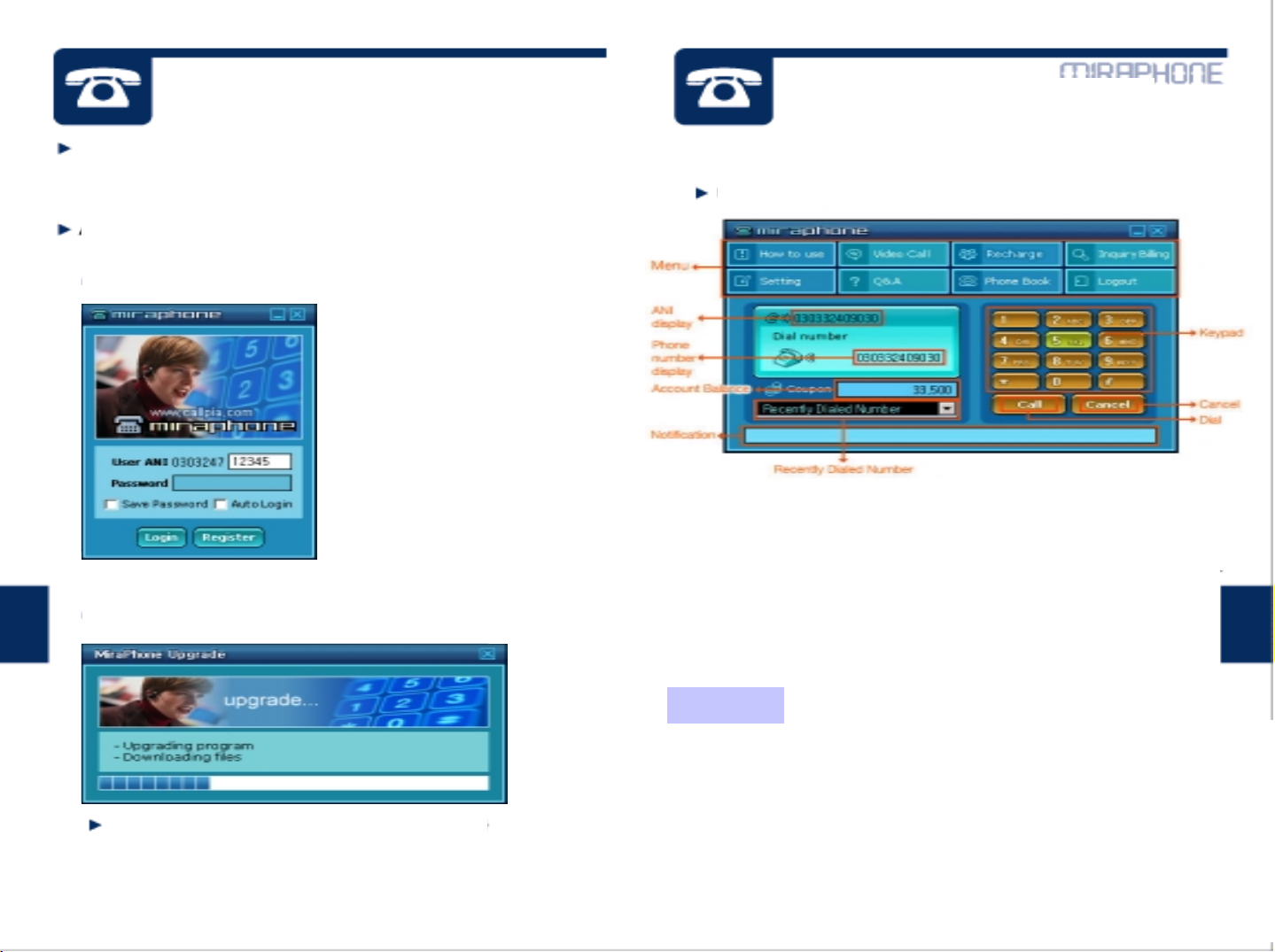
<Login Screen>
Once MiraPhone is executed,
a login screen is displayed.
Enter the ANI number and
password, and then click
on the “Login” button.
<Update Screen>
<Main Dialer Screen>
When download is complete, dialer (MiraPhone.exe) runs.
ANI display : ANI number of a login user is displayed.
Phone number display : Phone number that is entered th rough
a keypad or a phone is displayed.
Account Balance : displays the left over amount.
Recently Dialed Number : C ontains the most 10 recent numbers
dialed in the list. By double- clicking the phone numbers,
you can place calls.
Keypad : allows clicking on wanted nu mber or symbols.
Call/Hangup : Click on this button to make a call or Hang up.
Cancel : Erase the phone numbers you entered.
When login is successful, files are upgraded
from MiraPhone server.
Menu
<Menu>
How to use : Linked to a user’s guide web page f or MiraP hone.
Video Call : A video screen appears with which video communications
is provided. (see next page)
Recharge : Linked to a recharge web page for MiraPhone.
Inquiry Billing : Linked to a web page w here usage details can be checked.
Setting : Setting window is displayed. (Refer to FAQ page for the details.)
Q&A : linked to service website’s Q&A board.
Phone Book : A phonebook screen is displayed in the bottom part of
the main screen.
Logout : The current ANI number is logged out and a new window
in which you can login appears.
Page 6
Using MiraPhone [3] Using MiraPhone [4]
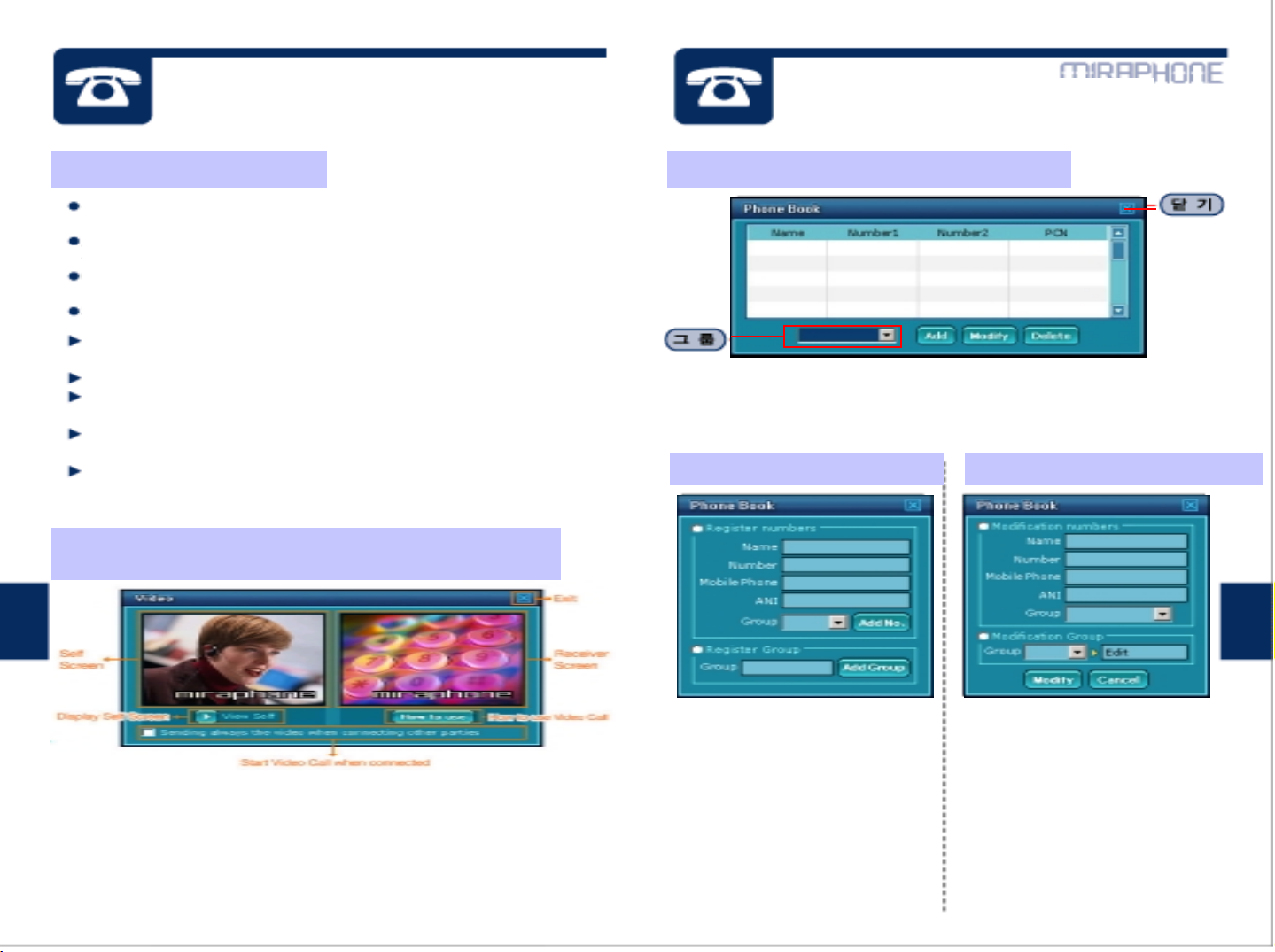
How to make a phone call When “Phone Book” button is clicked on
Pick up the MiraPhone receiver and then press SEND (or Call)
button after pressing the phone number to make a call.
You can also press numbers in your Key board or on the
keypad of the dialer in the screen using mouse.
You can make a call by pressing ON HOOK button without
picking up the receiver.
Press SEND button for redial.
Calling MiraPh one to MiraPhone : Enter the receiver’s ANI
number and click on Call (or press SEND) button.
Korea Domestic Call : Area code + phone number
(ex) 02-555-1234
Korea Domestic Mobile Call : Mobile Carrier Number + Phone
Number same from overseas (ex)011 123 1234
Overseas Call : Country Code + Area Code + Phone number
(ex) 81-123-555-4567
From your Phone book : Double-click on the number you put in
the phone book.
When “video Call” button is clicked on
(Only available for communicatio ns b e twee n MiraPhone terminals)
`Group : a list of added groups are displayed.
`Add : adds a user to Phone book
`Modify : allows modifying a registered user’s information.
`Delete : deletes a registered user from Phone book.
When click on “Add” button When click on “Modify” button
`Sending always the v ideo when connecting ot he r parties :
if this option is checked, the Video Call screen appears
automatically when PC-to-PC connection is ma de.
`View Self : When ‘Play’ button is clicked, your own video image
is displayed, and clicking on the stop button displays the defau lt
screen.
`How to use Video Call : This is linked to a web page that
contains manuals for video call use.
Group Registration
Input name of group you want
to create and click on “Add
Group” button.
Phone number Regist ration
Input name, phone number,
mobile number, ANI number
and select group for them and
then click on “Add No.” button.
Group Modify
Select group you want to
modify and create new name
for the group, and then click on
“Modify” button.
Phone number Modify
Modify name, phone number,
mobile number, ANI number
and select group for them and
then click on “Modify” button.
Page 7
How do I know MiraPhone and its program are installed
normally?
If you hear “beep-” sound from the receiver after login, that means
MiraPhone and its program are installed properly.
If you see same message “Finding device wait”, what is wrong?
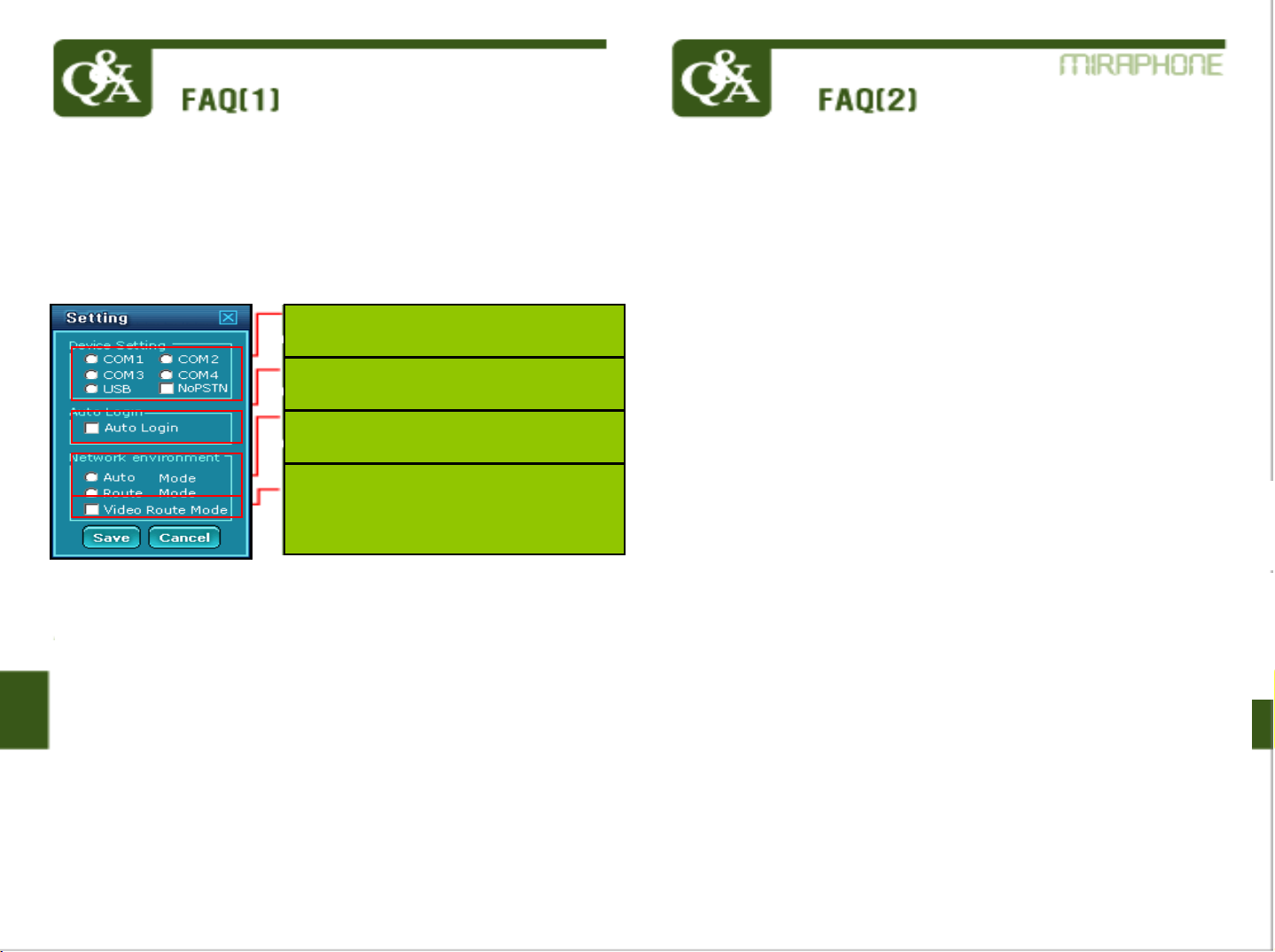
Make sure your MiraPhone is installed correctly. After checking if the
phone has no problem in the installat ion clicking on “Setting” button
and check COM1 to COM4 one by one until you can make a call.
Check at COM port or USB port you
are currently using.
Check here for automatic running of
MiraPhone when you login.
Check here w hen NAT environment
doesn’t help MiraPhone work.
Check here when the other party’s
video screen shows green color or
abnormally in NAT envir onment. This
option can cause low voice quality.
If you cannot see any difference af ter c hecking in Setting, Serial/USB
port might be deleted in device manager of control panel of your PC
or serial port is checked “disable” in main board menu of your PC.
Please contact service center.
I cannot hear “beep-” sound after installing MiraPhone correctly.
The connection to serial port has problem. Make sure the connection.
If you see the same after connecting correctly please contact service
center.
Is it possible to make a call under VPN (or NAT) environment
using IP sharing machine?
Yes, you can use MiraPhone under VPN or Firewall.
Is it possible to use MiraPhone at different PC in different place?
Yes, you can use MiraPhone anywhere in the world as long as the PC
Is on line after installa tion. You are recommended to dele te M ir a Phone
Program after use for fear that other user could login and use MiraPhone
without your permission.
A message saying that “Billing server error” in the coupon box.
What is wrong?
The message doesn’t mean your coupon is used up . That is showed
because of disconnection between y our PC and our Billing server
Temporarily. Please check if there is disconnection in your internet
after closing MiraPhone program and the internet connection has no
problem, try to use again MiraPhone program.
I cannot see MiraPhone program afte r login.
The installation has completed wrong. Please remove MiraPhone
program and install it agai n.
How can I use MiraPhone at anothe r P C?
After deleting MiraPhone program at your PC and you have to install
the program at new PC again to use it.
How to delete MiraPh one program in your Windows:
Start->Setting ->Control panel ->Program Add/Remove->MiraPhone
->Remove.
When I use MiraPhone at different PC, how can I copy the phone
numbers in the Phone book?
Just login and you will see all the phone number s in the phone book
at the different PC. Phone numbers are recorded in our Server.
When I use MiraPhone overseas county, how is the rate?
When you make a call from overseas (not Korea) to overseas, it will be
charged international rate. No matter which country you make a call to
or from, you will be charged according to our rate table. And Ca lls
between two MiraPhone terminals are free of charge.
My coupon is almost used up. Where can I get coupon more?
Please click on the ‘Recharge’ button.
Video transferring is not stabl e . How can I f i x it?
A video PC camera should be insta lled on the computer prior to use.
Make sure the connection of PC camera to your PC. If you want to
see the other party’s face through the P C camera, you need to click
on the “Video Call” button. If you cannot see the other party’s face
or video transferring is not stable, there must be a problem in
internet speed. Please contact your in tern et s erv ic e provider or our
service center.
Page 8
Caution : Any changes or modifications in construction of this
device, which are not expressly approved by the party responsible
for compliance, could void the user’s authority to operate the
equipment.
Note : This equipment has been tested and found to comply with
limits for Class B digital device, pursuant to part 15 of the FCC
Rules. These limits are designed to provide reasonable protection
against harmful interference in a residential installation. This
equipment generates, uses and can radiated radio frequency
energy and, if not installed and used in accordance with the
instructions, may cause harmful interference to radio
communications. However, there is no guarantee that interference
will not occur in a particular installation. If this equipment does
cause harmful interference to radio or television reception, which
can be determined by turning the equipment off and on, the user
is encouraged to try to correct the interference by one or more of
the following measures :
- Reorient or relocate the receiving antenna.
- Increase the separation between the equipment and receiver
- Connect the equipment into an outlet on a circuit different
from that to which the receiver is connected.
- Consult the dealer or an experienced radio/TV technician for
help.
 Loading...