

Page 1

1
User Manual
- P503
Wave Development Group Ltd.-Hong Kong
www.wavedg.com [email protected]
Tel:(86) 755 66822816
Page 2

2
Add:7/F, Ruttonjee House, 11 Duddell Street, Central, Hong Kong
© 2013. All rights are reserved. No part of this
document may be reproduced without permission. All
trademarks and brand names mentioned in this
publication are property of their respective owners.
While all efforts have been made to ensure the
accuracy of all contents in this manual, we assume no
liability for errors or omissions or statements of any kind
in this manual, whether such errors or omissions or
statements resulting from negligence, accidents, or any
other cause. The contents of this manual are subject to
change without notice.
Protect our environment! We strive to produce products
in compliance with global environmental standards.
Please consult your local authorities for proper
disposal.
Note: User’s Manual is Just to guide the user about the
functionality of the phone. This does not seem any
certificate of technology. Some functions may very due
to modifications and up gradations of software or due to
print mistake.
Page 3
3
SAFETY PRECAUTIONS
Before using your phone, please read the following important
information to eliminate or reduce any possibility of causing dama ge
and personal injury
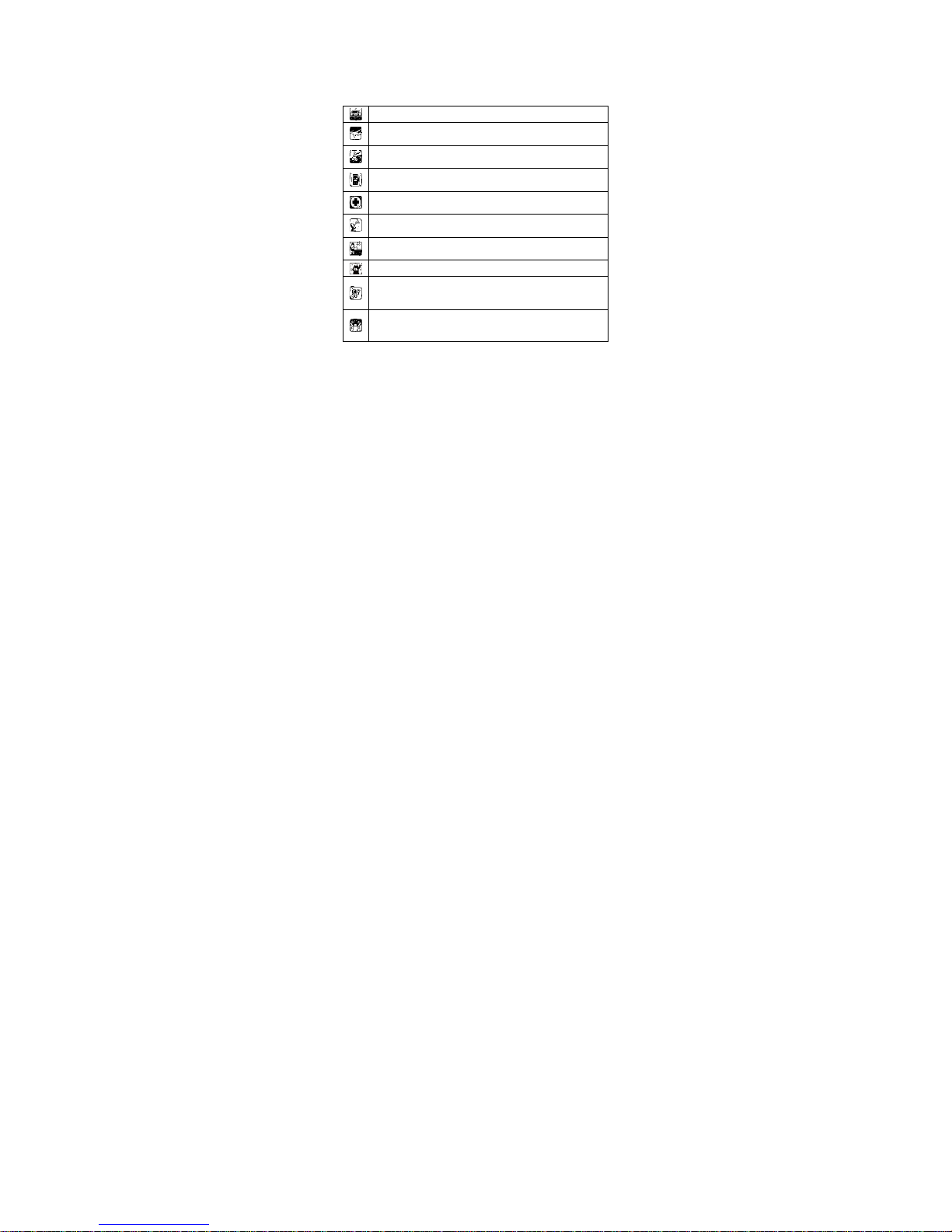
Do not use wireless phones while driving.
Switch off wireless devices in aircraft. The signal may cause
interference. Using them on aircraft is illegal.
Do not use mobile phones where blasting is in progress.
Follow regulations and rules strictly.
Do not use mobile phones at a refueling point. Don’t use
near fuel or chemicals
Follow regulations or rules in hospital and health care
facilities. Switch phone off near medical equipment.
All wireless devices may get interference that could affect
performance.
Only qualified service personnel can install or repair this
device.
Use only approved accessories and batteries.
Use only in normal conditions. Do not expose your phone to
extreme high temperatures above +60°(+140°F). Do not
use anything static to clean your phone.
Ensure the phone is turned on and in service. Enter the
emergency number, then press Pick Up key. Give your
location. Do not end the call until told to do so.
Improper use will invalidate the warranty! These safety instructions
also apply to original accessories.
a) Use a wireless hands-free system (headphone, headset) with a
low power Blue tooth emitter.
b) Make sure the cell phone has a low SAR.
c) Keep your calls short or send a text message (SMS) instead. This
advice applies especially to children, adolescents and pregnant
women.
d) Use cell-phone when the signal quality is good.
e) People having active medical implants should preferably keep the
cell phone at least 15 cm away from the implant.
Page 4

4
Table of Contents
1.1 OVERVIEW .......................................... 7
1.2
SAFETY GUIDE ................................... 7
1.3
SAFETY WARNINGS AND NOTICES ..... 8
1.3.1 General attention ..................... 8
1.3.2 Notices when using your phone8
1.3.3 Notices when using the battery10
1.3.4 Notices when using the Epen . 11
1.3.5 Charging your phone ............. 12
1.3.6 Notices when using your
charger............................................ 13
1.3.7 Cleaning and maintenance .... 14
2. GETTING STARTED ...................... 15
2.1
COMPONENT NAME AND
EXPLANATION
......................................... 15
2.1.1 Technical parameters ............. 15
2.1.2 Icons ...................................... 15
2.2
KEY EXPLANATIONS......................... 16
2.3
USING THE TOUCH SCREEN ............. 17
Page 5

5
2.4 CONNECTING TO THE NETWORK ..... 18
2.4.1 Inserting and removing the SIM
card ................................................. 18
2.4.2 Turning your phone on and off18
2.4.3 Unlocking the SIM card ......... 19
2.4.4 Unlocking your phone ........... 19
2.4.5 Connecting to the network ..... 19
2.4.6 Making a call ......................... 20
2.4.7 Making a domestic call .......... 20
2.4.8 Making an international call . 20
2.4.9 Making a call from the list ..... 21
2.4.10 Making an emergency call ... 21
2.4.11 Call menu ............................. 21
3. FUNCTIONAL MENU ..................... 23
3.1
FILE MANAGEMENT ......................... 23
3.2
SENDING AN EMAIL ......................... 24
3.3
DIALING ............................................ 25
3.5
CALCULATOR ................................... 27
3.6
BROWSER ........................................ 28
Page 6

6
3.7 VOICE RECORDER ........................... 28
3.8
CALENDAR ....................................... 29
3.9
SETTINGS ......................................... 30
3.10
RADIO ............................................ 32
3.11
SEARCH ......................................... 33
3.12
CONTACTS ..................................... 33
3.13
GALLERY ....................................... 34
3.14
CAMERA ......................................... 35
3.15
MESSAGING ................................... 35
3.17
NOTIFICATION MENU ..................... 37
3.18
DOWNLOAD CONTENT .................. 37
3.19
MUSIC ............................................ 37
3.20
CALL RECORDS ............................. 38
3.21
WIDGET .......................................... 39
3.22
SELECTING WALLPAPER SOURCE 39
3.23
PHOTO EDIT ................................... 40
3.24
MEMO ............................................. 41
3.25
DOODLE ......................................... 42
3.26
ALL BACKUP ................................. 43
6. FAQS AND SOLUTIONS ............... 45
Page 7

7
1. The Basics
1.1 Overview
Thank you for choosing WAVE. After reading this guide
you will be able to fully master the use of your phone
and appreciate all its functions and ease of use.
Not only does the smartphone provide you with basic
call functions such as call Register, but also with many
practical functions and services, to improve the time
you spend working and playing.
The color screen mobile phone complies with the
GSM/GPRS technology and has been approved by
certification authorities both domestically and abroad.
The availability of some services and features
described in this manual depends on the network and
your subscription. Therefore, some menu items may
not be available in your phone. The shortcuts to menus
and features may also vary from phone to phone.
Our company reserves the right to revise this manual
content without prior notice.
1.2 Safety guide
If your mobile phone is lost or stolen, please contact
the telecommunications authorities or a sales agent
immediately to have a hold on the phone and the
SIM card. This will prevent economic loss caused by
unauthorized calls made from your mobile phone.
When you contact the telecommunications
authorities or a sales agent, they will need to know
the IMEI number of our mobile phone (remove
battery to expose number located on the label on
back of phone). Please copy this number and keep
in a safe place for future use.
In order to avoid the misuse of your mobile phone
please take the following preventative measures:
- Set the PIN number of your mobile phone’s SIM
card and change this number immediately if it
Page 8

8
becomes known to a third party.
- Please keep the phone out of sight when leaving it
in a vehicle. It is best to carry the phone with you,
or lock it in the trunk.
- Set call barring.
1.3 Safety warnings and notices
Before using your mobile phone, read and understand
the following notices carefully to ensure you will use it
safely and properly.
1.3.1 General attention
Only the battery and battery charger specified by our
company should be used in your phone. Other
products might result in battery leakage, overheating,
fire or explosion.
To avoid your phone malfunctioning, or catching fire,
please do not violently impact, jolt or throw your
phone.
Please do not place the battery, mobile phone, or
charger in a microwave oven or high-pressure
equipment. Otherwise it could lead to unexpected
accidents such as damage to the circuitry or fire
hazard.
Please do not use your phone near flammable or
explosive gases, otherwise it could cause
malfunction of your phone or fire hazard.
Please do not subject your phone to high
temperatures, high humidity or dusty places;
otherwise this may lead to the malfunction of your
phone.
Keep your phone out of the reach of small children.
Your phone is not a toy. Children could hurt
themselves.
To avoid your phone falling and malfunctioning or
being damaged, please do not place it on uneven or
unstable surfaces.
1.3.2 Notices when using your phone
Turn off your mobile phone where the phone is not
Page 9

9
allowed, such as, on the airplane or in hospitals.
Using the mobile phone in those places may impact
the normal operation of electronic devices and
medical instruments. Follow relevant regulations
when using your mobile phone in those places. Your
mobile phone has the auto turn-on feature. Check
your alarm clock settings to confirm that your mobile
phone will not be turned on automatically during
flight.
Please do not use your mobile phone near the weak
signal or high precision electronic devices. RF
interference might cause malfunctioning of such
electronic devices and other problems. Special tips
must be paid near the following equipment: hearing
aids, pace makers and other medical electronic
devices, fire detectors, automatic doors and other
automatic control installations. To find out the effect
of mobile phones on a pacemaker or other pieces of
electronic medical equipment please contact the
manufacturers or local sales agents of the
equipment.
Please do not subject the LCD to impact or use the
screen to strike things, as this will damage the LCD
board and cause leakage of the liquid crystal. There
is a risk of blindness if the liquid crystal substance
gets into the eyes. If this occurs rinse eyes
immediately with clear water (under no
circumstances rub your eyes) and go immediately to
a hospital for treatment.
Do not disassemble or modify your mobile phone, as
it will lead to damage to the phone such as battery
leakage or circuitry failure.
Under very rare circumstances using the mobile
phone in certain model cars may negatively affect
the internal electronic equipment. In order to assure
your safety under such circumstances please do not
use the mobile phone.
Page 10

10
Please do not use needles, pen tips, or other sharp
objects on the keypad as this may damage the
mobile phone or cause it to malfunction.
In the event of antenna malfunction, do not use your
phone, as it could be harmful to human body.
Avoid letting the phone come into close contact with
magnetic objects such as magnetic cards as the
radiation waves of the mobile phone may erase the
information stored on floppy disks, pay cards and
credit cards.
Please keep small metal objects, such as
thumbtacks far away from the receiver. When the
receiver is in use it becomes magnetic and may
attract these small metal objects and thus these may
cause injury or damage the mobile phone.
Avoid having the mobile phone come into contact
with water or other liquids. If liquids enter the phone,
this could cause a short circuit, battery leakage or
other malfunction.
1.3.3 Notices when using the battery
The battery has a limited service life. The remaining
life gets shorter as the times of charging increase. If
the battery becomes feeble even after the charging,
this indicates the service life is over and you have to
use a new battery.
Do not dispose of old batteries with everyday
domestic garbage. Please dispose of old batteries at
the directed places with specific rules for their
disposal.
Please do not throw batteries into a fire, as this will
cause the batter to catch fire and explode.
When installing the battery, do not use force or
pressure, as this will cause the battery to leak,
overheat, crack and catch fire.
Please do not use wires, needles or other metal
objects to short-circuit the battery. Also, do not put
the battery near necklaces or other metal objects, as
Page 11

11
this will cause the battery to leak, overheat, crack
and catch fire.
Please do not solder the contact points of the battery,
as this will cause the battery to leak, overheat, crack
and catch fire.
If the liquid in the batteries goes into the eyes, there
is a risk of blindness. If this occurs do not rub the
eyes, but immediately rinse eyes with clear water
and go to the hospital for treatment.
Please do not disassemble or modify the battery, as
this will cause the battery to leak, overheat, crack
and catch fire.
Please do not use or place the batteries near high
temperature places such as near a fire or heating
vessel, as this will cause the battery to leak,
overheat, crack and catch fire.
If the battery overheats, changes color, or becomes
distorted during use, charging, or storage, please
stop using and replace it with a new battery.
If the liquid from the battery comes in contact with
skin or clothing this could cause burning of the skin.
Immediately use clear water to rinse and seek
medical tips if necessary.
If the battery leaks or gives off a strange odor, please
remove the battery from the vicinity of the open fire
to avoid a fire or explosion.
Please do not let the battery become wet as this will
cause the battery to overheat, smoke and corrode.
Please do not use or place batteries in places of high
temperature such as in direct sunlight, as this will
cause the battery to leak and overheat, lower
performance, and shorten the battery’s life.
Please do not continuously charge for more than 24
hours.
1.3.4 Notices when using the Epen
Please using Epen in temperature of -5° c ~50° c
and humidity of 20%~90%.
Page 12

12
Please keeping Epen in temperature of -10° c ~60° c
and humidity of 20%~95%.
1.3.5 Charging your phone
Connect the connector of charger to the mobile
phone. The battery level indicator flashes on the
screen. Even if the phone has been turned off, the
charging image still appears, indicating that the
battery is being charged. If the phone is overused
when the current is insufficient, it may take longer
time for the charging indicator to appear on the
screen after the charging begins.
When the battery level indicator does not flash and
indicates the battery is full, this indicates the
charging has been completed. If the phone is off
during charging, the charging being completed
image also appears on the screen. The charging
process often takes 3 to 4 hours. During the charging,
the battery, phone and charger gets warm, this is a
normal phenomenon.
Upon the completion of charging, disconnect the
charger from AC power socket, and from the mobile
phone.
Notes:
During charging, the phone must be placed in
well-ventilated environment of + 5 ~ ℃ + 40 .℃
Always use the charger supplied by your phone
manufacturer. Using an unauthorized charger might
cause danger and invalidate the authorization and
warranty clauses for your phone.
The standby time and call duration provided by the
manufacturer are based on ideal operating
environment. In practice, the battery's operating time
varies depending on network conditions, operating
environment and usage methods.
Make sure the battery has been installed before
charging. It is best not to remove the battery while
charging.
Page 13

13
Upon completion of charging, disconnect the charger
from your phone and the power supply.
If you have not disconnected the charger from your
phone and the power supply, the charger will
continue to charge the battery after about 5 to 8
hours when the batter level decreases substantially.
We advise you not to do like this, as it lowers your
phone performance and shortens your phone life.
1.3.6 Notices when using your charger
Please use AC 100~240 volts. The use of any other
voltage will cause battery leakage, fire and cause
damage to the mobile phone and charger.
It is forbidden to short circuit the charger, as this will
cause electrical shock, smoking and damage to the
charger.
Please do not use the charger if the power cord is
damaged, as this will cause fire or electrical shock.
Please immediately clean any dust gathered on the
electrical outlet.
Please do no place vessels with water near the
charger in order to avoid water splashing onto the
charger and causing an electrical shortage, leakage
or other malfunction.
If the charger comes in contact with water or other
liquid the power must immediately be switched off to
avoid an electrical short or shock, fire or malfunction
of the charger.
Please do not disassemble or modify the charger, as
it will lead to bodily harm, electrical shock, fire or
damage to the charger.
Please do not use the charger in the bathroom or
other excessively moist areas, as this will cause
electrical chock, fire or damage to the charger.
Please do not touch the charger with wet hands, as
this will cause electrical shock.
Do not modify or place heavy objects on the power
cord, as this will cause electrical shock or fire.
Page 14

14
Before cleaning or carrying out maintenance please
unplug the charger from the electrical outlet.
When unplugging charger, do not pull on the cord,
but rather hold on to the body of the charger, as
pulling on the cord will damage the cord and lead to
electrical shock or fire.
1.3.7 Cleaning and maintenance
The mobile phone, battery, and charger are not
water resistant. Please do not use them in the
bathroom or other excessively moist areas and
likewise avoid allowing them to get wet in the rain.
Use a soft, dry cloth to clean the mobile phone,
battery and charger.
Please do not use alcohol, thinner, benzene or other
solvents to wipe the mobile phone.
A dirty outlet will cause poor electrical contact, lose
of power and even inability to recharge. Please clean
regularly.
Page 15
15
2. Getting Started
2.1 Component name and explanation
2.1.1 Technical parameters
Handset
Model WAVE
Dimension (L×W×T) 151*79*10.5mm
Weight 197g
Lithium-ion battery
Model polymer battery (UTL)
Nominal voltage 3.7V
Maximum charge voltage 4.2V
Capacity 2750mAh
Standby duration 380H (2G /3G)
Talk duration 8H (2G), 3.5H (3G)
Travel charger
Model WAVE
Input 90-300V
2.1.2 Icons
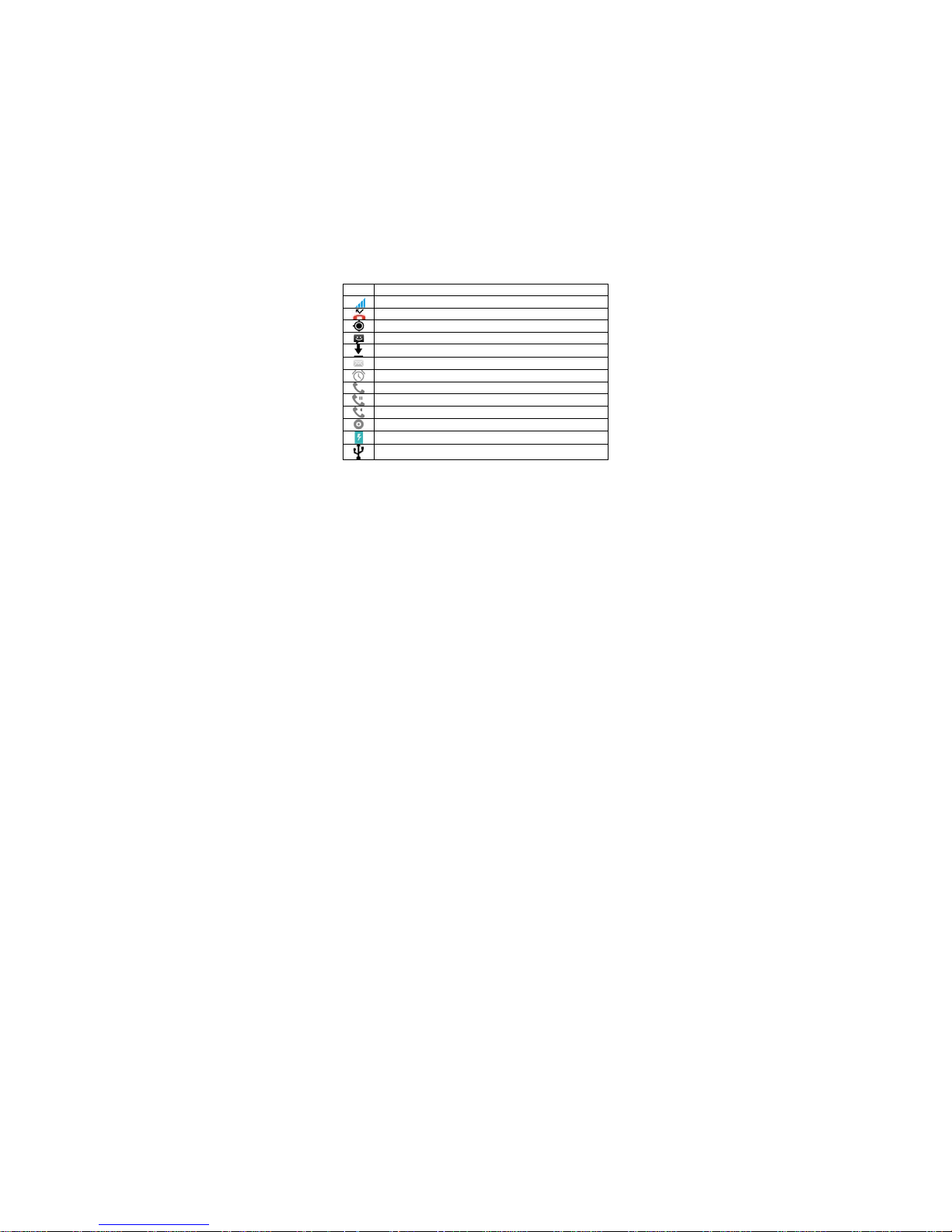
In the standby mode, the following icons may appear in
standby screen:
Icon Description
Indicate the intensity of network signals.
Show missed calls.
Location by satellite.
Receive a new message.
An application is being downloaded.
New Email.
The alarm clock has been set and activated.
A call is in progress.
Call on hold.
Bluetooth call.
The phone is playing a song.
Show battery level.
Enable USB.
Page 16
16
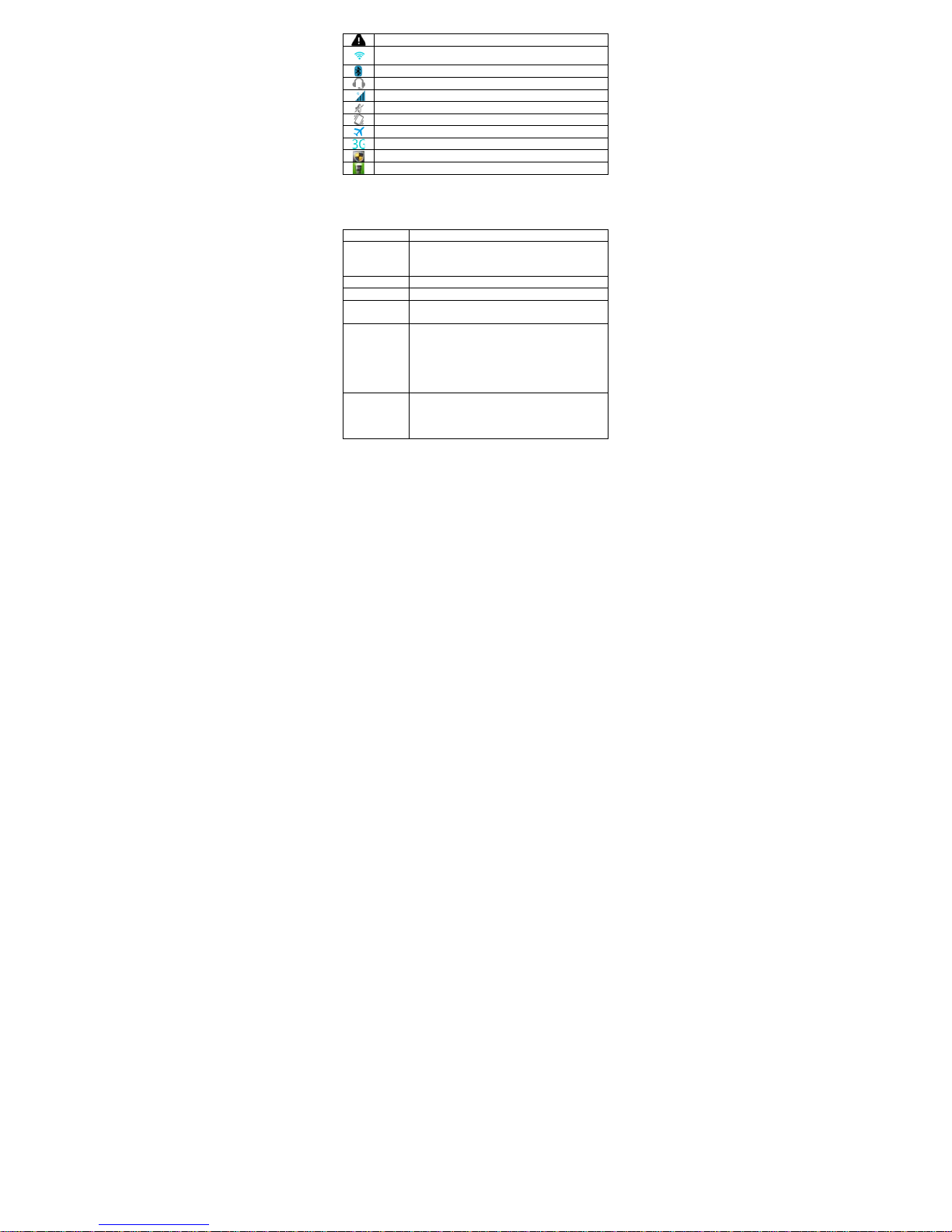
The access is blocked.
Get connected to the wireless network.
Turn on the Bluetooth.
Headset connected.
GPRS data connection is on.
Silent mode activated.
Vibrate mode activated.
Flight mode activated.
Using 3G.
Blacklist activated.
Flashlight activated.
2.2 Key explanations
There are three virtual navigation keys at the bottom of
the screen, Back, Home and Recently used
application keys.
Key Explanations
Recently
used
application
●Open the recent applications.
Back key ●Return to the previous menu.
More key ●Show options of current menu.
Home key
●At any status, touch the key to return
to the standby screen.
Power key
● Touch and hold this key to turn your
phone off and on.
● Generally, press this key to lock the
mobile phone.
● While press the key and down volume
ke
y
to capture the screen.
Side volume
keys
● During the conversation, press the
two keys to adjust the volume.
● While playing an audio file, press the
two ke
y
s to adjust the volume.
Note: In this guide, the phrase “touch the key” refers to
Page 17

17
pressing and thereafter releasing a key. “touch and
hold a key” refers to pressing a key and keeping it
depressed for 2 seconds or longer.
The descriptions and functions of keys depend on the
model of your phone.
2.3 Using the touch screen
Your phone provides many touch keys in the Main
screen. To use these keys correctly, calibrate the touch
screen in advance (see “Calibrator”). Meanwhile
please follow the instructions:
■ Do not touch the screen with wet hands.
■ Do not touch the screen with great forces.
■ Do not touch the screen with metallic or conductive
objects.
A quick and easy way to interact with the Home screen
and the whole interface of your device is by touch.
Basically, the following are the types of actions, called
finger gestures, which you would do when interacting
with your device:
■ Touch: When you want to select items such as icons
and options or press on-screen buttons, simply
touch them with your finger. Apply some pressure
with your finger pad when touching them on the
screen.
■ Slide: To slide means to drag your finger vertically or
horizontally across the screen.
■ Touch and hold: Touch an item and hold it for more
than 2 seconds to open a pop-up option list.
■ Drag: Touch and hold your finger with some pressure
before you start to drag. When the item magnifies
and the device vibrates, drag your finger to any part
of the screen to move the item, or drag to the Trash
button to delete the item. While dragging, do not
release your finger until you have reached the target
position.
■ Double touch: Touch twice quickly with your finger to
zoom in or out while viewing photos or web pages.
Page 18

18
2.4 Connecting to the network
2.4.1 Inserting and removing the SIM card
Turn off the phone; remove the battery and unplug
other external power supplies. Insert the two SIM
cards into the SIM holders as shown in the phone.
When you need to remove the SIM cards, turn off the
phone, remove the battery and then remove the SIM
cards from the holder.
Warning: Do turn off your phone before removing the
SIM card. Never insert or remove the SIM card when
an external power supply is connected, as this may
cause damage to the SIM card.
2.4.2 Turning your phone on and off
To turn on the phone, touch and hold the POWER key
on the right side; to turn off the phone, touch and hold
the POWER key.
If you have turned on your phone without inserting the
SIM card, the phone will prompt you to install the SIM
card. With the SIM card already inserted, your phone
automatically verifies the availability of the SIM Card.
Then, the screen shows the following:
Enter PIN1 —— if you have set the SIM card
password.
Enter phone password —— if you have set your phone
password
Search for network—— the phone searches for the
appropriate network.
Notes:
If when you turn on the mobile phone, an exclamation
mark appears on the screen and does not disappear,
this is possibly caused by disoperation, that is, you
press the Power key and the Volume Up key at the
same time. Such disoperation activates the recovery
mode, hence the occurrence of exclamation mark. If
you just turn off the phone, next time when you turn it
on, it will still come to the recovery mode.
Solution:
Page 19

19
Touch the Home key when the exclamation mark and
robot appear, a menu will pop up. Use the Volume key
to select "reboot system now" to restart the phone.
2.4.3 Unlocking the SIM card
The PIN 1 (personal identification number) secures
your SIM card from being misused by others. If you
have selected this function, you must enter the PIN1
code each time you turn on the phone so that you may
unlock the SIM card and then make or answer calls.
You can deactivate SIM card protection (see “Safety
settings”). In this case, the misuse of your SIM card
cannot be prevented.
Touch the Power key to turn on your phone;
Enter your PIN1 code and touch OK for confirmation.
e.g. if your PIN1 is 1234, please enter: 1 2 3 4
If you enter incorrect numbers for three times in
succession, your SIM card will be locked and your
phone will ask you to enter PUK 1 number. If you do
not know the PUK1 code, do not try. Instead, contact
your network service provider. See “Safety settings”.
Note: your network service provider sets a standard
PIN1 code (4 to 8 digits) for your SIM card. You should
immediately change this number. See “Safety
settings”.
2.4.4 Unlocking your phone
To prevent unauthorized use, you can set phone
protection. If you have selected this function, you must
draw unlocking pattern each time you turn on your
phone, to unlock the phone and then make or answer
calls. You may clear the unlocking pattern (see “Safety
settings”). In this case, the unauthorized use of your
phone cannot be protected.
If you forget your phone password, you must contact
the retailer or local authorized service center to unlock
your phone.
2.4.5 Connecting to the network
Once your SIM card is unlocked, your phone
Page 20

20
searches for available network automatically (the
screen will show the network searching is underway).
If your phone has found the available network, the
name of network service provider appears at the
center of screen.
Note: Making an emergency call. Note: If “only for
emergency calls” appears on the screen, it indicates
that you are beyond the network coverage (service
area), and that you can still make emergency calls
depending on the signal intensity.
2.4.6 Making a call
When the logo of network service provider appears on
the screen, you can make or answer a call. The bars at
the upper right corner of screen indicate the intensity of
network signal.
Conversation quality is significantly affected by
obstacles, thus moving within a small area while
making or answering a call can improve the
conversation quality.
2.4.7 Making a domestic call
In the Dial screen, enter a number, and touch the
key to make a call. To change the number, delete the
digits you have entered. During dialing, the animation
appears on the screen. After the call is picked up, the
screen will show call status information. If the
connection alert tone has been set, your phone will
ring the alert tone (network dependent).
To end a call, touch the key.
Zone code Phone number Dial key
2.4.8 Making an international call
To make an international call, touch and hold the 0 key
on the Dialing screen until the international prefix "+”
for appears. This allows you to dial an international
number without knowing its international fix (e.g. 00 for
China).
Following the entry of international prefix, enter the
country code and complete phone number. For the
Page 21

21
country codes, follow the general conventions, for
example, 49 for Germany, 44 for UK, and 46 for
Sweden.
Like making an international call via a fixed telephone,
omit the “0” at the head of a city code.
For example, to call our hotline from another country,
you can dial:
+86 21 114
+ Country code Complete phone number Dial key
2.4.9 Making a call from the list
All calls dialed and received are stored within a list in
your phone. Those dialed and received recently are
exhibited at the top of the list (see “Call Register”). All
the numbers are sorted by Dialed Calls , Received
Call and Missed Call . Your phone also provides
options for you to view all calls. When the call Register
is full, the old numbers will be deleted automatically. To
view the list, do the following:
To view the dialed calls, touch .
You can dial any number from the list by touching
and hold the log -> Call.
When the call list appears, Touch and hold a log ->
add the number to the phonebook.
2.4.10 Making an emergency call
If you are beyond the network coverage (see
network-signal-intensity bars at the upper right corner
of the screen), you can still make emergency calls. If
your network service provider does not provide
roaming service to the area, the screen will show “only
for emergency calls”, alerting you that you can only
make such calls. If you are within the network
coverage, you can also make emergency calls even
without the SIM card.
2.4.11 Call menu
The Call menu is only visible during an active call, and
features such as Call Waiting, Call Diverting, and
Multiple-party Call are network dependent. Contact
Page 22

22
your network service provider.
The call options include:
Mute
Do not send local voice.
Handsfree
Switch on the loudspeaker to amplify the voice.
Hold
Put the current call on hold or retrieve the call on hold.
End a call
End the current call.
More
*Start recording
Start voice recording.
*Add call
Make another new call.
Page 23
23
3. Functional Menu
( The following features depend※ s on specific
models)
3.1 File Management
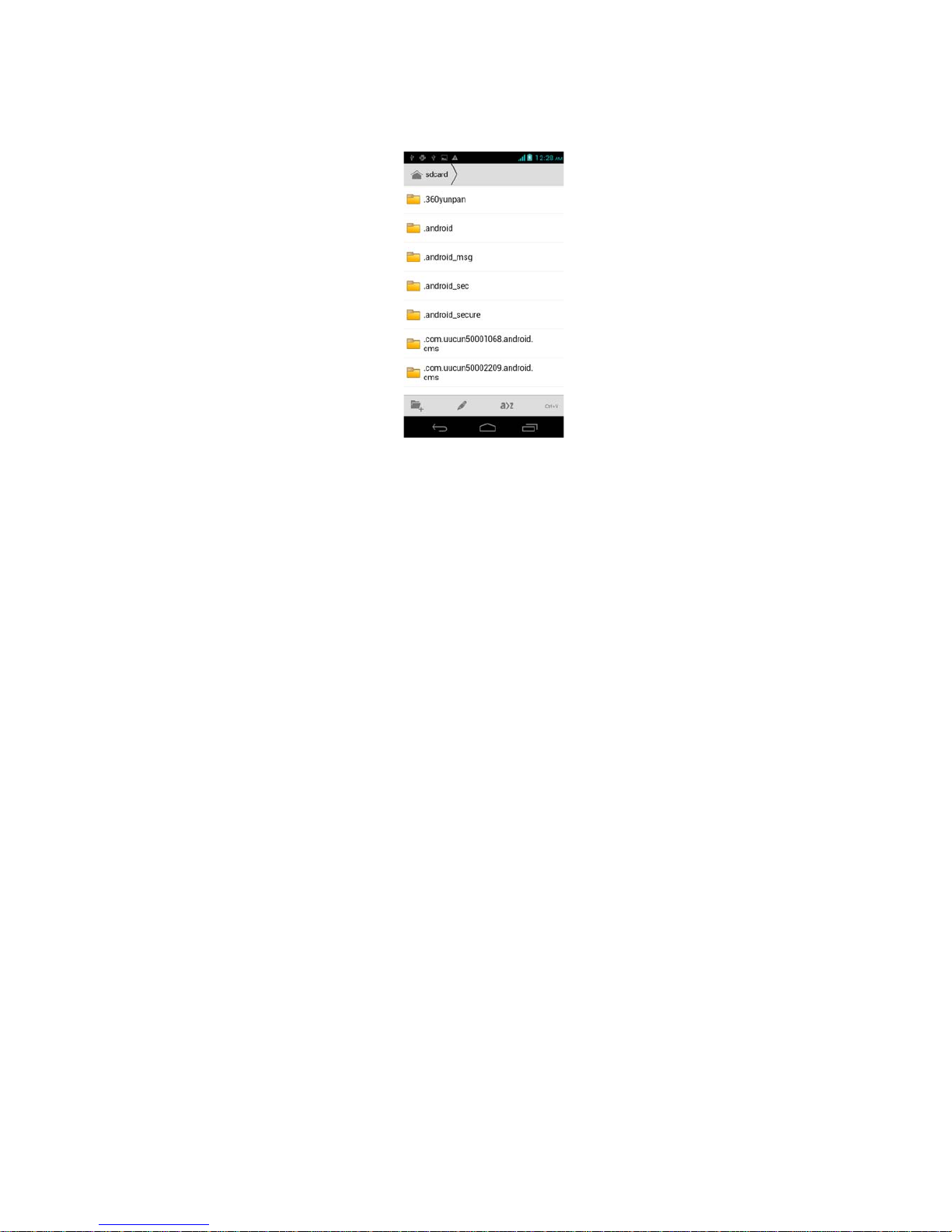
The file management is composed of sdcard, while
sdcard is the memory of the phone. In the file
management, files can be searched rapid, deleted or
edited in each card and new files can be created.
Page 24
24
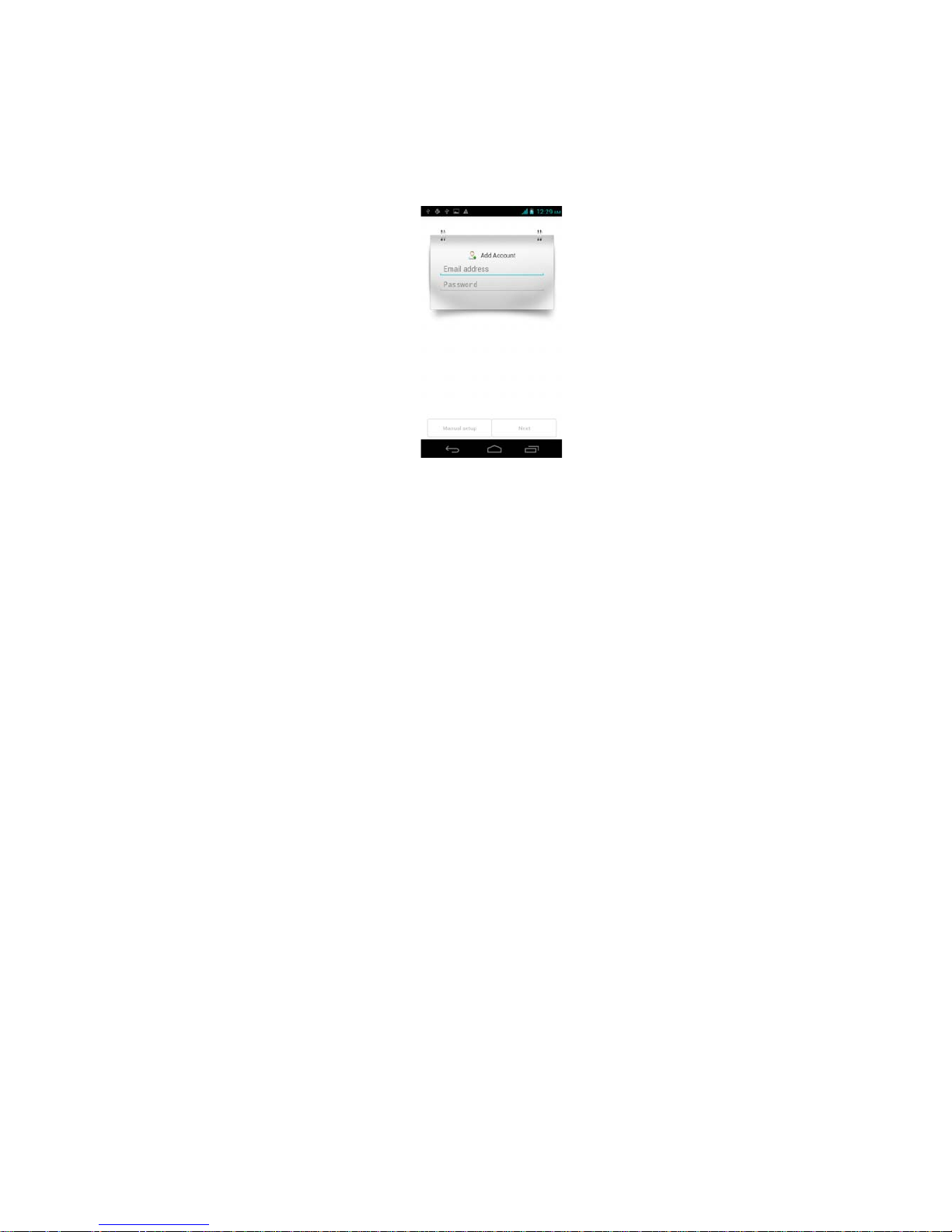
3.2 Sending an Email
You can send an Email by text or handwriting to
anyone who has an Email address.
Entering the procedure and set an account, you can
click the account so that you come into the account
already created, you can also activate, compile and
create an account and then delete the operating. The
email can be sent and received just like in a computer.
This procedure requires the network support.
Suspension preview: When you preview the text
messaging, Email and picture, do not click on details,
you can view detailed information. Put the Epen tip
near the content (less than 1cm), a small circle will
appear on the screen, and suspended detailed preview
appears.
Page 25
25
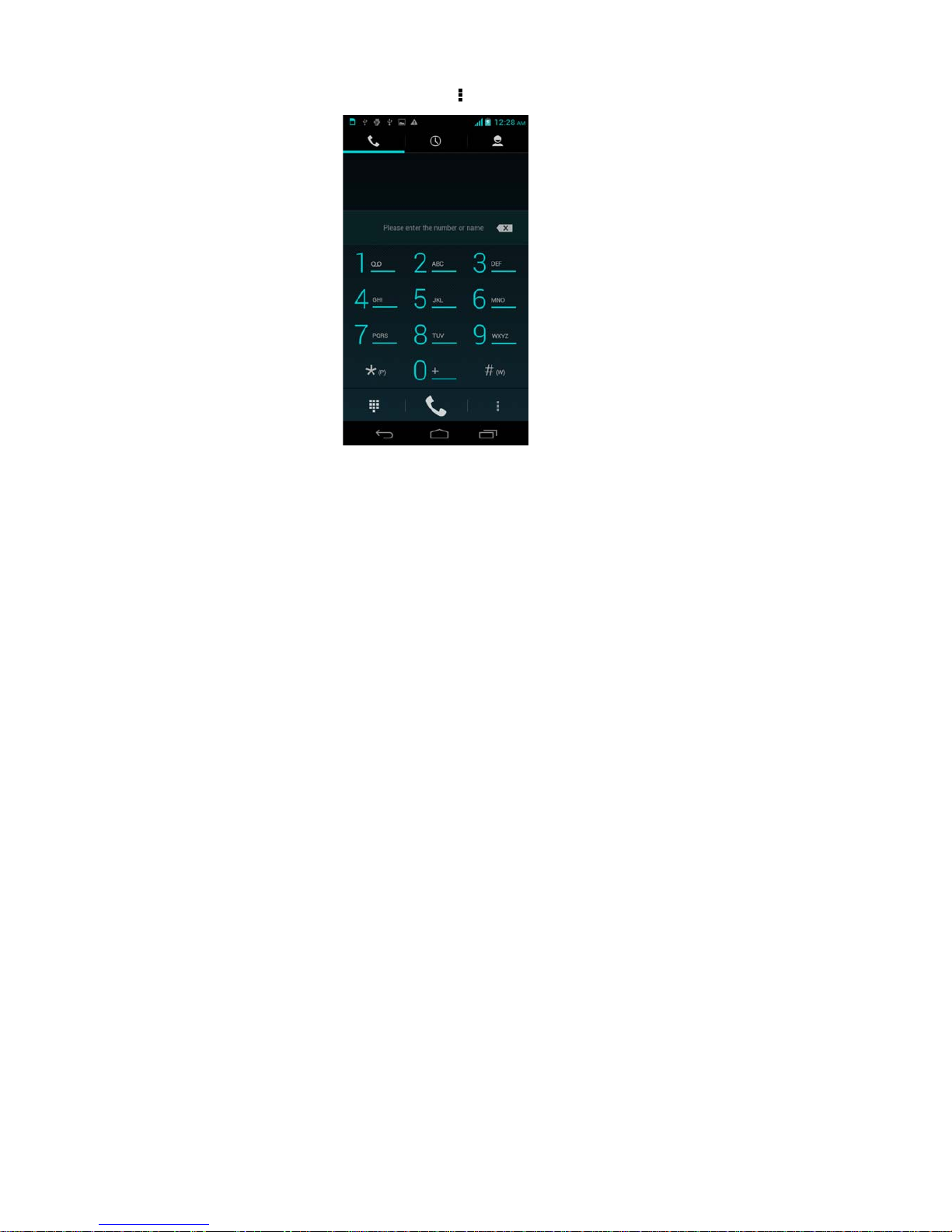
3.3 Dialing
When dialing, you can have a quick access to the call
records, contacts and digit dial keyboard (used for
manual dialing) by the key on the screen.
Page 26
26
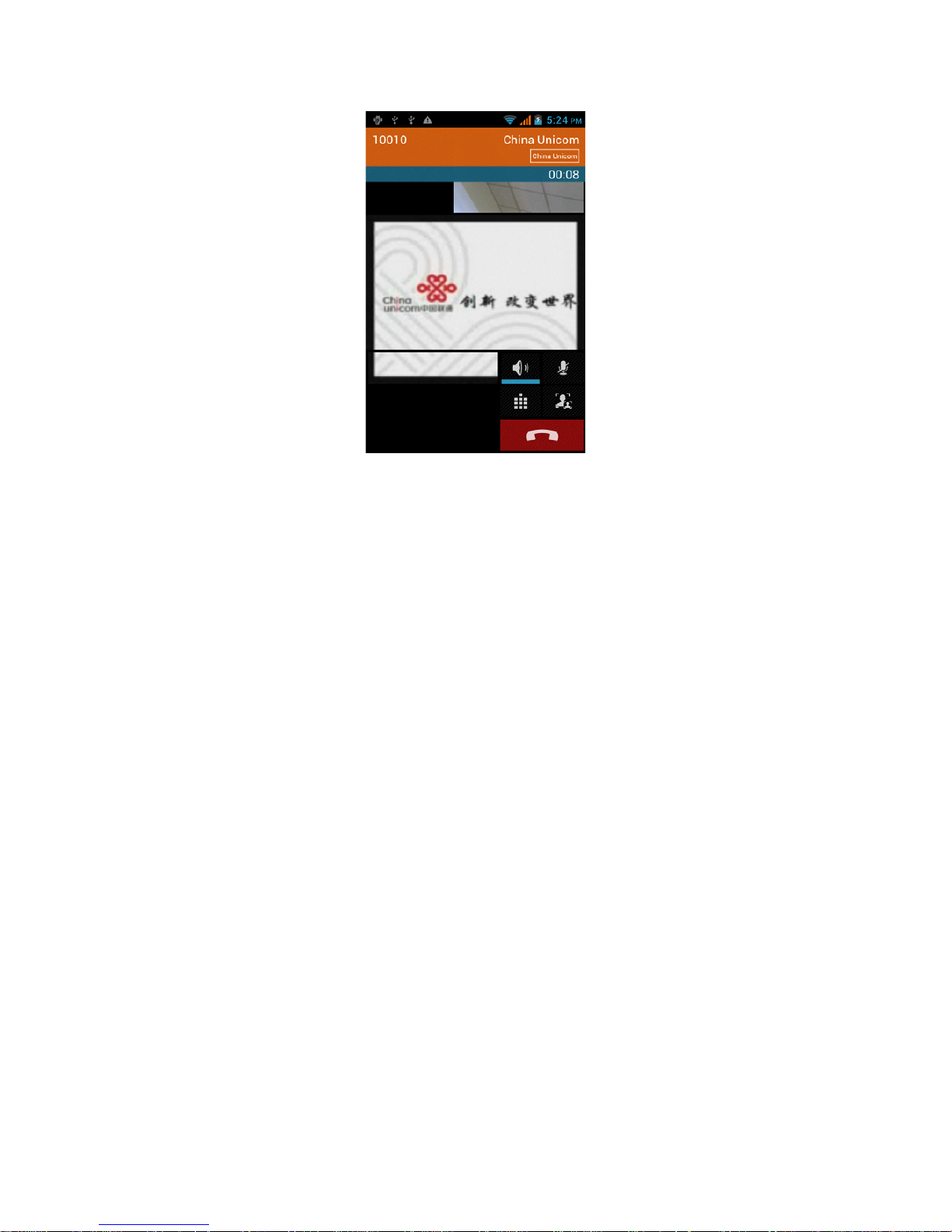
3.4 3G video call
Click a number portrait in the phonebook, and you
can do these things instantly: dial, send a message
and make a video call. During the video call, you can
select applications such as adjusting it to mute mode,
switching to robot portrait, turning off the voice and
intercepting photos to SD card.
Page 27
27
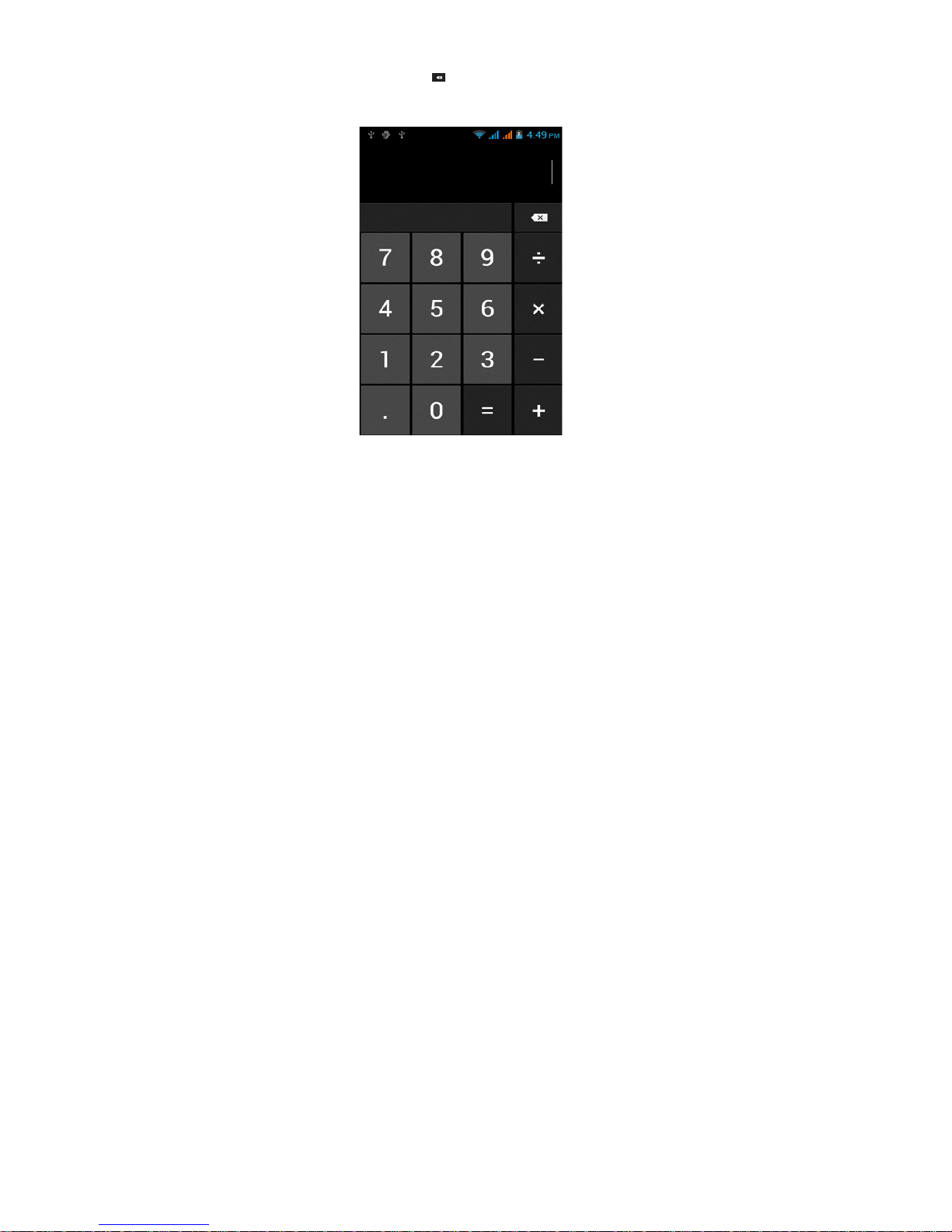
3.5 Calculator
Your phone provides a calculator with 4 basic functions
for the convenience of your calculating.
Touch this button , and you delete the input and
output in bitwise.
Notice: this calculator is of limited accuracy and
sometimes it causes error, please forgive us for the
inconvenience.
Page 28
28
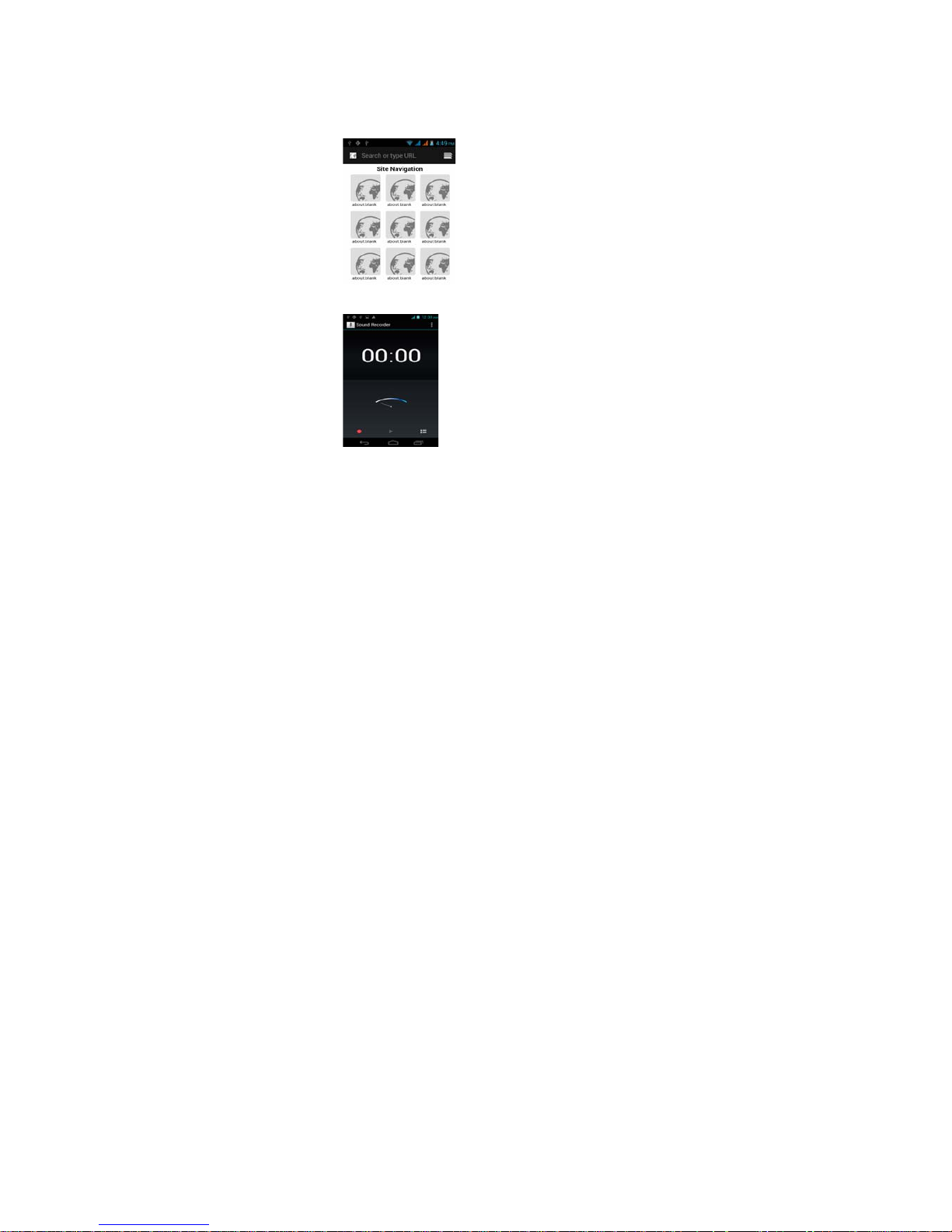
3.6 Browser
The browser allows you to surf on the net and browse
the page just like on the computer. You can create on
the phone a bookmark and synchronize it with
computer. You can have a quick access to your
favorite sites on the main screen.
You could view web pages in longitudinal or transverse
mode. The page rotates according to the rotation of the
phone and automatically adjusts to fit the page.
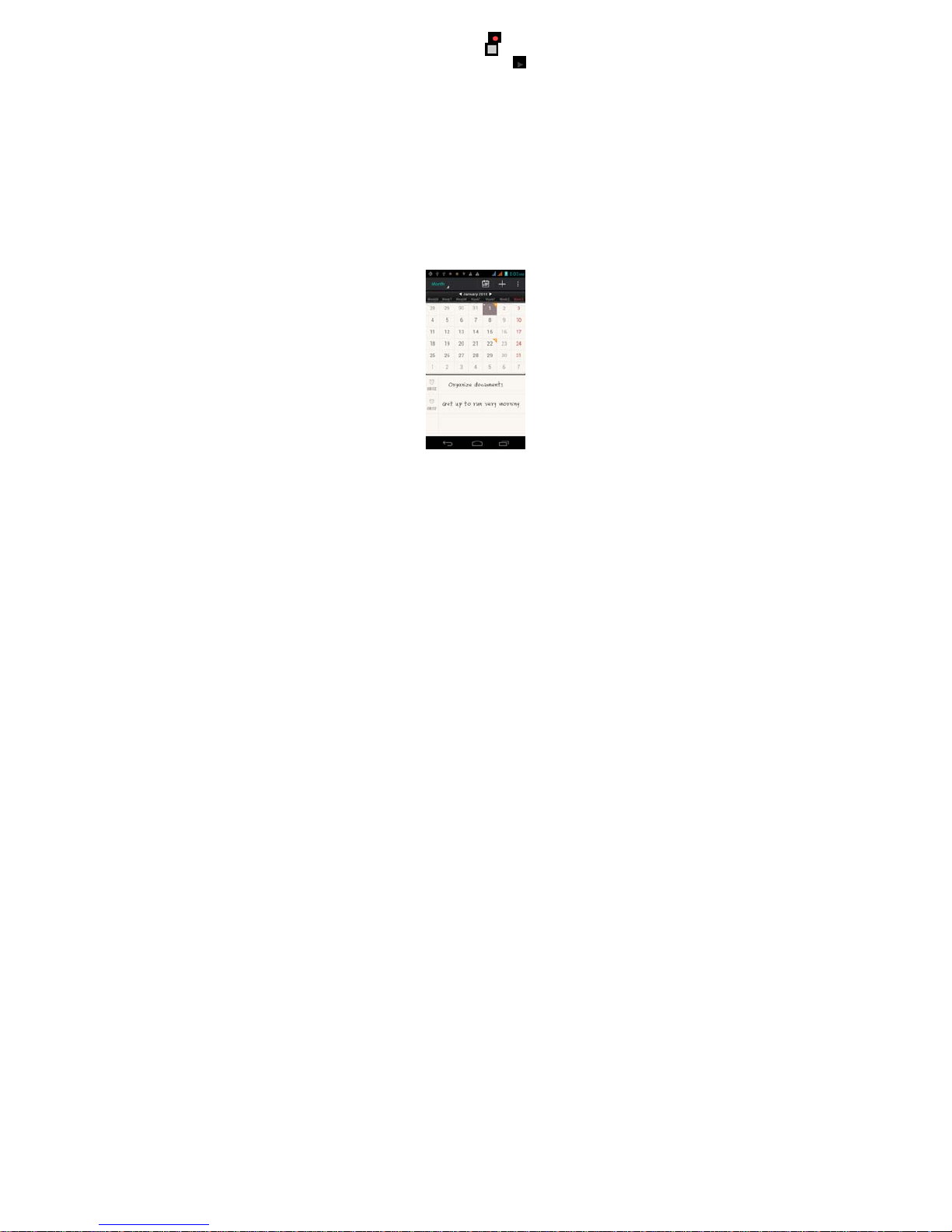
3.7 Voice Recorder
The recorder could be used to record audio files.
Page 29
29
To start voice recording: Tap
To end voice recording: Tap
To play back voice recording: Tap
The audio files are automatically stored on your phone.
Click the Menu key, and you can operate and set the
recorded voice. The file can be in document
management and various players can be selected to
play the voices.
3.8 Calendar
Calendar allows you to view your schedules and
events at any time. You may view schedules one by
one or several ones at the same time. Free writing or
Recording function, record your schedules at any
significant moment.
User can edit the events with free writing, and set
alarms to remind you of important events.
Select to show calendar by day, week or month. If “by
week (or month)”, the calendar will be shown by week
(or month). This application is convenient for you to
view schedule or add events.
Page 30

30
3.9 Settings
Reach the menu and customize your phone settings.
SIM card management: SIM card can be managed and
made settings.
WLAN: WLAN can be turned on and off and made
some settings.
Bluetooth: Bluetooth can be turned on and off and
settings are made.
The information flow usage: It makes you in full
awareness of the usage of the information.
More: Click more and you will set up flight mode and
VPN and more.
Audio profiles: General, silent, meeting and outdoor
optional. In the meanwhile, customized setting-up of
some scene modes are allowed.
Select a mode and enter the customized setting-up,
operational are vibration, volume, ring tones,
notifications and key beep, etc.
Page 31

31
Display: Customized setting-up of the phone
luminance, wallpaper, the screen and screen time-out
and font size is allowed.
Storage: The internal memory of the storage card and
of the phone is shown.
Battery: The usage detail of the battery is shown.
Applications: View, manage and delete the
applications on your phone.
Account and synchronization: Set the synchronization
of your phone account with your phone.
Location service: Set the service during the locating.
Safety: Set unlocking pattern; lock the SIM card; set
the SD card.
Language and keypad: Select a language and input
method.
Backup and reset: Reset DRM and restore factory
settings to clear all personal data on your phone.
Date and time: Set current time and date.
Schedule power on/off: set the time to turn on or off
your phone.
Auxiliary function: Some auxiliary functions can be set.
Developers’ options: Set some options used by
developers.
Shortcut Command: In any interface, holding down the
function key of Epen and draw the appropriate symbol,
you can quickly open the corresponding application. In
addition to writing "0" to screenshots, writing "+" to
launch Memo, you can also self-defining other
features.
About phone: View the model, service status, mobile
software and hardware information, etc.
Page 32
32
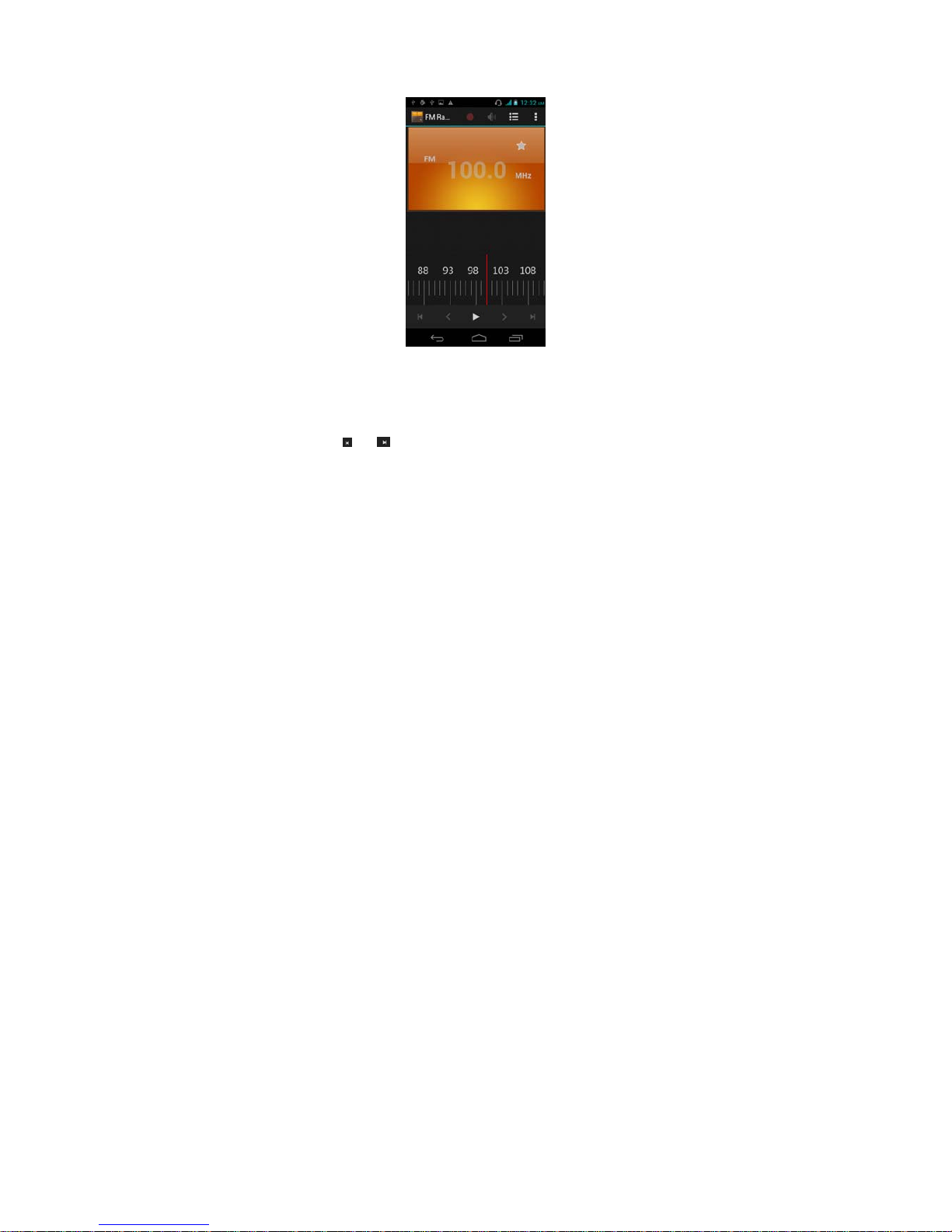
3.10 Radio
Wear your earpieces of radio before searching for
channels.
Glossary:
Channel list: Display the list of FM radio channels.
You can select to play one of them. (The list can
contain 20 channels maximum)
Search: Select this option to automatically search for
channels and generate the list of channels.
Loudspeaker: Touch the button to use the radio
loudspeaker.
and : Tap to move to another channel.
► and : Tap to broadcast and pause.
Page 33
33
3.11 Search
You can locally search for the information you need.
3.12 Contacts
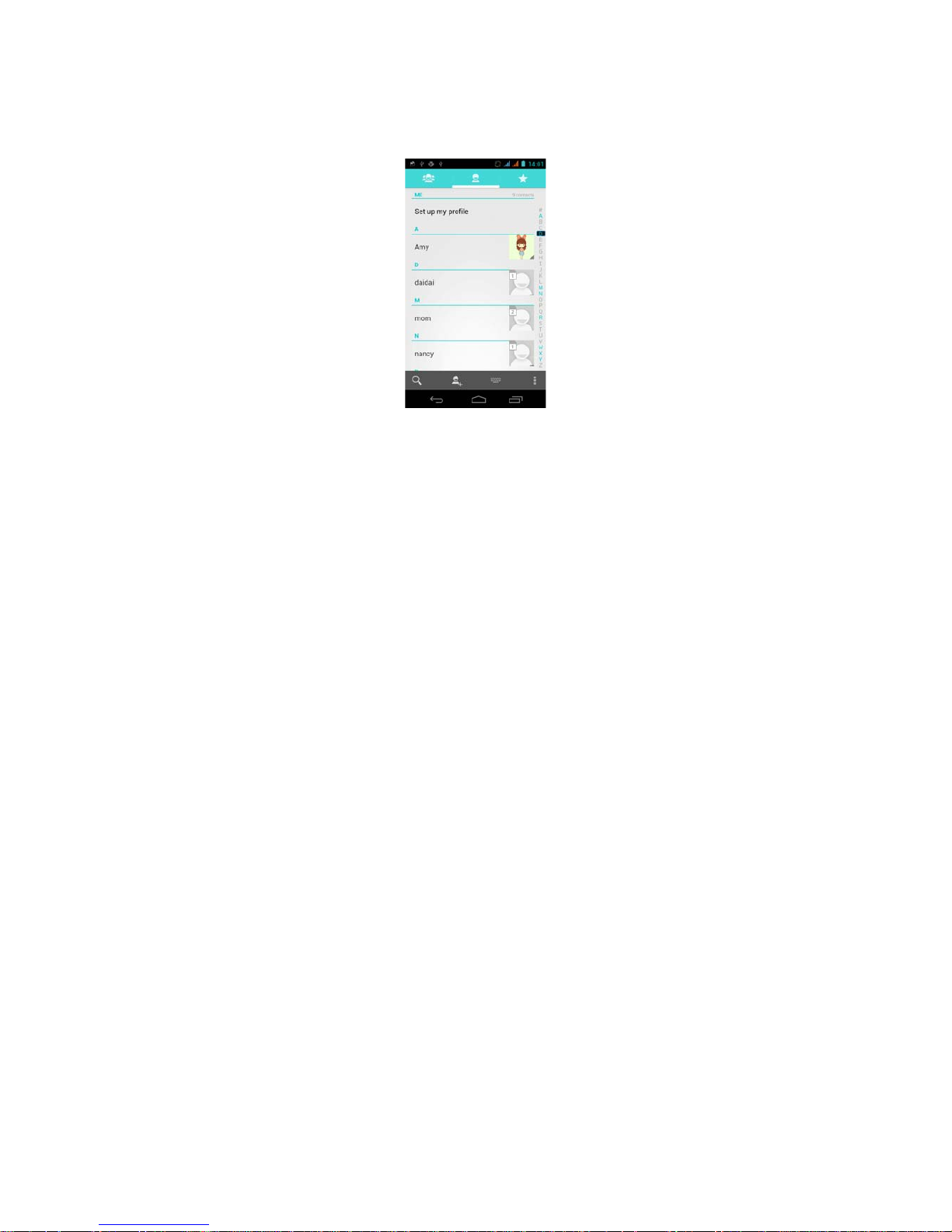
The “contacts” lets you easily call your colleagues or
friends, or send emails or short messages to them.
You may add contacts directly from your phone, or
synchronize “contacts” with any application on your
computer. You may open “contacts” directly from the
Main screen.
Add a contact:
To add a contact, directly enter the name and phone
number, or import the name and phone number from
the SIM card. (The number of contacts you can add is
limited by the memory of your phone.)
Page 34
34
Search for contacts:
To search for a contact, touch the Search key in
search screen, and a search box will pop up. In the
search box, enter the key words, such as first name,
second name and company name. While you are
entering the key word, the matching contacts
immediately appear.
Edit a contact:
To edit details of a contact, touch and hold a contact,
select “Modify”.
Delete a contact:
To delete the current contact, touch and hold a contact,
select “Remove”.
From the menu, you can also synchronize with or
share an account or import or export a contact.
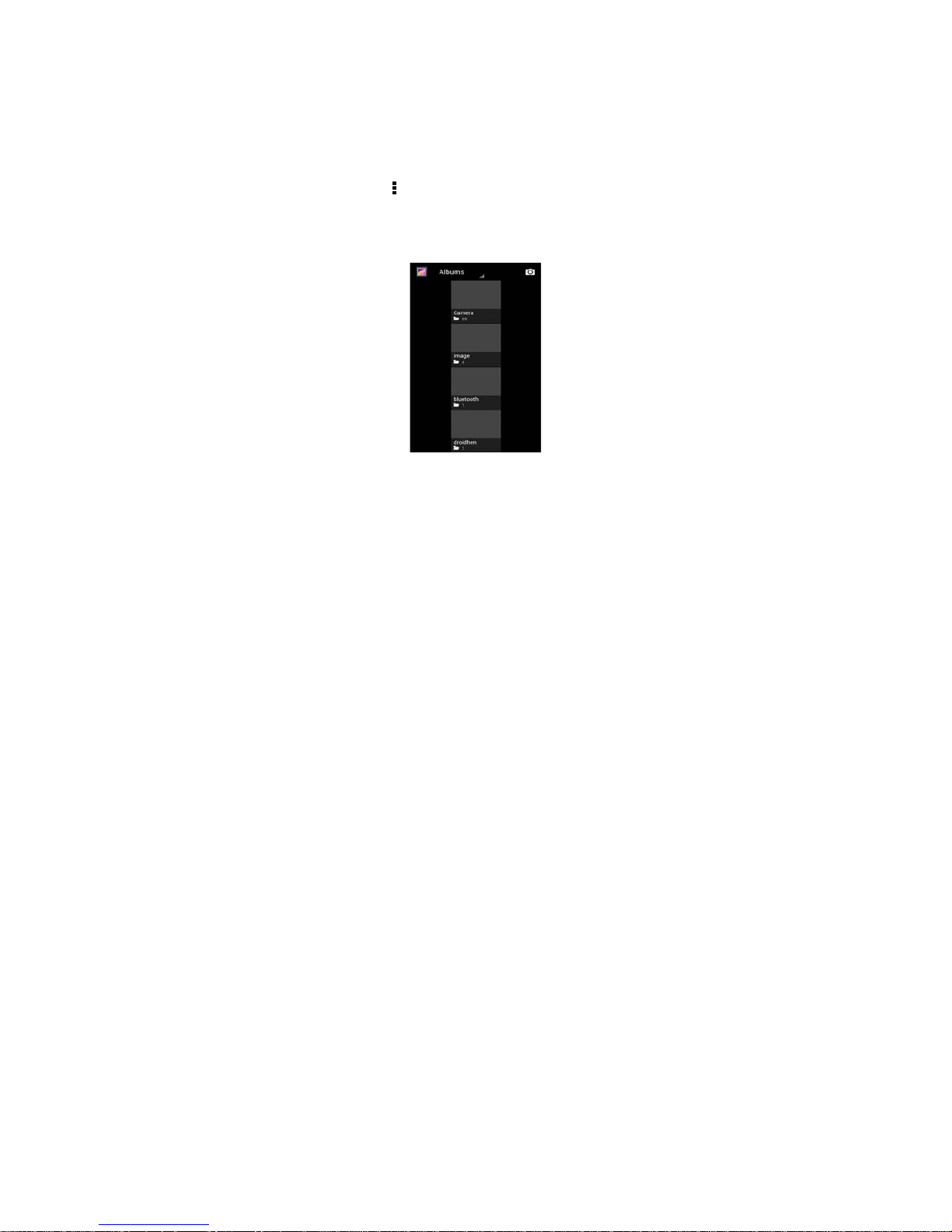
3.13 Gallery
Gallery is a picture manager that typically exhibits
miniatures, supports the features of “save picture”, “set
pictures as desktop” and “share picture”.
Page 35

35
3.14 Camera
Your phone provides the camera and video recorder
features. Wherever you go, you can take
high-resolution photos and videos. It also supports
advanced camera features such as distorted camera,
video recording, image stabilization, face
embellishment, panorama shooting, high dynamic
range and zero delay shutter, which can also be
customized.
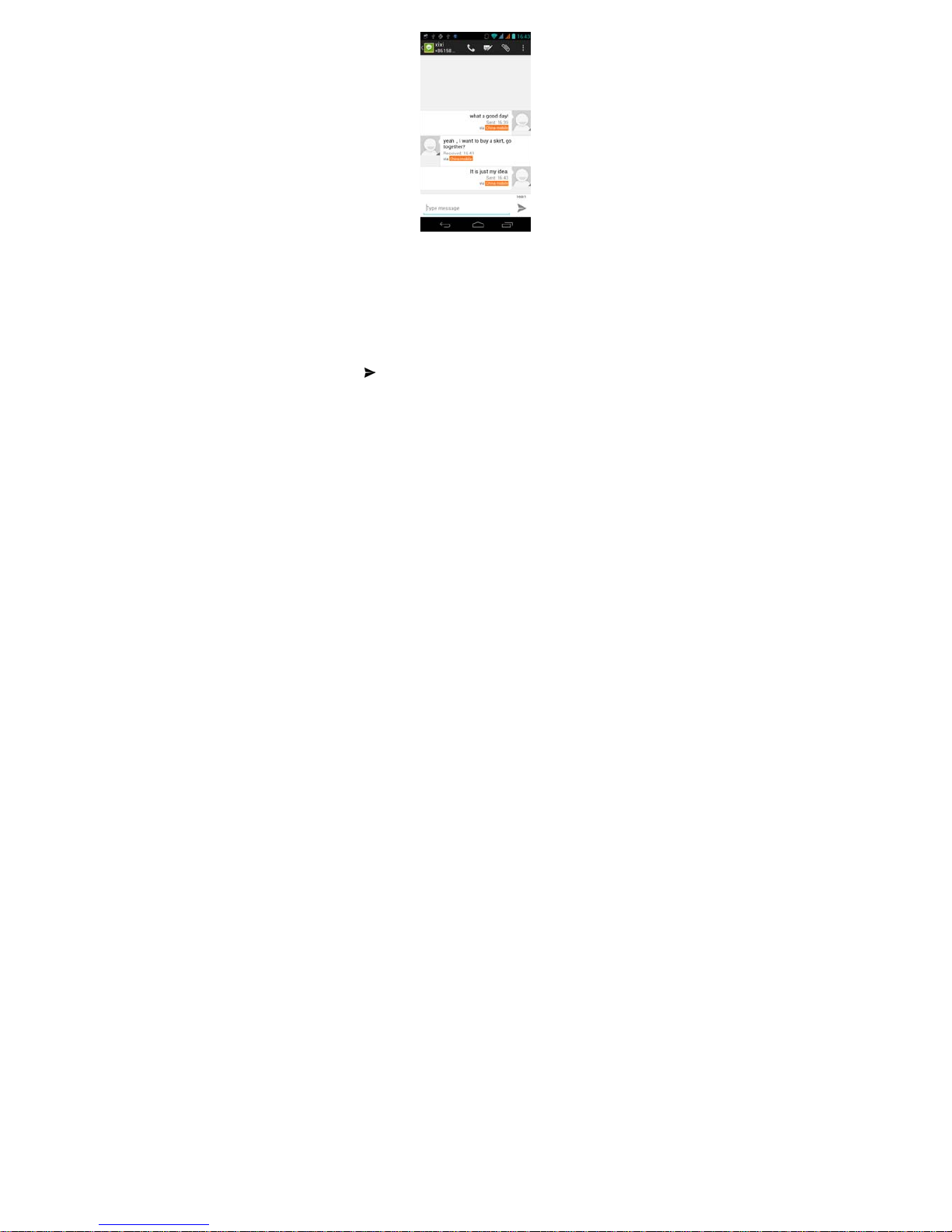
3.15 Messaging
Messaging lets you send text and multimedia
messages to any contact that has an SMS device. The
multimedia messages include photos, video clips (for
iPhone 3GS or other new style phones), contacts
information, and voice memos. What’s more, you can
send messages to several contacts at the same time.
Page 36
36
Note: Perhaps Messaging is not available in all
countries and regions. Probably you need pay for
using Messaging. For more information, consult your
network operator.
As long as you are within the network, you can use
“Messaging”. As long as you can make a call, you can
send messages. You probably have to pay for sending
or receiving messages, depending on your network
operator.
Send a message: Tap it, enter the number and name of
the contact or select the contact from Contacts. Tap the
text box above keypad, enter the information and then
tap . You can also handwriting the messages.
After selecting the number, you can select such
options as Call, Add subject, Attach, Insert facial
expression, and more.
Tap Settings to set ringtone, Delivery reports, and
maximum quantity of messages.
Page 37

37
3.17 Notification Menu
Slide and pull down menu on the main interface, you
can see the message notice and choose whether to
turn on or off WIFI, Bluetooth, GPS, Data connection,
off-line mode. In the data connection, the current SIM
is available to make data connection of GPRS. Slide it
around you can see the options of profile for your
convenience.
3.18 Download Content
You can download through the browser things and
pictures you want and list them in the Download
Content menu.
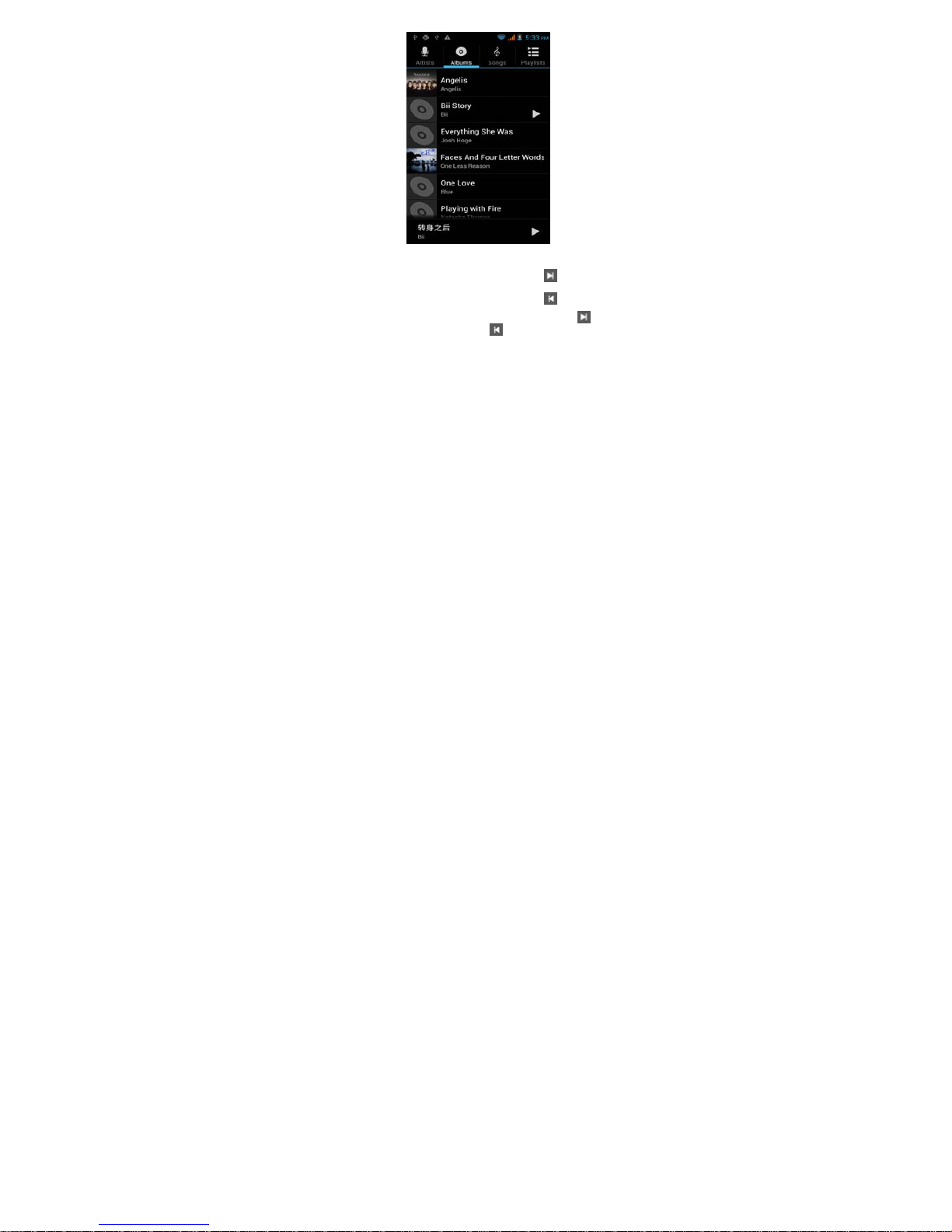
3.19 Music
Music is used for enjoying the stored audio files. Select
Music, you can see the menus of “Playlists”, “Songs”,
“Albums” and “Artists”.
Page 38
38
To pause playing a son
g
Tap
To r e s u m e p l aying a son
g
Tap ►
To skip to the next song or
reading material
Tap
Return to the previous song
or reading material
Tap
To move fast backward or
forward
Touch and hold
or
. The longer you
hold, the more songs
y
ou skipped.
To skip to any point in a songDrag the progress bar.
3.20 Call Records
Come into the call records, you can view missed calls,
received calls and outgoing calls. The calling time is
viewed in each record and features such as calling,
sending messages and adding to new contacts can be
Page 39
39
set. Deleting call records and setting up speed dial can
be done in the menu.
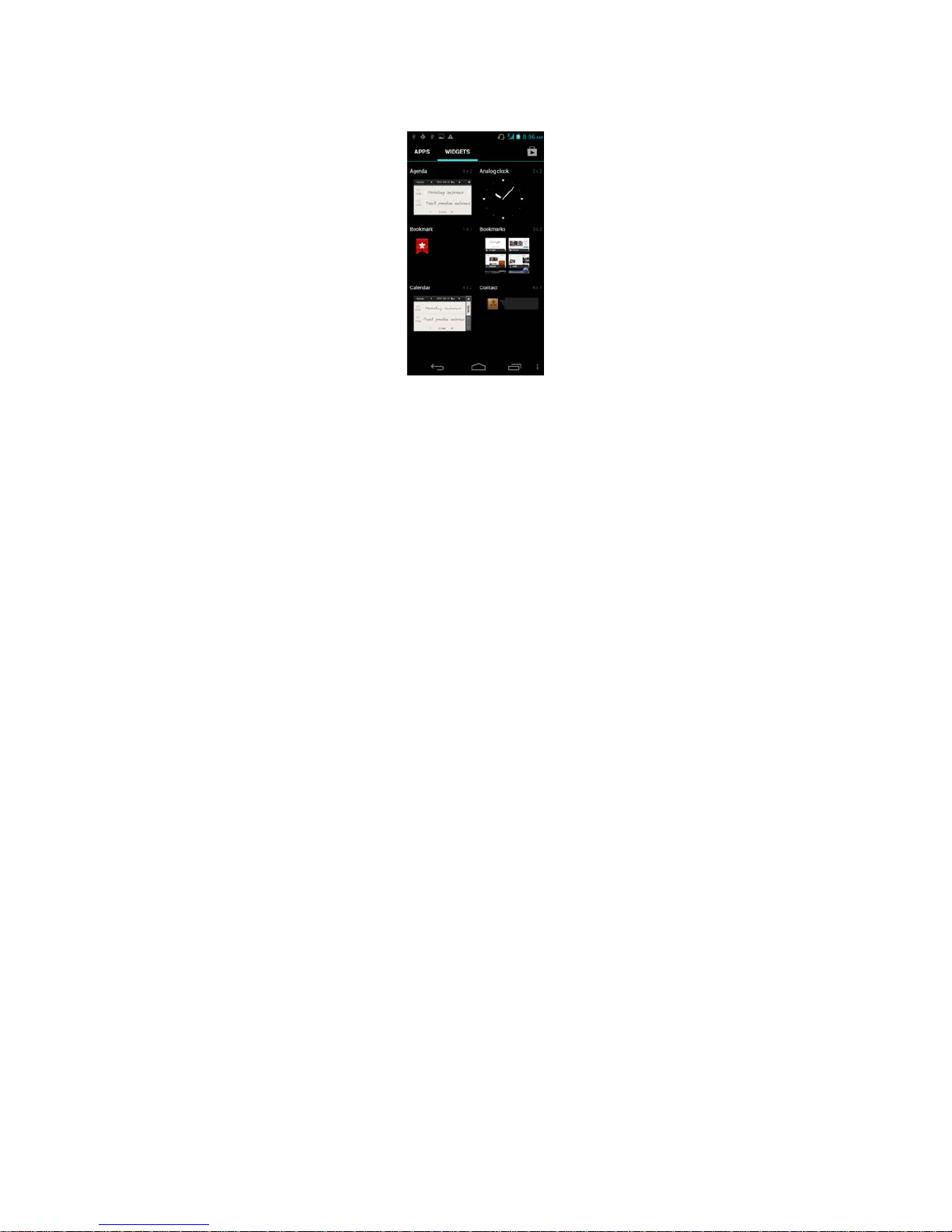
3.21 Widget
The widget is on the right of applications in Main Menu,
holding down this widget, you can drag it anywhere
you want in the main screen. It is convenient for you to
enter that procedure.
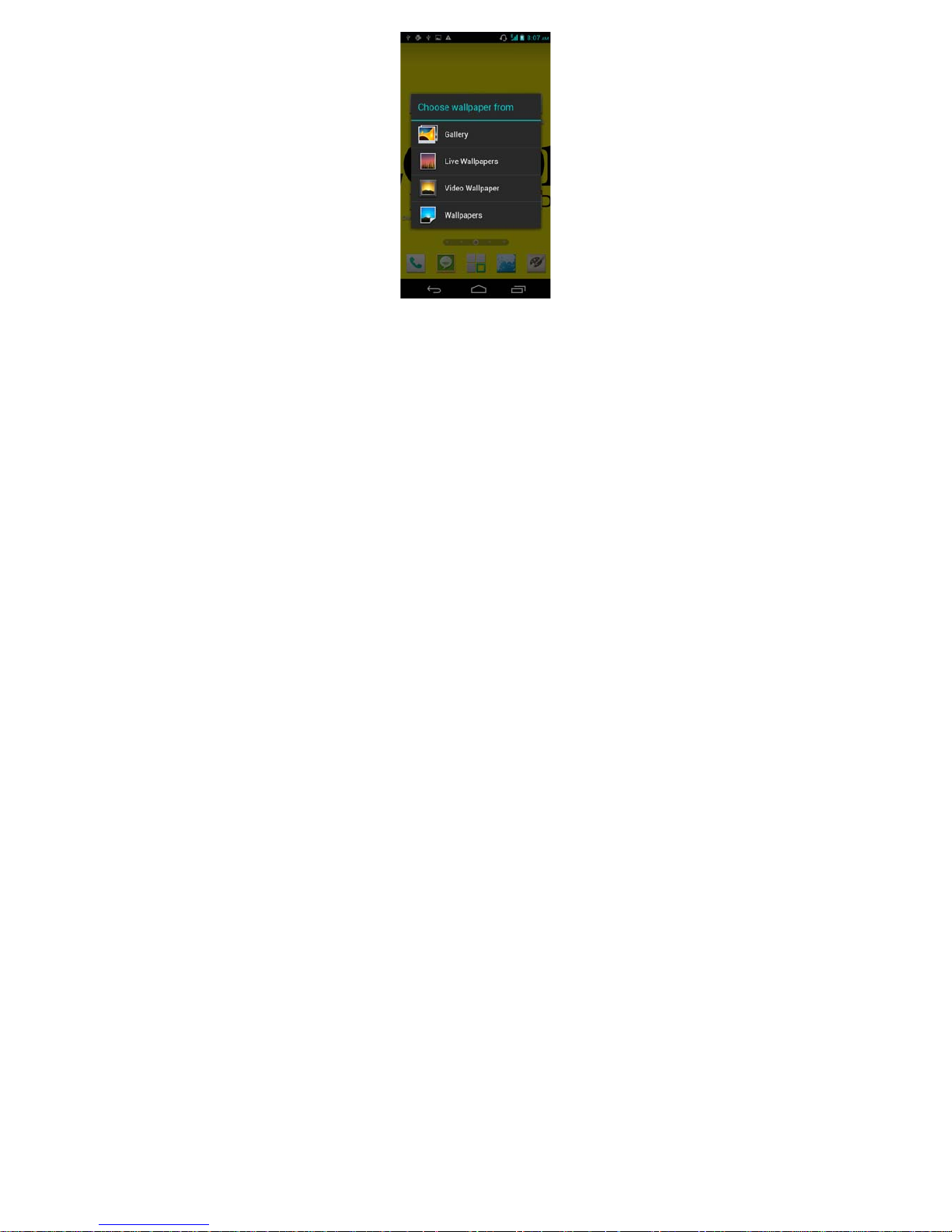
3.22 Selecting Wallpaper Source
Touch and hold the main screen, the options of
selecting wallpaper source will appear, and then you
can set up wallpapers you like.
Page 40
40
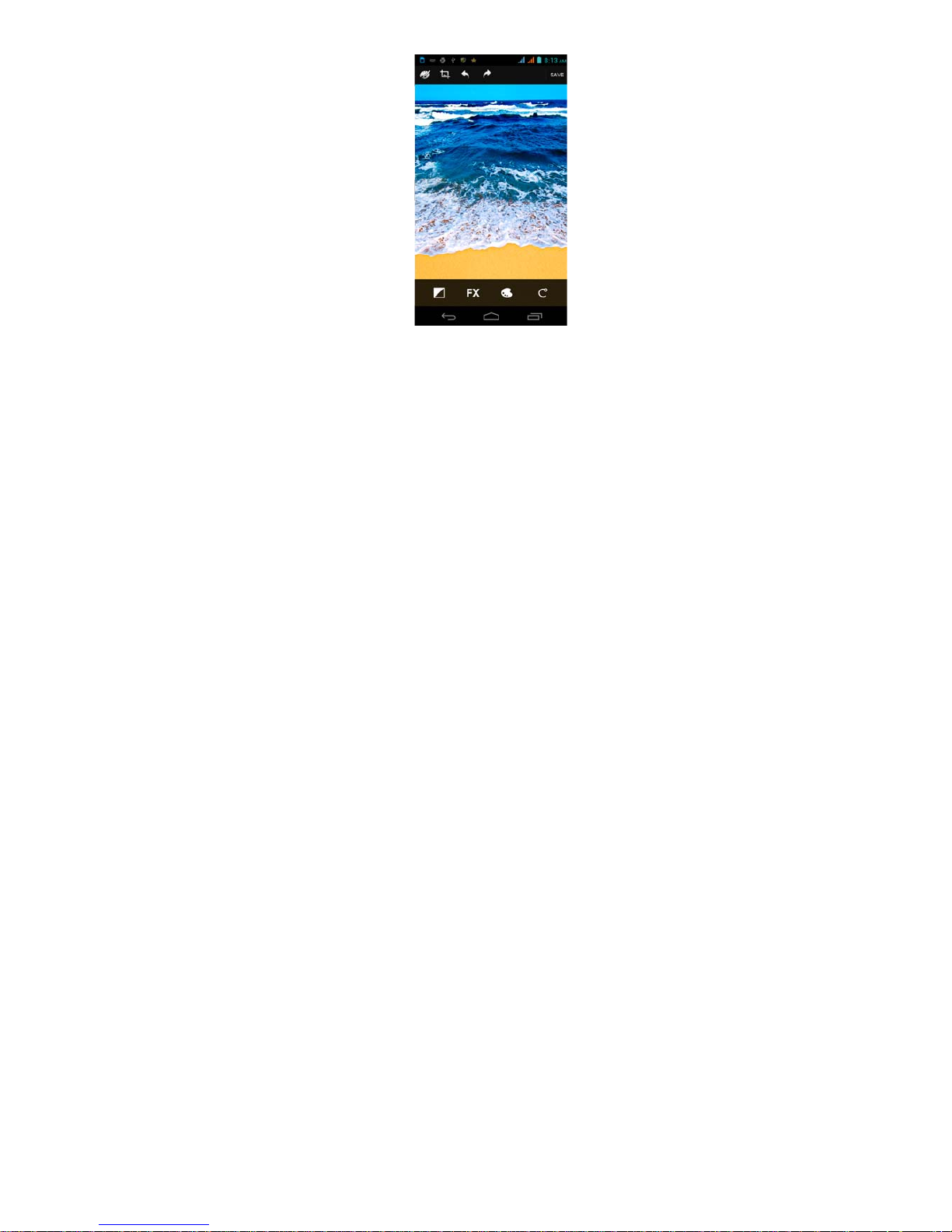
3.23 Photo edit
With the picture edit feature, you can directly edit the
screen shots, taking photos and pictures. You can edit
creative picture with featured doodle, crop with the
lariat or rectangle tool. Sharing pictures to Email,
Page 41
41
Messaging, and Bluetooth. Pictures can also be set to
contact picture or wallpaper.
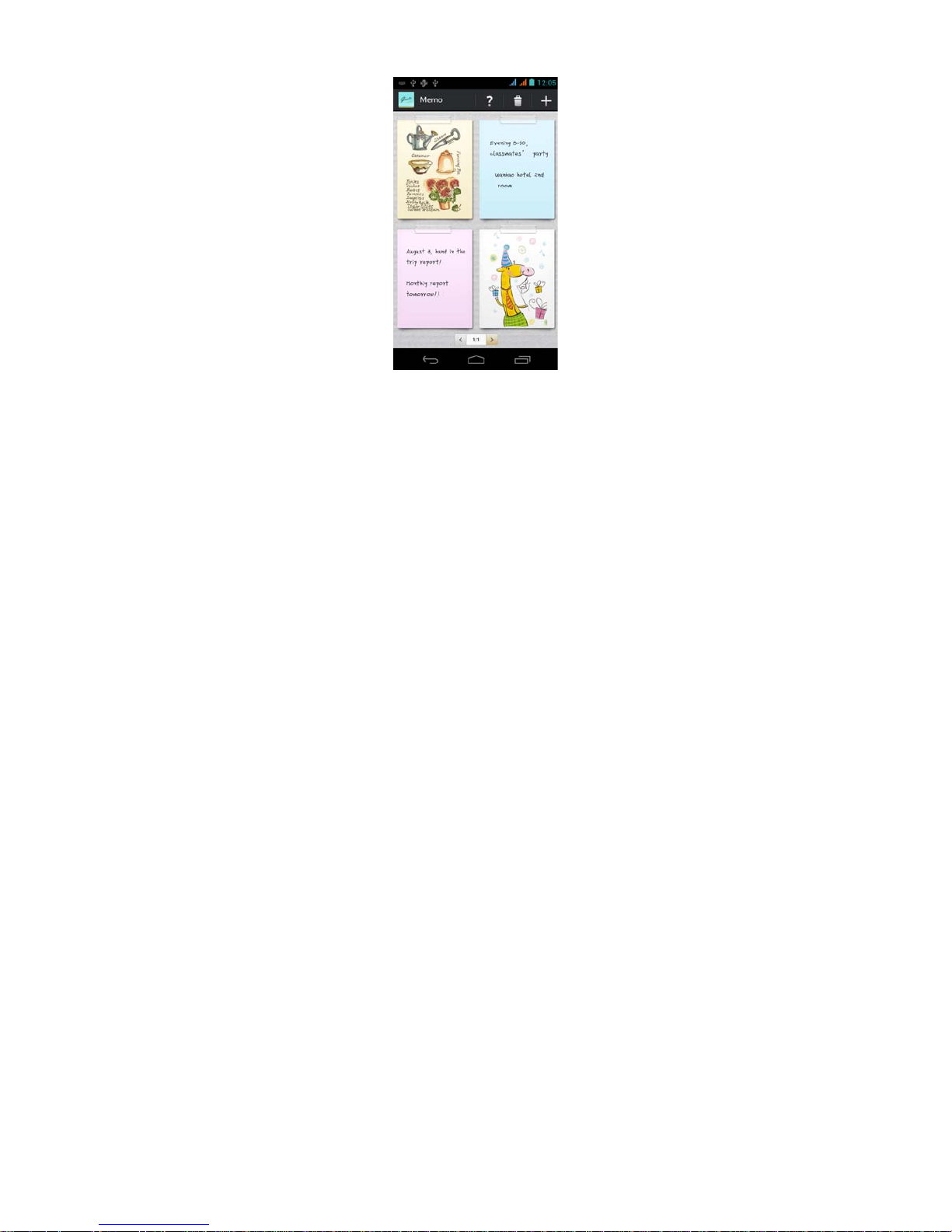
3.24 Memo
With the phone memo feature, you can record
important information or a burst of inspiration at any
time or any moment with Epen or handwriting. Memo
can be added to the desktop or removed by touching
and holding it. You can also select the background
Page 42
42
color of the memo. The shortcut memo can be called in
any interface by holding down the function key of the
G-pen and writing "+" on the screen. One clicking
sharing to Email, Bluetooth, Agenda and Messaging.
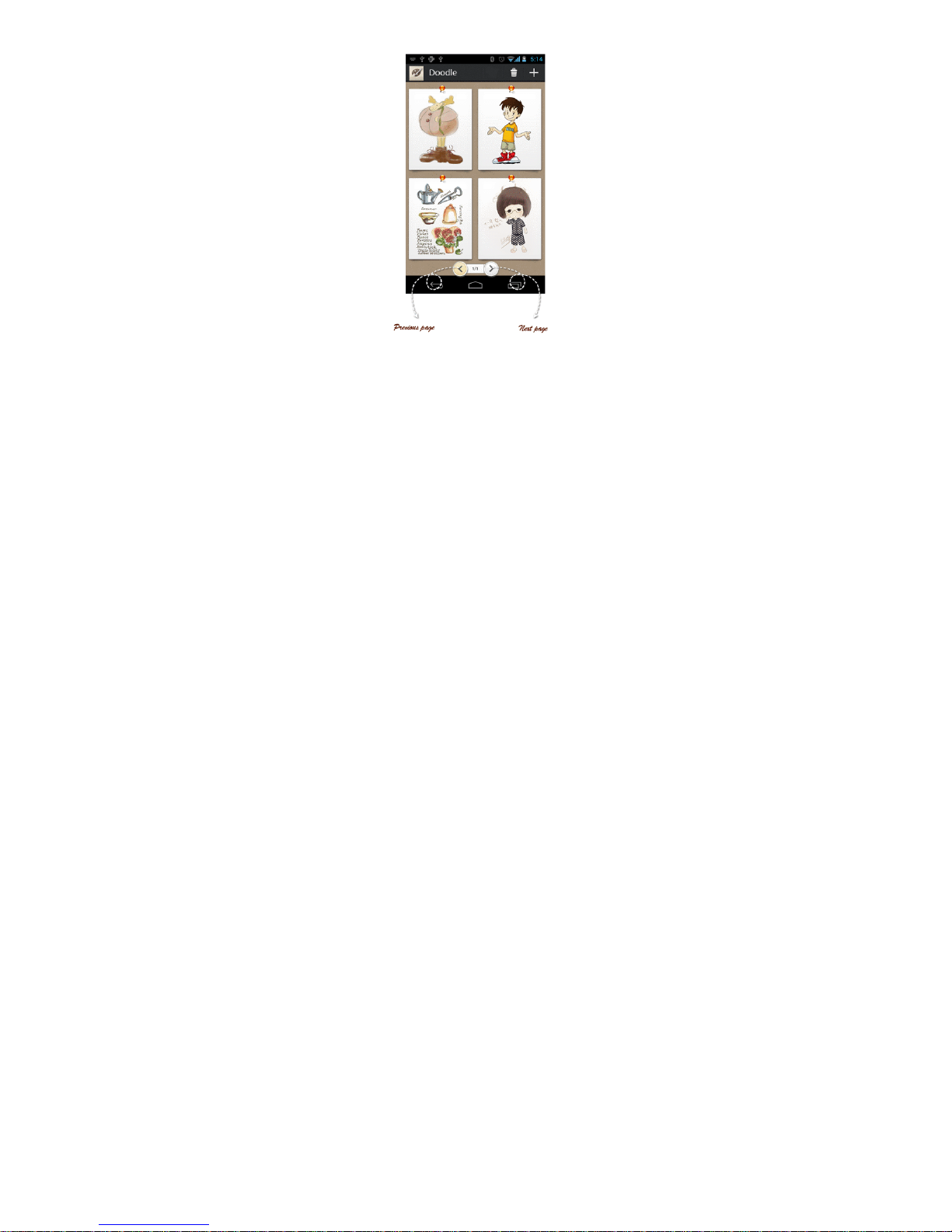
3.25 Doodle
With the doodle feature, you can creative at any time
or any moment with Epen or handwriting. Unlimited
free graphic insert function, you can insert picture, fun,
shape, map, inspiring you unlimited creative inspiration.
Graffiti works also can be timely share to MMS, and
Email, share your personalized graffiti anytime,
Page 43
43
anywhere.
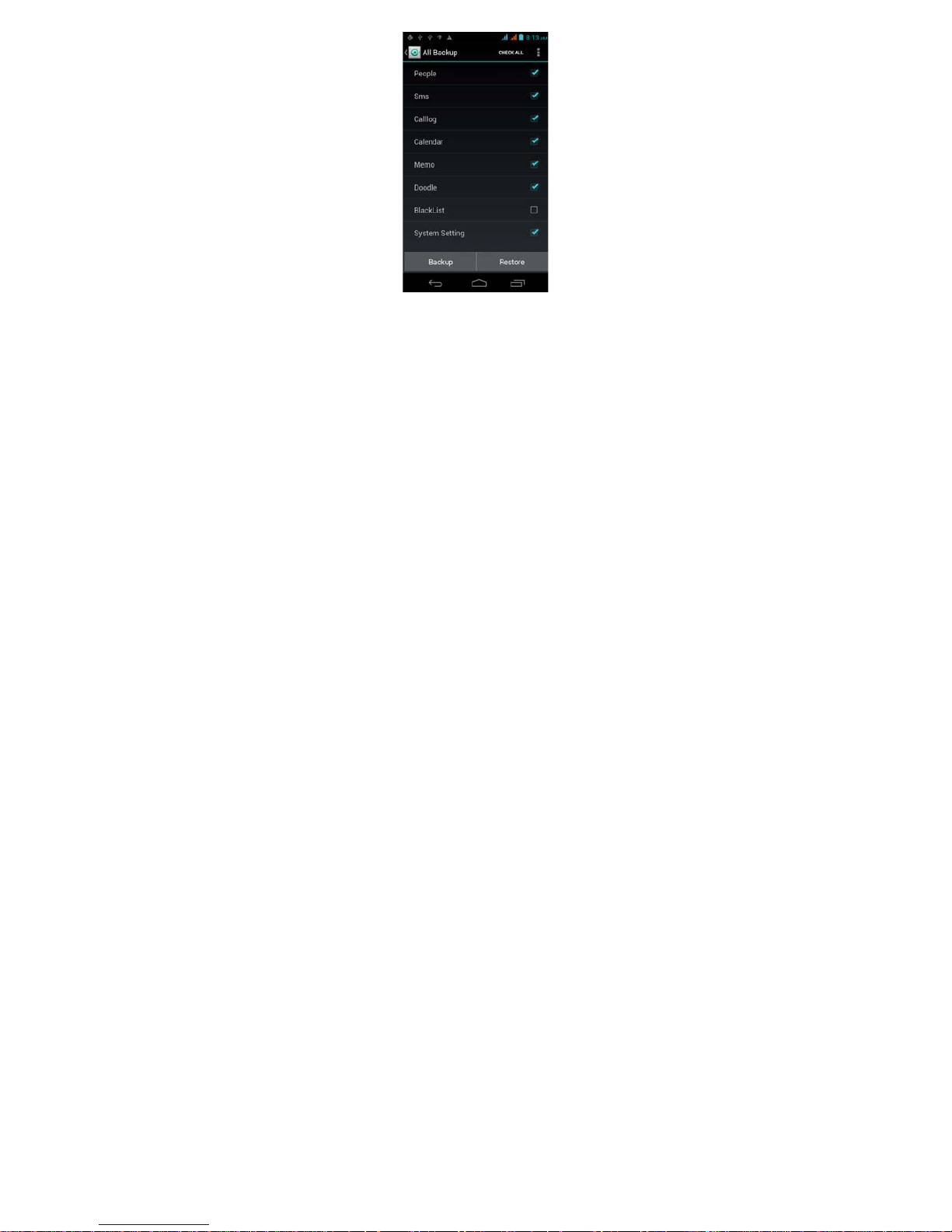
3.26 All Backup
With the backup feature, you can quickly and easily
backup your phone data to SD card, including: People,
SMS, Call log, Calendar, Memo, Doodle, Blacklist and
System setting, or restore data from SD card. You can
also set timing backup.
Page 44
44
Page 45
45
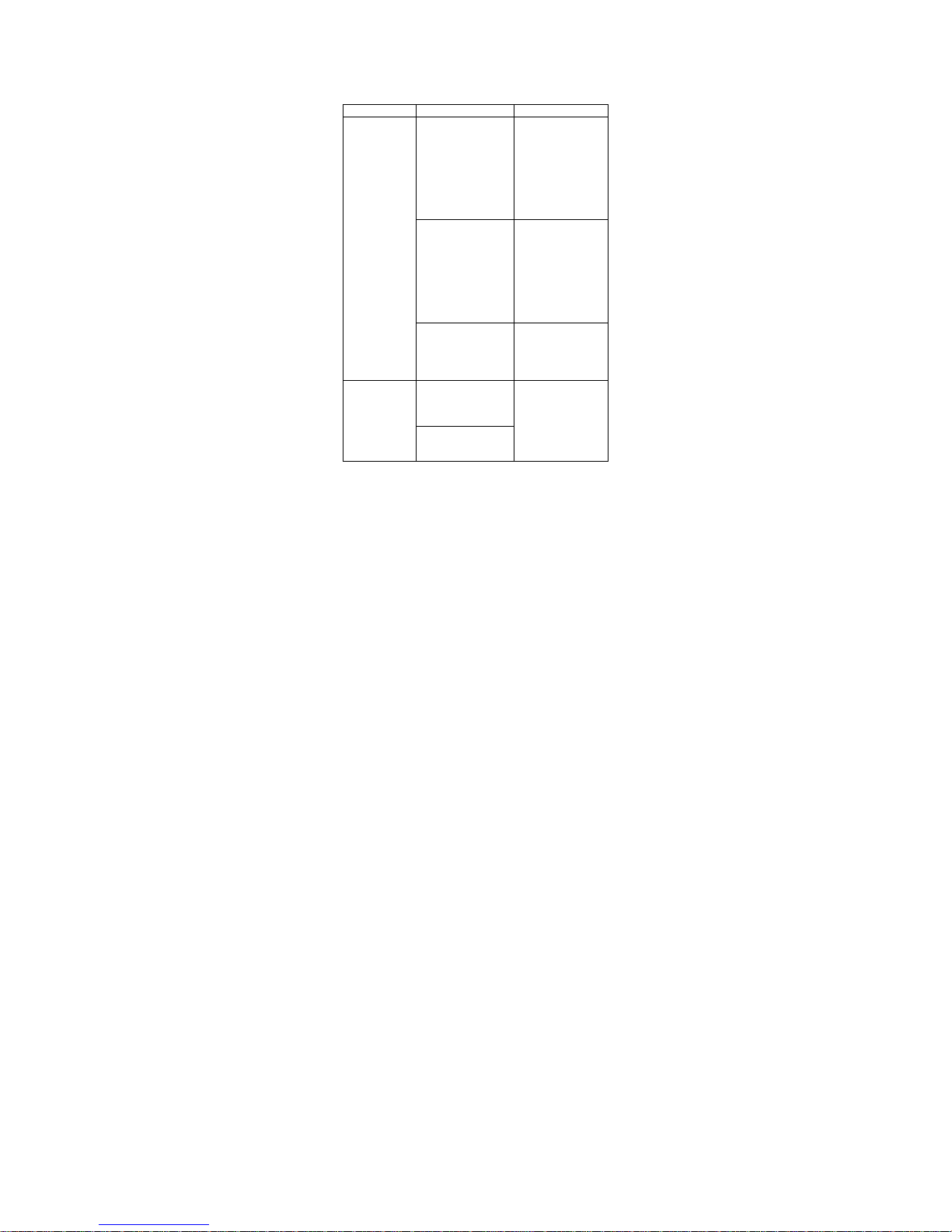
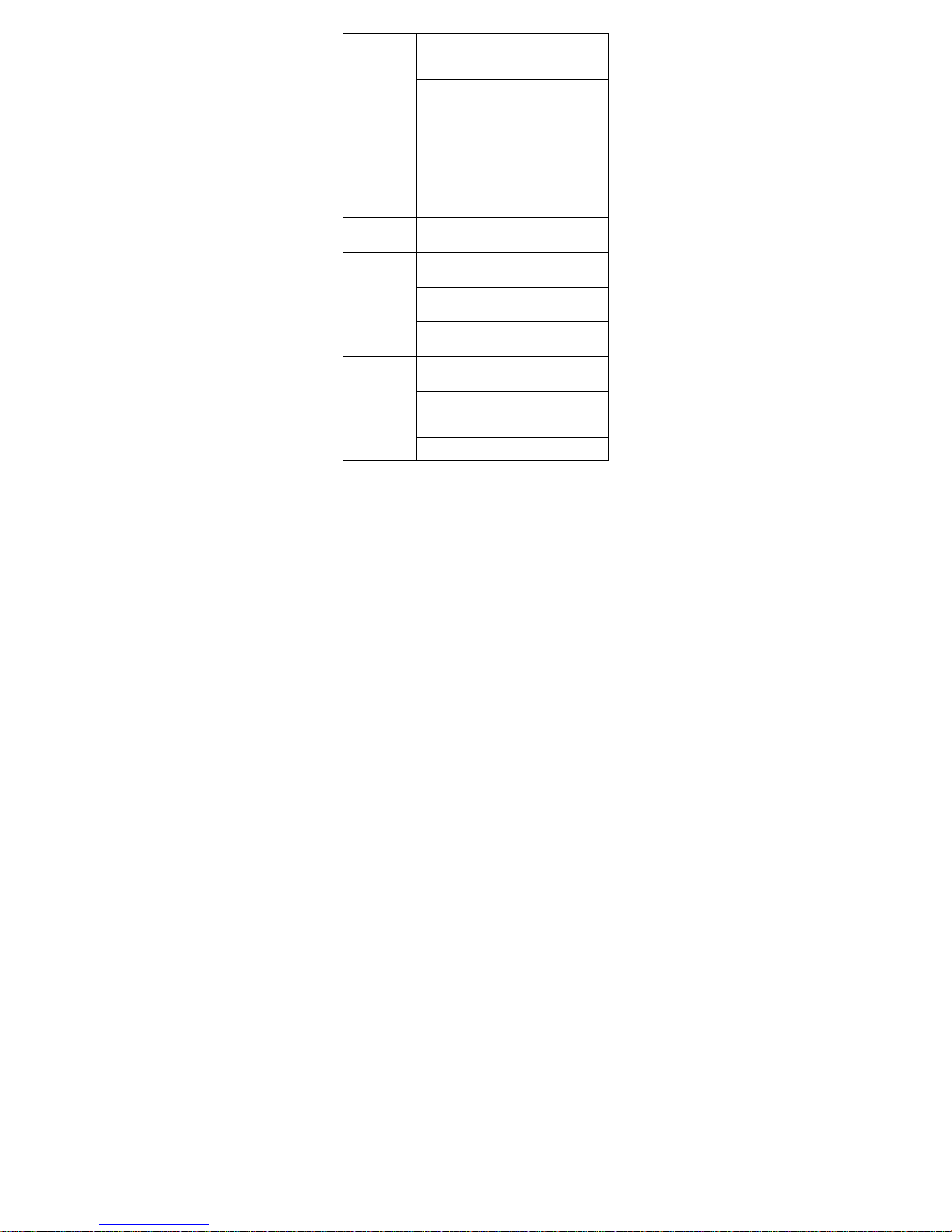
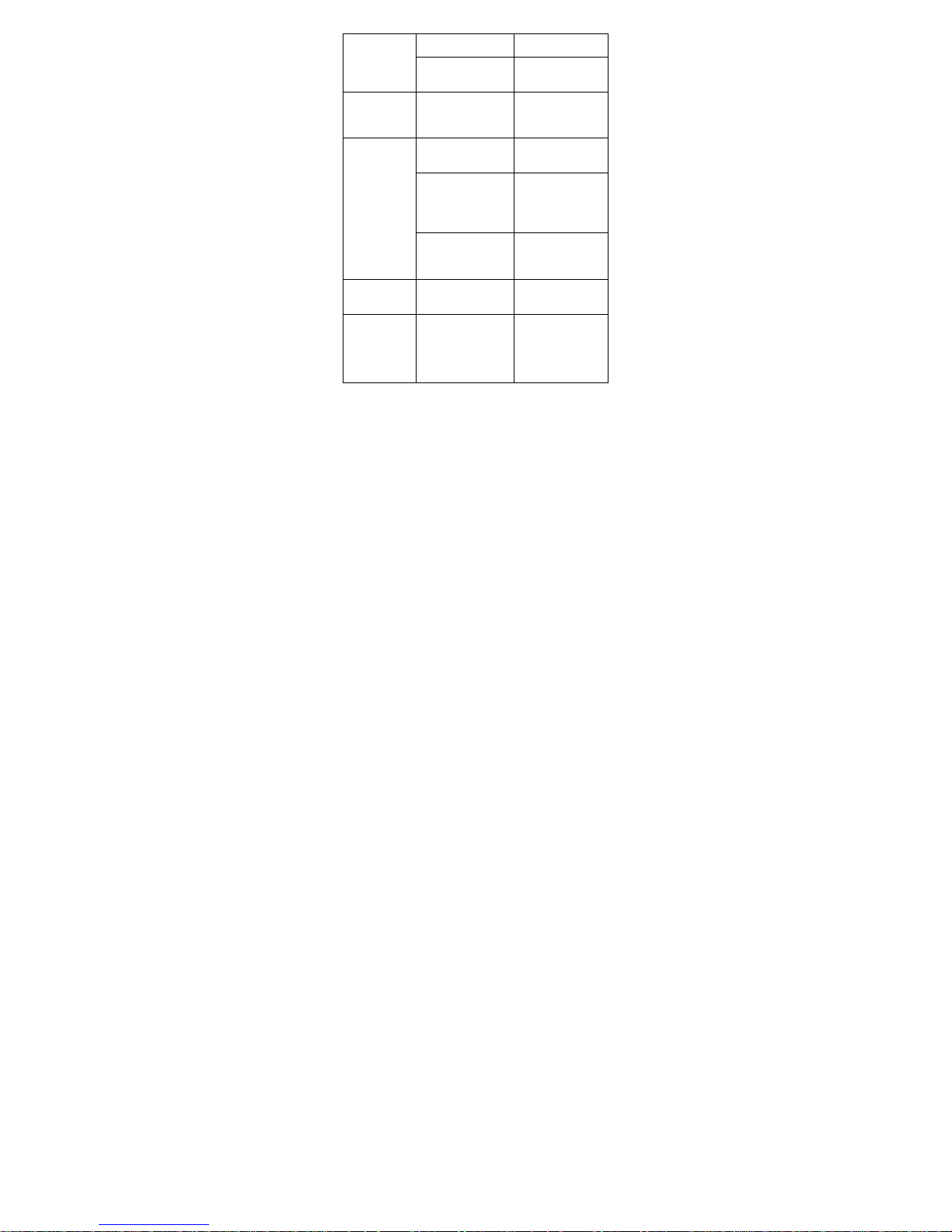
6. FAQs and Solutions
If you have any questions about the phone, please find
the solutions from the table below.
FAQs Causes Solutions
Poor
reception
When you use your
phone at poor
reception areas, for
example, near high
rise buildings or
base rooms, the
radio wave cannot
be transmitted
effectively.
Avoid this as far
as you can.
When you use your
phone at network
traffic congestion,
such as working
time and off-duty
time, the
congestion can
result in poor
reception.
Avoid this as far
as you can.
This is related to
the distance to
base station in
question.
You may ask the
network service
provider to provide
service coverage
map.
Echoes or
noises
The trunk line of
network is in bad
condition. It is a
regional problem.
Hang off the call
and dial again.
Choose another
better line.
In some areas, the
call lines are in bad
condition.
Page 46
46
Shorter
standby time
The standby time
is relevant to
network settings.
In poor reception
areas, turn off
your phone
temporarily.
Replace the
batteries
Change with a
new battery.
When no signals
are received, your
phone will continue
searching for base
stations, thus
consuming a large
amount of battery
power and
reducing standby
time.
Use your phone at
strong signal
areas or Turn off
the phone
temporarily.
Failed to turn
on your
phone
The battery power
is used up.
Check the battery
power level or
charge the battery.
SIM card
error
The SIM card is
damaged.
Contact your
network service
p
rovider.
The SIM card is not
properly installed.
Ensure the SIM
card is properly
installed.
The metallic face
of the SIM card is
contaminated.
Wipe the face with
a clean cloth.
Failed to
connect to the
network
The SIM card is
invalid.
Contact your
network service
p
rovider.
Beyond the GSM
coverage.
Consult the
network service
provider for
service areas.
The signal is
feeble.
Retry at a stronger
si
g
nal area.
Page 47
47
Failed to
make a call
The call barring
feature is used.
Cancel the call
barring settings.
The fixed dialing
number feature is
used.
Cancel the fixed
dialing number
settings.
PIN code
error
Enter incorrect PIN
codes for three
times in
succession.
Contact your
network service
provider.
Failed to
charge the
battery
The battery or the
charger is
damaged.
Change a new
battery or charger.
Charge the battery
when ambient
temperature is
lower than -10℃
or above 55℃.
Change the
environment.
Poor connection.
Check whether
the plug is
properly
connected.
Failed to add
contacts to
phonebook
The storage space
of phonebook is
used up.
Delete some
contacts from the
phonebook.
Failed to set
up some
features
Your network
service provider
does not provide
the services, or
you haven’t
subscribed them.
Contact your
network service
provider.
This manual here is indicative only. If there is
inconsistency between the image and the actual
product, the actual product shall govern.
Page 48

48
1.Use careful with the earphone maybe possible excessive sound
pressure from earphones and headphones can cause hearing loss.
2.CAUTION : RISK OF EXPLOSION IF BATTERY IS
REPLACED BY AN INCORRECT TYPE. DISPOSE OF USED
BA TTERIES ACCORDING TO THE INSTRUCTIONS.
3.The product shall only be connected to a USB interface of version
USB2.0
4.Adapter shall be installed near the equipment and shall be easily
accessible.
5.The plug considered as disconnect device of adapter
6.The device complies with RF specifications when the device used
at 15cm form your body
7“To prevent possible hearing damage, do not listen at high volume
levels for long periods.”
8.The maximum working temperature is 50 °C
Page 49

49
FCC Caution: Any changes or modifications not expressly approved by the party
responsible for compliance could void the user's authority to operate this equipment.
This device complies with Part 15 of the FCC Rules. Operation is subject to the following
two conditions: (1) This device may not cause harmful interference, and (2) this device
must accept any interference received, including interference that may cause undesired
operation.
NOTE: This equipment has been tested and found to comply with the limits for aClass B d
igital device, pursuant to Part 15 o f the FCC Rules.
These limits aredesigned to provide reasonable protection against
harmful interference in a residential installation.
This equipment generates, uses and can radiate radio frequency energy
and,if not installed and used in accordance with the
instructions, may cause harmful interference to radio communications.
However, there is no guarantee that interference will not occur in a particular installation.
If this equipment does cause harmful interference to radio or television reception,
which can be determined by turning the equipment off and on, the user is encouraged to
try to correct the interference by one or more of the followingmeasures:
-- Reorient or relocate the receiving antenna.
-- Increase the separation between the equipment and receiver.
-- Connect the equipment into an outlet on a circuit different from that to which the
receiver is connected.
-- Consult the dealer or an experienced radio/TV technician for help.
FCC RF Exposure Information and Statement
The SAR limit of USA (FCC) is 1.6 W/kg averaged over one gram of
tissue. Device types: P503 (FCC ID: SXCP503) has also been
tested against this SAR limit. The highest SAR value reported under this
standard during product certification for use at the ear is
0.245W/kg and
when properly worn on the body is 1.176W/kg. This device was tested
for typical body-worn operations with the back of the handset kept
1.5cm from the body. To maintain compliance with FCC RF exposure
requirements, use accessories that maintain a 1.5cm separation distance
between the user's body and the back of the handset. The use of belt
clips, holsters and similar accessories should not contain metallic
components in its assembly.
The use of accessories that do not satisfy these requirements may not
comply with FCC RF exposure requirements, and should be avoided
 Loading...