

Page 1
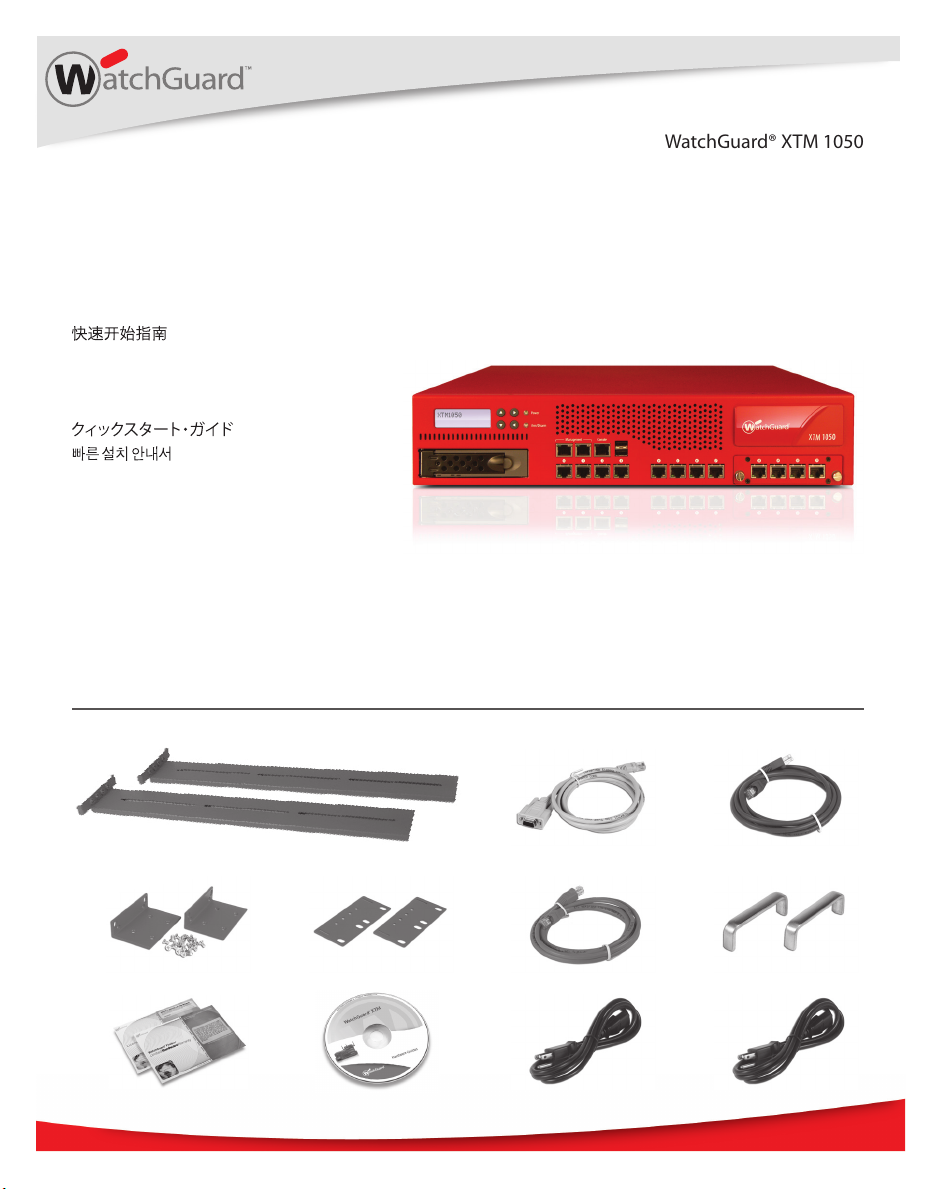
Quick Start Guide
Guide de démarrage rapide
Kurzanleitung
Guida introduttiva
Guía Rápida
WatchGuard® XTM 1050
WatchGuard® Technologies, Inc.
Page 2
English
Getting Started
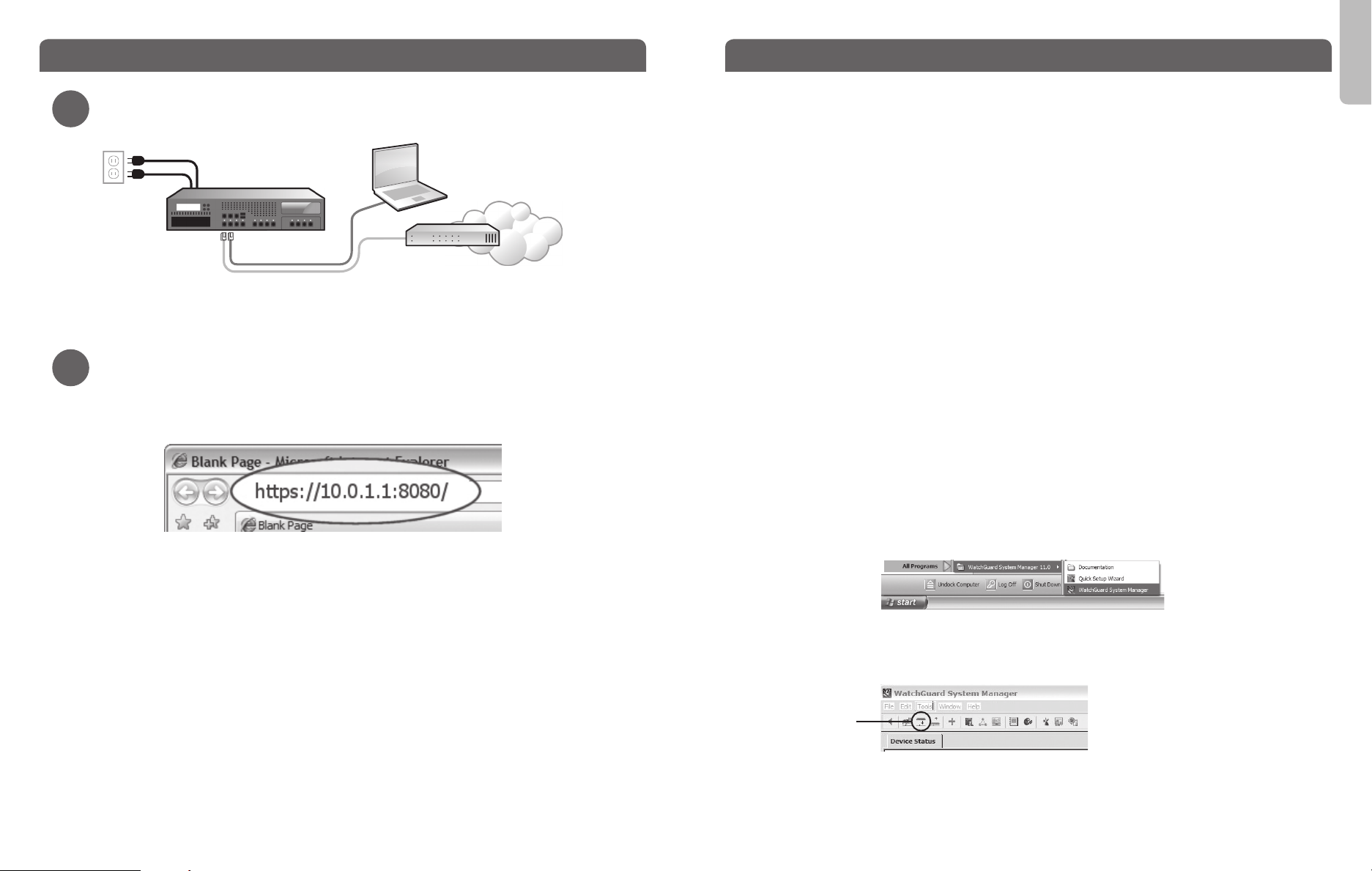
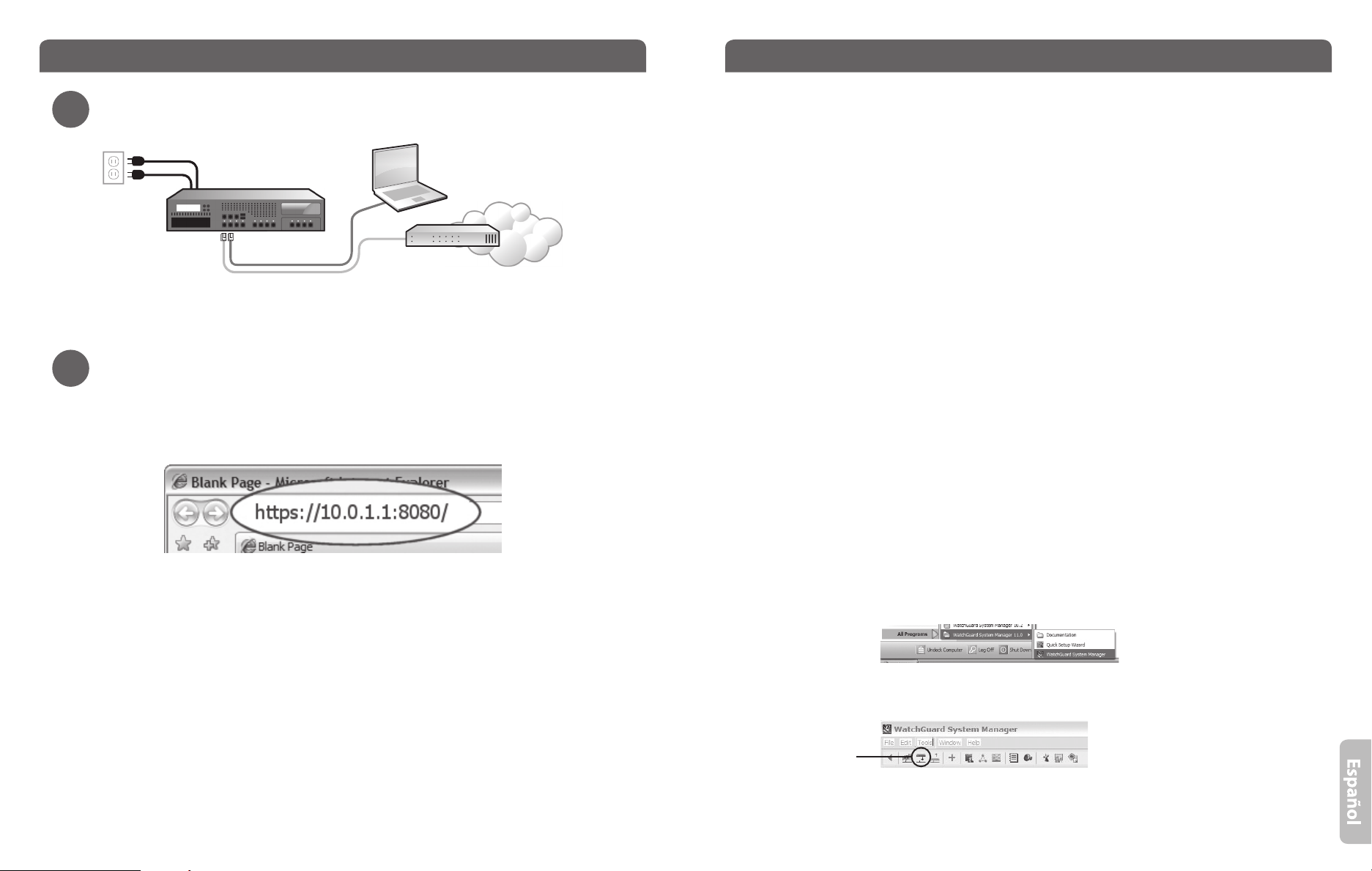
Connect your WatchGuard XTM 1050 and Power it On
1
• Make sure your computer is congured to use DHCP. When you connect it to the XTM
1050, make sure it gets an IP address on the 10.0.1.0/24 network.
Run the Web Setup Wizard
2
• Open a web browser and type https://10.0.1.1:8080 to start the Web Setup Wizard.
NOTE: Because the XTM 1050 uses a self-signed certicate, you may see a certicate warning in your browser.
It is safe to ignore the warning (Internet Explorer) or to add a certicate exception (Mozilla Firefox).
• Log in with the user name admin and the passphrase readwrite.
• Follow the instructions on the screen and complete the Wizard.
NOTE: Your WatchGuard XTM 1050 now has a basic conguration that allows outbound TCP, UDP, and ping
trac, and blocks all unrequested trac from the external network.
• Log in to the Fireware XTM Web UI using the user name admin and the conguration
passphrase you set in the Wizard.
Next Steps
Congratulations! You have nished basic setup of your WatchGuard XTM 1050. You
can use the Web UI to continue basic conguration and management tasks. Before you
begin, we strongly recommend that you use the instructions on this page to:
• Upgrade your XTM 1050 to the latest Fireware XTM OS.
red
Eth 1Eth 0
green
Router
Internet
• Install WatchGuard System Manager (WSM). WSM provides a full suite of management
and monitoring tools for your XTM 1050. It includes WatchGuard server software and
access to features such as logging, reporting, and oine conguration editing.
Download Latest Software
• Go to www.watchguard.com/archive/softwarecenter.asp
• Find and download the latest version of Fireware XTM OS and WSM software.
Upgrade your XTM 1050 with latest Fireware XTM OS
• On the computer you use to connect to the XTM 1050, nd and run the Fireware XTM
OS installation package you downloaded from the WatchGuard web site.
• Connect to your XTM 1050 with the Fireware XTM Web UI. Select System > Upgrade OS.
NOTE: The default location for the upgrade le is C:\Program Files\Common Files\WatchGuard\resources\
FirewareXTM\[version number\model]. The le name is utm_xtm1050.sysa-dl.
Install and Start WatchGuard System Manager
• On the computer you use to connect to your XTM 1050, run the WSM installation
package you downloaded from the WatchGuard web site.
NOTE: For WSM minimum system requirements, see the product release notes.
• Select Start > All Programs > WatchGuard System Manager.
• From WSM, click the Connect to Device icon to connect your management computer
to the WatchGuard XTM 1050.
Connect to
Device icon
For more information about how to congure your WatchGuard XTM 1050, go to
www.watchguard.com/help/documentation and open the current help system.
Page 3
1
2
Page 4
Pour démarrer
Étapes suivantes
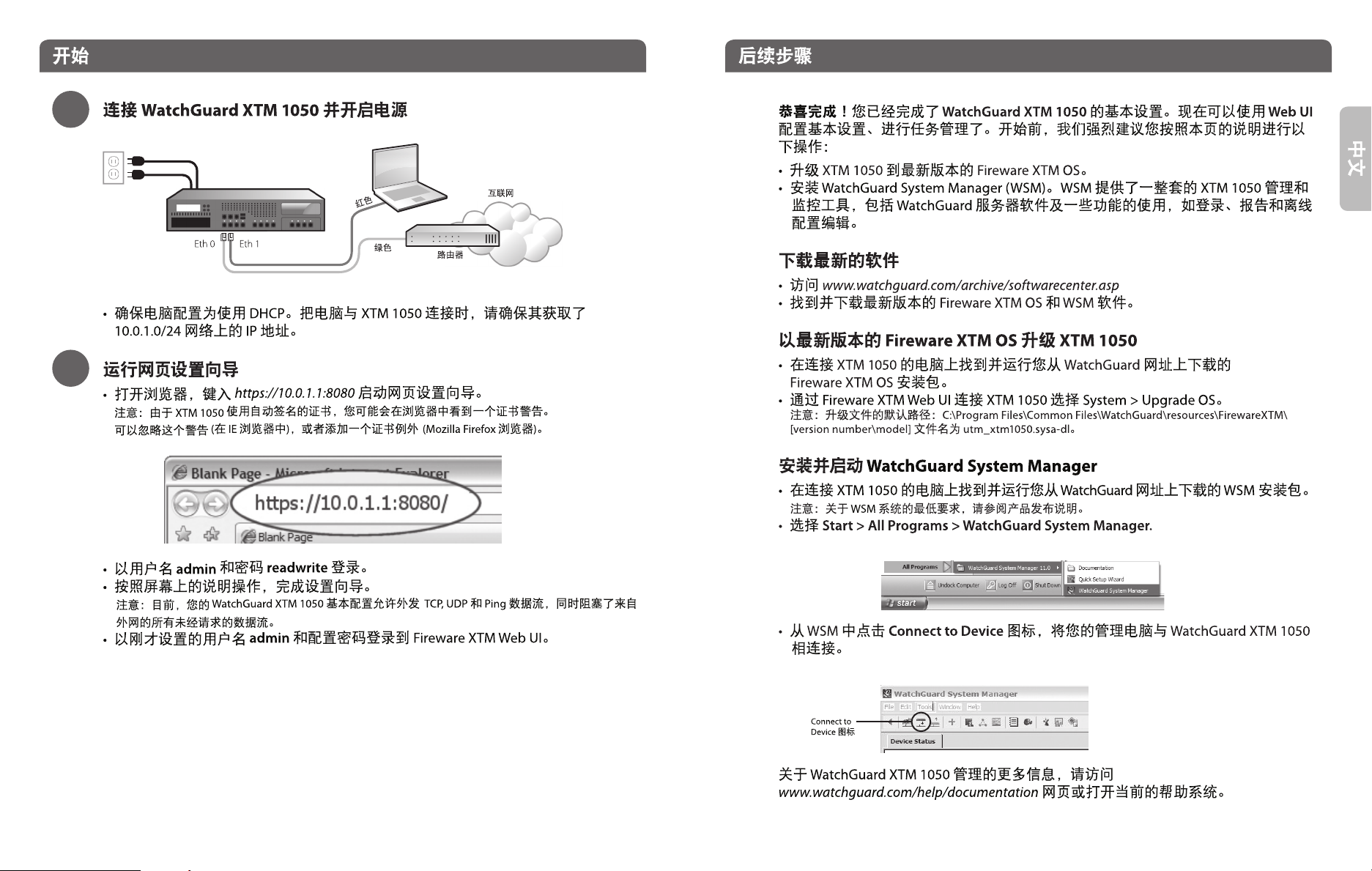
Branchez votre WatchGuard XTM 1050 et allumez-le
1
rouge
Eth 1Eth 0
vert
Routeur
Internet
• Assurez-vous que votre ordinateur est conguré pour DHCP. Quand vous le connectez
au XTM 1050, vériez qu’il a une adresse IP sur le réseau 10.0.1.0/24.
Lancez l’assistant d’installation Web
2
• Ouvrez un navigateur Internet et tapez https://10.0.1.1:8080 pour lancer l’assistant
d’installation Web.
REMARQUE : comme le XTM 1050 utilise un certicat auto-signé, un avertissement sur ce certicat peut
s’acher dans votre navigateur. Vous pouvez en sécurité ignorer cet avertissement (Internet Explorer) ou
ajouter une exception (Mozilla Firefox).
Bravo ! Vous avez ni l’installation de base de votre WatchGuard XTM 1050. Vous
pouvez utiliser l’interface utilisateur Web pour poursuivre la conguration de base et les
tâches de gestion. Avant de commencer, nous vous conseillons vivement de suivre les
instructions sur cette page pour :
• Mettre à jour votre XTM 1050 avec le dernier Fireware XTM OS
• Installer WatchGuard System Manager (WSM). WSM vous fournit une suite complète
d’outils de gestion et de contrôle pour votre XTM 1050, notamment le logiciel de
serveur WatchGuard et l’accès à des fonctions telles que la production de journaux et
de rapports et la modication de la conguration hors ligne.
Téléchargez les derniers logiciels
• Allez sur www.watchguard.com/archive/softwarecenter.asp
• Recherchez et téléchargez la dernière version du système d’exploitation Fireware XTM
et du logiciel WSM.
Mettez à niveau votre XTM 1050 avec le dernier système
d’exploitation Fireware XTM
• Sur l’ordinateur que vous utilisez pour vous connecter au XTM 1050, recherchez et
exécutez le pack d’installation Fireware XTM OS que vous avez téléchargé sur le site
Internet de WatchGuard.
• Connectez votre XTM 1050 à l’interface utilisateur Fireware XTM Web. Sélectionnez
System > Upgrade OS.
REMARQUE : le chier de mise à niveau se trouve par défaut dans C:\Program Files\Common Files\
WatchGuard\resources\FirewareXTM\[numéro de version/modèle]. Le nom du chier est utm_xtm1050.
sysa-dl.
Français
• Connectez-vous avec le nom d’utilisateur admin et le mot de passe readwrite.
• Suivez les instructions achées à l’écran et terminez l’assistant.
REMARQUE : votre WatchGuard XTM 1050 a maintenant une conguration de base qui autorise le trac
sortant TCP, UDP et ping, et bloque tout le trac non sollicité du réseau externe.
• Connectez-vous à l’interface utilisateur Fireware XTM Web avec le nom d’utilisateur
admin et le mot de passe que vous avez entré dans l’assistant pour la conguration.
Installez et lancez WatchGuard System Manager
• Sur l’ordinateur que vous utilisez pour vous connecter au XTM 1050, exécutez le pack
d’installation WSM que vous avez téléchargé sur le site Internet de WatchGuard.
REMARQUE : pour connaître la conguration minimale exigée pour WSM, consultez ses notes de version.
• Sélectionnez Démarrer > Programmes > WatchGuard System Manager.
• Dans WSM, cliquez sur l’icône Connect to Device pour connecter votre ordinateur au
WatchGuard® XTM 1050
Icône
Connect to
Device
Pour en savoir plus sur la conguration de votre WatchGuard XTM 1050, allez sur
www.watchguard.com/help/documentation et ouvrez l’aide.
Page 5
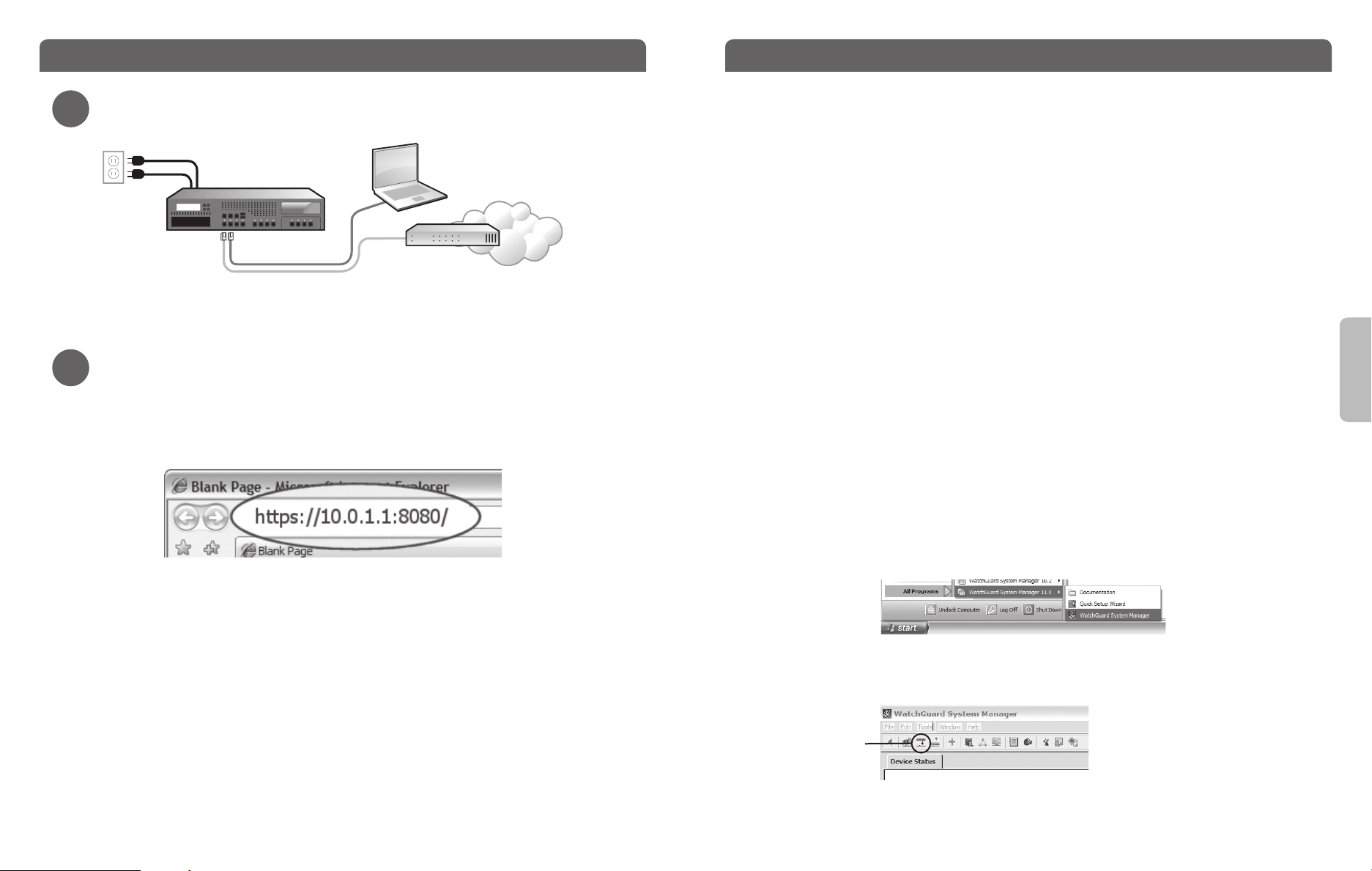
Erste Schritte
Nächste Schritte
Anschließen/Starten Ihrer WatchGuard XTM 1050
1
rot
Eth 1Eth 0
• Ihr PC muss auf die Verwendung von DHCP konguriert sein, um bei der Verbindung
zur XTM 1050 eine IP-Adresse vom 10.0.1.0/24-Netzwerk beziehen zu können.
Ausführen des Installationsassistenten
2
• Starten Sie Ihren Webbrowser. Geben Sie als URL https://10.0.1.1:8080 ein, um den
Installationsassistenten zu starten.
HINWEIS: Weil die XTM 1050 ein selbstsigniertes Zertikat benutzt, kann es sein, dass der Browser eine
Warnmeldung anzeigt. Beim Internet Explorer können Sie diese ignorieren, bei Mozilla Firefox müssen Sie
eine Ausnahme hinzufügen.
• Melden Sie sich mit dem Benutzernamen admin und der Passphrase readwrite an.
• Folgen Sie den Bildschirmanweisungen, um die Installation abzuschließen.
HINWEIS: Ihre WatchGuard XTM 1050 ist jetzt so konguriert, dass sie abgehenden TCP-, UDP- und PingVerkehr zulässt und unerwünschte Daten von externen Netzwerken blockiert.
• Melden Sie sich mit dem Benutzernamen admin und der kongurierten Passphrase bei
der Fireware XTM-Webschnittstelle an.
grün
Router
Internet
Herzlichen Glückwunsch! Das Setup für Ihre WatchGuard XTM 1050 ist abgeschlossen.
Weitere Kongurations- und Verwaltungsaufgaben können Sie über die Webschnittstelle
erledigen. Bevor Sie beginnen, führen Sie mit Hilfe der Anweisungen auf dieser Seite
zunächst folgende Schritte durch:
• Upgrade Ihrer XTM 1050 auf die neueste Version von Fireware XTM.
• Installation des WatchGuard System Manager (WSM) mit einer vollständigen Suite
aus Management- und Überwachungs-Tools für Ihre XTM 1050. Darin enthalten:
WatchGuard-Server-Software mit Funktionen wie Protokollierung, Berichterstellung
und Oine-Konguration.
Download aktueller Software
• Gehen Sie zu www.watchguard.com/archive/softwarecenter.asp.
• Laden Sie die aktuellen Softwareversionen für Fireware XTM und den WSM herunter.
Upgrade Ihrer XTM 1050 mit der aktuellen Fireware-XTM-Version
• Führen Sie auf dem für die XTM 1050 zu verwendenden PC das Fireware-XTM-
Installationspaket aus, das Sie von der WatchGuard-Website heruntergeladen haben.
• Stellen Sie über die Fireware-XTM-Webschnittstelle eine Verbindung zu Ihrer XTM 1050
her. Wählen Sie dann System > Upgrade OS.
HINWEIS: Die Upgrade-Datei utm_xtm1050.sysa-dl nden Sie im Standardverzeichnis C:\Program Files\
Common Files\WatchGuard\resources\FirewareXTM\[Version\Modell].
Installieren/Starten des WatchGuard System Manager
• Führen Sie auf dem für die XTM 1050 zu verwendenden PC das WSM-Installationspaket
aus, das Sie von der WatchGuard-Website heruntergeladen haben.
HINWEIS: Die Mindest-Systemanforderungen für WSM nden Sie in den Versionshinweisen.
• Wählen Sie Start > Alle Programe > WatchGuard System Manager.
• Klicken Sie im WSM auf das im nachfolgenden Bild angezeigte Symbol, um eine
Verbindung zwischen Ihrem Management-PC und der WatchGuard XTM 1050
herzustellen.
Verbindungssymbol
Deutsch
Weitere Infos zur Konguration Ihrer WatchGuard XTM 1050 nden Sie im aktuellen
Hilfe-System unter www.watchguard.com/help/documentation.
Page 6
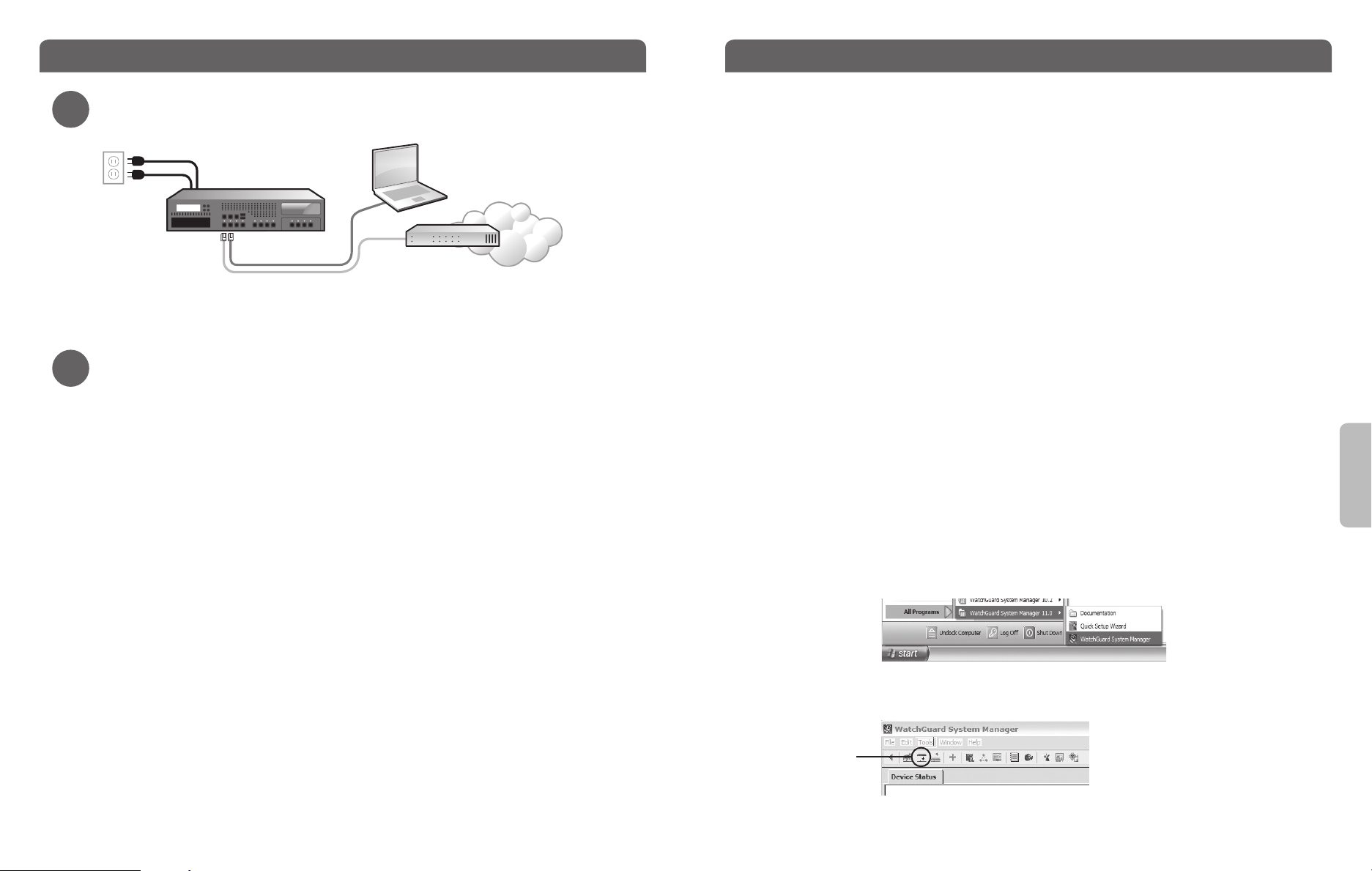
Guida introduttiva
Passaggi successivi
Collegare e accendere l’appliance WatchGuard XTM 1050
1
rosso
Eth 1Eth 0
verde
Router
Internet
• Assicurarsi che il computer sia congurato per utilizzare DHCP. Quando viene connesso
a XTM 1050, assicurarsi che ottenga un indirizzo IP sulla rete 10.0.1.0/24.
Eseguire la congurazione guidata Web
2
• Aprire il browser Web e digitare https://10.0.1.1:8080 per avviare la congurazione
guidata Web.
NOTA: XTM 1050 utilizza un certicato self-signed, il browser può pertanto visualizzare un avviso di
certicato. Ignorare l’avviso (Internet Explorer) oppure aggiungere un’eccezione di certicato (Mozilla
Firefox).
• Eseguire l’accesso con il nome utente admin e la password readwrite.
• Seguire le istruzioni visualizzate e completare la procedura guidata.
NOTA: WatchGuard XTM 1050 dispone ora di una congurazione di base che consente il traco in uscita TCP,
UDP e ping e blocca tutto il traco non richiesto dalla rete esterna.
• Eseguire l’accesso all’interfaccia Web di Fireware XTM utilizzando il nome utente
admin e la password di congurazione impostata nella procedura guidata.
Congratulazioni. La congurazione di base di WatchGuard XTM 1050 è completata. Si
può utilizzare l’interfaccia Web per le altre attività di congurazione e gestione di base.
Prima di iniziare, raccomandiamo di seguire le istruzioni in questa pagina per:
• Aggiornare XTM 1050 all’ultimo sistema operativo Fireware XTM.
• Installare WatchGuard System Manager (WSM). WSM fornisce una suite completa di
strumenti di gestione e monitoraggio per XTM 1050. Include il software server WatchGuard
e l’accesso a funzioni di logging, reporting e modica della congurazione oine.
Scaricare il software più aggiornato
• Visitare www.watchguard.com/archive/softwarecenter.asp
• Individuare e scaricare la versione più recente del sistema operativo Fireware XTM OS e il
software WSM.
Aggiornare XTM 1050 all’ultimo sistema operativo Fireware XTM
• Sul computer utilizzato per connettersi a XTM 1050, individuare ed eseguire il
pacchetto di installazione del sistema operativo Fireware XTM scaricato dal sito Web di
WatchGuard.
• Connettere la XTM 1050 con l’interfaccia Web di Fireware XTM. Selezionare System >
Upgrade OS.
NOTA: il percorso predenito del le di aggiornamento è C:\Program Files\Common Files\WatchGuard\
resources\FirewareXTM\[numero versione\modello]. Il nome le è utm_xtm1050.sysa-dl.
Installare e avviare WatchGuard System Manager
• Sul computer utilizzato per connettere XTM 1050, eseguire l’installazione del pacchetto
WSM scaricato dal sito Web di WatchGuard.
NOTA: per i requisiti di sistema minimi di WSM, vedere le note di rilascio del prodotto.
• Selezionare Start > Tutti i programmi > WatchGuard System Manager.
•
In WSM, fare clic sull’icona Connetti a dispositivo per connettere il computer di
gestione a WatchGuard XTM 1050
Italiano
Icona
Connetti a
dispositivo
Per ulteriori informazioni su come congurare WatchGuard XTM 1050, visitare www.
watchguard.com/help/documentation e aprire la guida in linea.
Page 7
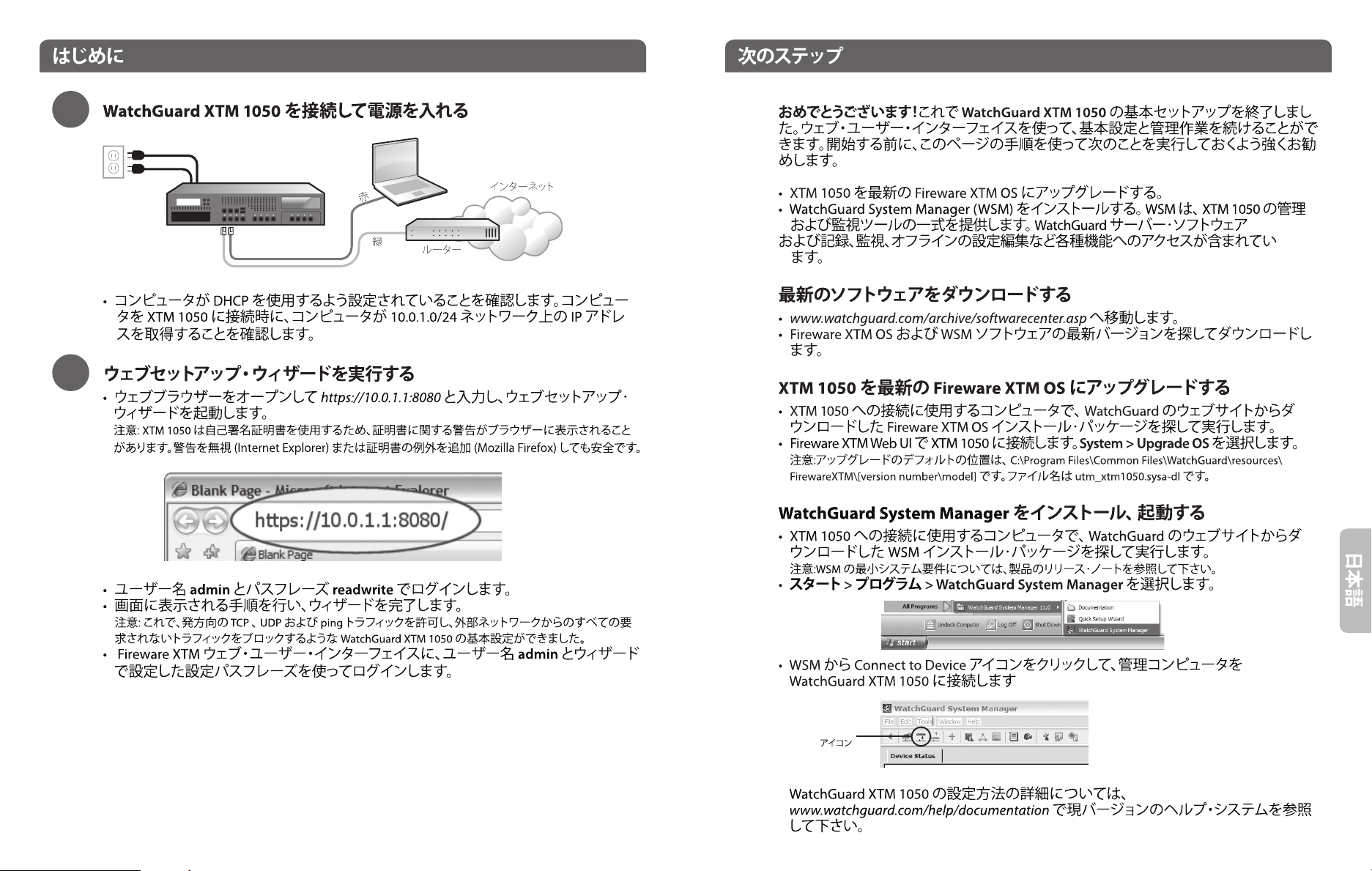
1
2
Eth 1Eth 0
Connect to
Device
Page 8
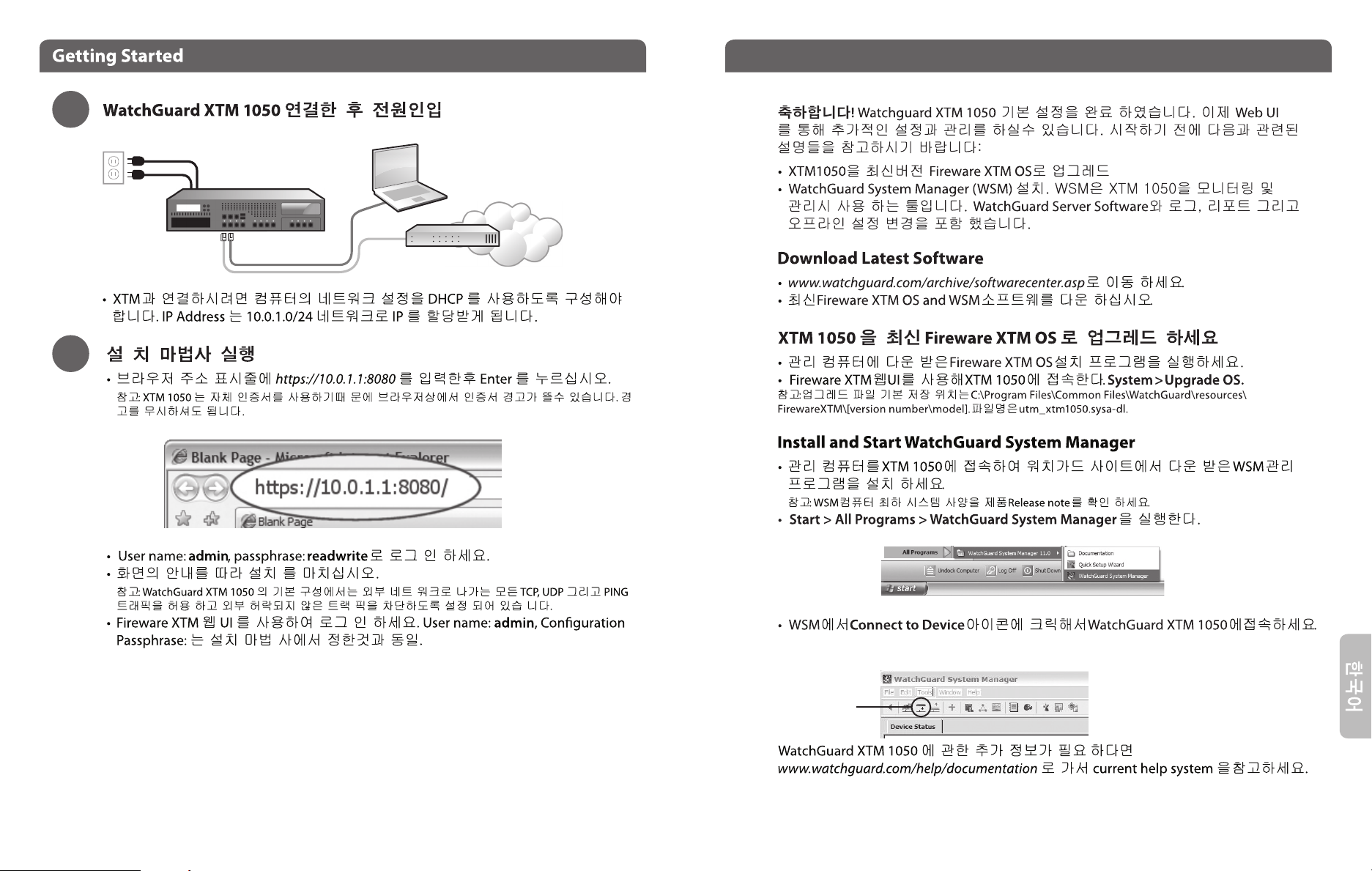
1
Next Steps
2
red
Eth 1Eth 0
green
Router
Internet
Connect to
Device icon
Page 9
Para Comenzar
Pasos Siguientes
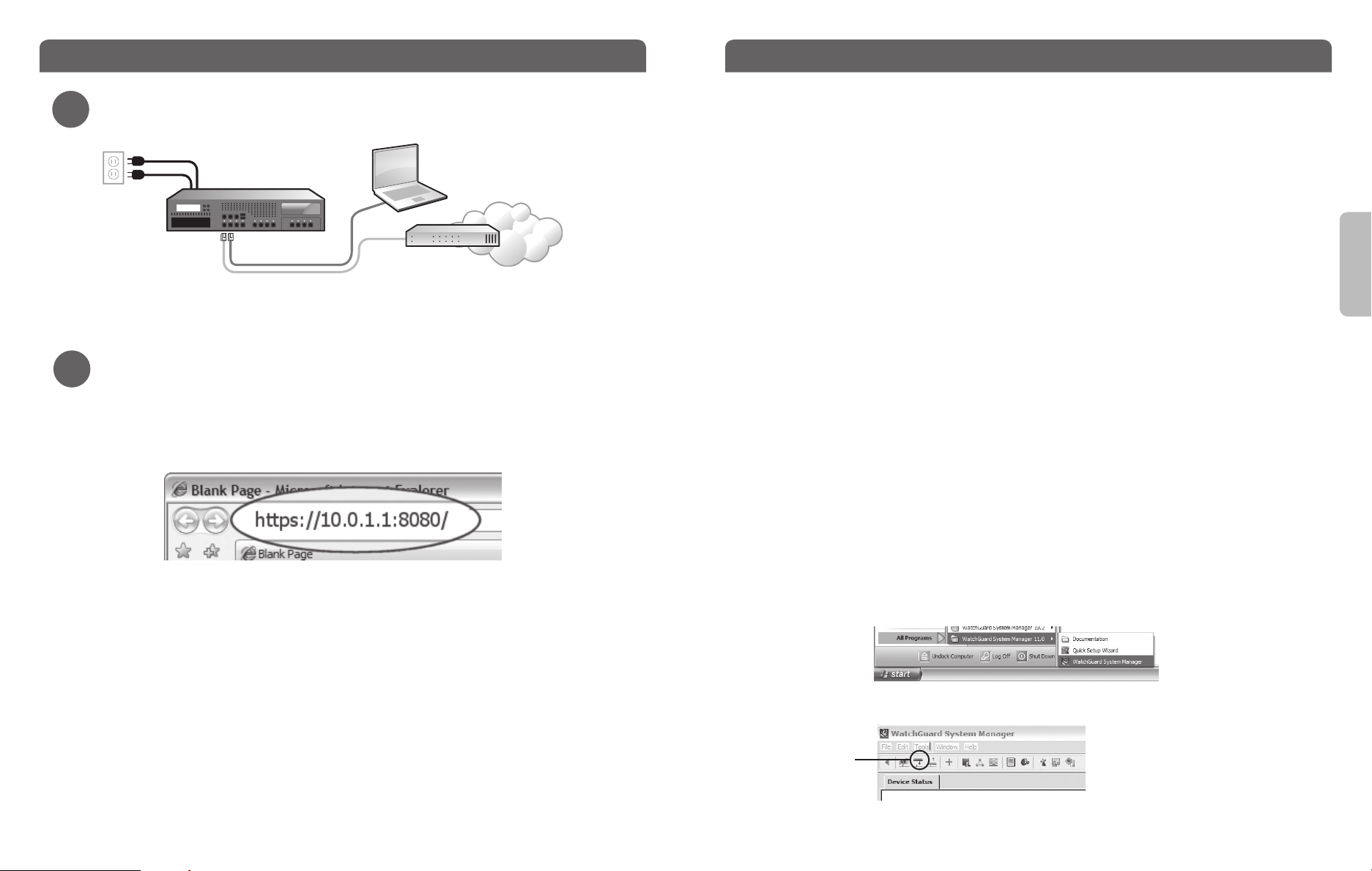
Conecte su WatchGuard XTM 1050 y enchúfelo a la corriente eléctrica
1
rojo
Eth 1Eth 0
verde
Router
Internet
• Asegúrese de que su computadora esté congurada para usar DHCP. Cuando la conecte
al XTM 1050, asegúrese de que obtenga una dirección IP sobre la red 10.0.1.0/24.
Ejecute el Web Setup Wizard
2
• Abra una ventana en el navegador y escriba https://10.0.1.1:8080 para iniciar el Web
Setup Wizard.
NOTA: dado que el XTM 1050 usa un certicado auto rmado, usted puede ver una advertencia sobre el certicado
en su navegador. Es seguro ignorarla (en Internet Explorer) o añadir una excepción de certicado (en Mozilla Firefox)..
• Loguéese con el nombre de usuario admin y la contraseña readwrite.
• Siga las instrucciones en pantalla y complete el Wizard.
NOTA: Su WatchGuard XTM 1050 ahora tiene una conguración básica que permite tráco TCP y UDP
saliente, así como ping, y bloquea todo el tráco no solicitado de la red externa.
• Loguéese en la interfaz de usuario del Fireware XTM usando el nombre admin y la
contraseña de conguración que puso en el Wizard.
¡Felicitaciones! Usted ha nalizado la conguración básica de su WatchGuard XTM 1050.
Ahora puede usar la interfaz Web para continuar la conguración básica y las tareas
de administración. Antes de empezar, le recomendamos enfáticamente que utilice las
instrucciones de esta página para:
• Actualizar su XTM 1050 con el último Fireware XTM OS.
• Instalar el WatchGuard System Manager (WSM). WSM prove una suite completa de
administración y herramientas de monitoreo para su XTM 1050. Incluye software
WatchGuard de servidor y acceso a características como creación de logs, reportes y
edición oine de la conguración.
Descargue el último software
• Vaya a www.watchguard.com/archive/softwarecenter.asp
• Encuentre y descargue la última versión del software Fireware XTM OS y WSM.
Actualice su XTM 1050 con el último Fireware XTM OS
• En la computadora que usa para conectarse al XTM 1050, encuentre y ejecute el
paquete de instalación del Fireware XTM OS que descargó del sitio de WatchGuard.
• Conéctese con su XTM 1050 con la interfaz Web de usuario del Fireware XTM.
Seleccione System > Upgrade OS.
NOTA: la ubicación por defecto para el archivo de actualización es C:\Program Files\Common Files\
WatchGuard\resources\ FirewareXTM\[version number\model]. The le name is utm_xtm1050.sysa-dl.
Instalar e iniciar el WatchGuard System Manager
• En la computadora que usa para conectarse al XTM 1050, ejecute el paquete de
instalación del WSM que descargó del sitio de WatchGuard.
NOTA: Para ver cuáles son los requerimientos mínimos de sistema para instalar WSM, vea las notas de
lanzamiento del producto.
• Seleccione Start > All Programs > WatchGuard System Manager.
• Desde el WSM, haga clic en el ícono Connect to Device para conectar su computadora
de administración al WatchGuard XTM 10500.
Conectar
al ícono de
dispositivo
Para más información sobre cómo congurar su WatchGuard XTM 1050, vaya a www.
watchguard.com/help/documentation y abra el sistema de ayuda vigente.
Page 10

WatchGuar d® XTM1050 Quick Sta rt Guide WatchGuar d® XTM1050 Quick Sta rt Guide
Page 11

WATCHGUARD TECHNICAL SUPPORT
1.877.232.3531 +1.206.613.0456 www.watchguard.com/support
(U.S. and Canada) (all other countries)
ADDRESS: 505 Fifth Avenue South, Suite 500, Seattle, WA 98104
WEB: www.watchguard.com • U.S. SALES: 1.800.734.9905 • INTERNATIONAL SALES: +1.206.613.0895
© 2010 WatchGuard Technologies, Inc. All rights reserved. WatchGuard, the WatchGuard Logo, Firebox, Fireware,
Core, Peak, and LiveSecurity are either trademarks or registered trademarks of WatchGuard Technologies, Inc.
in the United States and/or other countries. All other trademarks and tradenames are the property of their
respective owners. P.N. 352-3233-001 WGPE66377_020810
 Loading...