

Page 1
WatchGuard® Technologies, Inc.
WatchGuard® Quarantine Management Server
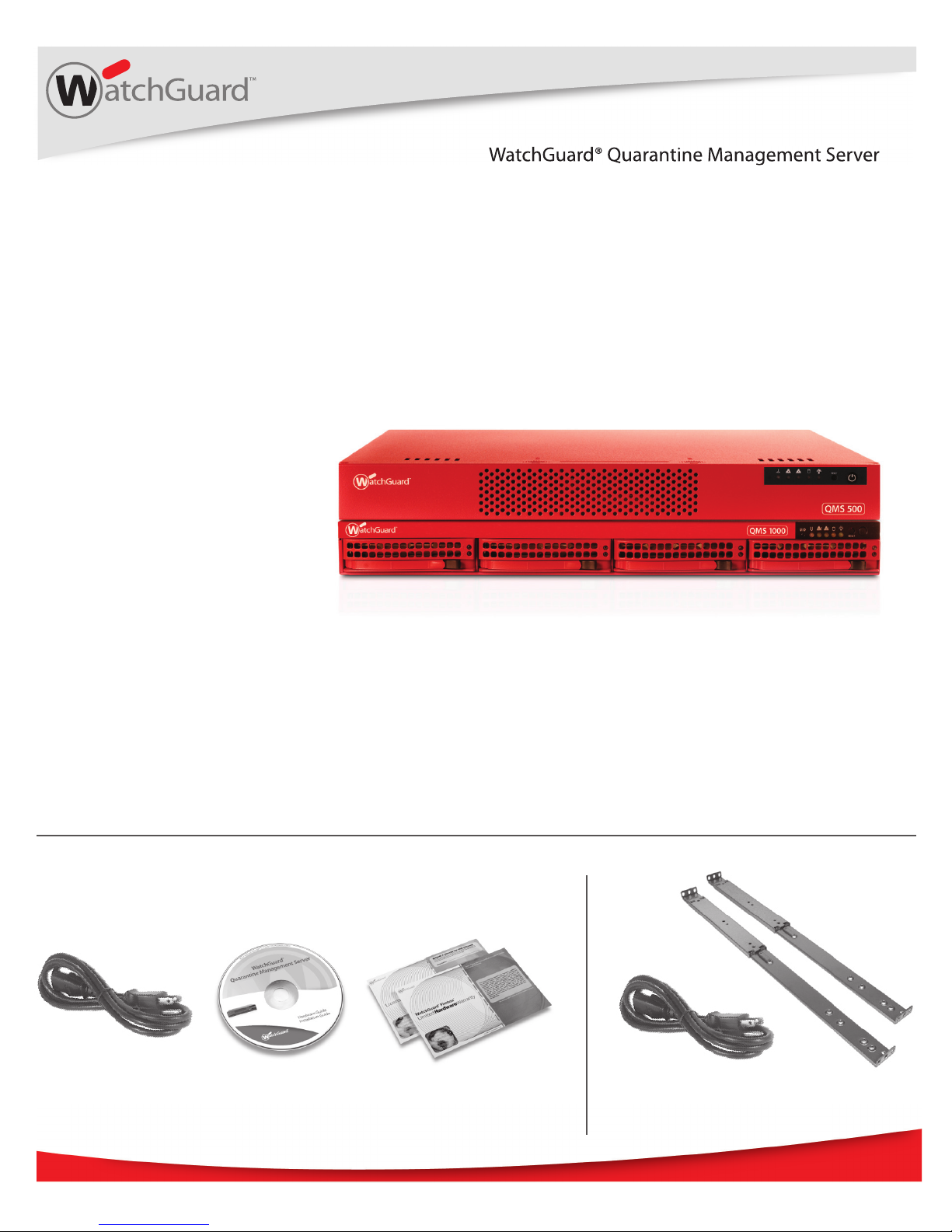
Appliance Models: QMS 500 and QMS 1000
Quick Start Guide
WatchGuard® Quarantine Management Server
Additional QMS 1000 items
Page 2

Registration and Conguration
1
2
Register with LiveSecurity® Service
• Find the serial number on your device and record it.
• Go to http://www.watchguard.com/activate
• Log in.
NOTE: If you are new to WatchGuard®, follow the instructions provided at the URL above to create a prole.
• Follow the instructions on the screen to enter your serial number and receive a
feature key.
NOTE: If you will not have an Internet connection during the setup procedure, it is highly recommended to
copy your feature key to a text le during the activation process.
Conguration Checklist
• To congure your WatchGuard device, you must collect the following information
about your network:
Network Information Example Settings Your Settings
Hostname hostname
Domain Name example.com
IP Address 10.0.1.10
Subnet Mask 255.255.0.0
Gateway Address 10.0.1.1
Name Server Address 10.0.2.53
Default User ID admin
Default Password admin
Organization Name example.com
Server Admin Email [email protected]
Serial Number B0E112345-1234
Page 3
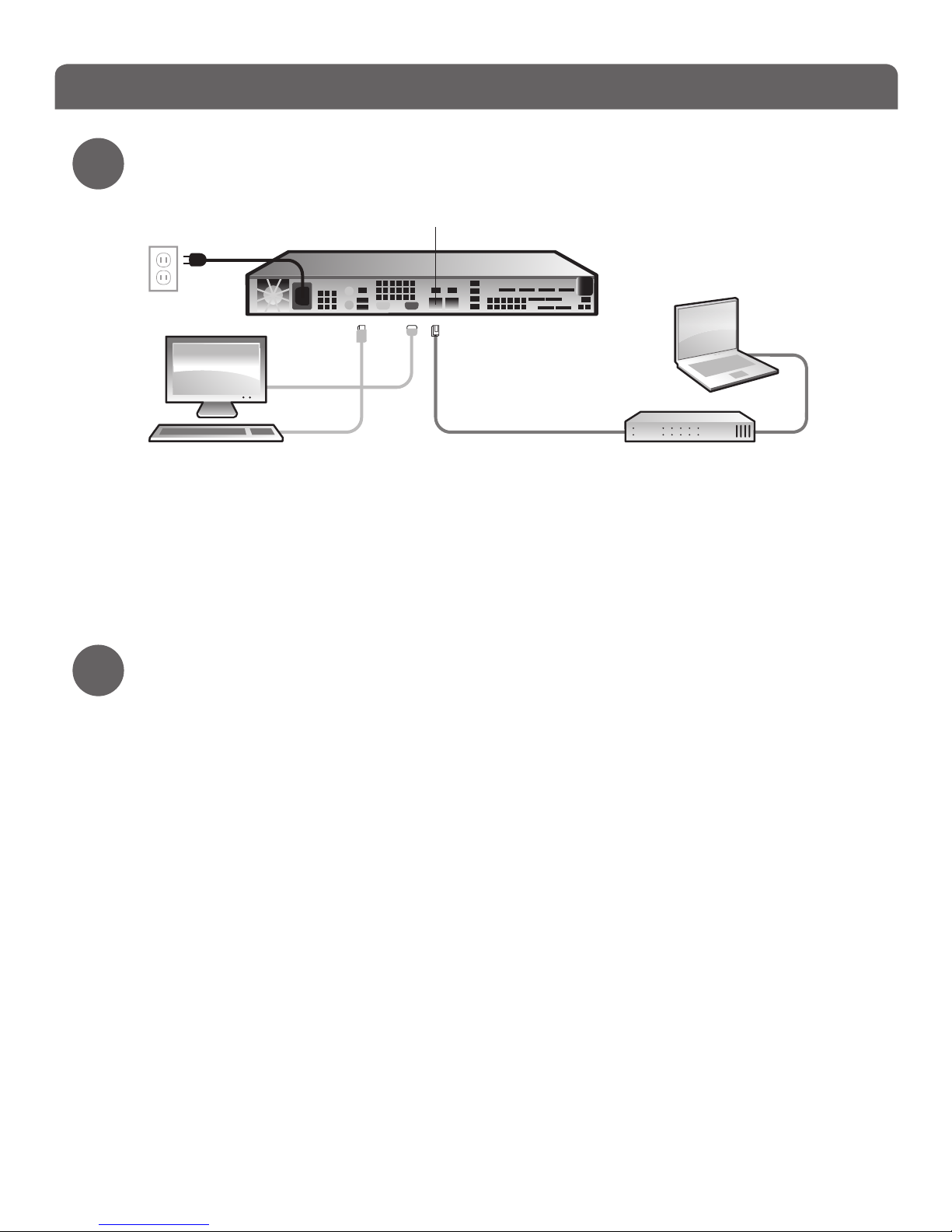
Connect your WatchGuard® Quarantine Management Server
Connection and Installation
3
• Install the device in a secure location.
• Connect a monitor and a keyboard (USB or PS/2) to the back of the device.
• Connect the device directly to the LAN (Local Area Network). Use the rst onboard
Ethernet connector (NIC 1) at the left side of the back panel.
• Connect the power cord to the power socket on the back panel of the device.
Console Installation
• To power on your device, press the power button at the right side of the front panel.
When the device is ready, startup options appear on the monitor.
• Select F2, and then select OK.
NOTE: The F2 option is chosen by default after a few seconds.
• Select the Auto installation type. The le system is installed.
• Select OK to begin the network conguration.
• Enter the Network Settings. Use the information from your checklist in Step 2, then
select OK.
NOTE: To connect to your device with a web browser at the end of the console installation, only your LAN
information is required.
• Select a Region, Country and Time zone.
• The initial console conguration is now complete and the system console screen
appears. To continue with the installation, you must connect to the device with a web
browser.
NOTE: After the console insta llation is complete, this warning message appears: “ Mail System is stopped”.
Before you start the mail system, you must congure the spam quarantine settings.
4
Switch
Ethernet
cable
Ethernet cable
QMS 500
NIC 1
Page 4
Web UI Setup Wizard
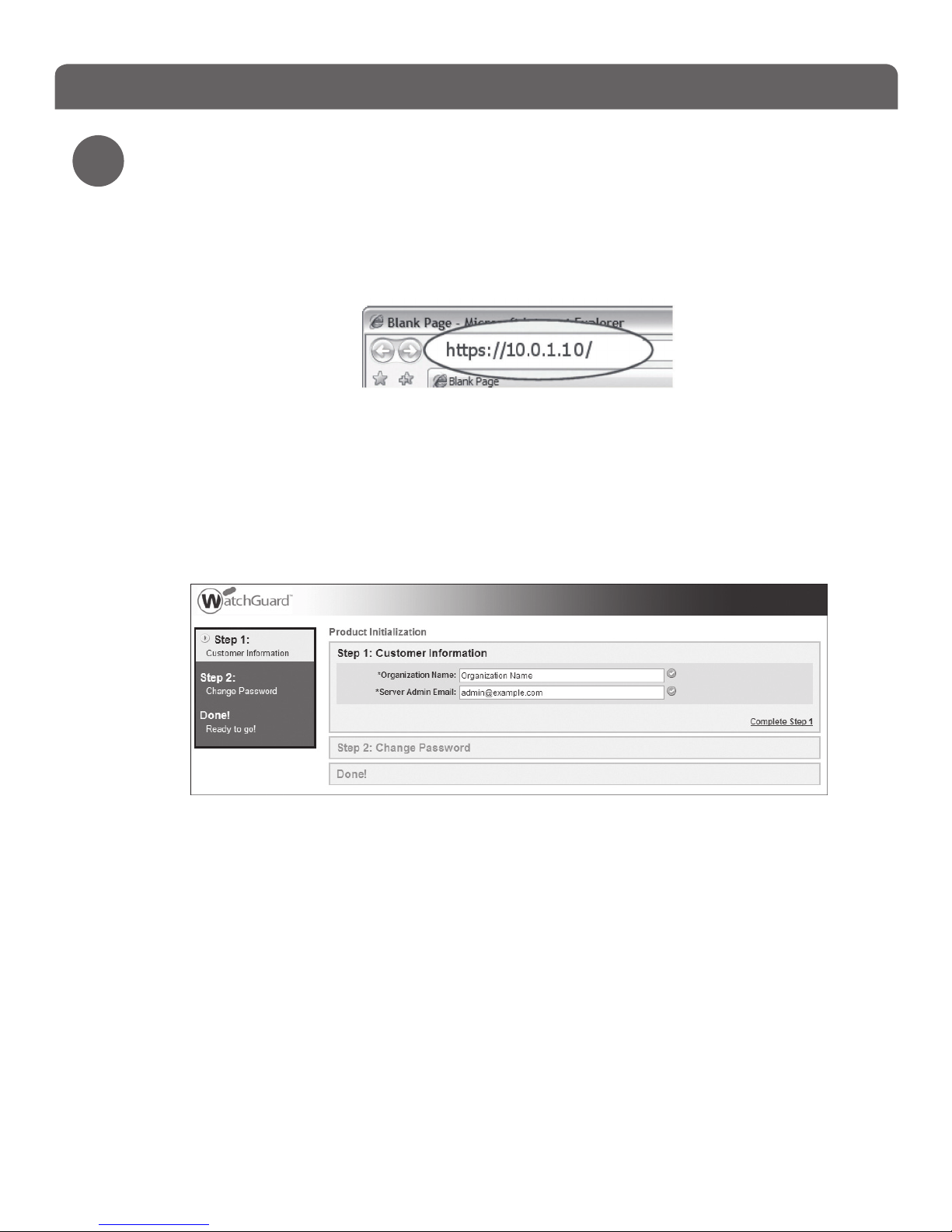
• Open a web browser and type the IP address of the device. Use the address you set for
your device in Step 4, for example: https://10.0.1.10.
NOTE: Because your device uses a self-signed certicate, a certicate warning appears in your browser.
• On the Login page, type the default user ID (admin) and the default password (admin).
• Type the Organization Name and Server Admin Email address. Use the information
from the Conguration Checklist you completed in Step 2.
• Change the default password.
• Select Continue to complete the initialization.
• The Web UI Setup Wizard is now complete, and the feature key page appears.
NOTE: The mail system is initially in a stopped state. Before you start the mail system, you must congure the
spam quarantine settings.
Web Wizard
5
Page 5

Next Steps
Congratulations! You have nished the basic setup of your WatchGuard® Quarantine
Management Server. You can use the Web UI to continue all conguration and management
tasks. Before you begin, we strongly recommend that you use the instructions on this page to:
• Add a Feature Key to the WatchGuard Quarantine Management Server
• Download Latest Software Updates
• Install Software Updates
Add a Feature Key to the WatchGuard Quarantine Management Server
• Log in to the Web UI.
• Select Administration > System > Feature Key, and then click Update.
• Copy the text of the feature key le you received in Step 1, and paste it in the text box.
• Click Update Key.
Download Latest Software Updates
The Security Connection feature contacts WatchGuard’s support servers to check for new
software updates.
• Log in to the Web UI.
• Select Administration > Software Updates > Security Connection.
• Select the Enabled option, and then enable the Auto Download option to allow software
updates to be downloaded automatically.
NOTE: These updates are not automatic ally installed. You must install the updates manually as described in the
nex t section.
• Click Apply, and then click the Connect Now button to run Security Connection immediately
and check for new software updates.
Install Software Updates
• Select Administration > Software Updates > Updates.
• The Software Updates page shows updates that are Available Updates (loaded onto the
system, but not applied) and Installed Updates (applied and active).
• Updates downloaded by Security Connection appear in the Available Updates section.
NOTE: If you downloaded an update manually, click Browse and navigate to the downloaded software update le on
your local system, then click Upload.
• Select the software update in the Available Updates section, and then click Install.
NOTE: After you appl y software upda t es, you must restart the device.
For more information about how to congure your WatchGuard Quarantine Management
Server:
• See the WatchGuard Quarantine Management Server Installation Guide located on the Product
Documentation CD-ROM.
• From the Web UI, select Support > Online Manual.
• Go to www.watchguard.com/help/documentation and download the WatchGuard Quarantine
Management Server User Guide.
Page 6

WatchGuard® Quarantine Management Server Quick Start Guide
Page 7

WatchGuard® Quarantine Management Server Quick Start Guide
Page 8

ADDRESS: 505 Fifth Avenue South, Suite 500, Seattle, WA 98104
WEB: www.watchguard.com • U.S. SALES: 1.800.734.9905 • INTERNATIONAL SALES: +1.206.613.0895
© 2010 WatchGuard Technologies, Inc. All rights reserved. WatchGuard, the WatchGuard Logo, Firebox, Fireware,
Core, Peak, and LiveSecurity are either trademarks or registered trademarks of WatchGuard Technologies, Inc.
in the United States and/or other countries. All other trademarks and tradenames are the property of their
respective owners. P.N. 352-3676-001 021910
1.877.232.3531 +1.206.613.0456 www.watchguard.com/support
(U.S. and Canada) (all other countries)
WATCHGUARD TECHNICAL SUPPORT
 Loading...