

Watchguard Firebox X55E, Firebox X55E-W, Firebox X10E-W, Firebox X20E-W, Firebox X10E Quick Start Manual [en, fr, it, de, es]
...Page 1
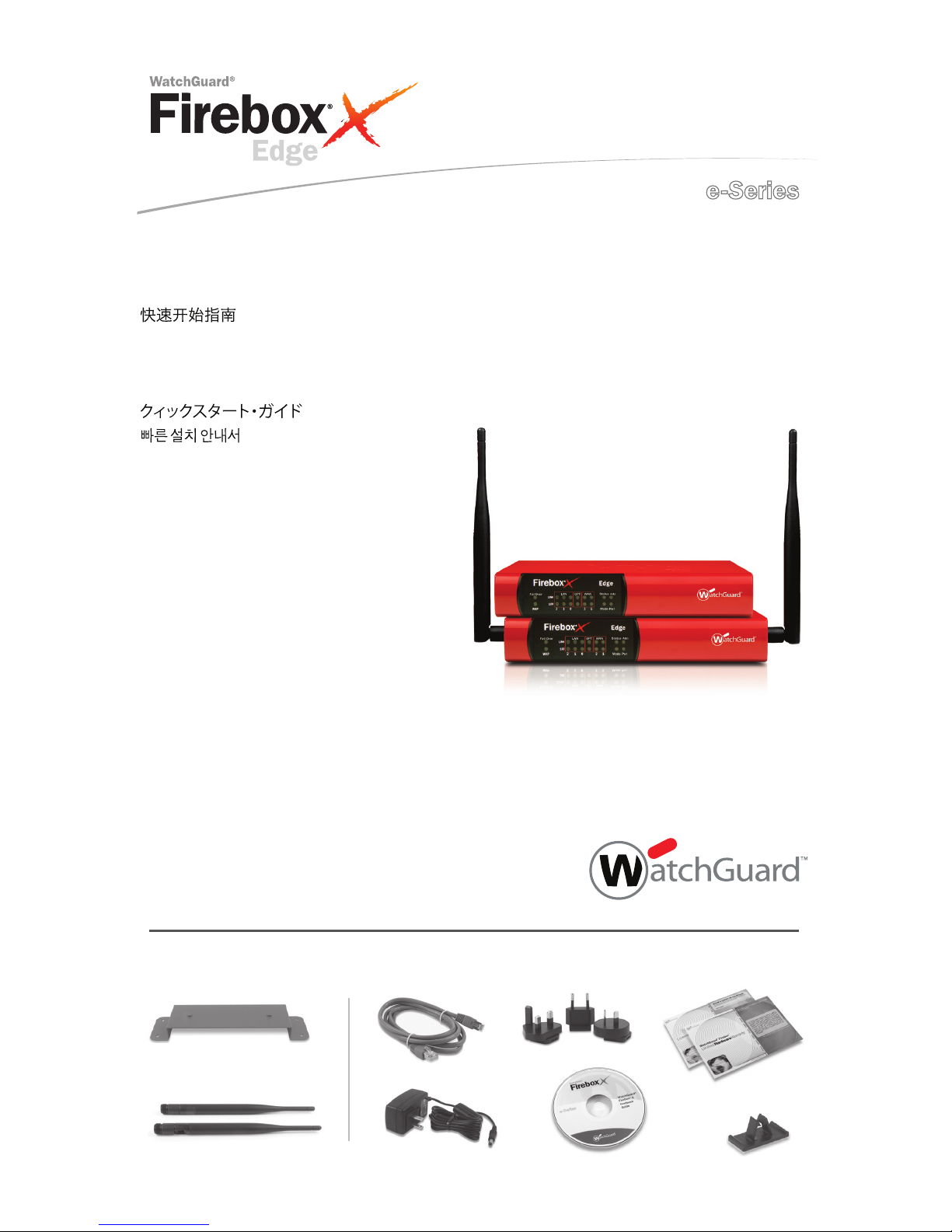
Quick Start Guide
Guide de démarrage rapide
Kurzanleitung
Guida introduttiva
Guía Rápida
Firebox® X Edge 10e, 20e, 55e
Firebox® X Edge 10e-W, 20e-W, 55e-W
Page 2
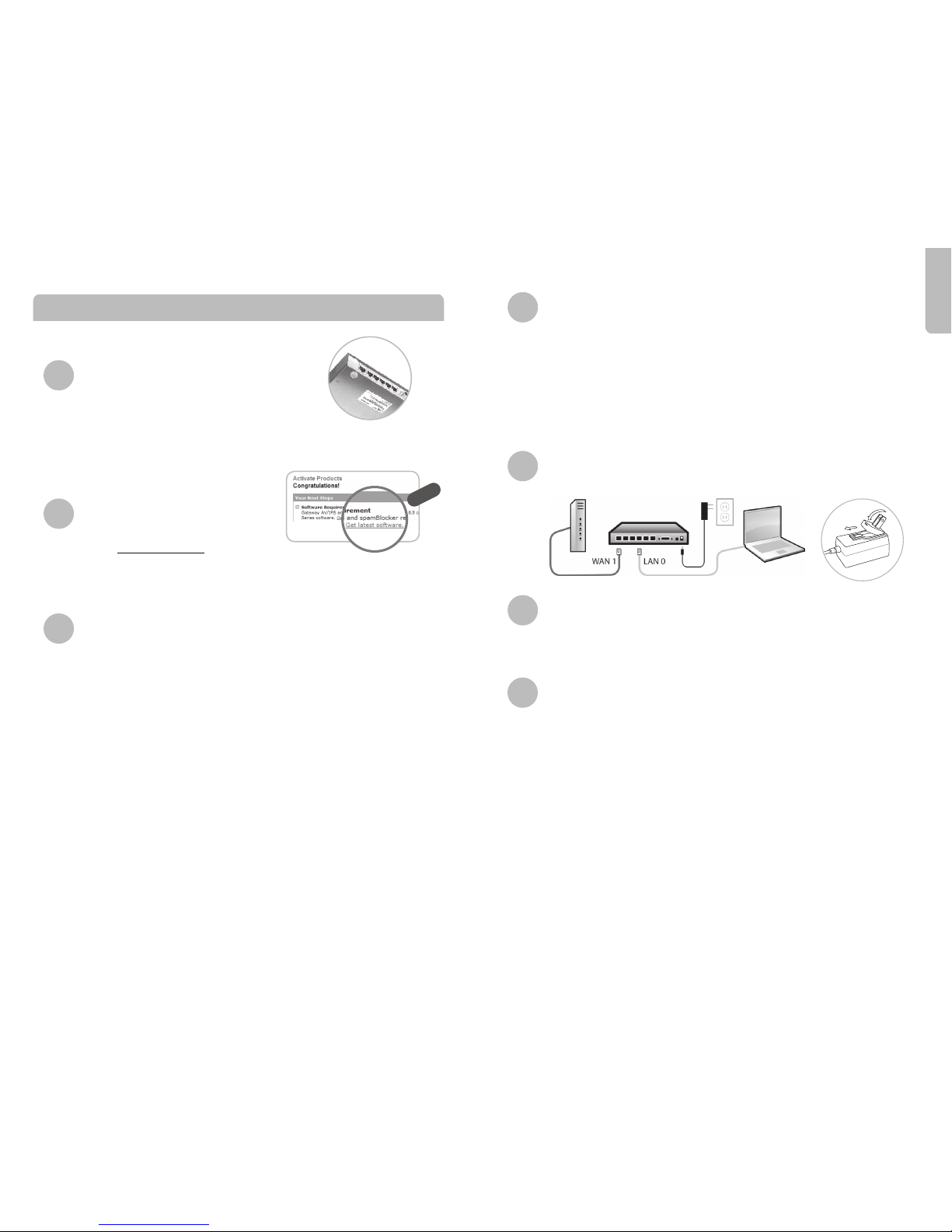
Register with LiveSecurity® Service
• Find and record your serial number.
• Go to http://www.watchguard.com/activate
• Log in. (NOTE: If you are new to WatchGuard, follow the instructions to create a prole.)
• Follow the instructions on the screen.
• Copy your feature key to a text le.
You will need it later.
Download software
• After successful activation,
click Get latest software to go to
https://www.watchguard.com/archive/softwarecenter.asp
• Download the latest Edge software.
• Record the name and location of the le you download.
Gather network information
Most Internet Service Providers (ISPs) give IP addresses to their
customers automatically through DHCP. Some providers use a static IP
address for each customer, or use PPPoE for authentication.
• If your ISP gives you an IP address automatically, go to Step 4.
• If your ISP gives you a static IP address or requires PPPoE
authentication, record your network information below.
Use the docume ntation from your ISP, or contact them for
more information.
TCP/IP Settings PPPoE Settings
IP Address __________________________________ Name ___________________________________
Subnet Mask _______________________________ Domain __________________________________
Default Gateway ____________________________ Password __________________________________
Primary DNS _______________________________
Secondary DNS _____________________________
DNS Sux _________________________________
English
Before you connect
• To connect to the Firebox® X Edge, you must congure the network
setting on your computer to use DHCP.*
• Make sure the proxy server setting is disabled in your web browser.
You cannot connect to the Firebox X Edge if you use a proxy server.*
• Make sure that your web browser is not set to block pop-up windows.
You cannot start the Quick Setup Wizard if you block pop-up windows.*
* For more information, see “Setting Your Computer to Connect to the Edge” in Chapter 2 of the User Guide.
Connect cables and power cord
Update the software on the Edge
• To install the most current Edge software, run the executable le you
downloaded in Step 2.
• Use the default IP address, user name, and password.
Run the Quick Setup Wizard
• Before you start the Quick Setup Wizard, make sure:
- You have registered your Firebox X Edge with LiveSecurity.
- Your computer is set to connect using DHCP.
- You have updated the Edge software to the latest version.
• Start your web browser.
• Type https://192.168.111.1 in the address bar of your browser and
press Enter.
• Use the Quick Setup Wizard to congure your Firebox X Edge.
• Use the user name and password you set in the wizard to log in to
your Edge.
4
5
6
Getting Started
1
2
3
7
Page 3
4
5
6
7
1
2
3
Page 4
Français
Avant de vous connecter
•
Pour vous connecter au Firebox X Edge, vous devez congurer les
paramètres réseau de votre ordinateur de façon à utiliser DHCP.*
•
Assurez-vous d’avoir désactivé les paramètres de serveur proxy dans
votre navigateur Internet. Vous ne pourrez pas vous connecter au
Firebox X Edge si vous utilisez un serveur proxy.*
•
Vériez que votre navigateur Internet n’est pas paramétré pour bloquer les
fenêtres pop-up. Vous ne pourrez pas démarrer l’assistant de conguration
rapide (Quick Setup Wizard) si vous bloquez les fenêtres pop-up.*
* Pour de plus amples informations, référez-vous au chapitre 2 de votre manuel d’utilisation « Paramétrer votre ordinateur pour vous
connecter au Edge ».
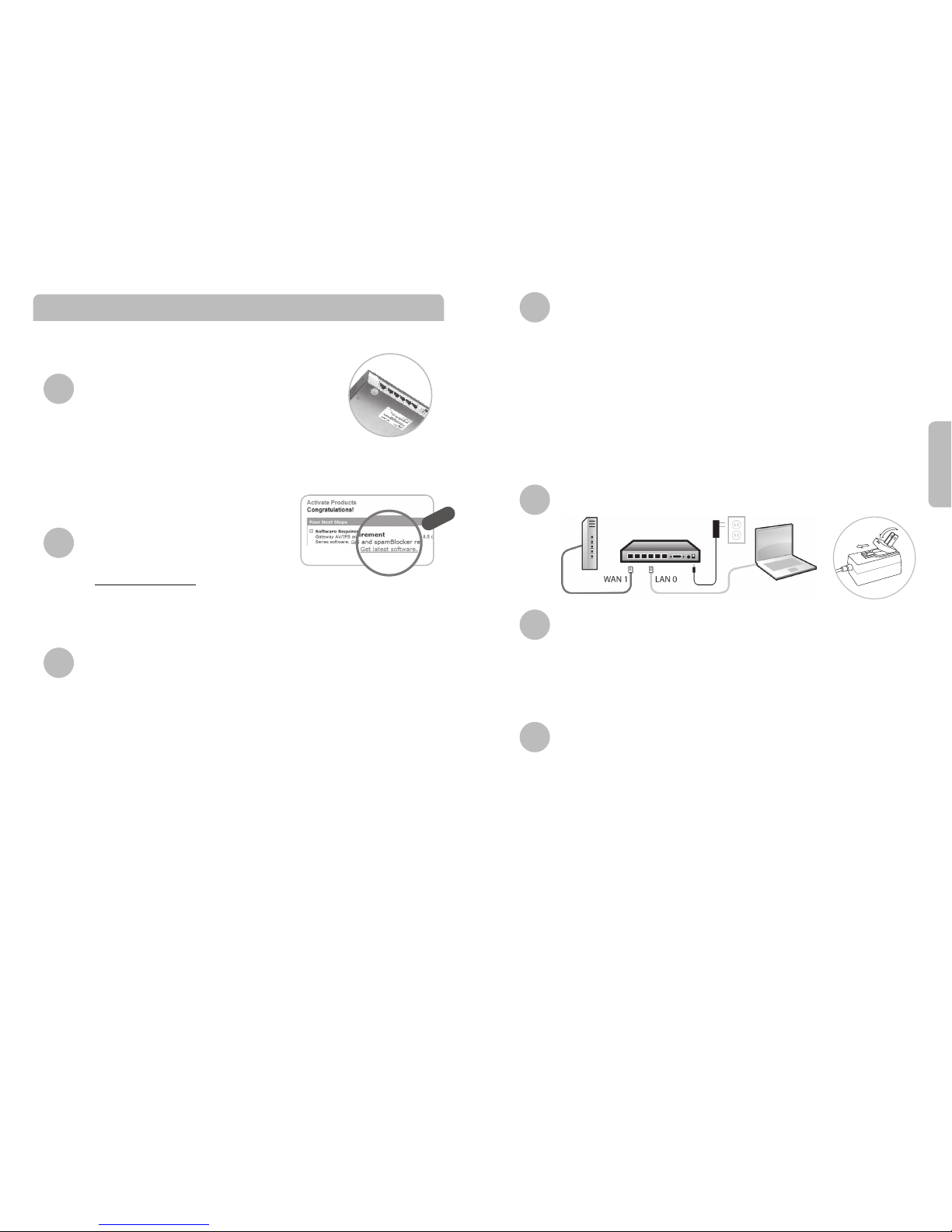
Branchez le cordon d’alimentation et les câbles
Mettez à jour le logiciel de votre Edge
• Pour installer la version la plus récente du logiciel Edge, lancez le
chier exécutable que vous avez téléchargé au cours de la seconde
étape.
• Utilisez votre adresse IP par défaut, votre nom d’utilisateur et
votre mot de passe.
Lancez l’assistant de conguration rapide
• Avant de lancer l’assistant de conguration rapide, vériez :
- que votre Firebox X Edge est enregistré auprès de LiveSecurity
-
que votre ordinateur est paramétré pour se connecter en DHCP
-
que vous avez mis à jour votre Edge avec la version la plus
récente du logiciel.
• Lancez votre navigateur Internet.
• Tapez https://192.168.111.1 dans la barre d’adresse de votre
navigateur et appuyez sur la touche Entrée.
• Utilisez l’assistant de conguration rapide pour congurer votre
Firebox X Edge.
• Utilisez le nom d’utilisateur et le mot de passe que vous avez
paramétrés dans cet assistant pour vous connecter à votre Edge.
4
5
6
Inscrivez-vous au Service LiveSecurity®
• Repérez l’autocollant avec votre numéro de série
et notez celui-ci.
• Allez sur http://www.watchguard.com/activate.
• Identiez-vous. (REMARQUE : si vous n’êtes pas encore inscrit chez WatchGuard, suivez les instructions
pour créer votre prol.)
• Suivez les instructions achées à l’écran.
• Copiez votre clé dans un chier texte.
Vous en aurez besoin ultérieurement.
Téléchargez le logiciel
• Une fois l’activation eectuée, cliquez sur
« Get latest software » pour arriver sur la page
https://www.watchguard.com/archive/softwarecenter.asp.
• Téléchargez la version la plus récente du logiciel Edge.
• Notez le nom et l’emplacement du chier que vous avez téléchargé.
Recueillez les informations réseau
La plupart des fournisseurs d’accès Internet donnent automatiquement
des adresses IP à leurs clients via DHCP. Mais certains d’entre eux
attribuent une adresse statique à chaque client ou utilisent PPPoE pour
l’authentication.
• Si votre fournisseur d’accès Internet vous donne automatiquement une
adresse IP, passez à l’étape 4.
• S’il vous attribue une adresse IP statique ou exige une authentication
PPPoE,
enregistrez vos informations réseau ci-dessous. Référez-vous
à la documentation
fournie par votre fournisseur d’accès Internet
ou contactez-le pour obtenir de plus amples renseignements.
Paramètres TCP/IP Paramètres PPPoE
Adresse IP __________________________________ Nom ____________________________________
Masque de sous-réseau _______________________ Domaine ________________________________
Passerelle par défaut _________________________ Mot de passe _____________________________
DNS primaire _______________________________
DNS secondaire _____________________________
Suxe DNS _________________________________
Pour démarrer
1
2
3
7
Page 5

Deutsch
Vor dem Verbindungsaufbau
• Um eine Verbindung zur Firebox X Edge aufzubauen, müssen Sie
die Netzwerkeinstellungen Ihres PCs auf die Verwendung von DHCP
kongurieren.*
• Die Einstellung für den Proxyserver in Ihrem Webbrowser muss
deaktiviert sein. Ansonsten können Sie keine Verbindung zur Firebox
X Edge herstellen.*
• Der Pop-up-Blocker Ihres Webbrowsers muss ebenfalls deaktiviert sein.
Ansonsten kann der Quick Setup Wizard nicht gestartet werden.*
* Weitere Infos nden Sie unter „Setting Your Computer to Connect to the Edge“ in Kapitel 2 des Benutzerhandbuchs..
Anschließen von Daten- und Netzkabeln
Update der Edge-Software
• Um die aktuelle Edge-Software zu installieren, starten Sie die in
Schritt 2 heruntergeladene Ausführungsdatei.
• Verwenden Sie dazu die standardmäßige IP-Adresse sowie
Benutzernamen und Kennwort.
Ausführen des Quick Setup Wizard
• Bevor Sie den Quick Setup Wizard starten, müssen Sie:
- Ihre Firebox X Edge beim LiveSecurity Service registrieren
- Ihren PC auf die Verbindung per DHCP kongurieren
- Die Edge-Software auf die neueste Version aktualisieren
• Starten Sie Ihren Webbrowser.
• Geben Sie in der Adressleiste Ihres Browsers https://192.168.111.1
ein und drücken Sie die Eingabetaste.
• Kongurieren Sie Ihre Firebox X Edge mithilfe des Quick Setup
Wizard.
• Melden Sie sich mit den im Quick Setup Wizard verwendeten Daten
(Benutzername und Kennwort) bei Ihrer Firebox Edge an.
4
5
6
Registrierung beim LiveSecurity® Service
• Notieren Sie sich die Seriennummer Ihres Geräts.
• Besuchen Sie http://www.watchguard.com/activate.
• Melden Sie sich an. (HINWEIS: Wenn Sie neu bei WatchGuard sind, erstellen Sie zunächst ein Prol.)
• Folgen Sie den Bildschirmanweisungen.
• Kopieren Sie Ihren Feature Key in eine Textdatei. Sie benötigen ihn
später noch.
Software-Download
• Klicken Sie nach erfolgter Aktivierung
auf Get the latest software, um zur Website
https://www.watchguard.com/archive/softwarecenter.asp
zu gelangen.
• Laden Sie die aktuelle Edge-Software herunter.
•
Notieren Sie sich Namen und Speicherort der heruntergeladenen Datei.
Sammeln von Netzwerkinformationen
Die meisten Kunden erhalten die IP-Adressen automatisch per DHCP
von ihrem Internet Service Provider (ISP). Manche Anbieter vergeben
allerdings auch statische IP-Adressen für jeden Kunden bzw.
verwenden die PPPoE-Authentizierung.
•
Wenn Sie Ihre IP-Adressen automatisch erhalten, fahren Sie mit Schritt 4 fort.
• Wenn Sie mit statischen IP-Adressen oder PPPoE-Authentizierung
arbeiten, tragen Sie nachfolgend Ihre Netzwerkdaten ein. Verwenden
Sie dazu die Dokumentation von Ihrem ISP oder suchen Sie ggf. den
direkten Kontakt.
TCP/IP-Einstellungen PPPoE-Einstellungen
IP-Adresse _________________________________ Name ___________________________________
Subnetzmaske ______________________________ Domäne _________________________________
Standardgateway ____________________________ Kennwort ________________________________
Primäres DNS _______________________________
Sekundäres DNS _____________________________
DNS-Sux _________________________________
Erste Schritte
1
2
3
7
Page 6

Italiano
Prima della connessione
• Per connettere Firebox X Edge, è necessario congurare
l‘impostazione di rete del computer per l‘utilizzo di DHCP.*
• Assicurarsi che l‘impostazione del server proxy sia disattivata nel
browser Web. Non è possibile collegare Firebox X Edge se si utilizza
un server proxy.*
• Assicurarsi che il browser Web non sia congurato per il blocco delle
nestre popup. Se le nestre popup sono bloccate non è possibile
avviare la congurazione guidata rapida.*
*
Per ulteriori informazioni, vedere , “Congurazione del computer per la connessione a Firebox X Edge“ nel capitolo 2 della guida utente.
Connessione del cablaggio e del cavo di alimentazione
Aggiornamento software di Edge
• Per installare la versione del software Edge più recente, eseguire il le
eseguibile scaricato al Punto 2.
• Usare l‘indirizzo IP, nome utente e password predeniti.
Esecuzione della congurazione guidata rapida
• Prima di avviare la congurazione guidata rapida è necessario:
- Registrare Firebox X Edge con LiveSecurity.
- Congurare il computer utilizzando DHCP.
- Assicurarsi di aver installato l‘ultima versione del software
Edge.
• Avviare il browser web.
• Digitare https://192.168.111.1 nella barra degli indirizzi del browser
e premere Invio.
• Utilizzare la congurazione guidata rapida per congurare
Firebox X Edge.
• Eseguire l‘accesso a Edge utilizzando il nome utente e la password
impostati nella congurazione guidata.
4
5
6
1
Registrazione con LiveSecurity® Service
• Individuare l‘adesivo con il numero di serie.
•
Digitare l‘indirizzo http://www.watchguard.com/activate
• Eseguire l‘accesso. (NOTA: se è la prima volta che si utilizza il sito WatchGuard,
seguire le istruzioni per creare un prolo).
• Seguire le istruzioni visualizzate sullo schermo.
• Copiare la propria chiave funzionalità in un le di testo per poterla
utilizzare successivamente.
Download del software
• Dopo l‘attivazione, fare clic su
Aggiornamenti software per accedere a
https://www.watchguard.com/archive/softwarecenter.asp
• Scaricare la versione più recente del software Edge.
• Annotare il nome e il percorso del le scaricato.
Informazioni sulla rete
La maggior parte dei provider Internet (ISP) fornisce automaticamente
indirizzi IP ai propri clienti tramite DHCP. Alcuni provider utilizzano
un indirizzo IP statico per ciascun cliente oppure utilizzano PPPoE per
l‘autenticazione.
• Se il provider Internet fornisce automaticamente un indirizzo IP, passare
al punto 4
• Se il provider Internet fornisce un indirizzo IP statico oppure richiede
l‘autenticazione PPPoE, annotare le informazioni sulla rete indicate di
seguito. Utilizzare la documentazione fornita dal provider Internet oppure
contattare il provider Internet per ricevere ulteriori informazioni.
Impostazioni TCP/IP Impostazioni PPPoE
Indirizzo IP _________________________________ Nome ___________________________________
Subnet Mask _______________________________ Dominio _________________________________
Gateway predenito _________________________ Password ________________________________
DNS primario _______________________________
DNS secondario _____________________________
Susso DNS ________________________________
Per iniziare
1
2
3
7
Page 7

4
5
6
7
1
2
3
Page 8

4
5
6
7
1
2
3
Page 9

Español
Antes de conectar
• Para conectarla al Firebox® X Edge, debe congurar la red en su
computadora para usar DHCP.*
• Asegúrese de que la conguración de servidor proxy esté inhabilitada
en su navegador. No podrá conectarse al Firebox X Edge si usa un
servidor proxy.*
• Asegúrese de que su navegador no esté congurado para bloquear
ventanas pop-up. No podrá iniciar el Quick Setup Wizard si bloquea
ventanas pop-up.*
* Para más información, vea “Congurando su computadora para conectarse al Edge” en el Capítulo 2 de la Guía del Usuario.
Cómo conectar los cables y el tomacorriente
Cómo actualizar el software del Edge
• Para instalar el software más actual del Edge, corra el archivo
ejecutable que descargó en el Paso 2.
• Use la dirección IP, el nombre de usuario y la contraseña por defecto.
Cómo ejecutar el Quick Setup Wizard
• Antes de iniciar el Quick Setup Wizard, asegúrese de:
- Haber registrado su Firebox X Edge en LiveSecurity.
- Que su computadora esté congurada para conectarse
usando DHCP.
- Haber actualizado el software para Edge hasta la última
versión.
• Abra su navegador.
• Escriba https://192.168.111.1 en la barra de direcciones de su
navegador y oprima Enter.
• Use el Quick Setup Wizard para congurar su Firebox X Edge.
• Use el nombre de usuario y la contraseña que estableció en el wizard
para ingresar en su Edge.
4
5
7
6
Cómo Empezar
1
2
3
Regístrese en LiveSecurity® Service
• Encuentre la etiqueta con su número de serie.
• Vaya a http://www.watchguard.com/activate
• Ingrese. (NOTA: si usted es nuevo en WatchGuard, siga las instrucciones para crear un perl).
• Siga las instrucciones en pantalla.
• Copie su Feature Key en un archivo de texto. La necesitará después.
Descarga de software
• Luego de haber hecho exitosamente
la activación, haga click en Get latest
software para ir a:
https://www.watchguard.com/archive/softwarecenter.asp
• Descargue la versión más actual del software para Edge.
• Guarde los nombres y ubicaciones de los archivos que descargó.
Reúna información sobre la red
La mayor parte de los Internet Service Providers (ISPs) dan direcciones
IP automáticamente a sus clientes mediante DHCP. Algunos
proveedores usan una dirección IP estática para cada cliente, o usan
PPPoE para la autenticación.
• Si su ISP le da una dirección IP automáticamente, vaya al Paso 4.
• Si su ISP le da una dirección IP estática o requiere autenticación
PPPoE, guarde la información sobre su red abajo mencionada.
Use la documentación provista por su ISP, o contáctelo para más
información
Conguración TCP/IP Conguración PPPoE
Dirección IP _________________________________ Nombre ___________________________________
Máscara de Subred __________________________ Dominio ____________________________________
Gateway por Defecto __________________________ Contraseña __________________________________
DNS Primario _______________________________
DNS Secundario _____________________________
Sujo DNS __________________________________
Page 10

Page 11

ADDRESS: 505 Fifth Avenue South, Suite 500, Seattle, WA 98104
WEB: www.watchguard.com • U.S. SALES: 1.800.734.9905 • INTERNATIONAL SALES: +1.206.613.0895
©2008 WatchGuard Technologies, Inc. All rights reserved. WatchGuard, the WatchGuard
Logo, Firebox, and LiveSecurity are either trademarks or registered trademarks
of WatchGuard Technologies, Inc. in the United States and/or other countries. All
other trademarks and tradenames are the property of their respective owners.
P.N. 352-2545-010 WGPE66377_042308
1.877.232.3531 +1.206.613.0456 www.watchguard.com/support
(U.S. and Canada) (all other countries)
Locate a WatchGuard Certied Training Partner at www.watchguard.com/training
Improve your security knowledge at www.watchguard.com/education
WATCHGUARD TECHNICAL SUPPORT
WATCHGUARD TRAINING PARTNERS
WATCHGUARD EDUCATION & RESOURCES
 Loading...