

Page 1
WWS500 Programming Guide
Barcode Scanning Made Easy
Page 2

Table of Contents
Chapter 1. Introduction . . . . . . . . . . . . . . . . . . . . . . . . . . .2
Chapter 2. Barcode Symbologies . . . . . . . . . . . . . . . . . . .3
Chapter 3. Quick Start . . . . . . . . . . . . . . . . . . . . . . . . . . . .4
Chapter 4. WWS500 Setup & Configuration . . . . . . . .6-28
1. Setup & Configuration . . . . . . . . . . . . . . . . .6
2. Factory Default & Autosense Stand Mode . .7
3. Beep and Delay . . . . . . . . . . . . . . . . . . . .8-9
4. Upper/Lower Case . . . . . . . . . . . . . . . . . . .10
5. Keyboard Language . . . . . . . . . . . . . . . . . .11
6. Preamble/Postamble Configuration . . . . . .12
7. Terminator/Code ID . . . . . . . . . . . . . . . . . .13
8.
Enable/Disable Barcode Symbologies
. . .14-15
9. Barcode Symbology Settings . . . . . . . .16-28
Code 39 . . . . . . . . . . . . . . . . . . . . . . . . . . .16
Interleaved 2 of 5 and Code 93 . . . . . . . . .17
Code 128 and UCC/EAN 128 . . . . . . . . . . .18
MSI/Plessey . . . . . . . . . . . . . . . . . . . . . . .19
Codabar . . . . . . . . . . . . . . . . . . . . . . . . . . .20
UPC-A . . . . . . . . . . . . . . . . . . . . . . . . . . . .21
UPC-A Supplemental / UPC-A to EAN-13 .22
UPC-E . . . . . . . . . . . . . . . . . . . . . . . . . . . .23
UPC-E Supplemental . . . . . . . . . . . . . . . . .24
EAN-8 . . . . . . . . . . . . . . . . . . . . . . . . . . . .25
EAN-8 Supplemental . . . . . . . . . . . . . . . . .26
EAN-13 . . . . . . . . . . . . . . . . . . . . . . . . . . .27
EAN-13 Supplemental . . . . . . . . . . . . . . . .28
Chapter 5. Bluetooth Settings . . . . . . . . . . . . . . . . . . . . .29
Appendix A Barcode Test Symbols . . . . . . . . . . . . . . .30-32
Appendix B ASCII Table . . . . . . . . . . . . . . . . . . . . . . . .33-36
Appendix C Codes for PC . . . . . . . . . . . . . . . . . . . . . . . . .37
Appendix D Technical Specifications . . . . . . . . . . . . . . . . .38
Warranty . . . . . . . . . . . . . . . . . . . . . . . . . . . .39
FAQ / Product Support . . . . . . . . . . . . . . . . .40
Page 3

Chapter 1
2
Introduction
Barcoding is the most common Automated Data Collection (ADC)
technology providing timely, error-free information that can be used to
increase productivity, accuracy, and efficiency in the workplace. Virtually
every type of industry is using bar codes to replace keyboard data entry.
Studies have shown that a proficient data entry operator will make one
error for every 300 characters that are manually entered. The error rate
using barcodes is almost negligible and can be error-free using barcode
symbologies with the check digit enabled.
The Wasp Charged Coupled Device (CCD) technology is a technique
whereby a barcode is photographed, digitized, and electronically sampled
by built-in photodetectors. The detectors process the measurement of
every bar and space using the number of adjacent photodetectors which
contrast a black mark and a white space. The Wasp WWS500 Freedom
Scanner is extremely rugged since it has no moving parts.
Of all the hand held barcode scanning devices on the market, the CCD
reader is the easiest to use and most cost effective for the typical business
user. The Wasp WWS500 Freedom Scanner is an extended distance
scanner with a depth of reading of up to one foot depending on the mil
size of the barcode. To activate the scanner, the user simply points the
scanning aperture towards the barcode, pulls the trigger, and aims the red
LED beam across the barcode.
Page 4

Chapter 2
3
Barcodes are symbols consisting of a series of bars and spaces which can
be applied to packages, cartons, bottles, and other commercial products.
The bars and spaces in each symbol are grouped in such a way to
represent a specific ASCII character or function. The interpretation of
these groups is based on a particular set of rules called symbologies.
Various symbologies have been developed for particular applications.
Some examples are shipping and receiving, manufacturing, retail,
healthcare, transportation, document processing and tracking, and
libraries.
The resolution of a barcode is dependent on the narrowest element of a
barcode (X dimension), and can vary from high density (nominally less
than 0.009 in./0.23 mm), medium density (between 0.009 in./0.23 mm and
0.020 in./0.50 mm), and low density (greater than 0.020 in./0.50 mm).
Medium and low densities are the most common since these are the
easiest to read (scan) with nearly all scanning devices. The Wasp
WWS500 Freedom Scanner can read barcodes with X-dimensions as low
as 5 mils (0.005 in/0.13mm).
The Wasp WWS500 Freedom Scanner can read the most popular barcode
symbologies including Code 39, Code 93, Code 128, Interleaved 2 of 5,
UPC-A, UPC-E, EAN/JAN-8, EAN/JAN-13, Codabar, and MSI/Plessey.
Please see test chart on pages 28-30.
Barcode Symbologies
Page 5

Chapter 3
4
Quick Start
1. Unpack
Open the box and remove all the pieces from their protective packaging.
2. Charging the WWS500
You must charge the scanner for 4 hours before first using it. To charge
the scanner plug the power supply in to the bottom of the scanner.
3. Setting up the Bluetooth Adaptor
If you already have Bluetooth setup on your PC or device, please
continue to the next step.
To setup Bluetooth on your PC you will need to insert the Bluetooth
adapter into an available USB port. Windows will detect the adapter and
install the required Microsoft Bluetooth software. If Windows does not
detect the Bluetooth adapter, please remove the adapter and insert the CD
with the adapter’s Bluetooth software on it. Follow the instruction on the
CD for installing the Bluetooth software.
4. Connecting the scanner to a Bluetooth device.
The scanner will connect to most Bluetooth devices that support HID
connection.
You will need to open your Bluetooth software and search for Bluetooth
devices. The Bluetooth software can be found by clicking the Bluetooth
symbol on the start bar near the computer time. If the Bluetooth symbol is
not found, there could be a problem with the Bluetooth adapter installation.
Once you have the Bluetooth software open
you will need to scan the Set Connection
barcode (right). This will make the scanner ready
to be detected by the Bluetooth software.
Set Connection
Page 6
Chapter 3
5
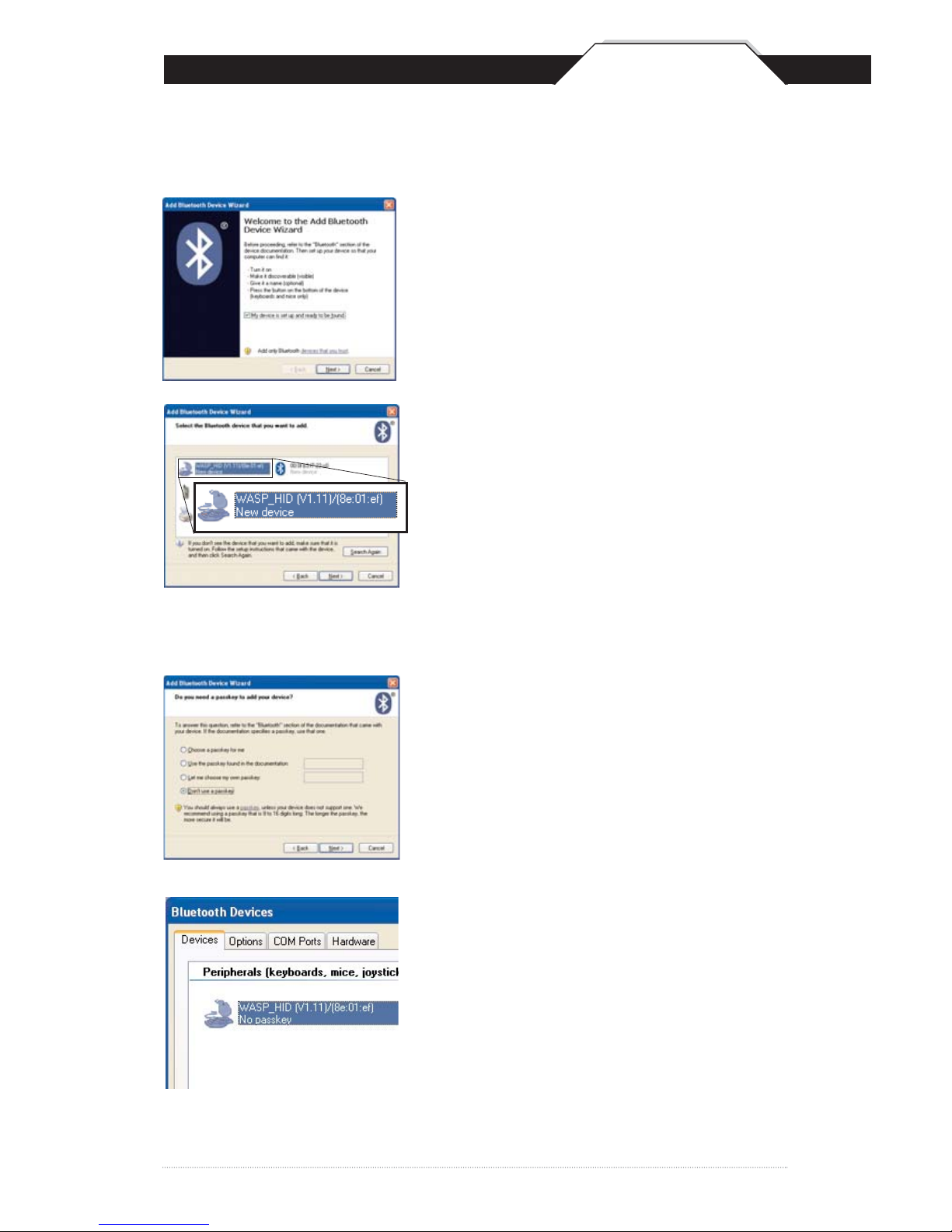
The following screens are Microsoft’s standard Bluetooth wizard.
*Most Bluetooth wizards will have similar steps.
Check the “My device is setup and
ready to be found.” and click Next.
The scanner will show up in the list of
Bluetooth devices found. Select the
WASP_HID and click Next.
* If WASP_HID does not show up in the
available devices please check the following.
- Make sure the scanner is on by pressing
the trigger.
- If you are using a pre-installed Bluetooth
adapter, make sure the adapter supports HID.
The next step will ask you to setup a passkey
for the device. By default the scanner will not
have a passkey set. Please select “Don’t use
a passkey” and click Next.
The last screen of the wizard will be complete
the wizard. Just click Finish to complete.
Once the wizard is complete the scanner will
show up as a WASP_HID Device. Click OK to
close the screen. You are now ready to use
the WWS500.
Page 7

Chapter 4
6
In order to configure Wasp WWS500 Freedom Scanner, you must
familiarize yourself with the setup procedures on the following pages. The
default settings of the scanners are identified on each page and clearly
marked using an asterisk (*).
The default settings have been
preprogrammed for the most common barcode configurations.
Use the setup & configuration barcodes only to customize the
WWS500 Freedom Scanner settings. If you need to configure the
Scanner, the default settings will be overwritten. All the programmed
settings are stored permanently in non-volatile memory.
In order to configure Wasp WWS500 Freedom Scanner,
two basic steps need to be followed:
(1) Locate the group that contains the options to be changed.
(2) Scan the barcode representing the option to be changed.
The scanner will sound two beeps.
To change Minimum/Maximum Length:
(1) Scan the Minimum or Maximum Length barcode on page 15.
(2) Scan a 2 digit value from the ASCII table on pages 31-34
(3) Scan the Minimum or Maximum Length barcode again.
Example: To have a minimum length barcode of 1, you must scan a
0 then 1, then scan the minimum barcode again. To have a maximum
length barcode of 10, you must scan a 1 then 0, then scan the
maximum barcode again.
Setup & Configuration
Page 8
Chapter 4
7
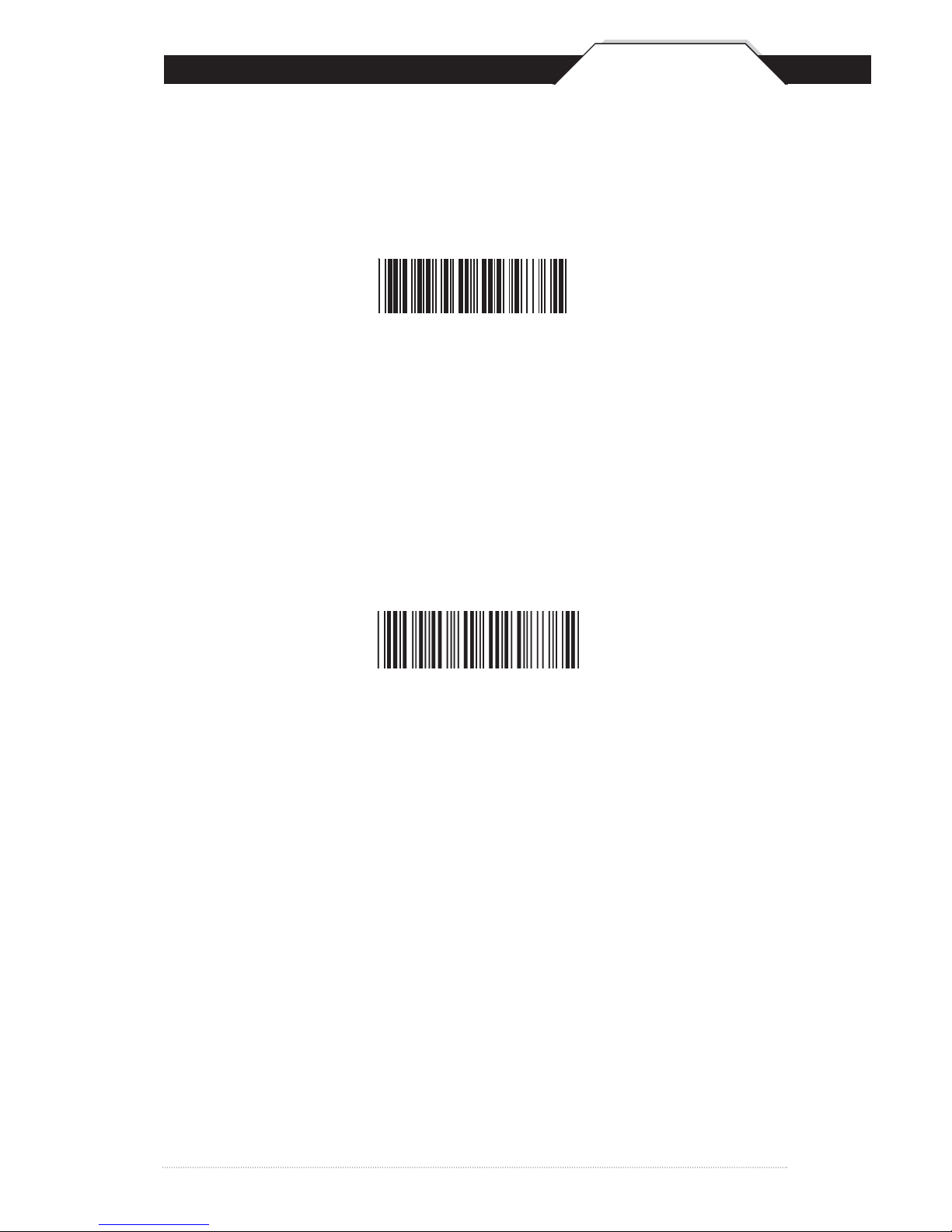
FACTORY DEFAULT & KEYBOARD CONNECTION
Use the Factory Default barcode to reset the scanner to the Default settings.
Factory Default
Autosense Flash Mode Enable
Scan this Autosense Stand Mode bar code to enable the hands-free autosense
feature of the WWS500 Freedom Scanner. If you desire to turn this mode “off,”
please scan the default bar code above.
Autosense Stand Mode
Factory Default
Note: Enabling this option will significantly increase the WWS500
Freedom Scanners battery consumption.
Page 9
Chapter 4
8
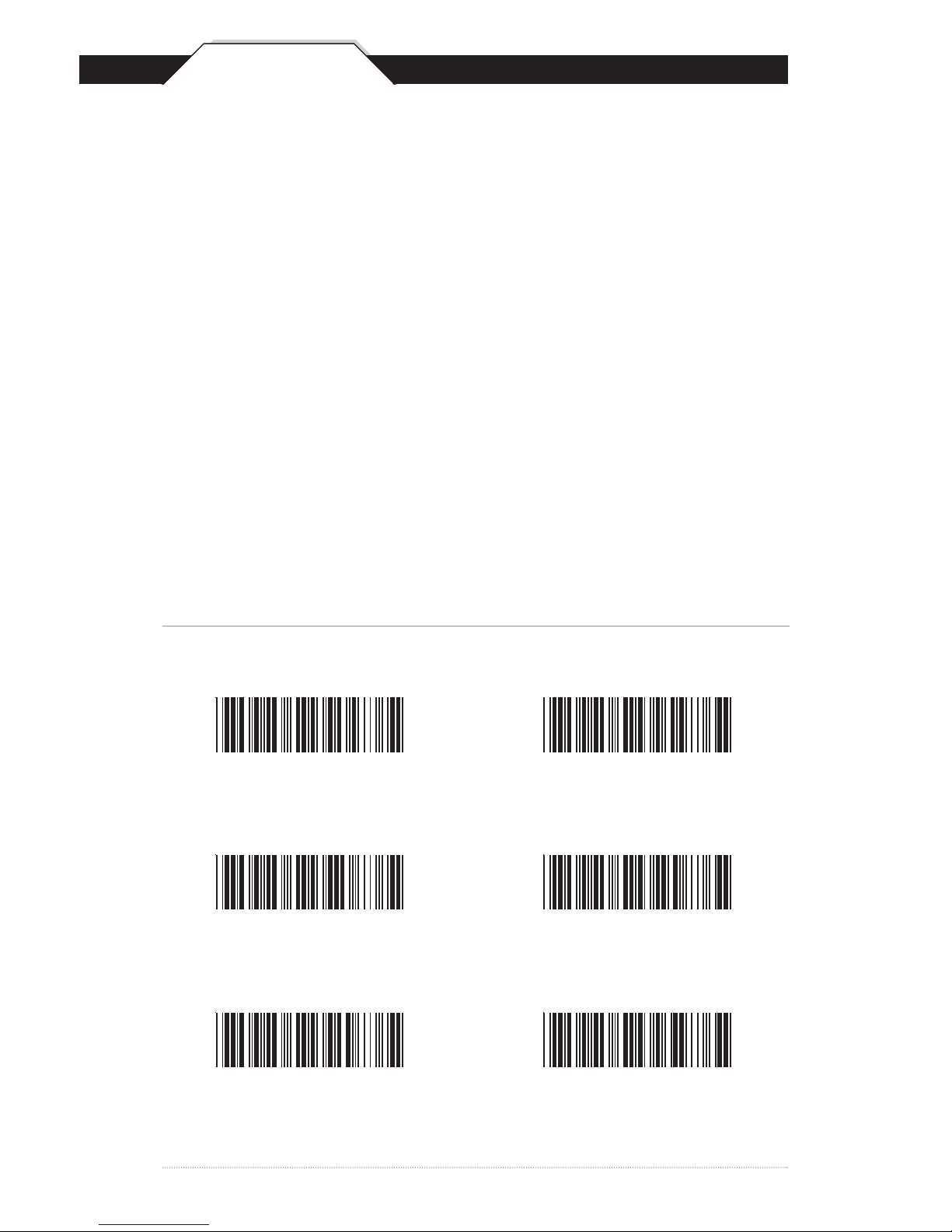
BEEP AND DELAY
The 'Beep and Delay' configuration supports the general control options for the
Wasp WWS500 Freedom Scanner. These options include the volume,
intercharacter delay, and interblock delay.
Interblock delay is the minimum time interval between two adjacent scans. If the
processing speed of your host device is slower than your scanning speed, a longer
interblock delay may ensure the data integrity.
Intercharacter delay is the time period that the scanner will wait before transmitting
the next character. If data sent by the scanner has incorrect or missing characters,
a longer intercharacter delay may solve the problem. The intercharacter delay
should be changed only if the transfer rate cannot be maintained between the
scanner and the keyboard buffer of the computer.
Note: The default for the intercharacter delay is set to '140us' and is the most
common configuration; however, your PC may be different. When you scan a bar
code, if some stray or scrambled characters appear, increase the intercharacter
delay to slow down the transfer rate.
Beep Off
Beep Medium *
Beep High to Low
Beep Hi
Beep Low to High
Beep Low
Beep Settings
*Default
Page 10
Chapter 4
9
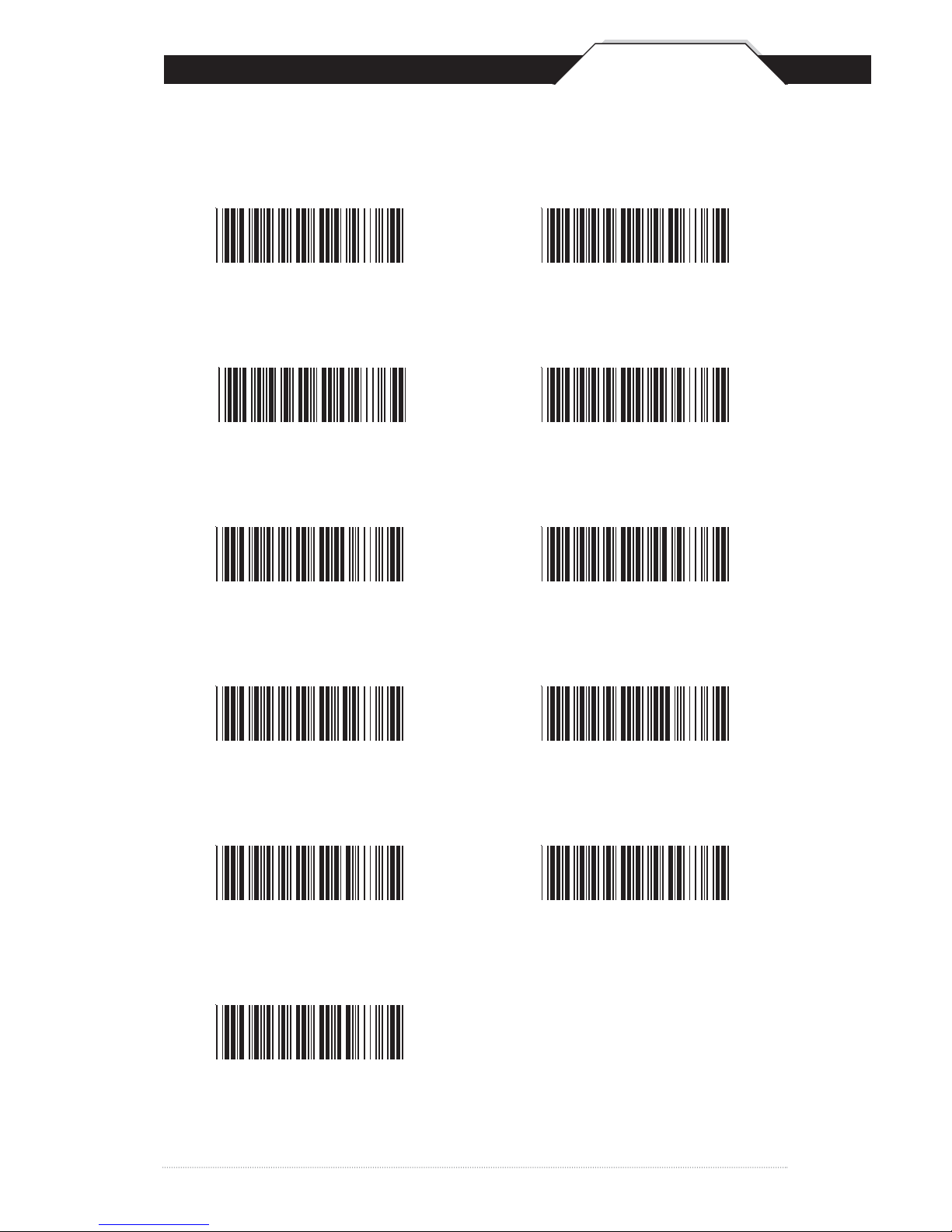
BEEP AND DELAY
0ms *
10ms
50ms
100ms
200ms
140us *
500us
1ms
4ms
16ms
500ms
Interblock Delay Intercharacter Delay
*Default
Page 11
Chapter 4
10
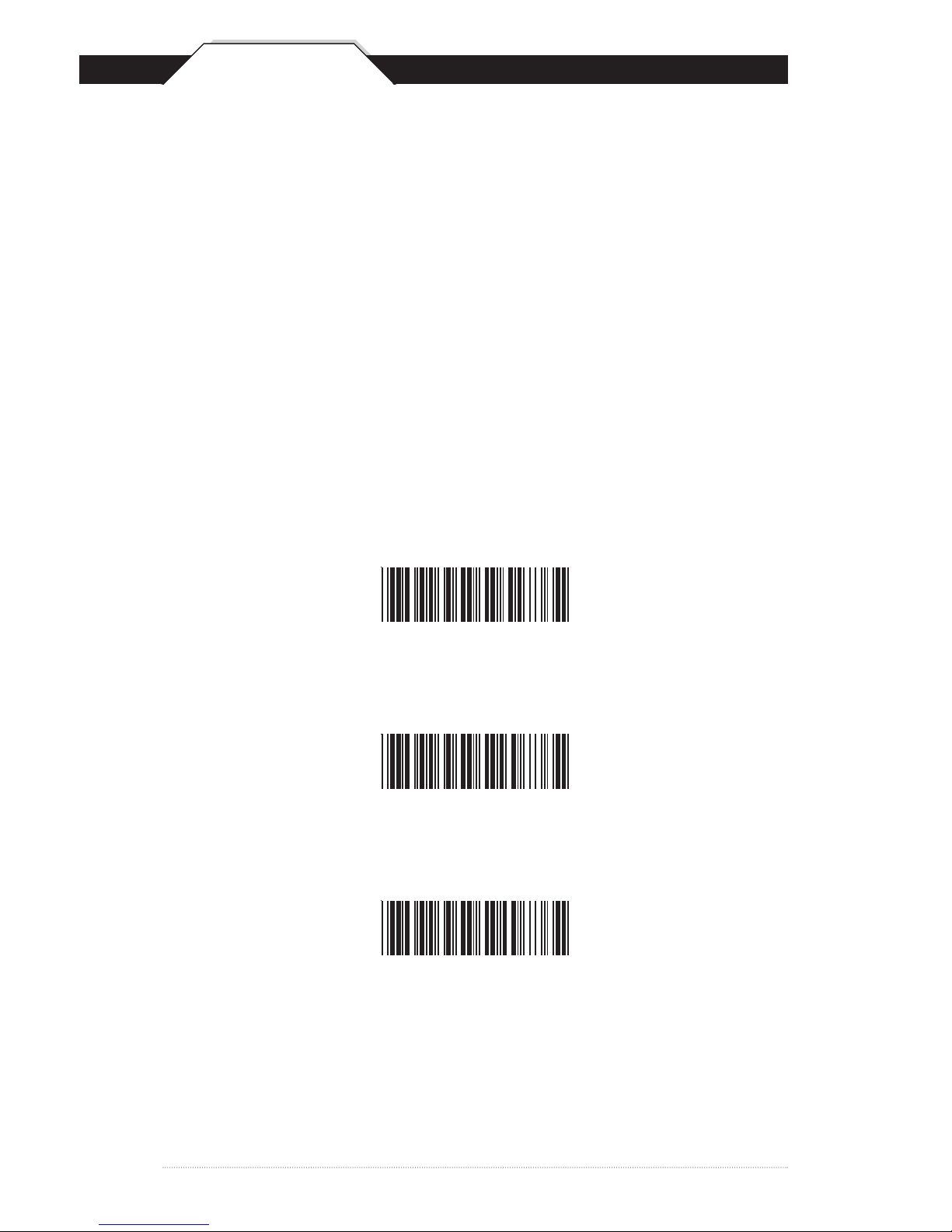
UPPER/LOWER CASE
• Caps Lock Auto (For PC XT/AT only):
In Auto mode, the scanner will keep track of the Caps Lock
status automatically. For some PCs, the scanning performance
may be compromised because of the auto tracing. If the
scanning performance is poor (or cannot scan) or the scanner
cannot output the upper/lower case characters correctly, try to
select one of the next two choices instead of auto tracing.
• Caps Lock Off:
When the keyboard is in the unshifted state
(Caps Lock is not pressed), select “Lower Case.”
• Caps Lock On:
When the keyboard is in the shifted state (Caps Lock is on),
select “Upper Case.”
Caps Lock On
Caps Lock Off *
Caps Lock Auto
*Default
Page 12
Chapter 4
11
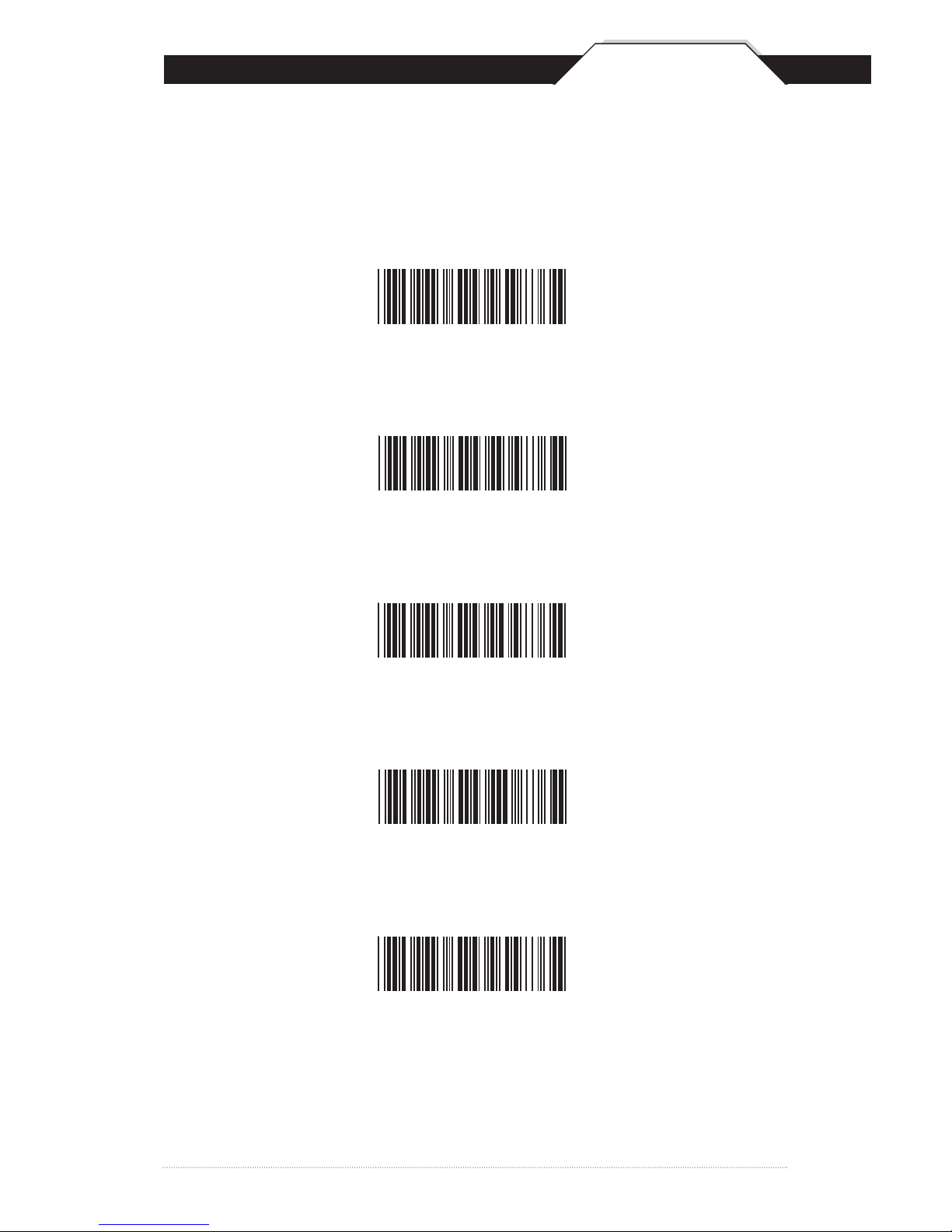
KEYBOARD LANGUAGE
U.S. *
German
French
Spanish
Italian
The ‘Keyboard Language’ setting controls the key codes for your
keyboard’s language.
*Default
Page 13
Chapter 4
12
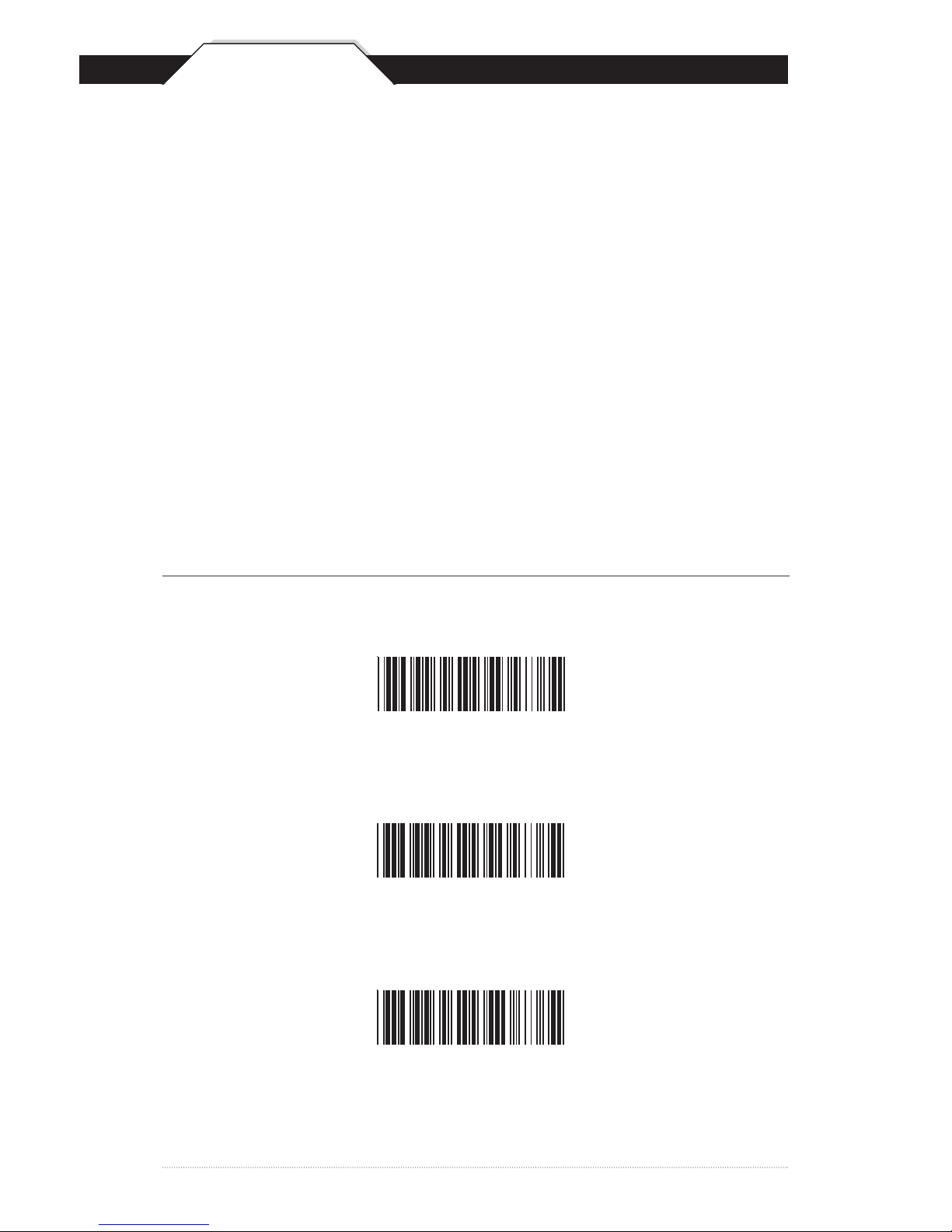
PREAMBLE/POSTAMBLE CONFIGURATION
The ‘Preamble/Postamble’ configuration is used to add a prefix or suffix
set of characters to the barcode value. Up to 8 characters may be added
for each option separately. Preamble and postamble characters can
function concurrently, but need to be configured separately.
To add preamble or postamble characters, follow the steps below:
1) Scan the ‘Clear Pre/Postamble’ barcode on this page.
2) Scan the ‘Preamble’ or ‘Postamble’ barcode.
3) Use Appendix B on pages 32-35 to locate the characters you want to
add as preamble or postamble characters. Make sure that you scan
the barcode associated with each letter before preceding to the next
character. For example, to add the letter “A,” scan the barcode
corresponding to the letter “A” on page 34. The letter “A” will always
appear in your data as prefix or suffix to the barcode value.
4) Scan the corresponding 'Pre/Postamble' barcode on this page to exit
this setting.
Clear Pre/Postamble
Preamble
Postamble
Page 14

Chapter 4
13
TERMINATOR/CODE ID
O - MSI/Plessey T - EAN 128
S - EAN 8 K - Code 128
E - UPC E N - Codabar
A - UPC A D - Full ASCII Code 39
F - EAN 13 M - Std. Code 39
L - Code 93 I - Interleaved 2 of 5
Terminator
CR *
None
Code ID
Code ID On
Code ID Off *
LF
CR + LF
Tab
Space
ESC
The ‘Terminator’ option is used to specify the end-of-text message and is
primarily used to denote the end of the barcode value.
The ‘Code ID’ option sends a specific value when a particular barcode
symbology is scanned. For example, if ‘Code ID’ is enabled and Code 39
is scanned, an “M” will appear in the data stream in front of the
barcode value.
*Default
Page 15

Chapter 4
14
ENABLE/DISABLE BARCODE SYMBOLOGIES
Enable Disable
Enable All
MSI Plessey
Interleaved 2 of 5 *
Code 128 *
Codabar *
Code 39 *
Disable All
MSI Plessey *
Interleaved 2 of 5
Code 128
Codabar
Code 39
*Default
Page 16

Chapter 4
15
ENABLE/DISABLE BARCODE SYMBOLOGIES
Enable Disable
UPC A *
UPC E *
EAN 8 *
EAN 13 *
Code 93
UPC A
UPC E
EAN 8
EAN 13
Code 93 *
*Default
Page 17

Chapter 4
16
CODE 39 SETTINGS
Enable Code 39 *
Enable Code 39
Full ASCII *
Check Digit Do
Not Calculate *
Check Digit Calculate
But Do Not Send *
Minimum Length (1 *)
Disable Code 39
Disable Code 39
Full ASCII
Check Digit Calculate
And Send
Maximum Length (48 *)
Code 39 is variable length and is the most frequently used symbology in
industrial barcode systems today. It is extensively used within the
Department of Defense (DOD). The principal feature is to encode
messages using the full alphanumeric character set. Standard Code 39
contains only 43 characters (0-9, A-Z, $, /, %, +, -, ., SPACE) and can be
extended to a 128 character symbology (full ASCII) by combining one of
the special characters (S, /, %, +) with a letter (A-Z) to form the characters
that are not present in the standard Code 39 symbology.
See page 6 for information on setting the minimum and maximum lengths.
*Default
Page 18

Chapter 4
17
INTERLEAVED 2 OF 5 AND CODE 93 SETTINGS
Enable Code 93 Disable Code 93 *
Enable Interleaved
2 of 5 *
Check Digit Do
Not Calculate *
Check Digit Calculate
But Do Not Send
Minimum Length (6 *) Maximum Length (48 *)
Disable Interleaved
2 of 5
Check Digit Calculate
And Send
Interleaved 2 of 5 is a variable length, even numbered, numeric barcode.
It is typically used in industrial and master carton labeling and also in the
automobile industry. The symbology uses bars to represent the first digit
of a pair and the interleaved (white) spaces to represent the second digit
of a character pair.
See page 6 for information on setting the minimum and maximum lengths.
Code 93 encodes the full 128 ASCII character set using 9 modules
arranged into 3 bars with adjacent spaces. Two of the characters are
check characters. Code 93 is similar to Code 39 but encodes more
characters per inch.
Minimum Length (6 *)
Maximum Length (48 *)
*Default
Page 19

Chapter 4
18
CODE 128 AND UCC/EAN 128 SETTINGS
Code 128 is the most flexible of all the common linear symbologies.
It supports alpha and numeric characters easily, has the highest number
of characters per inch, and is variable length.
See page 6 for information on setting the minimum and maximum lengths.
To Define UCC/EAN 128 Group Separator:
1. Scan Define UCC/EAN 128 Group Separator
2. Scan ASCII code from pages 31-34
3. Scan Define UCC/EAN 128 Group Separator
Note: Default Group Separator is GS
Enable Code 128 *
Disable Code 128
Minimum Length (5 *)
Maximum Length (48 *)
UCC/EAN 128
Enable *
UCC/EAN 128
Code ID Enable
UCC/EAN 128
Disable
UCC/EAN 128
Code ID Disable *
Function 1
Character Send
Define UCC/EAN 128
Group Separator
Function 1
Character Do Not Send *
*Default
Page 20

Chapter 4
19
MSI PLESSEY SETTINGS
MSI Plessey is a variable length numeric symbology and is primarily used
in marking retail shelves. Each character consists of four bars with
intervening spaces for each encoded digit, one or two symbol check digits,
and a reverse start code.
See page 6 for information on setting the minimum and maximum lengths.
Enable
Check Digit Verify
And Send *
Check Digit Double
MOD 10
Check Digit Single MOD 10
Disable *
Check Digit Verify
And Do Not Send
Check Digit Double 11
Plus MOD 10
Minimum Length (6 *)
Maximum Length (48 *)
*Default
Page 21

Chapter 4
20
CODABAR SETTINGS
Codabar is a variable length symbology capable of encoding six special
alphanumeric characters, capital letters A through D, T, N, *, E, and all
numeric digits. Codabar is one of the oldest barcode symbologies and is
still used in some library applications. It should not be considered for new
applications except under unusual circumstances.
See page 6 for information on setting the minimum and maximum lengths.
Codabar Enable *
Send Start/Stop *
Check Digit
Do Not Verify *
Check Digit Verify
And Do Not Send
Codabar Disable
Do Not Send
Start/Stop
Check Digit
Verify And Send
Minimum Length (6 *)
Maximum Length (48 *)
*Default
Page 22

Chapter 4
21
UPC-A SETTINGS
UPC-A (Universal Product Code-A) is fixed length and is the most
common UPC barcode for retail product labeling. It is seen in most
grocery stores across the United States. The symbology encodes a
12-digit number. The first six digits are assigned from the Uniform Code
Council (UCC). The next five digits are assigned by the manufacturer,
and the final digit is a modulo 10 check digit. The nominal height for the
UPC-A barcode is one inch. The reduced size is 80% of the nominal size.
UPC-A Enable *
Send Leading Digit *
Send Check Digit *
UPC-A Disable
Do Not Send
Leading Digit
Do Not Send
Check Digit
*Default
Page 23

Chapter 4
22
UPC-A SUPPLEMENT SETTINGS / UPC-A TO EAN-13
This option enables the two and five digit supplements for the UPC and
EAN/JAN barcode symbologies.
5 Digit Supplement
Enable
2 Digit Supplement
Enable
Transmit if Present
5 Digit Supplement
Disable *
This option expands the UPC-A barcode to EAN-13.
UPC-A to EAN-13
Enable
UPC-A to EAN-13
Disable *
2 Digit Supplement
Disable *
Must Be Present *
*Default
Page 24

Chapter 4
23
UPC-E SETTINGS
UPC-E (Universal Product Code-E) is fixed length and is a compressed
six digit code used for marking small packages, including magazines and
paperback books. UPC-E symbols are UPC-A symbols that have been
zero suppressed (i.e. consecutive zeros are not included in the symbol).
The printed value of the UPC-E code is a twelve digit code. The nominal
height for the UPC-E barcode is one inch. The reduced size is 80% of
the nominal size.
UPC-E Enable *
Send Leading Digit *
Send Check Digit *
UPC-E Disable
Do Not Send
Leading Digit
Do Not Send
Check Digit
Expand to UPC-A
On
Expand to UPC-A
Off *
*Default
Page 25

Chapter 4
24
UPC-E SUPPLEMENT SETTINGS
This option enables the two and five digit supplements for the UPC and
EAN/JAN barcode symbologies.
5 Digit Supplement
Enable
2 Digit Supplement
Enable
Transmit if Present
5 Digit Supplement
Disable *
2 Digit Supplement
Disable *
Must Be Present *
*Default
Page 26

Chapter 4
25
EAN-8 SETTINGS
The EAN/JAN-8 is fixed length and is similar to the UPC-E code, but includes
two more digits for the country code. The nominal height for the EAN/JAN-8
barcode is one inch. The reduced size is 80% of the nominal size.
EAN-8 Enable *
Send Leading Digit *
Send Check Digit *
EAN-8 Disable
Do Not Send
Leading Digit
Do Not Send
Check Digit
*Default
Page 27

Chapter 4
26
EAN-8 SUPPLEMENT SETTINGS
This option enables the two and five digit supplements for the UPC and
EAN/JAN barcode symbologies.
5 Digit Supplement
Enable
2 Digit Supplement
Enable
Transmit if Present
5 Digit Supplement
Disable *
2 Digit Supplement
Disable *
Must Be Present *
*Default
Page 28

Chapter 4
27
EAN-13 SETTINGS
The EAN/JAN-13 (European Article Number/Japanese Article Number)
is fixed length and is similar to the UPC-A symbology, but encodes a
13th digit. The nominal height for the EAN/JAN-8 barcode is one inch.
The reduced size is 80% of the nominal size.
EAN-13 Enable *
Send Leading Digit *
Send Check Digit *
EAN-13 Disable
Do Not Send
Leading Digit
Do Not Send
Check Digit
ISBN Enable
ISSN Enable
ISBN Disable *
ISSN Disable *
*Default
Page 29

Chapter 4
28
EAN-13 SUPPLEMENT SETTINGS
This option enables the two and five digit supplements for the UPC and
EAN/JAN barcode symbologies.
5 Digit Supplement
Enable
2 Digit Supplement
Enable
Transmit if Present
5 Digit Supplement
Disable *
2 Digit Supplement
Disable *
Must Be Present *
*Default
Page 30

Chapter 5
29
BLUETOOTH SETTINGS
See Chapter 3 for step-by-step setup instructions.
Scan the “Set Connection” barcode before pairing up the WWS500 Freedom
Scanner and the Bluetooth dongle/internal Bluetooth adaptor.
Connect and Disconnect
1 Minute
Bluetooth Power Off Settings
Set Connection
5 Minutes
3 Minutes
10 Minutes
Scan the “Disconnect Bluetooth” barcode if you are moving the scanner to a
different PC or Bluetooth dongle/adaptor. After scanning this barcode you
will need to scan the factory default barcode on page 7.
Disconnect Bluetooth
This option controls the length of time that the Bluetooth radio will stay
powered on when not in use.
Page 31

Appendix A
30
BARCODE TEST SYMBOLS
Code 39*
Interleaved 2 of 5 *
Codabar *
Code 128*
MSI/Plessey
Code 93
Note: Make sure that the appropriate barcode symbology is configured
properly and enabled before trying to scan. Use the 'Barcode Symbologies'
configuration beginning on page 14 to enable specific symbologies.
*Default
Page 32

Appendix A
31
BARCODE TEST SYMBOLS
UPC-A*
UPC-E*
UPC-E
w/5 digit supplement
UPC-E
w/2 digit supplement
UPC-A
w/2 digit supplement
UPC-A
w/5 digit supplement
*Default
Page 33

Appendix A
32
BARCODE TEST SYMBOLS
EAN/JAN-8*
EAN/JAN-8
w/5 digit supplement
EAN/JAN-8
w/2 digit supplement
EAN/JAN-13*
EAN/JAN-13
w/2 digit supplement
EAN/JAN-13
w/5 digit supplement
*Default
Page 34

Appendix B
33
ASCII TABLE
Use this ASCII Table to add preamble and postamble characters to your
barcode value. Please refer to the appropriate configuration section for the
number of characters that can be configured.
NUL
SOH
STX
ETX
EOT
ENQ
ACK
BEL
BS
HT
LF
VT
FF
CR
SO
SI
DLE
DC1
DC2
DC3
DC4
NAK
CAN
SUB
FS
SYN
EM
ESC
GS
ETB
Page 35

Appendix B
34
ASCII TABLE
!
#
%
'
)
+
,
-
.
/
0
1
2
3
4
5
6
7
8
9
:
;
<
=
>
SP
"
$
&
(
*
RS
US
Page 36

Appendix B
35
ASCII TABLE
H
I
J
K
L
M
N
O
P
Q
R
S
T
U
V
W
B
C
D
E
F
G
?
@
A
X
Y
[
]
_
\
^
Z
Page 37

x
y
z
{
|
}
~
DEL
n
o
p
q
r
s
t
u
v
wa
c
e
g
i
k
m
`
b
d
f
h
j
l
Appendix B
36
ASCII TABLE
Page 38

Appendix C
37
FUNCTION CODE FOR PC
F1
F2
F3
F4
F5
F6
F7
F8
F9
F10
F11
F12
Cursor Right
Cursor Left
Cursor Up
Cursor Down
Page Up
Page Down
Ta b
Back Tab
Esc
Enter
End Ins
Home
Back Space Del
Page 39

38
MODEL WWS500
OPTICAL
Object / Image Path 135mm + 5mm
Depth of Field 50 ~ 120 mm (Code 39, 5 mil)
Width of Field 120 mm (40 mil)
Scan Rate 230 scans / second
ELECTRICAL
Light Source 625 ~ 660 nm visible red LED
Sensor 2088 Element linear imager
Operating Current <230 mA
Standby Current <120 mA
Battery Charger
(AC Adaptor) 3.7 VDC
Battery Type Lithium-ion (700 mA)
MECHANICAL
Dimensions W 4.2” x L 2.4” x H 6.3”
Weight 160 g + 5g
Housing ABS
Impact Tolerance 1.5 meter drop
ENVIRONMENTAL
Operating Temperature 5˚C to 40˚C
Storage Temperature -10˚C to 60˚C
Relative Humidity 10% to 95% non-condensing
Safety Certification Conforms FCC Class B and
CE requirements
Appendix D
TECHNICAL SPECIFICATIONS
Page 40

39
Wasp Barcode Technologies products are warranted against defects in
workmanship and materials for a period of one year from the date of
shipment, provided that the product remains unmodified and is operated
under normal and proper conditions.
This warranty is limited to repair or replacement at Wasp Barcode
Technologies option, with reasonable promptness after being notified.
These provisions do not prolong the original warranty term for any
product which has been repaired or replaced by Wasp Barcode
Technologies.
This warranty applies to the original owner and does not extend
to any product which has been subject to misuse, neglect,
accidental damage, unauthorized repair, or tampering.
No other express warranty is given. The replacement or repair of a
product is your exclusive remedy. Any other implied warranty of merchantability or fitness is limited to the duration of this written warranty.
Some states, provinces, and countries do not allow limits on how long an
implied warranty lasts, so the above limitation may not apply to you.
In no event shall Wasp Barcode Technologies be liable for consequential
damages. Some states, provinces, and countries do not allow the
exclusion or limitation of incidental or consequential damages, so the above
limitations may not apply to you.
Warranty Information
Page 41

40
Q: How do I change the terminator to a Tab?
A: Scan the “Tab” barcode on page 13.
Q: How do I remove the terminator?
A: Scan the “None” barcode on page 13.
Q: How do I enable the Full ASCII character set for the Code 39
barcode symbology?
A: Scan the “Enable Code 39 Full ASCII” barcode on page 16.
Q: If my PC is Bluetooth HID enabled should I still use the Bluetooth
dongle/adaptor?
A: No. You can use the built in Bluetooth of your PC. See “Connecting
the scanner to a Bluetooth device” on page 4.
Q: What to the various LED indicators and beep tones mean?
A:
Green Light combined with beep tone:
Successful scan
Red Light:
Ready to scan
5 beep tones and flashing Green Light:
Out of Bluetooth range
Red and Green flash:
Battery being charged
Red and Green Light on:
Battery fully charged
5 beep tones:
Low battery
FAQ
Product Support
If you experience any problems with the Wasp WWS500 Freedom
Scanner that you are unable to resolve, call for technical assistance at
(214) 547-4100 ext 2, Monday through Friday, 8:00 AM - 5:00 PM Central
Standard Time. Visit www.waspbarcode.com/support anytime.
Page 42

Wasp Barcode Technologies
1400 10th Street
Plano, TX 75074
www.waspbarcode.com
1007US
WWS500 Programming Guide
 Loading...