

Page 1

12
Telephone & Voicemail
Quick Reference Guide
For Questions on Your Telephone or Voicemail
Call: Valerie Young
Warner Telecom Group
206-575-4200 Ext. 301
vyoung@warnertel.com
Page 2
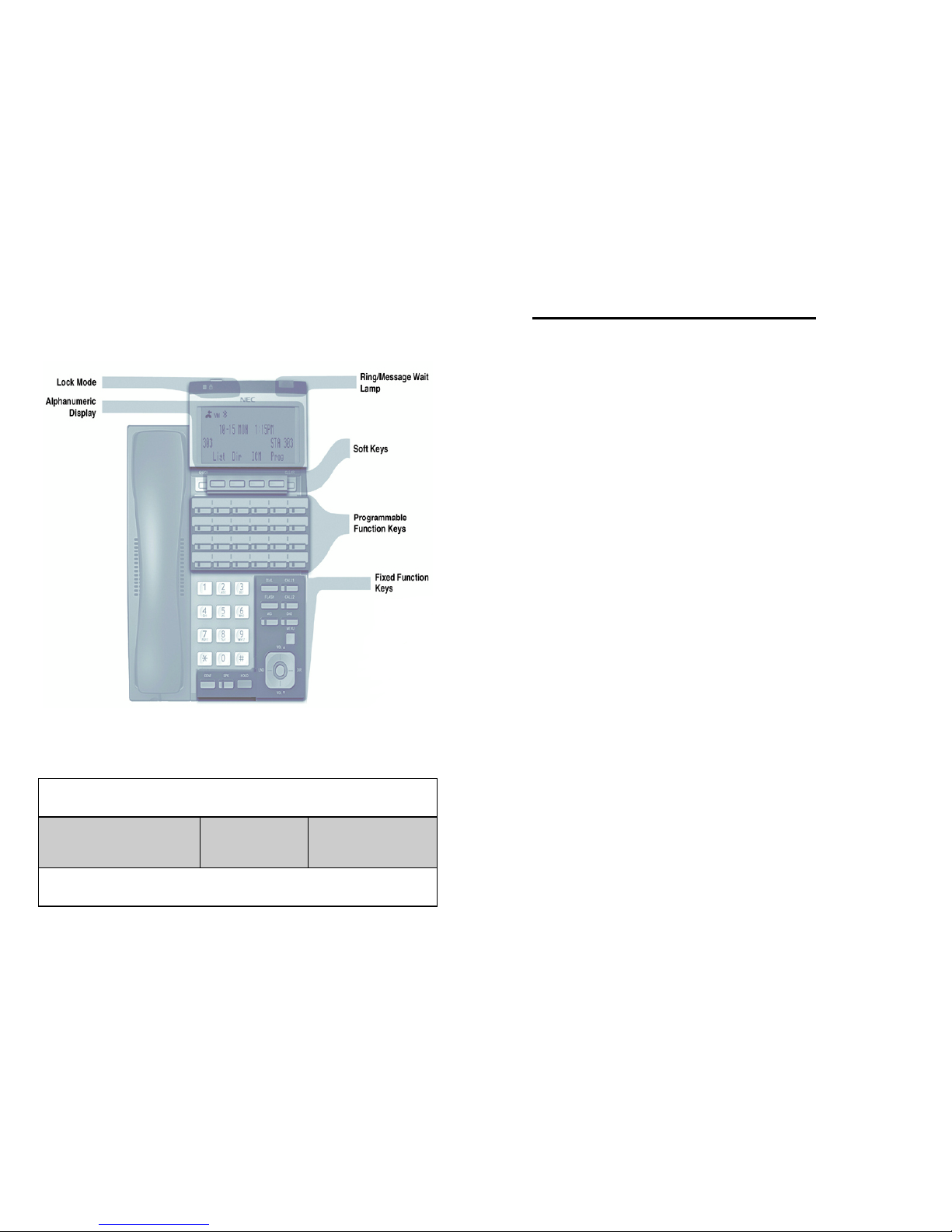
2
Entering Names
When entering names, use dial pad keys to enter letters. For example, press the digit 2 key once
for A, twice for B, three times for C, etc.
1 = 1 @ [ ¥ ] ^ _ \ { ׀ } ← →
2 = A – C. a – c. 2
3 = D – F, d – f, 3
4 = I, g – I, 4
5 = J – L, j – l, 5
6 = M – O, m – o, 6
7 = P – S, p – s, 7
8 = T – V, t – v, 8
9 = W – Z, w – z, 9
0 = 0 ! “ # $ % & ‘ ( )
* = * + , - . / : ; < = >
# = Accepts an entry (only required it two letters on the same key are needed)
CONF = Clear the character entry one character at a time
FLASH = Clear all the entries from the point of the flashing cursor and to the right
11
Setting Up Message Notification
Message notification allows a user to be notified of their messages even
when they are out of the office. Users can be notified at up to three different numbers.
To Set Up Message Notification:
Press VMsg Softkey
Enter Security Code
Push More> + Optns + Notif Softkeys
Follow voice prompts for setting up to three numbers to be
Notified of new messages in your voice mailbox.
Page 3

10
Transfer A Caller To A Mailbox
Use this procedure to transfer a caller directly into a co-workers voice
mailbox without ringing the telephone.
While on the call
Press HOLD Key
Press your VMsg Softkey in display
Press Hotline key or dial extension number of co-worker
Hang-up
Other Voicemail Features
Transferring a co-worker into voicemail:
If a co-worker calling from outside the office wants to check messages,
you may transfer them into voicemail by doing the following:
Press HOLD Key
Dial 700(0) (Voicemail Extension Number)
Hang-up
The co-worker will hear the company greeting and can dial # + Extension
Number to log on to mailbox.
Leave a quick message for a co-worker:
You can leave a quick message for a co-worker with out accessing your
own voice mailbox:
Dial Extension Number of co-worker
Press 8
Leave message
Note: You can press * to bypass a co-workers greeting.
3
Answer A Call
At Your Phone:
When your telephone rings
Lift handset or press SPK Key to answer call
Your CALL 1 Key will be red to indicate you are on a call
Note: If your telephone is programmed with outside line keys,
the line that you are using will be Lite green.
Answer Another Phone Ringing:
Lift handset or press SPK Key
Press
* * + Extension Number that is ringing
Place A Call
Internal Extension
Lift handset or press SPK Key
Dial Ext. No. or Press Hotline Key
*Note: You can press 1 after the Ext. No. to switch between voice and tone intercom
calling.
Outside Call
Lift handset
Press available Line Key if programmed or Press 9
Dial telephone number
Speakerphone Operation
You can place and answer calls by pressing the SPK Key instead of
using the handset.
Using Microphone Cutoff
During a speakerphone call
Press MIC Key to mute microphone
Key will light up red
Callers will be unable to hear you, but you will be able to
hear the caller
Press MIC Key again to turn microphone on
*Note: During a speakerphone call, you can lift the handset to make the
call private. Press SPK and hang up handset to return to speakerphone.
Page 4

4
Last Number Dial & Caller ID
To Preview the Last Number You Dialed:
Press List Softkey
Press Redial Softkey
Use Softkeys to scroll through your Redial List
Lift Handset or Press SPK to dial number
To Preview Caller ID (optional if you subscribe to Caller ID)
Press List Softkey
Press CID Softkey
Use Softkeys to scroll through your Caller ID List
Lift Handset or Press SPK to dial number
Call Hold
Place a Call on Hold:
While on a call
Press HOLD Key
Your CALL Key you are using will flash Red or
if your system is programmed with Line Keys, the line you are
holding will flash Green on your telephone and Red on all others.
Pick up a Call on Hold:
Press flashing Line Key from any phone
Or Press Flashing CALL Key
Call Park (optional feature)
Park A Call
While on a call
Press available Park Key
Park Key will flash green on your phone and red on
all other phones
Pick up a Call from Park
Press flashing Park Key
Call was holding on
9
Setting Up Your Mailbox
When you access your mailbox for the first time, take a few minutes to set
up your mailbox by recording a personal greeting, recording your name
for the company directory and setting an optional security code to safeguard your mailbox.
To Record Greeting
From Your Telephone
Press VMsg Sofkey in display
Press Greet Softkey
Push Gr1, Gr2 or Gr3 Softkey to select which greeting to record
Follow instructions or press Softkey to set up which greeting you
want activated and recorded
To Record Your Name
From Your Telephone
Press VMsg Sofkey in display
Push More> + Name Softkeys
Follow instructions or press Softkeys to record name
To Set A Security Code On Your Mailbox
From Your Telephone
Press VMsg Sofkey in display
Push More> + Optns + Sec Softkeys
Follow instructions or press Softkeys to set a security code
Page 5

8
Accessing Voicemail
From Your Telephone:
Press VMsg Softkey in display
Enter Security Code if asked
From Another Telephone In the Office:
Dial Voice Mail Extension 700(0)
You will be prompted for your mailbox number
Dial Mailbox Number (same as extension)
Enter Security Code if asked
From Outside the Office if you have a DID (Direct Inward Dial):
Dial your Direct Dial Number
When you hear your greeting
Press # to log on to your mailbox
Enter Security Code if asked
From Outside the Office if you have a Voicemail Back Door Number
or when Auto Attendant Is On:
Dial Voicemail Back Door Number:
When company greeting answers
Press # + Mailbox Number
Enter security code if asked
From Outside the Office if speaking with a Coworker:
Dial main company number
Ask Co Worker to transfer you to Ext. 700(0)
Press # to Log On to your Mailbox
Enter security code if asked
First Time Logon Tutorial: When you access your mailbox for the first
time, the system will play a recorded announcement and tutorial to guide
you in setting up your voicemail for the first time. The tutorial will only
play the first time you log into your mailbox. You will be asked to record
your personal greeting, record your name for the company directory, and
set up a new security code (up to 6 digits).
5
Transfer A Call
While on a call
Press HOLD Key
Dial Ext. No. or Press Hotline Key
Announce call (Optional)
Hang-up to complete transfer of call
*Note: To return to the call before hanging up, press flashing call key.
Conference Call
Place or answer a call
Press CONF Key
Place your next call
Press CONF Key when answered
Repeat to add more parties
After making last call
Press CONF Key twice to begin conference
Using Personal Abbreviated Dialing
Each phone can program up to (10) Personal Speed Dials.
To Program Personal Abbreviated Dialing Number:
Press CALL 1
Dial 855
Dial bin number (1-9, 0) you want to program
Dial 9 + outside phone number you want to program
Press HOLD Key to program a name
Use Dial Pad to program name (see chart on page 2)
Press HOLD Key to save name
Press SPK to hang up
Using Personal Abbreviated Dialing
Lift Handset or Press SPK
Dial #7 + 1-Digit Bin Number (1-9.0)
Page 6

6
DND
DND permits you to work at your desk without interruptions from the
phone.
Press DND Key
Dial DND Option code:
Ringing Tone Adjust
You can customize the way internal and external calls ring your phone:
To Change Incoming Ring Tones:
Press CALL 1
Dial 820
Press 1 for internal call ringing or
Press 2 for external call ringing
Dial code for the ring pattern 1 - 8
Press SPK Key to save tone pattern
All Call Page
Lift Handset
Press InPg Softkey
Press 1
Make announcement
Hang up
1 Blocks your outside calls
2 Blocks Paging, Intercom Calls, Call Forwards and transferred outside calls
3 Blocks All Calls
4 Blocks Call Forwards
0 Cancels Do Not Disturb
7
Programmable Function Keys
Program your unused Function Keys for Internal Hotline keys to other
extensions or for frequent dialed outside phone numbers.
Press CALL 1
Dial 851
Press unused Function Key (see page 2)
For Internal Extension: Dial 01 + Extension Number
For Outside Phone Number: Dial 01 + 9+ Phone Number
Press HOLD to save
Optional—Use Dial Pad to program a name (see page 2)
Press HOLD to save Name if programmed
Press SPK to hang-up
Directory Dialing
Directory Dialing allows you to select a inside or outside number by
name.
There are four types of Directory Dialing:
ABB - Company (Common) Abbreviated Dialing
EXT - Co-worker’s extension
STA - Personal Abbreviated Dialing Numbers
TELBK - Company Abbreviated Dialing Numbers
Press the Dir Softkey
Press Softkey prompt for directory you want to access
Dial the first letter/number for the name/number you want to call
For example, dial 2 for A, B, C or 2
Press the Up or Down Softkey arrows to jump to that section & scroll
Volume Controls
The volume keys work as volume up and down keys to adjust incoming
ringing, volume of speakerphone and handset volume. In addition, they
will change the contrast of the display when the phone is idle.
Adjust Volume on Incoming Ringing, Speakerphone, Handset or Display Contrast
While phone is ringing, or while talking with handset or speakerphone, or
if phone is idle.
Press Vol repeatedly to adjust the volume of ringing, current call, or
if phone is idle, the display contrast.
 Loading...