

Page 1

W A L C H E M
An Iwaki America Company
GPRS Modem Option
WebMaster®/WebAlert™
GPRS Modem Option
Instruction Manual
Five Boynton Road Hopping Brook Park Holliston, MA 01746 USA
TEL: 508-429-1110 FAX: 508-429-7433 WEB: www.walchem.com
Page 2

Notice
© 2008 WALCHEM, An Iwaki America Incorporated Company (hereinafter “Walchem”)
Five Boynton Road, Holliston, MA 01746 USA
(508) 429-1110
All Rights Reserved
Printed in USA
Proprietary Material
The information and descriptions contained herein are the property of WALCHEM. Such
information and descriptions may not be copied or reproduced by any means, or disseminated or
distributed without the express prior written permission of WALCHEM, Five Boynton Road,
Holliston, MA 01746.
Statement of Limited Warranty
WALCHEM warrants equipment of its manufacture, and bearing its identification to be
free from defects in workmanship and material for a period of 24 months for electronics
and 12 months for mechanical parts and electrodes from date of delivery from the factory
or authorized distributor under normal use and service and otherwise when such
equipment is used in accordance with instructions furnished by WALCHEM and for the
purposes disclosed in writing a the time of purchase, if any. WALCHEM’s liability under
this warranty shall be limited to replacement or repair, F.O.B. Holliston, MA U.S.A. of
any defective equipment or part which, having been returned to WALCHEM,
transportation charges prepaid, has been inspected and determined by WALCHEM to be
defective. Replacement elastomeric parts and glass components are expendable and are
not covered by any warranty.
THIS WARRANTY IS IN LIEU OF ANY OTHER WARRANTY, EITHER EXPRESS OR
IMPLIED, AS TO DESCRIPTION, QUALITY, MERCHANTABILITY, and FITNESS FOR
ANY PARTICULAR PURPOSE OR USE, OR ANY OTHER MATTER.
P/N 180305.C
Oct 2008
Page 3
1.0 Introduction
The GPRS modem option provides remote communications with any USB-style WebMaster
or WebAlert™ controller, using the ShoulderTap method. This permits changing of set
points, downloading of data files, emailing of reports, and alarm notification.
The user must obtain an unlimited data usage GPRS account from a local cell service
provider, receive a SIM card, and install this in the modem. Once the controller is
programmed correctly it will connect to our ShoulderTap server using a secure connection
over the Internet. This connection will be dropped and restored on a regular basis throughout
the day as a further security measure. It will not be connected to the Internet at the same IP
address for very long.
When you want to ShoulderTap the controller, simply log onto our ShoulderTap server,
identify the controller by its phone number, and you will be instantly connected to the
controller. Its unique user name and password are required to enter the controller.
The GPRS cell service is a data only plan. The modem is not capable of answering a phone
call, and therefore modem-to-modem communications is not possible as it is with the landline
modem option.
2.0 Installation
®
CAUTION! There are live circuits inside the controller even when the power switch on the
front panel is in the OFF position! The front panel must never be opened before power to the
controller is REMOVED!
If your controller is prewired, it is supplied with a 10 foot, 14 AWG power cord with
USA style plug and 8 inch, 18 AWG USA style receptacle cords for the powered
relay outputs. A tool (#1 Phillips screwdriver) is required to open the front panel.
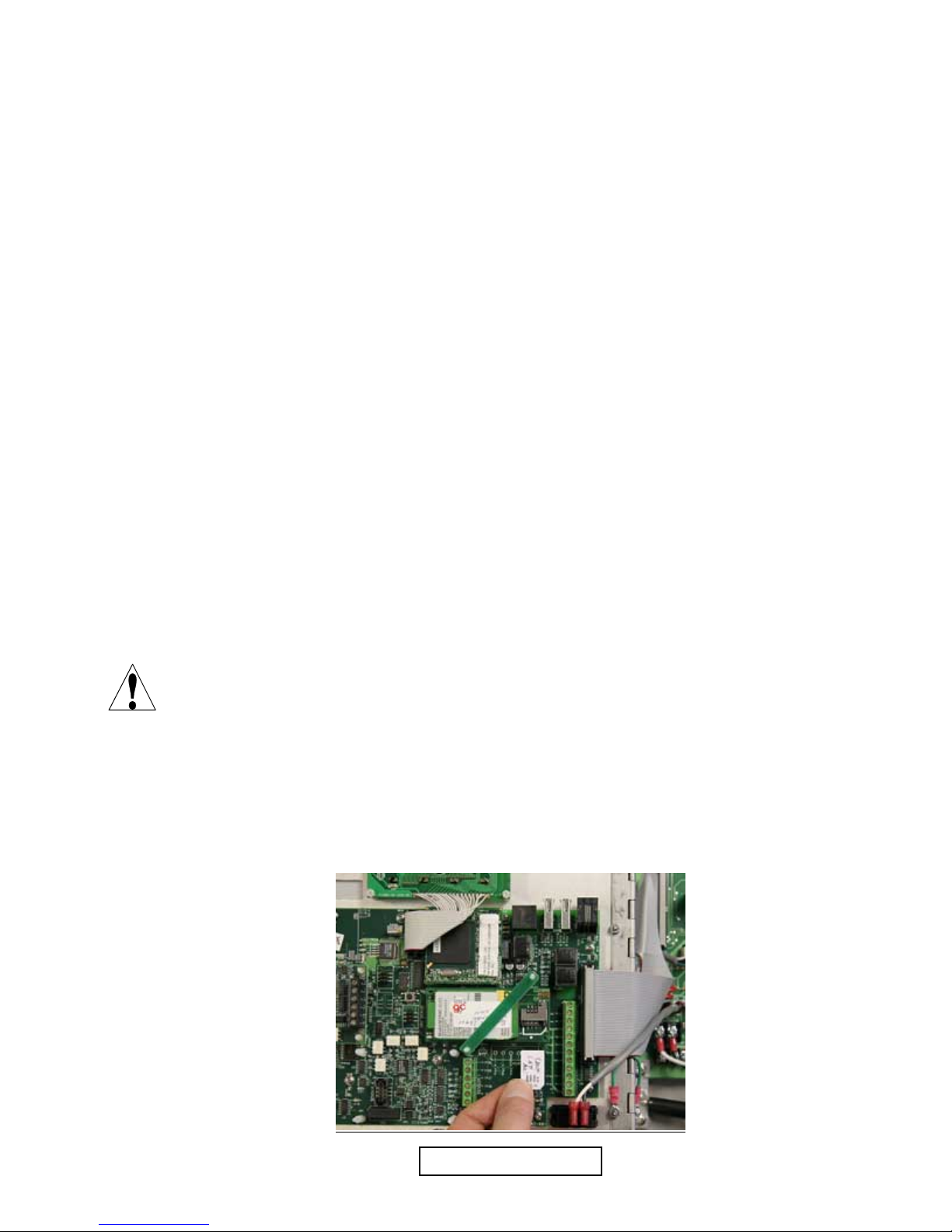
1. Insert the SIM card into the slot as shown below. The notched corner must be oriented to
match the outline silk-screened on the modem
Page 1
Page 4
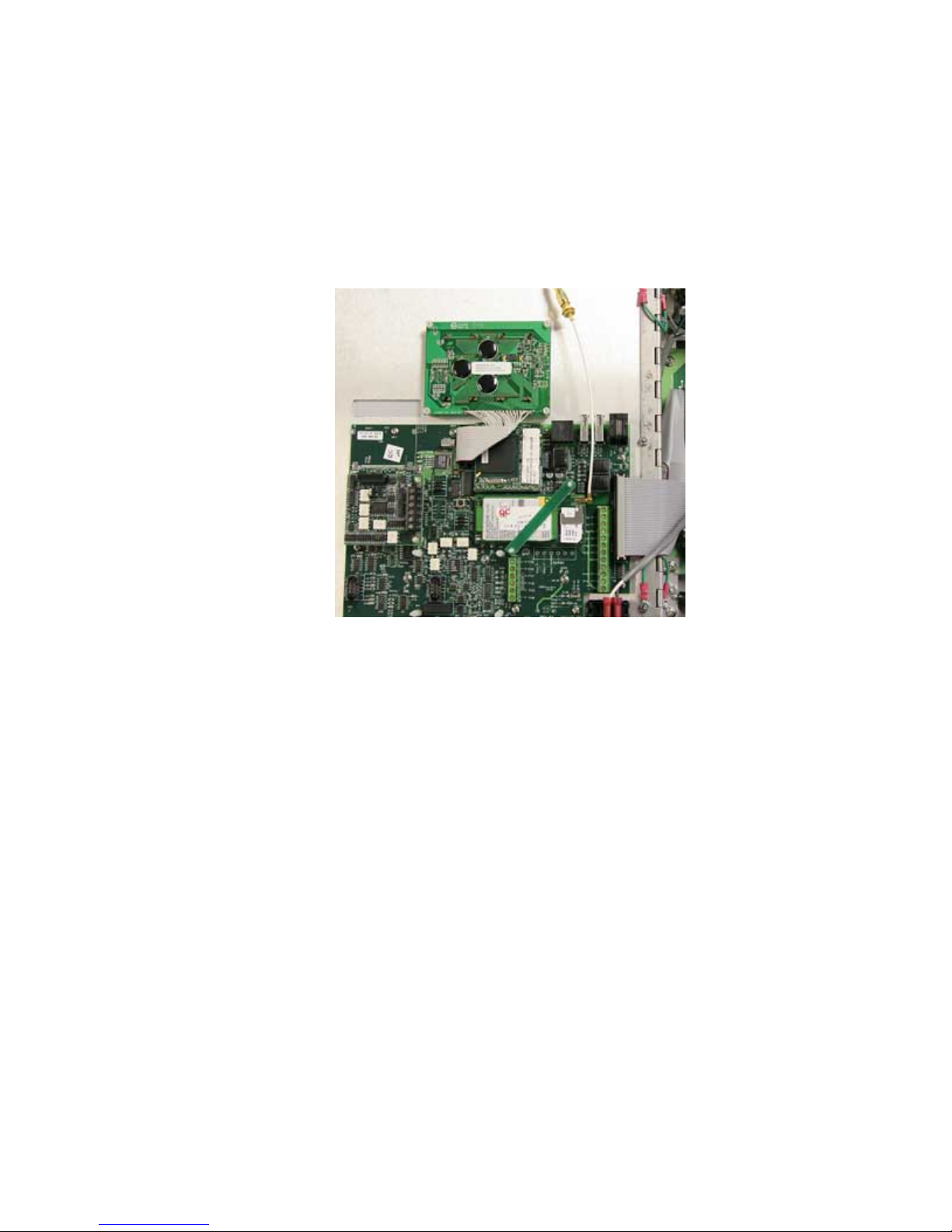
2. Run the coaxial antenna cable into the controller through a watertight strain relief.
3. Thread the antenna cable to the 103357 SMA to FME adapter.
4. Thread the 103356 SMA to MMCX cable to the adapter.
5. Cover all metal parts of these connections with shrink-wrap tubing or electrical tape.
6. Snap the small end of the cable into the connector on the upper right corner of the
modem.
Cable Installation
Page 2
Page 5

3.0 Programming
This section describes how to set up the controller to communicate using the GPRS cell
modem.
When purchasing the unlimited data usage GPRS account, ask for the following information.
The chart below shows the required information for a few typical cell service providers:
Provider User Name Password Access
Number
T-Mobile Not Required Not Required *99***1# Ask for it internet2.voicestream.com
Cingular isp@cingulargp
rs.com
Vodafone
(UK)
KPN
(Netherlands)
Power up the unit, and connect to it using USB or Ethernet as described in the controller’s
instruction manual.
web web *99***1# Ask for it internet
Not Required Not Required *99# Not Used internet
cingular1 *99***1# Ask for it isp.cingular
Communications Page
In order to ShoulderTap, the following fields need to be completed.
Controller ISP User name
Type the required user name into the text box. If the cell service provider does not require a
user name, then type the word “test”. The connection will fail if the text box is left blank.
Controller ISP Password
Type the required password into the text box. If the cell service provider does not require a
password, then type the word “test”. The connection will fail if the text box is left blank.
ISP Primary/Secondary Phone Number
Type the required access number into the text boxes.
Controller Phone Number
Type the mobile number into the text box. Use the pull-down to select the country code. If the
cell service provider does not actually assign a mobile number, use the controller’s serial
number to serve as the unique identifier for the ShoulderTap process.
In order to send email reports and alarms, fill in email addresses to receive the emails and
also complete the following fields. Whereas the cell service plan includes Internet access, it
does not include an email account.
SMTP IP Address
Type the email server’s IP address into the text box. Because the controller is not connected
to the Internet using the email provider as the ISP, this email server must be an Authenticated
server.
Mobile
Number
Access Point Name (APN)
Page 3
Page 6

Controller Email Address
Type the email address for the controller’s email account into the text box.
Send Email Via:
Click the radio button for via Modem.
Click Submit to accept the changes.
Advanced Comms Page
Extra Modem Init String
The extra modem initialization string is required to prepare the GPRS modem to
communicate properly. The commands must be typed exactly as shown without any extra
spaces or punctuation! The APN is the last piece of data in quotation marks in the string.
Contact your cell service provider for the correct APN
The string must be:
AT+CGDCONT=1,"IP","APN" where “APN” = whatever the cell service provider gives you.
For example, for T-Mobile the string is:
AT+CGDCONT=1,"IP","internet2.voicestream.com"
Secure Tunnel
Pull down arrow to select Tunnel Via Modem.
Gateway Server
Type the server address 146.115.4.198 into the text box.
Gateway Port
Set to 1194
eTap ID#
Leave blank.
ASMTP User Name
Type the email account user name into the text box.
ASMTP Password
Type the email account user name into the text box.
Use ASMTP for Email
Click on the check box to select use of ASMTP.
Click the Submit button to accept the changes.
NOTE:
Once all changes are made the controller power must be cycled off and back on for the changes
to all take place.
Page 4
Page 7

4.0 Connecting via ShoulderTap®
After programming, before leaving the site, it is important to verify that the modem is
connected to our server and available over the Internet.
Testing the Connection
Connect to the controller via Ethernet or USB, go to the Advanced Comms Page, and look at
the ShoulderTap® Internet Connection section, Dial up Connection Status. If it never gets to
Connection Timeout in xxxx Sec, but keeps repeatedly trying to connect, then change Secure
Tunnel from Tunnel Via Modem to Don't Use Tunnel and click Submit button.
Then check the antenna location by using the Wireless Modem Antenna Setup. Click Start
Setup and move the antenna until Suggestion says Good Signal Strength.
Change back to Always Online, click Submit, and cycle power again. Once it reboots, check
the Dialup Connection Status again.
Connecting
Once the controller is on line, it can be accessed via ShoulderTap®.
1. From any computer with Internet access, surf to the ShoulderTap® web site:
http://146.115.4.198/walchem/frontdoor.asp
2. Enter user name and password: WebMaster®/2001.
3. At the next screen, enter the mobile number of the controller. If the cell service provider
does not use mobile numbers, substitute the serial number. Regardless, the number you enter
here must match the number entered into the Controller Phone Number field, including the
country code pull-down.
4. Once connected to your controller, enter its unique user name and password as usual at the
Authentication Page.
Page 5
Page 8
5.0 Troubleshooting
If you are unable to connect to the controller via ShoulderTap® the only recourse is for a
person on-site to connect to the controller via Ethernet or USB and look at the diagnostic
status messages on the Communications Page.
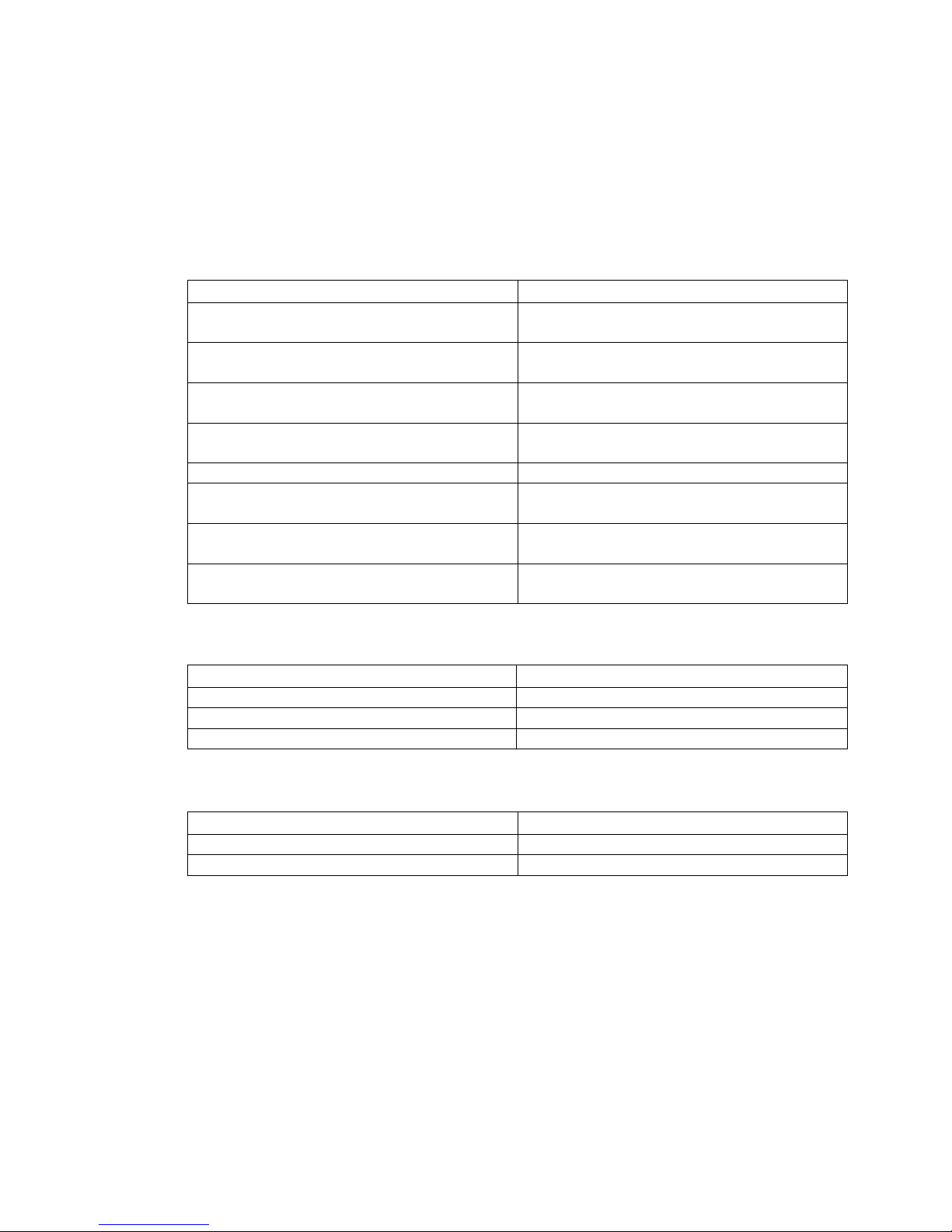
Can’t ShoulderTap® and No Connection in Dialup Status
Possible Causes Corrective Actions
No connection to cell tower Check signal strength as described above and
move antenna
ISP user name or password empty Enter a valid user name and password, and if
none is required, enter the word TEST
Wrong APN in the Extra Modem Init String Enter the correct APN for your cell service
provider
Wrong ISP phone number Enter the correct Access Number for your
cell service provider
Secure Tunnel not set to Via Modem Set to Tunnel Via Modem
Controller not restarted after making
programming changes
SIM card is not activated Activate SIM card through the cell service
Cell account is not a GPRS data-only plan Obtain a SIM card with the correct type of
Can’t ShoulderTap® but Connection in Dialup Status to 10.series IP Address
Possible Causes Corrective Actions
Wrong Gateway Server Set to 146.115.4.198
Wrong Gateway Port Set to 1194
ShoulderTap® server problem Contact the factory
Can’t ShoulderTap® but Connection in Dialup Status to 169.series IP Address
Possible Causes Corrective Actions
Entering wrong controller phone number Check accuracy of phone number
ShoulderTap® server problem Contact the factory
Cycle power to the controller
provider
account
Page 6
Page 9
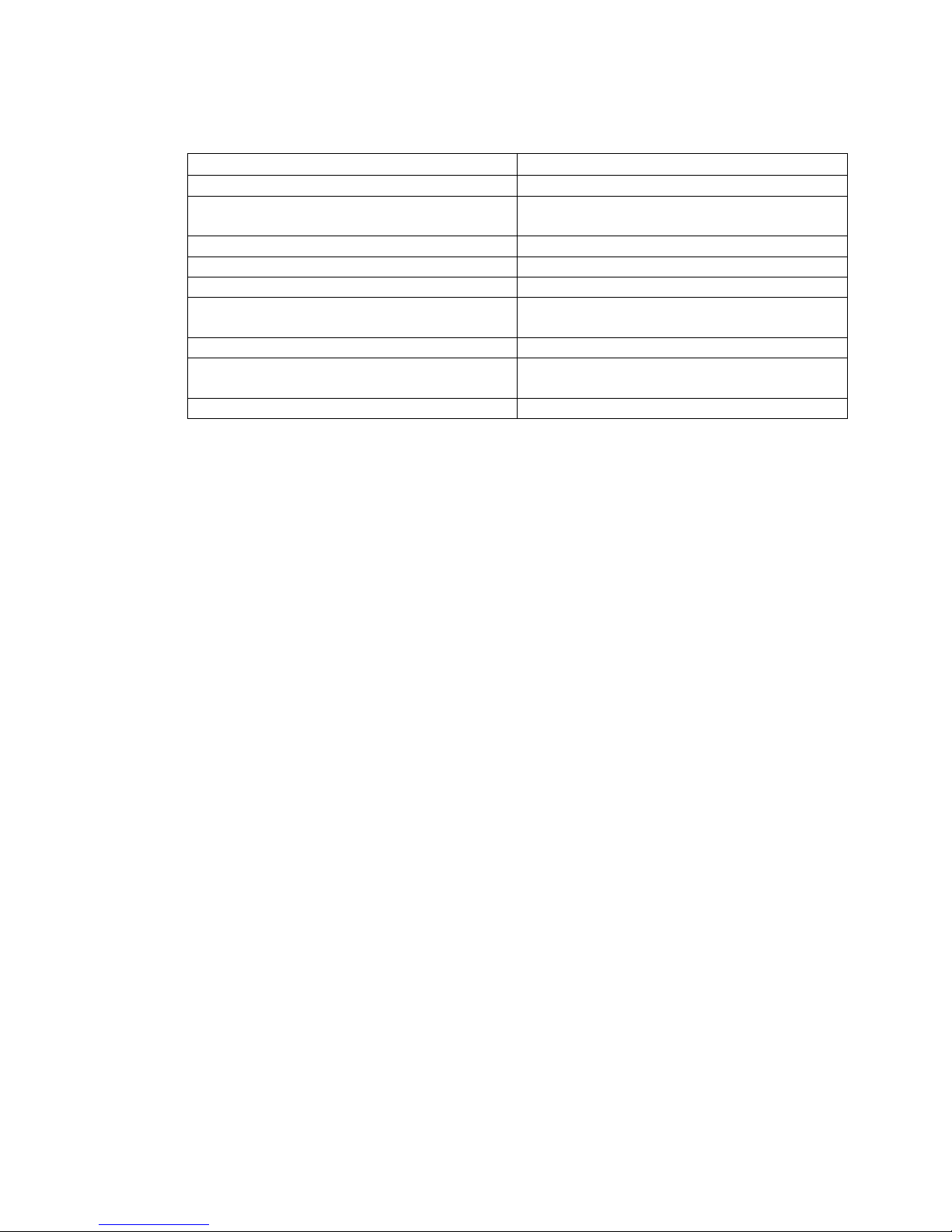
Not Sending Email (but ShoulderTap® is OK)
Possible Causes Corrective Actions
Wrong SMTP IP address Check with your email service provider
SMTP IP address is not for an ASMTP
server
Use ASMTP is not checked Check the box.
ASMTP user name or password is incorrect Enter a valid user name and password
No email account Set up an email account
Controller email address is empty or
incorrect
Send Email Via is set to Ethernet Set to Modem
Email address to send to is empty or
incorrect
Email server problem Check with your email service provider
Check with your email service provider
Enter a valid email address
Enter a valid email address
Page 7
 Loading...