

Page 1
9
Getting Started
8
Getting Started
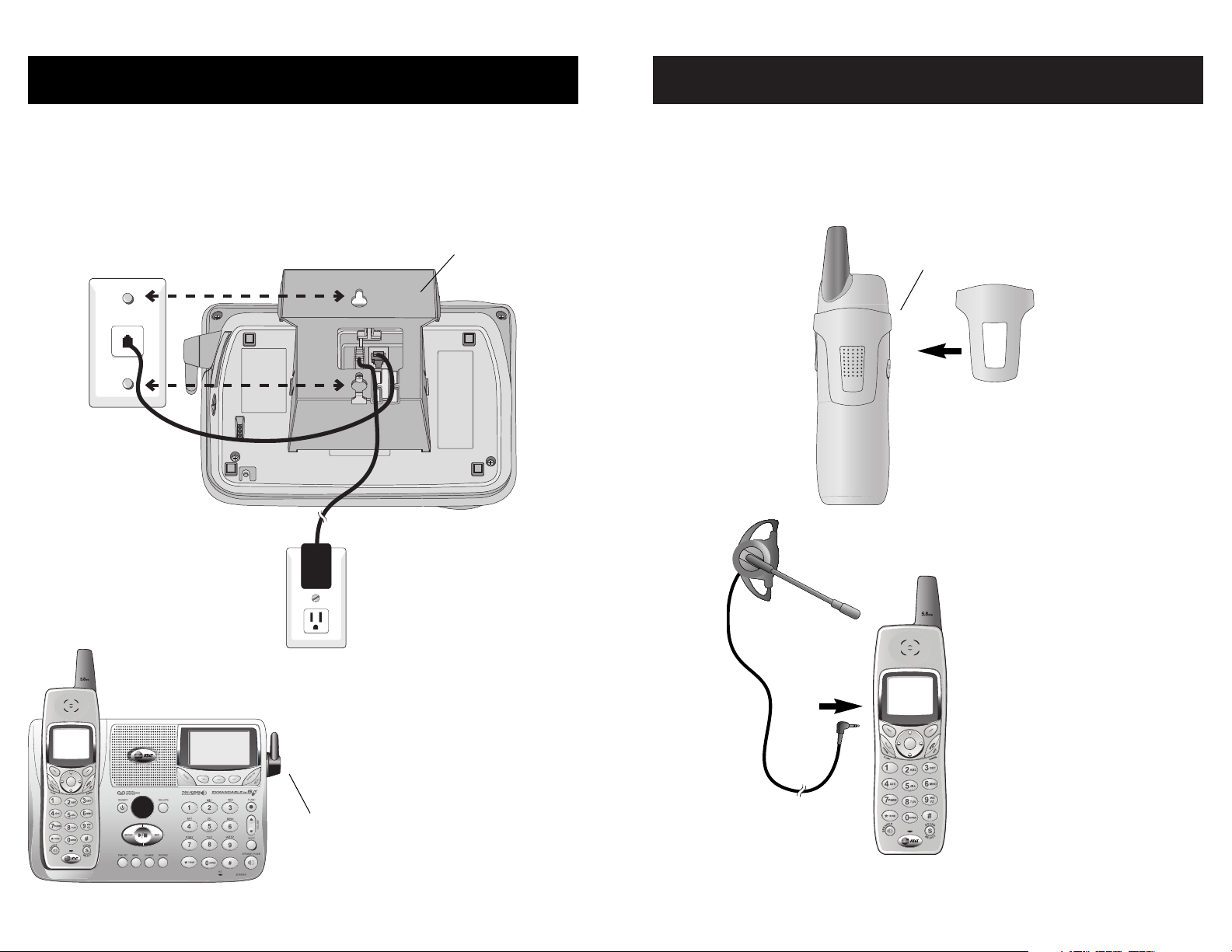
Belt clip & optional headset
Install belt clip as shown below if desired.
For hands-free telephone conversations, you can use any industry standard 2.5 mm
headset (purchased separately). For best results use an AT&T 2.5 mm headset.
Wall mounting
The speakerphone base can be installed on any standard wall-phone outlet as shown
below. Choose a location away from electronic equipment, such as personal computers, television sets or microwave ovens. Avoid excessive heat, cold, dust or moisture.
Plug power cord transformer
into electrical outlet
Connect cords as shown, then press
and slide down firmly so base is held
securely on outlet mounting pegs
Plug short line cord
into telephone jack
Snap belt clip into notches on
side of handset. Rotate and pull
to remove.
Plug 2.5 mm headset
into jack on side of
handset (beneath
small rubber cap)
Clip wall-mount bracket
securely into notches on
underside of base
Place handset in base to charge
for 12 hours before first use.
Rotate antenna
to fully upright
position
Page 2
11
Telephone Operation
10
Telephone Operation
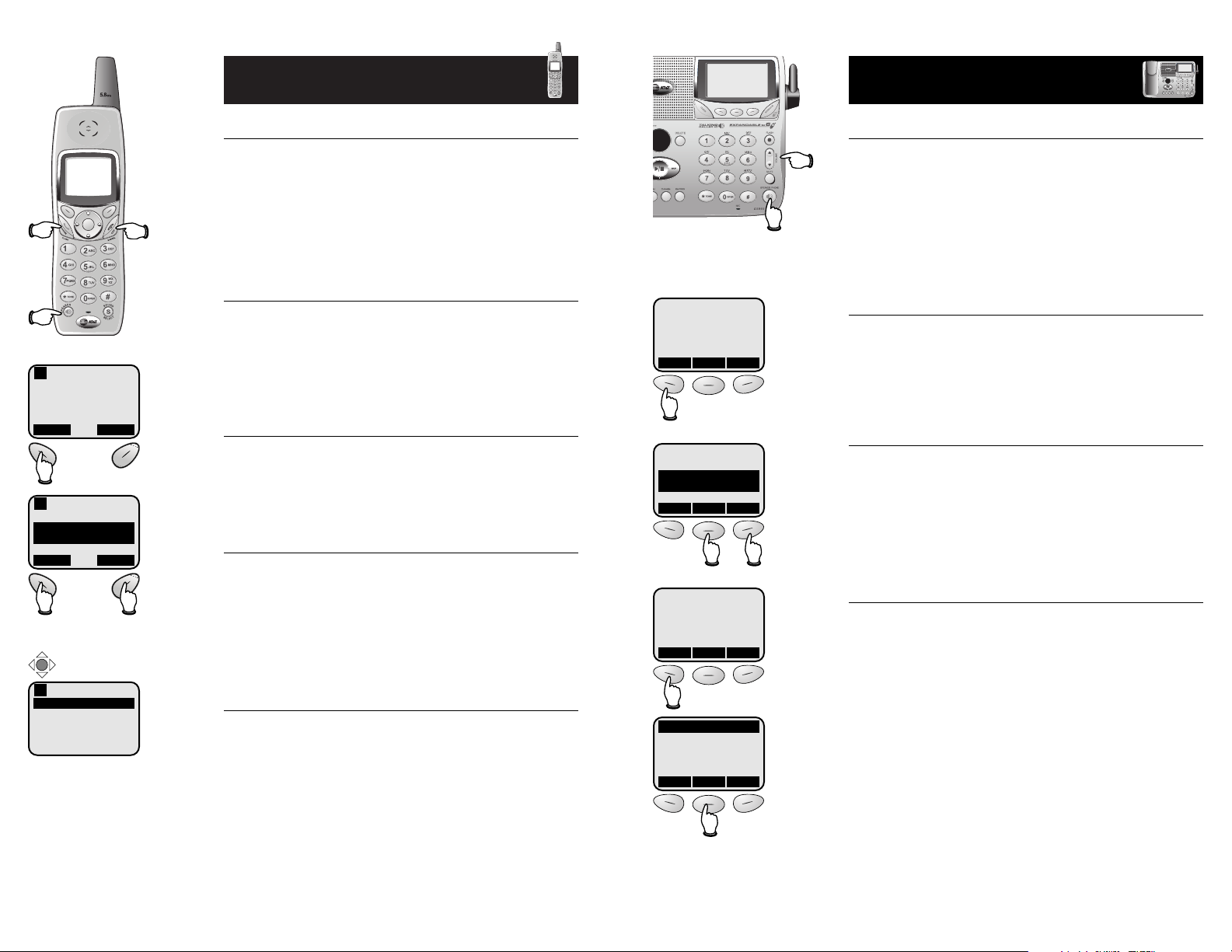
Basic handset operation
Making and answering calls
To answer an incoming call, press any key except OFF.
To make a call, press PHONE, then dial a number. Press
OFF to hang up.
To preview numbers before dialing, enter numbers first,
then press PHONE to dial. Press CLEAR at any time to
make corrections as you are entering numbers.
Hands-free speakerphone calls
To answer an incoming call, press SPEAKER. To make a
call, press SPEAKER, then dial a number. During a call
you can press SPEAKER to toggle between hands-free
speakerphone and normal handset use. Press OFF to
hang up.
Last number redial
Press REDIAL to display a list of numbers recently called.
Use the joystick control to select a number, then press
PHONE to dial (or press DELETE to erase this number
from the redial memory).
Hold and mute
Press HOLD to place a call on hold. Press PHONE to
resume the call.
Press MUTE to silence the microphone. You will be able
to hear, but your caller will not be able to hear you
until you press MUTE again to resume speaking.
Call transfer
During a conversation you can transfer the call to the
base speakerphone (or to another handset if you have
more than one registered).
Press the middle joystick button to display a list of sets.
Use arrow buttons to highlight the set you want, then
press the middle joystick button to transfer the call.
The call will be placed on hold. You can then press
SPEAKER at the base to resume speaking.
REDIAL CID LOG
2:10 PM
1
Transfer Call
BASE
HANDSET 2
HANDSET 3
1
CALL ON
HOLD
HOLD MUTE
2:10 PM
1
Press joystick
Basic base operation
Making and answering calls
To answer an incoming call, press SPEAKERPHONE. To
make a call, press SPEAKERPHONE, then dial a number.
Press SPEAKERPHONE again to hang up.
To preview numbers before dialing, enter numbers first,
then press SPEAKERPHONE to dial. Press CLEAR at any
time to make corrections as you are entering numbers.
Last number redial
Press REDIAL to display a list of numbers recently called.
Use the joystick control to select a number, then press
PHONE to dial (or press DELETE to erase this number
from the redial memory).
Hold and mute
Press HOLD to place a call on hold. Press SPEAKER-
PHONE to resume the call.
Press MUTE to silence the microphone. You will be able
to hear, but your caller will not be able to hear you
until you press MUTE again to resume speaking.
Call transfer
During a conversation you can transfer the call to a
handset.
Press XFER to display a list of registered handsets. Use
arrow buttons to highlight the set you want, then press
OK to transfer the call.
The call will be placed on hold. You can then press
PHONE or SPEAKER at the handset to resume speaking.
8 NEW CALLS
REDIAL MENU MEM
CALL ON
HOLD
XFER HOLD MUTE
PHONE ON
XFER HOLD MUTE
HANDSET 1
HANDSET 2
HANDSET 3
V
OK V
Volume
Speakerphone
Page 3
13
Telephone Operation
12
Telephone Operation
Options while on calls
To adjust volume or sound quality
Press VOLUME buttons on the handset or the base to
adjust listening volume. Each button press raises or
lowers volume by one level.
During a handset speakerphone call you can press
SOUND SELECT to change sound quality. You can
choose Natural Audio, Bass Boost, Mid Boost or Treble
Boost. Each button press changes to the next tone type.
Call waiting
If you have Call Waiting service, you will hear a beep if
someone calls while you are already on a call. Press
FLASH to put your current call on hold and take the new
call. You can press FLASH at any time to switch back
and forth between calls.
Ring silencing
Press OFF while the phone is ringing to silence the ringer.
You can still answer, or let the caller leave a message.
3-way conference calls
During an outside call, you can use both the handset and
base (or two local handsets) to allow a three-way
conversation.
While a call is in progress, others can press PHONE or
SPEAKER to join the conference call. Others can press
OFF (or SPEAKER) to drop out of the conference call,
but the call will not be terminated until the originating
set hangs up.
Temporary tone dialing
If you have dial pulse (rotary) service, you can switch to
touch tone dialing during a call by pressing *. This
can be useful if you need to send tone signals for access
to answering systems or long-distance services.
Volume
Silence ringer
Tone
Flash
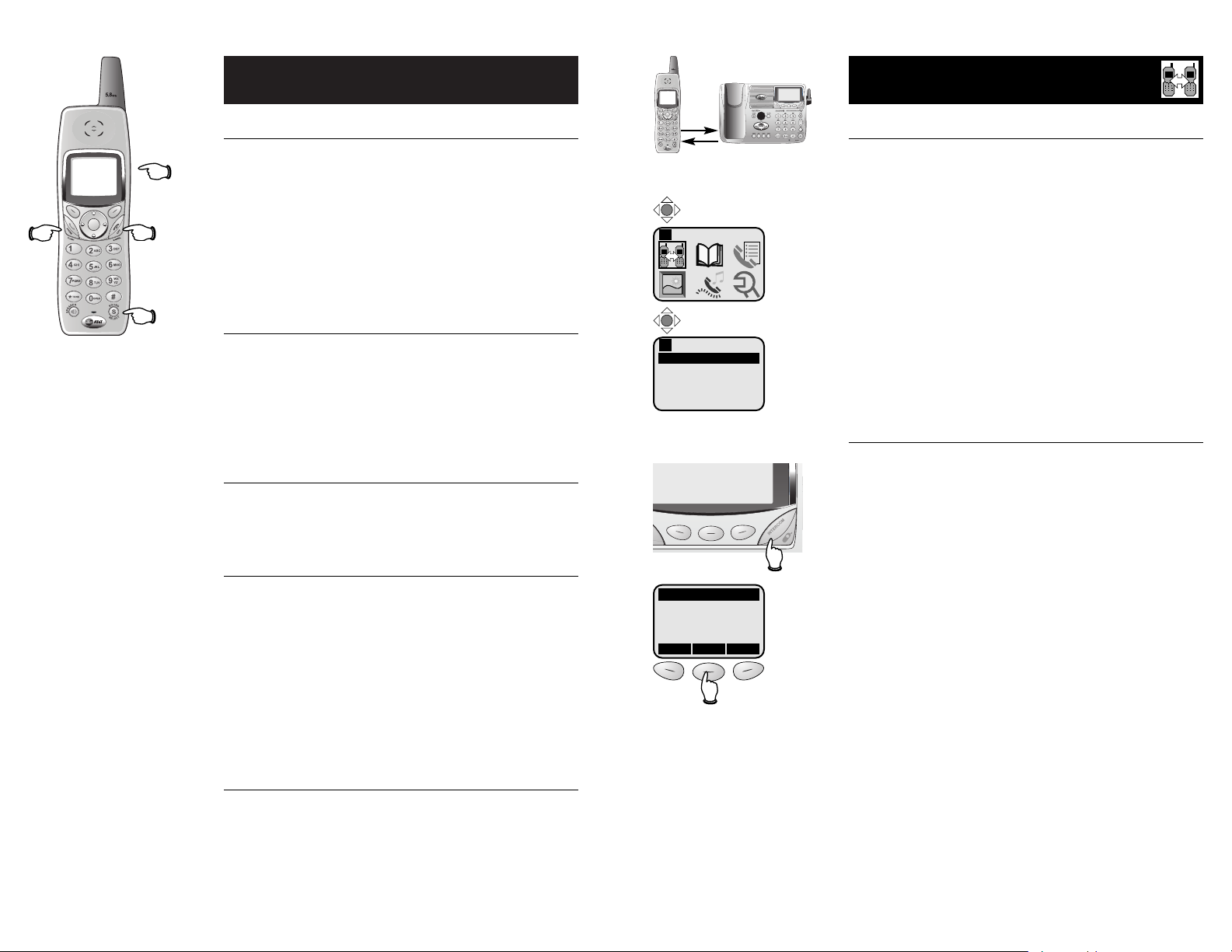
Intercom calls
Intercom calls
The intercom allows conversation between the handset
and base, or between handsets if you have registered
additional handsets for use with your system.
Select INTERCOM at the handset menu, or press the
INTERCOM button at the base. Scroll down to select a
station, or select GLOBAL PAGE to page all stations. To
page, press the middle joystick button at the handset
(or OK at the base).
To answer an intercom page, press PHONE at the handset, or SPEAKERPHONE at the base.
When your intercom call is finished, press OFF at the
handset (or INTERCOM at the base) to end the call.
Handling incoming calls
If the phone rings during an intercom call, you have two
options:
• Press PHONE at the handset (or SPEAKERPHONE at
the base) to answer the outside call and conference
it in with your existing intercom conversation.
• Press PHONE twice at the handset to terminate the
intercom conversation and answer the outside call.
Intercom Call
Base
GLOBAL PAGE
1
Press base Intercom button
Intercom
1
Select Intercom
Display menu
HANDSET 1
GLOBAL PAGE
V
OK V
Page 4
15
Telephone Operation
14
Telephone Operation
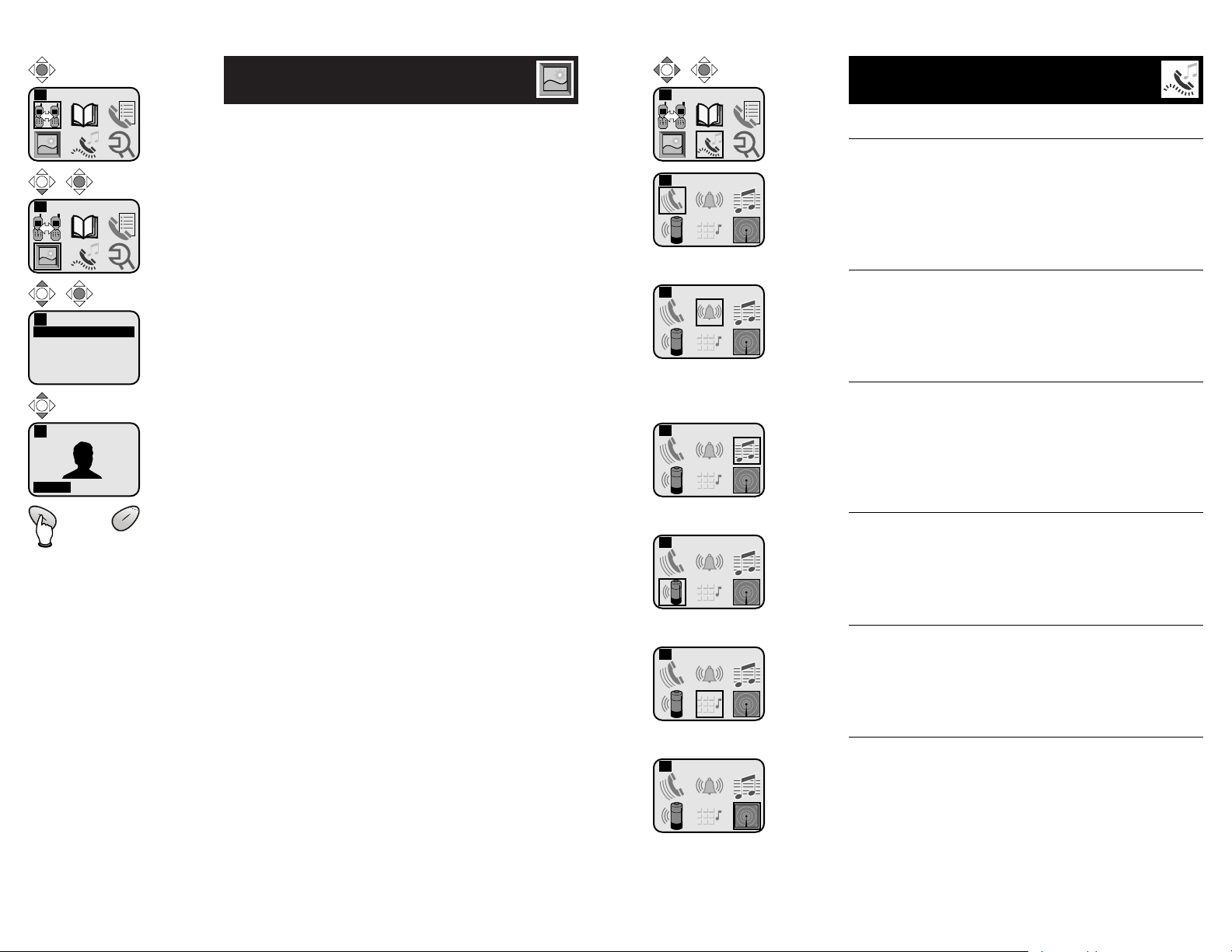
Handset screen images
This feature allows you to select an image or design as
“wallpaper” to be displayed in the background of your
handset display screen.
Press the middle joystick button to display the menu,
use navigation buttons to highlight PICTURES, then
press the middle button again to select this option.
Choose a category (Images or Emotions), then use the
up/down arrows to display the available graphics. Press
SET to select an image.
To remove an image from your screen, use the
up/down arrows to select CLEAR WALLPAPER, then
press the middle joystick button.
Handset sounds & alerts
Vibrate (silent call alerting)
When on, the phone vibrates to signal an incoming call
or intercom page. This can be useful in situations where
ring tones are undesirable, or in noisy environments
where ringing may not be heard.
Ringer control
At this menu you can set a default ring volume level (1-
5), turn the ringer off, or activate the vibrating silent
call alert (see above).
Ringers
This feature allows you to customize the incoming call
alerter. The menu includes options for 8 ringer styles
and 12 musical passages. You will hear an example of
each ringing type as you scroll through the choices.
Low battery tone
The handset is factory programmed to alert you with a
tone when the battery is low and needs recharging. You
can turn this alert on or off at this menu.
Keypad tone
The handset is factory programmed to beep at each
keypress. You can turn the keypad tones on or off at
this menu.
Out-of-range tone
The handset is factory programmed to alert you with a
tone when the handset is too far from the base, to
remind you to move closer. You can turn this alert on
or off at this menu.
Intercom
1
Display menu
Pictures
1
Select Pictures
Choose category
Browse images
Pictures
Images
Emotions
Clear Wallpaper
1
Images
SET
1 of 10
1
Press SET to select
desired image
Sounds & Alerts
1
Vibrate
1
Select Sounds
Options: On/Off
Ringer Control
1
Volume Level: 1 to 5
Ringer: On/Off
Vibrate: On/Off
Ringers
1
Choose 1 of 20 ringer types
Low Batt Tone
1
Options: On/Off
Keypad Tone
1
Options: On/Off
Range Tone
1
Options: On/Off
Page 5
17
Telephone Operation
16
Telephone Operation
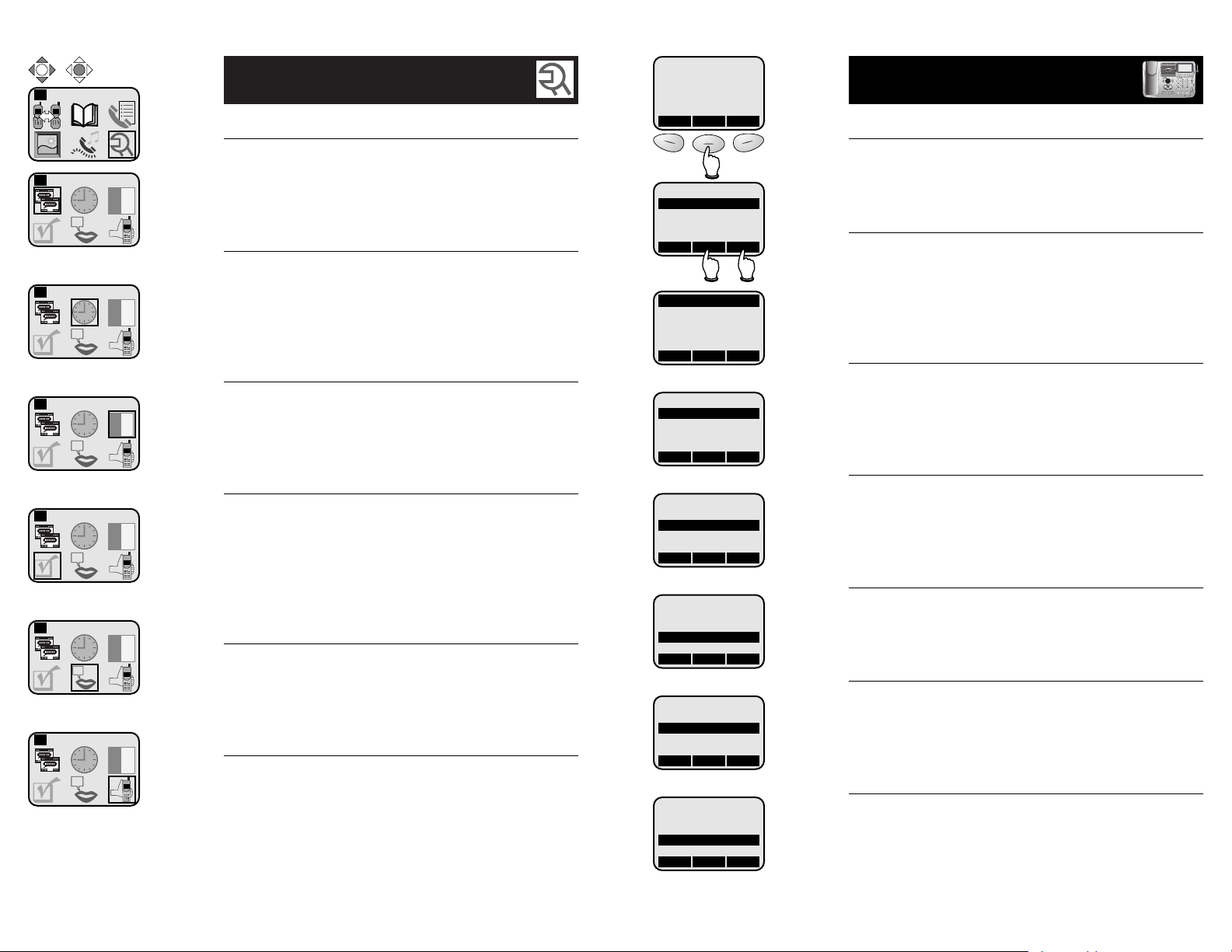
Handset settings
Appearance (580-2 handsets only)
At this menu you can choose one of four display screen
background colors. (This feature is available only in
Model 580-2 handsets with color displays.)
Set time
Select this menu to set the time displayed on screen.
You must enter four digits (09:23). Press the down
arrow, then use left/right arrows to set AM or PM. You
can also turn off the time display at this menu.
Contrast
At this menu you can adjust screen contrast to one of
eight levels to maximize readability in different lighting
conditions.
Register
Choose this option to register a new handset for use
with your existing base. You must enter the 15-digit ID
number of the base. (To find this number, go to the base,
press MENU, scroll down to select DISPLAY BASE ID,
then press OK.)
Language
At this menu you can select the language used in all
menus and screen displays. Choices are English,
Español, Français.
Reset Settings
At this menu you can delete all images, delete all entries
from your handset phonebook, or restore all factory
default settings.
Settings
1
Appearance
1
Select Settings
Set background color
Set Time
1
Set time or turn clock on/off
Contrast
1
Adjust screen contrast
Register
1
Enter base ID to register handset
Language
1
Choose screen display language
Reset Settings
1
Clear images
Clear phonebook
Restore factory default settings
Base settings
Ringer volume
At this menu you can set a default ring volume level
(1-6).
Ringer melody
This feature allows you to customize the incoming call
alerter. The menu includes options for 8 ringing styles.
You will hear an example of each ringing style as you
scroll through the choices.
Number announce
If you have Caller ID service, you will hear a caller’s
telephone number spoken after the first ring. You can
turn this feature on or off at this menu.
Keypad tone
The handset is factory programmed to beep at each
keypress. You can turn the keypad tones on or off at
this menu.
Tone/pulse
Factory default setting is TONE. Change this to PULSE
only if you do not have touch-tone dialing service.
Contrast
At this menu you can adjust screen contrast to one of
16 levels to maximize readability in different lighting
conditions.
Language
At this menu you can select the language used in all
menus and screen displays. Choices are English, Spanish,
French.
8 NEW CALLS
REDIAL MENU MEM
CALLS LOG
BASE SETTINGS
DISPLAY BASE-ID
^
OK
V
RINGER VOLUME
RINGER MELODY
KEYPAD TONE
TONE/PULSE
^
OK
V
Set ringer volume (levels 1-6)
RINGER VOLUME
RINGER MELODY
KEYPAD TONE
TONE/PULSE
^
OK
V
Set ringing style (8 choices)
RINGER VOLUME
RINGER MELODY
KEYPAD TONE
TONE/PULSE
^
OK
V
Options: on/off
RINGER VOLUME
RINGER MELODY
KEYPAD TONE
TONE/PULSE
^
OK
V
Options: tone/pulse dialing
KEYPAD TONE
TONE/PULSE
CONTRAST
LANGUAGE
^
OK
V
Set contrast (levels 1-16)
KEYPAD TONE
TONE/PULSE
CONTRAST
LANGUAGE
^
OK
V
Options: English/Spanish/French
 Loading...