

Page 1

HTTPS-VPN USB Dongle User's Guide
By vpneveryone.ddns.net
12/2018
Contents
About Product ............................................................................................................................................... 3
Typical Use Cases .......................................................................................................................................... 3
Power Up USB Dongle ................................................................................................................................... 4
Configuration Web UI ................................................................................................................................... 4
1. Default Credentials ........................................................................................................................... 5
2. UI General Rule ................................................................................................................................. 5
3. WiFi Setup ......................................................................................................................................... 6
4. VPN Setup ......................................................................................................................................... 8
Product Variant 1 : Use our VPN servers on cloud ............................................................................... 8
Product Variant 2 : Use your own VPN server at home ........................................................................ 9
5. Advanced Setup .............................................................................................................................. 10
FAQ .............................................................................................................................................................. 11
1
Page 2

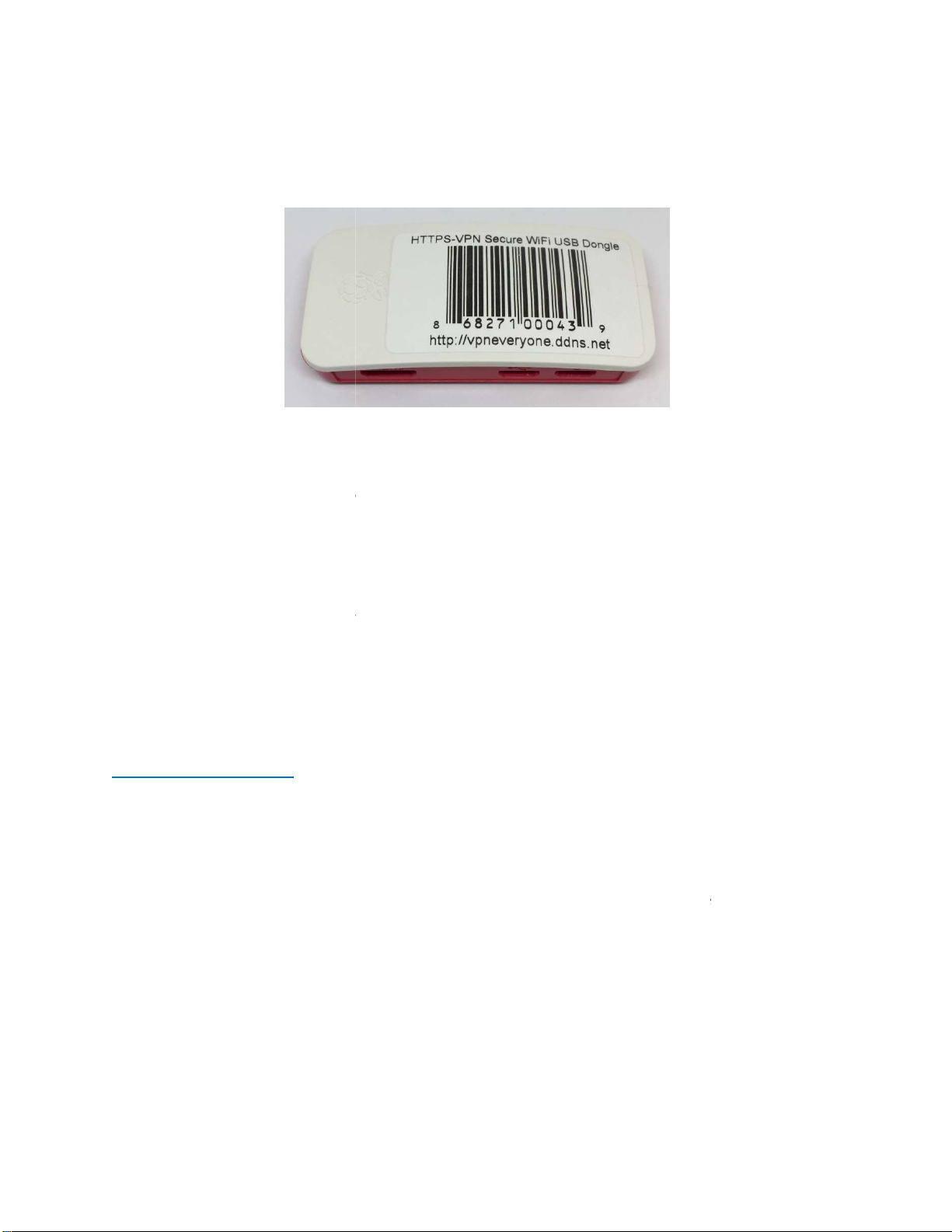
Figure 1 HTTPS-VPN USB-Dongle .................................................................................................................. 3
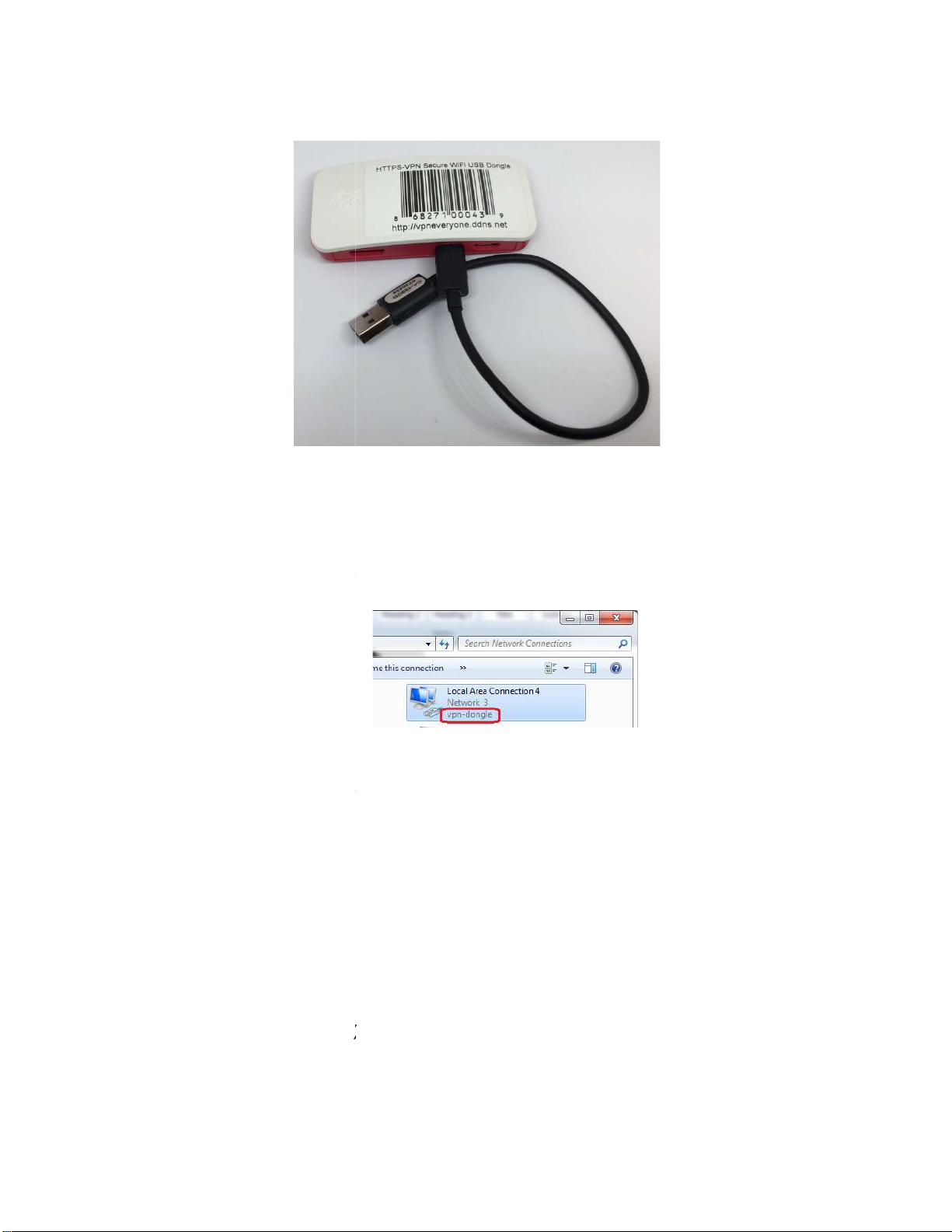
Figure 2 Connect USB Cable .......................................................................................................................... 4
Figure 3 Windows 7 Network Adapter vpn-dongle ...................................................................................... 4
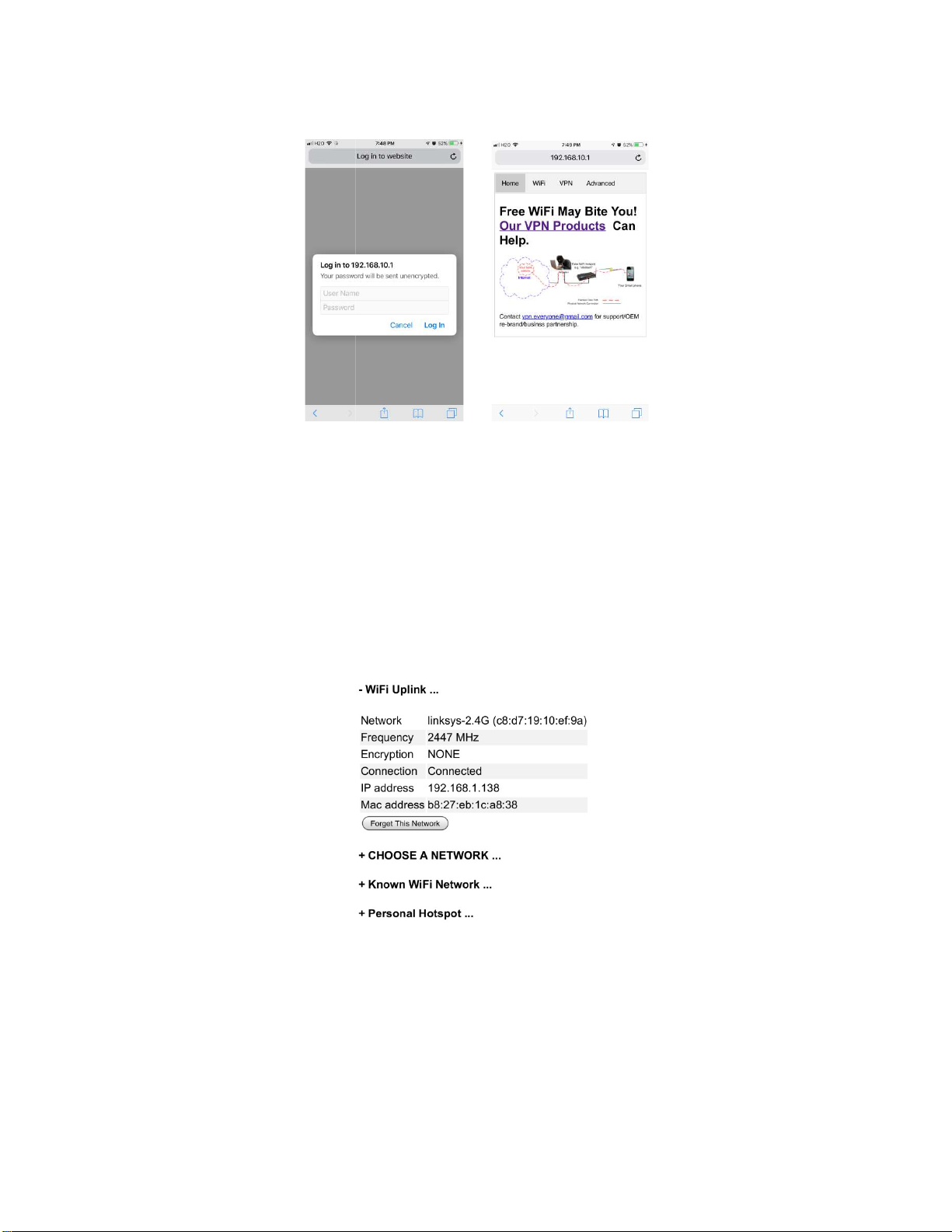
Figure 4 Web UI Login Page .......................................................................................................................... 5
Figure 5 UI Menu Example ............................................................................................................................ 5
Figure 6 UI Action Example ........................................................................................................................... 6
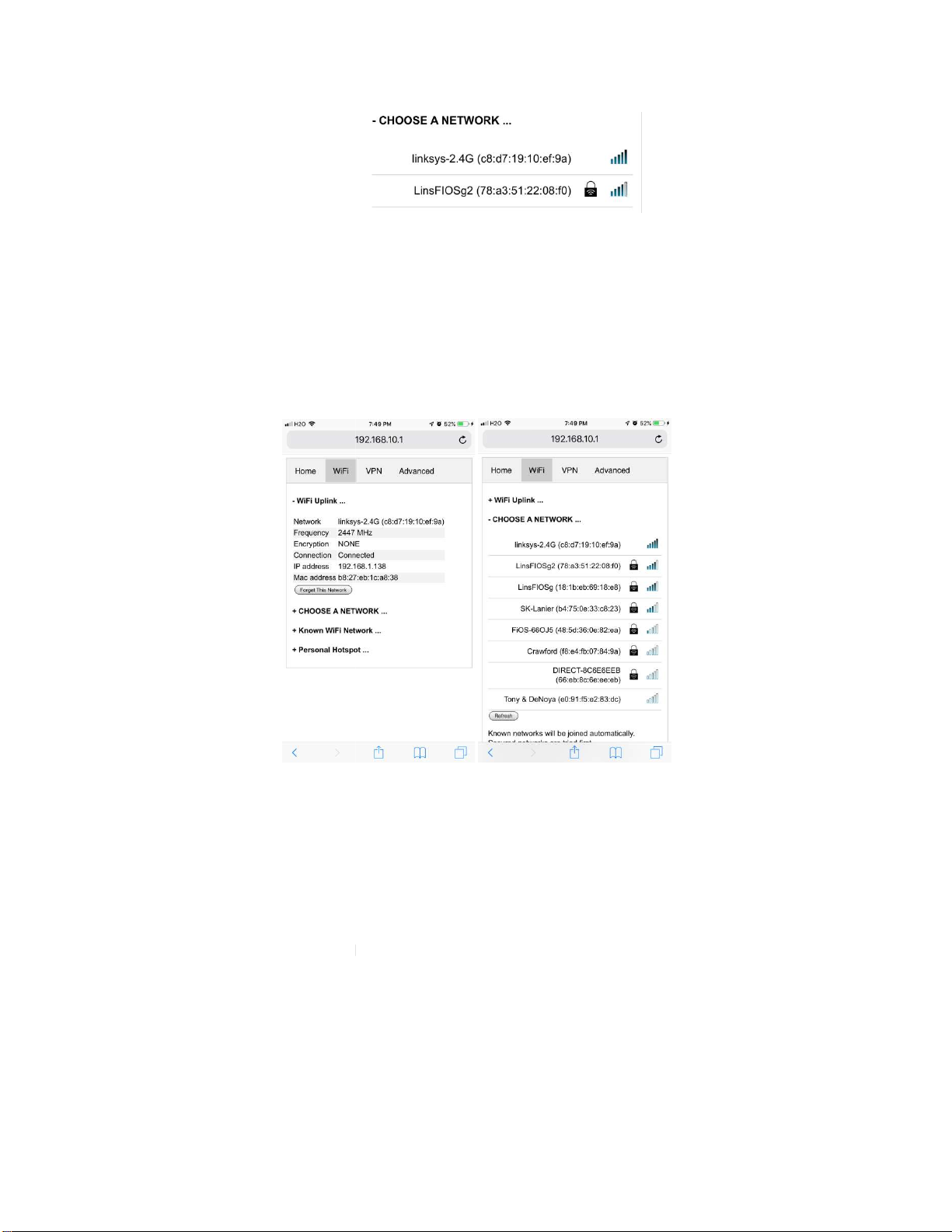
Figure 7 WiFi Settings ................................................................................................................................... 6
Figure 8 Connect WiFi Uplink ........................................................................................................................ 7
Figure 9 Personal Hotspot ............................................................................................................................. 7
Figure 10 VPN Setting UI ............................................................................................................................... 8
Figure 11 Find Out Your Public IP .................................................................................................................. 9
Figure 12 Advanced Settings ....................................................................................................................... 10
Figure 13 Device Info .................................................................................................................................. 11
Figure 14 USB Power Bank Example ........................................................................................................... 11
2
Page 3
WiFi dongle which
low power device. Your PC
WiFi hotspot to your smart phone.
ll your network traffic will be encrypted, nobody can eavesdrop your
encrypted in HTTPS format which is used in all e
technology that successfully bypass world tightly firewall in certain east A
play, no need to install any driver
: This USB dongle does NOT provide internet service(e.g. 4G, etc.).
to connect to a regular WiFi router/hotspot.
sell/re
, the government enforce
google, facebook, youtube, etc.)
protocols such as IPsec, OpenVPN are also blocked
Inspection) technology in the Great
This product is specifically designed
dongle to your PC. Login to it and connect WiFi. Then your PC would be able to access internet freely
t being monitored/blocked by Great
No power adapter is needed.
commerce websites.
sia country.
VPN to work, i
brand/business partnership, please contact us by email:
strict censorship on internet traffic. A lot of
W
strongly interfered by DPI (Deep Packet
VPN related apps are no
Simply plug in this
About Product
Figure 1 HTTPS-VPN USB-Dongle
It is a USB-to-
It is a
It is a light-weight (~1 oz)
It is a secure VPN client. A
internet activity.
All traffic is
It is plug-n-
Note
For questions/comments/re-
Typical Use Cases
In certain foreign country
international websites (
stores in such country.
can add WiFi capability to your PC.
USB port can provide full power.
or configuration to your PC.
-
s
are blocked by Great-Fire-
or
-FireWall. Even worse, all
-
For HTTPS-
Proven
t needs
all. Standard VPN
t available in app
for those who will travel to such country.
withou
-Fire-Wall.
USB-
3
Page 4
Power Up USB Dongle
There are three connectors on the USB
, the leftmost connector is
connector in the middle. It can power up the dongle and appear to PC
Ethernet adapter under name "vpn
Figure
, the connector on the right most. It can only power up the dongle
this port
After USB dongle is plugged in Windows PC, in about
adapter show up and it is automatically assigned the IP 192.168.10.2. The USB dongle has a fixed IP
http://192.168.10.1
ould see a USB
" to access USB dongle configuration UI.
Figure 2 Connect USB Cable
-dongle.
HDMI
Micro-USB 1, the
USB-to-
Micro-USB 2
communication via
Configuration Web UI
192.168.10.1.
unused, and you should ignore it.
-dongle". (see Figure 3)
3 Windows 7 Network Adapter vpn-dongle
.
25 seconds, Windows w
as a
, no data
-to-Ethernet
Start a browser on PC. Type "
4
Page 5
1. Default Credentials
The default username and password are "
the
Overall, the UI is designed with simplicity and intuitiveness in mind.
item
On each UI, by default the configuration or status detail is retracted. Click the "
item to expand its detail. Click the "
" (without quote sign), respectively.
Simplicity also mean, only absolutely
just click it. It may be configurable.
==>
Figure 4 Web UI Login Page
The password can be changed in
2. UI General Rule
needed items are configurable.
However, whenever you think an
admin" and "vpneveryone
"Advanced" UI page.
should be configurable,
Figure 5 UI Menu Example
a)
-" sign to hide its detail. (e.g.Figure 5)
+" sign on an
5
Page 6
an entry can trigger configuration change
WiFi network name would trigger action "Connect to this WiFi network". If this network requires
password, you will be asked for password.
Click the "WiFi" tab on the top of UI to enter WiFi set
The WiFi setting is very like WiFi setting
: This USB dongle does NOT provide internet service(e.g. 4G, etc.). For HTTPS
to connect to a regular WiFi router/hotspot.
" section shows whether it is connected to your router or
At factory default, there is no known network configured. This USB dongle would automatically connect
to WiFi network the does not require password.
" entry. You will see the available WiFi network
" button to
Figure 6 UI Action Example
6
. If you own a smart phone, it should be
VPN to work, it needs
around. You may
b) Clicking
3. WiFi Setup
immediately. e.g. in Figure
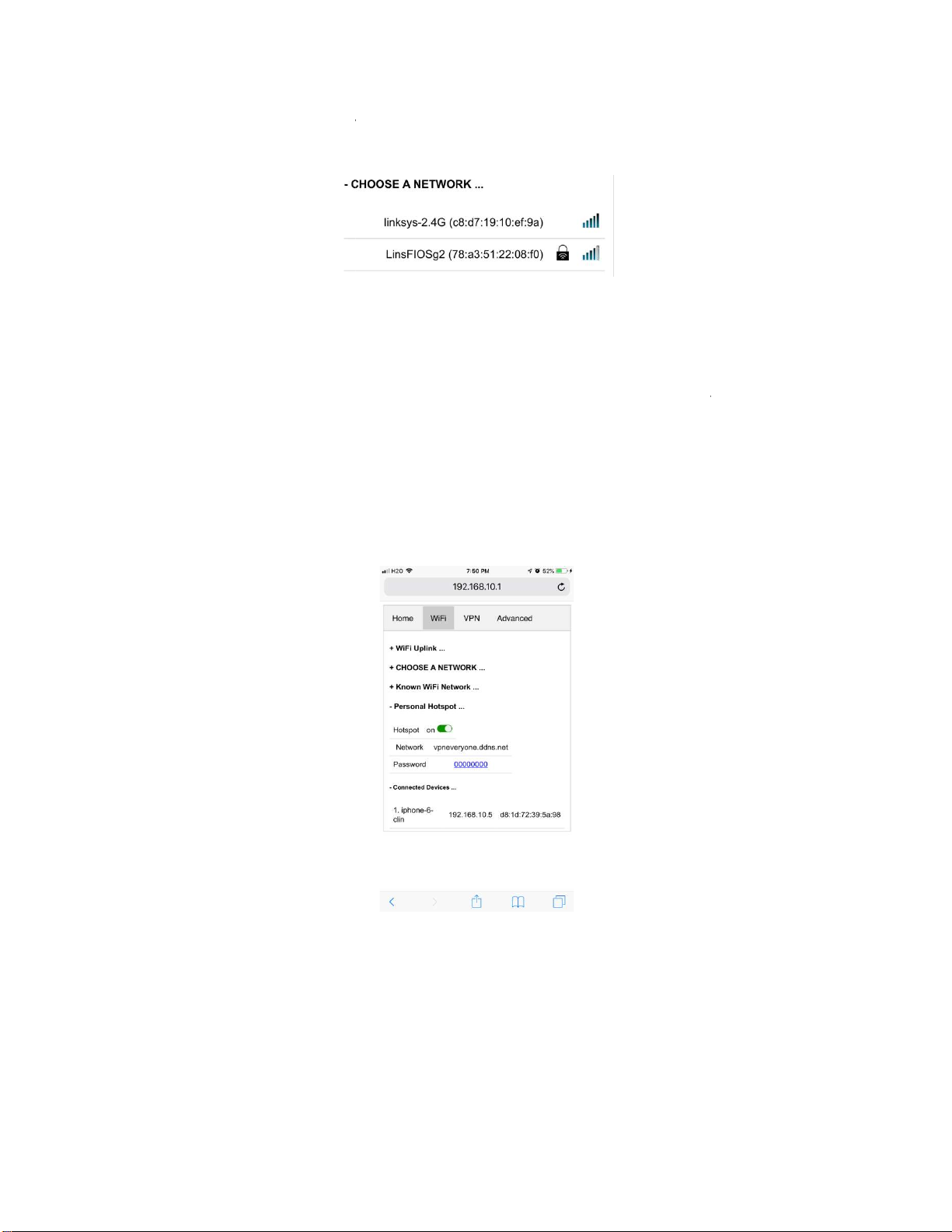
up (Figure 7).
, clicking on the
straightforward to you.
Note
The "WiFi Uplink
Click the " + CHOOSE A NETWORK
need to click the "Refresh
Figure 7 WiFi Settings
on smart phone
re-scan the WiFi networks around.
pretty
-
not.
s
6
Page 7
Note
: All UI pages can automatically update themselves. You don't need to manually refresh your
iFi network in the list to connect to this network. If this network requires password, a small
window would pop up asking for password.
network would be automatically remembered by this USB dongle. You can click
" to find out configured networks.
For your smart phones, tablets to use this HTTPS
capability. It is NOT simply a WiFi repeater. It takes your smart phone/tablet traffic and put them in
o access internet. In other words, the wireless router that USB dongle uplink
connects CANNOT eavesdrop your traffic.
to see the hotspot setting. By default, the hotspot is
" which is our official website. And the password is
, click the switch next to "on". It will turn off hotspot immediately.
VPN service, this USB dongle provides WiFi hotspot
enabled with network
00000000
browser to see the status.
Click the W
Manually selected
"+Known WiFi Networks ...
HTTPS-VPN tunnel t
Figure 8 Connect WiFi Uplink
-
Figure 9 Personal Hotspot
Click "+ Personal Hotspot ..."
name "vpneveryone.ddns.net
To disable hotspot
(eight zeros).
7
Page 8
To change hotspot password, click the password content (00000000). An input box would show up.
Simply enter new password. The new password would take effect once you hit "Enter" key on your
keyboard
You can see what devices are connected to this hotspot by clicking "+ Connected Devices ..."
4. VPN Setup
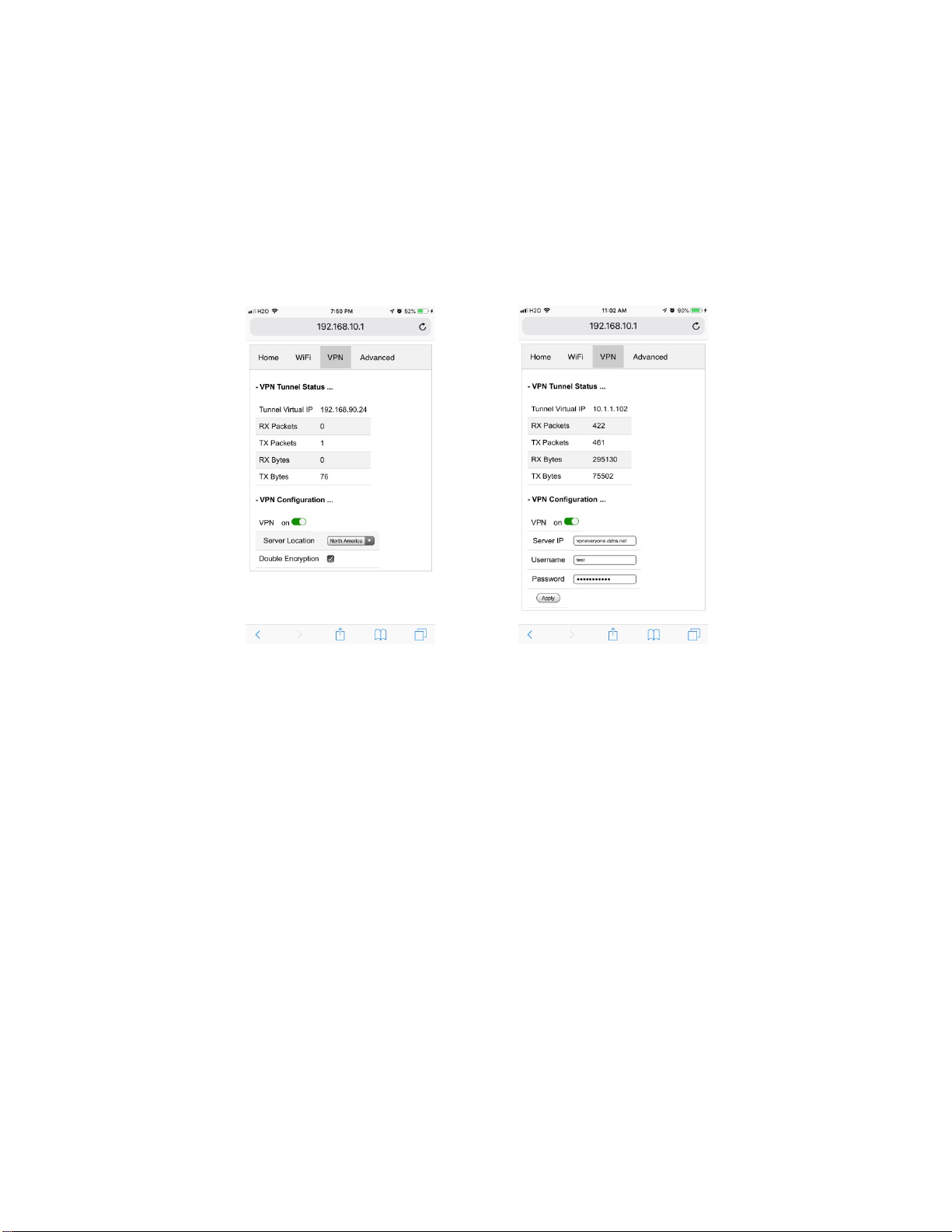
Click "VPN" tab on the top of the screen to see GUI below (Figure 10).
Figure 10 VPN Setting UI
We know end user does not care about what protocol, what encryption, key exchange, etc. All user
needs is a secure tunnel. That why we keep the VPN UI extremely simple.
Figure 10 shows VPN setting UI of two variants. The left one is for the product that connects to our
HTTPS-VPN servers on cloud. The right one is for the product that connects to your own VPN server at
home if you buy our "HTTPS-VPN server & client pair" product.
Click "+ VPN Configuration ..." to see the configurable items.
To disable/enable VPN, click the switch next to the "on" word. If VPN is disabled, this USB dongle is
simply a USB-to-WiFi adapter and a WiFi repeater.
Product Variant 1 : Use our VPN servers on cloud
At this moment, we have two HTTPS-VPN servers, in North America and Europe, respectively. By default,
it connects to server in North America. You can change it to suit your needs. The change would take
effect immediately.
8
Page 9
By default, the tightest security policy is enforced. All network traffic is double encrypted by AES-CBC-
256. You can uncheck "Double Encryption" to improve speed a little bit and the VPN tunnel is still secure
enough.
Product Variant 2 : Use your own VPN server at home
Your HTTPS-VPN server at home supports up to 5 users.
On USB dongle, "server ip", "username" and "password" are needed to be configured.
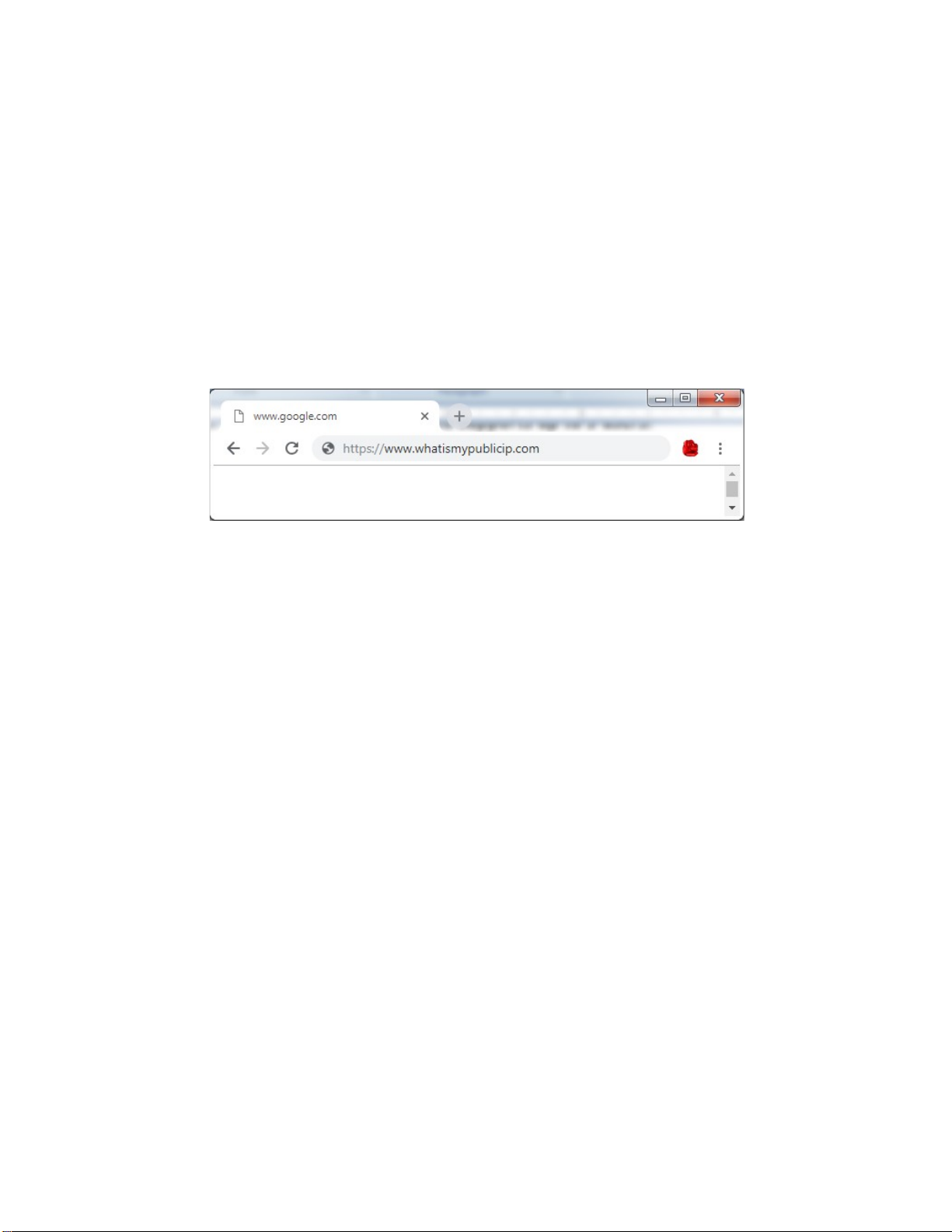
Please use the public IP of your home router, NOT the IP in format like "192.168.x.1". You can find out
your public IP easily by type "https://www.whatismypulicip.com" in browser. It will tell you your public
IP. You need to do this while you are at home.
Figure 11 Find Out Your Public IP
TIP: Your router public IP may change over time. You can configure DDNS on your router and then
use DDNS name as server IP. The right part of Figure 10 shows an example.
The username & password comes from your HTTPS-VPN server setting. The HTTPS-VPN server can be
plug-n-play. If you use factory default setting on HTTPS-VPN server side, the default username &
passwords are:
test1 & vpneveryone
test2 & vpneveryone
test3 & vpneveryone
test4 & vpneveryone
test5 & vpneveryone
9
Page 10
5. Advanced Setup
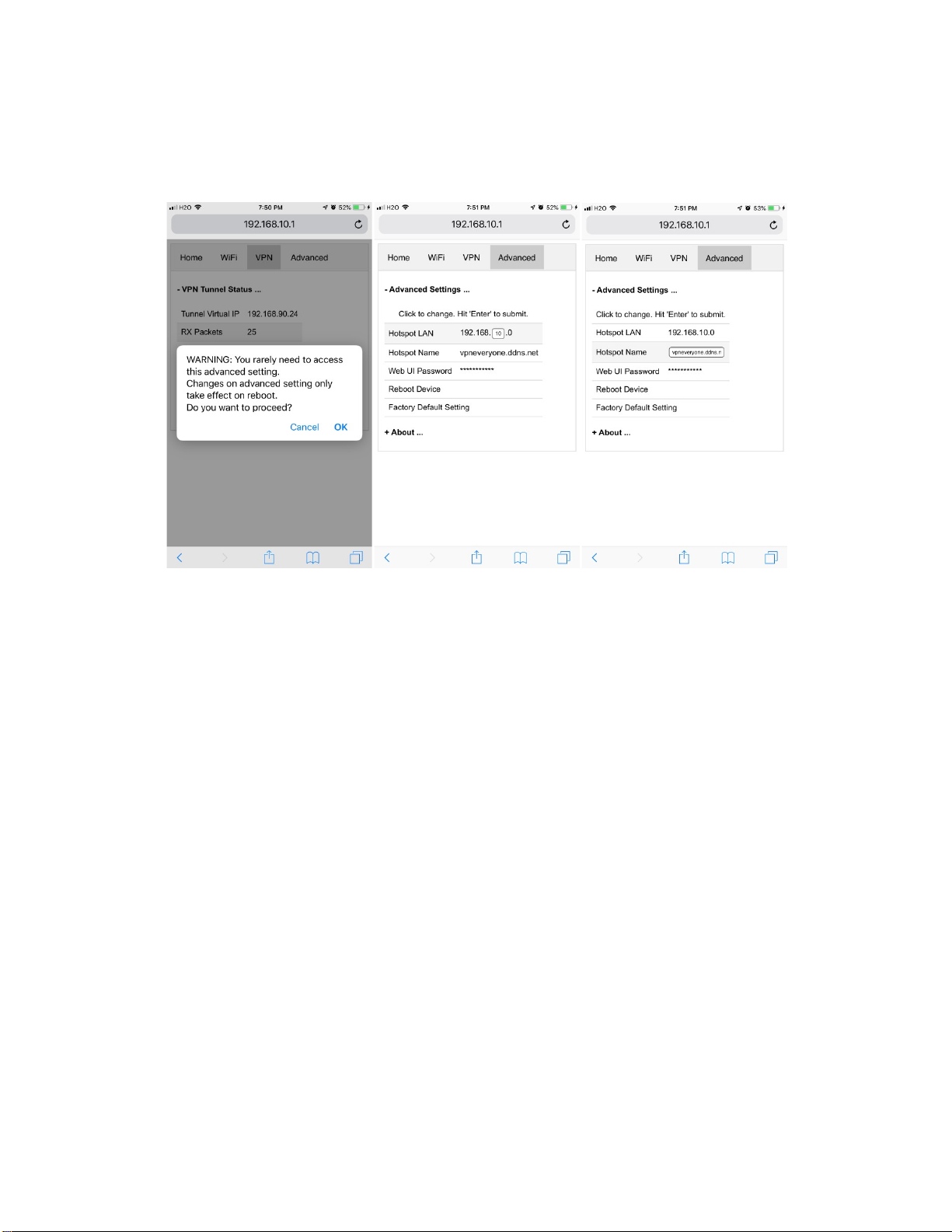
For most users, the settings in "WiFi" and "VPN" sections are enough. The "Advanced" setup is rarely
needed. You will get a warning message on accessing "Advanced" UI page.
Figure 12 Advanced Settings
By default, the hotspot LAN is 192.168.10.0/24. And you should stick to this setting. Only if the wireless
uplink happens to be 192.168.10.0/24 should you change this setting.
To change hotspot LAN, click "192.168.10.0". The "10" part then becomes editable. Input your new
value and hit "Enter" on your keyboard to commit the change.
To change hotspot network name, click "vpneveryone.ddns.net". Then it becomes editable. Input your
new value and hit "Enter" on your keyboard to commit the change.
To change web UI password, click "********". Then it becomes editable. Input your new value and hit
"Enter" on your keyboard to commit the change.
In all three cases above, if you change your mind in the middle of change, click the left part to cancel the
change. e.g. Clicking "Hotspot Name" before you hit "Enter" on your keyboard would cancel the change
and the original value is restored.
You rarely need to reboot USB dongle via UI. You can reboot USB dongle by pulling USB connector and
plug it back in.
You rarely need a factory default reset. Only if you think you mis-configure something and don't know
where it is, you may factory default it.
10
Page 11
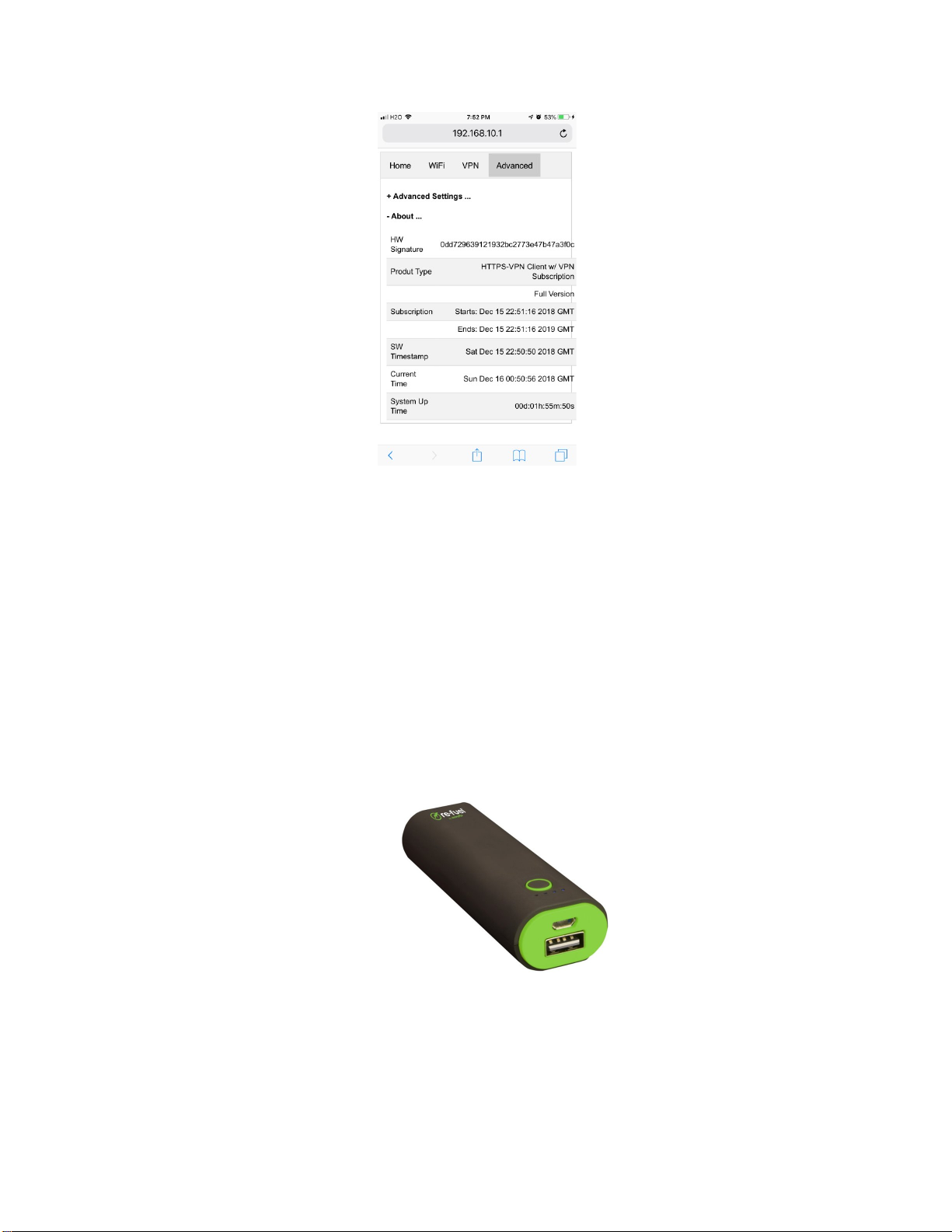
Figure 13 Device Info
Click "+ About ..." to see more information about this USB dongle. This section is read-only.
FAQ
1) Q: Do I have to plug the USB dongle in PC?
A: No, you don't have to plug it in PC. You can plug it in USB power bank (e.g. Figure 14) and put
them in your backpack. Then use your smart phone to connect to the "Personal Hotspot" and
manage/use the USB dongle.
Just a heads-up that your wireless link between smart phone and USB dongle may be cut off
when you configure WiFi part, e.g. connect to different WiFi network, change hotspot
name/password, etc.
Figure 14 USB Power Bank Example
2) Q: What OS supports your USB dongle?
A: For "Windows 7", "Windows 10" and "Ubuntu Linux", the USB dongle is plug-n-play. No
driver is needed, neither is configuration needed.
11
Page 12

For other favor Linux, no driver is needed. But you may need to set up network manually. e.g.
run command "ifconfig usb0 192.168.10.2" explicitly.
For Mac OS, the USB part is not stable. Please use WiFi to connect to HTTPS-VPN dongle.
3) Q: Most public WiFi hotspot would require a "disclaimer" / "acknowledge", etc. before WiFi
connection is usable. Would your USB dongle work in this case?
A: Yes, our HTTPS-VPN USB dongle would work in such case. Before WiFi connection is usable,
the VPN tunnel is not created. The "disclaimer" / "acknowledge" page would be automatically
forwarded to the device (smartphone / PC) that first access internet. Such device can check
"acknowledge" or click "disclaimer" button. After that, VPN tunnel can be created and
everything works as it should.
Just a heads-up that, usually such WiFi hotspot would require you to do "disclaimer" /
"acknowledge" thing once a hour. VPN tunnel can be blocked after one hour. It will time out and
reconnect in about one minute. If you cannot wait, you can login to the VPN UI page (Figure 10).
Then disable VPN and enable VPN again.
4) Q: I notice that in the "Advanced --> About" section, the subscription ends in 365 days. What
does that mean?
A: Each USB-Dongle comes with 1 year VPN service subscription. The subscription info is in this
"About" section.
After subscription expires, you have a few options.
a) Buy a new USB-dongle which would come with 1 year subscription.
b) Re-use the USB-dongle and renew VPN service subscription. Email us the 32 byte long
string in the "HW Signature" part. We will send you a download link for the
software+subscription that only works only on this hardware.
c) Disable VPN and use this dongle as USB-to-WiFi adapter or WiFi repeater.
Actually, there is another option. That is, set up your own HTTPS-VPN server. We have HTTPSVPN server & client pair combo for sale. email [email protected] for further
information.
5) Q: Other than some foreign countries, any other places that monitor your internet traffic or
block VPN service?
A: As a matter of fact, there are more places than you can think. Even in US, there are a few
places that legitimately monitor your internet traffic. e.g. Your work place may provide free
internet access. But you are explicitly told that your internet activity is subject to being
12
Page 13

monitored. If you read the "disclaimer" / "acknowledgement" when you connect WiFi hotspot,
you will find some of them explicitly says you are monitored.
In a lot of school systems and shopping malls, they provide free WiFi. But their DPI firewall also
blocks standard VPN. Typically, in such case, you will find that your WiFi connection is cut off
right away whenever you try to connect IPsec or OpenVPN .
If you don't feel comfortable being monitored legitimately, this HTTPS-VPN dongle is your
choice.
13
 Loading...