

Page 1

VONETS——VAR11N-300 300M Mini WIFI Router
1
300Mbps Mini WiFi Router
VAR11N-300
Quick Setup Guide
Page 2

VONETS——VAR11N-300 300M Mini WIFI Router
2
Declaration
Copyright © 2015 Shenzhen HouTian Network Communication Technology Co.,Ltd. All Rights
Reserved,with retained ownership.
Without Shenzhen HouTian Network Communication Technology Co., Ltd written
authorization, any company or personal can’t copy, writer or translation part or all
contents. Can’t do commodity distribution for any commercial or profitable purposes
by any ways (electricity, mechanical, photoprint, record or other methods).
VONETS is the registered trademark of Shenzhen HouTian Network Communication
Technology Co., Ltd. The other all trademarks or registered trademarks mentioned in
this documents are belong to the individual owners.
The product specifications and information technology mentioned in this manual are just for
reference, if any updates,without other notice. Except for special agreements, this manual is just
for user guidance, any statements, information and so on in this manual can’t constitute the
warranty of any forms.
Page 3

VONETS——VAR11N-300 300M Mini WIFI Router
3
Chapter 1 Router Mode Quick Setup Guide
1.Let VAR11N-300 be powered on
2.Open wireless network connection, disable local connection or other network connection
Tips:
(1) If you connect VAR11N-300 by wireless, please disable the local connection of
computer.
(2) If you connect VAR11N-300 by wired, please disable the wifi network of the
Computer.
3.Set up a computer network IP for automatic access, as the following:
4. Using computer or mobile phone to search VAR11N-300 hot spot, and then make
connection
Remark: the hot spot name is last 6 words of VONETS_MAC, password is 12345678
5.Open the web page, input Virtual configuration domain name (VDNS) http://vonets.cfg on
the browser, then press enter into the loading page
Page 4

VONETS——VAR11N-300 300M Mini WIFI Router
4
6.Enter user name and password
Remark: the default user name and passed is : admin
7.WAN interface Settings
Enter the web page and click on WAN interface Settings, select connection method, the default connection way
is DHCP, if choose PPPOE to connect, need to enter ISP account number and password, then click to confirm
button is ok , as shown below :
8.Operating mode
Selecting work mode can shift LAN or WAN interface, the default interface is “Ethernet cable-LAN,
Ethernet interface-WAN”. It means the default interface is Ethernet interface-WAN
Remark: Select the interface mode
(1) The cable one side connect VAR11N-300 interface, and the other side connect out net, such
as: router, modulator-demodulator, the interface is “Ethernet cable-LAN, Ethernet
interface-WAN”. At this moment, VAR11N-300 interface is WAN interface.
Page 5
VONETS——VAR11N-300 300M Mini WIFI Router
5
(2) The cable one side connect VAR11N-300 interface, and the other side connect intranet, such
as : computer, the interface is “Ethernet cable-WAN, Ethernet cable-LAN”.At the moment,
VAR11N-300 interface is LAN interface.
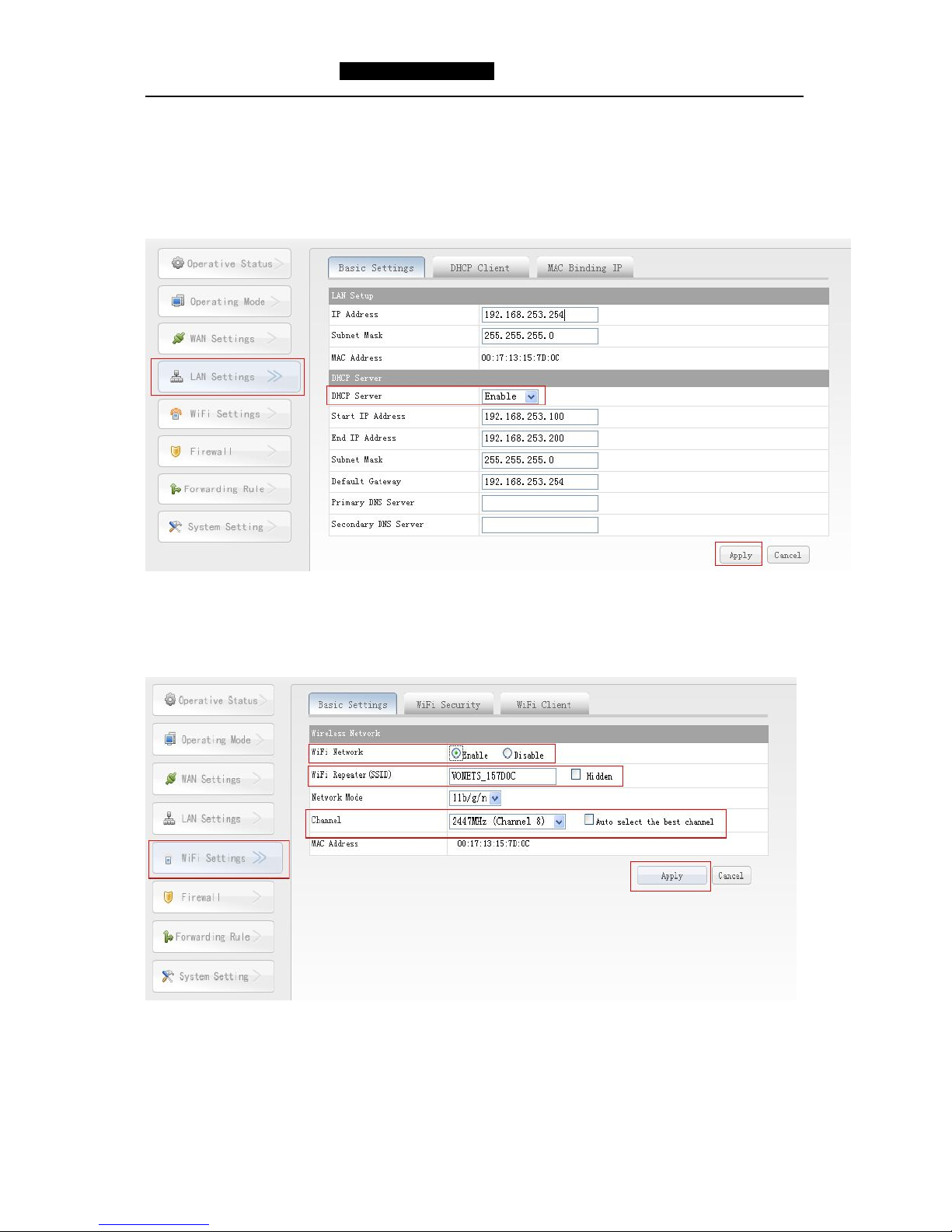
9. LAN interface setting
Enter the web page, click LAN interface setting, DHCP service is default open. As shown below:
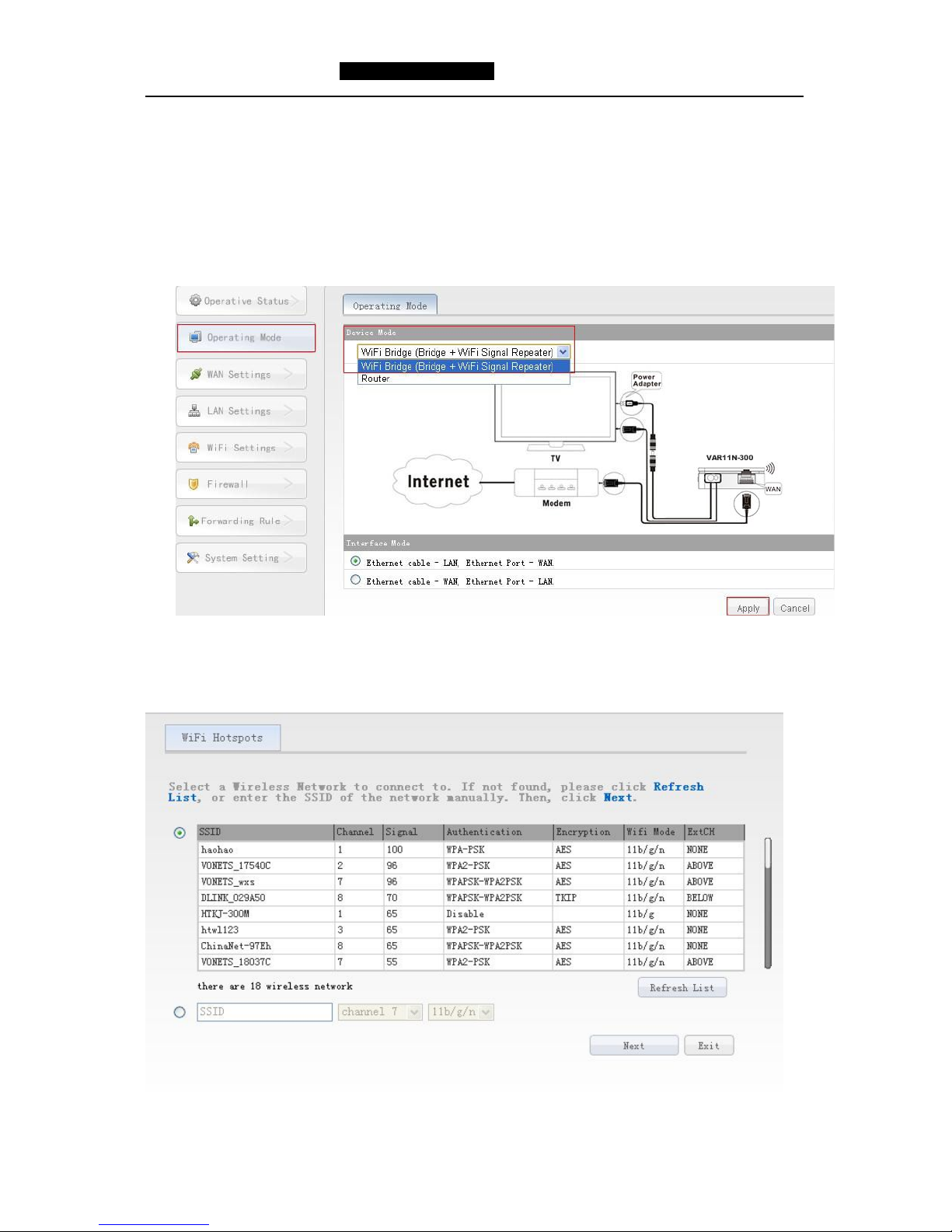
9.WIFI setting
For the basic setup, user can choose to shut down WIFI, change Wireless relay name, correct WIFI channel.
And for safety WIFI user, can change the encryption method and change the WIFI password.
Page 6

VONETS——VAR11N-300 300M Mini WIFI Router
6
Page 7
VONETS——VAR11N-300 300M Mini WIFI Router
7
Chapter 2 Bridge Mode Quick Setup Guide
1.S
hift work mode
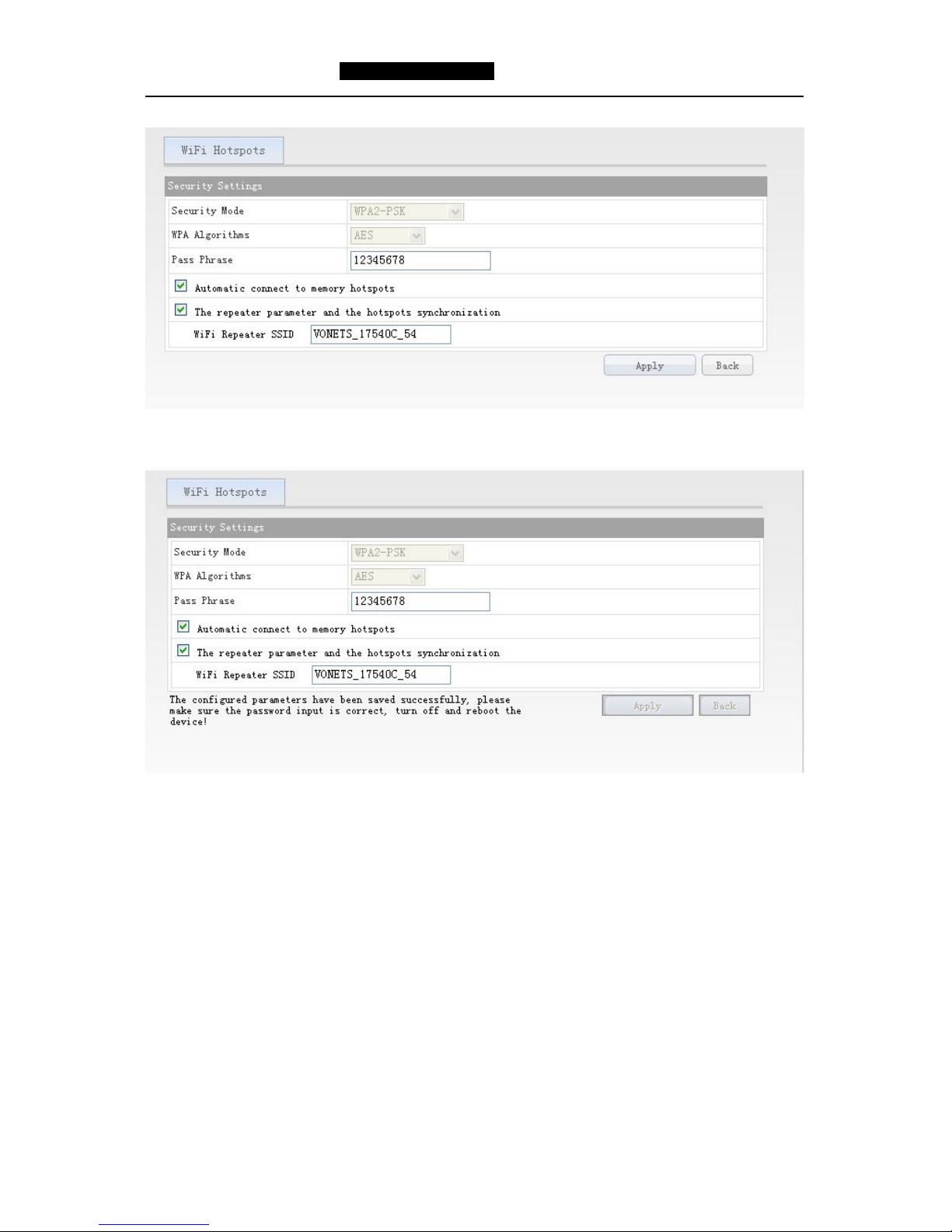
Enter the configuration interface, click work mode, choose device mode as ”WIFI Transparent intelligent
bridge ”, as the follow:
Remark: VAR11N-300 default mode is ROUTER MODE, after correction, it need to restart, then it can come
into effect
2.WIFI search
After the jump page, it will automatically appear scan window, can search the around wireless signal which has
opened the SSID broadcasting. As the follow:
Page 8
VONETS——VAR11N-300 300M Mini WIFI Router
8
Select one correct wireless signal and click next step, it will appear the follow interface
Enter the right password, click submit button after confirmation.
After submission, it will appear above prompt, configuration parameters saved successfully, after ensuring the
password input the correct, please restart the equipment.
Remark:
Remark: After configured successfully, the WiFi name of the device is the name of source hot spot_the last two
character of MAC address, the password, encryption method and channel are the same as the source hot spot,
the users can go to WiFi Repeater option to change SSID(WiFi name) and password.
.
Page 9
VONETS——VAR11N-300 300M Mini WIFI Router
9
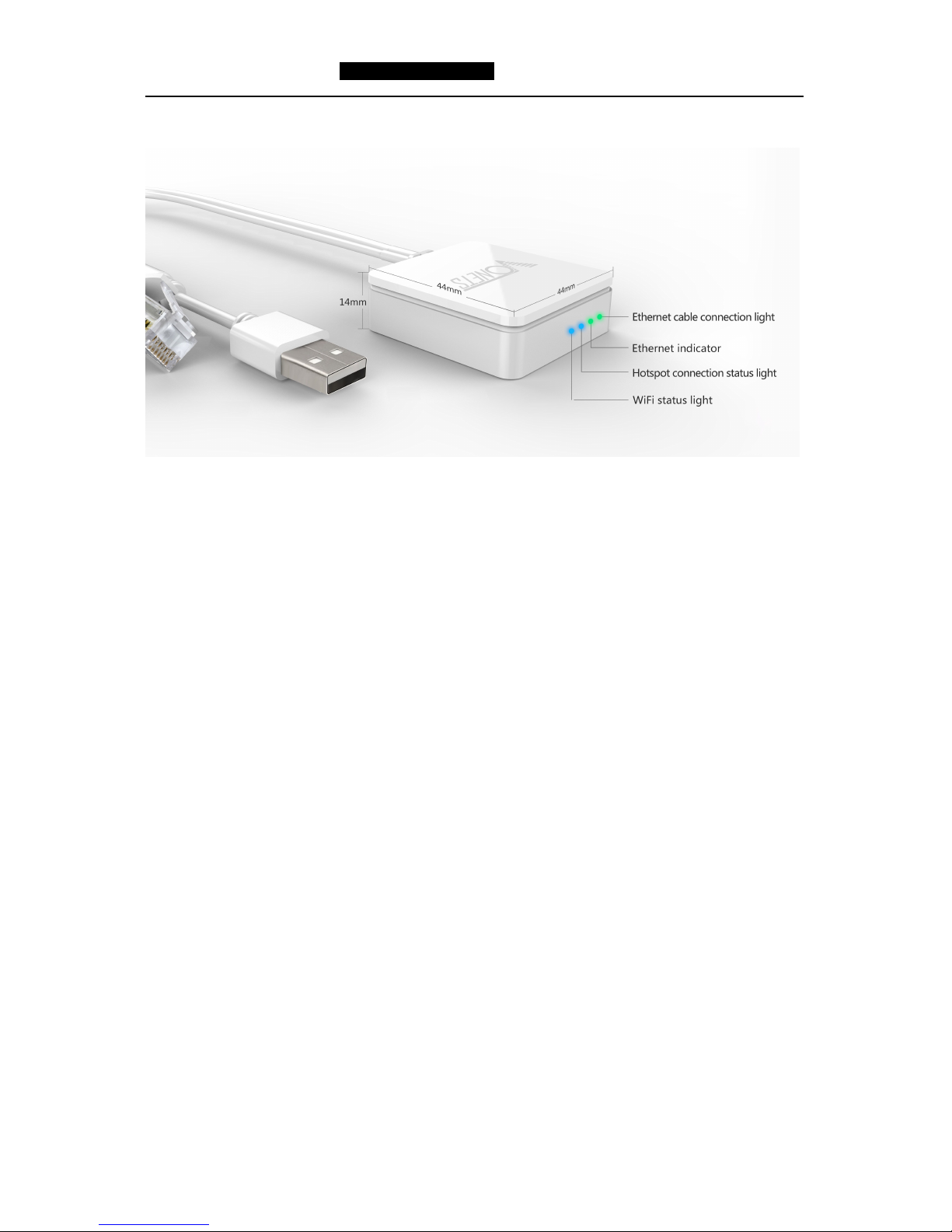
Product diagram,as shown below:
Remark
1)Without connecting any hot spot,the blue hot spot connection status light
of VAR11N-300 will rapid flashing regularly.
2)When connected hot spot with success and the wireless hot spot signal
more than 50%,the blue hot spot connection status light of VAR11N-300 will
rapid flashing continually.
3)When connected hot spot with success and the wireless hot spot signal
more than 10% and less than 50%, the blue hot spot connection status
light of VAR11N-300 will slowly flashing continually.
4)When connected hot spot with success and the wireless hot spot signal
more than 10%, the blue hot spot connection status light of VAR11N-300 will
Off.
5)When failed connect hot spot, the blue hot spot connection status light of
VAR11N-300 will off.
Shenzhen HouTian Network Communication Technology Co., Ltd.
http://www.vonets.com.cn
 Loading...