

Page 1

VONETS WiFi Bridge/Repeater
WiFi Bridge/Repeater
Quick Setting Guide
1
Page 2

VONETS WiFi Bridge/Repeater
Declaration
Transmission distance parameters form
Model
No-barrier point to point
Transmission distance
Transmission
rate(Mbps
)
Band
VAP11N-300
50m--80m
300
2.4G
VAP11G-300
80m--100m
300
2.4G
VAP11G-500
250m--300m
300
2.4G
VAP11AC
250m--300m
300+900
2.4G/5G
Form2
Power supply parameter list
Model
Power Supply
Voltage Range
Input Power
Typical Power
Supply
VAP11N-300
DC5--15V
≥5W
5V/1A
VAP11G-300
DC5--15V
≥5W
5V/1A
VAP11G-500
DC5--15V
≥10W
5V/2A
VAP11AC
DC5--15V
≥10W
5V/2A
Copyright © 2018 Shenzhen HouTian Network Communication Technology
Co.,Ltd
All rights reserved, with retained ownership Without Shenzhen HouTian Network Communication
Technology Co.,Ltd written authorization, any company or personal can’t copy, writer or translation
part or all contents. Can’t do commodity distribution for any commercial or profitable purposes by
any ways(electricity, mechanical, photoprint, record or other methods).
VONETS is the registered trademark of Shenzhen HouTian Network Communication Technology
Co.,Ltd. The other all trademarks or registered trademarks mentioned in this documents are belong to
the individual owners. The product specifications and information technology mentioned in this
manual are just for reference, if any updates, without other notice. Except for special agreements,
this manual is just for user guidance, any statements, information and so on in this manual can’t
constitute the warranty of any forms.
Form 1
2
Page 3
VONETS WiFi Bridge/Repeater
Application Method
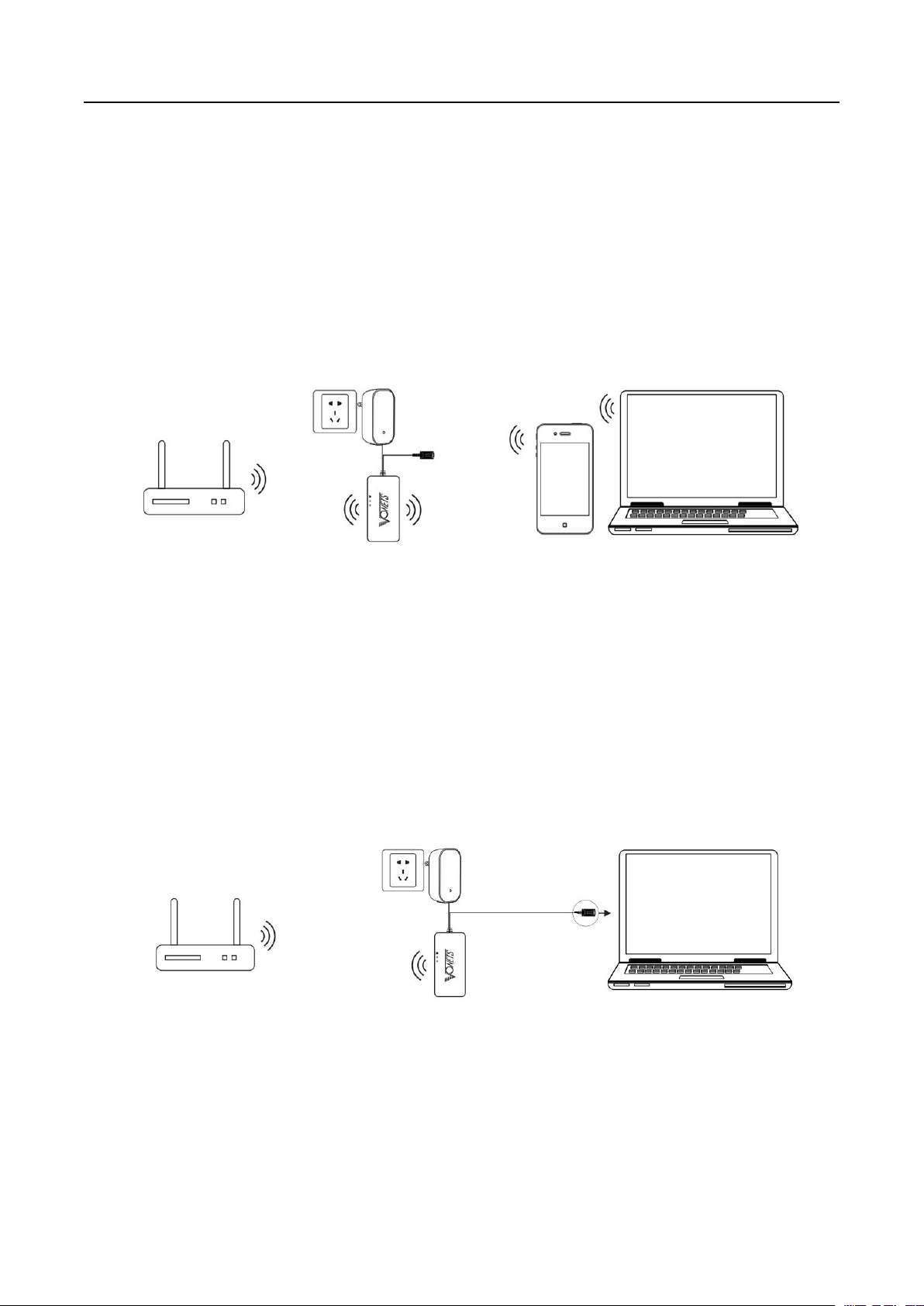
1. WiFi Repeater:
2. WiFi Bridge:
3. WiFi AP:
In this application, VONETS devices are used to extend the wireless signal coverage of existing AP
or wireless router. The computer can connect to the device wirelessly. After the VONETS device
adds a source hotspot, its DHCP server is disable by default.
In this application, VONETS devices are used to extend the wireless signal coverage of existing AP
or wireless router. The computer can connect to the device wired. After the VONETS device adds a
source hotspot, its DHCP server is disable by default.
In this application, VOENTS device implements the wireless access function of the wired LAN. The
computer can connect to the device wirelessly. After VONETS device successfully connects to the
wired LAN, its DHCP server is disable by default.
3
Page 4
VONETS WiFi Bridge/Repeater
Setting Guide
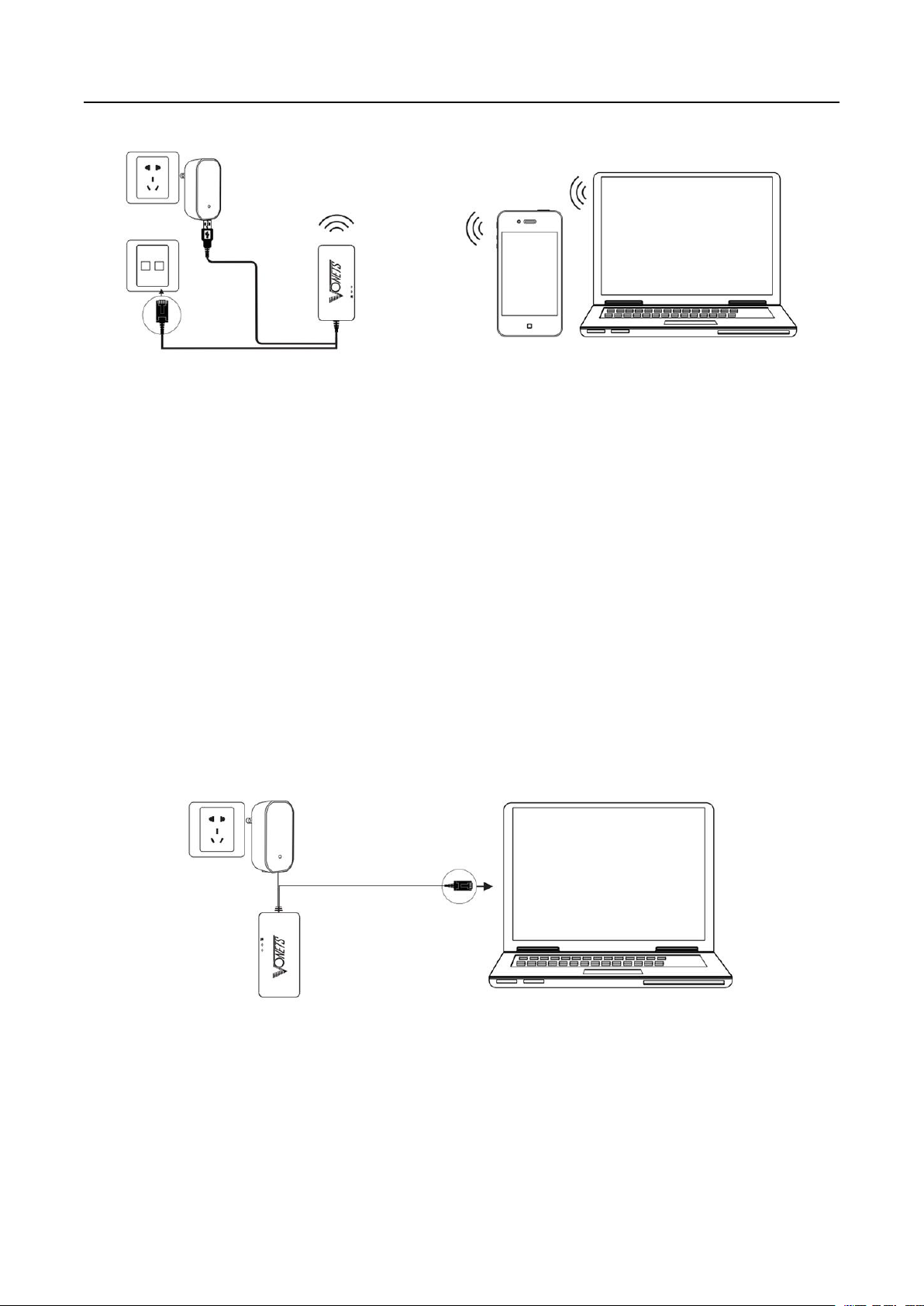
1. Connect Device
1) The computer is wired connected to the LAN port of VONETS device;
2) The computer is connected to WiFi signal of VONETS device, its hotspot parameters
VONETS device is powered on (5V/2A) and then connected to the computer. There are two ways to
do this:
as below:
WiFi SSID: VONETS_******(Corresponds to the MAC address of the VONETS device
WiFi password: 12345678
4
)
Page 5
VONETS WiFi Bridge/Repeater
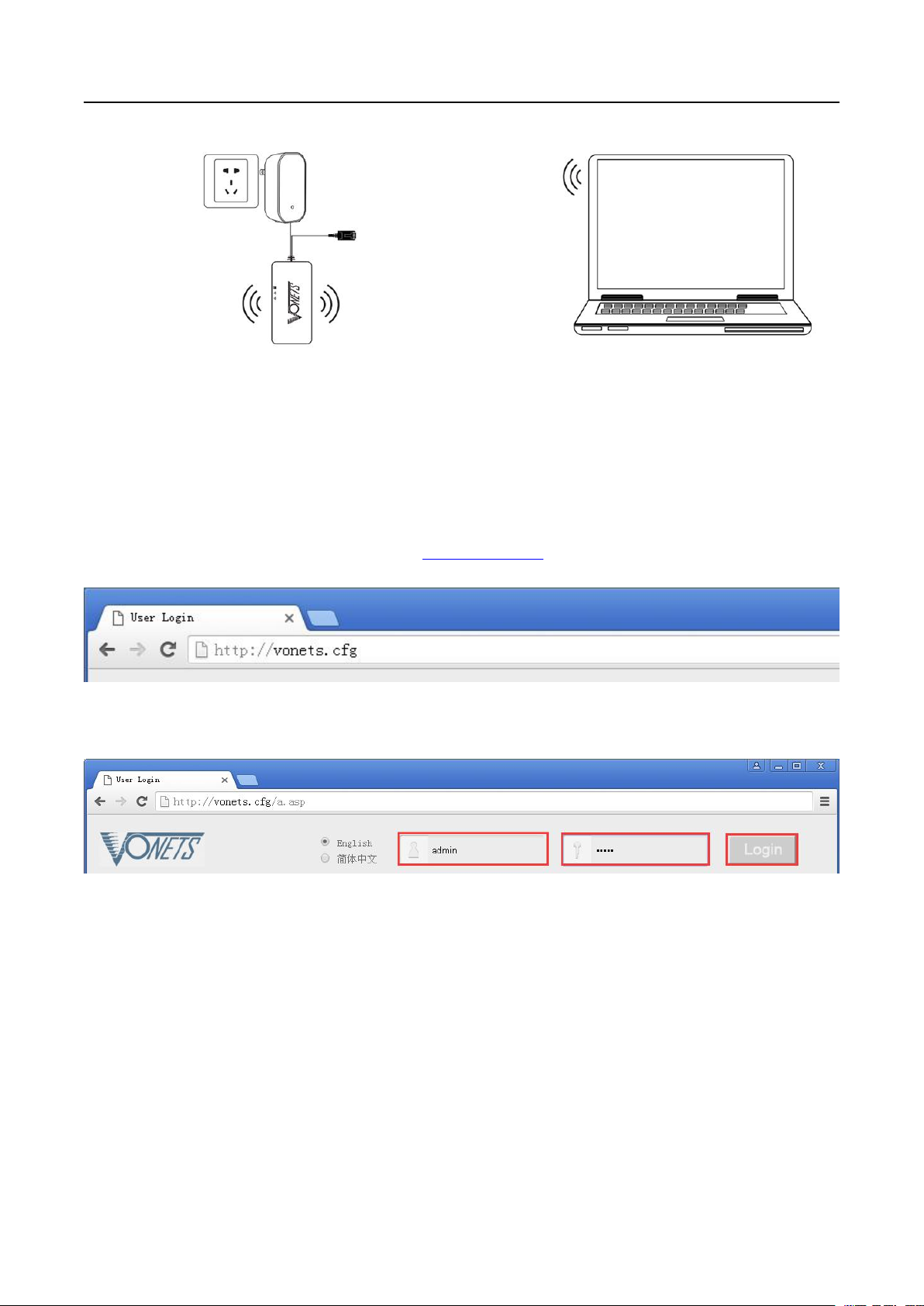
2. The application configuration of Repeater + bridge (The application configuration method
of repeater & bridge is basically the same).
1) Open Browser, input configured page: http://vonets.cfg (or IP: 192.168.254.254), then press
2) Enter User name and Password in login page (both are “admin”), click “Login” button to enter
Enter;
configured page;
3)“Scan Hotspots”, choose the source hotspots, click “Next”;
5
Page 6
VONETS WiFi Bridge/Repeater
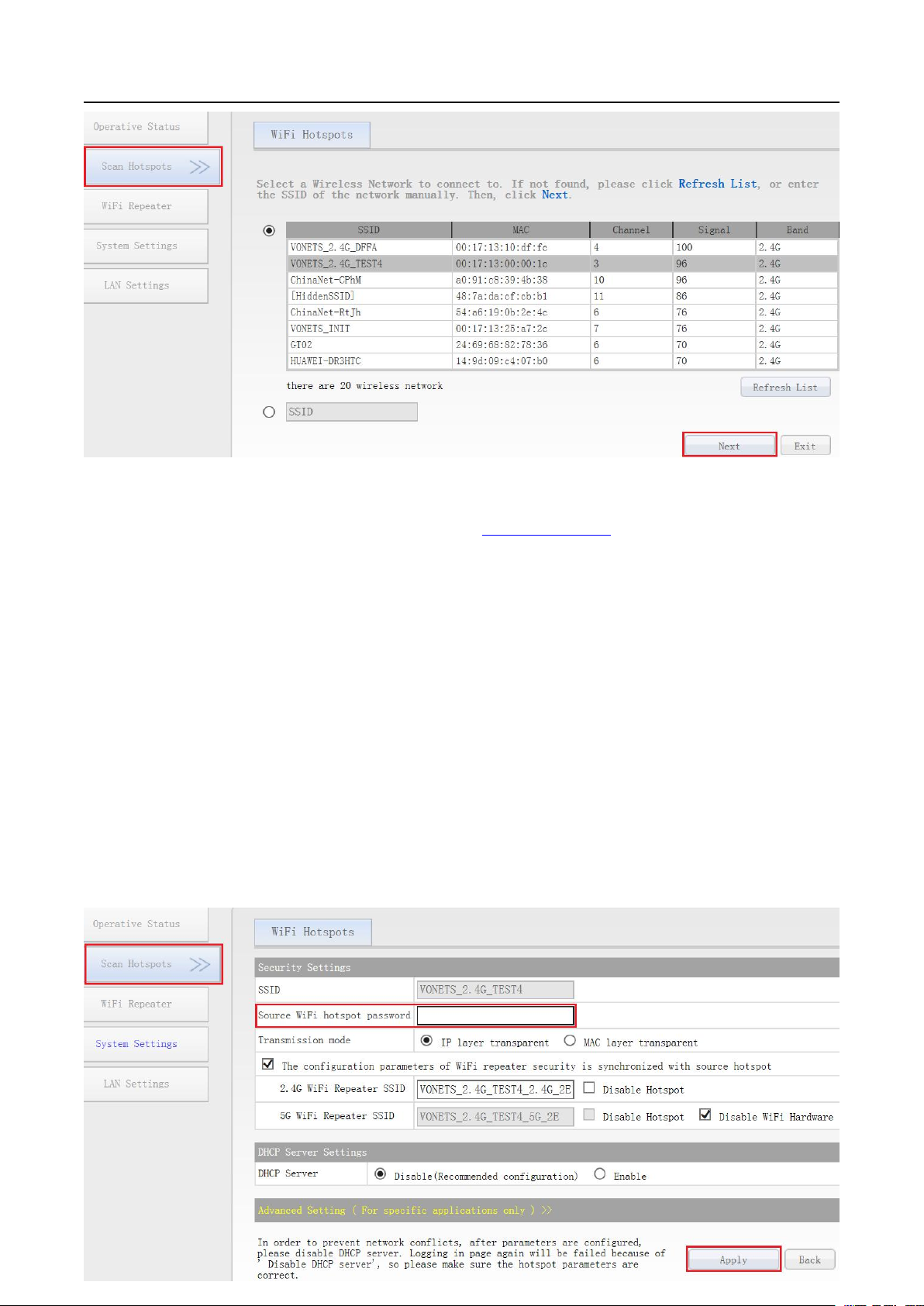
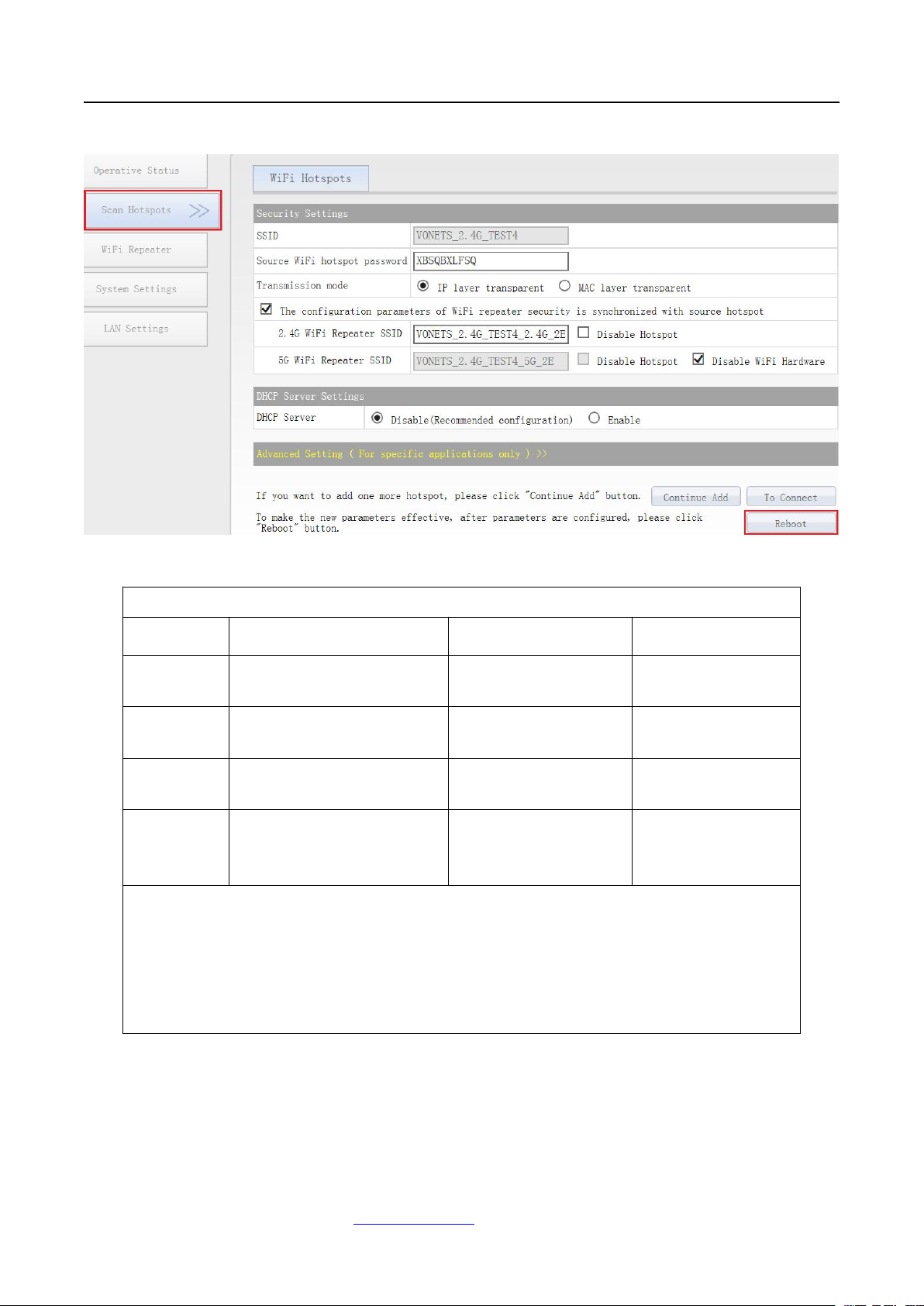
4) Input “Source wireless hotspot password”, click “Apply”; (The “Advanced Setting” here can be
kept unchanged, for instructions on this option, go to www.vonets.com and download the
IP layer transparent transmission (factory default), transparent transmission of IP layer data, can
MAC layer transparent transmission, transparent transmission of all data above the MAC layer
The option “The configuration parameters of WiFi repeater security is synchronized with source
If you select “Disable hotspot” on the right side of the SSID, the device will not transmit the
VONETS Series Product Instruction Guide”).
“
meet most of WiFi bridge applications;
(link layer) and MAC layer, including IP layer data. MAC transparent transmission can solve
some special applications for MAC layer encryption, such as GoPro camera, Cisco AP,
Hikvision monitoring system, etc.
hotspot” is default ticked, it means The SSID of the VONETS repeater is associated with the
SSID of the source hotspot, and the WiFi password is the same as the password of the source
hotspot;
corresponding hotspot and can only be used as a bridge application.
6
Page 7
VONETS WiFi Bridge/Repeater
5)Click “Reboot”, VONETS device will connect to the configured WiFi hotspot automatically, if
connection is successfully, the WiFi LED light will quick flash;
LED Light Form
Model
Blue Light
Green Light
Yellow Light
VAP11N-300
2.4G WiFi connection status
light
Ethernet cable
connection status light
No
VAP11G-300
2.4G WiFi connection status
light
Ethernet cable
connection status light
No
VAP11G-500
2.4G WiFi connection status
light
Ethernet cable
connection status light
No
VAP11AC
2.4G WiFi connection status
light
5G WiFi connection
status light
Ethernet cable
connection status
light
1) VONETS bridge is not connected to any hotspot, WiFi connection status light will
quick flash;
2) VONETS bridge is connected to hotspot successfully, WiFi connection status light
will quick flash;
3) VONETS bridge is connected to hotspot failed, WiFi connection status light will slow
flash.
3. The application configuration of AP
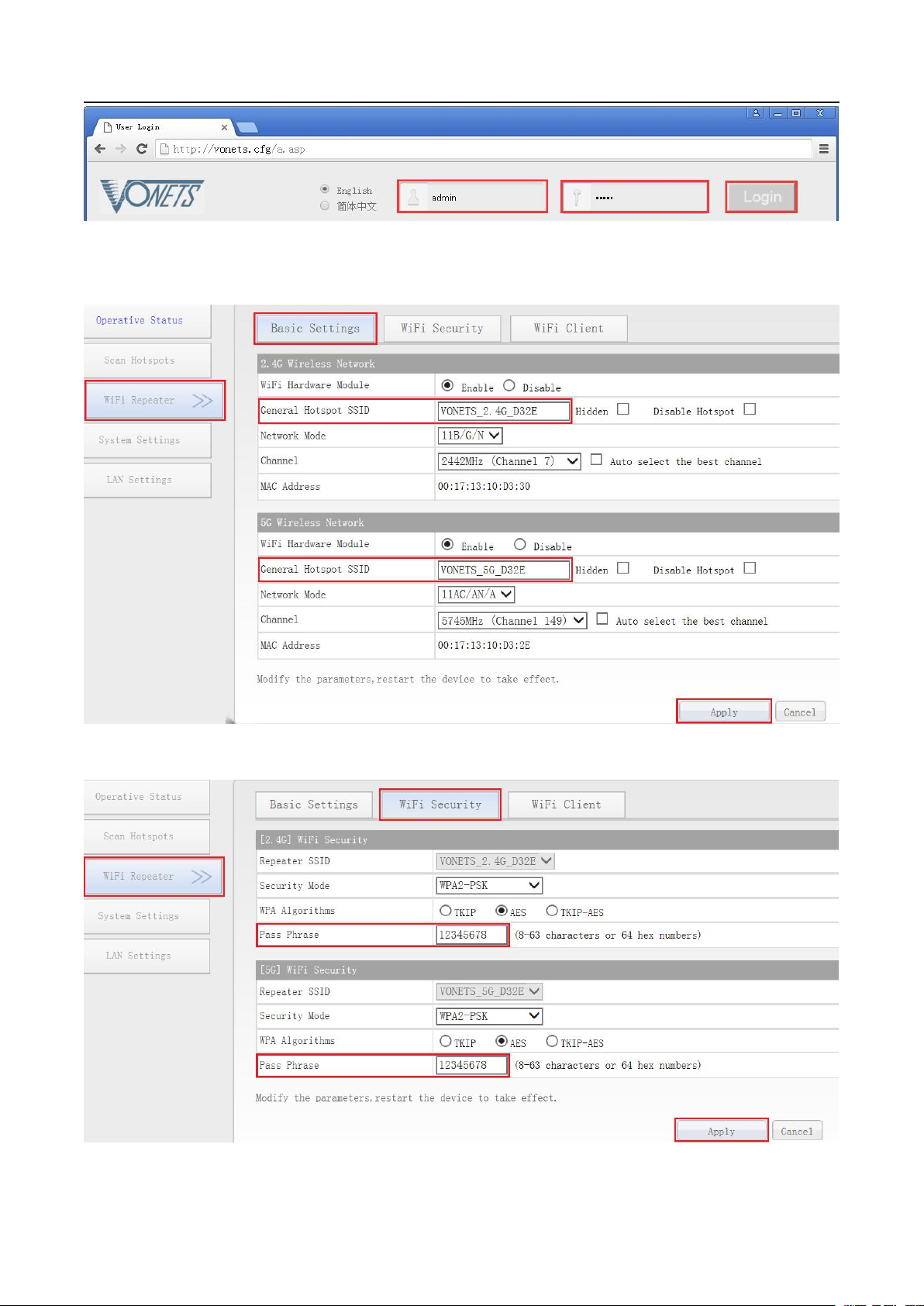
1) Log in to the configuration page http://vonets.cfg (or IP: 192.168.254.254) in your computer
Remark 1:
VONETS device can be configured as an AP application. The wireless terminal device can connect
to VONETS hotspot to connect to the network; however, it is best to change its WiFi name and
password for network security.
7
browser, both user name and password is “admin”;
Page 8
VONETS WiFi Bridge/Repeater
2) Revise WiFi name: Jump to “WiFi Repeater”---- “Basic Settings”, enter new WiFi name in “WiFi
3) Revise WiFi password, in “WiFi Repeater”----“WiFi Security”, enter new WiFi password in “Pass
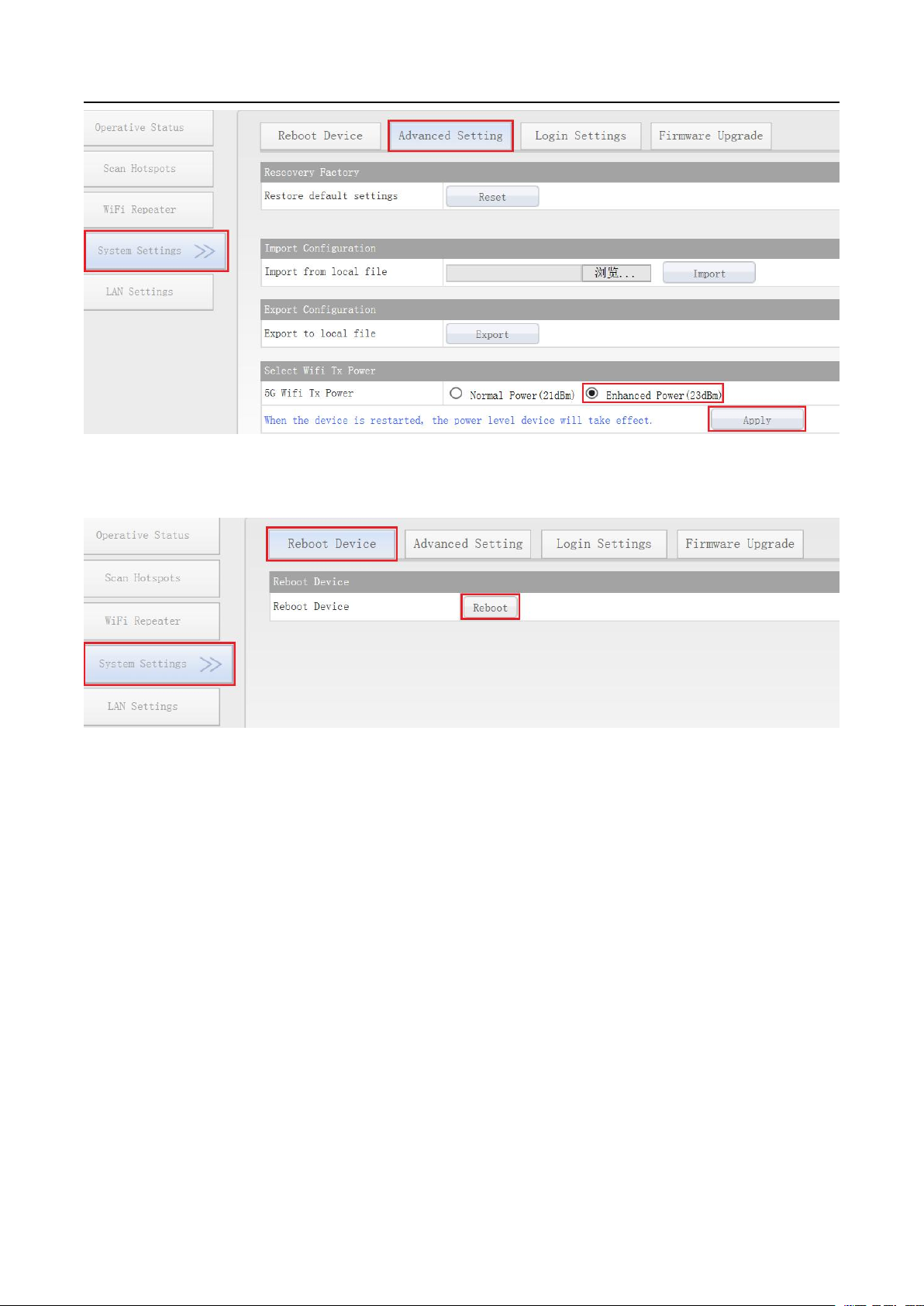
4)For model VAP11G-300, VAP11G-500 and VAP11AC, “WiFi Tx Power” can be changed, jump
Repeater (SSID)”, click “Apply”;
Phrase”, click “Apply”;
to “System Settings”---- “Advance Settings”, choose suitable transmit power, then click “Apply”;
8
Page 9
VONETS WiFi Bridge/Repeater
5) Reboot device, jump to “System Settings”---- “Reboot Device”, click “Reboot”, when it is
1. How to reset to the factory default parameters?
2. Does VONETS bridge support firmware upgrade, how to upgrade?
finished, then it will take effort
;
Remark 2: When VONETS Bridge connect to external network, the IP address of the device
will change. At this time, when log in configured page, we suggest you enter configured
domain name: http://vonets.cfg. Or in Windows command window, enter the command: ping
vonets.cfg, to get the IP address of the device, then log in configuration page with this IP.
Appendix Frequently Asked Questions
Power on the device, after 60 seconds, long press Reset button until 5 seconds, the green
light will flash a few, then the device will automatically reset to the factory default
parameters (it will take about 60 seconds to reset the device), during the recovery of the
factory operation, the product can’t be powered off, otherwise it may cause the product to
Damage.
VONETS bridge supports firmware upgrade, and support online upgrade, please visit
website: www.vonets.com to refer to the related documents.
9
Page 10

VONETS WiFi Bridge/Repeater
3. The device WiFi hot spot can be found, but the smart phone or PC can’t connect to this
device hotspot?
4. The device has been configured the source WiFi hot spot parameters, the smart phone or
5. The smart phone or PC has been connected the device by WiFi or Ethernet cable, but user
● Reason 1. Due to some unexpected operation or power down, caused the destroy of device
parameters. At this time, just need to reset the device to factory default parameters;
● Reason 2. The device WiFi doesn’t work at the best channel, make the performance
worse. At this time, you can try to change the source WiFi hot spot and this device WiFi
channel to make the performance better;
● Reason 3. The smart phone or PC haven’t configured the correct WiFi password;
PC has connected to the device WiFi hot spot, but still doesn’t get internet?
● First, check the status light to know the current state of the device, then according to the
state of the device to analyze the fault reasons;
● Reason 1. The distance between the device and source WiFi hot spot is too long, cause the
communication performance degradation, finally effect the user’s access to the Internet.
At this time, just need shorten the distance between the device and source WiFi hot spot to
solve this problem;
● Reason 2. Due to some unexpected operation or power down, caused the destroy of device
parameters. At this time, just need to reset the device to factory default parameters;
● Reason 3. The device WiFi doesn’t work at the best channel, make the performance
worse. At this time, you can try to change the source WiFi hot spot WiFi channel
to make it the same as the default channel of the device, the reboot the device, the device
will automatically exchange to the same channel as the source WiFi hotspot, to make the
performance better;
● Reason 4. There are several WiFi hot spot around the device, WiFi channel mutual
interference, make the performance worse. At this time, you can try to change
the source WiFi hot spot and this device WiFi channel to make the performance
better;
● Reason 5. The configured source WiFi hot spot parameters are not correct. At this time,
just need to configure the correct parameters then reboot the device;
can’t log in the device WEB page, or after log in the WEB it shows error?
● Reason 1. The users don’t use the browser recommended by VONETS(IE,Google Chrome,
Safari, the mobile phone browser);
● Reason 2. The smart phone or PC installed the firewall, the security level is set too high,
caused the above problem. At this time, only need to close the firewall;
● Reason 3. The security level of browser is too high, it will also cause the above problem.
At this time, just need to reduce the browser’s security level, then log in again;
● Reason 4. The IP address of the device input error. For the new device from the factory,
user only need input the correct IP address according to the instruction guide; for
the device that has connected the source hot spot, user only operate according to
<Remark 2>.
10
 Loading...