

Page 1

Ready. Set. Go.
Vonage BoxTM Quick Start Guide
Page 2
FROM US:
Start here.
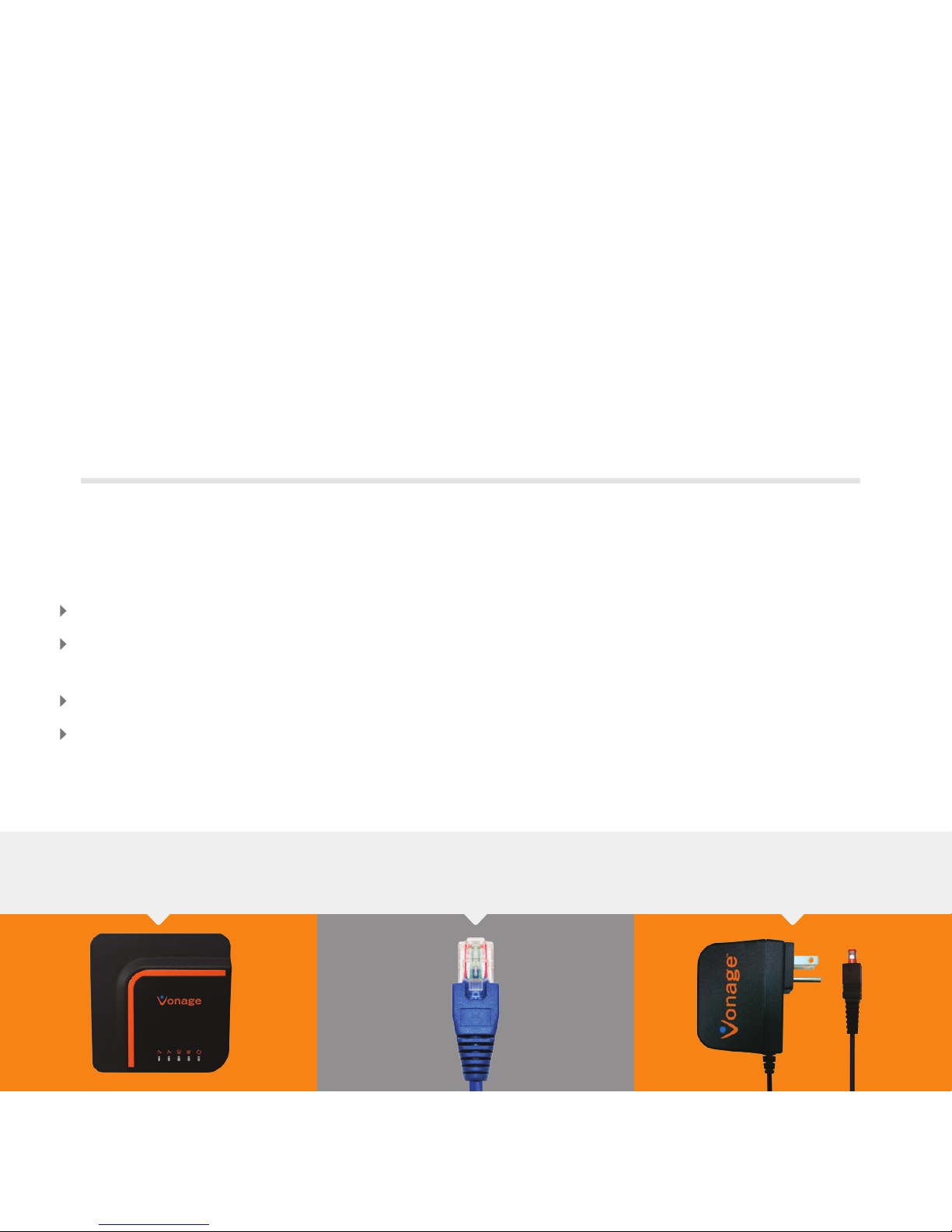
Things you will need:
Congratulations and welcome to Vonage! Now that you have your Vonage BoxTM, it’s time to
enjoy exceptional home phone service, including a wide range of helpful calling features.
Just follow these step-by-step instructions to get going and start dialing.
YOUR OWN:
Vonage Box
TM
Vonage Blue Ethernet Cable Vonage Power Supply
Broadband Internet connection
Ethernet cable
(required only if you are connecting to a computer)
Phone cord
Phone
Page 3

Get Ready.
Did you purchase your Vonage BoxTM at a retail store?
Did you purchase your Vonage BoxTM online or over the phone?
Choose Your Instructions:
You will need to activate your phone service before continuing. Go to
http://www.vonage.com/activate and follow the easy steps. Then, return to
this Quick Start Guide and continue with the instructions.
If you purchased your Vonage BoxTM online or over the phone, it’s already
activated. Please choose your instructions below based on your home computer
setup and then proceed to the next page.
If you have a router that connects multiple computers
or other devices.
If you have a DSL or cable modem that connects to a single
computer without a router.
A
B
FOLLOW
FOLLOW
2
Page 4
3
Set.
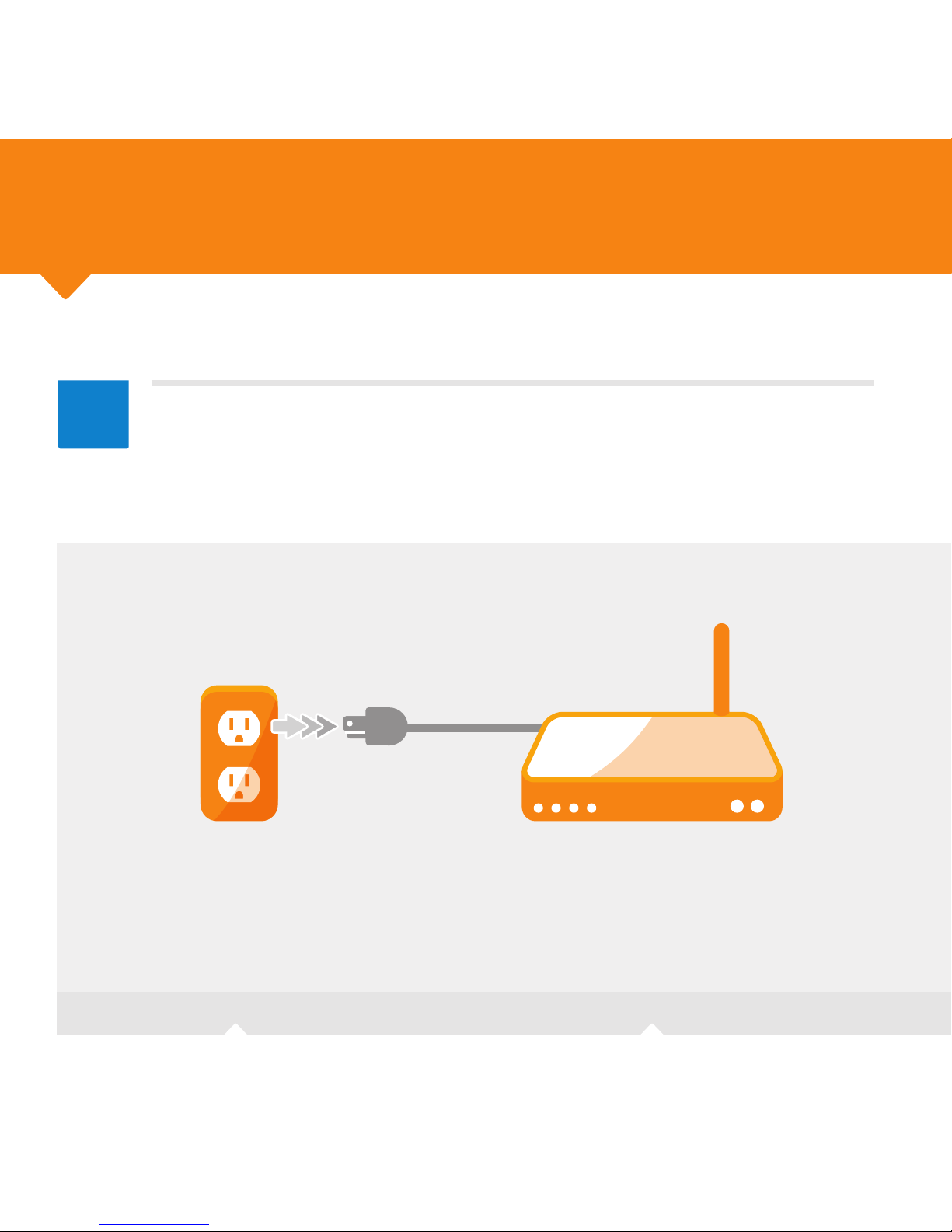
Using the Vonage BoxTM with your router:
1
RouterAC Outlet
Unplug your router.
Page 5
RESET
Power Internet Ethernet Phone
1
Phone
2
Vonage Blue
Ethernet Cable
4
A
2
Router
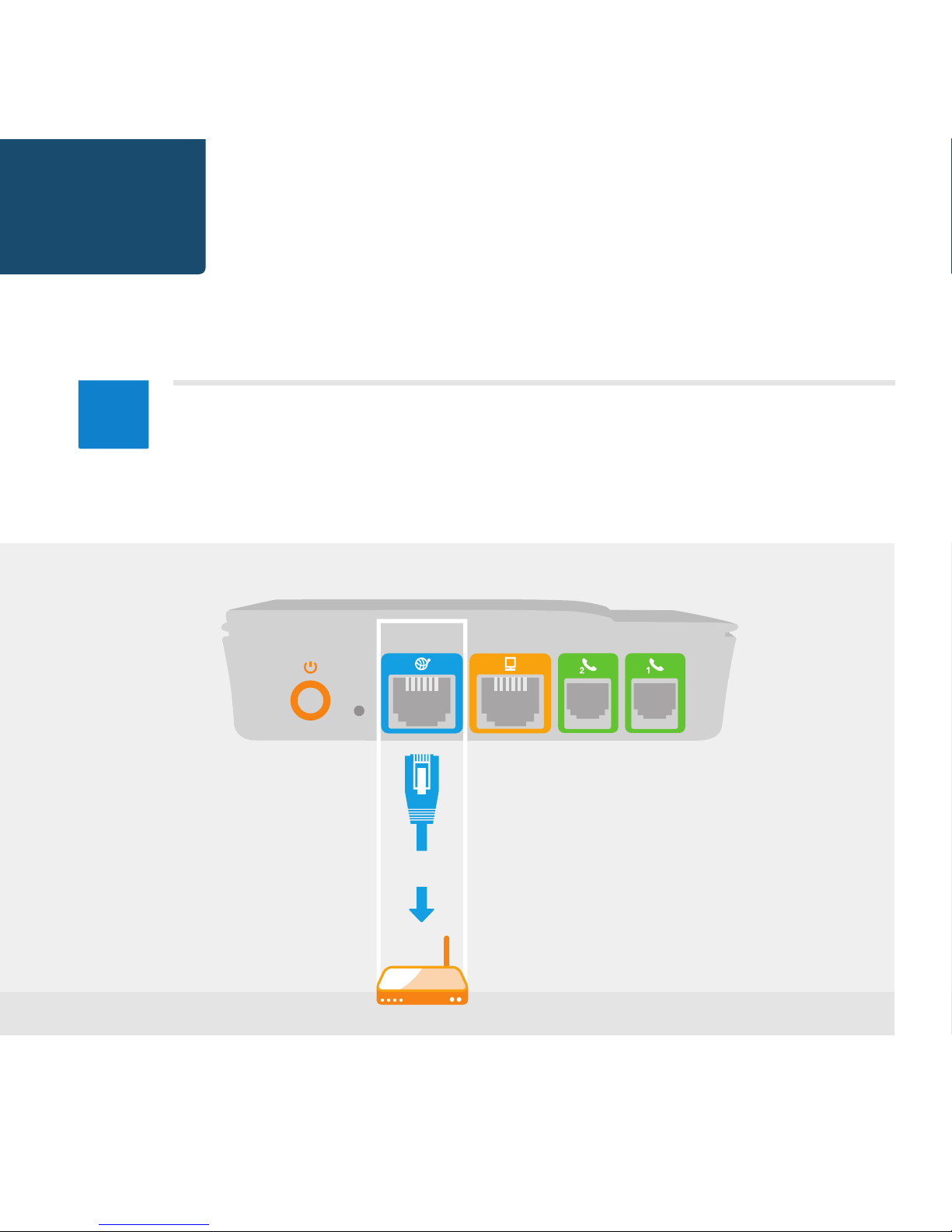
Connect the supplied blue Ethernet cable to the blue port on the
Vonage BoxTM and connect the other end to an open Ethernet (LAN)
port on your router. Listen for the click to ensure that the cable is rmly
in place. If you do not have an available Ethernet port on your router, go to
Step 3, otherwise you may proceed to Step 4.
Page 6
RESET
Vonage Blue
Ethernet Cable
Your
Ethernet Cable
Power Internet Ethernet Phone
1
Phone
2
5
3
Router Computer
A
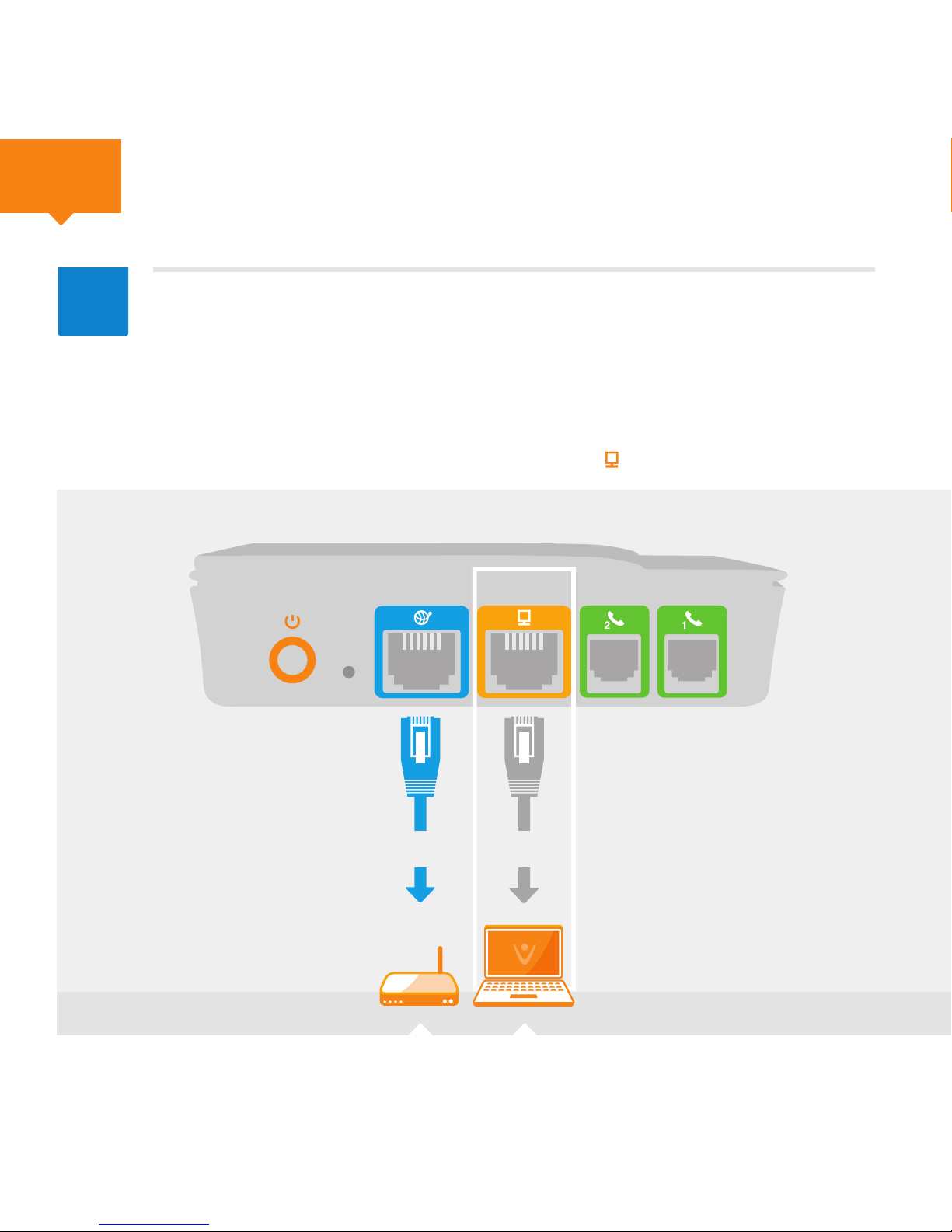
If you do not have an available Ethernet port on your router, remove your
computer’s Ethernet cable from your router’s Ethernet port, and connect
it to the yellow port on the back of the Vonage BoxTM. Then connect the
supplied blue Ethernet cable to the blue port on the Vonage Box
TM
and
connect the other end to the open Ethernet port on your router. Listen
for the click to ensure that the cable is rmly in place. After you have powered
up the Vonage Box in Step 5, your computer light will turn on.
Continued
Page 7
6
4
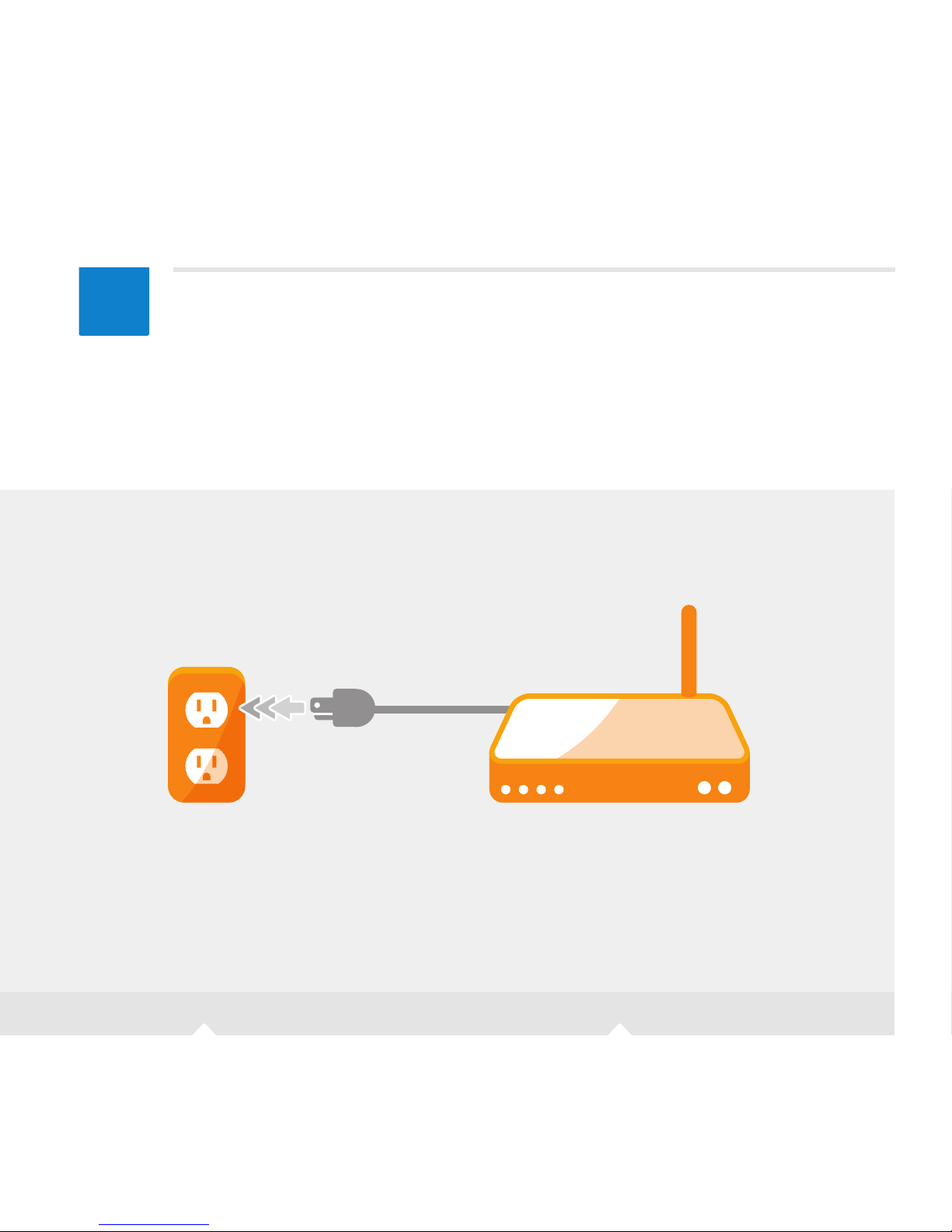
RouterAC Outlet
Plug your router’s power cord into the AC outlet.
Wait about two minutes for your router to complete its power-up sequence.
(Use of a surge protector is recommended.)
Page 8
RESET
Power Internet Ethernet Phone
1
Phone
2
Vonage Blue
Ethernet Cable
Vonage
Power Supply
7
5
RouterAC Outlet
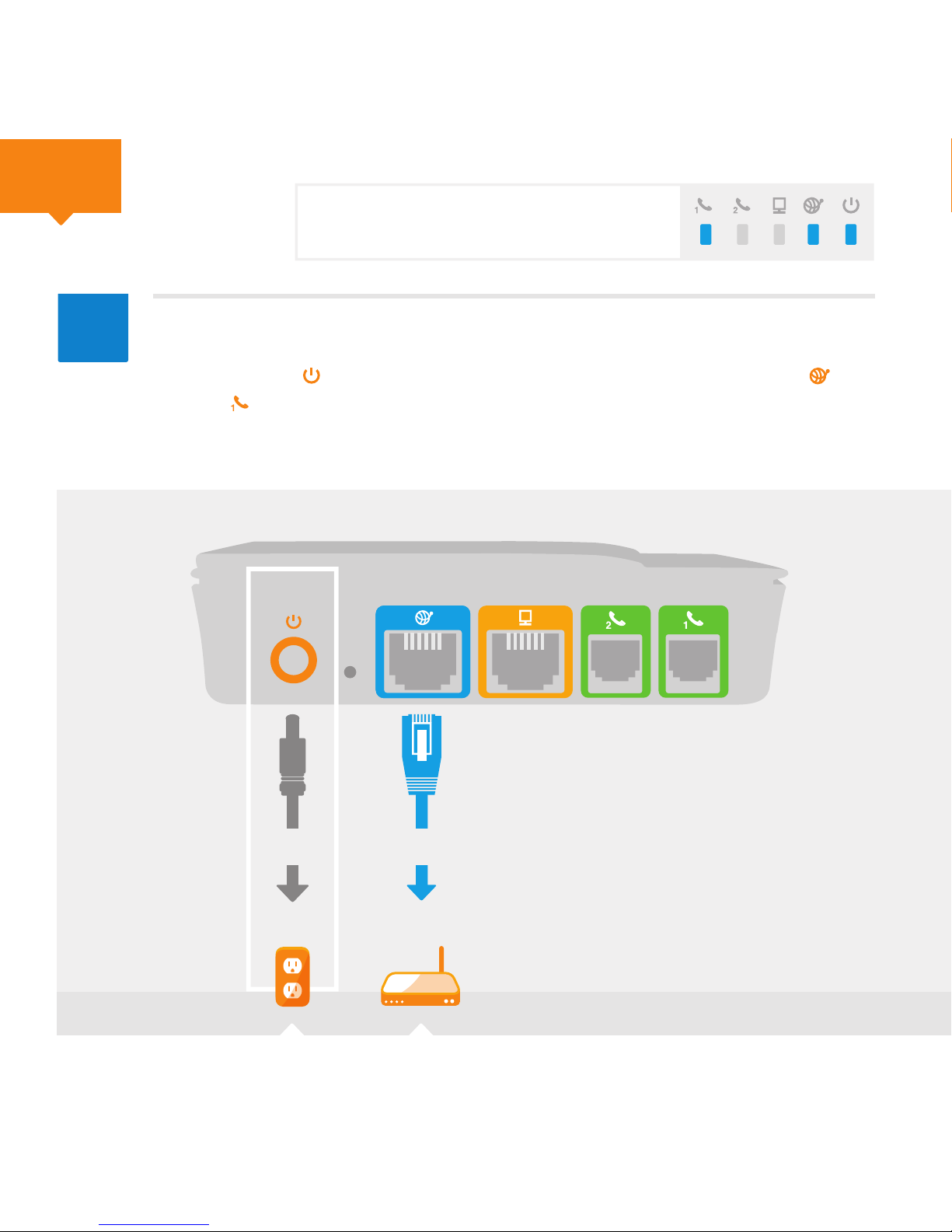
Connect the Vonage Power Supply to the orange Power port on the
Vonage Box
TM
and plug the other end into an AC outlet.
The Power light should come on. Wait a few minutes for the Internet and
Phone 1 lights to turn on. If the Phone 1 light blinks slowly, you have a new
voicemail waiting.
A
Continued
For more help in understanding the blue LED light
sequence that will appear on top of your Vonage
BoxTM at this point, see page 15.
Page 9
RESET
Vonage Blue
Ethernet Cable
Vonage
Power Supply
Your
Phone Cord
Power Internet Ethernet Phone
1
Phone
2
8
6
RouterAC Outlet Phone
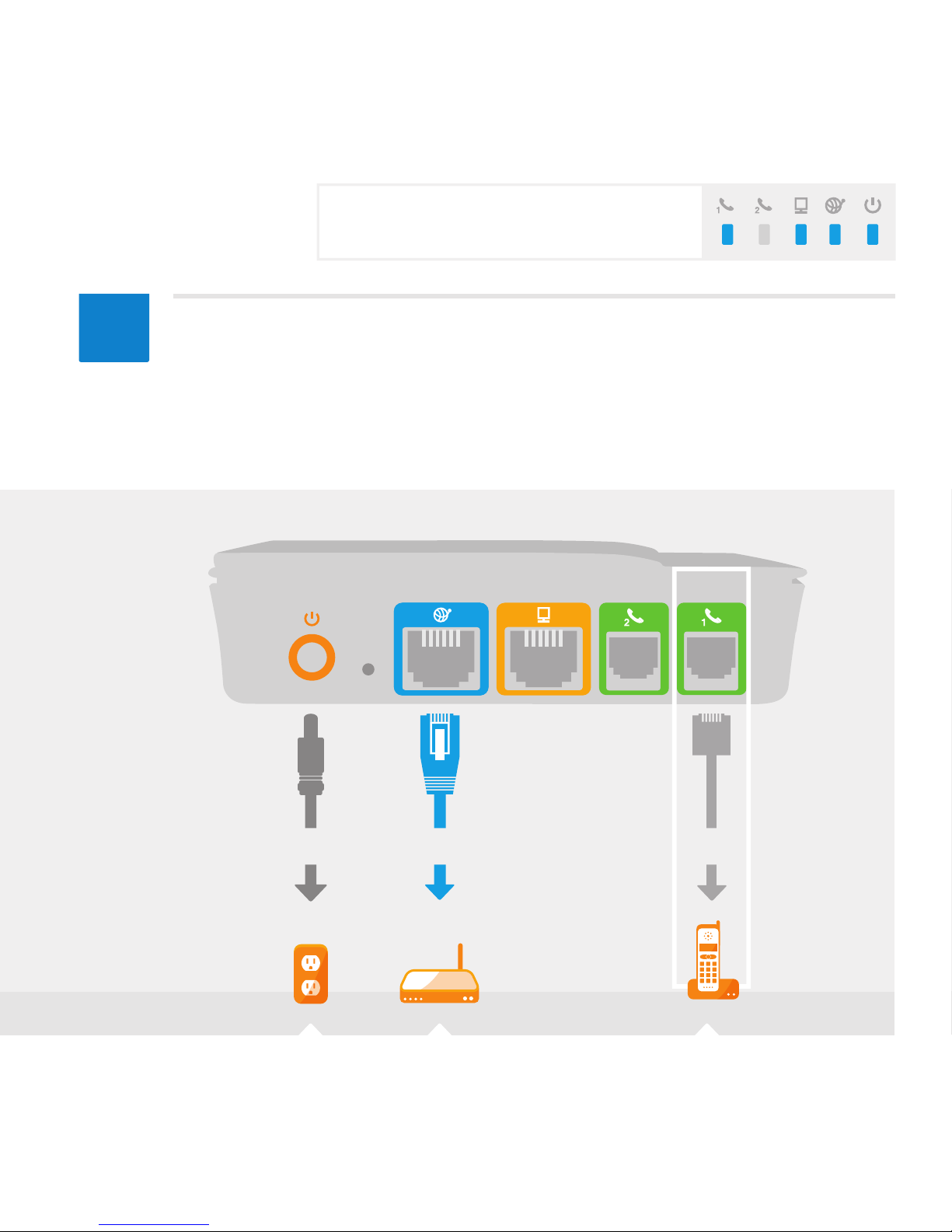
Connect your phone cord to the green port (Phone 1) on the back of
the Vonage BoxTM and connect the other end to your phone. Listen for
the click to ensure it is rmly in place, and pick up your phone to check for a
dial tone. You are now set to place a call.
For more help in understanding the blue LED light
sequence that will appear on top of your Vonage
BoxTM at this point, see page 15.
Page 10
9
1
ComputerAC Outlet Modem
Set.
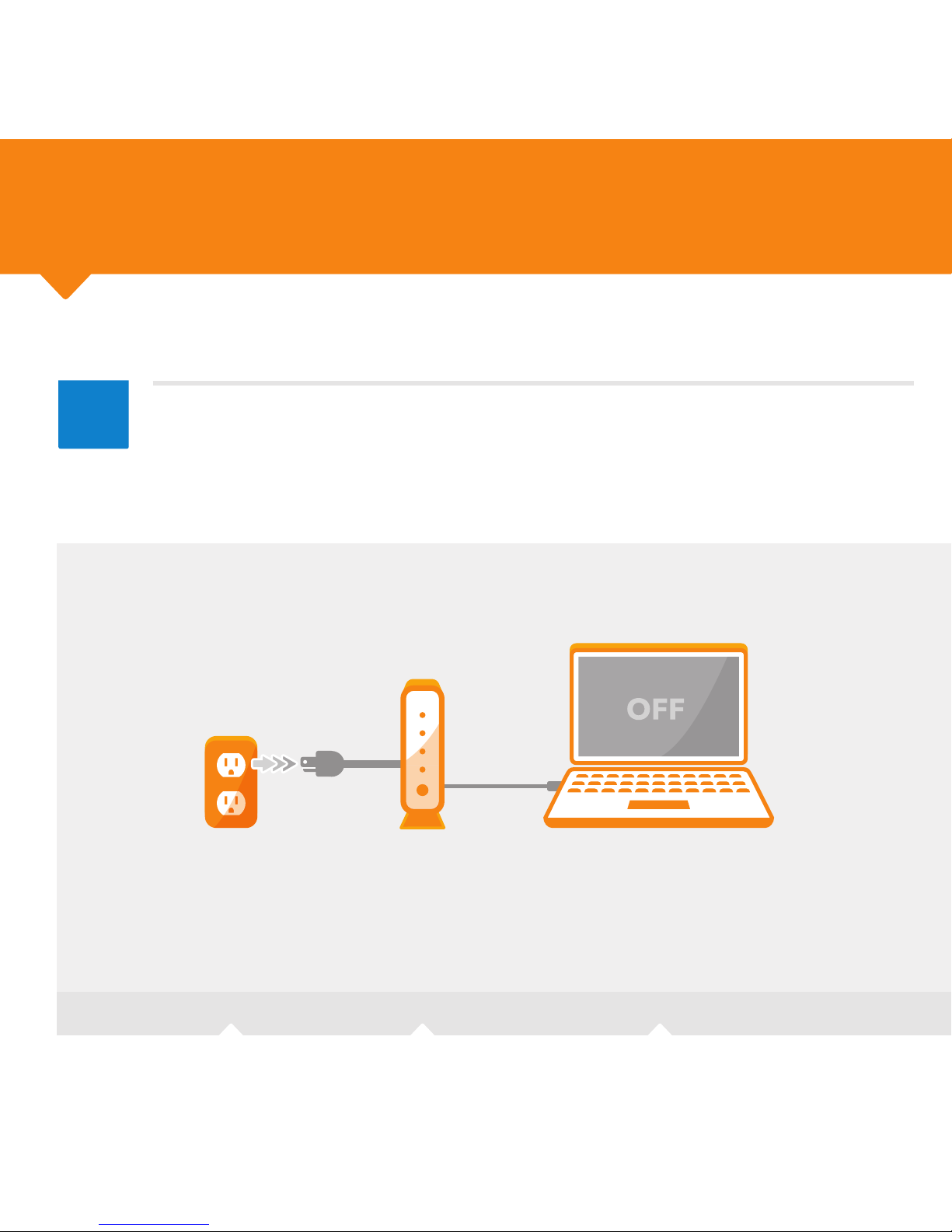
Unplug your modem’s cord from the AC outlet and turn off your computer.
Using the Vonage BoxTM with your DSL or cable modem:
Page 11
RESETRESET
Power Internet Ethernet Phone
1
Phone
2
Your
Ethernet Cable
10
2
ComputerModem
B
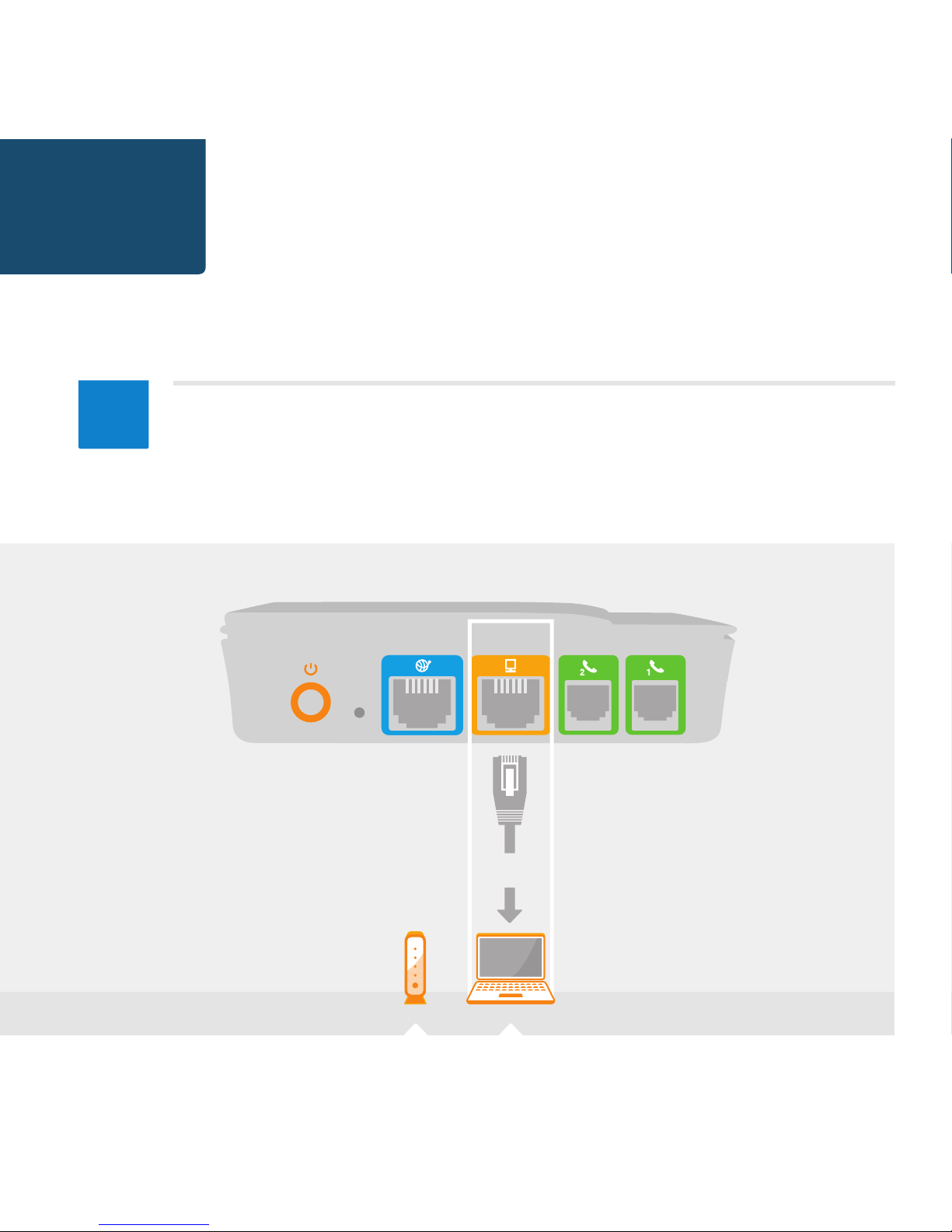
Unplug your Ethernet cable from your modem and connect it to the
yellow port on the Vonage BoxTM. Listen for the click to ensure that the cable
is rmly in place. Leave the other end connected to your computer.
Page 12

RESET
Power Internet Ethernet Phone
1
Phone
2
Vonage Blue
Ethernet Cable
Your
Ethernet Cable
11
3
Modem Computer
B
Continued
Connect one end of the blue Ethernet cable to the Ethernet (LAN) port
on your modem and connect the other end to the blue port on the
Vonage BoxTM. Listen for the click to ensure that the cable is rmly in place.
Page 13

12
4
AC Outlet Modem
Plug in your modem’s power cord into the AC outlet. Wait about two
minutes for your modem to complete its power-up sequence. (Use of a surge
protector is recommended.)
Page 14

RESET
Power Internet Ethernet Phone
1
Phone
2
Vonage
Power Supply
Vonage Blue
Ethernet Cable
Your
Ethernet Cable
13
5
Modem ComputerAC Outlet
B
Continued
For more help in understanding the blue LED light
sequence that will appear on top of your Vonage
BoxTM at this point, see page 15.
Connect the Vonage Power Supply to the orange Power port on the
Vonage Box
TM
and plug the other end into a power source. (Use of a
surge protector is recommended.) The Power light should come on. Wait a
few minutes for the Internet and Phone 1 lights to turn on.
If the Phone 1 light blinks slowly, you have a new voicemail waiting.
Page 15

RESET
Power Internet Ethernet Phone
1
Phone
2
Vonage
Power Supply
Vonage Blue
Ethernet Cable
Your
Ethernet Cable
Your
Phone Cord
14
6
Modem ComputerAC Outlet Phone
For more help in understanding the blue LED light
sequence that will appear on top of your Vonage
BoxTM at this point, see page 15.
Connect your phone cord to the green port (Phone 1) on the Vonage
BoxTM and connect the other end to your phone. Listen for the click to
ensure that the cord is rmly in place. Check for a dial tone.
Turn your computer on and wait for it to complete the power-up
sequence.
The Computer light on the Vonage BoxTM will turn on.
Page 16

15
Go.
Understanding the blue LED lights on your Vonage BoxTM:
POWER INTERNET ETHERNET PHONE LINES 1-2
Pick up
your
phone.
Listen for
a dial
tone.
A solid blue light indicates
the unit is powered on.
A solid blue light indicates
the unit is connected to the
Internet.
If it’s off, your Internet cable
may not be securely connected
or your modem/router may be
turned off.
If it’s blinking, you may
have a problem with your
Internet connection.
A solid blue light indicates
that a device such as a
computer or another router
is connected to the unit’s
Ethernet (LAN) port.
A solid blue light indicates you
can place and receive calls.
If it’s blinking slowly, you have
a voicemail message waiting
for you.
If it’s off, the unit is unable
to register with the Vonage
Network.
If it’s blinking quickly, you
may have a problem with your
phone or home phone wiring.
Page 17

Place a call.
Interested in extending your home phone
calling plan rates to a mobile phone?
Find out more about Vonage® Extensions
®
at www.vonage.com.
Need help?
visit http://www.vonage.com/gettingstarted
for installation videos, guides and other online support.
call us at 866.243.4357 (1-VONAGEHELP)
©2014 Vonage Inc.
Follow us @vonage facebook.com/vonage
Page 18

Page 19

Page 20

Realice una
llamada.
¿Está interesado en extender su plan de
llamadas a un teléfono celular?
Obtenga más información sobre Vonage® Extensions
®
en espanol.vonage.com.
¿Necesita ayuda?
visit http://espanol.vonage.com/gettingstarted
en donde encontrará videos de instalación, guías y otros tipos de asistencia en línea.
Llámenos al 866.243.4357 (1-VONAGEHELP)
©2014 Vonage Inc.
Síganos @vonage facebook.com/vonage
Page 21

15
¡Ya!
Sobre las luces LED azules de su Vonage BoxTM:
PUERTO DE
ELECTRICIDAD INTERNET
Levante el
auricular del
teléfono.
Espere por
el tono para
marcar.
Una luz azul intensa indica
que la unidad está activada.
Una luz azul intensa indica
que la unidad está conectada
a Internet.
Si está apagada, es posible que
su cable de Internet no esté
conectado de forma segura o
que su módem o enrutador
estén desconectados.
Si parpadea, es posible que
tenga un problema con su
conexión a Internet.
Una luz azul continua indica
que un dispositivo como una
computadora u otro
enrutador está conectado al
puerto Ethernet (LAN) de la
unidad.
Una luz azul continua indica
que usted puede realizar y
recibir llamadas.
Si parpadea lentamente, usted
tiene un mensaje de correo de
voz en espera.
Si está apagada, la unidad no
podrá registrarse con la red
Vonage.
Si parpadea rápidamente,
es posible que tenga un
problema con el cableado de
su teléfono o del teléfono
residencial.
LÍNEAS
TELEFÓNICAS 1-2
ETHERNET
Page 22

Restablecer
Su cable
telefónico
Suministro
eléctrico Vonage
Puerto de
electricidad
Internet Ethernet Teléfono
1
Teléfono
2
Cable Ethernet
azul Vonage
Su cable
Ethernet
Conecte su cable telefónico al puerto verde (Teléfono 1) en Vonage
BoxTM y conecte el otro extremo a su teléfono. Espere a escuchar un
clic para asegurarse de que el cable esté rmemente colocado. Verique que
haya un tono de marcado.
Encienda su computadora y espere a que nalice la secuencia de
encendido. La luz de la computadora en el Vonage BoxTM se encenderá.
14
6
Módem ComputadoraToma corriente Teléfono
Al llegar a este punto, para obtener más ayuda sobre la
secuencia de luz LED azul que aparecerá en la parte
superior de su Vonage BoxTM, vea la página 15.
Page 23

Restablecer
Puerto de
electricidad
Internet Ethernet Teléfono
1
Teléfono
2
Cable Ethernet
azul Vonage
Su cable
Ethernet
Suministro
eléctrico Vonage
Conecte el suministro eléctrico Vonage en el puerto de suministro
eléctrico naranja de Vonage Box
TM
y enchufe el otro extremo en la
fuente de alimentación. (Se recomienda usar un protector contra sobrecargas).
Se encenderá la luz de Suministro eléctrico . Espere unos minutos para que se
enciendan las luces de Internet y Teléfono 1 . Si la luz de Teléfono 1 parpadea
lentamente, usted tiene un nuevo correo de voz en espera.
13
5
Módem ComputadoraToma corriente
B
Continuación
Al llegar a este punto, para obtener más ayuda sobre la
secuencia de luz LED azul que aparecerá en la parte
superior de su Vonage BoxTM, vea la página 15.
Page 24

12
4
Toma corriente Módem
Enchufe el cable de alimentación de su módem en la toma corriente.
Espere aproximadamente dos minutos para que el módem nalice su secuencia
de encendido. (Se recomienda usar un protector contra sobrecargas).
Page 25

Restablecer
Puerto de
electricidad
Internet Ethernet Teléfono
1
Teléfono
2
Cable Ethernet
azul Vonage
Su cable
Ethernet
11
3
Módem Computadora
B
Continuación
Conecte un extremo del cable Ethernet azul al puerto Ethernet
(LAN) de su módem y conecte el otro extremo al puerto azul del
Vonage BoxTM. Espere a escuchar un clic para asegurarse de que el cable
esté rmemente colocado.
Page 26

RESET
Restablecer
Puerto de
electricidad
Internet Ethernet Teléfono
1
Teléfono
2
Su cable
Ethernet
10
2
ComputadoraMódem
B
Desenchufe su cable Ethernet del módem y conéctelo en el puerto
amarillo de Vonage BoxTM. Espere a escuchar un clic para asegurarse de
que el cable esté rmemente colocado. Deje el otro extremo conectado
a su computadora.
Page 27

9
1
ComputadoraToma corriente Módem
Pongáse Listo.
Desenchufe el cable del módem de la toma corriente y apague su computadora.
Use el Vonage BoxTM con su módem de DSL o de cable:
Page 28

Restablecer
Su cable
telefónico
Puerto de
electricidad
Internet Ethernet Teléfono
1
Teléfono
2
Cable Ethernet
azul Vonage
Suministro
eléctrico Vonage
8
6
EnrutadorToma corriente Teléfono
Conecte su cable telefónico al puerto verde (Teléfono 1) en la parte
posterior de Vonage BoxTM y conecte el otro extremo a su teléfono.
Espere a escuchar un clic para asegurarse de que esté rmemente colocado
y levante el teléfono para vericar que haya un tono de marcado. Ahora está
listo para realizar una llamada.
Al llegar a este punto, para obtener más ayuda sobre la
secuencia de luz LED azul que aparecerá en la parte
superior de su Vonage BoxTM, vea la página 15.
Page 29

Restablecer
Puerto de
electricidad
Internet Ethernet Teléfono
1
Teléfono
2
Cable Ethernet
azul Vonage
Suministro
eléctrico Vonage
7
5
EnrutadorToma corriente
Conecte el cable eléctrico proveído por Vonage en el puerto de suministro
eléctrico naranja de Vonage Box
TM
y enchufe el otro extremo en la toma
corriente. Se encenderá la luz de Suministro eléctrico . Espere unos minutos
para que se enciendan las luces de Internet y Teléfono 1 . Si la luz de Teléfono 1
parpadea lentamente, usted tiene un nuevo correo de voz en espera.
A
Al llegar a este punto, para obtener más ayuda sobre la
secuencia de luz LED azul que aparecerá en la parte
superior de su Vonage BoxTM, vea la página 15.
Continuación
Page 30

6
4
EnrutadorToma corriente
Enchufe el cable de eléctrico de su enrutador en la toma corriente.
Espere aproximadamente dos minutos para que el enrutador nalice su secuencia
de encendido. (Se recomienda usar un protector contra sobrecargas).
Page 31

Restablecer
Cable Ethernet
azul Vonage
Su cable
Ethernet
Puerto
de electricidad
Internet Ethernet Teléfono
1
Teléfono
2
5
3
Enrutador Computadora
A
Si no cuenta con un puerto de Ethernet disponible en su enrutador, retire
el cable Ethernet de su computadora del puerto Ethernet de su enrutador
y conéctalo en el puerto amarillo en la parte posterior de Vonage BoxTM.
Luego, conecte el cable Ethernet azul suministrado en el puerto azul de
Vonage Box
TM
y conecte el otro extremo en el puerto Ethernet abierto de
su enrutador. Espere a escuchar un clic para asegurarse de que el cable esté
rmemente colocado. Luego de conectar Vonage Box en el Paso 5, la luz de su
computadora se encenderá.
Continuación
Page 32

Puerto de
electricidad
Internet Ethernet Teléfono
1
Teléfono
2
Cable Ethernet
azul Vonage
Restablecer
4
A
2
Enrutador
Conecte el cable Ethernet azul suministrado en el puerto azul de
Vonage BoxTM y conecte el otro extremo en un puerto Ethernet (LAN)
abierto de su enrutador. Espere a escuchar un clic para asegurarse de que el
cable esté rmemente colocado. Si no cuenta con un puerto Ethernet disponible
en su enrutador, vaya al Paso 3. En caso contrario, puede ir al Paso 4.
Page 33

3
Monta.
Use el Vonage BoxTM con su enrutador:
1
EnrutadorToma corriente
Desconecte su enrutador.
Page 34

Prepárese.
¿Compró su Vonage BoxTM en una tienda?
¿Compró su Vonage BoxTM en línea o por teléfono?
Escoja sus instrucciones:
Debe activar su servicio telefónico antes de continuar. Visite
http://espanol.vonage.com/activate y siga los pasos sencillos.
Luego, vuelva a esta Guía rápida y continúe con las instrucciones.
Si compró su Vonage BoxTM en línea o por teléfono, su servicio ya está activado.
Escoja sus instrucciones a continuación en función de la configuración de su
computadora y luego vaya a la página siguiente.
Si tiene un enrutador que conecta múltiples computadoras
u otros dispositivos.
Si tiene un módem DSL o de cable que se conecta
a una sola computadora sin un enrutador.
A
B
OPCIÓN
OPCIÓN
2
Page 35

DE NOSOTROS:
Empiece aquí.
Cosas que necesitará:
¡Felicitaciones y bienvenido a Vonage! Ahora que cuenta con su Vonage BoxTM, es hora de que
disfrute del excepcional servicio telefónico residencial que incluye una amplia variedad de
funciones útiles de llamadas. Solo siga estas instrucciones paso a paso para empezar a
hacer llamadas.
POR SU CUENTA:
Vonage Box
TM
Cable Ethernet azul Vonage Suministro eléctrico Vonage
Conexión a Internet de banda ancha
Cable Ethernet para su computadora
Cable de línea telefónica
Teléfono
Page 36

Preparado. Listo. ¡Ya!
Guía de inicio rápida de Vonage Box
TM
 Loading...