

Page 1

VOICE
active
Digital USB
Headset Adaptor
User Guide
Part number VAHE16 Issue 1.0
Page 2
Page 3

Thank you for choosing the Voice Active digital USB headset adaptor. You
can use the adaptor to connect any Voice Active headset to the USB port
on your PC.
This user guide will help you in setting your headset and adaptor with your
computer, using and maintaining the USB adaptor and all the necessary
information to achieve the maximum benefit from the product.
The user guide contains the following sections:
1. Minimum system requirements
2. Features
3. Installation
4. Operation
5. General USB troubleshooting in Windows 98, Windows 98SE and
Windows ME
1. Minimum System requirements
1. Windows 98SE, ME, 2000 and XP compatible
2. Pentium 2 (166MHz) processor
3. 10MB free disk space
4. 16MB RAM
5. USB port
2. Features
1. USB Plug in and Play chipset
2. Complete digital soundcard with DSP technology
3. Clear live voice transmission with VoIP
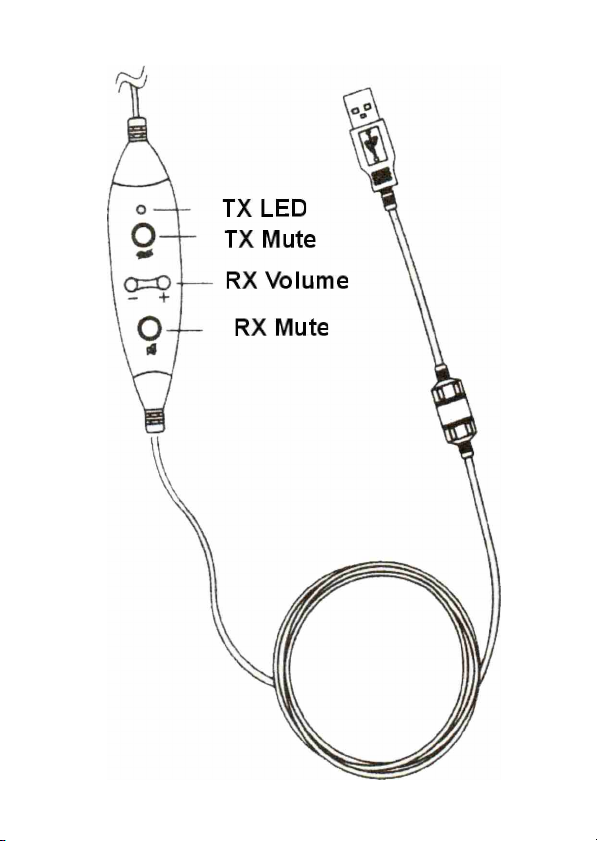
4. Digital in line receive (RX)/speaker volume control
5. In-line microphone (TX) mute with LED indicator
6. In-line receive (RX) mute
7. Voice Active headset quick disconnect
Page 4

3. Installation
Connecting the USB adaptor to your computer's USB port is a simple and
complete plug & play process. The installation in completed with no CD
ROM, as there is no software to install.
4. Operation
In-line Microphone mute button: When you push the microphone mute
button while recording, dictating or speaking live, the other party will no
longer hear your voice. When muted the indicator LED will flash
continuously. Pressing the button again will un-mute the microphone and
the LED will cease flashing.
In-line receive (speaker) mute button: When you push the receive mute
button while speaking or pausing in conversation, you will no longer hear
the other party's voice or sound. Your microphone will continue to transmit.
Press the receive mute button again to
Un-mute.
In-line receive volume control: Adjust the digital receiver volume control up
or down to suit your personal preference.
5. General USB troubleshooting in Win 98, 98SE and ME
This information applies to :
! Microsoft Windows Millenium Edition
! Microsoft Windows 98 Second Edition
! Microsoft Windows 98
Because USB devices are plug and play, there is little that you can do to
control or configure them. However, you can trace most USB problems to
one of the following conditions:
1. Malfunctioning or incorrectly configured hardware
2. Malfunctioning, incorrectly configured or missing device driver
3. Mismatched cabling
4. Out of date firmware or basic input/output system (BIOS)
5. Improperly configured root hub
6. Further USB assistance
Page 5

1. Malfunctioning or incorrectly configured hardware
Typically, if you plug a malfunctioning or incorrectly configured device into
a USB port, it causes the computer to stop responding (hang). In the
majority of these instances, you must physically turn of the computer and
turn it back on again to reset the bus. Note that it may be more difficult to
identify which device is actually malfunctioning or incorrectly configured. If
another computer that you know is working correctly is available, try to plug
the device into that computer to see if you encounter the same issue. If
the device is being plugged into a secondary hub, unplug the device
from that hub and plug directly into the root hub (computer USB).
Many hardware problems, such as high or low power, bandwidth shortage,
malfunctioning or incorrectly configured firmware and so on, can cause
issue to occur.
2. Malfunctioning, incorrectly configured or missing device driver
When you plug in a USB device the computer should load and then
configure the device without ever requesting a device driver (assuming
that the device falls within the defined and supplied class drivers). If the
computer prompts you for a device driver, check with the manufacturer of
the device to determine whether there is a driver available.
3. Mismatched cabling
There are two types of USB cables, high speed and low speed. Low speed
cables differ from the high speed cable primarily in their shielding. If you
plug a high speed device into a low speed cable, you can cause signal
distortion over long distances.
Verify the entire USB chain is working correctly to be certain that a device
that requires the ability to draw power from the hub is not plugged into the
chain on the other side of a non-powered hub. This causes the hub and all
the devices down the chain to be suspended. If the hub is powered, verify
that the power supply for that hub is configured correctly.
Page 6

4. Out of date firmware or BIOS
The key to all USB devices is the firmware. The USB device's firmware
contains all the information about the device. A port is not reset until all the
descriptors in the firmware have been loaded and verified by the root hub.
This is critical because it applies to items such as printers and modems.
Make certain that you have the most up to date firmware that is available
for both your computers BIOS and each individual USB device.
The symptoms of a malfunction or incorrectly configured firmware might
be unusual. Typically when you remove and then re-add a USB device, the
device simply becomes available again. However the device may
appear as the second instance of a device and load itself as such in the
device manager. If you see duplicated of a device, verify that you have
the most up to date firmware for that device. This issue is common with USB
printers and modems. A similar issue that has the same cause occurs
when a device loads a driver then adds a second device for which there
appears to be no diver. The second device is displayed with an
exclamation mark in a yellow circle the device manager. The device may
work correctly, but you cannot remove the “ghost” device until you unplug
the parent device that seems to have generated the error. You may be
able to resolve this by updating or re-installing the firmware for that device.
5. Incorrectly configured root hub
USB controllers require that an IRQ be assigned. The IRQ line is assigned in
the computer's BIOS and is usually IRQ 9.
6. Further assistance
For further assistance with USB related issues within your operating system
you should refer to your operation systems suppliers own help pages.
If you have difficulty installing or operating any devices with your computer
you should refer to an IT professional.
Page 7

WARRANTY
All Voice Active headset products are covered by a two
year warranty for electronic/electrical and/or
manufacturing defects.
For warranty repair please return the faulty product to:
Voice Active Maintenance
11 Ferney
Dursley
Gloucestershire
GL11 5AB
United Kingdom
Please enclose your name and address, proof of purchase
and a description of the fault.
For further information, please contact your headset
supplier.
www.voiceactive.com
 Loading...