

Page 1
Quick Start Guide
Vodafone Mobile Connect
USB Stick
Page 2

Welcome
to the world of mobile communications
1Welcome
2 Set up your USB Stick
3 Start the software
4 Software overview
(Microsoft Windows)
5 Connect (Microsoft Windows)
6 Connect (Mac OS X)
7 SMS text messaging
(Microsoft Windows)
9 SMS contacts
(Microsoft Windows)
10 USB Stick LED light
10 Signal strength
11 Hints and tips
13 Glossary
Page 3

Welcome
You r ne w Vodafone Mobile Connect USB Stick lets you
connect your computer to the internet over the Vodafone
high-speed mobile phone network.
Browse the web
You can now access the web and any other internet ser vice
wherever there’s a mobile phone network .
Pick up emails
Keep up to date with your emails, wherever you are. You can
also access your personal email accounts – even web-based
accounts like Hotmail.
Send and receive SMS text messages*
You can send and receive SMS text messages straight from
your computer. Vodafone SMS provides an easy way to view
messages, write new ones, and manage contact details.
System Requirements
To use this USB Stick and the Vodafone Mobile Connect
software, you need:
A computer running Microsoft
–
Windows
Service Pack 4 or above, or an Apple Mac
running Mac OS
At least 50 MB free disk space and 256 MB RAM
–
A USB socket
–
®
XP Ser vice Pack 2 or above, Windows® 2000
®
X 10.3.9 or above
®
Windows Vista™,
– Administrator rights on your computer.
* SMS is currently only supported on computers running Microsoft Windows.
1
Page 4
Set up your USB
Stick
Your SIM (Subscriber Identity
Module) is the small,
postage-stamp– sized chip
that you received together
wit h your mob ile subscrib er
contract.
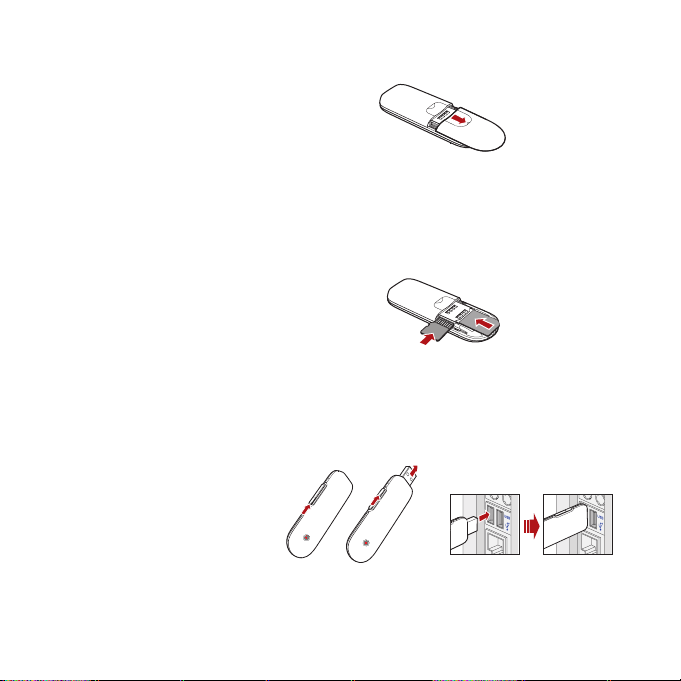
• To insert your SIM, press and slide to remove the back
cover as shown.
• Insert the SIM. If you are using a MicroSD memory card
with your Stick (to allow your Stick to behave as a fl ash
memor y drive), inser t the card as shown, carefully noting
the orientation in order to prevent damage. Replace the
cover.
MicroSD
card
SIM
card
• Press and slide the side catch to extend the USB plug
and then insert the USB Stick fi rmly into your computer’s
USB port.
• After use, press and slide the side catch to retract the plug
ready for storage.
2
Page 5
Start the
software
On Microsoft Windows computers
The software setup should start automatically, and proceed
to set up your USB Stick. If for some reason the setup does
not start, open My Computer and double-click the fi le called
setup_vmc_lite.exe on the USB Stick. Follow the on-screen
instructions.
Setting up your USB Stick may take a few minutes, but once
the setup is fi nished, the Vodafone Mobile Connect Lite
software should start automatically. If for some reason the
program does not start, select
the Desktop or from the Windows Start menu.
On Mac OS X computers
The fi rst time you plug in your USB Stick , it will show up on
your desktop like a standard USB memory stick. From the
USB Stick window, double-click the fi le called
, and follow the on-screen instructions.
Installer
Once your Mac has restarted, the USB Stick will no longer
appear, but you will see the Vodafone Mobile Connect
software in your Applications folder. Double-click the
program to activate a mobile connection.
Vodafone Mobile Connect on
Vodafone MC
3
Page 6
Software
overview
(Microsoft
Windows)
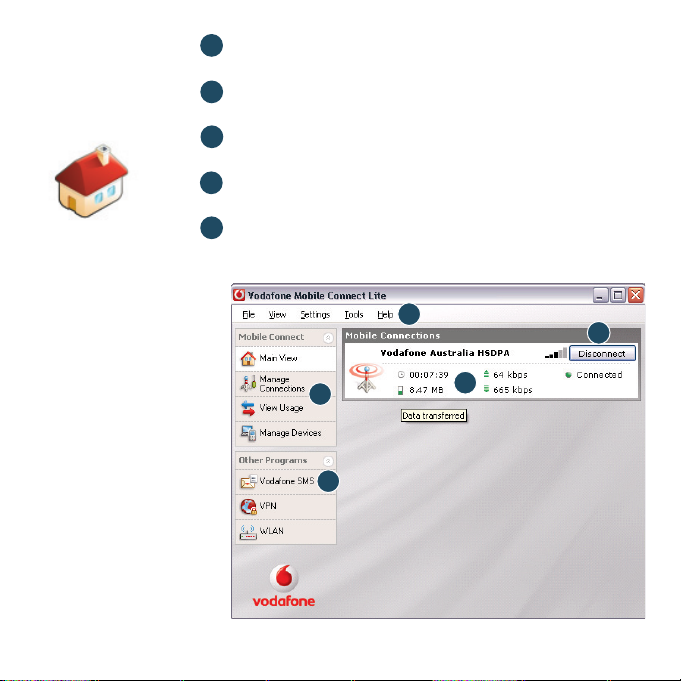
The f irst time yo u run the
software, your USB Stick will
usual ly be set as the def ault
dev ice. If it i s not, cl ick
‘Mana ge Devices’ a nd select
your USB Stick there.
Connect /Disconnect
1
Connect via the mobile phone network
Views
2
View data usage, and additional soft ware settings
Start SMS program
3
Send, receive and manage SMS messages and contacts
Status
4
Check the status of your connection
Help
5
Help Topics, plus internet and hotline suppor t.
5
2
3
4
1
4
Page 7
Connect
(Microsoft
Windows)
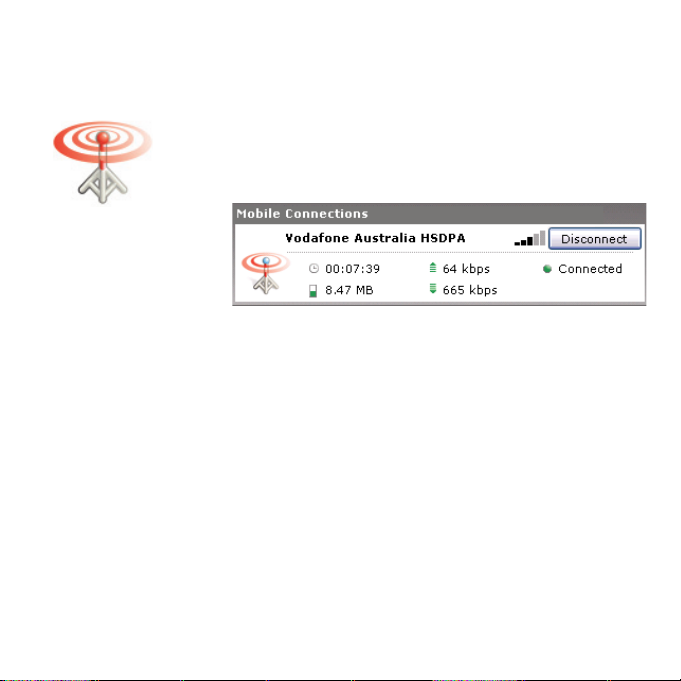
If a mobile network has been found, the Connect button
Mobile Connections panel will be enabled. Clicking
in the
Connect connects to the internet across the mobile phone
network. Now you can browse the web or use email.
When connected, the Connect button text changes to
Disconnect and a green ‘Connected’ indicator appears below
the button.
The radio waves on the
Mobile Connections icon are
animated whenever data is
being transferred over the
connection.
No radio waves are shown
when nothing is being
transferred.
The radio waves are shown
static when no connection
is open.
Clicking the Disconnect button will close the connection
– and the text on the button will revert to Connect.
To open a mobile connection, you need to be within coverage
of a mobile network. As a rule, any where you can make a call
on your mobile phone, you should be able connect.
5
Page 8
Connect
(Mac OS X)
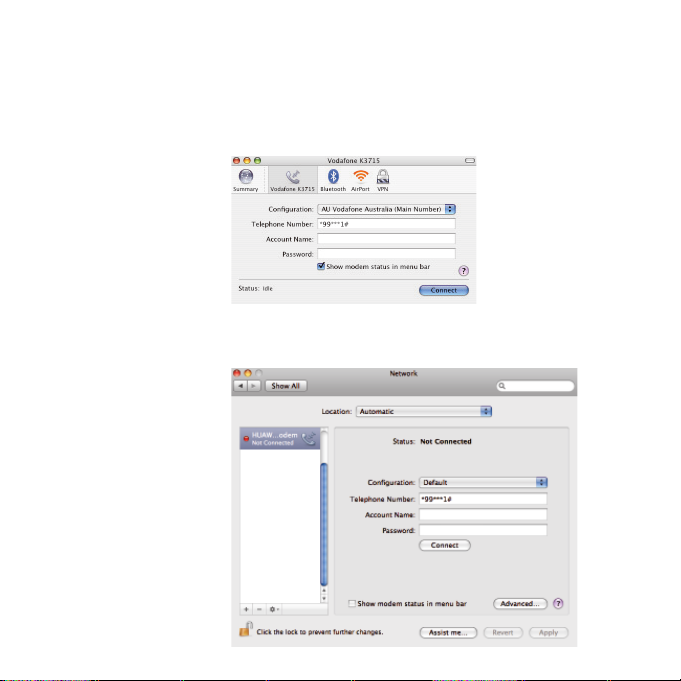
Once the mobile connection has been successfully activated
follow the on-screen instructions to make a connection to
the internet.
On Mac OS X 10.4 or earlier, start the Internet Connect
program in your Applications folder, and click Connect.
On Mac OS X 10.5, select the Vodafone Mobile Connect device
in the Network pane of System Preferences, and click Connect.
6
Page 9
SMS Text
Messaging
(Microsoft
Windows)
The number displayed to
the person who receives
your mess age wil l be from
your data SIM, not your
mobile phone. Use a short
‘signature’ to make sure
people know you sent
them a message: Settings/
Messages/Signature.
Click Vodafone SMS on the navigation bar in the main
window of the Vodafone Mobile Connect Lite software to
open the SMS program.
To send an SMS
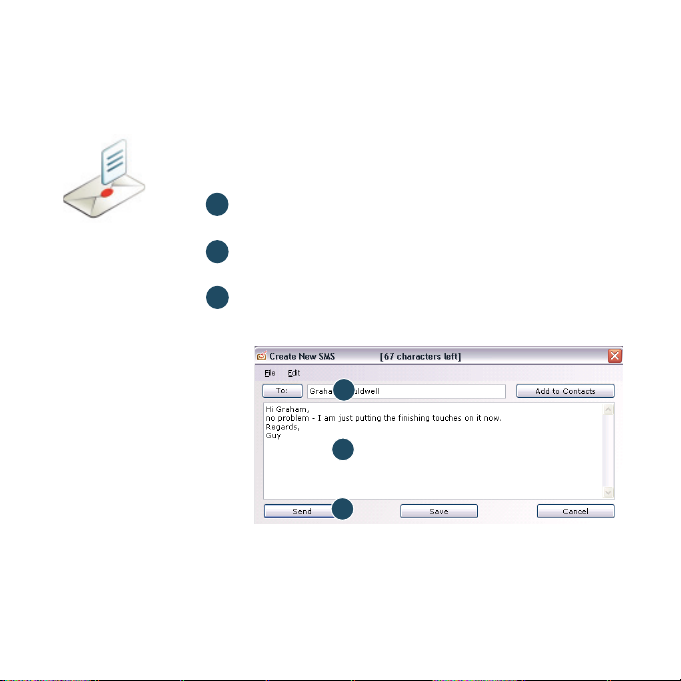
Click New at the left-hand end of the SMS toolbar to create a
new SMS text message.
1
Address
Enter the recipients here, or choose them from Contacts
2
Message
Write your message here
3
Send
Click on the Send button to send your message.
1
2
3
After your SMS has been sent, it will be stored in the
Sent list.
7
Page 10
Receiving SMS
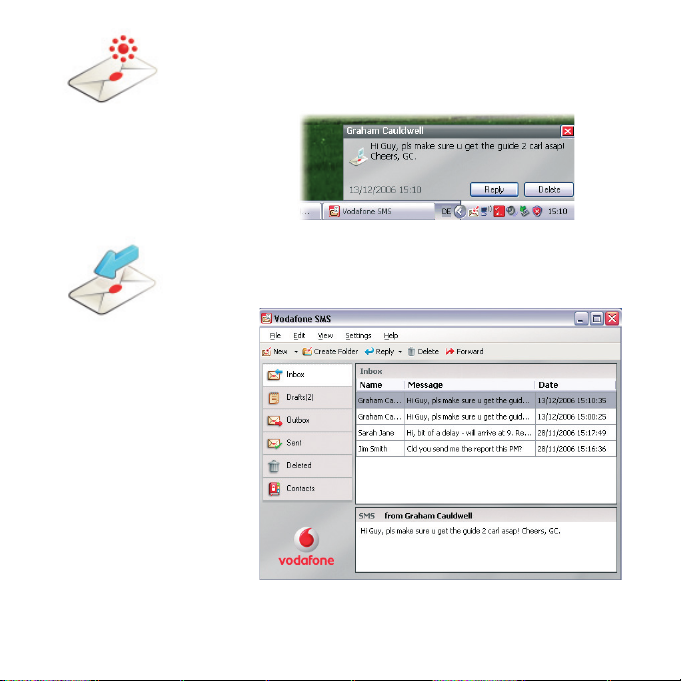
When you receive a new message, an SMS Notifi cation is
shown briefl y so you can respond to it directly.
The Vodafone SMS software
will receive text messages
whenever you have mobile
network coverage.
8
The received message can also be read from the
main Vodafone SMS window.
Inbox in the
Page 11
SMS Contacts
(Microsoft
Windows)
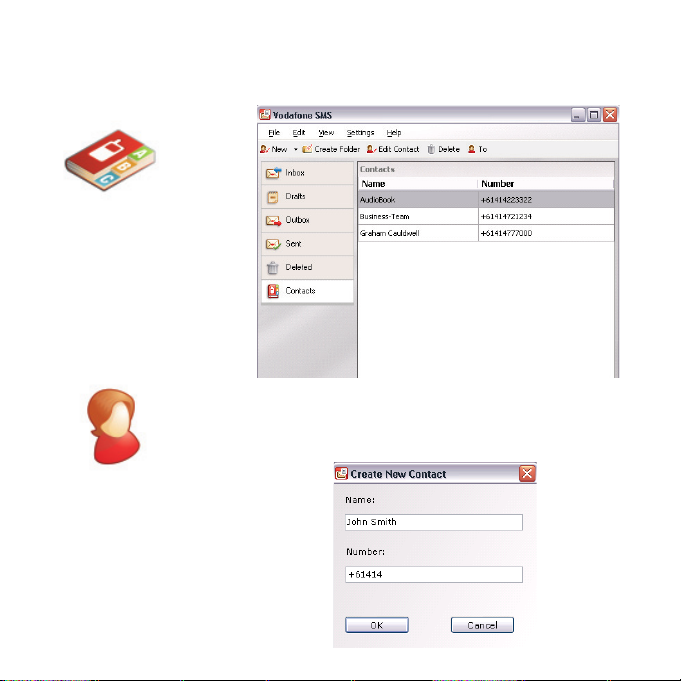
Enter the name and number
of your contact using the
international format for the
number, eg. +61414123123.
Click Contacts on the SMS navigation bar to open the
Contacts list, in which you can save SMS numbers that you
use frequently as contacts with names.
New SMS Contact
Clicking the New button on the SMS toolbar opens a new
contact window.
9
Page 12
USB Stick
LED light
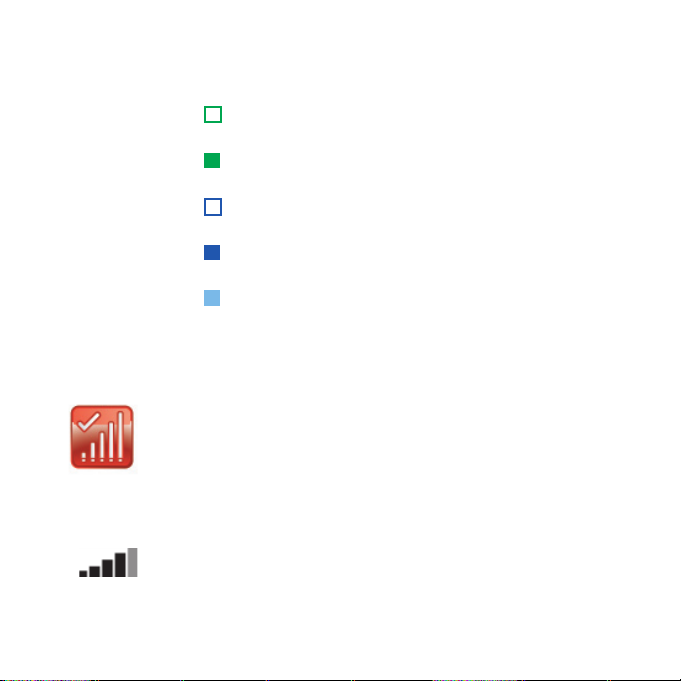
The LED light on your USB Stick shows which kind of mobile
network has been found, and whether the USB Stick is
connected to that network.
Green blinking
A GPRS network has been found – you could connect
Green solid
Connected via GPRS
Blue blinking
A 3G network has been found – you could connect
Blue solid
Connected via 3G
Light blue solid
Connected via 3G Broadband.
Signal strength
10
On Microsoft Windows computers
The strength of the mobile network signal is shown by the
symbol to the left of the Connect button, and by the icon in
the Windows Notifi cation area.
The more bars that are fi lled in, the better the mobile
network signal quality. At least one bar must be fi lled in order
to connect.
On Mac OS X computers
The strength of the mobile network signal is shown at the top
of the Vodafone Mobile Connect main software window.
Page 13

Hints and tips
If you don’t see your USB Stick in the list of devices
– Remove the USB Stick
– Re-start your computer
– Re-insert the USB Stick.
If no network can be found
– Change your physical location: in a building, move closer to
a window, move higher up, or go outside
– (Windows) Select ‘ View/View Available Mobile
Connections’ and see if you can connect to a par ticular
network in the list shown
– Contact Suppor t, and check that data services and roaming
are enabled on your account.
If no connection can be opened
– Wait a few minutes and try to connect again. This is most
often a temporary problem, especially if an ‘Error 631’ or
‘Error 619’ is referenced
– Select ‘File/Exit’ to exit the Vodafone Mobile Connect Lite
software completely, and then re-start it again
– Re-start your computer
– (Windows) Click ‘Manage Connections’ and select a
different Network Preference in the drop-down menu in the
Mobile Connections panel, eg. ‘3G Only‘
– (Mac) Start the Vodafone Mobile Connect sof tware, and
select one of the other options in the lower part of the main
window, eg. ‘3G Only‘
– If you are using a VPN ( Virtual Private Network), contact
your company IT administrator.
11
Page 14

For further help, please visit
www.vodafone.com.au/
mobilebroadband, or call
Vodafone Support on 1555
from a Vodafone mobile
or 1300 650 410 from any
other phone and say ‘data
services’.
If you have problems when roaming
– (Windows) Select ‘ View/Available Mobile Connections’ and
try opening one of the connections shown
– Contact Support, and check roaming is enabled for your
account
– Check the name of the current network in the Mobile
Connections panel. If it is not Vodafone or a Partner,
select a different net work from ‘View/Available Mobile
Connections’.
If the connection keeps switching between GPRS and 3G
– (Windows) Click ‘Manage Connections’ and select a
different Network Preference in the drop-down menu in
the Mobile Connections panel, eg. ‘3G Only’
– (Mac) Start Vodafone Mobile Connect, and select one of
the other options in the lower part of the main window
– Switch back to your normal preference when you move
locations.
Check software update preferences
– Set your operating system and other programs to notify
you of software updates instead of downloading them
automatically – otherwise they may slow down your mobile
connection, or exceed your data usage limit.
Usage indication
– The usage window only displays an approximate indication
of your data usage. Please refer to your invoice for the
actual amount of data transferred.
12
Page 15

Glossary
Built-in
data card
Data card/
USB stick
3G Broadband
(HSDPA)
Roaming Connecting via networks other than your own operator’s network.
Mobile data card built into notebook computer. Enables data
connections over the mobile phone network.
A device for a computer that is used to open a data connection
over the mobile phone network.
EDGE An enhancement to GPRS networks offering higher speeds,
although not as fast as those provided by 3G, or 3G Broadband.
EV-DO A high-speed mobile data standard used mostly in the USA.
Frequent travellers to the USA should contact their mobile
network operator about using special Vodafone Mobile Connect
data cards and software in the USA.
GPRS Standard for transferring data over mobile phone (GSM)
networks. It generally provides wide coverage and moderate data
speeds. (General Packet Radio System).
GSM A standard for mobile telecommunications (Global System for
Mobile communications), supported by over 680 operators in 210
countries and territories.
3G Often referred to as the 3rd Generation of GSM technologies ,
UMTS (Universal Mobile Telecommunications System) provides
higher data speeds.
An evolution of 3G to provide faster data speeds. Like many
fi xed-line ‘broadband’ services, 3G Broadband provides a faster
download speed than upload speed.
This typically occurs when you are abroad, but is also possible in
your own country.
SIM The ‘Subscriber Identity Module’ is the small, postage-stamp-
sized chip that you will have received together with your mobile
subscriber contract. The SIM has gold contacts on one side.
13
Page 16

14
Page 17

15
Page 18

Support
For the la test setup g uides, FAQ’s, tr oubleshoot ing tips,
and software downloads, visit www.vodafone.com.au/mobilebroadband
If you’re having problems and need some help, visit www.vodafone.com.au/help
or call us on 1555 from a Vodafone mobile, or 1300 650 410 from any other phone
and say “data services”.
© Voda fone 20 08. Vod afone a nd the Vo dafon e
logos are trade marks of the Vodafone Group.
Any product or company names mentioned herein
may be the trade marks of their respective owners.
K3715 VMCLite 9.3 03/08_en_AU
Product Code:
 Loading...