

Page 1

Quick setup guide
Vodafone MediaPlug
Page 2

Contents
Safety notes 3
What’s in the box: 4
How the Vodafone MediaPlug works 4
The MediaPlug 5
Quick setup 5
Setup diagram 6
Manual Wi-Fi connection 7
Vodafone Media Manager 7
FAQ s 8
Page 3

Safety notes
Please read this guide carefully before using the device.
Do not install the Vodafone MediaPlug in a humid room (bathroom, laundry, kitchen,
etc.) or within 1.5m of a tap or water source, or outside. The device and all associated
components (power supply, cables) are for indoor use only.
Keep the device out of the reach of children, especially infants. Do not expose the device
to moisture, splashes, drips or spray.
Read the Safety Information section
This device may produce a bright or ashing light
Maintain a separation distance of 20 cm from the Vodafone MediaPlug
Do not dispose of in a re
Avoid contact with magnetic media
Avoid Extreme Temperatures
Avoid contact with liquid, keep dry
Do not try and disassemble
Switch off in explosive environments
This product is recyclable. Dispose of it properly.
Purpose
The purpose of the Vodafone MediaPlug is to allow you to stream audio les from your
computer to another audio system through a local Wi-Fi network.
Installation
Do not switch on the device if any cable or the device itself is damaged. The Vodafone
MediaPlug should be plugged with sufcient space left around it. The casing should not
be covered.
Power supply
The voltage specied on the rating plate of the product must match that of your mains
supply. Disconnect the products from your mains supply during thunderstorms. For an
optimised usage of your Vodafone MediaPlug, you should plug it directly into the power
socket. Plugging a Vodafone MediaPlug on a power strip is inadvisable.
CE marking
The CE marking certies that the product complies with applicable security standards
CEM 2004/108/CE, low power 2006/95/CE of the European Community.
Packaging
To facilitate recycling, please respect the sorting rules set up locally for this kind of
waste.
Heating
The Vodafone MediaPlug may become warm during normal use.
Product
This product belongs to the family of electrical and electronic equipment. In this respect,
the European regulations ask you to dispose of it selectively: at sales points in the event
of the purchase of similar equipment or at the collection points made available to you
locally (drop-off centre, selective collection, etc.). When installing the product in a
hospital, obey all regulations or rules with respect to the use of a wireless device.
Warranty
This product has a warranty period of two years. Please contact your dealer.
Page 4

What’s
in the box:
• The MediaPlug
• 2 metre audio cable
• CD containing the MediaPlug
conguration software, the
Vodafone PC Media Manager
software and the user manual
How the Vodafone
MediaPlug works
The Vodafone MediaPlug is connected to your
audio system and to your home Wi-Fi network.
This provides a bridge that you can use to stream
your music (or any audio les, such as podcasts)
from your computer to your audio system.
You can plug any hard drive with a USB port into
your Vodafone MediaPlug as well, and play music
stored on there.
Also included is the Vodafone Media Manager
software, which you can use to build playlists of
tracks to stream.
Page 5

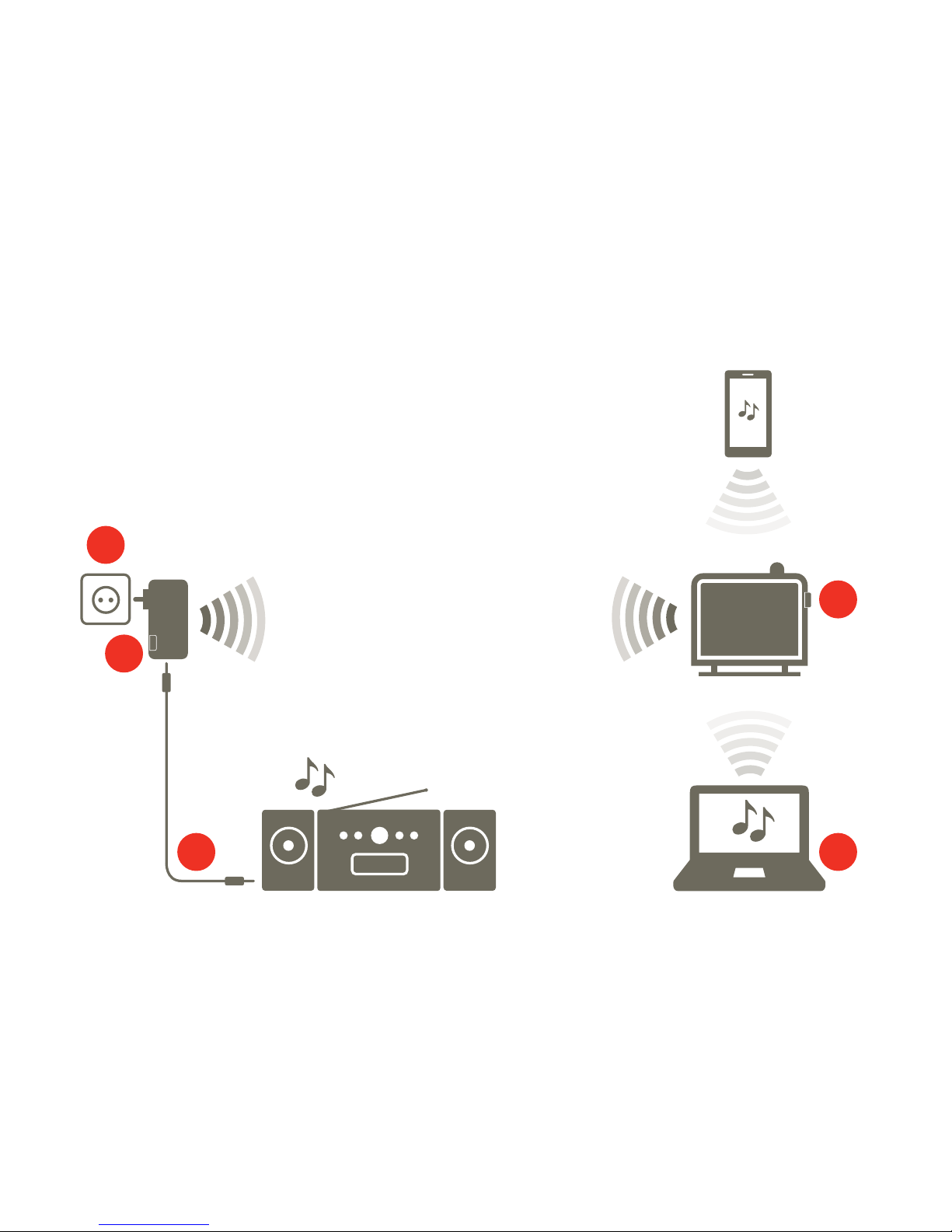
Plug your MediaPlug into a mains power socket
near your audio system, and in reach of your Wi-Fi
network. You will see the Power LED turn red.
Connect the MediaPlug to the audio input socket on
your audio system using the supplied cable.
Join the Wi-Fi network by pressing the WPS button
on the MediaPlug.
Within 2 minutes press the WPS button on your
Wi-Fi router. The Status LED on your MediaPlug will
pulse while connecting and then turn a stable white.
Note: If the WPS connection fails, see the ‘Manual
Wi-Fi connection’ section.
Plug the supplied CD into your computer and install
and run the Vodafone Media Manager software.
You will now be able to stream music to your audio
system from the music collection on your computer.
If you have a Wi-Fi smartphone or tablet you can
download any media sharing (DLNA) application and use
that to control your playback.
2
1
3
4
5
WPS
button
USB port Audio
connector
Reset
button
Quick setupThe MediaPlug
Status
LED
Power
LED
Page 6
WPS
WPS
3
5
4
2
1
Setup diagram
Page 7

If the WPS connection fails, or you can’t nd a WPS
button on your Wi-Fi router, you can always set it up
manually using your computer.
First, make sure that your computer is connected to
the Wi-Fi network.
Choose MediaPlug_XXXXXX from the list of
available Wi-Fi networks on your computer.
Enter the WPA password found on the back of this
guide.
Open the web browser on your computer and type
‘vodafone.mediaplug’ in the address bar, then
press enter. This opens the web interface for your
MediaPlug.
Follow the online instructions to connect the
MediaPlug to your network and make any other
changes.
Plug the supplied CD into your computer and install
and run the Vodafone Media Manager software. You
can also use other media sharing (DLNA) programs.
Manual Wi-Fi connection
When you run the install program from the CD, you’ll be
asked to enter the licence key found on the back of this
guide. Then follow the onscreen instructions.
Vodafone Media Manager
Select ‘Music’ as
your media type
Double-click on a track
to start playing it
Choose the
media library on
your PC or USB
drive that you
want to listen to
Click here to choose
where it should be
played (through your
MediaPlug or your
PC, for example)
Player and volume
controls
Drag music les here
to create a playlist
2
1
3
4
5
6
Page 8

What does the Status LED on the MediaPlug indicate?
• Pulsing white: trying to connect to Wi-Fi
• Stable white: connected and working properly
• Flashing amber: no Wi-Fi connection/WPS failure
Can I have more than one MediaPlug on my Wi-Fi
network?
Yes.
Can I change the MediaPlug’s name and settings?
Yes. Plug the supplied CD into your computer, and run the
MediaPlug conguration software.
This will let you access the web-based interface for your
MediaPlug. You can then change the name and other
settings, such as language and media sharing features.
Can I use other media sharing applications?
Yes. Any applications or programs that use the DLNA
(Digital Living Network Alliance) specication will work with
the MediaPlug (ie. Windows Media Player for Windows 7).
What sort of audio devices can I connect to the
MediaPlug?
You can play your music through any audio device that has
a 3.5mm audio connection. This can include stereos, TVs,
powered speakers and games consoles.
If your device has a different input connector you may be
able to use an adapter.
How do I use the USB port?
You can nd and play music stored on memory sticks
or USB hard drives by plugging them directly into the
MediaPlug. You can also share other content such as videos
and photos to other devices on your network.
How do I control and stream music using my
smartphone/tablet?
If you have an Apple or Android phone or tablet you can
download any media sharing (DLNA) application. This will
let you manage your media library remotely through the
Wi-Fi connection, and control the volume and playback of
your music.
Help and support: go to vodafone.com/mediaplug
FAQs
Page 9
Password and licence key
Your WPA password and DLNA licence key will
be found on the printed Quick Start Guide in the
MediaPlug package box.
© 2012 Vodafone Group. VODAFONE and the VODAFONE logos are trade marks of Vodafone Group.
Other product names mentioned herein may be the trade marks of their respective owners.
1588
 Loading...