

Page 1

User Guide
Vodafone Mobile
Broadband USB Modem
K4606
Designed
by Vodafone
Page 2
Welcome
to the world of mobile communications
1 Welcome
2 Set up your USB Modem
3 Windows 8 installation and
user experience
4 Connection window
5 QuickStart window layout
6 QuickStart view: Current
network panel
7 SMS view
8 Account view
9 USB Modem LED lights
10 Hints and tips
15 Glossary
Page 3

Welcome
Your new Vodafone Mobile Broadband USB Modem connects
your computer to the internet over the Vodafone mobile phone
network. The Vodafone QuickStar t technology built into the
device lets you connect quickly, simply and easily.
Browse the web
You can now access the web and any other internet service
wherever there’s a mobile phone networ k.
Pick up emails
Keep up to date with your emails, wherever you are.
Send and r eceive SMS tex t messages
You can send and receive SMS tex t messages straight from your
computer. The SMS application provides an easy way to view
messages, write new ones, and manage them.
System Requirements
To use this USB Modem and the Vodafone Mobile Broadband
application, you need:
A computer running Microsoft –
(SP1 recommended), W indows Vista™ (SP2 recommended ), or
Windows® XP (SP3 recommended ), or an Apple Mac running
Mac OS® X 10.5 (Intel®), 10.6, 10.7 or 10.8 (all with latest
updates).
A USB socket. –
Administrator rights on your computer. –
®
Windows® 8, Windows® 7
1
Page 4
Set up your
USB Modem
Note: Some computers
may be set up to prevent
automatic installation
of the VMB Lite service
from your USB Modem.
In this case, follow
the steps in the hints
and tips section to
manually install the
VMB Lite service on your
computer.
On a Windows 8 PC
the user experience is
slightly different. This is
explained on the next
page.
2
Step 1
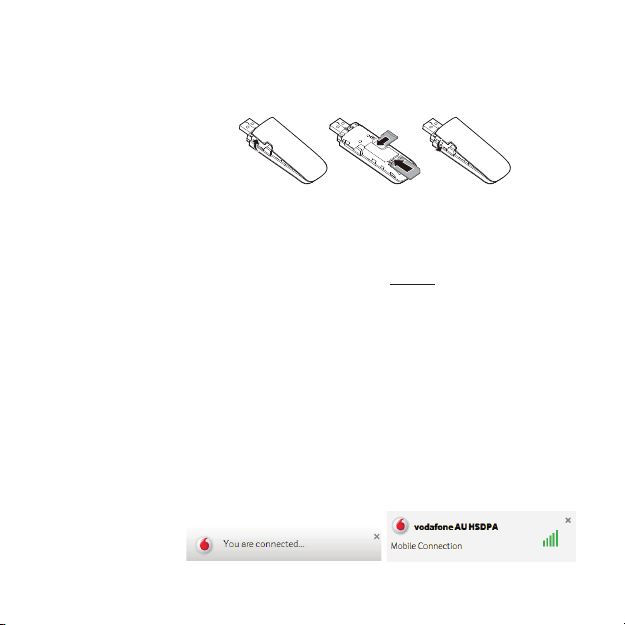
Slide the front cover off the USB Modem and inser t your SIM
and Micro SD card (sold separately) as shown.
Micro
SD card
SIM card
Step 2
Important. If you have an ear lier version of the VMB soft ware
on your computer, you must un-ins tall the VMB software
completely and re -boot your PC before inserting this USB
Modem.
Step 3
Plug the USB Modem fi rmly into your computer’s USB port.
You should see a progress bar whilst the Vodafone Mobile
Broadband service is installed on your computer from the
USB Modem. Once setup is complete , the Vodafone Mobile
Broadband application is started automatically, and you are
connected to the Vodafone network (if a PIN is required you
will see a popup screen requesting it before you can connect).
The LED on the USB Modem will change from fl ashing to solid,
and you will see 2 popup screens.
Page 5
Windows 8
installation
and user
experience
Note:
The Mobile Broadband
application can be
launched by selecting
the application Tile or
View My Account Link in
the Networks area of the
Settings charm
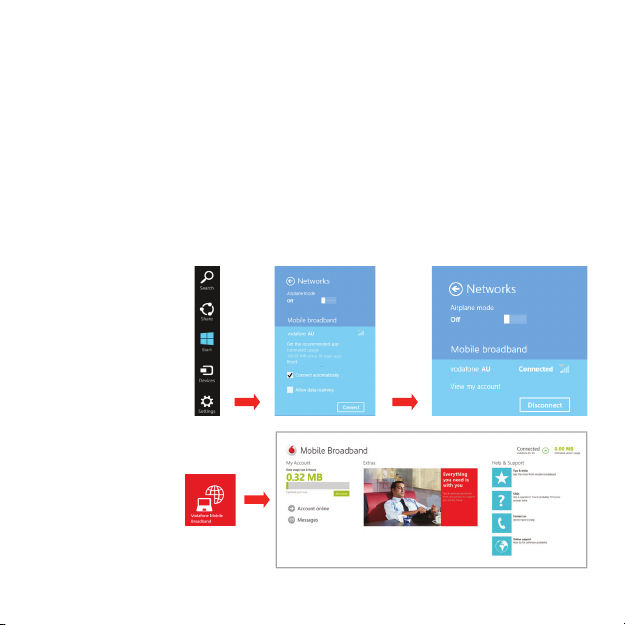
On a Windows 8 PC the Mobile Broadband user experience is
slightly different as the mobile net work connectivity is managed
within the Windows 8 operating system. When you plug in the
USB Modem, you need to open the ‘charms’ (Search, Share ,
Start, Dev ice and Settings), and select Settings > Networks (or
Your Wi-Fi Network Name) > Mobile Broadband.
Connect Automatically if required, then click Connect .
Select
Initially the Connection Manager will show ‘Get recommended
app’ and this will change to ‘View my account’ when the Mobile
Broadband application has been automatically downloaded by
Windows 8.
3
Page 6
Connection
window
Note: On ce setup
is comp lete, you
can alw ays access
the Voda fone
Mobile Broadband
application when
your US B Modem
is inserted into
your computer by
click ing the des ktop
icon
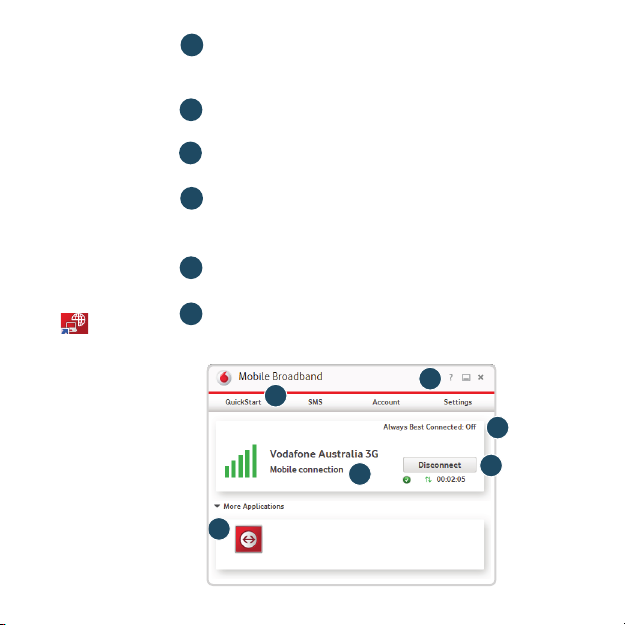
Connect /Disconnect
1
Connect to the internet via the mobile phone network or
Wi-Fi, to browse the web or use email
2
Status
Check the status of the current connection
3
Shortcuts
Select services , applications and tools
4
Menu bar
Device and net work settings and diagnostics , SMS
functionality, manage your account.
Help
5
View Help topics
Always Best Connected
6
Confi gure connection preferences
4
2
3
5
6
1
4
Page 7
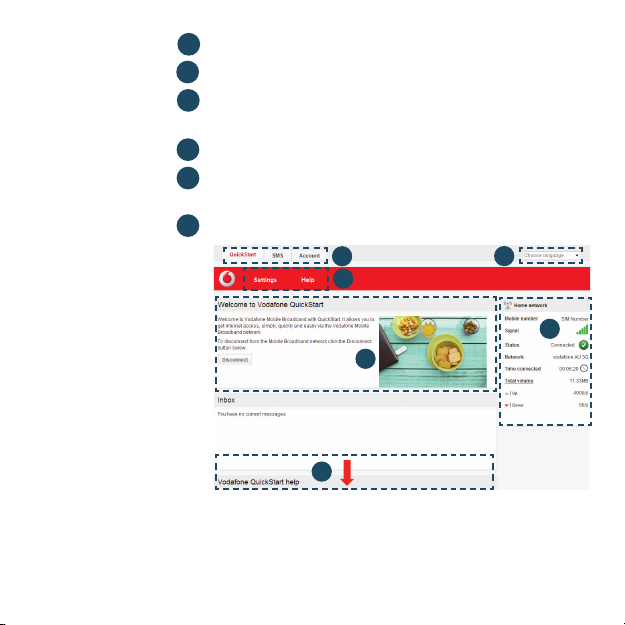
QuickStart
window
layout
Note: Every window
in the QuickStart
application has this
same standard layout.
Context-sensitive
help for each window
is always available
at the bottom of the
window.
Sometimes an
additional Menu bar
will appear on the left
of the window
1
Navigation tabs – Select Q uickStart, SMS or Account view
2
Navigation bar – Select an area within each view
3
Current network panel – Status of mobile broadband
network connection
Content area – Content for current area
4
5
Context help – Context-sensitive help for current area
(scroll down)
6
Language selection – Defaults to browser language
1
2
4
5
In the QuickStart view Set tings area you can:
Set options for automatic connection to the mobile network –
Specify the SIM PIN number (if required by your network) –
Set other options via the Menu bar on the lef t-hand side of the –
window.
6
3
5
Page 8
QuickStart
view: Current
network panel
Note: Whenever
you insert your USB
Modem into your
computer you are
connected to the
mobile network.
Automatic network
connection can be
disabled from the
Settings area in the
QuickStart view.
The QuickStart
application can also
be accessed from
the Vodafone Mobile
Broadband desktop
icon.
6
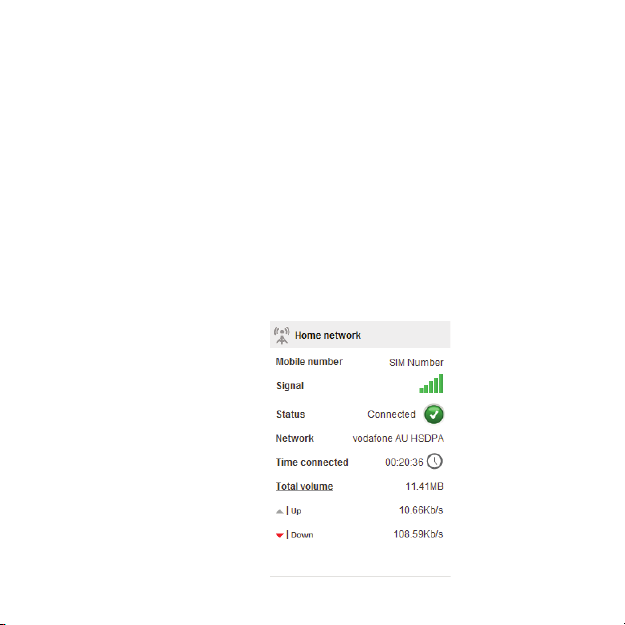
The Current network panel appears on the right-hand side
of ever y screen within the QuickStart application. ‘Roaming
network’ is displayed when you are roaming on another
operator’s network, or ‘Home network’.
Mobile number – Shown if permitted by your network operator
Signal – More bars indicates better mobile broadband networ k
signal
Status – Tick when connected to net work; Cross when not
connected
Network – Name and type of currently connected network
Time connected – For current connection to net work
Tot al vol ume – Approx imate cumulative data usage
Up / Down – Approx imate connection speed: ‘Up’ to the
network from your computer, and ‘Down’ from the network
Page 9
SMS view
Note: When you
select the checkbox
in the title bar of the
Inbox, Sent folder
or Draft folder, all
messages in that
folder are selected.
This is useful if
you want to delete
multiple messages.
It is not possible to
forward multiple
messages.
In the Settings area
you can select or
de-select the SMS
preview in the
QuickStart view.
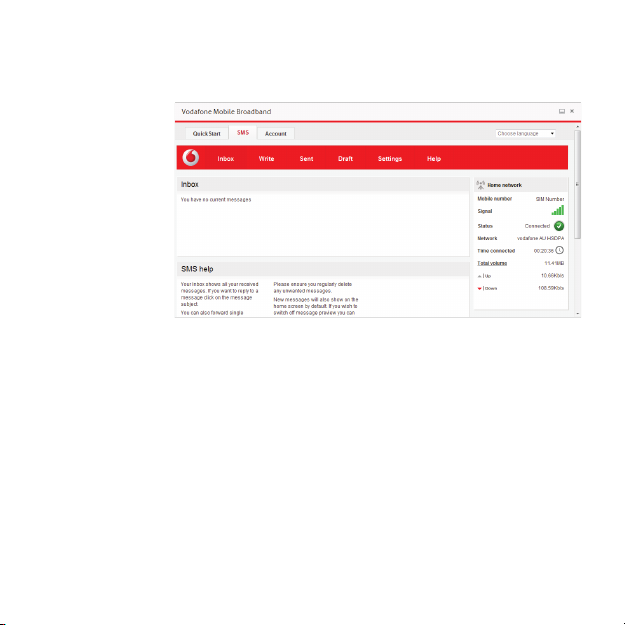
The SMS v iew has six options on the Navigation bar covering
all messaging functions: Inbox, Write, Sent, Draf t, Settings
and Help.
7
Page 10
Account
view
Note: The options
that are displayed on
the Navigation bar
are dependent on the
account type selected.
8
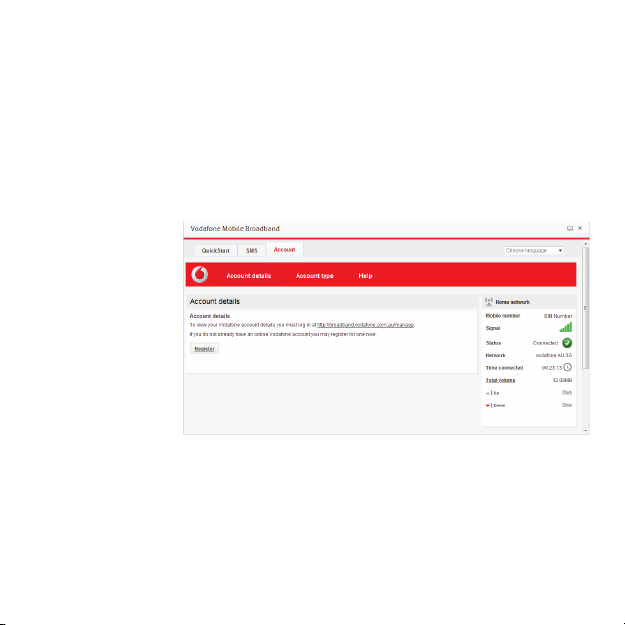
The Account view has three options on the Navigation bar:
Account detail s, Account type and Help. For prepaid account
customers there are t wo additional options: Balance and
Top Up .
For prepaid accounts, the Balance area shows your current
account balance. Click the Refresh button to update the
balance value. The TopUp area allows you to top up a prepaid
account balance using either a voucher, or a credit or debit card.
Page 11
USB Modem
LED lights
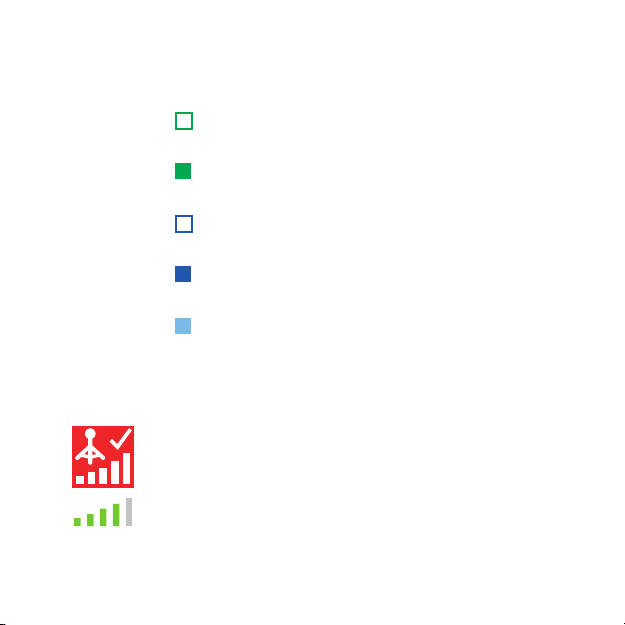
The LED light on your USB Modem shows which kind
of mobile network has been found, and whether the
USB Modem is connected to that net work.
Green blinking
A GPRS networ k has been found – you could connect
Green solid
Connected via GPRS
Blue blinking
A 3G network has been found – you could connect
Blue solid
Connected via 3G
Light blue solid
Connected via 3G Broadband
Signal strength
The strength of the mobile or Wi -Fi network signal is shown
by the symbol to the left of the Connect but ton, and by the
icon in the Windows Notifi cation area.
The more bars that are fi lled in, the bet ter the signal quality.
At least one bar must be fi lled in order to connect.
9
Page 12

Hints and tips
Note: The correct
software has the
“Vodafone Mobile
Broadband with
QuickStart” splashscreen, and you
should be able
to access all the
functions referenced
in this QSG by clicking
on the Vodafone
Mobile Broadband
desktop icon.
10
Install problems on PC with older version of VMB
If you had a problem installing the software (the symptoms
could be any of the following):
– a new desktop icon for VMB was not created on your
desktop, or
– when you run VMB from the desktop shortcut you do not
get a new software splash screen displayed which says
“Vodafone Mobile Broadband with QuickStart”, or
– when you inser t the device you do not see it appear as a CD
ROM device on your computer, or
– when running VMB you receive a “Device Not Detected”
message.
The cause of the problem could be an issue with an
incomplete un-install of an earlier version of the Vodafone
Mobile Broadband soft ware already installed for an older
device. This problem may appear on all PCs with Windows
operating systems. It should not occur on Apple devices.
Vodafone have developed a clean-up tool to remove the old
version of the software correctly, it is available from
www.support.vodafone.com/vmb_cleanup.
Download the clean-up tool and unzip the fi les. After
removing the current VMB soft ware (remove using Windows),
run the clean-up tool (VmbCleanup.exe) and select all
3
options – Settings, Data and Device Registration. Re-boot
your PC and then insert your new USB Modem, and the
correct VMB software should install automatically.
Page 13

Vodafone Mobile Broadband software manual installation
On Microsoft Windows computers
Plug your USB Modem into your computer
Right-click on the VMB Lite 10.* drive in ‘My Computer’ –
(Start menu>Computer on Vista and Windows 7)
Select ‘Open’ or ‘Explore’ –
Double-click the fi le called setup_vmb_lite.exe on your –
USB Modem
You will see a progress bar. –
It may take a few minutes to set up your USB Modem, but
once setup is complete, the Vodafone Mobile Broadband
application will start and automatically connect you to the
mobile network. If for some reason the application does not
star t, select Vodafone Mobile Broadband from the Windows
Start menu, or double-click the Vodafone Mobile Broadband
desktop icon.
On Mac OS X computers
When you plug your USB Modem in for the fi rst time, a disk
named Vodafone Mobile Broadband will popup on your
desktop. Double click on the Vodafone Mobile Broadband
app to start installation. You will be asked to select your
account t ype during this process. Vodafone Mobile
Broadband will star t automatically after installation.
11
Page 14

12
The application won’t install on Windows
If the sof tware does not install, or the install progress bar
keeps looping
From the Windows Start menu, select
– Settings> Control Panel>System>Hardware>Device Manager
Expand ‘Universal Serial Bus Controllers’ –
Right-click ‘USB Mass Storage Device’ and select ‘Uninstall’ –
If your devices are not reloaded, select ‘Scan for Hardware –
changes’ from the ‘Action’ menu.
Cannot open QuickStart application window
The following things may prevent you from opening the
Vodafone QuickStart application window by double-clicking
the desktop shor tcut:
Your computer already has a connection via an ethernet –
LAN cable
Your computer already has a connection via a Wi-Fi network –
You may be using a VPN (Virtual Private Network). –
Unplugging the LAN cable, switching off Wi-Fi on your
computer, or exiting your VPN , and then re-inser ting the
USB Modem, or re-star ting the PC may solve the problem.
Page 15

Note: If you can
see the application
window in your
browser, you can
find more hints
and tips in the Help
area. Selecting the
Help option on the
Navigation bar in
any view, and then
‘Diagnostics’ in
the Menu bar, may
help you to identify
a problem. This
area also shows
information that
may be required if
you need to contact
Support at your
mobile network
operator. Select
‘Support’ from the
Menu bar for more
information and local
support.
No network can be found
Change your physical location: in a building, move closer to a
window, move higher up, or go outside
Open the QuickStart application window –
Select the Settings heading on the Navigation bar –
Select the Network entry in the Menu bar on the left –
Click ‘Search’ to search for available networks –
See if you can connect to one of the allowed networks –
listed
Click ‘Save’ to save your change –
If you are abroad, contact Support, and check that data –
services and roaming are enabled on your account.
Re-installing the soft ware
If you want to re-install the software from the USB Modem,
you need to fi rst delete the Vodafone Mobile Broadband
Service software from your computer.
From the Windows Start menu, select Settings> –
Control Panel>Add or Remove Programs (XP) or Programs
and Features (Windows 7)
Run the Vodafone Mobile Broadband Uninstaller –
Re-insert your USB Modem and the software will re-install. –
13
Page 16

14
No connection can be opened (1)
Check the device status (click on desktop shortcut, select –
the QuickStart tab, Help on Settings bar, and select
Diagnostics from the menu). This may indicate the source
of the problem.
No connection can be opened (2)
Wait a few minutes and try to connect again. This is most
often a temporary problem, especially if an ‘Error 631’ or
‘Error 619’ isreferenced. If the problem persists, please call
Support.
Close the application window and then re-open it –
Re-start your computer –
Open the QuickStart application window –
Select the Settings heading on the Navigation bar –
Select the Network entry in the Menu bar on the left –
Check which option is selected. If the option is set to a –
‘Preferred’ option, set it to an ‘Only’ option
Click ‘Save’ to save your change –
If you are using a VPN (Virtual Private Network ), contact the –
administrator of your VPN
Select the Account tab –
Select the Account type heading in the Navigation bar –
Check that the type of account you have with your mobile –
network operator is selected in the drop-down menu.
Page 17

Glossary
Bearer Communication metho d used for data transport over the mobile
netw ork, eg. 3G B roadband, H SPA, 3G, etc.
Built-in data card Mobile data card built into notebo ok computer. Ena bles data
USB Modem
Home network Th e network of t he mobile operator who provided your SIM.
3G broadband Th e latest enha ncement to the 3G bearer.
Roaming You can use your mobile device on any oth er mobile net work
connections over the mobile p hone netwo rk.
A device for your computer that yo u can use to open a data
connection over the m obile phone ne twork.
EDGE An enhancement to the GPR S bearer offering h igher speed s,
although not as f ast as 3G Broad band.
GPRS The G eneral Pac ket Radio Ser vice is a bearer offering h igher data
speed s than GSM, on which it is based.
GSM Global System for Mob ile Communication.
HSPA High-Spee d Packet Access b earer, enhancing 3G, i ncluding bot h
HSUPA (Up link) and HSDPA (Do wnlink).
HSUPA High -Speed Uplink Packet Access bearer.
3G Th e third-genera tion mobile ph one service, as UMTS (Universal
Mobile Telecommunications Sys tem) is also k nown, is a bear er
providing hi gher data speeds.
that has a roaming agreement w ith your oper ator, whether i n
your cou ntry or abroad.
SIM Your Subscriber Identity Module is t he postage-stamp-sized chip
that you will have recei ved together with your mobile contr act.
Your SIM has g old contact s on one side.
15
Page 18

Page 19

Page 20
The ter m Mobil e Broadb and toge ther wit h the
‘bird s’ desi gn i s a trade mark of GS MC Limi ted.
© Vodafon e 2013. Vodafone a nd the
Vodafon e logos are t rade mar ks of
the Voda fone Grou p. Any prod uct or
company names mentioned herein
may be th e trade ma rks of thei r
respective owners.
Produ ct Code:
K4606 05 /13_en_ AU
 Loading...