

Page 1
In the Box
Overview of the router
Status lights,
network signal
strength and
signal mode
Antenna Port Power button
Ethernet ports
Telephone socket
(optional)
WPS button
SIM card Slot
Power supply
socket
Label with router’s web
setup and Wi-Fi®name
and password.
B525 LTE Router
Ethernet CableTelephone Cable Power Supply
Quick Start Guide
Connecting up your router
Health & Safety
Information
Your B525 router connects your computer and other
devices to the internet using the Vodafone network.
3
2
Make sure the router is positioned away from thick walls
or devices that produce strong electrical or magnetic
elds (such as microwave ovens).
1 Insert the supplied SIM card into the SIM card slot,
until it clicks in place.
2 Connect any LAN (Ethernet) devices, such as
computers, to the routers yellow ports. One Ethernet
cable is included in the box.
3 You can also connect telephones to the router grey
TEL phone port.
4 Connect the power supply to the back of the router
and it will turn on automatically.
5 The router will connect to the network and the mode
light will change from Red to Blue when successfully
connected.
Setting up the router
Using your router
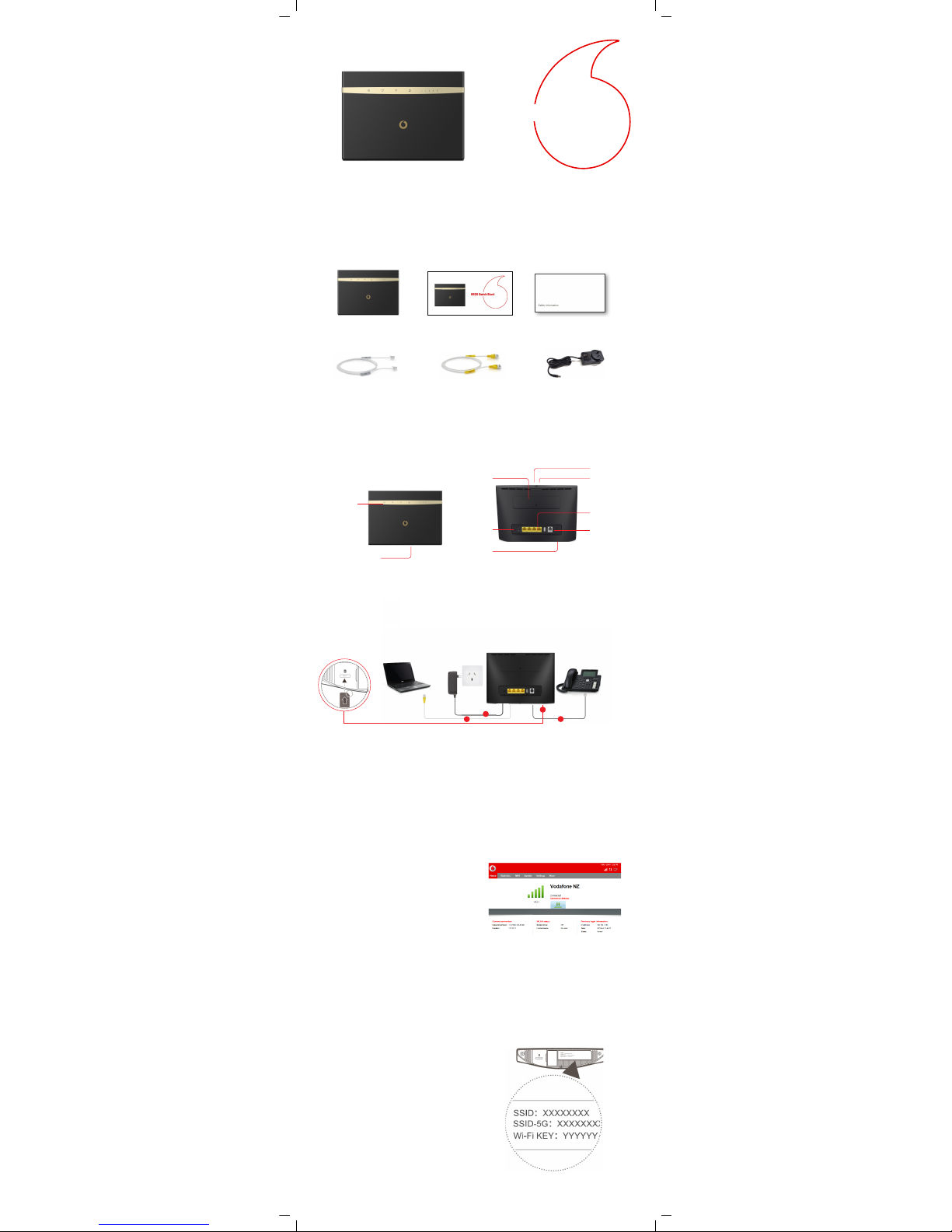
You set up and manage your router using the web browser
on your connected PC or Mac.
1 Make sure the router is connected to your computer
using the Ethernet cable.
2 Open the web browser on your computer and type
192.168.1.1 in the address bar, then press Enter.
3 Enter the username: admin and password: admin. It
is also printed on the label on the bottom side of the
router.
4 From here you can change settings on your router,
as well as see what position gives you the best signal
strength. An online help menu is located in the top
right corner of the screen.
Once you have a good signal indicated on the front of
the router, you will be able to access the Internet on any
Ethernet or Wi-Fi connected devices.
• Connect Wi-Fi devices (like smartphones, laptops,
etc.) by choosing the router’s Wi-Fi network (SSID),
which is shown on the label on the bottom of the
router. Then enter the password (WPA/WPA2) on the
label.
• The router’s Wi-Fi network is turned on by default.
For details about how to manually enable or disable
the Wi-Fi function, refer to the WLAN settings section
of the online help on the web page.
• Devices connected by Ethernet cable should be
connected to the Internet automatically.
31507633_01
Please see over the page for FAQs and troubleshooting
B525 Quick Start
1
4
Page 2

POWER
Constant white light - router is turned on
No light - router is off
Wi-Fi
Constant white light - router has created a Wi-Fi
network
No light - the Wi-Fi function is off
WPS
Flashing white light - WPS pairing in progress
LAN/WLAN
Constant white light - LAN port is connected to a
device
WPS pairing
WPS (Wi-Fi Protected Setup) is
an automatic pairing system
for enabled Wi-Fi devices.
Press the WPS button on the
router, when the icon ashes
you have 2 minutes to press
the WPS button on your device
to pair it.
What do the status lights mean?
If you need help
Online help and information is always available at
vodafone.co.nz/help.
New to Vodafone? Visit vodafone.co.nz/welcome for
setup and use of your services.
If you need help with setting up your connection,
please call customer care on 0800 800 966
© 2018 Vodafone Limited. All rights reserved to Vodafone or third party licensors and materials may not be used in any
way or copied in whole or part without prior written permission of Vodafone Limited. Vodafone and the Vodafone logo are
trademarks of Vodafone Group Plc or its associated companies.
Wi-Fi®, the Wi-Fi lo go, the Wi- Fi CERTIF IED logo are reg istered tr ademark s of Wi-Fi A lliance.
Wi-Fi CERTIFIED™ are trademarks of Wi-Fi Alliance.
MODE
Constant yellow light - connected to GSM (GPRS)
Constant blue light - connected to UMTS (3G)
Constant cyan light - connected to LTE (4G)
Constant green light - connected to an Ethernet
network.
Other light modes may be error warnings – please
see Troubleshooting below.
SIGNAL BARS
No light - when off, then no network signal is
detected. When on, more bars indicates a stronger
signal (you can use this to reposition the router to
get the best signal).
FAQ s
WPS pairing
What are the settings when using it as a router?
The default IP address of the router is 192.168.1.1
It is recommended that the IP address and the
DNS settings on your computer are set to retrieve
automatically.
Performing a restart or reset:
To restart the router, press the Power button until it turns
off, then press it again to restart.
To reset the router to the default settings, press the
RESET button for more than three seconds. Warning: this
will over-ride all your previous settings.
Troubleshooting
Status light error modes:
The SIM card cannot be recognized. Check that it has
been inserted correctly.
The PIN number hasn’t been entered, or has been
entered incorrectly.
The router cannot access the wireless network. If
your phone doesn’t get a Vodafone signal there,
relocate the router to somewhere that does.
Otherwise please call customer services.
Can’t access the web interface:
Make sure the router is turned on, and the network
(Ethernet) cable is connected properly to your computer.
Make sure that the IP address of your router is entered
correctly.
 Loading...