

Page 1
1
What's in the Box
Your phone box contains the following items:
• Mobile Phone
• Battery
• Charger
• USB cable
• Headset ( with the 3.5 mm jack )
• Quick start guide
• Safety information
For more information about how to use your phone,
refer to the User Guide stored on the phone.
To read the User Guide, do as follows:
1. Connect your mobile phone to a PC.
2. On the PC, choose Start > My Computer.
3. Double-click , and then choose User Guide.
Page 2
2
Getting to Know
Your Phone
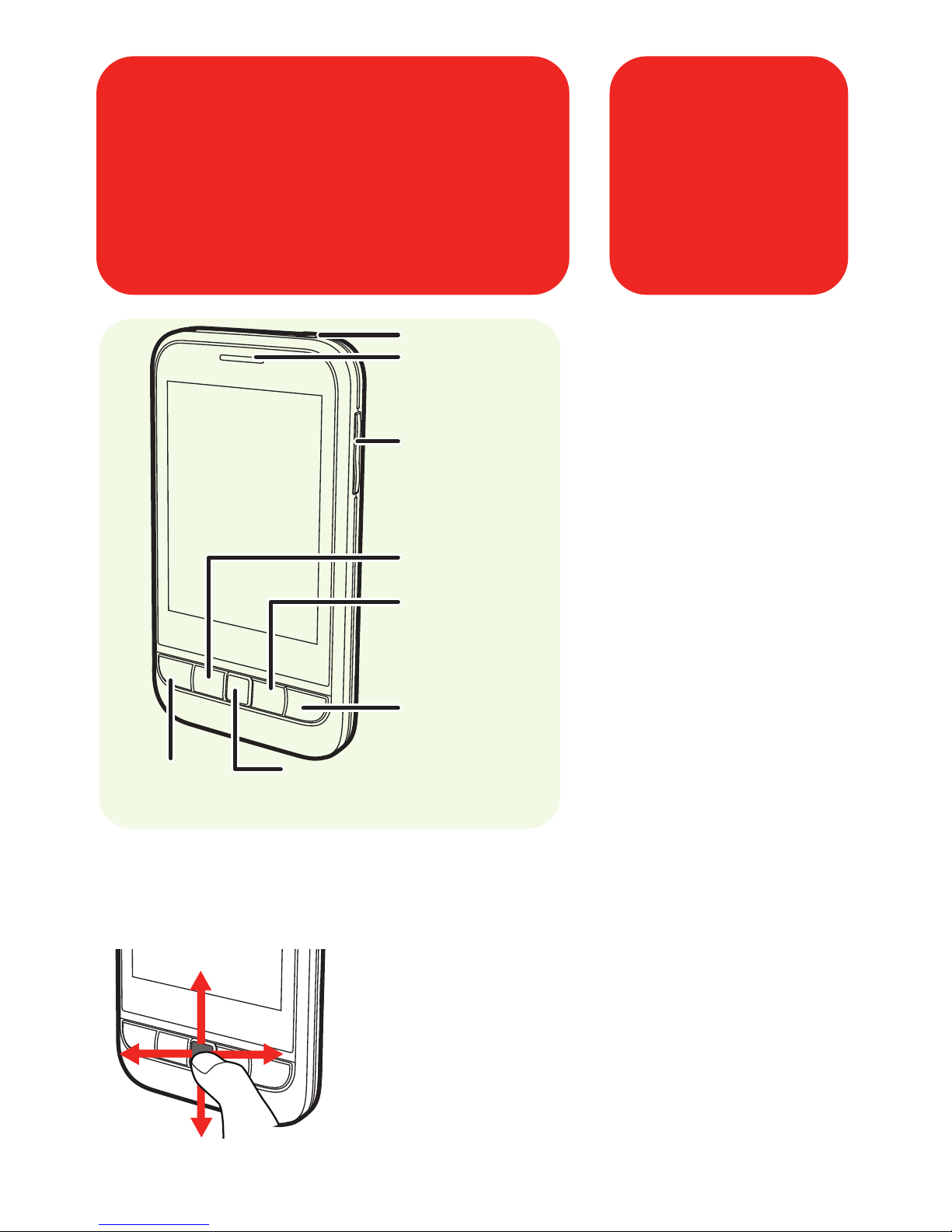
Power: Press to turn on
your mobile phone.
Send: Press to go to the
Call Log screen.
Home/Back: Press to
return to the home
screen or previous
screen.
End: Press to hang up a
call.
MENU: Press to open
the menu on an active
screen.
Power
Earpiece
Volume
control
MENU
Home/Back
End
Optical Finger
Navigation
Send
Drag your finger across the optical finger
navigation to move the cursor; Press to
confirm your selection or execute the
selected application.
Using the Optical Finger Navigation
Page 3
3
Before Getting
Started
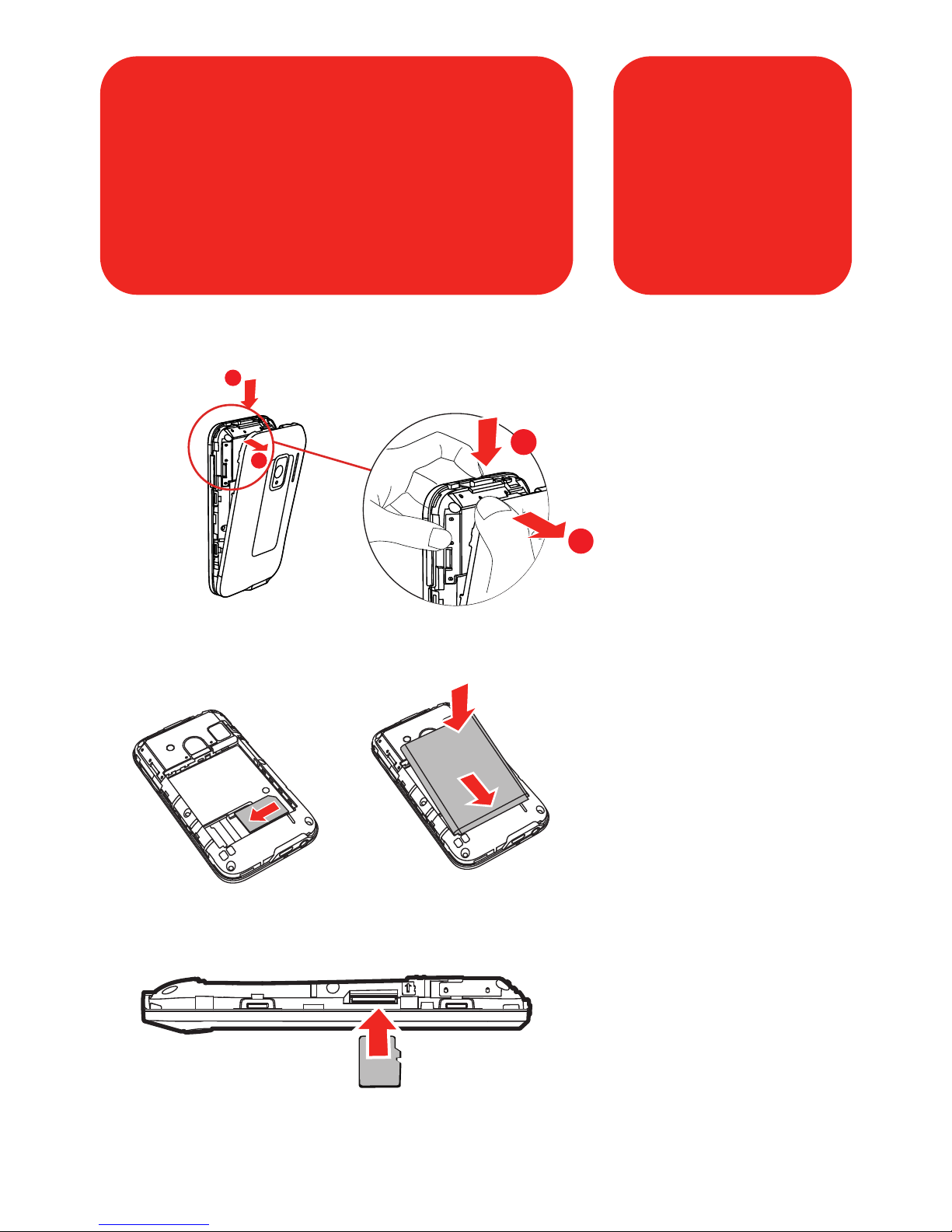
Installing the SIM Card and the Battery
Installing the microSD Card
Do not remove the microSD card frequently. Otherwise, the data
on the card will be probably lost.
Removing the Back Cover
a
b
To open the back
cover, press and
hold the button (as
shown in a), and
then hold the
upper left or right
side of the cover
(as shown in b).
a
b
Page 4

1
3
2
4
Charging the
Battery
Before charging the battery, make sure that the battery
has been properly inserted into your mobile phone.
Connect your USB cable to your mobile phone, as
shown in a.
Connect the other end of the cable to the charger, as
shown in b.
Plug the charger into a power socket.
The phone starts charging, with the charging icon
displayed in animation on the screen.
b
a
Page 5
5
Setting up Your
Phone
The first time you power on your mobile phone, the phone
displays a setup wizard to instruct you to set the phone,
including:
• Using the onscreen keyboard
• Setting up your accounts
• Other important settings
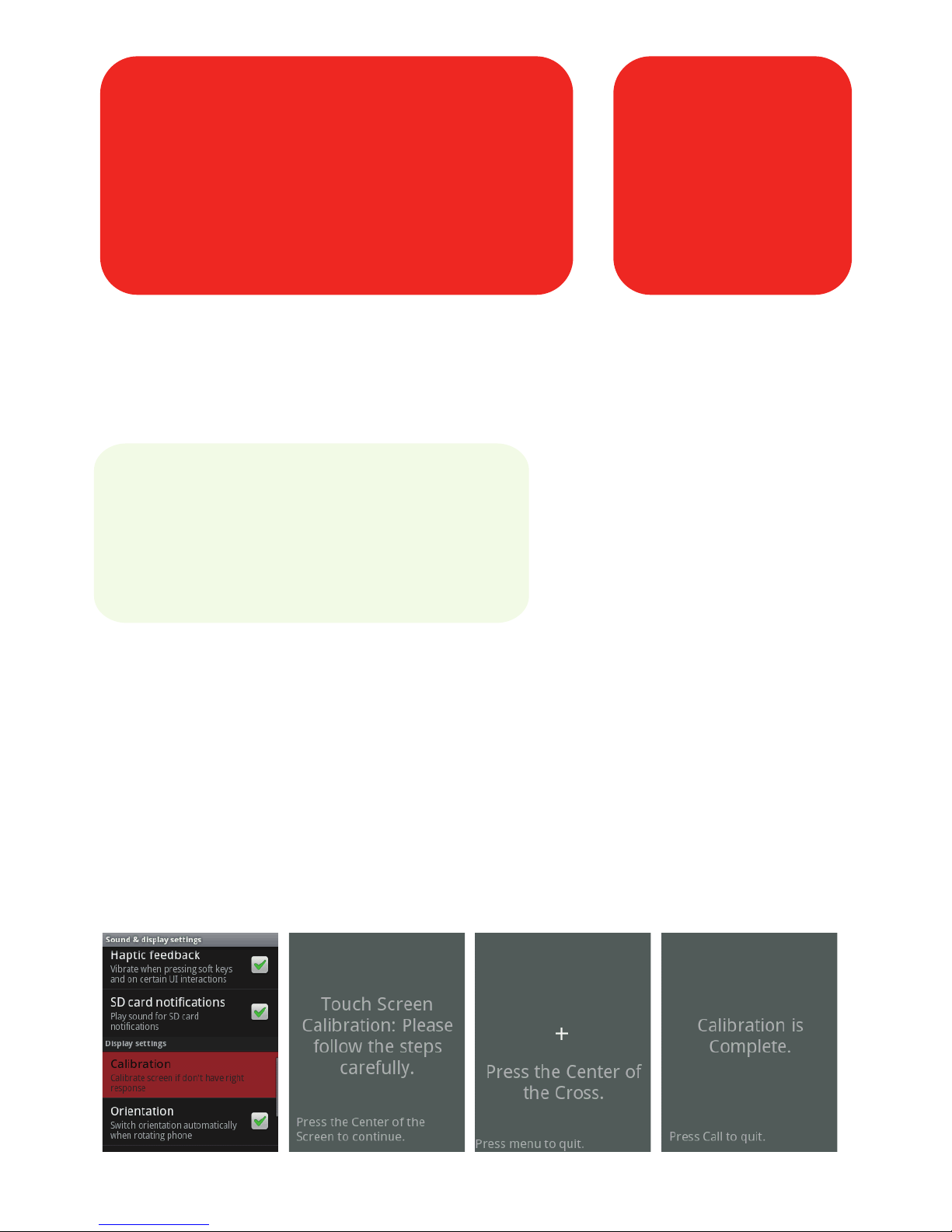
Calibrating the Touch Screen
If you upgrade new Software version, or the phone cannot
respond to your touching correctly, calibrate the screen
as follows.
1. Select Settings> Sound & display > Calibration to
access the screen for calibration.
2. Calibrate the screen by tapping the center of the +
displayed on the screen according to the instructions.
Page 6
6
Your Home Screen
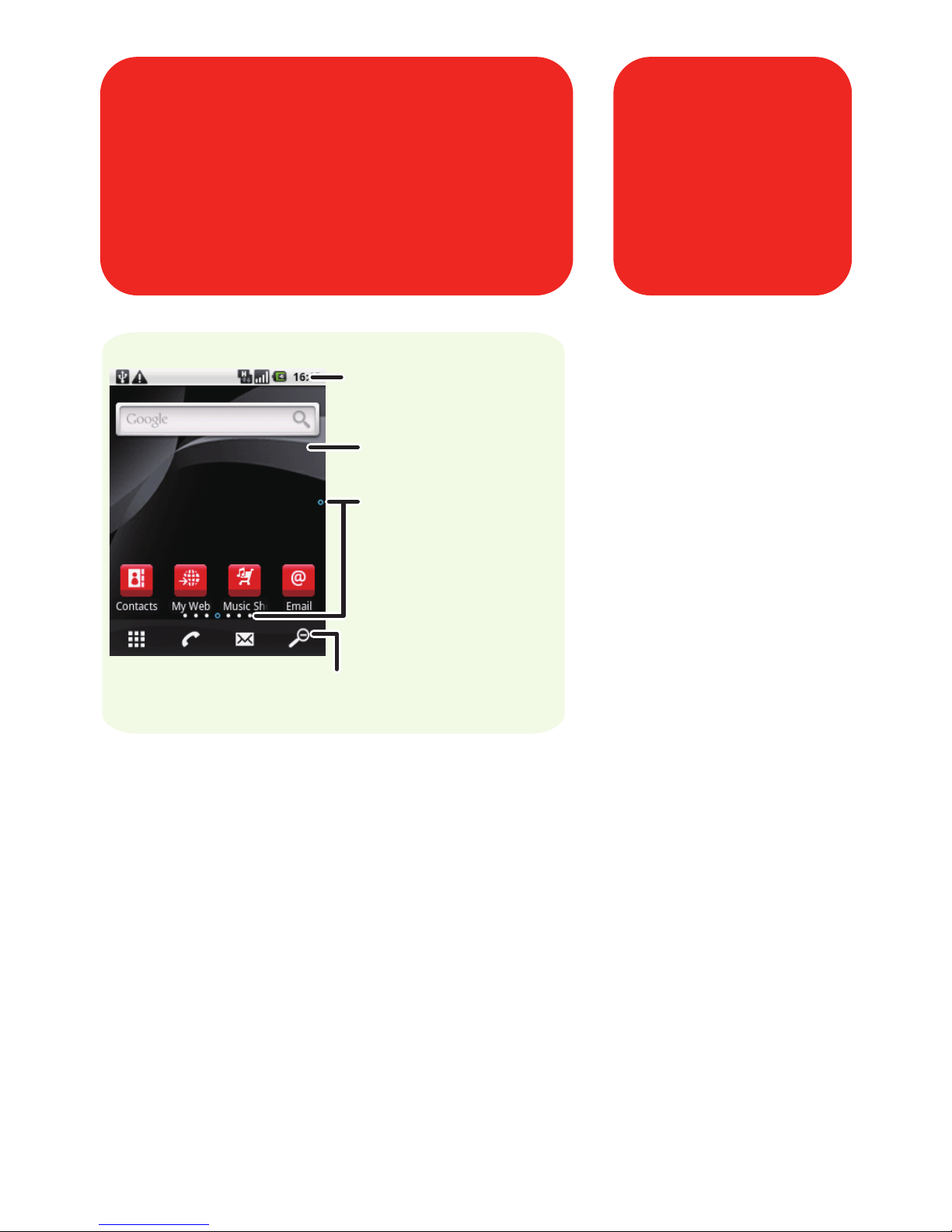
Notifications bar:
Displays the
reminders and
status icons of your
phone. Flick down
to open the
notifications panel.
Display area: Shows
the operation and
display areas of your
phone.
Notifications bar
Display area
Interface switching buttons
Indication dots
Indication dots: Indicate the number of screens in the
viertical or horizontal direction. The blue dots show the
position of the current screen on the Canvas.
Interface switching buttons: Include the Main Menu,
Dialer, Messaging, and Zoom buttons from left to right.
Page 7
7
Getting to Know
the Canvas
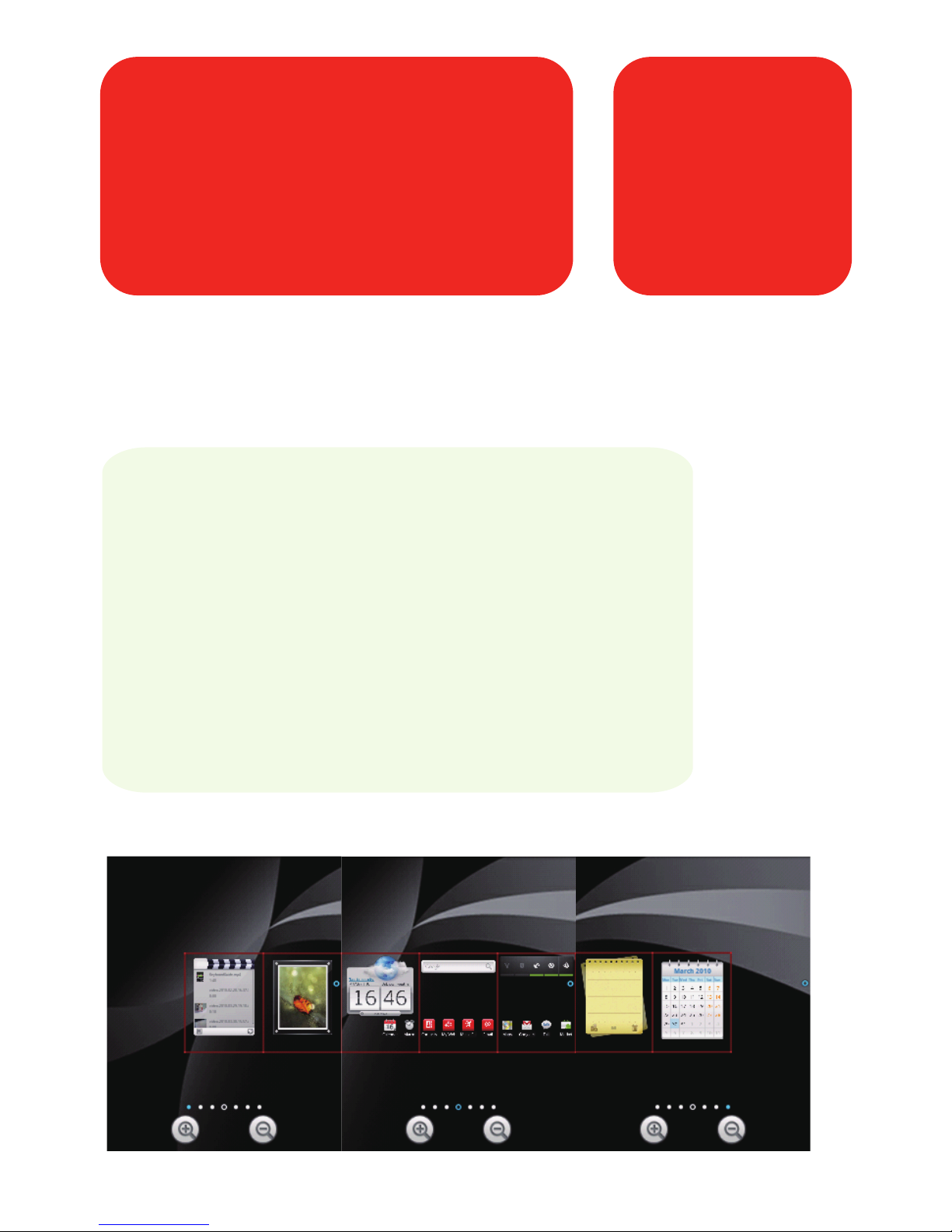
The Canvas is a desktop which you can freely define and
expand. You can do the following things on the Canvas
desktop:
• Expand your screen display in any direction.
• Customize the Home screen.
• Create and arrange shortcuts.
• Create and arrange widgets.
• Create and arrange folders.
• Define and switch between wallpapers.
Page 8
Vodafone 360
Service
8
Have your music with you, wherever you are.
Discover new music by listening to and buying single tracks and
albums from our catalogue of more than two million songs,
downloaded straight to your phone or computer.
Your own homepage, wherever you are.
My Web lets you create your personal web page, with all the
news, information and features you want.
And because it’s part of Vodafone 360, My Web is synchronised
automatically – so your personal web will always be the same
whether you access it on your phone or on your PC/Mac
browser.
Music
My Web
Page 9
9
Widgets and Google
Services
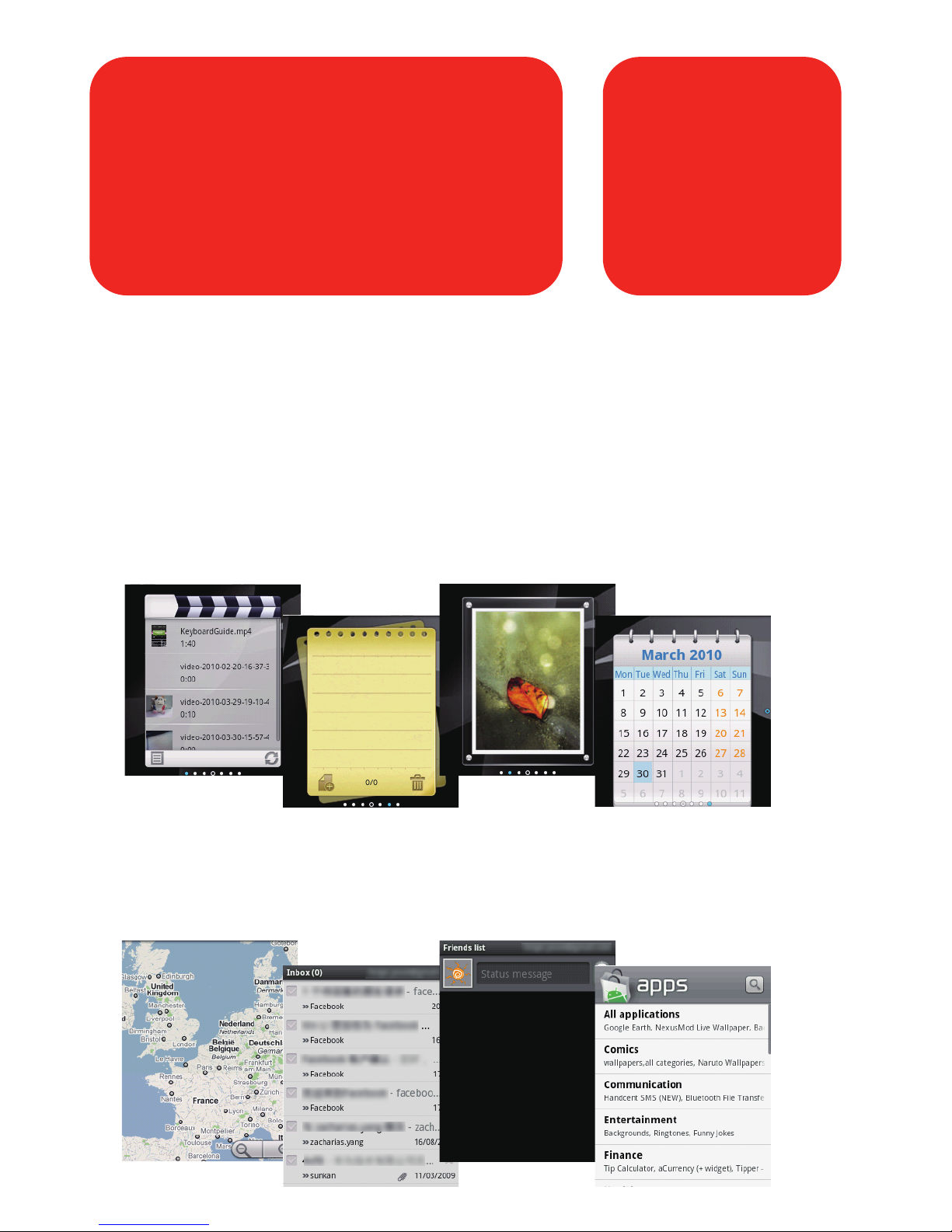
A widget works as a shortcut to let you preview or use an
application.
You can stick widgets on your desktop as icons or preview
windows.
Besides the default widgets installed on your phone, you
can also download more from Android Market.
Google provides you various excellent services, such as
Google Talk, Gmail, Market, and Google Map.
Google Services
Widgets
Page 10
10
Calling
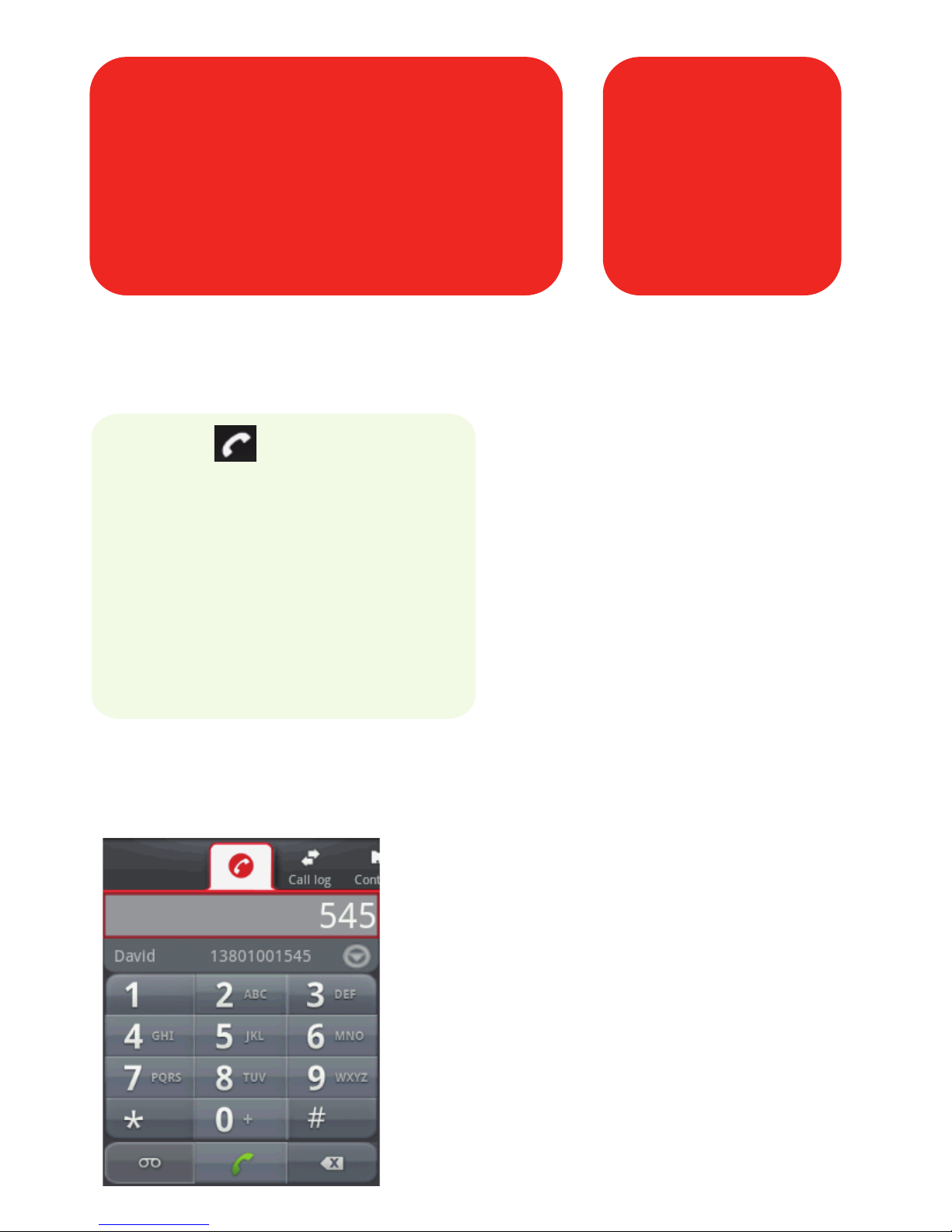
You can place a phone call by dialing a phone number.
1. Touch to display the
dialing panel.
2. Touch the keys to enter
the phone number.
3. Press the Send key to dial.
When there is an
incoming call, press the
Send key to answer the
call or press the End key
to reject the call. When
you receive a call, you can
press a Volume control
key to mute the speaker.
Your mobile phone supports the
SmartDial function, that is, when
you touch numbers on the dialer,
the phone automatically searches
among your contacts and lists the
matching results based on the
accuracy. If no contact is matched
with your entered information, the
phone will not display any result.
SmartDial
Page 11
11
Entering Text
Did you know you can type on your touchscreen? It’s easy.
Just enter text or numbers when you’re on your text input
screen and you can make a virtual keyboard appear.
Here’s how:
• Press and hold the MENU key to
show the keyboard.
• Touch the space where you
write text to show the keyboard.
• Touch and hold the space where
you usually write your text to
open the options menu.
• Press the Back key to hide the
keyboard.
How to switch the
input method?
On the text input
screen, touch and
hold the space
where you usually
write your text
until the Edit text
menu is
displayed. Touch
Input Method.
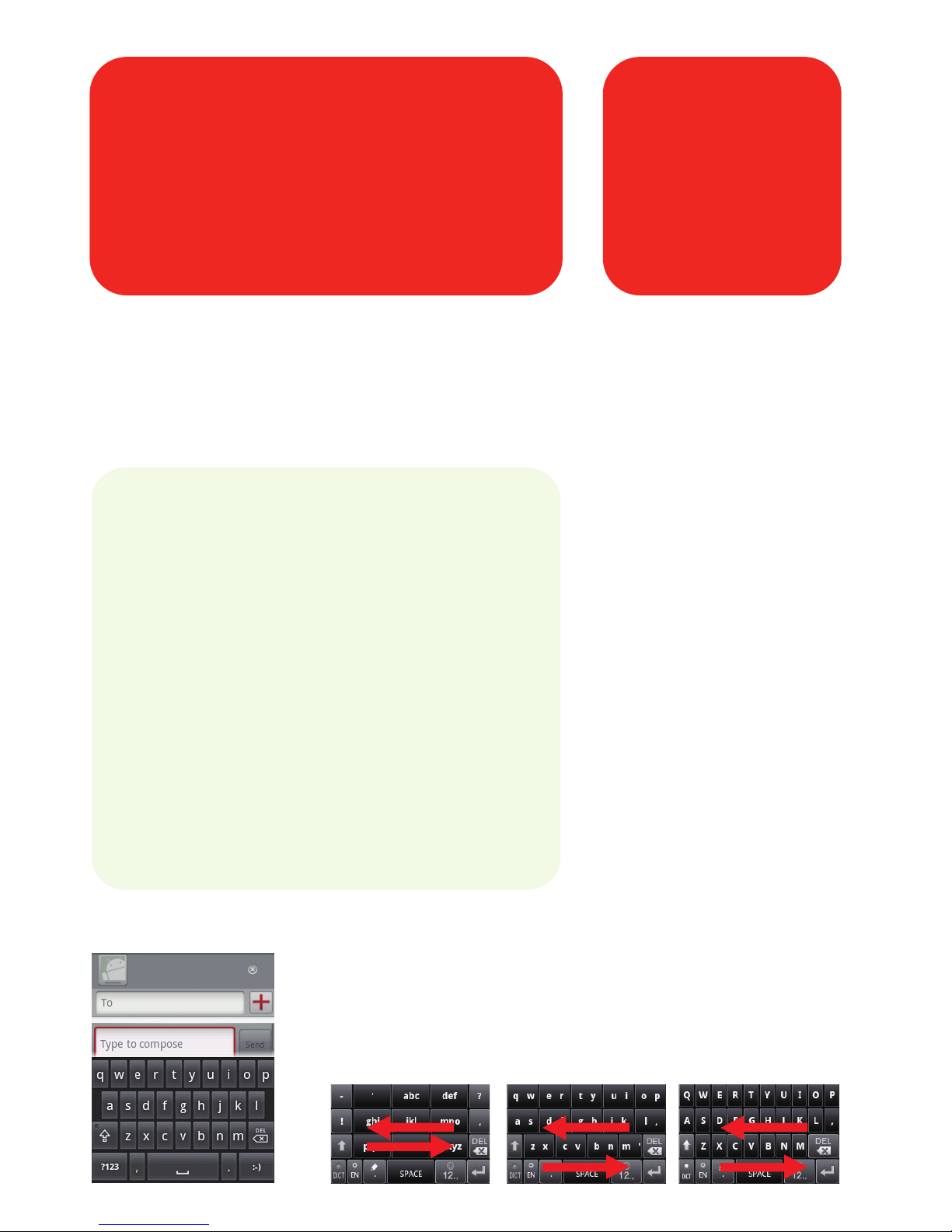
There are three keyboard layouts you can
choose. To switch the keyboard layout, touch
and hold one side of the keyboard panel, and
then flick the panel to the edge of the screen.
Touch pal Android
Page 12
Personalizing Your
Phone
12
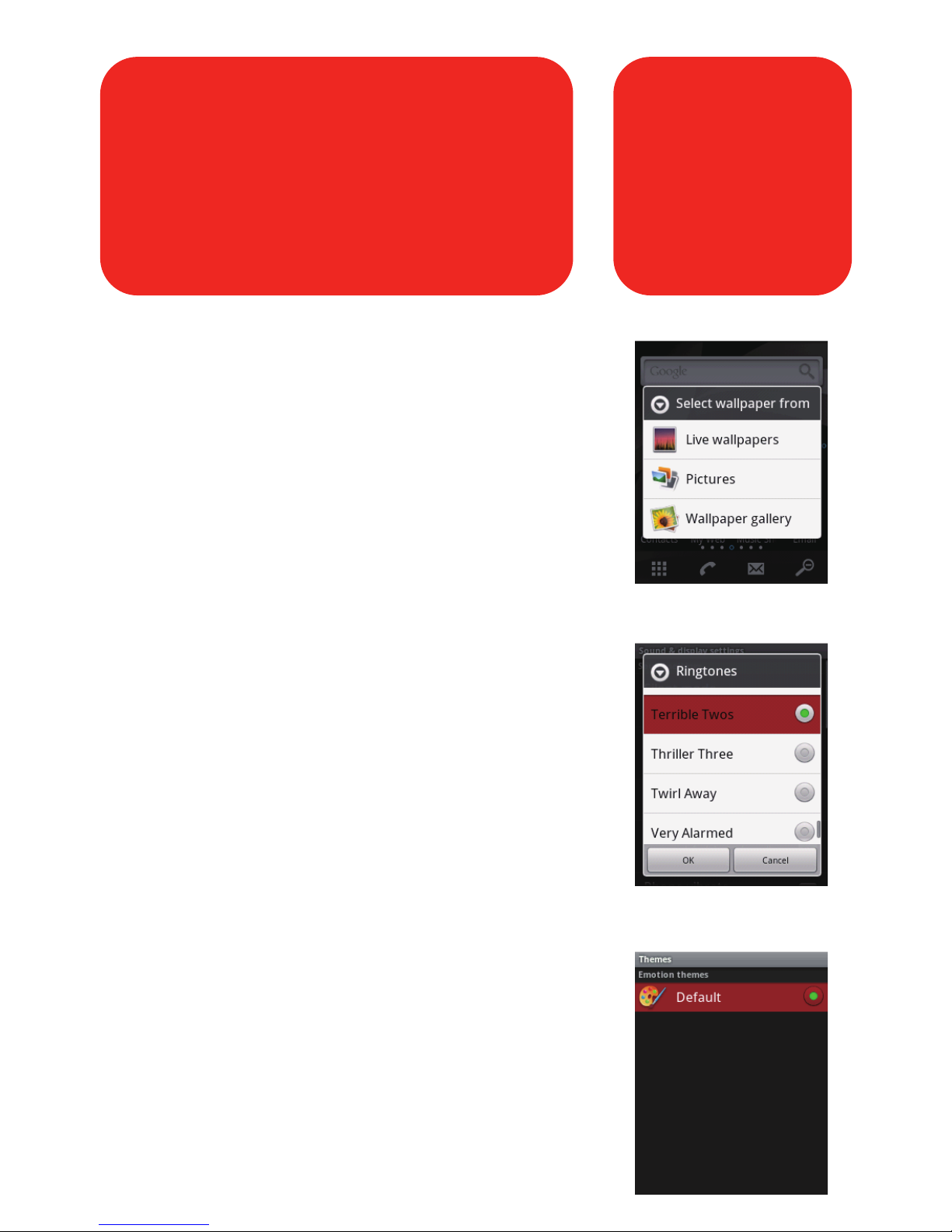
Changing the Wallpaper
Changing the Ringtone
Changing the Theme
• On the Home screen, press the MENU
button, and then touch Wallpaper.
• In the options menu, select a picture
application.
• Select the wallpaper you want to use.
• On the Home screen, press MENU
button, and then choose Settings >
Sound & display > Phone ringtone.
• Select the ringtone in the list and then
touch OK.
• On the Home screen, press the MENU
button, and then choose Themes.
• Select the theme you want to use.
 Loading...