

Page 1
© Vodafone Group 2011.
Vodafone and the Vodafone logos are trade marks of Vodafone Group. Any product or
company names mentioned herein may be the trade marks of their respective owners.
User manual
Vodafone 555 Blue
Page 2

Notice
Copyright © 2011 TCT Mobile Limited
All Rights Reserved
Your phone is made exclusively for Vodafone by TCT.
No part of this manual may be reproduced or transmitted in any form or by any means
without prior written consent of TCT.
Trademarks
VODAFONE, the Vodafone logos are trade marks of the Vodafone Group. Other product
and company names mentioned herein may be trade marks of their respective owners.
TCT is a trademark of TCT.
TouchPal™ and CooTek™ are trademarks of Shanghai HanXiang (CooTek)
Information Technology Co., Ltd. and/or its Affiliates.
under licence from Opera or Teleca. The WAP navigator and the software included are the
exclusive property of Opera or Teleca. For this reason, it is forbidden to modify, translate,
disassemble or even decompile all or part of these software programs.
The Bluetooth
(Qualified Design ID): B017054
microSD™ is a trade mark of SD Card Association.
PC suite copyright © 2010 Chengdu Singularity Software Co.,Ltd.
The WAP navigator and some message software (i-mode™) are used
®
word mark and logos are owned by Bluetooth® SIG, Inc. Bluetooth® QDID
Licences•
microSD Logo is a trademark.
The Bluetooth word mark and logos are owned by Bluetooth SIG, Inc. and
any use of such marks by TCT Mobile Limited and its affiliates is under
license. Other trademarks and trade names are those of their respective
owners.
Vodafone 555 Blue Bluetooth QD ID B017054
Facebook and the f Logo are trademarks of Facebook, Inc., and are used
under licence.
Notice
The information in this manual is subject to change without notice. Every effort has
been made in the preparation of this manual to ensure accuracy of the contents, but
all statements, information, and recommendations in this manual do not constitute
a warranty of any kind, expressed or implied. Read the safety precautions and safety
information carefully to ensure that you use this wireless device in a correct and safe
manner.
TCT Mobile Limited Address:
TCT Mobile Europe SAS, 55 Av. des champs pierreux Le Capitole, Noyau B, 1er étage,
92000 Nanterre, France.
Website: http://www.vodafone.com/vodafone555blue/
1 2
Page 3

Table of contents
1 Your mobile .............................................................................................................................. 6
1.1 Keys and connectors ...............................................................................................................6
1.2 Home screen ..............................................................................................................................9
2 Getting started ...................................................................................................................... 13
2.1 Set-up ......................................................................................................................................... 13
2.2 Power on your phone ........................................................................................................... 15
2.3 Power off your phone ..........................................................................................................15
3 Calls ..........................................................................................................................................16
3.1 Placing a call ............................................................................................................................ 16
3.2 Answering or rejecting a call ............................................................................................. 16
3.3 Calling your voicemail ........................................................................................................ 17
3.4 During a call ............................................................................................................................. 17
3.5 Managing multiple calls .....................................................................................................18
4 Messaging ............................................................................................................................... 19
4.1 SMS/MMS ................................................................................................................................. 19
4.2 Facebook ...................................................................................................................................22
4.3 Email ........................................................................................................................................... 22
5 Contacts ..................................................................................................................................24
5.1 Consulting your contacts ...................................................................................................24
5.2 Adding a contact .................................................................................................................... 25
5.3 Available options.................................................................................................................... 26
6 Call log .....................................................................................................................................27
6.1 All calls ...................................................................................................................................... 27
6.2 Voicemail...................................................................................................................................29
7 Facebook features ................................................................................................................ 30
7.1 Chat ............................................................................................................................................. 30
7.2 Me ................................................................................................................................................ 30
7.3 News Feed ................................................................................................................................ 31
7.4 Facebook Search .................................................................................................................... 31
7.5 Favourites .................................................................................................................................. 31
8 Music ........................................................................................................................................ 32
8.1 Music player ............................................................................................................................ 32
8.2 Radio ........................................................................................................................................... 34
9 Browser .................................................................................................................................... 35
10 Camera .....................................................................................................................................36
10.1 Camera .......................................................................................................................................36
10.2 Video ...........................................................................................................................................38
11 Pictures & Videos .................................................................................................................39
12 Clock ........................................................................................................................................ 40
12.1 Alarm .......................................................................................................................................... 40
12.2 World clock ...............................................................................................................................40
12.3 Time and date .........................................................................................................................40
13 Calendar .................................................................................................................................. 41
14 Applications ........................................................................................................................... 42
14.1 Palringo ...................................................................................................................................... 42
14.2 Weather ...................................................................................................................................... 43
14.3 News ........................................................................................................................................... 44
14.4 Java .............................................................................................................................................. 44
14.5 File manager ............................................................................................................................ 46
14.6 Tasks ............................................................................................................................................49
14.7 Notes ....................................................................................................................
14.8 Calculator..................................................................................................................................50
14.9 Converter .................................................................................................................................. 50
14.10 Stopwatch ................................................................................................................................. 50
15 Settings ...................................................................................................................................51
15.1 Facebook settings ................................................................................................................. 51
15.2 Device sound profile ............................................................................................................. 51
15.3 Flight mode .............................................................................................................................. 52
15.4 Device settings ......................................................................................................................53
15.5 Call settings ............................................................................................................................. 54
15.6 Security ...................................................................................................................................... 55
15.7 Networks ...................................................................................................................................55
...................... 50
3 4
Page 4
15.8 Connectivity ............................................................................................................................. 55
15.9 Java settings ............................................................................................................................57
15.10 Check software update .......................................................................................................57
15.11 Factory reset ........................................................................................................................... 57
16 Making the most of your mobile ..................................................................................... 58
16.1 Vodafone 555 Blue PC suite .............................................................................................. 58
16.2 Vodafone 555 Blue Software Upgrade .......................................................................... 59
16.3 Webcam ..................................................................................................................................... 59
17 Latin input mode/character table .................................................................................. 60
18 Product Safety Information .............................................................................................. 62
19 Telephone warranty ............................................................................................................ 71
20 Accessories ............................................................................................................................ 73
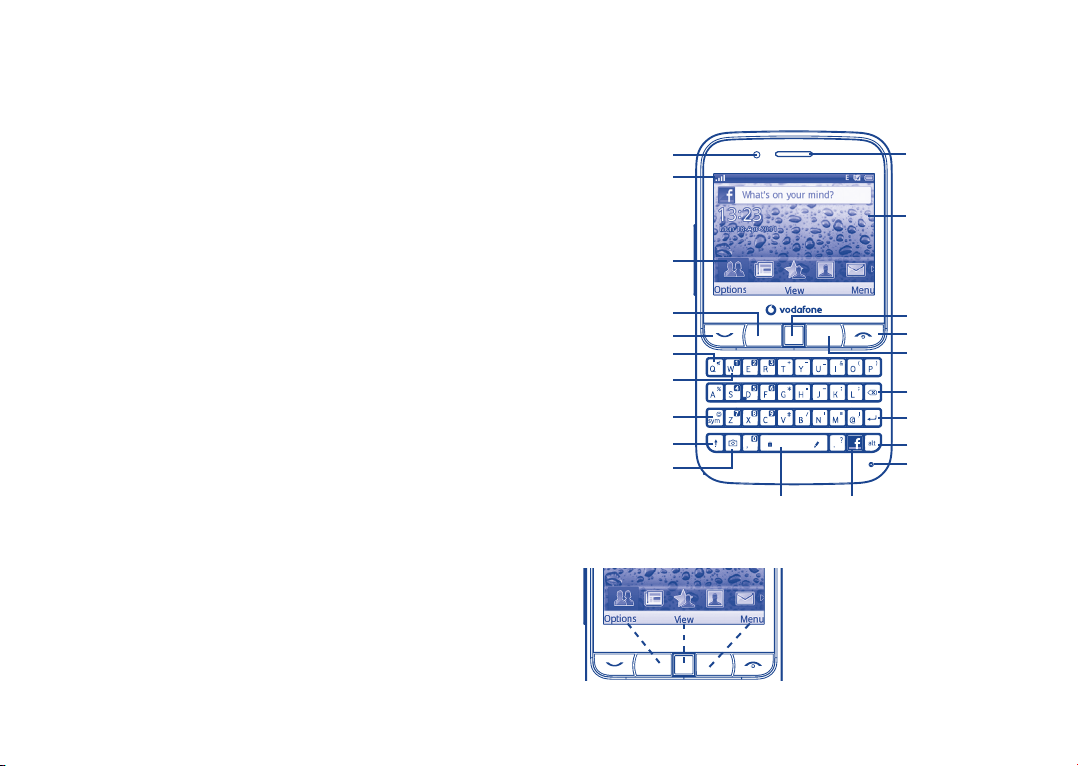
Your mobile1
Keys and connectors1.1
Notification light
Status bar
Widget bar
Earpiece
Home screen
Left softkey
Send key
Silence key
Voicemail key
Sym key
Shift key
Camera key
Space key Facebook key
5 6
Navigation key/OK key
End key
Right softkey
Delete key
Enter key
Alt key
Microphone
Pressing the Left softkey and Right softkey
equals to select lower-left and lower-right
words in bottom bar.
Page 5
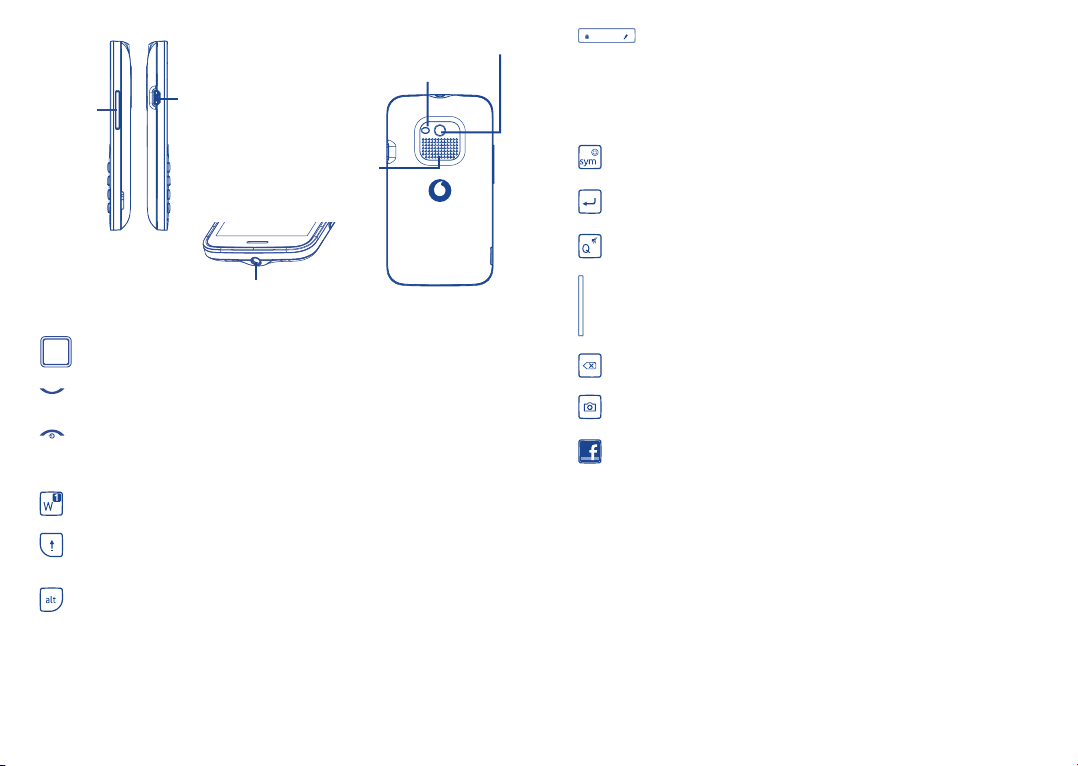
Volume key
Micro-USB connector
Loudspeaker
Flash
Camera
Press: Enter a space (on Edit mode)•
Press OK key, then Space key to unlock the keypad (on Lock
screen)
Press and hold: Access text input language list (on Edit mode)•
Lock the keypad (on Home screen)
Hold down • Alt key, then press Space key to select input method
Enter symbol table•
Hold down • Alt key, then press Sym key to enter emoticon table
Confirm an option•
Enter the next line•
Press and hold: Switch between Normal and Silence profile•
Headset connector
Flick to go left/right/up/down•
Press to confirm an option (press the middle of the key)•
Pick up/Send a call•
Enter Call log•
Press: End a call •
Return to the Home screen
Press and hold: Power on/off•
Press and hold: Access your voicemail•
Press once: Input a capital letter•
Press twice: Lock the keyboard in capital letter input mode•
Press once: Input a top-half key character•
Press twice: Lock the keyboard in top-half key input mode •
Alt + B: Access Bluetooth
Alt + M: Access Music
Alt + F: Access News Feed
Alt + J: Access Java applications
7 8
Volume up/down•
Scroll up/down (in News Feed or Music playing screen)•
Press to delete a word or character•
Press to access Camera (in Home screen)•
Press to take a photo (in Camera mode)•
Press to enter Facebook News Feed page. You can personalize key •
functions with other Facebook features (refer to page 51).
Page 6
Home screen1.2
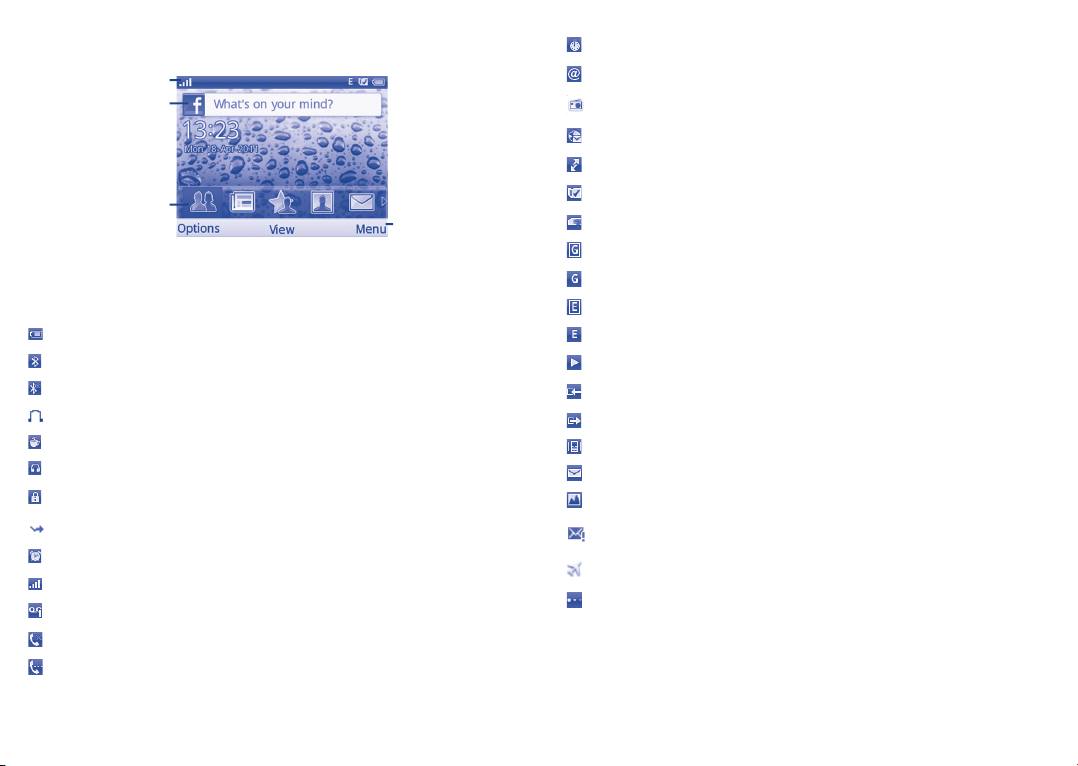
The Home screen is divided into several parts, as shown below:
Status bar
Facebook status update
Widget bar
Status bar 1.2.1
From the status bar, you can view both phone status and notifications.
(1)
Battery charge level.
Bluetooth activated and visible.
Bluetooth activated but invisible.
Bluetooth status (Connected to an audio device).
Java application activated.
Headset connected.
Keypad locked.
Call forwarding activated: your calls are forwarded (see page 28).
Alarm or appointment programmed (see page 40, 41).
Level of network reception.
Voicemail message received.
Missed calls.
Call in progress.
Select to enter main
menu screen
Stopwatch activated.
Email unread.
Radio is on.
WAP alerts
(1)
.
Roaming.
SD card inserted.
SIM card unavailable.
GPRS in use.
GPRS connected.
Edge in use.
Edge connected.
Music player active.
Message receipt in progress.
Sending a message.
Silence mode.
unread.
SMS
MMS unread.
Message list is full: your phone cannot accept any new messages. You must
access the message list and delete at least one message from your SIM card.
Flight mode.
Data refreshing.
(1)
The icons and illustrations in this guide are provided for informational purposes only.
9 10
(1)
Depending on your network operator.
Page 7

Facebook status update1.2.2
The Home screen provides quick access for users to update their own status or view status
updates of Facebook friends.
Use the
ideas.
When finished, press
You can bring main menu items and favourite or frequently used contact details to your
widget bar for quick access. Flick left or right to view current widgets, select
a new widget.
Locate the cursor on the widget bar and press the Left softkey to select "Options", the
following choices are available:
Add
Move
Change
Remove
key to locate your cursor on the Facebook bar and enter your feelings or
to share them with your Facebook friends.
Widget bar1.2.3
Add a new item to the widget bar
Move the current widget to desired position
Change the current widget to a new one
Remove the current widget from the widget bar
The maximum number of the widgets allowed is 15; when the list is full, will
not be displayed on the bar.
to add
Wallpaper customization1.2.4
Refer to page 53.
Lock/Unlock screen1.2.5
To protect your phone and privacy, you can lock the screen by pressing and holding the
Space key.
To unlock the screen, press
Main menu 1.2.6
To access the main menu screen, select "Menu" from the Home screen.
On the main menu screen, select "Options", the following choices are available:
Move
Show app in menu
, then the Space key.
Move the current widget to desired position
Select to show applications you like on the main menu screen
11 12
Page 8
Getting started2
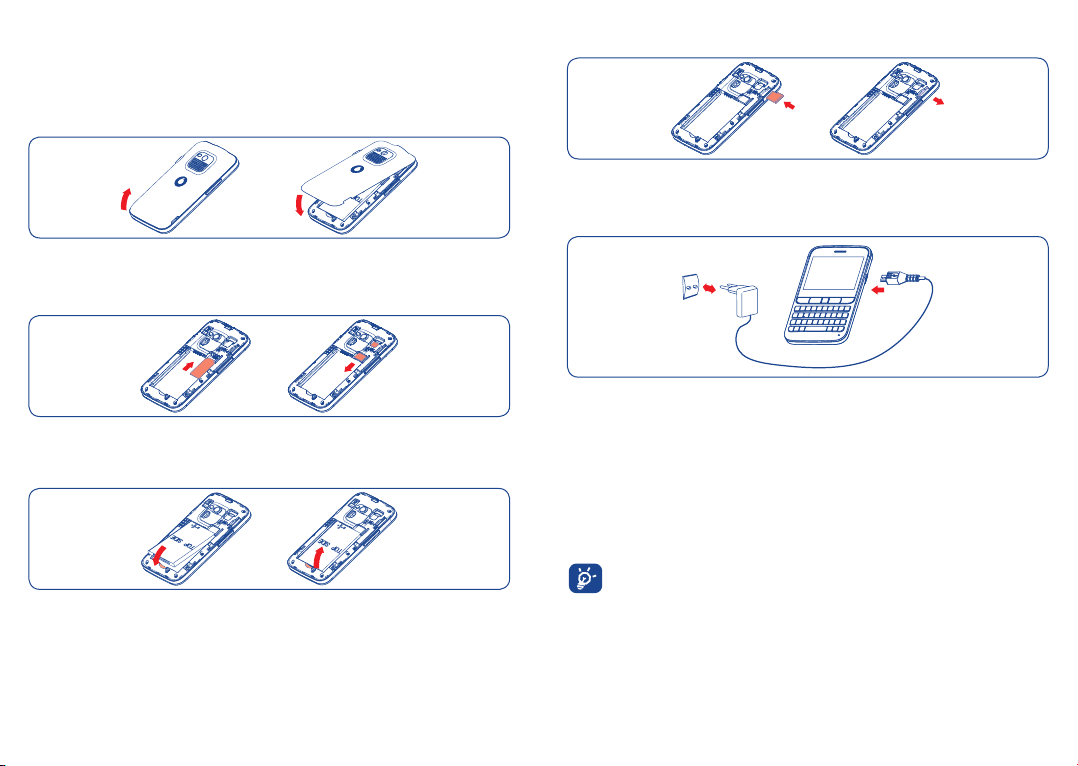
Set-up2.1
Removing or installing the back cover
Installing and removing the memory card (MicroSD card)
Insert the MicroSD card with its golden contact facing downwards into the slot until it is
locked. Gently push the SD card until it is unlocked.
Charging the battery
Inserting or removing the SIM card
(1)
You must insert your SIM card to make phone calls. Please power off your phone and
remove battery before inserting or removing the SIM card.
Place the SIM card with the chip facing downwards and slide it into its housing. Make sure
that it is correctly inserted. To remove the card, press it and slide it out.
Installing or removing the battery
Insert and click the battery into place, then close the telephone cover.•
Unclip the cover, then remove the battery.•
(1)
Check with your network operator to make sure that your SIM card is 3V or 1.8V compatible. The
old 5 Volt cards can no longer be used. Please contact your operator.
13 14
Connect the battery charger to your phone and mains socket respectively.
If the battery is flat, it may take around 20 minutes to display the battery charger •
indicator on the screen.
Be careful not to force the plug into the socket.•
Make sure the battery is correctly inserted before connecting the charger.•
The mains socket must be near to the phone and easily accessible (avoid electric •
extension cables).
When using your phone for the first time, charge the battery fully (approximately 3 •
hours). The charge is complete when the animation stops.
To reduce power consumption and energy waste, when battery is fully charged,
disconnect your charger from the plug; switch off Bluetooth or backgroundrunning applications when not in use; reduce the backlight time, etc.
Page 9

Power on your phone2.2
Hold down the key until the phone powers on, type in your PIN code if necessary. The
main screen is displayed.
If you do not know your PIN code or if you have forgotten it, contact your
network operator. Do not leave your PIN code with your phone. Store this
information in a safe place when not in use.
If Broadcast SMS are displayed, use the
to return to the Home screen.
While the phone is searching for a network, "Searching/Emergency" will be displayed.
Set up your phone for the first time
The first time you power on the phone, you are required to adjust initial basic settings and
login to your Facebook account to synchronize Facebook information.
The initial set up can be skipped by pressing the Right softkey or enabled from
within the main menu of "Settings".
key to browse through them or press the
Calls3
Placing a call3.1
Enter the desired number from the keypad directly or select a contact from Contacts or
Call log, then press the key to place the call. The number you entered can be saved
to Contacts by selecting "Save".
If you make a mistake, you can delete the incorrect digits by pressing the Delete key.
To hang up, press the
International calls
To make an international call, enter "+", then enter the international country prefix
followed by the full phone number and finally press the
Making an emergency call
If your phone has network coverage, dial the emergency number and press the
to make an emergency call. This works even without a SIM card and without typing the
(1)
PIN code
.
key.
key.
key
Power off your phone2.3
Hold down the key from the Home screen.
15 16
Answering or rejecting a call3.2
When you receive an incoming call, press the key or select "Answer" by pressing
key to answer.
the
Hang up the call by pressing the key. If the caller (local contact only) is not one of
your Facebook friends and the remind setting (refer to page 51) is active, a reminder
screen will appear to suggest sending a Facebook friend request to the caller.
When you receive an incoming call but don’t want to answer, you may select "SMS reject"
to reject it by SMS.
To mute the ringtone volume of an incoming call, press the Left softkey to select
"Mute".
(1)
Depends on local regulations.
Page 10

Calling your voicemail 3.3
(1)
Your voicemail is provided by your network to avoid missing calls. It works like an
answering machine that you can consult at any time. To access your voicemail, hold
down the
key.
To set your voicemail number, enter Settings\Call settings\My numbers.
To use your voicemail service from abroad, contact your network operator
before leaving.
During a call3.4
(1)
When a call is in progress, press the Left softkey to open the call options:
New call
Hold single call
End single call
DTMF
Switch audio patch
Hold the current call and dial another number
Hold the current call
End the current call
Enable/Disable sending DTMF during the call
Switch audio speech from handset to Bluetooth device when
connected
Contacts
Messaging
Calendar
Services
Sound recorder
Enter Contacts menu
Enter Messaging menu
Enter Calendar menu
Enter Service menu
Record your current call
You can mute the call by pressing the Right softkey and use the Handsfree function by
pressing the
key during a call.
Move the handset away from your ear while using the Handsfree option
because the amplified volume might cause hearing damage.
You can switch the audio speech from handset to Bluetooth device when connected.
Handling two calls
Answering a second call (ensure that "• Call waiting" is activated, see page 28).
To call a second party during a call, you can select "• Options\New call".
Managing multiple calls3.5
(1)
Conference calls3.5.1
Your phone allows you to talk to several people at the same time (up to five). If you are on
a two party call, press "Options" and select "Conference". If a third call comes in, answer
it by pressing the
key and speak with your new caller.
This caller becomes a member of the conference if you press "Options" and select
"Conference call". Pressing
disconnects the current call.
To end the conference call, press "Options" and select "End conference".
(1)
Contact your network operator to check service availability.
17 18
(1)
Contact your network operator to check service availability.
Page 11

Messaging4 .................................................
You may access this menu using the following options:
Access from the main menu screen by selecting "• Messaging".
from the widget bar.
Select •
You will see three tabs within this menu:
SMS/MMS
Facebook
Email
You can create, edit and receive SMS and MMS with this mobile phone.
MMS enables you to send video clips, images, photos, animations and sounds to other
compatible mobiles and e-mail addresses.
You can select "Write new SMS/MMS" from the messaging screen to write text/
multimedia messages. One or more recipients can be added from the contact list and
you can remove a recipient by pressing
select multiple recipients.
An SMS will be converted to MMS automatically when images, videos, audio, slides or
attachments are inserted; Subject, CC/BCC/email address is added; or the message
contains more than 8 pages of text.
When finished entering text, press the
List all SMS and MMS you have sent or received.
List all Facebook messages
List all Emails
SMS/MMS4.1
The MMS function can only be used if the service is provided by your operator, if
your contract includes the MMS option and if all the parameters for MMS have
been entered.
Write new SMS/MMS4.1.1
. Select "Contacts" using the key and then
key to send it.
An SMS message of more than a certain number of characters (the number of
characters depends on your language) will be charged as several SMS. An MMS
message containing photos and/or sounds may also be billed as more than one
message. Specific letters (accents) will increase the size of the SMS, this may
cause your recipient to receive your message as two or more SMS messages.
Available options when writing new SMS/MMS4.1.2
When writing text/multimedia messages, selecting "Options" will access all available
options:
Send
Timer send
Title settings
Text input
Inset symbol
Add picture/
sound/video
Slide options
Message type
Advanced
Save
Details
Send the message you drafted
Schedule an SMS/MMS to be sent out at a predefined time
Adjust title settings
Set text input mode and language
Insert a symbol into message text
Add picture, sound or video to multimedia message
Adjust slide settings
Set message type
Access advanced message settings
Save current message as draft
View details of current message
19 20
Page 12

Messaging settings4.1.3
• Text message
Profile settings
Common settings
Alphabet
management
SMS Memory status
Preferred storage
Preferred bearer
• Multimedia message
Edit
Send
Retrieve
Profile
MMS Memory status
• Broadcast SMS
(1)
Receiving mode
Languages
Channel settings
Profiles can be retrieved directly from SIM card. Alternatively, you
can create your own profile.
Delivery report, request for acknowledgement of delivery report
On/Off. Reply path
(1)
: show reply path.
Enables the definition of SMS data coding for SMS sending.
Memory used on the phone.
Select default message storage, SIM or phone.
Bearer preference.
Set slide timing, edit mode, image size, signature, etc.
Set the values for validity period, Read report, etc.
Set the values for Home network, Roaming network, etc.
Follow the same procedure as for setting your Web connection.
Memory used on the phone.
Enable to receive broadcast SMS.
Language selection.
Select/Add/Edit/Delete channels.
Facebook4.2
From this tab, you can exchange messages with your Facebook friends.
Select "Write new Facebook message" to enter message editing screen, enter your
friend's name or select one friend from your friends list by pressing the
message text. When finished, press the
key to send it.
key, then enter
Available options:
View profile
View recipient list
Delete
Delete all
Refresh
View the sender's profile
View recipients' profiles if there are two or more recipients
Delete the current conversation thread
Delete all threads.
Data refresh.
Email4.3
Your phone has an email client with the settings pre-defined for a few popular email
services like – GoogleMail, Yahoo, AOL, etc. Besides these, you can set up other POP3 or
IMAP4 email accounts that you may be using.
Email account set-up4.3.1
Pre-defined email service
If you own an email account with a predefined service, you can install it to your phone
by selecting the service (GoogleMail, yahoo, etc.), entering the username, password and
account name, and then confirming by selecting "OK".
New email service
To set up a new email account other than the predefined email services, select "Other
Email accounts".
You are required to enter your email address, display name, password, account name,
then confirm with "Save". Afterwards you‘ll need to select protocol
then enter your incoming server address and outgoing server address, and finally select
"Save".
(1)
(POP3 or IMAP4),
(1)
Depending on your network operator.
(1)
Consult your email service provider for more information about protocol.
21 22
Page 13

Write new email4.3.2
Select "Write new email" from the Email screen to enter the email writing interface. You
can add a recipient by entering their Email address in the enter bar, or selecting a contact
from Contacts.
Available options4.3.3
Select
Send and receive
Send and receive all
accounts
Write email
Edit account
Delete account
Delete
New account
Delete marked
Empty folder
Empty all folders
Signature
Select to enter the menu.
Connect to the email server in order to receive/send mails.
Connect to all email account servers in order to
send/receive mails from all accounts.
Create a new email.
Edit the configuration details of the selected account.
Delete the currently selected account.
Delete current email.
Create a new email account.
Delete all marked emails in all folders.
Delete all emails in "Inbox/Outbox/Sent/Drafts".
Delete all emails in all folders.
Attach your signature when sending emails.
Contacts5 ......................................................
Consulting your contacts5.1
You can access this function from the main menu screen by selecting "Contacts" or
selecting
When accessing this menu, you will see three tabs:
All
Favourites
Phone
Contacts with the icon at the end are your Facebook Friends or merged contacts.
Searching for a contact
You can search for a contact by entering the initial of their name. Subsequent letters may
be added to refine the search.
Viewing a contact
Select a name from your contacts, then click to read the contact details.
Making a call
Locate the name you want to call, then press the
If several numbers are associated with the name to be called, you must first choose the
number from the list (Mobile, Home, Work, etc.), and then press the
the call.
from the widget bar.
List all contacts
List your favourite contacts
List phone contacts
When consulting your contacts for the first time, you are required to import
them from the SIM card to your phone.
key.
key to make
23 24
Page 14

Adding a contact5.2
You can add a new contact by selecting "Add contact".
The following fields are accessible when you create a new entry in Contacts: Name, Image,
Mobile, Home, Work, Email, Birthday, Birthday reminder, URL, Address, Ringtone.
You can move from one field to another using the
Adding birthday reminder
You can set a birthday reminder when editing contact information. This will remind you at
regular intervals during the day prior to the set date.
If you use your phone abroad, store your Contact numbers in international
format: "+" followed by the country code.
key.
Available options5.3
From the contact list or contact info screen, you can access the following options:
Send message
Edit before call
Set as favourite/
Remove from
favourites
Delete
Delete all local
contacts
Contacts settings My number
Merge to Facebook
Merge to a local
contact
Split
Send an SMS/MMS/Facebook message/Email (if available) to a
contact you selected from Contacts.
Edit the phone number before placing a call.
Select (or deselect) a contact as a favourite, and identify them with
a distinctive ringtone.
Delete the selected contact.
Delete all local contacts stored in your phone.
Type in, modify or send the user’s own
number by SMS.
Memory status
Import to phone
Export to SIM
card
SIM contacts
Sort type
Merge the contact with your Facebook friends.
Merge a Facebook contact with your local contact.
Split the merged contact.
View used and available space in SIM and
Phone contacts.
Copy the contact you selected from SIM card
to phone, only if there is sufficient memory.
Copy the contact you selected from phone to
SIM card, only if there is sufficient memory.
Select to view SIM contacts.
Select to sort contacts by first name or last
name.
25 26
Page 15

Call log6 .........................................................
You can access this function like this:
from main menu
Select •
Press•
key from Home screen
Select •
Once you have accessed the call log, you will see two tabs:
All calls
Voicemail
The call log shows three different types of call:
Locate one contact, select "View" to view call details, press the
directly.
From the call log screen, you can access the following options:
Send message
Save to Contacts
Dial
Edit before call
Delete
Missed calls
Delete all
Add as Facebook
friend
My number
Call duration &
data counter
Call settings
from widget bar
List all calls
List received voicemails
All calls 6.1
Missed calls
Outgoing calls (Redial)
Answered calls
Available options6.1.1
Send message to current contact or number
Save the current number to Contacts
Call current contact or number
Select to enter edit screen to edit current number before calling
Delete current call memory
Select to display all missed calls
Delete all call memory
Select to send Facebook friend request to the contact
Refer to page 28
Refer to page 28
Refer to page 28
27 28
key to place a call
Call settings 6.1.2
(1)
• My numbers
Type in or modify your telephone number or the number to access your voicemail and
confirm. Your telephone number is usually written on your SIM card.
• Call duration & data counter
You can access different items with this option:
Amount
You can view the last, max. or total cost of charged calls, modify
or reset it and enter the cost of a call in the currency of your choice.
Duration
GPRS counter
You can view or reset the total duration of all outgoing calls.
Manages the volume of data communication charged for (in
kilobytes).
Beep duration
You can activate or cancel the beep emitted during a call with a
specified frequency (enter the frequency and confirm by pressing
key).
the
• Call waiting
Activate/deactivate the notification of a second incoming call by a beep.
• Call forwarding
You can activate, cancel or verify the status of calls forwarded to voicemail or to a
specified number. The following configurations are possible:
Unconditional: automatic forwarding of all your calls. The
icon is displayed.
Conditional: if your line is busy, if you don’t answer or if you are outside the network
range.
(1)
Contact your network operator to check service availability.
Page 16

• Call barring
You can activate or deactivate call barring for outgoing and incoming calls. The various
options are:
Outgoing calls
All calls
International calls
International
except home
Incoming calls
All calls
Roaming
Cancel all barring
Change barring
password
• Caller ID
Set by network/Hide number/Send number.
• Auto redial
You can activate or deactivate automatic callback for calls that do not get through the
first time.
All outgoing calls are barred.
Outgoing international calls are barred.
Outgoing international calls except those to your country of
subscription are barred.
All incoming calls are barred.
Incoming calls are barred when you are abroad.
Deactivate all call barring.
Change the original password for activating call barring.
Voicemail6.2
From this menu, you can view all voicemail memory.
For detailed information about voicemail, please refer to page 17.
Facebook features7
Facebook is a social utility that connects people with friends and others who work, study
and live around them. It provides a number of features with which users may interact: Wall,
a space on every user's profile page that allows friends to post messages for the user to
see; Pokes, which allow users to send a virtual "poke" to each other, etc.
To get a Facebook account, please visit www.facebook.com.
To login to Facebook using your phone, please refer to page 51.
With this device, you can press
can also personalize this key with other Facebook features by selecting "Settings\Facebook
settings\Assign Facebook key".
Chat7.1 ..............................................................................................................
To access this feature, you can select "Chat" from the main menu screen, or directly select
from the widget bar on Home screen.
Facebook Chat is a service which provides a new way to communicate with your friends
in real-time. Chat allows more immediacy than using either the Wall or Inbox which are
the ways of keeping up with friends. No installation or assembly is required. Messages
are delivered and displayed to your friend as soon as they are sent. You can also collapse
conversations to get them out of the way and go offline if you do not want to use chat
at all.
Me7.2 .................................................................................................................
To access this feature, you can select "Me" from the main menu screen, or directly select
from the widget bar on Home screen.
This menu displays the following tabs when accessed:
Info
Wall
Notifications
Groups
Likes and interests
key on the keypad to enter Facebook News Feed page. You
Displays your Facebook profile information.
Displays all your status and post messages from your Facebook
friends.
Displays all notifications from your Facebook friends.
Displays group information.
Displays all pages that you like or find interesting.
The icon of this menu will vary according to your Facebook profile photo.
29 30
Page 17

News Feed7.3 ..................................................................................................
To access this feature, you can select "News Feed" from the main menu screen, or directly
from the widget bar on Home screen.
select
This menu enables users to view a constantly updated list of their Facebook friends’
activity, profile changes, upcoming events, birthdays, conversations taking place between
the walls of their friends, etc.
This menu displays the following tabs when accessed:
News Feed
Favourites
Displays latest news or status update of your Facebook friends.
Displays the News Feeds of all friends selected as favourite
contacts.
Facebook Search7.4 ......................................................................................
To access this feature, select "Search" from the main menu screen.
This menu enables users to search for a friend they want to connect with, or locate a page
they want to view, etc.
Favourites7.5 ..................................................................................................
To access this feature, select "Favourites" from the main menu screen, or directly select
from the widget bar on Home screen.
This menu displays the following tabs when accessed:
Contacts
News Feed
Displays info for all contacts set as favourites.
Displays the News Feeds of all favourite contacts.
Music8 ..............................................................
You can access this feature from the main menu screen by selecting "Music".
From here, you can access either the Music player or the Radio.
Music player 8.1
Gives you full flexibility when managing music both on your mobile and SD card.
You can access your music files through one of the following:
All songs
Favourites
Folders
Album/Artist/
Genre
Update songs
Settings
Contains all songs both on phone and SD card.
You can simply add your favourite songs to "Favourites" by holding
down
during playing music (max 100).
Category of songs in folder.
Music files are categorized by Album, Artist or Genre based on
information stored in the tags. Those missing such information will
be classified as "Others".
Update the information of songs saved in phone or SD card.
See page 33.
31 32
Page 18
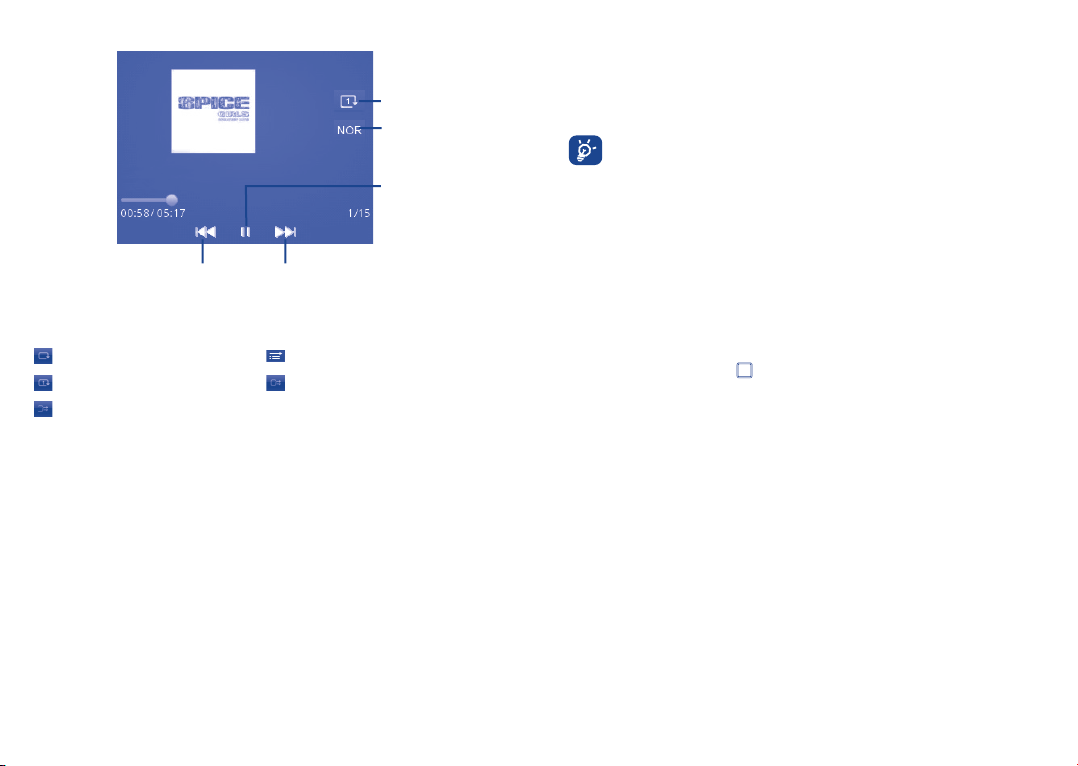
Music playing mode8.1.1
Previous song (Short press)
Backward (Press and hold)
Next song (Short press)
Forward (Press and hold)
Play mode icons:
Repeat all Normal play mode
Repeat current Repeat shuffle
Shuffle
To adjust the volume, use the Volume key
Music settings8.1.2
Play mode
Enables you to switch among Normal, Repeat current, Repeat all,
Shuffle and Repeat shuffle.
Equalizer
Display
Select different playback styles from presets in your phone.
Enables your player to display song info. or lyrics.
Play mode
Equalizer
Play/pause
Radio8.2
Your phone is equipped with an FM radio
(1)
with RDS functionality. You can use the
application as a traditional radio with saved channels or display parallel visual information
related to the radio program if you tune to stations offering Visual Radio service. You can
listen while running other applications.
(2)
You must plug in your headset to use the radio, as this works as an antenna when
connected to your phone.
Available options:
Channel list
Save channel
Auto search
Opens the list of saved stations.
Saves the currently tuned station to the "Channel list".
Start auto search and stations will be automatically saved to
"Channel list".
Enter frequency
Record
Settings
Activate
Enter the frequency manually.
Record the radio. Files will be automatically saved to "Notes".
Use the
key to manage Radio settings
Listen to the radio using loudspeaker or headset.
loudspeaker/Play in
headset
Activate mono
Switch between mono and stereo mode.
mode/stereo mode
Update station
(2)
name
Optimise radio
Save RDS information such as station name in the channel list.
Optimise the audio quality.
frequency
Turn off
Stop playing the radio.
(1)
The quality of the radio depends on the coverage of the radio station in that particular area.
(2)
Available if RDS information is detected.
33 34
Page 19

Browser9 .......................................................
Opera Mini lets you browse the entire Web anywhere. It recognises and suggests URL
completions based on your bookmarks and browsing history, lets you save pages for
viewing offline and gives your phone a virtual mouse.
Find things faster
The new Opera Mini lets you search for text within a web page so you can get to the
information you need even quicker than before.
Get to your Web sites faster
When typing web addresses, Opera Mini will recognize and suggest completions for you
based on your bookmarks and browsing history, making address input faster, easier and
much more intuitive.
Save it for later
Opera Mini lets you save pages for offline viewing so you can quickly access and read your
desired web content, even when you’re on a plane, in the subway, or in other places where
you can’t get network reception. Depending on your phone, you may need to choose a
destination folder for storing pages for offline viewing.
Camera10 ........................................................
Your mobile phone is fitted with a camera for taking photos and shooting videos that you
can use in different ways:
store them in "• Camera roll".
send them in a multimedia message (MMS) to a mobile phone or an email address.•
send them directly by Email or Bluetooth.•
customize your Home screen. •
select them as an incoming call image for a contact in your contacts.•
transfer them by data cable or microSD card to your computer.•
To access this function, select from the main menu screen.
SD card (if available) is automatically set as the preferred storage location for any
photos and videos which you take.
Camera10.1
Take a photo, save or delete10.1.1
The screen acts as the viewfinder. Position the object or landscape in the viewfinder and
or key to take the image which will then be automatically saved. If you do
press
not want the picture to be kept, you may delete it by selecting "Delete".
Camera settings10.1.2
Before taking a photo, you can adjust a number of settings by selecting
Switch to video
Night mode
Flash
Select to access video recording mode
Select to activate or deactivate night mode
Select to activate or deactivate flash
:
Brightness
Image size
Camera sound
35 36
Select to adjust brightness value
Select to set image size
Select to activate or deactivate camera capture sound
Page 20

Further operations after taking a photo10.1.3
When you have taken a photo, pressing
Send by Email
Send by Bluetooth
Access Camera roll folder
Upload to Facebook
Send by MMS
When uploading a picture to Facebook, you are required to edit the caption and tag
friends, and to select a Facebook album to store the pictures.
key, you will see the following options:
Video10.2
You can record a video clip of any length, depending only on the available battery power
and memory. To access video function, please select
We strongly advise you to make "SD card" the default folder in which to store
your photos and videos.
Video settings10.2.1
Before recording a video, you can adjust a number of settings by selecting
Switch to camera
Night mode
Brightness
Record audio
Further operations after recording a video10.2.2
When you have recorded a video, you can choose from the following options:
Send by Email
Send by Bluetooth
Send by MMS
Select to access camera capture mode
Select to activate or deactivate night mode
Select to adjust brightness value
Select to activate or deactivate audio when recording a
video
, and select "Switch to video".
:
37 38
Page 21

Pictures & Videos11 ......................................
This menu displays the following two tabs when accessed:
Facebook
My pictures
Facebook gallery is displayed in albums. The first album will be "Fan photos" which is
generated automatically and contains all pictures where you have been tagged.
Available options:
Set as
Send
Delete
Copy to SD card/
phone
Move to SD card/
phone
Refresh
Download
Manage on
Facebook
Share this album
List photos or videos downloaded from Facebook
List all other photos and videos you have taken or downloaded
Set photo as wallpaper, power on/off screen, or incoming call image.
Set video as power on/off screen
Send photo or video by MMS, Email or Bluetooth, or upload photo
to Facebook
Delete photo/video
Copy the picture/video to SD card or phone
Move the picture/video to SD card or phone
Select to sync photos with Facebook
Download photos from Facebook
Manage photos on Facebook
Select to share the current album
Clock12 ............................................................
Alarm12.1
Your mobile phone has a built-in alarm clock with a snooze feature. You can set up to five
separate alarms and choose whether or not the alarm should repeat.
Repeat
Snooze
Mode
Melody
You may select Once (default)/Everyday/Days or customize as
desired.
The alarm will repeat at regular intervals.
You can select the following ringtone modes: Ring, Vibration only,
(1)
or Vibration and Ring.
Radio
You can choose a melody as the alarm ringtone.
World clock12.2
The World clock shows current local time and the time zone in different cities. You may
view up to three cities at one time.
Time and date12.3
Allows you to set the date and time in either 12/24h format.
You can also set the daylight saving adjustment.
(1)
(1)
In Radio mode, you are required to plug in the headset first. Your phone will power on
automatically before the radio comes on.
39 40
Page 22

Calendar13 ......................................................
Once you enter this menu from the main menu screen, you'll see a month-view calendar
for you to keep track of important meetings, appointments, etc. Days with events entered
will be marked in colour.
Available options:
Today's
appointment
All appointments
Jump to date
Create
Settings
When you are logged onto Facebook, all your Facebook friends' birthday
See today’s appointments.
See all the created appointments.
Input the required date and it will be immediately highlighted.
Create an appointment.
Set the first day of the week and the first week of the year.
reminders will be synced automatically to your local calendar. An
appear on the status bar to notify you of up-coming birthdays.
icon will
Applications14 ...............................................
Access useful applications from this menu.
The applications you love or use most frequently can be added to the main menu screen
by selecting "Options" on the main menu screen, and then select "Show apps in menu".
(refer to page 12).
(1)
Palringo14.1
Palringo Instant messaging (IM) allows you to chat with other people using a Palringo
account. You can also connect to other popular IM services through Palringo, like AIM,
GG, ICQ, GTalk, iChat etc.
Please note that the services accessible to you will depend on your client version and
dynamic Palringo server options.
To access Palringo, select "Menu" from the Home screen to enter the main menu, select
then .
For more information about Palringo, please go to http://www.palringo.com/.
...................................................................................................
(1)
Depending on your network operator.
41 42
Page 23

Weather14.2 ...................................................................................................
Your phone is equipped with a weather function for consulting forecasts of up to three
days for favourite cities.
To access the function, select "Menu" through the Right softkey to access the main
menu screen and select
Select "AccuWeather.com" to access an online website, which may charge an
extra fee.
Available options:
More information
Forecast
Update
My cities
Settings
, then .
Search for more weather information online.
Display three-day weather forecast.
Refresh weather information.
List all my cities, you can add new city, set default city, delete the
selected city, etc. via "My cities\Options".
Set unit, update mode and network.
News14.3 ............................................................................................................
A huge time saver, providing news updates from a website in a simple form.
Once subscribed to a channel, it gives you the ability to track and manage all your
favourite RSS content on your mobile phone at anytime, anywhere!
Available options:
Update
Create channel
Delete
Edit
Update all
Settings
Enable/Disable all
auto-update
Send
Refresh the content of a channel.
Create a new channel with name and URL.
Delete the channel.
Edit the name or URL of a channel.
Refresh all channels.
Select a regular interval to retrieve updates automatically,
set to show images or not, connect to a WAP account.
Activate/deactivate auto update for all channels.
Share a channel with your friend by sending it by SMS, MMS
or Email.
Java14.4 .........................................................................................................
Your phone may include
(1)
some Java TM applications and games.
You can also download new applications and games to your phone.
Launch an application14.4.1
Press
key to select "Launch" to start the focused application.
Java settings14.4.2
To adjust Java settings, select "Options\Settings".
From this menu, you can set network, read or write user info, local connectivity, etc.
(1)
Depending on your country or your operator.
43 44
Page 24

Available options 14.4.3
Launch
Settings
Details
Networks
Restore settings
Launch the application
Enter a set of java settings
View detailed information about the application
Select a network
Restore default settings
Disclaimer
Downloading or running applications will not damage or alter any software already in your
mobile telephone designed to support Java™ technology.
TCT Mobile Limited and its affiliates waive any responsibility and refuse to guarantee
applications that are subsequently used, as well as for all applications not embedded in
the handset upon purchase.
The purchaser alone bears the risk of loss, damage or defect of the handset, or of
applications/software, and generally of any damage or consequence resulting from the
use of the said applications/software. In the event that the said applications/software, or
the subsequent setup of any function are lost due to technical reasons resulting from the
handset being replaced/repaired, the mobile phone owner should repeat the operation
and download or set up again. TCT Mobile Limited and its affiliates grant no guarantee and
disclaim any responsibility if the operation cannot be repeated or cannot be performed
without incurring some cost.
File manager14.5 .............................................................................................
Access all audio and visual files stored in your phone or SD card using "File manager".
My music14.5.1
Choose an audio for the Power on/off screen, for an incoming call, a message alert, power
on/off ringtone or an alarm and scheduler.
The "My music" album contains the following folders
Music
Melodies
Recorded
General
full track music.
melodies that can be set as ringtone.
all recorded sounds.
contains all audio files stored in phone or SD card.
DRM: Digital Rights Management feature allows sounds and images to be played
while protecting the associated copyright. DRM counter-based files and files
with expired rights will not be automatically played when scrolling through the
list.
My images14.5.2
You can select an image or a photo as wallpaper, power on/off screen, or assign it as a
contact's incoming call image.
The images will be displayed in alphabetical order.
(1)
:
(1)
The embedded folder names cannot be modified. However, in certain cases, you can modify,
delete and add items included in these folders.
45 46
Page 25

My videos14.5.3
The "My videos" album contains all video clips, originally embedded in the phone,
captured and downloaded to the phone or SD card.
Camera roll14.5.4
This feature stores all the photos captured by your mobile phone.
Other files14.5.5
Store other files.
Phone14.5.6
Provides access to all files in all folders stored in the phone.
SD card14.5.7
Access all files stored in the SD card.
When a SD card is inserted for the first time, it will be scanned and the default
folders will be created.
Available options:
Create folder
Empty folder
SD card
Create more folders.
Delete all files in one folder.
To format or to query its memory status.
Managing audios, images, videos and pictures14.5.8
According to the item chosen, you can access some of the functions below:
View
Play
Delete
Set as
Download
Rename
Sort
Move to phone/
SD card
Copy to phone/
SD card
Delete all
Capture
Send
View the selected image. If you want to view all the pictures in
your folder, press
Play the selected video.
Delete the audio/image/video selected (not applicable for
embedded items).
Image • → wallpaper, screen saver, power on/off, assign it to a
contact.
Sound • → ringtone, message beep, power on/off, assign it to a
contact.
Video • → power on/off.
Download new items.
Rename the audio/image/video.
Sort the files by name, type, time and size.
Move a file from the product memory to the SD card and vice-
versa.
Copy a file to the phone memory or the SD card.
Delete all the files except the embedded ones.
Access "Camera" function directly.
Send the file by MMS, Email or Bluetooth. You can also upload the
file to Facebook.
on the current picture.
47 48
Page 26

Formats and compatibility 14.5.9
(1)
Image: PNG, GIF, Animated GIF (GIF 87a), WBMP, BMP, JPEG•
Audio: SP-MIDI, AMR-NB, AMR-WB, AMR-WB+, MP3, AAC, AAC+, AAC+ enhanced, M4A, •
WAV, WMA L1&L2
Video: H.263, MPEG-4, .3gp•
Memory status14.5.10
Indicates how much space is used and how much is currently free on your phone and
SD card (if any).
Tasks14.6 ..................................................................................................................
Enables you to easily manage and track the progress of a task with priorities. All the tasks
will be sorted by due date.
Available options:
View
Create
Delete
Mark as done/
Mark as not done
View current task
Add new task
Delete the current task
Change task’s status
Notes14.7 .................................................................................................................
You can create a note in text or voice format by accessing "Notes" from the applications
list.
Available options:
Open
Send
Create text note/
Open and view note.
Send by SMS, MMS, Email or Bluetooth.
Add new text note or voice memo.
voice memo
Rename
Delete
Delete all
Rename the note.
Delete note.
Delete all notes.
While recording a voice memo, selecting "Settings", you can define the audio format
(AMR, WAV or AWB), quality (High/Low), and storage (Phone, SD card).
Calculator14.8 ...................................................................................................
Access this feature by selecting "Calculator" from the applications list.
Enter a number, select the type of operation to be performed, and enter the second
number, then press the
key to display the result.
Once an operation is complete, you can select "Clear" to clear numbers and carry out a
new operation.
Converter14.9 ........................................................................................................
You can use the Weight and Length conversion by selecting the unit you wish to convert,
then using the to input the digits. Finally confirm with "OK".
Stopwatch14.10 .................................................................................................
The stopwatch is a simple application for measuring time with the ability to register
several results and suspend/resume measurement.
(1)
Depending on your product and market.
49 50
Page 27

Settings15 .........................................................
From the main menu, select the menu icon and select the function of your choice in
order to customise your phone.
Facebook settings15.1
As a Facebook feature phone, you can access a set of Facebook settings.
My account
Select to enter Facebook login screen.
Assign Facebook key
Select to assign the Facebook key on the keypad with various Facebook features.
Background updates
Select to set the Background updates mode for updating Facebook features.
News Feed picture size
Select to set the picture size in News Feed.
Remind to add as friend after call
Select to activate a reminder to add as Facebook friend after call communication.
Privacy settings on facebook.com
Select to view Facebook privacy settings online.
Use this menu to personalise ringtones for different events and environments.
(1)
Device sound profile15.2
General15.2.1
To modify the sound settings, select "Edit" to reveal the following functions using the
key:
Ringtone
Mode
Volume
Message beep
Power on beep
Power off beep
Facebook tone
Silence15.2.2
This profile will turn off all ringtones, even notification sounds.
Select a melody from the list by scrolling up/down.
You may set your phone ringtone to Normal, Discreet (ring with
beep), Vibration (all sounds are replaced by vibrations except for
alarms), Vibration and Melody, Vibration then Melody, Beep and
vibration, Silence (no sounds except for alarms, the icon
displayed).
Adjust the volume using the
Select a melody for a new incoming message.
Select a Power on melody for your phone.
Select a Power off melody for your phone.
Select a Facebook tone.
key.
will be
Flight mode15.3
In Flight mode, voice calls, Bluetooth, messaging and other network related functions are
barred. It can be used to increase standby duration.
(1)
You may not able to login to Facebook if your account's Facebook Platform app access is not
switched on.
51 52
Page 28

Device settings15.4
A set of basic phone settings for you to adjust.
Display 15.4.1
Wallpaper
The wallpaper is displayed when you switch on your phone.
By selecting "Wallpaper" you can customise it by replacing the default image or
animation displayed on your phone.
Power On/Off image
You can customise your welcome animation or image that appears when you switch on
your phone. You can also customise your power off screen with an image or animation.
Brightness
You may adjust the white balance of the LCD display.
Keypad backlight
Select to set backlight time for keypad.
Set languages 15.4.2
From this menu, you can set both display language and writing language. The "Auto"
option selects the language according to the home network (if available).
Time and date15.4.3
Refer to page 40.
Headset mode15.4.4
Switch audio play (incoming call, message beep, alarm beep...) between Headset only
and Phone and Headset.
(1)
(1)
Shortcuts on keys15.4.5
Speed dial
These keys have predefined functions, which vary from one model to another. You can
(1)
customise
them, assigning functions, numbers from your contacts, or a selected URL
to each key.
Combined Alt keys
By pressing Alt key and other keys, you can access some functions accordingly (see
page 7).
Navikey sensitivity settings15.4.6
You can adjust the sensitivity of the navigation key to your preference.
Set auto-lock time15.4.7
Your keypad will be locked automatically after the interval which set.
Call settings15.5
Refer to page 28.
(1)
Contact your network operator to check service availability.
53 54
(1)
Depending on your network operator.
Page 29

Security15.6
Activate PIN
Change PIN
Change PIN2
Activate phone code
Change phone code
Fixed dial number
The SIM card protection code is requested each time the phone
is powered on if the code is activated.
Change PIN code.
A protection code for certain SIM card features (Billing/Cost/
FDN, etc.) will be required if you attempt to access it, when the
code is activated. Select to update it with a new one (between
4 and 8 digits).
If the code is activated it will be required each time the phone
is powered on.
Change phone password, default is 1234.
Allows the phone to be "locked" so that it can only dial certain
numbers, or numbers with certain prefixes. To activate this
function, PIN2 code is mandatory.
Networks15.7
• Network selection
Preferred network
List of networks to which you wish to be connected in order of
priority.
Select network
Search mode
The choice of network connection is left up to the user.
Network connection can be switched between "Manual" and
"Auto".
• GPRS connection
When needed
Always
• GPRS international
(1)
GPRS mode active depending on connection requirements.
GPRS mode continuously active.
GPRS data services can be used while roaming overseas.
roaming
Connectivity15.8
A set of profile settings for messaging (MMS), web connection, etc.
Bluetooth15.8.1
To use your phone with a Bluetooth device, you need to proceed in two steps:
Pair and register the device to your phone,•
Select it to use hands-free communication. Only one Bluetooth audio device (your •
Bluetooth headset or your Bluetooth car kit) can be connected during communication.
Pair and register your Bluetooth device
Activate the Bluetooth feature by selecting the "Bluetooth\Activation\On" option.
Then enter the "Device list" menu to search for connectable Bluetooth devices and
select the device you want to be paired with in the list. If the Bluetooth device has no
keyboard, enter its default password to register it with your phone. If the Bluetooth device
has keyboard/keypad, enter the same set of passwords on both handset and the device
to get it registered.
Don’t forget to turn on your Bluetooth device and activate the pairing mode
while pairing it with your phone.
Visibility
Select whether you want to hide or show to all.
My phone's name
You may change your phone name, which is visible to others.
Always activate Bluetooth in your phone first before connecting it to a
Bluetooth device. Be aware that Bluetooth activation will slightly affect battery
life of your phone.
Bluetooth technology allows free wireless connections between all Bluetooth-compliant
devices within short range. Please make sure that the Bluetooth headset or the Bluetooth
car kit and your mobile phone are in this range and set as visible.
Data account15.8.2
Select to set data account.
Multimedia message15.8.3
Select to adjust multimedia message settings. Refer to page 21.
(1)
Depending on network availability.
55 56
Page 30

Web15.8.4
Select to set web profile settings.
Email15.8.5
Select to set Email settings.
Streaming15.8.6
Select to adjust streaming profile.
Internet profile15.8.7
Select to adjust internet profile.
Network auto selection15.8.8
Select to activate network auto selection service.
Java settings15.9
A range of java settings are available for your selection.
General settings15.9.1
From this menu, you can set basic features of java applications.
Java networks15.9.2
Select a java network.
Trusted certificates15.9.3
View detailed information of the trusted certificates supported by your phone.
Check software update15.10
Select to check software version and update status.
Factory reset15.11
Select to restore factory settings.
All user data, files and downloaded applications will be lost permanently.
You may also realize factory reset using hard keys: hold down and press key at
the same time.
Making the most of your mobile16
Vodafone 555 Blue PC suite16.1
Vodafone 555 Blue PC suite is available for downloading from the website:
www.vodafone.com/vodafone555blue/
The Vodafone 555 Blue PC suite includes:
Backup/restore•
You can backup important data in your mobile and restore it when needed.
GPRS Modem•
Use your phone to connect a PC to the internet.
Multimedia Personalization•
Customize your phone with images, animations and melodies.
Music management•
Create and transfer playlists with music files and provide lyric editing.
Messaging•
You can compose SMS/MMS easily on your PC and transfer them to your phone.
Supported Operating Systems
Windows XP/Vista/Windows 7•
57 58
Page 31

Vodafone 555 Blue Software Upgrade16.2
Using the Vodafone 555 Blue Software Upgrade tool you can update your phone’s
software from your PC.
Download Vodafone 555 Blue Software Upgrade from website (www.vodafone.com/
vodafone555blue/) and install it on your PC. Launch the tool and update your phone by
following the step by step instructions (refer to the User Guide provided together with
the tool).
Your phone’s software will now have the latest software.
All personal information will be permanently lost following the update process.
We recommend you backup your personal data using Vodafone 555 Blue PC
suite before upgrading.
(1)
Webcam 16.3
You can use your phone as a webcam for instant messaging on your PC.
Connect your phone to your PC via the USB cable.•
Go to the "• My computer" folder on your PC and find the USB video device.
Latin input mode/character table17
There are two text entry methods that can be used to write messages:
Normal •
Predictive mode•
Normal
This mode allows you to type text by choosing a letter or a sequence of characters.
Predictive mode
This mode can perform predictive input in the hardware keypad and supports multilanguage input.
(1)
Webcam use may vary according to the operating system of your PC.
59 60
Page 32
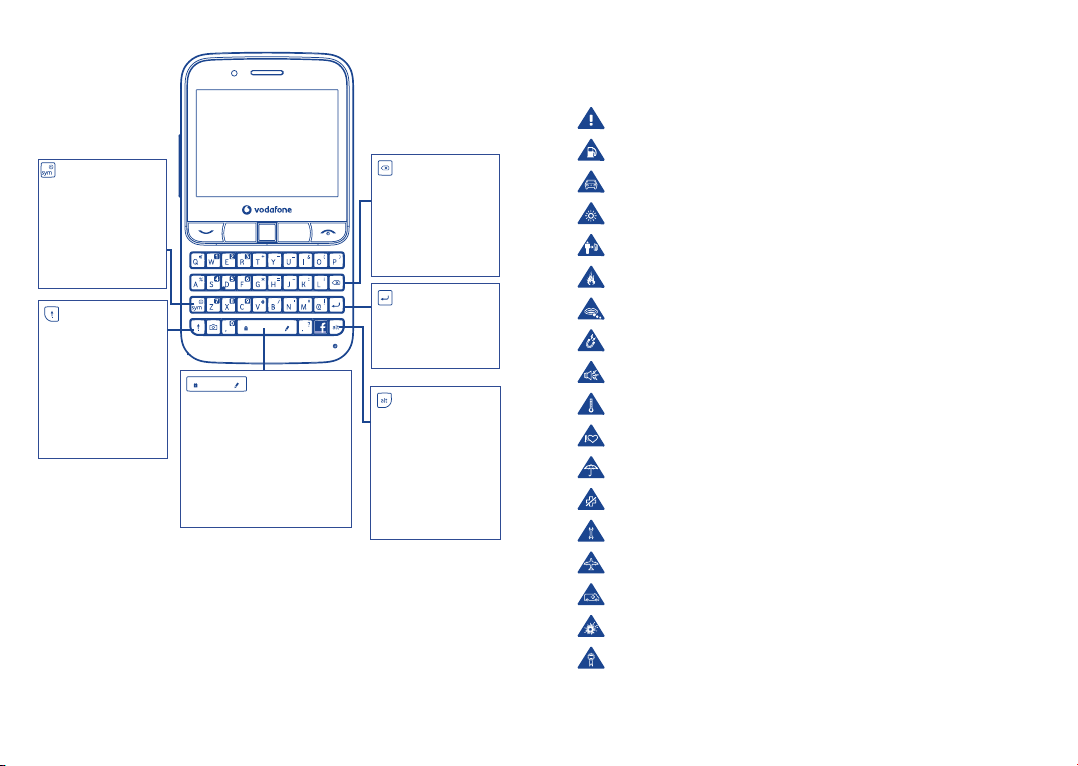
Keypad inputting
key:
- Enter symbol table
- Hold down Alt key,
then press Sym key
to enter emoticon
table
key:
- Press once:
Input a capital
character
- Press twice:
Lock the keyboard
in capital letter
input mode
key:
- Press:
Enter a space
- Press and hold:
Access text input language list
- Hold down Alt key, then
press Space key to select
input method
key:
- Press:
Delete one by one
- Press and hold:
Delete all
key:
- Confirm an option
- Enter the next line
key:
- Press once:
Input a top-half
character
- Press twice:
Lock the keyboard
in top-half key input
mode
Product Safety Information18
Pictograms and Graphic Symbols
Read the Safety Information section of this user guide on page 63
Do not use while re-fuelling
Do not use hand-held while driving
This device may produce a bright or flashing light
For body-worn operation maintain a separation of 1.5 cm
Do not dispose of in a fire
Small parts may cause a choking hazard
Avoid contact with magnetic media
This device may produce a loud sound
Avoid extreme temperatures
Keep away from pacemakers and other personal medical devices
Avoid contact with liquid, keep dry
Switch off when instructed in hospitals and medical facilities
Do not try to disassemble
Switch off when instructed in aircraft and airports
Do not rely on this device for emergency communications
Switch off in explosive environments
Only use approved accessories
61 62
Page 33
Product Safety Information
• RF Exposure
General Statement on RF energy
Your phone contains a transmitter and a receiver. When it is ON, it receives and transmits
RF energy. When you communicate with your phone, the system handling your call
controls the power level at which your phone transmits.
Specific Absorption Rate (SAR)
Your mobile device is a radio transmitter and receiver. It is designed not to exceed the
limits for exposure to radio waves recommended by international guidelines. These
guidelines were developed by the independent scientific organisation ICNIRP and include
safety margins designed to ensure the protection of all persons, regardless of age and
health.
The guidelines use a unit of measurement known as the Specific Absorption Rate, or SAR.
The SAR limit for mobile devices is 2 W/kg and the highest SAR value for this device when
tested at the ear was 0.749 W/kg
be used in other positions, such as on the body as described in this user guide.
As SAR is measured utilising the device’s highest transmitting power, the actual SAR
of this device while operating is typically below that indicated above. This is due to
automatic changes to the power level of the device to ensure it only uses the minimum
power required to communicate with the network.
Body worn operation
Important safety information regarding radiofrequency radiation (RF) exposure.
To ensure compliance with RF exposure guidelines the phone must be used with a
minimum of 1.5 cm separation from the body.
Failure to observe these instructions could result in your RF exposure exceeding the
relevant guideline limits.
"The highest SAR value for this mobile phone when tested for use at the body and
compliance against the standard is 0.778 W/kg. While there may be differences between
the SAR levels on various phones and at various positions, they all meet the relevant
International guidelines and EU requirements for RF (radio-waves) exposure"
Limiting exposure to radio frequency (RF) fields
For individuals concerned about limiting their exposure to RF fields, the World Health
Organisation (WHO) provides the following advice:
Precautionary measures: Present scientific information does not indicate the need for any
special precautions for the use of mobile phones. If individuals are concerned, they might
choose to limit their own or their children’s RF exposure by limiting the length of calls, or
using 'hands-free' devices to keep mobile phones away from the head and body.
(1)
. As mobile devices offer a range of functions, they can
Further information on this subject can be obtained from the WHO home page http://
www.who.int/peh-emf WHO Fact sheet 193: June 2000.
Regulatory information
The following approvals and notices apply in specific regions as noted.
(1)
The tests are carried out in accordance with IEC standard PT62209-1.
63 64
Page 34

• Distraction
Driving
Full attention must be given to driving at all times in order to reduce the risk of an
accident. Using a phone while driving (even with a hands free kit) causes distraction and
can lead to an accident. You must comply with local laws and regulations restricting the
use of wireless devices while driving.
Operating machinery
Full attention must be given to operating machinery in order to reduce the risk of an
accident.
• Product Handling
General Statement on handling and use
You alone are responsible for how you use your phone and any consequences of its use.
You must always switch off your phone wherever the use of a phone is prohibited.
Use of your phone is subject to safety measures designed to protect users and their
environment.
- Always treat your phone and its accessories with care and keep it in a clean and dust-free
place.
- Do not expose your phone or its accessories to open flames or lit tobacco products.
- Do not expose your phone or its accessories to liquid, moisture or high humidity.
- Do not drop, throw or try to bend your phone or its accessories.
- Do not use harsh chemicals, cleaning solvents, or aerosols to clean the device or its
accessories.
- Do not paint your phone or its accessories.
Do not attempt to disassemble your phone or its accessories, only authorised personnel
must do so.
- Do not expose your phone or its accessories to extreme temperatures, minimum -10 and
maximum +50 degrees Celsius.
- Please check local regulations for disposal of electronic products.
Do not carry your phone in your back pocket as it could break when you sit down.
Small Children
Do not leave your phone and its accessories within the reach of small children or allow
them to play with it.
They could hurt themselves or others, or could accidentally damage the phone.
Your phone contains small parts with sharp edges that may cause an injury or which could
become detached and create a choking hazard.
Demagnetisation
To avoid the risk of demagnetisation, do not allow electronic devices or magnetic media
close to your phone for a prolonged time.
Electrostatic discharge (ESD)
Do not touch the SIM card’s metal connectors.
Antenna
Do not touch the antenna unnecessarily.
Normal use position
When placing or receiving a phone call, hold your phone to your ear, with the bottom
towards your mouth or as you would a fixed line phone.
Air Bags
Do not place a phone in the area over an air bag or in the air bag deployment area.
Store the phone safely before driving your vehicle.
Seizures/Blackouts
This phone is capable of producing bright flashing lights.
65 66
Page 35

Repetitive Motion Injuries
To minimise the risk of RSI, when texting or playing games with your phone:
- Do not grip the phone too tightly
- Press the buttons lightly
- Make use of the special features in the handset which minimise the number of buttons
which have to be pressed, such as message templates and predictive text
- Take lots of breaks to stretch and relax
Emergency Calls
This phone, like any wireless phone, operates using radio signals, which cannot guarantee
connection in all conditions. Therefore, you must never rely solely on any wireless phone
for emergency communications.
Loud Noise
This phone is capable of producing loud noises which may damage your hearing.
Prolonged exposure to music at full volume on the music player may damage the
listener's hearing. Use the recommended headphones only.
Bright Light
This phone is capable of producing flashes of light, do not use it too close to the eyes.
Phone Heating
Your phone may become warm during charging and during normal use.
• Electrical Safety
Accessories
Use only approved accessories.
Do not connect with incompatible products or accessories.
Take care not to touch or allow metal objects, such as coins or key rings, to contact or
short-circuit the battery terminals.
Connection to a Car
Seek professional advice when connecting a phone interface to the vehicle's electrical
system.
Faulty and Damaged Products
Do not attempt to disassemble the phone or its accessories.
Only qualified personnel must service or repair the phone or its accessories.
If your phone or its accessories have been submerged in water, punctured, or subjected
to a severe fall, do not use them until you have taken it to be checked at an authorised
service centre.
Battery Handling & Safety
Always switch the device off and disconnect the charger before removing the battery.
Only use the battery and charger supplied, or manufacturer approved replacements
intended for use with your phone. Using other batteries and chargers could be
dangerous.
Do not disassemble or short-circuit the battery. Accidental short-circuiting can occur if a
metallic object such as a key, paper clip, or pen touches the terminals of the battery.
67 68
Improper battery use may result in a fire, explosion, or other hazard. If you believe the
battery has been damaged, do not use it, take it to a service centre for testing.
• Interference
General statement on interference
Care must be taken when using the phone in close proximity to personal medical devices,
such as pacemakers and hearing aids.
Pacemakers
Pacemaker manufacturers recommend that a minimum separation of 15 cm be
maintained between a mobile phone and a pacemaker to avoid potential interference
with the pacemaker. To achieve this use the phone on the opposite ear to your pacemaker
and do not carry it in a breast pocket.
Hearing Aids
People with hearing aids or other cochlear implants may experience interference noises
when using wireless devices or when one is nearby. The level of interference will depend
on the type of hearing device and the distance from the interference source, increasing
the separation between them may reduce the interference. You may also consult your
hearing aid manufacturer to discuss alternatives.
Medical devices
Please consult your doctor and the device manufacturer to determine if operation of your
phone may interfere with the operation of your medical device.
Hospitals
Switch off your wireless device when requested to do so in hospitals, clinics or health
care facilities. These requests are designed to prevent possible interference with sensitive
medical equipment.
Aircraft
Switch off your wireless device whenever you are instructed to do so by airport or airline
staff.
Consult the airline staff about the use of wireless devices on board the aircraft, if your
device offers a ‘flight mode’ this must be enabled prior to boarding an aircraft.
Interference in cars
Please note that because of possible interference to electronic equipment, some vehicle
manufacturers forbid the use of mobile phones in their vehicles unless a handsfree kit
with an external antenna is included in the installation.
Page 36

• Explosive environments
Petrol stations and explosive atmospheres
In locations with potentially explosive atmospheres, obey all posted signs to turn off
wireless devices such as your phone or other radio equipment.
Areas with potentially explosive atmospheres include fuelling areas, below decks on
boats, fuel or chemical transfer or storage facilities, areas where the air contains
chemicals or particles, such as grain, dust, or metal powders.
Blasting Caps and Areas
Turn off your mobile phone or wireless device when in a blasting area or in areas posted
with notifications requesting "two-way radios" or "electronic devices" are turned off to
avoid interfering with blasting operations.
Your telephone is a transceiver that operates on GSM networks with 900 and 1800 MHz
bands.
5881
This equipment is in compliance with the essential requirements and other relevant
provisions of Directive 1999/5/EC.
• Protection against theft
Your telephone is identified by an IMEI (phone serial number) shown on the packaging
label and in the product’s memory. We recommend that you note the number the first
time you use your telephone by entering * # 0 6 # and keep it in a safe place. It may be
requested by the police or your operator if your telephone is stolen. This number allows
your mobile telephone to be blocked preventing a third person from using it, even with
a different SIM card.
• Disclaimer
There may be certain differences between the user manual description and the phone’s
operation, depending on the software release of your telephone or specific operator
services.
TCT Mobile shall not be held legally responsible for such differences, if any, nor for their
potential consequences, which responsibility shall be borne by the operator exclusively.
This symbol on your telephone, the battery and the accessories means that
these products must be taken to collection points at the end of their life:
- Municipal waste disposal centres with specific bins for these items of
equipment
- Collection bins at points of sale.
They will then be recycled, preventing substances being disposed of in the
environment, so that their components can be reused.
(1)
In European Union countries:
These collection points are accessible free of charge.
All products with this sign must be brought to these collection points.
In non European Union jurisdictions:
Items of equipment with this symbol are not to be thrown into ordinary bins if your
jurisdiction or your region has suitable recycling and collection facilities; instead they are
to be taken to collection points for them to be recycled.
CAUTION: RISK OF EXPLOSION IF BATTERY IS REPLACED BY AN INCORRECT TYPE.
DISPOSE OF USED BATTERIES ACCORDING TO THE INSTRUCTIONS.
(1)
Contact your network operator for service availability.
69 70
Page 37

Telephone warranty19
WARRANTY TERMS AND CONDITIONS
1. Vodafone undertakes the warranty of this Mobile Phone for a period of two (2) years
from the date of Purchase by the original owner (not transferable) under normal use.
2. The Battery has a limited warranty for twelve (12) months, and Charger for twenty-four
(24) months against manufacturing defects. Other accessories have a limited warranty
for twenty-four (24) months against manufacturing defects.
3. This Warranty does not cover damage resulting from;
a) Normal wear & tear of the equipment;
b) Defects and damages due to the equipment being used other than its normal and
customary manner;
c) An unauthorized disassembly, repair, alteration or modification being carried out;
d) Misuse, abuse, negligence or accident howsoever caused;
e) Defects or damage arising from improper testing, operation, maintenance,
installation, or any alteration or modification;
f) Defects or damage due to spillage of food or liquids, corrosion, rust or the use of
wrong voltage;
g) Scratches or damage to plastic surfaces and all other externally exposed parts that
are due to normal customer use;
4. The Handset requiring service/repair must be delivered at the user's cost.
5. This warranty will be null and void in any of the following events:
a) If the serial number or warranty seal on the equipment has been defaced or
removed.
b) If any term contained in this warranty has been altered or modified in any way
without prior written consent of Vodafone.
6. The limited warranty extends only to customer who purchase the product in one of the
countries (or areas) set forth at the end of this document. The limited warranty is only
valid in Vodafone's intended country (or area) of sale of the Product.
7. If the product is returned to Vodafone after the expiration of the warranty period,
Vodafone's normal service policies shall apply and the Consumer will be charged
accordingly.
a) Vodafone neither assumes for it any other obligation or liability beyond that which is
expressly provided for in this limited warranty.
b) All warranty information, product features and specifications are subject to change
without notice.
8. THIS WARRANTY IS IN LIEU OF ANY AND OTHER WARRANTIES EXPRESSED OR IMPLIED,
SPECIFICALLY INCLUDING ANY IMPLIED WARRANTY OF MERCHANTABILlTY OR FITNESS
FOR A PARTICULAR PURPOSE. VODAFONE ASSUMES NO LIABILITY FOR THE BREACH
OF THE WARRANTY BEYOND CORRECTING THE BREACH IN THE MANNER DESCRIBED
ABOVE. IN NO EVENT SHALL VODAFONE BE LIABLE FOR CONSEQUENCES.
71 72
Page 38
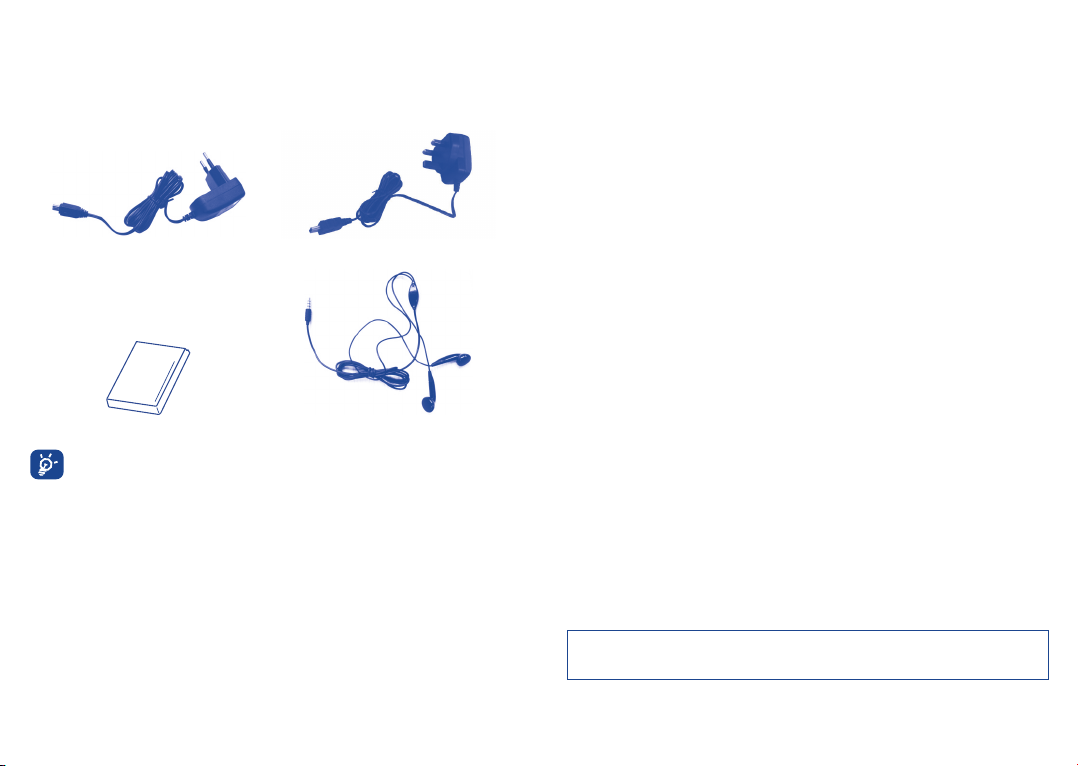
Accessories 20
The latest generation of Vodafone GSM mobile phones offers a built-in handsfree feature
that allows you to use the phone from a distance, placed on a table for example. For those
who prefer to keep their conversations confidential, an earpiece is also available known as
the headset.
Standard charger UK charger
Battery Stereo headset
Only use your phone with batteries, chargers and accessories in your box.
(1)
(1)
Pictures for reference only.
CJA31Q0VDAAA
73 74
 Loading...