

Page 1

-0-
Page 2
-1-
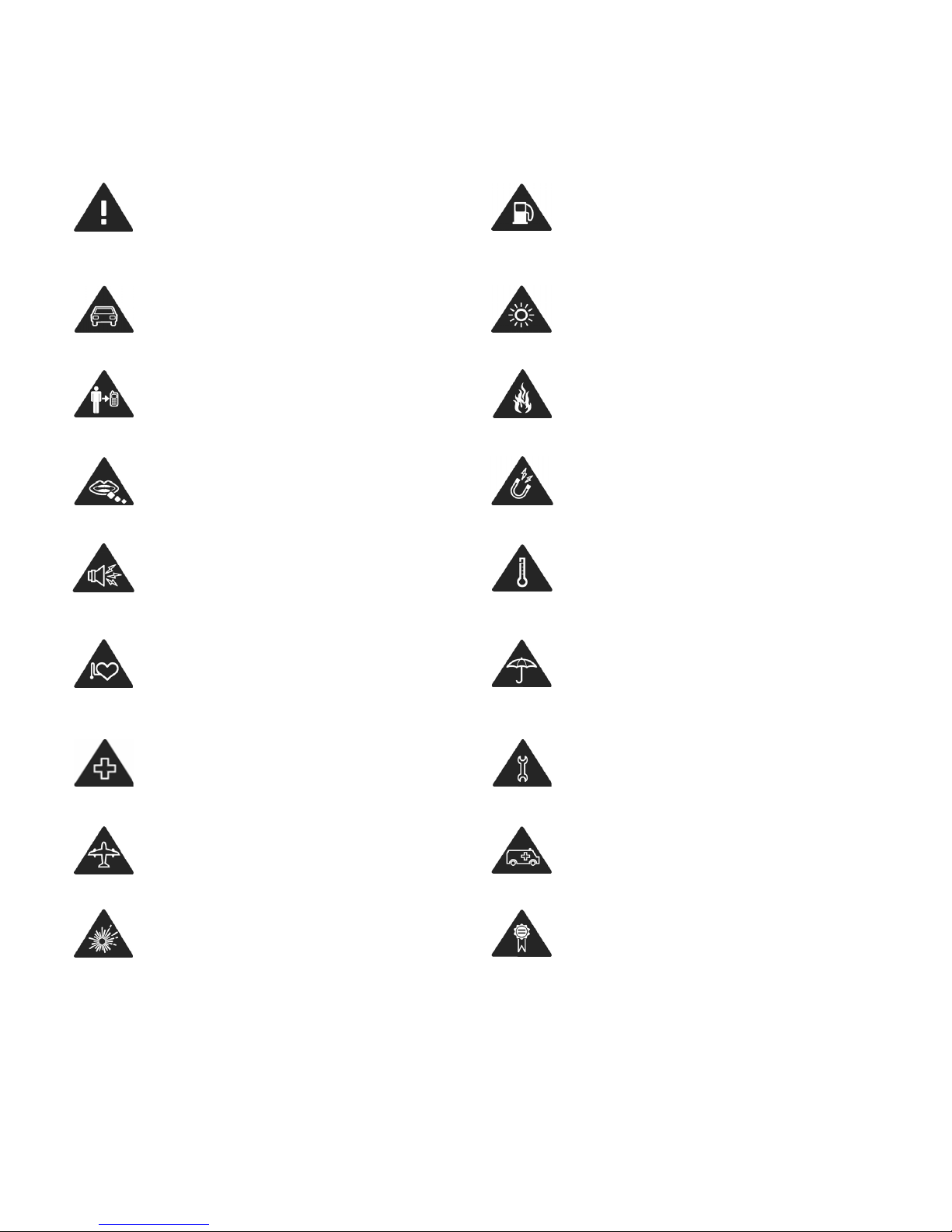
Product Safety Information
Read the Safety Information
section of this quick start guide
on page 13
Do not use while re-fuelling
Do not use hand-held while
driving
This device may produce a
bright or flashing light
For body-worn operation
maintain a separation of 1.5cm
Do not dispose of it in a fire
Small parts may cause a
choking hazard
Avoid contact with magnetic
media
This device may produce a
loud sound
Avoid extreme temperatures
Keep away from pacemakers
and other personal medical
devices
Avoid any contact with liquid,
keep it dry
Switch off when instructed in
hospitals and medical facilities
Do not attempt to disassemble
Switch off when instructed in
aircrafts and airports
Do not rely on this device for
emergency communications
Switch off in explosive
environments
Only use approved accessories
Page 3

-2-
Using your phone
This quick start guide is designed to help you familiarise yourself with the
Vodafone 553 mobile phone’s basic functions. For details, please refer to
the User Manual.
Please note the pictures we use in this guide are only used to demonstrate
the mobile phone’s functions, so they might be a bit different from what you
see on your mobile phone.
As a type of multimedia mobile phone, your mobile phone supports not
only the basic functions, but rich and practical multimedia functions.
Your phone supports:
Calling: Call your friends, family and colleagues on a GSM/GPRS/EDGE
network.
Text Messaging: Send, receive and edit text messages.
MMS: Send, receive and edit multimedia messages, with features like
pictures, videos and sound.
Multimedia: Your phone comes with a camera, a media player, a FM radio, a
video recorder, a voice recorder and a video player.
Organizer: With calendar, alarm, tasks, and world time.
Games & Apps: With calculator, stopwatch, unit converter, currency
converter, the java trial games and native games, etc.
Bluetooth
®
: Lets you transfer files to other Bluetooth® devices using
short-range radio waves, and listen the music with stereo BT headset.
Memory card slot: Insert memory card into the slot to store multimedia
content (such as music files, video clips, etc.).
Page 4
-3-
Web: You can browse with Opera Mini 5.0 or Obigo.
SNS: Log on to IM applications (Facebook, Twitter, GTalk, Yahoo messenger,
MSN messenger).
Use the Touchscreen: Your phone supports touch screen functionality.
Slide up or down with your finger on the screen to move the highlight bar.
Tap any application to open it.
Getting Started
Starting Up
Battery
The lithium ion battery of the mobile phone can be immediately used after
unpacking. A new battery performs best after perfoming a full
charge/discharge 3 times.
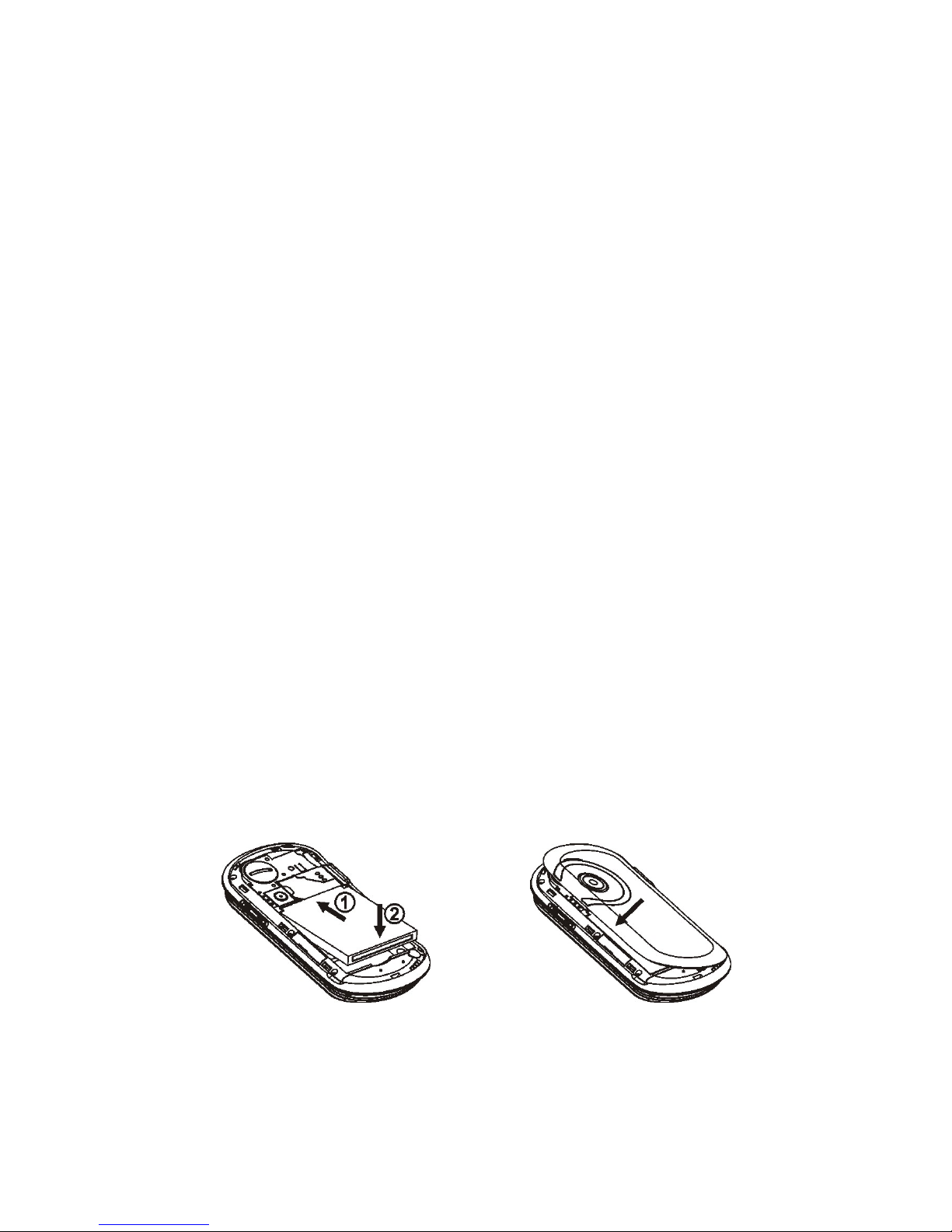
Installing the battery
1. Align the battery’s contact points in the direction of the arrow shown
and insert the battery into the slot.
2. Put on the battery cover and press it gently until you hear a click.
Page 5
-4-
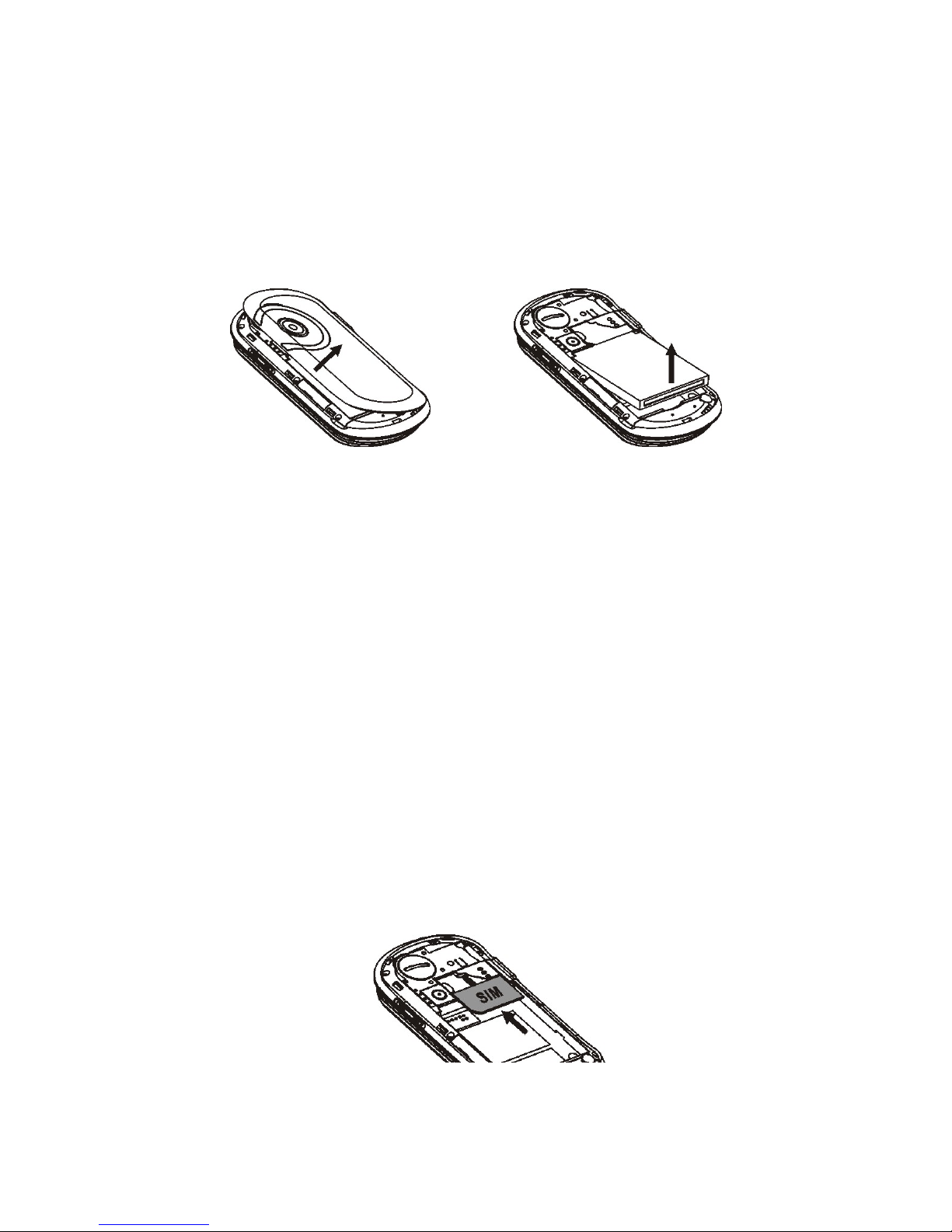
Removing the battery
1. Make sure that your mobile phone is switched off.
2. Remove the battery cover.
3. Pull the battery up and remove it from the mobile phone.
How to insert the SIM card
Insert the SIM card as follows:
1. Make sure that the phone is switched off and the charger is
disconnected from the phone.
2. Turn the phone over and remove the battery cover.
3. Remove the battery if it is already installed.
4. Hold your SIM card with the cut corner oriented as shown and then slide it
into the card holder with the gold-coloured contacts facing downward.
5. Replace the battery first.
6. Replace the battery cover.
Page 6

-5-
Caution:
• Do not bend, scratch the SIM card, or unnecessarily touch its metal
surface. It may damage the information stored.
• Do not force the cover down by pressing on it. This may damage the
cover.
How to charge the battery
The battery needs to be charged for at least 6-8 hours when you charge it
for the first time.
1. Connect your travel adapter to the side of your mobile phone as shown
in this page.
2. Connect the other end of the travel adapter to the main socket.
3. When you charge the battery, the battery charging indicator appears.
4. The battery is fully charged as the battery indicator is full and doesn’t flicker
any longer
, disconnect the charger.
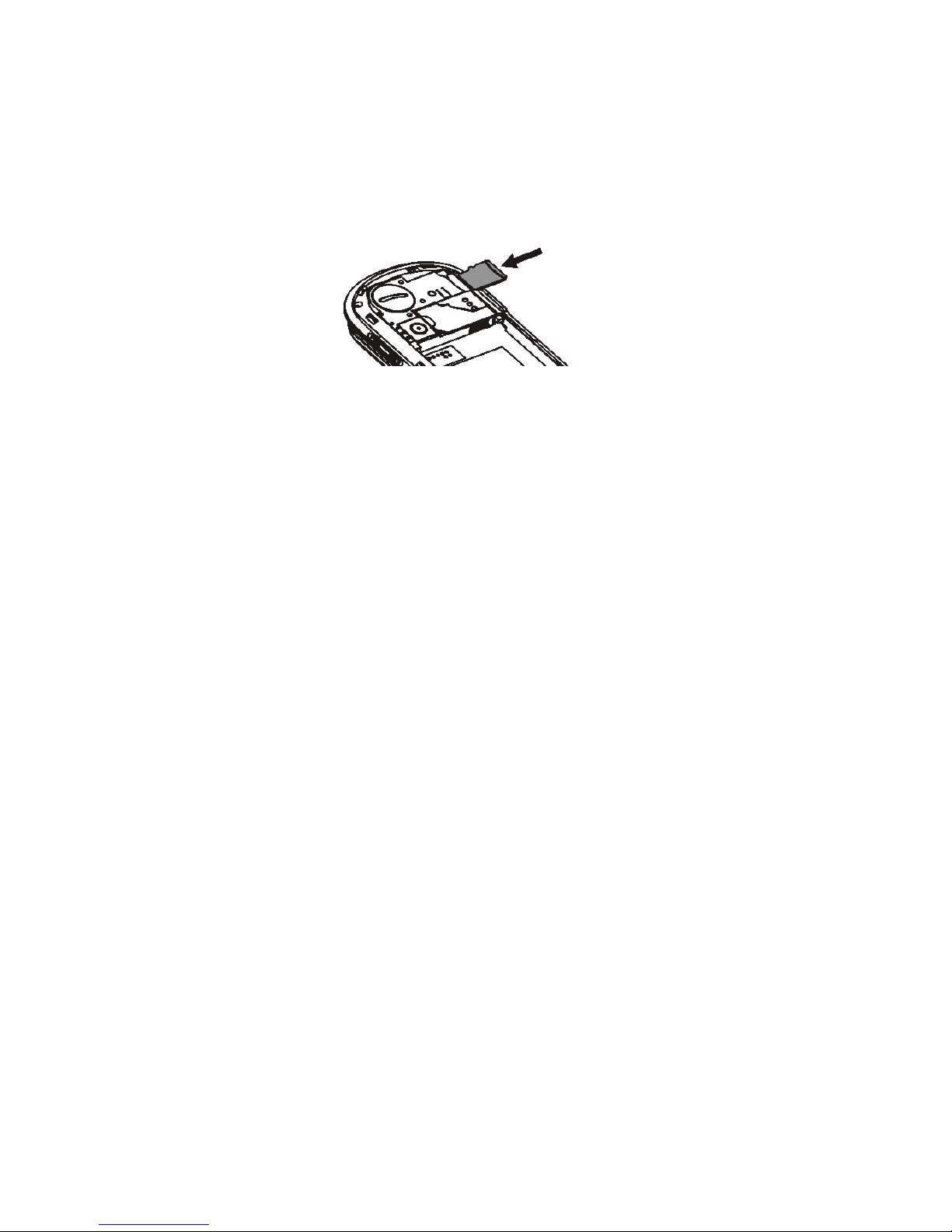
Inserting and Removing a Memory Card
Vodafone 553 supports memory cards up to 8Gbyte. Please follow the
instructions from your microSD card vendor.
Page 7
-6-
To insert a card
1. Remove the battery cover.
2. Insert the memory card into the slot.
Before you take out the card, please open the battery cover and press the
card inward to unlock.
Powering On/Off
Make sure that your SIM card is inserted and the battery is charged.
Hold the Power key 2 or 3 seconds to turn your phone on or off.
Notes: You may need to enter the Personal Identification Number (PIN) or
phone password if you have enabled phone lock or PIN LOCK.
Page 8
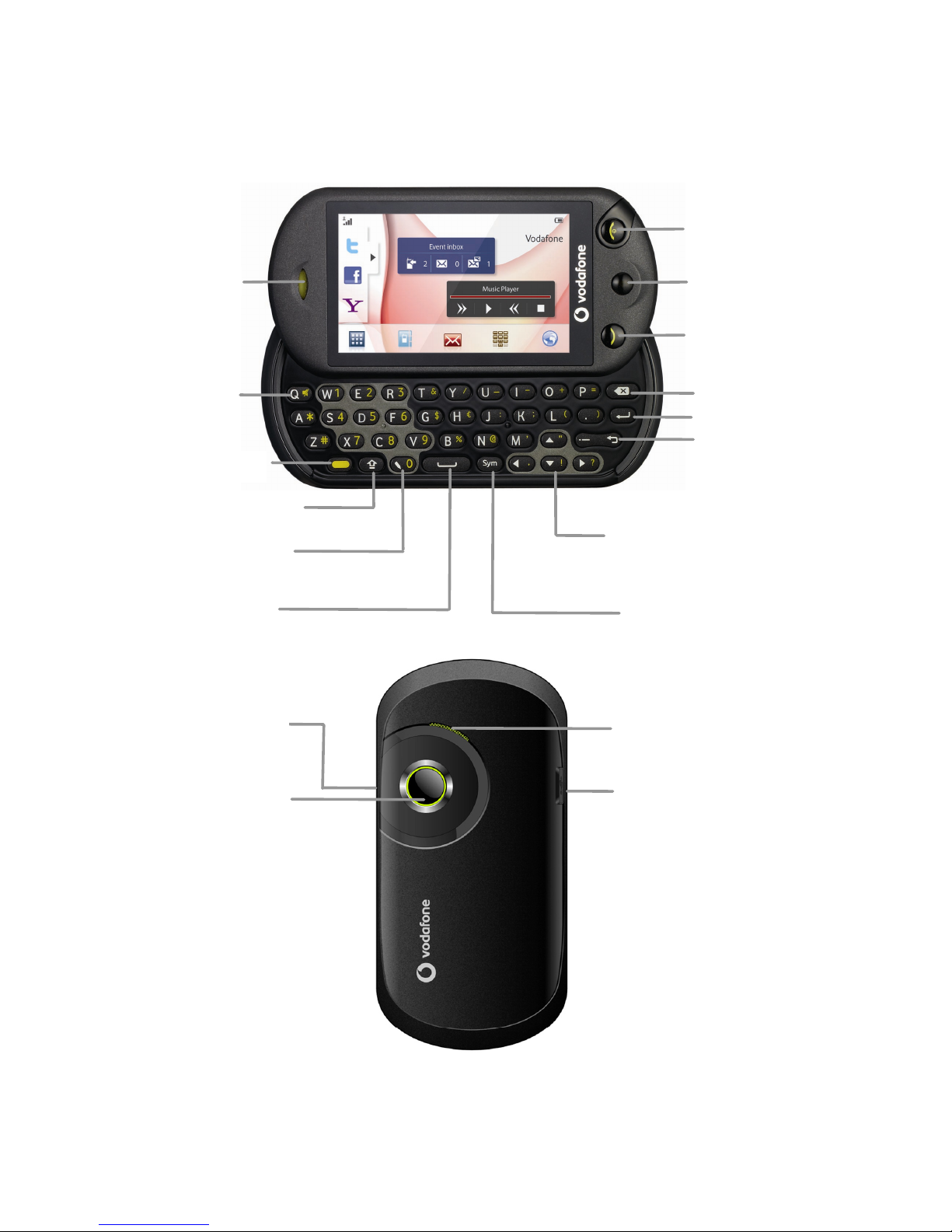
-7-
My Phone
Receiver
Send key
End/Power key
Space Key
Enter key
Backspace key
Function key
Navigation keys
Menu key
Shift/Caps lock key
Switch input method
Left soft key/Right
soft key
Symbol key
Camera
Volume keys
USB port
In idle screen, Press
and hold this key to
switch profiles
mode
between normal and
silent.
Loudspeaker
Page 9
-8-
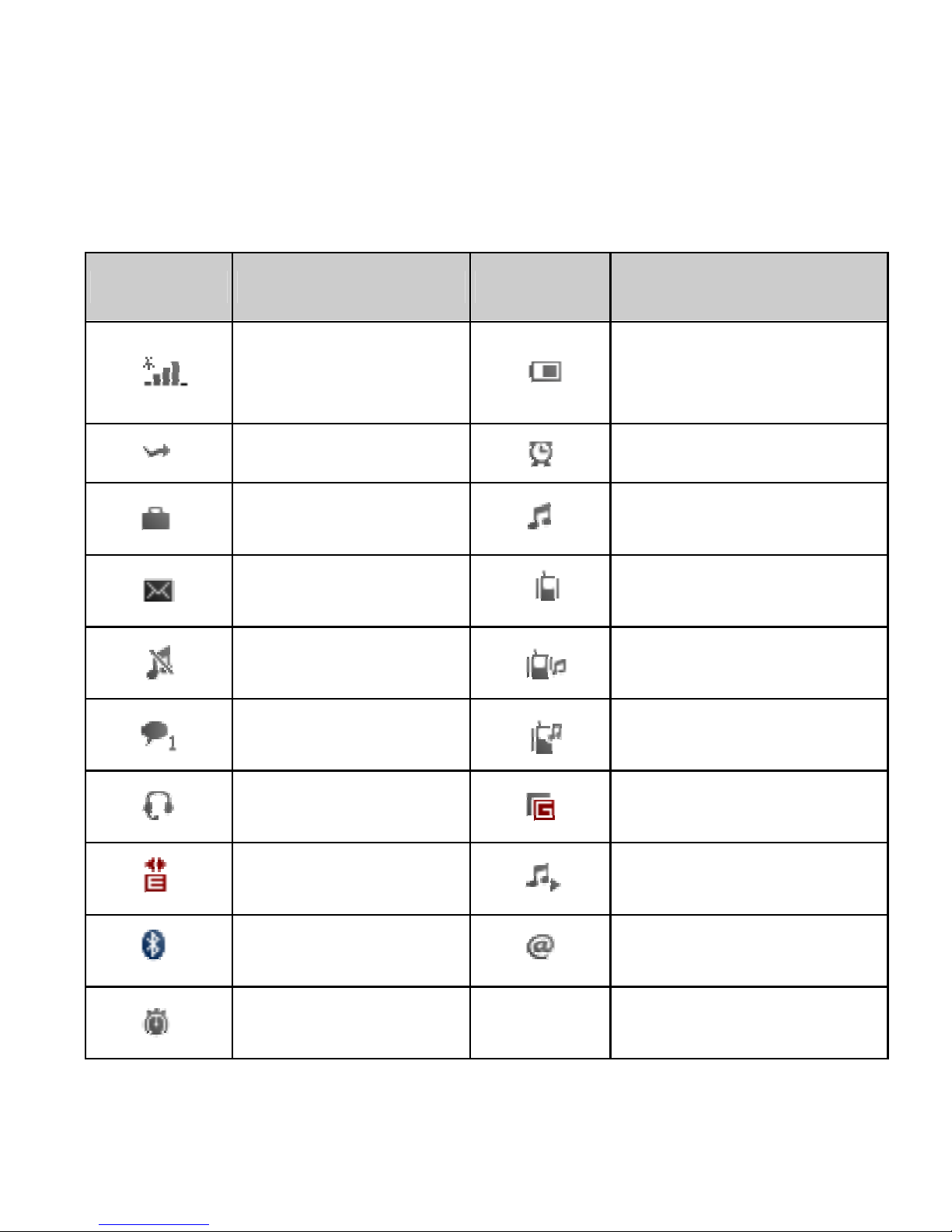
Idle screen
When you turn on the phone, it enters the idle screen. The following
indicators notify you with the phone status and alerts.
Indicator What it means Indicator What it means
Shows the phone’s
network signal
strength
Shows the phone’s
battery capacity
Call diverting
The alarm clock is active
The phone is under
roaming status
The Alert type is set to
ring
You have unread
message
The Alert type is set to
vibration
Silent mode is
activated
The Alert type is set to
vibration then ring tone
You have unheard
voice mail
The Alert type is set to
vibration and ring tone
A headset is connected
to the phone
GPRS connection is
active
EDGE connection is
active
Audio player is on
Bluetooth®
connectivity is on
You have unread E-mail
The stopwatch is
active
Page 10
-9-
Text Input
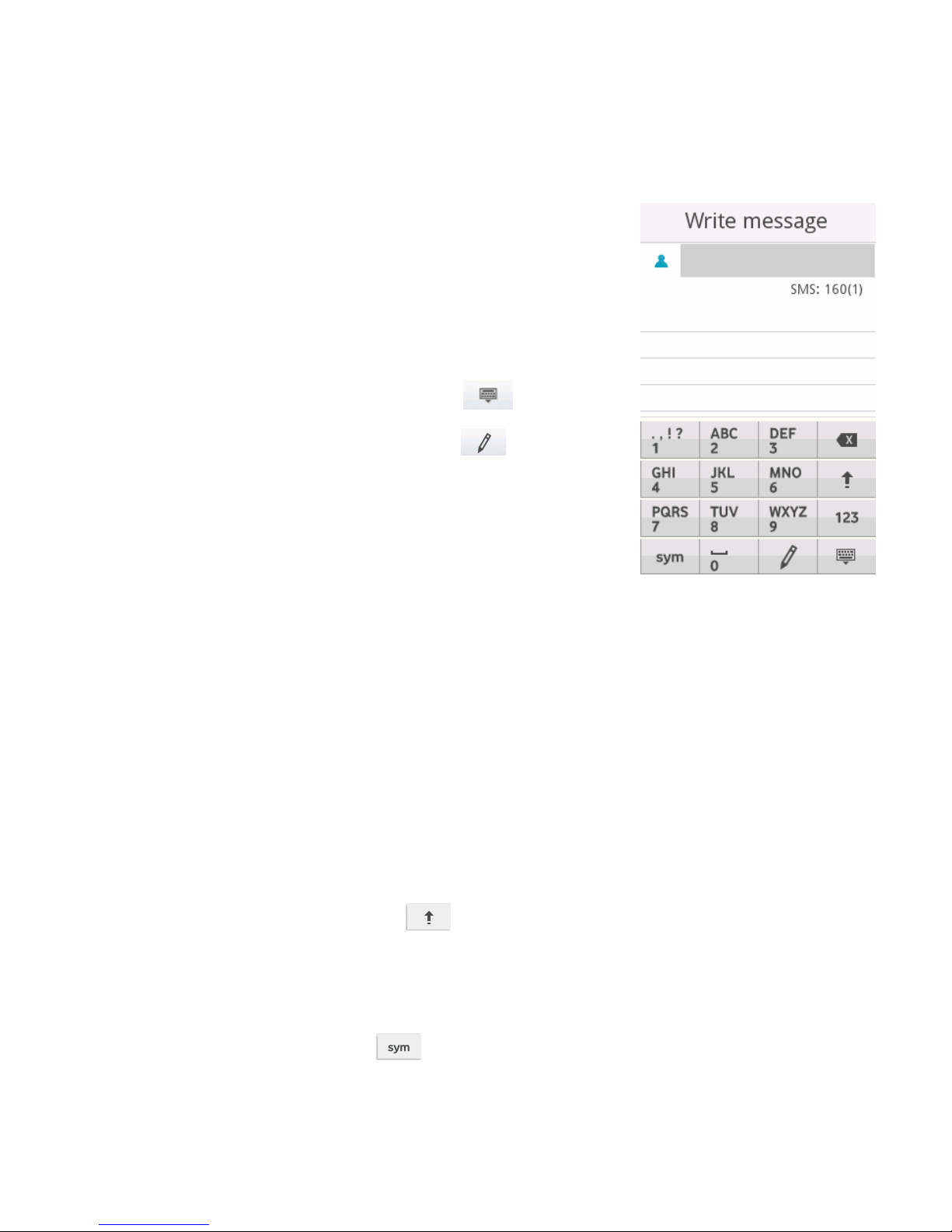
Using Virtual keyboard
You could use the virtual keyboard to input.
• Show virtual keyboard: Click any place in
the text input area to show the virtual
keyboard.
• Hide virtual keyboard: Click
icon.
• Change input method: Click icon to
change the input method.
• Input Letters: In abc method, click the
corresponding letters to input your desired
letter. Each key is used to input multiple letters. Click the key quickly
and repeatedly until your desired letter appears.
• Input Words: In Smart abc method, click each key only once for every
letter. The word changes after each key stroke. When you finish
writing the word correctly, click the word to confirm. If the word
displayed on the screen is not what you want, click the arrow to view
other matching words, and then click the word to confirm. Predictive
text input is based on a built-in dictionary.
• Switch caps lock : Click icon.
• Input numbers: In 123 method, click the corresponding numbers on
the screen to input your desired numbers.
• Input symbols: Click icon to open the virtual keypad and
select the corresponding symbols to input.
Page 11
-10-
• Insert a space: Click to input the space. It does not work in 123
method.
• Delete Character: click to delete the previous character before
the cursor.
• Delete all Characters: hold
to delete all characters.
• Move Cursor: Among the text, tap in the position you want to move.
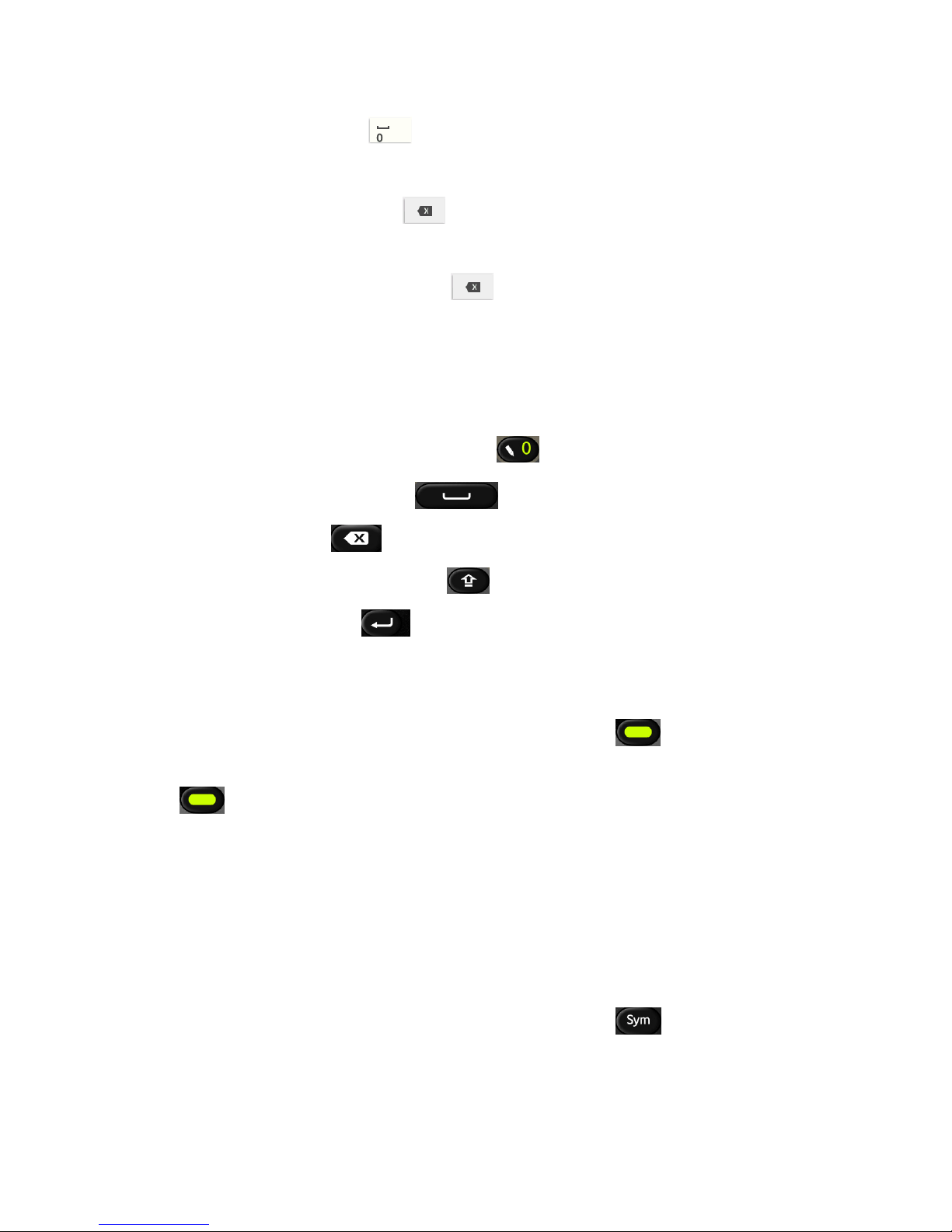
Using the keypad
As the slide is opened, you could use the keypad to input.
• Switch input method: Press the key
• Insert a space: Press the key.
• Delete: Press the key to delete the input before the cursor.
• Switch caps lock: Press the key.
• Line feed: Press the key.
• Input letters and common symbols: There are two symbols on the
keys. In abc/Abc/ABC method, press the key to input the symbol
located on the left part of the key; press the key and then press
the key to input the symbol located on the right part of the key; press
the key twice and then press the key to continuously input the
symbol located on the right part of the key.
In Smart abc/Abc/ABC method, your phone predicts the word as you
enter it, so you need input only the first few letters of the word.
• Input numbers: In 123 method, press the numeric keys to input the
corresponding numbers.
• Input symbols: During the text input, press key to display
symbol lists, press the Navigation keys to select the symbol, and press
OK to confirm.
Page 12

-11-
Basic Operation
Menu Navigation
Press the Menu key to enter the main menu. Once at the main menu,
click the icon to select the submenu, press “Back” to return to the
previous menu, and press the Power key to return to the home screen.
Shortcuts and Widgets in Idle Screen
From the home screen, slide your finger to the left or right on the screen
to switch among the three interfaces.
Click
to open the Widgets drawer. In the Widget drawer, slide your
finger up and down to display more function icons. You can drag the
function icons from the Widget drawer to the home screen.
At the bottom of the home screen is a row of icons for easy access to
some key functions.
Keypad Lock
You can use the keypad lock to prevent the keys from being accidentally
pressed.
In the closed position, you can hold down the Menu key to lock the
screen. To unlock the screen, drag on the screen to and a message
will appear telling you the screen is unlocked.
In Menu > Settings > Security > Auto keypad lock, set the auto
keypad lock time. If the phone is not operated within this time, the
keypad will be locked.
Page 13

-12-
Adjust the Volume
When you’re on the phone, listening to songs, watching movies or using
other media, you can press the Volume keys on the right side of your
phone to adjust the audio volume.
Otherwise, the keys are used to control the volume of the ringer, or used
for other sound effects.
Address Book powered by 360
Vodafone 360 is a range of mobile services that we designed to make life
a little easier. 360 People is a free online address book which brings
together all your contacts from your phone, E-mail, social networks and
instant messaging accounts into one place. Your contacts are safely
backed up and in sync with your phone. Everything updates automatically
between phone and computer if you change someone’s contact details in
your address book.
The easiest way to manage your mobile and Vodafone 360 services is to
register at www.360.com or follow the set-up instructions when you first
start your phone.
This function may not be in all the variants depending on the operator
services.
Page 14

-13-
RF Exposure
Your phone contains a transmitter and a receiver. When it is ON, it receives
and transmits RF energy. When you communicate with your phone, the
system handling your call controls the power level at which your phone
transmits.
Specific Absorption Rate (SAR)
Your mobile device is a radio transmitter and receiver. It is designed not to
exceed the limits for exposure to radio waves recommended by
international guidelines. These guidelines were developed by the
independent scientific organisation ICNIRP and include safety margins
designed to assure the protection of all persons, regardless of age and
health.
The guidelines use a unit of measurement known as the Specific
Absorption Rate, or SAR. The SAR limit for mobile devices is 2 W/kg and
the highest SAR value for this device when tested at the head was 0.656
W/kg (900M), 0.721 W/kg (1800M) and when tested at the body was
0.683 W/kg (900M), 0.355 W/kg (1800M)*. As mobile devices offer a range
of functions, they can be used in other positions, such as on the body as
described in this User Manual.
As SAR is measured utilising the device’s highest transmitting power, the
actual SAR of this device while operating is typically below that
indicated above. This is due to automatic changes to the power level of
the device to ensure it only uses the minimum power required to
communicate with the network.
Page 15

-14-
• The tests are carried out in accordance with [CENELEC EN50360] [IEC
standard PT62209-1].
• Please see page 14 about body worn operation.
Body worn operation
Important safety information regarding radiofrequency radiation (RF)
exposure.
To ensure compliance with RF exposure guidelines the phone must be
used with a minimum of 1.5 cm separation from the body.
Failure to observe these instructions could result in your RF exposure
exceeding the relevant guideline limits.
Limiting exposure to radio frequency (RF) fields
For individuals concerned about limiting their exposure to RF fields, the
World Health Organisation (WHO) provides the following advice:
Precautionary measures: Present scientific information does not indicate
the need for any special precautions for the use of mobile phones. If
individuals are concerned, they might choose to limit their own or their
children’s RF exposure by limiting the length of calls, or using ‘hands-free’
devices to keep mobile phones away from the head and body.
Further information on this subject can be obtained from the WHO home
page http://www.who.int/peh-emf WHO Fact sheet 193: June 2000.
Regulatory information
The declaration of RoHS compliance, EC declaration of conformity and
FCC compliance statement can be found in the User Manual.
Page 16

-15-
Distraction
Driving
Full attention must be given to driving at all times in order to reduce the
risk of an accident. Using a phone while driving (even with a hands free kit)
causes distraction and can lead to an accident. You must comply with
local laws and regulations restricting the use of wireless devices while
driving.
Operating machinery
Full attention must be given to operating the machinery in order to
reduce the risk of an accident.
Product Handling
You alone are responsible for how you use your phone and any
consequences of its use.
You must always switch off your phone wherever the use of a phone is
prohibited. Use of your phone is subject to safety measures designed to
protect users and their environment.
• Always treat your phone and its accessories with care and keep it in a
clean and dust-free place.
• Do not expose your phone or its accessories to open flames or lit
tobacco products.
• Do not expose your phone or its accessories to liquid, moisture or high
humidity.
• Do not drop, throw or try to bend your phone or its accessories.
Page 17

-16-
• Do not use harsh chemicals, cleaning solvents, or aerosols to clean
the device or its accessories.
• Do not paint your phone or its accessories.
• Do not attempt to disassemble your phone or its accessories, only
authorised personnel must do so.
• Do not expose your phone or its accessories to extreme temperatures.
• Please check local regulations for disposal of electronic products. Do
not carry your phone in your back pocket as it could break when you
sit down.
Small Children
Do not leave your phone and its accessories within the reach of small
children or allow them to play with it.
They could hurt themselves or others, or could accidentally damage the
phone.
Your phone contains small parts with sharp edges that may cause an
injury or which could become detached and create a choking hazard.
Demagnetisation
To avoid the risk of demagnetisation, do not allow electronic devices or
magnetic media close to your phone for a long time.
Electrostatic discharge (ESD)
Do not touch the SIM card’s metal connectors.
Page 18
-17-
Power supply
Do not connect your device to the power supply or switch it on until
instructed to do so in the installation instructions.
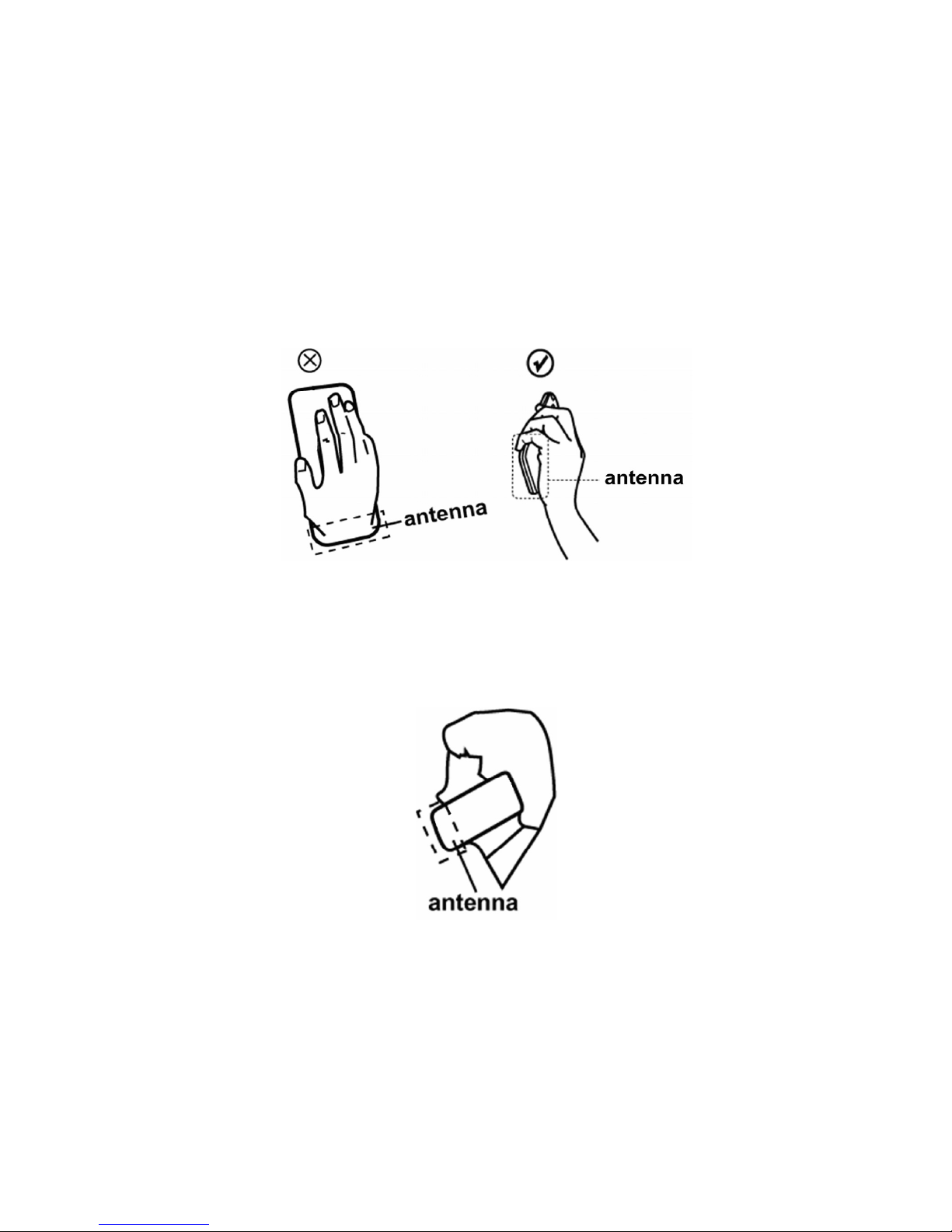
Antenna
Do not touch the antenna unnecessarily.
Normal use position
When placing or receiving a phone call, hold your phone to your ear, with
the bottom towards your mouth or as you would a fixed line phone.
Air Bags
Do not place a phone in the area over an air bag or in the air bag
deployment area.
Store the phone safely before driving your vehicle.
Page 19

-18-
Repetitive Motion Injuries
To minimise the risk of RSI, when Texting or playing games with your
phone:
• Do not grip the phone too tightly.
• Press the buttons lightly.
• Make use of the special features in the handset which minimise the
number of buttons which have to be pressed, such as message
templates and predictive text.
• Take lots of breaks to stretch and relax.
Emergency Calls
This phone, like any wireless phone, operates using radio signals, which
cannot guarantee connection in all conditions. Therefore, you must never
rely solely on any wireless phone for emergency communications.
Loud Noise
This phone is capable of producing loud noises which may damage your
hearing.
MP3 and video player function
When listening to pre-recorded music or watching videos on your device,
with headphones or earphones at high volumes, you run the risk of
permanent damage to your hearing. Even if you are used to listening to
music at a high volume and it seems acceptable to you, you still risk
damaging your hearing. Reduce the sound volume to a reasonable level
Page 20

-19-
and avoid using headphones for an excessive period of time to avoid
hearing damage.
Different headphones, earphones or ear buds may deliver a higher or
lower volume, at the same volume setting on your device. Always start at
a low volume setting.
Do not listen to music or video with headphones while driving.
Phone Heating
Your phone may become warm during charging and during normal use.
Electrical Safety
Accessories
Use only approved accessories.
Do not connect with incompatible products or accessories.
Take care not to touch or allow metal objects, such as coins or key rings,
to contact or short-circuit the battery terminals.
Connection to a Car
Seek professional advice when connecting a phone interface to the
vehicle electrical system.
Faulty and Damaged Products
Do not attempt to disassemble the phone or its accessory.
Only qualified personnel must service or repair the phone or its accessory.
If your phone or its accessory has been submerged in water, punctured, or
subjected to a severe fall, do not use it until you have taken it to be
checked at an authorised service centre.
Page 21

-20-
Battery Handling & Safety
Always switch the device off and disconnect the charger before removing
the battery.
Only use the battery and charger supplied, or manufacturer approved
replacements intended for use with your phone. Using other batteries and
chargers could be dangerous.
Do not disassemble or short-circuit the battery. Accidental short-circuiting
can occur if a metallic object such as a key, paper clip, or pen touches the
terminals of the battery.
Improper battery use may result in a fire, explosion, or other hazard. If you
believe the battery has been damaged, do not use it, take it to a service
centre for testing.
Interference
Care must be taken when using the phone in close proximity to personal
medical devices, such as pacemakers and hearing aids.
Pacemakers
Pacemaker manufacturers recommend that a minimum separation of 15
cm be maintained between a mobile phone and a pacemaker to avoid
potential interference with the pacemaker. To achieve this use the phone
on the opposite ear to your pacemaker and do not carry it in a breast
pocket.
Hearing Aids
People with hearing aids or other cochlear implants may experience
interfering noises when using wireless devices or when one is nearby.
Page 22

-21-
The level of interference will depend on the type of hearing device and
the distance from the interference source, increasing the separation
between them may reduce the interference. You may also consult your
hearing aid manufacturer to discuss alternatives.
Medical devices
Please consult your doctor and the device manufacturer to determine if
operation of your phone may interfere with the operation of your medical
device.
Hospitals
Switch off your wireless device when requested to do so in hospitals,
clinics or health care facilities. These requests are designed to prevent
possible interference with sensitive medical equipment.
Aircraft
Switch off your wireless device whenever you are instructed to do so by
airport or airline staff.
Consult the airline staff about the use of wireless devices on board the
aircraft, if your device offers a ‘flight mode’ this must be enabled prior to
boarding an aircraft.
Interference in cars
Please note that because of possible interference to electronic
equipment, some vehicle manufacturers forbid the use of mobile phones
in their vehicles unless a handsfree kit with an external antenna is
included in the installation.
Page 23

-22-
Explosive environments
Petrol stations and explosive atmospheres
In locations with potentially explosive atmospheres, obey all posted signs
to turn off wireless devices such as your phone or other radio equipment.
Areas with potentially explosive atmospheres include fuelling areas,
below decks on boats, fuel or chemical transfer or storage facilities, areas
where the air contains chemicals or particles, such as grain, dust, or metal
powders.
Blasting Caps and Areas
Turn off your mobile phone or wireless device when in a blasting area or in
areas posted turn off “two-way radios” or “electronic devices” to avoid
interfering with blasting operations.
Page 24

-23-
 Loading...