

Page 1
Quick Start Guide
English
287296649_VF540 QSG_EN.book Page 1 Tuesday, September 22, 2009 2:45 PM
Page 2

Notice
Copyright © 2009 SagemWireless
All Rights Reserved
Your phone is made exclusively for Vodafone by Sagem Wireless.
No part of this manual may be reproduced or transmitted in any form or by any means without prior written
consent of Sagem Wireless.
Trademarks
VODAFONE, the Vodafone logos are trade marks of the Vodafone Group. Other product and company names
mentioned herein may be trade marks of their respective owners.
SAGEM is a trademark of Sagemwireless.
T9® Text Input is a trademark of ©Tegic Communications Inc.
Java™ and all Java™ based trademarks and logos are trademarks or registered trademarks of Sun
Microsystems, Inc. in the U.S. and other countries.
The WAP navigator and some message software (i-mode™) are under licence Openwave. The WAP
navigator and the software included are the exclusive property of Openwave. For this reason, it is forbidden to
modify, translate, disassemble or even decompile all or part of these software programs.
The Bluetooth® word mark and logos are owned by the Bluetooth® SIG, Inc. Bluetooth® QDID (Qualified
Design ID): B014440.
microSD™ is a trade mark of SD Card Association.
Wellphone™ and SmartCom™ are registered trademarks owned by SmartCom SARL France.
Windows is a trademark of Microsoft Corporation.
287296649_VF540 QSG_EN.book Page 2 Tuesday, September 22, 2009 2:45 PM
Page 3
3
Congratulations! you have just purchased this phone from Vodafone. It is recommended that you read this
handbook carefully in order to use your phone efficiently and in the best conditions.
Your phone can be used internationally on different networks (GSM 900 MHz, DCS 1800 MHz and
DCS
1900 MHz) depending on the roaming arrangements with your network provider.
This phone is approved to meet European standards.
The detailed user manual available on www.vodafone.de/vodafone540.
WARNING
Your phone is identified by its IMEI number. Write this number down, and do not keep it with your phone,
because you may be asked for it in the event of your phone being stolen, in order to prevent it from being
used, even with a different SIM card. In order to display the IMEI on your phone's screen, type: *#06#.
Notice
The information in this manual is subject to change without notice. Every effort has been made in the
preparation of this manual to ensure accuracy of the contents, but all statements, information, and
recommendations in this manual do not constitute a warranty of any kind, expressed or implied. Read the
safety precautions and safety informations carefully to ensure that you use wireless device in a correct and
safe manner.
Sagem Wireless
38 Rue de Berri, 75008 Paris
Capital 1.590.652.10€ - 508 671 401 RCS PARIS
www.sagemwireless.com
287296649_VF540 QSG_EN.book Page 3 Tuesday, September 22, 2009 2:45 PM
Page 4
4
Contents
Contents ................................................................4
Health and Safety information.............................5
SAR ...................................................................5
Advice for limiting exposure to radiofrequency
(RF) fields ..........................................................6
Safety ................................................................6
Environment ......................................................8
Charging the battery ..........................................9
Menus ..................................................................11
Description ..........................................................13
Installing the SIM card and the battery ............16
Inserting the memory card...............................17
Using the memory card ...................................17
Navigation principles .........................................18
Idle screen ...........................................................19
Activating your phone........................................20
Information on the Vodafone SIM card ............20
Getting started .................................................20
PIN number .....................................................20
Setting date and time.......................................21
Network ...........................................................22
Easy Search for a menu or a contact name ....22
First call ...........................................................22
Calling voicemail..............................................23
Receiving a call ...............................................23
Call log.............................................................24
Increase the efficiency of your phone ..............24
Switching off ....................................................24
Services...............................................................25
Messages ........................................................25
Live! Postcard..................................................26
Live! Studio......................................................26
Camera............................................................ 27
My Files ........................................................... 27
Web .................................................................28
Browsing.......................................................... 28
Vodafone live!.................................................. 28
Music player ....................................................29
FM Radio .........................................................29
Technical features ..............................................30
Declaration of Conformity.................................. 31
Warranty .............................................................. 32
287296649_VF540 QSG_EN.book Page 4 Tuesday, September 22, 2009 2:45 PM
Page 5
Health and Safety information 5
Health and Safety information
SAR
THIS MODEL MEETS INTERNATIONAL GUIDELINES FOR EXPOSURE TO RADIO WAVES
Your mobile device is a radio transmitter and receiver. It is designed not to exceed the limits for exposure to
radio waves recommended by international guidelines. These guidelines were developed by the independent
scientific organization ICNIRP and include safety margins designed to ensure the protection of all persons,
regardless of age and health.
The guidelines use a unit of measurement known as the Specific Absorption Rate, or SAR. The SAR limit for
mobile devices is 2 W/kg and the highest SAR value for this device when tested at the ear was 1.15 W/kg (*).
As mobile devices offer a range of functions, they can be used in other positions, such as on the body as
described in this user guide (**).
As SAR is measured utilizing the devices highest transmitting power the actual SAR of this device while
operating is typically below that indicated above. This is due to automatic changes to the power level of the
device to ensure it only uses the minimum level required to reach the network.
The World Health Organization has stated that present scientific information does not indicate the need for
any special precautions for the use of mobile devices. They note that if you want to reduce your exposure then
you can do so by limiting the length of calls or using a 'hands-free' device to keep the mobile phone away from
the head and body. Additional Information can be found on the websites of the World Health Organization
(
http://www.who.int/emf)
(*) The tests are carried out in accordance with international guidelines for testing.
(**) Please see the Distance of operation section about body worn operation, on page 8.
287296649_VF540 QSG_EN.book Page 5 Tuesday, September 22, 2009 2:45 PM
Page 6
6 Health and Safety information
Advice for limiting exposure to radiofrequency (RF) fields
For individuals concerned about limiting their exposure to RF fields, the World Health Organization (WHO)
provides the following advice:
Precautionary measures: Present scientific information does not indicate the need for any special precautions
for the use of mobile phones. If individuals are concerned, they might choose to limit their own or their
children’s RF exposure by limiting the length of calls, or using "hands-free" devices to keep mobile phones
away from the head and body.
Further information on this subject can be obtained from the WHO home page http://www.who.int/peh-emf
WHO Fact sheet 193: June 2000.
Safety
Never attempt to disassemble your phone. You alone are responsible for how you use your phone and any
consequences of its use.
As a general rule, always switch off your phone wherever the use of a phone is prohibited.
Use of your phone is subject to safety measures designed to protect users and their environment.
Do not use your phone in damp areas (bathroom, swimming pool…). Protect it from liquids and other moisture.
Do not expose your phone to extreme temperatures lower than - 10°C and higher than + 55°C.
The physicochemical processes created by chargers impose temperature limits when charging the battery.
Your phone automatically protects the batteries in extreme temperatures.
Do not leave your phone within the reach of small children (certain removable parts may be accidentally
ingested).
Electrical safety
Only use the chargers listed in the manufacturer’s catalogue. Using any other charger may be dangerous; it
would also invalidate your warranty. Line voltage must be exactly the one indicated on the charger’s serial
plate.
287296649_VF540 QSG_EN.book Page 6 Tuesday, September 22, 2009 2:45 PM
Page 7
Health and Safety information 7
Aircraft safety
When travelling by plane, you will need to switch your phone off when so instructed by the cabin crew or the
warning signs.
Note:
This mobile phone is considered as an electronic device, with no radio functions, once you activate the
flight mode.
Using a mobile phone may be dangerous to the operation of the aircraft and may disrupt the phone network.
Its use is illegal and you could be prosecuted or banned from using cellular networks in the future if you do not
abide by these regulations.
Explosive materials
Please comply with warning signs at petrol stations asking you to switch your phone off. You will need to
comply with radio equipment usage restrictions in places such as chemical plants, fuel depots and at any
location where blasting operations are under way.
Electronic equipment
To avoid the risk of demagnetisation, do not leave electronic devices close to your phone for long periods.
Electronic medical equipment
Your phone is a radio transmitter which may interfere with electronic medical equipment or implants, such as
hearing aids, pacemakers, insulin pumps, etc. It is recommended that a minimum separation of 15
cm be
maintained between the phone and an implant. Your doctor or the manufacturers of such equipment will be
able to give you any advice you may need in this area.
Hospitals
Always make sure that your phone is switched off in hospitals when so instructed by warning signs or by
medical staff.
Road safety
Do not use your phone when driving. In order to give your full attention to driving, stop and park safely before
making a call. You must comply with any current legislation.
287296649_VF540 QSG_EN.book Page 7 Tuesday, September 22, 2009 2:45 PM
Page 8
8 Health and Safety information
Distance of operation
This phone model has been tested and meets radiofrequency exposure guidelines when used as follows:
- against the ear: make or receive a phone call and hold the phone as you would a wireline telephone,
- body worn: when transmitting, place the phone in a carry accessory that contains no metal and positions the
phone a minimum of 1.5 cm form your body. Use of other accessories may not ensure compliance with
radiofrequency exposure guidelines. If you do not use a body worn accessory and are not holding the phone
at the ear, position the phone a minimum of 1.5 cm from your body,
- data operation: when using a data feature, position the phone a minimum of 1.5 cm from your body for the
whole duration of the data transmission.
Accessories
We advise you the use of qualified accessories for optimal operation of your phone and accessories.
Using the music player
This product has been designed to comply with prevailing legislation regarding the limitation of
maximum audio volume levels.
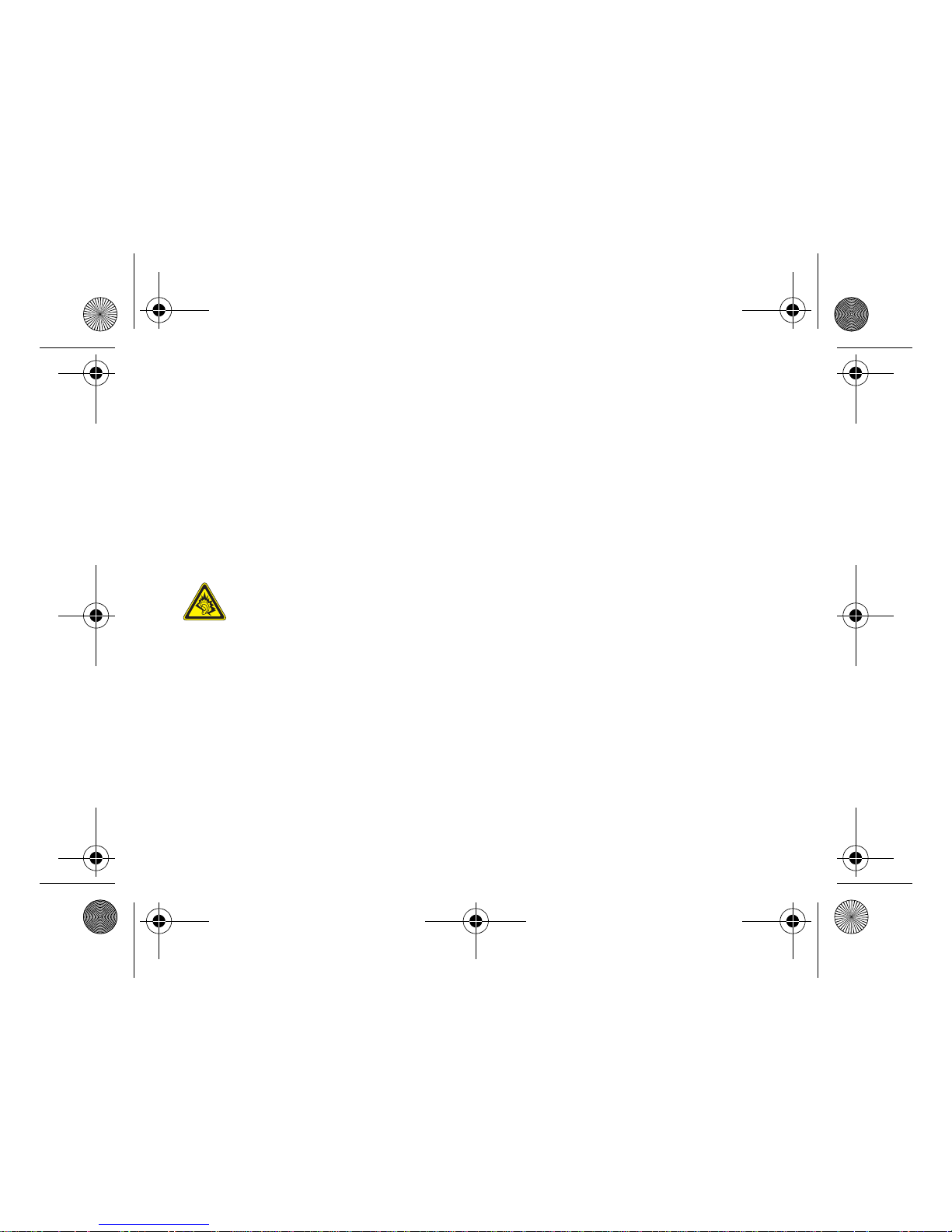
- Prolonged listening at high volume with a headset or earphones can damage your hearing.
- If you experience ringing in your ears, reduce the volume or stop using the product.
- Only use the headset or earphones supplied with the product or can be bought at Vodafone.
Please contact the Vodafone organization.
Environment
Packaging
To facilitate the recycling of packaging materials, please obey the sorting rules instituted locally for this type of
waste.
Batteries
Spent batteries must be deposited at the designated collection points.
287296649_VF540 QSG_EN.book Page 8 Tuesday, September 22, 2009 2:45 PM
Page 9

Health and Safety information 9
The product
The crossed-out waste bin mark affixed to the product (including its accessories) means that it
belongs to the family of electrical and electronic equipment.
To promote the recycling and recovery of waste electrical and electronic equipment (WEEE) and at
the same time safeguard the environment, European regulations require you to comply with the
selective waste sorting rules instituted locally for this type of waste.
Charging the battery
Your phone is powered by a rechargeable battery. A new battery must be
charged for 4 hours at least before being used for the first time. It reaches its
optimum capacity after a few cycles of use.
When your battery has been discharged, the phone displays the state (empty
battery icon flashes). In this case recharge your battery for at least 15
minutes
before making any calls in order not to be cut off in the middle of a call.
Note:
Each telephone has a specific charger with the appropriate connectors
for the telephone with which it is sold. Using any other charger, or using the
charger with any device other than the telephone will lead to an exclusion of
warranty.
To recharge the battery:
- Plug the end of the cable into the phone connector.
- Connect the charger to a socket
The phone is then charging up. The battery icon scrolls up and down to indicate that it is charging. When the
battery is fully charged, the charging stops on its own. Disconnect the cable.
When charging, the battery may warm up, this is normal.
When you recharge the battery, make sure that the mains socket where you plug in the charger is easy to
access.
287296649_VF540 QSG_EN.book Page 9 Tuesday, September 22, 2009 2:45 PM
Page 10
10 Health and Safety information
When you charge the battery, the socket on which the charger is plugged must be easily accessible..
If the battery has entirely discharged, the phone cannot start. Plug the phone into the charger. The phone
will switch on after a few minutes of charge. You can use the phone again when the
Start
option is
displayed on the screen.
WARNING
There is danger of explosion if the battery is placed in an incorrect way or if it is exposed to fire.
Do not short circuit it.
The battery does not have any part that you can change.
Do not try to open the battery casing.
Use only the appropriate chargers and batteries as shown in the phone manufacturer's catalogue.
The use of other types of chargers or batteries may be dangerous or invalidate the warranty.
Used batteries must be disposed of in the appropriate places.
We recommend you to take the battery out if you plan not to use the phone for extended periods.
You are strongly advised not to connect your phone to the charger if it doesn’t contain a battery.
The charger is a safety step-down transformer, it is forbidden to modify, alter or replace it by another
component (power supply plug, etc).
If the battery has entirely discharged, the phone cannot start. Plug the phone to the charger. The phone
will switch on after a few minutes of charge. You can use the phone again when the
Start
option is
displayed on the screen.
WARNING
287296649_VF540 QSG_EN.book Page 10 Tuesday, September 22, 2009 2:45 PM
Page 11
Menus 11
Menus
Entertainment
Music player
FM Radio
Games
Applications
Browsing
Web
Calls
Camera
Messaging
Email
Create Message
Inbox
Drafts
Outbox
Sent
Call Voice Mail
Live! Studio (*)
Templates
Local information
Advanced
My Files
(*) Service depending on the operator
287296649_VF540 QSG_EN.book Page 11 Tuesday, September 22, 2009 2:45 PM
Page 12
12 Menus
Organiser & Tools
Services
Alarm
Stopwatch
Timer
Calendar
Todo
Calculator
Unit Converter
Contacts
Settings
Phone
Connectivity
Memory
Multimedia
Calls
Messaging
Security
Note:
- Detailed operation please refer to the mobile
phone.
- The detailed user manual available on
www.vodafone.de/vodafone540
.
287296649_VF540 QSG_EN.book Page 12 Tuesday, September 22, 2009 2:45 PM
Page 13
Description 13
Description
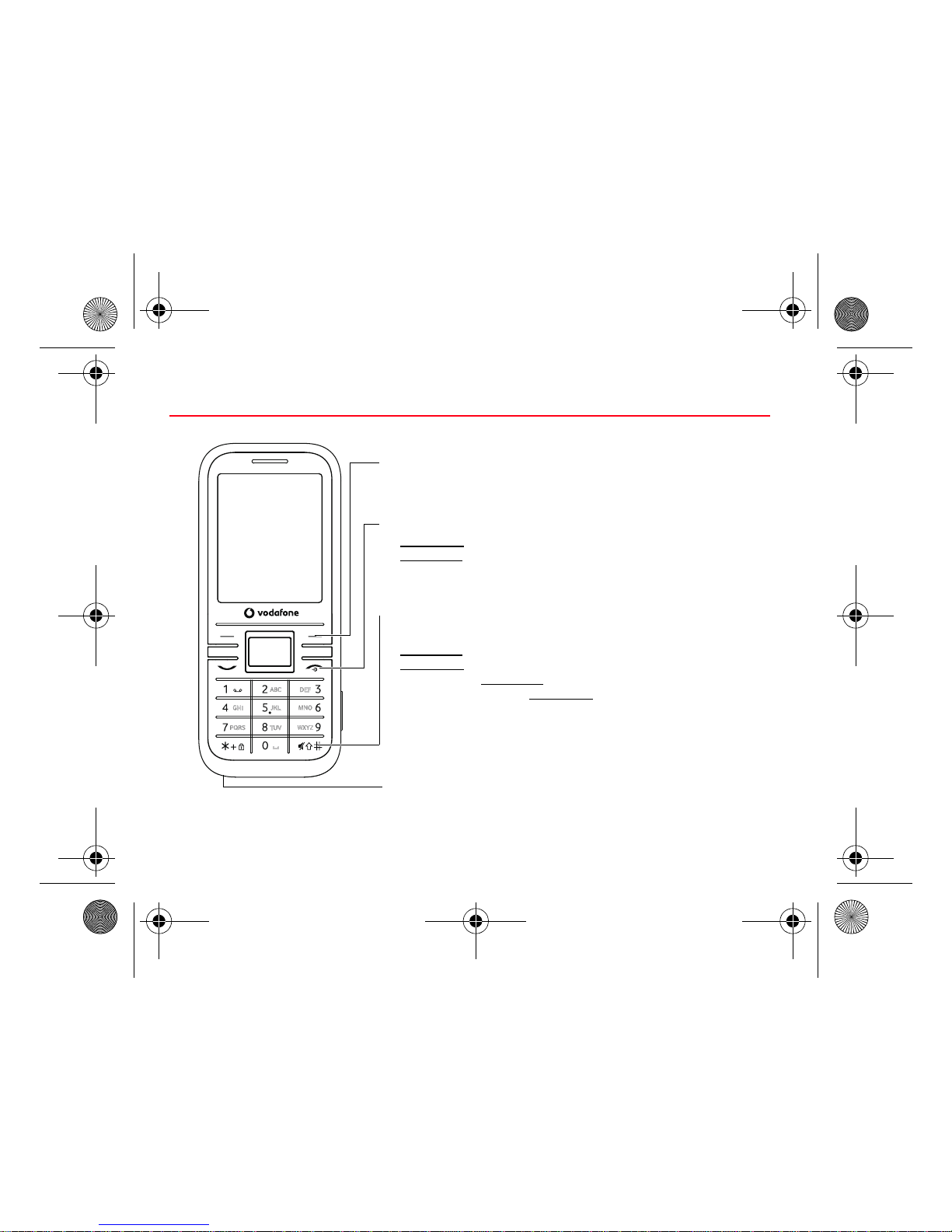
Right key
- In idle screen: connect internet functions.
- In menus: access to the selection shown on screen in the tab
# key
When composing a message
- Long press: a shortcut to change the T9 dictionnary
- Short press
: inserts symbols
- In idle screen: Long press
: silent mode
- In call reception mode: Short press
: stops ring tone
- In ring tone setting mode: activate/deactivate ring tone
- Stops sound in video or message playing, or in a game
Stop key
- Short press: switch on
- Long press: switch off
- In call context: reject a call - hang up
- In menus: return to idle screen
Microphone
WARNING:
Ensure that you are not obstructing the
microphone in call context
287296649_VF540 QSG_EN.book Page 13 Tuesday, September 22, 2009 2:45 PM
Page 14
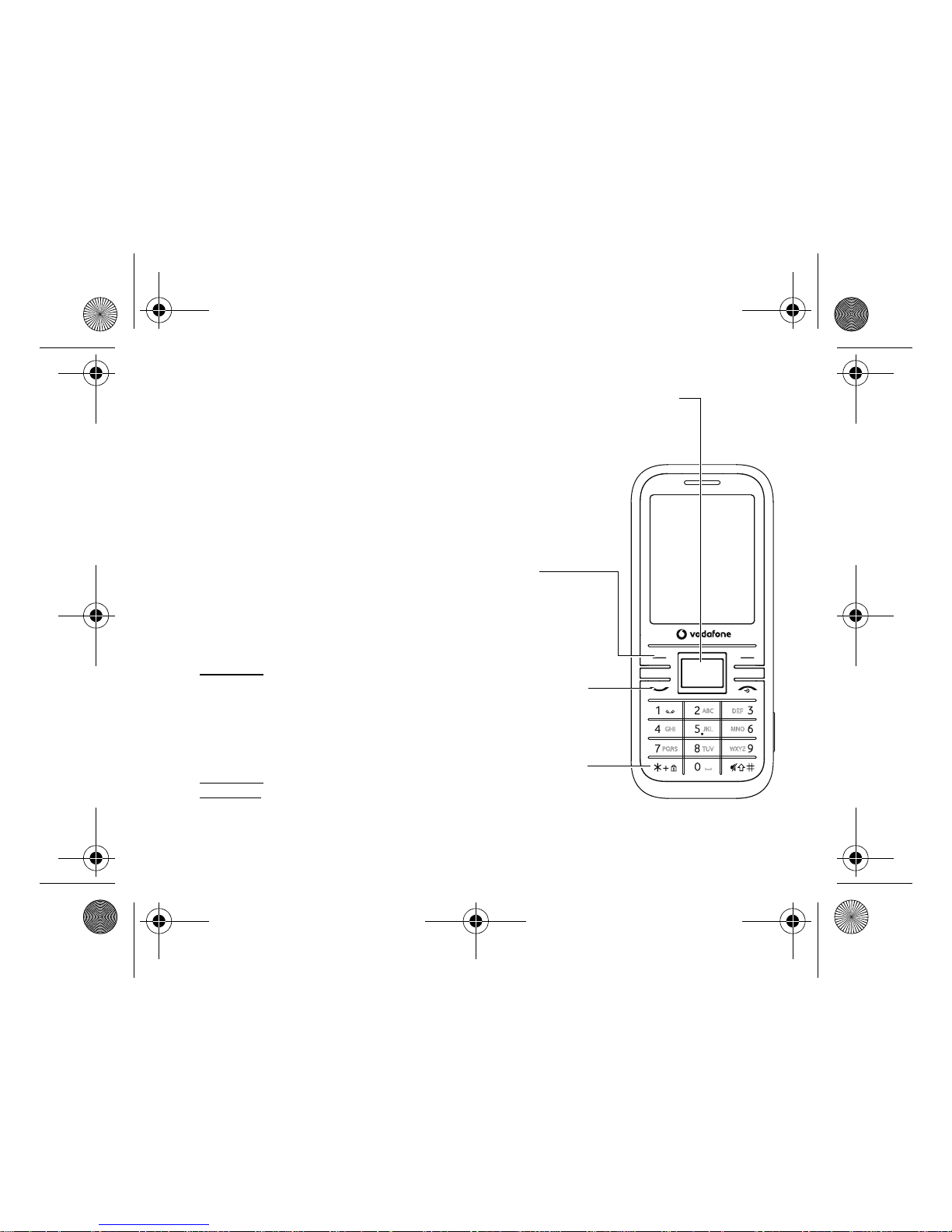
The
navigator
allows you:
- to navigate in the various functions pressing the relevant direction (up, down, right, left),
- to confirm your selection pressing the central part (
OK
).
In idle screen, pressing
OK
goes to the main menu.
Pressing
OK
followed by one of the nine keys of the keypad, you can display a
menu directly.
Note:
the phone menus being numbered, you can directly access a menu
typing the various numbers.
Left key
- In idle screen: enter Menu screen
- In menus: access to the selection shown on screen in the tab
Start key
- In dialling/phonebook/call log context: call - receiving a call
- Short press
: Activate/Deactivate hands-free mode during a call
(
WARNING
: do not use the phone in hands-free mode near to your
ear, or you may suffer hearing loss)
- In idle screen: displays the call log
* key
When composing a message
- Short press: upper case/lower case/figures
- Long press
: switches from one input mode to another (ABC/T9)
14 Description
287296649_VF540 QSG_EN.book Page 14 Tuesday, September 22, 2009 2:45 PM
Page 15
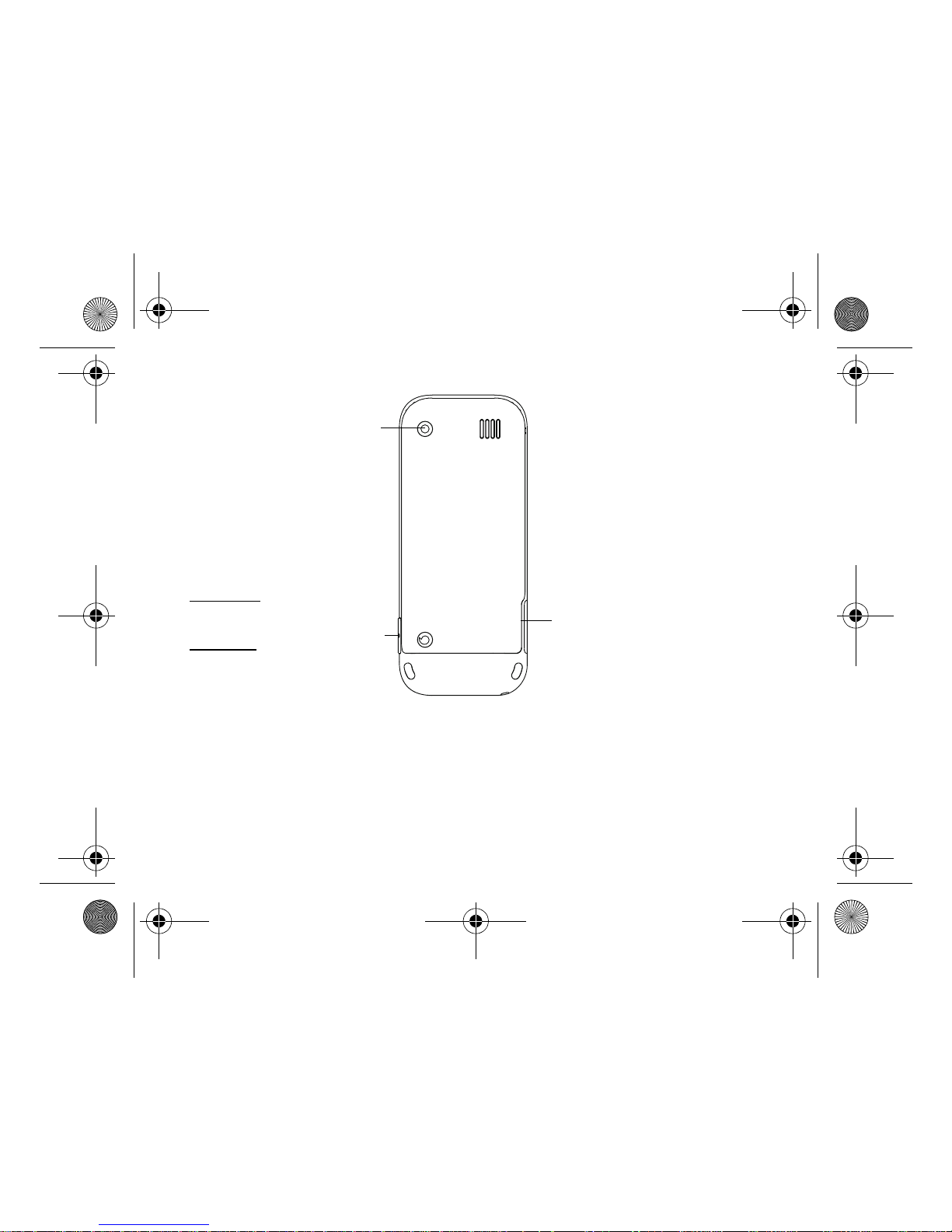
Camera
Connector for charger, hands free kit
and USB cable.
Note:
covers are available into the
packaging box.
From idle screen
- Long press: launch the camera
preview
During camera preview screen
- Short press: takes the picture
During incoming call
- stops the ring tone
Description 15
Alphanumeric keypad
A long press on the key 1 calls voicemail (if the number has been stored in
Settings/Calls/Set
Voicemail
menu)
A long press on one of the 2 to 9 keys immediately displays the phonebook on the contact
corresponding to the letters on the key.
1
2 to 9
287296649_VF540 QSG_EN.book Page 15 Tuesday, September 22, 2009 2:45 PM
Page 16
16 Description
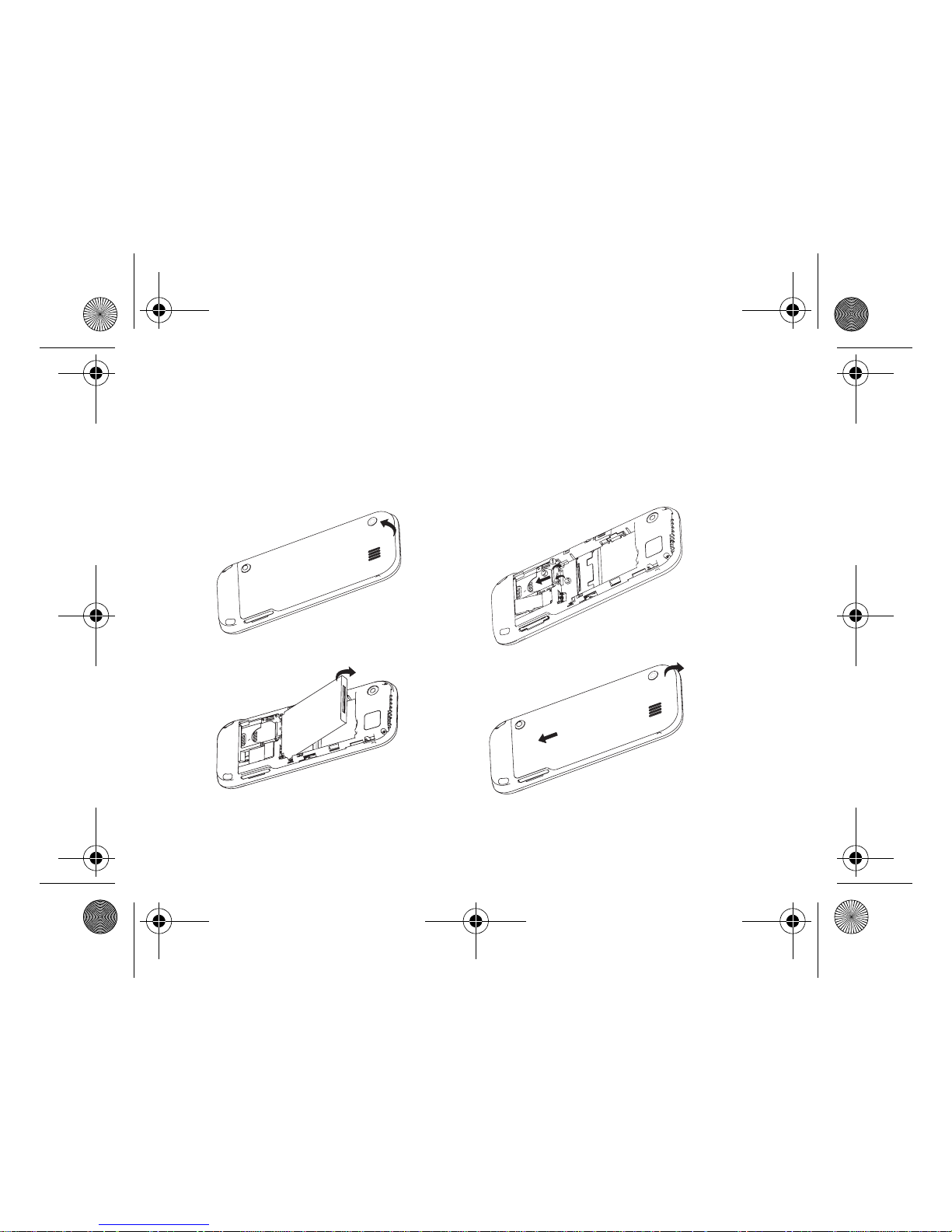
Installing the SIM card and the battery
Ensure that the phone is switched off and the charger disconnected.
1.
Open the back cover using the notch located at the bottom of the phone. Take out battery if already installed.
2.
Open the metallic lock, slide the SIM card into the card holder with fold face down and cut corner, close the
metallic lock.
3.
Place the battery by positioning first the bottom of it, as shown on the battery.
4.
Place the back cover, clicking in first the upper part then the lower part.
12
34
287296649_VF540 QSG_EN.book Page 16 Tuesday, September 22, 2009 2:45 PM
Page 17
Description 17
WARNING
Depending on the model, network configuration and associated subscription cards, certain functions may not
be available.
Your phone is identified by its IMEI number. Write this number down, and do not keep it with your phone,
because you may be asked for it in the event of your phone being stolen, in order to prevent it from being used,
even with a different SIM card. In order to display the IMEI on your phone's screen, type: *#06#.
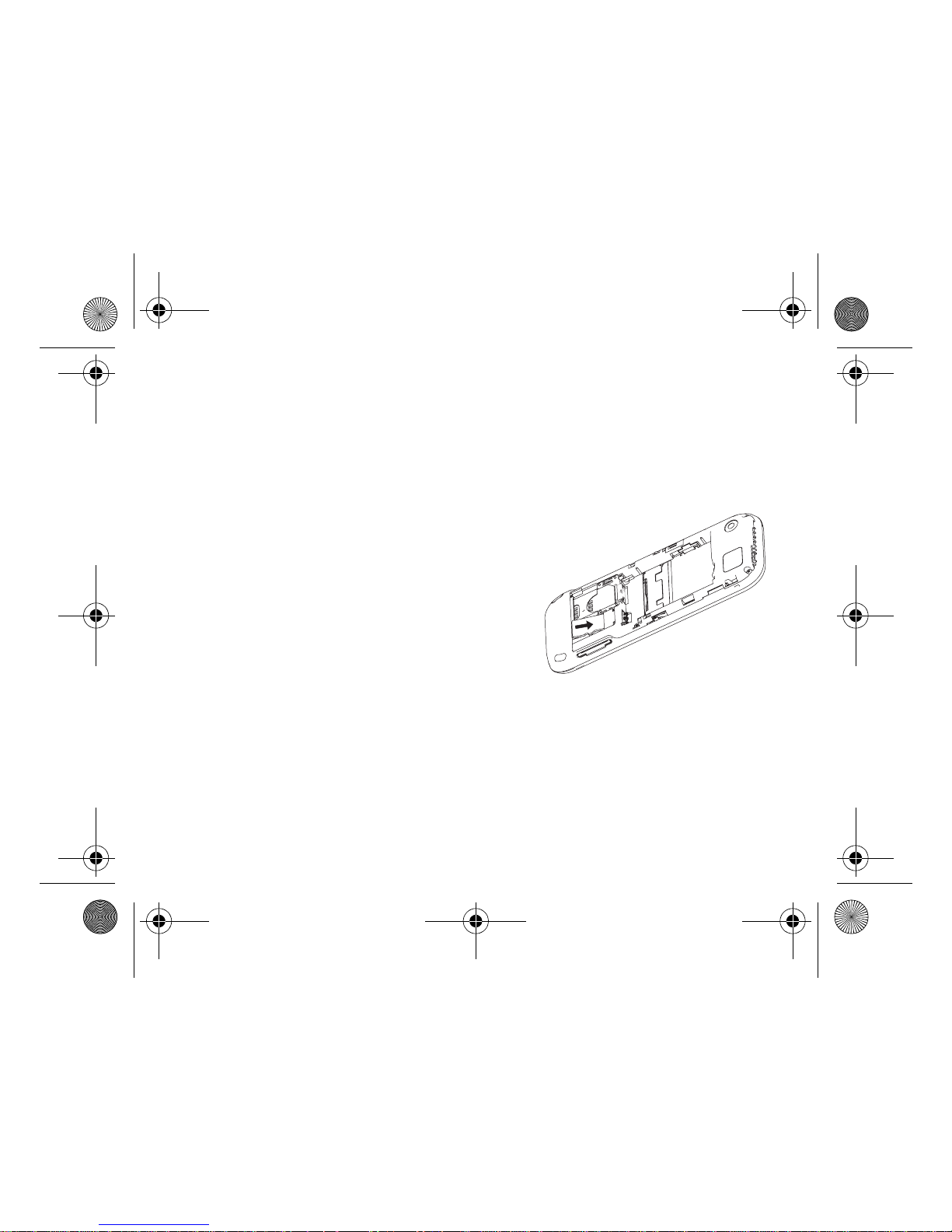
Inserting the memory card
- Remove the back cover.
- Insert the memory card pushing it until it into place.
- Replace the back cover.
To remove the card, first make sure that no application is
accessing the card, then slightly push the top edge of the card to
release it and pull it out of the slot.
Using the memory card
The memory card is very fragile. Take care when you insert or remove the memory card.
Some memory cards must be formatted with a PC before first use with the phone.
287296649_VF540 QSG_EN.book Page 17 Tuesday, September 22, 2009 2:45 PM
Page 18
18 Navigation principles
Navigation principles
These basic principles provide a great intuitiveness to your phone.
Val idate
by pressing the
Left key
or the navigator.
Cancel
by pressing the
Right key
.
The thumbnails at the bottom of the screen refer to the
Left
and
Right keys
.
From the idle mode, pressing the navigator displays the icons of the main menus.
When pressing the navigator followed by a figure, you can display a menu directly. For instance, pressing the
navigator then
8 displays the Phonebook.
The
Left key
is used to go from a menu to a sub-menu.
The
Right key
is used to go from a sub-menu to a menu.
The
key (press briefly) is used to go back to the idle screen (current function is abandoned).
287296649_VF540 QSG_EN.book Page 18 Tuesday, September 22, 2009 2:45 PM
Page 19
Idle screen 19
Idle screen
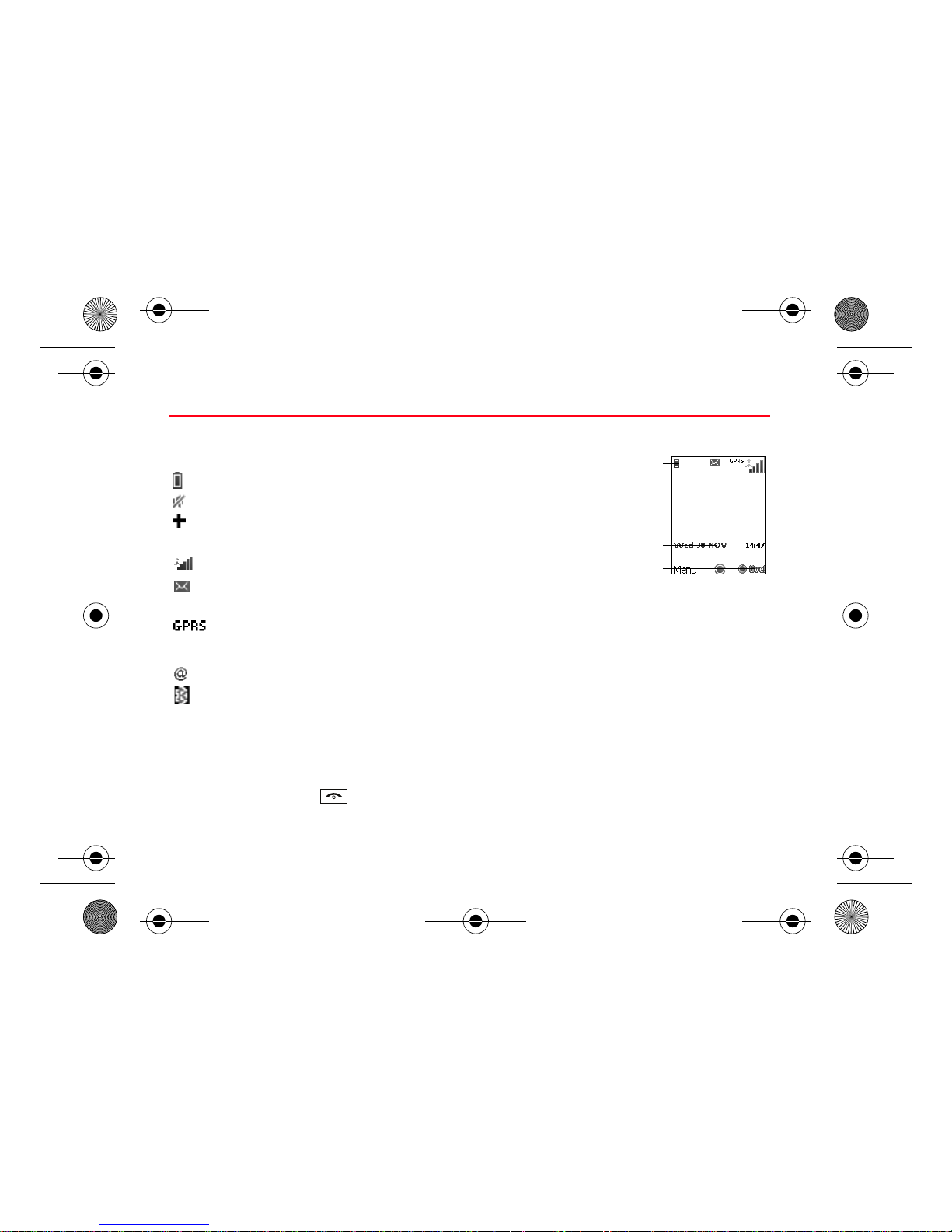
The idle screen contains the following information:
1 - The title bar icons:
1
2
3
4
Vodafone
Battery (if it flashes red, the battery must be charged immediately)
Silent mode (the ringtone is off)
Only emergency call is possible
Roaming
Signal strength level (between 0 and 5 bars)
Message received (read your message), flashing: memory full (delete some
messages)
Grey: GPRS unavailable
Blue: GPRS connection
Flashing: GPRS connection on hand
Internet connection
Gray: bluetooth disconnect; Blue: bluetooth connect
2 - Network provider
3 - Date and time, in digital or analog mode
4 - Thumbnail centred on bottom line:
The main " Menu " thumbnail shows that the menus can be accessed by pressing OK.
Information messages on calls, messages or network messages received may also be displayed. They can
be deleted by pressing the
key briefly.
R
287296649_VF540 QSG_EN.book Page 19 Tuesday, September 22, 2009 2:45 PM
Page 20
20 Activating your phone
Activating your phone
Information on the Vodafone SIM card
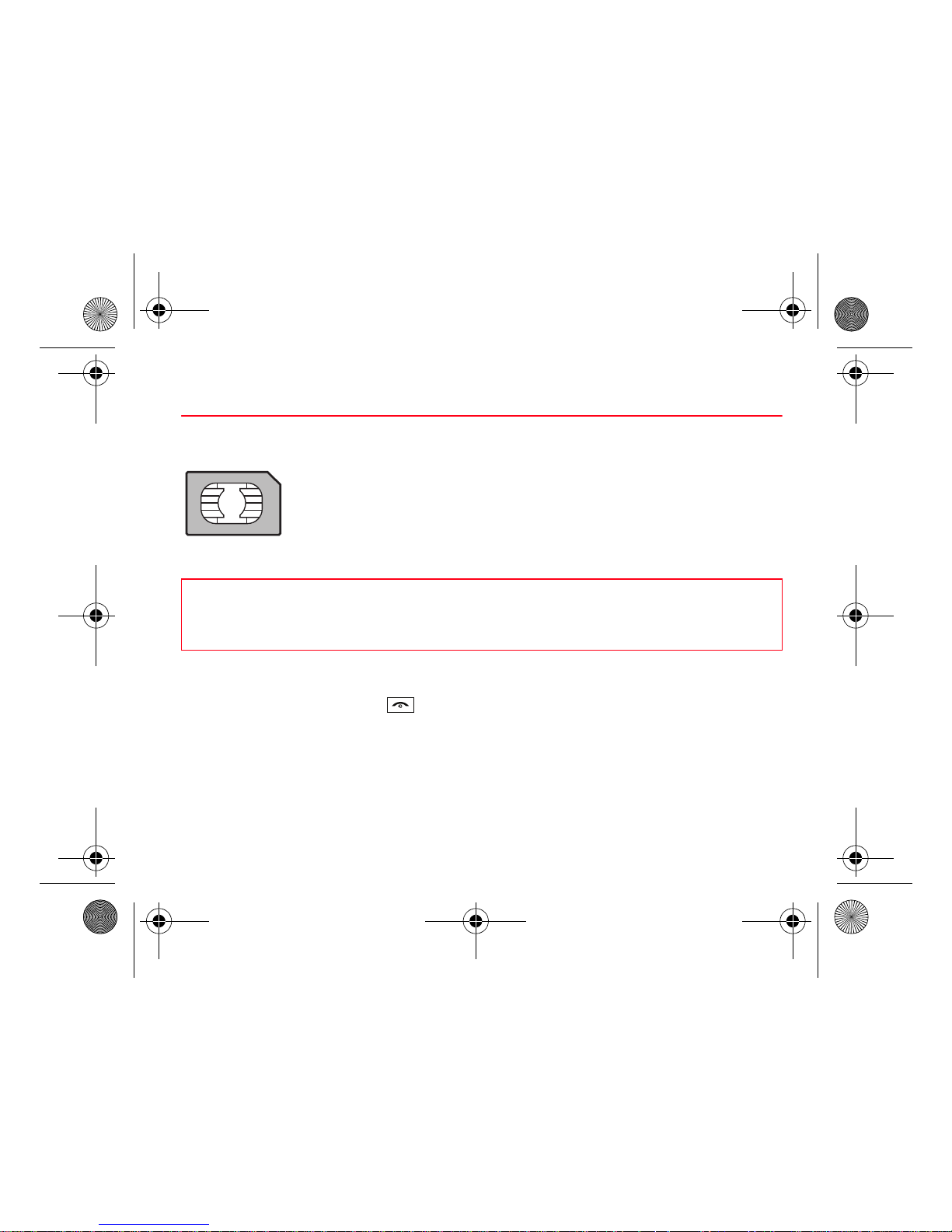
To use your phone, you need Vodafone SIM card. It contains personal information that
you can modify:
- Secret codes (PIN(s): Personal Identification Numbers), these codes allow you to
protect access to your SIM card and phone
- Phonebook
- Messages
- How special services work.
Getting started
You are now ready to use your phone for the first time.
Switch on the phone by pressing the key.
Enter your PIN code then the date and time.
PIN number
This is your SIM's secret code.
If access to the Vodafone SIM card is protected, the device prompts you to enter the PIN:
WARNING
This card must be handled and stored with care to avoid being damaged. If you should lose your SIM
card, contact Vodafone immediately.
Please keep your SIM card out of reach of young children.
287296649_VF540 QSG_EN.book Page 20 Tuesday, September 22, 2009 2:45 PM
Page 21
Activating your phone 21
Enter the code between 4 and 8 digits given to you when the SIM card was issued. These digits do not appear
on the screen for security reasons.
Press [
OK
] or the navigator to validate.
If your phone indicates that the SIM is missing, press the key to switch off your phone and check that the
SIM card is correctly installed.
Setting date and time
When you use your phone for the first time, you need to set the date and time.
In due course, when the battery is completely discharged, or if it has been removed, you will be prompted
systematically to confirm date and time.
Setting the date
Set the date by entering it directly in numerical form or by using the navigator to increase or decrease the
default values.
Use the navigator to access the next (or last) data input field.
Once the date is correct, press the
Left key
to validate.
Setting the time
Same procedure as for setting the date.
WARNING
If a wrong PIN is entered three times in succession, your SIM card is blocked. You must then:
- Enter the PUK (Personal Unblocking Key) code provided by your operator, and validate.
- Enter your PIN and validate.
- Enter your PIN again and validate.
After 5 or 10 failed attempts (depending on the type of SIM card), the Vodafone SIM card is permanently
locked. You must then contact your operator to obtain a new card.
287296649_VF540 QSG_EN.book Page 21 Tuesday, September 22, 2009 2:45 PM
Page 22
22 Activating your phone
Network
The phone will now search for a network on which it can make calls. If it finds one, it displays the name of the
network on the screen. You are then ready to send or receive a call.
Easy Search for a menu or a contact name
From the idle screen, use the alphanumeric keypad keys to enter the first several letters of the menu or name
that you want to find into the phonebook.
Example
: press 6 and 3, the menu of «Messages» and «Networks» is displayed on the idle screen.
To find contact «Mike», press 6 and 4; the name of the contact is displayed on the idle screen.
Select the correct menu or contact with the navigator up and down, and then enter the menu or display the
contact detail with the
OK
key.
First call
Dial the number you want to call. Press the key.
During the call, the call in progress icon flashes on screen and tones may indicate the establishment of the call.
While a call is connecting, the phone icon is flashing.
You can adjust the sound level (volume) by pressing the side volume keys.
At the end of the conversation press the key to hang up.
If the network’s name appears, calls are possible on your operator's network.
If the letter
R
and a network name are displayed, calls are possible on a roaming networkprovider.
If the letter
E
is displayed without any network name, only the emergency services are accessible
(ambulance, police, fire brigade).
If the network icon flashes, the phone is in permanent search mode. There is no network available. The
received signal strength indicator displays the quality of reception. If it indicates less than three bars,
search for better reception in order to call in good conditions.
287296649_VF540 QSG_EN.book Page 22 Tuesday, September 22, 2009 2:45 PM
Page 23
Activating your phone 23
Calling voicemail
In the idle screen, press and hold down the 1 key.
Receiving a call
When you receive a call, the number of your correspondent is displayed when it is presented by the network.
Press the key or the
Left key
to answer, and speak.
To refuse the call, press the key or the
Right key
.
To stop the ring tone, without refusing the call, press the camera key on the right side.
When a call is on hand, pressing [
Options
] allows you to have access to different functions.
Pressing [
Mute on
] allows you to switch off the sound temporarily when you do not want that your
correspondent listens when you want to speak to other people.
International call
Press (hold down) 0 to display « + », then dial the country code without waiting for the dial tone, then the
number of the called party.
Emergency services
Depending on the operators you can obtain the emergency service with or without a SIM card. It is
enough to be in an area served by a network.
To obtain the international emergency service, dial
112
then press the key.
Hands-free mode
To change to hands-free mode during a call,
- short press on the key then press [
Yes
] to confirm activation of the amplified mode.
- press [
Options
] and select
Amplified mode ON
then confirm.
WARNING:
in this mode do not position the phone near your ear.
287296649_VF540 QSG_EN.book Page 23 Tuesday, September 22, 2009 2:45 PM
Page 24
24 Activating your phone
Call log
From the idle screen, press the key to access the call log divided into five lists that you can display by
the navigator: all calls, dialed calls, received calls, missed calls and call manager.
Various options are proposed: store a number in your phonebook, call, send a message, etc.
You can also make a call to a number by pressing the key.
Increase the efficiency of your phone
- Don't press the keys when not necessary: each keypress activates the backlight, and uses power.
- Don't obstruct the antenna with your fingers.
- Activation of the Bluetooth
®
function reduces the life time of the phone. We recommend you deactivate it
when not in use.
Switching off
Press the key (long press).
The end message is displayed. The phone switches off.
287296649_VF540 QSG_EN.book Page 24 Tuesday, September 22, 2009 2:45 PM
Page 25
Services 25
Services
This service manual describes some services which could depend on the operator. Please contact Vodafone
to get more information.
Messages
Menu: Messages
The Messaging menu contains the following message types: text messages (SMS, MMS), voice messages
and e-mail. MMS is a Multimedia Message Service, which allows you to enclose photos, audio files, and
others rich contents to your messages; these messages can even be composed of several slides. MMS are
differently charged to SMS are. Please contact your network provider to get more information on their cost
and the service availability.
Creating a message
- Select
Messaging/Create Message/Message
or
Messaging/Email/Create Email
.
- Type your text. The T9 mode is applied by default.
The language used is the one selected on the display of the phone (if the language selected is not compatible
with the Easy Message T9®, the English language will be automatically selected).
Saving the message
- Exit the edit directly, the edited message is saved in the drafts automatically, it will display when you enter
next time.
- Select
Save as/Draft
if you do not want to send the message immediately or if you want to send it several
times. It is saved in the
Drafts
menu. or
- Select
Save as/Template
to use it again as a template. It is saved in the
Templates
menu.
287296649_VF540 QSG_EN.book Page 25 Tuesday, September 22, 2009 2:45 PM
Page 26
26 Services
Sending the message
- Once the text is entered, press the navigator or press [
Options
] and select
Send to
.
- Enter the recipient’s number or take it from your phonebook by pressing [
Options
] then selecting
Contacts
,
you also can select a contacts list in your phonebook.
Live! Postcard
Menu: Messages/Create Message/Postcard
With the Live! postcard option, Vodafone prints on paper a photo you have selected in your phone and
Vodafone sends it by post to the receiver.
Select the photo you want to send and press OK. Then press [
Options
] /
Insert
. Type the message to be
printed on the postcard and press
OK.
Enter the receiver´s name, address, Post Code and City and optionally County and Country using OK to
advance.
Finally, to send the postcard press [
Options
] and select
Send
.
Note:
In some countries or models this service may not be supported (check with your local Vodafone Service
provider).
Live! Studio
Menu: Messages/Live! Studio
Menu: Entertainment/Browsing/Live! Studio
With this link, you can view your stored pictures and sounds in the Vodafone live! live! Studio site.
Note:
In some countries or models this service may not be supported (check with your local Vodafone Service
provider).
287296649_VF540 QSG_EN.book Page 26 Tuesday, September 22, 2009 2:45 PM
Page 27
Services 27
Camera
Menu: Camera
This menu allows you to take photos and use them for different purposes. For instance, you can send them to
another phone or an Internet address, store them, use them as wallpapers or screensavers.
Taking and saving a photo
Select the
Camera
menu. The camera is now on. Look into your phone display and position your subject.
Move your phone to position your photo.
The three text lines on the left of the screen indicate:
- the number of photos that you can take with the photo and the format quality selected,
- the current format selected (
Photo format
option),
- the current quality selected (
Photo quality
option).
Taking a photo
- Press OK or the camera key on the right side, the photo is taken and stays on the phone display, the photo
is saved automatically in
My Files/Pictures
.
Taking a video
- Select the
Camera
menu and press the navigator rightwards to switch to video mode.
My Files
Menu: My Files
The
My Files
menu contains the directories of all the multimedia objects recorded in your phone and the
downloaded objects (photos, ringtones, etc.).
There are two tabs that you can select by pressing the navigator rightwards or leftwards:
-
Phone
tab (phone memory)
-
Memory card
tab (available if you have inserted a memory card in your phone).
287296649_VF540 QSG_EN.book Page 27 Tuesday, September 22, 2009 2:45 PM
Page 28
28 Services
Web
Menu: Web
Web is a mobile internet portal service which allows you to obtain information such as weather conditions,
news, sport and download new ringtones, wallpapers, music.
Opera Mini lets you have the full Web everywhere.
Browsing
Menu:Entertainment/Browsing
The WAP browser navigator is under licence:
The browser navigator and the softwares included are the exclusive property of Openwave. For this reason, it
is forbidden to modify, translate, disassemble or even decompile all or part of these softwares.
Vodafone live!
Entertainment/Browsing/Vodafone live!
This option allows you to open the Vodafone live! portal.
287296649_VF540 QSG_EN.book Page 28 Tuesday, September 22, 2009 2:45 PM
Page 29
Services 29
Music player
Menu: Entertainment
This menu allows you to listen to musics in a continuous way like a portable music player.
If you do not have any music stored in the memory, use WAP to download some or connect your phone to a
PC
1
1
223
1-
Set the volume
2-
Change to the next or previous music track
3-
Play/pause music
FM Radio
Menu: Entertainment/FM Radio
Important:
you must connect the hands-free kit to operate the FM radio. The radio antenna is contained in the
hands-free kit wire.
Once you have connected the hands-free kit, select the
Entertainment
menu then
FM Radio
.
Note:
- Frequency range available: 87.5 MHz to 108 MHz (in steps of 100 KHz).
- In some countries or models this service or one of the service may not be supported (check your phone and
then ask the local Vodafone Service provider).
When you listen to the radio, the station number is displayed on the idle screen.
The side key functions are identical to those used to listen to music.
287296649_VF540 QSG_EN.book Page 29 Tuesday, September 22, 2009 2:45 PM
Page 30
30 Technical features
Technical features
Weight: 75 g
Size: 109.9 x 47 x 9.3 mm
Original battery: Li-ion
Battery life calls/standby: up to 3.35 h/239 h (these values are theoretical ones and given for information only)
Multimedia objects supported:
- Audio formats: iMelody, Midi, wav, MP3, AAC, AMR, AMR NB
- Image formats: wbmp, bmp, png, gif, animated gif, jpeg
Size of memory available for messages: 100 messages
Size of memory available for MMS, the phonebook and the multimedia objects: up to 1.5 MB
Memory card maximum size: 4 GB
Maximum size of each message:
- SMS: < 160 characters
- MMS: < 300 kB for outgoing messages, 100 kB for incoming messages (depends on the phone
configuration and on the operator reservations)
Operating temperature: from - 10 °C to + 55 °C
287296649_VF540 QSG_EN.book Page 30 Tuesday, September 22, 2009 2:45 PM
Page 31
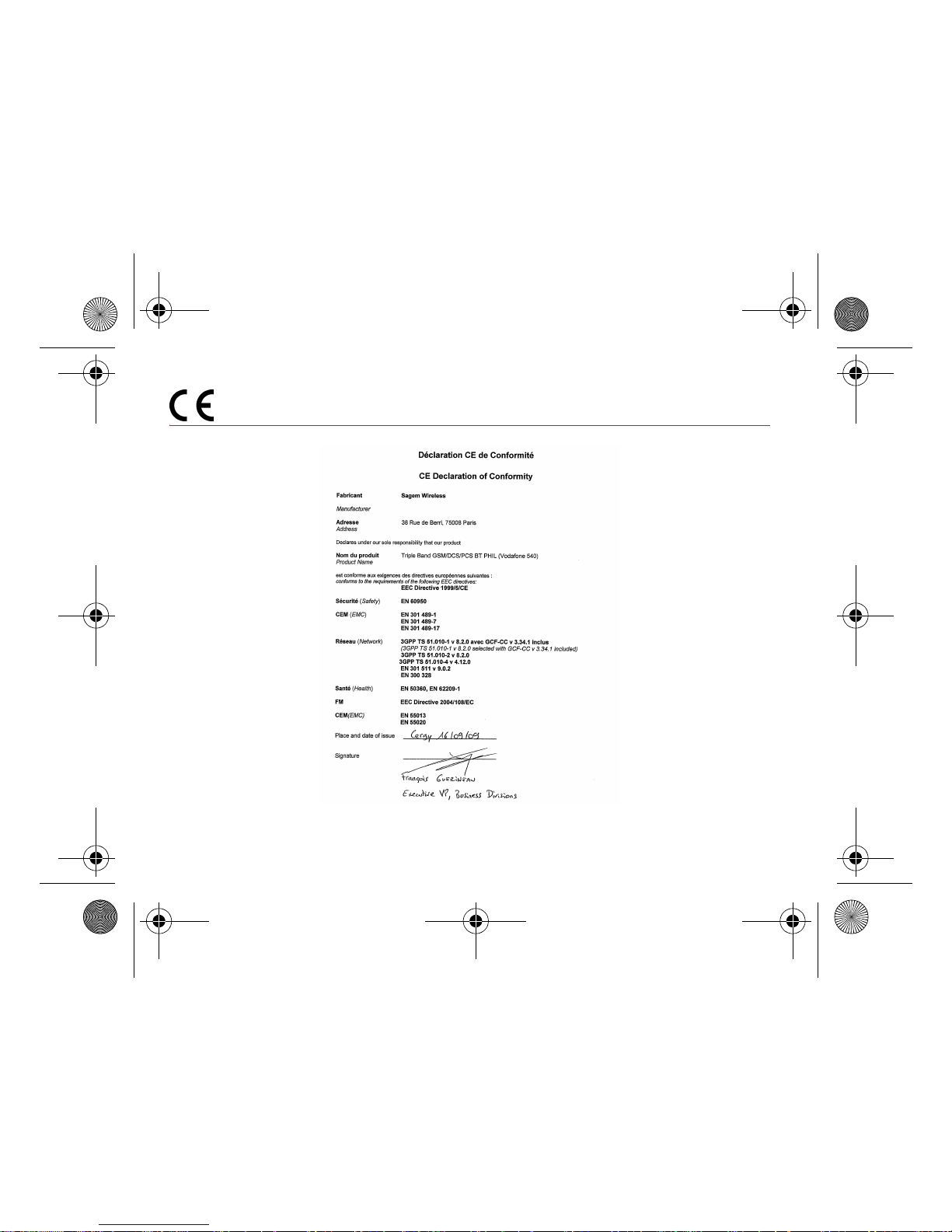
Declaration of Conformity 31
Declaration of Conformity
287296649_VF540 QSG_EN.book Page 31 Tuesday, September 22, 2009 2:45 PM
Page 32
32 Warranty
Warranty
You must always use your phone for the purpose for which it was designed, under normal operating
conditions. Sagemwireless declines all responsibility for any use outside of the scope of its designed purpose
and for any consequences of this use.
Any software program in the phone is either the exclusive property of Sagemwireless or is licensed to
Sagemwireless by third parties. It is therefore highly prohibited to modify, translate, decompile or disassemble
this software program or any part thereof.
Use precautions
Your phone allows you to download ringtones, icons and animated screen savers. Some of these items may
contain data that may cause malfunctions of your phone or data losses (virus for example).
For this reason, Sagemwireless rejects all responsibility concerning (1) the reception of downloaded data or
losses of the said data, (2) the impact on the operation of the phone and (3) damages resulting from receiving
the said downloaded data or loss of said data. In addition, Sagemwireless states that a failure caused by
receiving downloaded data that do not comply with the specifications set by Sagemwireless is excluded from
the warranty.
Consequently, the diagnosis and repair of a phone infected by the said downloaded data will be at the
expense of the customer.
Any content that you download to your phone may be protected by copyright belonging to third parties and
consequently you may not have the right to use this content or its use may be restricted.
Consequently it is up to you to ensure that you have permission, such as under the terms of a licence
agreement, to use any content that you download. Furthermore, Sagemwireless does not guarantee the
accuracy or the quality of any content that you download. You alone are responsible for the content that you
download to your mobile phone and how you use it. Sagemwireless cannot be held responsible for this
content or for its use. It is your responsibility to ensure compliance, at your own expense, with the laws and
regulations applicable in the country where you use your phone.
287296649_VF540 QSG_EN.book Page 32 Tuesday, September 22, 2009 2:45 PM
Page 33
Warranty 33
Warranty conditions
Whenever you wish to make use of the warranty, please contact your vendor and present the purchasing
paperwork obtained from the vendor. If a fault occurs, the vendor will indicate what action is to be taken.
1.
The new phone (excluding consumables), including new accessories bundled with the phone, are guaranteed
by Sagemwireless, parts and labour (apart from travel) against any manufacturing fault for a period of twenty
four months (except for batteries for which the period is twelve months) with effect from the sale of the phone
to the customer, on presentation of the paperwork indicating the purchase date of the phone.
Note:
If the telephone is supplied with a warranty card, the period of the warranty applicable is the period
indicated on the warranty card.
Phones that have been repaired or replaced as standard during the warranty period stated above are
guaranteed (parts and labour) until the later of the following two dates:
Expiry of the guarantee period of twenty four months stated above or three (3) months with effect from the date
of support provided by Sagemwireless.
Your legal rights under the terms of applicable national law as well as your rights in relation to your retailer, as
set out in the sales contract, remain applicable and are in no way affected by this guarantee.
In any disputes, the phone is covered by the legal warranty against the consequences of faults or hidden
defects.
2.
All faulty phones under warranty will be replaced or repaired free of charge at Sagemwireless's option (with the
exclusion of repair of any other damage), including transport costs between Sagemwireless authorised repair centre
and the point of sale. Transport costs between the End User and the point of sale will be borne by the End User.
Subject to essential legal provisions, Sagemwireless does not accept any warranty, explicit or implicit, other than the
warranty provided expressly in this chapter, nor shall Sagemwireless accept responsibility for any immaterial and/or
indirect damages (such as loss of orders, loss of profit or any other financial or commercial damage) under the
warranty or not.
287296649_VF540 QSG_EN.book Page 33 Tuesday, September 22, 2009 2:45 PM
Page 34
34 Warranty
3.
The acceptance of a phone under warranty requires a purchase document that is legible and with no
modifications, stating vendor's name and address, date and place of purchase, type of phone and IMEI, be
attached to the warranty, and that the information on the phone identification label is legible and that this label
or any other seal has not been tampered with.
The warranty applies in normal conditions of use. Prior to sending the phone for repair, it is the customer's
responsibility to back up at his expense the customised data stored in the phone (phonebook, settings,
wallpapers). A list of backup facilities can be provided by Sagemwireless on request. The responsibility of
Sagemwireless cannot be invoked if damage occurs to customer files, programs or data.
The information or operating elements and the contents of files will not be re-installed in any case in the event
of loss.
Sagemwireless may decide, at its option, to repair the phone with new or reconditioned parts, replace the phone
with a new phone or, in any dispute, a phone in good working condition. During its work Sagemwireless reserves
the facility to make, where necessary, any technical modifications to the phone where these modifications do not
adversely affect its initial purpose. Faulty parts to be replaced during a repair under warranty will become the
property of Sagemwireless. The phone repair and standstill time during the warranty period may not lead to an
extension of the warranty period as stated in article 1, provided no other vital provisions have been agreed.
The application of the warranty is subject to the full payment of the sums due for the phone when the request
for support is made.
4.
The following are excluded from the warranty:
Breakdowns or malfunctions due to non-compliance with the installation and usage instructions, to an external
cause of the phone (shock, lightning, fire, vandalism, malice, water damage of any type, contact with various
liquids or any harmful agent, unsuitable electric current, etc), to modifications of the phone made without the
written consent of Sagemwireless, to a servicing fault, as described in the documentation supplied with the
phone, to lack of supervision or care, to poor environmental conditions of the phone (especially temperature
and humidity, effects of variations in electric voltage, interference from the mains network or earth) or even due
287296649_VF540 QSG_EN.book Page 34 Tuesday, September 22, 2009 2:45 PM
Page 35
Warranty 35
to a repair, a call-out (opening or attempt to open the phone) or to servicing done by personnel not approved
by Sagemwireless.
Damage resulting from inadequate packaging and/or poor packing of the phone sent back to Sagemwireless.
Normal wear and tear of the phone and accessories.
Communication problems linked with a poor environment, especially:
Problems accessing and/or logging onto the Internet, such as failures of the access network, the failure of the
subscriber's or correspondent's line, transmission fault (poor geographic coverage by radio transmitters,
interference, disturbance, failure or poor quality of phone lines, etc), a fault inherent in the local network
(cabling, file server, user phone) and/or transmission network fault (interference, disturbance, failure or poor
quality of the network, etc).
Change of parameters of the cellular network made after the phone was sold. Current servicing work: delivery
of consumables, installation or replacement of these consumables… Call-outs for phone or software modified
or added without the written consent of Sagemwireless.
Faults or disruptions resulting from the use of products or accessories not compatible with the phone. Phones
returned to Sagemwireless that do not comply with the return procedure specific to the phone covered by this
warranty. The opening or closing of a SIM operator key and call-outs resulting in the non-operation of the phone
resulting from the opening or closing of the SIM operator key done without the agreement of the original
operator.
5.
In the cases of warranty exclusion and of expiry of the warranty period, Sagemwireless shall draw up an
estimate to be given to the customer for acceptance before any call-out. The repair and carriage costs (there
and back) given in the accepted estimate will be charged to the customer. These provisions are valid unless a
special written agreement has been made with the customer. If one of the provisions turns out to infringe a
legally essential rule protecting consumers under their national legislation, this provision shall not apply, but all
other provisions shall remain valid.
287296649_VF540 QSG_EN.book Page 35 Tuesday, September 22, 2009 2:45 PM
Page 36
-
287296649_VF540 QSG_EN.book Page 36 Tuesday, September 22, 2009 2:45 PM
Page 37
-
287296649_VF540 QSG_EN.book Page 37 Tuesday, September 22, 2009 2:45 PM
Page 38
287296649_VF540 QSG_EN.book Page 38 Tuesday, September 22, 2009 2:45 PM
Page 39
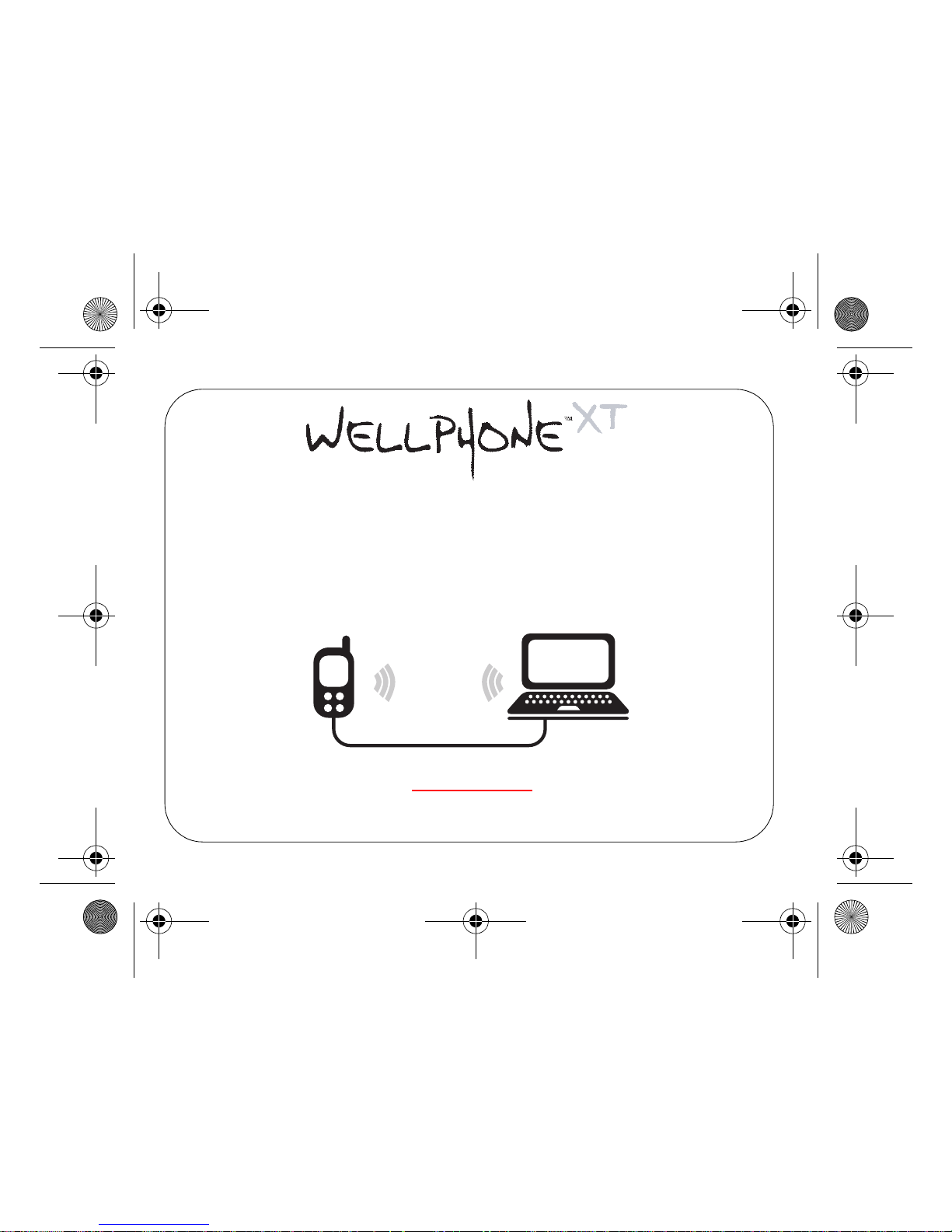
PC software, available as an option:
To exchange data between your mobile phone and your PC.
Pictures, Sounds, Video, SMS, MMS, Contacts, Calendar, etc
To connect to the Internet easily
Using the 3G, EDGE or GPRS networks according to your mobile phone capacities and your subscription
For more information or to buy WellPhone
XT
www.wellphone.com
(*) See chapter “Connectivity” to view the links compatible with your phone.
Bluetooth® (*)
IRDA (*)
USB (*)
287296649_VF540 QSG_EN.book Page 39 Tuesday, September 22, 2009 2:45 PM
Page 40
© Vodafone 2009. Vodafone and the Vodafone logos
are trade marks of the Vodafone Group. Any product
or company names mentioned herein may be the
trade marks of their respective owners.
287296649_VF540 QSG_EN.book Page 40 Tuesday, September 22, 2009 2:45 PM
 Loading...