

Page 1
English - CJB24A3VDAAA
© Vodafone Group 2011. Vodafone and the
Vodafone logos are trade marks of Vodafone Group.
Any product or company names mentioned herein
may be the trade marks of their respective owners.
User guide
Vodafone 155
Vodafone 155
Page 2

Notice
Table of contents
Copyright © 2011 TCT Mobile Limited
All Rights Reserved
Your phone is made exclusively for Vodafone by TCT.
No part of this manual may be reproduced or transmitted in any form or by any
means without prior written consent of TCT.
Trademarks
VODAFONE, the Vodafone logos are trade marks of the Vodafone Group.
Other product and company names mentioned herein may be trade marks of
their respective owners.
TCT is a trademark of TCT.
Notice
The information in this manual is subject to change without notice. Every effort
has been made in the preparation of this manual to ensure accuracy of the
contents, but all statements, information, and recommendations in this manual
do not constitute a warranty of any kind, expressed or implied. Read the safety
precautions and safety informations carefully to ensure that you use wireless
device in a correct and safe manner.
TCT Mobile Limited Address:
TCT Mobile Europe SAS, 55 Av. des champs pierreux Le Capitole, Noyau B, 1er
é tage, 92000 Nanterre, France.
Website: http://www.alcatelonetouch.com
Product Safety Information ..................................................................... 3
1 Getting started.................................................................................17
2 Your mobile...................................................................................... 24
3 Calls ................................................................................................... 30
4 Call log .............................................................................................. 32
5 Contacts............................................................................................32
6 Messaging.......................................................................................... 33
7 Settings ............................................................................................. 34
8 Tools .................................................................................................35
9 Latin input mode .............................................................................40
10 Telephone warranty ......................................................................... 41
11 Troubleshooting. ............................................................................. 43
1 2
Page 3

Product Safety Information
Pictograms and Graphic Symbols
Avoid contact with liquid, keep dry
Switch off when instructed in hospitals and medical facilities
Read the Safety Information section of this user guide on page 5
Do not use while re-fuelling
Do not use hand-held while driving
This device may produce a bright or flashing light
For body-worn operation maintain a separation of 1.5 cm
Do not dispose of in a fire
Small parts may cause a choking hazard
Avoid contact with magnetic media
This device may produce a loud sound
Avoid extreme temperatures
Keep away from pacemakers and other personal medical devices
Do not try to disassemble
Switch off when instructed in aircraft and airports
Do not rely on this device for emergency communications
Switch off in explosive environments
Only use approved accessories
3 4
Page 4

Product Safety Information
RF Exposure•
General Statement on RF energy
Your phone contains a transmitter and a receiver. When it is ON, it receives
and transmits RF energy. When you communicate with your phone, the system
handling your call controls the power level at which your phone transmits.
Specific Absorption Rate (SAR)
Your mobile device is a radio transmitter and receiver. It is designed not to
exceed the limits for exposure to radio waves recommended by international
guidelines. These guidelines were developed by the independent scientific
organisation ICNIRP and include safety margins designed to ensure the
protection of all persons, regardless of age and health.
The guidelines use a unit of measurement known as the Specific Absorption
Rate, or SAR. The SAR limit for mobile devices is 2 W/kg and the highest SAR
value for this device when tested at the ear was 0.623 W/kg
offer a range of functions, they can be used in other positions, such as on the
body as described in this user guide.
As SAR is measured utilising the device’s highest transmitting power, the actual
SAR of this device while operating is typically below that indicated above. This is
due to automatic changes to the power level of the device to ensure it only uses
the minimum power required to communicate with the network.
Body worn operation
Important safety information regarding radiofrequency radiation (RF) exposure.
(1)
The tests are carried out in accordance with IEC standard PT62209-1.
(1)
. As mobile devices
To ensure compliance with RF exposure guidelines the phone must be used with
a minimum of 1.5 cm separation from the body.
Failure to observe these instructions could result in your RF exposure exceeding
the relevant guideline limits.
"The highest SAR value for this mobile phone when tested for use at the
body and compliance against the standard is 0.955 W/kg. While there may be
differences between the SAR levels on various phones and at various positions,
they all meet the relevant International guidelines and EU requirements for RF
(radio-waves) exposure"
Limiting exposure to radio frequency (RF) fields
For individuals concerned about limiting their exposure to RF fields, the World
Health Organisation (WHO) provides the following advice:
Precautionary measures: Present scientific information does not indicate the
need for any special precautions for the use of mobile phones. If individuals are
concerned, they might choose to limit their own or their children’s RF exposure
by limiting the length of calls, or using 'hands-free' devices to keep mobile phones
away from the head and body.
Further information on this subject can be obtained from the WHO home page
http://www.who.int/peh-emf WHO Fact sheet 193: June 2000.
5 6
Page 5
Regulatory information
The following approvals and notices apply in specific regions as noted.
Distraction•
Driving
Full attention must be given to driving at all times in order to reduce the risk
of an accident. Using a phone while driving (even with a hands free kit) causes
distraction and can lead to an accident. You must comply with local laws and
regulations restricting the use of wireless devices while driving.
Operating machinery
Full attention must be given to operating machinery in order to reduce the risk
of an accident.
Product Handling•
General Statement on handling and use
You alone are responsible for how you use your phone and any consequences
of its use.
You must always switch off your phone wherever the use of a phone is
prohibited. Use of your phone is subject to safety measures designed to protect
users and their environment.
- Always treat your phone and its accessories with care and keep it in a clean
and dust-free place.
- Do not expose your phone or its accessories to open flames or lit tobacco
products.
- Do not expose your phone or its accessories to liquid, moisture or high
humidity.
- Do not drop, throw or try to bend your phone or its accessories.
- Do not use harsh chemicals, cleaning solvents, or aerosols to clean the device
or its accessories.
7 8
Page 6
- Do not paint your phone or its accessories.
- Do not attempt to disassemble your phone or its accessories, only authorised
personnel must do so.
- Do not expose your phone or its accessories to extreme temperatures,
minimum -10 and maximum +50 degrees Celsius.
- Please check local regulations for disposal of electronic products.
Do not carry your phone in your back pocket as it could break when you sit
down.
Small Children
Do not leave your phone and its accessories within the reach of small children
or allow them to play with it.
They could hurt themselves or others, or could accidentally damage the phone.
Your phone contains small parts with sharp edges that may cause an injury or
which could become detached and create a choking hazard.
Demagnetisation
To avoid the risk of demagnetisation, do not allow electronic devices or magnetic
media close to your phone for a prolonged time.
Electrostatic discharge (ESD)
Do not touch the SIM card’s metal connectors.
Antenna
Do not touch the antenna unnecessarily.
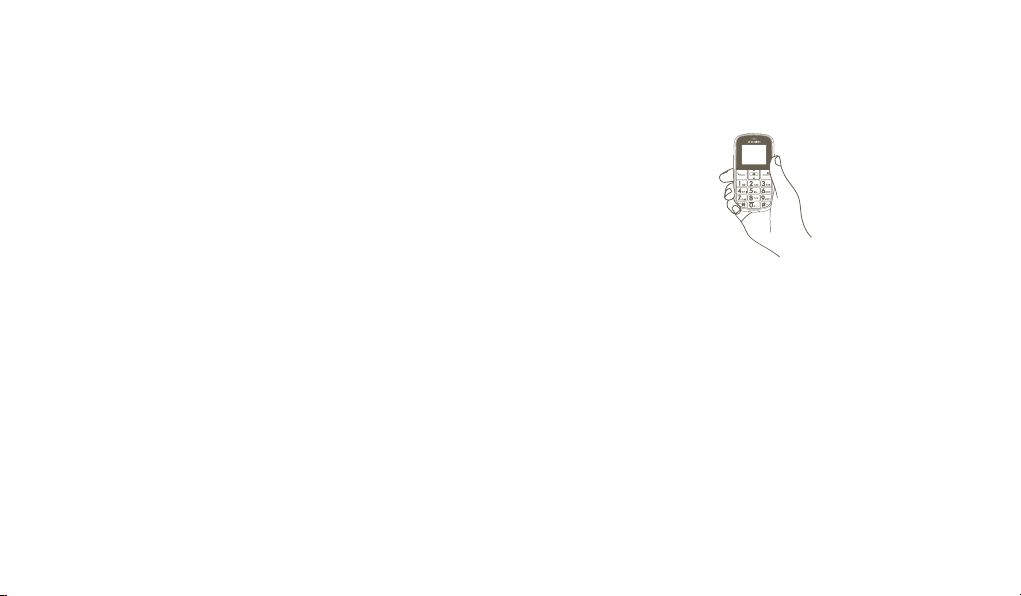
Normal use position
When placing or receiving a phone call, hold your phone to your ear, with the
bottom towards your mouth.
Air Bags
Do not place a phone in the area over an air bag or in the air bag deployment
area.
Store the phone safely before driving your vehicle.
Seizures/Blackouts
This phone is capable of producing bright flashing lights.
Repetitive Motion Injuries
To minimise the risk of RSI, when texting or playing games with your phone:
- Do not grip the phone too tightly
- Press the buttons lightly
- Take lots of breaks to stretch and relax
9 10
Page 7

Emergency Calls
This phone, like any wireless phone, operates using radio signals, which cannot
guarantee connection in all conditions. Therefore, you must never rely solely on
any wireless phone for emergency communications.
Loud Noise
This phone is capable of producing loud noises which may damage your hearing.
Prolonged exposure to music at full volume on the FM Radio may damage the
listener's hearing. Use the recommended headphones only.
Bright Light
This phone is capable of producing flashes of light, do not use it too close to
the eyes.
Phone Heating
Your phone may become warm during charging and during normal use.
Electrical Safety•
Accessories
Use only approved accessories.
Do not connect with incompatible products or accessories.
Take care not to touch or allow metal objects, such as coins or key rings, to
contact or short-circuit the battery terminals.
Connection to a Car
Seek professional advice when connecting a phone interface to the vehicle's
electrical system.
Faulty and Damaged Products
Do not attempt to disassemble the phone or its accessories.
Only qualified personnel must service or repair the phone or its accessories.
If your phone or its accessories have been submerged in water, punctured, or
subjected to a severe fall, do not use them until you have taken it to be checked
at an authorised service centre.
Battery Handling & Safety
Always switch the device off and disconnect the charger before removing the
battery.
Only use the battery and charger supplied, or manufacturer approved
replacements intended for use with your phone. Using other batteries and
chargers could be dangerous.
Do not disassemble or short-circuit the battery. Accidental short-circuiting can
occur if a metallic object such as a key, paper clip, or pen touches the terminals
of the battery.
Improper battery use may result in a fire, explosion, or other hazard. If you
believe the battery has been damaged, do not use it, take it to a service centre
for testing.
Interference•
General statement on interference
Care must be taken when using the phone in close proximity to personal medical
devices, such as pacemakers and hearing aids.
Pacemakers
Pacemaker manufacturers recommend that a minimum separation of 15 cm
be maintained between a mobile phone and a pacemaker to avoid potential
interference with the pacemaker. To achieve this use the phone on the opposite
ear to your pacemaker and do not carry it in a breast pocket.
11 12
Page 8
Hearing Aids
People with hearing aids or other cochlear implants may experience interference
noises when using wireless devices or when one is nearby. The level of
interference will depend on the type of hearing device and the distance from
the interference source, increasing the separation between them may reduce
the interference. You may also consult your hearing aid manufacturer to discuss
alternatives.
Medical devices
Please consult your doctor and the device manufacturer to determine if operation
Areas with potentially explosive atmospheres include fuelling areas, below decks
on boats, fuel or chemical transfer or storage facilities, areas where the air
contains chemicals or particles, such as grain, dust, or metal powders.
Blasting Caps and Areas
Turn off your mobile phone or wireless device when in a blasting area or in areas
posted with notifications requesting "two-way radios" or "electronic devices" are
turned off to avoid interfering with blasting operations.
Your telephone is a transceiver that operates on GSM networks with 900 and
1800 MHz bands.
of your phone may interfere with the operation of your medical device.
Hospitals
Switch off your wireless device when requested to do so in hospitals, clinics
or health care facilities. These requests are designed to prevent possible
interference with sensitive medical equipment.
Aircraft
Switch off your wireless device whenever you are instructed to do so by airport
or airline staff.
Interference in cars
Please note that because of possible interference to electronic equipment, some
vehicle manufacturers forbid the use of mobile phones in their vehicles unless a
handsfree kit with an external antenna is included in the installation.
Explosive environments•
Petrol stations and explosive atmospheres
In locations with potentially explosive atmospheres, obey all posted signs to turn
This equipment is in compliance with the essential requirements and other
relevant provisions of Directive 1999/5/EC.
Protection against theft •
(1)
Your telephone is identified by an IMEI (phone serial number) shown on the
packaging label and in the product’s memory. We recommend that you note the
number the first time you use your telephone by entering * # 0 6 # and keep it in
a safe place. It may be requested by the police or your operator if your telephone
is stolen. This number allows your mobile telephone to be blocked preventing a
third person from using it, even with a different SIM card.
Disclaimer•
There may be certain differences between the user manual description and the
phone’s operation, depending on the software release of your telephone or
specific operator services.
off wireless devices such as your phone or other radio equipment.
(1)
Contact your network operator for service availability.
13 14
Page 9

TCT Mobile shall not be held legally responsible for such differences, if any,
nor for their potential consequences, which responsibility shall be borne by the
operator exclusively.
This symbol on your telephone, the battery and the accessories
means that these products must be taken to collection points at the
end of their life:
- Municipal waste disposal centres with specific bins for these items of
equipment
- Collection bins at points of sale.
They will then be recycled, preventing substances being disposed of in the
environment, so that their components can be reused.
In European Union countries:
These collection points are accessible free of charge.
All products with this sign must be brought to these collection points.
In non European Union jurisdictions:
Items of equipment with this symbol are not to be thrown into ordinary bins
if your jurisdiction or your region has suitable recycling and collection facilities;
instead they are to be taken to collection points for them to be recycled.
CAUTION: RISK OF EXPLOSION IF BATTERY IS REPLACED BY AN
INCORRECT TYPE. DISPOSE OF USED BATTERIES ACCORDING TO THE
INSTRUCTIONS.
Hearing Aid Compatibility
Your cellphone is rated: "For Hearing Aid", to assist hearing device users in
finding cellphones that may be compatible with their hearing devices.
This device is HAC M3/T4 compatible.
For more information please refer to "Hearing Aid Compatibility with Mobile
Phones" leaflet or visit our website http://www.alcatelonetouch.com
15 16
Page 10
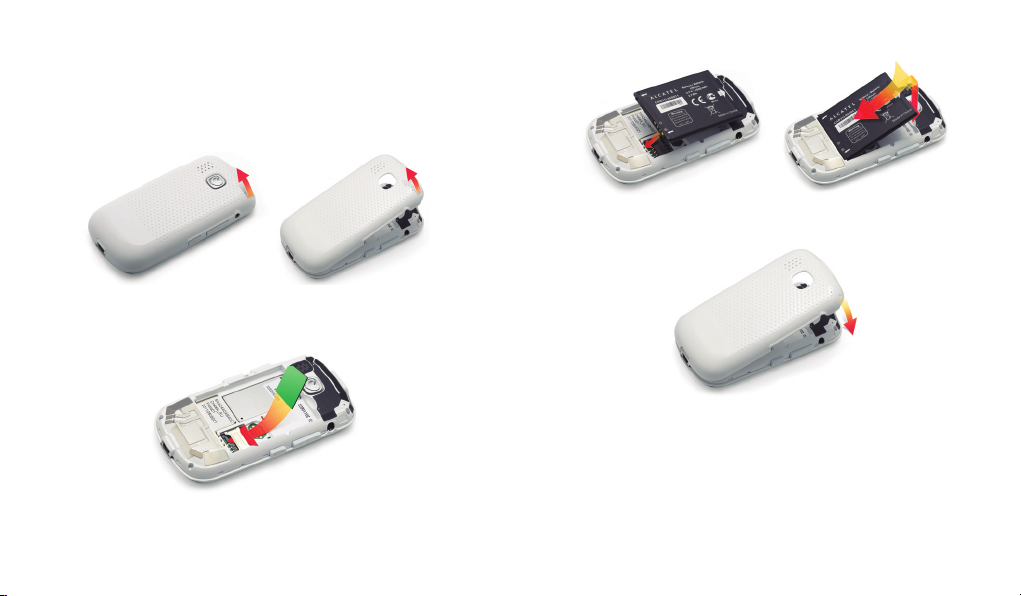
Getting started1 ..................
e Install the battery
Set up your phone1.1
q Remove the back cover
r Attach the back cover
w Insert the SIM Card
17 18
Page 11
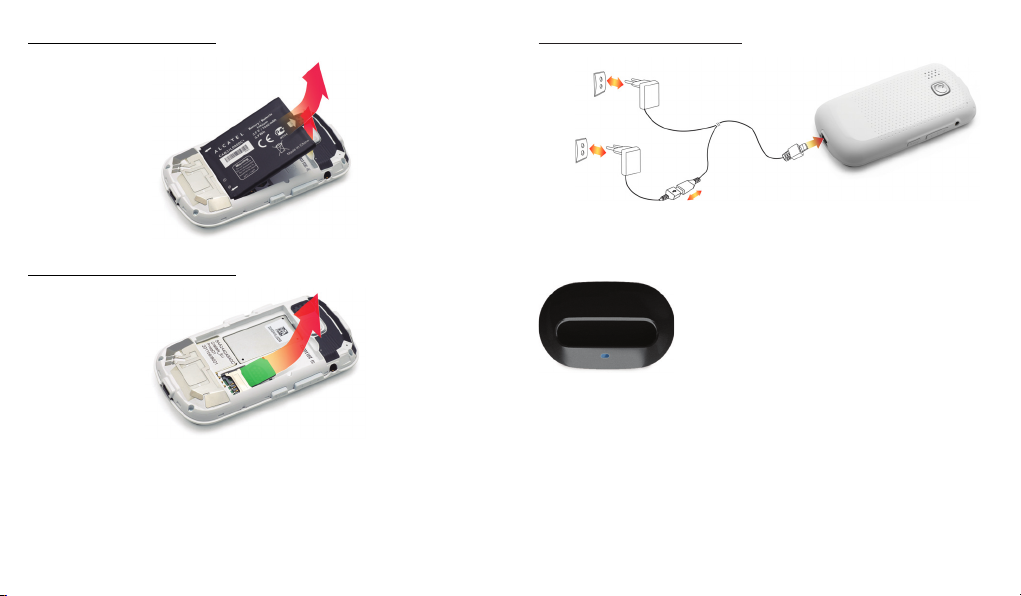
Remove the battery
Charging the battery
Standard charger
(EUP)
Universal
charger
(1)
Connect the battery charger to your phone and mains
Remove the SIM Card
socket respectively.
You can also put your phone in cradle
for charging. Once the light is blue,
the battery starts charging.
(1)
Depending on your country.
19 20
Page 12
The charging may take about 20 minutes to start if the •
battery is flat.
•
Be careful not to force the plug into the socket.
Make sure the battery is correctly inserted before •
connecting the charger.
•
The mains socket must be near to the phone and easily
accessible (avoid electric extension cables).
•
When using your telephone for the first time, charge
the battery fully (approximately 3 hours). You are
advised to fully charge the battery ( ).
To reduce power consumption and energy waste, •
when the battery is fully charged, disconnect your
charger from the plug; reduce the backlight time, etc.
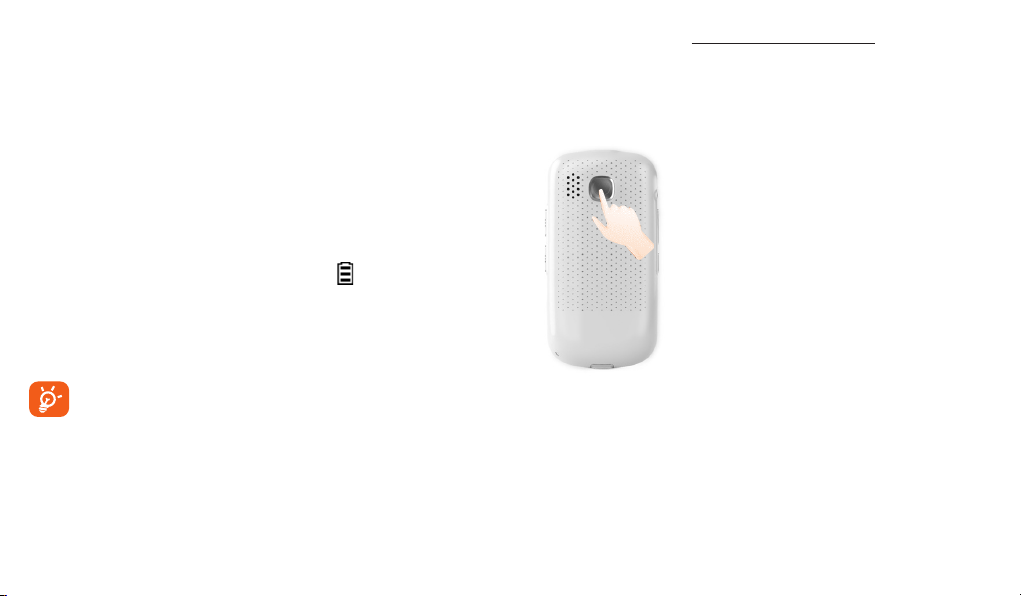
Set up the SOS key
A long press on the SOS key will
bring up an SOS setup wizard, please
follow the wizard to define your SOS
contacts and SOS messages.
Once you have defined your SOS
contacts, a long press on the SOS key
will cause your phone to emit a loud
alert sound, send out help messages
and call your defined SOS contacts.
When the call is connected with your
SOS contact, the loud alert sound
will stop and you will be able to
communicate with your SOS contact
The charge is complete when the animation
stops.
with the loud speaker on (hands-free
mode). This is for you to use when
you are in an emergency situation. To
stop the SOS processing, please press
the SOS key again.
21 22
Page 13
We suggest that you define your close contacts as SOS
contacts, or if necessary, choose your local emergency
telephone number. For your local emergency telephone
number, please check the regulations for your own
country.
Power on your phone1.2
Hold down the key until the phone powers on.
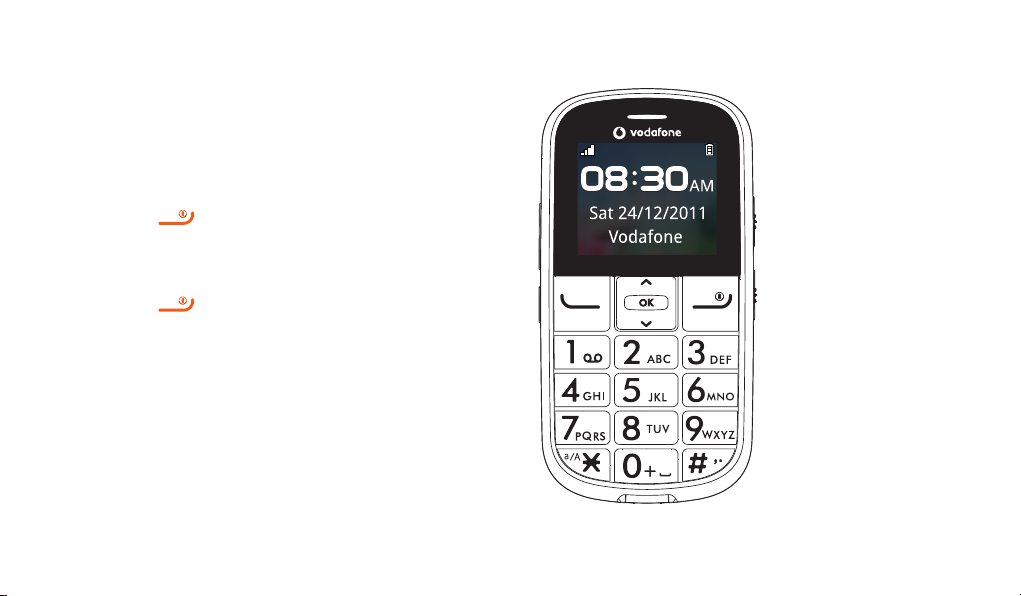
Your mobile2 ........................
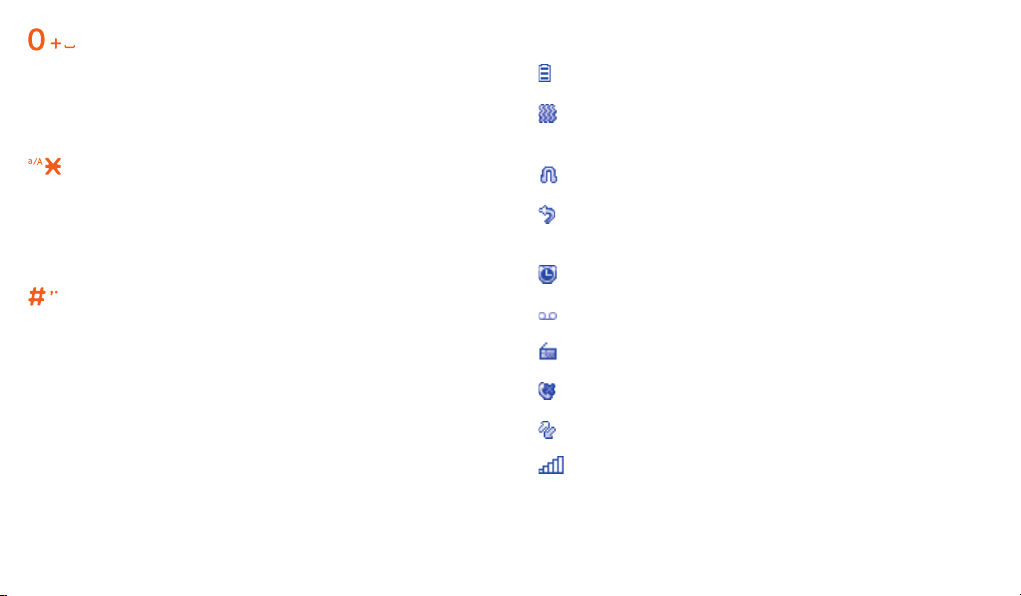
q Send key
w End key
e OK key
r Up/Down
t Voicemail
(long keypress)
Power off your phone1.3
e
Hold down the key from the idle screen.
q
r
w
t
23 24
Page 14
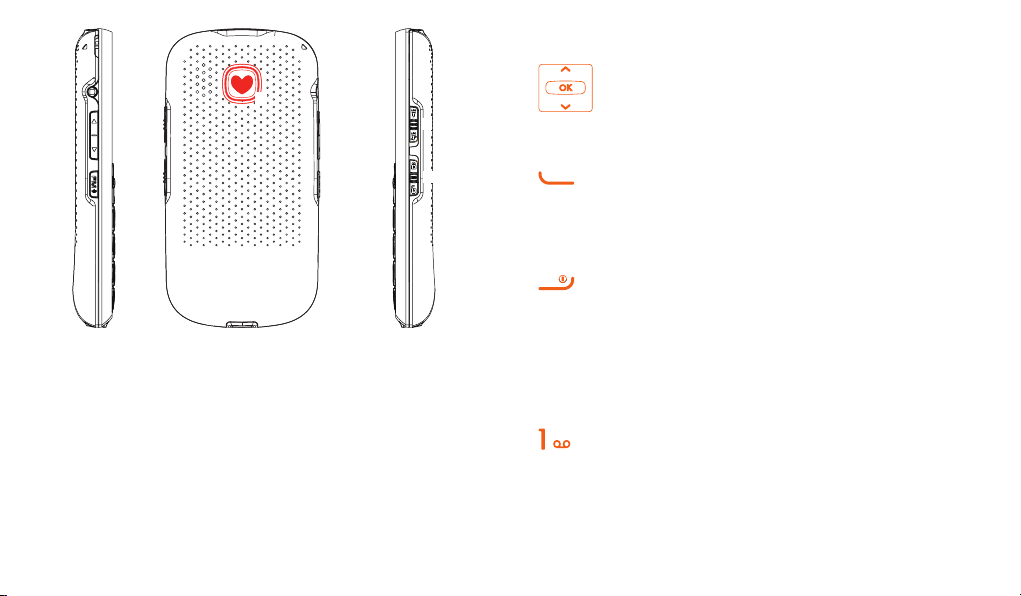
keys2.1
Key:
a
y
u
y Volume key
u FM Radio
i To r c h
Switch on/off
o Lock key
Switch locked/unlocked
a SOS key
Access SOS
25 26
i
o
Key: Send call
Key:
Key:
Navigation (up/down)
Confirm an option (OK key)
In idle screen:
Enter main menu (OK key)
Confirm a selection
In idle screen:
Access call log (short keypress)
Switch on/Switch off the telephone
(long keypress)
End call
Return to idle screen
In edit mode:
Delete character
Dial a voicemail number (long
keypress)
Page 15
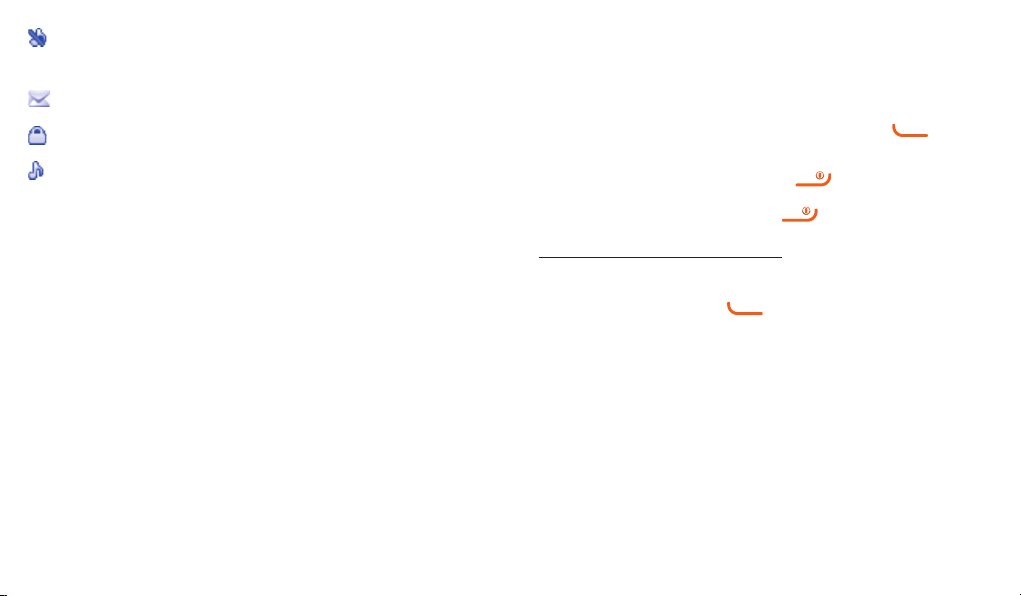
Key:
Key:
Key:
27 28
In idle screen:
Input 0 (short keypress)
input '+'/'P'/'W' (long keypress)
In edit mode:
Input space (short keypress)
In idle screen:
Access pre-set number (long keypress)
Input * (short keypress)
In edit mode:
Change input mode
In idle screen:
Access pre-set number (long keypress)
Input # (short keypress)
In edit mode:
Change symbol
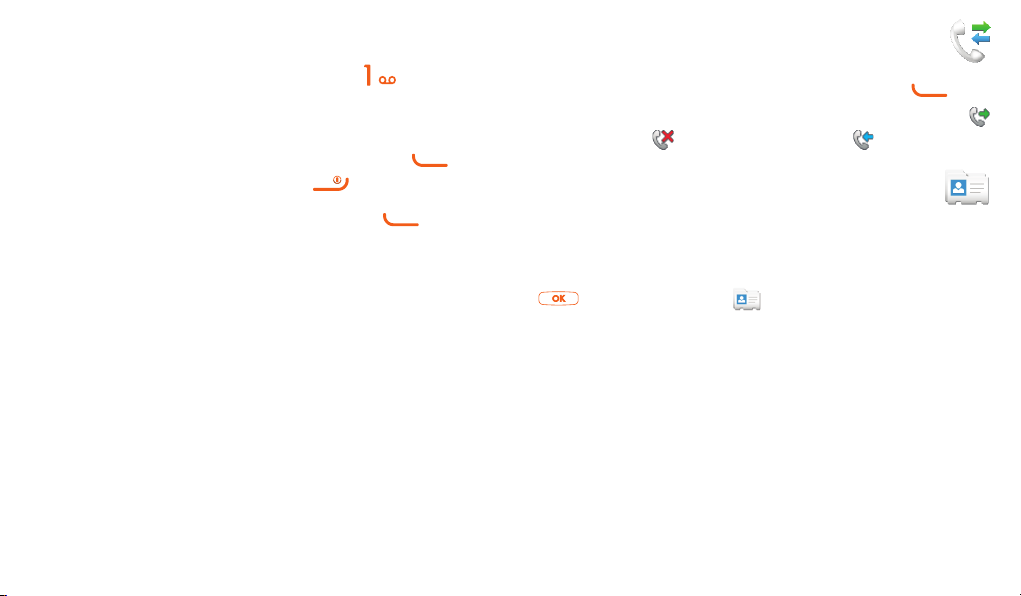
Idle screen icons2.2
Battery charge level.
Vibration alert: your phone vibrates, but doesn't
ring or beep.
Headset connected.
Call forwarding activated: your calls are
forwarded.
Alarm clock programmed.
Voicemail message received.
FM radio is on.
Unanswered calls.
Roaming.
Level of network reception.
Page 16
Silence mode: your phone neither rings, beeps
nor vibrates.
Calls3 .....................................
Message unread.
Keypad locked.
Ringtone alert.
29 30
Making a call3.1
Dial the desired number then press the key to
place the call. If you make a mistake, you can delete the
incorrect digits by pressing the key.
To hang up the call, press the
Making an emergency call
If your phone is covered by the network, dial emergency
number and press the
call. This works even without a SIM card and without
typing the PIN code or unlocking the keypad.
key.
key to make an emergency
Page 17
Calling your voicemail 3.2
To access your voicemail, hold down the key.
Receiving a call3.3
When you receive an incoming call, press the key
to talk and then hang up using the key.
To use the hands-free option, please press
the call.
(1)
during
Call log4 ...........................
You can access your call memory by pressing from
the idle screen, and you will see Outgoing call(s) ,
Missed call(s)
and Answered call(s) .
Contacts5 .......................
Consulting your contacts5.1
To access the Contacts from the main screen, press the
key and select the icon from the menu. You can
quickly find a contact by inputting their initial letter in
the search bar.
Adding a contact5.2
Select the directory in which you wish to add a contact,
press the "Options" softkey, select "Add".
(1)
Contact your network operator to check service
availability.
31 32
Page 18
Messaging6 .....................
Settings7 ..........................
Create message6.1
From the main menu select "Messaging" to create a
text message.
While writing a message, select "Options" to access all
the messaging options.
You can type a message, or you're also able to insert a
pre-defined message from "Templates".
You can save any messages that you send often to
"Drafts".
Specific letters (with accents) will increase the
size of the SMS, this may cause multiple SMS to
be sent to your recipient.
33 34
From the main menu, select the menu icon and
select the function of your choice in order to customize
your telephone: Sound, Phone settings, Network,
Call settings, Security, Restore default set.
Sound7.1
With this menu, you can personalize ringtones for
different events and environments.
Phone settings7.2
You can set Time and date, Display, Speed dial,
Languages, Input mode according to your choice.
Speed dial settings•
Access "Speed dial" from "Settings\Phone settings",
Select , or any number key from to to
set the speed dial key, add the contact number and
press .
Page 19
Call settings7.3
You can access a number of items with this option: My
number, Billing, Call waiting, Call forwarding, Call
barring, Caller ID, Auto redial, Noise cancellation.
Noise cancellation
•
With this feature, others can hear you clearly even when
you're in a noisy environment. We suggest that you keep
it on permanently.
2. Select "Create" and press "OK"
3. Press "Start" to record the message
4. Press "Stop" to save the message (do not exceed 30
seconds)
SOS8.2
When enter in SOS from main menu, press will
pop up help information.
Tools8 ..............................
Voice reminder8.1
Just record a reminder using your voice, then you will
be reminded by hearing your message played back at the
time/date you choose!
To Set-Up A Voice Reminder
1. Access this feature from the main menu by selecting
"Tools\Voice reminder"
35 36
SOS contacts8.2.1
To add an SOS number to your SOS contacts, please
Select "Tools\SOS\SOS contacts\No contact" and
press "Edit", then you can edit your SOS numbers (4
numbers can be defined).
SOS message 8.2.2
From the main menu select "SOS message" to create
an SOS message.
Page 20

Activated8.2.3
Press the switch On/Off to activate the default SOS
function.
FM Radio8.3
Your phone comes with a radio
with an embedded FM internal antenna so you can listen
(1)
which support RDS,
Alarm 8.4
Your mobile phone has a built-in alarm clock with a
snooze feature.
Select
• and then access Alarm to set the time
and date.
When the alarm rings, you can choose stop or snooze.
•
If snooze is chosen, it will ring again 4 minutes later.
to FM broadcasts without inserting headphones. You
can use the application as a traditional radio with saved
channels or with parallel visual information relating
to the radio programme on the display if you tune to
stations that offer Visual Radio service. You can listen to
it while running other applications.
Calculator8.5
Enter a number, select the type of operation to be
performed by using the up or down key, and enter the
second number. Then press Equal to display the result.
Games8.6
Your phone may include some games. It allows you
to manage settings, in which you may set Audio and
Vibration.
(1)
The quality of the radio depends on the coverage of
the radio station in that particular area.
37 38
Page 21

Services8.7
M-PESA
You may access M-PESA by pressing in idle screen
or access Service from the main menu and select
M-PESA.
M-PESA is a money transfer service that allows you
to send and receive money from your phone, top-up
airtime, make bill payments and buy goods. Visit an
authorised retailer with your identification document
to register for the service. Once registered you will
receive an SMS to activate your account and create your
personal identification number (PIN). Keep your PIN to
yourself and do not share it with anyone.
39 40
When your account is live you will have access to a
range of services. You can put money into your account
by depositing cash at an authorised retailer in exchange
for electronic money which you can send to your family
and friends anywhere in your country. You can also
withdraw cash from your account at retail outlets. Every
transaction is secured by your PIN and is confirmed by
SMS.
M-PESA is only available from Vodafone and may not be
provided in all countries.
Latin input mode9 ...............
This mode allows you to type text by choosing a letter
or a sequence of characters associated with a key.
Press the key several times until the desired letter is
highlighted.When you release the key the highlighted
character is inserted into the text.
Page 22

Telephone warranty10 ...........
WARRANTY TERMS AND CONDITIONS
1. Vodafone undertakes the warranty of this Mobile Phone for a period of two
(2) years from the date of Purchase by the original owner (not transferable)
under normal use.
2. The Battery has a limited warranty for twelve (12) months, and Charger for
twenty-four (24) months against manufacturing defects. Other accessories
have a limited warranty for twenty-four (24) months against manufacturing
defects.
3. This Warranty does not cover damage resulting from;
a) Normal wear & tear of the equipment;
b) Defects and damages due to the equipment being used other than its
normal and customary manner;
c) An unauthorized disassembly, repair, alteration or modification being
carried out;
d) Misuse, abuse, negligence or accident howsoever caused;
e) Defects or damage arising from improper testing, operation, maintenance,
installation, or any alteration or modification;
f) Defects or damage due to spillage of food or liquids, corrosion, rust or the
use of wrong voltage;
g) Scratches or damage to plastic surfaces and all other externally exposed
parts that are due to normal customer use;
4. The Handset requiring service/repair must be delivered at the user's cost.
5. This warranty will be null and void in any of the following events:
a) If the serial number or warranty seal on the equipment has been defaced
or removed.
b) If any term contained in this warranty has been altered or modified in any
way without prior written consent of Vodafone.
6. The limited warranty extends only to customer who purchase the product
in one of the countries (or areas) set forth at the end of this document. The
limited warranty is only valid in Vodafone's intended country (or area) of sale
of the Product.
7. If the product is returned to Vodafone after the expiration of the warranty
period, Vodafone's normal service policies shall apply and the Consumer will
be charged accordingly.
a) Vodafone neither assumes for it any other obligation or liability beyond
that which is expressly provided for in this limited warranty.
b) All warranty information, product features and specifications are subject to
change without notice.
8. THIS WARRANTY IS IN LIEU OF ANY AND OTHER WARRANTIES
EXPRESSED OR IMPLIED, SPECIFICALLY INCLUDING ANY IMPLIED
WARRANTY OF MERCHANTABILlTY OR FITNESS FOR A PARTICULAR
PURPOSE. VODAFONE ASSUMES NO LIABILITY FOR THE BREACH
OF THE WARRANTY BEYOND CORRECTING THE BREACH IN THE
MANNER DESCRIBED ABOVE. IN NO EVENT SHALL VODAFONE BE
LIABLE FOR CONSEQUENCES.
41 42
Page 23
Troubleshooting.11 ...................
Before contacting the service centre, you are advised to follow
the instructions below:
• ) the battery for optimal
You are advised to fully charge (
operation.
•
Avoid storing large amounts of data in your phone as this
may affect its performance.
•
Use User Data Format to perform phone formatting, (to
perform User Data format, hold down # while simultaneously
pressing the power on/off key under the power off mode).
and carry out the following checks:
My phone cannot switch on
•
Check the battery contacts, remove and reinstall your
battery, then turn your phone on
•
Check the battery power level, charge for at least 20
minutes
•
If it still does not work, please use User Data Format to reset
the phone
(1)
My phone is frozen or has not responded for several
minutes
Restart your phone by pressing and holding the
• key
•
Remove the battery and re-insert it, then restart the phone
If it still does not work, please use User Data Format to reset •
the phone
(1)
(1)
User Data Format ALL user phone data: Contacts,
messages and files will be lost permanently. Please
store phone data in SIM card before you want to
format
43 44
Page 24

My phone turns off by itself
•
Check that your keypad is locked when you are not using
your phone, and make sure power off key is not accidentally
touched while unlocking keypad.
•
Check the battery charge level
If it still does not work, please use User Data Format to reset •
the phone
(1)
My phone cannot charge properly
Make sure you are using an Alcatel battery and the charger
•
from the box
•
Make sure your battery is inserted properly and clean the
battery contact if it’s dirty. It must be inserted before plugging
in the charger
Make sure that your battery is not completely discharged;
•
if the battery power is empty for a long time, it may take
around 20 minutes to display the battery charger indicator
on the screen
•
Make sure charging is carried out under normal conditions
(0°C to +40°C)
•
When abroad, check that the voltage input is compatible
My phone cannot connect to a network or “No
service” is displayed
Try connecting in another location
•
Verify the network coverage with your operator•
Check with your operator that your SIM card is valid•
Try selecting the available network(s) manually •
Try connecting at a later time if the network is overloaded•
Invalid SIM card
Make sure the SIM card has been correctly inserted
•
Make sure the chip on your SIM card is not damaged or •
scratched
(1)
User Data Format ALL user phone data: Contacts,
•
Make sure the service of your SIM card is available
messages and files will be lost permanently. Please
store phone data in SIM card before you want to
format
45 46
Page 25

Unable to make outgoing calls
•
Make sure you have dialled a valid number and press the
key
•
For international calls, check the country and area codes
Make sure your phone is connected to a network, and the •
network is not overloaded or unavailable
•
Check your subscription status with your operator (credit,
SIM card valid, etc.)
•
Make sure you have not barred outgoing calls
Unable to receive incoming calls
Make sure your phone is switched on and connected to a
•
network (check for overloaded or unavailable network)
Check your subscription status with your operator (credit,
•
SIM card valid, etc.)
Make sure you have not forwarded incoming calls
•
Make sure that you have not barred certain calls•
I cannot find my contacts
•
Make sure your SIM card is not broken
Make sure your SIM card is inserted properly•
Import all contacts stored in SIM card to phone•
The sound quality of the calls is poor
•
You can adjust the volume during a call by pressing the
Volume key
Check the network strength
•
Make sure that the receiver, connector or speaker on your •
phone is clean
I am unable to use the features described in the
manual
Check with your operator to make sure that your subscription
•
includes this service
Make sure this feature does not require an Alcatel
•
accessory
The caller’s name/number does not appear when a call
is received
•
Check that you have subscribed to this service with your
operator
Your caller has concealed his/her name or number
•
47 48
Page 26

When I select a number from my contacts, the
number cannot be dialled
•
Make sure that you have correctly recorded the number in
your file
•
Make sure that you have entered the country prefix when
calling a foreign country
I am unable to add a contact in my contacts
•
Make sure that your SIM card contacts are not full; delete
some files or save the files in the phone contacts
My callers are unable to leave messages on my
SIM card PIN locked
Contact your network operator to obtain the PUK code
•
(Personal Unblocking Key)
How to make your battery last longer
•
Make sure you follow the complete charge time (minimum
3 hours)
•
After a partial charge, the battery level indicator may not
be exact. Wait for at least 20 minutes after removing the
charger to obtain an exact indication
Switch on the backlight upon request
•
voicemail
Contact your network operator to check service availability
•
I cannot access my voicemail
Make sure your operator’s voicemail number is correctly
•
entered in "Number"
Try later if the network is busy
•
The flickering icon is displayed on my standby
screen
You have saved too many short messages on your SIM card;
•
delete some of them or archive them in the phone memory
49 50
 Loading...