

Page 1

303UB HSPA+ USB Modem
User Manual
Page 2

1
Index
VKOM 303UB Introduction ............................................ 2
Internet service .............................................................. 5
SMS service .................................................................... 7
Contacts ....................................................................... 12
USSD ............................................................................. 15
Settings ........................................................................ 16
FAQs ............................................................................. 22
Page 3

2
VKOM 303UB INTRODUCTION
1. To launch the Network Connect, double-click the
shortcut icon on the desktop.
Pleases note,
a. Enter the correct PIN code if requested and then click
OK. The (U)SIM will be locked after three entries of
incorrect PIN code.
b. Enter the correct PUK to retrieve the default PIN code.
You are required to contact your service provider after
ten entries of incorrect PUK code
c. Without the correct PIN and PUK entries, all the
network services are unavailable.
Page 4

3
2. Main interfaces
Connect /disconnect to the Internet
Access SMS messages
Access Phonebook and Contacts
Access USSD
Settings
Page 5
4
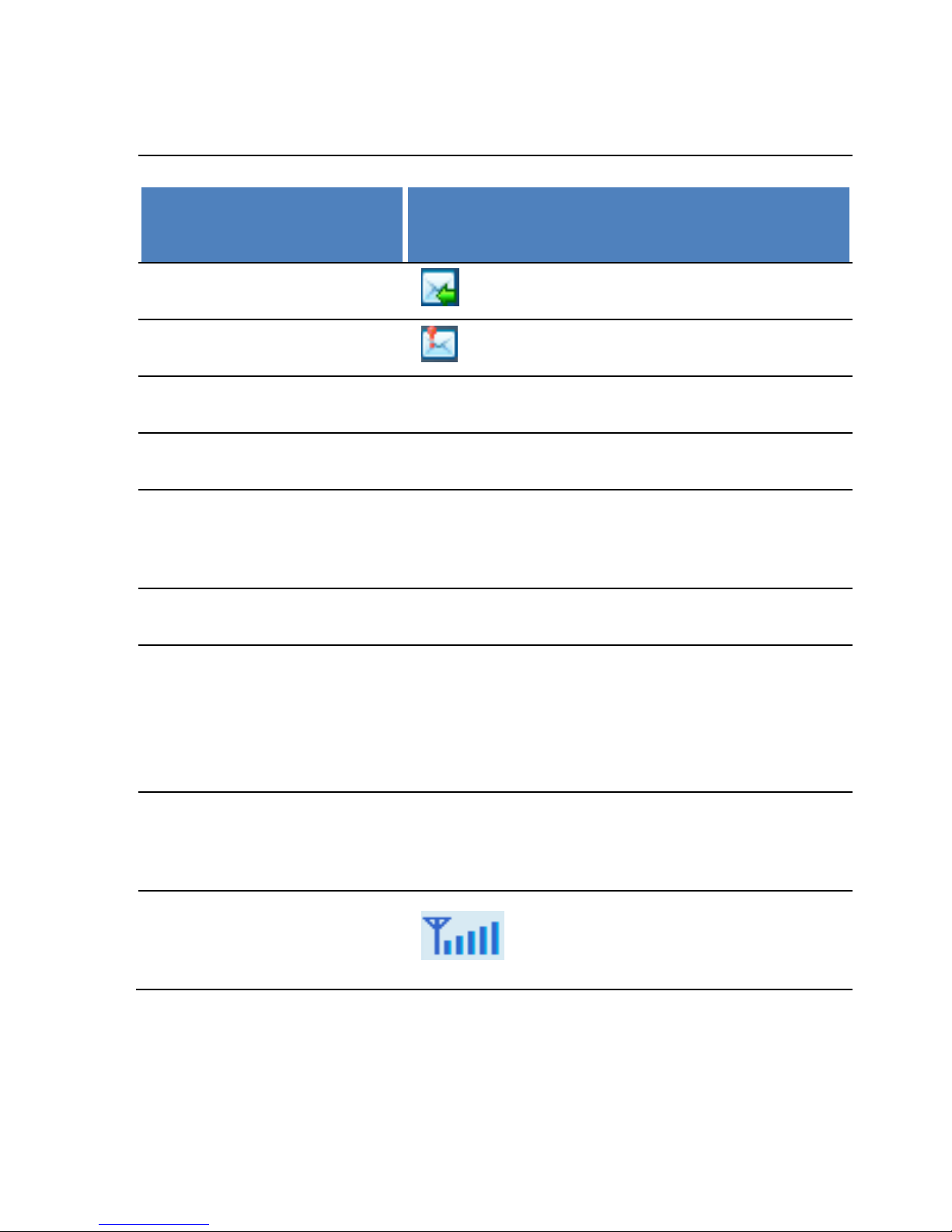
3. Status information
S T AT U S
D E S C R I P T IO N
New message
New message(s) received
Message full
Inbox messages are full
No device
System cannot find the device
Initializing
The device initializing setup
Searching
The device is searching for the
network.
No service
No suitable network is found
No (U)SIM card
(U)SIM card not inserted or the
device cannot recognize the
(U)SIM card.
Invalid (U)SIM
card
The (U)SIM is out of service
Network signal
Indicates signal strength
Page 6

5
Network type
GSM/GPRS, UMTS.
Data service
EDGE available, HSPA
available.
4. LED Indicators
S T AT E O F IN D IC A T OR S
D E S CR I P T I ON
RED Solid On
No (U)SIM card / Error
Green Solid On
Registered to network
Green Blinking
(Flash every 0.5 second)
Connected to Internet
INTERNET SERVICE
1. Connecting with the default connection profile
Click to set up the
connection.
Page 7

6
2. Connect to the Internet with the user-defined profile
Click settings and select Connection Profile;
Click New, fill in all the parameters, and then click
ok.
Click Import, Select one item from the list and click
OK.
Note: Contact your service provider to assign the correct
parameters.
3. Statistics information
The following information will be displayed at lower
right corner of main interface when connecting to the
Internet.
4. Disconnect from the Internet
Page 8
7
Click to disconnect the Internet
connection.
SMS SERVICE
Click to enter SMS (Short Message Service) service
interface.
1. Creating and sending a message.
Click : Input the recipient number by one of the
following options:
Enter the number directly;
Page 9

8
Click Send to, choose the recipient number from
the phonebook and add to the send list, then click
OK.
Enter the message content;
Click Send or Save to Draft. The message will be
saved in the Draft if failed to send.
Note:
You can send a group message to up to 100
recipients.
Each number should be separated by “,”.
The message can extend up to 1530 characters
maximum.
2. Inbox
Page 10

9
The following prompted alert box will be displayed
when you have a new message.
Reply : Access the edit interface, write the
content, click Send or Save to Draft.
Forward : Forward the selected message to
other recipients.
Delete : Delete the selected message.
Note:
Page 11

10
The new message will be saved in PC when VKOM
Modem application running only, or else in
(U)SIM instead;
You can use “Shift” or “Ctrl” to selected several
messages;
3. Outbox
The message in the Outbox can be deleted or forwarded.
4. Draft
The MSG sent unsuccessfully will be saved in the
Draft.
Click the selected message.
Confirm the recipient and the content, and click
Send or Save to Draft.
5. Recycle
All deleted information will be saved in the Recycle bin.
Page 12

11
6. The selected SMS can be operated as follows:
Save number
To save the sender’s information to the (U)SIM
card or PC.
Delete text message
To delete the selected message.
Move to
To move the selected message to Outbox or Draft.
Copy to
To copy the selected message to Outbox or Draft.
SMS Export
Right-click the selected the message.
Click SMS Export
Specify the path and the file name, and click Save.
Note: The exported message will be saved as a *.csv file.
Page 13

12
CONTACTS
Click to access Phonebook or Contacts.
1. Add New Contacts
Click ;
Enter the Name and Mobile, and save it in the
(U)SIM card or PC.
2. Find a contact
Click ;
Enter the key characters of you want to find in the
;
The result will be displayed in return.
3. Edit a contact
Click Local or (U)SIM to display the contacts
interface;
Select a contact, then you can process as follows:
Edit : Modify the selected contact;
Delete : Delete the selected contact;
Page 14

13
Send SMS : Send a message to the
selected contact;
Copy to: Copy the contact between (U)SIM
card and PC.
Note: The deleted contact information cannot be
retrieved.
4. Import
Right-click
Click Contacts Import.
Select a *.vcf or *.csv file and click Open.
The import file will be saved in the current
interface.
Page 15

14
5. Export
Right-click the selected contact.
Click Contacts Export.
You can saved the contact file as *.csv file or *.vcf
file.
Confirm the name and the path the file saved, then
click Save.
Page 16

15
USSD
Click to enter USSD interface.
You can add, edit, delete, and send USSD operation, the
result of send will display on the edit box.
Page 17

16
SETTINGS
Click to list the functions.
1. PIN Management
Enable PIN
Click Enable PIN.
Enter the correct PIN code and click OK.
Note: The PIN code should be a numeric
string of 4-8 digits.
Disable PIN
Click Disable PIN.
Page 18

17
Enter the correct PIN code and click OK.
Modify PIN
Click Modify PIN;
Enter the old PIN code and new PIN code,
confirm the new PIN code and click OK.
2. Connection Profile
Click the shortcut button, you can enter Profile
Management page to set APN information.
3. Contacts Import
For more details, refer to Internet Contacts-4.
4. Contacts Export
For more details, refer to Internet Contacts-5.
Page 19

18
5. SMS Export
For more details, refer to Internet Text Message-6.
6. Help & About
Help: User Manual.
About: PC software information is shown
7. Options
General
You may choose the alert tone when
connected/disconnected to the Internet.
Text Message Setting
Page 20

19
You may activate the message alert tone, and also
can set up your favorite tone via selecting a *.wav
file in the PC.
The number showed in the SMS center is read
from the (U)SIM card automatically, modification
is not recommended.
Note: SMS would not work with the wrong SMSC.
Contact with the service provider to get the correct SMSC.
You may select the period in the drop-box, it specifies the
validity which the message would save in the network.
Note: The validity setting of SMS should be supported by the
network.
Profile Management
For more details, refer to Internet service-2.
Page 21

20
Network
Network Type
You can choose Auto or Only UMTS/HSPA or Only
GPRS/EDGE. The device will register network
according to the selected mode.
The default mode is Auto.
Registration Mode
Auto search and register is set as default value;
Select Manual search and register before dialing,
available networks will be listed when finished;
Select an available network and click Register, and
then the device will try to register.
Statistics
Daily /Weekly/Monthly/Yearly report
Page 22

21
You can view every day/week/month/year’s network
statistics information.
Diagnostics
You can view device information, Operator information,
network status and so on information.
8. Show Menu Bar
You can display or hide the Menu Bar.
Page 23

22
FAQS
1. Q: What shall I do if I cannot connect to the Internet?
A: Open Settings->Connection Profile, confirm the APN
information is correct or not. For more details, contact
your service provider.
2. Q: Why does it take so long for installation?
A: It differs according to different hardware and software
environment, it may take a few minutes for installation.
3. Q: Why can’t I receive my message?
A: Please confirm whether the (U)SIM’s SMS memory is
full or not.
4. Q: Why can’t I register to the Internet?
A: Open Settings->Network Selection, check the network
setting.
Page 24

23
5. Q: Why does the software not run automatically when
the device is plugged in?
A: Click My computer->data card disk->StartModem.exe.
Or run the VKOM Modem software from START on your
PC. Make sure this was initially installed before when
plugged into your PC.
 Loading...