

Page 1

VK Co. Ltd PAGE 1
User Guide for VK650C
Page 2

VK Co. Ltd PAGE 2
CAUTION
To reduce the fire hazard and explosion hazard of a battery,
Do not bridge the terminals of a battery by metallic objects such as coins, keys, or other metallic pieces.
Do not impact on a battery excessively.
Do not place the mobile phone near any heat sources.
Do not use any adapters other than the adapter supplied by manufacturer.
Page 3

VK Co. Ltd PAGE 3
Thank you for purchasing VK mobile phone.
VK mobile phones are designed and manufactured in compliance with very strict in-house standards and international quality standard specifications
and are produced through a series of strict quality tests which include tests on temperature, humidity, impact, dust, vibration and falling. We feel
confident that our VK mobile phone produced with high quality guidelines will give you full satisfaction.
Again, we thank you for your selection of VK products, and wish you continued success in your business with VK650C.
* Contents of this user guide and the functions of mobile phone are subject to change according to the circumstances.
* We suggest that mobile phones should be set to Etiquette (Silent) Mode in public places.
Page 4

VK Co. Ltd PAGE 4
User Precautions
* Do not allow unknown persons to use your mobile phone.
* Always use designated service center for after-sale service.
* When lost or stolen, immediately report to related companies.
* You may not attach other unintended devices to your mobile phone, which may change performance.
Information for safety and efficient use of mobile phone
Mobile phone receives and transmits high frequency wave while power of the phone is on.
International associations issued criteria on the effect of high frequency to human body and recommended value of high frequency for safety.
Refer to the Information section (detailed description) for more details on the safety and efficient use of mobile phone.
Antenna
Use approved antenna only. Use of unauthorized antenna or illegal alteration of antenna may cause damage to mobile phone and in that case, free
service will not be provided. Use of damaged antenna may cause slight burn in the skin when touched with skin.
Normal Position
Hold the mobile phone just like holding a general phone, and erect the antenna straight up over the shoulder.
Page 5

VK Co. Ltd PAGE 5
Efficient Use of Mobile Phone
Pull out antenna to its maximum. Hold the mobile phone just like holding a general phone and make sure antenna is erected straight up over the
shoulder while taking a call. During a call, do not tough the antenna, which may deteriorat e quality of call and cause to transmit higher output than
normal.
Mobile Phone and Electronic Equipments
Most electronic equipments are designed to be free from the influence of high frequency wave. However, some equipment may be in trouble by the use
of mobile phone.
Supplementary device for Heart Beat (Pace Maker)
Industrial Medical Equipment Manufacturers’ Association recommends that mobile phone should not be used within 15cm from Pace Maker as it might
adversely affect to the Pace Maker. In an unavoidable situation, make sure the phone is more than 15cm away from the Pace Maker. If possible, use
the phone from the opposite side of Pace Maker.
Airplane
Turn off the phone when you board an airplane. Electronic operation equipments may be adversely affected.
Page 6

VK Co. Ltd PAGE 6
Hearing Aid
Some mobile phones may affect the use of hearing aid.
Other Medical Equipments
In the case where medical equipments are used individually, consult with the company manufactured the equipment as to whether the equipment is
safe from high frequency wave. As medical equipments in hospital are likely to be affected by high frequency wave, make sure to power off the mobile
phone in hospital.
Blasting Operation Area
In a dangerous area for using mobile phone or where there is a signboard indicating ‘Turn off radio transmitter’, turn off the phone to avoid interference
to blasting operation and follow instructions and signs on site.
Dangerous Area for Explosion
* In a dangerous area for explosion, battery of the phone should be removed and follow the instructions and signs given on site. Never install battery
back or charge the battery on the site. At a construction site, equipments for high frequency wave may be used for remote explosion works.
* Around gas leakage area, chemicals storage area and on the deck of a ship, do not install battery of mobile phone and use of the phone. In a space of
a car where accessories for mobile phone are equipped, do not put any flammable materials. Sparks at a dangerous area may be a cause for fire or
explosion.
Page 7

VK Co. Ltd PAGE 7
Use of Battery
If a terminal of battery touches a conductor (key or jewelry), the material may be damaged, and human body may be burnt.
Be careful in handling charged battery. Do not put charge battery in a pocket or a bag together with other metals.
Information on safety and efficient use of Mobile Phone (Detailed)
* Do not use damaged electric cord, plug or loose outlets. It may cause electric shock or fire.
* Do not connect external cathode terminals of charger or battery together, or vice versa plate terminals together. It may cause electric shock or fire.
* Do not pull out plug holding cord part or touch power plug with wet hands. It may cause electric shock or fire.
* When using charger, use designated battery only. Using other batteries may cause fire or explosion.
* Do not bend power cord too much or put heavy thing on the cord. It may damage the cord and cause electric shock or fire.
* Do not make or take calls while charging the phone (or with wet hands). It may cause electric shock or fire.
* Do not charge battery using unauthorized power source (generator without permission, illegal charger). It may cause fire or explosion.
* Make sure that children do not suck the external connector. It may cause electric shock.
* Do not swing or spin the phone with the string of the phone. It may damage the phone or cause you to have scratches.
Page 8

VK Co. Ltd PAGE 8
CONTENTS
Before Use
Checking the contents of the box
Names of parts and functions
Precaution about battery
Basic Functions
To switch on/off mobile phone
Making a call
Standby Screen Menu
Answering a call
Menu Function
Sound Setting
1. Selection of Bell Sound
2. Selection of Bell/Vibration
3. Volume Adjustment
4. Setting of Sound Effect
5. Setting of System Alarm Sound
6. Missed Calls Information
Screen Setting
Page 9

VK Co. Ltd PAGE 9
1. Inside Screen Setting
2. Setting Clock
3. Standby Screen Words
4. Setting Font
5. Setting Languge
6. Setting Light
Contents Storage Box
1. Remote Control
Personnel Information Management System (PIMS)
1. Scheduler/D-day
2. Alarm
3. Calculator
4. World Time
5. Voice Memo
6. Setting Present Time
7. Scheduler/D-day Information
Setting
1. Setting Password
2. Password Hint
3. Setting Lock
4. Selecting Incoming Call Taking
5. Automatic Area Code
6. Automatic Answering
Page 10

VK Co. Ltd PAGE 10
7. Setting Modem
8. Default Settings of Mobile Phone
9. Mobile Phone Information
10. Emergency Phone Registration
Menu Function Message
1. Writing Text Message
2. Inbox
3. Outbox
4. Temp Box
5. Text Box
6. Storage Box
7. Voice Tag
8. Setting Message
9. Memory Information
Phone Book
1. Add Contacts
2. Search Phone Number
3. Edit Quick Dial key
4. Group Editing
5. Call Record
6. Call Time
7. Memory Information
Camera
Page 11

VK Co. Ltd PAGE 11
1. Photo shot
2. Video Shot
3. Photo/Video Album
4. Camera Setting
5. Memory Information
Appendix
Specifications
Electromagnetic Wave
VK Service Center
Warranty
Page 12

VK Co. Ltd PAGE 12
Before Use
Checking the contents of the box
Mobile Phone
Charger
Battery
User Guide
* This picture may be different from your real products.
Page 13
VK Co. Ltd PAGE 13
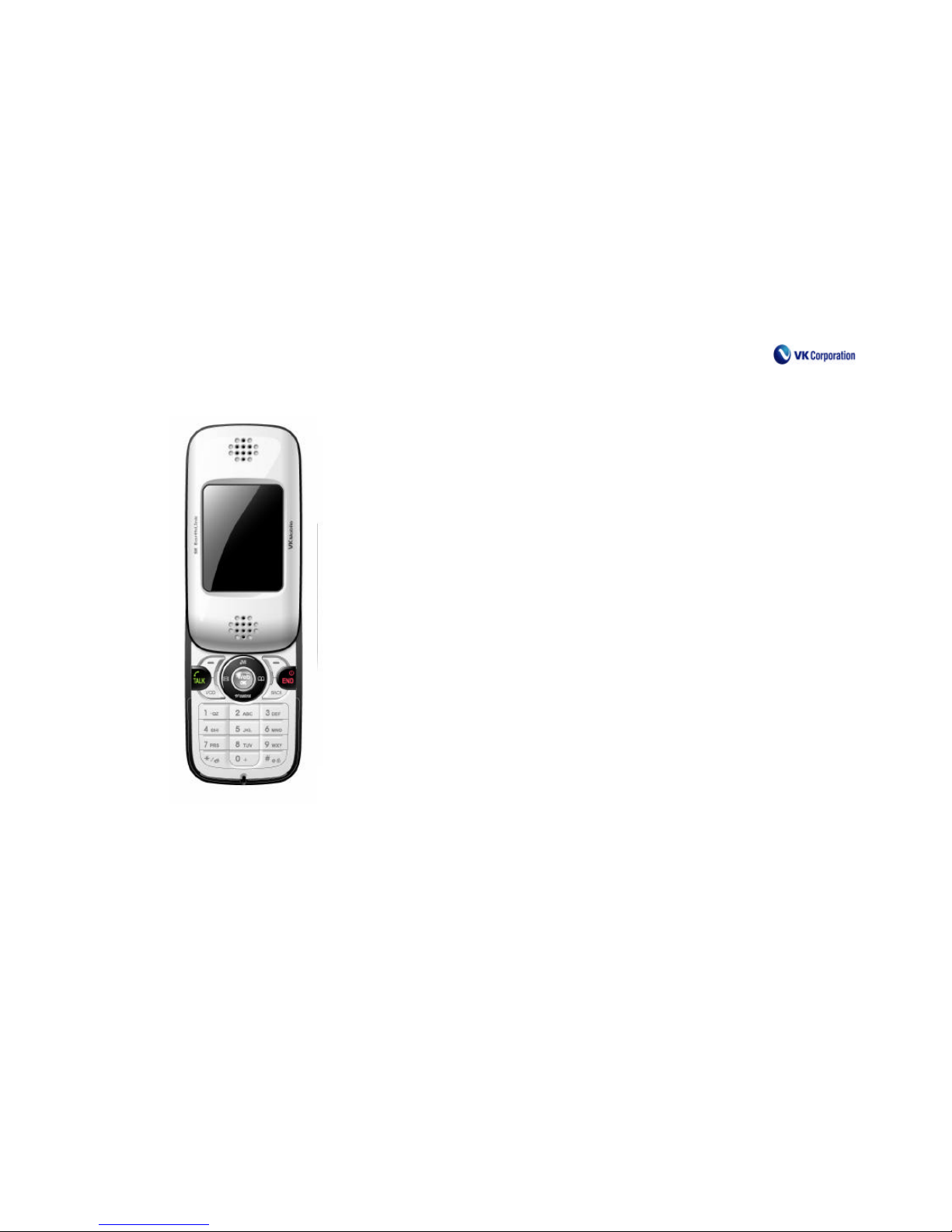
Names of parts and functions
Antenna
Earpiece
External Connetor
Receiver Microphone
Ear Microphone Jack
Flash
Camera Lens
Reflection Mirror
Camera Key
Infrared Ray Port
Volume Key
Speaker
Page 14

VK Co. Ltd PAGE 14
Description for basic keys
¦ Makes or answers a call
Press and hold long: Talk
Short press: Indicates list of numbers (numbers dialed,
received or missed)
¦ Switches the phone on and off and ends a call
¦ Cancels input for a function and returns to Standby
Mode/Initial Display
¦ Cancels input of letters or figures
Short press: Deletes one letter at a time
Press and hold long: Deletes all
¦ Moves to upper level menu or previous screen
¦ When using initial display function
Down: Shortcut key for TV Remote Control
Left: Shortcut key for Message menu Right: Shortcut key for Phonebook menu
¦ When using menu function: Menu search function
¦ Moves [Menu] at initial display
¦ When using phone function, selects menu indicated on
down left screen
¦ Search function at initial screen
¦ When using phone function, selects menu indicated on
down right screen
¦ Dial key: Inputs figures and letters
Press and hold long: Sets to Etiquette Mode and releases the mode
Press and hold long: Sets to Lock Mode and releases the mode
¦ Camera Preview Mode
¦ Adjusts key/effect sound volume at initial screen
¦ Searches list and adjusts volume during a call
¦ Automatic response function when answering a call
Page 15
VK Co. Ltd PAGE 15
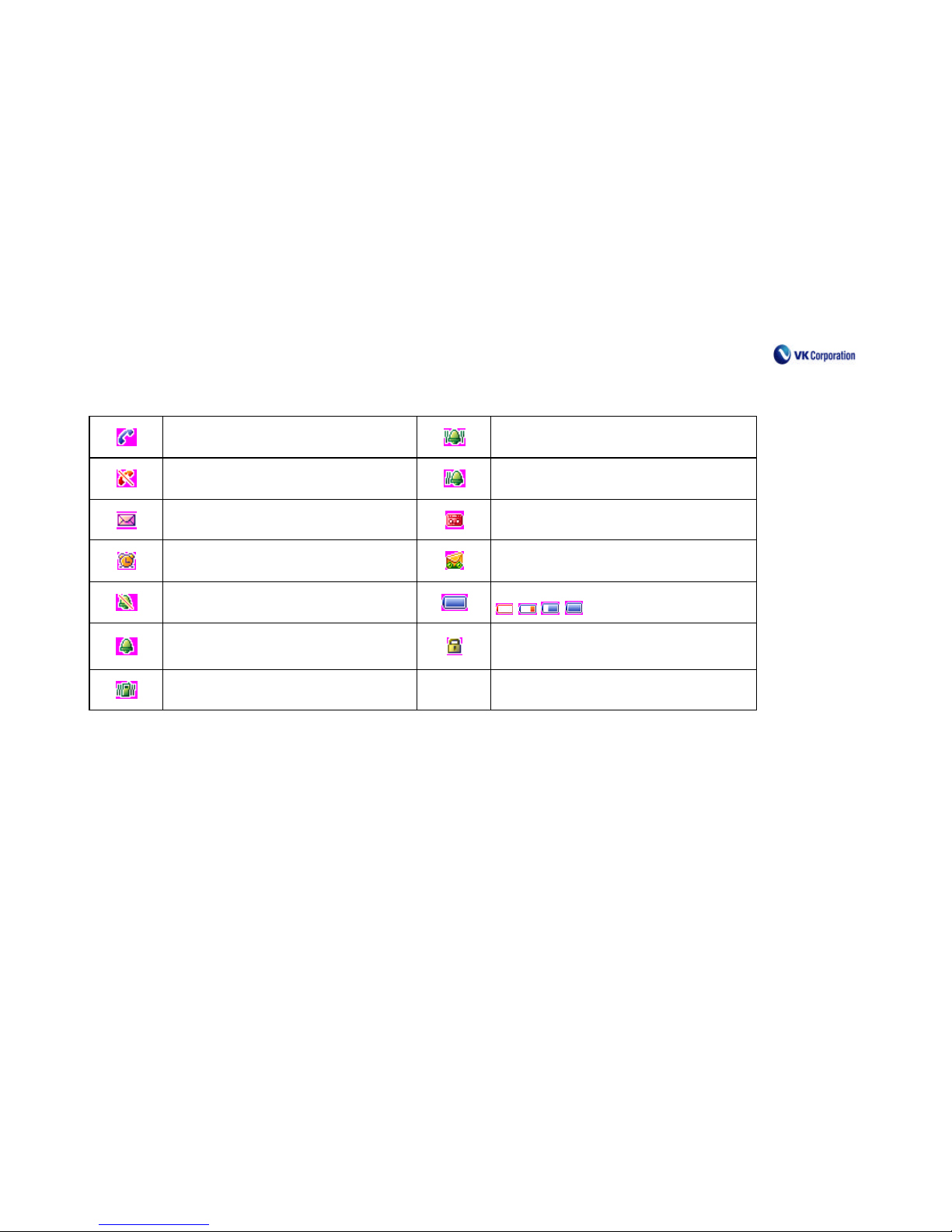
Description for screen icons
When attempting a call or a call is
connected
Receiving tone is in Bell & Vibration Mode
Indicates out of service area
Receiving tone is in Bell Mode after Vibration
When a text message is received
When automatic response mode is set
When alarm is set
When automatic response message is received
When the phone is set to Etiquette Mode
Indicates the level of battery
When receiving tone is set to Bell Mode
When the phone is set to Lock Mode
When receiving tone is set to Vibration Mode
Page 16

VK Co. Ltd PAGE 16
How to use battery
(Some indications on available battery hours)
* When using additional functions such as character input, storage of text message, game or Internet function, battery is consumed more.
* Available battery hours vary depending on the service type of the Base Station where the mobile phone is located.
* In the case of long stay in Out of Service Area or frequent stay in the area, battery is consumed more and waiting hours become significantly shorter.
* When radio wave is weak or channel (Base Station) is overlapped, battery is consumed more.
* The more times and longer time for making calls and answering calls are, the shorter waiting time gets.
* As battery is a consumable item, hours of usage gets gradually shorter compared with the time of purchase.
(Slot Mode: Wireless Base Station regularly communicates with each and every user’s mobile phone in order to identify a location of the phone. This
is what we call Slot Mode. The more the frequency of communication increases, the shorter the waiting hours become. Frequency of
communication is decided by the Wireless Base Station and in the case of Korea, the frequency is every 2.5 to 5 seconds.)
Page 17

VK Co. Ltd PAGE 17
Precaution about battery
* Avoid giving impact from dropping battery and do not try to disassemble battery. It may cause trouble, shorten its life, or be dangerous from being
overheated.
* Do not put the phone into the stove or microwave oven, which is used for heating. Possibility of explosion is very high.
* Always use a charger that is certified by TTA. Use of chargers that are not certified by TTA may cause overcharging and thus may result in
overheating or explosion. It may cause breakdown of the battery.
* Be careful to avoid connection (short circuit) of terminals of battery (metal parts) by conductor materials such as necklace or coin. Battery and
materials having a short circuit may be overheated and then cause fire.
* Do not put a battery in a closed space with direct sunlight and high temperature such as near car window. In a room, keep batteries at the range of
temperature between 0°C to +40°C. Under the temperature off the range, appearance may be deformed and the battery is damaged.
* Keep batteries off the hands of children. Battery in a mouth of a child especially a damaged battery may adversely affect human body.
If liquid leaked out from the damaged battery is put on your skin, wash the skin for 1 to 2 minutes with flowing water.
Page 18

VK Co. Ltd PAGE 18
Basic Functions
To switch on/off mobile phone
Press down and hold [End] key à Shortly after communication provider’s logo and graphic appears, initial screen appears
When Etiquette Mode is set, vibration starts and power turns on.
Press down and hold [End] key à Graphic disappears and power turns off.
Making a call
By dialing a phone number
Enter the area code and phone number à Press [Call] à Talk when connected
When the call is not connected, it redials automatically.
Connection time automatically appears on the screen. Call charge is calculated from the time when the call is connected.
When the Lock Mode is set, call can be made only after entering the password.
By using recent calls (Incoming/Outgoing History)
Press [Call] à This brings up a list of recent calls. Find the number you want. à Press[Call].
The contacts are shown with icon and number. Phone number, date, time, and talk time show at the bottom.
Outgoing à Incoming à Missed call – Incoming number during talk – Missed number during talk – Memo during talk
Third party call transmission – Receiving NATE – Not present during NATE – Call denial during NATE – Denial of talk
By using short cut number
Press the saved short cut number (1-99) and press the last number longer.
Page 19

VK Co. Ltd PAGE 19
Saving the called number
Press [Call] à Select number à [Menu] à Register à [Nate] à Select the items and save
The existing contacts are in edit mode. Chang the contacts and save.
Standby Screen Menu
Standby Screen à After input of the number to call à [Menu]
1. Hiding caller number : It is used when you don’t want to show your number to the recipient.
2. Sending message : You can send a short message directly from Standby Screen after entering the phone number.
3. Manual waiting : You can use this function when you need to input number according to the ARS voice information.
Press [Nate] according to the voice guidance.
4. Time waiting : When you use ARS, you can go to next step without pressing [Nate] if you set this time waiting. The waiting time is 2 seconds.
Page 20

VK Co. Ltd PAGE 20
Answering a call
When bell is ringing
• Slide up or press button.
• In closed slide state, press [Menu]. When finished talking, press [End].
If you don’t want to answer a call, press [Volume Key]. (It becomes silent.)
If automatic answer is set, it turns to automatic answer state after a certain time.
Caller identification service requires some procedures with the service provider.
* You may use the phone in closed slide.
- Press [Call] to find history and call.
- Press [Nate] to go next step.
- Press [Menu-left] to search menu.
- Press [Menu-right] to search number.
- This above functions are available in the unlock state of external key.
Page 21

VK Co. Ltd PAGE 21
Menus while talking
The following menus appear when you press [Menu] while talking.
1. Mute – It mutes every sound from me.
2. Send my number – It automatically sends my phone number.
3. Record talk – You can record the talk. (It is saved in the voice memo.)
4. Number search – You can search phone numbers.
5. Store number – It stores the number of the other party on the line.
6. Message – You can send a message to the other party.
* You can adjust level of volume with volume button while talking.
Setting etiquette mode
Press [* Button] to set the etiquette mode. Press [* Button] again to clear the etiquette mode.
In etiquette mode, schedule, anniversary, alarm, and message notice will be notified in vibration mode.
In silent mode, these are shown on the screen only.
Page 22

VK Co. Ltd PAGE 22
How to input characters
To input English Characters
Press pertinent key repeatedly to get the alphabet to input. Conversion to Capital Letter Mode or
Small Letter Mode is done by pressing menu key.
A. Press ‘2’ key once.
B. Press ‘2’ key two times.
C. Press ‘2’ key three times.
Example: To input ‘Good’.
2 >
Menu 6 > 6 > 6 6 > 6 > 6
*
3
G m n o m n o d
Page 23

VK Co. Ltd PAGE 23
Menu Function
Sound Setting
1. Selection of Bell Sound
Apart from default bell sounds and melodies, you can use a variety of bell sounds after downloading melodies provided by the service provider.
(Menu) à Select ‘Setting of Sound’ à Select Bell Sound à After selection of the kind of bell à Select bell sound à Press NATE (Setting)
Kind of Bell: Selection can be made among Basic Bell Sound, Effect Sound Bell, Creative Bell, Classic Bell and My Bell.
IN the case of My Bell, selection can be made among the downloaded bell sounds fro NATE (My Bell can be selected only after downloading).
2. Selection of Bell/Vibration
Selection can be made for incoming calls.
(Menu) à Select ‘Sound Setting’ à Select ‘Bell/Vibration’ à After selecting Mode à Press NATE (Setting)
Bell Sound: Bell or melody rings ( ), Vibration: Vibrates ( ), Bell and Vibration: Simultaneous ringing of bell and vibration ( )
Bell after Vibration: After Vibration for 3 times, bell rings ( )
3. Volume Adjustment
Various volumes used by the phone can be adjusted.
(Menu) à Select ‘Sound Setting’ à Select ‘Volume Adjustment’ à Select Menu to adjust à After Volume adjustment à Press NATE (Setting)
Incoming Bell: Adjust the volume of bell sound at the time of incoming call.
Speech Sound: Adjust the volume of voice of the other party on the phone.
Key Sound: Adjust the volume of key sound when pressing.
Slide Sound: Adjust the volume of the sound when lifting up the slide.
4. Setting of Sound Effect
(Menu) à Select ‘Sound Setting’ à Select ‘Effect Sound Setting’ à Select a menu to set à After setting à Press NATE (Setting)
Key Sound: Adjust the sound of button when pressing (Bell sound, Woman, Child, Space or Sound Off)
Page 24

VK Co. Ltd PAGE 24
Slide Sound: Adjust the sound of slide when lifting up (Slide 1, Slide2, Sound Off)
Time Alarm Sound: Adjust the setting or release of time alarm sound (Setting, Release)
5. Setting of System Alarm Sound
(Menu) à Select ‘Sound Setting’ à Select ‘System Alarm Sound Setting’ à Select a menu to set à After setting à Press NATE (Setting)
Confirm Sound: When message box appears on the display screen, setting of making sound or Sound Off can be selected.
Alarm Sound: When message box is processed but failed to display, setting of making sound or Sound Off can be selected.
Call Connection Sound: When making a call, confirming sound for connection or Sound Off can be selected.
Call Cut Sound: When a call is finished, confirming sound for finishing or Sound Off can be selected.
6. Missed Calls Information
(메뉴) à Select ‘Sound Setting’ à Select ‘Missed Call Information’ à After selecting a menu to set à Press NATE (Setting)
Kinds of Alarm can be selected among Rings every 2 minutes/Rings 1 time after 2 minutes/Sound Off.
Screen Setting
1. Inside Screen Setting
This feature allows you to set display screen for waiting, incoming call, outgoing call, power off, access to NATE, SMS and sending message.
(Menu) à Select ‘Setting Screen’ à Select ‘Setting Inside Screen’ à After selecting a screen to change à Select a type of image using
right/left key à
Select an image using up/down key à Select a screen to set à Press ‘NATE’ (Setting)
2. Clock Setting
This feature allows you to set the time on Standby Screen and calendar setting.
Page 25

VK Co. Ltd PAGE 25
(Menu) à Select ‘Setting Screen’ à Select ‘Clock Setting’ à After selecting Clock or setting calendar à Press ‘NATE’ (Setting)
Clock Selection: Large Digital Clock, Small Analogue Clock, Large Analogue Clock, No Clock
Setting Calendar: Release, Setting
3. Standby Screen Words
This feature allows you to set the use of words, arrangement of words and color of words.
(Menu) à Select ‘Setting Screen’ à Select ‘Words for Standby Screen’ à After selecting Setting/Arrangement/Color of Words à
Press ‘NATE’ (Setting)
4. Setting Font
This feature allows you to select the font among VK Gulim, Andersen, Aromi, Kkoedori and Daum.
(Menu) à Select ‘Setting Screen’ à Select ‘Setting Font’ à Select a Font to use원 à Press ‘NATE’ (Setting)
5. Setting Light
This feature allows you to adjust the length of lighting and brightness.
(Menu) à Select ‘Setting Screen’ à Select ‘Setting Light’ à Select a Menu to use à After setting à Press ‘NATE’ (Setting)
Light: 3 options for setting – Standard Mode, Conservation Mode and User Defined Mode
(Standard and Conservation Mode will be set as initial value)
Internal LCD: In case lighting is set as ‘User Defined Mode’, length of time and brightness can be adjusted by a user.
(Time: 5 sec., 10 sec., 20 sec., 30 sec., 1 min., / Brightness: Bright, Usual, Dark)
Key Pad: Length of time for lighting for the time when using keypad can be adjusted (5 sec., 10 sec., 20 sec., 30 sec., 1 min.)
Page 26

VK Co. Ltd PAGE 26
Contents Storage Box
1. Remote Control
(Menu) à Select ‘Contents Storage Box’ à Select ‘Remote Control’ à Select a Product by pressing [Menu-right] à After selecting Mfg.
Company à Press ‘NATE’ (Setting)
Functions of Remote Control of the phone can be used only for the designated products.
While pressing down key by operating the Remote Control, reception of data may be temporarily interrupted as Remote Control data is created.
Selection of Products: TV, VTR, DVD, CATV and Singing Machine Room
Selection of Mfg. Company: Mfg. Company can be selected by product.
Personnel Information Management System (PIMS)
1. Scheduler/D-day
When you stores Schedules and anniversaries, alarm rings on the applicable date while displaying the stored message.
(Menu) à Select ‘PIMS’ à Select ‘Scheduler/D-day’ à Select (Scheduler) Menu to use à After input of Date/Time/Memo/Alarm à Press
‘NATE’ (Setting)
After storage, menu automatically returns to Scheduler List, and the stored Scheduler can be Added/Deleted (one item)/Deleted (all) by
pressing (Menu).
When selecting Alarm for Scheduler after selecting (Scheduler) Menu, Bell sound can be designated.
(Menu) à Select ‘PIMS’ à Select ‘Scheduler/D-day’ à (D-day) à After the input of Date/Time/Memo/Alarm à Press ‘NATE’ (Setting)
After storage, menu automatically returns to D-day List, and the stored D-day can be Added/Deleted (one item)/Deleted (all) by pressing
(D-day).
When selecting Alarm for Scheduler after selecting (D-day) Menu, Bell sound can be designated.
Page 27

VK Co. Ltd PAGE 27
Input accommodates up to 16 Korean characters and 33 English characters, and Maximum 60 messages can be stored.
2. Alarm
(Menu) à Select ‘PIMS’ à Select ‘Alarm’ à After the input of ‘Setting Alarm’ à Press ‘NATE’ (Setting)
After storage, menu automatically returns to Alarm List, and the stored Alarm can be Added/Deleted (one item)/Deleted (all) by pressing (Menu).
Alarm rings at the time set for approximately 1 minute. To stop the Alarm, press Side key or any key after lifting up slide.
When Alarm is set in Etiquette Mode, bell does not ring but the phone vibrates with Icon light flashing.
If Alarm is set when the phone vibrates in Connection Mode, bell rings.
3. Calculator
(Menu) à Select ‘PIMS’ à Select ‘Calculator’ à After using calculator à Cancel (Finish)
Input of figures is possible up to 32 digits maximum including decimal point.
For new calculation, press AC key (Menu-right).
4. World Time
(Menu) à Select ‘PIMS’ à Select ‘World Time’ à After checking time à Press ‘NATE’ (End)
Times of 27 cities in the World are available.
(Seoul, Tokyo, Sydney, Okhotsk, Wellington, Midway, Honolulu, Alaska, Seattle, Denver, Phoenix, Chicago, New York, George Town, Rio de,
London, Madrid, Rome, Athens, Baghdad, Tehran, Karachi, Rangoon, Bangkok, Hong Kong, China)
5. Voice Memo:
(Menu) à Select ‘PIMS’ à Select ‘Voice Memo’ à Select ‘Record Voice Memo’ à After recording, ‘NATE’ (Save) à After selecting and
executing Menu to use (NATE) à After entering title à Press ‘NATE’ (Save)
Recording of Voice during a call is saved at Voice Memo.
Voice Memo can save up to maximum 20 messages and total recording time is 10 minutes.
(Menu) à Select ‘PIMS’ à Select ‘Voice Memo’ à Select ‘Play Voice Memo’ à Select recorded Memo by pressing (Menu) (NATE)
à Execute
Page 28

VK Co. Ltd PAGE 28
Stored Voice Memo can be Reproduced/Saved/Deleted/Totally Deleted.
6. Setting Present Time
(Menu) à Select ‘PIMS’ à Select ‘Setting Present Time’ à Setting (NATE)
You can set the time as he/she want, and present time will be automatically set in the case of rebooting.
7. Scheduler/D-day Information
(Menu) à Select ‘PIMS’ à Select ‘Scheduler/D-day Information
Page 29

VK Co. Ltd PAGE 29
Setting
1. Setting Password
This feature is used for changing Password (Preset Password at the time of purchase is 0000.)
(Menu) à Select ‘Setting’ à Select ‘Setting Password’ à Enter new Password/after entering one more time à Press ‘NATE’ (Save)
2. Password Hint
This feature records a hint for the set Password.
(Menu) à Select ‘Setting’ à Select ‘Hint on Password’ à After entering à Press ‘NATE’ (Save)
3. Setting Lock
You can set Lock for the mobile phone, Outgoing call, Connect to NATE, Call List, Phone Book, Message, International Call, Caller Line
Identification (CLI), External Key.
(Menu) à Select ‘Setting’ à Select ‘Setting Lock’ à After entering Menu to use (Setting Lock/Release) à Press ‘NATE’ (Save)
4. Selecting Incoming Call Taking
(Menu) à Select ‘Setting’ à Select ‘Select Incoming Call Taking’ à Select Menu to use à Press ‘NATE’ (Save)
To open Slide: Lift up the Slide to take incoming call.
Press Key: When taking incoming call, lift up the Slide and press any key and call is connected.
5. Automatic Area Code
You can set an area code automatically.
(Menu) à Select ‘Setting’ à Select ‘Automatic Region Number’ à Set ‘Use or Not’ à Enter Number à Press ‘NATE’ (Save)
Page 30

VK Co. Ltd PAGE 30
6. Automatic Answering
(Menu) à Select ‘Setting’ à Select ‘Automatic Answering’à Select ‘Setting Automatic Answering’ à After selecting ‘Set/Release’ à
Press ‘NATE’ (Save)
(Menu) à Select ‘Setting’ à Select ‘Automatic Answering’ à Select Screen Function à After selecting ‘Set/Release’ à Press ‘NATE’ (Save)
(Menu) à Select ‘Setting’ à Select ‘Automatic Answering’ à Select ‘Method of Answering’ à After selecting ‘Answer after 3 seconds à
Press ‘NATE’ (Save) Answering after 5 seconds & 10 seconds
(Menu) à Select ‘Setting’ à Select ‘Automatic Answering à Select Greeting Words à Press ‘NATE’ (Save)
(Menu) à Select ‘Setting’ à Select ‘Automatic Answering’ à Select ‘Record Greeting Message’ à Press ‘NATE’ (Save)
Up to three Greeting Messages can be saved, and time limit for Greeting Message is 15 seconds.
(Menu) à Select ‘Setting’ à Select ‘Automatic Answering’ à Select ‘Inbox’ à Press ‘NATE’ (Save)
7. Setting Modem
(Menu) à Select ‘Setting’ à Select ‘Setting Modem’ à After setting Connection Mode/Communication Port/Communication Speed à
Press ‘NATE’ (Save)
8. Default Settings of Mobile Phone
The phone returns to its factory default settings.
(Menu) à Select ‘Setting’ à Select ‘Reset the Phone’ à Select ‘Reset Function/Total Reset’ à Press ‘NATE’ (Save)
Reset Function: Set Value changed by a user can return to its default settings at the time of purchase.
Total Reset: All data except the number of a user are deleted.
Reset Message Storage Box: All data stored in Message Storage Box are deleted.
Reset Phone Book: All data registered in the Phone Book are deleted.
Page 31

VK Co. Ltd PAGE 31
9. Mobile Phone Information
You can get information on your own mobile phone.
(Menu) à Select ‘Setting’ à Select ‘Phone Information’ à Check Phone Information à Press (End) Menu
Available information from this feature is Phone number, H/W information, S/W information, Date the phone opened, S/N.
10. Emergency Phone Registration
This feature can be used in case the phone is locked.
(Menu) à Select ‘Setting’ à Select ‘Register Emergency Phone’ à After entering Phone number à Save(NATE)
You can use this feature by selecting (Emergency) in Waiting Screen after setting the Phone to Lock Mode.
Emergency numbers can be up to 4 (119, 112, 113 and a user defined number).
Select the emergency number and then press NATE key to connect.
If Password is entered after selecting (Release) from Waiting screen, Locking is temporarily released.
(When rebooting, it is returned to Lock Mode.)
Page 32

VK Co. Ltd PAGE 32
Message
1. Writing Text Message
(Menu) à Select ‘Message’ à Select ‘Write Text Message’ à Enter content à Select ‘Transmission Method/Type’ à Enter outgoing/incoming
number à Press ‘Transmit’ (NATE)
Refer to ‘How to enter Text Message’ for entering letters.
Transmission Method: Setting of Storage or not at the time of transmission of message (Not Save, Save after Transmission)
In the case of Save after Transmission, message is saved at Outgoing Mail Storage Box, and the message which could not be transmitted is
saved in Temp Box.
Transmission Type: Speed of message transmission can be set (Ordinary, Fast or Urgent)
Phone number can be searched by selecting (Menu), and transmission of same message can be accommodated up to 20.
When pressing Save (NATE) in the course of editing sentence, the Text is saved in the Storage Box.
2. Inbox
(Menu) à Select ‘Message’ à Select ‘Inbox’ à After selecting the message to check à Press ‘Confirm’ (NATE)
If (Menu) is selected at the Incoming Message List Window, various functions for handling the Message are available;
Reply/Delivery/Deletion/Total Deletion/Store in Phone Book/Save/Send blocking Spam.
If (Menu) is selected at the Message Confirm Window, same functions for handling the Message are available; Reply/Delivery/Deletion/Total
Deletion/Store in Phone Book/Save/Send blocking Spam.
If (Reply) is selected at the Message Check Window, the Message can be sent to the phone number received.
When Text Message is received, reception sound is made.
Text messages are listed in ascending order with the latest one at the top.
If right/left key is pressed at the time of confirming a message, next message can be checked, and messages can be stored up to 100.
Page 33

VK Co. Ltd PAGE 33
3. Outbox
(Menu) à Select ‘Message’ à Select ‘Outbox’ à After selecting the message to check à Select ‘To View (NATE) à Select (Menu) after
checking
Outgoing Messages are saved and can be stored up to 20.
If (Menu) is selected at the Outgoing Message List Window, various functions for handling the Message are available;
Reply/Delivery/Deletion/Total Deletion/Storage.
If (Menu) is selected at the Message Confirm Window, same functions for handling the Message are available; Delivery/Deletion/ Storage.
If (Delivery) is selected at the Message Confirm Window, the Outgoing Message can be revised and sent.
4. Temp Box
It stores text messages for which deliveries are failed.
(Menu) à Select ‘Message’ à Select ‘Temp Box’à Select a Message to resend à After selecting one out of Delivery/Deletion/Total Deletion by
pressing à (Menu) à Press ‘Select’ (NATE) to resend.
(Menu) à Select ‘Message’ à Select ‘Temp Box’ à Select a Message to resend à After entering by pressing
(Resend) à Press ‘Send’ (NATE) to resend.
When an incoming call arrives while writing a text message, the message that was not sent is saved in the Temp Box.
Text Messages can be stored up to 20.
5. Text Box
It stores sentences to be used frequently.
(Menu) à Select ‘Message’ à Select ‘Text Box’ à Select a sentence to use à Press (Menu) à After selecting Menu(NATE) to use
à Execute
Five basic sentences are provided, and the sentences stored in the Text Box can be newly stored, edited, deleted or totally deleted.
Sentences can be stored up to 20. (Length of Text Message to enter is up to 10 characters in the case of Korean character and 20 in the case of
English character.)
Page 34

VK Co. Ltd PAGE 34
6. Storage Box
It is a place for long storage among Incoming/Outgoing Messages.
(Menu) à Select ‘Message’ à Select ‘Message Box’ à Select a sentence to use à By pressing (Menu) à
After selecting one out of Delivery/Deletion/Total Deletionà ‘Select’ (NATE)
(Menu) à Select ‘Message’ à Select ‘Message Box’ à Select a sentence to view (NATE) à After editing by pressing (Resend)
à ‘Send’ (NATE)
Stored Messages can be sent, deleted or totally deleted, and Messages can be stored up to 20.
7. Voice Tag
Voice Message can be sent using Voice Mail Box service.
(Menu) à Select ‘Message’ à Select ‘Voice Tag’ à Enter Title/Reception No. à Select ‘NATE’ (Send) à After recording Voice message, the
Message is sent according to instruction
If you selects (Menu) at the time of selecting Reception No., the Message can be located through Search/Search Latest No.
If you selects (Menu) after recording, functions such as Mute/Send My Number/Search Phone No./Search Phone Book/Save Phone No. are
possible.
Same Message can be sent to up to 10 reception numbers.
8. Setting Message
A function to inform the reception of Message can be set.
(Menu) à Select ‘Message’ à Select ‘Setting Message’ à After selecting one out of Inform Arrival /Select Informing Bell sound/Volume of
Informing Bell Sound/Inform during a Call/Automatic View of Message à Press ‘Save’ (NATE)
Arrival Information Cycle: Inform once, Inform every 2 minutes, Not Inform (Preset value at the time of purchase is Inform once.)
Selection of Informing Bell Sound: Selection can be made among Sound Off, Bell Sound 1 – 5 (Preset value at the time of purchase is Bell
Sound1.)
Page 35

VK Co. Ltd PAGE 35
Volume of Information: Volume of information can be set (Preset value at the time of purchase is medium value.)
Inform during a Call: This feature informs another incoming call during a call.
(Selection can be made from Setting/Release, and preset value at the time of purchase is To Inform.)
Automatic View of Message: When a Message is received, automatic viewing of the content of the Message on LCD screen by selecting
Setting/Release.
9. Memory Information
(Menu) à Select ‘Message’ à Select ‘Memory Information’ à Select ‘Confirm’ (NATE)
You can confirm the number of Messages stored in all Message Storage Boxes.
Page 36

VK Co. Ltd PAGE 36
Phone Book
This function allows to confirm Registration and Search of Phone No., Editing of Shortcut No., Group Editing, Call
Records, Call Time, Memory Information
1. Add Contacts
(Menu) à Select ‘Phone Book’ à Select ‘Add Contacts’ à Enter content à Press ‘NATE’ (Storage)
Items that can be registered are Name, Mobile Phone, Home No., Office No., Other No., Group No., E-mail, Fax, Bell Type, Picture Type,
D-day and Memo.
Total 1,200 Phone numbers can be registered.
Name: Up to 9 Korean characters/18 English characters, Phone No.: 32 characters, E-mail: 66 English characters (including figures),
Memo: 40 Korean characters/80 English characters can be entered.
If (Shortcut key) is selected at the time of adding contacts, a shortcut number can be given.
A shortcut number given is displayed next to the phone number.
2. Search Phone Number
(Menu) à Select ‘Phone Book’ à Select ‘Search Phone No.’ à Select ‘Search by Name’ à Select ‘NATE’ (Search) after entering Name to
search à Select ‘NATE’ (View) after entering Name to check à Select ‘NATE’ (Setting) after confirming the number à After selecting Menu to
use by pressing (Menu), then execute.
Select ‘Search by Group’ à Select ‘NATE’ (Search) after selecting àGroup to search à View NATE (View) after selecting name
à Select ‘NATE’ (Set) after confirming Number à After selecting a Menu to use by pressing (Menu), then execute.
Select ‘Search by Phone number à Select ‘NATE’ (Search) after entering a Name to check à Select ‘NATE (View) after selecting Name to
confirm à Select ‘NATE’ (Setting) after confirming Number à After selecting the Menu to use by pressing (Menu), then execute.
When you do not know full phone number, search is done by just entering a couple of head digits.
Page 37

VK Co. Ltd PAGE 37
3. Edit Quick Dial key
(Menu) à Select ‘Phone Book’ à Select ‘Shortcut Key Admin.’ à After selecting Shortcut key, press ‘NATE’ (Search) à Press ‘NATE’ (Save)
Shortcut key is saved only when phone numbers are registered.
Shortcut key is saved up to 99 items. (Available Shortcut No’s are 1 ~ 99)
4. Group Editing
(Menu) à Select ‘Phone Book’ à Select ‘Group Admin.’ à After selecting the Group to use à Select ‘Edit/Add/Delete/Reset’ in
(Menu) of NATE à After necessary correction, press ‘NATE’ (Set)
Selection for Basic Group is five for ‘No Designation, Family, Friends, School and Office’, and you can add 30 more Groups.
Editing is allowed for Basic Group but cannot be deleted. However, for ‘No Designation Group’, change of its name and deletion is not allowed
but editing of content is possible.
Bell Sound can be designated by Group. (Designation can be done in the Menu for ‘Select Bell Sound’)
When registering new phone number, the number is stored in ‘No Designation’ Group unless specific Group is designated.
When executing ‘Vacate’ for Basic Group or All Groups, all items are stored in ‘No Designation’ Group. However, newly added Group will be
deleted.
5.Call Record
(Menu) à Select ‘Phone Book’ à Select ‘Call Record’ à After selecting phone number to use à Press ‘NATE’ (View)
Latest call records for Incoming Calls, Outgoing Calls and Missed Calls are available to view. (Store up to 30 items each)
By selecting (Menu),
1. Delete: Phone Number can be deleted.
2. Register: Phone Number can be registered.
3. Send Message: Message can be sent.
4. Missed Calls: Can identify Phone No’s of Missed Calls. (Store up to 30 items)
5. Outgoing Calls: Can identify Phone No’s of Outgoing Calls. (Store up to 30 items)
Page 38

VK Co. Ltd PAGE 38
6. Incoming Calls: Can identify Phone No’s of Incoming Calls. (Store up to 30 items)
7. Total List: Can identify all Phone No’s of Outgoing/Incoming/Missed Calls. (Store up to 90 items in total)
6. Call Time
(Menu) à Select ‘Phone Book’ à Select ‘Call Time’ à After checking, press ‘NATE’ (Confirm)
You can identify latest Call Time and total accumulated Call Time.
By selecting (Menu), Call Time can be deleted (Reset).
7. Memory Information
(Menu) à Select ‘Phone Book’ à Select ‘Memory Information’ à After checking, press ‘NATE’ (Confirm)
Page 39

VK Co. Ltd PAGE 39
Camera
1. Photo shot
(Menu) à Select ‘Camera’ à Select ‘Photo Shot’ à After setting ‘Photo Shot’ Mode à Take Picture (NATE) à Press ‘NATE’ (Save)
Pictures taken are automatically saved with serial Number but without specific name of the picture. (Serial Number such as 1/1 will be indicated)
(Resolution) : Sets the size of Picture. (160*120 / 320*240 / 640*480 / 1280*960)
(ZOOM) : Sets the distance of Picture. (*1 / *2 / *4)
(Brightness) : Sets the brightness of Picture. (Gradual escalating five stages)
(Image Quality) : Sets the quality of image. (Three stages are available)
(Flash) : Switches on flash light. (On / Off)
(Effect) : Can select among NORMAL, NEGATION, FOG, COOL and WARM.
(Shop Mode) : Selects General Shop or Serial Shot. (Basic Mode is General Shot Mode) Serial Shot can take up to six pictures in a row.
(Sticker Shot) : Sticker Shot Mode is available to set and background display can be selected.
Flash Light: Flash is on for 10 seconds. (Automatically off after the shot.)
Selection of Mode: Outdoor Mode – For outdoor shots
Indoor Mode – For indoor shots with florescent light on
Night Time Mode – For shots in the dark places
2. Video Shot
(Menu) à Select ‘Camera’ à Select ‘Video Shot’ à After taking picture (NATE) à Select ‘Stop Shot’ (Menu-right) à Save (Menu-right)
At the time of Video Shot, conditions such as Zoom, Brightness and Effect can be set and selection can be made out of Outdoor/Indoor/Night
Time Mode.
Page 40

VK Co. Ltd PAGE 40
3. Photo/Video Album
(Menu) à Select ‘Camera’ à Select ‘Photo/Video Album’ à After selecting one out of Photo Album/Video Album à Check the Photo and Video
Photo Album: Stores the Photo taken. (Can store up to 200 Photos.)
Video Album: Stores the Video taken. (Can store up to 10 Images.)
4. Camera Setting
Can set Locking for Photos and Videos taken to prevent others’ access. When taking Photo, Effect Sound can be set.
(Menu) à Select ‘Camera’ à Select ‘Setting Camera’ à Select one out of Lock Album/Effect Sound
Lock Album: After entering Password, Lock or Release can be set.
Selection of Effect Sound: Selection can be made among Sound Off or Camera Sound 1-4.
5. Memory Information
Total Capacity: Indicates total capacity (5,633KB) for taking Photos and Videos.
Used Capacity: Indicates the capacity used for taking Photos and Videos.
Balance Capacity: Indicates the remaining capacity for taking Photos and Videos.
Photo Album, Video Album: Indicates the capacity used for taking Photo and Videos respectively.
Page 41

VK Co. Ltd PAGE 41
To take Shot using Shortcut Key for Camera (When Slide is closed)
Press down and hold [Camera] key long.
Can select Resolution by pressing [M] key and [Remote Control] key.
Can select Zoom by pressing [Message] key and [Phone Book] key.
Can turn on Flash by pressing [Menu] key.
Can select Indoor, Outdoor or Night Time Mode by pressing [Menu-right].
After selecting the above items, press [Camera] key and then the items selected will be automatically saved.
* Using this feature, Wide Screen Shot is possible.
* In the case of taking pictures in a dark place or at night, there might be dim lines on a part of the screen.
Such phenomena occur only when the place of taking picture is dark.
Page 42

VK Co. Ltd PAGE 42
Appendix
Menu List
1. SKT Service
(1) International Auto Roaming
1) Korea SKT Telecom
2) Auto Roaming
3) A-Band Roaming (China,
etc.)
4) B-Band Roaming (The U.S.,
etc.)
(2) Connect NATE
(3) ⓜPlayOn
(4) **114
(5) NATE Air
(6) Moneta
1) Credit Card
2) Moneta Cash
3) Traffic
4) Bank
5) Stock/Finance
6) Moneta World
7) E-cash
8) Shopping
9) My Page
(7) Capture Screen
(8) NATE Settings
(9) NATE Call Waiting
2. Sound Settings
(1) Selecting Ring signals
1) VK Creative Rings
2) Classic Rings
3) Basic Rings
4) Event Rings
5) My Rings
(2) Ring/Vibrate
(3) Ring Volume
1) Incoming Volume
2) Receiver Volume
3) Key Tone Volume
4) Slide Volume
(4) Set Effect
1) Key Tone
2) Slide Sound
3) Hour Alarm
(5) System Sound
1) Confirm
2) Warning
3) Call Connect
4) Call Disconnect
(6) Missed Call Alert
1) Every 2 min.
2) Once after 2 min.
3) Off
3. Display Settings
(1) Inside Display
1) Standby Mode
2) Incoming Call
3) Outgoing Call
4) Power On
5) Power Off
6) NATE
7) SMS
(2) Setting Clock
1) Set Time
2) Set Calendar
Page 43

VK Co. Ltd PAGE 43
(3) Set My Logo
1) Set My Logo
2) Arrangement
3) Font Color
(4) Set Font
1) VK Gulim
2) Andersen
3) Daum
4) Aromi
5) Kkoedori
(5) Set Language
1) Korean
2) English
(6) Set Light
1) Back Light
2) Set LCD
3) Keypad
4. Contents Box
(1) Remote Control
1) TV
2) VTR
3) DVD
4) CATV
5) Karaoke
(2) SweetShop
(3) CharacRing
(4) Storage Space
5. PIMS
(1) Scheduler/D-day
(2) Alarm
(3) Calculator
(4) World Time
(5) Voice Memo
1) Record Voice Memo
2) Play Voice Memo
(6) Set Time & Day
(7) Schedule/D-day Info.
6. Setting
(1) Set Password
(2) Password Hint
(3) Set Locking
1) Phone Lock
2) Call Barring
3) NATE Lock
4) Call List Lock
5) Phone Book Lock
6) Message Lock
7) Int’l Call Lock
8) CLI Lock
9) External Key Lock
(4) Select Call Taking
1) Slide to open
2) Press Key
(5) Auto Region Code
1) Setting
2) Enter No.
(6) Auto Answering
1) Set Auto Answer
2) Screening
3) Answering Method
4) Select Greeting
5) Record Greeting
6) Inbox
(7) Set MODEM
1) Connection Mode
2) Comm. Port
3) Comm. Speed
(8) Number Plus
1) Setting
Page 44

VK Co. Ltd PAGE 44
2) Enter No.
3) Select Ring
(9) Factory Default
1) Reset Function
2) Reset All
3) Reset Message Box
4) Reset Phone Book
* Phone Information
# Register Emergency No.
7. Messaging
(1) Write Message
(2) Color Mail
(3) Inbox
(4) Outbox
(5) Message Held
(6) Text Box
(7) Message Box
(8) Voice Tag
(9) Block SPAM
1) SPAM No.
2) SPAM Text
3) SPAM Box
4) Set SPAM
* Set Message
1) Incoming Alert
Frequency
2) Select Alert Ring
3) Alert Volume
4) Alert during Call
5) Message Auto View
# Storage Space
8. PHONE BOOK
(1) Register Phone Number
(2) Search Number
1) Search by Name
2) Search by Group
3) Search by Number
(3) Edit Quick Dial
(4) Edit Group
1) Not designated
2) Family
3) Friend
4) School
5) Office
(5) Call Record
(6) Call Time
(7) Storage Space
9. CAMERA
(1) Take a Picture
(2) Record a Video
(3) NATE Code
(4) Photo On
(5) Photo Print
(6) Video Mail
(7) My Album
1) Photo Album
2) Motion Image Album
(8) Set Camera
1) Lock Album
2) Select Sound
(9) Storage Space
Page 45

45
Troubleshooting
• No display on screen.
- Check battery pack.
• Antenna is not displayed on screen.
- Try again after moving to other area.
• Strange warning sound beeps when making an outgoing call.
- This may be the case where there is no call channel available or communication with base station is not through.
After disconnecting by pressing [End key], press [Call key] again to redial.
• Lamp on charger is blinking in red color.
- After checking the position of battery pack, try again or try after cleaning the charging terminals.
Refer to Service Center nearby if it does not help.
• Echo effect while talking.
- Adjust volume or move to other place.
• Mal operation while using the phone or nothing works at all.
- Separate battery pack, reset battery pack, and switch on the phone again.
If situation is the same still, then refer to Service Center.
Page 46

46
• Screen display is unclear.
- Usually under direct light (Sun light), display is hard to see.
If so, move to shadowy area or place with dimmer light.
Try to adjust the brightness of screen.
• Mal operation while using the phone or power does not turn on.
- Separate battery pack, reset battery pack, and switch on again.
• In case available hours for battery pack for use is different from that in manual.
- Naturally, available hours of battery pack for use gradually decreases as charging and discharging is repeated.
In case charged battery pack is kept a while under low or high temperature, available hour may change.
Page 47

47
Specifications
Transmission 824.64 ~ 848.37 MHz
Range of Frequency used
Reception 869.64 ~ 893.37 MHz
Frequency Stability Within ± 300MHz
90*45*21 Small Battery
Outer Measurements (mm)
90*45*23 Standard Battery
99.4 Small Battery
Weight (g)
105.1 Standard Battery
Transmission Output 250mW
Motion Temperature -20 ~ +50℃
Relative Humidity 0% ~ 95%
SAR Radio Absorption Rate 0.316w/kg
Page 48

48
Electromagnetic Wave
Mobile Phone transmits and receives high frequency wave when power is on.
The Ministry of Information and Communications announced a safety regulation on the influence of the high frequency wave energy
to human body and this Mobile Phone was manufactured in compliance with the announcement.
The criteria for the protection of human body from electromagnetic in the announcement stipulates the allowable limit of exposure of
human body to electromagnetic wave, and the limit includes sufficient allowance regardless of age and health in order to protect the
safety of all persons. The stipulated limit for exposure is 1.6W/kg.
In accordance with the Public Notice No. 2000-93 (Measuring Criteria for Absorption Rate of Electromagnetic Wave) by The Ministry
of Information and Communications, mobile phones have to go through a test called SAR (Specific Absorption Rate) or Absorption
Rate of Electromagnetic Wave and the test result should be within the limit of exposure before the mobile phones are sold after the
registration for the Format.
If you want to know further information on the exposure to electromagnetic wave and the SAR figures of the model you have, please
refer to the Internet homepages mentioned below:
• EMF (http://www.emf.or.kr) • FCC (http://www.fcc.gov/oet/rfsafety) • FDA (http://www.fda.gov/cdma/consumer)
• WHO (http://www.who.int/emf) • Research Institute for Electromagnetic Wave (http://www.rrl.go.kr)
• CTIA (http://www.wow-com.com) • UK NRPB ( http://www.nrpb.org.uk)
In order to ensure the safety based on the Public Notice No. 2000-91 (Criteria for Protection of Human Body from electromagnetic
Wave) by The Ministry of Information and Communications, users should use separate selling item or consumables which are
provided by VK only. Otherwise, safety may not be guaranteed.
Page 49

49
This device complies with part 15 of the FCC Rules. Operation is subject to the following two conditions: (1) This device may not cause
harmful interference, and (2) this device must accept any interference received, including interference that may cause undesired operation.
Note: This equipment has been tested and found to comply with the limits for a Class B digital device, pursuant to part 15 of the FCC
Rules. These limits are designed to provide reasonable protection against harmful interference in a residential installation. This equipment
generates, uses and can radiate radio frequency energy and, if not installed and used in accordance with the instructions, may cause
harmful interference to radio communications. However, there is no guarantee that interference will not occur in a particular installation. If
this equipment does cause harmful interference to radio or television reception, which can be determined by turning the equipment off and
on, the user is encouraged to try to correct the interference by one or more of the following measures:
--Reorient or relocate the receiving antenna.
--Increase the separation between the equipment and receiver.
--Connect the equipment into an outlet on a circuit different from that to which the receiver is connected.
--Consult the dealer or an experienced radio/TV technician for help.
Page 50

50
FCC RF EXPOSURE INFORMATION
Read this information before using your phone
In August 1996 the Federal Communications Commission (FCC) of the United States with its action in Report and Order FCC 96-326 adopted an
updated safety standard for human exposure to radio frequency (RF) electromagnetic energy emitted by FCC regulated transmitters. Those guidelines
are consistent with the safety standard previously set by both U.S. and international standards bodies. The design of this phone complies with the FCC
guidelines and these international standards.
Use only the supplied or an approved antenna. Unanthorized antennas, modifications, or attachments could impair call quality, damaged the phone, or
result in violation of FCC regulations.
Do not use the phone with a damaged antenna. If a damaged antenna comes into contact with the skin, a minor burn may result. Please contact your
local dealer for replacement antenna.
Body-worn Operation
This device has been tested for body-worn operation and meets FCC RF exposure guidelines, and positions the handset at a minimum of 1.5Cm from
the body. Use of any body-worn accessories may not compliance with FCC RF exposure guidelines.
For more information about RF exposure, please visit the FCC website an www.fcc.gov
Specific Absorption Rate (SAR) for Wireless Phones
The SAR is a value that corresponds to the relative amount of RF energy absorbed in the head of a user for a wireless handset. The SAR value of a
phone is the result of an extensive testing, measuring and calculation process. It does not represent how much RF the phone emits. All phone models are
tested at their highest value in strict laboratory settings. But when in operation, the SAR of a phone can be substantially less that the level reported to the
FCC. This is because of a variety of factors including its proximity to a base station antenna, phone design and other factors. What is important to
remember is that each phone meets strict federal guidelines. Variations in SAR's do not represent a variation in safety. All phones must meet the federal
standard, which incorporates a substantial margin of safety. As stated above, variations in SAR values between different model phones do not mean
variations in safety. SAR values at or below the federal standard of 1.6W/kg are considered safe for use by the public.
Page 51

51
The highest reported SAR values of SBWVK650C are:
CDMA mode (Part 22)- Head: 0.594 W/kg; Body-worn: 0.919 W/kg
PCS mode (Part 24) – Head: 0.585 W/kg; Body-worn: 0.676 W/kg
FCC Radio Frequency Emission
This phone meets the FCC Radio Frequency Emission Guidelines. FCC ID number: SBWVK650C
More information on the phone’s SAR can be found from the following FCC website: http://www.fcc.gov/oet/fccid
Page 52

52
FCC Hearing-Aid Compatibility (HAC) Regulations for Wireless Devices
On July 10, 2003, the U.S. Federal Communications Commission (FCC) Report and Order in WT Docket 01-309 modified the exception
of wireless phones under the Hearing Aid Compatibility Act of 1988 (HAC Act) to require digital wireless phones be compatible with
hearing-aids. The intent of the HAC Act is to ensure reasonable access to telecommunications services for persons with hearing
disabilities.
While some wireless phones are used near some hearing devices (hearing aids and cochlear implants), users may detect a buzzing,
humming, or whining noise. Some hearing devices are more immune than others to this interference noise, and phones also vary in the
amount of interference they generate.
The wireless telephone industry has developed a rating system for wireless phones, to assist hearing device users find phones that may be
compatible with their hearing devices. Not all phones have been rated. Phones that are rated have the rating on their box or a label
located on the box.
The ratings are not guarantees. Results will vary depending on the user’s hearing device and hearing loss. If your hearing device happens
to be vulnerable to interference, you may not be able to use a rated phone successfully. Trying out the phone with your hearing device is
the best way to evaluate it for your personal needs.
M-Ratings: Phones rated M3 or M4 meet FCC requirements and are likely to generate less interference to hearing devices than phones that
are not labeled. M4 is the better/higher of the two ratings.
Page 53
53
Hearing devices may also be rated. Your hearing device manufacturer or hearing health professional may help you find this rating.
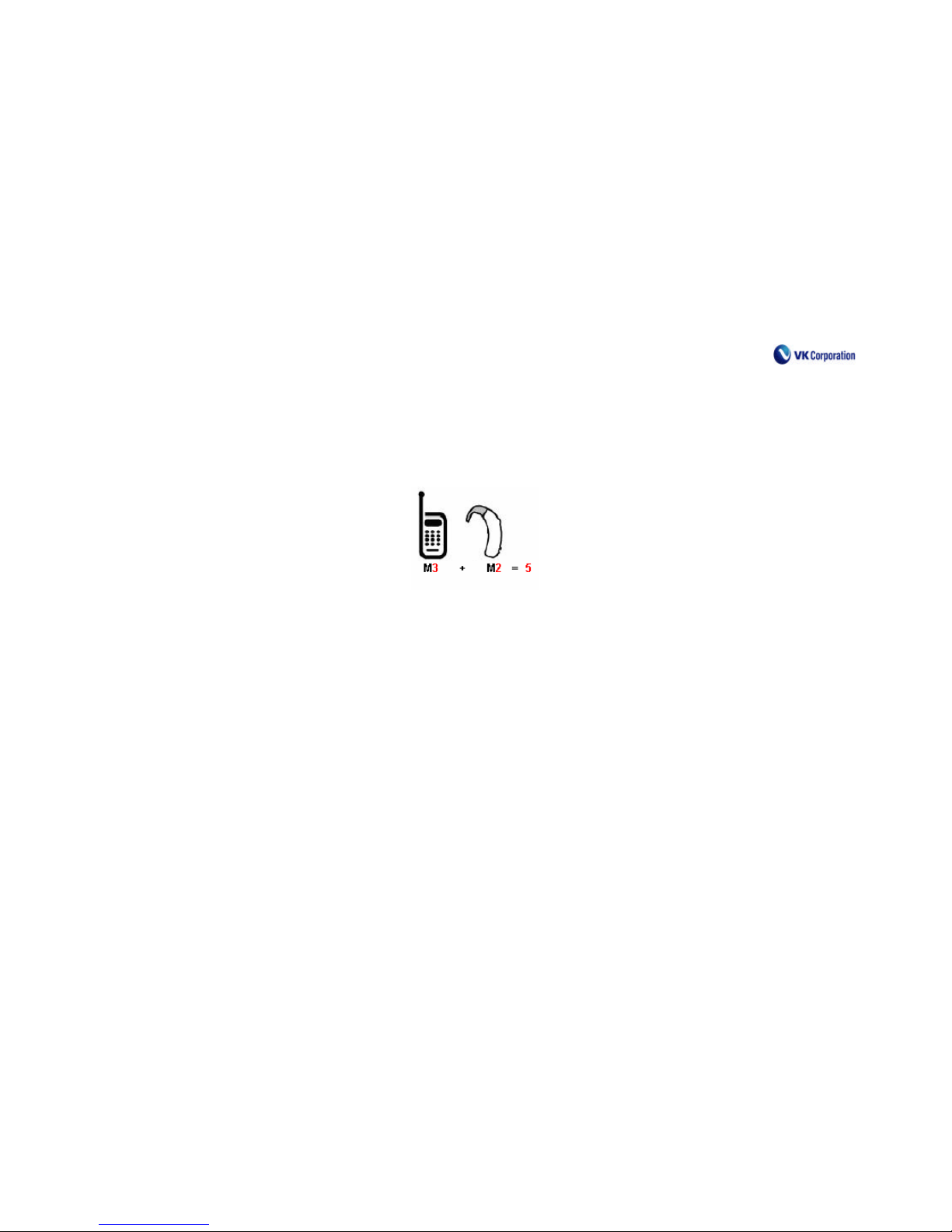
Higher ratings mean that the hearing device is relatively immune to interference noise. The hearing aid and wireless phone rating values are
then added together. A sum of 5 is considered acceptable for normal use. A sum of 6 is considered for best use.
In the above example, if a hearing aid meets the M2 level rating and the wireless phone meets the M3 level rating, the sum of the two
values equal M5. This should provide the hearing aid user with “normal usage” while using their hearing aid with the particular wireless
phone. “Normal usage” in this context is defined as a signal quality that is acceptable for normal operation.
The M mark is intended to be synonymous with the U mark. The T mark is intended to be synonymous with the UT mark. The M and T
marks are recommended by the Alliance for Telecommunications Industries Solutions (ATIS). The U and UT marks are referenced in
Section 20.19 of the FCC Rules. The HAC rating and measurement procedure are described in the American National Standards Institute
(ANSI) C63.19 standard.
Page 54
54
Page 55

55
Warranty
Thank you very much for purchasing VK products.
Warranty period of this product is calculated from the date of purchase.
In accordance with Consumers’ Damage Compensation Regulation by Item (Public Notice No. 2000-21 by The Ministry of Finance
and Economy), VK Mobile implements warranty for our products as follows:
Warranty Period
-Terminal: 1 year
-Lithium Ion Battery: 6 months
Free Service
? Free Service
1. Only in case the product becomes out of order within 1 year (Quality Guarantee Period) under normal use, free service will be
provided.
2. In the case of battery, warranty period is 6 months.
Paid Service
? Paid Service
The following cases shall be subject to paid service even within warranty period:
-When the trouble is occurred due to consumer’s carelessness
-When the trouble is occurred due to Act of God (Fire, earthquake, flood, thunderbolt, etc.)
-When the trouble is occurred due to a problem of power source
-When the trouble is occurred due to defective devices connected to the phone
-When the trouble is occurred due to the repair by any person other than engineers of VK’s Service Center and VK designated agent.
? Telephone Number of Customer Service Center: 080-670-0600 (Payable by receiving party)
Page 56

56
※ It is recommended that purchaser keeps this warranty together with receipt after filling out the pertinent columns in the warranty
at the time of purchase to get more faithful service in the future.
Details of Compensation
Type of Damage to Consumers
Within Warranty Period After Warranty Period
When requiring major repair within 10 days from purchase Change of Product or Refund
When requiring major repair within 1 month from purchase Change of Product
When the changed product requires major repair within 1
month
When change of product is impossible
Refund
Not applicable
Up to 3 times of trouble due to Same defect Free Repair Paid Repair
Up to 4 times of trouble due to Same defect Change of Product or Refund Paid Repair
Repair is
possible
Up to 5 times of trouble due to different
defects
Change of Product or Refund Paid Repair
In case repair is impossible due to lack of parts within part
retention period
Refund will be made adding ( )% for the
amount after depreciation based on straight
line method.
Limited to defective
problems due to
performance/functio
nal defect occurred
in the condition of
normal use
(Excluding problems
of marketing nature,
non-defective nature
and fault nature)
In case repair is impossible even if parts are available
Change of Product or Refund
Refund after depreciation based on straight
line method
Name of Product CDMA 20 00 1X Terminal Name of Model VK650C
Date of Purchase Serial No.
Purchase Agent Purchase Amount
 Loading...