

Page 1

http://www.vitotechnology.com/manual/Remote/
VITO Remote User Manual
1. Introduction
2.
Registration
3.
Getting Started
4.
Learning IR Signals
5.
Importing settings
6.
CCF files
7.
Skin Editor
8.
Settings & Options
9.
Hardware Buttons
10.
Voice commands
11.
F.A.Q.
Introduction
VITO Remote turns your PocketPC into all-in-one infrared remote control to operate TV, Video, Cable, DVD and other home and office equipment.
The program works at ARM or XScale based devices running Windows for PocketPC (OS version 2000, 2002 or 2003). It uses built-in infrared
transmitter to beam and acquire signals. The beaming range varies from 4 to 25 ft (1-8 m) and depends on infrared transmitter strength.
VITO Remote comprises both functionality and usability providing the highest performance and most comprehensive features compared to similar
applications in the PocketPC software market. It helps you to keep all your remote controls in one handheld device!
Program main features:
● easy-to-use and configure;
● full support of CCF files;
● fast and reliable infrared engine;
● powerful skin editor;
● customizable hardware buttons;
● interface rotation;
● macros support;
http://www.vitotechnology.com/manual/Remote/ (1 de 9)16/11/2005 0:21:49
Page 2
http://www.vitotechnology.com/manual/Remote/
● voice commands support.
Registration
Downloadable free version of VITO Remote is fully-functional and has to be registered after 14-day trial period.
To get a Registration Key:
1. Open in your browser VITO Technology registration page:
http://www.vitotechnology.com/registration.php.
2. Follow the instructions on the page.
3. After you log in to your account, press
located in the end of the VITO Remote raw.
4. Enter your User ID that can be found in About -> Register now... menu.
5. If USER ID is correct, you will see your registration key displayed.
If you have any questions or problems regarding the registration process, please contact our registration support representative at
Getting Started
1. Download and install the latest version of VITO Remote from our website:
http://www.VitoTechnology.com.
2. Launch VITO Remote from Programs/VITO Tech. applications.
3. Use checkboxes to select your equipment from the list of available devices and tap [ok].
- If you can't find your equipment in the list, please refer to
Learning IR Signals.
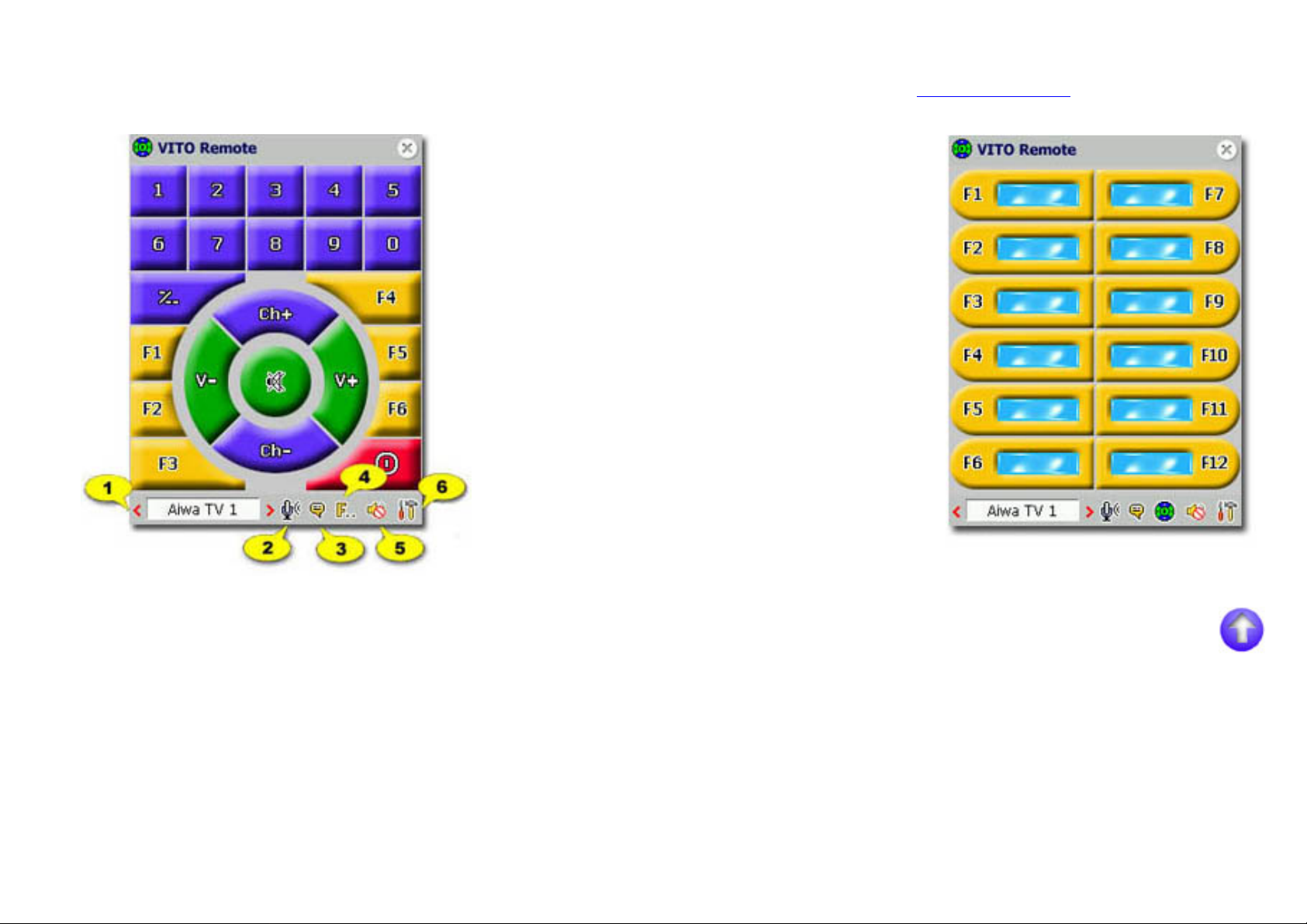
4. Use on-screen buttons to operate your equipment and manage the program (see below).
http://www.vitotechnology.com/manual/Remote/ (2 de 9)16/11/2005 0:21:49
Page 3
http://www.vitotechnology.com/manual/Remote/
- Included devices contain only basic set of buttons such as Channel +/-, Volume +/-, etc. Some of them require original remote control to be
trained.
- Check Infrared COM port settings if your equipment doesn't respond beamed commands (see also
Settings & Options).
1. Device menu
2. Magic word mode
3. Single voice command
4. Extra buttons
5. Sound on/off
6. Main menu
Learning IR Signals.
In case you can't find your equipment in the list of included devices and do not want to search for CCF-files, you need to train VITO Remote using
original remote control. This is quite easy if you follow step-by-step instruction given below.
1. When in device manager, tap [Create].
2. Enter a name for created device and select a template to be used. Choose from:
http://www.vitotechnology.com/manual/Remote/ (3 de 9)16/11/2005 0:21:49
Page 4

http://www.vitotechnology.com/manual/Remote/
a. receiver - for TV, Cable, etc.;
b. player - for Video, CD, DVD, etc.;
c. custom - for blank screen to create your own skin (refer to
Skin Editor for details).
- You can import existing skin from external file.
3. Created template appears in device listing. Check it and tap [ok].
4. Find your device in the Device menu.
5. Choose Learning mode from main menu. Buttons that are not programmed will be displayed as gray.
6. Tap the button you want to train. Request for incoming signal will be displayed.
7. Press the corresponding button on your remote control.
8. Hold it until, the request message disappears.
9. If signal is recognized, the on-screen button will become bright.
Note: make sure that your IR port is opened for incoming beams.
You can also train VITo Remote using the Design mode. It allows you to build macros and import
IR-codes from other templates:
1. Create a new device (Repeat steps 1-4 from the previous list).
2. Tap Main menu button (#6 on the
screenshot) and switch to Design mode.
3. Tap a button you want to train. In appeared window:
a. enter a name for current button (required for hardware button mapping and voice commands);
b. change its color and label;
c. acquire signal from remote control or import it from file.
4. To learn a signal from a remote control, place your handheld and the remote control on a table, facing each other, with about 2-3 inches
(5-7 cm) in-between. The infrared ports of each device must be facing each other.
5. Tap [Read cmd 1] and press the corresponding button on your remote control (hold it, to record a continuous signal).
Some equipment requires that buttons of the remote control send two different IR signals, which alternate each time you press a button.
In this case after you recorded the first signal, tap [Read cmd 2] and record the second one.
- If any button is trained correctly, and works only once, you need to record an alternate signal.
http://www.vitotechnology.com/manual/Remote/ (4 de 9)16/11/2005 0:21:49
Page 5

http://www.vitotechnology.com/manual/Remote/
- Check "Create macros" checkbox to record a sequence of infrared signals.
6. Tap [ok] to save changes and return to interface or tap [Reset cmd] to delete acquired signal.
7. Repeat steps 6-9 for each interface button.
- Tap button #4 (see the
screenshot above) to display and train additional buttons which are useful for macro commands.
8. Switch to Normal mode when you're done.
To import settings from file:
1. Check Select from file radio button and tap Browse button.
2. Select a file, tap [OK].
3. Select a code name to be used for that particular button, and tap [OK].
CCF files
CCF files are standard configuration files for various universal remote controls. CCF files include IR signals and interface settings, and they
can be downloaded from the internet. Visit
www.remotecentral.com for details.
To install a CCF file to your PocketPC:
1. Download or place it to your /Vito Remote/Devices folder.
2. In VITO Remote, tap Main menu > Manage devices. The CCF file appears in the listing with a corresponding name.
3. Select the file and tap [ok].
http://www.vitotechnology.com/manual/Remote/ (5 de 9)16/11/2005 0:21:49
Page 6

http://www.vitotechnology.com/manual/Remote/
Skin Editor
To create your own template from the ground, follow the step-by-step instructions below.
1. Switch to Device manager and tap [Create]. Enter a name for the template and select "custom" from Device type list.
2. Created template appears in device listing. Check its name and tap [ok]. Choose the created template from Device menu. Blank canvas
will appear on the screen.
Note:to delete any device from the list tap&hold it, then choose "Delete".
3. Enter main menu switch to Design mode.
4. Tap-n-hold at any place on the blank canvas to add a button.
5. In appeared window set coordinates, shape and style for created button. Tap [ok] to save changes.
6. Tap-n-hold on created button and choose Properties. In appeared window:
a. enter a name for current button (required for hardware button mapping and voice commands);
b. change color and label;
c. learn infrared signal from remote control or import from file.
Tap [ok] to save changes.
7. Repeat steps 4-6 to create and train additional buttons. Switch to Normal mode when you're done.
Settings and Options
http://www.vitotechnology.com/manual/Remote/ (6 de 9)16/11/2005 0:21:49
Page 7

http://www.vitotechnology.com/manual/Remote/
When in Normal mode, enter main menu and choose Settings.
❍ Tap [Set background color] to change skin background color.
❍ Check "Enable background picture" and pick an image file to assign it for skin background (240x270 GIF or JPG).
❍ Check "Enable sounds" and pick a WAV file to score button taps with a sound.
❍ Check "Show hints" to display helpful tips in pop-up window.
❍ Set rotation angle for on-screen buttons (extremely useful at Toshiba e740/e750 that have infrared port on the side!).
To change your IR port settings, tap Main menu > Ir Port. Select another infrared COM port if you experience problems acquiring or
beaming signals. (auto is recommended).
To set hardware buttons, tap Main menu > Hardware buttons and refer to the next part of the manual.
Hardware Buttons
You can assign hardware buttons to on-screen buttons using Mapping manager.
Enter main menu and choose Hardware buttons. Mapping manager will display hardware buttons available for binding. Button #1 is
mapped to switch between devices by default. It cannot be re-assigned.
To assign a button follow the steps below.
1. Select button from the listing.
2. Choose action and tap [Set]. It will appear opposite to mapped button in the listing.
3. Repeat steps 1-2 to map other buttons.
4. Tap [ok] to save changes and return to device main screen.
Voice recognition
http://www.vitotechnology.com/manual/Remote/ (7 de 9)16/11/2005 0:21:49
Page 8

http://www.vitotechnology.com/manual/Remote/
To make VITO Remote understand your voice commands enter Main menu->Settings, choose Voice tab and follow the steps below.
1. Select Magic word from the upper drop-down menu.
2. Tap Record and pronounce a command for Magic word while progres bar is active. (Once Magic word is pronounced, the voice
recognition service starts to listen for several seconds to any command you say).
3. Choose and record other commands the same way. All recorded commands will be visible in the main list.
4. To record command again, delete it using "Delete" button and repeat the previous step.
5. Exit Settings end turn on Magic word mode (button #2 on the
screenshot).
6. You can start voice recognition manually (for instance: if you want to check whether VITO remote understands your command or not):
just tap
button #3.
Note. Each on-screen button requires a name to be displayed in Mapping and Voice commands managers. As soon as a new temlate is created,
you should enter names for the buttons you want to map hardware buttons or assign voice commands to.
F.A.Q.
Q. What are general requirements for VITO Remote?
A. Basic requirements are:
- ARM or XScale based PocketPC
- Operating System PocketPC Phone Edition 2002/2003
Q. It seems like my equipment doesn't respond to VITO Remote signals. What should I do?
A. Try to switch between COM ports in program settings. If this doesn't help, train VITO Remote with original remote control.
Q. I constantly get message "Can't get IR signal" when acquiring signals from my remote control. What's wrong?
A. Try to switch between COM ports in program settings. Please note that VITO Remote supports Consumer Infrared format only and may
not work with some devices (e.g. some air conditioners, garage doors, etc.).
Q. Does VITO Remote work on MIPS based PocketPC?
A. No, it doesn't. We can't overcome hardware restrictions at these devices.
http://www.vitotechnology.com/manual/Remote/ (8 de 9)16/11/2005 0:21:49
Page 9

http://www.vitotechnology.com/manual/Remote/
Q. Does VITO Remote work on Cassiopeia E-200?
A. No, it doesn't. Due to hardware restrictions none of Casio Cassiopeia devices are supported by VITO Remote.
VITO Technology
http://www.VitoTechnology.com
Copyright 2004 (c) All rights reserved.
http://www.vitotechnology.com/manual/Remote/ (9 de 9)16/11/2005 0:21:49
 Loading...