

Page 1
Century House, Roman Road, Blackburn, BB1 2LD
www.vitalenergi.co.uk
1
An energy metering system that
gives exibility, security and control
Page 2

Century House, Roman Road, Blackburn, BB1 2LD
www.vitalenergi.co.uk
2
Contents
1. Before you get started ..................................................................4
What’s inside the box? �����������������������������������������������������������������������������������������������������������4
What is vPro2? Why do you have it? How does it work?���������������������������������������������������4
Liberty Connect 100 ����������������������������������������������������������������������������������������������������������������4
In-Home Display �����������������������������������������������������������������������������������������������������������������������4
AAA battery ������������������������������������������������������������������������������������������������������������������������������4
Bracket ��������������������������������������������������������������������������������������������������������������������������������������4
Power adaptor �������������������������������������������������������������������������������������������������������������������������4
Care Instructions�����������������������������������������������������������������������������������������������������������������������5
Setting up your In-Home Display ��������������������������������������������������������������������������������������������5
2. Understanding the In-Home Display ...........................................6
3. How to use your touchscreen In-Home Display unit ................. 8
Accessing the Main Menu ������������������������������������������������������������������������������������������������������8
View your real-time energy usage �����������������������������������������������������������������������������������������8
Compare today’s consumption with yesterday’s ���������������������������������������������������������������9
View your historical energy consumption graphically ��������������������������������������������������������9
Check your account status (Pay As You Go only) ������������������������������������������������������������10
View your tariff rate details ���������������������������������������������������������������������������������������������������11
Topping-up your meter account (Pay As You Go only) ���������������������������������������������������12
Change your In-Home Display’s default settings ���������������������������������������������������������������13
Page 3

Century House, Roman Road, Blackburn, BB1 2LD
www.vitalenergi.co.uk
3
Read your messages ������������������������������������������������������������������������������������������������������������14
How to avoid supply disconnection �����������������������������������������������������������������������������������15
What is Emergency Credit? ��������������������������������������������������������������������������������������������������15
Activate Emergency Credit (Pay As You Go only) �����������������������������������������������������������16
What is Friendly Credit? ���������������������������������������������������������������������������������������������������������16
Acknowledging alerts ������������������������������������������������������������������������������������������������������������17
Operating the In-Home Display with batteries ������������������������������������������������������������������17
4. Troubleshooting ...........................................................................18
My In-Home Display is not pairing with my Smart Meter ��������������������������������������������������18
My Home screen displays ‘__’ instead of a value �������������������������������������������������������������18
5. Contact us if ................................................................................. 18
You have recently moved in and don’t have a vPro2 Smart Payment card ����������������18
You have lost your vPro2 Smart Payment card ������������������������������������������������������������������18
You would like to purchase credit ���������������������������������������������������������������������������������������19
Page 4
Century House, Roman Road, Blackburn, BB1 2LD
www.vitalenergi.co.uk
4
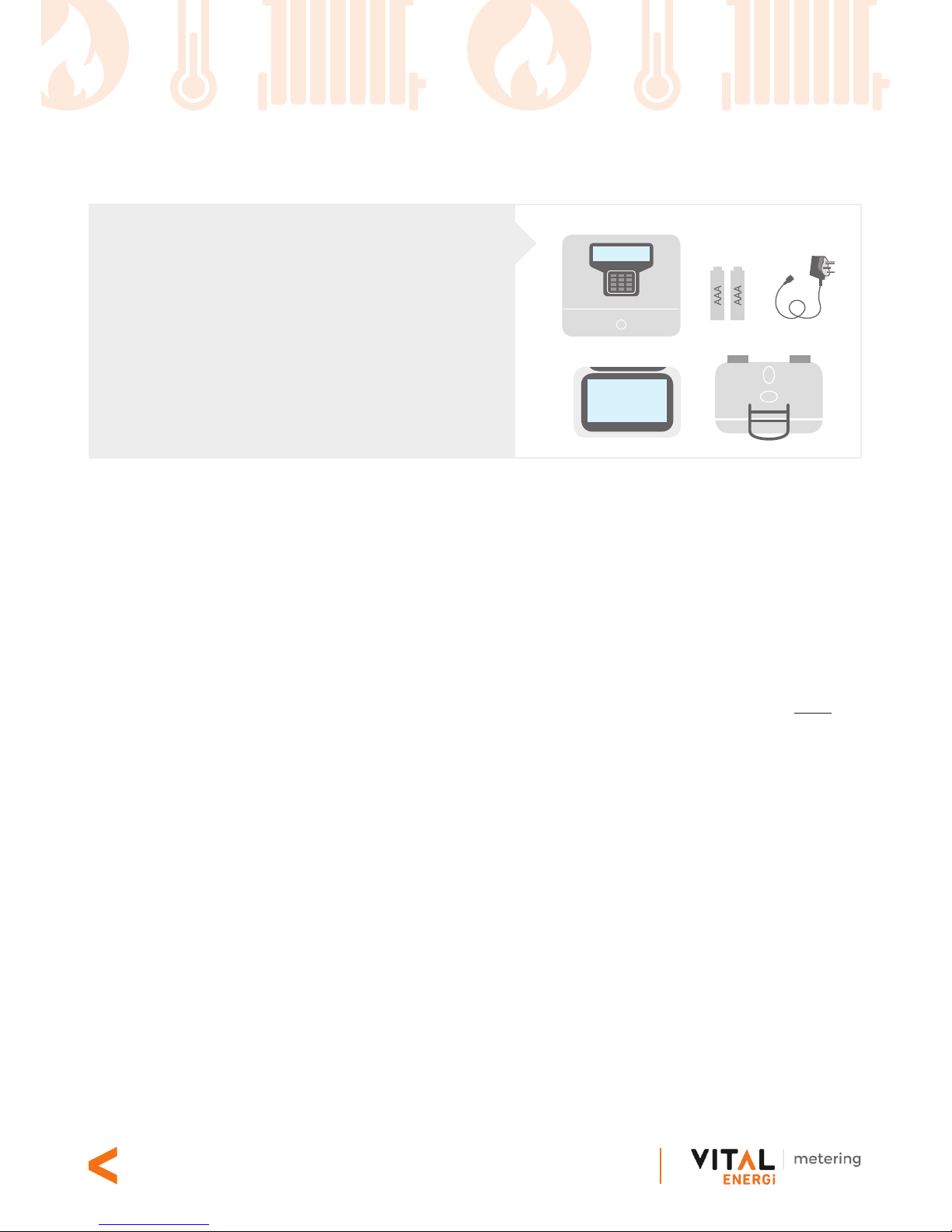
Liberty Connect 100
In-Home Display
AAA
Battery
Wall Mount Bracket
Power
Adaptor
1. Before you get started...
What’s inside the box?
Inside your In-Home Display pack you
will nd:
• In-Home Display unit
• Liberty Connect 100
• Mains power adaptor
• Wall mount bracket
• 2 x AAA alkaline batteries
What is vPro2? Why do you have it? How does it work?
vPro2 is Vital Energi’s Smart Metering Pay As You Go solution for the measurement and
control of the energy usage within your home.
The In-Home Display shows your energy usage collected from your electricity and/or
heat meter. The information is processed through the Liberty Connect 100 and is shown
on an LCD screen.
The In-Home Display connects wirelessly with your energy meter through a Home Area
Network. Liberty Connect 100 connects a heat meter to the network. You will only be
able to view the data from the meter attached to your In-Home Display.
The In-Home Display receives and displays messages from Vital Energi and lets you setup customised alerts relating to your account, energy or heat usage.
Touch screen: The LCD screen is touch-sensitive and backlit. The buttons and functions
on the screen change depending on which menu option you choose.
Energy usage information: Shows the energy you are currently using and lets you check
how much energy you’ve used in the past. Your energy usage is updated about every
10 seconds from your electricity meter and once a minute from your Liberty Connect
100.
Supplier messages: Alerts you when you receive a message from Vital Energi and saves
it for future reference.
Customised alerts: Allows you to set-up alerts to tell you when you are using more energy
than you want to, or that your account is low on credit, (Pay As You Go customers only).
Page 5
Century House, Roman Road, Blackburn, BB1 2LD
www.vitalenergi.co.uk
5
Care Instructions
• Only use the unit for the purpose it is intended.
• Do not use sharp objects on the display as it could become damaged.
• Do not put the unit in any liquids and keep it away from heat-generating sources
or areas with high moisture.
• Excessive impact or shock could damage the unit. If the display is damaged,
avoid touching the liquid crystals inside it as it could cause skin irritation. If irritation
occurs, please seek medical attention.
Setting up your In-Home Display
Only use the adapter provided in the box to power your In-Home Display.
Set up the unit in an easily visable location, near a power socket.
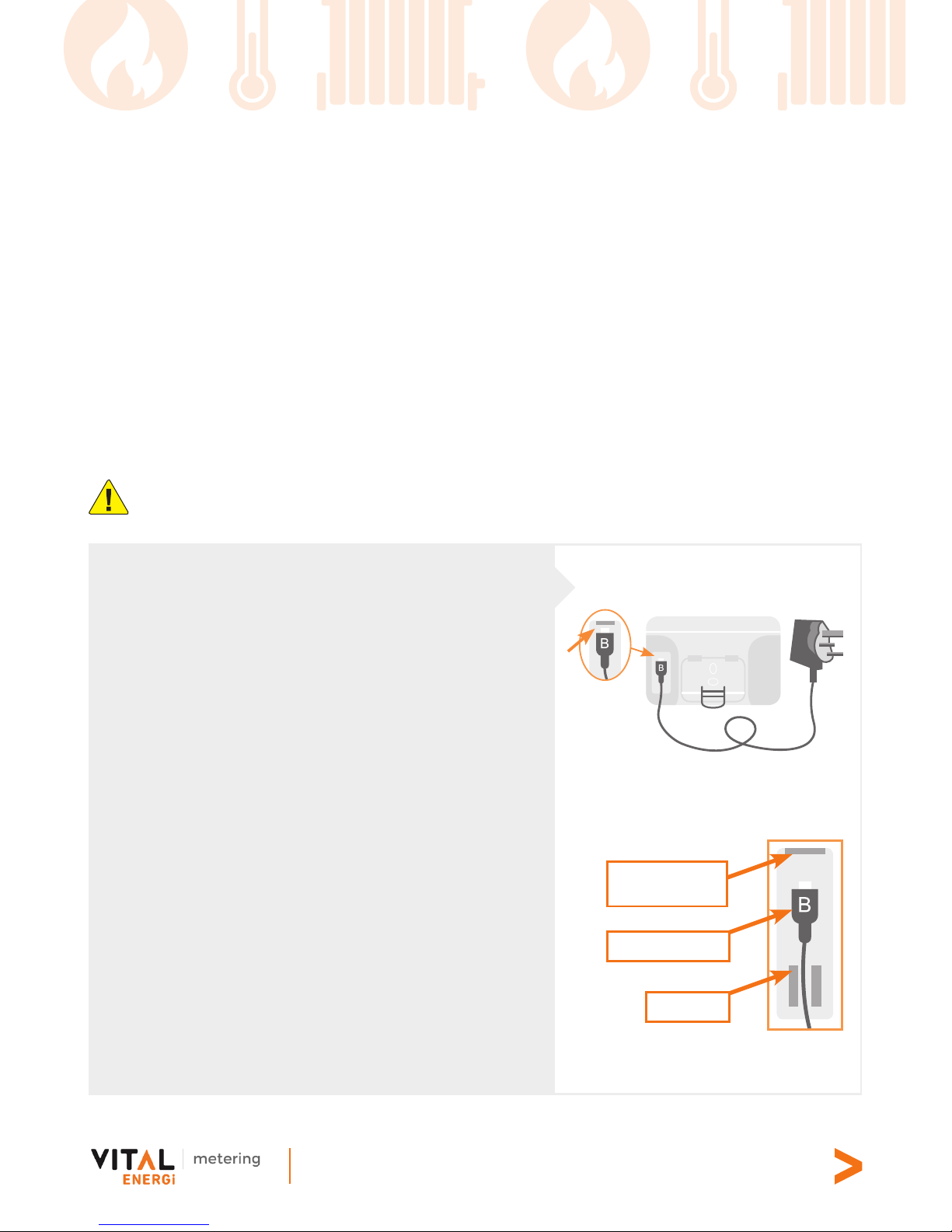
Step 2
Step 3
Step 1:
Insert the two AAA batteries supplied in the box
and make sure that they are tted correctly,
shown by the +/- terminal markings in the
battery compartment, (refer to page 17).
Step 2:
Hold the display with the screen facing away
from you and hold the small end of the power
adapter cable, with symbol ‘B’ facing towards
you. Plug the cable into the socket at the back
of the display, as shown on the right.
Step 3:
Push the wire into the groove of the cable grip.
This will secure the connector.
Step 4:
Plug the other end into a mains outlet and turn
on the power. The display screen should come
on.
Cable grip
Power connector
In-Home Display
power socket
Page 6
Century House, Roman Road, Blackburn, BB1 2LD
www.vitalenergi.co.uk
6
2. Understanding the In-Home Display...
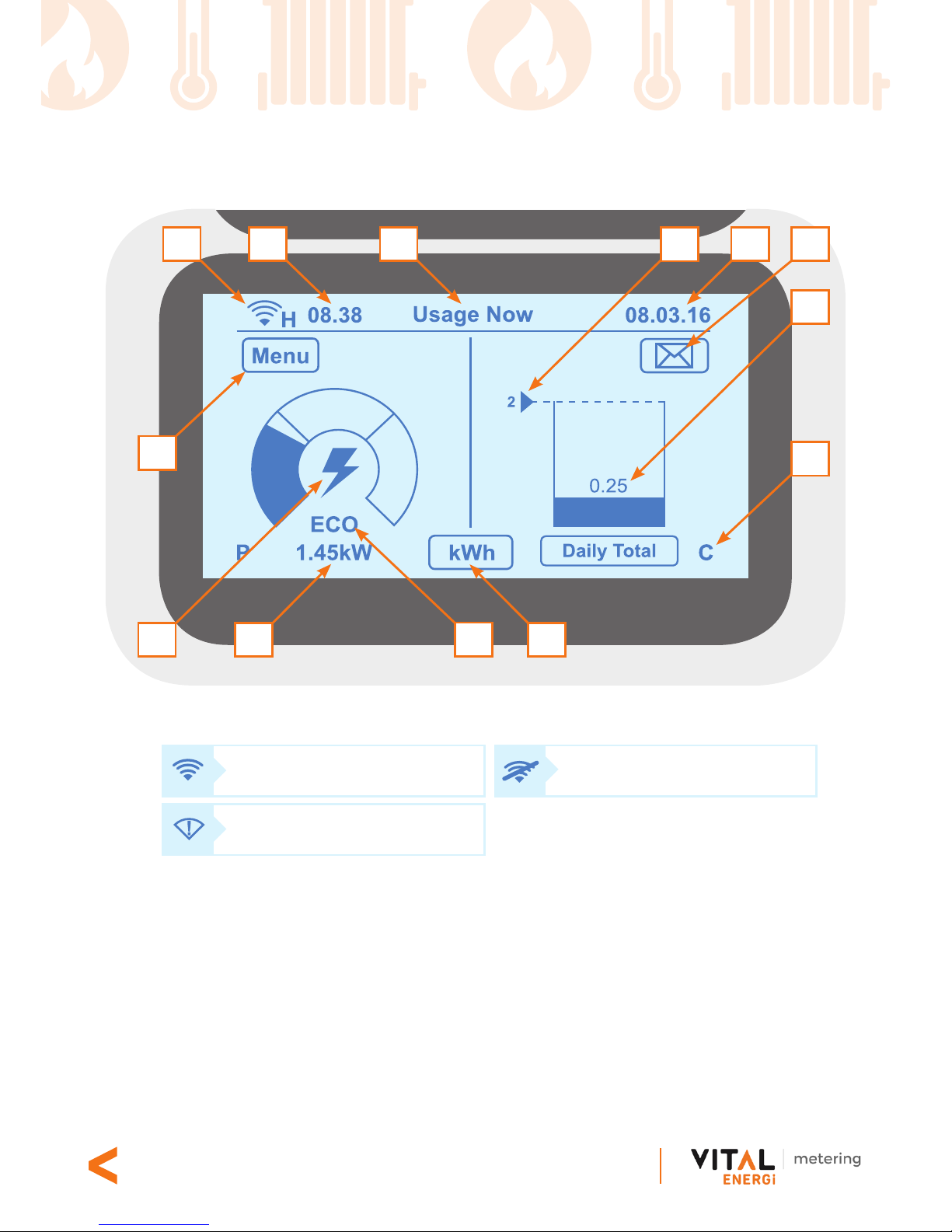
1� Network communication will be displayed by one of the following symbols:
2� Current time
3� Current date
4� Menu title
5� Energy usage threshhold - A daily consumption target threshold can be set so
you can monitor how much energy you are using, to help keep your energy
bills low.
8
10
9
3
4
21
12
7
11
6
5
13
Network connection OK
Not communicating with
the meter
No network connection
Page 7
Century House, Roman Road, Blackburn, BB1 2LD
www.vitalenergi.co.uk
7
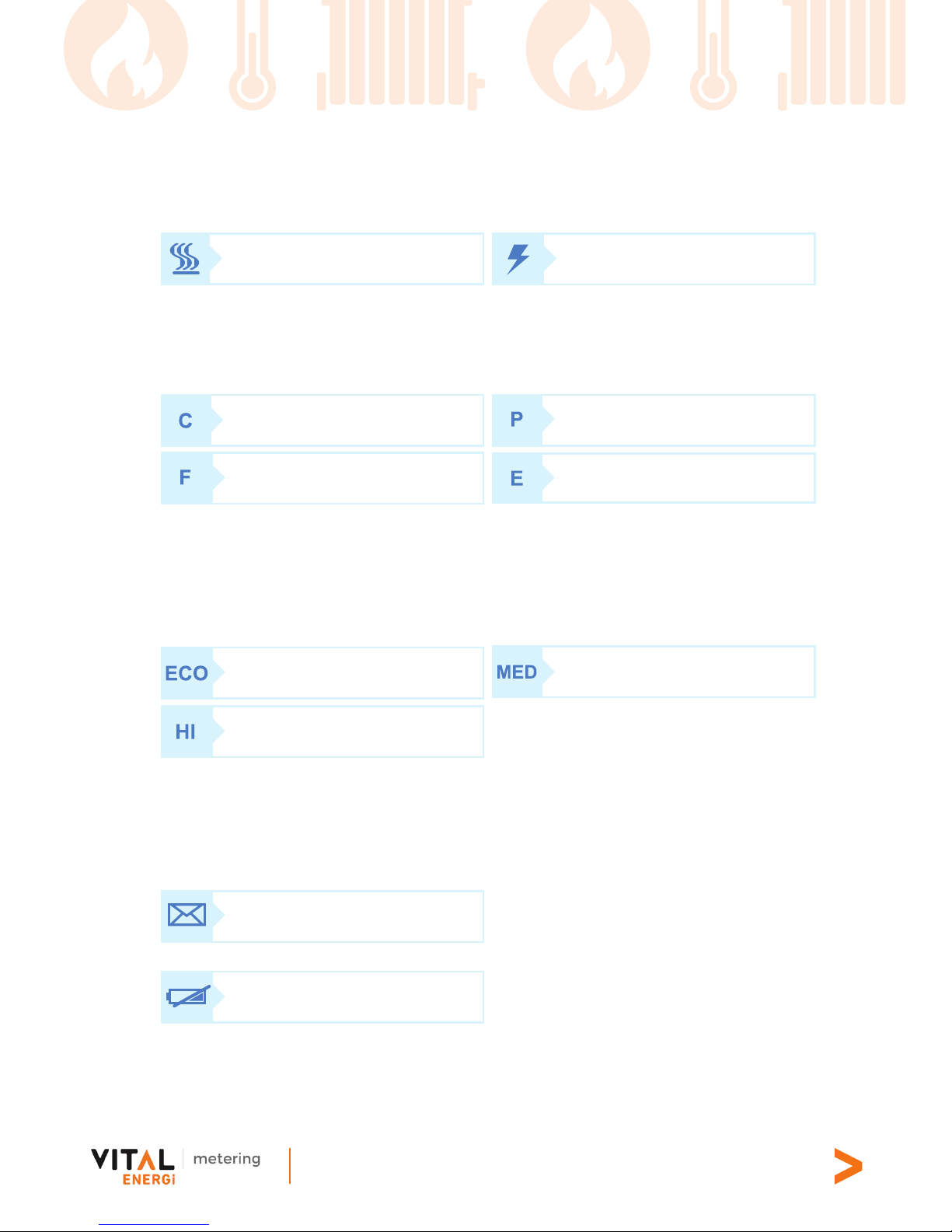
6� Daily usage
7� The type of supply currently being read by your meter:
8� The Unit selection button - press this to switch between kWh, £/h or CO2kg
9� Meter operating mode will be displayed as one of the following symbols:
10. When the indicator is in the ECO or MID range, your current energy usage is
within your daily £ target. If the indicator says HI, you will exceed your daily £
target if you continue to use energy at the same high rate. (You can set your
daily target from Menu>Settings>Target menu)
11� The Unit Reading - shows real-time value of the selected unit; energy cost per
hour (£/h), kilowatt hour value (kWh) or carbon dioxide emission (CO2kg)
12� The Menu button - press this to go back to the Main Menu
13�
14�
Heat supply Electricity supply
Credit mode
Pay As You Go mode
Friendly Credit active Emergency Credit active
Economy
Medium
High
Message inbox
Low battery; replace batteries
if this icon appears
*Not shown on this screen
Page 8
Century House, Roman Road, Blackburn, BB1 2LD
www.vitalenergi.co.uk
8
3. How to use your touchscreen In-Home Display unit...
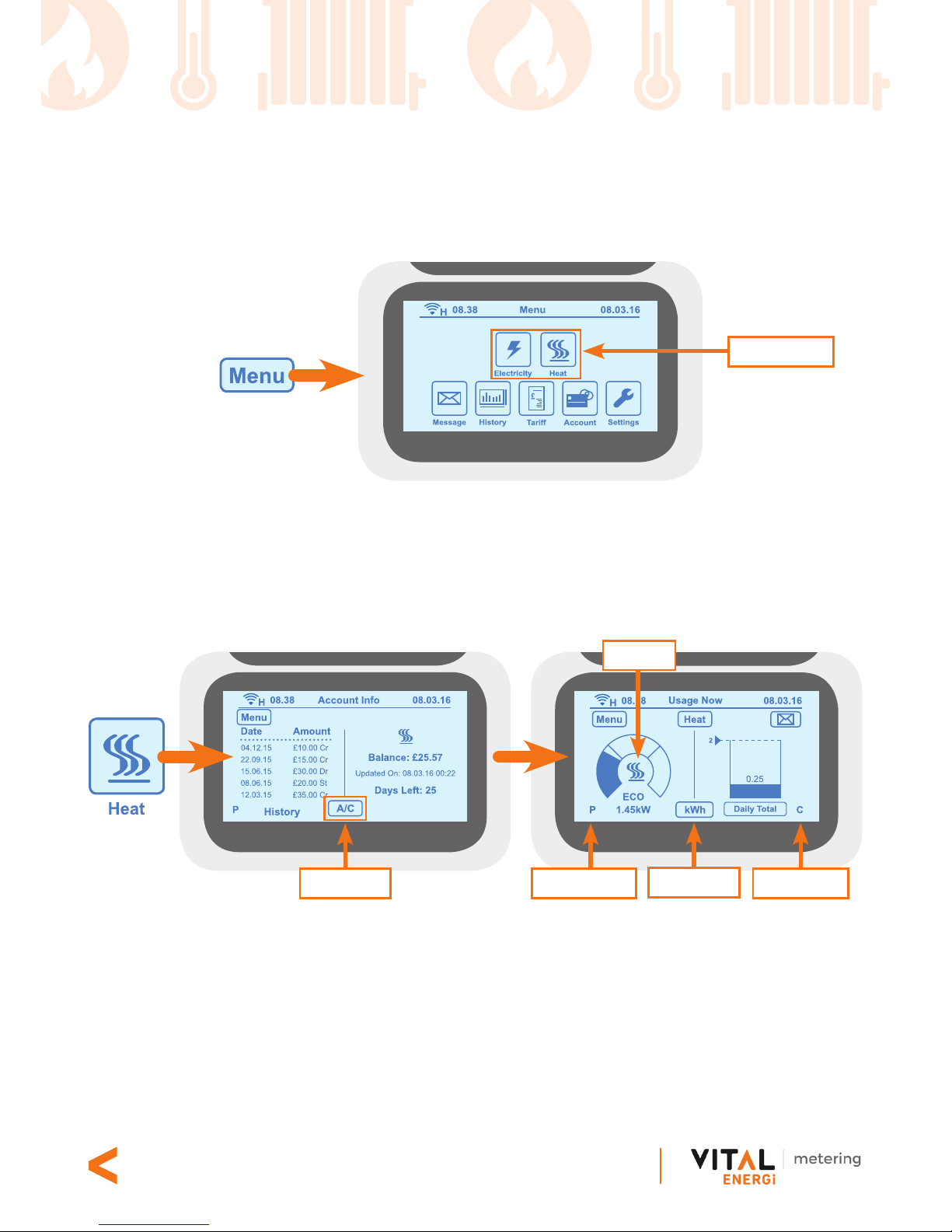
Accessing the Main Menu
View your real-time energy usage
From the Main Menu, if you press the Electricity or Heat icons, you will be taken to your
Account Info screen. Press the Unit Selection button to see the real-time energy usage
information related to that icon.
For electricity or heat, the screens will have added information for each different
energy type. The label on the Unit selection button (8) shows the type of information
you are viewing.
The above screen for heat/electricity lets you see how much real-time energy you are
using. These are energy consumption (kWh), energy cost per hour (£/h) or your carbon
emissions (CO2kg). Press the Unit selection button (8) for the information you want to see.
Unit Selection
Fuel Selection
Credit mode
Unit Selection
Pay As You Go
Fuel icon
Page 9
Century House, Roman Road, Blackburn, BB1 2LD
www.vitalenergi.co.uk
9
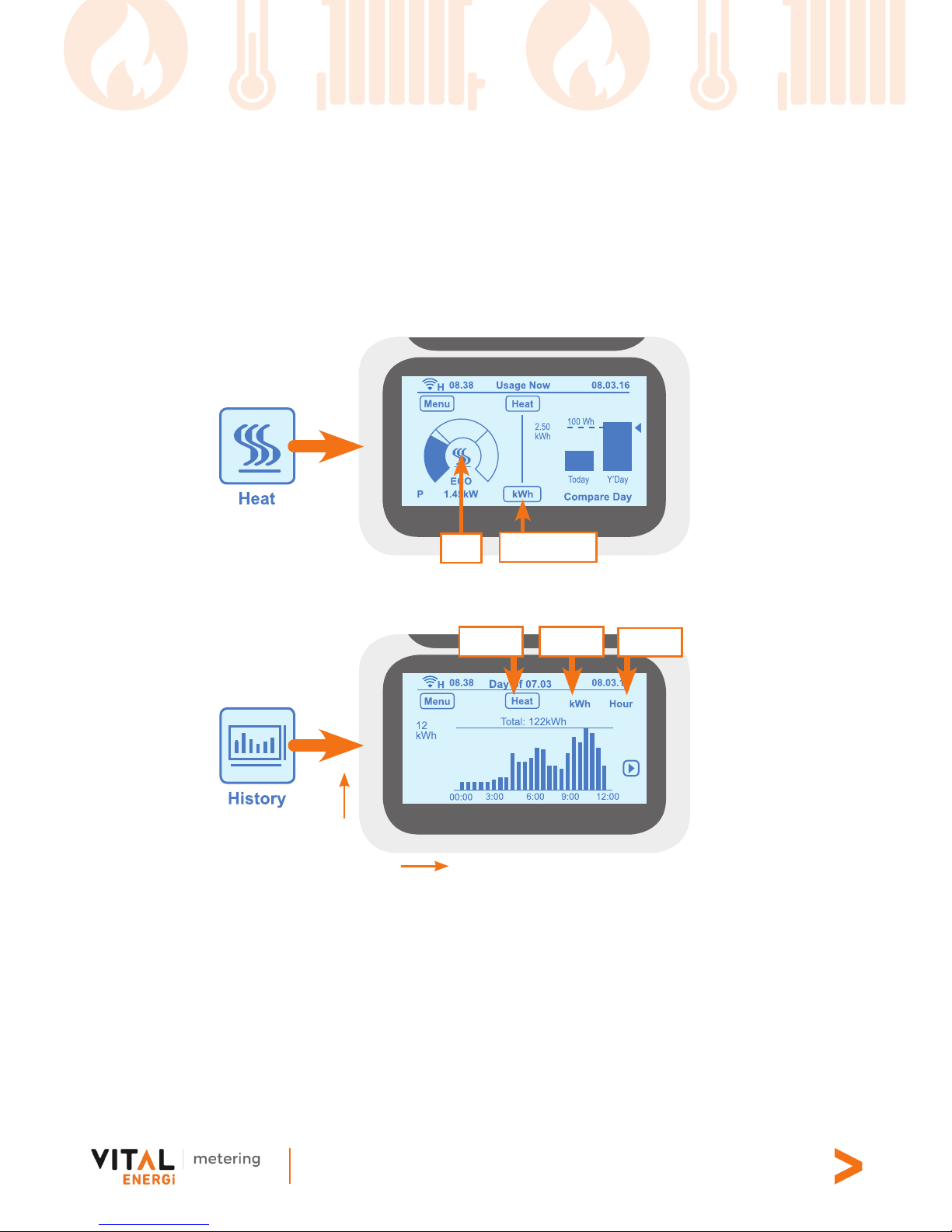
Compare today’s consumption with yesterday’s
When you select the electricity icon, the right half of the screen shows a graph
displaying your energy consumption for today compared to yesterday, as well as the
preset consumption target, shown by the horizontal dashed line. Press the Energy Type
button (7) to change the fuel type and the Unit selection button (8) to see £/h or your
carbon dioxide emissions, CO2kg.
View your historical energy consumption graphically
When you press the History icon on the Main Menu, it lets you see your energy usage
pattern on a graph. The above screen shows how much energy you have used in the
past 24 hours, in half hour slots. It also shows your daily consumption and your daily target
threshold. Additionally, you can see your daily, weekly or monthly energy patterns by
pressing the View button and you can check your hourly rate of consumption (£/hour)
or carbon emissions by using the Unit selection button (8)�
If you have a heat supply, press the Energy Type selection button (7), in the Main Menu,
to see information related to your heat consumption.
Unit Selection
Fuel
Time
Unit
ViewUnitEnergy
Page 10
Century House, Roman Road, Blackburn, BB1 2LD
www.vitalenergi.co.uk
10
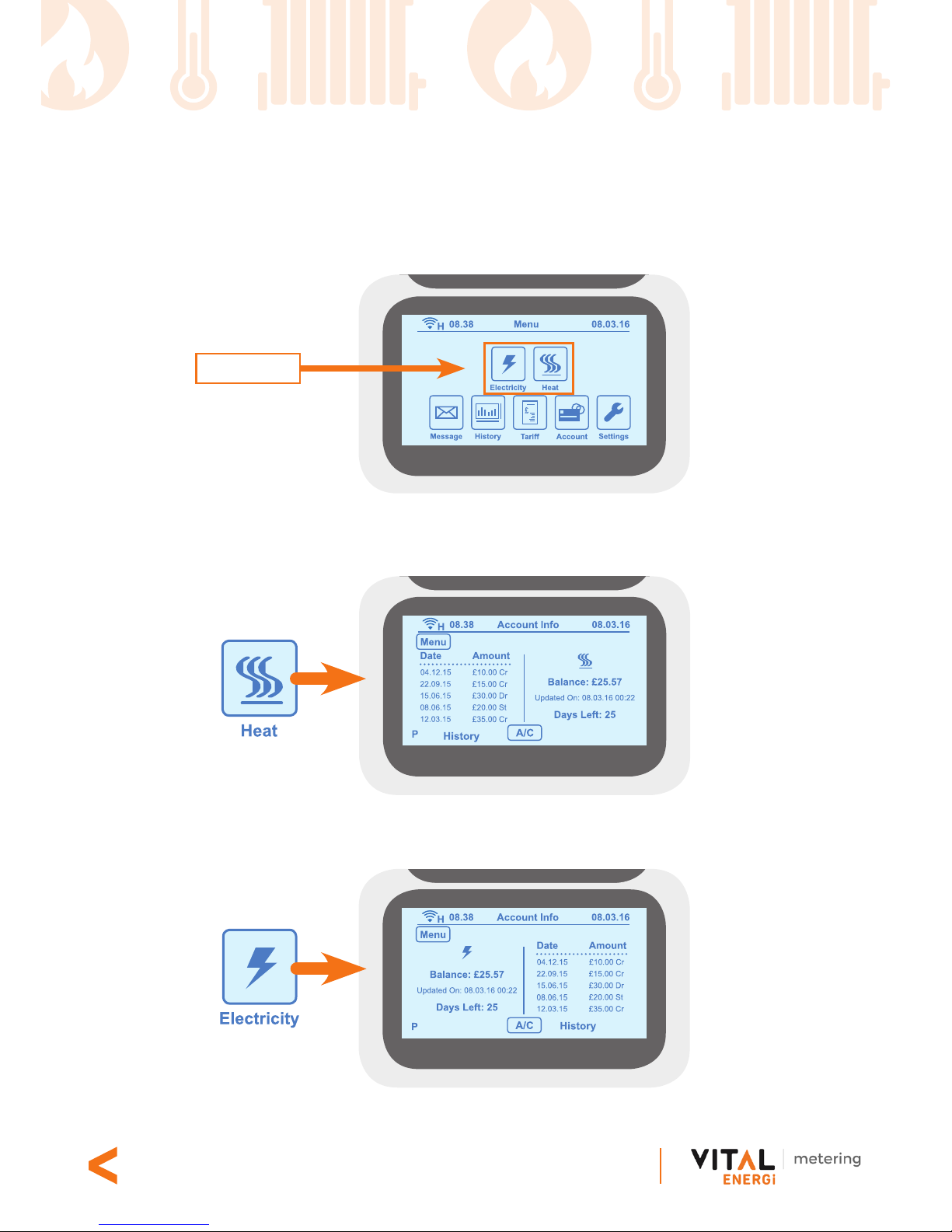
Check your account status (Pay As You Go only)
You can see the last ve payments made in your account for each energy type by
selecting the fuel type from the Main Menu.
Press the Heat button to see the last ve transactions and your current balance for
heat�
Press the Electricity button to see the last ve transactions and the balance for electricity.
Fuel selection
Page 11
Century House, Roman Road, Blackburn, BB1 2LD
www.vitalenergi.co.uk
11
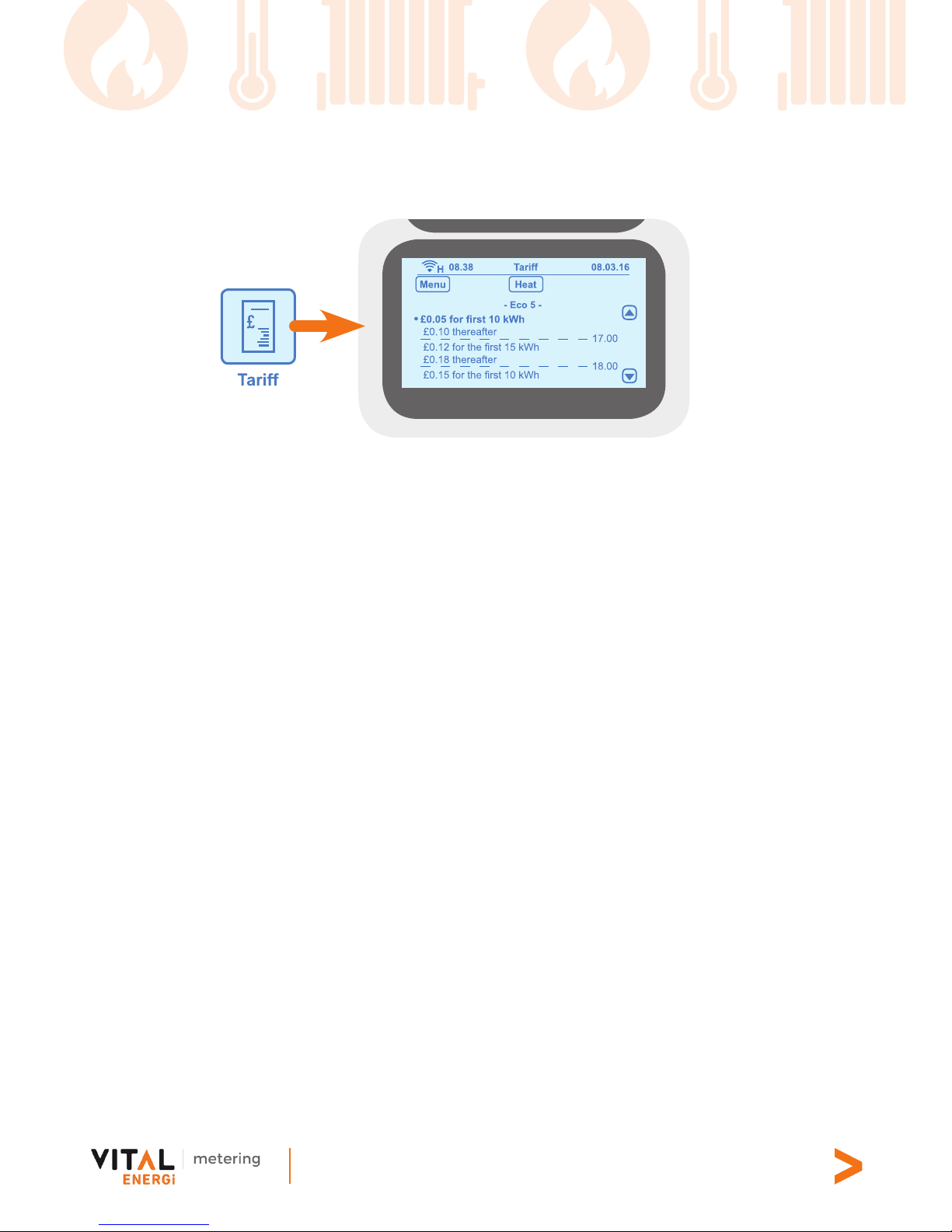
View your tariff rate details
The Tariff button lets you view the rate you are currently being charged at, (peak/off
peak), as well as the next tariff rate. The rate you are currently being charged will be
highlighted. If your tariff includes a standing charge, this will be taken from your meter
account at the beginning of each day.
In the example Tariff screen above, ‘- Eco 5 -’ is the tariff name that is currently active.
This shows the rst 10 kWh of heat consumption is charged at £0.05. After the rst 10 kWh
have been used, the price increases to £0.10 until the next tariff rate becomes active,
which may also have a different price.
The tariff data display moves upwards as you consume more energy over time. You
can use the arrow buttons to see your past and future tariff prices.
If you have an electricity supply, press the Energy Type selection button (7) to see
information relating to your electricity tariff details.
Press the Menu button to return to the Main Menu.
Page 12
Century House, Roman Road, Blackburn, BB1 2LD
www.vitalenergi.co.uk
12
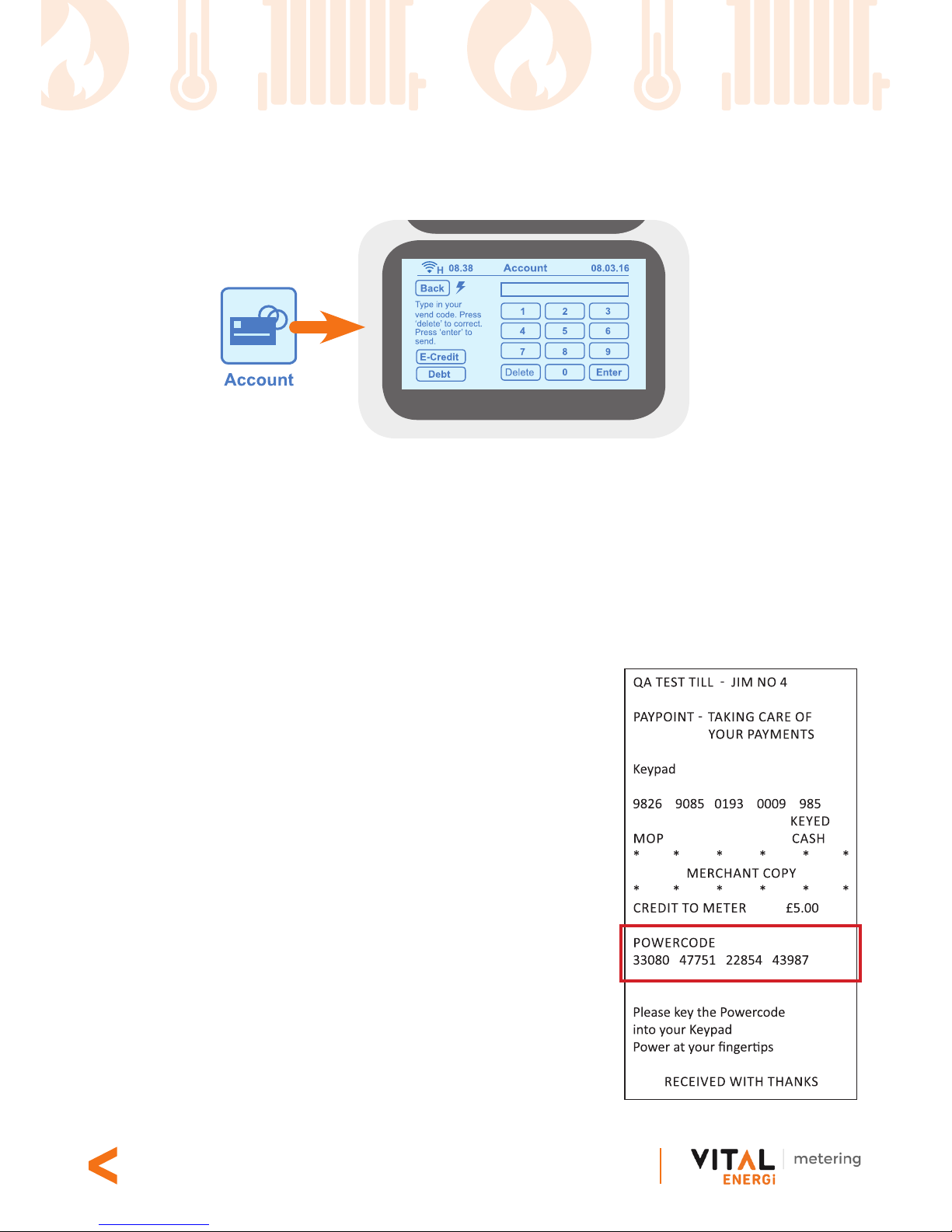
Topping-up your meter account (Pay As You Go only)
You need to pay for your heat or energy by choosing any of the payment options listed
on page 19. If your payment has not been received by your meter within 15 minutes,
then you can manually input the powercode/vend code into your meter account. You
need to have your energy payment receipt to do this.
Touch the Account icon in the Main Menu. This will take you to the screen where
you can top-up manually. In the Account screen, enter the numeric powercode/vend
code printed on your payment receipt.
Your In-Home Display will show a processing screen
while it waits for the meter to conrm whether the code
entry is a success or failure.
If the code is processed correctly, ‘Transaction
Successful’ will come up on the screen. Otherwise,
‘Transaction Unsuccessful’ is shown with details telling
you why the code failed. Press the Try Again button to
re-enter the code if you think you entered it wrong, or if
you want to enter a new code.
Note: You will only be able to see the E-Credit
(emergency credit) button when the credit in your
meter account goes below the low credit level and
you haven’t enabled E-Credit. You can set up your low
credit alert level by choosing the Credit Alert option in
the Settings menu, as explained on page 14.
Page 13
Century House, Roman Road, Blackburn, BB1 2LD
www.vitalenergi.co.uk
13
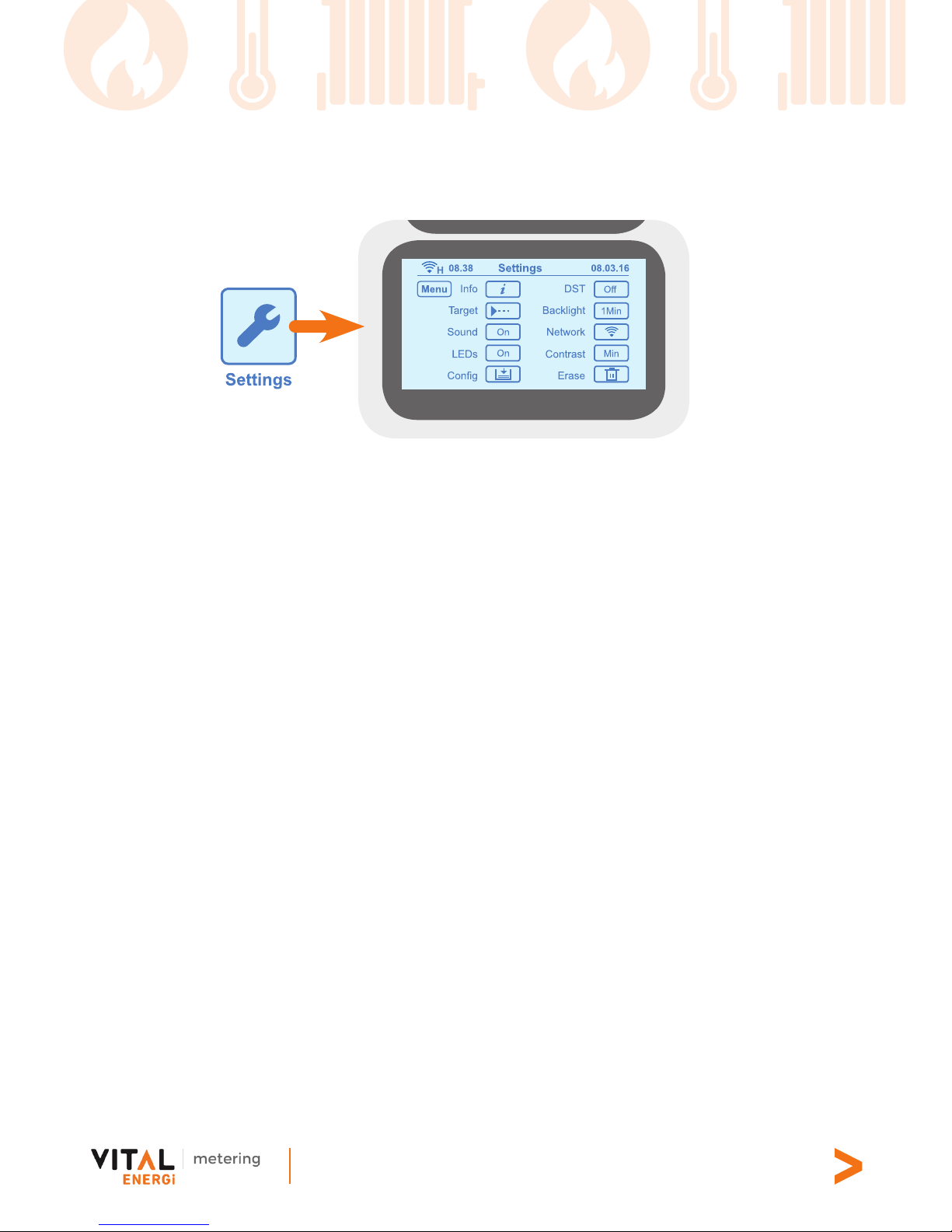
Change your In-Home Display’s default settings
From the Settings menu shown above, you can do the following:
• Info - get information on the Home Area Network and supplier’s helpline
• Target - set your daily energy usage target level
• Sound - turn the alarm sound On or Off
• LEDs - turn the indicator LEDs On or Off
• Cong - adjust your low credit alert level (Pay As You Go only)
• DST - turn the Daylight Savings Time On during summer and Off during winter
• Backlight - set the display backlight to turn off after 1 minute or stay on constantly
• Network - current network connection status
• Contrast - adjust the contrast on the touch-screen display
• Erase - erase data from your In-Home Display
Target level: This allows you to set separate target levels for your consumption of
electricity and heat (if available). When you set a daily consumption target, you can
see if your energy usage is above or within your chosen target level.
Credit Alert: If you are a Pay As You Go customer, you can change your default low
credit alert setting to a higher level. This can be done separately for electricity and
heat, (if available). The alerts will tell you when the credit in your meter account goes
below the level you have chosen.
Page 14
Century House, Roman Road, Blackburn, BB1 2LD
www.vitalenergi.co.uk
14
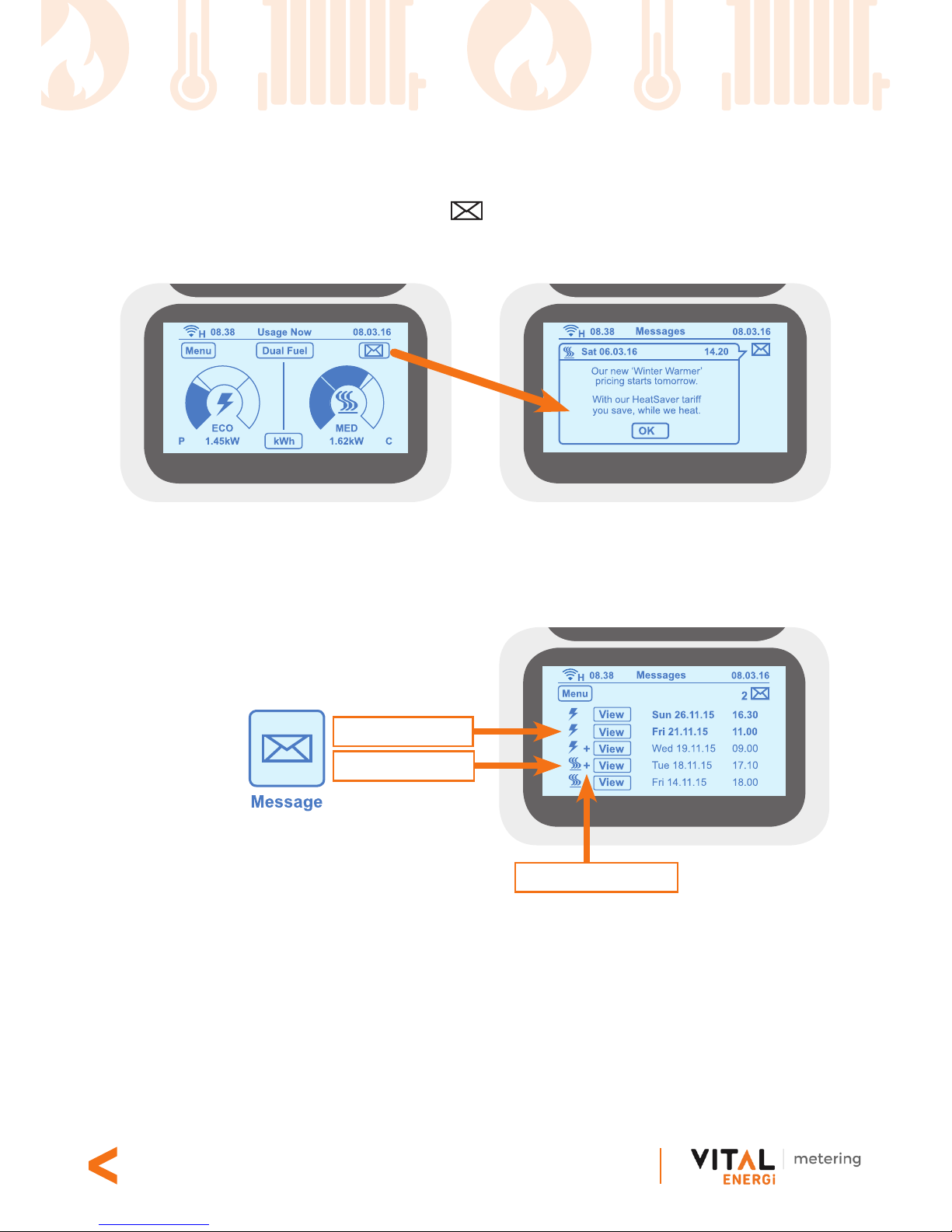
Read your messages
When you receive a new message, the icon will appear in the top right corner of
the Home screen. Touch the icon to go to the Message page, as shown below.
You can also access your messages from the Main Menu by touching the Message
icon.
Press the View button to see each message. If you have any unread messages, the
number of unread messages will be shown at the top right of the messages screen,
Regarding Electricity
Regarding Heat
New / unread messages
Page 15
Century House, Roman Road, Blackburn, BB1 2LD
www.vitalenergi.co.uk
15
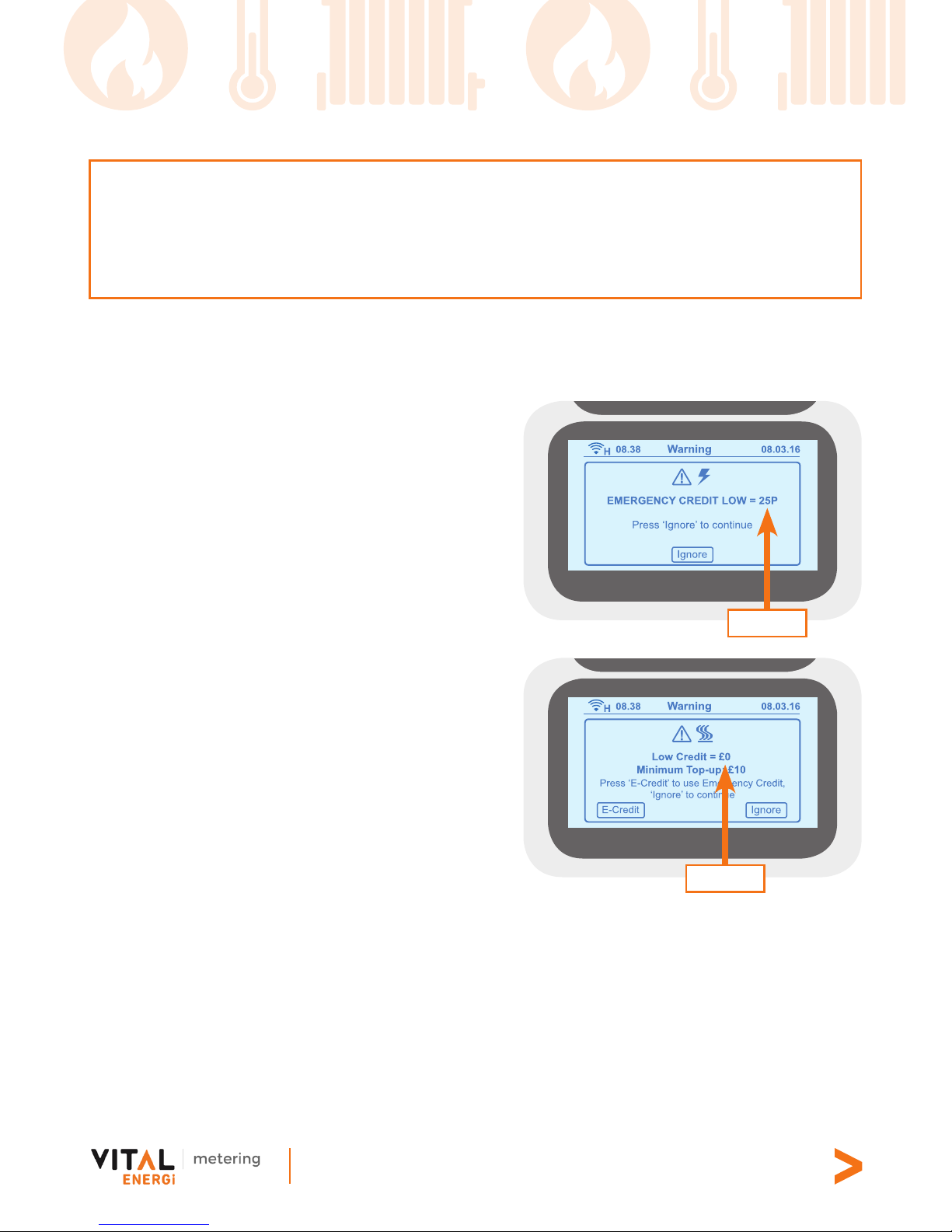
How to avoid supply disconnection
To avoid having your energy supply disconnected, you must top up the meter
account appropriately when you get the low credit warning message.
Low credit
What is Emergency Credit?
Your vPro2 Pay As You Go meter will have
an amount of Emergency Credit built in for
when you run out of heat or electricity and
you are unable to top up.
This will be a nominated amount set by
your housing association or mangement
company and will be displayed as a
negative balance on the screen.
You willl need to pay back the Emergency
Credit next time you top up, any remainder
over the amount of Emergency Credit used
will be put on as credit.
If you use all of your Emergency Credit
and don’t top up to replace it, your energy
supply may be disconnected until you
have repaid it.
No credit
Page 16
Century House, Roman Road, Blackburn, BB1 2LD
www.vitalenergi.co.uk
16
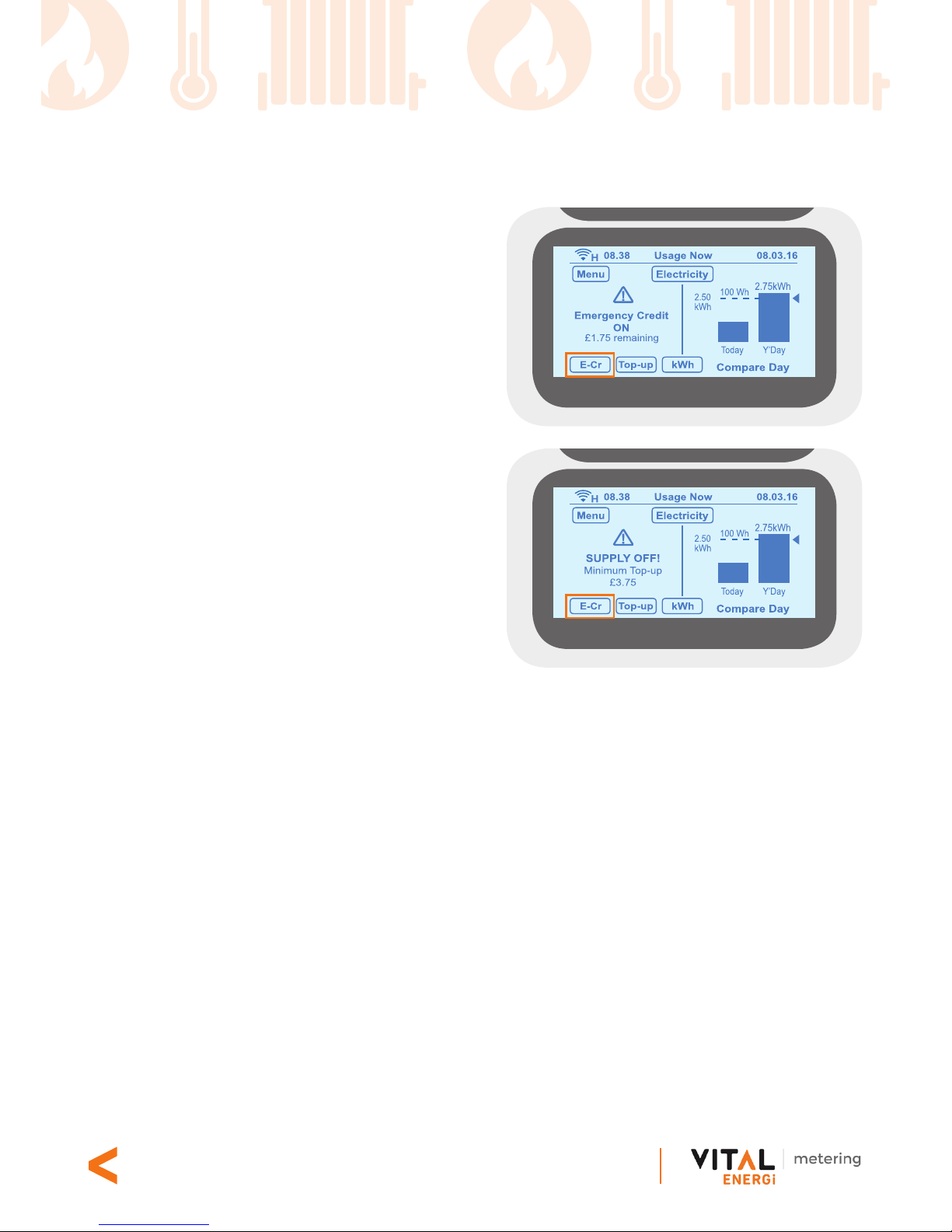
Activate Emergency Credit (Pay As You Go only)
You can activate the Emergency Credit
option from the low credit or zero credit
warning screens. Once the credit in your
meter’s account reaches the emergency
credit level, you will be able to activate
Emergency Credit.
From any of these screens, you can press
the E-Credit (E-Cr) button to activate
Emergency Credit. Once you have
activated it, the ‘SUPPLY OFF!’ message on
the Home screen will be replaced with the
‘Emergency Credit ON’ message, as shown
on the right.
If you press OK on the ‘SUPPLY OFF!’
warning screen, then your energy supply
will disconnect. The dial on the Home
screen will be replaced with the message
‘SUPPLY OFF!’.
What is Friendly Credit?
Your housing association or management company can specify “Friendly Credit” hours
where you will not be disconnected if you have no credit during that period, such as
Christmas and bank holidays, etc.
Note. You must be in credit when the friendly credit hours start.
Page 17
Century House, Roman Road, Blackburn, BB1 2LD
www.vitalenergi.co.uk
17
Acknowledging alerts
Friendly Credit period on/off alerts: You will receive an alert at the beginning and end
of a friendly credit period.
Emergency Credit alerts: When your emergency credit is low or zero, you must top-up
your meter account and follow the alert message instructions.
Supply restoration alerts: To reconnect your energy supply, follow the instructions on
the ‘Restore Supply’ alert screens and press the buttons accordingly.
Note. You must top up your account above zero before your energy supply is restored.
Operating the In-Home Display with batteries
You should keep your In-Home Display connected to mains power, but it will work
with batteries for a short amount of time. However, when it is using battery power, the
display will not give audible alarms.
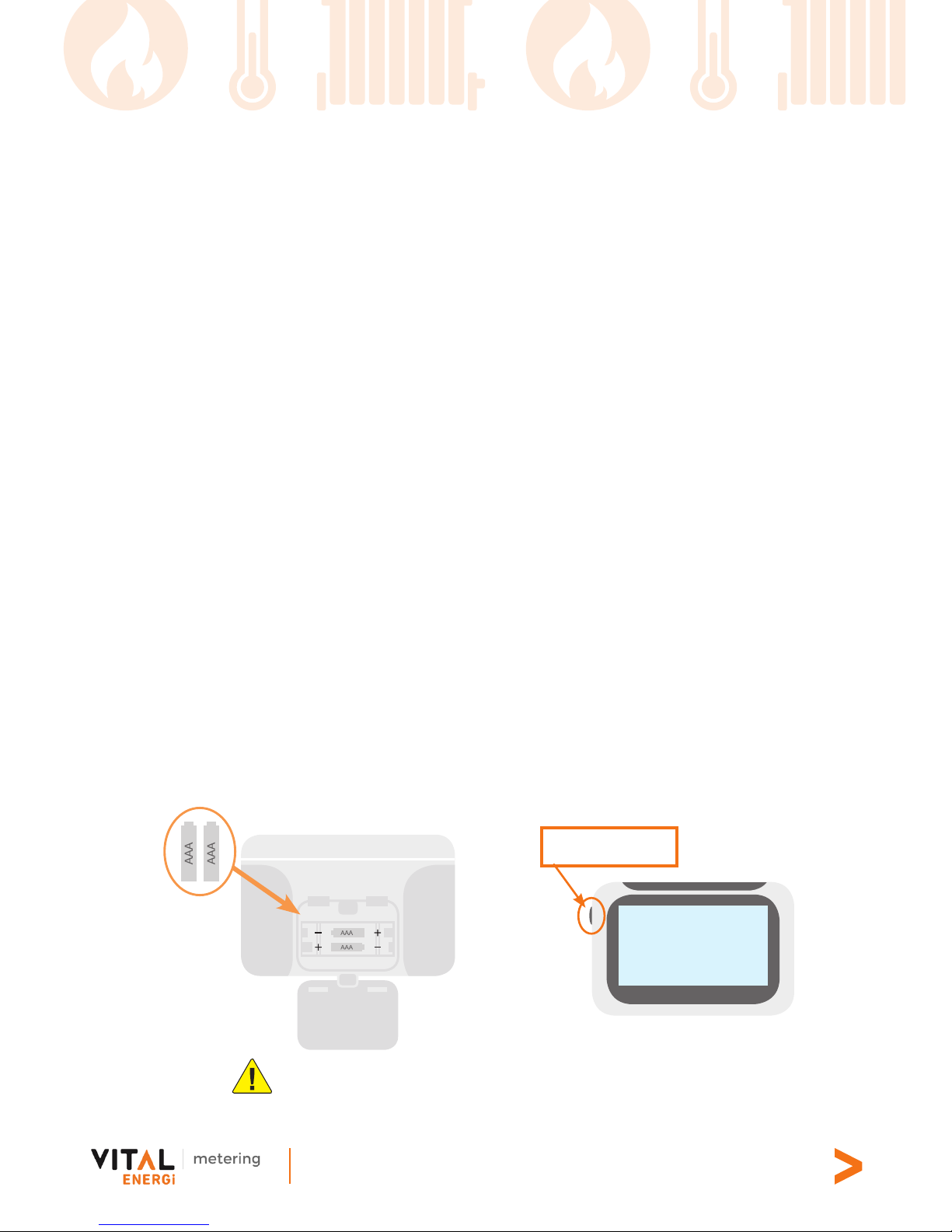
To operate the display on battery power, insert two AAA batteries into the battery
compartment at the back. Make sure that they are the correct way round using the
+/- terminal markings, then press the battery button on the left corner of the unit.
When using batteries, the display will turn off automatically after about 60 seconds if
you are not using it, in order to save battery power. To turn the display on again, press
the battery button. When the battery charge is low, a battery strength indicator icon
will appear in the top right corner of the screen. Batteries must be replaced when they
run out of power.
Battery button
Use only non-rechargeable alkaline batteries.
Page 18
Century House, Roman Road, Blackburn, BB1 2LD
www.vitalenergi.co.uk
18
4. Troubleshooting...
My In-Home Display is not pairing with my Smart Meter
Contact your electricity or heat provider and conrm that the pairing/binding window
at the meter end is open when you try to pair the In-Home Display with it. If you are using
your provider’s or distributor’s consumer portal, make sure that the In-Home Display is
switched on when the pairing/binding window at the meter end is open.
My Home screen displays ‘__’ instead of a value
When your In-Home Display is paired with your Smart Meter and the Home screen
displays ‘__’, this indicates that it is not receiving data from your Smart Meter. If the
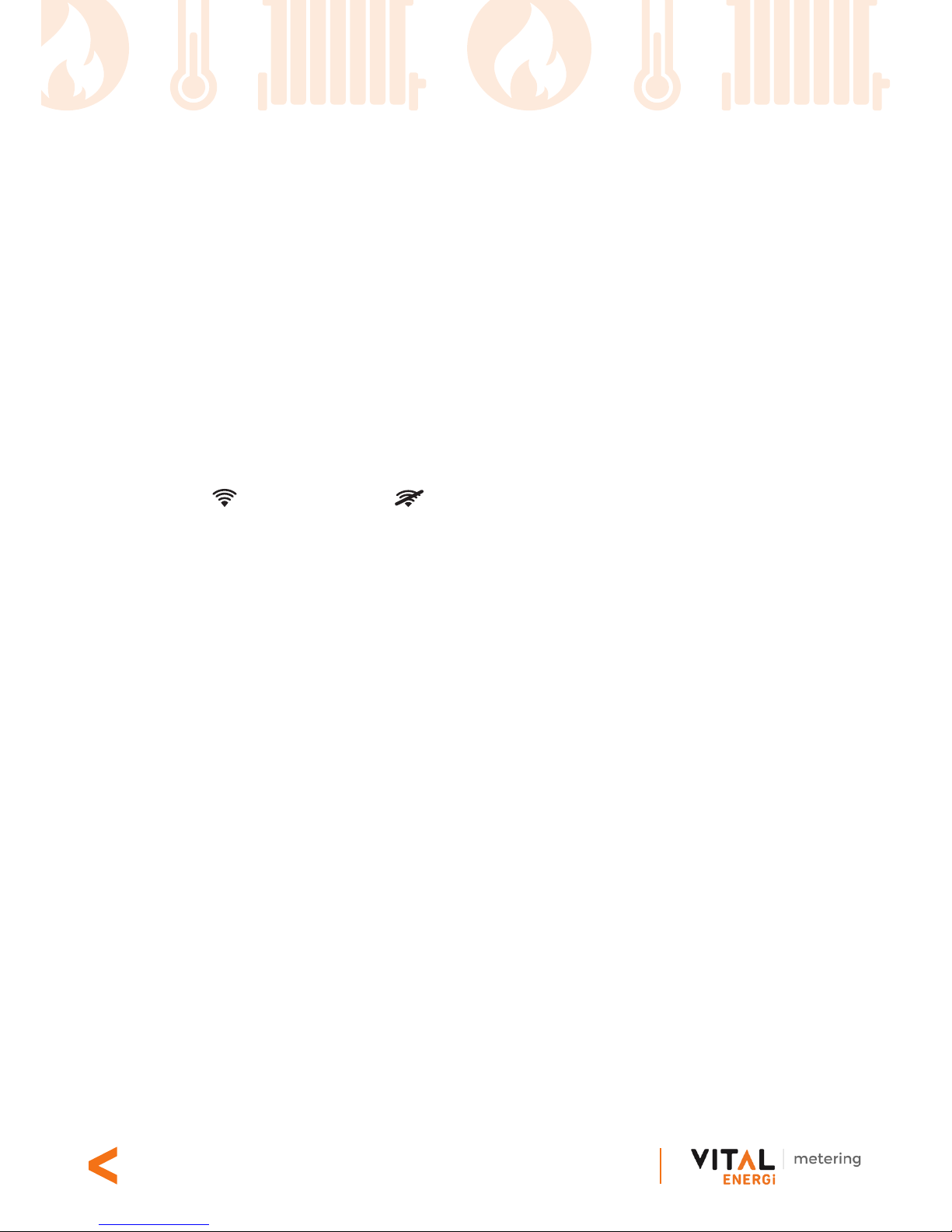
network icon is replaced with then the In-Home Display is not communicating
with your meter/s. If the problem continues, turn the power off on your In-Home Display
and turn it back on. Alternatively, please contact your electricity or heat provider for
more help.
5. Contact us if...
You have recently moved in and don’t have a vPro2 Smart
Payment card
Please ring the vPro2 customer service team as detailed in the following section, “You
would like to purchase credit”, and have your address to hand. You will need to add
credit to your vPro2 meter by credit or debit card by using our telephone payment
service.
If we haven’t already done so, we will also send out a new vPro2 Smart Payment
card. This will be specic to you and it will allow you to pay through all of the payment
methods available.
Note - Your new vPro2 Smart Payment card can take up to 10 working days to arrive.
You have lost your vPro2 Smart Payment card
If you have lost your vPro2 Smart Payment card please contact the vPro2 customer
service team as detailed in the following section, “You would like to purchase credit”.
Charges for replacement cards will apply.
Page 19
Century House, Roman Road, Blackburn, BB1 2LD
www.vitalenergi.co.uk
19
You would like to purchase credit
You can purchase credit for your meter through a number of methods including:
Online: Log on to www.vitalenergi.co.uk/home-customers to make
single and subscription payments by credit or debit card, or to setup
a direct debit.
PayPoint: You can take your smartcard to any PayPoint outlet and
make a payment using cash.
Telephone: You can call Vital Energi on the telephone number
below and make a payment by credit card or debit card.
Direct Debit: You can setup a Direct Debit to pay a xed amount
of credit onto your meter each month. To do this, please log on to:
www.vitalenergi.co.uk/home-customers or call us on the telephone
number below.
Page 20
Century House, Roman Road, Blackburn, BB1 2LD
www.vitalenergi.co.uk
20
VITAL ENERGI UTILITIES LIMITED Metering and Billing Department
Headquarters: Century House, Roman Road, Blackburn, BB1 2LD
Email: [email protected]
Web: www.vitalenergi.co.uk
Opening Hours: 8.00am - 6.00pm Monday to Friday
For full terms and conditions, please visit:
www.vitalenergi.co.uk/home-customers
 Loading...