

Page 1
VPC2100WI Local View Operating Instructions
Local viewing monitor through Mobile phone (Android system)
1. Ensure that the camera is connected to the power supply, install the antenna.
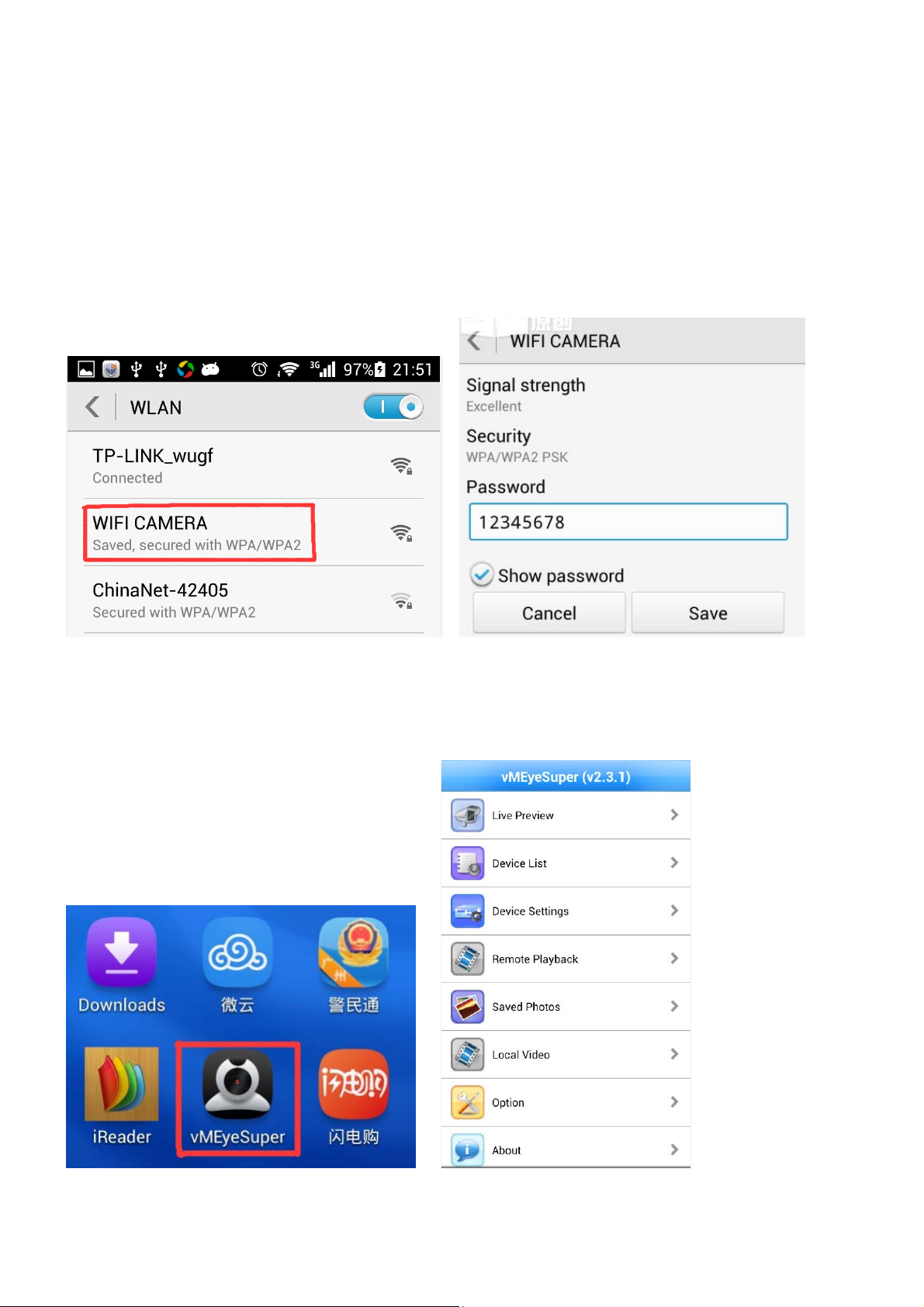
2. Using mobile phone search WIFI hotspot, find out WIFI CAMERA, see figure 1.
3. Connect to WIFI(password is 12345678), mobile phone and camera composition WLAN. see figure 2.
Figure 1 Figure 2
4. Installed APP on your phone, the name of the application is vMEyeSuper, as shown in Figure 3.
5. Open the application vMEyeSuper, interface shown in Figure 4.
Figure 3 Figure 4
Page 2
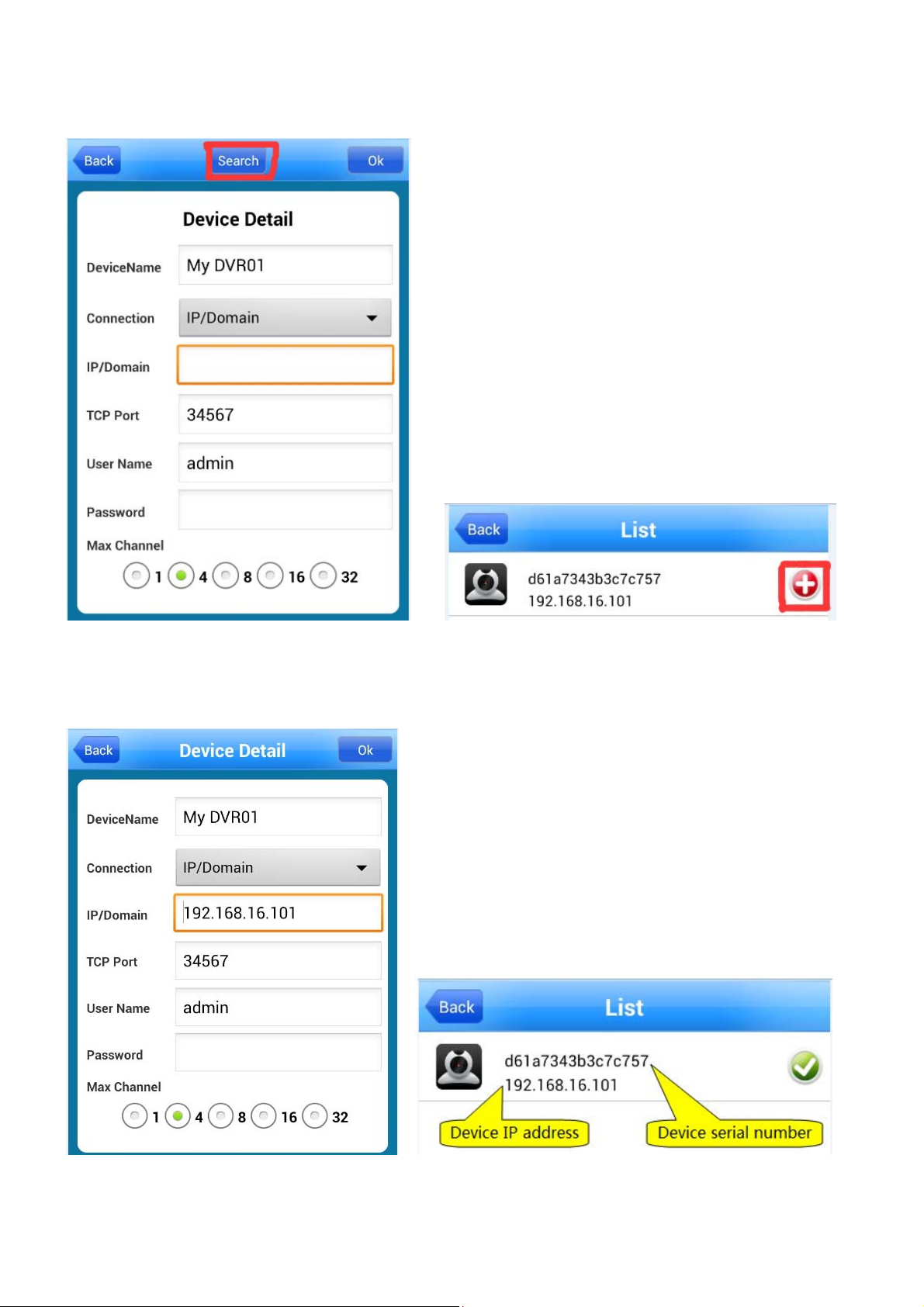
6. Click on the device list, enter Figure 5.
7. Click on Search, you can find the camera, as in Figure 6.
Figure 5 Figure 6
8. Click + to add equipment, number of channels, a single camera to select 1 channel, click on the OK
button, as in Figures 7 and 8.
Figure 7 Figure 8
Page 3
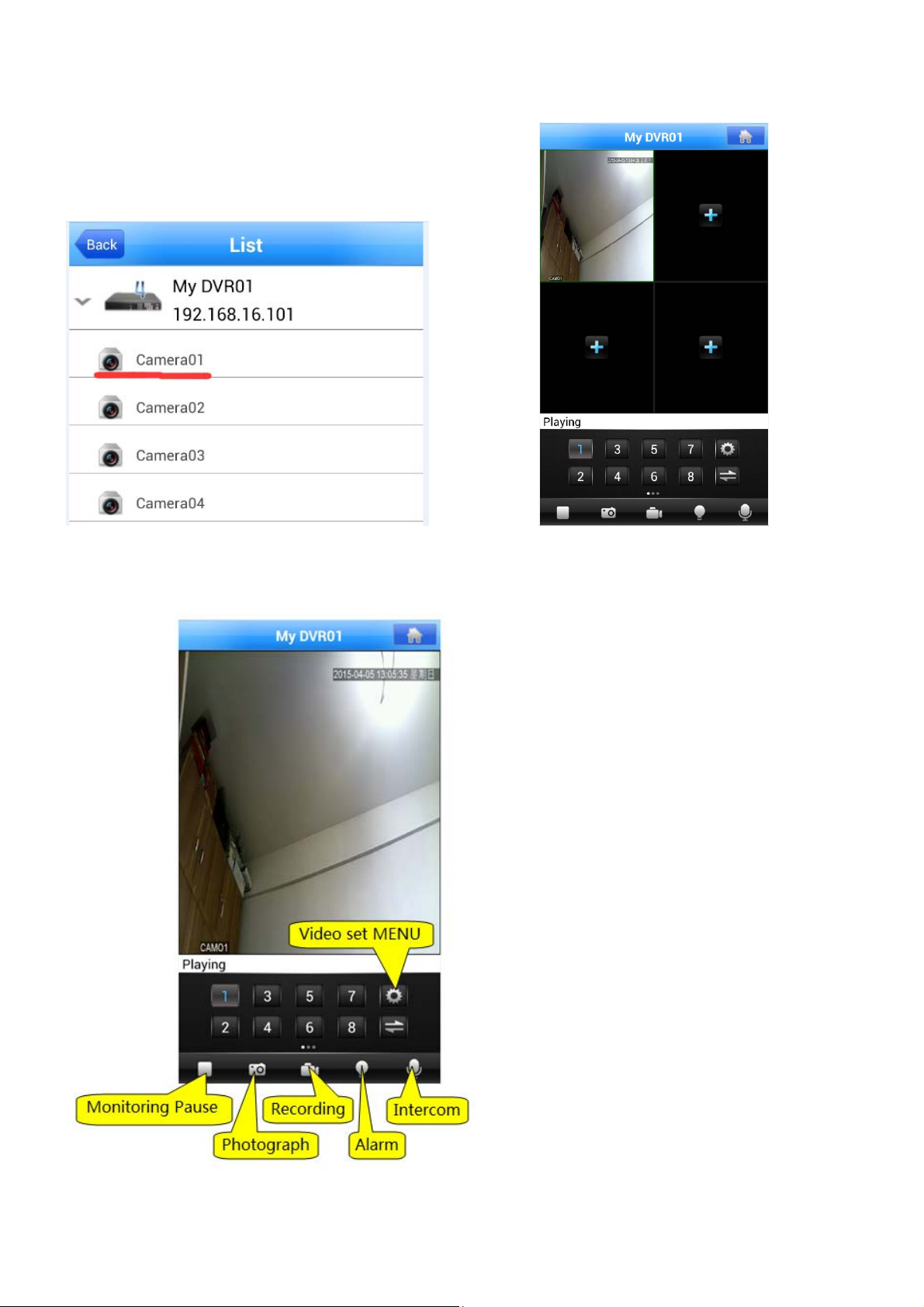
9. Select the device and channel to view the real-time monitoring, video, photographs and other
operations, as in Figures 9 and 10.
Figure 9 Figure 10
10. Double-click on the monitor screen, full screen view, as shown in Figure 11.
Figure 11
Page 4
Local viewing monitor through Computer (XP/WIN7 system)
1. Ensure that the camera is connected to the power supply, install the antenna.
2. Connect the camera to your computer with network cable, or connect your computer to camera WIFI
hotspot.
3. Make sure that CMS software is installed on your computer (Software name: General_CMS_V3.1.0.2)
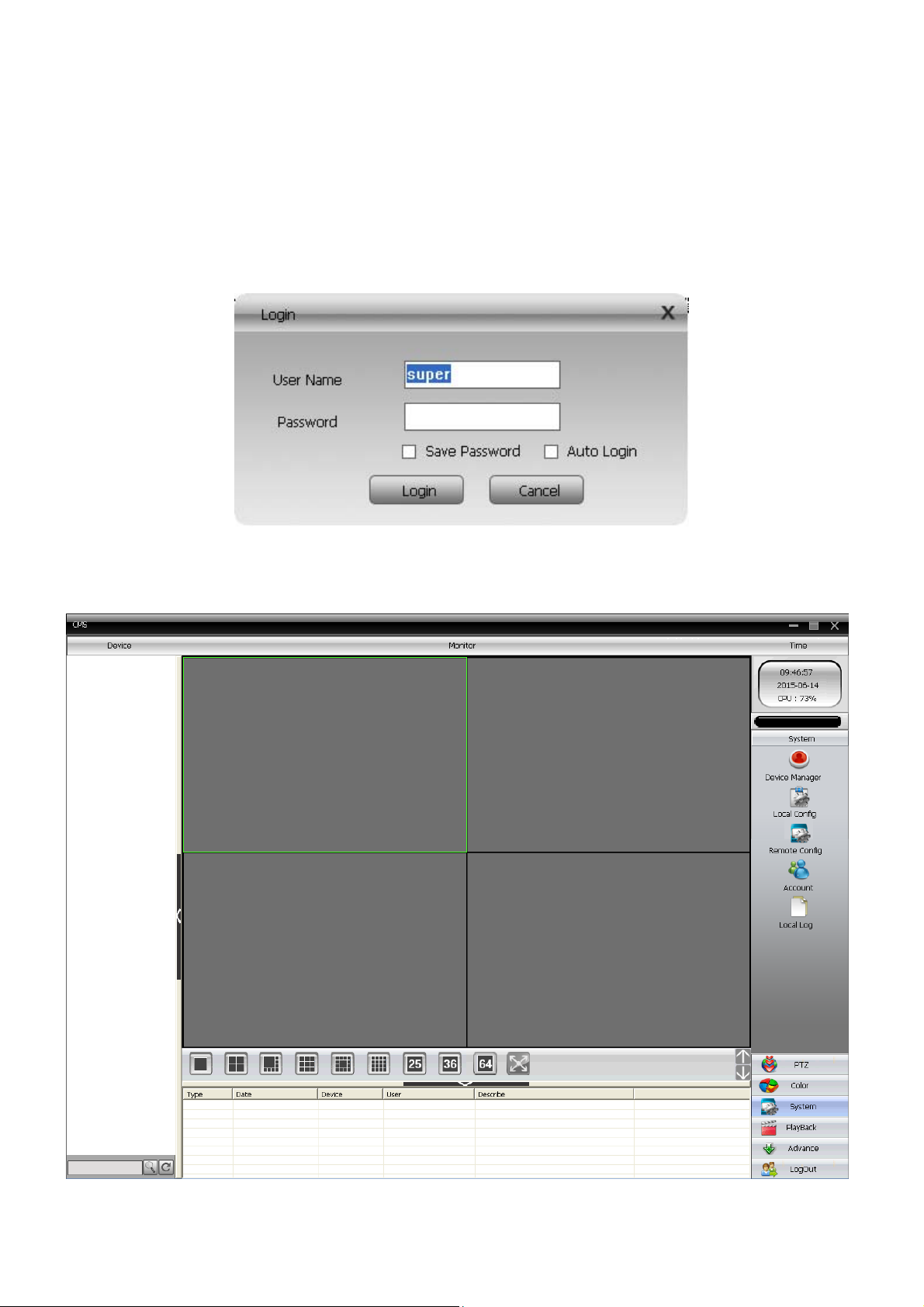
4. Turn on the computer client software CMS, use the default user name + blank password (the default
user name may be admin), see figure 1.
Figure 1
5. Then click on the “System button” to open the menu system, see figure 2.
Figure 2
Page 5
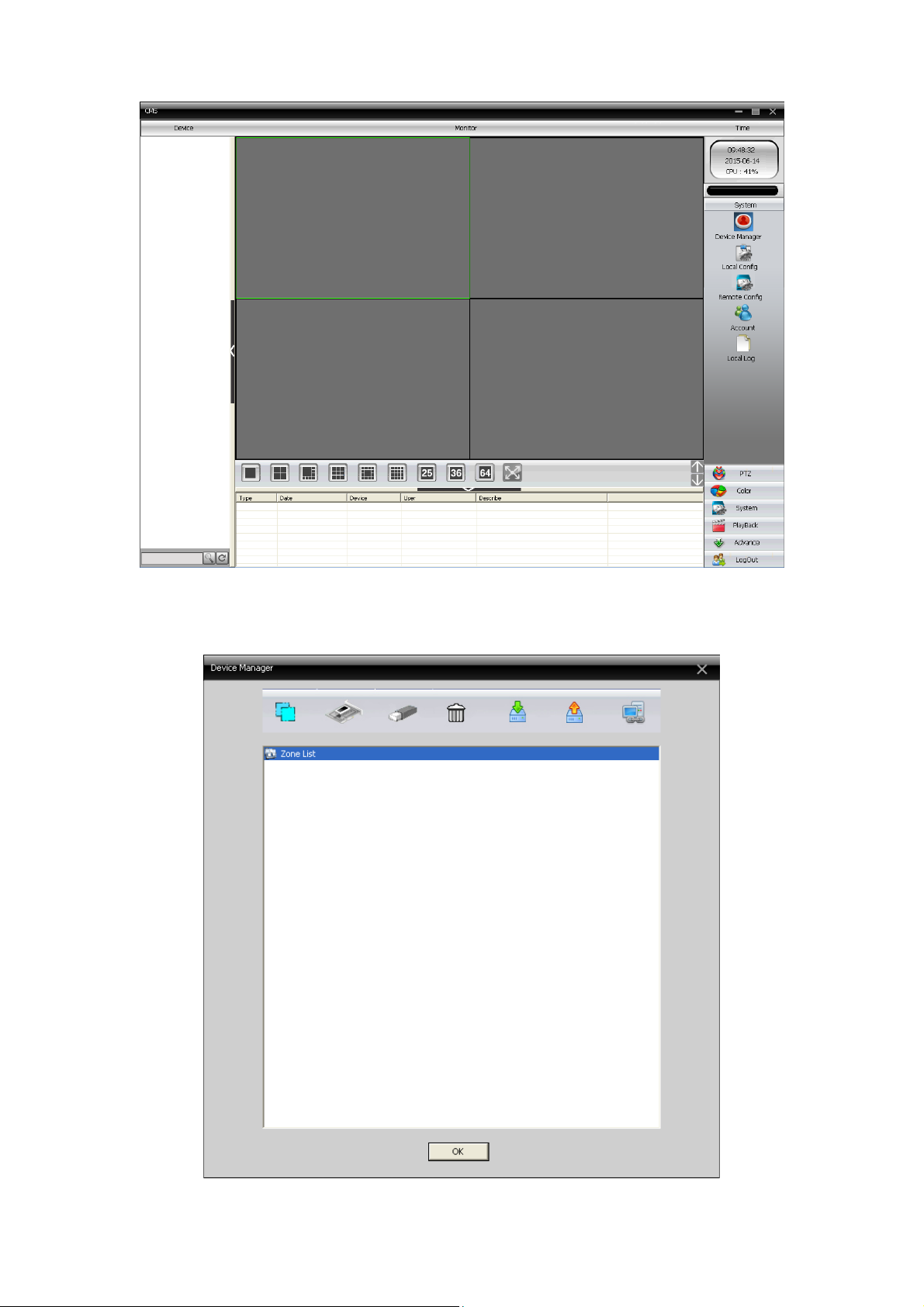
6. Then click "Device Manager" Add Device, see figure 3.
Figure 3
7. Click the "zone list" and then click on the region icon to add monitoring area, see figure 4 and 5.
Figure 4
Page 6
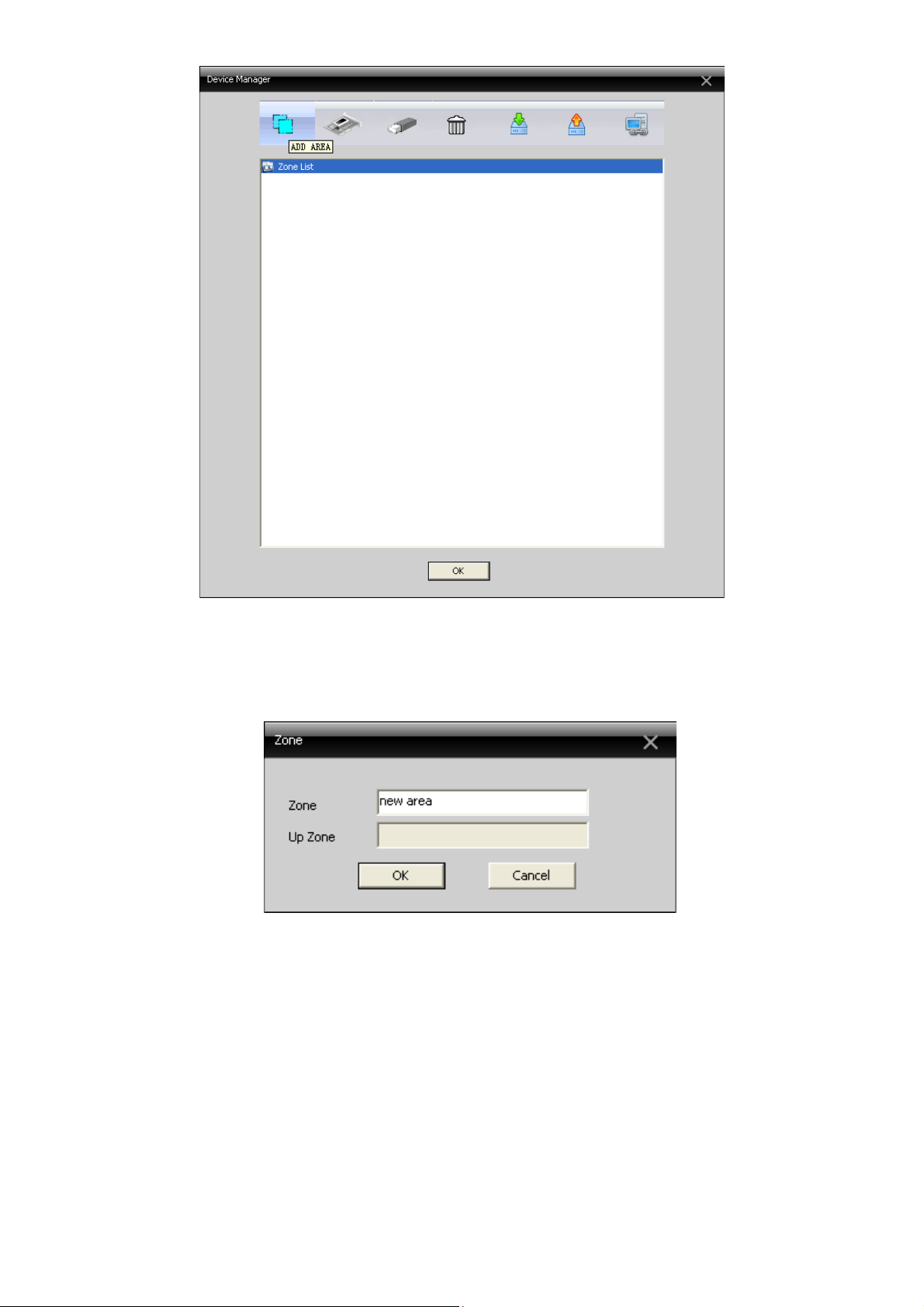
Figure 5
8. In the pop-up menu, fill in the zone name, then confirm, see figure 6.
In the newly added areas Add Device, see figure 7.
Figure 6
Page 7
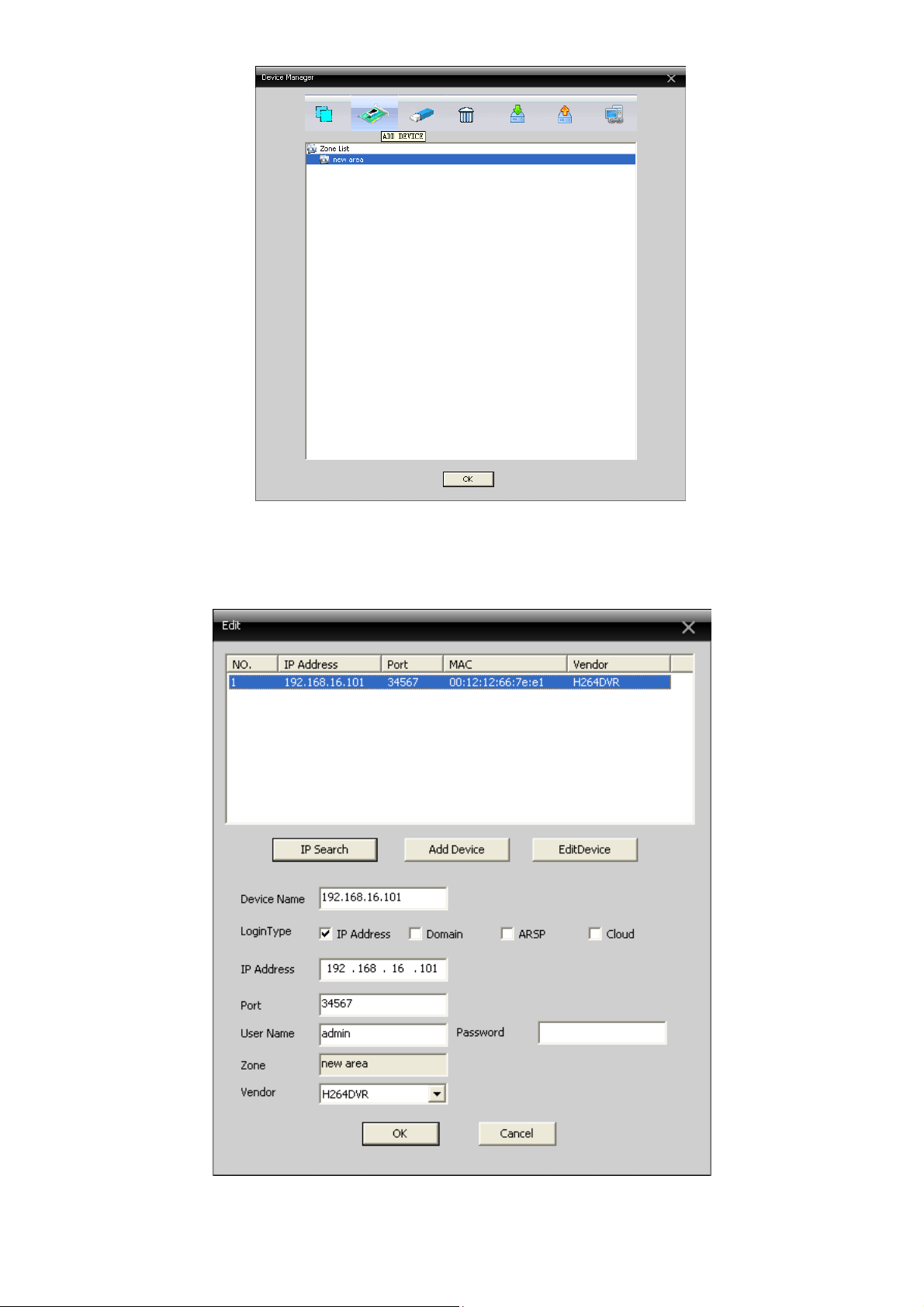
Figure 7
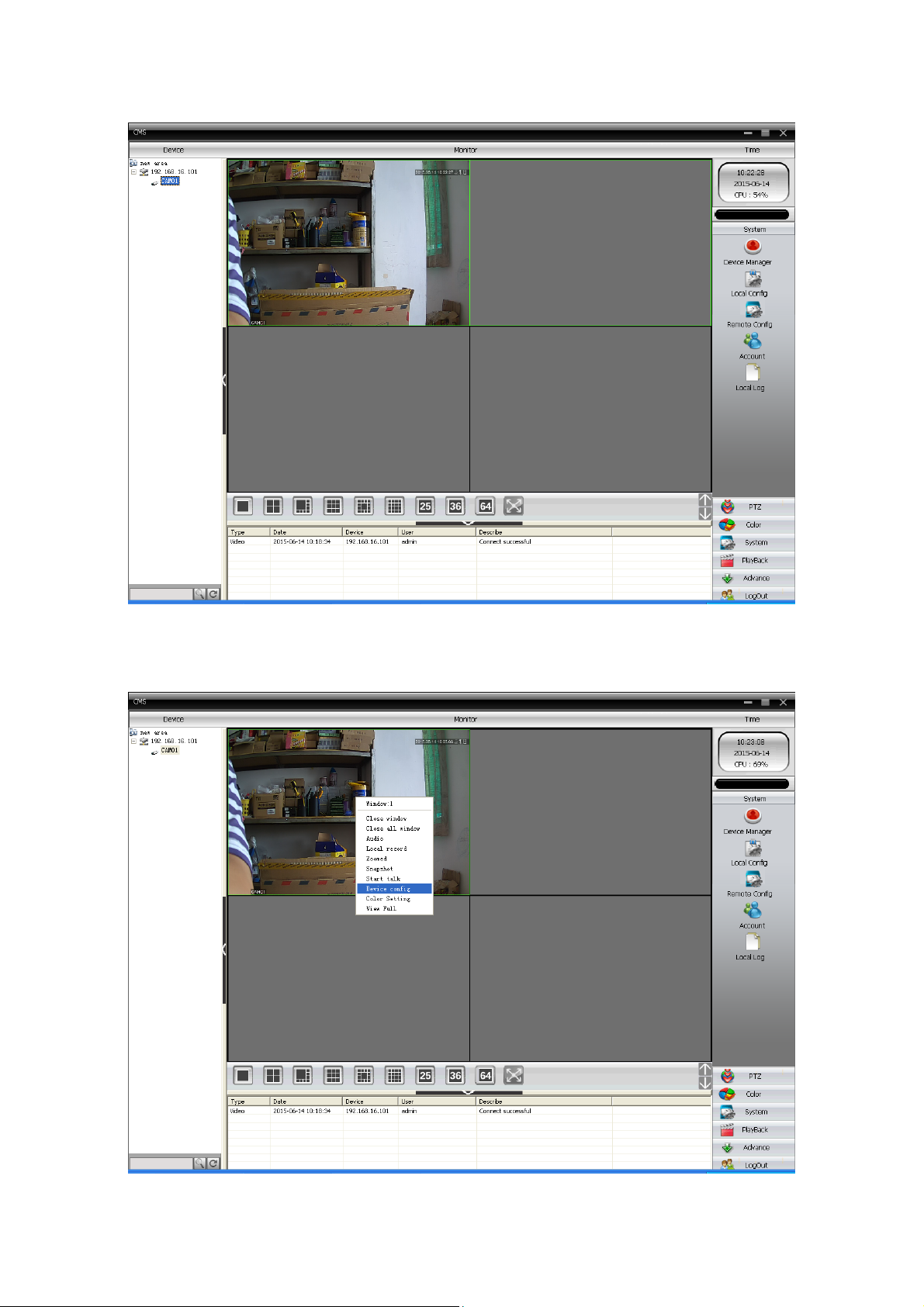
9. Click IP Search, the search to the camera, click the camera IP, and then click Add Device, add cameras,
see figure 8.
Figure 8
Page 8
10. Add the camera successfully, you can see the IP address of the camera in the main interface,
double-click IP address and then double-click the camera name on it to open the camera, see figure 9.
Figure 9
11. Right-click the image on the monitor, open the Device config, see figure 10.
Figure 10
Page 9
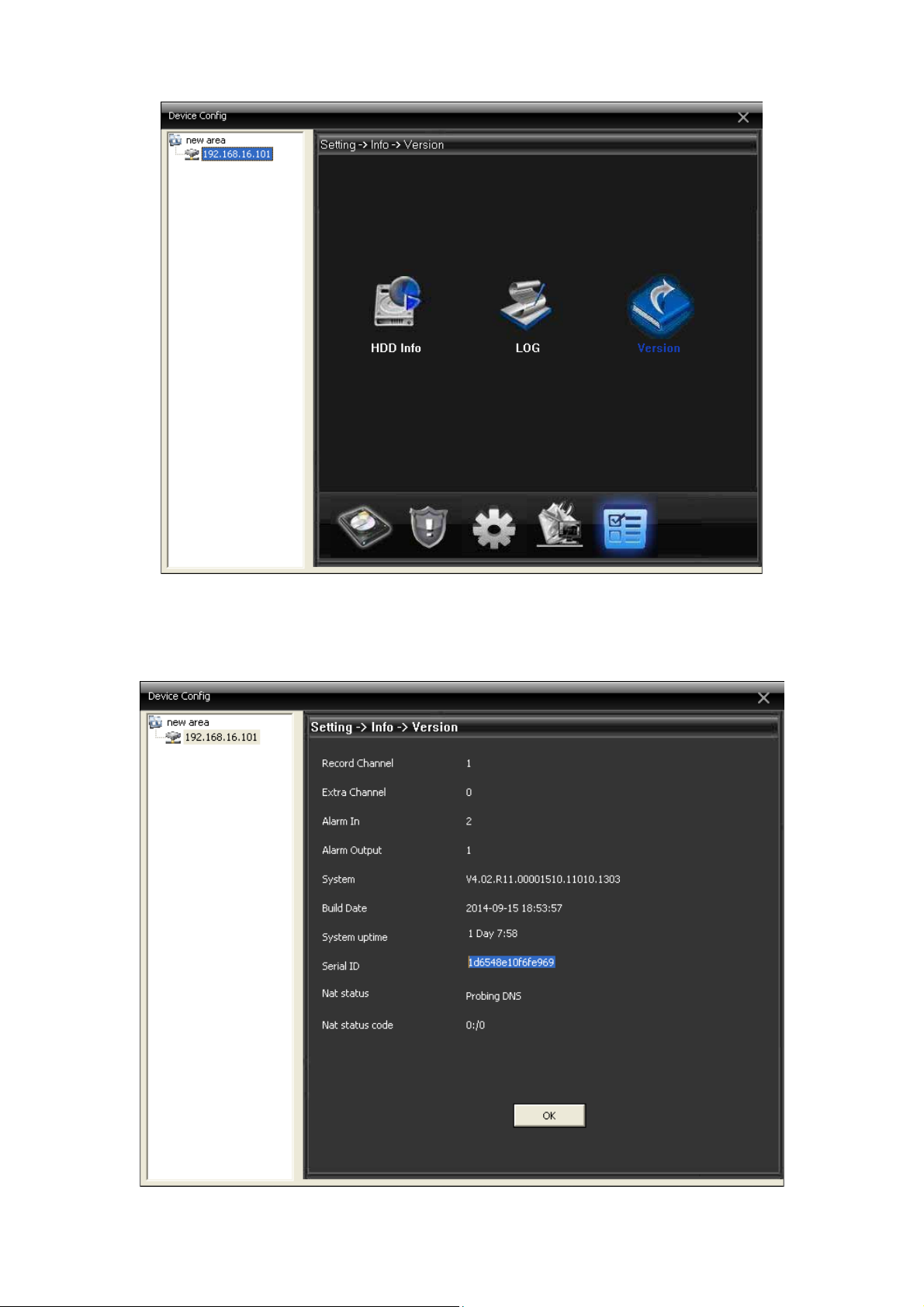
12. In the pop up menu, select INFO icon, then click the version button, see figu re 11.
Figure 11
13. In the pop- up menu, you can se e the came ra's serial nu mber, eac h camera has only one number, see
figure 12.
Figure 12
Page 10

FCC Statement
This equipment has been tested and found to comply with the limits for a Class B digital device,
pursuant to part 15 of the FCC rules. These limits are designed to provide reasonable protection against
harmful interference in a residential installation. This equipment generates, uses and can radiate radio
frequency energy and, if not installed and used in accordance with the instructions, may cause harmful
interference to radio communications. However, there is no guarantee that interference will not occur in a
particular installation. If this equipment does cause harmful interference to radio or television reception,
which can be determined by turning the equipment off and on, the user is encouraged to try to correct the
interference by one or more of the following measures:
-Reorient or relocate the receiving antenna.
-Increase the separation between the equipment and receiver.
-Connect the equipment into an outlet on a circuit different from that to which the receiver is
connected.
-Consult the dealer or an experienced radio/TV technician for help.
To assure continued compliance, any changes or modifications not expressly approved by the party.
Responsible for compliance could void the user’s authority to operate this equipment. (Example- use only
shielded interface cables when connecting to computer or peripheral devices).
This equipment complies with Part 15 of the FCC Rules. Operation is subject to the following two
conditions:
(1) This device may not cause harmful interference, and
(2) This device must accept any interference received, including interference that may cause
undesired operation.
FCC Radiation Exposure Statement:
The equipment complies with FCC Radiation exposure limits set forth for uncontrolled enviroment. This
equipment should be installed and operated with minimum distance 20cm between the radiator and your
body.
 Loading...