

Page 1
TQ6+ | User's manual
1
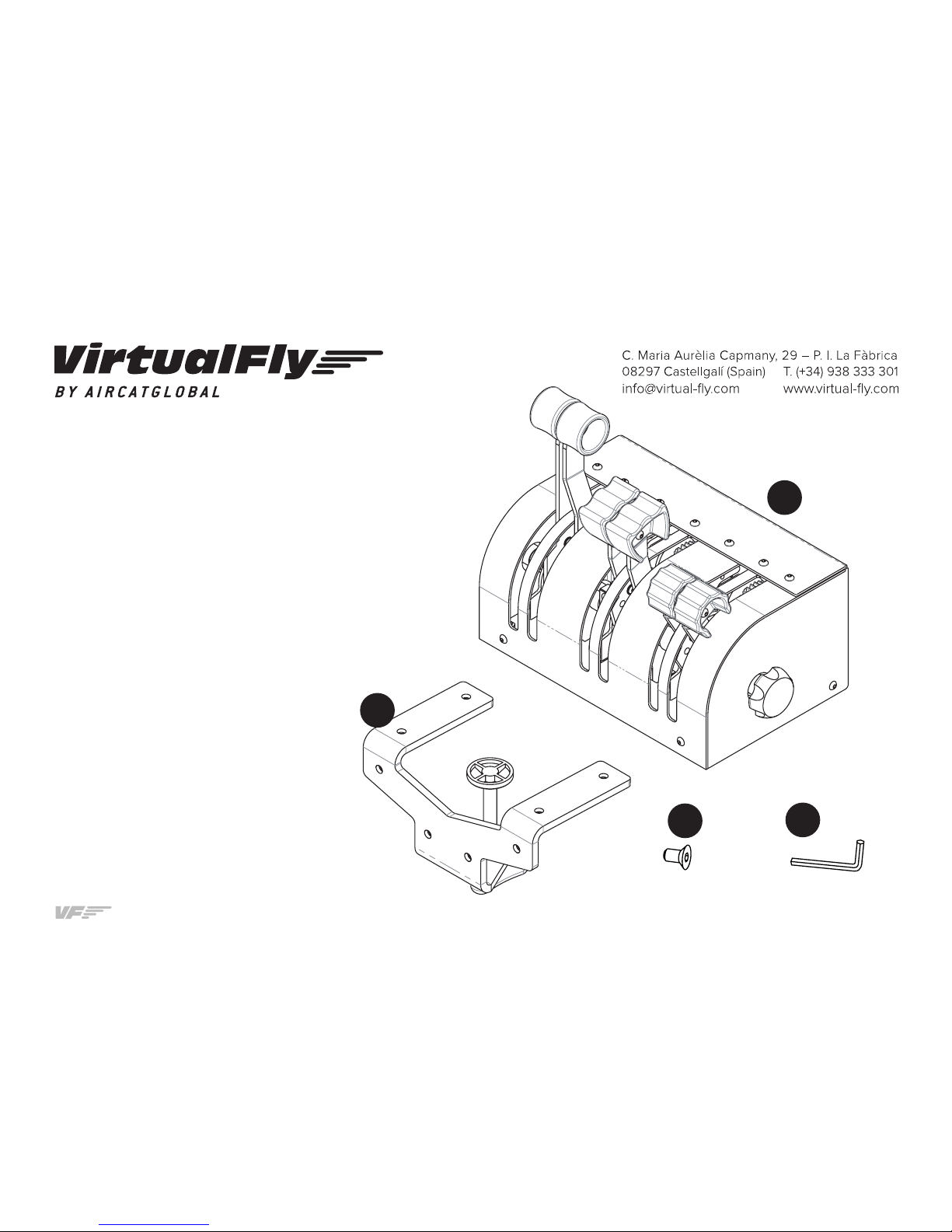
1. PACKAGE LIST
A) TQ6+ Throttle quadrant
B) Clamp for TQ6+
C) Screws for clamp
D) Allen key
TQ6+ Throttle Quadrant
USER'S MANUAL
Rev. 1.0 - September 2018
C
D
1x
1x
1x
4x
A
B
Page 2

2
TQ6+ | User's manual
2. CLAMP ASSEMBLY
You have two ways for assembling the clamp: (1) on the back or (2) on the bottom, to get the best position for you. If you choose the bottom position, you must
unscrew the two front rubber feet before you screw the clamp.
Connect the USB cable to the computer where the flight simulator software is running.
It is not necessary the calibration on windows because the device is calibrated from factory.
1
2
Page 3
TQ6+ | User's manual
3
3. CONTROLS 4. CALIBRATION ON WINDOWS
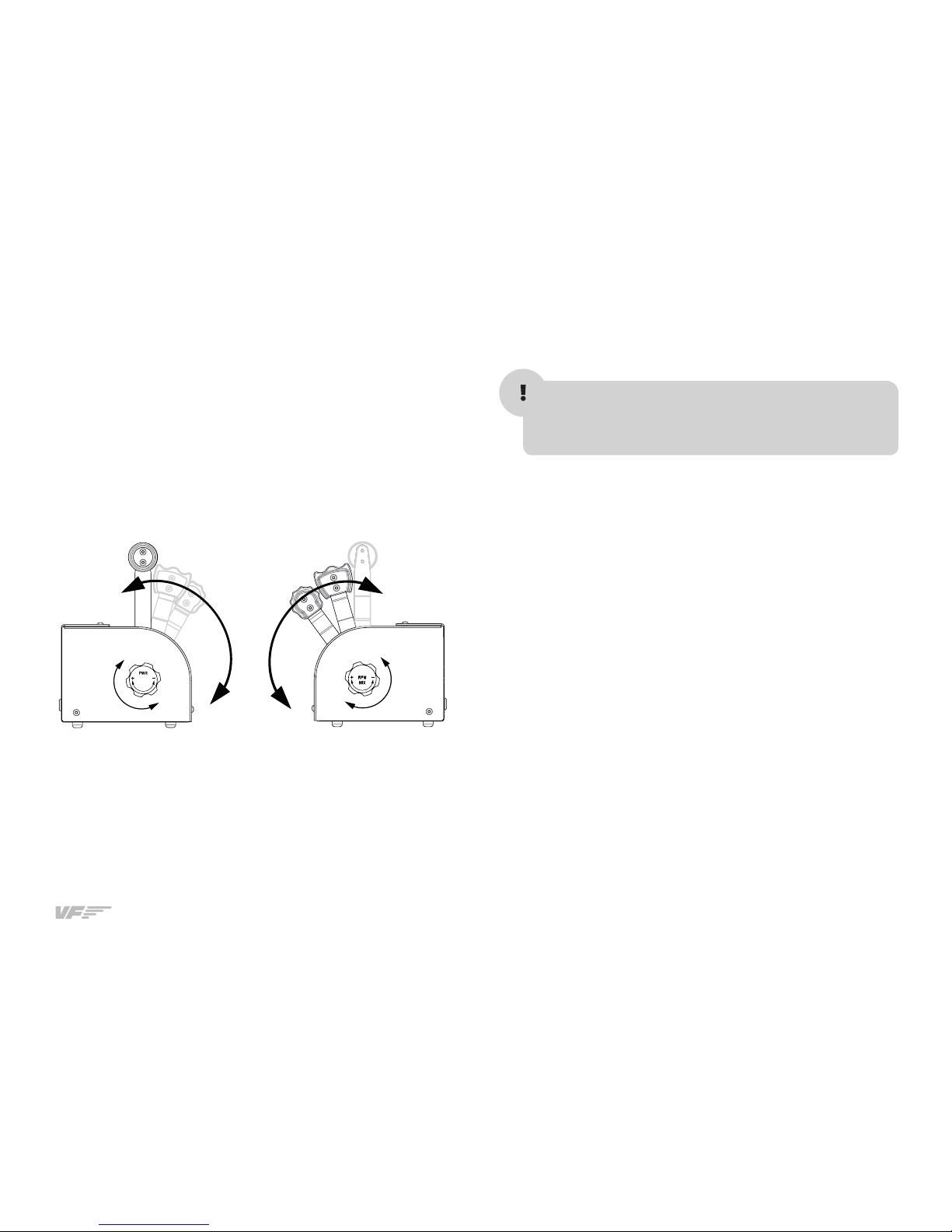
Adjusting the lever’s hardness
If you want you can adjust the lever’s hardness tightening the wheels (K &
J) located on the left and the right sides of the device.
Once you have adjusted the knob, move the 2 or 4 levers (all the way at
the same time, from top to bottom, at least 10 times). This operation is
necessary to distribute adequately the same strength in the 2 or 4 levers.
It is not necessary the calibration on windows because the
device is calibrated from factory but you can use the calibration Windows tab to test the device.
K J
Page 4
TQ6+ | User's manual
4
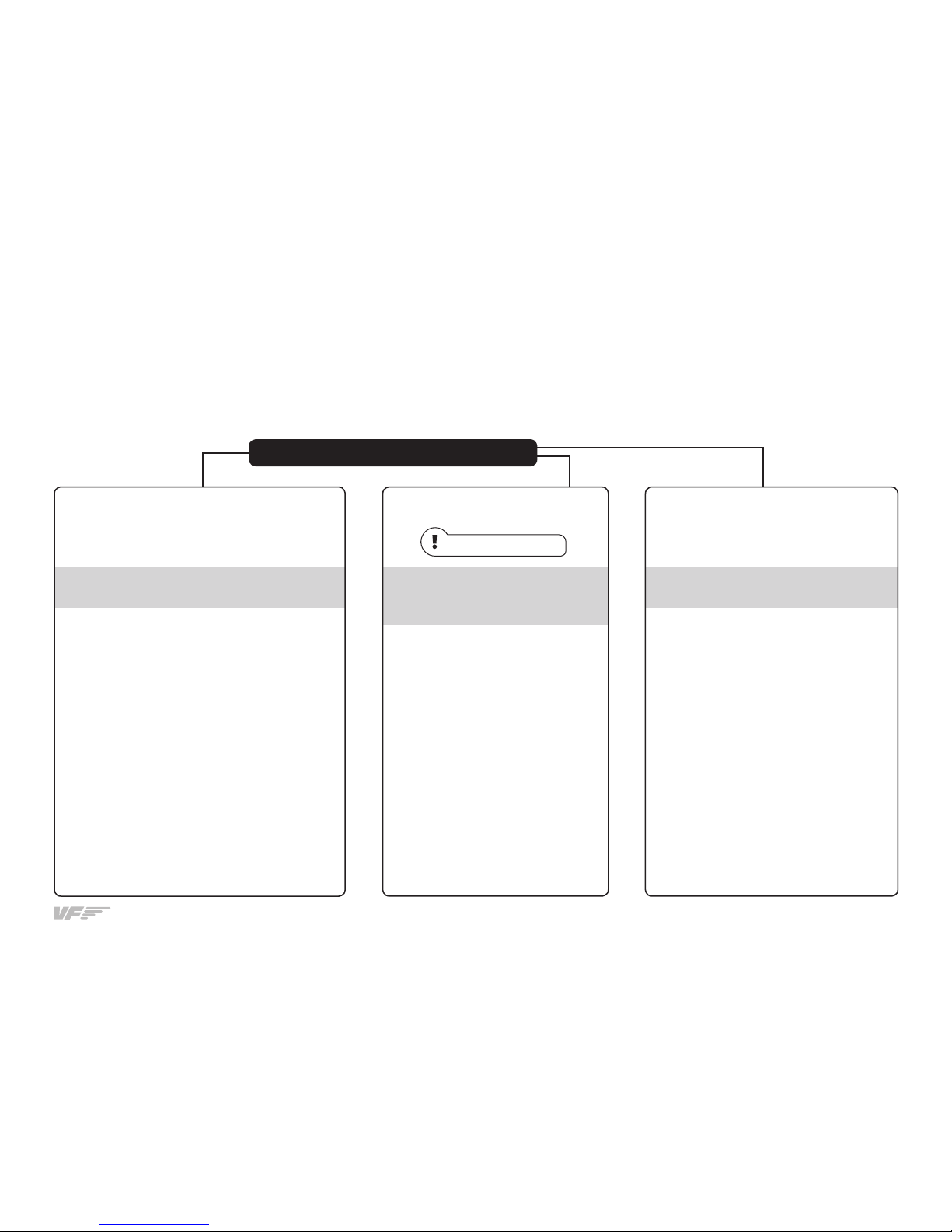
As the TQ6+ control interacts with any computer as a normal HID device (Joystick), this make it compatible with any FLIGHT SIMULATOR software.
The follow tables tells how to configurate the TQ6+ on the most popular FLIGHT SIMULATOR software, FSX-Prepar3D and X-Plane.
FSX-Prepar3D
5. CONFIGURATION ON FLIGHT SIMULATION SOFTWARE
Through VFTest&Calibrate-S
on FSX-Prepar3D. You have to use the Soft VF-
Test&Calibrate-S downloadable from our web-site:
www.virtual-fly.com/en/downloads
Full functionality:
Throttle-Rev, Propeller-Fth, Mixture-CutOFF.
Full functionality: Throttle-Rev,
Propeller-Fth, Mixture-CutOFF.
Through FSX-Prepar3D
controllers menu.
Is not advisable
Only functionally:
Throttle, Propeller and Mixture.
Rev, Fth, CutOFF zones may not match
Through FSUIPC
menu on FSX-Prepar3D.
TQ6+ Configuration options on FSX-Prepar3D
1. Open FSX-Prepar3D, go to Controls menu, axis assignments
section and select TQ6+ from the
devices list. Assign the axes and
do the calibration according the
instructions shown.
1. Open FSX-Prepar3D, go to Controls menu, axis
assignments section and select TQ6+ from the
devices list. Delete all axis assignments. Close
and open FSX-Prepar3D again to make sure that
settings have been saved.
2. Open VFTest&Calibrate-S software, go to TQ6
tab and select the device from the devices list
at right side.
3. Calibrate IDLE point and save changes.
4. VFTest&Calibrate-S has to be running when
using TQ6+ because this software reads the data
from the device and send it to FSX-Prepar3D so
each time you start FSX-Prepar3D, you have
to run VFTest&Calibrate-S as well. You can use
Windows Scheduler to start VFTest&Calibrate-S
automatically.
1. Install FSUIPC if not installed.
Registration required.
2. Open FSX-Prepar3D, go to Controls
menu, axis assignments section and
select TQ6+ from the devices list.
Delete all axis assignments. Close and
open FSX-Prepar3D again to make
sure that settings have been saved.
3. Go to FSUIPC Menu and assign each
axis to throttle, propeller and mixture.
Only use "Axis Throttle1,2,3,4 set".
"Axis Propeller1,2,3,4 set". And "Axis
Mixture1,2,3,4 set". Do not use: Axis
Throttle set, Axis Propeller set or Axis
Mixture set.
4. Go to Joystick calibration tab of FSUIPC
and calibrate Max, IDLE and Rev or Fth
or Cut-o.
Page 5
TQ6+ | User's manual
5
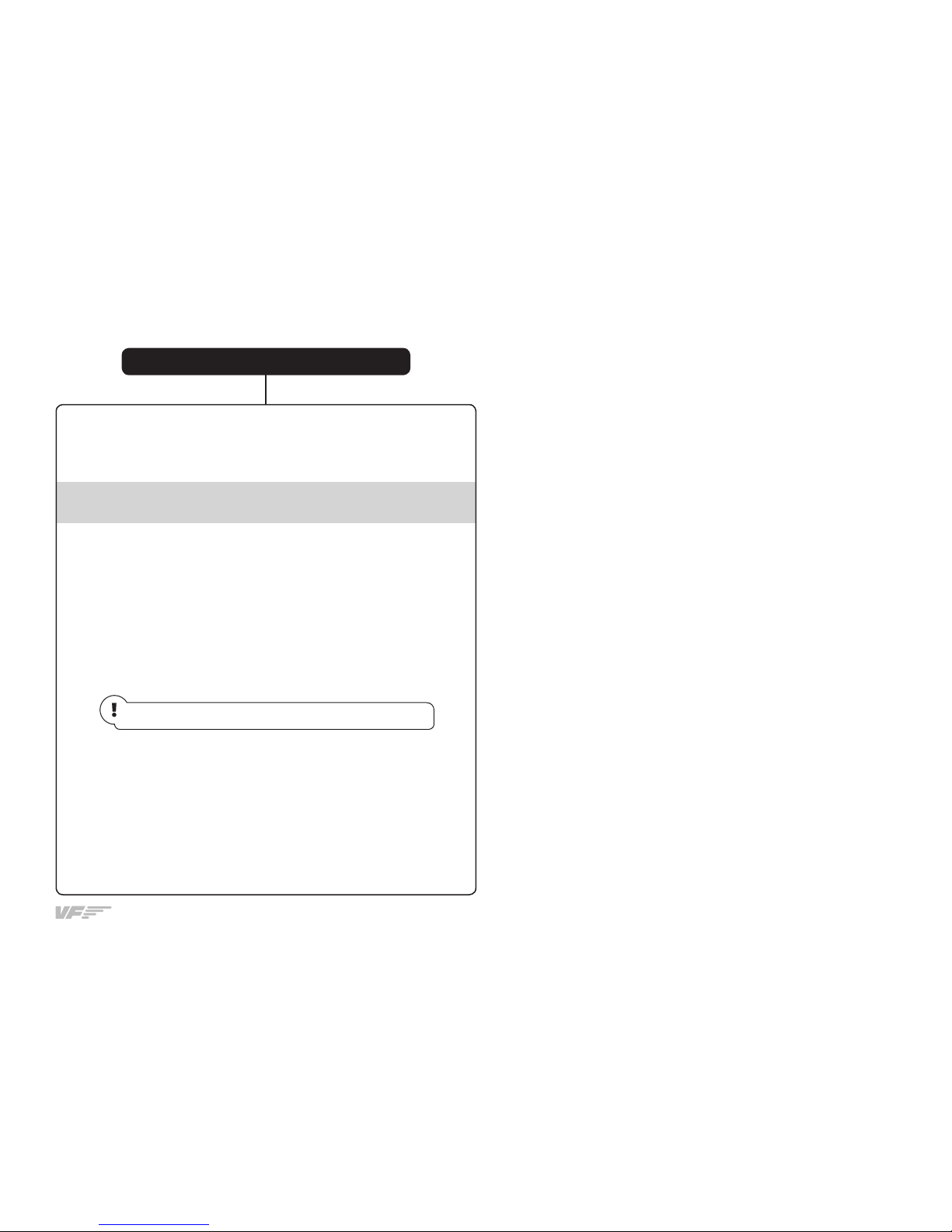
Let you know that PROPELLER and MIXTURE axes must be configurated on X-Plane menus and THROTTLE axes must be configurated on
VF-Test&Calibrate-X.
PROPELLER AND MIXTURE
1. Open X-Plane and go to Configuration\Joystick tab.
2. Select TQ6+ and calibrate the axes if required, only for the Propeller
and Mixture axes (including FTH and CUT OFF zones).
3. Assign the according action for the Propeller and Mix ture axes to
Prop1 – Prop2 – Mixture1 – Mixture2 and check "Reverse Axis".
Make sure that the TQ6+ Throttle axes are set to "none".
THROTTLE
4. Open VF-Test&Calibrate-X software, go to TQ6 tab and select the
device from the devices list at right side.
5. Calibrate IDLE point of the THROTTLE and save changes.
6. VF-Test&Calibrate-X has to be running when using TQ6+ because
this software reads the data from the device and send it to X-Plane so
each time you start X-Plane, you have to run VF-Test&Calibrate-X
as well. You can use Windows Scheduler to start VF-Test&Calibrate-
X automatically.
TQ6+ Configuration options on X-Plane
X-Plane
X-Plane
You have to use the Soft VF-Test&Calibrate-X
downloadable from our web-site:
www.virtual-fly.com/en/downloads
Full functionality:
Throttle-Rev, Propeller-Fth, Mixture-CutOFF.
 Loading...