

Page 1
User Guide
BROADBAND
E160e
USB Modem
Get online fast
–
see page 2
Page 2

2
IS YOUR ACCOUNT ACTIVATED?
Pre-Paid Customers
First up, you need to activate your service:
CLICK virginmobile.com.au/activate
NB: You’ll need a different internet connection to
activate online.
or CALL 1300 763 039
See page 7 for the final steps to get online.
Post-Paid Customers
Your service is already activated, so head to page 7 for the final steps to get online.
TOP SECRET NOTES
E-mail Address: @virginbroadband.com.au
E-mail Password:
Service Number: __ __ __ __ __ __ __ __ __ __
Account PIN: __ __ __ __ __ __
See page 5 for tips on managing your account.
0 4
Page 3

3
TABLE OF CONTENTS
Is your account activated? 2
What’s in the box? 4
Welcome 5
Managing your account 5
System requirements 6
Easy setup in 3 steps 7
Your first connection 11
LED status information 13
Setting up your email 14
USB modem information 14
Safety information 17
Compliance & Disclamer 21
Trademarks 22
Questions? 23
Page 4
4
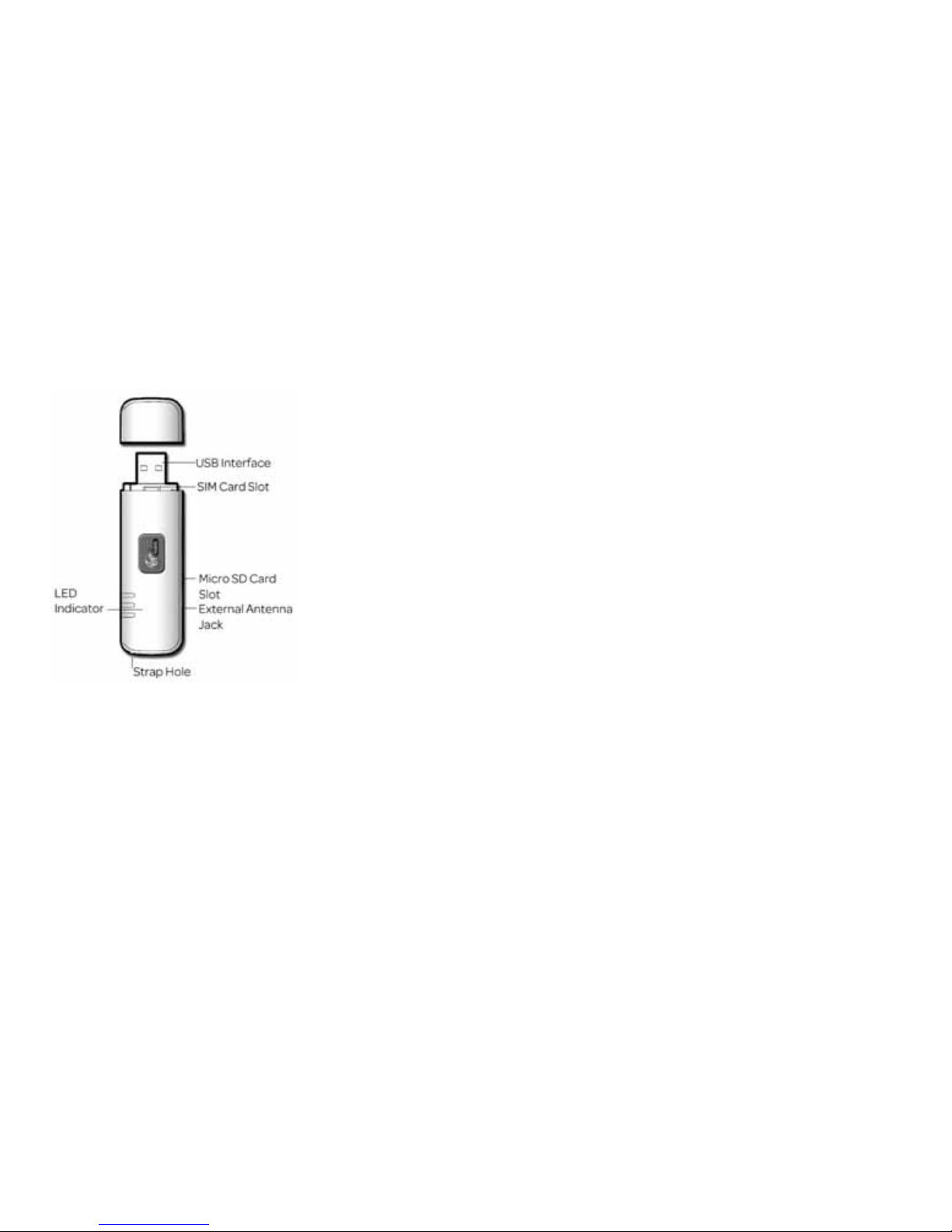
WHAT’S IN THE BOX
• Virgin Mobile USB modem
• USB one port extension cable
• User Guide with SIM card attached, if it’s not already in the modem.
GETTING TO KNOW YOUR DEVICE
FEATURES
• HSDPA/UMTS (900/2100MHz).
• GSM/GPRS/EDGE (850/900/1800/1900MHz).
• Check your connection instantly with the built-in LED indicator.
• Micro SD Card Slot.
• Plug & Play.
• Compatible with nearly all modern desktop and laptop computers equipped with Microsoft Windows
or Mac OS X operating systems.
Page 5

5
WELCOME TO VIRGIN MOBILE
Congratulations! That cool gadget you’ve got in your hands is going to let you take the internet with you,
so you’ll never have to miss a beat.
Your new USB modem is easy to connect. You don’t have to waste time configuring advanced settings simply plug it into a compatible computer and let the installer work its magic! You’ll be surfing the web in
no time.
MANAGING YOUR ACCOUNT
Checking Your Data Usage & Topping Up Your Account
To check your usage, go to mybroadbandusage.virginbroadband.com.au and log in using your full Virgin
Broadband email address and password.
Need More Data?
You can recharge online anytime:
Log in at virginmobile.com.au/myaccount with your service number and the 6-digit PIN you picked
when activating the service.
• Got a voucher or recharge card? Enter the 12 digit number.
• Got a credit card? Enter your credit card details & choose your amount
The credit will appear on your account within 15 minutes.
Page 6

6
Using webmail
To use the Virgin Broadband Webmail service, go to webmail.virginbroadband.com.au and log in with
your full Virgin Broadband email address and email password.
Checking your account details
To check your account details, go to virginmobile.com.au and log in with your service number and the 6
digit PIN you set up when you opened the account.
Managing your E-mail address
You can delete, edit and manage your existing email addresses or add new ones through the following
page: mybroadbandusage.virginbroadband.com.au.
Log in by using your full Virgin Broadband email address and email password.
If you’d prefer step by step instructions with some handy images for reference, visit our online FAQ’s:
virginmobile.custhelp.com
SYSTEM REqUIREMENTS
• Standard USB interface.
• Windows XP Service Pack 2, Windows Vista.
• Mac OS X 10.4 and 10.5 with the latest updates installed.
• The hardware of your computer must meet or exceed the recommended system requirements for
the installed version of your Operating System.
• Display resolution: 800 x 600 or above.
Page 7
7
USING YOUR VIRGIN MOBILE E160E MODEM
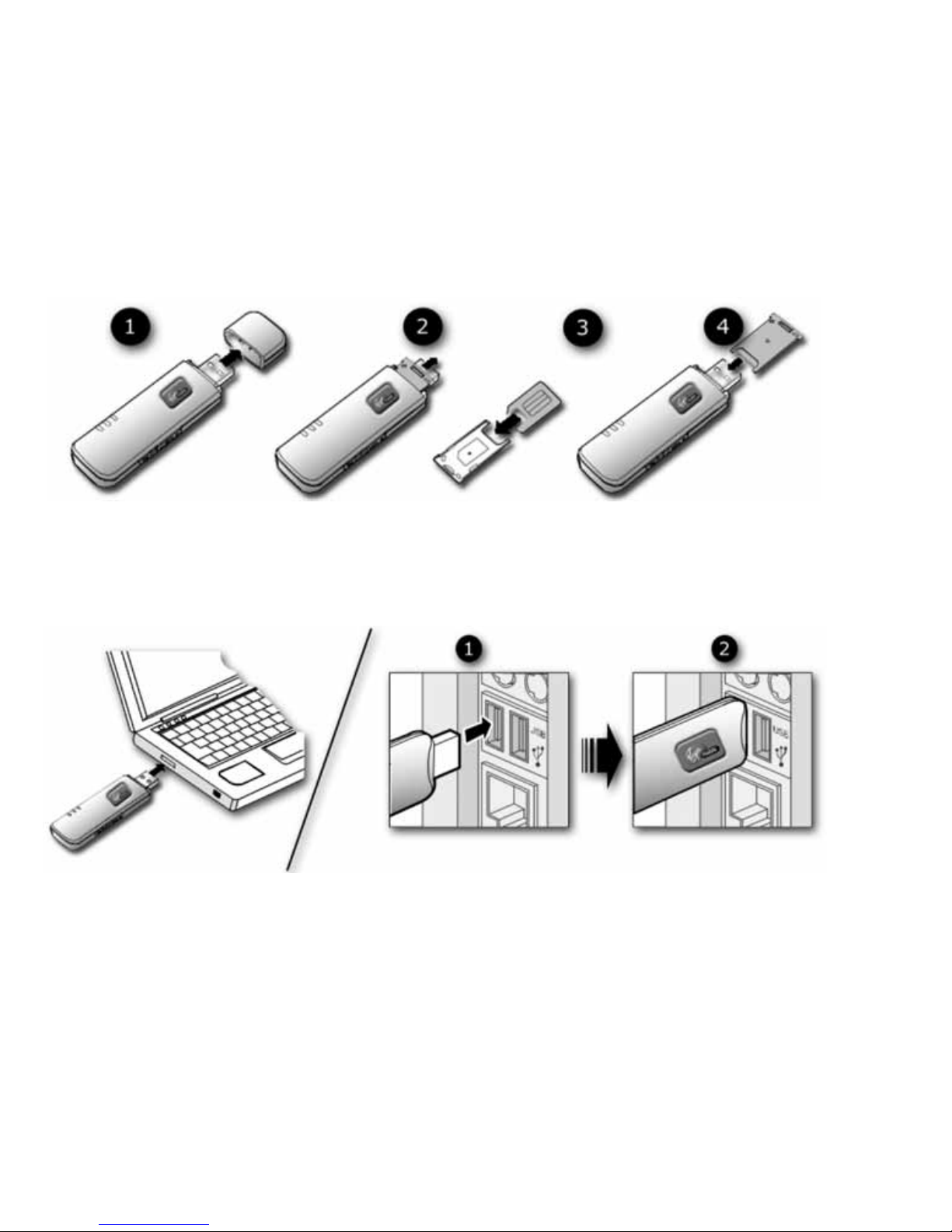
1. Inserting the SIM
If your Virgin Mobile SIM is not already installed, follow the steps below.
2. Connecting your modem to your computer
1. Connect the modem to your computer.
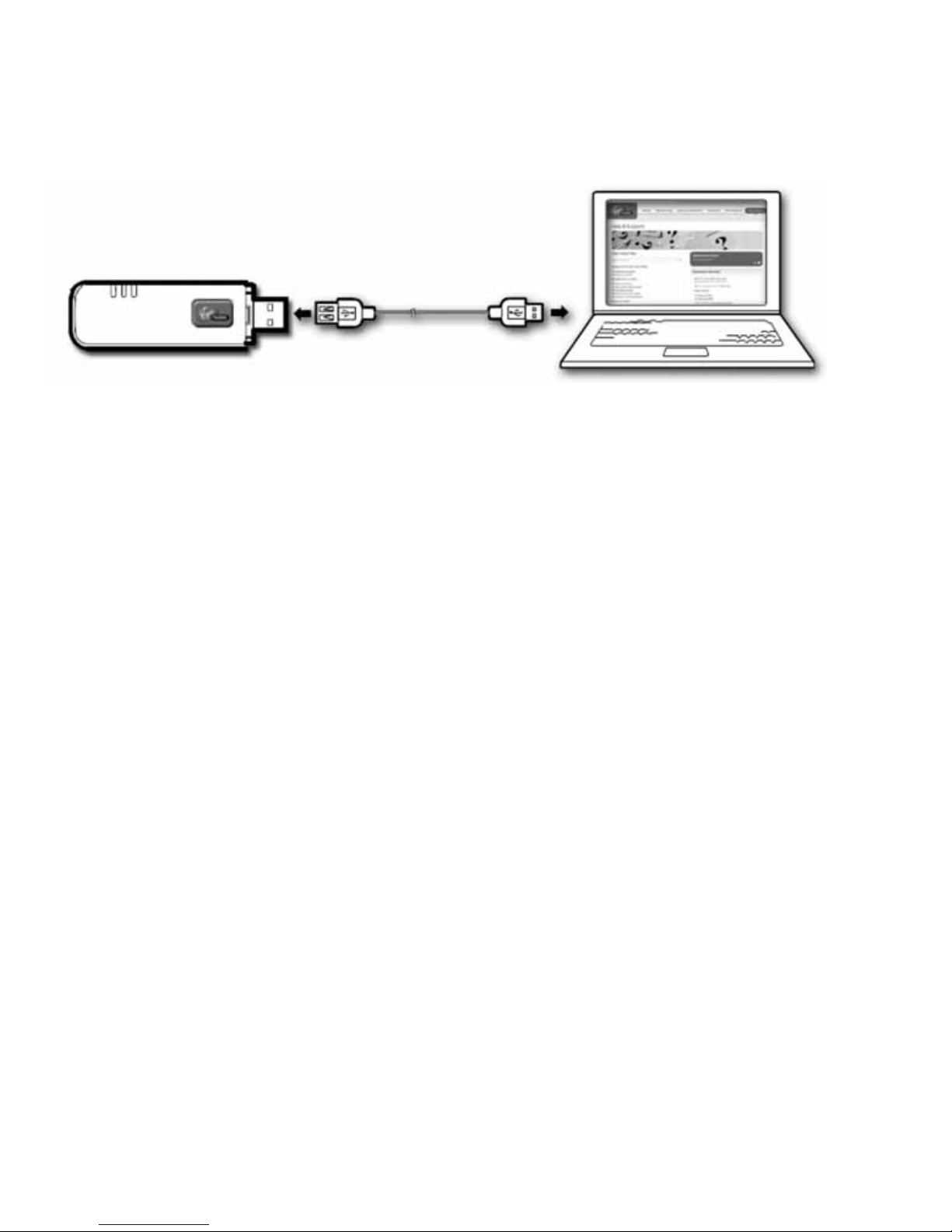
2. Alternatively, you can use the supplied USB extension cable to connect the modem to
your computer.
Page 8
8
3. Follow the relevant steps on page 9 to install the connection software.
Page 9

9
3. Installing the connection software
Software installation for Windows
• Make sure the Modem is powered on.
• After connecting the Modem’s USB cable to your computer, the set-up software will run automatically.
• If the software does not run automatically, go to “My Computer”, which should be located on
your Windows desktop, and browse to the disk drive labelled “VIRGINMOBILE”. Double-click on
“Autorun.exe”, to start the installation program
1. Choose ‘Install’ and then click ‘Continue’.
2. Please read, and agree to, the Software Licence Agreement and leave the installation directory
unchanged. The software will start installing and a progress screen will be displayed.
3. Once the software and drivers have installed, click ‘Finish’.
4. Your computer will now use the new software to properly configure your modem. An information
balloon will pop up from your System Tray when the process is finished. This may take several
minutes.
5. When the install is finished the Virgin Mobile connection software will start.
6. Click ‘Connect’. Open your Internet browser (e.g. Internet Explorer).
7. You are now connected to the Internet and ready to start surfing!
If you’d prefer step by step instructions with some handy images for reference, visit our online FAQ’s:
virginmobile.custhelp.com
Page 10

10
Software installation for Mac OS X
1. Make sure the computer is powered on.
2. After connecting the USB modem using the supplied USB cable, a folder containing the installation
software will automatically open.
3. Under ‘Install’ or ‘Run Program’, double-click on ‘Virgin Mobile’ to begin the installation process.
4. Please read and agree to the Software Licence Agreement and click ‘Continue’ to proceed.
5. If you agree to the terms of the Software Licence Agreement, click ‘Agree’ to proceed.
6.
Select the disk drive where you want to install the Virgin Mobile connection software and click ‘Continue’.
7. Choose ‘Easy Install’.
8. You’ll be prompted for an administrator password to allow the software package to be installed. In
most cases this will simply be the password you use to log onto the computer. Click ‘OK’ to continue.
9. When you see the message “The software was successfully installed”, click ‘Close’ to finish.
10. Your computer will now start the Virgin Mobile connection software.
11. Click the ‘Connect’ button. Open your Internet browser (e.g. Safari).
12. You are now connected to the Internet and ready to start surfing!
If you’d prefer step by step instructions with some handy images for reference, visit our online FAQ’s:
virginmobile.custhelp.com
Page 11

11
YOUR FIRST CONNECTION
The first time you connect you’ll be taken to a special page to register your broadband service.
Enter your first and last names and set up your primary Virgin Broadband email address, which we’ll use
to contact you from time to time.
Make a note of this email address & password on the inside of the front cover. You’ll need them to
check your usage.
Your username and password are the same as for your primary email account.
Starting your connection
When you plug in your modem the software will start automatically. To start the software manually,
follow the directions below:
Windows
Double click on the Virgin Mobile icon on your desktop.
Mac OS X
1. Start the Virgin Mobile Wireless Broadband Connection software located in your Applications folder.
2. Click Connect, and you’re online! If you close the software whilst connected, you will disconnect from
the network.
Page 12

12
Closing the software
Windows
To close the connection software, click “Close” or the “X” found in the top right of the application
window. Alternatively, you can right-click on the Virgin Mobile icon in the Task Bar and select Exit.
Mac OS X
To close the connection software, click the red circle in the top left of the application
window.
Page 13
13
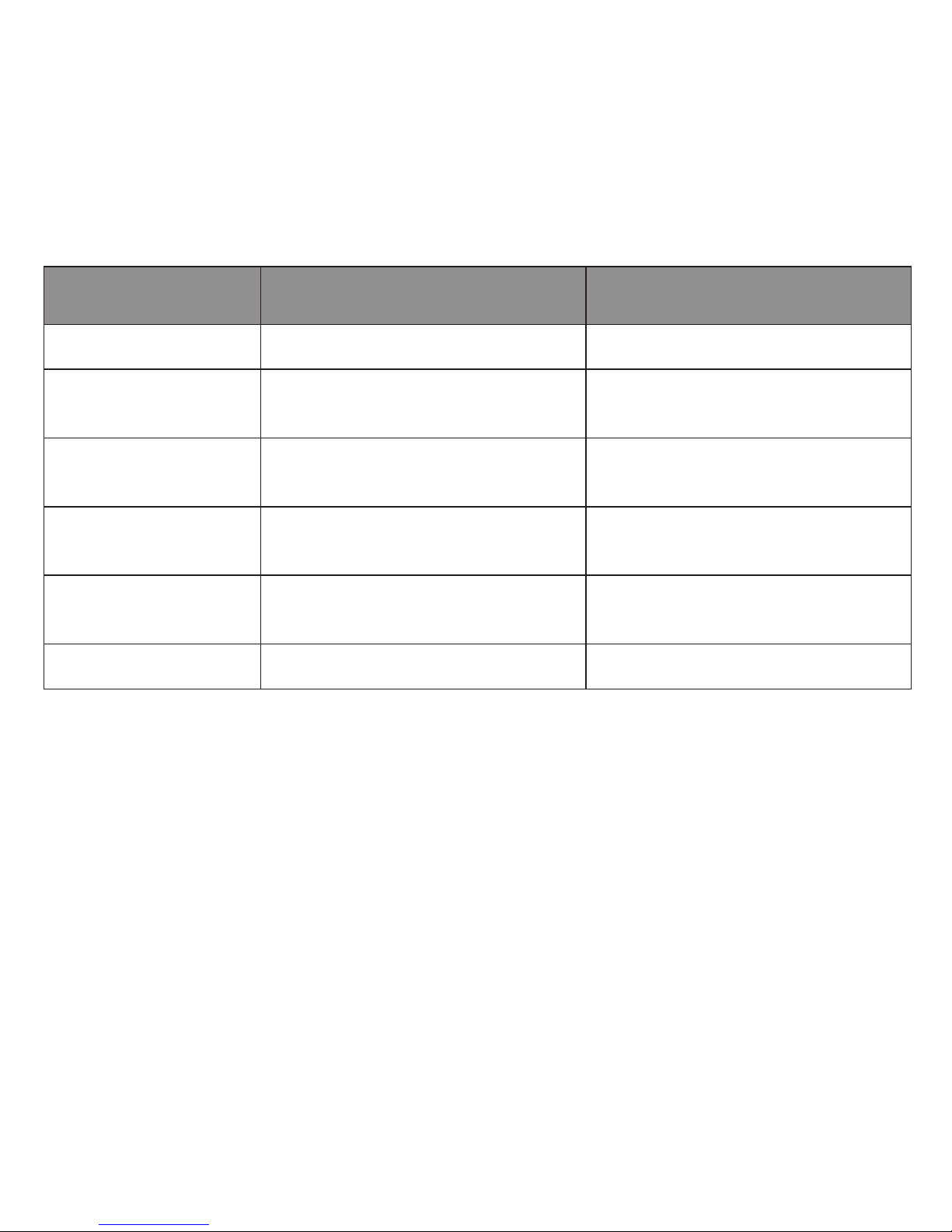
LED STATUS INFORMATION
This light indicates the status of the USB modem.
Colour Status Meaning
Green Blinking (twice every 3 secs). The modem is powered on.
Green Blinking (once every 3 secs). The modem is registered to a GSM/
GPRS/EDGE network.
Blue Blinking (once every 3 secs). The modem is registered to a
UMTS network.
Green On. The modem is connected to a
GPRS/EDGE network.
Cyan On. The modem is connected to a
HSDPA network.
- Off. The modem is not connected.
Page 14

14
SETTING UP YOUR E-MAIL
You can access your email via our web mail page at: webmail.virginbroadband.com.au
Your Username is your full email address including the @virginbroadband.com.au part.
Simply enter your Username and your email password to send and receive email. You can access your
email account from any Internet connection on any computer. Alternatively, you can configure your
account to be used through an email client like Outlook or Apple Mail by using the basic settings below:
Account Type: POP3
Incoming Mail server: mail.virginbroadband.com.au
Outgoing Mail server: smtp.virginbroadband.com.au
Account Name: Your full email address ([email protected])
Password: The password you created with the email address.
If you need specific, step by step instructions for any particular email program, visit our online FAQ’s:
virginmobile.custhelp.com
VIRGIN MOBILE USB MODEM INFORMATION
SIM card information
• To help protect against damage from an electronic discharge (e.g. static electricity) please do not
touch the gold SIM card connectors. As a precaution, always make sure that your USB modem is in
your hand before inserting or removing the SIM card.
• You should avoid removing the SIM card where possible, as it may damage it or the modem.
• Only a Virgin Mobile SIM card will work in your USB modem.
• If you remove the SIM, your USB modem will not find the network.
• If the SIM is not properly inserted, you’ll see the following error message. “Remove and re-insert the
SIM and try again.”
• To replace the SIM, unplug the USB modem first.
Page 15

15
DETAILED MODEM TECHNICAL SPECIFICATIONS
Dimensions • 70.15 mm x 25.64 mm x 11.60 mm
Weight • <25 g
External Interfaces • Standard USB Interface(type A)
Indicator • 1 LED indicating the status of the E160e
Antenna • Internal antenna
• External antenna Interface (not supported)
SIM/USIM • 6 PIN SIM card interface
Expandable Memory • Micro SD Card Slot supporting card capacities of up to 32GB.
Operating Frequency • HSDPA/UMTS 900/2100MHz
• EDGE/ GPRS/GSM 850/900/1800/1900MHz
• Receive Diversity: UMTS 900/2100MHz
Technical Standard • EDGE/GPRS/GSM 3GPP R99
• HSDPA/UMTS 3GPP R5
Page 16

16
ACRONYMS AND ABBREVIATIONS
EDGE - Enhanced Data Rates for GSM Evolution
GPRS - General Packet Radio Service
GSM - Global System for Mobile Communications
HSDPA - High Speed Downlink Packet Access
OS - Operating System
PIN - Personal Identification Number
SAR - Specific Absorption Rate
SIM - Subscriber Identity Module
UMTS - Universal Mobile Telecommunications System
USB - Universal Serial Bus
USIM - UMTS Subscriber Identity Module
Page 17

17
SAFETY INFORMATION
Read the safety information carefully to ensure the correct and safe use of your wireless device.
Interference
Do not use your wireless device where using the device is prohibited or when it causes danger or
interference with electric devices.
Medical devices
• When using your wireless device follow the rules and regulations set forth by hospitals and health
care facilities.
• Some wireless devices may affect the performance of hearing aids.
• If you are using an electronic medical device, consult your doctor or medical device manufacturer to
confirm whether the radio waves will affect the operation of this device.
Inflammables and explosives
Do not use your modem and observe the rules when inflammable and explosive devices are present.
Areas stored with inflammables and explosives include but are not limited to the following:
• Petrol station
• Fuel depot (such as the bunk below the deck of a ship)
• Container/Vehicle for storing or transporting fuels or chemical products
•
Area where the air contains chemical substances and particles (such as granule, dust, or metal powder)
• Area indicated with the “Explosives” sign
• Areas where wireless devices are not permitted
Page 18

18
Transit safety
• Observe local laws and regulations while using the wireless device. To prevent accidents, do not use
your wireless device while driving.
• RF signals may affect electronic systems of motor vehicles. For more information, consult the
vehicle manufacturer.
• In a motor vehicle, do not place the wireless device over the air bag or in the air bag deployment area.
• Observe the rules and regulations of airline companies. When boarding, switch off your wireless
device. Otherwise, the radio signal of the wireless device may interfere with the plane control signals.
Child Safety
Do not allow children to use the wireless device without guidance. Small and sharp components of the
wireless device may cause danger to children or cause suffocation if children swallow the components.
Environment
Observe the local regulations regarding the disposal of your packaging materials, used wireless device
and accessories, and promote their recycling.
WEEE approval
The wireless device is in compliance with the essential requirements and other relevant provisions of
the Waste Electrical and Electronic Equipment Directive 2002/96/EC (WEEE Directive).
RoHS approval
The wireless device is in compliance with the restriction of the use of certain hazardous substances in
electrical and electronic equipment Directive 2002/95/EC (RoHS Directive).
Laws and regulations
Observe laws and regulations when using your wireless device. Respect the privacy and legal rights of
the others.
Page 19

19
Care and maintenance
It is normal that your wireless device gets hot when you use or charge it. Before you clean or maintain the
wireless device, stop all applications and disconnect the wireless device from your PC.
• Use your wireless device and accessories with care and in a clean environment. Keep the wireless
device from a fire or a lit cigarette.
• Protect your wireless device and accessories from water, vapour and keep them dry.
• Do not drop, throw or bend your wireless device.
• Clean your wireless device with a piece of damp and soft antistatic cloth. Do not use any chemical
agents (such as alcohol and benzene), chemical detergent, or powder to clean it.
•
Do not leave your wireless device and accessories in a place with a considerably low or high temperature.
•
Use only accessories of the wireless device approved by the manufacture. Contact the authorized
service centre for any abnormity of the wireless device or accessories. Do not dismantle the wireless
device or accessories. Otherwise, the wireless device and accessories are not covered by the warranty.
Emergencies
This wireless device functions through receiving and transmitting radio signals. Therefore, the
connection cannot be guaranteed in all conditions. In an emergency, you should not rely solely on the
wireless device for essential communications.
Specific absorption rate (SAR)
Your wireless device is a radio transmitter and receiver. It is designed not to exceed the limits for
exposure to radio waves recommended by international guidelines. These guidelines were developed
by the independent scientific organization ICNIRP and include safety margins designed to assure the
protection of all persons, regardless of age and health.
The guidelines use a unit of measurement known as the Specific Absorption Rate, or SAR. The SAR limit for
wireless devices is 2.0 W/kg and the highest SAR value for this device when tested complied with this limit.
Page 20

20
Body worn operation
Important safety information regarding radio frequency radiation (RF) exposure:
To ensure compliance with RF exposure guidelines the device must be used with a minimum of 1.5 cm
distance from the body.
Failure to observe these instructions could result in your RF exposure exceeding the relevant
guideline limits.
Regulatory information
The following approvals and notices apply in specific regions as noted.
CE approval (European Union)
The wireless device is approved to be used in the member states of the EU. The wireless device
is in compliance with the essential requirements and other relevant provisions of the Radio and
Telecommunications Terminal Equipment Directive 1999/5/EC (R&TTE Directive).
Federal Communications Commission Notice (United States): Before a wireless device model is
available for sale to the public, it must be tested and certified to the FCC that it does not exceed the limit
established by the government-adopted requirement for safe exposure.
The SAR limit adopted by the USA and Canada is 1.6 watts/kilogram (W/kg) averaged over one gram of
tissue. The highest SAR value reported to the FCC for this device type was compliant with this limit.
FCC Statement
This device complies with Part 15 of the FCC Rules. Operation is subject to the following two conditions:
(1) this device may not cause harmful interference, and (2) this device must accept any interference
received, including interference that may cause undesired operation.
Page 21

21
Australian Compliance
This wireless device is manufactured in accordance with the Australian Communications and Media
Authority (ACMA) compliance.
* This device should be installed and operated with a minimum distance of 20 cm between the radiator
and your body when using it via USB cable.
Copyright © 2009 Virgin Mobile (Australia) Pty Limited
Copyright © 2009 Huawei Technologies Co., Ltd.
All Rights Reserved
No part of this document may be reproduced or transmitted in any form or by any means without prior
written consent of Virgin Mobile (Australia) and Huawei Technologies Co., Ltd.
The product described in this manual may include copyrighted software of Huawei Technologies Co.,
Ltd and possible licensors. Customers shall not in any manner reproduce, distribute, modify, decompile,
disassemble, decrypt, extract, reverse engineer, lease, assign, or sublicense the said software, unless
such restrictions are prohibited by applicable laws or such actions are approved by respective copyright
holders under licenses.
Disclaimer
THE CONTENTS OF THIS MANUAL ARE PROVIDED “AS IS”. EXCEPT AS REQUIRED BY APPLICABLE LAWS,
NO WARRANTIES OF ANY KIND, EITHER EXPRESS OR IMPLIED, INCLUDING BUT NOT LIMITED TO,
THE IMPLIED WARRANTIES OF MERCHANTABILITY AND FITNESS FOR A PARTICULAR PURPOSE,
ARE MADE IN RELATION TO THE ACCURACY, RELIABILITY OR CONTENTS OF THIS MANUAL. TO THE
MAXIMUM EXTENT PERMITTED BY APPLICABLE LAW, IN NO CASE SHALL HUAWEI TECHNOLOGIES
CO., LTD OR VIRGIN MOBILE AUSTRALIA, BE LIABLE FOR ANY SPECIAL, INCIDENTAL, INDIRECT,
OR CONSEQUENTIAL DAMAGES, OR LOST PROFITS, BUSINESS, REVENUE, DATA, GOODWILL OR
ANTICIPATED SAVINGS.
Page 22

22
Trademarks
Virgin Mobile and Virgin Broadband are trademarks of or licensed to Virgin Mobile (Australia) Pty Limited.
All other trademarks mentioned in this manual are the property of their respective holders.
and HUAWEI are trademarks of Huawei Technologies Co., Ltd. All other trademarks mentioned in
this manual are the property of their respective holders.
Notice
The information in this manual is subject to change without notice. Every effort has been made in the
preparation of this manual to ensure accuracy of the contents, but all statements, information, and
recommendations in this manual do not constitute a warranty of any kind, expressed or implied.
Page 23

23
GOT A qUESTION WE HAVEN’T ANSWERED HERE?
• Try virginmobile.custhelp.com or
• Send an email at virginmobile.com.au/contactus
• Virgin Mobile stores are dotted around Oz – check online for your nearest
• Old school mail can be addressed to:
Virgin Mobile
Locked Bag 17
Royal Exchange NSW 1225
Or Reply Paid 68456 NSW 2001
When you connect to Virgin Mobile, we need to collect personal information from you. We follow strict
guidelines to keep your details safe. You can read these online at virginmobile.com.au
Just click on ‘Privacy Policy’ at the bottom of the Home Page.
Page 24

DY15239 POSBBUG110901
User Guide
For instructions on installing your SIM, see Page 7.
 Loading...