

Page 1

1
MF920A
4G WI-FI HOTSPOT
GETTING STARTED GUIDE
Page 2
2
Page 3
3
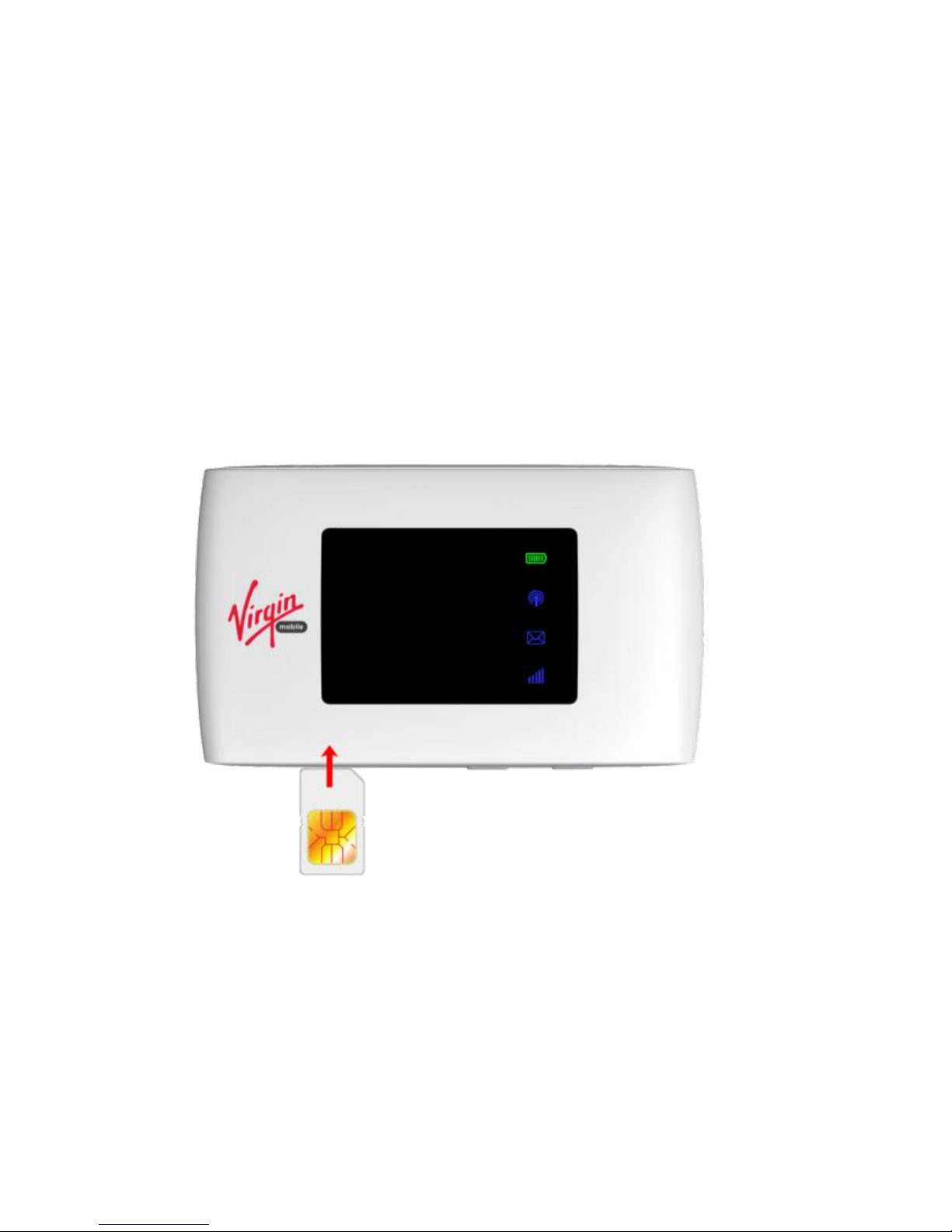
INSERT YOUR SIM CARD
1. Open the SIM slot to insert the SIM card.
2. Insert your SIM card into the SIM slot and click in:
Page 4

4
IMPORTANT NOTES
This device supports a standard SIM card, also called 2FF size.
Do not insert a micro SIM (3FF) or use a SIM card adaptor.
Using the wrong SIM card or adaptors can damage your device.
Physical damage to the SIM slot is not covered by warranty and
will make your device unusable.
POWER UP YOUR 4G WI-FI HOTSPOT
Press and hold the Power key for 3-4 seconds until the lights
flash. The hotspot will be available after about 20 seconds.
Note: If you insert the charger with the device off, or the
battery is flat, you can only power up the device after about
20 seconds when the start up sequence is complete.
Page 5

5
CONNECT DEVICES BY WI-FI
Your 4G Wi-Fi hotspot can connect up to ten devices via WiFi providing internet access for all your devices on the go.
On the devices you wish to connect make sure Wi-Fi is
switched on, then search for Wi-Fi devices.
Select the device showing Virgin Mobile 4G_xxxxxx
Consult your SSID sticker on the device (spare in the box)
and enter the default Wi-Fi key which is case sensitive.
If you lose your Wi-Fi password then connect via USB and
open the web interface to find out your Wi-Fi password.
Page 6
6
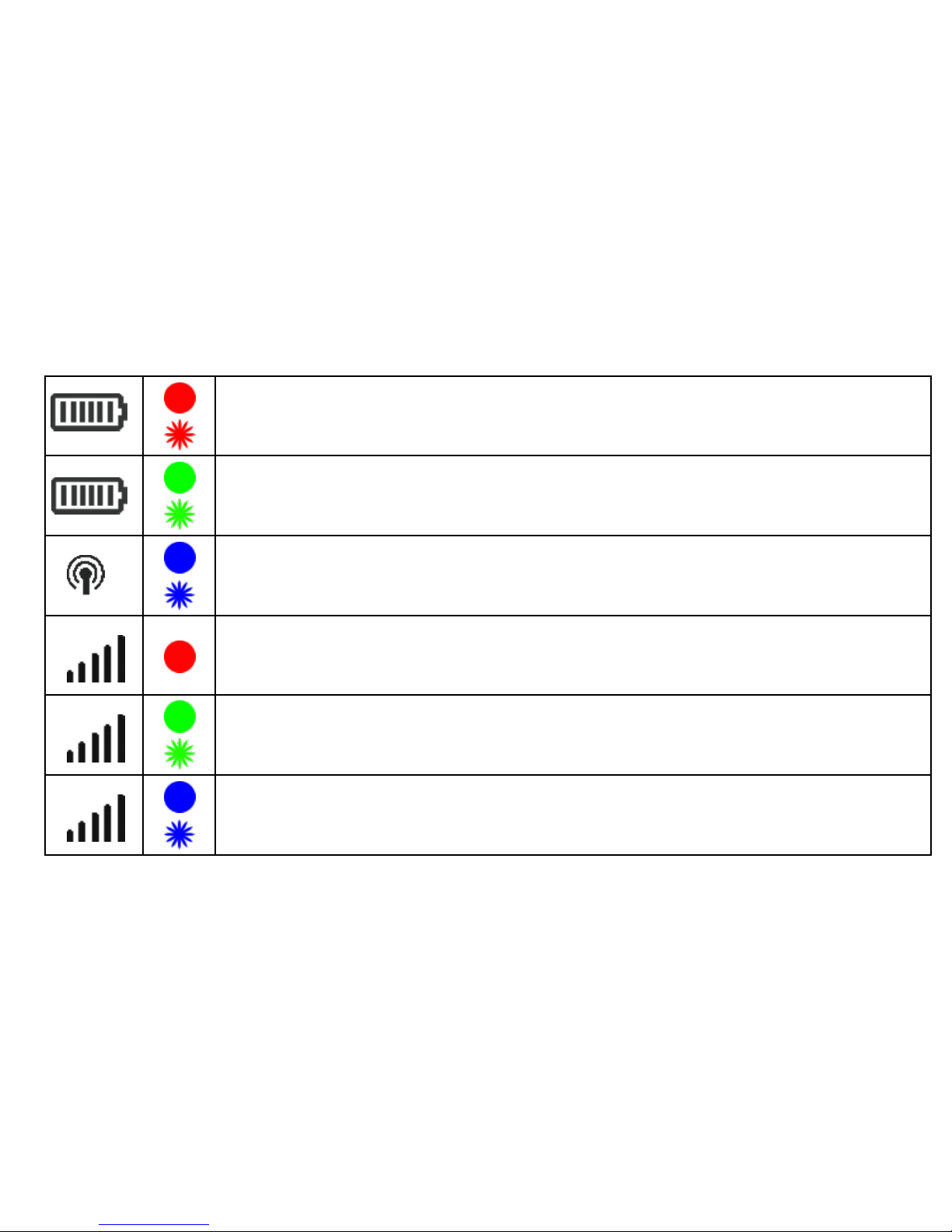
LED INDICATORS
On, battery is low (<23%).
Flashing, battery is discharged, (< 12 %).
On, battery is OK (>23 %).
Flashing, battery is charging.
Solid, Wi-Fi is On.
Flashing, WPS is enabled, available for 2 minutes.
Not registered on the network.
No SIM, invalid SIM, PIN or PUK locked.
On, device is registered on 2G/3G,
Flashing, device is connected to 2G/3G.
Device is registered on 4G
Flashing, device is connected to 4G
Page 7

7
Note: During periods of inactivity it is normal for the LED’s to go
out to preserve battery life. Press the power key briefly to
check the device status if required.
Connection example for Windows 7 computer:
1. On your task bar, next to the clock, click on the Network
Interface icon.
2. Click on the Wireless device Virgin Mobile 4G_xxxxxx
3. The password is the WiFi Key shown on your SSID sticker.
Enter exactly as per the sticker observing the correct case
for all letters.
4. With ‘Connect Automatically’ enabled your computer will
remember the password and connect to your Wi-Fi
device when it is switched on and in range.
Page 8
8
TIP
It is also possible to connect via USB connection. Press Help
on the web interface to learn more.
QUICK REFERENCES
Browser home page
http://192.168.0.1
Administrator login
admin
Default SSID
Virgin Mobile 4G_xxxxxx
Supplied on your SSID sticker.
Default Wi-Fi
Security Key
10 characters which are case sensitive.
Supplied on your SSID sticker.
Page 9

9
(password)
Restore defaults
From the powered up state:
Open the SIM slot cover. Press the
reset button for 5 seconds until the
device LED’s flash.
All passwords and settings will be
restored to defaults and the hotspot
will reboot.
LOGIN TO THE USER INTERFACE
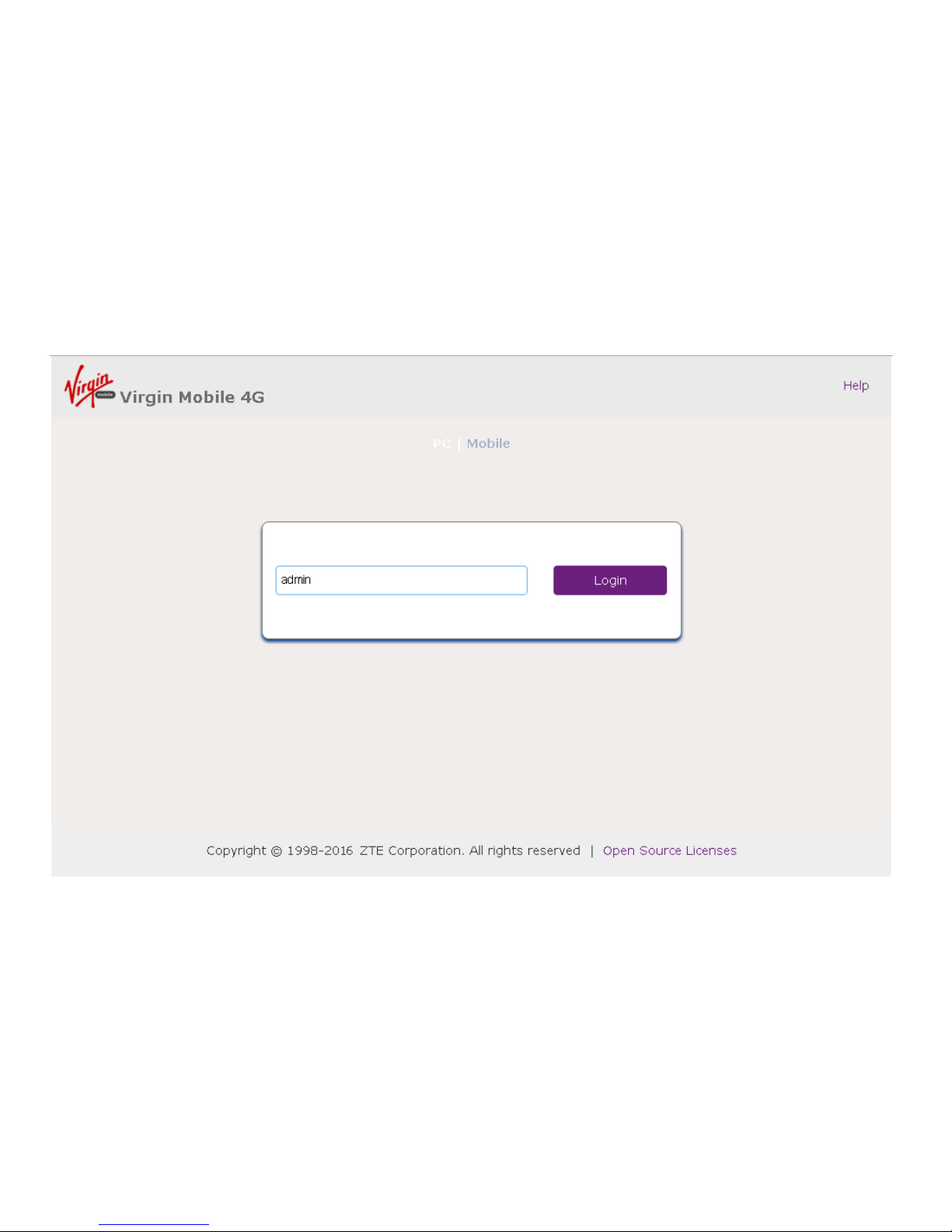
Open a browser and go to http://192.168.0.1 to access the
hotspot home page.
Page 10
10
The default login password is ‘admin’
Page 11
11
HOTSPOT HOMEPAGE
Page 12
12
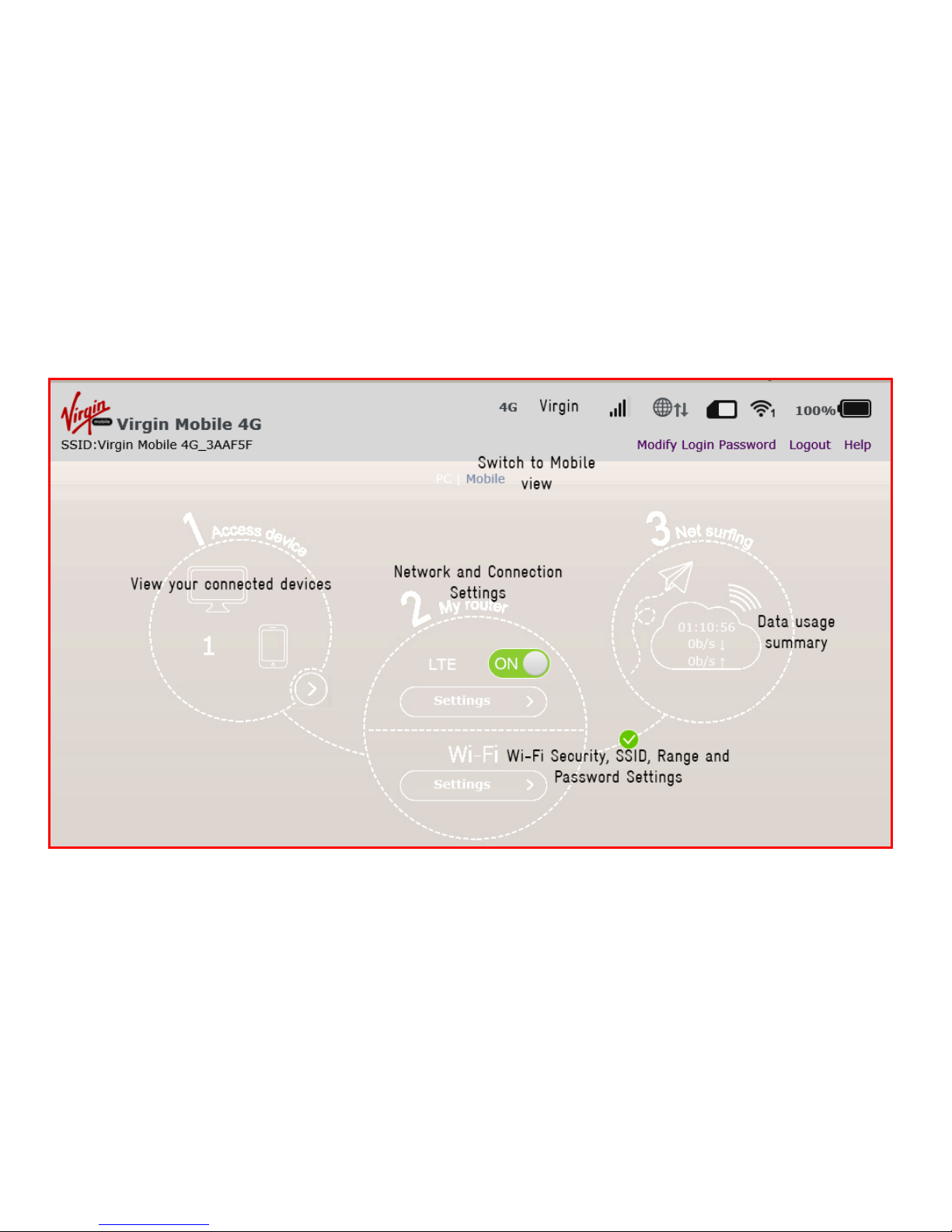
The home page shows you how many users are connected,
your network connection state and data usage summary.
The device will automatically connect to the network.
Toggle the ON switch to disconnect.
Press Settings to change the Network or Wi-Fi settings.
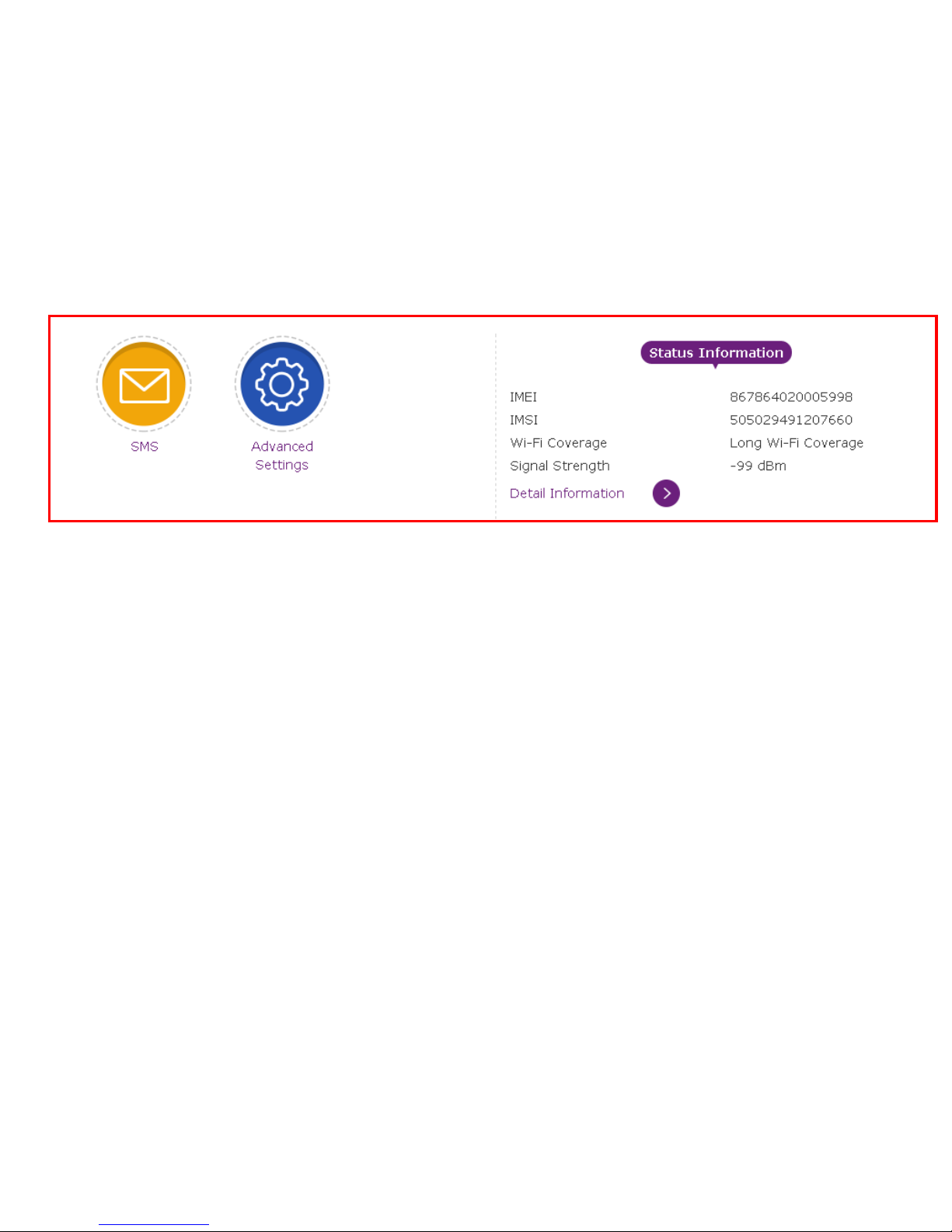
Press to view SMS and Advanced Settings panels.
Explore the rest of the User Interface to make any
changes to your device behaviour.
Page 13
13
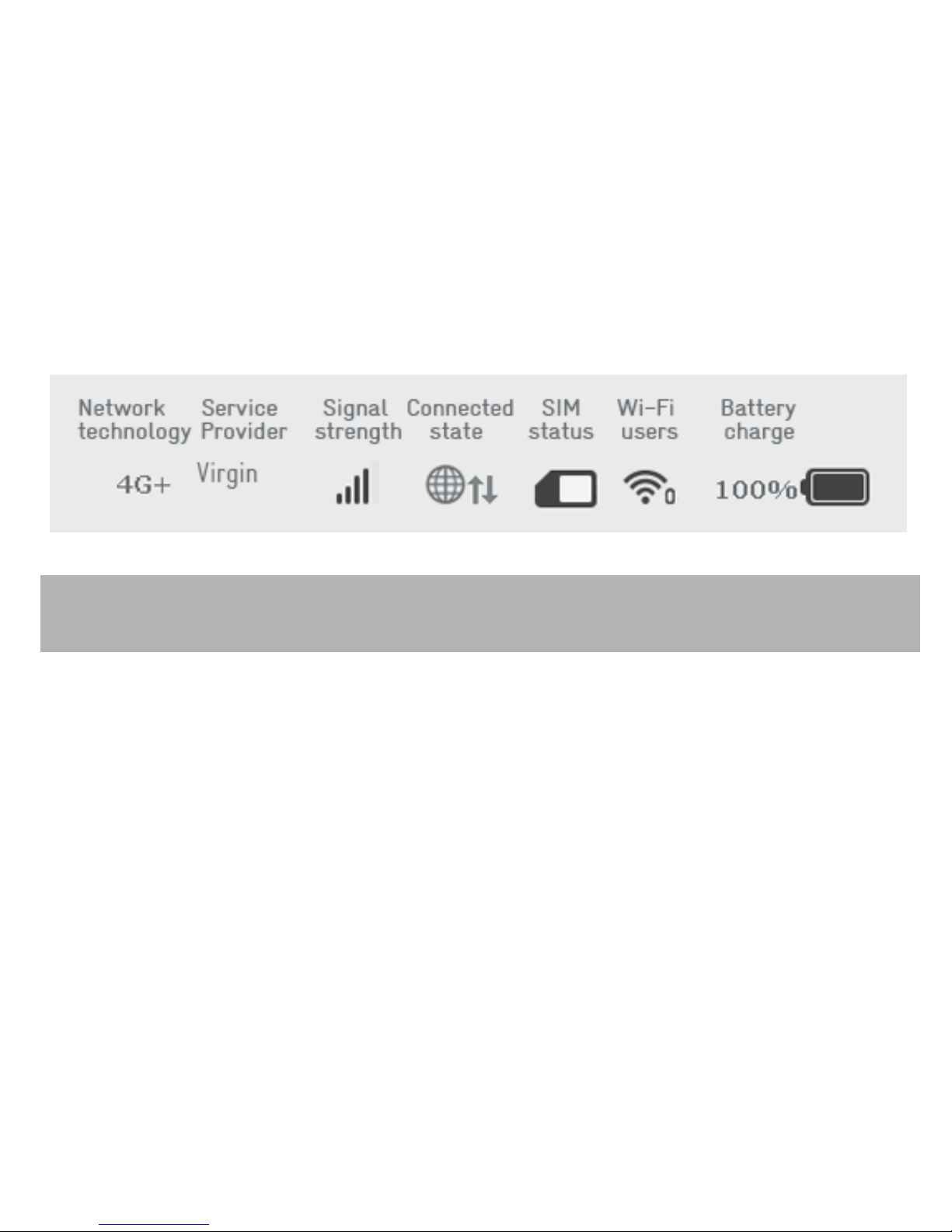
STATUS INDICATORS
TIP: You can also use your mouse to hover over each icon in
the web interface for a brief description.
VIEW THE HELP GUIDE TO LEARN MORE
Once you are logged into the device web page press Help to
read the full user guide.
©ZTE 2016 MF920A VIRGIN GSG v1.0 Jan 2016
 Loading...