

Page 1
Broadband2Go
TM
USER GUIDE
MC760 USB Modem
Novatel Wireless
Page 2

Please save this User Guide to your computer’s
hard drive for further reference.
© 2009. Novatel Wireless, Inc. All rights reserved. Novatel Wireless names and logos are trademarks of Novatel
Wireless. All other brands and trademarks are trademarks of their respective holders.
Page 3

Congratulations on purchasing a broadband modem
by Novatel Wireless!
This Modem operates over high-speed networks enabling you to connect at
high speeds to the Internet or your corporate Intranet, and access your email
while you are away from the ofce.
Patents and licenses
Licensed by QUALCOMM Incorporated under one or more of the following Patents:
4,901,307 5,490,165 5,056,109
5,504,773 5,101,501
5,506,865 5,109,390 5,511,073
5,228,054 5,535,239
5,267,261 5,544,196 5,267,262
5,568,483 5,337,338
5,600,754 5,414,796 5,657,420
5,416,797 5,659,569
5,710,784 5,778,338
Software License
Proprietary Rights Provisions
The software drivers provided with this product are copyrighted by Novatel Wireless and/or Novatel
Wireless’ suppliers. And although copyrighted, the software drivers are unpublished and embody
valuable trade secrets proprietary to Novatel Wireless and/or Novatel Wireless’ suppliers. The
disassembly, decompilation, and/or Reverse Engineering of the software drivers for any purpose is
strictly prohibited by international law. The copying of the software drivers, except for a reasonable
number of back-up copies is strictly prohibited by international law. It is forbidden by international
law to provide access to the software drivers to any person for any purpose other than processing
the internal data for the intended use of the software drivers.
U. S. Government
Restricted Rights Clause:
The software drivers are classied as “Commercial Computing device Software” and the U.S.
Government is acquiring only “Restricted Rights” in the software drivers and their Documentation.
U.S. Government Export Administration Act Compliance Clause:
It is forbidden by US law to export, license or otherwise transfer the software drivers or Derivative
Works to any country where such transfer is prohibited by the United States Export Administration
Act, or any successor legislation, or in violation of the laws of any other country.
Please visit www.novatelwireless.com for the latest information about your device.
Your Terms of Service
Your services begin on the date your modem is activated. The use of your modem is subject to the
Virgin Mobile Canada Terms of Service, which may change from time to time (“Terms of Service”).
You can read them online at www.virginmobile.ca. To stay up-to-date with the most recent Terms of
Service, please make sure to check www.virginmobile.ca or call 1.888.999.2321. By activating your
modem, you’re accepting and agreeing to follow the current Terms of Service, so please ensure you
read them over before you activate your modem. If there is anything in the Terms of Service that
you don’t agree with, return your modem before you activate or use it within ten (10) days of its
purchase date to receive a refund.
Page 4

Table of Contents
Congure & Connect . . . . . . . . . . . . . . . . . . . . . . . . . . . . . . . . . . . . . . 5
Overview . . . . . . . . . . . . . . . . . . . . . . . . . . . . . . . . . . . . . . . . . . . . . . . . . . . . . . . . . . . . . . . 6
Using the MobiLink Connection Manager ...................................7
Features of the Connection Manager. . . . . . . . . . . . . . . . . . . . . . . . . . . . . . . . . . . . 8
Connect Using the Connection Manager. . . . . . . . . . . . . . . . . . . . . . . . . . . . . . . . . 9
Using the MobiLink Menus . . . . . . . . . . . . . . . . . . . . . . . . . . . . . . . . . . . . . . . . . . . . . . . 10
Prole Manager. . . . . . . . . . . . . . . . . . . . . . . . . . . . . . . . . . . . . . . . . . . . . . . . . . . .11
Conguration ....................................................14
Auto-Launch . . . . . . . . . . . . . . . . . . . . . . . . . . . . . . . . . . . . . . . . . . . . . . . . . . . . . 15
Device Properties . . . . . . . . . . . . . . . . . . . . . . . . . . . . . . . . . . . . . . . . . . . . . . . . 16
About . . . . . . . . . . . . . . . . . . . . . . . . . . . . . . . . . . . . . . . . . . . . . . . . . . . . . . . . . . . 17
Troubleshooting . . . . . . . . . . . . . . . . . . . . . . . . . . . . . . . . . . . . . . . . . . 18
Troubleshooting . . . . . . . . . . . . . . . . . . . . . . . . . . . . . . . . . . . . . . . . . . . . . . . . . . . . . . . . 19
Page 5

About This Guide
Thank you for choosing Novatel Wireless and welcome to the MobiLink
3 User Guide for Windows. The MobiLink software works with your
Broadband Modem to enable you to connect at high speeds to the
Internet, your corporate Intranet, and your email while you’re away
from the ofce.
This User Guide outlines the features and use of the MobiLink software.
This guide is separated into 2 chapters:
Congure and Connect – This chapter provides instructions for
managing and conguring your Internet connection and using the
features of the MobiLink software.
Troubleshooting – This chapter provides troubleshooting
information for your MobiLink software.
1
22
Page 6

Overview
Using the MobiLink Connection Manager
Using the MobiLink Menus
Configure & Connect
1
Page 7
6
Overview
When you attach your modem the rst time, the MobiLink software is installed
automatically.
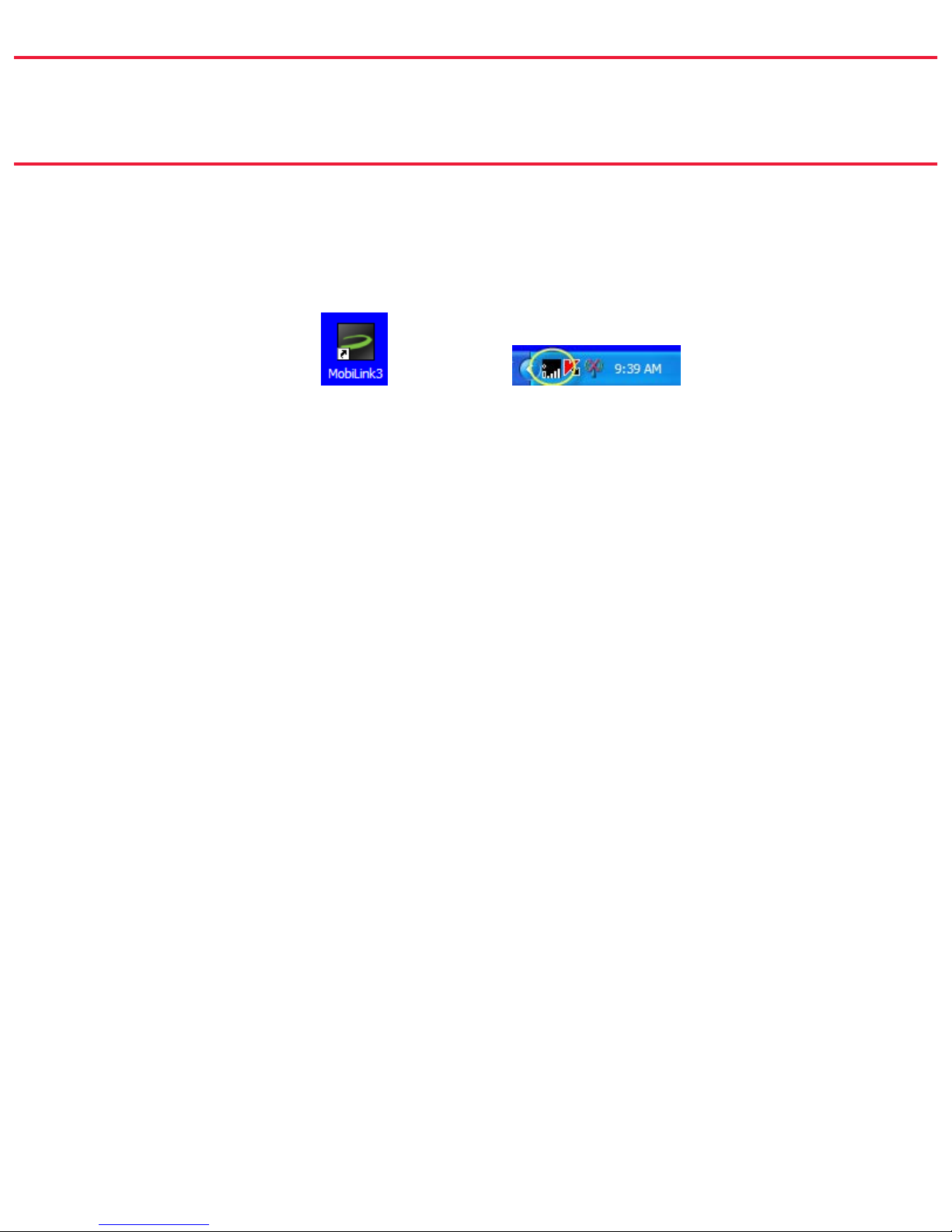
The MobiLink shortcut is placed on the desktop and an icon appears in the system
tray (Windows notication area).
The desktop shortcut launches the MobiLink software.
The system tray icon opens the Connection Manager as well as providing visual
connection status.
Both the system tray icon and the Connection Manager provide access to the
MobiLink menus, status information, and settings. You can use the one that better
suits the way you work.
Page 8
7
Using the MobiLink Connection Manager
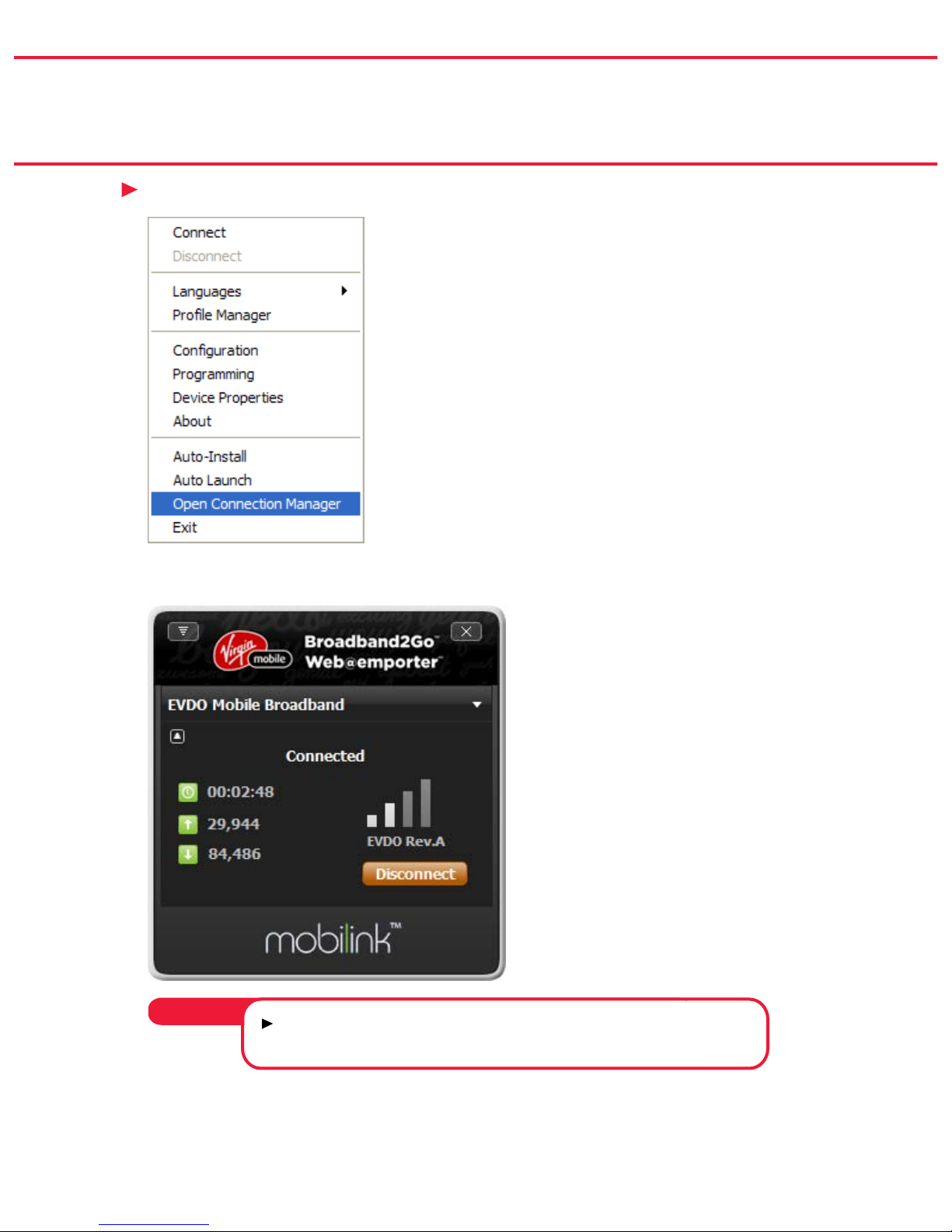
Right-click the system tray icon and choose ➤ Open Connection Manager.
➤
The Connection Manager will open on the desktop.
If the system tray icon is not present, double-click the ➤
desktop shortcut to launch the software.
Tip!
Page 9
8
Features of the Connection Manager
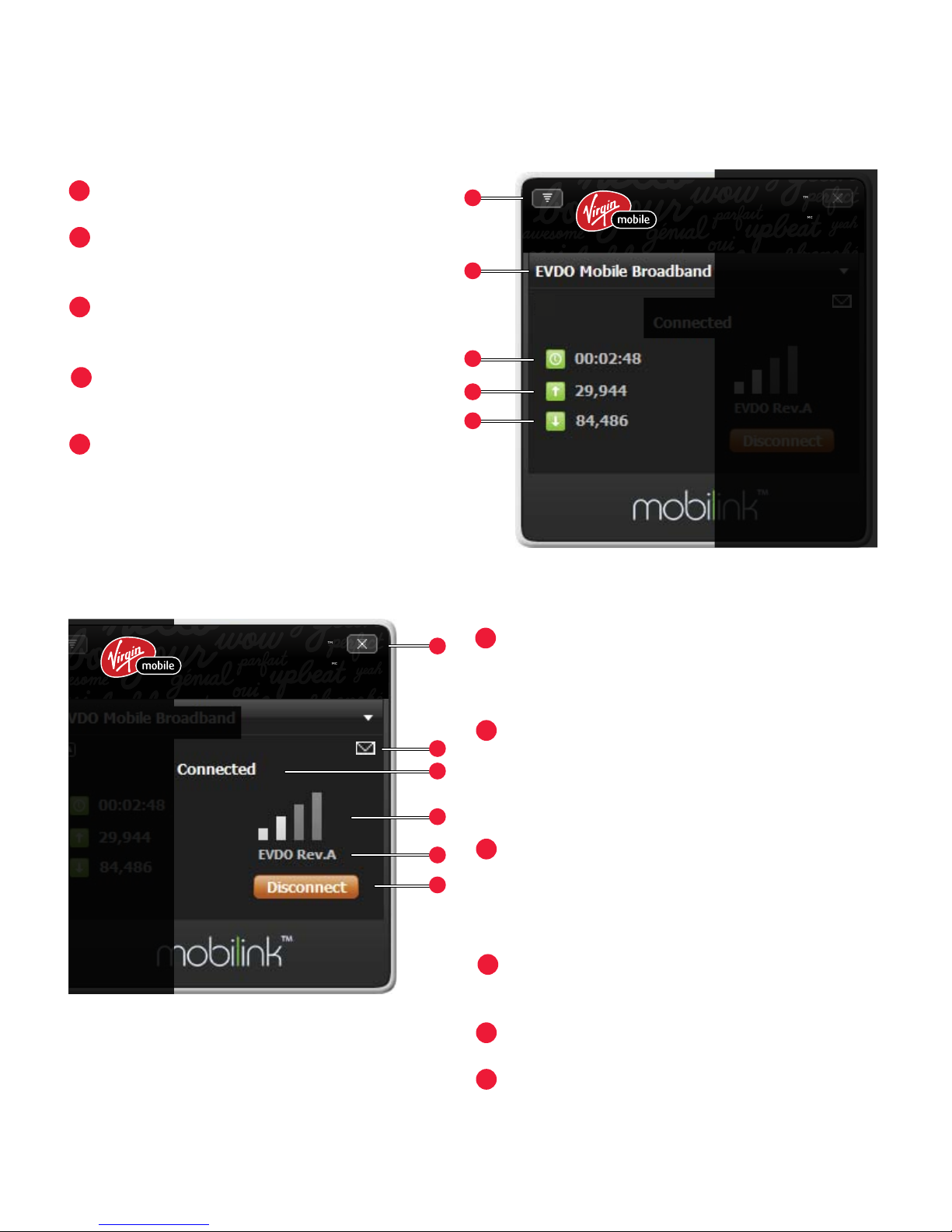
The Connection Manager provides status information about your connection, tells
you whether you are roaming, as well as providing access to the MobiLink menus.
1
2
3
4
5
Broadband2Go
TM
Web@emporter
MC
1
2
3
4
5
6
Broadband2Go
TM
Web@emporter
MC
1
1
2
2
3
3
445
5
6
Menu – Opens the MobiLink menus.
Prole – The name of the current
connected prole.
Duration – How long the network
has been connected.
Bytes Out – The number of bytes
sent this session.
Bytes In – The number of bytes received this session.
Close – Closes the Connection Manager.
MobiLink continues to run and the
system tray icon is available.
SMS Received – Shows that you have
received an SMS message. Note: Your
device is equipped to receive, but not
send, SMS messages.
Connection – Displays the connection
status (Connected, Disconnected,
Ready, Radio Off, and No Device
Detected).
Signal Strength – More bars indicate a
stronger signal.
Network Technology – Type of network.
Connect/Disconnect – Connect or
disconnect from the network. May read
Activation the rst time you connect.
Page 10
9
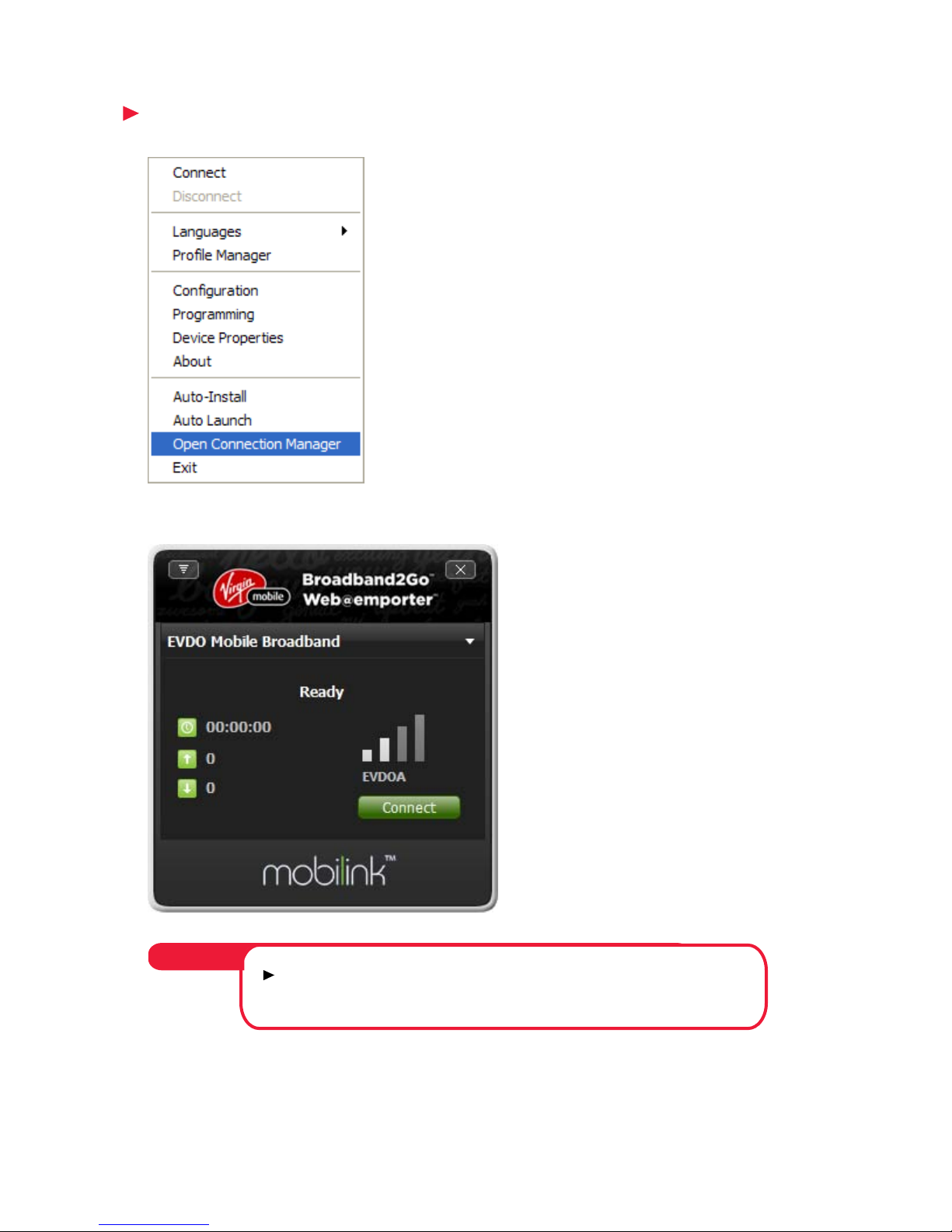
Connect Using the Connection Manager
Right-click the system tray icon and choose ➤ Open Connection Manager.
Click the ➤ Connect or Disconnect button.
If the status reads ➤ No Device Detected, be sure that
your modem is properly connected to your computer.
NOTE:
Page 11
10
Using the MobiLink Menus
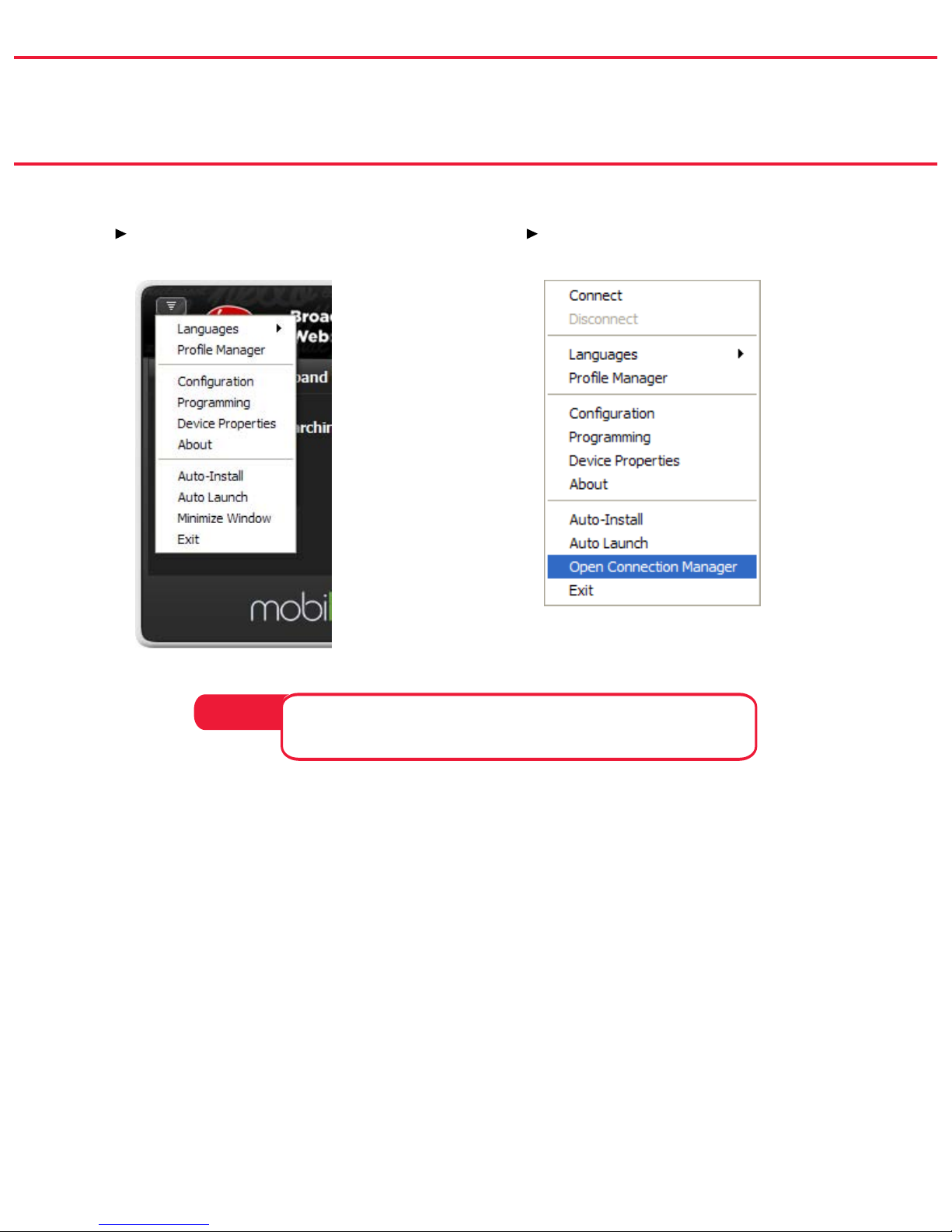
You can access the MobiLink menus in two ways.
Click the
➤ Menu button on the
Connection Manager.
Right-click the MobiLink system ➤
tray icon.
The actual menu items may vary depending on the network
technology, service provider, and mobile broadband device.
NOTE:
The Menu allows you to congure MobiLink to meet your needs. From
this menu you can do the following:
Create additional proles, including VPNs (virtual private networks) •
Set up and manage a PIN code for security •
Set the software to auto-launch whenever Windows is started •
Page 12
11
Prole Manager
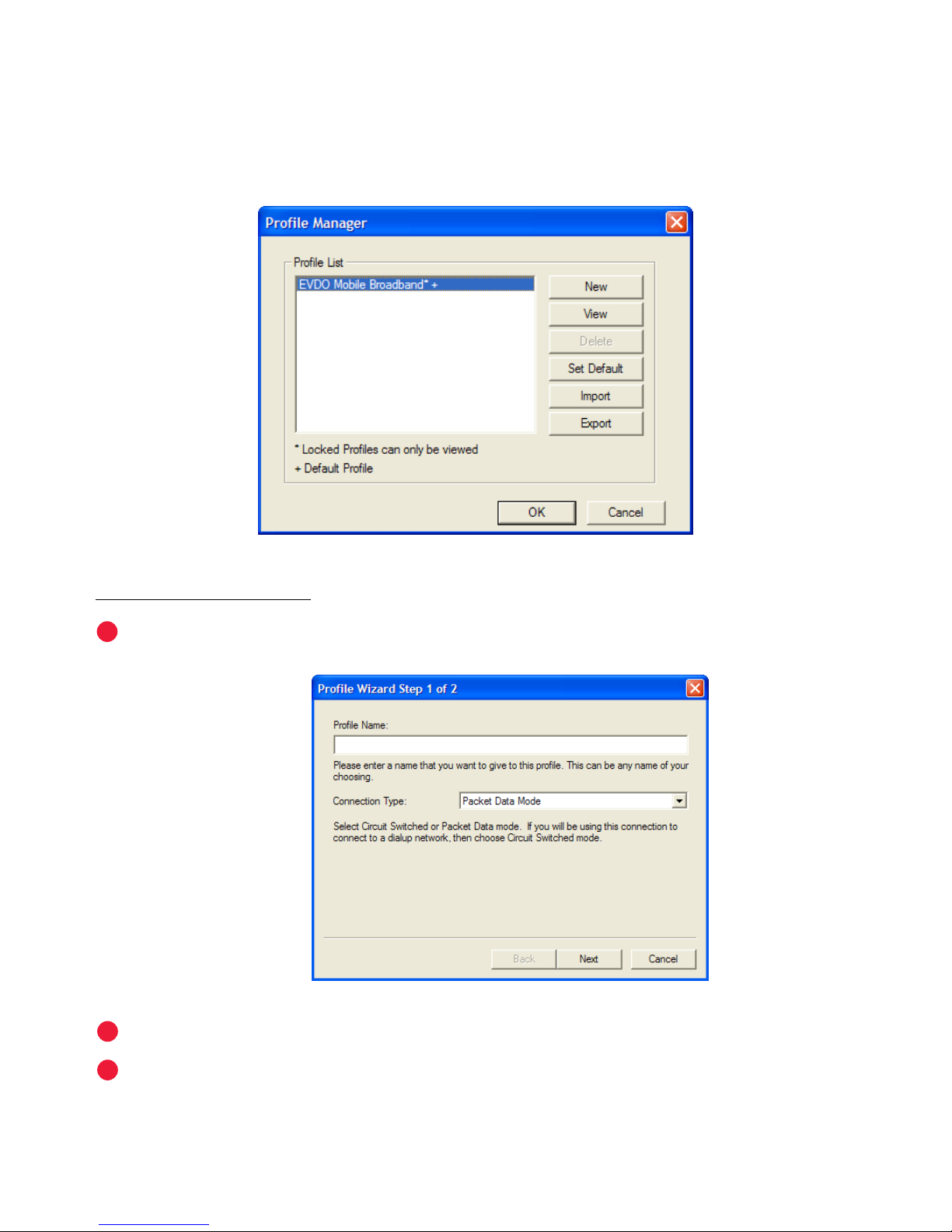
The Prole Manager wizard allows you to change your network prole settings.
Here you may create new proles or update existing ones. For example, you can
create a new prole for a VPN or update an existing prole with new username or
password settings.
To add a new prole:
Click New to start the Prole Manager wizard.
Enter a simple name for the new prole (for example, My Laptop).
Click Next.
1
2
3
Page 13
12
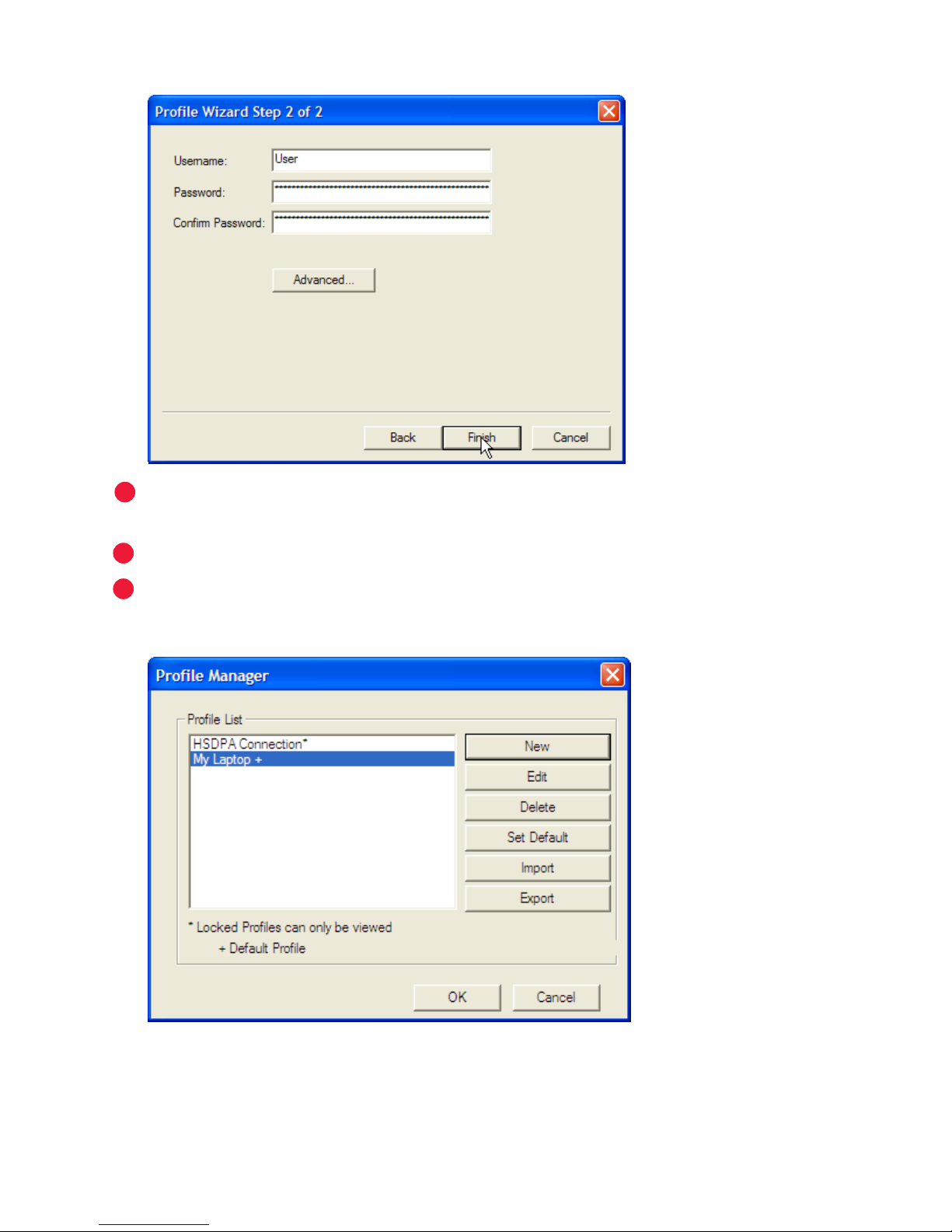
The second screen of the prole wizard will open.
If your prole is for a VPN or requires manual TCP/IP settings, click ➤
Advanced and enter the needed settings.
Enter a user name and password for this prole and click
➤ Finish.
You can make this as the default prole on the next screen. To change it
➤
afterward, on the Prole Manager screen, select your new prole and click
Set Default then OK.
4
5
6
Page 14
13
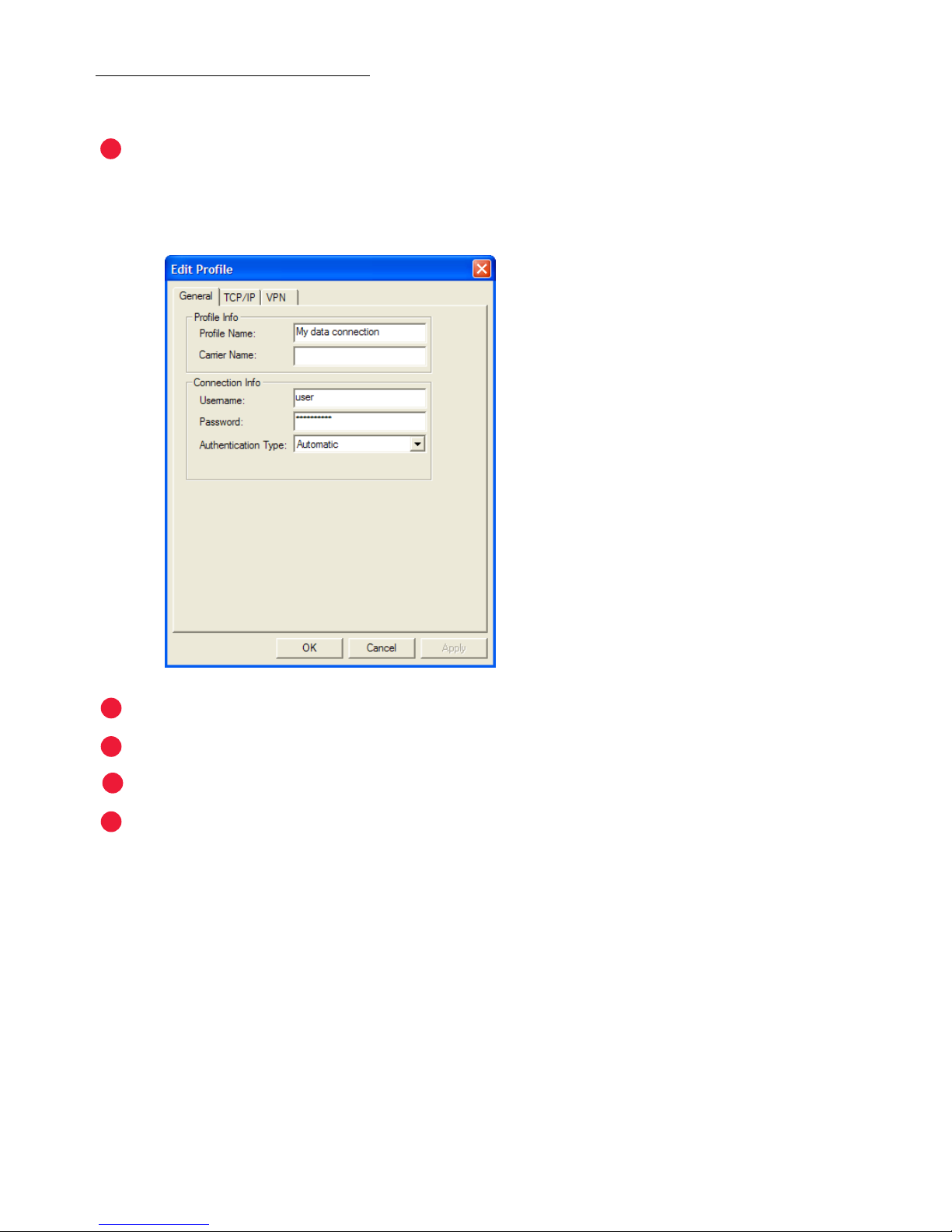
To edit or update a prole:
You cannot edit the default prole. If you need to edit the default prole, set a
different prole as default rst.
From the Prole Manager, select the prole you want to update and click Edit.
The Edit Prole – General tab will open.
Enter the appropriate information and click Apply.
Edit TCP/IP or VPN information as needed, clicking Apply on each tab.
Click OK.
If necessary, set the prole you just edited back as the default and click OK again.
4
3
2
1
5
Page 15
14
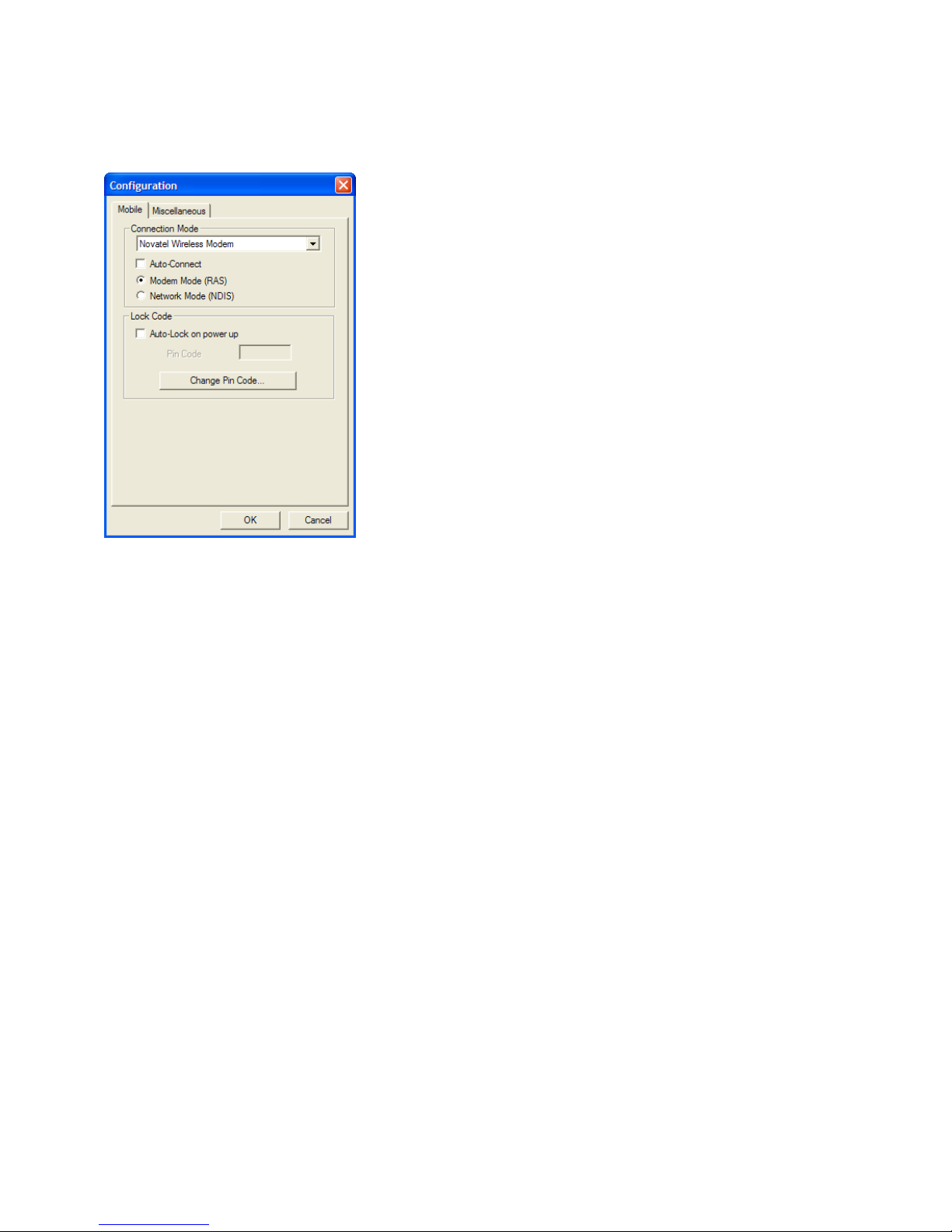
Conguration
The Conguration menu allows you to require a PIN code to access the modem.
To turn on the Lock, check the Auto-Lock on power up. The default PIN code is the
MDN that you enter when you program the device. If you forgot the MDN, you can
go to the Device Properties screen to locate it. If you changed the PIN code and
forgot what the new PIN is, please contact your service provider for assistance.
Page 16

15
Auto-Launch
Checked by default, this option indicates that MobiLink is set to launch when your
computer is started.
Languages
To view and experience MobiLink in another language, open the menu, choose
Languages then the language of your choice.
Activation
This item is found only on CDMA networks and is dependent on your Service
Provider. If activation is required by your provider, instructions should have been
provided with your wireless modem. If you are unable to locate them, contact your
Service Provider directly.
To activate your product, open the menu, choose Programming, then ll in the
information provided by your Service Provider.
Page 17
16
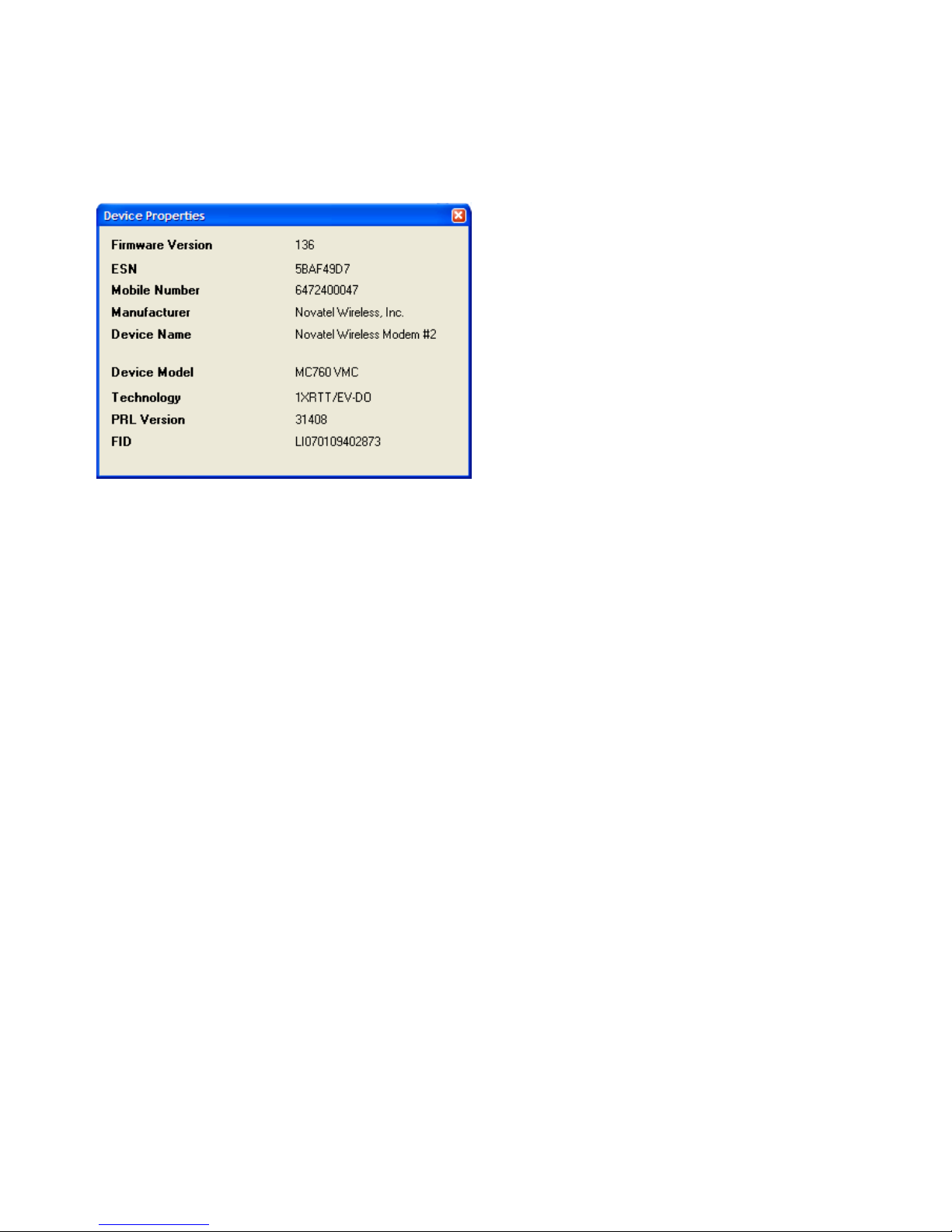
Device Properties
To obtain specic details for your device, such as the assigned ESN or Mobile
Number, open the menu and choose Device Properties.
Page 18
17
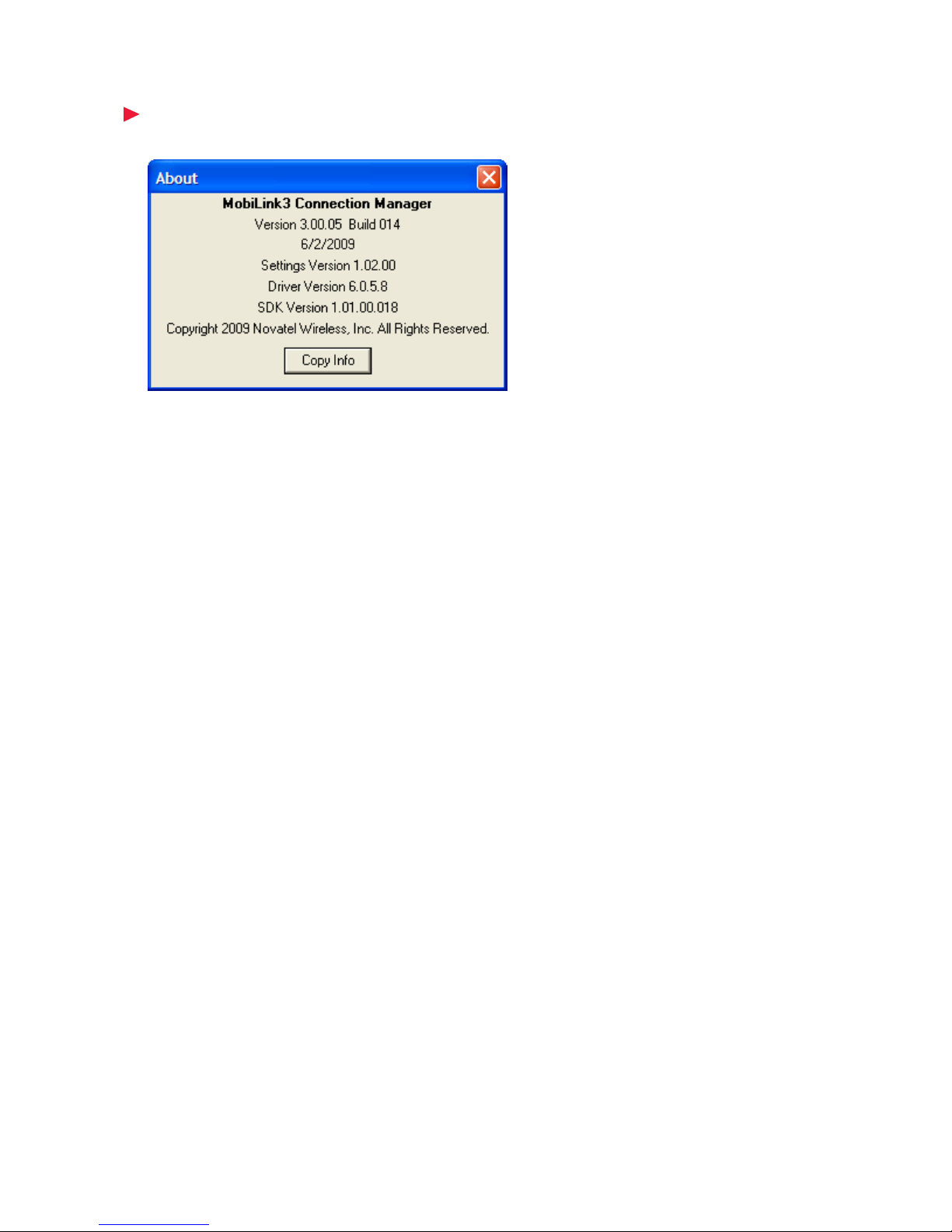
About
Open the menu and choose ➤ About to review the details about the software
version of MobiLink that you are using.
Page 19

Troubleshooting
2
Page 20

19
Troubleshooting
v
Why do I see the message “No device detected” when I run MobiLink?
Your modem was not inserted properly into your computer. ➤
Exit MobiLink.1.
Remove your device.2.
Restart your computer.3.
Restart MobiLInk.4.
Reinsert your device.5.
Why does the message “Searching for network” display continuously?
You are outside of the coverage area. Contact your mobile operator to nd out ➤
more about coverage areas.
Why can’t I connect to the network?
Check the Connection Type (CDMA networks) in your connection prole . If ➤
any of these entries are wrong, you won’t be able to connect to the network.
Why can’t I browse the web?
Check your server settings. ➤
Start Internet Explorer.1.
From the 2. Tools menu, choose Internet Options.
Click the 3. Connections tab.
Under “Dial-up and Virtual Private Network settings”, double-click the name of 4.
your connnection (for example, 3G Connection).
This eld name will vary, depending on your service provider.
Check your 5. Username and Password.
If you are using a proxy server, select the appropriate boxes.6.
Click 7. OK twice to nish.
Many software issues can be solved by restarting your ➤
modem, software, or computer.
Tip!
 Loading...