

Page 1

User Guide
IP Multimedia i2002 Phone
Page 2

Content
1. IP Phone buttons & usage
2. Logging on / off your IP Phone
3. Changing your password
4. Making a call
5. Receiving a call
6. Placing a call on hold
7. Transferring a call
8. Making a conference call
9. Storing names in your directory
10. Dialling names in your directory
11. Editing your directory
12. Setting auto login
13. Leaving a message
14. Setting up & accessing your voicemail
Contacting the Emergency Services
IMPORTANT SAFETY NOTE: When calling 999 the user’s location is based on the Calling Line
Identity (CLI). Hence, the Emergency Bureau will not know a user’s location if they are using their
Internet Protocol (IP) Multimedia Services when away from their normal office location (e.g. working
from home, etc). If IP Multimedia users need Emergency Services, they should use a regular landline
phone. If they are forced to use an IP-based phone then they must explicitly tell the Emergency
Bureau their exact location.
IP Multimedia i2002 Phone User Guide Page 2 of 8
Page 3
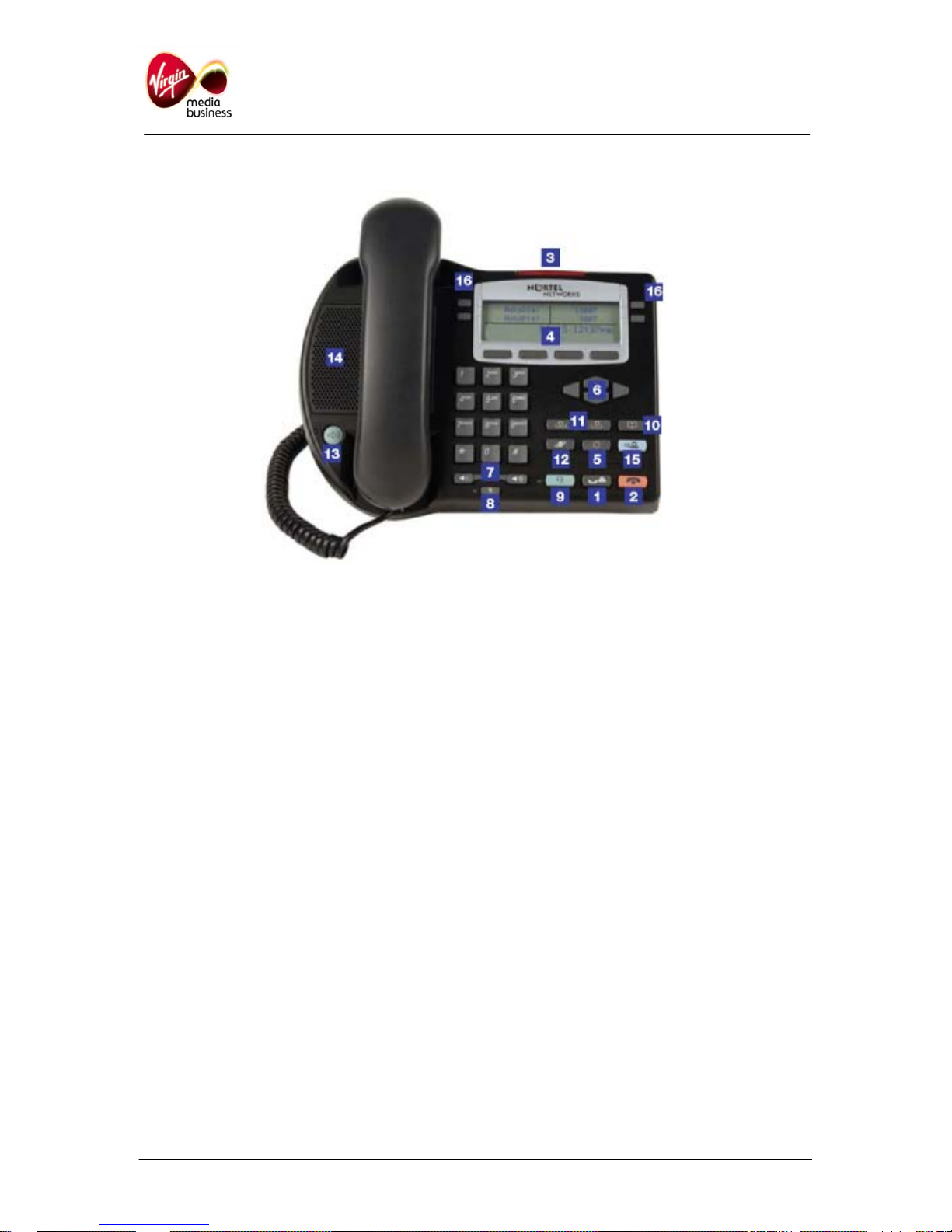
1. IP Phone buttons & usage
1 Call Hold key
Use to place received calls on hold. Callers
placed on hold will hear music if this has been
requested to be provisioned with your IP
Multimedia service. Music will also be played
during call transfers.
2 End Call key
Use to end any active call made via the handset,
headset or handsfree facility.
3 Message Waiting / Call Indication lamp
Will stay lit to notify you have a new voicemail
message, or you have not answered a call. It will
also flash to indicate that your telephone is
ringing. To turn the lamp off - retrieve your
voicemail message or identify your missed call via
the call log.
4 Soft Function keys
Use the four pre-labelled soft keys with the Menu
navigation or Service keys when prompted to
action, e.g. OK, CLEAR, SPACE, CANCEL.
5. Quit key
Used to return to normal phone status and cancel
menu navigation.
6 Menu Navigation keys
Use to scroll through the menu services that will
appear on the Liquid Crystal Display (LCD)
screen.
7 Volume Control bar
Use to adjust the volume of the incoming call ring
or 2
nd
party speech volume.
8 Call Mute key
Use to prevent other parties from hearing you
speak. When muted, lamp is on.
9 Headset key & lamp
10 Personal Directory key
11 Incoming & Outgoing Call Log key
Use to access the last 10 numbers for calls
received and dialled.
12 Service key
Use to access the menu.
13 Handsfree key
Press when wishing to make and receive calls via
the built in speaker phone. The lamp next to the
icon will remain lit to indicate handsfree usage in
operation.
14 Speaker
15 This key is not currently used.
16 Line & Feature keys
IP Multimedia i2002 Phone User Guide Page 3 of 8
Page 4
2. Logging on / off your IP Phone
Log on:
Using the specific username and password
provided to you by Virgin Media Business:
• Enter the username. Press OK
• Enter the password. Press OK.
Log off:
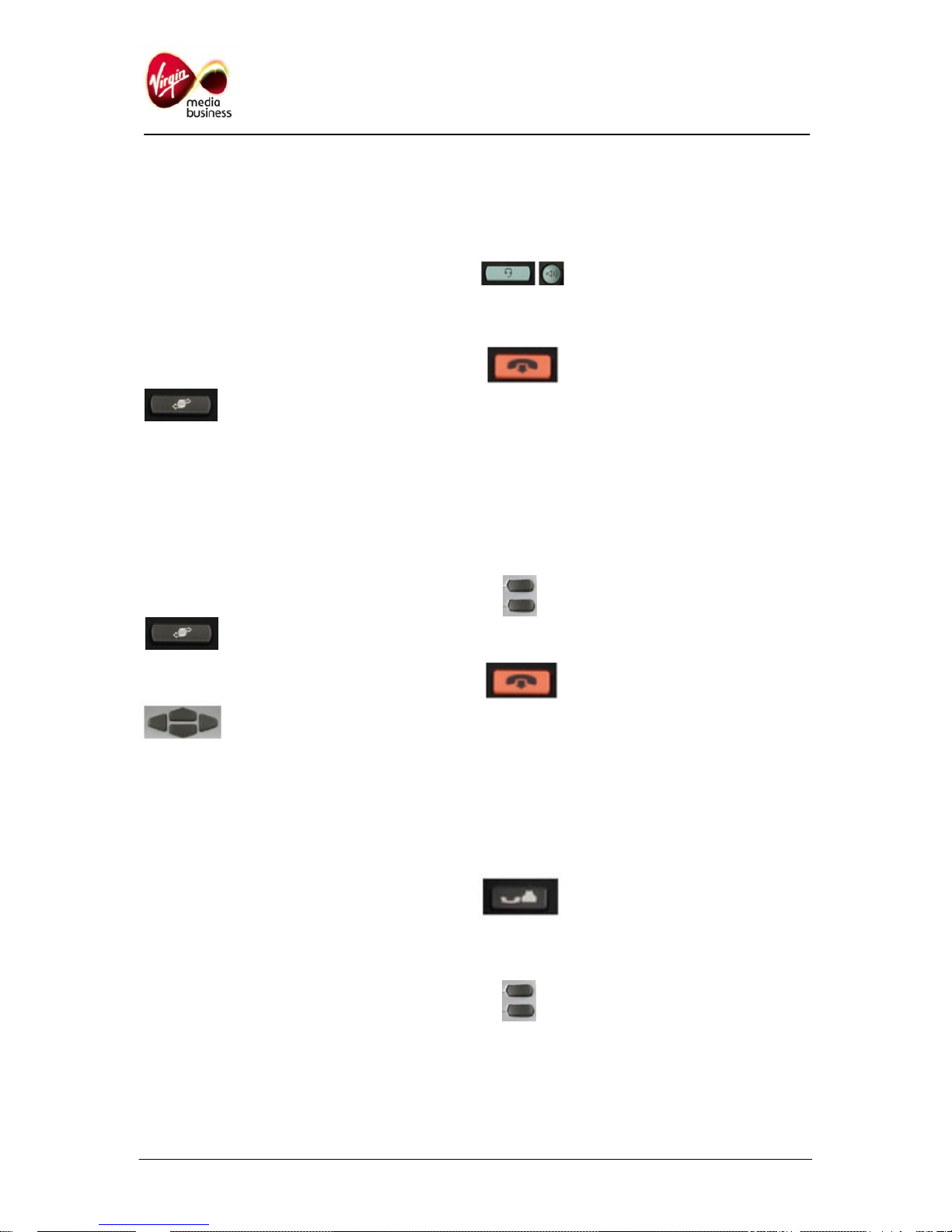
• Press Service Key or Menu Soft
key
• Press OK and YES.
3. Changing your password
While a default password is supplied to you by
Virgin Media Business, it is recommended that
you change your password when initially
configuring your IP Phone. To change your
password:
• Press the Service key and scroll
down using the bottom Menu
Navigation keys until you reach
USER. Press OK
• Again using the Menu
Navigation keys scroll down until
you find PASSWORD. Press OK
• Enter your old password. Press OK
• Enter your new password. Press OK
• Re-enter password for verification
• Press OK – your password has been changed.
4. Making a call
In addition to lifting the handset users can use the
handsfree capability to place a call. To do this:
• Lift the handset or press the
Headset or Handsfree key
• Dial the number
• To terminate the call, replace
the handset or press the End
Call key.
Note: Users also may make calls using the
Incoming/ Outgoing Call Log keys.
5. Receiving a call
In addition to the handset ringing, your message
indicator lamp will flash* to notify you of an
incoming call. To pick up the call:
• Lift the handset or press the
flashing Line key
• To terminate the call, replace
the handset or press End Call
key.
* Missed calls will also activate the indicator lamp.
6. Placing a call on hold
Placing a received call on hold, allows users to
transfer the call, answer another incoming call or
to conference in a third party. To place a call on
hold:
• Press the Call Hold key
• Held party will hear music and the LCD
indicator will flash beside the held line.
• To retrieve a held call, press the
Line key beside the flashing
indicator.
IP Multimedia i2002 Phone User Guide Page 4 of 8
Page 5
7. Transferring a call
Whilst active on a call, users can use the transfer
feature to redirect the call to an appropriate
person or department.
To transfer a call:
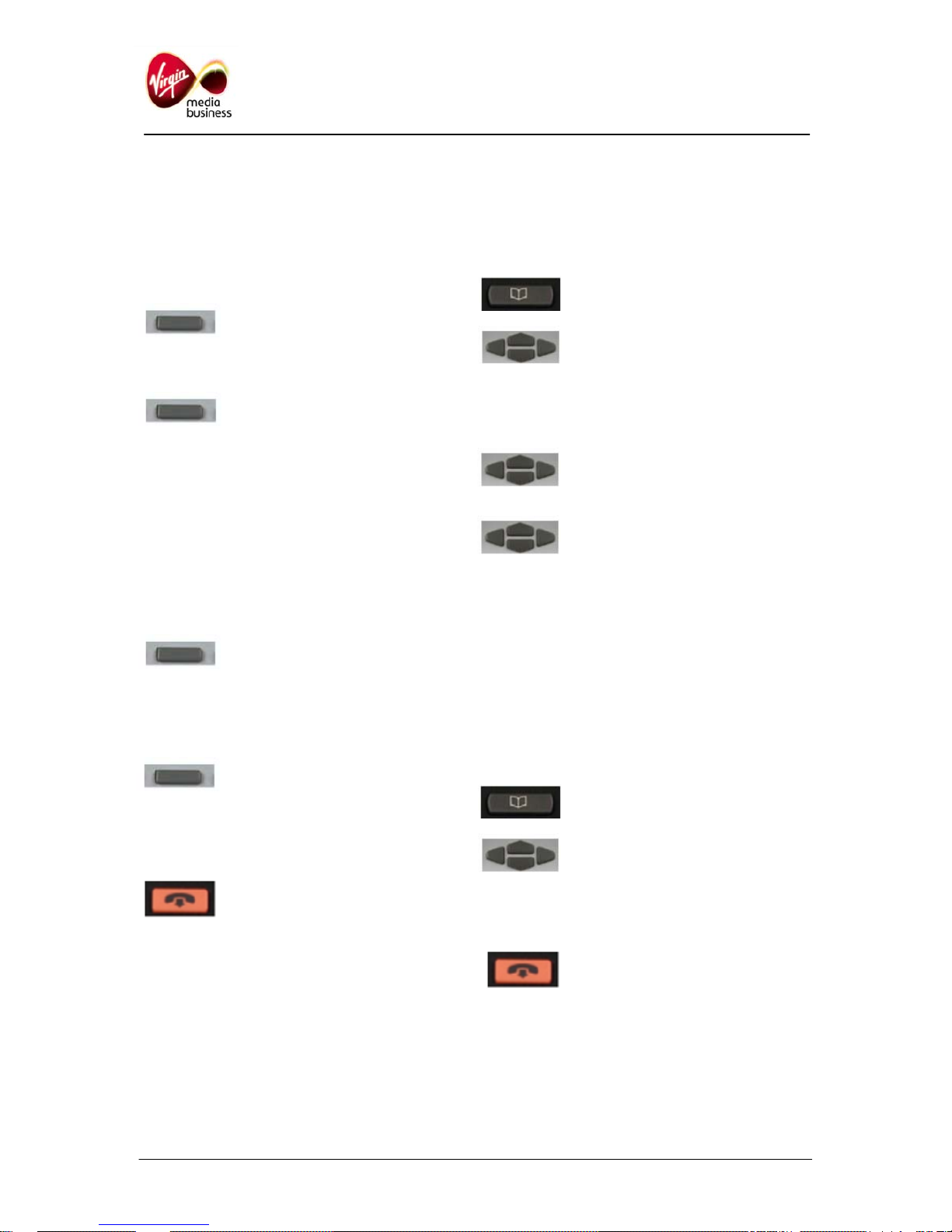
• Press the Transfer key
• Dial the number to where the call is to be
transferred to
• When the number being called
rings, press the Transfer key to
transfer the party, or you can
announce the call prior to
hanging up.
8. Making a conference call
Use the conference feature to set up a
conference call for up to six parties. The number
of parties the conference call feature supports will
depend on your system configuration. To place a
conference call:
• Whilst active on the first call,
press the Conference Call key.
The current call will be
automatically placed on hold
• Dial the number of the party you wish to add
• On answer, press the Conference
Call key to establish the
conference between the parties
• Repeat above steps to join any additional
parties to the conference
• To terminate the conference call,
simply press the End Call key, or
replace the handset.
9. Storing names in your directory
Users can store up to 16 names and numbers in
their IP Phone directory. To add a new name to
their directory:
• Press the Personal Directory
Service key. Press OK
• Using the Menu Navigation keys,
scroll down until you reach New
Entry. Press OK
• To add the number, press OK. Then enter the
number. Press OK.
• Using the Menu Navigation keys,
scroll down to SURNAME. Press
OK
• Using the alphanumeric key pad
and Menu Navigation keys, enter
the surname. Press OK
• Using the Menu Navigation keys, scroll down
to FIRST NAME. Press OK
• Enter the first name. Press OK.
• Scroll down to SAVE. Press OK.
10. Dialling names in your directory
To dial a number from your directory:
• Press the Personal Directory
Service key.
• Using the Menu Navigation keys,
scroll down to find the name and
number to dial
• To dial the number, press OK. Press OK
again
• Press the End Call key to
terminate the call.
IP Multimedia i2002 Phone User Guide Page 5 of 8
Page 6
11. Editing your directory
To edit a number in your directory:
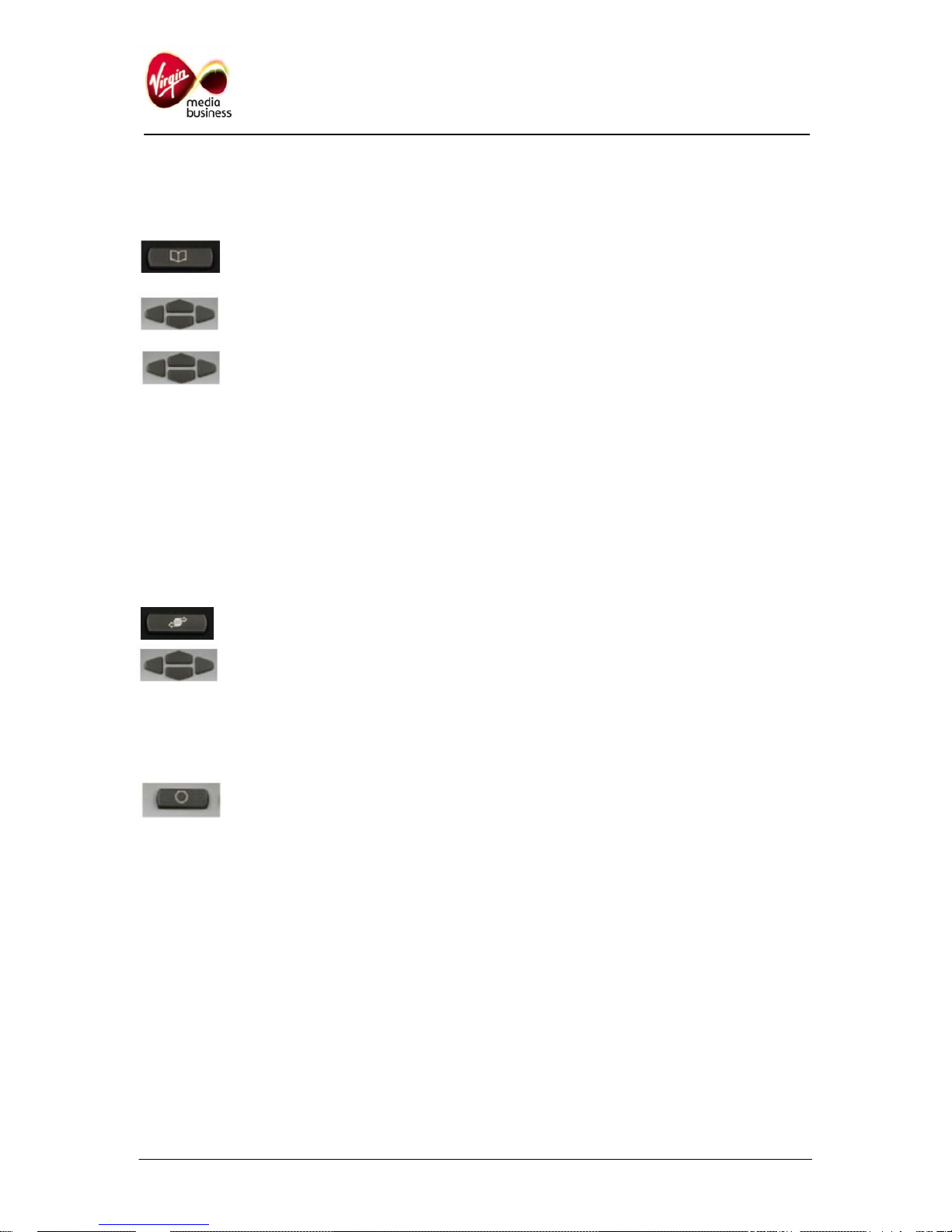
• Press the Personal Directory key
• Using the Menu Navigation keys,
scroll down to find the name and
number to edit. Press OK
• Use the Menu Navigation keys
again to scroll down to EDIT.
Press OK
• You will be prompted to edit the NUMBER,
SURNAME, FIRST NAME, and FEATURE
KEY FORMAT. Press OK.
12. Setting auto login
If there is a power failure, or the Local Area
Network (LAN) connection goes off, the phone
will be logged out. You can log back in manually
(see section 2), or you can set auto login:
• Press the Service or Menu key.
• Using the Menu Navigation keys
scroll down until you reach
USER. Press OK
• Scroll down to AUTO LOGIN. Press OK
• Scroll to ENABLED. Press OK.
Press the Quit key.
13. Leaving a message
Without logging into your own mailbox, dial:
08451 476245 (08451 IPMAIL), then enter the full
phone number of your colleague.
You can give this information to your caller so that
they can leave a message without disturbing you.
IP Multimedia i2002 Phone User Guide Page 6 of 8
Page 7
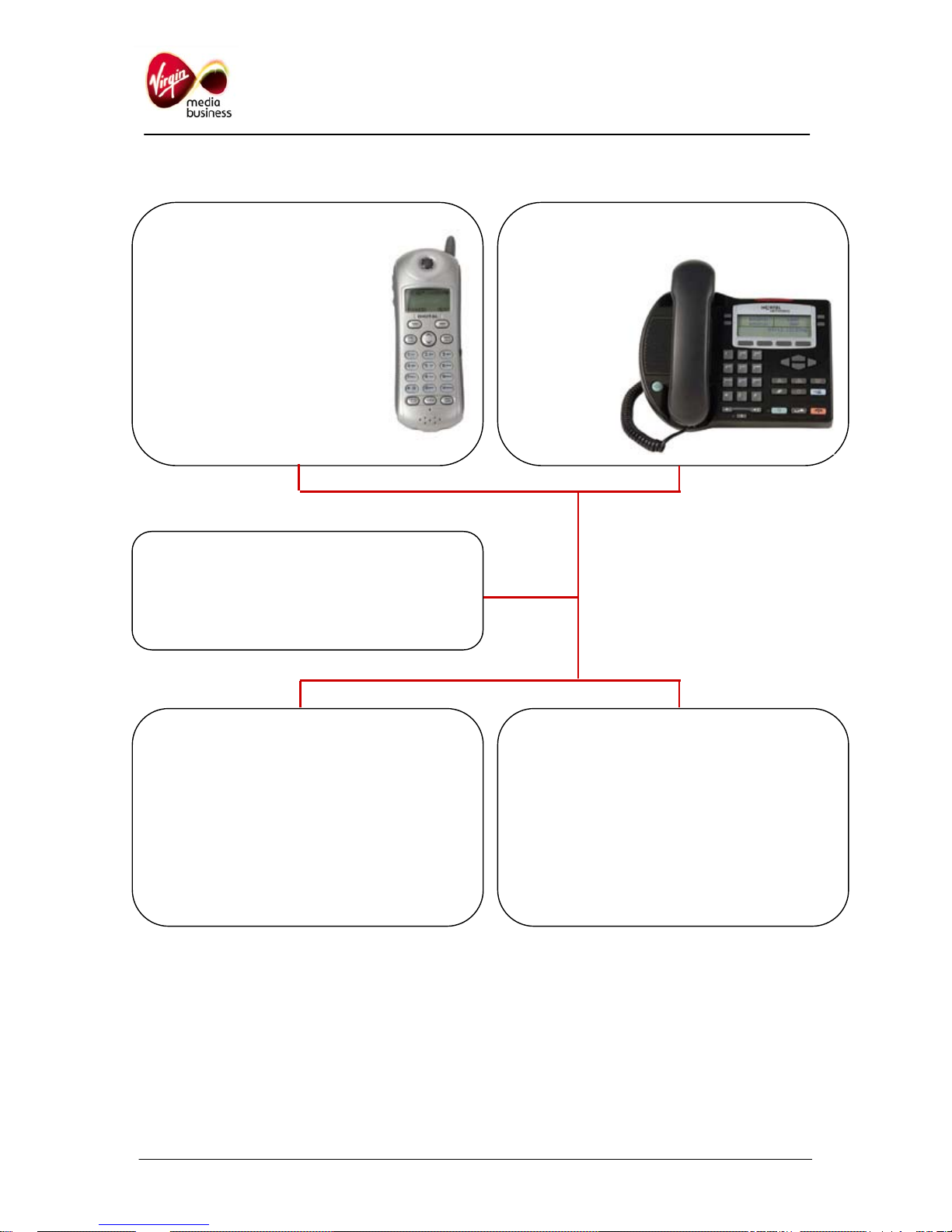
14. Setting up & accessing your voicemail
To check mailbox from a
Public Switched Telephone
Network (PSTN) phone
(e.g. mobile)
• Dial 08451 476647
• Authentication
- Enter your phone
number
- Enter your secret code
Voicemail can also be accessed via the web portal:
• Unified Messaging (enhanced voicemail) uses a centralised mailbox for voice messages.
Messages can be delivered to your email inbox, where they can be played, replied to, saved or
deleted.
• It is also possible to use a web portal to play voicemails, forward as emails, or change mailbox
settings by entering the following URL in your browser’s address bar http://213.48.252.228
Tutorial help message (if first call)
• Configure your new secret code
• Record your welcome message
Message information
– X number of new messages
– Y number of archived messages
– Z number of missed calls
• To delete this message, press 2
• To listen again, press 3
• To transfer this message, press 6
To check mailbox from
an IP Multimedia
phone
• Dial 91571
Main menu
• To listen to saved messages, press 1
• To modify welcome messages, press 2
• To configure personal options, press 3
• To record / forward voice message, press 4
• For more mailbox information, press 0
Hang up to log out.
IP Multimedia i2002 Phone User Guide Page 7 of 8
Page 8

To find out more call 0800 052 0845
or visit www.virginmediabusiness.co.uk
We’ve worked hard to ensure that the information in this document is correct and fairly stated. We can’t, however, accept liability
for any error or omission. Our products and services are under continuous development, so the information published here may
not be up to date. It’s important that you check the current position with your local Virgin Media Business office. This document
is not part of a contract or licence unless expressly agreed in writing. Virgin Media Business, Media House, Bartley Wood
Business Park, Hook, Hampshire, RG27 9UP
IP Multimedia i2002 Phone User Guide Page 8 of 8
 Loading...