

Page 1
4K 2-in-1 Document Camera
VS13AI
Built-in AI Noise Reduction Technology
Page 2
Instructions
Thank you for purchasing the VIISAN product. The VS13AI is a 4K 2-in-1 document
camera with an AI Noise Reduction Technology for distance learning and live
demonstration.This quick start guide briefly describes the steps to start using this
document camera. If you have any technical or service questions about the products,
please E-mail our customer service using [email protected] then we will provide you
with service and support.
Page 3

Specifications
Image Sensor
F/NO (Infinite)
G-Sensor
AI Noise Reduction Technology
Output Resolution / FPS
Digital Zoom
Max. Shooting Area
Video Compression
Focus
Image Rotation
Min. Focus distance
Support Power Line Frequency
Microphone Sensitivity
Interface
Powered by
Support Operating System
Dimensions
Net Weight
13 Megapixel 1/3" CMOS
F2.2 ± 5%
Built-in
Noise reduction and voice enhancement technology
MJPEG:
3840x2880@15fps, 3840x2160@30fps,
3264x2448@30fps, 2592x1944@30fps,
2048x1536@30fps, 1920x1080@60fps,
1600x1200@60fps, 1280x720@60fps,
1024x768@60fps, 960x540@60fps,
640x480@60fps, 640x360@60fps
YUY2:
1280x720@10fps, 1024x768@10fps,
960x540@15fps , 640x480@30fps, 640x360@30fps
10x by Software
440 x 330mm (at output 2048x1536)
MJPG, YUY2
Auto
0° / 180° / AUTO
10 cm
50 / 60 Hz
94dB SPL@1KHz Min-29 Tye-26 Max-23 dBFS
SNR 64dB
USB Type-C
USB 2.0 5V/500mA
Windows® 11, 10, Windows 8, Windows 7
macOS 10.15 or later
Extended: 397(L) x 51(W) x 351(H) mm
Closed: 197 (L) x 51(W) x 20(H) mm
409g
Page 4
Unpacking
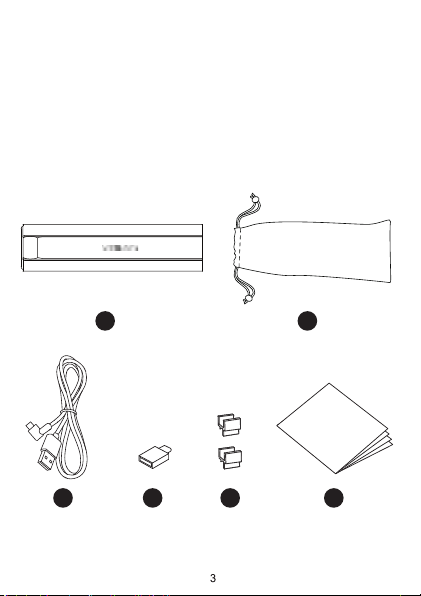
Before using, make sure the following items are included in the package.
If anything is missing, contact the retailer where you purchased the
product.
1. VS13AI Document Camera
2. Carry Bag
3. USB Cable
4. USB C to A Adapter
5. Cable Clip x 2
6. Quick Start Guide
1 2
3 4
5 6
Page 5
Parts Descriptions
1
3
5 6
2
10
11
12
13
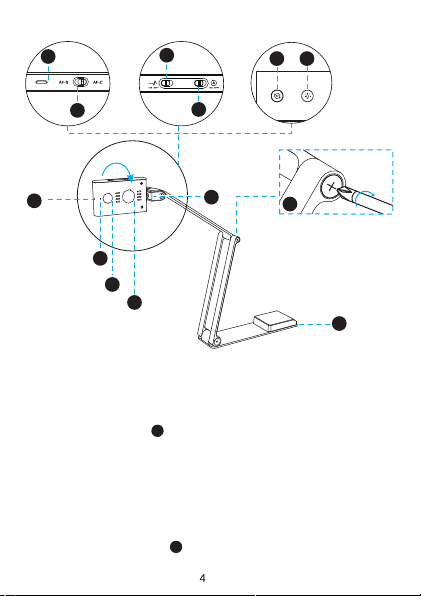
1. USB Type-C Port
2. AF-S/AF-C Switch
Switch the slider to change the focus mode
to Auto Focus-Single (AF-S) or
Auto Focus-Continuous (AF-C)
*When AF-C is enabled, the focus
function is disabled.
3. AI Noise Reduction ON/OFF
Switch the slider to enable or disable
AI Noise Reduction.
4. Auto Rotate ON/OFF
Switch the slider to turn on / off the G-sensor
to enable or disable automatic rotation.
*When G-sensor is enabled, the rotate
function is disabled.
4
7
5
5
Tighten
8
Tighten loose joints by
turning bolts at connecting
joints clockwise with a
screwdriver.
9
5. Auto Focus/Rotate Button
Press once: Auto Focus
Press and hold: Flip Image 0°/180°
6. LED Touch Button
Press to turn on the LED light
(3-level brightness control)
7. Flip Camera Head 0° / 180°
8. Bolts
9. Base Plate
10. LED Indicator
11. Built-in Microphone
12. Camera lens
13. LED Light
Page 6
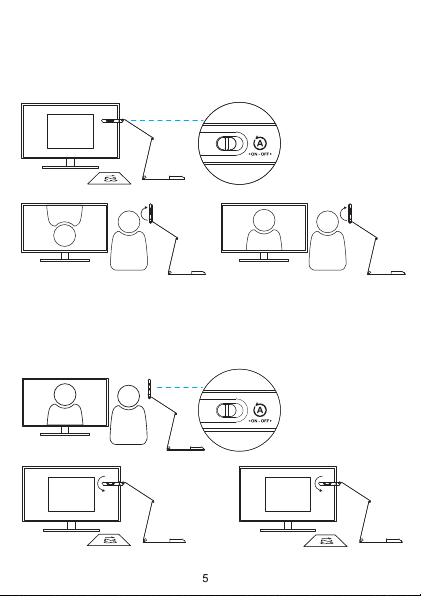
Auto Rotate ON/OFF
Scenario1.
If a user shows a document at the beginning, the G-Sesnor will
automatically flip the live image when the user rotates the camera head
to show the face.
123
Auto Rotate off Auto Rotate on
Scenario 2.
If a user shows the face at the beginning, the G-Sensor will
automatically flip the live image when the user rotates the camera head
to show a document.
123
Auto Rotate off Auto Rotate on
123
Page 7
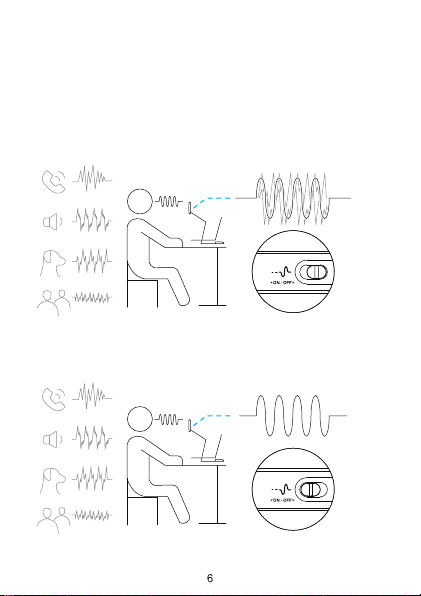
AI Noise Reduction ON/OFF
The VS13AI offers highly effective in maintaining the natural sound of
the human voice while reducing noise with high accuracy, creating ideal
workspace wherever you are.
AI Noise Reduction off
Human voice with background noise
AI Noise Reduction on
Reduce the background noise
Page 8
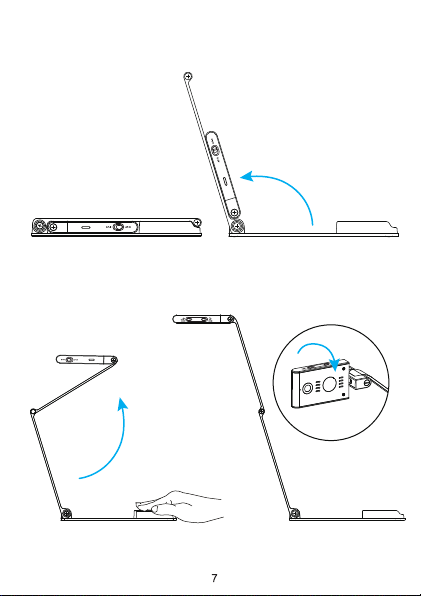
Getting Started 1
1. Lift the camera arm to extend the document camera.
Multi-jointed Arm
2. Press against the base plate of camera and pull it up then flip the
camera head.
Page 9
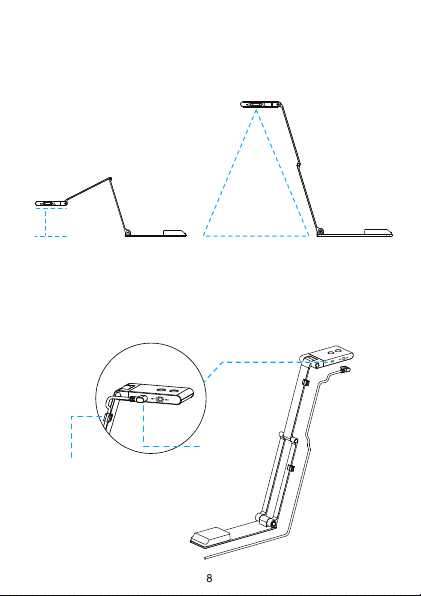
Getting Started 2
3. Adjust the arm to change the height and position for capturing
materials. Fully extend the camera arm to capture the maximum shooting
area to 440 x 330mm (at output 2048x1536).
Camera parallel to the surface
(Minimum shooting distance: 10cm)
10cm
4. Plug the supplied USB cable into the camera and connect the other
end into the computer's USB port (Windows and Mac).
5. Attach the cable clips to the camera arm to fix the USB cable.
Cable Clip
Max.
440 x 330mm
USB cable
Page 10
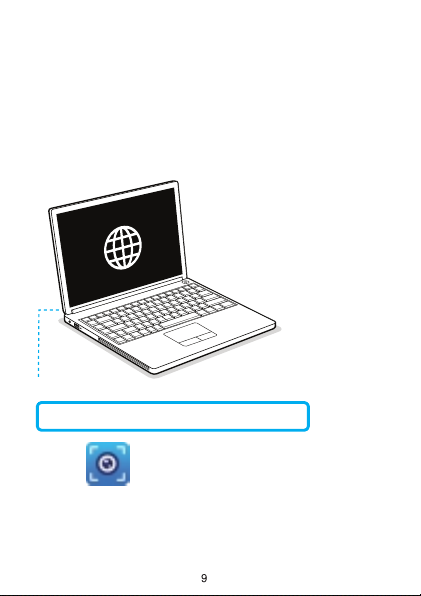
Software Download
Using the compatible software
The VS13AI is a standard UVC camera, you can use it with a variety of
software as long as they recognize the video source coming from a UVC
camera. For example, you can use it with third-party video conferencing
software like Zoom, Microsoft Teams, or Google Meet. However, to get
the full functionality of this 4K 2-in-1 document camera, we’d recommend
using it with VIISAN VisualCam software.You can download this free
software from VIISAN’s support center via the below link.
Download the compatible software & user manual at
https://www.viisan.com/en/download/index.html
VIISAN VisualCam
Page 11
Warranty Information
Model No.: VS13AI 4K 2-in-1 Document Camera
07/30/2024 v1.2
Page 12
EN V1.2
 Loading...