

Page 1

VPD400/VPD500
Portable Media Player
- User Guide
- Bedienungsanleitung
3\ɤɨɜɨɞɫɬɜɨɩɨɥɶɡɨɜɚɬɟɥɹ
ĮġٺҢЙы
Model No.: VS12836
VS12835
Page 2
Compliance Information
FCC Statement
This device complies with part 15 of FCC Rules. Operation is subject to the following two conditions: (1)
this device may not cause harmful interference, and (2) this device must accept any interference received,
including interference that may cause undesired operation.
This equipment has been tested and found to comply with the limits for a Class B digital device, pursuant
to part 15 of the FCC Rules. These limits are designed to provide reasonable protection against harmful
interference in a residential installation. This equipment generates, uses, and can radiate radio frequency
energy, and if not installed and used in accordance with the instructions, may cause harmful interference
to radio communications. However, there is no guarantee that interference will not occur in a particular
installation. If this equipment does cause harmful interference to radio or television reception, which can be
determined by turning the equipment off and on, the user is encouraged to try to correct the interference by
one or more of the following measures:
• Reorient or relocate the receiving antenna.
• Increase the separation between the equipment and receiver.
• Connect the equipment into an outlet on a circuit different from that to which the receiver is
connected.
• Consult the dealer or an experienced radio/TV technician for help.
Warning: <RXDUHFDXWLRQHGWKDWFKDQJHVRUPRGL¿FDWLRQVQRWH[SUHVVO\DSSURYHGE\WKHSDUW\UHVSRQVLEOH
for compliance could void your authority to operate the equipment.
For Canada
• This Class B digital apparatus complies with Canadian ICES-003.
• Cet appareil numérique de la classe B est conforme à la norme NMB-003 du Canada.
CE Conformity for European Countries
The device complies with the EMC Directive 2004/108/EC and Low Voltage Directive 2006/95/EC.
Following information is only for EU-member states:
The mark is in compliance with the Waste Electrical and Electronic Equipment Directive 2002/96/
EC (WEEE).
The mark indicates the requirement NOT to dispose the equipment including any spent or discarded
batteries or accumulators as unsorted municipal waste, but use the return and collection systems
available.
If the batteries, accumulators and button cells included with this equipment, display the chemical
symbol Hg, Cd, or Pb, then it means that the battery has a heavy metal content of more than 0.0005%
Mercury or more than, 0.002% Cadmium, or more than 0.004% Lead.
i
ViewSonic VPD400/VPD500
Page 3

Declaration of RoHS Compliance
This product has been designed and manufactured in compliance with Directive 2002/95/
EC of the European Parliament and the Council on restriction of the use of certain
hazardous substances in electrical and electronic equipment (RoHS Directive) and is
deemed to comply with the maximum concentration values issued by the European
Technical Adaptation Committee (TAC) as shown below:
Substance
Lead (Pb) 0.1% < 0.1%
Mercury (Hg) 0.1% < 0.1%
Cadmium (Cd) 0.01% < 0.01%
Hexavalent Chromium (Cr6+) 0.1% < 0.1%
Polybrominated biphenyls (PBB) 0.1% < 0.1%
Polybrominated diphenyl ethers (PBDE) 0.1% < 0.1%
Certain components of products as stated above are exempted under the Annex of the
RoHS Directives as noted below:
Examples of exempted components are:
Proposed Maximum
Actual Concentration
Concentration
0HUFXU\LQFRPSDFWÀXRUHVFHQWODPSVQRWH[FHHGLQJPJSHUODPSDQGLQRWKHUODPSV
QRWVSHFL¿FDOO\PHQWLRQHGLQWKH$QQH[RI5R+6'LUHFWLYH
/HDGLQJODVVRIFDWKRGHUD\WXEHVHOHFWURQLFFRPSRQHQWVÀXRUHVFHQWWXEHVDQG
electronic ceramic parts (e.g. piezoelectronic devices).
3. Lead in high temperature type solders (i.e. lead-based alloys containing 85% by weight
or more lead).
4. Lead as an allotting element in steel containing up to 0.35% lead by weight, aluminium
containing up to 0.4% lead by weight and as a cooper alloy containing up to 4% lead by
weight.
ii
ViewSonic VPD400/VPD500
Page 4

Copyright Information
Copyright© ViewSonic Corporation, 2010. All rights reserved.
ViewSonic, the three birds logo, OnView, ViewMatch, and ViewMeter are registered
trademarks of ViewSonic Corporation.
Disclaimer:ViewSonic Corporation shall not be liable for technical or editorial errors or
omissions contained herein; nor for incidental or consequential damages resulting from
furnishing this material, or the performance or use of this product.
In the interest of continuing product improvement, ViewSonic Corporation reserves the right
WRFKDQJHSURGXFWVSHFL¿FDWLRQVZLWKRXWQRWLFH,QIRUPDWLRQLQWKLVGRFXPHQWPD\FKDQJH
without notice.
No part of this document may be copied, reproduced, or transmitted by any means, for any
purpose without prior written permission from ViewSonic Corporation.
For Your Records
Product Name:
Model Number:
Document Number:
Serial Number:
Purchase Date:
VPD400/VPD500
ViewSonic Portable Media Player
VS12836-1P/VS12835-1P
VPD400_VPD500_UG_ENG Rev. 1D 01-20-10
_____________________________________
_____________________________________
Product disposal at end of product life
ViewSonic is concerned about the preservation of our environment. Please dispose of
this product properly at the end of its useful life. Your local waste disposal company may
provide information about proper disposal.
iii
ViewSonic VPD400/VPD500
Page 5

Enjoy Life, Enjoy ViewSonic
Preface
Thank you for purchasing a ViewSonic Portable Media Player.
ViewSonic VPD400/VPD500 has a native 800 × 480 screen
resolution, 0.198mm/ 0.00779in hyperfine pitch. More than 16 million
true color display, 109mm/ 4.3 inches (VPD400) and 127mm/ 5.0 inches
(VPD500), 16∶9 large widescreen, supports component video output.
With infrared remote control, you are able to operate the players remotely
while viewing contents on external display. Both players support
multi-format videos such as MP3、WMA、WAV、APE、FLAC、ACC、
OGG etc.
To operate the player properly, please read the user guide.
1
ViewSonic VPD400/VPD500
Page 6

Enjoy Life, Enjoy ViewSonic
Content
♦ Controls overview …………………………………………………03
♦ Notes……………………………………………… ………………...06
♦ Basic operation…………………… ………………………………...08
♦ Listen to music…………… ……… …………………… …… ......10
♦ Playback video…… ……… ……… ……… ……………………...14
♦ Photos…………… …… ………… ……………………..18
♦ eBook…………………………………… … … … ………………20
♦ Recording…………………………………… …… ………...23
♦ Settings……………………………………………………………..25
♦ Use of USB and battery charging… ……………………………….31
♦ FAQ………………………………………………………………….32
2
ViewSonic VPD400/VPD500
Page 7
Enjoy Life, Enjoy ViewSonic
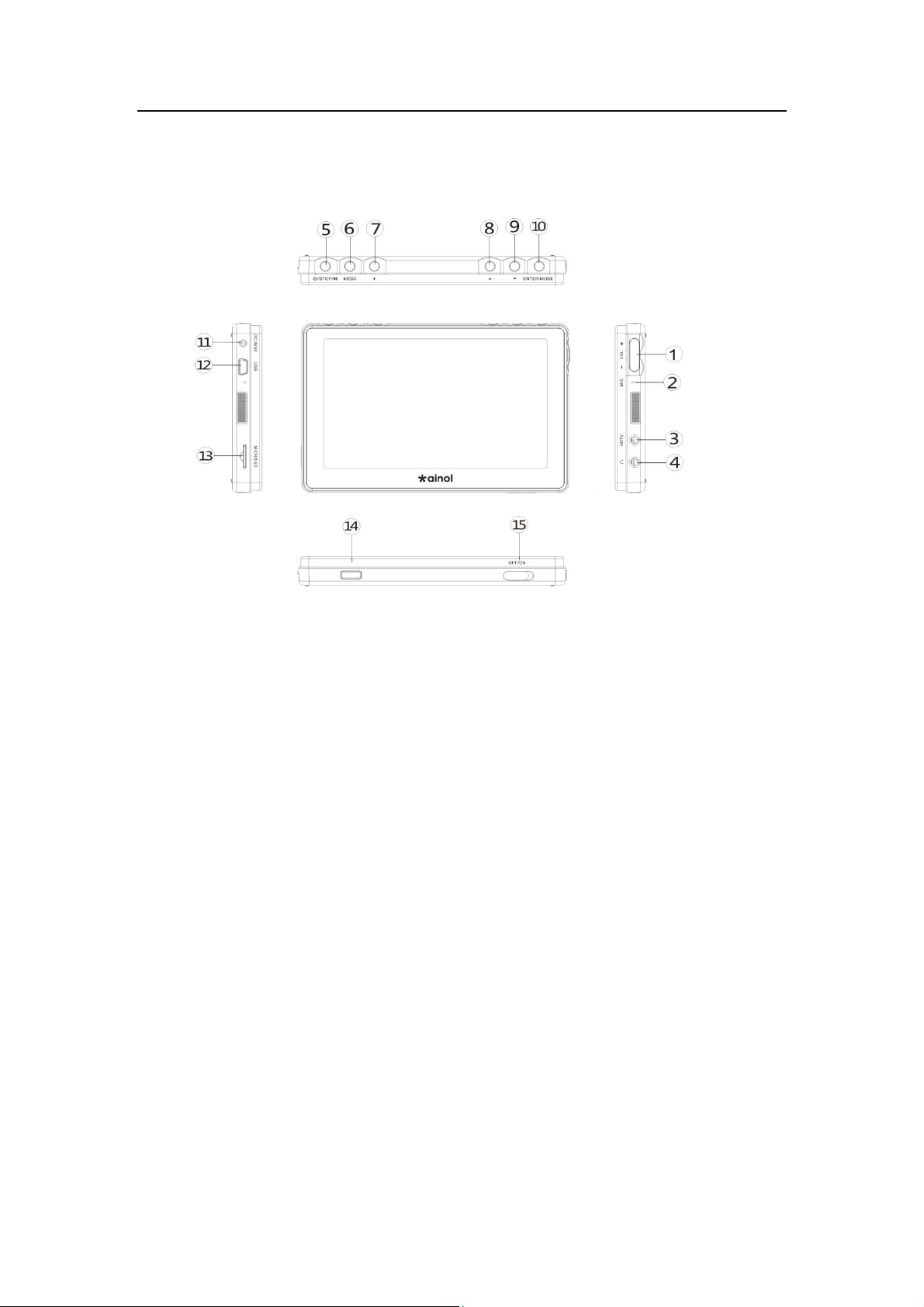
I. Controls Overview
1. Volume Up/Down
2. Built in Microphone
3. Video Output
4. Earphone jack
5. Play/Pause/Stop
3
ViewSonic VPD400/VPD500
Page 8

Enjoy Life, Enjoy ViewSonic
6. Navigation button (left), Escape, Rewind
7. Navigation button (right), Fast-forward
8. Navigation button (up), Previous
9. Navigation button (down), Next
10. Enter/Mode
11. DC socket (5V , 2A)
12. USB slave jack
13. Micro SD memory Card slot
14. Infrared receiver window
15. Power switch
4
ViewSonic VPD400/VPD500
Page 9

Enjoy Life, Enjoy ViewSonic
Product features
z 109mm/4.3inch or 127mm/5.0 inch, 16 million colors, TFT display
screen.
z Support real 720p HD video.
z Support subtitle display.
z Support HD TV-OUT video output.
z Support infrared remote control operation, fast and convenient.
z Support audio formats including MP3, WMA, WAV, APE and
FLAC, AAC, OGG.
z Support Micro SD cards with 128MB/4GB/8GB memory sizes.
z Support multi-format HD videos such as MPEG, AVI(DIVX,XVID),
RM, RMVB , DAT, VOB, MP4, H.264, etc.
z Support picture viewing in JPEG, BMP, PNG, GIF, and TIF.
z Build-in microphone for recording.
z Power saving and Auto Off can be adjusted to prolong battery life.
z Support WIN 2000, WIN XP and VISTA.
z USB 2.0 high rate transmission.
z Support eBook reader (.TXT file format) and bookmark.
z Support firmware upgrade.
z Support multi-function, you can listen to the music while reading the
eBook.
5
ViewSonic VPD400/VPD500
Page 10

Enjoy Life, Enjoy ViewSonic
II. Note
This manual contains important safety information. In order to avoid
damage and injury, please read the manual carefully before operating the unit.
z Never use this player in a very cold, hot, dusty and moist
environment.
z Avoid dropping and hitting with hard objects. Do not place the
player on any severe vibration surface.
z Battery life will vary dependent on usage conditions.
z Please charge the battery in time if any of the following conditions occurs:
A. The battery icon is empty.
B. The player turns itself off automatically and again shortly
after being turned on or could not be turned on
C. There is no response when pressing on the buttons.
z During formatting, uploading or downloading files, do not disconnect
any cable. Do not disassemble the player; otherwise, the warranty
will be void.
z The player system files reside in the internal memory.
z There might be some discrepancies when reporting available storage
memory while the player is connected to a computer.
z Always scan the local memory for computer virus before attempting
any firmware update or reformat the local memory.
z The player power switch must be set to the ON position when charging
the unit.
6
ViewSonic VPD400/VPD500
Page 11
Enjoy Life, Enjoy ViewSonic
III. Basic operations
Power on and power off ———————————————————
Power on: Slide the ON/OF F button to the ON position, press and hold the
button for a few seconds until the boot screen appears.
Power off: press and hold the
button for a few seconds until the
screen is off.
Main menu ———————————————————
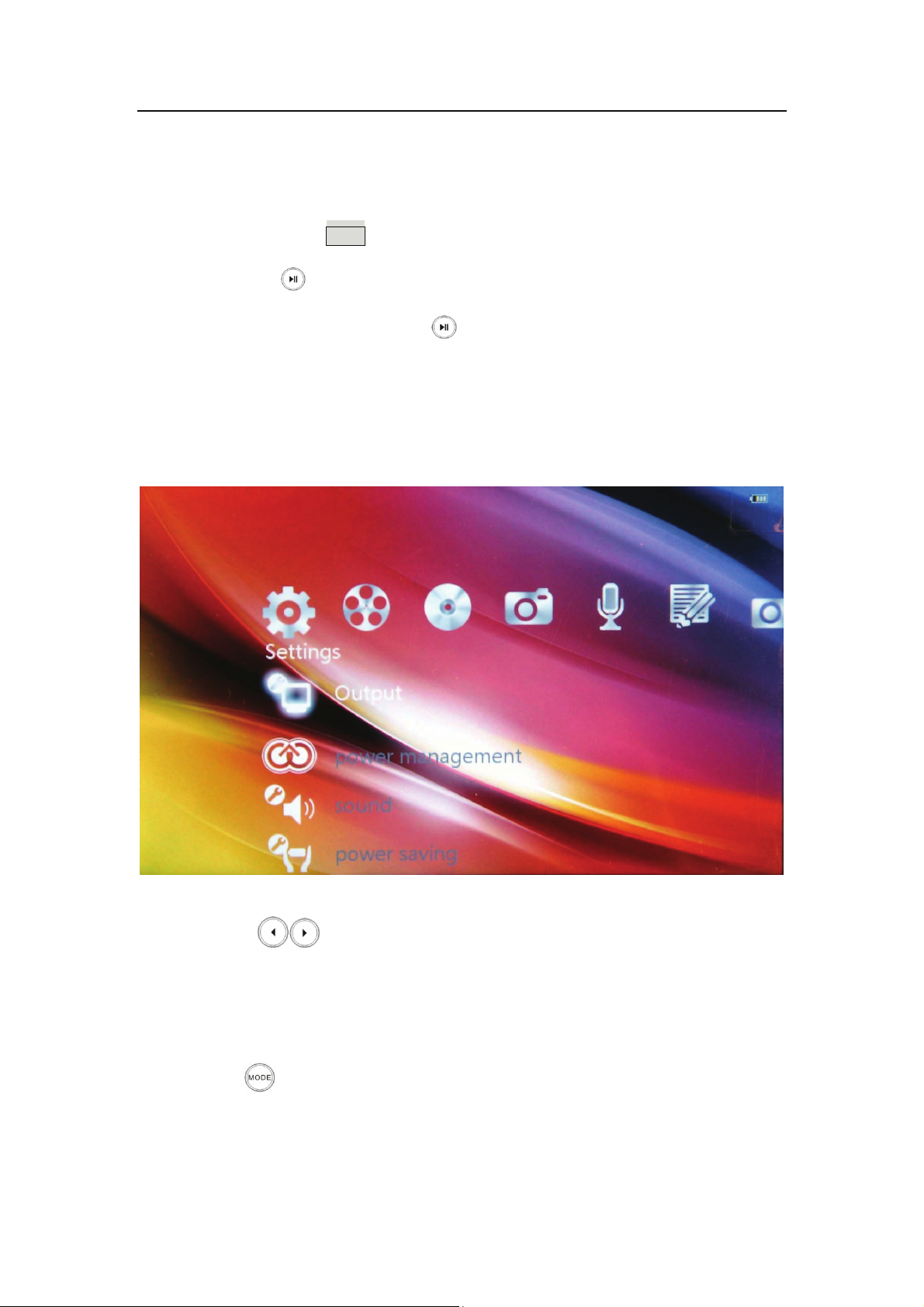
Press the button to select settings, video, music, photo, audio
1.
recording, or eBook media type. Use the Up/Down button to
highlight your media source.
2. Press the button to select the highlighted media source.
7
ViewSonic VPD400/VPD500
Page 12
Enjoy Life, Enjoy ViewSonic
Menu Navigation———————————————————
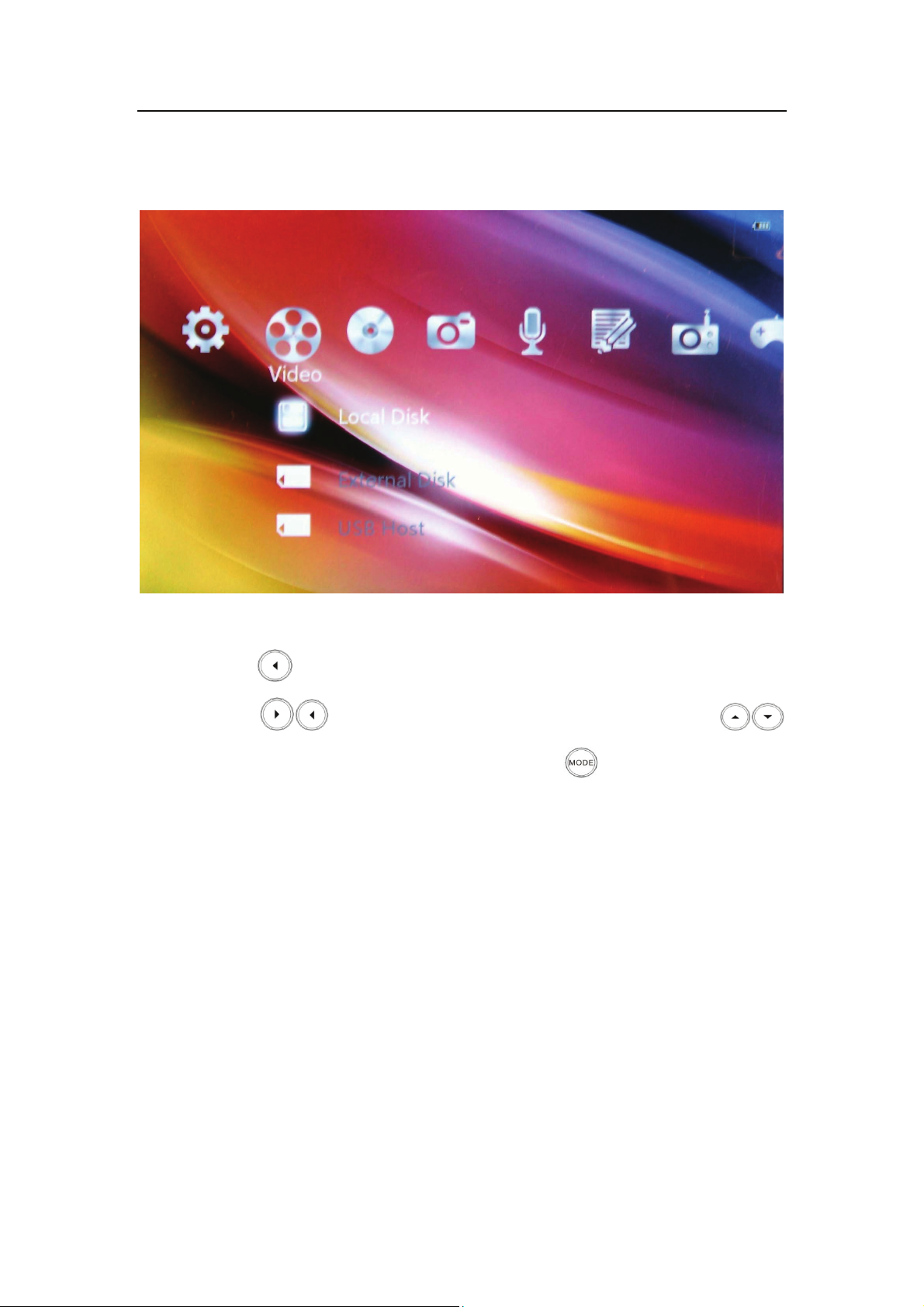
1、 Press the button to return to the upper menu.
2、 Press the button to select the media type. Press the
button to move up and down, press the
button to enter the
selected function.
8
ViewSonic VPD400/VPD500
Page 13

Enjoy Life, Enjoy ViewSonic
IV. Listen to music
On the main menu, press the
button to select the “Music” icon.
Use the Up/Down button to highlight your media source,then press
button to select the highlighted media source.
The total number of songs inside the music folder is listed inside a
parenthesis as shown. Scroll down to the “music” folder and press on
the Mode button to select. Press Enter button again to playback the
song.
9
ViewSonic VPD400/VPD500
Page 14

Enjoy Life, Enjoy ViewSonic
1、 During music playback, press
2、 During music playback, press and hold
to pause/stop/play.
buttons to fast
forward or rewind the song.
3、 During music playback, press
4、 During music playback, press the
to adjust volume.
buttons to return to the
previous/next song.
5、 The artist, title, format, duration, quality rating, and current song
number playing is shown.
● Music Sub-Menu ———————————————————
During music playback, press
button to enter music setting menu.
Available settings are: playback mode, playback speed, listening mode,
show lyrics, file information, rating set, power information, and LCD
brightness. Playback modes: only once, repeat one, repeat all, sequence,
random.
10
ViewSonic VPD400/VPD500
Page 15

Enjoy Life, Enjoy ViewSonic
Playback speeds: very slow, slow, normal, fast, very fast.
Listening modes: natural, pop, classical, jazz, rock, soft, and dynamic
bass boost.
Show lyrics: The lyric and the song filenames must be the same. Press
button on "Show Lyrics" and the lyrics are shown.
11
ViewSonic VPD400/VPD500
Page 16

Enjoy Life, Enjoy ViewSonic
Quality rating: The quality of the song is rated with stars. A song with
five stars rating has the best quality.
12
ViewSonic VPD400/VPD500
Page 17

Enjoy Life, Enjoy ViewSonic
V. Playback video
On the main menu, select the "Video" icon. Use the Up/Down button to
highlight your media source and press the Enter button to select the video
media source.
Video —————————————————————
On the video list, press
buttons to browse files. The total number
of video files inside the movie folder is listed inside a parenthesis as
shown. Scroll to the "movie" folder and, then press
button to select
the movie folder. Press Enter again to playback the selected video file.
13
ViewSonic VPD400/VPD500
Page 18

Enjoy Life, Enjoy ViewSonic
1. During video playback, press
2. During video playback, press
to pause/stop/play.
buttons to fast forward or rewind
the video.
3. During video playback, press
4. During video playback, press the
to adjust volume.
buttons to return to the
previous/next video.
5. During video playback, press
to return to upper menu.
Continue to play at breakpoint ———————————————
If you want to continue to view a video from a previous breakpoint,
please select a video file and press the Enter button. On the breakpoint
dialogue box, select "Yes" and press on the Enter button to playback from
the previous position that was last exit. The default is "Yes" if you do not
14
ViewSonic VPD400/VPD500
Page 19

Enjoy Life, Enjoy ViewSonic
answer within the specified time. If you choose "No", the playback will
start from the beginning.
Video sub-menu ———————————————
Press
button on the video pop-up menu, the video sub-menu has the
following: Playback options, zoom, file information, power information,
video enhancement, show subtitle, subtitle list, an LCD brightness.
1: Playback options are: only once, repeat one, repeat all, sequence,
random.
2: zoom options: full-screen (maintain aspect ratio), full-screen (stretch),
original size.
3: File Information: file name, file size, file format, encode format, frame
rate, sample rate, and resolution.
15
ViewSonic VPD400/VPD500
Page 20

Enjoy Life, Enjoy ViewSonic
● Show subtitle
The VPD400/VPD500 supports AVI subtitle format SRT and SUB. The
subtitle and video filenames must be the same.
16
ViewSonic VPD400/VPD500
Page 21

Enjoy Life, Enjoy ViewSonic
VI. Photos
On the main menu, select the "Photo" icon as shown.
1. Press
button to select local disk. Press
list or folders, press
buttons to highlight local disk, and press the Enter/Mode
to scroll through the picture
button to preview the photo. Press the
Play/Pause/Stop button to view full screen. While in full screen
mode, press Play/Pause/Stop button again to start slide show.
17
ViewSonic VPD400/VPD500
Page 22

Enjoy Life, Enjoy ViewSonic
2. In full screen viewing mode, press button to enter a sub-menu.
Photo sub-menu options: interval, transition effects, sequence, image
information, and set wallpaper.
(1) Interval: There are 4 intervals for the slide show: 1 second, 3
seconds, 5 seconds, 10 seconds.
(2) Transition effects: There are over 16 transition effects to choose.
(3) Sequence : sequence, reverse, random
(4) Image information: file name, file size, resolution, format, color depth,
aperture, and shutter.
18
ViewSonic VPD400/VPD500
Page 23

Enjoy Life, Enjoy ViewSonic
VII. eBook
On the main menu, highlight the "eBook" icon.
On the eBook menu, press
source, press
button to select your eBook media source. Use the
to scroll and highlight your media
Up/Down button to highlight your eBook file or folder and press the
Enter button to select the file or folder. Press Enter button again to read.
19
ViewSonic VPD400/VPD500
Page 24

Enjoy Life, Enjoy ViewSonic
The eBook browsing screen is shown, press to move up / down
the page, press
setting menu, press
button to enter the eBook setting menu. On the
keys to set add bookmark, open bookmark,
font size, font color, text scroll, and rotate. Press on the Enter button to
select the highlighted sub-menu setting. Press the
button to exit the
sub-menu setting.
To Continue to read ———————————
After opening the eBook file for browsing, a continue-to-read selection
dialogue box pop up when the previous browsing has not reached the last
Select "Yes" and press the Enter button to continue where you
page.
left off or select "No" and the browser automatically skips to the last
page.
Bookmark setting ———————————————————
On the eBook setting menu, select "add bookmark" and press
button
to enter the bookmark sub-menu. There are five bookmark settings;
selecting your setting and press
button to save the bookmark.
Access bookmark ————————————————
On the eBook setting menu, select "open bookmark", press
button to
read the saved bookmark selection. Select your saved bookmark with
the Up/Down button and press the Enter button to open. Press the Esc
button twice to return to the eBook browser.
Font size ————————————————————
20
ViewSonic VPD400/VPD500
Page 25

Enjoy Life, Enjoy ViewSonic
On the eBook setting menu, select "font size", press key to set font
size. Use the Up/Down button to highlight the font size and press the
Enter button to select.
Font color ————————————————————
On the eBook setting menu, select "font color", press
button to set
font color. The available fonts are black, blue, green, red, and white.
Use the Up/Down button to highlight the font color and press the Enter
button to select.
Notes
The player only support TXT version of "ANSI" encoding. Other text
®
file encoding must be converted to "ANSI" format. Windows
Notepad
can be used for the conversion. Click on the File / Save As, select
Encoding: "ANSI", preserve file type as: "Text documents (*. txt)", and
save, then transfer the file to the player.
21
ViewSonic VPD400/VPD500
Page 26

Enjoy Life, Enjoy ViewSonic
VIII. Recording
On the main menu, select the record icon and press the Enter button to
select the recording media type.
On the recording sub-menu, press
to select “go record”, press
button to start the recording, press Play/Pause/Stop button to pause the
recording, press
button twice to quit.
The recording menu is shown. The recorded audio file is saved as an
22
ViewSonic VPD400/VPD500
Page 27

Enjoy Life, Enjoy ViewSonic
mp3 file. To playback the recorded audio file, select “play back” on the
record sub-menu, then press Enter to select the audio file and press Enter
again to playback the recorded audio file.
23
ViewSonic VPD400/VPD500
Page 28

Enjoy Life, Enjoy ViewSonic
XI. Settings
Settings menu has the following options:
1: Output
2: System Information
3: Power Management
4: Language setting
5: Sound
6: power saving
7: Auto off
8: Shows
9: Restore factory setting
On the main menu, select the "Settings" icon. Use the Up/Down
button to highlight the setting and press the Enter button to select the
setting.
24
ViewSonic VPD400/VPD500
Page 29

Enjoy Life, Enjoy ViewSonic
System information
The software version, total disk capacity, and free disk space are shown
on the System Information screen.
Power Management
The battery status and charging status are shown on Power Management.
25
ViewSonic VPD400/VPD500
Page 30

Enjoy Life, Enjoy ViewSonic
Language
The following On Screen Display languages are available: English, Czech,
German, Spanish, Swedish, Italian, Polish, French, Portuguese, Danish,
Finnish, Norwegian, and Traditional Chinese.
Sound
The navigation button sound can either turn on or turn off on the Sound
setting screen.
26
ViewSonic VPD400/VPD500
Page 31

Enjoy Life, Enjoy ViewSonic
Power saving
LCD backlight brightness and off screen timer can be adjusted on the
Power saving screen.
Backlight brightness: Level 5 is at the maximum
brightness.
Off Screen Timer: There are four timer intervals to turn off the display
screen that can be adjusted to save power.
27
ViewSonic VPD400/VPD500
Page 32

Enjoy Life, Enjoy ViewSonic
Off screen timer: There are seven timer intervals that can be selected.
Output
The VPD400/VPD500 image can be viewed locally or output to an
external display.
Output options: Local display or external display. External output is
for external viewing. When the output option is set to External, the
player screen is turn off.
28
ViewSonic VPD400/VPD500
Page 33

Enjoy Life, Enjoy ViewSonic
External Display Signal Format: There are four signal formats available.
Composite signal output: General AV lowest quality
Component output: Interlaced SD 480i
Component output: Progressive SD 480p
High-definition component output: 720p best quality
● Restore factory settings
This option will restore all factory settings. All user-defined values
will be erased.
29
ViewSonic VPD400/VPD500
Page 34

Enjoy Life, Enjoy ViewSonic
XII. Use of USB and battery charging
There is no need to slide the power switch to the ON position when
connecting a USB cable to the player for file transfer.
The VPD400/VPD500 battery can be charged with an AC adapter or
connect to the USB on the computer. The power switch must be set to the
ON position when charging the unit. However, the player does not have
to be powered on.
Five hours are required for a full charge. It is recommended that you
charge the player eight hours before the initial use for best battery
performance.
30
ViewSonic VPD400/VPD500
Page 35

Enjoy Life, Enjoy ViewSonic
XIII. FAQ
● The player could not be power on ------------------
Check if the battery icon is empty.
Check it again after connecting the power adapter.
If you still cannot power on after charging, please contact your reseller.
● No sound when playing.--------------------
Please check if the volume is set to 0.
Please check if the earphone is connected. The player will not output
sound to its speakers when the earphone is connected to the unit.
● Irregular noise during music playback---------------------------
Please check whether the earphone plug is clean; dirt can lead to
noise. Check if the music file is corrupted. Try another music file. If
the file has been damaged, it will lead to irregular tone.
● Garble screen---------------------------
Please check whether it was set to the correct language option.
● The file can not be downloaded--------------------------
Check the connection between the computer and the player.
Check whether the memory is full.
Check whether there is any damage on the USB cable. Try the file
transfer on another computer.
31
ViewSonic VPD400/VPD500
Page 36

Customer Support
For technical support or product service, see the table below or contact your reseller.
Note: You will need the product serial number.
Country/
Region
Web Site Telephone Email
Australia/New
Zealand
Canada www.viewsonic.com
Europe www.viewsoniceurope.com www.viewsoniceurope.com/uk/Support/Calldesk.htm
Hong Kong www.hk.viewsonic.com T= 852 3102 2900 service@hk.viewsonic.com
India www.in.viewsonic.com T= 1800 11 9999 service@in.viewsonic.com
Ireland (Eire)
Korea www.kr.viewsonic.com T= 080 333 2131 service@kr.viewsonic.com
Latin America
(Argentina)
Latin America
(Chile)
Latin America
(Columbia)
Latin America
(Mexico)
www.viewsonic.com.au
www.viewsoniceurope.
com/uk/
www.viewsonic.com/la/ T= 0800 666 0194 soporte@viewsonic.com
www.viewsonic.com/la/ T= 800 440 303 soporte@viewsonic.com
www.viewsonic.com/la/ T= 01 800 915 6588 soporte@viewsonic.com
www.viewsonic.com/la/ T= 001 800 514 6518 soporte@viewsonic.com
AUS= 1800 880 818
NZ= 0800 008 822
T (Toll-Free)= 1-866-463-4775
T (Toll)= 1-424-233-2533
F= 1-909-468-1202”
www.viewsoniceurope.com/
uk/support/call-desk/
service@au.viewsonic.com
service.ca@viewsonic.com
service_ie@
viewsoniceurope.com
Renta y Datos, 29 SUR 721, COL. LA PAZ, 72160 PUEBLA, PUE. Tel: 01.222.891.55.77 CON 10 LINEAS
Electroser, Av Reforma No. 403Gx39 y 41, 97000 Mérida, Yucatán. Tel: 01.999.925.19.16
Other places please refer to http://www.viewsonic.com/la/soporte/index.htm#Mexico
Latin America
(Peru)
Macau www.hk.viewsonic.com T= 853 2870 0303 service@hk.viewsonic.com
Middle East ap.viewsonic.com/me/ Contact your reseller service@ap.viewsonic.com
Puerto Rico &
Virgin Islands
Singapore/
Malaysia/
Thailand
South Africa ap.viewsonic.com/za/ Contact your reseller service@ap.viewsonic.com
United Kingdom
United States www.viewsonic.com
www.viewsonic.com/la/ T= 0800 53458 soporte@viewsonic.com
T= 1-800-688-6688 (English)
www.viewsonic.com
www.viewsonic.com.sg T= 65 6461 6044 service@sg.viewsonic.com
www.viewsoniceurope.
com/uk/
T= 1-866-379-1304 (Spanish)
F= 1-909-468-1202”
www.viewsoniceurope.com/
uk/support/call-desk/
T (Toll-Free)= 1-800-688-6688
T (Toll)= 1-424-233-2530
F= 1-909-468-1202”
service.us@viewsonic.com
soporte@viewsonic.com”
service_gb@
viewsoniceurope.com
service.us@viewsonic.com
Page 37

Limited Warranty
ViewSonic Portable Media Player
What the warranty covers:
ViewSonic warrants its products to be free from defects in material and workmanship, under normal
use, during the warranty period. If a product proves to be defective in material or workmanship during
the warranty period, ViewSonic will, at its sole option, repair or replace the product with a like product.
Replacement product or parts may include remanufactured or refurbished parts or components.
How long the warranty is effective:
9LHZ6RQLF3RUWDEOH0HGLD3OD\HUDUHZDUUDQWHGIRU\HDUIRUODERUIURPWKHGDWHRIWKH¿UVWFXVWRPHU
purchase.
Who the warranty protects:
7KLVZDUUDQW\LVYDOLGRQO\IRUWKH¿UVWFRQVXPHUSXUFKDVHU
What the warranty does not cover:
$Q\SURGXFWRQZKLFKWKHVHULDOQXPEHUKDVEHHQGHIDFHGPRGL¿HGRUUHPRYHG
2. Damage, deterioration or malfunction resulting from:
D $FFLGHQWPLVXVHQHJOHFW¿UHZDWHUOLJKWQLQJRURWKHUDFWVRIQDWXUHXQDXWKRUL]HGSURGXFW
PRGL¿FDWLRQRUIDLOXUHWRIROORZLQVWUXFWLRQVVXSSOLHGZLWKWKHSURGXFW
b. Repair or attempted repair by anyone not authorized by ViewSonic.
F &DXVHVH[WHUQDOWRWKHSURGXFWVXFKDVHOHFWULFSRZHUÀXFWXDWLRQVRUIDLOXUH
G 8VHRIVXSSOLHVRUSDUWVQRWPHHWLQJ9LHZ6RQLF¶VVSHFL¿FDWLRQV
e. Normal wear and tear.
f. Any other cause which does not relate to a product defect.
3. Any product exhibiting a condition commonly known as “image burn-in” which results when a static
image is displayed on the product for an extended period of time.
How to get service:
1. For information about receiving service under warranty, contact ViewSonic Customer Support (please
refer to Customer Support page). You will need to provide your product’s serial number.
2. To obtain warranted service, you will be required to provide (a) the original dated sales slip, (b) your
name, (c) your address, (d) a description of the problem, and (e) the serial number of the product.
3. Take or ship the product freight prepaid in the original container to an authorized ViewSonic service
center or ViewSonic.
4. For additional information or the name of the nearest ViewSonic service center, contact ViewSonic.
Limitation of implied warranties:
There are no warranties, express or implied, which extend beyond the description contained herein
LQFOXGLQJWKHLPSOLHGZDUUDQW\RIPHUFKDQWDELOLW\DQG¿WQHVVIRUDSDUWLFXODUSXUSRVH
Exclusion of damages:
ViewSonic’s liability is limited to the cost of repair or replacement of the product. ViewSonic shall not be
liable for:
1. Damage to other property caused by any defects in the product, damages based upon
LQFRQYHQLHQFHORVVRIXVHRIWKHSURGXFWORVVRIWLPHORVVRISUR¿WVORVVRIEXVLQHVVRSSRUWXQLW\
loss of goodwill, interference with business relationships, or other commercial loss, even if advised
of the possibility of such damages.
2. Any other damages, whether incidental, consequential or otherwise.
3. Any claim against the customer by any other party.
4.3: ViewSonic DMP Warranty DMP_LW01 Rev. 1A 06-25-09
Page 38

 Loading...