

Page 1
VG150/ ViewPanel
®
VG150B
With Plug and Play
User’s Guide
Guide de l’utilisateur
Bedienungsanleitung
(Latin American Spanish)
(Italian)
(Brazilian Portuguese)
(Swedish)
(Russian)
(Japanese)
(Traditional Chinese -Taiwan)
(Simplified Chinese - China)
(Korean)
Full 15.0" Diagonal Viewable Screen
Page 2
E
N
G
L
I
S
H
ViewSonic VG150/VG150B ViewPanel
®
1
Copyright © ViewSonic Corporation, 1999. All rights reserved.
Macintosh and Power Macintosh registered trademarks of Apple Computer, Inc.
Microsoft, Windows, Windows NT, and the Windows Logo are registered trademarks of
Microsoft Corporation in the United States and other countries.
ViewPanel®, ViewSonic, the three birds logo, OnView, ViewMatch, and ViewMeter are
registered trademarks of ViewSonic Corporation.
ENERGY STAR is a registered trademark of the U.S. Environmental Protection Agency (EPA).
VESA is a registered trademark of the Video Electronics Standards Association. DPMS and
DDC are trademarks of VESA.
Disclaimer: ViewSonic® Corporation shall not be liable for technical or editorial errors or
omissions contained herein; nor for incidental or consequential damages resulting from
furnishing this material, or the performance or use of this product.
In the interest of continuing product improvement, ViewSonic Corporation reserves the
right to change product specifications without notice. Information in this document may
change without notice.
No part of this document may be copied, reproduced, or transmitted by any means, for any
purpose without prior written permission from ViewSonic Corporation.
For your records
The serial number of this product is on the back of the ViewPanel. Write
the serial number in the space below and keep this guide as a permanent
record of your purchase to aid in identification in the event of theft or
loss.
Product Name: ViewSonic VG150/VG150B ViewPanel
Model Number: VLCDS21457-1/VLCDS21457-2
Serial Number: ______________________
Purchase Date: ______________________
Register your ViewPanel® at www.viewsonic.com. It’s fast, easy, and will simplify future support
needs.
Electronic Warranty Registration
As an ENERGY STAR® partner, ViewSonic Corp. has determinded that this product meets the
ENERGY STAR® guidelines for energy efficiency.
Page 3

E
N
G
L
I
S
H
ViewSonic VG150/VG150B ViewPanel
®
2
Important Safety Instructions
1 Read these instructions thoroughly.
2 Follow all warning and instructions marked on this product.
3 Unplug the product from the wall outlet before cleaning. See the
Cleaning the
ViewPanel
on page 14.
4 Do not use the product near water. Never spill liquid of any kind on the product.
5 Do not place the product on an unstable cart, stand, or table. Doing so may cause
the product to fall, which can seriously damage it.
6 Slots and openings in the cabinet are provided for ventilation. To ensure reliable
operation, never block these ventilation slots by placing the product on a bed, sofa, rug,
or similar surface. This product should never be placed near or over a radiator or heat
register; or installed in any enclosure that prevents proper ventilation.
7 Make sure the power source complies with the power recommendation printed on the
back of the product. If you are not sure of the type of power provided by the wall socket,
consult your dealer or local power company.
8 Do not place any object on the power cord. Do not place this product where people
could walk on the power cord.
9 If you use an extension cord with this product, make sure the total ampere rating of
the product(s) plugged into the extension cord does not exceed the ampere rating of
the extension cord.
10 Never push objects of any kind through the ventilation slots at the back of the
product. To do so could risk fire or electric shock.
11 Do not attempt to service this product yourself. Opening or removing covers may
expose you to dangerous voltage that could cause fire or electric shock. Refer all
servicing needs to authorized service personnel.
12 Unplug this product from the wall outlet and contact authorized service personnel under
the following conditions:
a) When the power cord or plug is damaged or frayed.
b) If a liquid has been spilled into or on the product, including rain.
c) If the product does not operate normally when operating instructions are followed.
Only adjust those controls that are covered by the operating instructions, since
improper adjustment of other controls may result in damage and will often require
extensive work by a qualified technician to restore the product to normal operation.
d) If the product has been dropped or the cabinet has been damaged.
e) If the product exhibits a distinct change in performance, indicating a need for
service.
Page 4

E
N
G
L
I
S
H
ViewSonic VG150/VG150B ViewPanel
®
3
FCC Information
This equipment has been tested and found to comply with the limits for a Class B digital
device, pursuant to part 15 of the FCC Rules. These limits are designed to provide
reasonable protection against harmful interference in a residential installation. This
equipment generates, uses, and can radiate radio frequency energy, and if not installed and
used in accordance with the instructions, may cause harmful interference to radio
communications. However, there is no guarantee that interference will not occur in a
particular installation. If this equipment does cause unacceptable interference to radio or
television reception, which can be determined by turning the equipment off and on, the user
is encouraged to try to correct the interference by one or more of the following measures:
● Reorient or relocate the receiving antenna.
● Increase the separation between the equipment and receiver.
● Connect the equipment into an outlet on a circuit different from that to which the
receiver is connected.
● Consult your dealer or an experienced radio/TV technician for help.
FCC Warning:
To assure continued FCC compliance, the user must use the provided
grounded power supply cord and the shielded video interface cable with
bonded ferrite cores. Also, any unauthorized changes or modifications to this
ViewPanel would void the user’s authority to operate this device.
Department of Industry Canada (IC) Compliance Notice
This digital apparatus does not exceed the Class B limits for radio noise emissions from
digital apparatus set out in the Radio Interference Regulations of the Canadian Department
of Communications.
DOC avis de conformation
Cet appareil est bien conforme à la directive communautaire No 82/499/CEE.
CE Certification
This device complies with the requirements of the EEC directive 89/336/EEC
with regard to "Electromagnetic compatibility."
Page 5

4
E
N
G
L
I
S
H
ViewSonic VG150/VG150B ViewPanel
®
Getting Started
CONTENTS
Important Safety Instructions . . . . . . . . . . . . . . . . . . . . . . . . . . . . . . . . . . . . 2
FCC Information . . . . . . . . . . . . . . . . . . . . . . . . . . . . . . . . . . . . . . . . . . . . . . 3
Getting Started
Package Contents . . . . . . . . . . . . . . . . . . . . . . . . . . . . . . . . . . . . . . . . . . . . . . 5
Precautions . . . . . . . . . . . . . . . . . . . . . . . . . . . . . . . . . . . . . . . . . . . . . . . . . . . 5
Quick Installation . . . . . . . . . . . . . . . . . . . . . . . . . . . . . . . . . . . . . . . . . . . . . 6
Operation
Front Control Panel . . . . . . . . . . . . . . . . . . . . . . . . . . . . . . . . . . . . . . . . . . . . 7
OnView® Main Menu . . . . . . . . . . . . . . . . . . . . . . . . . . . . . . . . . . . . . . . . . . . 7
Main Menu Options . . . . . . . . . . . . . . . . . . . . . . . . . . . . . . . . . . . . . . . . . . . . 8
ViewMatch® Color Sub-menu . . . . . . . . . . . . . . . . . . . . . . . . . . . . . . . . . . 9
LCD Adjust Sub-menu . . . . . . . . . . . . . . . . . . . . . . . . . . . . . . . . . . . . . . . . 9
Miscellaneous Sub-menu . . . . . . . . . . . . . . . . . . . . . . . . . . . . . . . . . . . . 10
Other Information
Specifications . . . . . . . . . . . . . . . . . . . . . . . . . . . . . . . . . . . . . . . . . . . . . . . . 12
Troubleshooting . . . . . . . . . . . . . . . . . . . . . . . . . . . . . . . . . . . . . . . . . . . . . 13
Cleaning the ViewPanel®. . . . . . . . . . . . . . . . . . . . . . . . . . . . . . . . . . . . . . . 14
Limited Warranty . . . . . . . . . . . . . . . . . . . . . . . . . . . . . . . . . . . . . . . . . . . . . 15
Customer Support . . . . . . . . . . . . . . . . . . . . . . . . . . . . . . . . . . . . . back cover
Page 6

5
E
N
G
L
I
S
H
ViewSonic VG150/VG150B ViewPanel
®
• Sit at least 18" from the ViewPanel.
• Do not apply pressure to the screen. The LCD screen is very delicate.
• Avoid touching the screen directly with your fingers, as oil from your
skin is difficult to remove.
• Avoid exposing the ViewPanel to direct sunlight or other heat source.
The ViewPanel should be facing away from direct sunlight to reduce
glare.
• Choose a well ventilated area to position your ViewPanel to allow
adequate dissipation of heat. Do not place anything on top of the
ViewPanel.
• Ensure the area around the ViewPanel is clean and moisture-free.
• If smoke, abnormal noise, or strange odor is present, immediately switch
the ViewPanel off and call your dealer. It is dangerous to continue using
the ViewPanel.
• Never remove the rear cover. The display unit contains high-voltage
parts. You may suffer electric shock if you touch these parts.
• Always handle your ViewPanel with care when moving it.
Congratulations on your purchase of a ViewSonic VG150/VG150B ViewPanel®!
Save the original box and all packing material for future shipping needs.
NOTE: The "B" in VG150B refers to the black color of this version of the
product. The word "Windows®" in this user guide refers to the following
Microsoft® operating systems: Windows '95, Windows '98, Windows NT® (5.0).
Package Contents
Your ViewSonic VG150/VG150B ViewPanel package includes the following:
•
ViewSonic VG150/VG150B ViewPanel
•
Video cable with 15 pin HD (High Density) D-sub connector
•
Power cord
•
User’s guide
•
INF and ICM installation files on CD-ROM
IMPORTANT: The supplied INF file assures compatibility with Windows
operating systems, and the ICM (Image Color Matching) file ensures accurate
on-screen colors. ViewSonic® recommends that you install both files: insert the
CD-ROM into your system, wait for it to auto-load, select “Monitor Drivers,”
and follow the on-screen instructions.
Precautions
Getting Started
Getting Started
Page 7
6
E
N
G
L
I
S
H
ViewSonic VG150/VG150B ViewPanel
®
Quick Installation
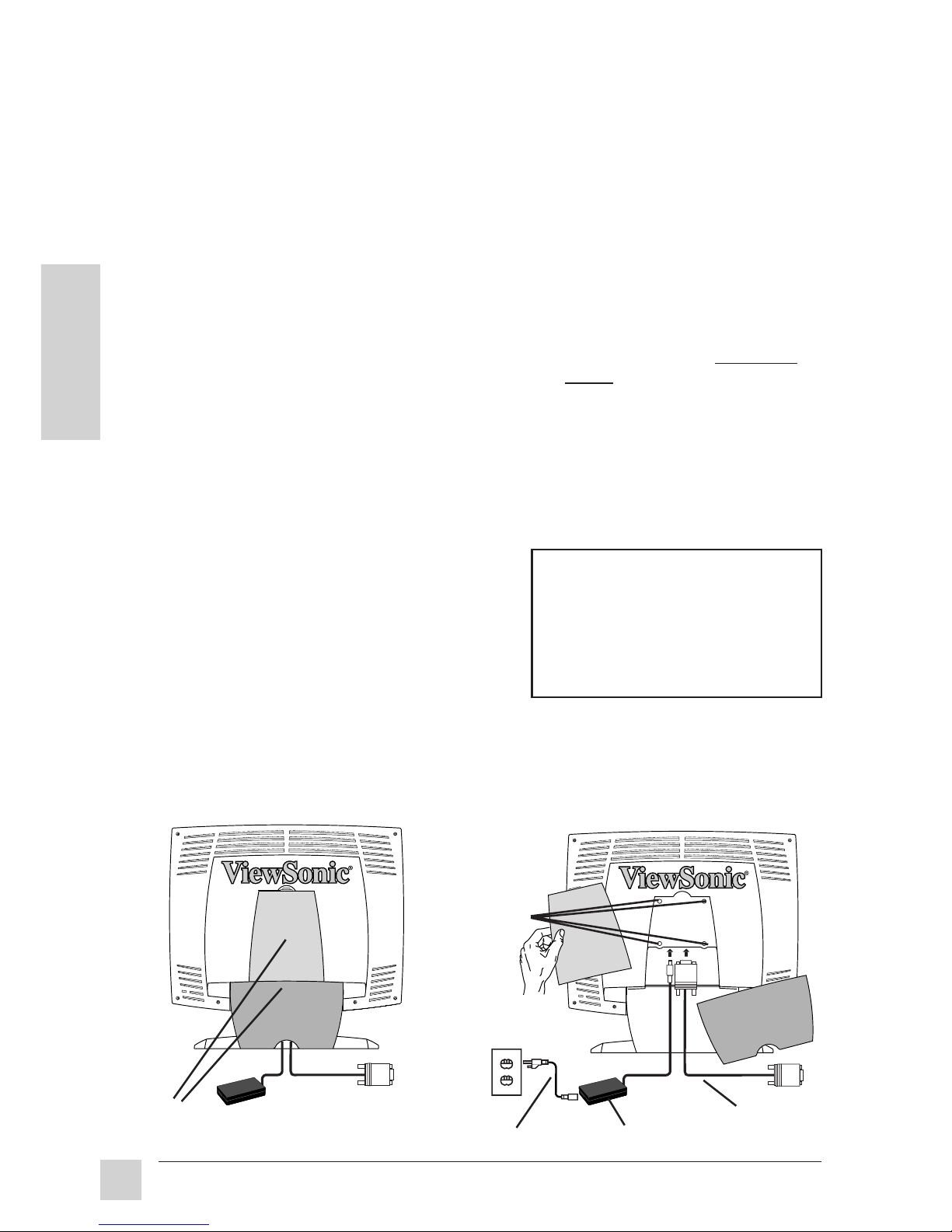
1 Connect video cable
Make sure both the ViewPanel® and
computer are powered OFF.
•
Remove the bottom rear cover and
lift up the top rear cover.
•
Connect the video cable to the
computer, then to the ViewPanel.
Macintosh® users:
Connect a
Macintosh adapter to the video
cable, then to the ViewPanel. To order
a ViewSonic
®
Macintosh adapter,
contact ViewSonic (see the back
cover of this guide). You will need to
provide your ViewPanel's serial
number.
2 Connect DC adapter and
power cord
•
Connect the DC Adapter to the
ViewPanel, then to the power cord.
•
Connect the power cord to a
properly grounded AC outlet.
3 Power-ON computer and
ViewPanel
Power-ON the computer, then PowerON the ViewPanel.
NOTE: At this point Windows
®
98
users may receive a message asking
them to install the VG150’s INF file.
Insert the enclosed CD-ROM, wait
for it to auto-load, select "Monitior
Drivers" and follow the on-screen
instructions.
DC Adapter
Video cable
(to computer)
Power cord
Threaded
holes for
VESA
®
compatible
mounting
units
Top and bottom removable
rear covers
AC
outlet
4 For best image quality:
(1) Set your graphic card's timing
(resolution and refresh rate) to
1024x768@60Hz.
(2) Activate AUTO SYNC (see page
10 for more information).
(3) If necessary, make small
adjustments using H POSITION
and V POSITION (Horizontal
Position and Vertical Position) until
the screen image is
completely
visible. (The black border around
the edge of the screen should
barely "touch" the illuminated
"active area" of the ViewPanel.)
(4) Adjust FINETUNE until the screen
image looks focused, crisp, and
sharp.
Installation is complete!
Enjoy your new VG150 ViewPanel!
To be best prepared for any future
customer service needs, write the
serial number (see back of this
guide.)
Getting Started
Page 8
7
E
N
G
L
I
S
H
ViewSonic VG150/VG150B ViewPanel
®
Operation
Front Control Panel
Operation
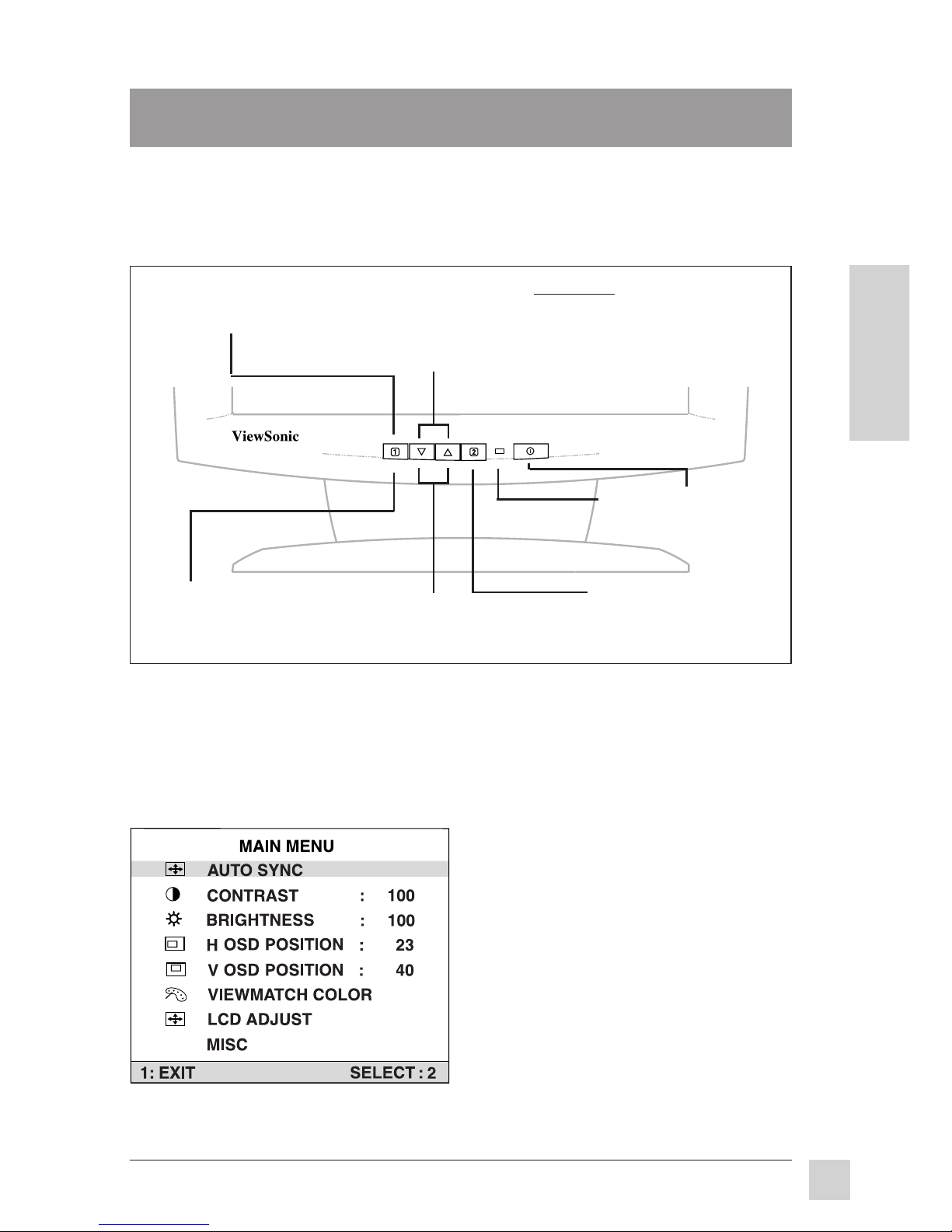
OnView Main Menu
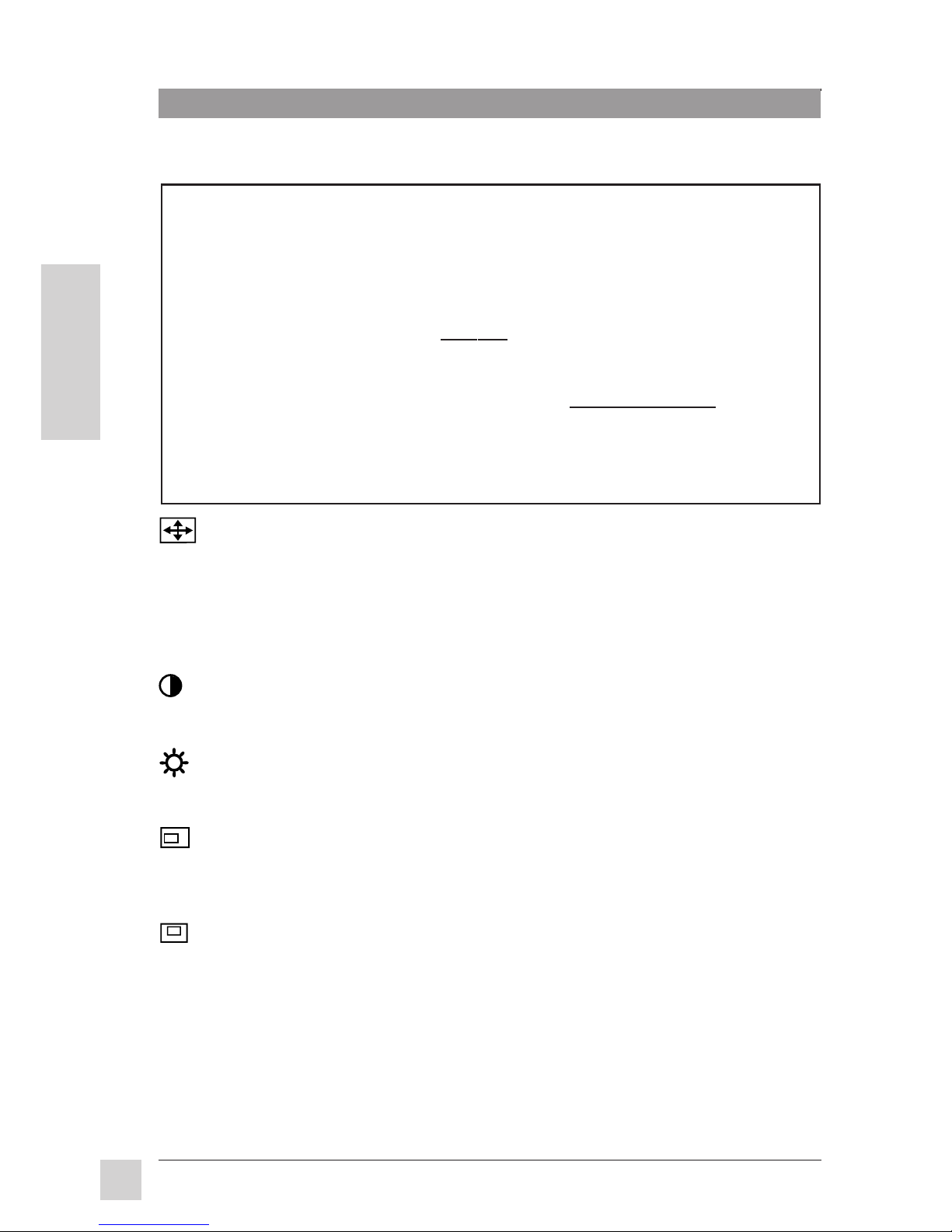
The menu shown below displays when you press button [1]. Some Main Menu
options (like CONTRAST and VIEWMETER®) appear as separate controls.
Other menu options are names for sub-menus (LCD ADJUST, VIEWMATCH
®
COLOR, and MISC).
To adjust the screen image using the OnView® controls, follow the steps in the
numbered sequence shown below:
NOTE: All OnView menus and adjustment screens disappear automatically
after about 30 seconds.
To display the Main
Menu (see below),
press button [1].
To highlight a control
you want to adjust,
press ▼ or ▲
(scrolls up or down
the Main Menu).
To select the
highlighted
control, press
button [2].
To adjust the
selected control,
press ▼ or ▲.
Power
Light
Power
On/Off
➊
➋
➌
➎
➍
To save adjustments
and exit the menu,
press button [1].
Exceptions:
Some options on
the Main Menu are names of
sub-menus (VIEWMATCH
COLOR, LCD ADJUST, and
MISC). Press ▼ or ▲ to
highlight the option , then press
button [2].
Page 9
8
E
N
G
L
I
S
H
ViewSonic VG150/VG150B ViewPanel
®
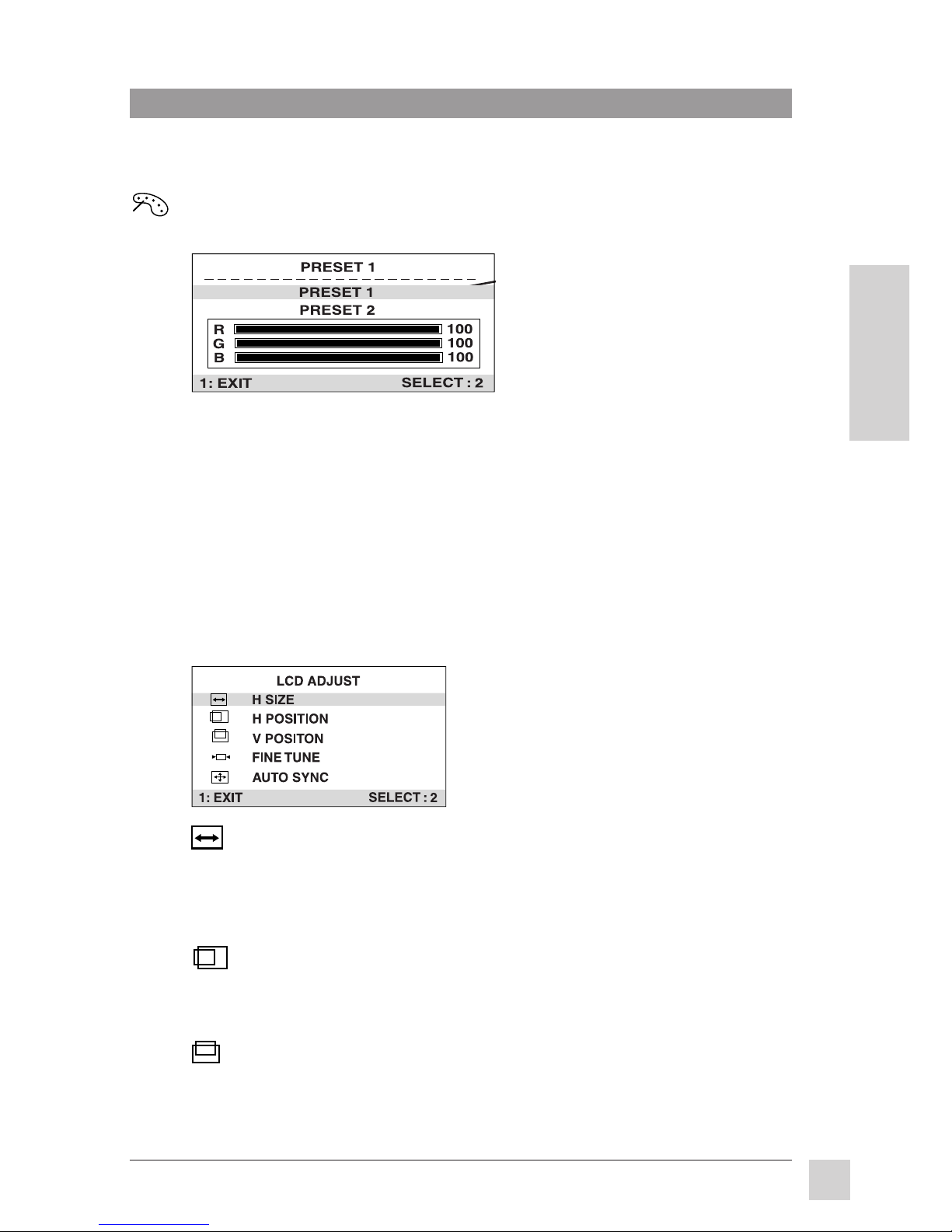
AUTO SYNC automatically centers and sizes the screen image.
Press button [2] to activate AUTO SYNC.
NOTE: (Windows® users) start from the Windows desktop.
Shortcut: Before you display the Main Menu, press button [2] to
activate AUTO SYNC.
CONTRAST adjusts foreground white level of screen image.
▲ increases contrast, ▼ decreases contrast.
BRIGHTNESS adjusts background black level of screen image.
▲ increases brightness, ▼ decreases brightness.
H OSD POSITION (Horizontal On-Screen-Display Position) moves the
OSD horizontally to the right or left.
▲ moves OSD right, ▼ moves OSD left.
V OSD POSITION (Vertical On-Screen-Display Position) moves the
OSD vertically up or down.
▲ moves OSD up, ▼ moves OSD down.
...continued
To save changes and exit Main Menu, press button [1].
Operation
MAIN MENU Options
For the best image quality, do the following:
1 Adjust your computer's graphic card so that it outputs a video
signal 1024 x 768 @ 60Hz to the VG150/VG150B. (Look for
instructions on "changing the refresh rate" in your graphic card's
user guide.)
2 Activate AUTO SYNC (
shortcut: press button [2] before
displaying the Main Menu)
.
3 If necessary, make small adjustments using H POSITION and
V POSITION until the screen image is
completely visible. (The
black border around the edge of the screen should barely touch
the illuminated "active area" of the ViewPanel.)
4 Adjust FINETUNE so that the screen image looks focused, crisp,
and sharp.
Page 10
9
E
N
G
L
I
S
H
ViewSonic VG150/VG150B ViewPanel
®
To save changes and exit Main Menu, press button [1].
Operation
MAIN MENU Options (continued)
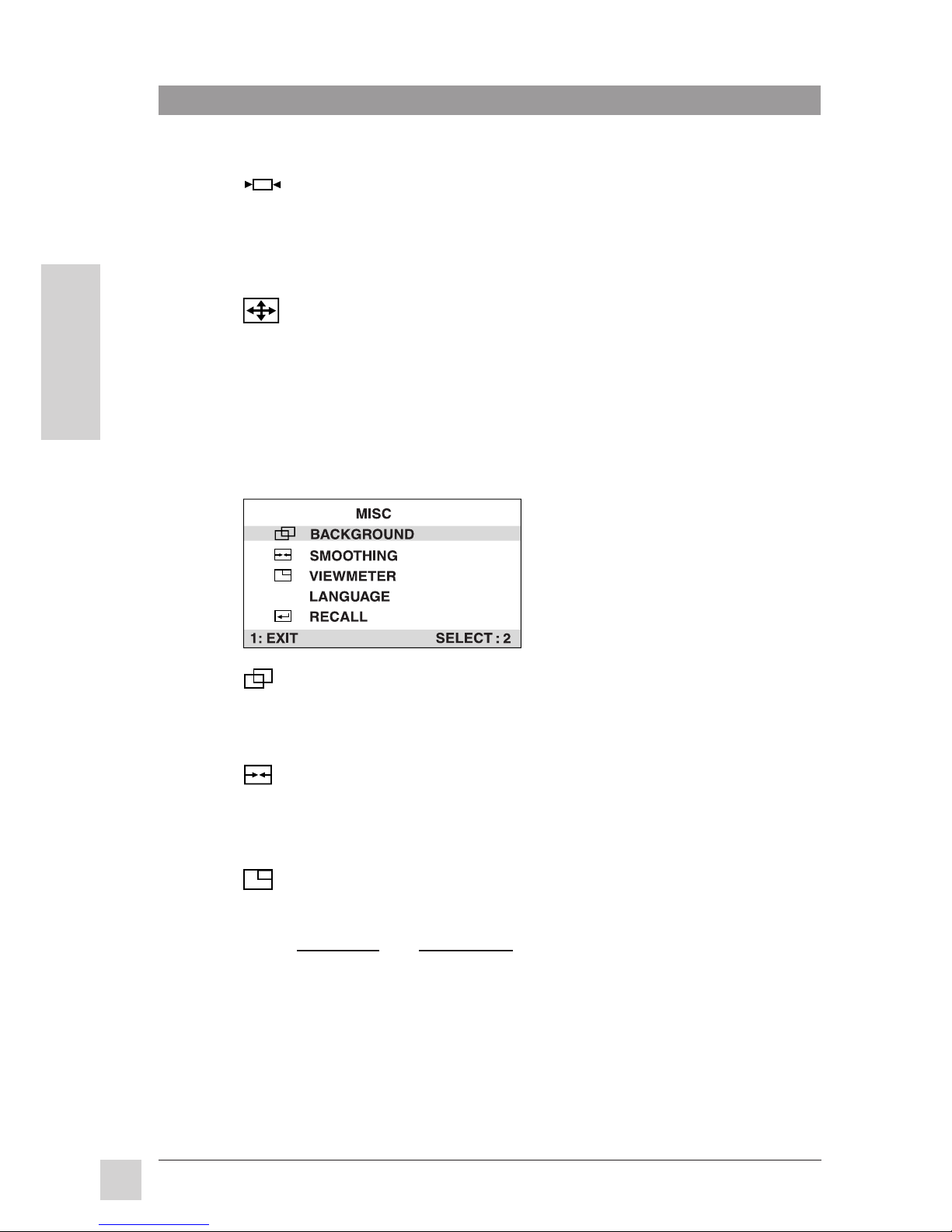
VIEWMATCH® COLOR Sub-Menu provides three color adjustment
modes:
PRESET 1 -- for a colder, more blue image
PRESET 2 -- for a warmer, more red image
USER -- allows you to adjust R (red), G (green), and B (blue)
individually. To adjust USER colors, do the following:
1 To select color (R, G, or B) press button [2].
2 To adjust selected color, press ▼ or ▲.
3 When you are finished making all color adjustments, press
button [1] twice.
LCD ADJUST Sub-Menu
H SIZE (Horizontal Size) adjusts the horizontal size (width) of
screen image.
▲ increases the width of screen image, ▼ decreases the width
of screen image.
H POSITION (Horizontal Position) moves screen image left
or right.
▲ moves screen image to right, ▼ moves screen image to left.
V POSITION (Vertical Position) moves entire screen image up
or down.
▲ moves screen image up, ▼ moves screen image down.
...continued
In this example PRESET 1
is selected.
Page 11
10
E
N
G
L
I
S
H
ViewSonic VG150/VG150B ViewPanel
®
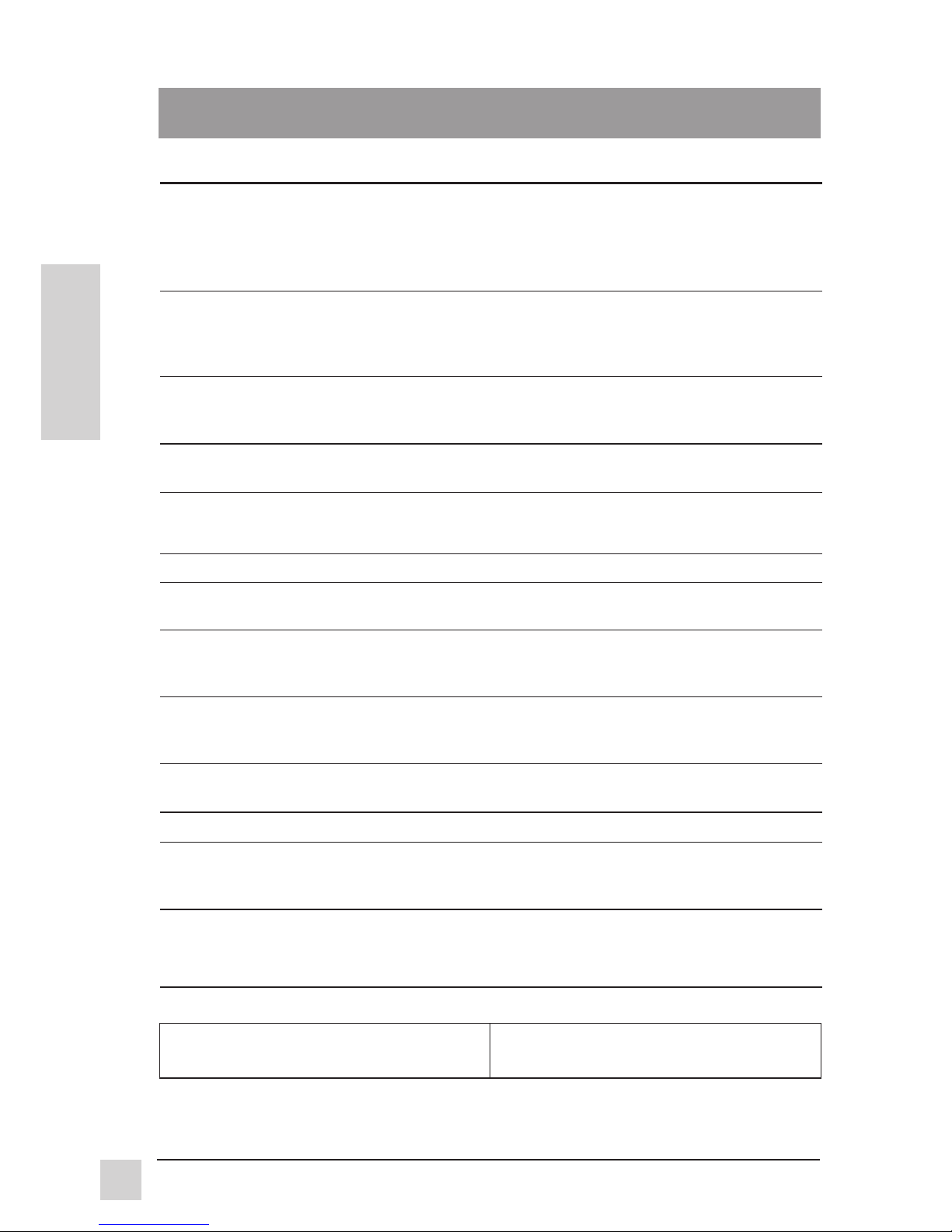
FINE TUNE sharpens the focus by aligning the illuminated
pixels.
Press ▲ or ▼ until the the screen image looks focused, crisp,
and sharp.
AUTO SYNC automatically centers and sizes screen image.
Press button [2] to activate AUTO SYNC.
NOTE: (Windows® users) start from the Windows desktop.
Shortcut: Before you display the Main Menu, press button [2]
to activate AUTO SYNC.
BACKGROUND allows you to turn the blue OSD backgound
on or off.
Press button [2] to toggle the blue OSD backgound on or off.
SMOOTHING makes characters of displayed text easier to read.
Press button [2] to toggle SMOOTHING on or off.
NOTE: Only for resolutions lower than 1024x768.
VIEWMETER
®
displays the timing mode (video signal input)
coming from the graphics card in your computer. See your
graphic card's user guide for instructions on changing the
resolution and refresh rate (verrtical frequency).
NOTE: See the chart at the bottom of page 12 for the preset
timing modes of the VG150/VG150B ViewPanel®. Example:
VESA® 1024 x 768 @ 60Hz (recommended) means that the
resolution is 1024x768 and the refresh rate is 60 Hertz.
...continued
To save changes and exit Main Menu, press button [1].
Operation
LCD ADJUST Sub-Menu (continued)
MISC (Miscellaneous) Sub-Menu
Page 12

11
E
N
G
L
I
S
H
ViewSonic VG150/VG150B ViewPanel
®
To save changes and exit Main Menu, press button [1].
Operation
MISC (Miscellaneous) Sub-Menu (continued)
LANGUAGE allows you to choose the language used in the
menus and control screens.
Press ▲ or ▼ to select a language (English, French, German,
Spanish, or Italian)
RECALL returns adjustments back to factory settings only if
the monitor is operating in a factory preset mode (page 12).
To return all controls to factory settings, press press ▼ or ▲.
Exception: This control will not affect changes made with the
USER color control.
Page 13
12
E
N
G
L
I
S
H
ViewSonic VG150/VG150B ViewPanel
®
Other Information
Other Information
Specifications
LCD Type 15" (full 15" viewable diagonal area),
TFT (Thin Film Transistor), Active Matrix XGA
LCD, 0.297mm pixel pitch
Color Filter RGB vertical stripe
Glass surface Anti-Glare
Maximum Left 60
0
Viewing Right 60
0
Angles Up 45
0
Down 55
0
Input Signal Video Sync RGB analog (0.7 /1.0 Vp-p, 75 ohms)
Composite Sync, Separate Sync, Sync On Green
fh: 30-62 kHz, fv: 50-70 Hz
Compatibility PC Up to 1024 x 768 NI
Macintosh®*
1
Power Macintosh® 640 x 480 and 1024 x 768
Maximum 1024 x 768 NI @ 60 Hz
Refresh 800 x 600 NI @ 60 Hz
Rates 640 x 480 NI @ 60 Hz
Power Voltage 100-240 VAC, 50/60 Hz (auto switch)
Display Area Full scan 304.1mm (H) x 228.1mm (V)
12.0" (H) x 9.0" (V)
Operating Temperature 32°F to 104°F (0°C to 40°C)
Conditions Humidity 10% to 90% (no condensation)
Altitude To 10,000 feet
Storage Temperature -4°F to +140°F (-20°C to +60°C)
Conditions Humidity 10% to 90% (no condensation)
Altitude To 40,000 feet
Dimensions Physical 390mm (W) x 372mm (H) x 138mm (D)
(ViewPanel® only) 15.3" (W) x 14.6" (H) x 5.4" (D)
Weight Net 5.0 kg (11.0 lb) ViewPanel only
Regulations UL, FCC-B, ENERGY STA R®, CSA, DOC-B, CE, CUL, MPR II, TCO'99,
Nordic, TUV/GS, NEMKO, SEMKO, DEMKO, FIMCO, BCIQ, C-Tick,
CB, TUV/EMC, TUV/Ergo
Power saving On Normal (green LED)
modes DPMS™ Stand By <5W (orange LED)
DPMS Suspend <5W (orange LED)
DPMS Off <3W (orange LED)
*1Macintosh computers require a ViewSonic® Macintosh adapter. To order an adapter, contact ViewSonic. See the back
cover of this guide.
*2Warning: Do not set the graphics card in your computer to exceed these maximum refresh rates. Doing so may
result in permanent damage to the ViewPanel. NI= Non Interlaced.
Preset Timing Modes (pre-adjusted to VESA® 1024 x 768 @ 60Hz)
VGA 640 x 350 @ 70Hz
VGA 640 x 400 @ 70Hz
VESA 640 x 480 @ 60Hz
VESA 800 x 600 @ 56Hz, 60Hz
VESA1024 x 768 @ 60Hz
Macintosh 640 x 480 @ 67Hz
Page 14

13
ViewSonic VG150/VG150B ViewPanel
®
E
N
G
L
I
S
H
Other Information
Troubleshooting
No power
• Make sure power button (or switch) is ON.
• Make sure A/C power cord is securely connected to the back of the
ViewPanel
®
and to a power outlet.
• Plug another electrical device (like a radio) into the power outlet to verify
that the outlet is supplying proper voltage.
Power on but no screen image
• Make sure the video cable supplied with the ViewPanel is tightly secured
to the video output port on the back of the computer. If the other end of
the video cable is not attached permanently to the ViewPanel, tightly
secure it to the ViewPanel. The ViewPanel comes with a 15 pin mini D-sub
signal cable.
• Adjust brightness and contrast.
• Check this user's guide to see if an adapter is required for proper signal
continuity between the graphics card and ViewPanel.
Horizontal lines "streak" accross the screen
• Set the refresh rate (vertical frequency) to 60 Hz. See your graphic card's
user guide for instructions.
Wrong or abnormal colors
• If any colors (red, green, or blue) are missing, check the video cable to
make sure it is securely connected. Loose or broken pins in the cable
connector could cause an improper connection.
• Connect the ViewPanel to another computer.
• If you have an older graphics card, contact ViewSonic
®
for a non-DDC
adapter. (See the back of this guide).
Entire screen image scrolls (rolls) vertically
• Make sure video input signals are within the ViewPanel's specified
frequency range.
• Try the ViewPanel with another power source, graphics card, or computer
system.
• Connect the video cable securely.
Control buttons do not work
• Press only one button at a time.
Page 15

14
E
N
G
L
I
S
H
ViewSonic VG150/VG150B ViewPanel
®
Other Information
Cleaning the ViewPanel
®
• MAKE SURE THE VIEWPANEL IS TURNED OFF.
• NEVER SPRAY OR POUR ANY LIQUID DIRECTLY ONTO THE
SCREEN OR CASE.
To clean the screen
1 Wipe the screen with a clean, soft, lint-free cloth. This removes dust
and other particles.
2 If still not clean, apply a small amount of non-ammonia, non-alcohol
based glass cleaner onto a clean, soft, lint-free cloth, and wipe the
screen.
To clean the case
1 Use a soft, dry cloth.
2 If still not clean, apply a small amount of a non-ammonia, non-alcohol
based, mild non-abrasive detergent onto a clean, soft, lint-free cloth,
then wipe the surface.
DISCLAIMER
ViewSonic® does not recommend the use of any ammonia or alcohol-based cleaners
on the ViewPanel screen or case. Some chemical cleaners have been reported to
damage the screen and/or case of the ViewPanel®. ViewSonic will not be liable for
damage resulting from use of any ammonia or alcohol-based cleaners.
Page 16

15
ViewSonic VG150/VG150B ViewPanel
®
E
N
G
L
I
S
H
Other Information
LIMITED WARRANTY
VIEWSONIC
VG150/VG150B
VIEWPANEL
®
What the warranty covers:
ViewSonic
®
warrants its products to be free from defects in material and workmanship during the
warranty period. If a product proves to be defective in material or workmanship during the warranty
period, ViewSonic will at its sole option repair or replace the product with a like product. Replacement
product or parts may include remanufactured or refurbished parts or components.
How long the warranty is effective:
The ViewSonic
VG150/VG150B
ViewPanel is warranted for three (3) years for all parts excluding the
light source, three (3) years for all labor, and one (1) year for the light source from the date of the first
consumer purchase.
Who the warranty protects:
This warranty is valid only for the first consumer purchaser.
What the warranty does not cover:
1. Any product on which the serial number has been defaced, modified or removed.
2. Damage, deterioration or malfunction resulting from:
a. Accident, misuse, neglect, fire, water, lightning, or other acts of nature, unauthorized product
modification, or failure to follow instructions supplied with the product.
b. Repair or attempted repair by anyone not authorized by ViewSonic.
c. Any damage of the product due to shipment.
d. Removal or installation of the product.
e. Causes external to the product, such as electric power fluctuations or failure.
f. Use of supplies or parts not meeting ViewSonic’s specifications.
g. Normal wear and tear.
h. Any other cause which does not relate to a product defect.
3. Removal, installation, and set-up service charges.
How to get service:
1. For information about receiving service under warranty, contact ViewSonic Customer Support. See
the back cover of this user's guide.
2. To obtain service under warranty, you will be required to provide (a) the original dated sales slip, (b)
your name, (c) your address, (d) a description of the problem, and (e) the serial number of the
product.
3. Take or ship the product prepaid in the original container to your ViewSonic dealer, any ViewSonic
service center or ViewSonic.
4. For additional information or the name of the nearest ViewSonic service center, contact your
ViewSonic dealer or ViewSonic.
Limitation of implied warranties:
THERE ARE NO WARRANTIES, EXPRESS OR IMPLIED, WHICH EXTEND BEYOND THE
DESCRIPTION CONTAINED HEREIN INCLUDING THE IMPLIED WARRANTY OF
MERCHANTABILITY AND FITNESS FOR A PARTICULAR PURPOSE.
Exclusion of damages:
VIEWSONIC’S LIABILITY IS LIMITED TO THE COST OF REPAIR OR REPLACEMENT OF THE
PRODUCT. VIEWSONIC SHALL NOT BE LIABLE FOR:
1. DAMAGE TO OTHER PROPERTY CAUSED BY ANY DEFECTS IN THE PRODUCT, DAMAGES
BASED UPON INCONVENIENCE, LOSS OF USE OF THE PRODUCT, LOSS OF TIME, LOSS OF
PROFITS, LOSS OF BUSINESS OPPORTUNITY, LOSS OF GOODWILL, INTERFERENCE WITH
BUSINESS RELATIONSHIPS, OR OTHER COMMERCIAL LOSS, EVEN IF ADVISED OF THE
POSSIBILITY OF SUCH DAMAGES.
2. ANY OTHER DAMAGES, WHETHER INCIDENTAL, CONSEQUENTIAL OR OTHERWISE.
3. ANY CLAIM AGAINST THE CUSTOMER BY ANY OTHER PARTY.
Effect of state law:
This warranty gives you specific legal rights, and you may also have other rights which vary from state to
state. Some states do not allow limitations on implied warranties and/or do not allow the exclusion of
incidental or consequential damages, so the above limitations and exclusions may not apply to you.
Sales outside the U.S.A.:
For ViewSonic products sold outside of the U.S.A., contact your ViewSonic dealer for warranty
information and service.
REV 7/16/98
Page 17

16
E
N
G
L
I
S
H
ViewSonic VG150/VG150B ViewPanel
®
Other Information
NOTES
Page 18

01/99
Customer Service
To receive the most prompt assistance,
dial the appropriate number below and
listen to all menu options before making
your selection: Customer Support,
Technical Support, Parts, etc.
U.S. and Canada only
1-800-688-6688
From outside U.S. and Canada
909-869-7976
From Europe
44 (1293) 643-900
From Asian/Pacific Rim countries
886 (22) 248-4072
Other Options
Technical Support Questions
Product or Dealer Questions
World Wide Web:
http://www.viewsonic.com
ViewSonic® Corporation
381 Brea Canyon Road
Walnut, CA 91789
Tel (909) 869-7976
Tel (800) 688-6688
Fax (909) 468-1202
 Loading...