

Page 1
ViewSonic
ViewPad 1000
Ta b l e t P C
®
User Guide
Guide de l’utilisateur
Bedienungsanleitung
Page 2

Contents
Introduction
Your ViewPad 1000 Tablet PC ............................................... 2
Precautions ............................................................................ 2
ViewPad 1000 Features
Software Included ............................................................... 3
Performance Features ........................................................ 3
Accessories ......................................................................... 4
Basic Setup
System at a Glance ................................................................ 5
Front View ........................................................................... 5
Back View ........................................................................... 7
AC Adapter .......................................................................... 8
Keyboard Features .............................................................. 9
Display ................................................................................ 11
XP Control Panels ............................................................... 14
Audio Features .................................................................... 15
Modem ................................................................................ 17
Fast Ethernet Network Adapter ........................................... 17
802.11b Wi-Fi Lan Adapter ................................................. 17
Battery Power and Management ............................................ 18
Charging the Battery and Charging Time ............................ 18
Installing and Removing the Battery Pack .......................... 19
About Windows XP Power Management Feature ............... 21
Using Software
Touch Screen Calibration ....................................................... 23
Calibrating the Touch Screen .............................................. 23
Screen Rotation ...................................................................... 25
Rotating the Screen Display ................................................ 25
My-T-Touch Soft Keyboard .................................................... 26
Activating the Virtual Keyboard ........................................... 26
LCD Brightness Control .......................................................... 27
Activating the Brightness Control ........................................ 27
Citrix ICA Client ...................................................................... 28
PenOffice for Windows ........................................................... 28
6/21/02 ViewSonic ViewPad 1000 Tablet PC i
Page 3

Working Without a Keyboard .................................................. 31
Disabling the Secure Boot Ctrl-Alt-Delete Requirement ..... 31
Automatic Reboot ................................................................... 32
Enabling Automatic Reboot ................................................. 32
Standby Resume Security ...................................................... 34
Disabling the Standby Resume Password Prompt ............. 34
Upgrading the Memory in Your ViewPad 1000 ...................... 35
Upgrading the System Memory ........................................... 35
Installing a New Memory Module ........................................ 35
Troubleshooting
An Initial Check List ................................................................ 38
System Recovery ................................................................... 38
Audio Problems ...................................................................... 39
Speaker ............................................................................... 39
Sound Recording ................................................................ 39
Hard Disk Problems ............................................................... 39
Spin ..................................................................................... 39
Abnormal Sounds ................................................................... 40
Drive is Full ......................................................................... 40
Drive is Slow ....................................................................... 40
Display Problems ................................................................... 40
Blank Screen ....................................................................... 40
Screen is Difficult to Read ...................................................... 40
The Screen Flickers ............................................................ 41
Wireless Keyboard and Pointing Device Problems ................ 41
Keyboard is Non-responsive ............................................... 41
Character Repetition ........................................................... 41
Bios Problems ........................................................................ 42
CMOS Checksum Failure Message .................................... 42
Infrared Problems ................................................................... 42
Port Failure .......................................................................... 42
Memory Problems .................................................................. 42
Increased Memory is not Recognized ................................. 42
Insufficient Memory Error Message ....................................42
Modem Problems ................................................................... 44
Connection Difficulties ......................................................... 44
Network Adapter Problems .................................................... 44
Adapter Nonresponsive ....................................................... 44
100 Mbps Mode Nonresponsive .........................................44
PC Card (PCMCIA) Problems ................................................ 45
PC Cards do not Function ................................................... 45
ViewSonic ViewPad 1000 Tablet PC ii
Page 4

PC Card not Recognized .................................................... 45
PC Card Removal Locks Up Windows ................................ 45
Performance Problems ........................................................... 45
Overheating ......................................................................... 45
Program Slowing .................................................................... 46
Power, Start, and Battery Problems ....................................... 46
Power Down on Startup ...................................................... 46
Diminishing Battery Life ...................................................... 46
Recharge Failure ................................................................. 46
Printing Problems ................................................................... 47
File Print Failure .................................................................. 47
Screen Print Failure ............................................................ 47
USB Problems ........................................................................ 47
USB Failure ......................................................................... 47
Appendix
Specifications ......................................................................... 48
Customer Support .................................................................. 52
Cleaning and Maintenance ..................................................... 53
Limited Warranty .................................................................... 54
Safety Guidelines ................................................................... 56
Compliance and Safety Notices ............................................. 57
Radio Frequency Interference (RFI) Compliance ............... 57
Safety Notices ..................................................................... 59
ViewSonic ViewPad 1000 Tablet PC iii
Page 5

Copyright © ViewSonic Corporation, 2002. All rights reserved.
ViewPad is a trademark of ViewSonic Corporation. ViewSonic and the three birds logo are
registered trademarks of ViewSonic Corporation.
Microsoft, Windows, the Microsoft Internet Explorer logo graphic, Outlook, DirectX, DirectSound,
Microsoft Word, MSN, Excel, CalliGrapher, and the Windows logo are registered trademarks of
Microsoft Corporation in the United States and other countries.
Citrix, WindView, and ICA are registered trademarks of Citrix Systems, Inc. MetaFrame
is a
trademark of Citrix Systems, Inc.
My-T-Touch is a registered trademark of Innovation Management Group, Inc.
Paragraph and PenOffice are registered trademarks of Phatware Corporation.
VESA is a registered trademark of the Video Electronics Standards Association.
Intel and Celeron are registered trademarks of Intel Corporation.
E
NERGY STAR
As an E
E
NERGY STAR
Disclaimer: ViewSonic
is a registered trademark of the U.S. Environmental Protection Agency (EPA).
®
NERGY STAR
®
partner, ViewSonic Corporation has determined that this product meets the
guidelines for energy efficiency.
Corporation shall not be liable for technical or editorial errors or omissions
contained herein; nor for incidental or consequential damages resulting from furnishing this
material, or the performance or use of this product.
In the interest of continuing product improvement, ViewSonic Corporation reserves the right to
change product specifications without notice. Information in this document may change without
notice.
No part of this document may be copied, reproduced, or transmitted by any means, for any purpose
without prior written permission from ViewSonic Corporation.
Product Registration
To meet your future needs, and to receive any additional product information as it becomes available,
please register your product on the Internet at: www.viewsonic.com. The ViewSonic
ROM also provides an opportunity for you to print the registration form, which you may mail or fax
to ViewSonic.
®
Wizard CD-
For Your Records
Product Name:
Model Number:
Document Number:
Serial Number:
Purchase Date:
ViewPad 1000 Tablet PC
VSVPD22974-1M
A-CD-ViewPad 1000-2
_______________
_______________
Product Disposal at End of Product Life
ViewSonic is concerned about the preservation of our environment. Please dispose of this product
properly at the end of its useful life. Your local waste disposal company may provide information
about proper disposal.
ViewSonic ViewPad 1000 Tablet PC 1
Page 6

Introduction
Your ViewPad 1000 Tablet PC
Congratulations on your purchase of a ViewSonic ViewPad 1000 Tablet PC.
With your ViewPad 1000 you will be able to organize and access important
business and personal information. In addition, you will be able to send and
receive e-mail and access the Internet through the use of the built-in WAN,
LAN, and Wi-Fi
This user guide will help you set-up your ViewPad 1000 and introduce you to its
many features.
Important! Save the original box and all packing material for future shipping.
Your ViewPad 1000 package includes:
• ViewPad 1000
• ViewPad 1000 Battery
• ViewPad Wireless Keyboard with Pointing Device
• View Pad
TM
wireless connectivity.
TM
Styli (two)
• Power Cord
• Power Adapter
• Slip Case
• AA Batteries (two) for Wireless Keyboard
• ViewPad 1000 Quick Start Guide
Precautions
• For best viewing conditions view the
screen from a distance of 15" to 18".
• DON’T TOUCH THE SCREEN
WITH YOUR FINGERS. Oils from
the skin are difficult to remove.
• NEVER REMOVE THE REAR
COVER. Your ViewPad 1000 contains
high voltage parts. You may suffer
serious injury if you touch these parts.
• Avoid exposing the screen to direct
sunlight or another heat source. The
screen should be facing away from
direct sunlight to reduce glare.
• Always handle your ViewPad 1000
• Do not operate your ViewPad 1000
• Do not place heavy objects on the
• If smoke, abnormal noise, or strange
• Use only the AC/DC power adapter
with care; dropping your ViewPad
1000 could void the warranty.
outside in a wet, damp or extremely
cold environment.
screen, video cable, or power cord.
odor is present, immediately switch the
ViewPad 1000 off and call your dealer
or ViewSonic.
supplied with your ViewPad 1000.
ViewSonic ViewPad 1000 Tablet PC 2
Page 7

ViewPad 1000 Features
Software Included
• Windows® XP Professional which includes:
®
• Microsoft
• Microsoft Outlook Express
• Microsoft NetMeeting
• Microsoft Media Player
®
• Adobe
Acrobat® eBook Reader
• Adobe Acrobat Reader
®
• Citrix
• Pivot
• PenOffice
ICA® Client
®
Software from Portrait Displays, Inc.
TM
• My-T-Touch
Performance Features
Internet Explorer
Handwriting Recognition Software
®
Soft Keyboard
High Performance Processor
The ViewPad 1000 is equipped with 800 MHz Intel® Celeron® processor with
128-K L2 cache.
Large Hard Drive
The ViewPad 1000 is equipped with 20 GB hard drive.
Advanced Graphic Engine
The ViewPad 1000 comes with an integrated AGP-bus 2D/3D video processor
for high performance graphics. The video chip also incorporates a hardwareaccelerated playback feature which gives you smooth MPEG video. A 3D
graphics capability also adds realism to PC games.
Expandability
The system offers two SDRAM slots for expansion (up to 512 MB), allowing
users to easily increase the system’s capacity as the need arises.
Bright LCD Touch-screen Display
The system is equipped with 10.4-inch TFT SVGA touch-screen display panel
for clear text and brilliant colors.
Portrait Mode or Landscape Mode
To serve your specific needs, the ViewPad 1000 can be used in either Portrait or
Landscape mode.
ViewSonic ViewPad 1000 Tablet PC 3
Page 8

Audio Capability
The system is equipped with internal audio record and playback functions,
including 3D (three-dimensional) audio, 64-voice DirectSound channel support,
and built-in hardware wave-table.
Wireless LAN, Fast Ethernet and Modem Connectivity
For network access capability, the ViewPad 1000 provides a built-in 802.11b
Wi-Fi LAN adapter, a Fast Ethernet adapter, and a 56K modem.
Additional Expansion and Connectivity
The ViewPad 1000 offers a full array of I/O ports including two Universal Serial
Bus (USB) ports, microphone and audio out jacks, external VGA port, wireless
keyboard infrared port, infrared data port, and a 16-pin connector for the
optional ViewPad
TM
Dock. The ViewPad 1000 also includes a Type II PC Card
slot (PMCIA v2.1) for additional expansion.
ViewPad Wireless Keyboard with Pointing Device
Navigate through files and enter text easily with the ViewPad Wireless Keyboard
with pointing device. See the ViewSonic website, www.viewsonic.com, for
more information under the Tablet PC section.
Accessories
Your ViewPad 1000 offers expansion options through its USB ports and
PCMCIA (Personal Computer Memory Card International Association)
slot.
ViewSonic ViewPad 1000 Tablet PC 4
Page 9
Basic Setup
System at a Glance
Front View
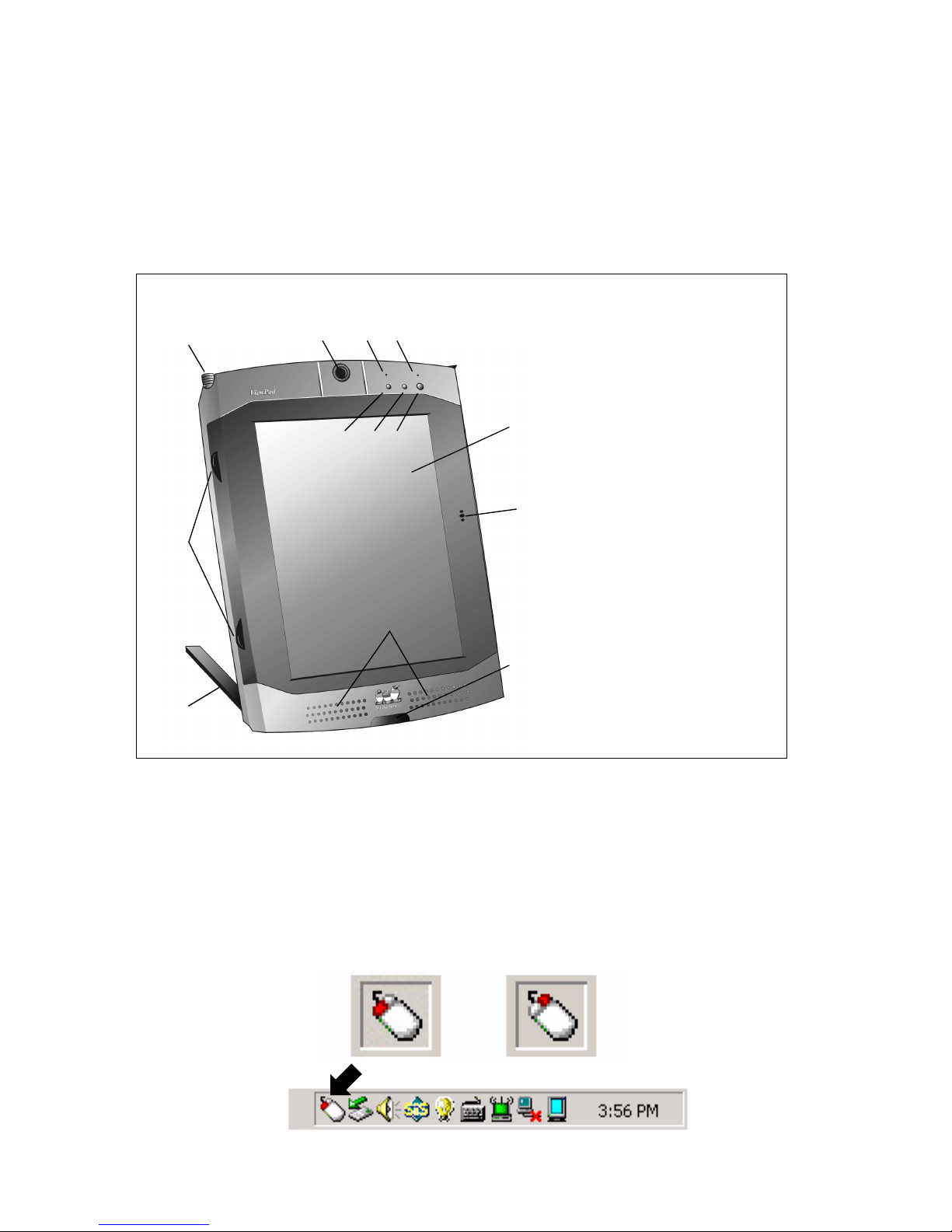
1 2 3 4
5 6 7
13
8
9
Stylus
1
Digital Camera
2
Battery/Activity
3
LED
Power Status LED
4
Internet Hot Key
5
E-mail Hot Key
6
Power On/Power
7
Management Button
LCD Display
8
Microphone
9
11
10
12
Figure 1: The Front View
Infrared Wireless
10
Keyboard Port
Stereo Speakers
11
Stand
12
Rubber Feet
13
Front View Features
Stylus - Use the stylus to Tap or Double-tap on an application icon, to draw in a
graphics application, to select items in a menu or to select letters and numbers
on the virtual keyboard.
Right-click Mode - To use the stylus in Right-click mode, click the mouse icon
on the task bar to toggle from Left-click to Right-click mode.
ViewSonic ViewPad 1000 Tablet PC 5
Page 10

Digital Camera - The built-in Digital CCD camera (with up to 640 x 480
resolution) allows you to take photos or record a video clip. The focus ring
allows you to focus the camera’s lens.
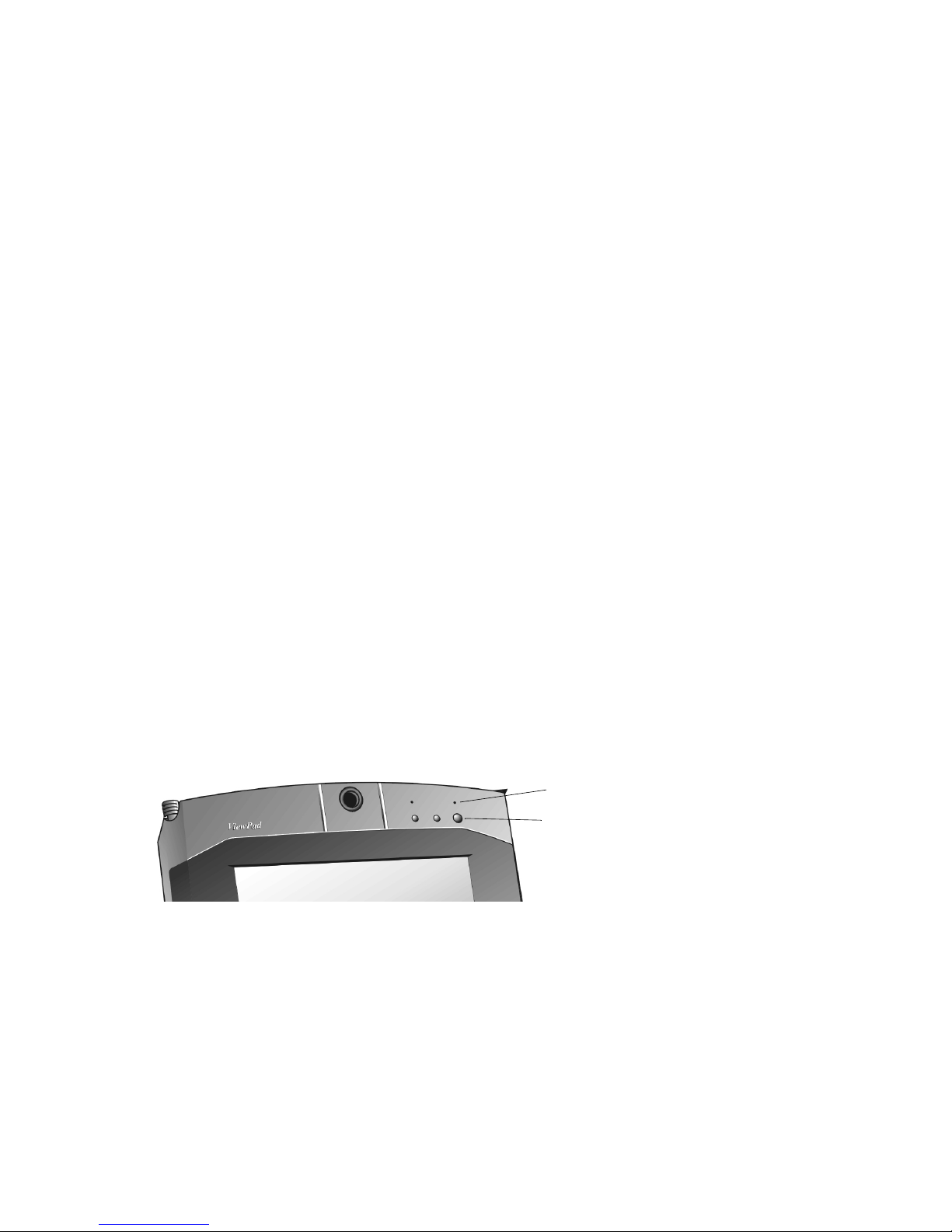
Battery Status/Activity Mode LED - A flashing green light indicates that the
battery pack is being charged. (See the LED Status Indicator Section for details.)
Power Status LED - The multi-color LED indicates the current power status of
the ViewPad 1000. (See the LED Status Indicator Section for details.)
WWW Internet Hot Key - The Internet Hot Key launches the Microsoft
®
Internet Explorer application automatically.
E-mail Hot Key - The E-mail Hot Key launches Microsoft
®
Outlook Express.
Be sure you have already setup an ISP account and MS Internet Explorer before
using this feature.
Power On/Power Management Button - The Power/On button turns the
system on and standby if the ViewPad
TM
has been sitting unused for a while. It
also acts as a system suspend key. Press momentarily to turn on the system.
Press and hold for at least 3-4 seconds to turn off the system. These settings can
be changed by going to Start > Control Panel > Printers and Other Hardware >
Power Options.
LCD Display - The ViewPad 1000 is equipped with a 10.4" touch-screen SVGA
TFT display.
Built-in Microphone - The built-in microphone enables you to record sound
and to use speech-enabled applications.
Wireless Keyboard Infrared Port - The wireless infrared port enables
cableless data transfer with the wireless keyboard.
Built-in Stereo Speakers - The built-in speakers provide stereo sound.
Stand - The stand allows the ViewPad 1000 to be positioned vertically (Portrait
Mode) or horizontally (Landscape Mode) on a desktop. You will need to rotate
the display content 90 degrees using the Pivot software.
Rubber Feet - Rubber feet allow the ViewPad 1000 to be positioned on its side.
ViewSonic ViewPad 1000 Tablet PC 6
Page 11
Back View
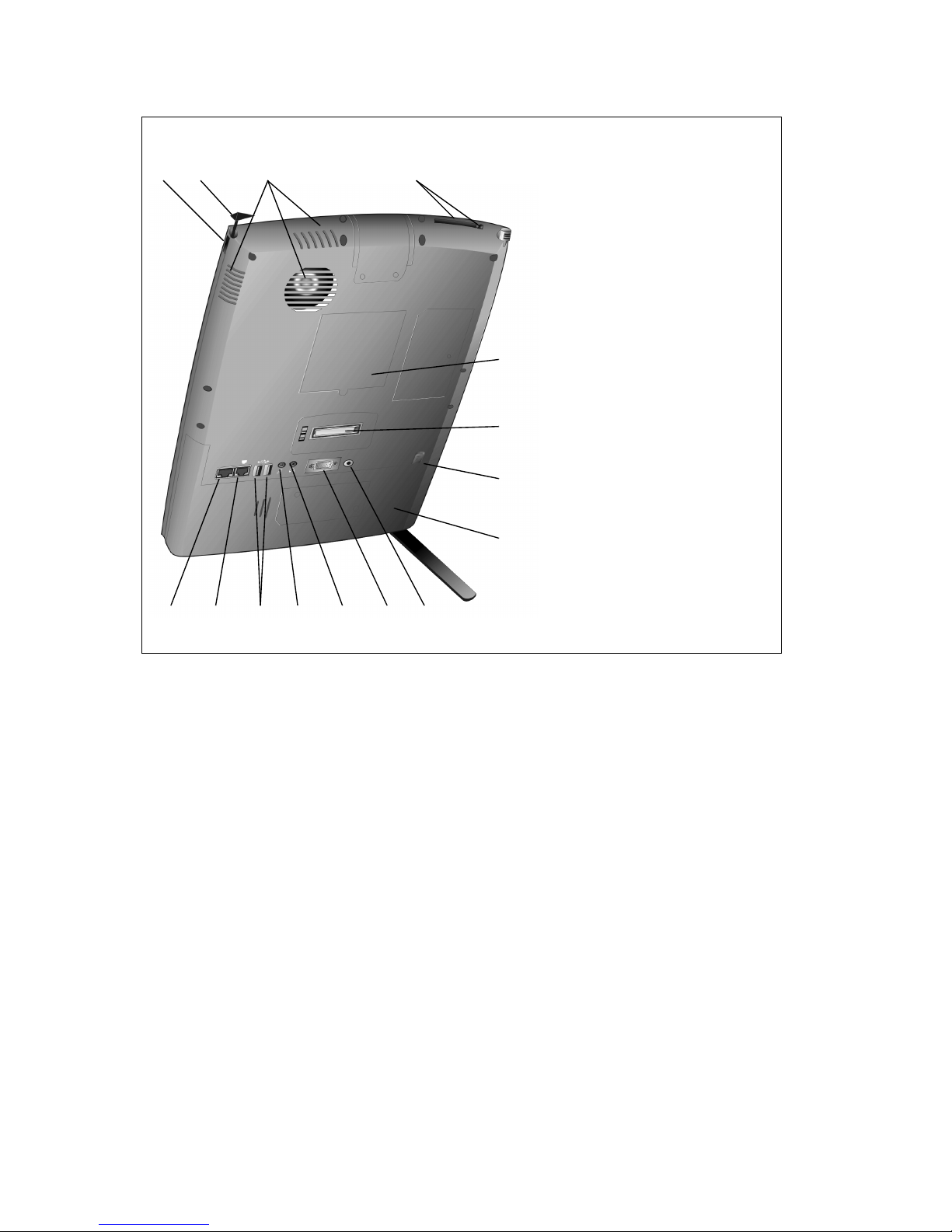
1 2 3 4
5
Infrared Port
1
Antenna
2
Ventilation Grills
3
PC Card Slot/Eject
4
Memory Slot Cover
5
Docking Port
6
Battery Pack Latch
7
Battery Pack
8
6
Power Jack (DC-in)
9
External VGA Port
10
7
Stereo Audio-out Jack
11
Microphone Jack
12
8
USB Ports
13
Modem Port
14
Fast Ethernet Port
15 14 13 12 11 10 9
Figure 2: The Back View
15
Back View Features
Infrared Port - The Infrared Data Association (IrDA) compliant serial infrared
port enables 115 Kbps (SIR mode) cableless data transfer with IrDA 1.1compatible external devices.
802.11b Antenna - The built-in 802.11b wireless LAN antenna is used to
transmit and receive data from an 802.11b access point.
Ventilation Grills - These fan grills allow cooling air to circulate through the
heat regulation system.
PC Card Slot (PCMCIA) and Card Eject Button - A PC Card (PCMCIA)
would be inserted here. Press the eject button to release a PC Card.
Memory (SDRAM) Expansion Slot Cover - Two SODIMM expansion slots
are located here. One of the slots is already occupied by a 128-MB SODIMM
module.
Docking Port - The docking port allows the ViewPad 1000 to connect to the
optional ViewPad
ViewSonic ViewPad 1000 Tablet PC 7
TM
Dock.
Page 12
Battery Pack and Battery Latch - The battery pack is a built-in power source
for the ViewPad 1000. Slide the battery latch to release the battery pack.
Power Jack (DC-in) - The AC Adapter supplies power to the ViewPad 1000
and charges the ViewPad
DC-in.
External VGA Port - The 15-pin analog VGA output port connects your
ViewPad 1000 to an external monitor or projector.
Stereo Audio-out Jack - Stereo headphones or external speakers are connected
to the Audio-out jack.
Microphone Jack - Microphones or external speakers can be connected to the
ViewPad 1000 through the Microphone Jack.
USB Ports (2) - The two Universal Serial Bus (USB) ports enable the ViewPad
1000 to connect to a wide variety of USB devices. These ports conform to USB
v1.1 plug-and-play standards.
Modem Port - The RJ-11 modem port enables you to connect into an external
phone jack for fax and modem functions using a standard phone cable. The
built-in 56 Kpbs modem is V.90 compatible.
Fast Ethernet Port - The Fast Ethernet port enables you to connect to a network
hub via a RJ-45 cable. The Fast Ethernet port conforms to 100BASE-TX
transmission protocol.
TM
battery. When used, the AC Adapter connects to the
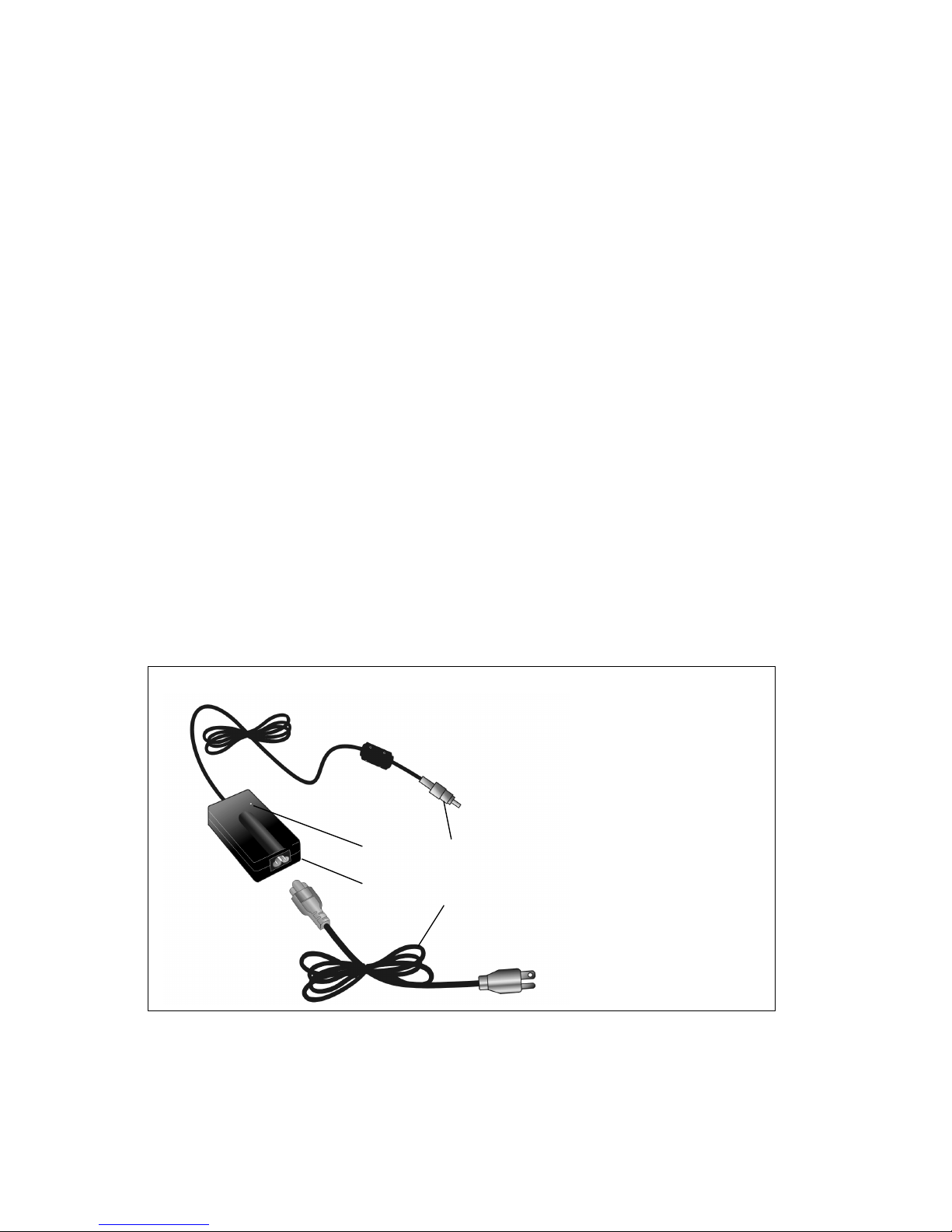
AC Adapter
DC-In Connector
1
LED
2
AC Adapter
3
AC Power Cable
4
1 2
3
Figure 3: The AC Adapter
AC Adapter Features
DC-in Connector - The DC-in connector inserts into the power jack on the
ViewPad 1000.
4
ViewSonic ViewPad 1000 Tablet PC 8
Page 13
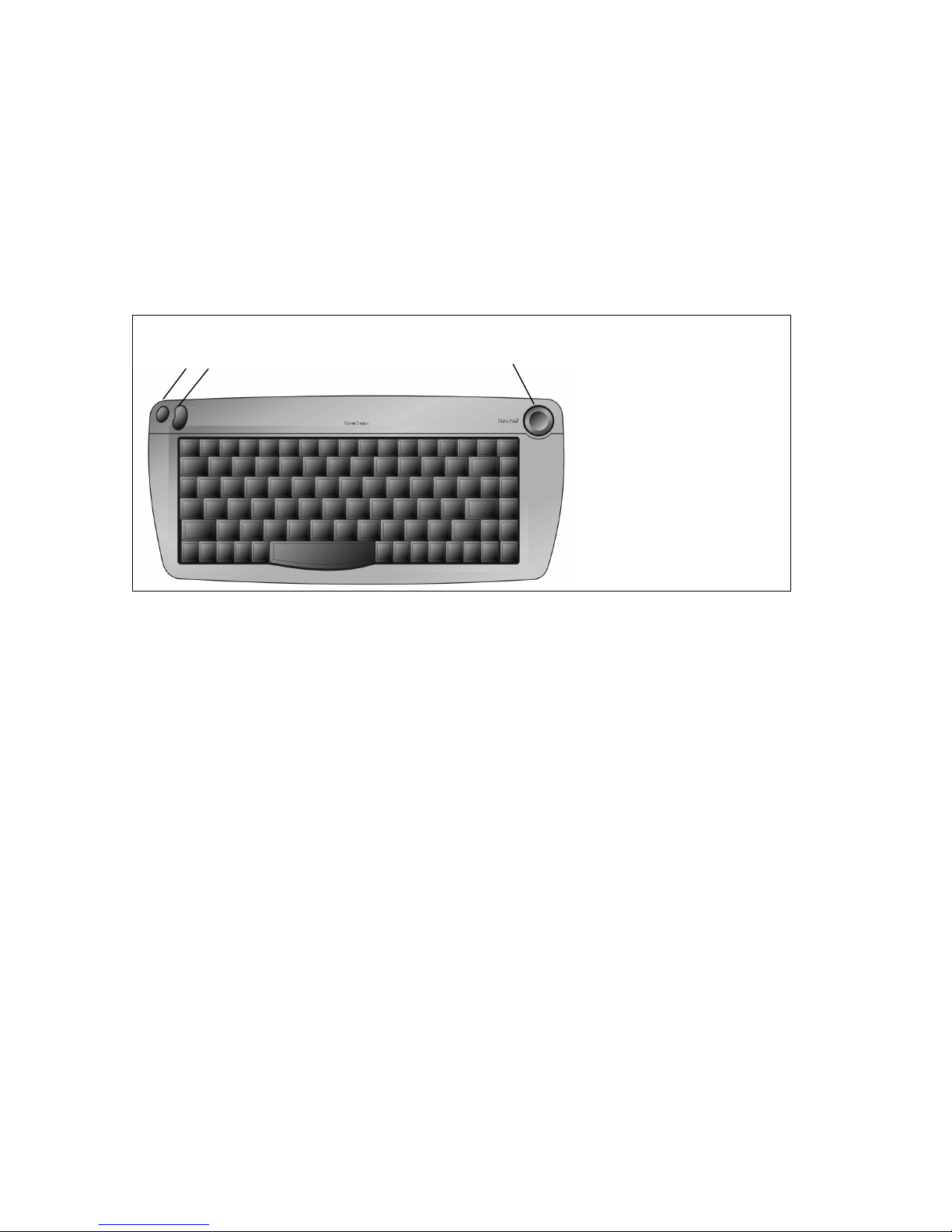
LED - The LED light appears green when the unit is plugged into a valid AC
source.
AC Adapter - The adapter converts alternating current (AC) into direct current
(DC) for the ViewPad 1000.
AC Plug - The three-prong AC plug plugs into an AC wall outlet.
Keyboard Features
Your ViewPad 1000 comes with a Wireless Keyboard.
3 2
Figure 4: The Wireless Keyboard
The Wireless Keyboard is used to enter data into the ViewPad 1000. It has an
integrated pointing device, embedded numeric keypad and cursor control keys.
1
Pointing Device
1
Mouse Button
2
Right
Mouse Button Left
3
Wireless Keyboard Features
Pointing Device - Move the integrated pointing device just as you would a
mouse or touch pad.
Mouse Button Right - This button works like the right button of a mouse.
Mouse Button Left - This button works like the left button of a mouse.
Scroll Lock - Press the keyboard’s Scroll Lock key while pressing one of the
following additional keys to use scroll lock features:
• Up - press the 8-key
• Down - press the K-key
• Left - press the U-key
• Right - press the O-key
ViewSonic ViewPad 1000 Tablet PC 9
Page 14

Embedded Numeric Key Pad
Press Num Lock to enable the embedded numeric key pad.
Figure 5: The Embedded Numeric Key Pad
Pad numbers and operators are printed on the front sides of the keys. The
embedded numeric key pad is complete with arithmetic operators (+, -, *, /).
Press Num Lock again to revert to normal character keys.
Windows Keys
Your keyboard has two Windows® keys as shown below:
Start Key - This key allows you to pull up the Windows Start Menu.
Application Menu Key - This key brings up the popup menu for the application
you are currently in.
Windows
Start Key
Windows
Start Key
Application
Menu Key
ViewSonic ViewPad 1000 Tablet PC 10
Page 15

LED Status Indicators
The LED Status Indicators on the top of the ViewPadTM display the operating
status of your ViewPad 1000. ViewPad 1000 LED status indicators include:
The Power Status/Activity Mode LED
• Green Light - indicates that the battery is charging.
• Light Off - indicates that battery is charged or that the power adapter is not
attached.
The Battery Status LED
• Steady Green - indicates that the ViewPad 1000 is on.
• Flashing Green - indicates that the hard drive is being accessed.
• Solid Amber - indicates that the ViewPad 1000 is in standby mode.
• Flashing Red - indicates that the ViewPad 1000 is in the process of saving to
disk in preparation for going into hibernation mode.
• Light Off - indicates that the ViewPad 1000 is off or in hibernation.
Display
Your ViewPad 1000 uses a high performance 10.4-inch active matrix TFT panel
that will display up to 16.7 million colors at 800 x 600 resolution.
Caution: Do not place heavy objects on the LCD panel. Doing so may damage
the display
Adjusting the Display Brightness
Click the Brightness Control icon on the Windows® Task Tray to access the
Brightness Control options. A pop-up menu appears. Click Brightness. The
Brightness control screen appears. Click Brightness minus sign (less Bright) or
Brightness plus sign (more Bright). Click OK to save adjustments and exit the
control screen.
ViewSonic ViewPad 1000 Tablet PC 11
Page 16
Extending the Life of the TFT Display Device
Observe the following guidelines to maximize the life of the display.
1
Set the brightness to the lowest comfortable setting.
2
When working at your desk, connect your ViewPad 1000 to an external
monitor and disable the internal display.
3
If you are using AC power and have no external monitor attached, change to
suspend mode when not in use.
Multimonitor Function
The ViewPad 1000’s display and multimedia capabilities are great for giving
presentations. You can also connect an external monitor or projector when
giving presentations. The ViewPad 1000 supports simultaneous independent
LCD and CRT displays. The multimonitor capability provides you with more
working room by allowing you to expand your desktop across two display
devices.
Activating the Multimonitor Function
1
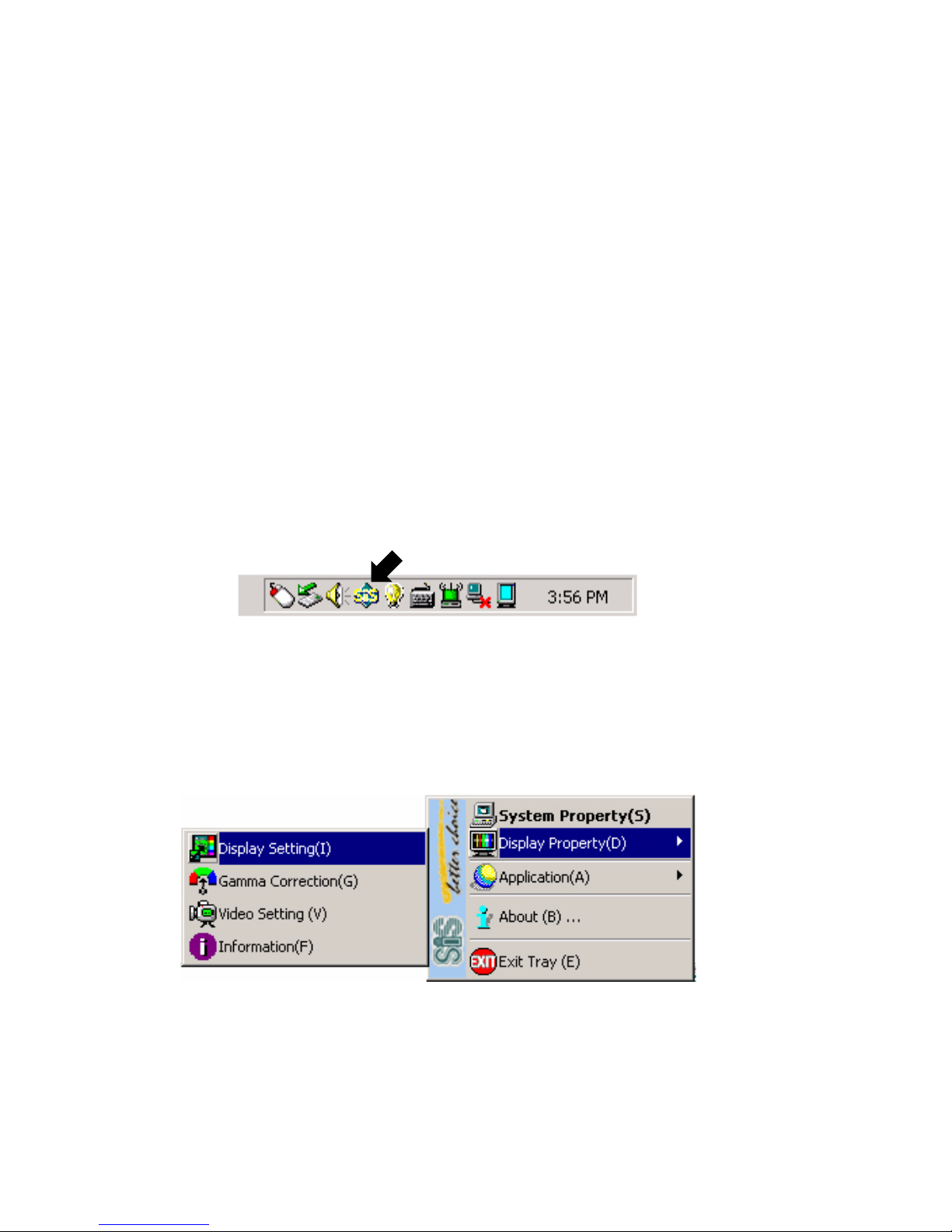
Use the Wireless Keyboard’s Right mouse button to Right-click on the SiS
icon located at the lower right-hand corner of the Windows
®
task tray.
Figure 6: The SiS Icon on the Windows Task Tray
2
Go to Display Property > Display Setting. Left mouse click on Display
Setting. The Driver Mode Setting dialog box appears as shown in Step 3.
Figure 7: Navigating to the Display Setting Window
3
Clear the Auto box. Make sure you have connected the ViewPad 1000 to an
external plug-and-play capable CRT monitor, LCD monitor, or RGB
projector.
ViewSonic ViewPad 1000 Tablet PC 12
Page 17
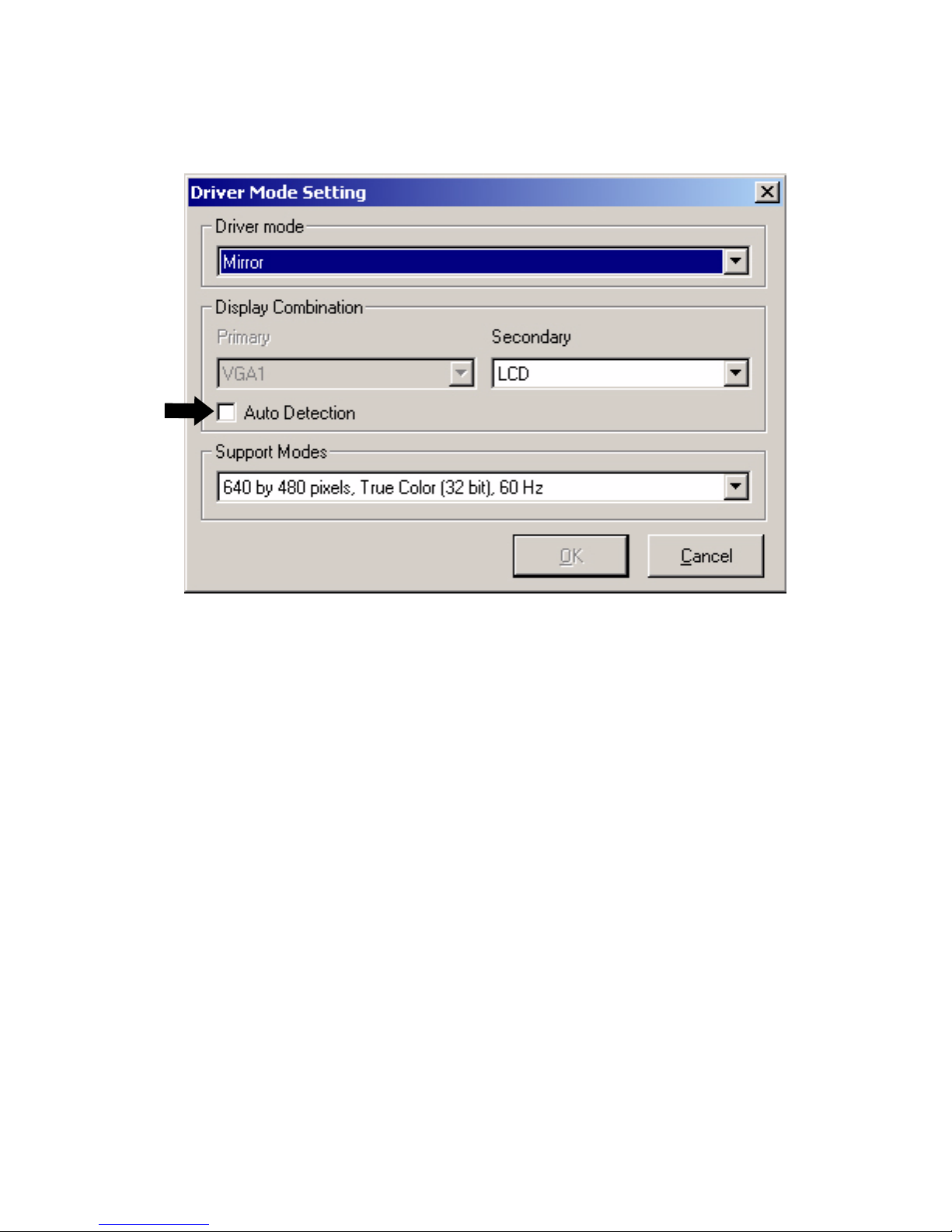
IMPORTANT: You will need to re-start the ViewPad 1000 in order to use this
utility.
Figure 8: The SiS Display Settings Window
4
Once you have restarted Windows®, repeat steps 1-3 and select
Multimonitor in the Driver mode box.
Driver Mode Options:
Single - Either the LCD equipped or the CRT attached will be active.
Mirror - Windows
®
will appear simultaneously on both the ViewPad 1000’s
LCD panel and the external display device.
Multimonitor - Different applications can be run independently across two
display devices.
Display Combination:
• LCD2 - means the ViewPad 1000’s LCD display.
• VGA1 - means the external display.
ViewSonic ViewPad 1000 Tablet PC 13
Page 18
XP Control Panels
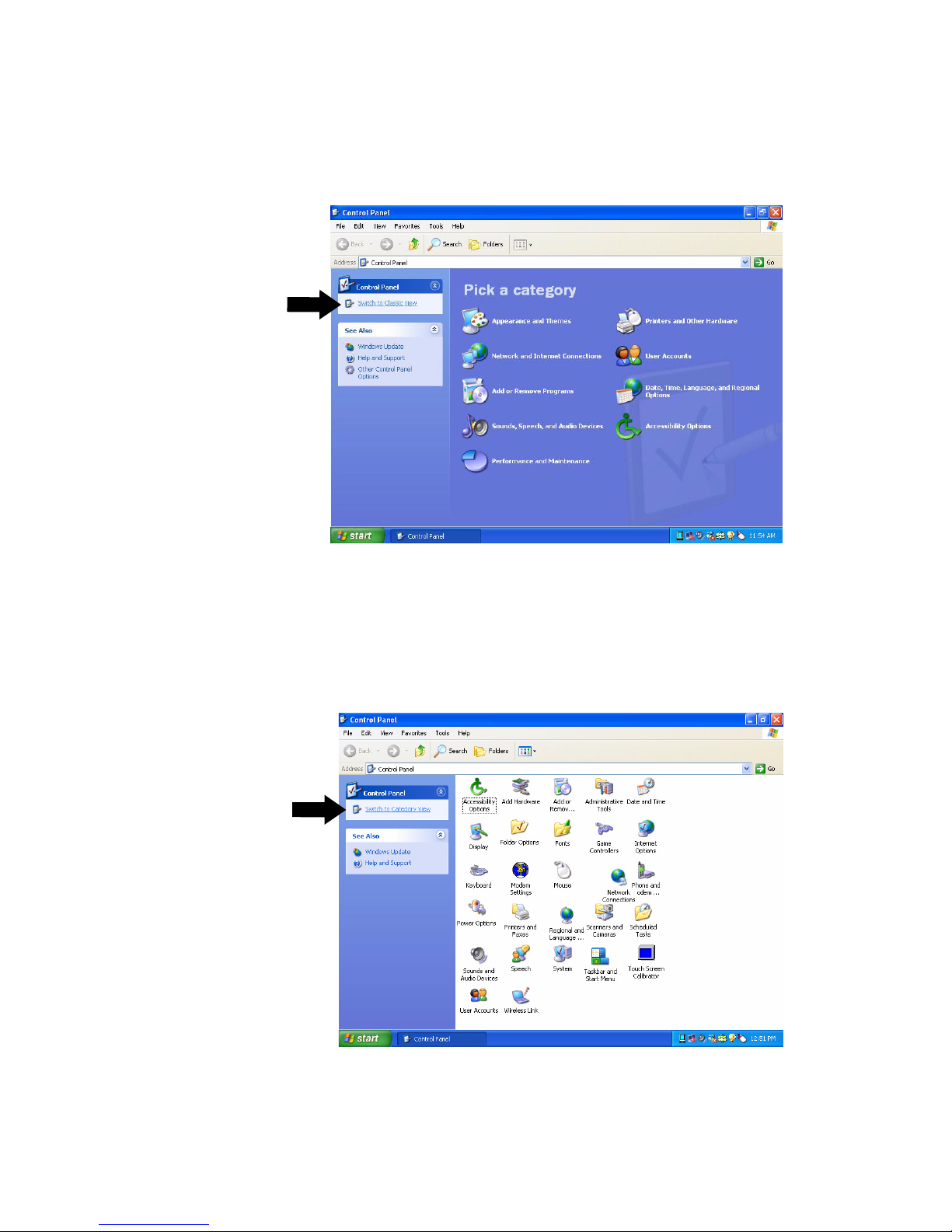
Your ViewPad 1000 running on XP has two ways to view the Control Panel as
shown below: the Category View and the Classic View.
Click here to
switch to
Classic View
Click here to
switch to
Category View
Figure 9: Category View
ViewSonic ViewPad 1000 Tablet PC 14
Figure 10: Classic View
Page 19
Audio Features
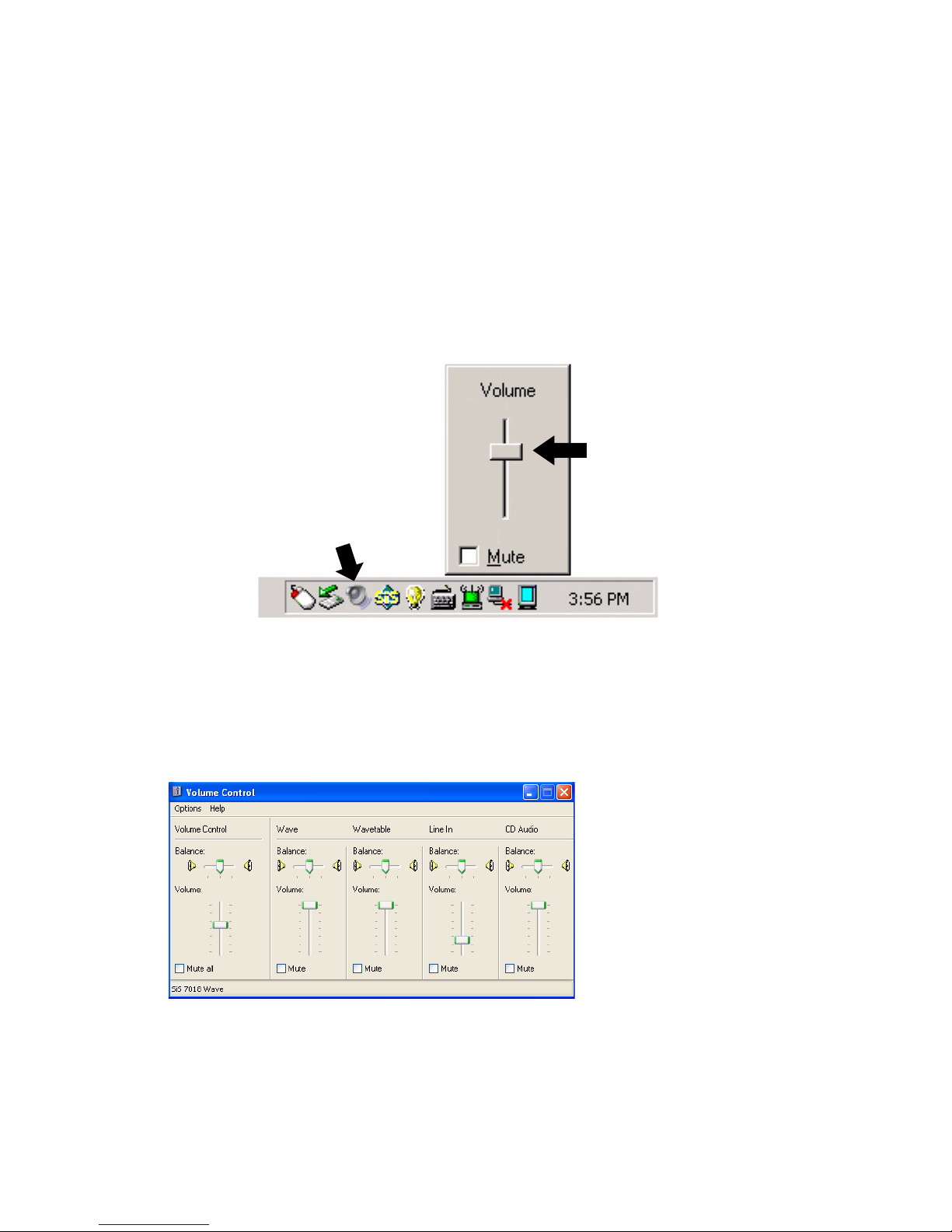
There are several ways to adjust Windows® audio features: from the speaker
symbol in the task bar or from the control panel shown on the next page.
From the speaker symbol in the task bar
Do one of the following:
Click once on the speaker symbol (Volume) in the Windows task bar as
1
shown below. A Volume control screen with a slider bar appears. Press and
move the slider bar up to raise or down to lower the volume. Click Mute to
temporarily silence the speaker without changing the volume setting.
Note: to add the speaker symbol to the task bar, see the next page.
Slider bar
Speaker symbol
Figure 11: The Speaker Symbol
Double-click the speaker symbol (Volume) in the task bar. A Volume
2
Control screen appears as shown below with more control options like
Volume Control, Wave, Wavetable, Line In, and CD Audio.
Press and move the slider bar up or down for the control(s) of your choice. You
can also control the Balance between speakers in each control option. Check
Mute All or Mute individual volume control(s) to temporarily silence the
speakers without changing the volume setting.
ViewSonic ViewPad 1000 Tablet PC 15
Page 20
From the Control Panel
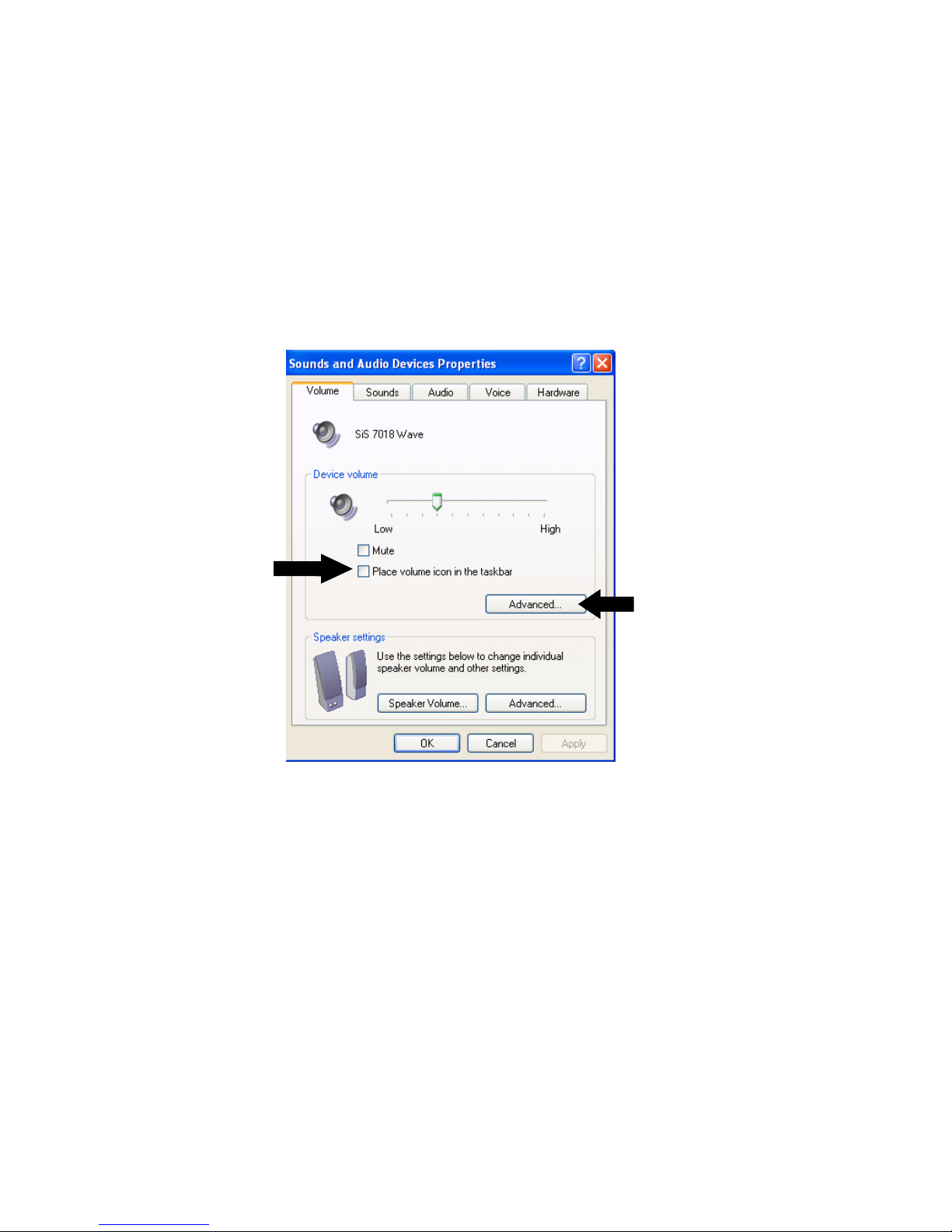
Do one of the following:
1
Click the Windows® start button. Double-click the Control Panel > double-
click Sounds and Audio Devices. The screen below appears. If the Sounds
and Audio Devices icon doesn’t appear do step 2.
2
Click on Switch to Category View under Control Panel and click Sounds,
Speech and Audio Devices. Click Sounds and Audio Devices. The Sounds
and Audio Devices Properties screen appears as shown below. Press and
move the slider bar left or right to lower or raise the volume.
Check here to
place the
speaker symbol
in the Windows
taskbar
Volume Control
screen on the
previous page
Voice Recording
When you begin voice recording using the system’s built-in microphone, be sure
that you are speaking within 8 inches (20 centimeters) of the microphone.
You will need to use audio processing software to enable the built-in
microphone: for example, Microsoft Sound Recorder. To access voice recording,
click Windows start > All Programs > Accessories > Entertainment > Sound
Recorder.
ViewSonic ViewPad 1000 Tablet PC 16
Page 21

Modem
Your ViewPad 1000 comes equipped with a 56Kbps V.90 internal fax/modem.
This enables you to access networks and to send and receive e-mail through a
standard telephone line.
Note: Windows
install fax communication software on your PC.
®
does not support its own fax function. To enable a fax function,
Connecting the Modem
Plug one end of the phone line into the modem port located on the back of
1
the ViewPad 1000. See page 7 for the Back View.
Plug the other end of the line into an analog phone wall outlet.
2
Warning: The internal modem is intended for use on an analog phone line, also
called a POTS (Plain Old Telephone Service) line. This modem cannot be
connected directly to a digital telephone line such as those commonly found in a
business office. You can obtain an analog converter compatible with your digital
phone line.
Fast Ethernet Network Adapter
The ViewPad 1000 is equipped with a 10/100BASE-T Ethernet network adapter.
This allows you to access and transmit data in a local area network.
Connecting to the Network
Press one end of the netword cable into the Fast Ethernet Port (located on the
1
back of the ViewPad 1000) until the connector snaps securely into the port.
Connect the other end of the cable to either an Ethernet outlet jack or to an
2
RJ-45 port on a UTP concentrator or hub in the network.
Cabling Restrictions for Networks
The following restrictions should be observed for 100BASE-T networks:
• The maximum cable run length should be 100 meters (328 feet).
• For 100 Mbps operation, use Category 5 wiring and connections. Consult a
Windows
of the network.
®
manual for the software installation, configuration, and operation
802.11b Wi-Fi Lan Adapter
Your new ViewPad 1000 comes with a built-in 802.11b Wireless LAN adapter
This allows you to access and transmit data wirelessly to an 802.11b access
point. Consult your network administrator for instructions on connecting your
wireless 802.11b adapter to the network.
ViewSonic ViewPad 1000 Tablet PC 17
Page 22

Battery Power and Management
Before using the ViewPad 1000 Tablet PC for the first time, charge the
battery for at least 6 hours. Make sure the battery is fully charged before
using.
The TFT display, central processor, and hard disk drive are the major power
consumers. An understanding of power management can help you work longer
sessions before having to recharge the battery.
The Lithium-Ion Battery
Your ViewPad 1000 uses a removable nine-cell Lithium-Ion battery pack that
provides power when you don’t have access to an AC outlet. The Battery LED
indicator will come on when the ViewPad 1000 is operated on battery power.
Handling Tips
• Do not touch the metal ends of the battery connector.
• Do not expose battery packs to temperatures below 32 degrees Fahrenheit (0
degree Celsius) or above 140 degrees Fahrenheit (60 degrees Celsius).
Doing so may adversely affect the battery pack.
Charging the Battery and Charging Time
With the battery pack inserted into the ViewPad 1000, plug the AC adapter into
the ViewPad 1000 and into an electrical outlet. The charging time is
approximately two hours when the ViewPad 1000 is turned off.
If the ViewPad 1000 is plugged into an AC outlet, the battery will still charge
with the ViewPad 1000 in operation. Charging an empty battery pack with the
device On requires six hours rather than two hours to fully charge. When the
battery is fully charged, the battery charge indicator turns off.
IMPORTANT: Be sure to reserve adequate charge time before travelling.
Checking the Battery Level
You can check the remaining battery power in the Windows® battery status
indicator located at the lower right-hand corner of the task tray. The Battery
Status icon only appears in the task tray while the unit is running on battery
power but not while the unit is running off an external power source through the
AC Adapter.
You can also access the power meter by clicking the Power Options icon in the
Windows Control Panel.
Figure 12: The Battery Power Indicator
ViewSonic ViewPad 1000 Tablet PC 18
Page 23

Prolonging the Battery’s Life and Usage Cycles
There are ways to prolong the useful life of the battery.
• Store the battery pack at room temperature. Higher temperatures tend to
deplete battery power at a faster rate.
• Make good use of the power management function. Save To Disk saves the
most energy by storing current system contents in a hard disk space reserved
for this function.
• Disable the parallel and serial ports if no devices are attached.
• Eject any PC Card from the card slot when not in use. Even when an
inserted PC Card is not in operation, it still draws a small amount of power.
Battery Warning
Low Battery Warning
The Low Battery condition occurs when battery power falls to 6%. At this point,
the green power LED indicator will blink and the system will beep once every
16 seconds.
Very Low Battery Warning
The Very Low Battery condition occurs at 3% power. The power LED indicator
will blink and the system will beep at 4-second intervals.
When the ViewPad 1000 warns of its low battery condition, you will have about
5-10 minutes to save your current work.
Note: In the Standby suspend mode, a fully charged battery loses its power in
roughly 1/2 - 1 day. When kept in storage, the battery’s power will deplete in
1 - 2 months.
Installing and Removing the Battery Pack
To Install the Battery Pack
Place the ViewPad 1000 bottom-side up on a secure flat surface.
1
Lower the right side of the battery pack into the battery compartment leaving
2
a quarter inch gap on the right side. Notice the power pins on the left side of
the compartment. As you lower the left side of the battery pack into the
compartment, be careful not to set the battery pack on the power pins.
With the battery pack lying flat and the power pins aligned with their
3
corresponding ports in the battery pack, carefully slide the battery pack
to the right until it clicks, or locks, into place.
ViewSonic ViewPad 1000 Tablet PC 19
Page 24
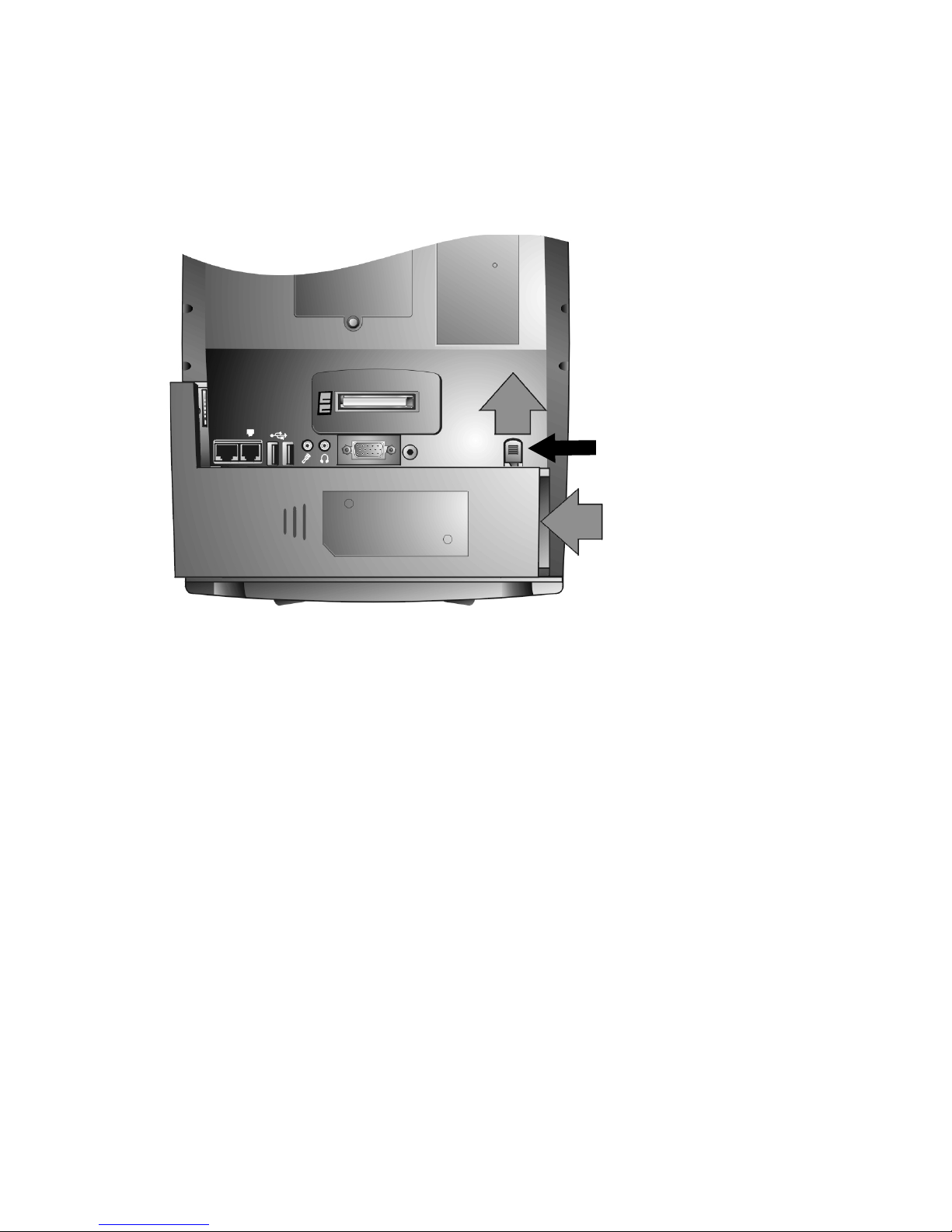
To Detach the Battery Pack
1
Position the ViewPad 1000 bottom-side up on a flat and secured surface.
2
Locate the battery latch. Slide the latch to its release position and hold.
3
While pressing the latch, push the battery’s hard case to the left a quarter of
an inch, then lift the battery from the battery compartment.
st
1
Battery latch
nd
2
Figure 13: Detaching the Battery Pack
ViewSonic ViewPad 1000 Tablet PC 20
Page 25
About Windows XP Power Management Feature
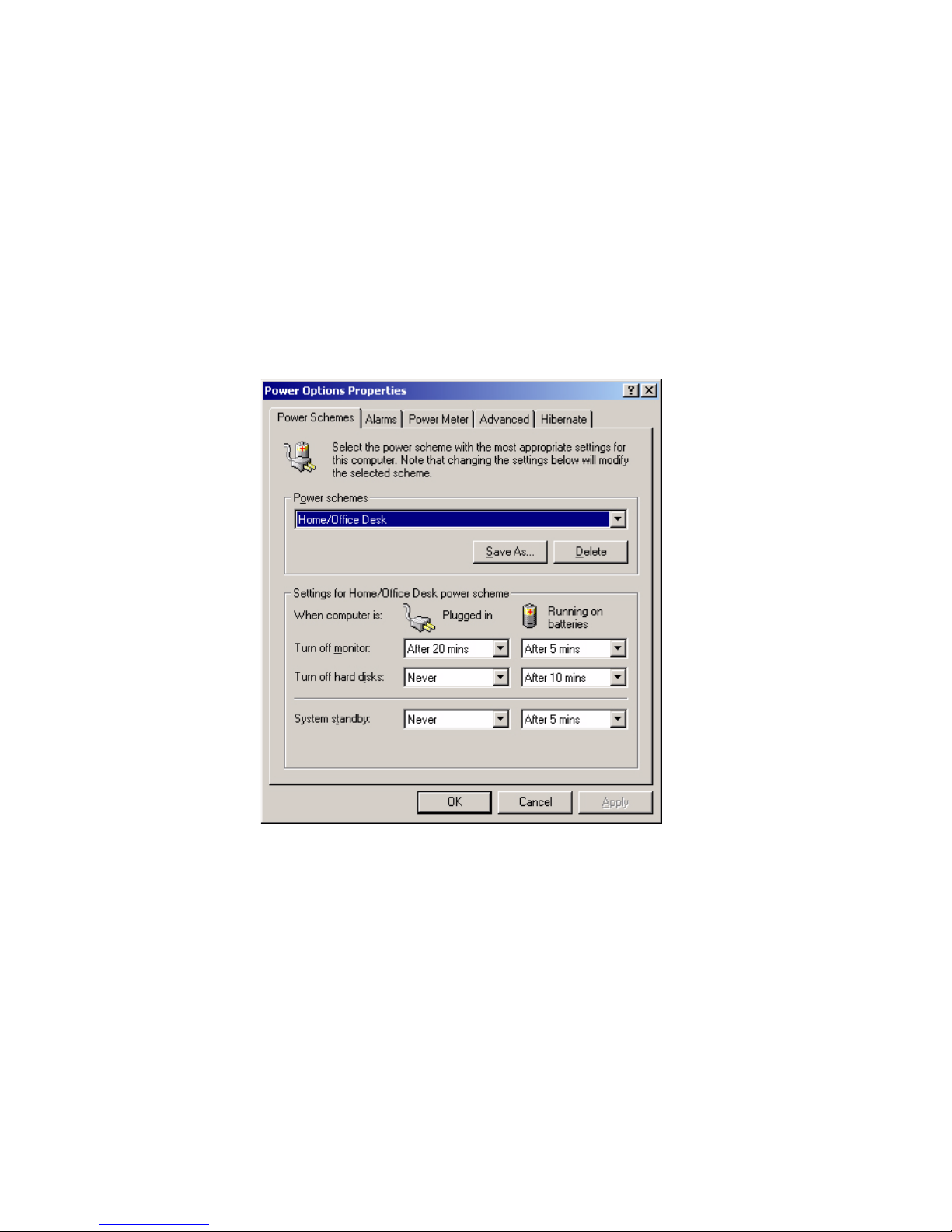
In addition to the ViewPad 1000’s built-in power management BIOS utility,
Windows
feature, click the Windows start button > My Computer > Control Panel >
Performance and Maintenance > Power Options. The Power Options Properties
screen appears as shown below.
The Windows power management allows you to enter time-out values for the
display and hard disk. You can also have your ViewPad 1000 automatically enter
a standby mode or shut itself down in the event of low or critical battery power.
For more information on the power saving features, consult the Windows
manual or on-line help.
®
XP also offers a similar power management feature. To access this
Figure 14: The Power Options Properties Panel
Note:
The ViewPad 1000’s BIOS supports Windows APM and ACPI modes.
This illustration shows the Windows ACPI dialogue box. Consult a Windows
manual on how to use Windows ACPI settings or for more information on how
to use the Windows power management functions.
ViewSonic ViewPad 1000 Tablet PC 21
Page 26
Power Saving Options
When battery power reaches critical low (3% remaining), the system enters
either one of the two power saving modes:
• Stand By mode
• Hibernate Mode - Save To Disk
Stand By Mode
In Stand By mode, hardware devices, such as display panel and hard disk, are
turned off to conserve energy. Click start > click Turn Off Computer > click
Stand By. To use the ViewPad
TM
again, click the screen.
Save To Disk - Hibernate Mode
In this mode, all system data is saved to the hard disk before powering down.
When in the hibernate mode, very little power is drawn from the battery.
The amount of time the system requires to restore all its previous contents
depends on how much RAM has been installed on your ViewPad 1000.
Restoration times can range from 5 to 20 seconds.
For Windows XP Professional
users, Save To Disk action is handled by the
operating system; therefore, no special disk partition or disk file is necessary.
To enable the hibernation function, click start > Control Panel > Performance
and Maintenance > Power Options > click the Hibernate Option > then check
the Enable hibernation option > OK.
The Power On/Power Management Button
The ViewPad 1000 uses a one-button design. This means that both the power on/
off and the system power management functions share the same physical button
as shown below. To enable the Stand By mode, see.
Power Management light
Power Management button
• Press and hold the Power On/ Power Management button for two seconds to
turn the unit On.
• Click the Power On/ Power Management button to put the system into Stand
by mode. If the Power On button is not set up to Stand by, click the Windows
start button > Control Panel > Performance and Maintenance > Power
Options > select the Advanced option. Under Power buttons, select Stand
by.
ViewSonic ViewPad 1000 Tablet PC 22
Page 27
Using Software
The ViewPad 1000 has many unique capabilities including a touch sensitive
screen, built-in digital camera, virtual keyboard, and screen pivoting. Some of
these features may require you to perform a one-time setup to enable them to
work properly.
Touch Screen Calibration
Although your touch screen is already factory-calibrated, there may be times
when the ViewPad 1000 screen will need to be recalibrated for higher accuracy.
The touch screen is a thin membrane on top of the LCD display that responds to
mechanical pressure on the screen’s surface. The cursor on the screen is
controlled using the stylus. If you notice the stylus tip touch-point not matching
up with the cursor, you can recalibrate the touch screen.
Calibrating the Touch Screen
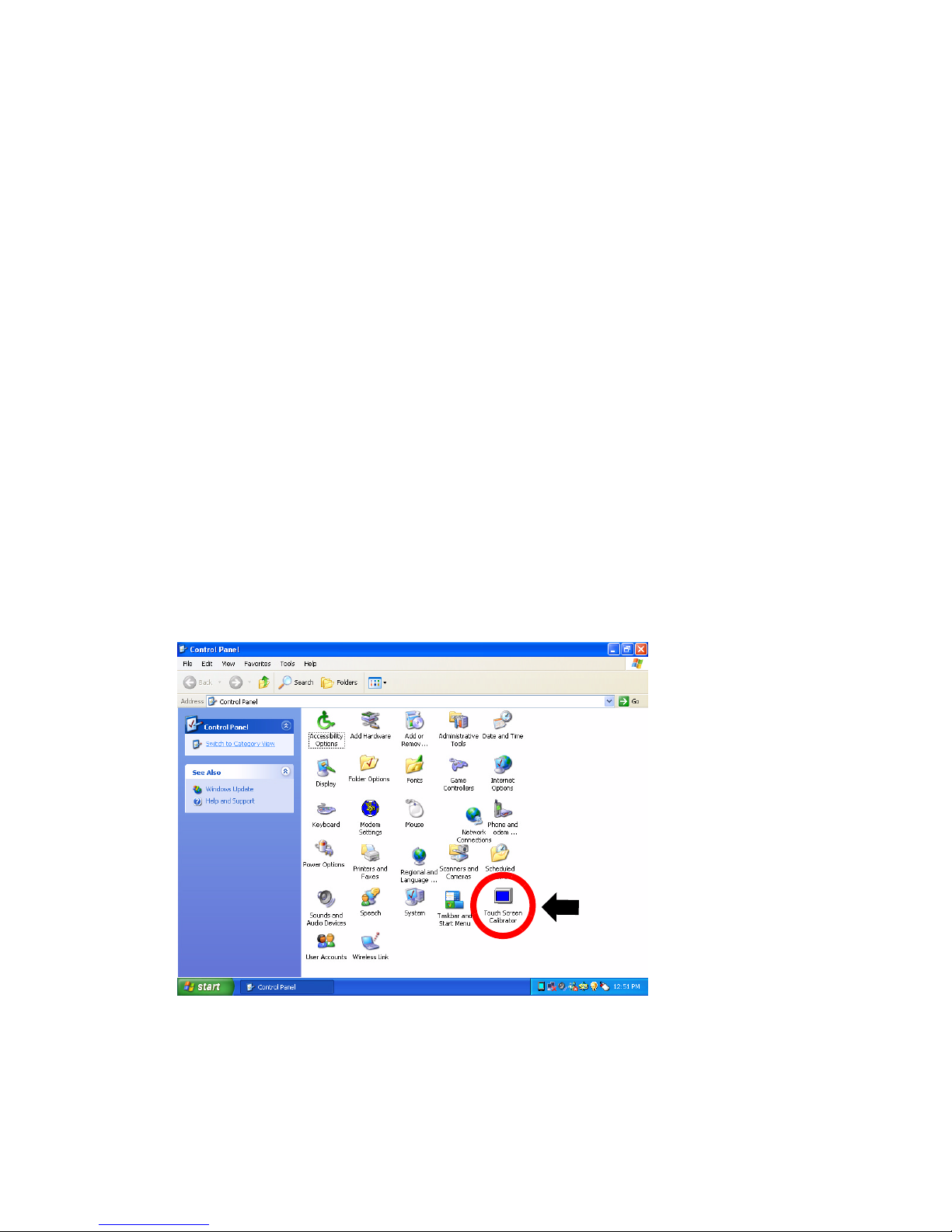
Go to Start > Control Panel > double-click the Touch Screen Calibrator icon
1
shown below. If the Touch Screen calibrator icon does not appear, click
Switch to Classic View under Control Panel.
Figure 15: The Touch Screen Calibrator Icon
ViewSonic ViewPad 1000 Tablet PC 23
Touch Screen
Calibrator icon
Page 28
2
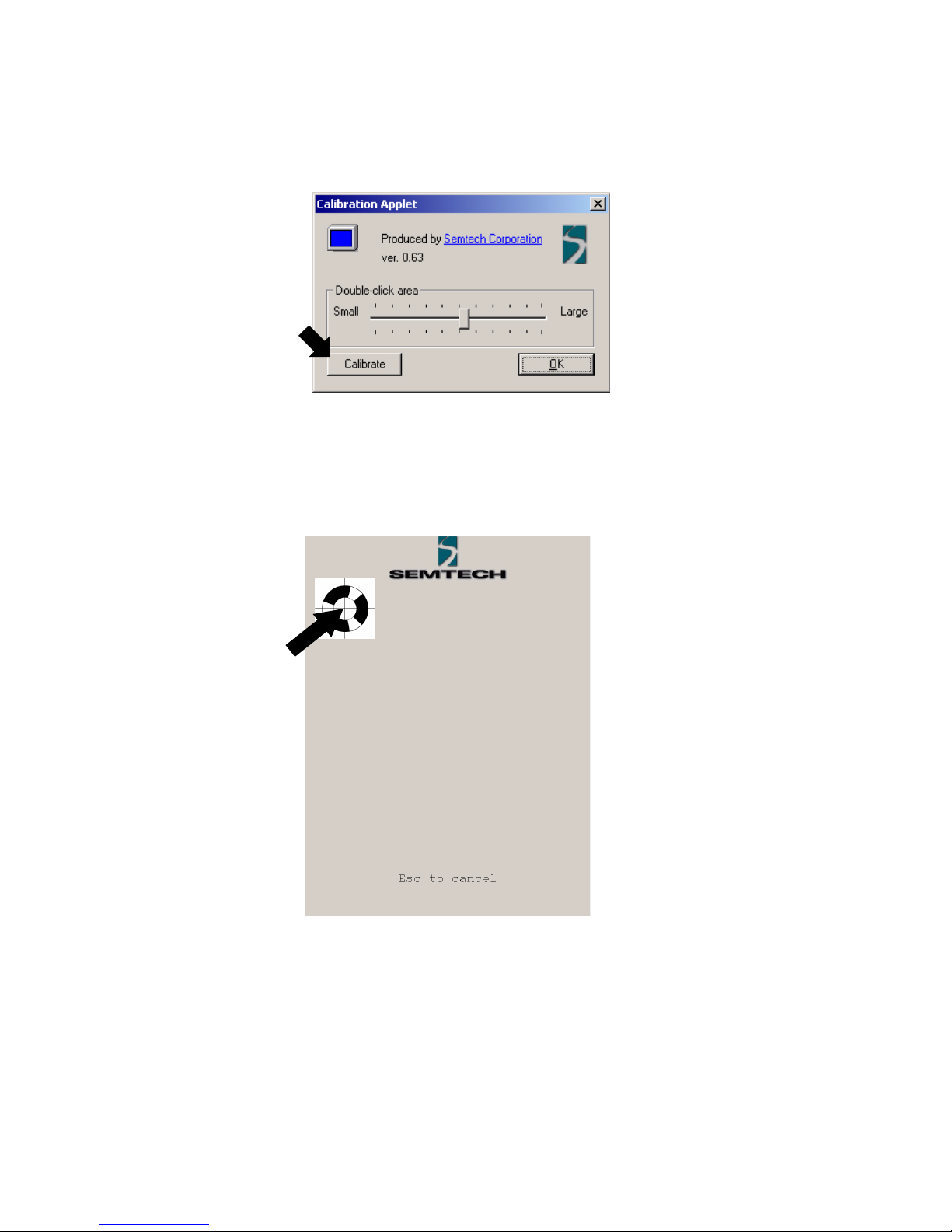
The Calibration Applet dialogue box opens as shown below. A shortcut to
the screen below is by double-clicking on the mouse symbol in the
Window’s taskbar. Click Calibrate. The next screen appears with a spinning
wheel.
Figure 16: The Calibration Applet Button
3
Click the stylus in the middle of the spinning wheel. The wheel moves to
another location on-screen.
Click here
Figure 17: The Calibration Screen
4
Click the stylus in the middle of the wheel again. Repeat this exercise
several times until the screen returns to the Calibration Applet.
5
Click OK. The recalibration takes place immediately upon exiting the
application. No need to restart the ViewPad
TM
.
ViewSonic ViewPad 1000 Tablet PC 24
Page 29
Screen Rotation
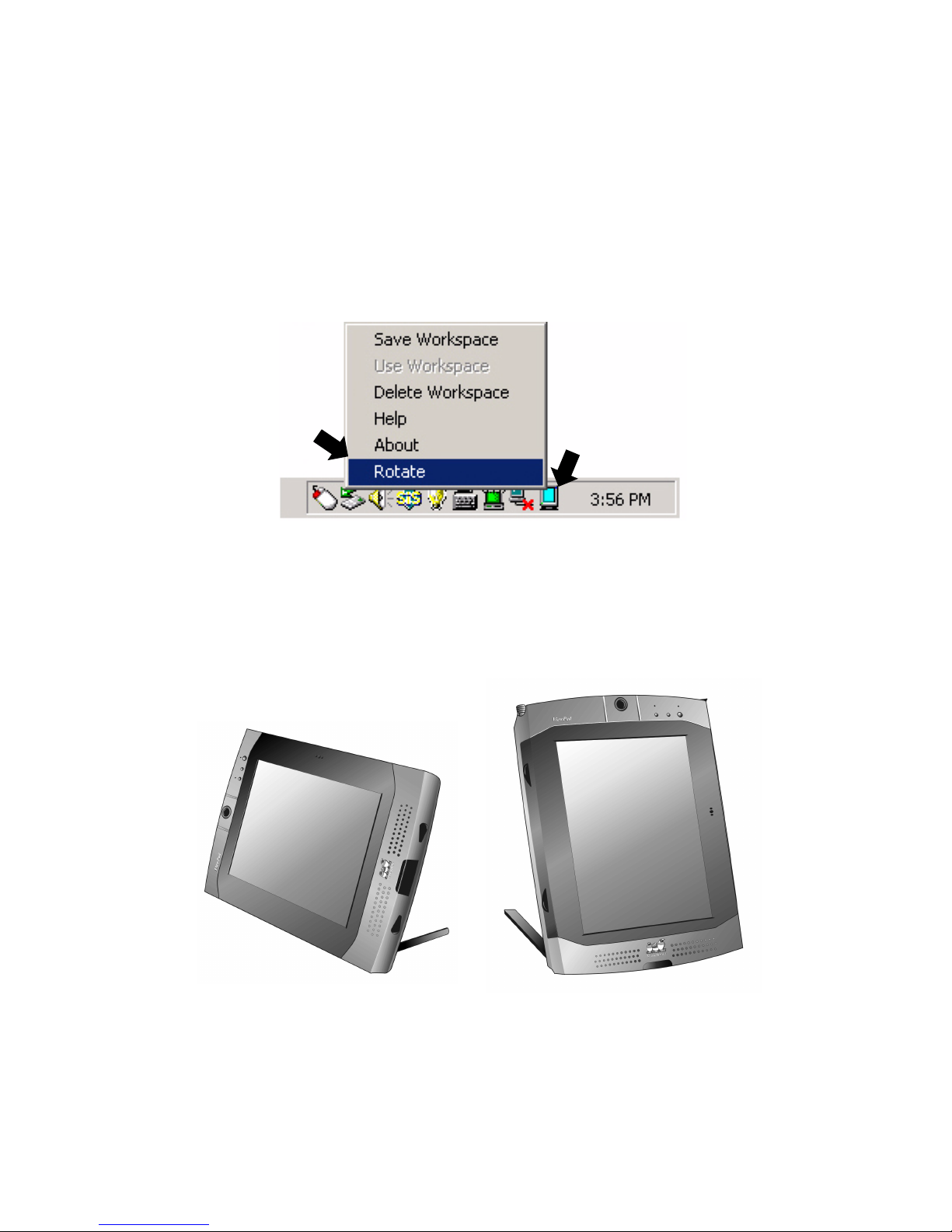
A special application, Pivot Software, allows you to use the ViewPad 1000 in
Vertical (portrait) mode or Horizontal (landscape) mode.
Rotating the Screen Display
1
Click the Pivot icon in the Windows task tray. A pop up menu appears as
shown below. Select Rotate.
Figure 18: The Pivot Icon
2
Select Rotate to pivot the screen display 90 degrees to horizontal or vertical
mode.
Figure 19: The ViewPad 1000 in Horizontal & Vertical Modes
Repeat steps 1 and 2 to revert to the previous mode.
ViewSonic ViewPad 1000 Tablet PC 25
Page 30
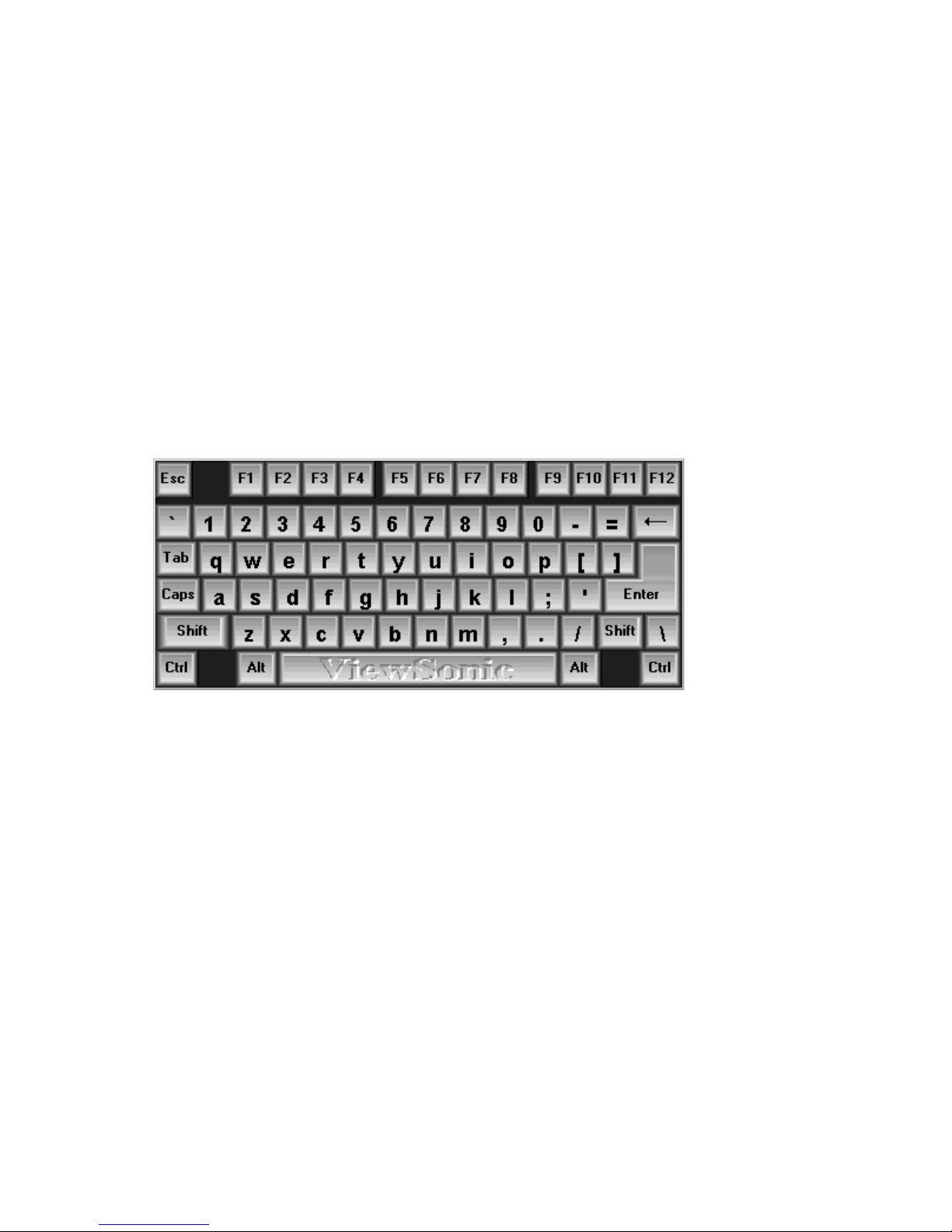
My-T-Touch Soft Keyboard
My-T-Touch® turns the touch screen into a keyboard. My-T-Touch is ideal for
network logons, security passwords, ID authentication, production quantity
entry, notes, name entry, and a variety of other uses that completes custom
applications using touchscreens.
Activating the Virtual Keyboard
To open My-T-Touch, click start > click M-T-Touch. A keyboard like the sample
shown below appears. Or, you can double-click on the Virtual Keyboard icon on
the desktop or at the lower right-hand corner of the task tray.
For more information, go to the following web site:
http://www.myttouch.com/myttouch/mtt.htm
Figure 20: My-T-Touch Soft Keyboard
ViewSonic ViewPad 1000 Tablet PC 26
Page 31
LCD Brightness Control
Utility software is provided to allow you to control the brightness of the LCD
display.
Activating the Brightness Control
1
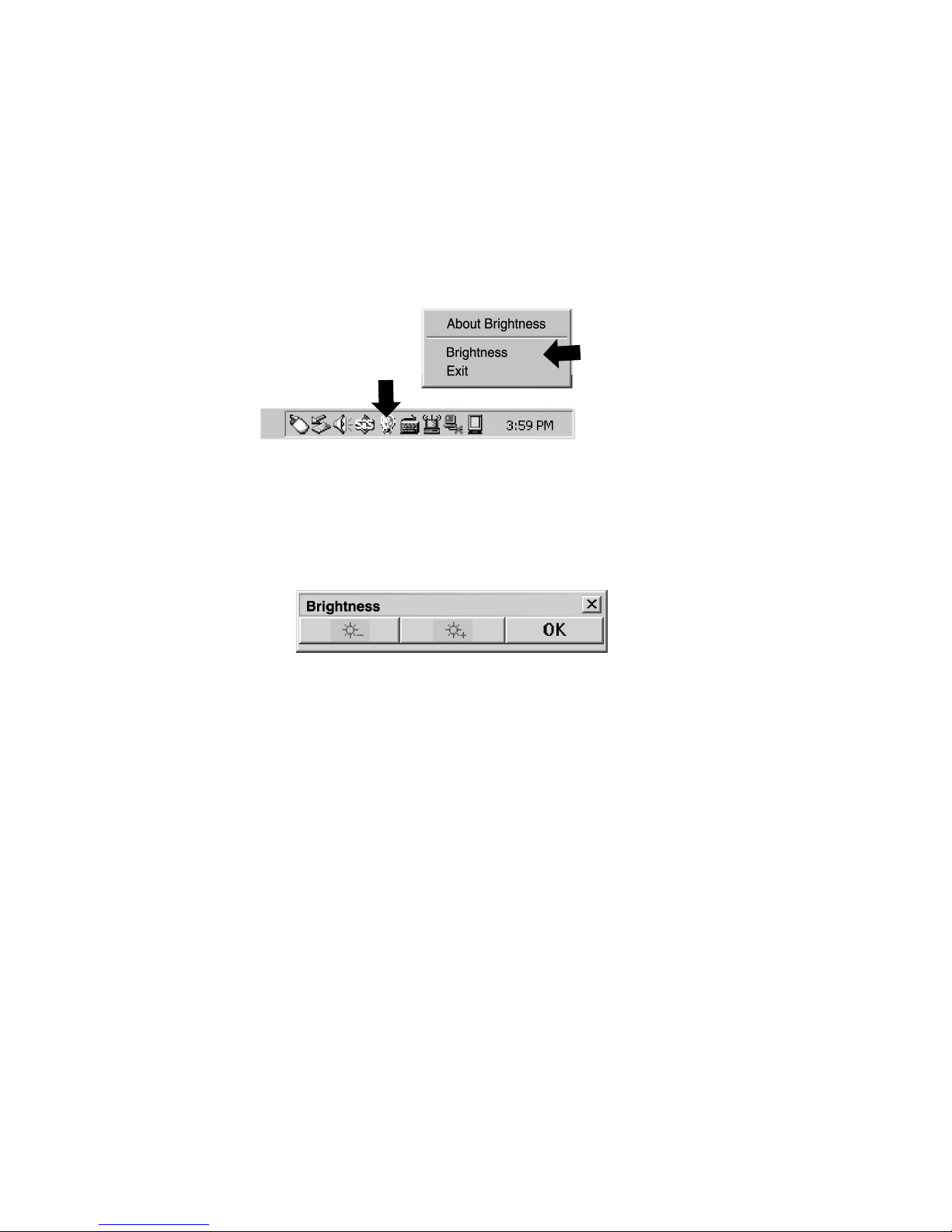
Click the Brightness Control icon (the lightbulb as shown below) on the task
tray. A pop up menu appears.
Lightbulb icon
Figure 21: The Brightness Control on the Menu
2
Select Brightness. The following box appears.
Figure 22: The Brightness Control Options
3
Press the Brighter (+) button several times to increment the brightness or
press the Dimmer (-) button to decrease the brightness. Press OK to exit.
ViewSonic ViewPad 1000 Tablet PC 27
Page 32

Citrix ICA Client
The Citrix® ICA® (Independent Computing Architecture) permits server-based
computing. The ICA protocol enables your ViewPad 1000 to function as a
terminal when connected to a server running Citrix
®
MetaFrameTM software.
The Citrix ICA Client for Windows
an ICA connection to a Citrix server. When the ICA connection is established,
you can access applications and work with files as if you were working at the
Citrix server itself.
IMPORTANT: An account from your network administrator is necessary in
order to access the Citrix server on your network.
1
Click on start.
2
Click on All Programs.
3
Click on the Citrix ICA Manager.
4
Follow the on-screen instructions.
®
lets you use your ViewPad 1000 to make
PenOffice for Windows
PenOffice® adds a natural handwriting recognition capability to your ViewPad
1000 that works for all handwriting styles – cursive, print, or mixed.
PenOffice for Windows gives you the freedom to enter information into
applications quickly and efficiently. Pen strokes written in any application
window are analyzed by PenOffice. Employing advanced fuzzy logic and
neural-net techniques, PenOffice recognizes arbitrary alphanumeric strings as
well as words from its integrated dictionary then converts them into text. The
text is then sent to a target application.
PenOffice offers a comprehensive spell checker for all Windows applications
and is based on ParaGraph's CalliGrapher
Starting PenOffice
Start PenOffice from:
Click Start > All Programs > PenOffice. The PenOffice tools appear in the
Windows task tray as shown below when PenOffice is running.
Figure 23: The Pen, Marker, and Word MarkUp Icons
ViewSonic ViewPad 1000 Tablet PC 28
®
handwriting recognition technology.
Page 33
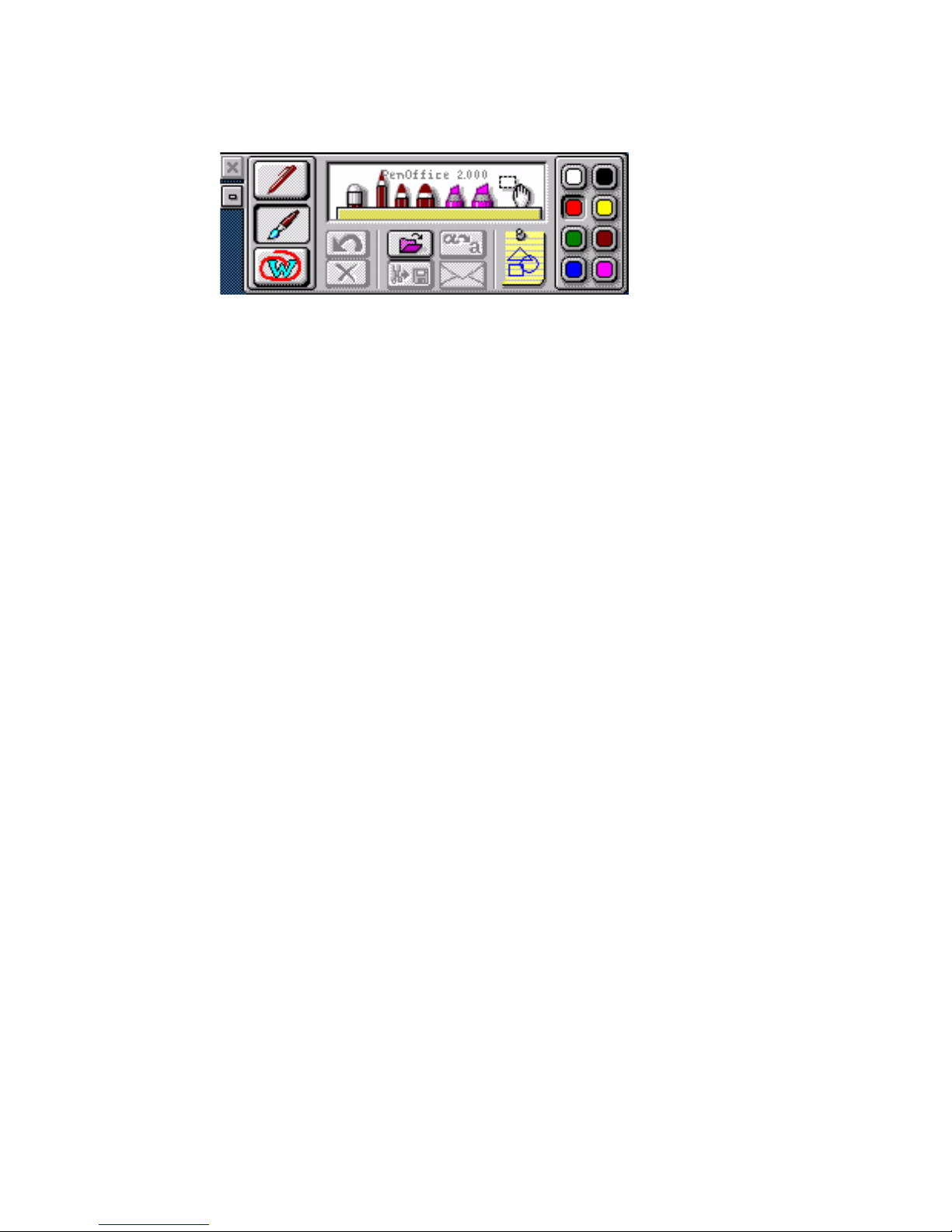
Right-click one of the PenOffice icons in the Windows task tray for the
®
PenOffice
menu as shown below.
Figure 24: PenOffice Toolbar
Modes of Operation
PenOffice may be in one of four modes:
• Recognition Mode
• ScreenDraw Mode
• MS Word MarkUp Mode or
• Off Mode
You can switch modes by clicking on Notification icons, through the PenOffice
Main menu, or by using the PenOffice
toolbar. To exit a mode, press Escape. For
more information, click start > All Programs > PenOffice User’s Guide.
Recognition Mode
When PenOffice® is running in Recognition mode (the Pen icon is dark), the
program recognizes drawing on the screen as handwriting, interprets it then
sends the result to the active application window (the window the text cursor is
currently located). In this mode, you can use single and double-clicking to select
or activate items. You can also select text by the press-and-wait method.
ScreenDraw Mode
You can switch PenOffice into the ScreenDraw mode by selecting it from the
Main menu, from the PenOffice Toolbar, or by tapping the Marker icon in the
task tray. When you switch to ScreenDraw mode, the screen becomes frozen and
grayed out. The Selection tool activates automatically when you enter
ScreenDraw mode. Define the intended drawing area with the Selection tool by
dragging it across the desired area — the selection rectangle will become
highlighted. After the selection is done, the default Drawing tool will substitute
for the Selection tool. You can choose other tools and colors from the PenOffice
Toolbar for writing, highlighting, or drawing. The Eraser tool can be used to
remove strokes — just cross a stroke or a group of strokes with the tool’s dashed
line.
ViewSonic ViewPad 1000 Tablet PC 29
Page 34

Select the part of the screen to be saved or mailed as a bitmap. Other available
options include erasing or recognizing all ink to clipboard, or sending it as an
.ink file by e-mail. Click the right mouse button to select the desired option from
the pop-up menu.
MS Word MarkUp Mode
You can switch PenOffice® to MS Word MarkUp mode by selecting it from the
Main menu, from the PenOffice Toolbar, or by tapping on the MarkUp icon in
the task tray. The PenOffice markup mode is available only if you have MS
Word running as a foreground application. You can use the different drawing
tools and colors for the markup pen just as you would in the ScreenDraw mode.
For more details, refer to the Microsoft Word markup feature.
PenOffice Off Mode
PenOffice is in a suspended operation mode when no mode icons are selected.
PenOffice does not process pen activities when in its suspend mode. Use the
suspend mode if your application requires input from the pen (such as drawing
or note taking activity).
ViewSonic ViewPad 1000 Tablet PC 30
Page 35
Working Without a Keyboard
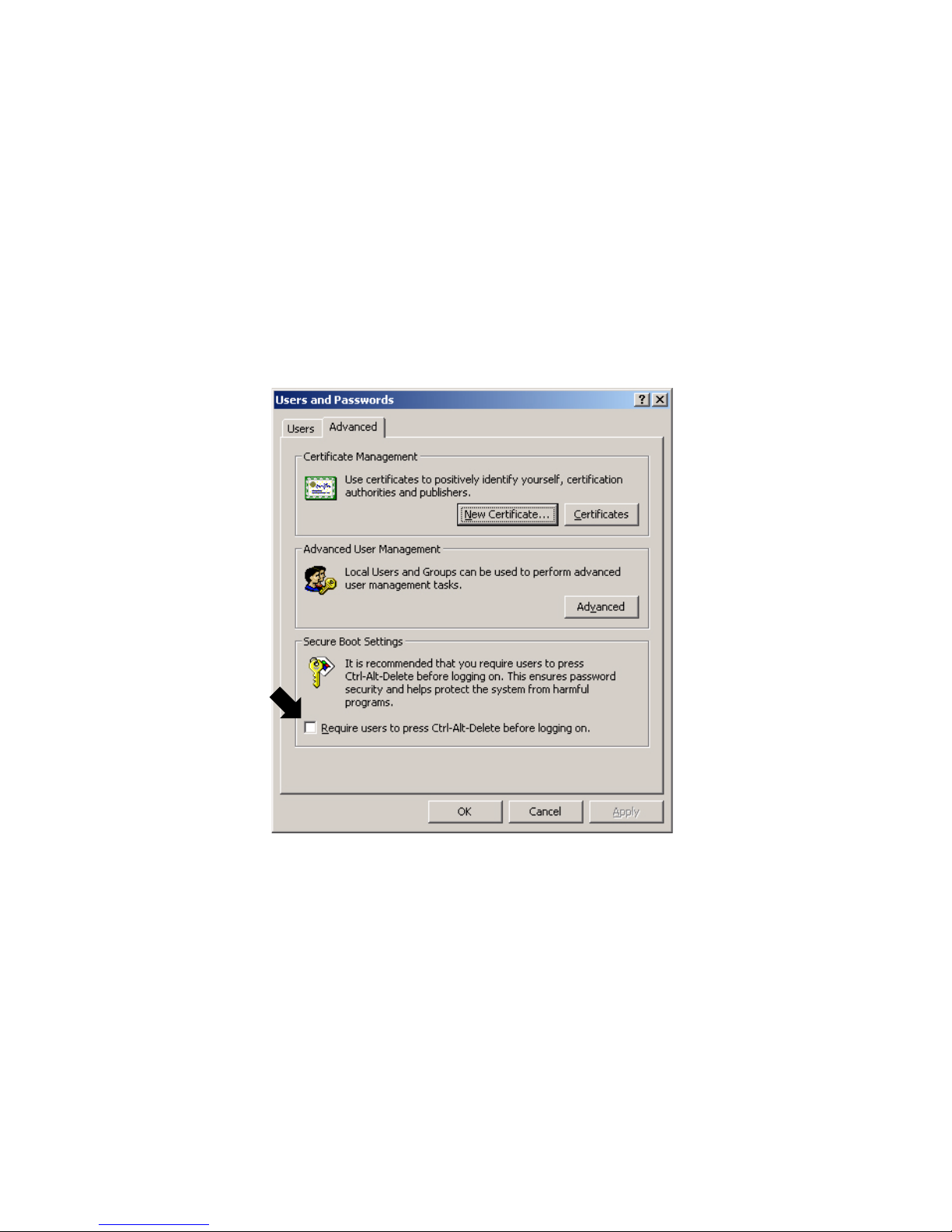
There are occasions when the OS requires you to press the Ctrl-Alt-Delete keys
such as when Windows
Disabling the Secure Boot Ctrl-Alt-Delete Requirement
1
Go to Start > Control Panel then double-click on the Users and
Passwords icon.
2
Go to the Advanced tab. Un-check the Require Users to Press Ctrl-Alt-
Delete.
3
Press OK to exit.
®
XP boots up.
Figure 25: The Users and Passwords Window
ViewSonic ViewPad 1000 Tablet PC 31
Page 36
Automatic Reboot
The system allows automatic rebooting when system locks up.
Enabling Automatic Reboot
1
Go to Start > Control Panel > double-click the System icon. If the System
icon does not appear on-screen, click on Switch to Classic View under
Control Panel.
2
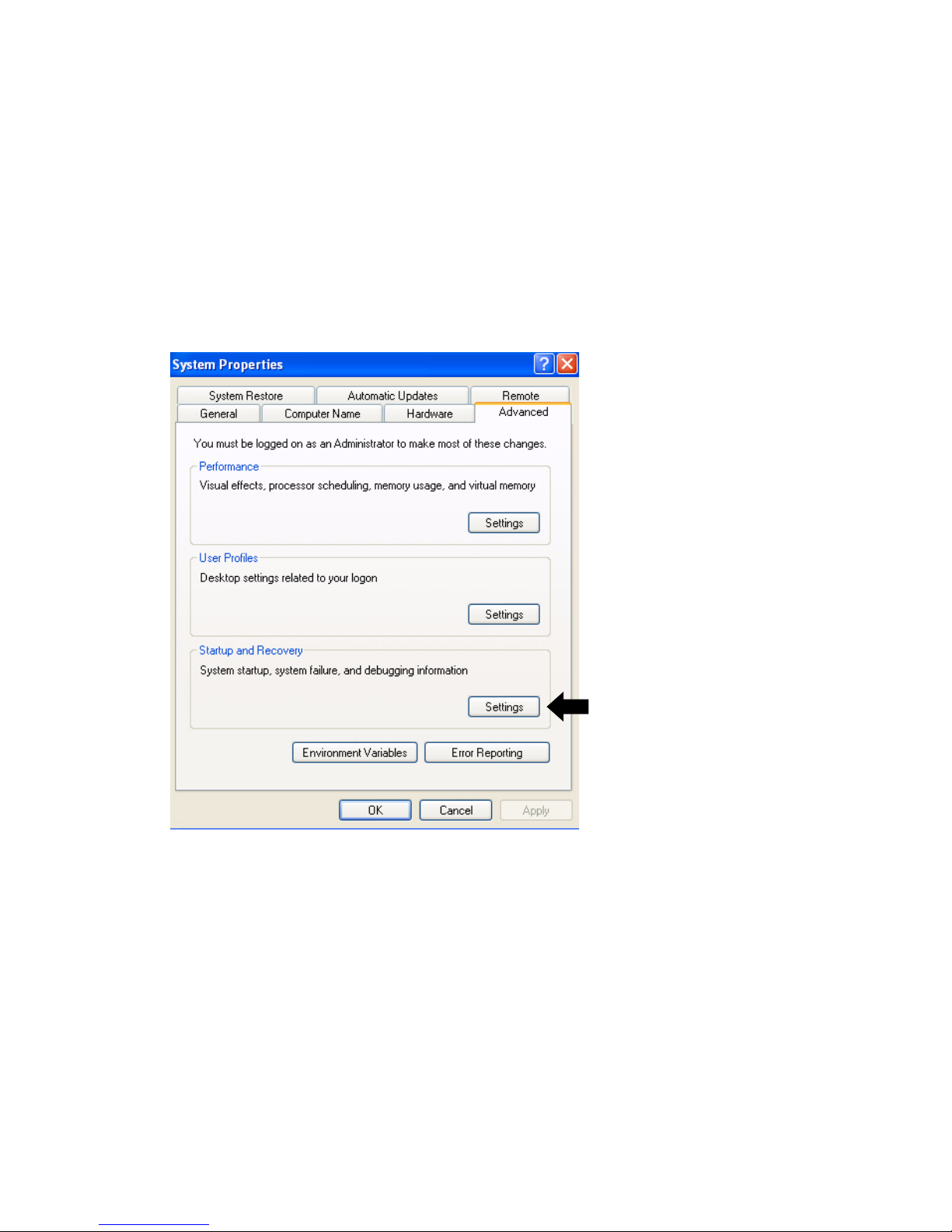
Go to the Advanced tab then click Startup and Recovery Settings as shown
below.
Click here for restart
settings
Figure 26: The Startup and Recovery Settings Button
ViewSonic ViewPad 1000 Tablet PC 32
Page 37
3
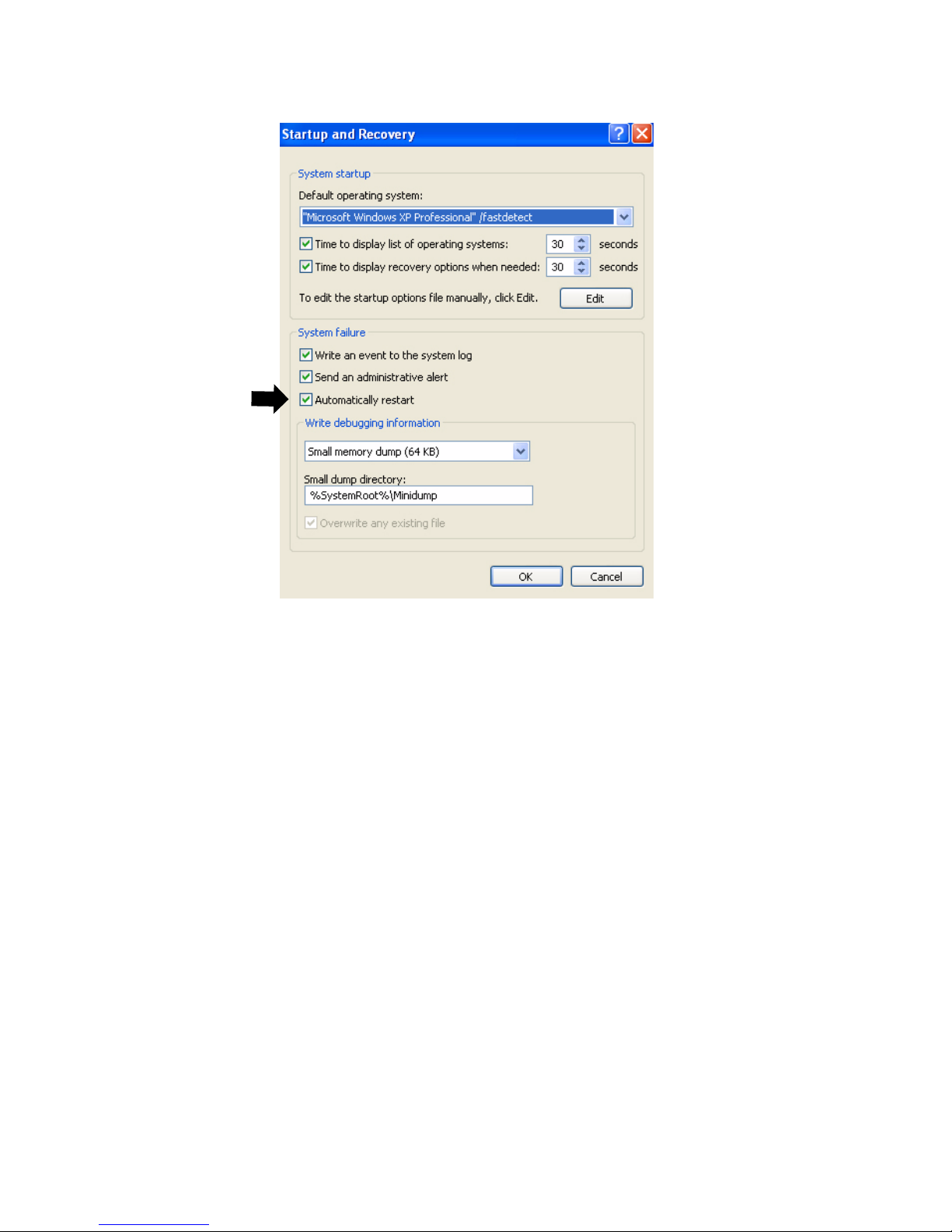
Click Automatically restart > OK to exit.
Figure 27: The Automatic Restart Option
ViewSonic ViewPad 1000 Tablet PC 33
Page 38
Standby Resume Security
If you enable the Windows® Standby Resume Security function, you will be
prompted to enter a password via a mechanical keyboard after the computer
wakes up from the suspend state.
Disabling the Standby Resume Password Prompt
1
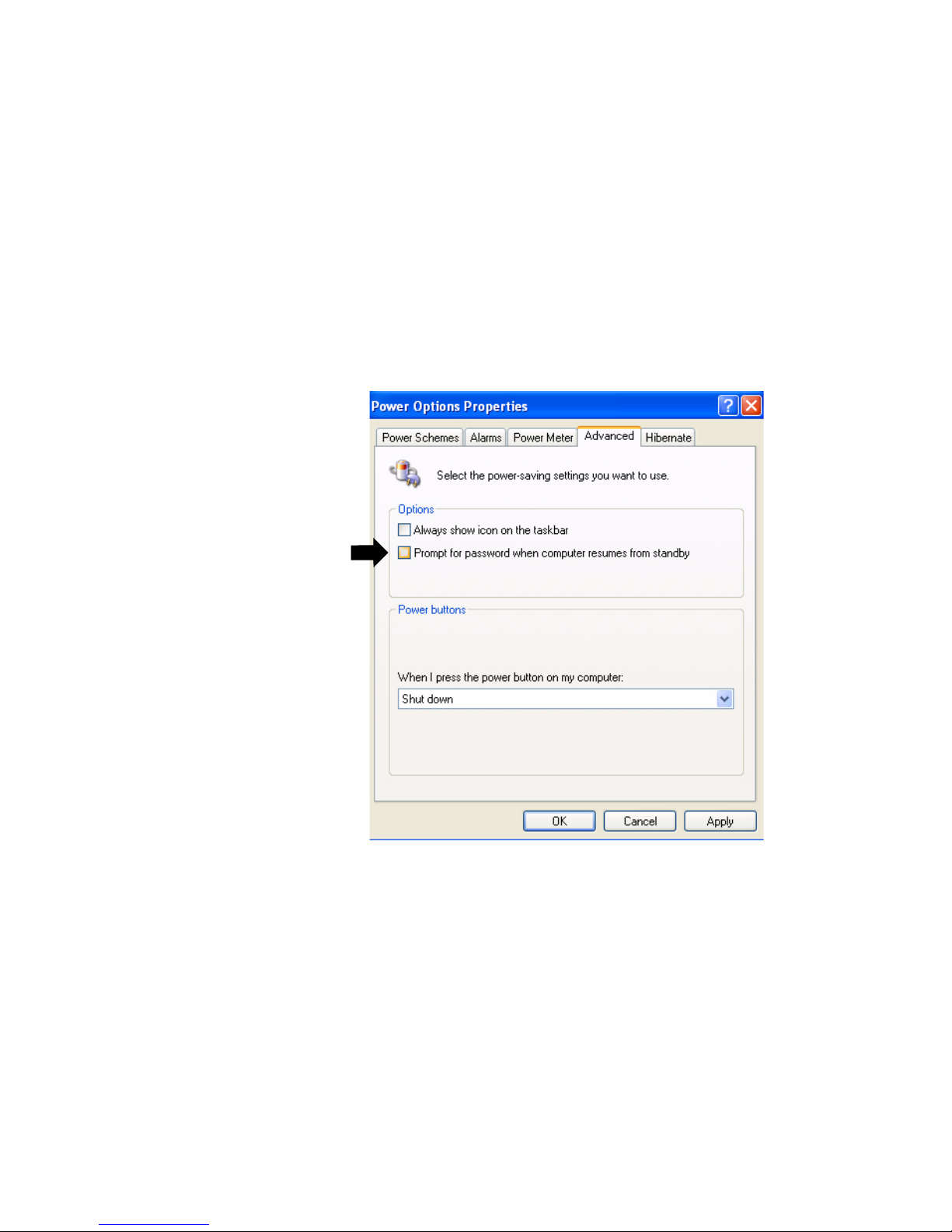
Go to Start > Control Panel. Switch to Classic View > then double-click on
the Power Options icon. The Power Options Properties window opens. Click
the Advanced tab as shown below.
2
Leave the ‘Prompt for password...’ field unchecked. Press OK to exit.
Clear this box
Figure 28: The Power Options Properties Window
ViewSonic ViewPad 1000 Tablet PC 34
Page 39

Upgrading the Memory in Your
ViewPad 1000
Upgrading the System Memory
Many applications will run faster when the system’s memory capacity is
increased. The ViewPad 1000 provides two expansion sockets located on the
back side of the system. One slot is already pre-installed with 128 MB of
memory. You can increase memory by adding a Small Outline Dual In-line
Memory Module, commonly known as a SODIMM. Module capacity can be
16 MB, 32 MB, 64 MB, 128 MB or 256 MB.
Note: Your ViewPad 1000 has been tested with a wide range of memory
products on the market. However, not all memory modules are compatible. Go
to www.ViewSonic.com for a list of compatible ViewPad 1000 modules.
Installing a New Memory Module
Upgrading the ViewPad 1000 memory is a delicate process. Please observe the
following instructions carefully or have a qualified technician install memory for
you. Damages due to mishandling during this procedure are NOT covered by the
manufacturer’s warranty.
Warning:
• Changing memory while your computer is in suspend mode or in powersaving mode may cause permanent damage to the ViewPad 1000. Make sure
you turn off the power and unplug the AC cord before proceeding with a
memory upgrade.
• Do not touch a memory module’s metallic contact edge to avoid possible
damage from an electrostatic discharge.
To Install a New Module:
1
Power OFF the ViewPad 1000. Unplug the AC cord and all cables/devices
attached to the system.
2
Place your hand on a large metal object momentarily to discharge any static
electricity.
3
Place the ViewPad 1000 face-down on a soft flat surface.
ViewSonic ViewPad 1000 Tablet PC 35
Page 40
4
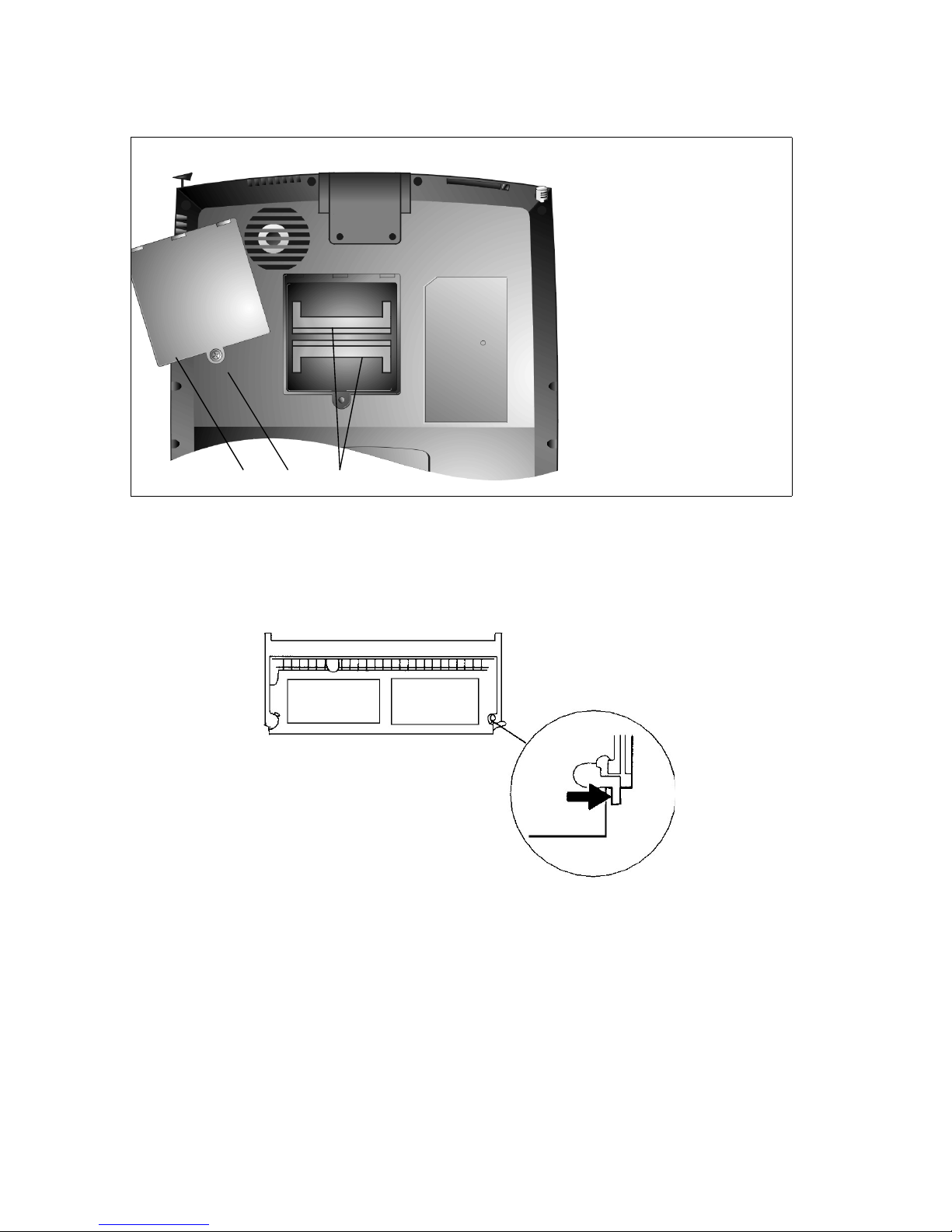
Locate the Memory Slot Cover on the back of the computer then remove the
Retaining Screw. Lift the memory door off the computer.
1
Memory Slot Cover
2
Retaining Screw
3
SODIMM Sockets
1 2 3
Figure 29: The Memory Slot Cover
5
To replace the current memory module, press outwardly on the latches
located on both edges of the socket at the same time. The module should pop
up to an angle of 30 degree (see diagram below.)
Figure 30: Removing a Memory Module
6
Pull the existing module out of the memory socket. Be sure to save it for
future use.
Attention: Notice the notch on the extracted module. The notch’s off-center
placement allows the module to fit into the socket in only one orientation. The
replacement module will be similarly notched to help you place it properly into
its slot.
ViewSonic ViewPad 1000 Tablet PC 36
Page 41
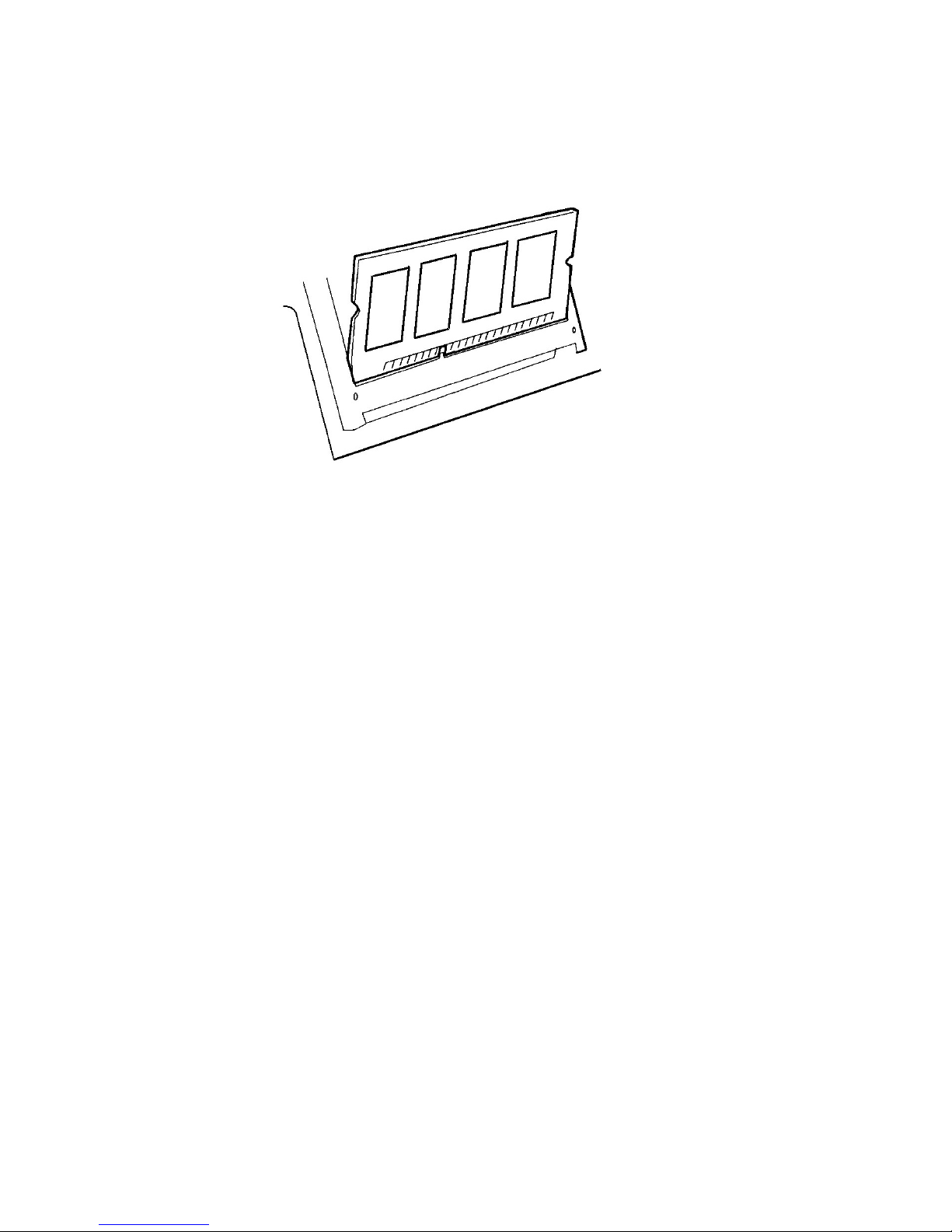
7
To install the new module, place it into the memory socket. The module will
only fit in one orientation. Insert the module at an angle of approximately 30
degrees into the empty memory socket. Then press it firmly so that the
contact edge is driven fully into the receiving socket.
Figure 31: Installing a Memory Module
8
Pivot the module until the latches on both sides of the socket snap into place.
(You will feel it solidly click into place.)
9
Replace the Memory Slot Cover and the Retaining Screw. You have now
completed the memory upgrade.
ViewSonic ViewPad 1000 Tablet PC 37
Page 42

Troubleshooting
An Initial Check List
Check out these items first:
• Check to see if the problem persists when all the external devices are
removed.
• Check to see that the green light indicator on the AC adapter is lit.
• Check to see that the power cords are completely and firmly plugged to the
wall outlet and to the ViewPad 1000.
• Check to see that the ViewPad 1000 power indicator is on.
• Check for any incorrect or loose cable connections. Make sure the latches on
the connectors catch securely at their receptacles.
• If an external device such as a USB CD-ROM drive, scanner, or printer does
not function correctly when connected, there might be a problem with the
device. Consult the device’s manufacturer first.
• Some software issues may be resolved by contacting the software vendor
directly.
• Not all peripherals are plug-and-play. You may need to restart the system
with these devices powered up and connected beforehand.
• Be sure to go to BIOS SETUP to load DEFAULT SETTING after any BIOS
update.
System Recovery
If you need to recover your operating system, reboot or turn on your ViewPad
1000. The ViewSonic bird logo appears momentarily. After the bird logo
disappears and the screen is blank, press F10 several times until the system
recovery process initiates. Follow the on-screen instructions.
ViewSonic ViewPad 1000 Tablet PC 38
Page 43

Audio Problems
Speaker
No speaker output:
• The Audio-output may have been set to mute. Double-click the speaker icon
in the task tray to see if the speaker has been muted.
• Most audio problems are software-related.
• Go to Start > Settings > Control Panel then double-click the Multimedia
icon (or Sounds and Multimedia icon). In the Audio page, make sure that
SiS7018 Wave is the preferred playback device.
Sound Recording
Sound cannot be recorded:
Check the Mute Setting - Double-click the speaker icon on the lower right
corner of the task tray to see if the microphone might have been muted.
1
From the Volume Control screen, click Options and select Properties.
2
Select Recording and click the OK button.
3
After clicking the OK button, the recording volume control panel will
appear. Review the settings to make sure that the Mute option has not been
selected.
Check the Recording Device Selection - Go to Start > Control Panel then
double-click the Multimedia icon (or Sounds and Multimedia icon). In the
Audio page, make sure that SiS7018 Wave is the preferred recording device.
Hard Disk Problems
Spin
If hard disk drive does not spin it may need to be serviced or replaced:
• Check the hard disk indicator LED to confirm a lack of spinning. Open a
file. The LED lamp should light up momentarily as a file is accessed. If the
file does not open and the light LED does not light, there may be a hard disk
spin problem.
• Recall if your ViewPad 1000 has been subjected to static electricity or
physical shock. If so, you may have damaged the disk drive.
ViewSonic ViewPad 1000 Tablet PC 39
Page 44

Abnormal Sounds
If the hard drive is making abnormal whining noises:
• Back up your files as soon as possible.
• Make sure the source of noise is indeed from the hard drive, not the fan or
some other device.
Drive is Full
If the hard disk drive has reached its capacity:
• Archive files or programs that you no longer use by moving them to an
alternate storage medium (floppy disk, optical recordable disk, tape, etc.) or
uninstall programs that are no longer used.
• Many browsers store files on the hard drive as a cache to speed up the
performance. Check the program’s Online Help for instructions on
decreasing the cache size or on removing temporary Internet files.
• Empty the Recycle Bin frequently to maintain the availability of usable disk
space. When you move files to the Recycle Bin, Windows
delete them until you act to empty the bin. To delete the files in the Recycle
Bin, double-click the desktop Recycle Bin icon > File > Empty Recycle Bin.
®
does not actually
Drive is Slow
If the hard disk takes longer to read a file:
If you have been using the drive for a long time, the files may become
fragmented. To correct potential file fragmentation, go to Start > All Programs >
Accessories > System Tools > Disk Defragmenter to perform a disk
defragmentation.
Display Problems
Blank Screen
If the display panel remains blank when the system is turned on:
Make sure the ViewPad 1000 is not in the power saving mode. In these modes,
the display is turned off to conserve energy.
ViewSonic ViewPad 1000 Tablet PC 40
Page 45

Screen is Difficult to Read
The display resolution should be set to 800 x 600 for optimal viewing. If an
external monitor is connected, you can change the resolution from the Category
View or the Classic View. See page 14 for both views.
From the Category View
1
Click start > Control Panel > under Pick a category, click Appearance and
Themes > click Change the screen resolution > Settings tab > Advanced >
Adapter tab > click List of Modes. A list of screen resolutions appears.
2
Select a resolution from the list > click OK. OK. OK. Exit Appearance and
Themes.
From the Classic View
1
Click start > click Control Panel > double-click the Display icon. The
Display Properties screen appears.
2
Click the Settings tab > click Advanced > click the Adapter tab > click List
All Modes. Select a resolution > click OK. OK. OK. Exit Control Panel.
The Screen Flickers
It is normal for the display to flicker a few times during powering up and
shutting down operations.
Wireless Keyboard and Pointing
Device Problems
Keyboard is Non-responsive
If the wireless keyboard accepts no input:
• Check for some intervening object blocking infrared communication
between the Keyboard and the ViewPad 1000.
• The ViewPad 1000 is designed to use only one keyboard at a time. If you are
connecting an external keyboard to the system, the wireless keyboard may
not work.
• Make sure that there are charged batteries installed in the keyboard.
• Try restarting the system.
Character Repetition
If the characters on the screen repeat:
• You may be holding the keys down too long while you are typing.
ViewSonic ViewPad 1000 Tablet PC 41
Page 46

• Keep the keyboard clean and free of dust and dirt.
• Configure the keyboard to wait longer before the auto repeat feature starts.
To adjust this feature, Go to Start > Settings > Control Panel, then doubleclick on the Keyboard icon. A dialogue box opens adjustable settings for the
keyboard.
Bios Problems
CMOS Checksum Failure Message
If a message, CMOS Checksum Failure, displays during the booting process:
• Contact ViewSonic Customer Support. See the Customer Support section in
the manual.
• The life of the CMOS battery varies from between three to five years
depending on usage.
Infrared Problems
Port Failure
If the Infrared Communication Port does not seem to work:
• Remove any objects that block the communications path.
• Make sure the communicating devices are not more than 1 meter apart and
are aligned in a straight-line.
• Make sure that IR device is enabled in the Control Panel. If the infrared icon
at the lower right corner of the task tray has a red X-symbol, it has been
disabled. Click on the icon. In the Option page check off the Infrared
Communication item.
• Check the infrared setting in the BIOS Setup utility.
Memory Problems
Increased Memory is not Recognized
If the boot up screen does not show additional memory installed:
• Certain brands of memory module may not be compatible with your system.
Go to www.ViewSonic.com for a list of compatible SODIMM.
• The memory module may not have been installed properly. Go back to the
memory section to review the details of this operation.
• The memory module may be defective.
ViewSonic ViewPad 1000 Tablet PC 42
Page 47

Insufficient Memory Error Message
If the OS issues an insufficient memory error message during operation:
• This is often a software or Windows
• Close any application programs you’re not using. This may free up some
allocated memory.
• You may need to install an additional memory module. For instructions, go
to the section on upgrading memory.
®
-related problem.
Modem Problems
Connection Difficulties
• Be sure to disable Call Waiting.
• Excessive line noise might cause the connection to be dropped. To check
line noise, put the regular phone handset on the line and place a phone call.
If you do hear abnormal noise, try to make the modem connection with a
different line or contact your local telephone company for service.
• Make sure the RJ-11 cable (the one that goes from the modem to the
telephone line) is firmly connected to the modem's RJ-11 jack and to the
telephone line socket.
• Try a different phone line to see if the problem persists.
• Be sure the line has a dial tone.
Network Adapter Problems
Adapter Nonresponsive
If the Ethernet Adapter does not seem to work:
• Go to Start > Control Panel then double-click the System icon > Hardware >
Device Manager tab. Double-click on Network Adapters and check if
SiS900 PCI Fast Ethernet Adapter appears as one of the adapters. If it does
not exist, Windows
not been installed. If there is a yellow mark or red cross on the SiS network
adapter, there may be a device or resource conflict. Consult the Windows
manual on how to solve this problem.
• Make sure the physical connections on both ends of the cable are good.
• The hub or concentrator may not be working properly. Check to see if other
workstations connected to the same hub or concentrator are working.
®
has not detected the SiS adapter or the device driver has
ViewSonic ViewPad 1000 Tablet PC 43
Page 48

100 Mbps Mode Nonresponsive
If the Ethernet adapter does not appear to operate in the 100 Mbps transmission
mode:
• Make sure the hub you are using supports 100 Mbps operation.
• Make sure that your RJ-45 cable meets the 100BASE-T requirements.
• Make sure the Ethernet cable is connected to the hub socket that supports
100BASE-T mode, not 10BASE-T. The hub may have both 10BASE-T and
100BASE-T sockets.
PC Card (PCMCIA) Problems
PC Cards do not Function
• Make sure you have properly installed the driver for the card.
• Make sure the card is properly seated.
• Consult the card’s manual or contact the vendor for troubleshooting.
PC Card not Recognized
• Remove and insert the PC Card again.
• Make sure there is no IRQ (interrupt request) conflict with the card. See
Windows
• Reboot the ViewPad 1000 to see if the problem persists.
• The card may be defective. Try the card on another system, if possible.
®
on-line help for solving IRQ conflicts.
PC Card Removal Locks Up Windows
If the Windows Crashes or Freezes after removing the PC Card:
Make sure the PC Card is not in use before removing it. Click on the PC Card
icon at the lower right corner of the task tray, select the card you wish to stop,
then click OK. In a few seconds, Windows will prompt you to remove the card.
Performance Problems
Overheating
If the ViewPad 1000 becomes hot:
• In a high temperature operating environment, 95 degrees Fahrenheit (35
degrees Celsius) or more, the ViewPad 1000’s case bottom can reach 120
degrees Fahrenheit (49 degrees Celsius).
• Make sure the air vents are not blocked.
ViewSonic ViewPad 1000 Tablet PC 44
Page 49

• If the fan does not seem to be working at high temperatures, contact
ViewSonic
manual.
• Certain programs that are processor-intensive may increase the ViewPad
1000’s temperature to the point that the ViewPad 1000 automatically slows
down its CPU clock to protect itself from thermal damage.
®
Customer Support. See the Customer Support table in this
Program Slowing
If the program appears stopped or runs very slowly:
• Press CTRL+ALT+DEL then click on the Task Manager to see if the
application is still responding.
• Restart the ViewPad 1000.
• This may be normal for Windows when it is processing other CPU-intensive
programs in the background.
• You may be running too many applications. Try to close some applications
or increase available system memory for higher performance.
• The processor may have overheated due to the system’s inability to regulate
its internal heat. Make sure the ViewPad 1000’s ventilation grills are not
blocked.
Power, Start, and Battery Problems
Power Down on Startup
The ViewPad 1000 powers down as soon as it is powered on:
Battery power may be extremely low. The circuitry prevents a complete power
drain, which is not intended for Lithium Ion batteries. Use the power adapter to
charge it for several hours before trying again.
Diminishing Battery Life
The battery life gets shorter and shorter:
• The battery has a finite life of about 500 charge cycles. If your battery is
over one or two years old, it may be time to have it replaced.
• Try a higher power saving setting in the BIOS or in Windows
Management.
Recharge Failure
®
Power
The battery does not charge:
• Make sure the AC adapter is plugged into a working power source.
ViewSonic ViewPad 1000 Tablet PC 45
Page 50

• The battery charge indicator LED on the ViewPad 1000 should be lit when
you plug in the AC adapter.
• Make sure the battery module is fully inserted in its bay and that the battery
latch is in its locked position.
• If the battery is operating at a very high temperature, it may not accept a
charge.
Printing Problems
File Print Failure
The printer does not print:
• Make sure the cable connection is secured and that the printer is
powered up.
• Run the printer self-test to see if it reports any problem.
• Check to see if the printer displays any error messages. A paper jam may
have occurred.
• Make sure you have installed the printer’s driver.
• Try rebooting the system with the printer powered up and connected
beforehand.
• Consult Windows
printer vendor for assistance. Most printer problems using a parallel or serial
port are software-related.
®
on-line help or your printer manual, or contact the
Screen Print Failure
The printer does not print what is on the screen:
• If the printer prints strange symbols, this can be the result of garbage in the
printer memory buffer cache. Call off all the printer tasks then toggle off the
printer power switch to clear up the memory buffer. Turn the printer back
online and attempt to print again.
• Make sure you have installed the correct printer driver.
USB Problems
USB Failure
The USB device does not seem to work:
• Check the USB settings in the Windows Control Panel.
• Make sure you have installed the necessary device drivers.
• Contact the device vendor for additional support.
ViewSonic ViewPad 1000 Tablet PC 46
Page 51

Appendix
Specifications
Processor and
Core Logic
Storage Capacity
System Memory
Operating System
LCD
Graphics
Processor
L1 Cache 32 KB (16 KB for Code Instruction, 16 KB for Data)
L2 Cache 128 KB on-die
Core Logic SiS630S chip-set
with:
Bus Architecture Controller integrated
Hard Disk Drive 20 GB storage capacity
Memory Type
Default
Memory Expansion
Display Panel 10.4-inch SVGA active-matrix touch-screen TFT display
Graphic Controller SiS630S with integrated AGP bus 2D/3D graphics
®
Celeron® 800-MHz processor in µ-PGA package
Intel
on-die
Graphics
Audio
Modem
Ethernet
100 MHz Front Side Bus
AGP Bus
Synchronous DRAM, PC100 or PC133 compatible
256 MB, 3.3-Volt 64-bit bus
Total of two 184-pin SODIMM sockets expandable to
512 MB
®
Microsoft Windows
capable of up to 16.7 M colors
accelerator
XP Professional
Graphics Ability UltraAGP architecture graphics capability (similar to 4X
Playback Motion Compression and IDCT Supported for DVD
Multimonitor
Display
Memory Sharing
Other Features
AGP), 3D Graphics Supported
Playback
Simultaneous LCD/External Monitor Display
Dual Independent LCD and External Monitor Display
Supported
Shared-memory architecture (up to 50% of the total
system memory, 32 MB maximum)
®
Direct3D
VESA
and DirectX® 6.0 compatible
®
DDC1, DDC2B & DDC 3.0 supported
ViewSonic ViewPad 1000 Tablet PC 47
Page 52

LAN Network Adapter
PnP Function
SiS630S with integrated PCI Fast Ethernet function for
100BASE-T network standards.
Windows 95 / 98 / Me / 2000 / XP Plug and Play
compatible
Flow Control
Speed Selection
Other Features
Wireless Lan Host Interface
Channels
Frequency Band
Data Rates
Transmission
Power
Nominal Temp
Range
Extended Temp
Range
Automatic Jam
Auto Negotiation
Auto Negotiation and Parallel detection for automatic
speed selection (IEEE 802.3u)
High performance 32-bit PCI bus master architecture
with integrated DMA controller for low CPU and bus
utilization
Remote Wake-up Scheme support
Hot Insertion support
Mini-PCI
11 for USA and Canada
2.400 - 2.4835 GHz (subject to local regulations)
11 Mbps
5.5 Mbps
1 Mbps
Output range 2.7 - 3.0 V at 14 dBm, minimum
17 dBm, minimum
14 dBm, minimum
Reception
Sensitivity
Modulation
Security
Standards
Roaming
Network Protocols
Management Utility
Nominal Temperature Range:
1 Mbps 10-5 BER @ -90 dBm, minimum
5.5 Mbps 10-5 BER @ -87 dBm, minimum
11 Mbps 10-5 BER@ -84 dBm, minimum
Extended Temperature Range:
1 Mbps 10-5 BER @ -84 dBm, minimum
5.5 Mbps 10-5 BER @ -81 dBm, minimum
11 Mbps 10-5 BER @ -78 dBm, minimum
CCK - 11 Mbps and 5.5 Mbps
DQPSK - 2 Mbps
DBPSK - 1 Mbps
64-bit WEP Encryption
IEEE 802.11b, Wi-Fi compliant
Full mobility and seamless roaming from cell to cell and
across access points (subject to access point)
TCP/IP
IPX
NDIS3
NDIS4
Link Config for network join and diagnostics
ViewSonic ViewPad 1000 Tablet PC 48
Page 53

Modem Model
Uniwill V.90 Modem
Transmission
Speed
Audio Audio Chipset
Sound Capability
Por ts VGA
Audio
Infrared
USB
Modem
LAN
Power
Docking
V.90 / K56 flex for download data speeds up to
56000bps
V.34, V.17, V.29 protocol support
Sis7018 (integrated in Sis630s)
64-voice Polyphony Wavetable Synthesizer
®
DirectSound 3D
accelerator for IID
IAD and Doppler effects
Full duplex, independent sample rate converter
®
SoundBlaster
Pro/16 compatibility
AC’97 V2.1 compatibility
Full duplex and independent sample rate converter for
audio recording and playback
One 15-pin CRT connector
One stereo audio-out jack & one microphone-in jack
One FIR LED and One CIR-type LED for keyboard
Two USB connectors
One standard phone jack (RJ-11)
One standard network connector (RJ-45)
One DC-in connector
One docking connector for docking station
Other Standard
Keyboard
Hardware
Pointing Device
Digital Camera
PC Card Slot PCMCIA Controller
Features
Power Main Battery
AC Adapter
Other Features
Infrared-transmitting (CIR type) 87-key touch-type
QWERTY keyboard with embedded numeric keypad
4-wire resistive type Touch Screen
CCD, 640 x 480 resolution
Manual focus ring
Macro lens support
USB 1.0 interface
O2Micro OZ 6812 / 6912 controller
Single slot for TYPE I/II
Hot insertion and removal support
Li-Ion 9-cell, 11.1 V
5400mAh
60 W
Input:
100-240 V
50-60 Hz
1.7 A Max @ 115 V
Output:
16 V, 3.75 A
60 W
Recharge:
System OFF - 3.7-4.2 HR (100%)
System ON - 6-6.5 HR (100%)
Capabilities
Low Battery Warning
Suspend/Resume
ViewSonic ViewPad 1000 Tablet PC 49
Page 54

BIOS PnP Function
AMI PnP BIOS
Physical
Specifications
Self Test
Auto Detection
Power
Management
Security
Other Features
Dimensions
Weight
Environmental
Limitations
Power On Self Test
DRAM type auto-detection
Auto-sizing
L2 Cache type auto-detection
Hard disk type auto-detection
APM 1.2 (Advanced Power Management)
ACPI 1.0 (Advanced Configuration Power Interface)
Two Level Password Protection
32-bit access
Ultra DMA
PIO5 Mode support
Multi-boot capability
L x W x D:
310.5 mm x 226.7 mm x 36.2 mm
12.2" x 8.9" x 1.4"
1.95 kg
4.3 lbs
Operating Temperature:
41 to 95 degrees Fahrenheit
5 to 35 degrees Celsius
Operating Humidity - 20 to 90 percent RH at:
41 to 95 degrees Fahrenheit
5 to 35 degrees Celsius
Storage Temperature:
-4 to 122 degrees Fahrenheit
-20 to 50 degrees Celsius
Note: Product Specifications are subject to change
without notice.
Optional
ViewPad
Regulations UL/cUL, FCC Part 15 B & C, FCC Part 68, IC CS03, IC
TM
Dock
PnP Function
Por ts
Button
LED Indicators
Hot insertion support
One 15-pin CRT connector
One stereo Audio-out jack & one Microphone-in jack
One 25-pin Parallel connector (ECP / EPP)
One 9-pin Serial connector
Two USB connectors
One 56bps Modem jack (RJ-11)
One Fast Ethernet connector (RJ-45)
One DC-in connector
One docking connector for the ViewPad 1000
One Eject button for system removal
One AC-in Green LED indicator
One Ready-to-Remove Orange LED indicator
RSS210, CE, TUV/GS, BSMI, DGT, CCIB, MII/CAN,
IDA, C-tick, A-tick, VCCI, JATE.
ViewSonic ViewPad 1000 Tablet PC 50
Page 55

Customer Support
For technical support or product service, see the table below or contact your
reseller.
NOTE:
Country/
You will need the product serial number.
Web site T = Telephone
Region
United States
Canada
United Kingdom VSMobile.com/
Europe, Middle
East, Baltic
countries, and
North Africa
Australia and New
Zealand
Singapore/India
and Southeast
Asia
VSMobile.com/
support
viewsonic.com/
support
support
viewsoniceurope.com Contact your
viewsonic.com.au
viewsonic.com.sg
F = FAX
(800) 688-6688
T:
(909) 468-1202
F:
(800) 688-6688
T:
(909) 468-1202
F:
0800 833 648
T:
01794 500801
F:
reseller
+61 2 9929 3955
T:
+61 2 9929 8393
F:
65 273 4018
T:
65 273 1566
F:
Email
VSMobile@
viewsonic.com
service.ca@
viewsonic.com
service.eu@
viewsoniceurope.com
service.eu@
viewsoniceurope.com
service.au@
viewsonic.com
service.sg@
viewsonic.com
Other Asia/Pacific
countries
South Africa viewsonic.com/asia
viewsonic.com.tw
886 2 2246 3456
T:
886 2 8242 3668
F:
886 2 2246 3456
T:
886 2 8242 3668
F:
service.ap@
viewsonic.com
service.ap@
viewsonic.com
ViewSonic ViewPad 1000 Tablet PC 51
Page 56

Cleaning and Maintenance
• Make sure the ViewPad 1000 is turned off.
• Never spray or pour any liquid directly onto the screen or case.
• Never immerse the ViewPad 1000 in any liquid.
To clean the screen:
1
Wipe the screen with a clean, soft, lint-free cloth. This removes dust and
other particles.
2
If still not clean, apply a small amount of non-ammonia, non-alcohol based
glass cleaner onto a clean, soft, lint-free cloth, and wipe the screen.
To clean the case:
1
Use a soft, dry cloth.
2
If still not clean, apply a small amount of a non-ammonia, non-alcohol
based, mild non-abrasive detergent onto a clean, soft, lint-free cloth, then
wipe the surface.
DISCLAIMER
ViewSonic® does not recommend the use of any ammonia or alcohol-based
cleaners on the ViewPad 1000 screen or case. Some chemical cleaners have been
reported to damage the screen and/or case of the ViewPad 1000. ViewSonic will
not be liable for damage resulting from use of any ammonia or alcohol-based
cleaners.
ViewSonic ViewPad 1000 Tablet PC 52
Page 57

Limited Warranty
ViewPadTM Products
What the warranty covers:
ViewSonic
the warranty period. If a ViewPad product proves to be defective in material or workmanship during the
warranty period, ViewSonic will, at its sole option, repair or replace the product with a like product.
Replacement product or parts may include remanufactured or refurbished parts or components.
ViewSonic provides no warranty for the third party software included with the product. For specific
warranty information, please see the EULAs included with the product. ViewSonic does not warrant that
software will meet your requirements or that operation of software will be uninterrupted or error free.
VIEWSONIC AND ITS SUPPLIERS DISCLAIM ALL WARRANTIES AND CONDITIONS, EITHER
EXPRESS OR IMPLIED, INCLUDING, BUT NOT LIMITED TO, IMPLIED WARRANTIES OF
MERCHANTABILITY, FITNESS FOR A PARTICULAR PURPOSE, AND NONINFRINGEMENT.
How long the warranty is effective*:
ViewSonic ViewPads are warranted for one (1) year for all parts (except software) and one (1) year for all
labor from the date of the first consumer purchase.
* For Europe: This Limited Warranty is effective in Europe for two (2) years for all parts (except software)
and two (2) years for all labor from the date of the first consumer purchase.
Who the warranty protects:
This warranty is valid only for the first consumer purchaser.
What the warranty does not cover:
1. Software
2. Any product on which the serial number has been defaced, modified or removed.
3. Damage, deterioration or malfunction resulting from:
4. Removal, installation, and set-up service charges.
How to get service:
1. For information about receiving service under warranty, contact ViewSonic Customer Support. You
2. To obtain service under warranty, you will be required to provide (a) the original dated sales slip, (b)
3. Take or ship the product freight prepaid in the original container to an authorized ViewSonic service
4. For additional information or the name of the nearest ViewSonic service center, contact ViewSonic.
Limitation of implied warranties:
THERE ARE NO WARRANTIES, EXPRESS OR IMPLIED, WHICH EXTEND BEYOND THE
DESCRIPTION CONTAINED HEREIN INCLUDING THE IMPLIED WARRANTY OF
MERCHANTABILITY AND FITNESS FOR A PARTICULAR PURPOSE.
Exclusion of damages:
VIEWSONIC'S LIABILITY IS LIMITED TO THE COST OF REPAIR OR REPLACEMENT OF THE
PRODUCT. VIEWSONIC SHALL NOT BE LIABLE FOR:
1. DAMAGE TO OTHER PROPERTY CAUSED BY ANY DEFECTS IN THE PRODUCT, DAMAGES
2. ANY OTHER DAMAGES, WHETHER INCIDENTAL, CONSEQUENTIAL OR OTHERWISE.
3. ANY CLAIM AGAINST THE CUSTOMER BY ANY OTHER PARTY.
Effect of state law:
This warranty gives you specific legal rights, and you may also have other rights which vary from state to
state. Some states do not allow limitations on implied warranties and/or do not allow the exclusion of
incidental or consequential damages, so the above limitations and exclusions may not apply to you.
Sales outside the U.S.A. and Canada:
For warranty information and service on ViewSonic products sold outside of the U.S.A. and Canada,
contact ViewSonic or your local ViewSonic dealer.
ViewSonic ViewPad Warranty (V2.0) Release Date: 10-15-01
®
warrants its ViewPad products to be free from defects in material and workmanship during
a. Accident, misuse, neglect, fire, water, lightning, or other acts of nature, unauthorized product
modification, or failure to follow instructions supplied with the product.
b. Repair or attempted repair by anyone not authorized by ViewSonic.
c. Damage to or loss of any programs, data or removable storage media.
d. Software or data loss occurring during repair or replacement.
e. Any damage of the product due to shipment.
f. Removal or installation of the product.
g. Causes external to the product, such as electrical power fluctuations or failure.
h. Use of supplies or parts not meeting ViewSonic's specifications.
i. Normal wear and tear.
j. Any other cause which does not relate to a product defect.
will need to provide your product's serial number.
your name, (c) your address, (d) a description of the problem, and (e) the serial number of the
product.
center or ViewSonic.
BASED UPON INCONVENIENCE, LOSS OF USE OF THE PRODUCT, LOSS OF DATA, LOSS OF
TIME, LOSS OF PROFITS, LOSS OF BUSINESS OPPORTUNITY, LOSS OF GOODWILL,
INTERFERENCE WITH BUSINESS RELATIONSHIPS, OR OTHER COMMERCIAL LOSS, EVEN
IF ADVISED OF THE POSSIBILITY OF SUCH DAMAGES.
ViewSonic ViewPad 1000 Tablet PC 53
Page 58
Safety Guidelines
CAUTION:
CAUTION:
The socket-outlet should be installed near the equipment and be easily accessible.
Use a power cable that is properly grounded. Always use the appropriate AC cord that is
certified for the individual country. Some examples are listed below:
USA................. UL
Canada............. CSA
Germany.......... VDE
Switzerland ..... SEV
Britain ............. BASE/BS
Japan ............... Electric Appliance Control Act
IMPORTANT NOTICE CONCERNING POWER CORD SELECTION
The power cord set for this unit has been enclosed and has been selected according to the country of
destination and must be used to prevent electric shock.
For the United States and Canada
In the United States and Canada the male plug is NEMA5-15 style (shown above), UL Listed, and CSA
Labeled. For units which are mounted on a desk or table, type SVT or SJT cord sets may be used. For
units which sit on the floor, only SJT type cord sets may be used. The cord set must be selected according
to the current rating for your unit. Please consult the table below for the selection criteria for power cords
used in the United States and Canada.
SJT 18 AWG
16 AWG
14 AWG
SVT 18 AWG
17 AWG
10 Amps
12 Amps
12 Amps
10 Amps
12 Amps
For European Countries
In Europe you must use a cord set which is appropriate for the receptacles in your country. The cord set is HARCertified, and a special mark that will appear on the outer sheath, or on the insulation of one of the inner conductors.
AC PLUG CORD PRECAUTIONS FOR THE UNITED KINGDOM
FOR YOUR SAFETY PLEASE READ THE FOLLOWING TEXT CAREFULLY.
IF THE FITTED MOULDED PLUG IS UNSUITABLE FOR THE SOCKET OUTLET THEN THE PLUG SHOULD BE
CUT OFF AND DISPOSED OF SAFELY.
THERE IS A DANGER OF SEVERE ELECTRICAL SHOCK IF THE CUT OFF PLUG IS INSERTED INTO AN
APPROPRIATE SOCKET.
If a new plug is to be fitted, please observe the wiring code as shown below.
If in any doubt, please consult a qualified electrician.
WARNING:
IMPORTANT:
If the coloured wires of the mains lead of this appliance do not correspond with the coloured markings identifying the
terminals in your plug, proceed as follows:
The wire which is coloured GREEN-AND-YELLOW must be connected to the terminal in the plug which is marked by
the letter E or by the Earth symbol or coloured GREEN or GREEN-AND-YELLOW.
The wire which is coloured BLUE must be connected to the terminal in the plug which is marked with the letter N or
coloured BLACK. The wire which is coloured BROWN must be connected to the terminal in the plug which is marked
with the letter L or coloured RED.
If you have any questions concerning which proper power cord to use, please consult with the dealer from whom you
have purchased the product.
THIS APPLIANCE MUST BE EARTHED.
The wires in this mains lead are coloured in accordance with the following code:
Green-and-Yellow: Earth
Blue: Neutral
Brown: Live
ViewSonic ViewPad 1000 Tablet PC 54
Page 59

Compliance and Safety Notices
Radio Frequency Interference (RFI) Compliance
United States Compliance Notice
This equipment has been tested and found to comply with the limits for a
Class B digital device, pursuant to Part 15 of the Federal Communications
Commission (FCC) Rules. These limits are designed to provide reasonable
protection against harmful interference in a residential installation. This
equipment generates, uses, and can radiate radio frequency energy and, if not
installed and used in accordance with the instructions, may cause harmful
interference to radio communications. However, there is no guarantee that
interference will not occur in a particular installation. If this equipment does
cause harmful interference to radio or television reception, which can be
determined by turning the equipment off and on, the user is encouraged to try
to correct the interference by one or more of the following measures:
• Reorient or relocate the receiving antenna.
• Increase the separation between the equipment and the receiver.
• Connect the equipment into an outlet on a circuit different from that to
which the receiver is connected.
• Consult the dealer or an experienced radio or television technician for help.
This device complies with Part 15 (B), Part 15(C) and Part 68 of the FCC
Rules.
Operation is subject to the following two conditions: 1) this device may not
cause harmful interference and 2) this device must accept any interference
received, including interference that may cause undesired operation.
Canadian Compliance Notice
This device complies with IC-RSS210 and IC-CS03 of the Canadian RF &
Telecom requirements.
English - This digital apparatus does not exceed the Canada ICES-003 Class
B limits for radio noise emissions from digital apparatus as set out in the radio
interference regulations of the Canadian Department of Communications.
Français - Le present appareil numerique nemet pas de bruits radioelectriques
depassant les limites applicables aux appareils numeriques de Canada ICES003 Class B prescrites dans le reglement sur le brouillage radioelectrique
edicte par le Ministere des Communications du Canada.
ViewSonic ViewPad 1000 Tablet PC 55
Page 60

European Compliance Notice
Products with the CE Marking comply with both the EMC Directive (89/336/
EEC) and the Low Voltage Directive (73/23/EEC) issued by the Commission
of the European Community.
Compliance with these directives implies conformity to the following
European Norms:
• EN55022 (CISPR 22) Radio Frequency Interference
• EN50082 (IEC801-2, IEC801-3, IEC801-4) Electro-magnetic Immunity
• EN60950 (IEC950) Product Safety
This device complies with the requirement set out in the Council (European
Parliament) Directive on the Approximation of the Laws of the Member
States relating to Electromagnetic Compatibility of Radio and Telecom device
(1999/5/EC).
Japanese Compliance Notice
This is a Class B product based on the standard of the Voluntary Control
Council for Interference from information Technology Equipment (VCCI). If
this is used near a radio or television receiver in a domestic environment, it
might cause radio interference. Install and use the equipment according to the
instruction manual.
This device complies with JATE (Japan Approvals Institute for
Telecommunications Equipment) requirement under authority of Ministry of
Telecommunications.
ViewSonic ViewPad 1000 Tablet PC 56
Page 61

Safety Notices
Battery Safety Notice
• The battery pack is intended for use only with this device.
• Do not disassemble the pack.
• Do not dispose of the battery pack in fire or water.
• To avoid risk of fire, burns, or damage to your battery pack, do not allow a
metal object to touch the battery contacts.
• Handle a damaged or leaking battery with extreme care. If you come in
contact with the electrolyte, wash the exposed area with soap and water. If it
contacts the eye, flush the eye with water for 15 minutes and seek medical
attention.
• Do not charge the battery pack if the ambient temperature exceeds 113
degrees Fahrenheit (45 degrees Celsius).
• To obtain a replacement battery, contact your local dealer.
• Do not expose the battery pack to high storage temperatures (above 140
degrees Fahrenheit, 60 degrees Celsius).
• When discarding a battery pack, contact your local waste disposal provider
regarding local restrictions on the disposal or recycling of batteries.
Lithium Battery Warning
This computer contains a lithium battery to power the clock and calendar
circuitry.
There is a danger of explosion if the battery is replaced incorrectly. Replace
only with the same or equivalent type battery as recommended by the
manufacturer. Discard used batteries according to the manufacturer’s
instructions or local laws.
Power Supply Safety Notice
The power supply provided with this device is for use with this device only.
Replace only with the same or equivalent type power supply as recommended
by the manufacturer.
ViewSonic ViewPad 1000 Tablet PC 57
Page 62

Infrared LED Safety Notice
If this device contains an infrared networking or peripheral connection
capability, or if one is added to the device, the following precautions are
recommended:
• Do not attempt to view the infrared LED beam with any type of optical
device.
• Do not attempt to make any adjustment of the unit.
• If the unit requires service, contact an authorized service center.
• Avoid direct eye exposure to the infrared LED beam. Be aware that the
beam is invisible light that cannot be seen.
ViewSonic ViewPad 1000 Tablet PC 58
Page 63

ViewSonic Corporation
 Loading...