

Page 1

VFD874
Digital Photo Frame
User Guide
Model No. VS13787
IMPORTANT: Please read this User Guide to obtain important information on installing
and using your product in a safe manner, as well as registering your product for future
service. Warranty information contained in this User Guide will describe your limited
coverage from ViewSonic Corporation, which is also found on our web site at http://
www.viewsonic.com in English, or in specic languages using the Regional selection
box in the upper right corner of our website. “Antes de operar su equipo lea cu
idadosamente las instrucciones en este manual”
Page 2
i
Compliance Information
CE Conformity for European Countries
The device complies with the EMC Directive 2004/108/EC and Low Voltage
Directive 2006/95/EC.
Following information is only for EU-member states:
The mark is in compliance with the Waste Electrical and Electronic
Equipment Directive 2002/96/EC (WEEE).
The mark indicates the requirement NOT to dispose the equipment including
any spent or discarded batteries or accumulators as unsorted municipal
waste, but use the return and collection systems available.
If the batteries, accumulators and button cells included with this equipment,
display the chemical symbol Hg, Cd, or Pb, then it means that the battery has
a heavy metal content of more than 0.0005% Mercury or more than, 0.002%
Cadmium, or more than 0.004% Lead.
Page 3

ii
Declaration of RoHS Compliance
This product has been designed and manufactured in compliance with Directive 2002/95/EC of the
European Parliament and the Council on restriction of the use of certain hazardous substances in
electrical and electronic equipment (RoHS Directive) and is deemed to comply with the maximum
concentration values issued by the European Technical Adaptation Committee (TAC) as shown
below:
Substance
Proposed Maximum
Concentration
Actual Concentration
Lead (Pb) 0.1% < 0.1%
Mercury (Hg) 0.1% < 0.1%
Cadmium (Cd) 0.01% < 0.01%
Hexavalent Chromium (Cr6+) 0.1% < 0.1%
Polybrominated biphenyls (PBB) 0.1% < 0.1%
Polybrominated diphenyl ethers (PBDE) 0.1% < 0.1%
Certain components of products as stated above are exempted under the Annex of the RoHS
Directives as noted below:
Examples of exempted components are:
1. Mercury in compact uorescent lamps not exceeding 5 mg per lamp and in other lamps not
specically mentioned in the Annex of RoHS Directive.
2. Lead in glass of cathode ray tubes, electronic components, uorescent tubes, and electronic
ceramic parts (e.g. piezoelectronic devices).
3. Lead in high temperature type solders (i.e. lead-based alloys containing 85% by weight or more
lead).
4. Lead as an allotting element in steel containing up to 0.35% lead by weight, aluminium containing
up to 0.4% lead by weight and as a cooper alloy containing up to 4% lead by weight.
Page 4

iii
Copyright Information
Copyright © ViewSonic® Corporation, 2011. All rights reserved.
ViewSonic, the three birds logo, OnView, ViewMatch, and ViewMeter are registered trademarks
of ViewSonic Corporation.
Disclaimer:ViewSonic Corporation shall not be liable for technical or editorial errors or
omissions contained herein; nor for incidental or consequential damages resulting from
furnishing this material, or the performance or use of this product.
In the interest of continuing product improvement, ViewSonic Corporation reserves the right to
change product specications without notice. Information in this document may change without
notice.
No part of this document may be copied, reproduced, or transmitted by any means, for any
purpose without prior written permission from ViewSonic Corporation.
For Your Records
Product Name:
Model Number:
Document Number:
Serial Number:
Purchase Date:
VFD874
ViewSonic Digital Photo Frame
VS13787
VFD874_UG_ENG Rev. 1a 08-03-11
__________________________________
__________________________________
Product disposal at end of product life
ViewSonic respects the environment and is committed to working and living green. Thank you
for being part of Smarter, Greener Computing. Please visit ViewSonic website to learn more.
USA & Canada: http://www.viewsonic.com/company/green/recycle-program/
Europe: http://www.viewsoniceurope.com/uk/support/recycling-information/
Taiwan: http://recycle.epa.gov.tw/recycle/index2.aspx
Page 5

iv
Important Safety Instructions
Always follow the basic safety precautions below when using your Digital Photo Frame. This will reduce
the risk of re, electric shock, and injury.
Warning: To reduce the risk of re or shock hazard, do not expose this product to rain or moisture.
Warning: To prevent the risk, do not remove the cover, there are no spare parts inside, refer all product
services to professional personnel.
• Digital Photo frame is for indoor use only.
• Unplug Digital Photo frame before performing care and maintenance.
• Do not block the ventilation holes on the back of Digital Photo Frame at any time.
• Keep your Multimedia Digital Photo Frame out of direct sunlight and heat source.
• Protect the power cord. Route power cords appropriately to avoid trip over by someone else or
pinched by items placed on or against them. Pay particular attention to the point where the cord
attaches to Digital Photo Frame.
• Only use the AC adapter included with the Digital Photo Frame. Using any other power adapter
will void your warranty.
• Unplug the power cord from the outlet when the unit is not in use.
Cleaning LCD Screen
Treat the screen gently. The screen is made of glass which can be scratched or damaged
To clean ngerprints or dust from the LCD screen, we recommend using a soft / nonabrasive cloth
such as a camera lens cloth to clean the LCD screen.
If you use a commercial LCD cleaning kit, do not apply the cleaning liquid directly to the LCD screen.
Clean the LCD screen with cleaning cloth moistened with the liquid.
Package Content
•
Digital Photo Frame
•
AC power adapter (5V, 1A)
•
User Guide
•
Quick Start Guide
•
Stand
Page 6

1
Table of Contents
1.Precautions
2.Product Introduction
2.1 Features
2.2 Specications
2.3 Accessories
2.4 Button Illustration
2.5 Terminal Illustration
3.Getting Started
3.1 Stand
4.Operating Instruction
4.1 Turn on/off the Digital Photo Frame
4.2 OSD and Memory Medium
4.3 Photo Operating Instruction
4.4 Calendar Operating Instruction
4.5 Setup
5.Troubleshooting
...............................................................2
..................................................3
................................................................3
......................................................3
.........................................................3
................................................4
.............................................5
..........................................................6
...................................................................6
.................................................7
....................7
..................................7
................................8
...........................9
.................................................................10
.......................................................11
Page 7
2
1.Precautions
Warnings
Please read this manual carefully before operating and reserve it for
future reference. It will be helpful to you if you encounter any operating
problem.
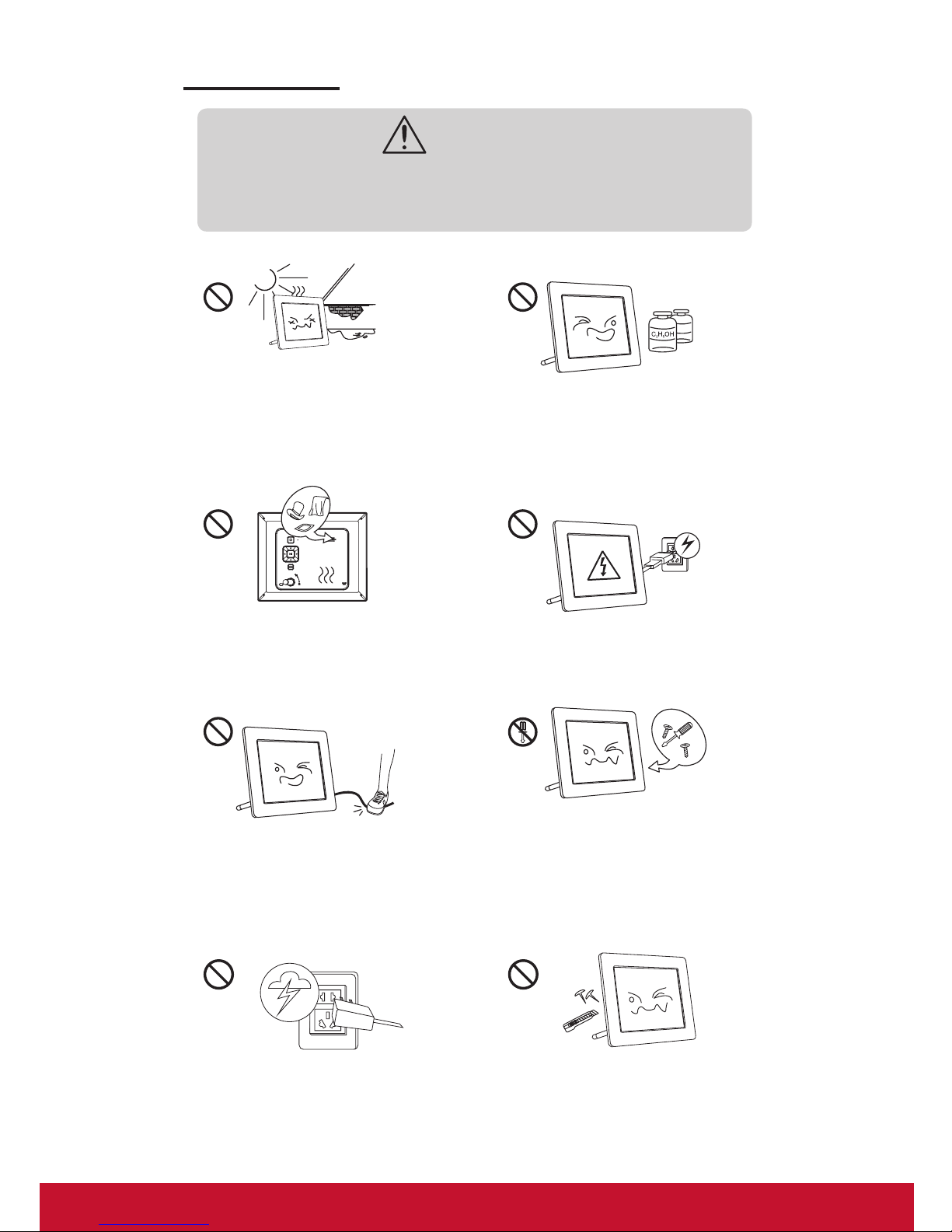
Avoid exposing this device to water,
moisture or high temperature. Do not
place it near swimming pool, bathtub or
sink where it may come in contact with
water.
Clean only with a dry soft cloth; do not use
any chemical liquid for cleaning.
To ensure reliable operation of the
device and to protect it from overheating,
do not block any ventilation openings.
Only use attachments/ accessories
specied by the manufacturer.
Do not step on the power cable, plug or
adapter to avoid electronic shock.
Do not attempt to service this device
yourself. Opening or removing covers
may expose you to dangerous voltages
or other hazards. Refer all servicing and
repairs to qualied service personnel.
Please unplug this device in the
thunderstorm weather or not in use for a
long time.
Do not press hard on the LCD screen in
the process of transportation or usage.
Avoid sharp objects.
Page 8
3
2.1 Features
2.2 Specications
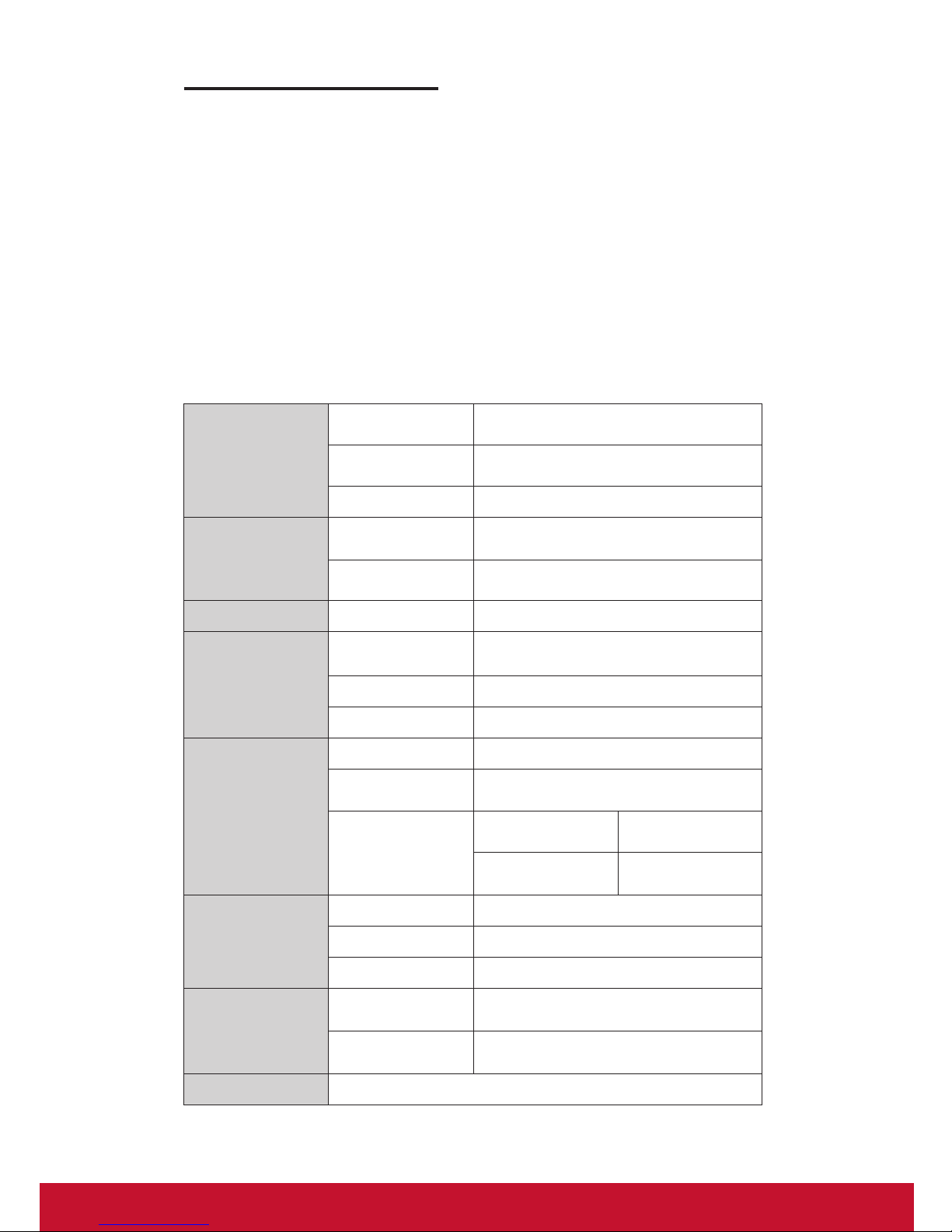
■High quality 8 inch LCD: 800x600 high resolution.
■Slim and fashionable design, suitable for gifts and home decoration.
■High-speed picture decoding technology, pictures in JPG format supported.
■Picture slideshow with multiple transition effects, support picture rotating
and zooming.
■Calendar and Clock functions.
■User-friendly navigation buttons.
■Three-in-one (SD/SDHC/MMC) and USB ash drive supported.
LCD Screen
Panel size / Aspect
ratio
8inch 4:3
Effective viewing
area
162.0(W)x121.5(H) mm
Resolution 800(W)x600(H) pixels
Photo File
Image formats
supported
JPG, JPEG(baseline coding)
Max. image
resolution
30 million pixels
Calendar Clock, Calendar
Memory Medium
Memory Card
supported
MMC, SD, SDHC(max. 16GB)
USB USB ash drive
File system FAT, FAT32
Electrical
Specications
Power input 5VDC, 1.0A
Power
consumption
≤5W
Power adapter
Input
AC 100-240V,
50/60Hz
Output DC5V, 1.0A
Dimensions
Dimensions 217x176x24 mm
Weight Approx. 415g
Operating mode By buttons on the panel
Environmental
Requirements
Operating
temperature
0°C~40°C
Storage
temperature
-20°C~60°C
Regulations CE, BSMI, FCC, ICES003, LVD, Gost-R
2.Product Introduction
Page 9
4
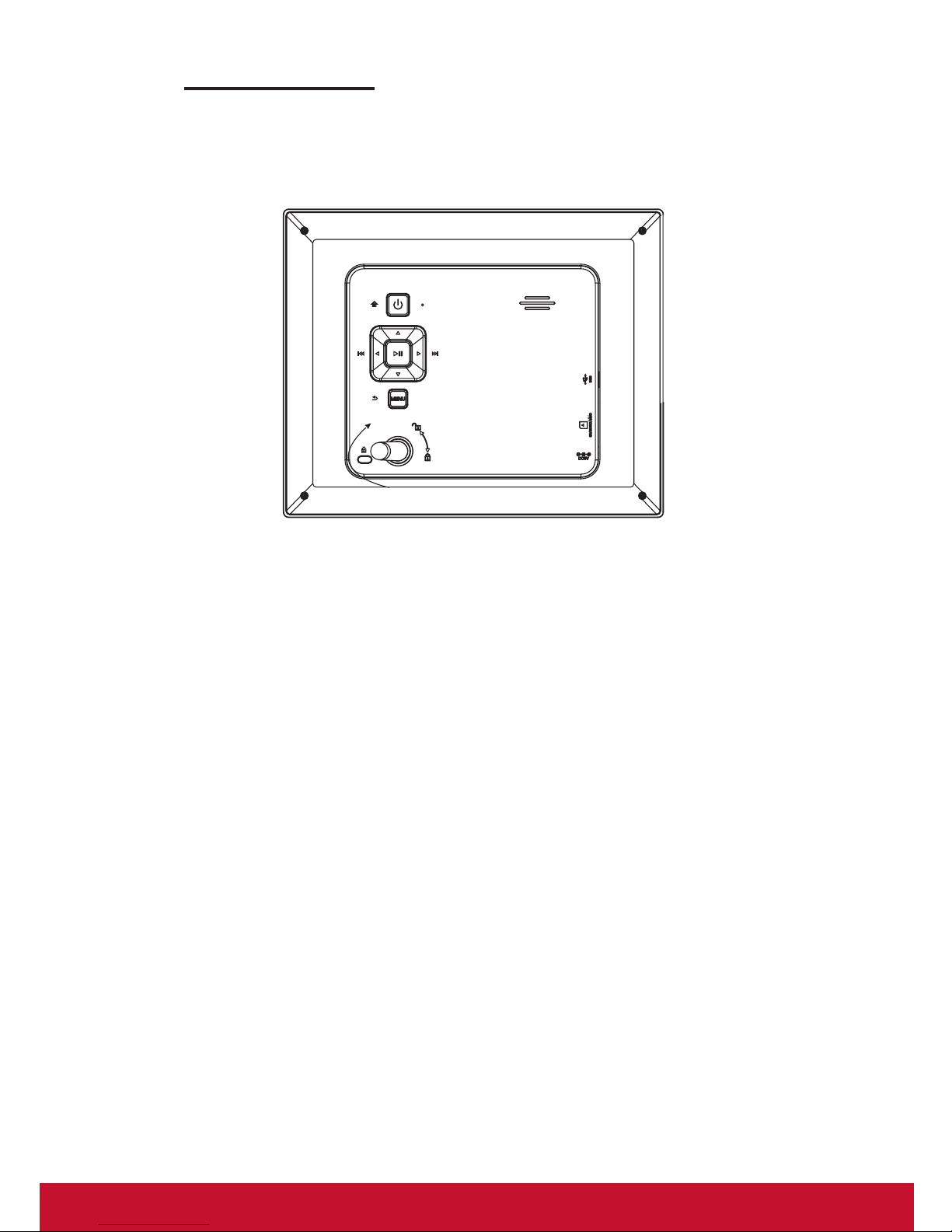
2.4 Button Illustration
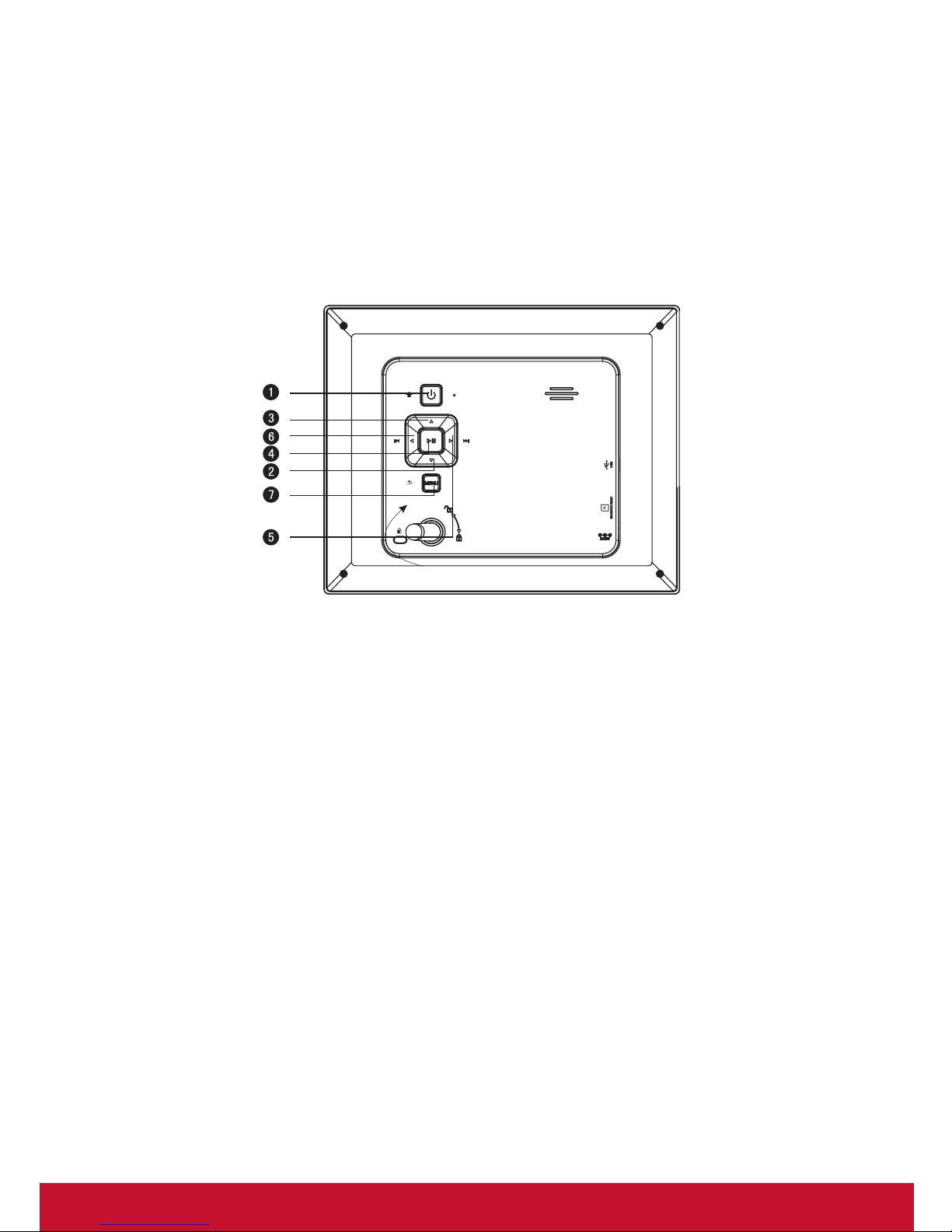
Power: a. Press briey to turn on the device when is off;
b. Press & hold to turn off the device when is on;
c. Press briey to turn to the Main Menu when is on.
DOWN: Down.
UP: Up.
PLAY: a. Conrm/Enter; b. Press & hold for 3s to pop up the
shortcut menu; c. Play/ pause.
LEFT: a. Left; b. Adjust-.
RIGHT: a. Right; b. Adjust+.
RETURN: Exit.
Digital Photo Frame ---------------------- 1 piece
Power adapter ----------------------------- 1 piece
User’s manual ----------------------------- 1 piece
Quick start guide ------------------------- 1 piece
Stand ---------------------------------------- 1 piece
2.3 Accessories
➊
➋
➌
➍
➎
➏
➐
Page 10
5
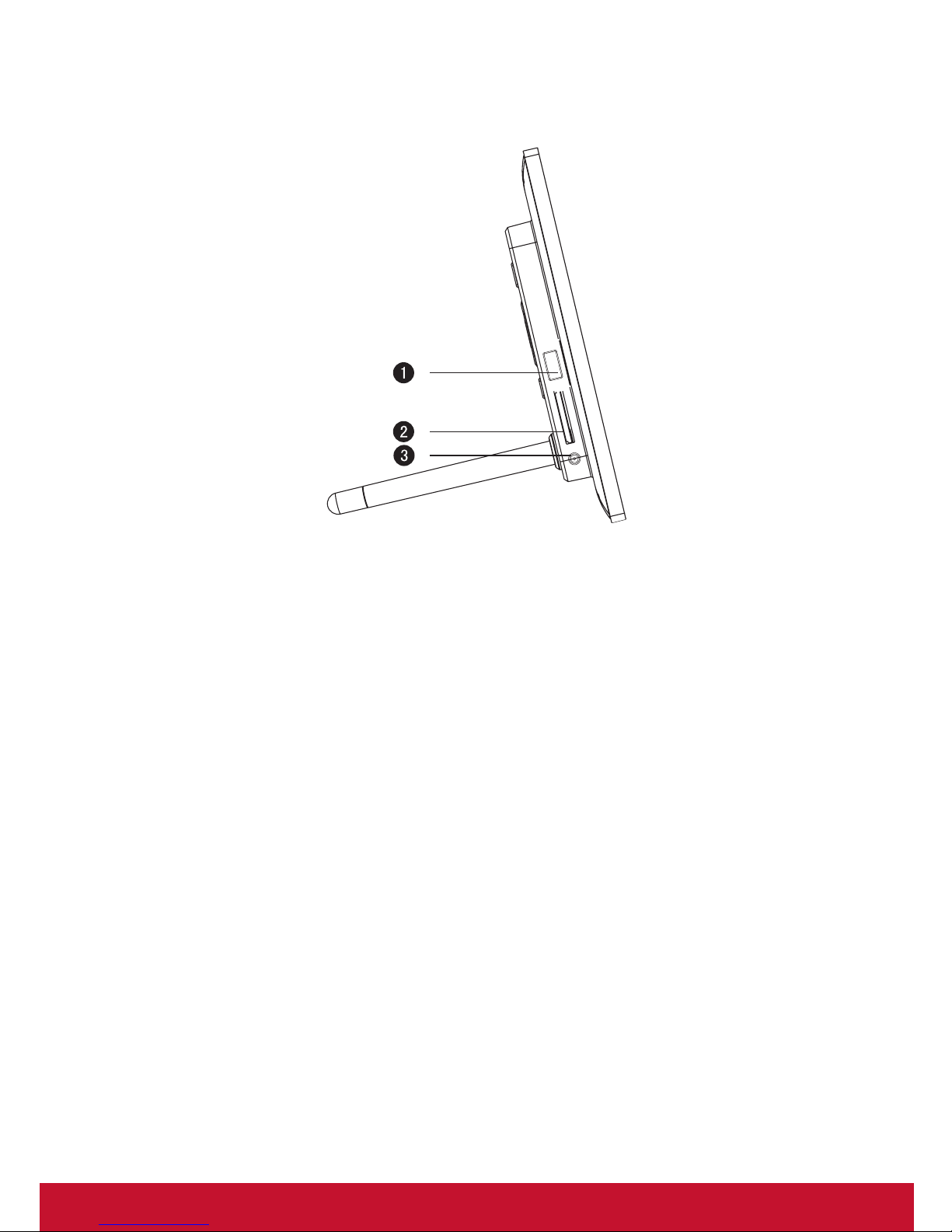
2.5 Terminal Illustration
USB : connect to USB ash drive.
SD/SDHC/MMC card slot.
DC-IN: power input 5V DC 1.0A
➊
➋
➌
Page 11
6
3.Getting Started
3.1 Stand
Attaching the stand: rotate the stand clockwise until it is xed tightly in
position.
Removing the stand: rotate the stand counter-clockwise.
Page 12
7
4.Operating Instruction
4.1 Turn on/off the Digital Photo Frame
■Power on
Press briey [ ] on the device, the device will be turned on;
■Power off
Press & hold [ ] on the device, the device will be turned off;
■Return to the Main Menu
Press briey [ ], the device will return to the Main Menu.
4.2 OSD and Memory Medium
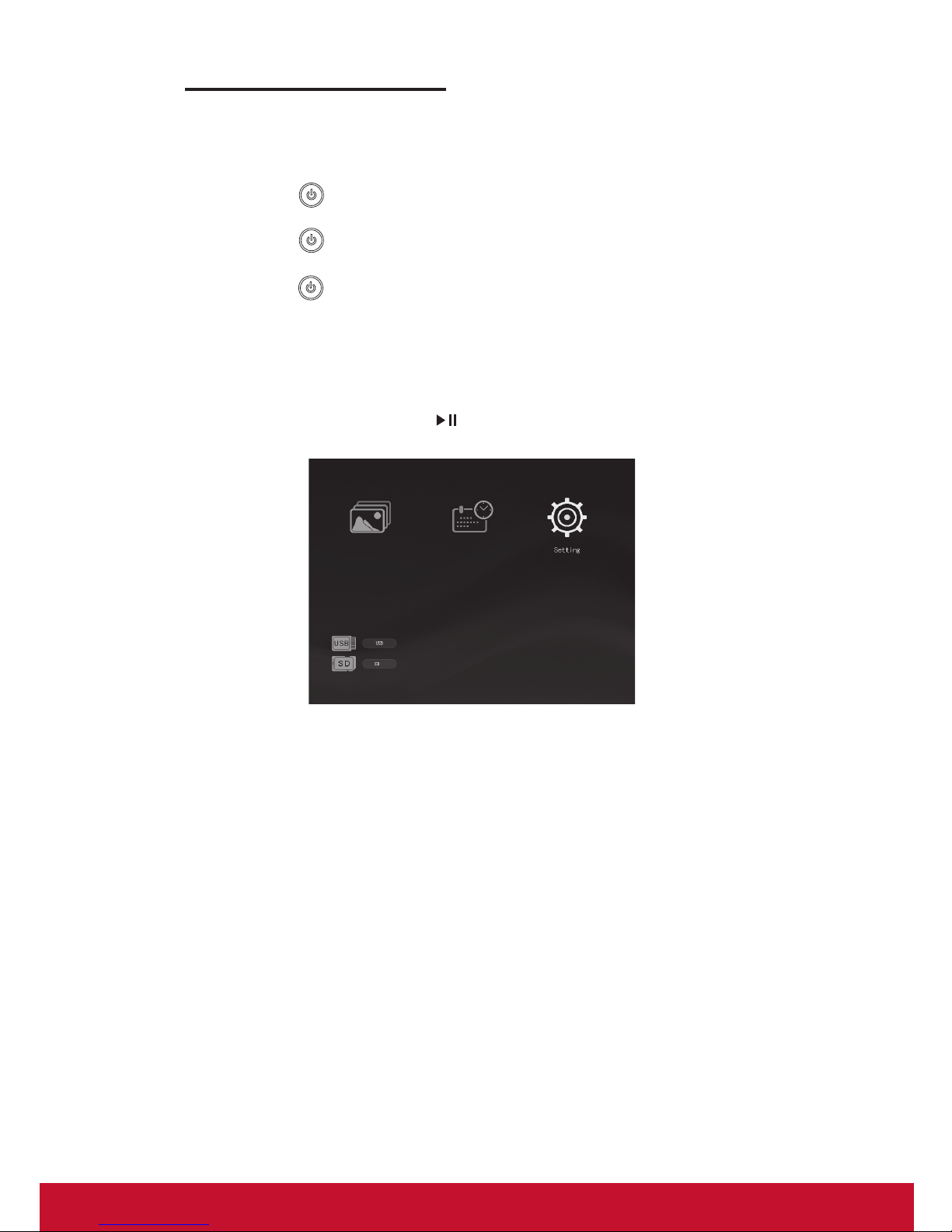
■Main Menu
The Main Menu is shown as below. Move the Left and Right buttons
to select an icon, and enter by [ ].
Page 13
8
4.3 Photo Operating Instruction
■Slideshow
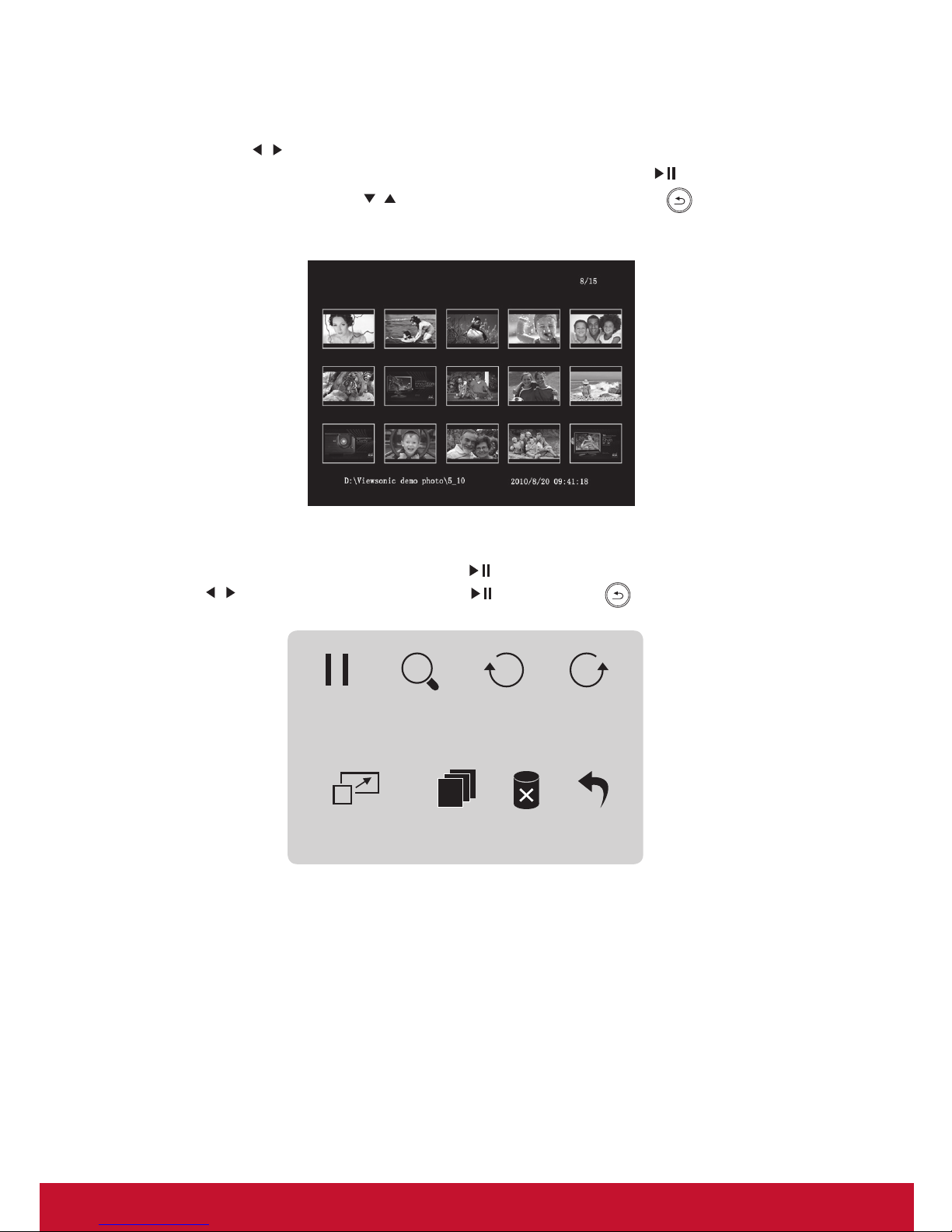
Move [ ] to select “Photo” in the Main Menu, and select a medium type
in the drop-down menu, then enter slideshow full-screen by [ ]. During
the slideshow, move [ ] for previous or next photo; press [ ] to go
to the Photo Browser menu.
■Slideshow setup
During the slideshow, press & hold [ ] to pop up the setup menu; move
[ ] to select options, conrm by [ ]; and exit by [ ].
Status Zoom Rotate 1 Rotate 2
Display Ratio Copy to Delete Return
Status: select from Pause and Play;
Zoom: zoom in the image;
Rotate 1: rotate an image clockwise;
Rotate 2: rotate an image counter-clockwise;
Display Ratio: select from Auto, Original, Crop and Stretch;
Copy to: copy the photos from external memory to internal
memory (The internal memory is limited, picture in 800X600
resolution with size of less than 50K is recommended);
Delete: delete the selected photo;
Return: exit.
Page 14
9
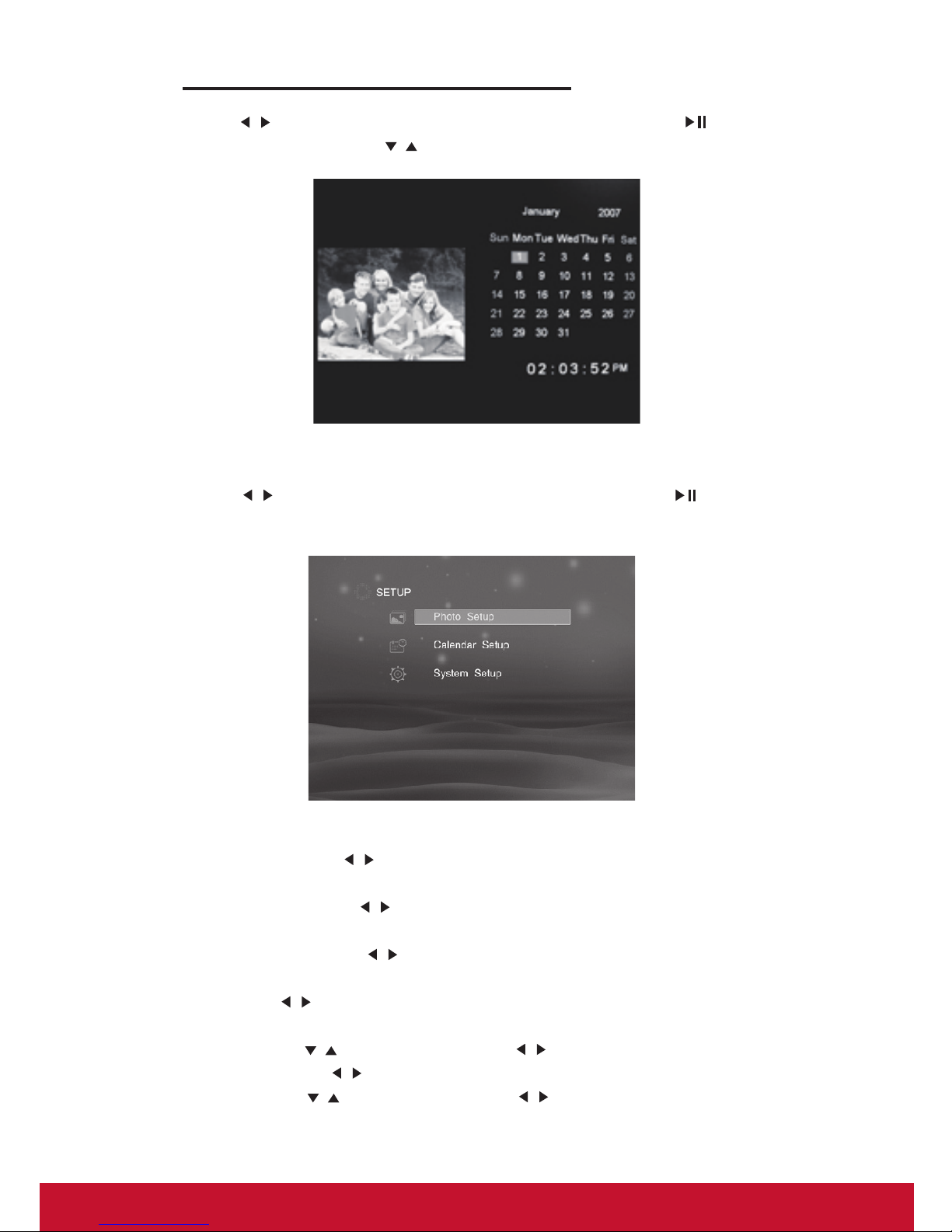
Photo Setup
Display Ratio: Use [
] to select from Crop to Fill, Full Screen and Fit to
Screen;
Slideshow time: Use [ ] to select from 5sec, 15sec, 30sec, 60sec, 5min
and 15min;
Transition effect: Use [ ] to select from 11 transition
effects, such as Random, Snake and Partition etc.
Mode: Use [ ] to switch among Random, Order.
Calendar Setup
Set Date: Use [ ] to select option, and [ ] to change the value;
Clock Mode: Use [ ] to select from 12Hr and 24Hr;
Set Time: Use [ ] to select option, and [ ] to change the value.
Move [ ] to select “Setting” in the Main Menu, and enter by [ ]. There
are Photo Setup, Calendar Setup and System Setup for setting.
4.4 Calendar Operating Instruction
Move [ ] to select “Calendar” in the Main Menu, and enter by [ ]. In
the Calendar OSD, move [ ] to browse the month.
4.5 Setup
Page 15

10
System Setup
Language: Use [
] to select the on-screen language;
Backlight: Use [ ] to adjust the brightness level;
Power On: Use [ ] to set the Power On be ON or OFF;
Auto Boot Time: Set the timer for the device to turn on automatically. Use
[ ] to select option, and [ ] to change the value;
Power Off: Use [ ] to set the Power Off be ON or OFF.
Auto Shut Time: Set the timer for the device to turn off automatically. Use
[ ] to select option, and [ ] to change the value;
Auto-Power Frequen: Use [ ] to set the Auto-power frequency;
USB Options: Udisk (for VFD874 only);
Default: Resume to factory settings;
Version: Display the version of the rmware;
System Upgrade: For software upgrade.
Page 16
11
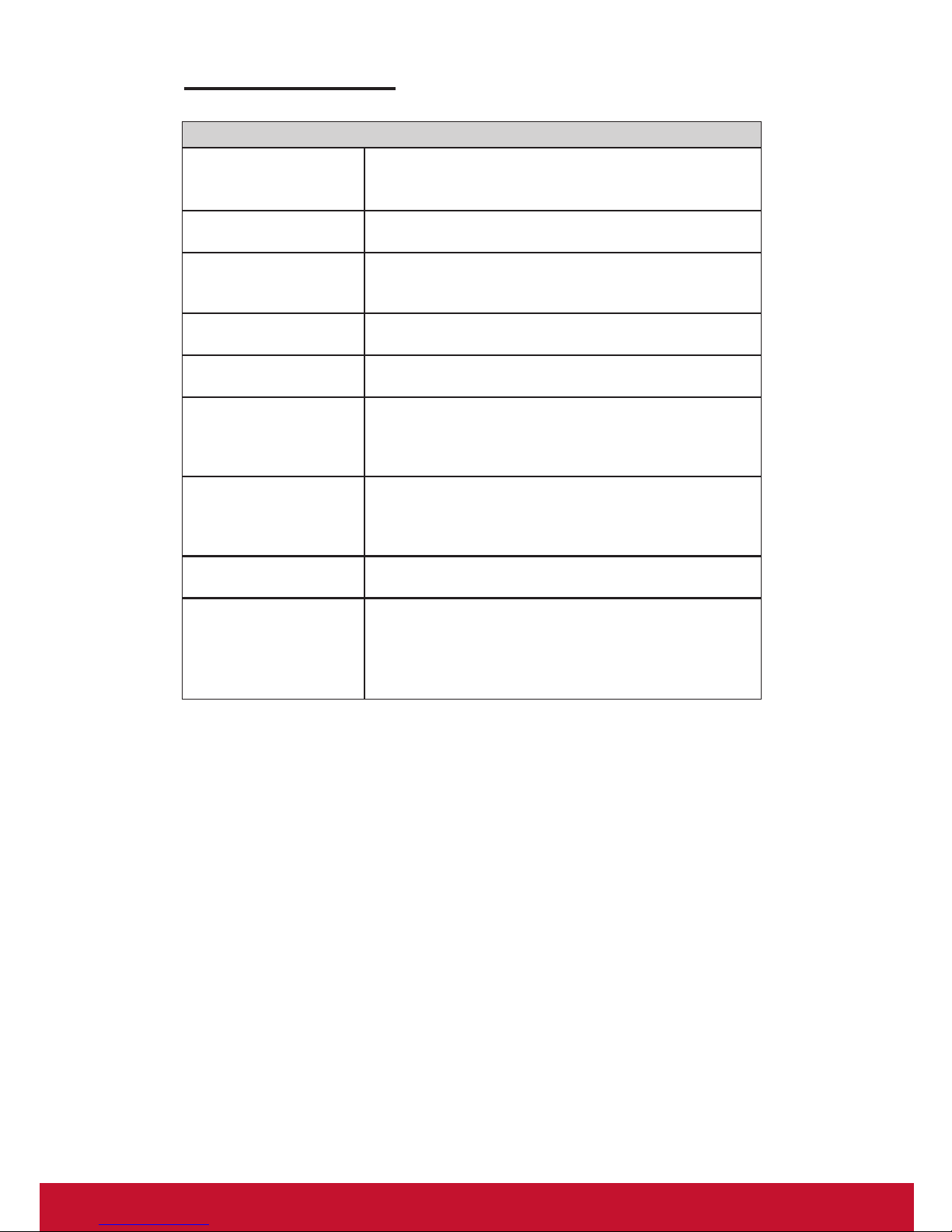
5.Troubleshooting
Note: The LED panel is made up by millions of pixels with high technology.
By chance, there will be some pixel is too high or too dark, but this situation
will not effect the actual Digital Photo Frame function.
Problem & Solution
Can not power on, and
nothing happens even if
connected to a charger
Check whether the power is connected well or
unplug&replug the device. If that doesn’t work, return the
device to your dealer for service.
The screen is off
Check whether the screen brightness is set to too low level
in the Setup menu.
Screen freeze and does
not respond to control
anymore
Unplug&replug the device.
Some images are not
displayed
The image le is not supported by this device. Only images
in JPG format (baseline coding) are supported.
Can not read the les
Check the le path, the device cannot read les saved in a
folder that is more over 5 levels deep.
Cannot read USB Flash
Drive
Check whether USB ash drive is inserted well. The Max.
Capacity of USB ash drive is 16G. An incompatible USB
ash drive is inserted. Please consult your dealer for
compatible types.
Cannot read SDHC card
Check whether SDHC card is inserted well.The Max.
Capacity of SDHC card is 16GB.An incompatible card is
inserted. Please consult your dealer for compatible card
types.
No les are displayed on
the screen
FAT is damaged. Reboot the device.
Exit playing and back
to the Main Menu
automatically
Restart playing. (Note: This device has protection function
against violent impact and external interference)
Page 17

12
Customer Support
For technical support or product service, see the table below or contact your reseller.
Note : You will need the product serial number.
Country/
Region
Web Site
T=Telephone
F=Fax
E-mail
Australia/New
Zealand
www.viewsonic.com.au
AUS=1800 880 818
NZ=0800 008 822
Canada www.viewsonic.com
T (Toll-Free)= 1-866-463-4775
T (Toll)= 1-424-233-2533
F= 1-909-468-3757
Europe www.viewsoniceurope.com www.viewsoniceurope.com/uk/support/call-desk/
Ireland (Eire)
www.viewsoniceurope.com/
uk/
www.viewsoniceurope.com/
uk/support/call-desk/
Latin America
(Argentina)
Latin America
(Chile)
Latin America
(Columbia)
Latin America
(Mexico)
Renta y Datos, 29 SUR 721, COL. LA PAZ, 72160 PUEBLA, PUE. Tel: 01.222.891.55.77 CON 10 LINEAS
Electroser, Av Reforma No. 403Gx39 y 41, 97000 Merida, Yucatan. Tel: 01.999.925.19.16
Other places please refer to http://www.viewsonic.com/la/soporte/index.htm#Mexico
Latin America
(Peru)
Puerto Rico &
Virgin Islands
www.viewsonic.com
T= 1-800-688-6688 (English)
T= 1-866-379-1304 (Spanish)
F= 1-909-468-3757
Singapore/
Malaysia/
Thailand
United
Kingdom
www.viewsoniceurope.com/
uk/
www.viewsoniceurope.com/
uk/support/call-desk/
service_gb@viewsoniceurope.
com
United States www.viewsonic.com
T (Toll-Free)= 1-800-688-6688
T (Toll)= 1-424-233-2530
F= 1-909-468-3757
Page 18

13
Limited Warranty
VIEWSONIC Digital Photo Frame
What the warranty covers:
ViewSonic warrants its products to be free from defects in material and workmanship, under normal
use, during the warranty period. If a product proves to be defective in material or workmanship during
the warranty period, ViewSonic will, at its sole option, repair or replace the product with a like product.
Replacement product or parts may include remanufactured or refurbished parts or components.
How long the warranty is effective:
ViewSonic Digital Photo Frame are warranted for 1 year for labor from the date of the rst customer
purchase.
Who the warranty protects:
This warranty is valid only for the rst consumer purchaser.
What the warranty does not cover:
1. Any product on which the serial number has been defaced, modied or removed.
2. Damage, deterioration or malfunction resulting from:
a. Accident, misuse, neglect, re, water, lightning, or other acts of nature, unauthorized product
modication, or failure to follow instructions supplied with the product.
b. Repair or attempted repair by anyone not authorized by ViewSonic.
c. Causes external to the product, such as electric power uctuations or failure.
d. Use of supplies or parts not meeting ViewSonic’s specications.
e. Normal wear and tear.
f. Any other cause which does not relate to a product defect.
3. Any product exhibiting a condition commonly known as “image burn-in” which results when a static
image is displayed on the product for an extended period of time.
4. Removal, installation, one way transportation, insurance, and set-up service charges.
How to get service:
1. For information about receiving service under warranty, contact ViewSonic Customer Support (please
refer to Customer Support page). You will need to provide your product’s serial number.
2. To obtain warranted service, you will be required to provide (a) the original dated sales slip, (b) your
name, (c) your address, (d) a description of the problem, and (e) the serial number of the product.
3. Take or ship the product freight prepaid in the original container to an authorized ViewSonic service
center or ViewSonic.
4. For additional information or the name of the nearest ViewSonic service center, contact ViewSonic.
Limitation of implied warranties:
There are no warranties, express or implied, which extend beyond the description contained herein
including the implied warranty of merchantability and tness for a particular purpose.
Exclusion of damages:
ViewSonic’s liability is limited to the cost of repair or replacement of the product. ViewSonic shall not be
liable for:
1. Damage to other property caused by any defects in the product, damages based upon inconvenience,
loss of use of the product, loss of time, loss of prots, loss of business opportunity, loss of goodwill,
interference with business relationships, or other commercial loss, even if advised of the possibility of
such damages.
2. Any other damages, whether incidental, consequential or otherwise.
3. Any claim against the customer by any other party.
4. Repair or attempted repair by anyone not authorized by ViewSonic.
4.3: ViewSonic DPF Warranty DPF_LW01 Rev. 1A
06-20-08
Page 19

14
Mexico Limited Warranty
VIEWSONIC Digital Photo Frame
What the warranty covers:
ViewSonic warrants its products to be free from defects in material and workmanship, under normal
use, during the warranty period. If a product proves to be defective in material or workmanship during
the warranty period, ViewSonic will, at its sole option, repair or replace the product with a like product.
Replacement product or parts may include remanufactured or refurbished parts or components.
How long the warranty is effective:
ViewSonic Digital Photo Frame are warranted for 1 year for labor from the date of the rst customer
purchase.
Who the warranty protects:
This warranty is valid only for the rst consumer purchaser.
What the warranty does not cover:
1. Any product on which the serial number has been defaced, modied or removed.
2. Damage, deterioration or malfunction resulting from:
a. Accident, misuse, neglect, re, water, lightning, or other acts of nature, unauthorized product
modication, or failure to follow instructions supplied with the product.
b. Repair or attempted repair by anyone not authorized by ViewSonic.
c. Causes external to the product, such as electric power uctuations or failure.
d. Use of supplies or parts not meeting ViewSonic’s specications.
e. Normal wear and tear.
f. Any other cause which does not relate to a product defect.
3. Any product exhibiting a condition commonly known as “image burn-in” which results when a static
image is displayed on the product for an extended period of time.
How to get service:
For information about receiving service under warranty, contact ViewSonic Customer Support (Please refer
to the attached Customer Support page). You will need to provide your product’s serial number, so please
record the product information in the space provided below on your purchase for your future use. Please
retain your receipt of proof of purchase to support your warranty claim.
For Your Records
Product Name: ______________________ Model Number: _______________________
Document Number: ____________________
Serial Number: ______________________ Purchase Date: ________________________
Extended Warranty Purchase? _______________(Y/N)
If so, what date does warranty expire? _____________________________________________
1. To obtain warranty service, you will be required to provide (a) the original dated sales slip, (b) your
name, (c) your address, (d) a description of the problem, and (e) the serial number of the product.
2. Take or ship the product in the original container packaging to an authorized ViewSonic service
center.
3. Round trip transportation costs for in-warranty products will be paid by ViewSonic.
Page 20

15
Limitation of implied warranties:
There are no warranties, express or implied, which extend beyond the description contained herein
including the implied warranty of merchantability and tness for a particular purpose.
Exclusion of damages:
ViewSonic’s liability is limited to the cost of repair or replacement of the product. ViewSonic shall not be
liable for:
1. Damage to other property caused by any defects in the product, damages based upon inconvenience,
loss of use of the product, loss of time, loss of prots, loss of business opportunity, loss of goodwill,
interference with business relationships, or other commercial loss, even if advised of the possibility of
such damages.
2. Any other damages, whether incidental, consequential or otherwise.
3. Any claim against the customer by any other party.
4. Repair or attempted repair by anyone not authorized by ViewSonic.
Page 21

16
Contact Information for Sales & Authorized Service (Centro Autorizado de Servicio) within Mexico:
Name, address, of manufacturer and importers:
México, Av. de la Palma #8 Piso 2 Despacho 203, Corporativo Interpalmas,
Col. San Fernando Huixquilucan, Estado de México
Tel: (55) 3605-1099 http://www.viewsonic.com/la/soporte/index.htm
NÚMERO GRATIS DE ASISTENCIA TÉCNICA PARA TODO MÉXICO: 001.866.873.2004
Hermosillo:
Distribuciones y Servicios Computacionales SA de
CV.
Calle Juarez 284 local 2
Col. Bugambilias C.P: 83140
Tel: 01-66-22-14-9005
E-Mail: [email protected]
Villahermosa:
Compumantenimietnos Garantizados, S.A. de C.V.
AV. GREGORIO MENDEZ #1504
COL, FLORIDA C.P. 86040
Tel: 01 (993) 3 52 00 47 / 3522074 / 3 52 20 09
E-Mail: [email protected]
Puebla, Pue. (Matriz):
RENTA Y DATOS, S.A. DE C.V. Domicilio:
29 SUR 721 COL. LA PAZ
72160 PUEBLA, PUE.
Tel: 01(52).222.891.55.77 CON 10 LINEAS
E-Mail: [email protected]
Veracruz, Ver.:
CONEXION Y DESARROLLO, S.A DE C.V. Av. Americas # 419
ENTRE PINZÓN Y ALVARADO
Fracc. Reforma C.P. 91919
Tel: 01-22-91-00-31-67
E-Mail: [email protected]
Chihuahua
Soluciones Globales en Computación
C. Magisterio # 3321 Col. Magisterial
Chihuahua, Chih.
Tel: 4136954
E-Mail: [email protected]
Cuernavaca
Compusupport de Cuernavaca SA de CV
Francisco Leyva # 178 Col. Miguel Hidalgo
C.P. 62040, Cuernavaca Morelos
Tel: 01 777 3180579 / 01 777 3124014
E-Mail: [email protected]
Distrito Federal:
QPLUS, S.A. de C.V.
Av. Coyoacán 931
Col. Del Valle 03100, México, D.F.
Tel: 01(52)55-50-00-27-35
E-Mail : [email protected]
Guadalajara, Jal.:
SERVICRECE, S.A. de C.V.
Av. Niños Héroes # 2281
Col. Arcos Sur, Sector Juárez
44170, Guadalajara, Jalisco
Tel: 01(52)33-36-15-15-43
E-Mail: [email protected]
Guerrero Acapulco
GS Computación (Grupo Sesicomp)
Progreso #6-A, Colo Centro
39300 Acapulco, Guerrero
Tel: 744-48-32627
Monterrey:
Global Product Services
Mar Caribe # 1987, Esquina con Golfo Pérsico
Fracc. Bernardo Reyes, CP 64280
Monterrey N.L. México
Tel: 8129-5103
E-Mail: [email protected]
MERIDA:
ELECTROSER
Av Reforma No. 403Gx39 y 41
Mérida, Yucatán, México CP97000
Tel: (52) 999-925-1916
E-Mail: [email protected]
Oaxaca, Oax.:
CENTRO DE DISTRIBUCION Y
SERVICIO, S.A. de C.V.
Murguía # 708 P.A., Col. Centro, 68000, Oaxaca
Tel: 01(52)95-15-15-22-22
Fax: 01(52)95-15-13-67-00
E-Mail. [email protected]
Tijuana:
STD
Av Ferrocarril Sonora #3780 L-C
Col 20 de Noviembre
Tijuana, Mexico
FOR USA SUPPORT:
ViewSonic Corporation
381 Brea Canyon Road, Walnut, CA. 91789 USA
Tel: 800-688-6688 (English); 866-323-8056 (Spanish);
Fax: 1-800-685-7276
E-Mail: http://www.viewsonic.com
4.3: ViewSonic Mexico Limited Warranty DPF_LW03 Rev. 1A 06-25-07
Page 22

 Loading...