

Page 1

MPEG4 Streaming Module
Vi-MPEG4 Module
Product ranges covered by this manual
Vi-MPEG4
Document Reference
Vi612a.doc 11/10/2006 From Vi0XXc19
Videoswitch
Ocean House, Redfields Industrial Park Fax 01252-851296
Redfields Lane, Church Crookham Email [email protected]
Hants GU52 0RD Web www.videoswitch.co.uk
Date Firmware
Telephone 01252-851510
i
Page 2

MPEG4 Streaming Module
ii
Page 3
MPEG4 Streaming Module
1 Hardware Setup
• Connect the ViX05 DVR to a router, hub or switch using a CAT5 cable
• Connect the Vi-MPEG4 module to the same router, hub or switch using a CAT5 cable
• Connect the Vi-MPEG4 module to the main monitor output of the DVR using a BNC cable.
• Power up the ViX05
• Connect the Vi-MPEG4 module to supplied power adaptor (12V regulated)
2 Vi-MPEG4 IP Module Configuration
The Vix05 and MPEG4 module require consecutive IP addresses. The default values are:
ViX05 192.168.1.50
MPEG4 192.168.1.51
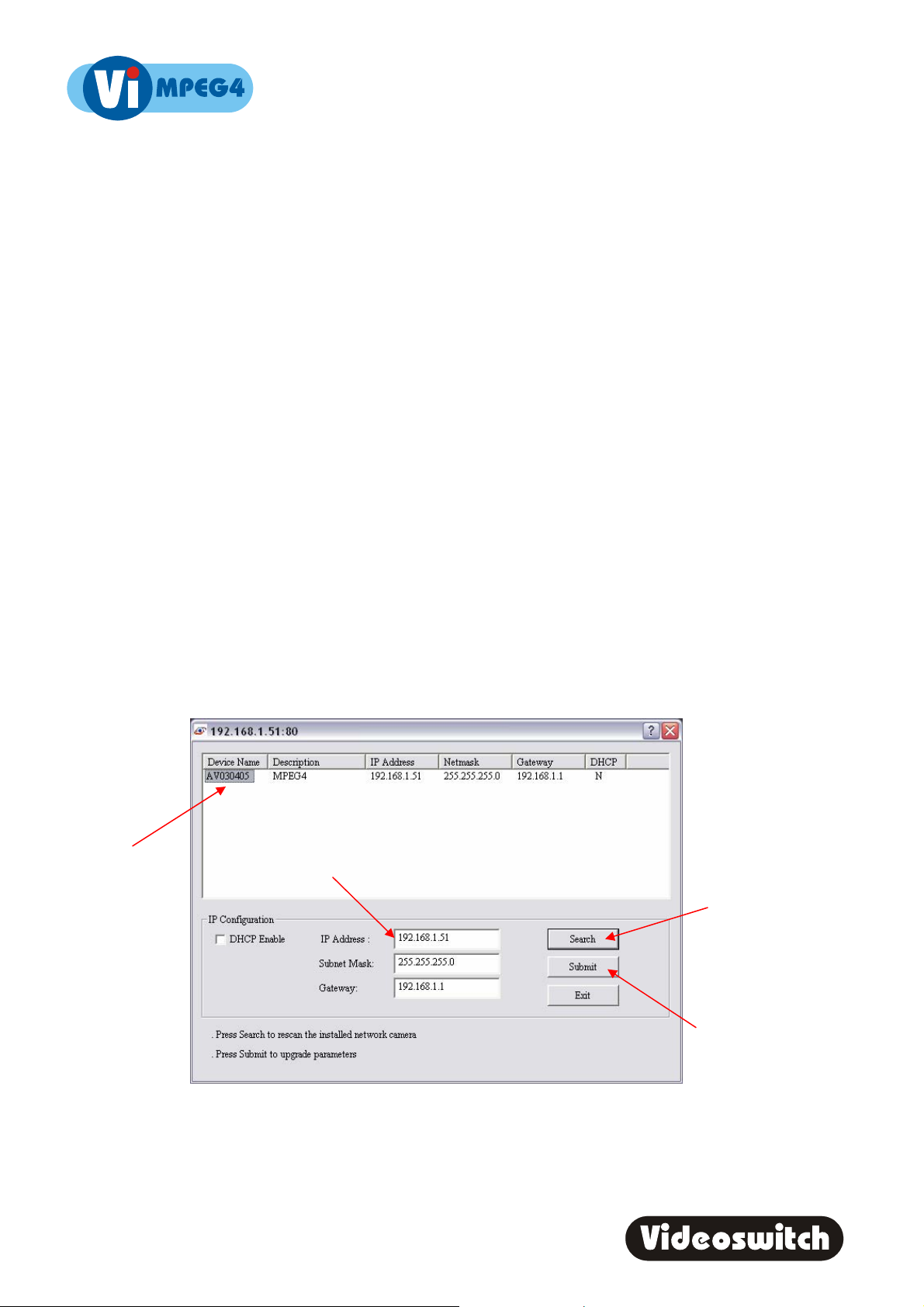
If you need to change the default IP address of the Vi-MPEG4 module, download the utility “Vi-MPEG4 Finder.exe”
from the Videoswitch web site (www.videswitch.co.uk/software) . Double click on the downloaded file (Vi-MPEG4
Finder.exe) and follow these steps to locate and configure the MPEG4 module:
Step 1: Press Search to locate the module on the network. If no module is found, you may need to
temporarily disable your PC’s firewall.
Step 2: Click on the Device Name to select the module.
Step 3: Enter the required IP address for the module, the subnet mask and the ip address of the default
gateway.
Step 4: Click on Submit to configure the module.
Step 2
Step 3
Step 4
1
Step 1
Page 4
MPEG4 Streaming Module
3 Viewer Software Installation
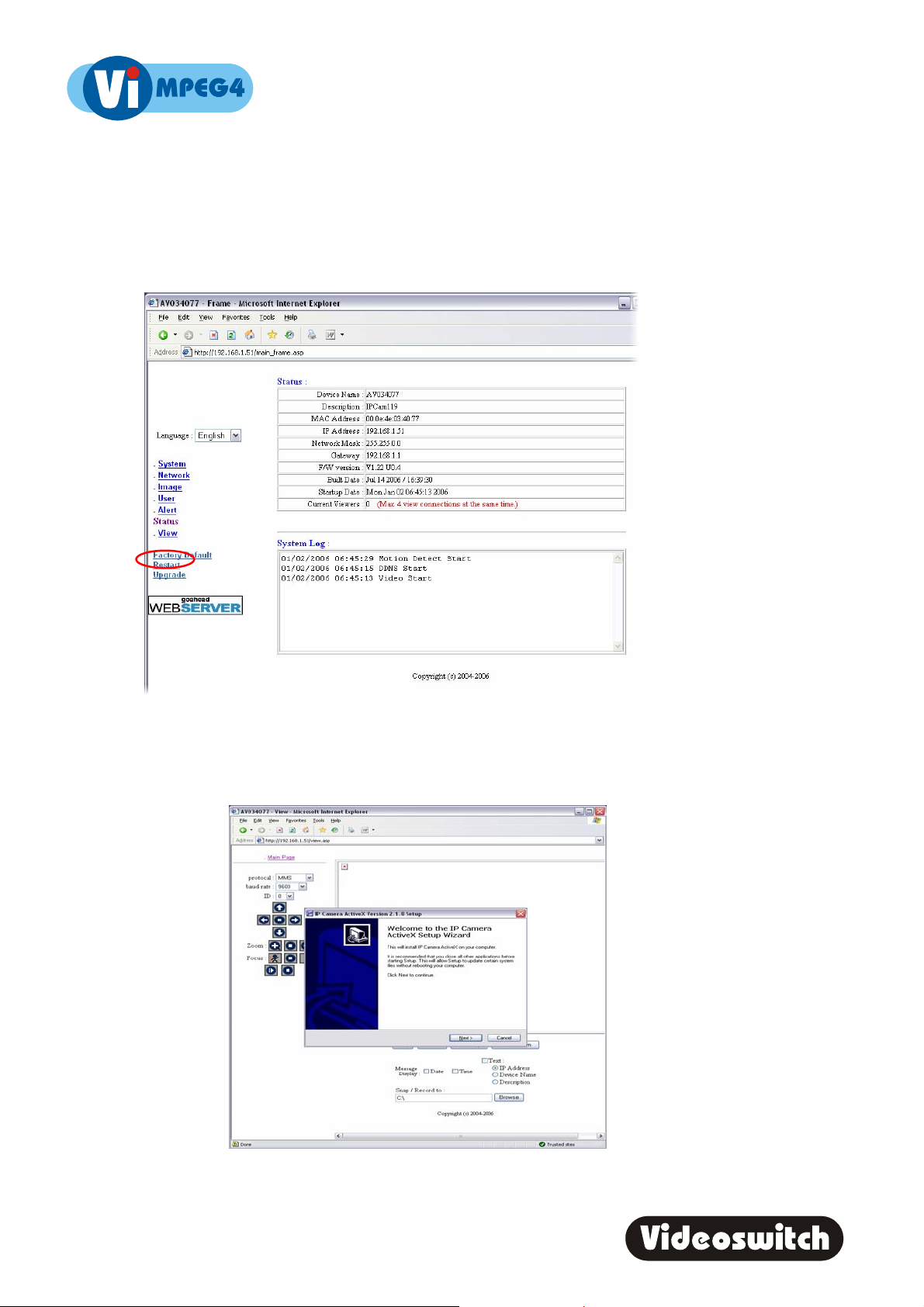
• Run Internet Explorer or similar Web browser.
• Enter the IP address of the module (default is 192.168.1.51) where it says “Address” in the browser.
• Press Enter
• Click on the View option to show the video window.
Click on the message asking if you wish to install the ActiveX bolt-on. The necessary software will be installed
automatically. Note that the internet options must permit installation of ActiveX. You should now be viewing
images from the DVR, but not the correct Vi-series control buttons.
2
Page 5

MPEG4 Streaming Module
P
4 Vix05 configuration
4.1 DVR IP Address
Press the MENU key the Vix05 menus and select Network then set the IP Address as required to suit your
network. The default is 192.168.1.50.
Date/Time
Record
Display
Alarms
>Network
Configuration
Note that the IP address of the MPEG4 module should always be set to be one more than the IP address of the
DVR.
>IP Address
Port
Sub-Net Mask
Gateway
WAN IP Address
Email
Modem
4.2 DVR Port Numbers
Open the Vix05 menus and select Network then set the Ports.
• If you are using a router, set Port3 to 8080 (otherwise leave as 9221)
• Set the MPEG4 port to 80
Date/Time
Record
Display
Alarms
>Network
Configuration
IP Address
>Port
Sub-Net Mask
Gateway
WAN IP Address
Email
Modem
192.168.1.50
ort
Port
Port 1
Port 2
Port 3
8080
80
1
Page 6
MPEG4 Streaming Module
5 Router Configuration
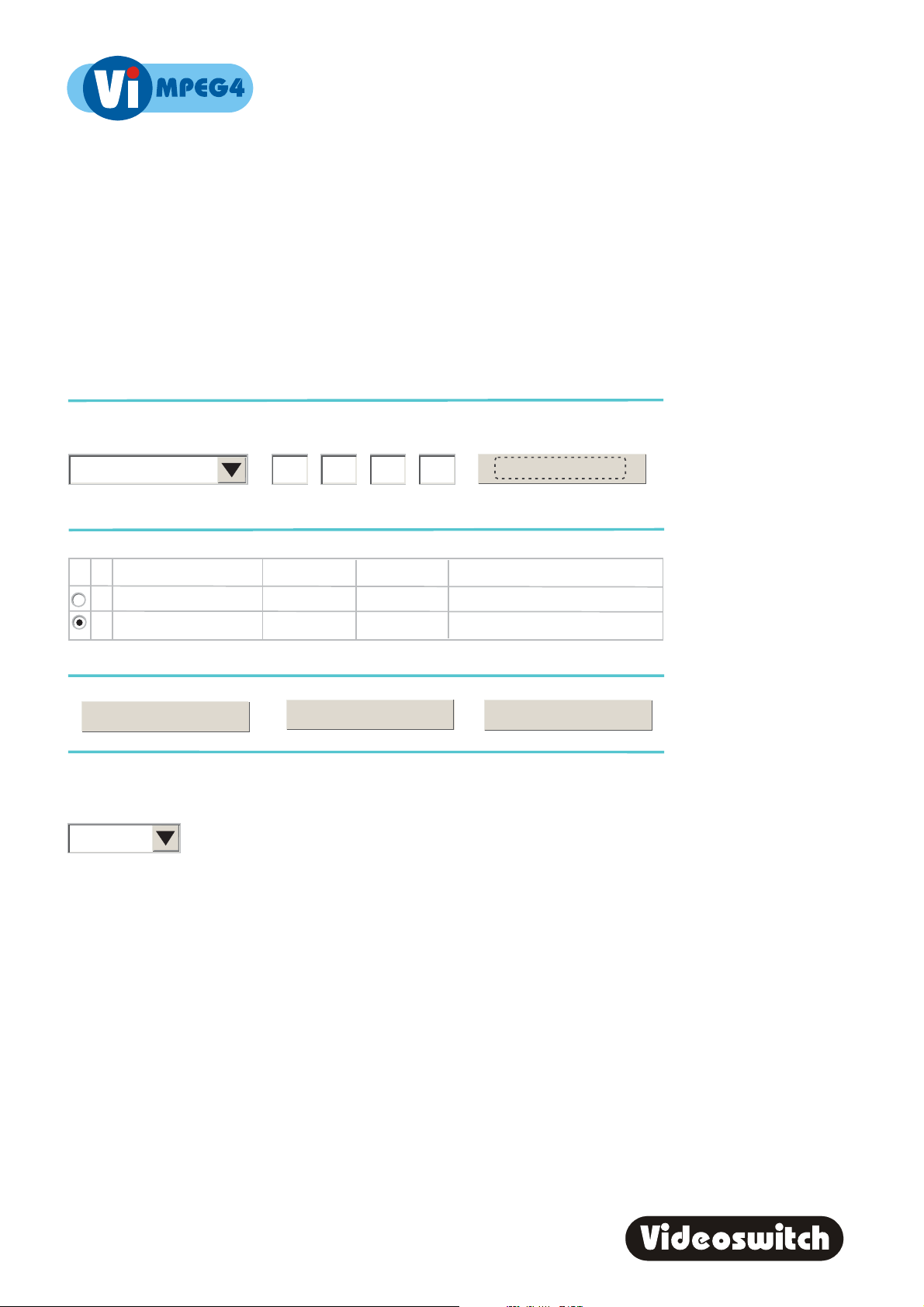
If you are using the Vi-MPEG4 module to provide remote viewing over an ADSL connection, you will require a
router. Configure the router so that requests for port 80 are directed to the IP address of the MPEG4 module and
requests for port 8080 are directed to the ip address of the Vix05 DVR. You may also need to set the firewall to
permit access. Consult your router’s User Guide for instructions on how to carry out this configuration process.
Typical router configuration screen:
Port Forwarding
Service & Game
Server IP Address
MPEG4
Service Name Start Port
#
End Port
Server IP Address
1 Vi205 8080 8080 192.168.1.50
MPEG4
2
Add Custom Service
NAT Status
Enable
8080
Edit Service Delete Service
192.168.1.51
Add Server
2
Page 7
MPEG4 Streaming Module
6 Viewing
Before you can use view and control the DVR you need to have set up these items as previously described:
• Vi-MPEG4 module – set IP address only if the default is unsuitable
• PC – install the ActiveX plug-in to allow the MPEG4 video to be displayed
• ViX05 series DVR – set IP address and port numbers only if the defaults are unsuitable
• Router – If a router is being used, set the port routing and firewall
6.1 To View via a Local Network
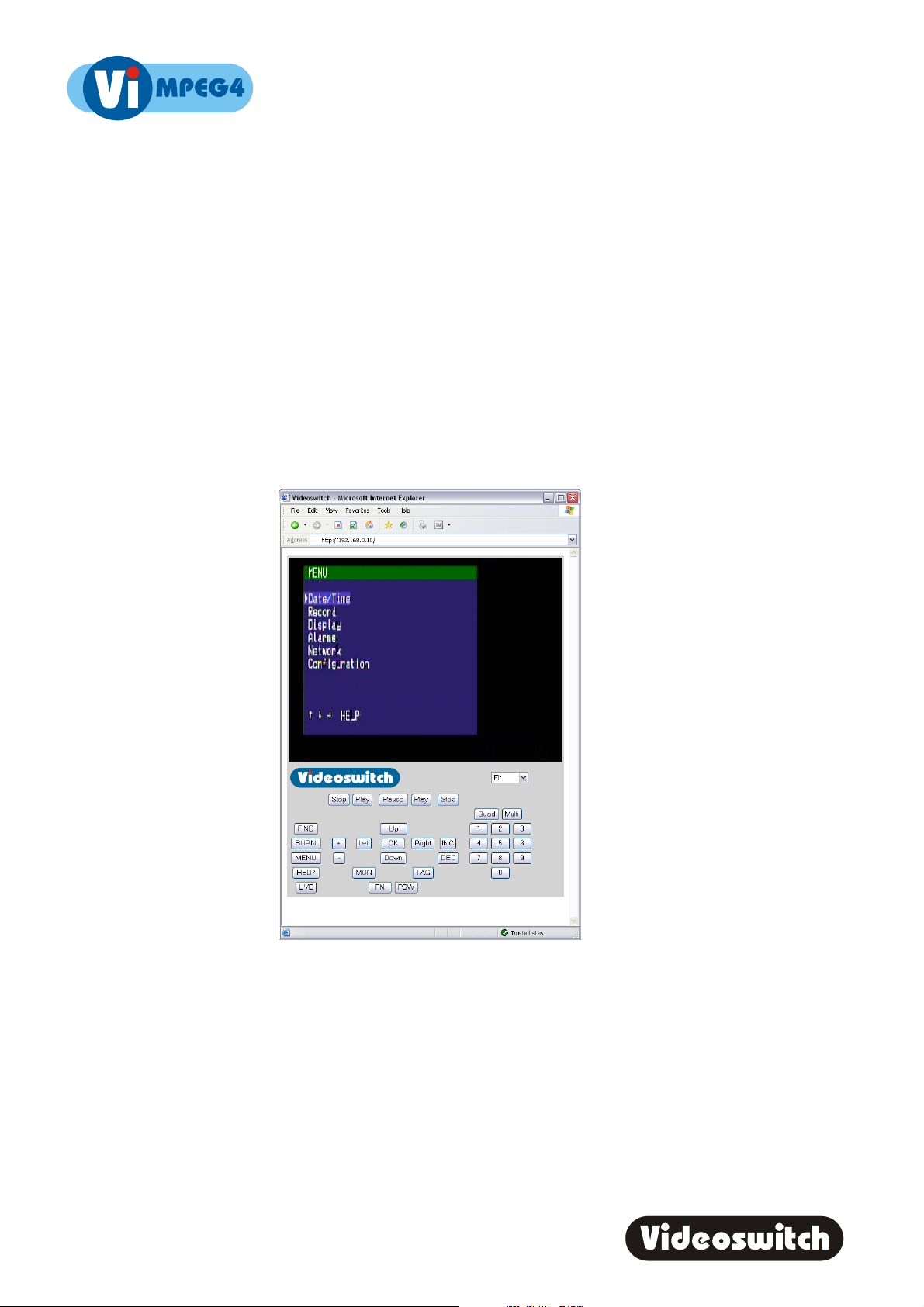
Run Internet Explorer and enter the address: 192.168.1.50:8080 (or the IP address you have set followed by
:8080)
You should now be viewing the Vix05 monitor output via your browser:
6.2 To View Remotely via a Router
Run Internet Explorer and enter the WAN address of the router. If the router has been properly configured to
forward port 8080 to 192.168.1.50 (the DVR) and port 80 to 192.168.1.51 (the Vi-MPEG4 module), then the remote
images and control keys should be displayed.
3
Page 8

MPEG4 Streaming Module
4
 Loading...