

Page 1
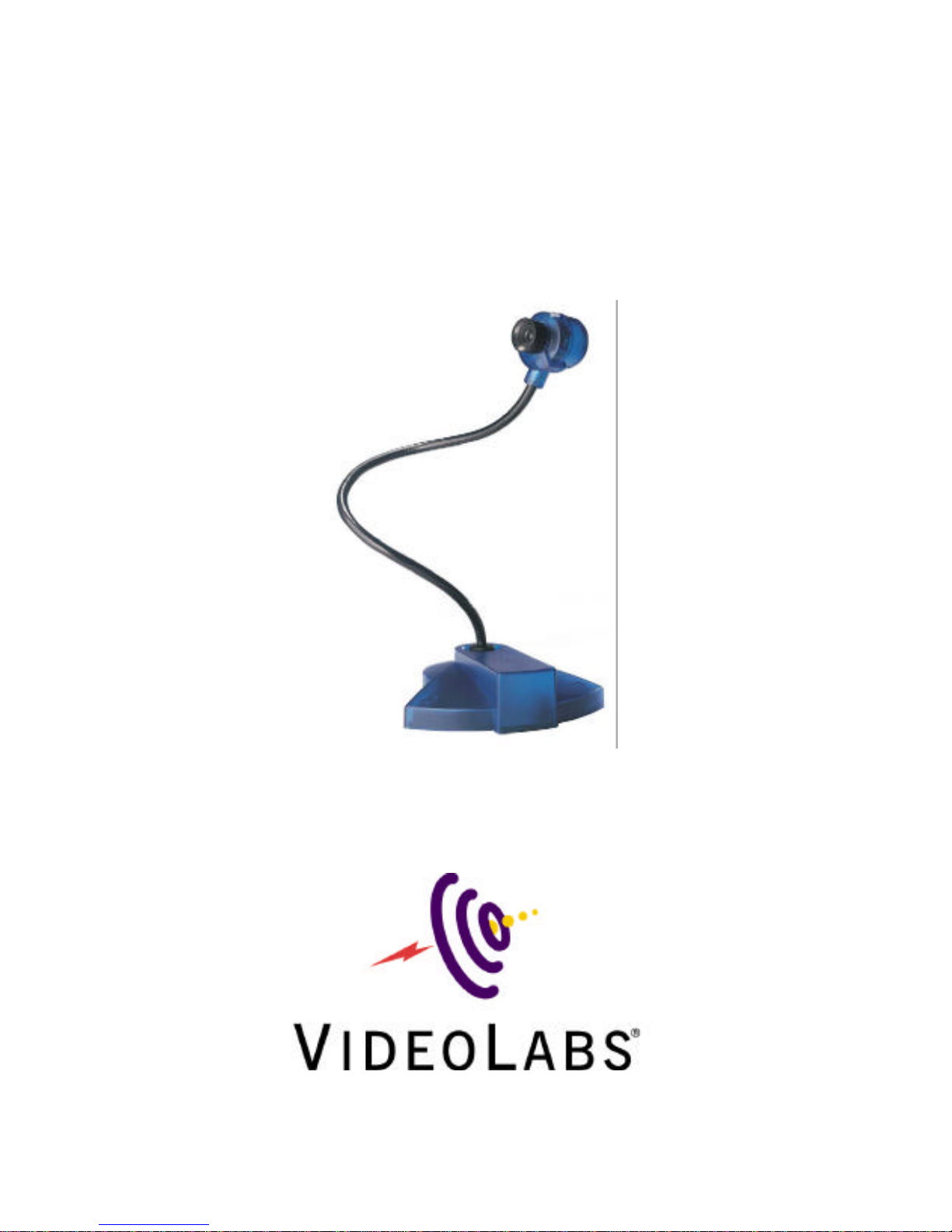
VideoLabs® FlexCam
TM
iCam
Installation Instructions & Operator’s Guide
Page 2

VideoLabs® FlexCam™ iCam – Table of Contents
Intended Use 3
FCC Statement 3
CE Statement 3
Introduction 4
Packing List 4
Care and Cleaning 4
Operating and Storage Conditions 4
General Precautions 4
Getting Connected 5
Technical Specifications 6
Warranty Information 7
Application Examples 9
Page 2
Page 3
INTENDED USE
Before operating the FlexCam iCam, please read the entire manual thoroughly. The
VideoLabs FlexCam iCam was designed, built and tested for use indoors.
IMPORTANT SAFEGUARDS
1. Read and understand all instructions before using.
2. Do not operate the appliance if the power cord is damaged or if the appliance
has been dropped or damaged. A qualified service technician must examine the
appliance before operating.
3. Position the cord so that it will not be tripped over, pulled, or in contact with hot
surfaces.
4. Always unplug the appliance from the electrical outlet before cleaning or
servicing.
5. To reduce the risk of electric shock, do not immerse in water or other liquids.
SAVE THESE INSTRUCTIONS
The information contained in this manual will help you install and operate your VideoLabs
FlexCam iCam.
FCC STATEMENT - CLASS B:
This equipment has been tested and found to comply with the limits for a class B digital
device, pursuant to Part 15 of the FCC rules. These limits are designed to provide
reasonable protection against harmful interference in a residential installation. This
equipment generates, uses and can radiate radio frequency energy, and if not installed and
used in accordance with the instruction manual may cause interference to radio
communications. However, there is no guarantee that interference will not occur in a
particular installation. If this equipment does cause interference to radio or television
reception, the user is encouraged to correct the interference by one or more of the following
measures:
1. Re-orient or relocate the receiving antenna.
2. Increase the separation between equipment and receiver.
3. Connect equipment into an outlet on a circuit different from that of the receiver.
4. Consult the dealer or an experienced radio TV technician for help.
CE DECLARATION
In accordance with ISO / IEC Guide 22 and BS 7514
This product complies with the requirements of the EMC directive 89/336/EEC.
Electromagnetic Emissions: EN 55022: 1995 Class B
Electromagnetic Immunity: EN 50082-1: 1992
Use only the power supply provided with the FlexCam iCam.
Use of any unauthorized power supply will void any and all warranties.
Page 3
Page 4

Introduction
Thank you for purchasing the VideoLabs FlexCam iCam Camera. Please contact
VideoLabs if you have any questions about the FlexCam iCam or any other VideoLabs
products.
Packing List
The FlexCam iCam package should contain the following:
• FlexCam iCam Camera
• 12 VDC Power Supply
• 12’/3.66m S-Video Cable
• S-Video to RCA Plug Adapter
• SCART Adapter (PAL Models only)
• Documentation
Care and Cleaning
• Do not attempt to take the camera apart. There are no user-serviceable components
inside.
• Do not drop the camera.
• Do not spill liquids into the camera.
• Do not touch the lens. If it is becomes dirty, wipe gently with a soft dry cloth only.
• To clean exterior of camera, wipe with a clean damp cloth. Do not use any abrasive
chemicals.
Operating and Storage Conditions
Do not store or operate the FlexCam iCam under the following conditions:
• Above 40ºC (104ºF) or below 0ºC (32ºF)
• High humidity environments
• Dusty environments
• In inclement weather
• Under severe vibration
General Precautions
• Do not touch the FlexCam iCam or power plug/adapter with wet hands.
• Do not leave the camera in a hot location such as under direct sunlight, inside of a car
or near a heater.
• Do not direct the lens of the camera toward the sun; the camera may be damaged
• Never touch the connection terminal of the camera, as static electricity could render it
unusable. Also avoid allowing foreign objects to touch the connectors.
Page 4
Page 5
Getting Connected – In Three Easy Steps
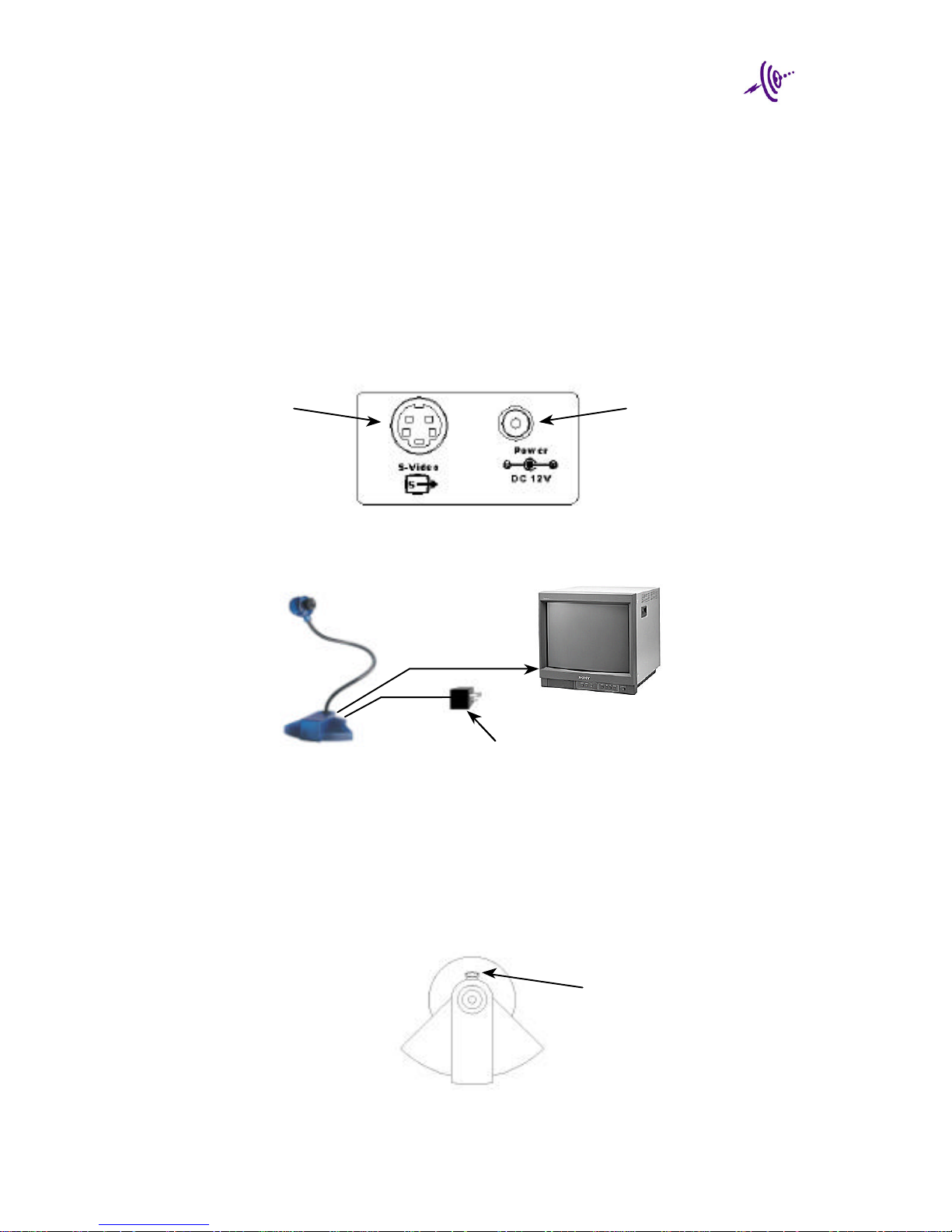
Step 1: Using the provided 12 VDC power supply only, attach the power plug
to the power jack on the back of the FlexCam iCam. Then plug the
power adapter into the wall outlet. See Figures 1 & 2.
Step 2: Connect the S-Video output of the FlexCam iCam to the input of a
video monitor, TV, VCR, computer, or other video display device. Use
the female S-Video to male RCA plug (composite) video adapter if
required. (Note: PAL models are shipped with a SCART adapter for
additional connection flexibility.) See Figures 1 & 2.
Step 3: Turn on the power switch located on the back of the camera bezel
(base). The green power indicator in the camera head will illuminate
verifying that the FlexCam iCam is receiving power and ready for
operation. See Figure 3.
12 VDC Power Jack
Attach power adapter
plug here.
Figure 1: Back Panel of FlexCam iCam
S-Video Output
Connect to video
display input – use the
S-Video to Composite
adapter if required.
Figure 3: Camera Bezel (base)
Power On/Off Switch
Figure 2: Basic Wiring Diagram
Video Display -
Use the 12’/3.66m
S-Video cable and
S-Video to Composite
Adapter if required.
S-Video Cable
12 VDC Power Adapter – Attach to wall outlet
Page 5
FlexCam iCam
Page 6

Technical Specifications:
Image Sensor: 1/3” CMOS
Effective Pixels: 508 (H) x 492 (V) - 251k pixels - NTSC
628 (H) x 582 (V) - 365k pixels – PAL
Resolution: 330 TV Lines
Focus Range: ¼”/.6cm to Infinity
Lens: 8mm D-mount Glass Lens
Gain Control: Auto
White Balance: Auto
Iris: Auto (flicker-free performance)
Sensitivity: 3 Lux
S/N Ratio: >48 dB
Video Output: S-Video or Composite
Video Formats: NTSC & PAL
Gooseneck: 20”/50.8cm
Exterior Color: Translucent Blue with Black Accents
Operating Temperature: 0oC ~ 40oC
Weight: 4lbs/1.81kg
Power Supply: 12VDC
Included Accessories: 12’/3.66m S-Video Cable
S-Video to RCA Plug Adapter
SCART Adapter (PAL models)
Optional Accessories: Microscope Adapter Kit, FlexLite
Page 6
Page 7

Warranty Information on Hardware
VideoLabs warrants this product against defects in materials and workmanship for a period
of one (1) year from the date of purchase. In addition, VideoLabs provides a five (5) year
warranty on the flexible gooseneck camera neck from the date of purchase only when the
registration card is filled out and mailed back. If VideoLabs receives notice of such defects
during the warranty period, VideoLabs will either, at its option, repair or replace products
that prove to be defective.
Obtaining Warranty Service
To obtain warranty service, products must be returned to a service facility designated by
VideoLabs. Customer shall prepay shipping charges for products returned to VideoLabs
for warranty service and VideoLabs shall pay for return of the products to customer.
However, the customer shall pay all shipping charges, duties and taxes for products
returned to VideoLabs from another country.
VideoLabs Customer Service
If the camera is still under warranty, VideoLabs will test, repair or replace the product
without charge. If the camera is out-of-warranty, VideoLabs will test, then repair the
product for the cost of parts and labor. Charges will be estimated and confirmed by the
customer prior to repair by a VideoLabs’ technician.
Repair time for all cameras is a maximum of 5 business days from receiving to outbound
shipping. VideoLabs will not accept responsibility for shipment after the camera has left our
premises.
VideoLabs Technical Support
VideoLabs’ technicians will determine and discuss with the customer the criteria for repair
cost and/or replacement. Contact VideoLabs’ Technical Support through one of these
sources: phone: 800-467-7157 (U.S. only) or 763-542-0061, e-mail: support
@videolabs.com or web site: www.videolabs.com
RMA (Return Merchandise Authorization) Number
Before returning a camera for repair or replacement, request an RMA number from
VideoLabs Technical Support.
Provide the technician with a return phone number or email and a shipping address.
Describe the product, the reason for repair or return, and the date of purchase.
Include your RMA number on all correspondence with VideoLabs. Write your RMA number
on the outside of the box when you return the camera.
Voided Warranty
This warranty does not apply if the VideoLabs serial number has been removed or if the
product has been disassembled or damaged through misuse, accident, modifications, or
unauthorized repair.
Shipping and Handling
Domestic Customers
VideoLabs will not pay for inbound shipping, transportation, or insurance charges, or accept
any responsibility for loss and/or damage from inbound transit.
VideoLabs will pay for outbound shipping, transportation, and insurance charges but will
not assume responsibility for loss and/or damage by the outbound freight carrier.
Page 7
Page 8

International Customers
VideoLabs requires that all international returns be shipped via UPS. VideoLabs will pay
for the product to be returned to our designated service facility, via UPS and will ship
returned product freight collect or by a freight forwarder designated by the customer.
Products Not Under Warranty
Payment arrangements are required before outbound shipping for all products that are outof-warranty.
Exclusions
The above warranty shall not apply to defects resulting from: improper or inadequate
maintenance or installation by customer, customer-supplied software or interfacing;
unauthorized modifications or misuse; operation outside of the environment specifications
for the product; or improper site operation and maintenance.
All statements, technical information, and recommendations related to VideoLabs products
are based on information believed to be reliable. Before using this product, you must
evaluate it and determine if it is suitable for your intended application. You assume all risks
and liability associated with such use.
VIDEOLABS MAKES NO OTHER WARRANTIES INCLUDING, BUT NOT LIMITED TO,
ANY IMPLIED WARRANTY OF MERCHANTABILITY OR FITNESS FOR A PARTICULAR
PURPOSE.
Limitation of Liability
Except where prohibited by law, VideoLabs will not be liable for any loss or damage arising
from this product, whether direct, indirect, special, incidental or consequential regardless of
the legal theory asserted.
Page 8
Page 9
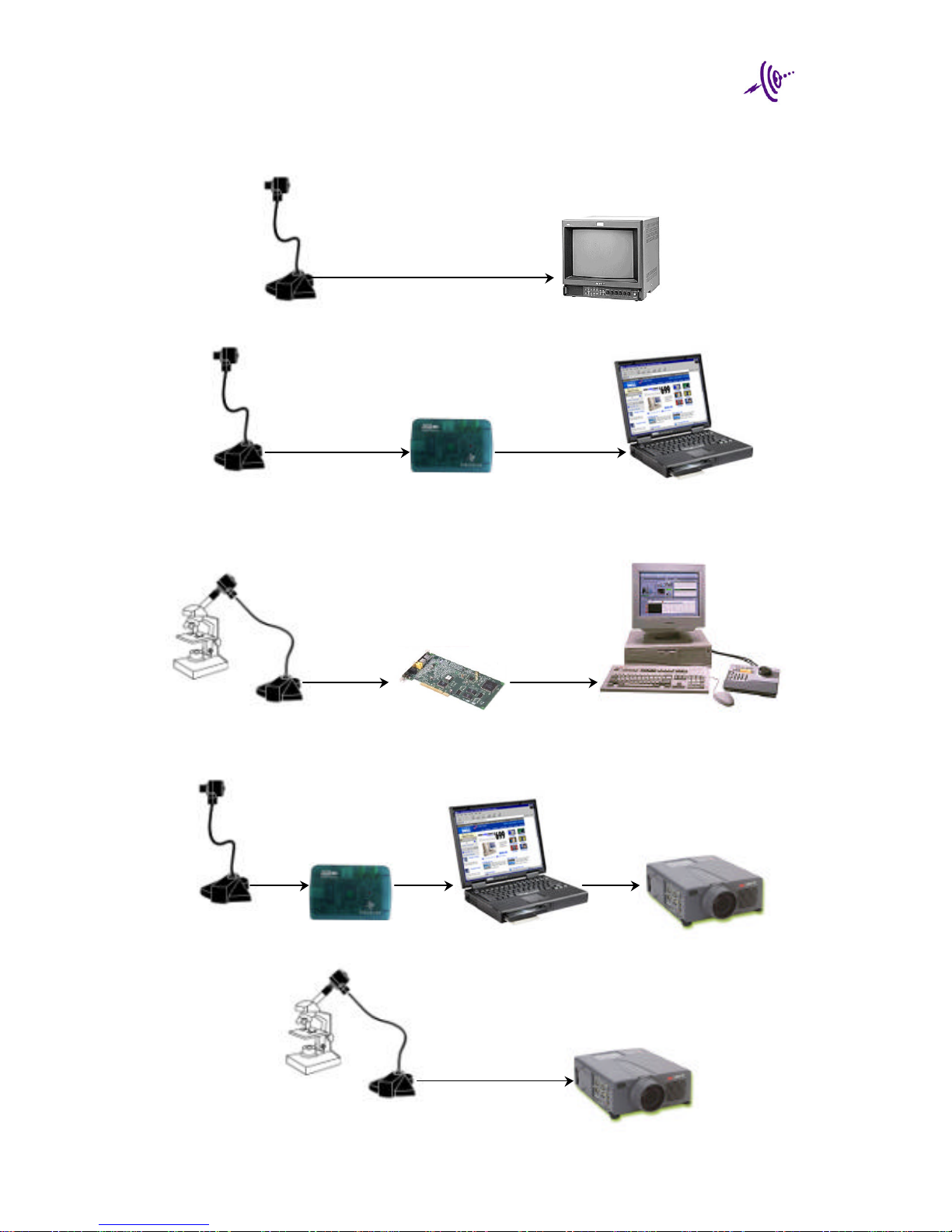
FlexCam iCam Application Examples:
Video
Video
Video
Video
Video
VideoLabs
Video to USB Adapter
Video
Monitor
Laptop
Computer
USB
VideoLabs Stinger Pro II
PCI Video Capture Card
Computer System
Laptop
Computer
LCD
Projector
VideoLabs
Video to USB Adapter
FlexCam iCam with Optional
Microscope Adapter Kit
FlexCam iCam with Optional
Microscope Adapter Kit
Page 9
LCD
Projector
USB
XGA
FlexCam iCam
FlexCam iCam
FlexCam iCam
Page 10

©E.mergent, Inc. 2000. Reproduction in whole or part without written permission is
prohibited. VideoLabs is a registered trademark of E.mergent, Inc. FlexCam is a
trademark of E.mergent, Inc. All rights reserved. Specifications are subject to change
without notice.
Page 11

VideoLabs
5960 Golden Hills Drive
Minneapolis, MN 55416-1040
Telephone 763-542-0061 Fax 763-542-0069
www.videolabs.com
Form 092800
 Loading...