

Page 1

OWNER'S MANUAL
LCD
TELEVISION
Please read this instruction manual carefully before operating your machine. Retain it for future reference.
Record model name & serial number of the machine. Please quote this information when you require service.
Page 2

MESSAGE FROM THE VICE CHAIRMAN & CEO
Dear Customer,
It gives me great pleasure to welcome you to the VIDEOCON family.
Our sincere endeavour is to provide you with best quality products & impeccable
service, thus laying the foundation for a binding relationship with you. One that stands
the test of time to grow stronger with our every interaction.
At Videocon, we have set ourselves a goal to continuously challenge ourselves and
contribute towards good health, happiness and a bigger cause - a greener tomorrow.
Our initiative is to help create a tomorrow that promises clean air, pure water and a
green earth.
With extensive research, creativity and technology, we present a whole new range of
products - designed super efficient, built super sensitive to your needs. They forward
the urgent cause of environmental protection by becoming the machines of the
future, today.
That is the Videocon philosophy. That is Eco Logic.
Tree not required
Page 3
11
15
7. VIDEO MENU..............................................................................................
8. AUDIO MENU..............................................................................................
9. SEARCH MENU..........................................................................................
10. TIMER MENU..............................................................................................
11. OPTION MENU............................................................................................
SETUP SETTING...........................................................................................
13. YPbPr SCREEN SETTINGS ........................................................................
SCREEN
SCREEN
18. WALL MOUNTING INSTRUCTIONS..........................................................26
NOTE : Pictures and OSD shown in this User Guide Book are just for representation.
Actual product may look differ than representation.
16
16
17
17
18
19
19
19
20
21
25
Tree not required
Page 4
Page 5
Note:
Despite the high quality of the television, a random disturbances or interference may
cause occasional malfunctioning, in this case the correct function of the apparatus
can be restored by switching Off the TV through the main On/Off button or removing
the main plug, then switches ON as soon as the LED light disappears
Page 6
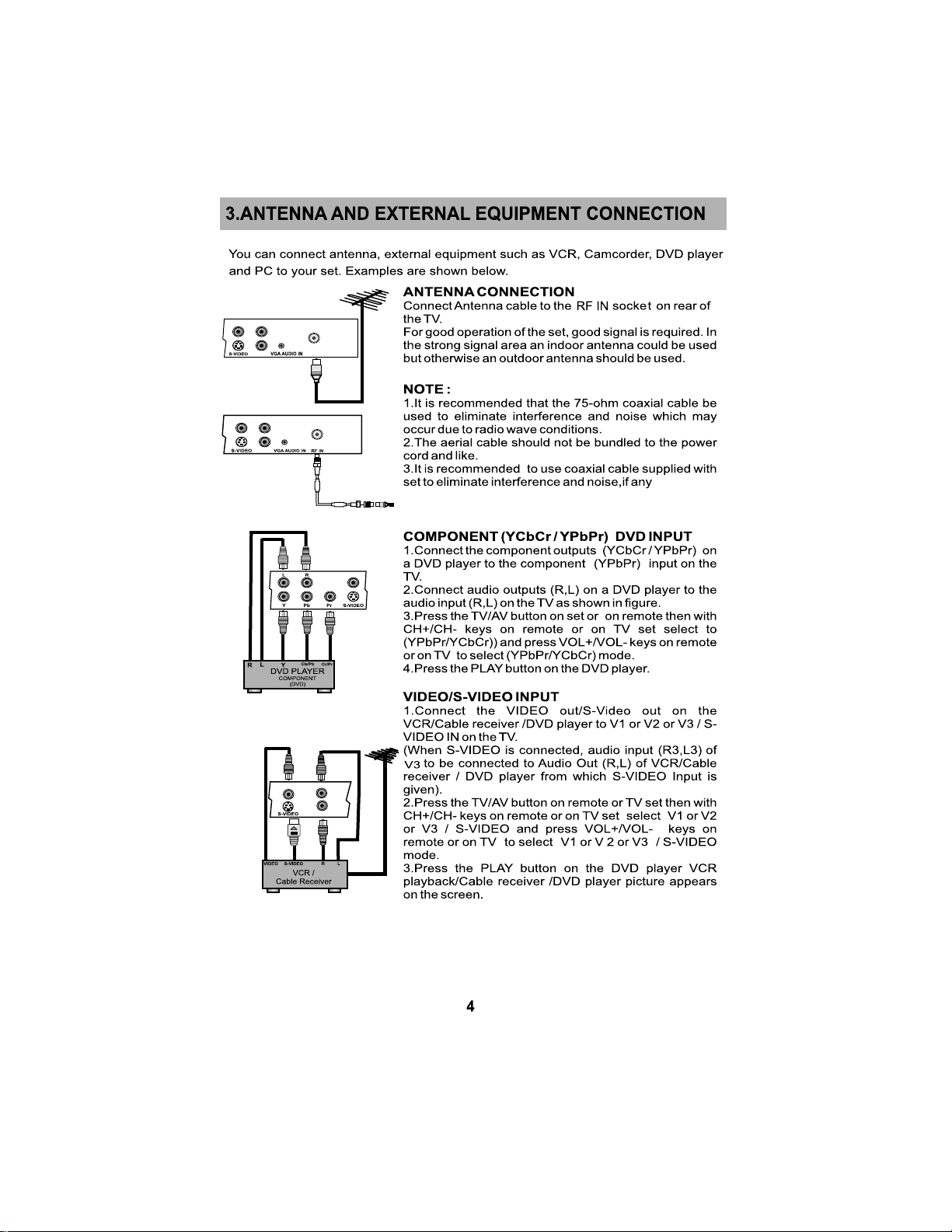
L3V3
R3
L3
V3
R3
RF IN
4. Refer cable / antenna installation with supplied RF cable for
better picture. Cable is optional
V3
L3
V3
R3
Page 7
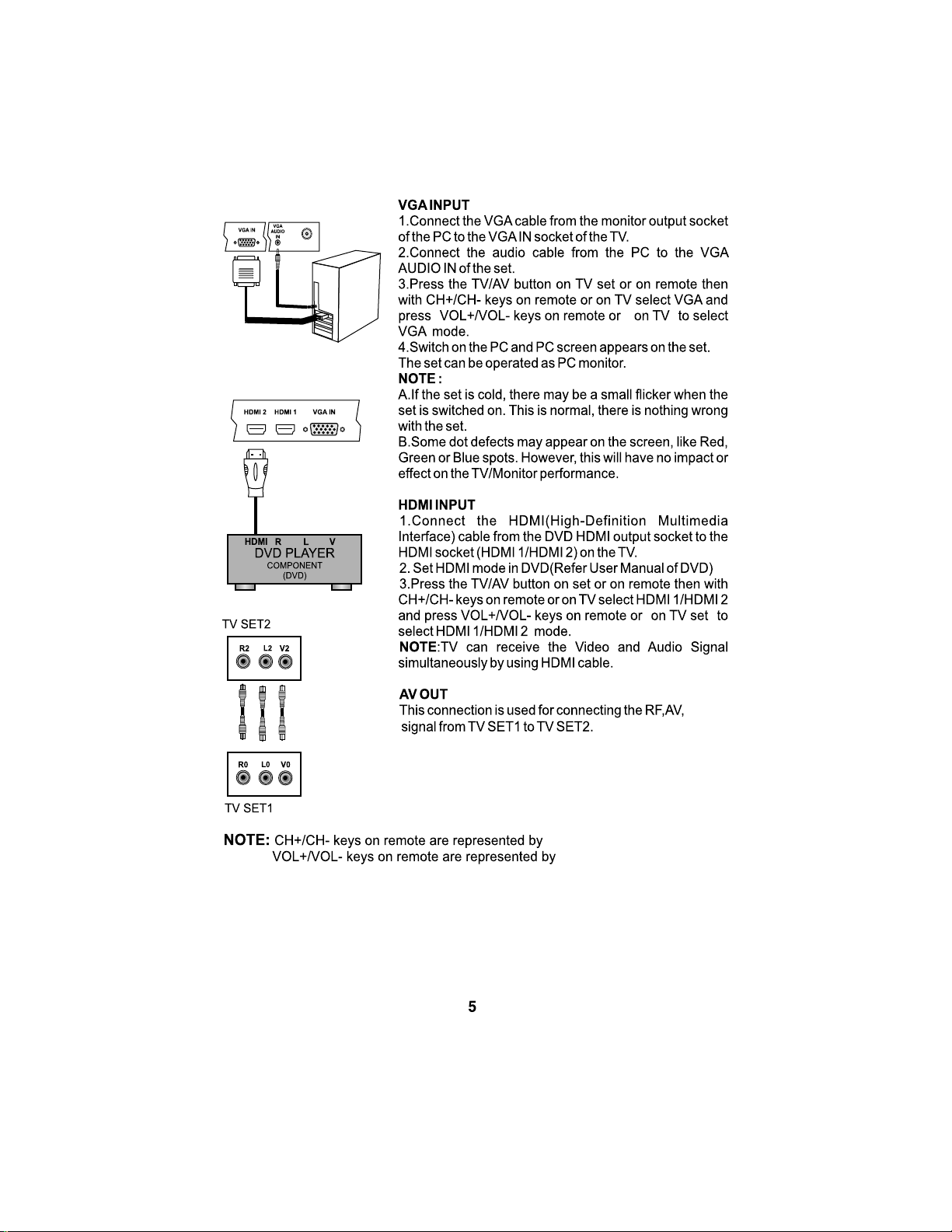
CH+/CH- on TV set.
VOL+/ VOL- on TV set.
Page 8
Page 9
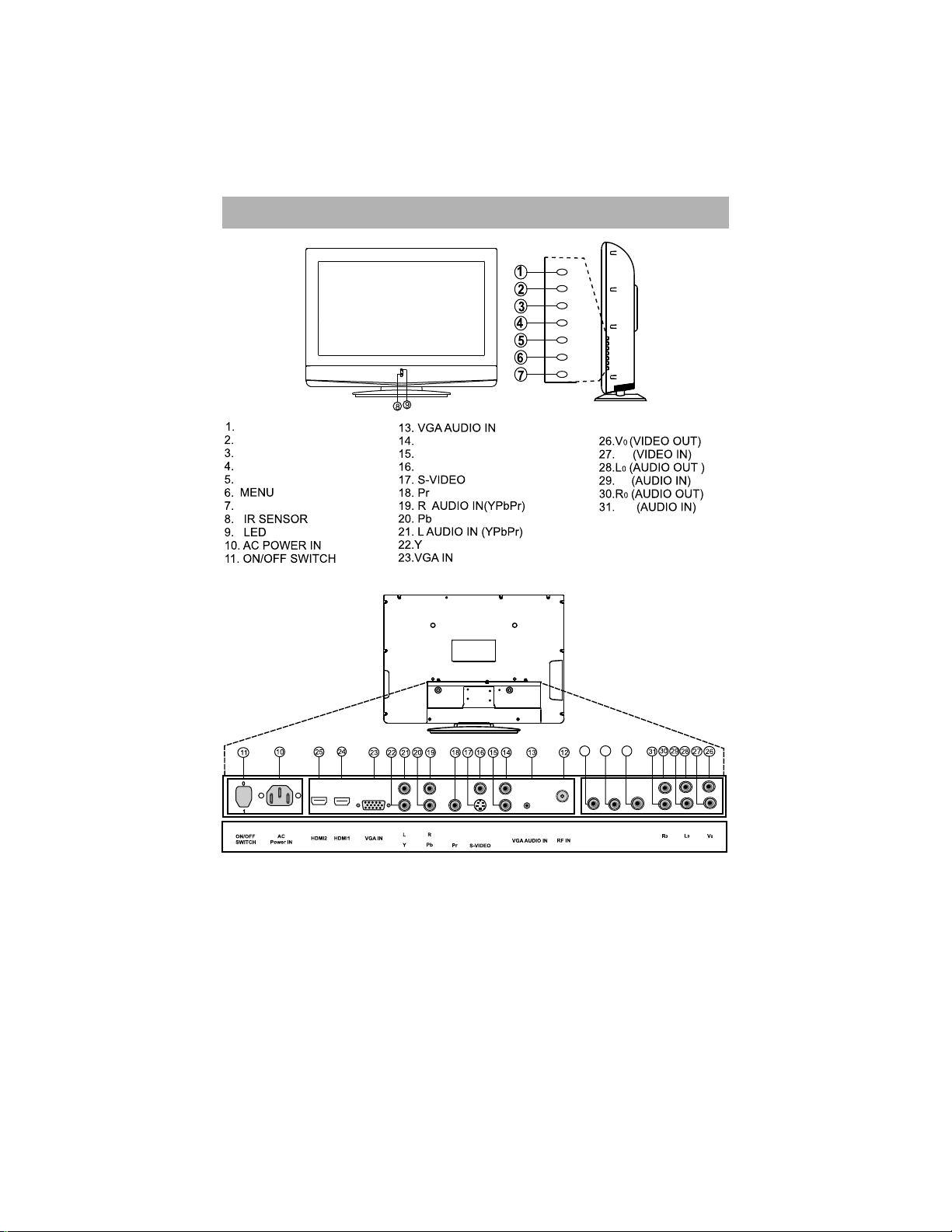
4. NAMES AND FUNCTION OF CONTROLS ON SET
POWER
P+
P-
V+
V-
MENU
TV / AV
POWER
P+ (CHANNEL UP)
P - (CHANNEL DOWN)
V + (VOLUME UP)
V - (VOLUME DOWN)
TV / AV
12. RF IN
L3 AUDIO IN (AV3/S-VIDEO)
R3 AUDIO IN (AV3/S-VIDEO)
V3
24. HDMI 1
V3 L3
R3
VCL42FBT
25. HDMI 2
V2
L2
R2
32. V1 (VIDEO IN)
33. L1 (AUDIO IN)
34. R1 (AUDIO IN)
33
34
32
R1 L1 V1
R2 L2 V2
Note : 1) Point 11 is Optional.
2) Above Sketches are just representation. Actual TV set may
look differ than these sketches.
7
Page 10

4.1 NAMES AND FUNCTION OF CONTROLS ON SET
VOL CH
MENU
SOURCE
STANDBY
SOURCE
VOL- (VOLUME DOWN)
VOL+ (VOLUME UP)
CH- (CHANNEL DOWN)
CH+ (CHANNEL UP)
STANDBY
12. RF IN
L3 AUDIO IN (AV3/S-VIDEO)
R3 AUDIO IN (AV3/S-VIDEO)
V3
24. HDMI 1
R1 L1 V1
VBL26HBA/VBL32HBA/
VDL32FBT / VDL32HBA
25. HDMI 2
V2
L2
R2
32. V1 (VIDEO IN)
33. L1 (AUDIO IN)
34. R1 (AUDIO IN)
32
33
34
V2
L2R2
R3
V3 L3
Note : 1) Point 11 is Optional.
2) Above Sketches are just representation. Actual TV set may
look differ than these sketches.
8
Page 11
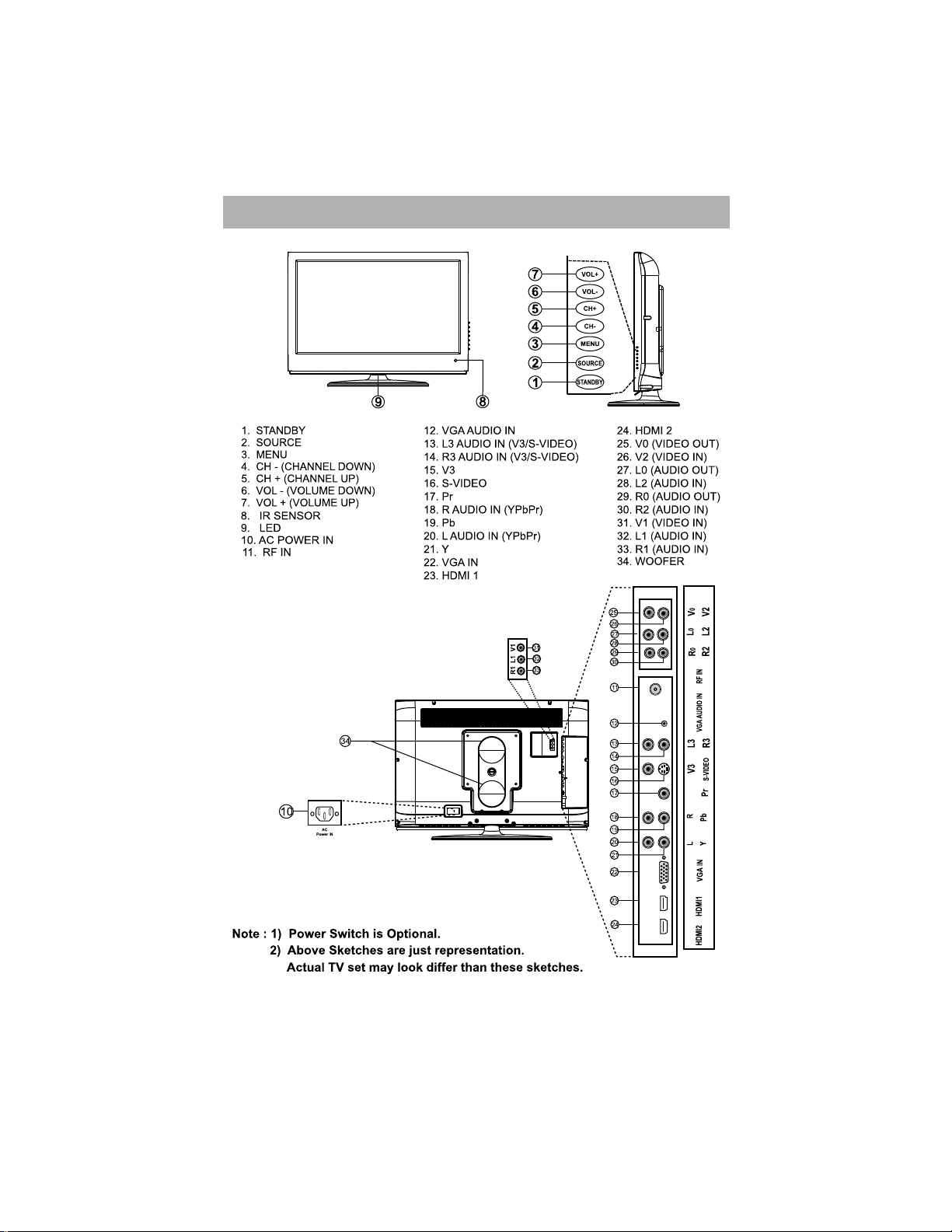
4.2 NAMES AND FUNCTION OF CONTROLS ON SET
VIL32WBA/FBA
9
Page 12
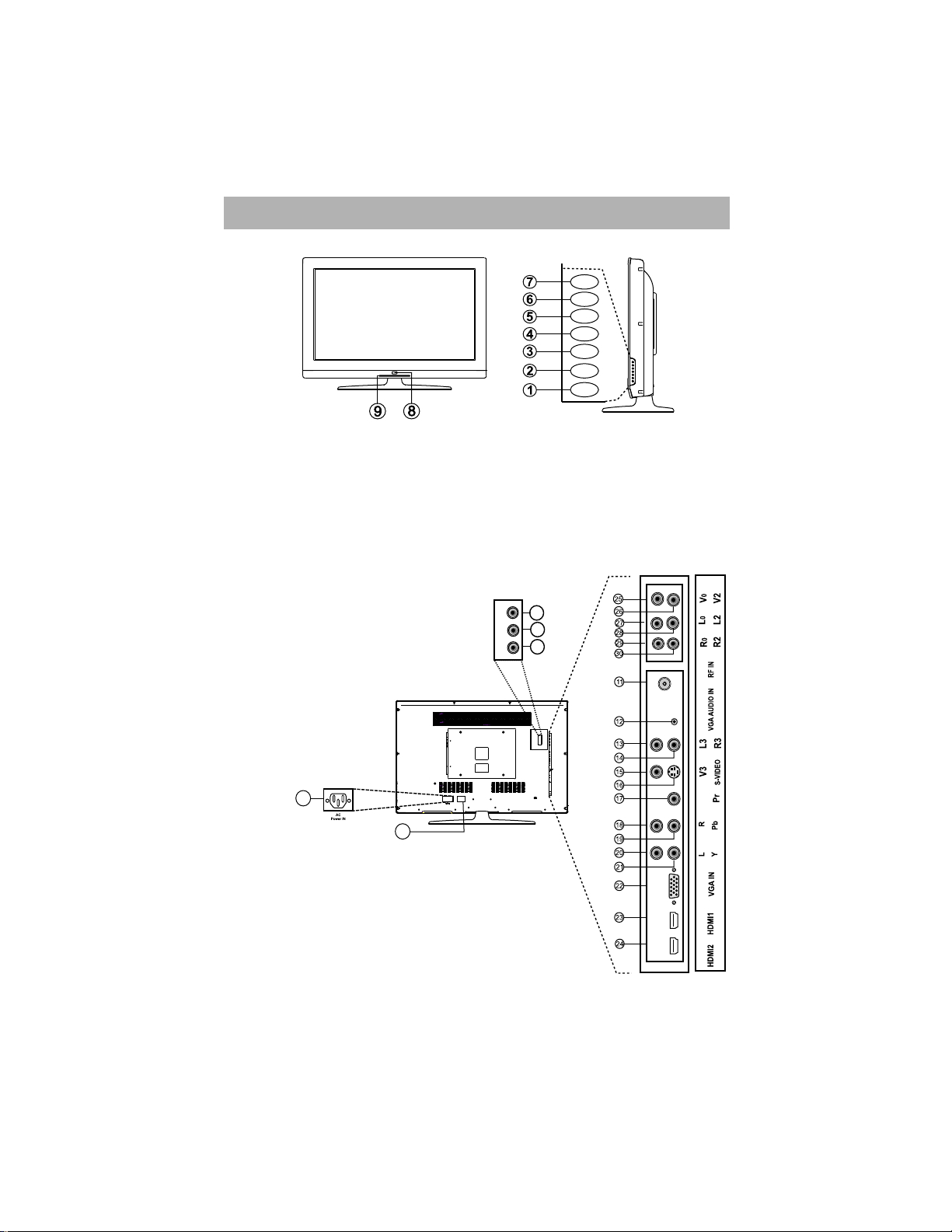
4.3 NAMES AND FUNCTION OF CONTROLS ON SET
VOL+
VOL-
CH+
CH-
MENU
SOURCE
STANDBY
1. STANDBY
2. SOURCE
3. MENU
4. CH - (CHANNEL DOWN)
5. CH + (CHANNEL UP)
6. VOL - (VOLUME DOWN)
7. VOL + (VOLUME UP)
8. IR SENSOR
9. LED
10. AC POWER IN
11. RF IN
12. VGA AUDIO IN
13. L3 AUDIO IN (AV3/S-VIDEO)
10
14. R3 AUDIO IN (AV3/S-VIDEO)
15. V3
16. S-VIDEO
17. Pr
18. R AUDIO IN (YPbPr)
19. Pb
20. L AUDIO IN (YPbPr)
21. Y
22. VGA IN
23. HDMI 1
24. HDMI 2
31
32
33
R1 L1 V1
11
VLL32HBA / FBA
25. V0 (VIDEO OUT)
26. V2 (VIDEO IN)
27. L0 (AUDIO OUT)
28. L2 (AUDIO IN)
29. R0 (AUDIO OUT)
30. R2 (AUDIO IN)
31. V1 (VIDEO IN)
32. L1 (AUDIO IN)
33. R1 (AUDIO IN)
Note : 1) Power Switch is Optional.
2) Above Sketches are just representation.
Actual LCD TV may look differ than these sketches.
10
Page 13
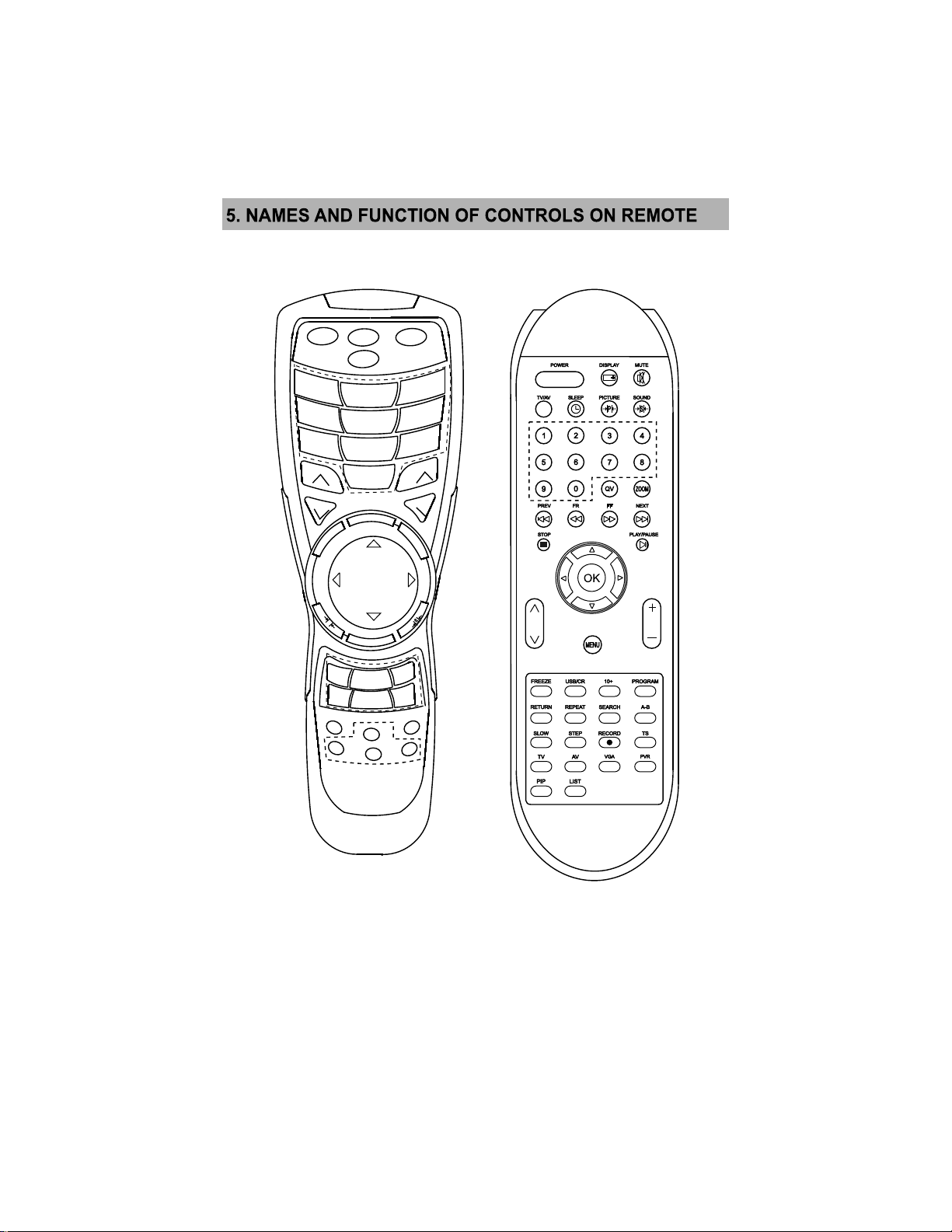
POWER
SLEEP
FREEZE
MUTE
1
4
7
2
5
8
3
6
9
0
VOLCH
DISPLAY
V
A
/
V
T
CH+
V-
MENU
P
T
X
T
I
N
D
E
X
CANCEL
ZOOM
CH-
Q.V
MIX
V+
I
/I
I
CH
D
L
O
H
G
BP
U
S
REVEAL
VOL
V-LP
(OPTIONAL)
(OPTIONAL)
11
Page 14
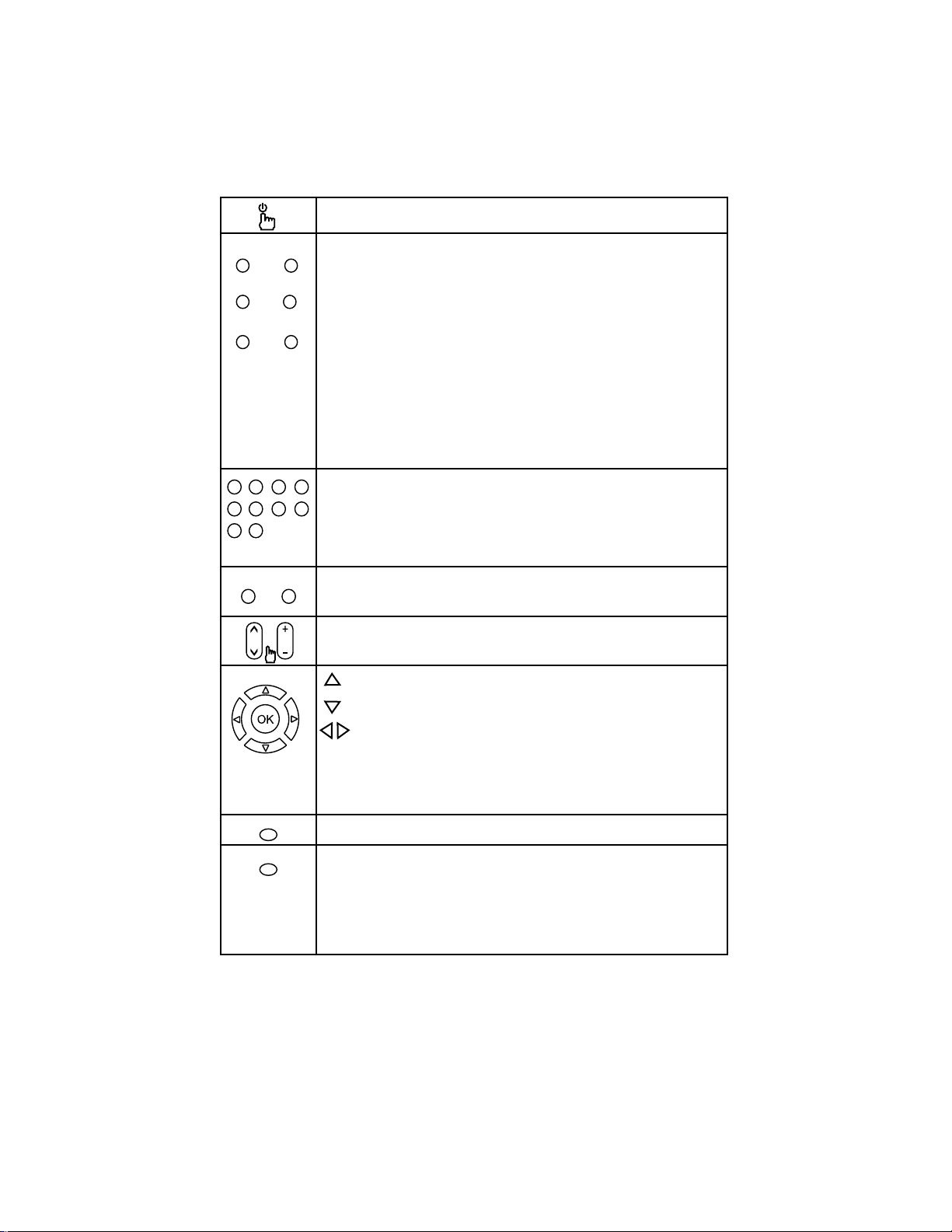
DISPLAY MUTE
TV/AV SLEEP
PICTURE SOUND
374
1
2
6
5
9
0
QV ZOOM
VOLCH
FREEZE
MENU
POWER
Turns TV ON from STANDBY or from ON to STANDBY
DISPLAY
1) Displays present source information with details of input signal connected.
2) For PVR model : Display present the Title information with detail's of Time title number.
MUTE
Turns sound OFF or ON.
SOURCE SELECTION (TV/AV)
Display OSD for source selection input source can be selected with
CH+/CH- keys & press vol+/vol- key on remote or on TV set.
SLEEP
Sets sleep timer. Maximum time can be set 240 minutes in steps of
10, 20, 30 and 240 minutes.
NOTE :
Sleep Timer is deactivated when set is switch to stand by or mains power supply is switched Off.
PICTURE
Recalls presetted picture settings can be selected...
SOUND
Recalls presetted picture settings can be selected.
DIRECT DIGIT NUMBER SELECTION Keys ( 0 to 9 )
Selects program number 0 - 199 directly by using direct digit keys.
- To select 1 digit program number press desired program number & wait for few
8
seconds selected program number will appears on screen
- To select 2 digit or 3 digit program number press 1st, 2nd, or 3rd digit within
2 sec. after pressing 1 & 2 digit respectively.
- To enter password to lock or unlock channel and to set New Password.
- To enter characters for channel name.
QUICK VIEW ( Q.V )
Selects to previously viewed channel.
ZOOM
Zoom is for aspect ratio control.
CH + / CH –
Navigate Up / Down through the valid channel.
VOL + / Vol –
To increase / decrease the volume
Navigates vertically up/down through the Menu/Sub menu.
- Used to set the Time and Program name.
- Used to sorting purpose in Program edit menu.
- To enter into displayed Menu /Sub menu parameters.
- Select submenu from displayed menu.
- increases /decrease the value of selected items
- Select characters in program name and change name
and time in time menu.
- Adjust setting of selected item and set feature to ON/OFF.
- Adjust program number in tuning, Exchange and timer menu.
- Selected digit position for current date in process menu
- To release the Mute (from > key)
OK - Used to enter selected MENU items (Optional)
FREEZE (OPTIONAL)
Press this key to freeze/unfreeze the picture .
MENU
To Select menu OSD window and to exist from menu OSD window when menu
window is displayed on screen.
TELETEXT :
TEXT,MIX,HOLD,CANCEL,INDEX,REVAL,SUGPG,RED
GREEN,BULE, YELLOW are the key’s for teletext function.
NOTE: Teletext is Optional.
I/II is not Optional.
12
Page 15
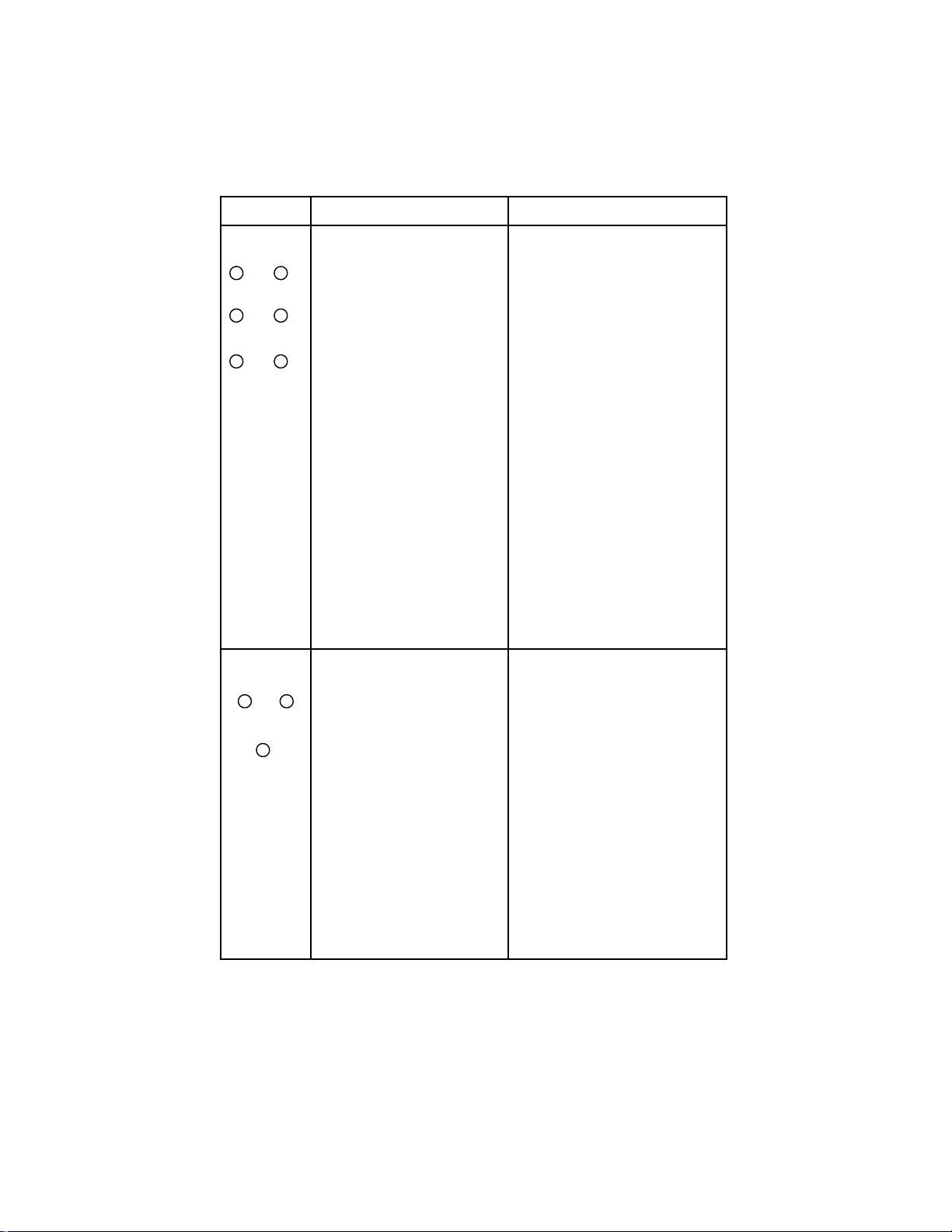
PREV FR
FF NEXT
STOP PLAY / PAUSE
USB RELATED
KEYS (OPTIONAL)
PREV
To choose previous track / title
FR
Each press of this key will start fast
reverse search of data by factor of
X2, X4, X8, X16,… and press OK key
to start the playback.
FF
Each press of this key will start fast
forward search of data by factor of
X2, X4, X8, X16, X32 and press OK key
to start the playback.
NEXT
To choose next track / title.
STOP
Press this key to stop the playback and
press OK key to resume the playback
PLAY/PAUSE
To pause the playback & to move the
picture in steps. To cancel it press OK key.
PVR RELATED
KEYS (OPTIONAL)
PREV (PREVIOUS)
PREV key is used to reach at the starting point
from where program recording is started during
temporary recording and for going into previous
recorded clip during recorded program play.
FR (FAST REVERSE)
- FR key is used for backward the playing
program by the speed of (X1/2,X1/4. X1/8, X1/16)
by first pause the program by pressing PAUSE
key and then by pressing FR key
FF (FAST FORWARD)
- FF key is used for forward the playing program
by the speed of (X1/2,X1/4. X1/8, X1/16) by first
pause the program by pressing PAUSE key and
then by pressing FF key.
- Each press of this key will start fast forward
search of data by factor of X2, X4, X8, X16,.......
and press ENTER key to start the playback
NEXT
- NEXT key is used to select next clip for play in
case of stored program play.
- NEXT key is used to select current running
program in case of temporary Recording.
STOP
- STOP is used to stop recording.
- STOP is used to playing in case of recorded
program play.
PLAY/PAUSE
- PLAY key is used to play the recorded program
Press LIST key to enter into recorded program list,
select the Title and press PLAY button on remote
for play the selected title.
- PAUSE key is used to pause the playing
program in case of recorded program play.
USB/CR
PROGRAM
USB/CR
When you press this key, the SETUP menu will
10+
appear on the TV screen.
You can select USB or memory card port using
this key.
10+
To select the 10+ track/title/picture directly in
respective to current track/title/picture.
PROGRAM
This key is used to program tracks in your
favourite order. Press this key to display the
program menu on the top of the screen. Enter
the desired track number in desired order by
numeric keys.
To start the playback go to PLAY option by
arrow key & press OK key. To cancel it go to
CLEAR option by arrow keys & press OK key.
For picture playback, there are various picture
appearance modes.
1. Go to picture playback by using arrow keys.
2. Select picture by using arrow keys and press
OK key.
3. Press PROGRAM key when picture is on the
screen.
13
Page 16
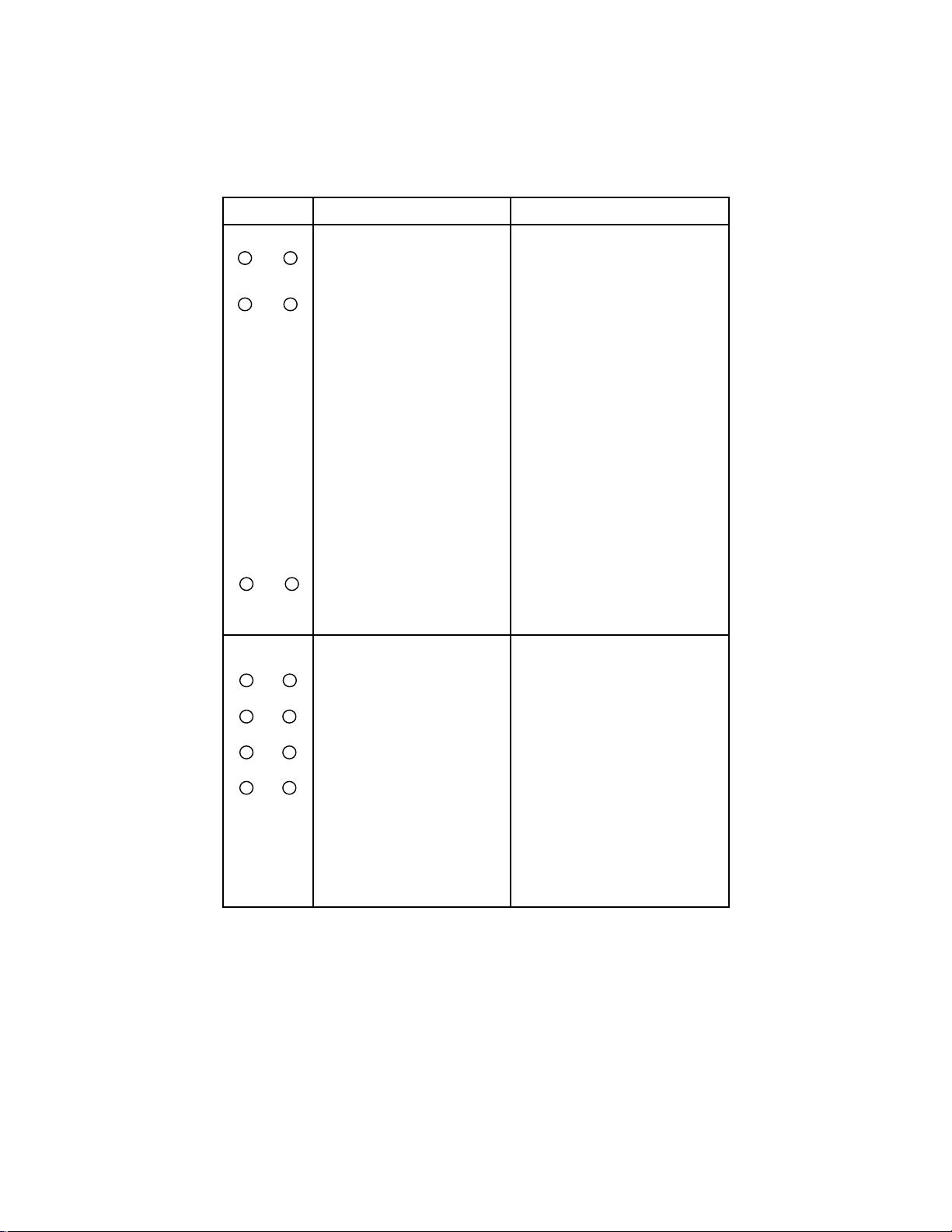
RETURN REPEAT
SEARCH A - B
SLOW STEP
RECORD TS
TV AV
VGA PVR
PIP LIST
USB RELATED
KEYS (OPTIONAL)
RETURN
Press this key to return to previous menu.
REPEAT
Press this key to display repeat modes
status (OFF/REP 1/REP DIR/REP ALL)
and repress the key to change the status.
REP 1 : It repeats the playback one time
in particular folder.
REP DIR : It repeats the playback in
particular folder and never stops.
REP ALL : It repeats the playback in all
folders.
SEARCH
This key used to goto particular track.
Press this key, it displays track no, repeat
status, time
information on the top of the screen. Use
arrow keys to move the cursor, select
desired track by
numeric keys & press OK key to start the
playback.
A-B
It repeats the portion of track. For first press,
it decides 'A' location & for second press, it
decides 'B' location. To cancel A-B mode,
press this key again.
SLOW
Each press of this key will slow the playback
speed by following factor to SF1/2, SF1/3,
SF1/4,SF1/5, SF1/6, SF1/7 of the normal
speed.
STEP
Press this key to move the picture in steps.
To cancel it press enter key.
PVR RELATED
KEYS (OPTIONAL)
RECORD
RECORD key is used for recording the program
under the source TV/AV1/AV2.
TEMPORARY STORE (TS)
TS key is used to store the TV/AV1/AV2 source
program temporarily
TV.
TV key is used to select TV source directly
AV
AV key is used to select AV source directly
VGA
VGA key is used to select VGA source directly
to current track/title/picture
PERSONAL VIDEO RECORDER (PVR)
PVR key is used to select PVR source directly
PICTURE IN PICTURE (PIP)
Press PIP button to select subpicture source
picture (TV/AV1/AV2 source is selected )
when running source is PVR.
LIST
LIST key is used to enter into title list of PVR
source
Note : Depending up on remote some key may not be available.
14
Page 17
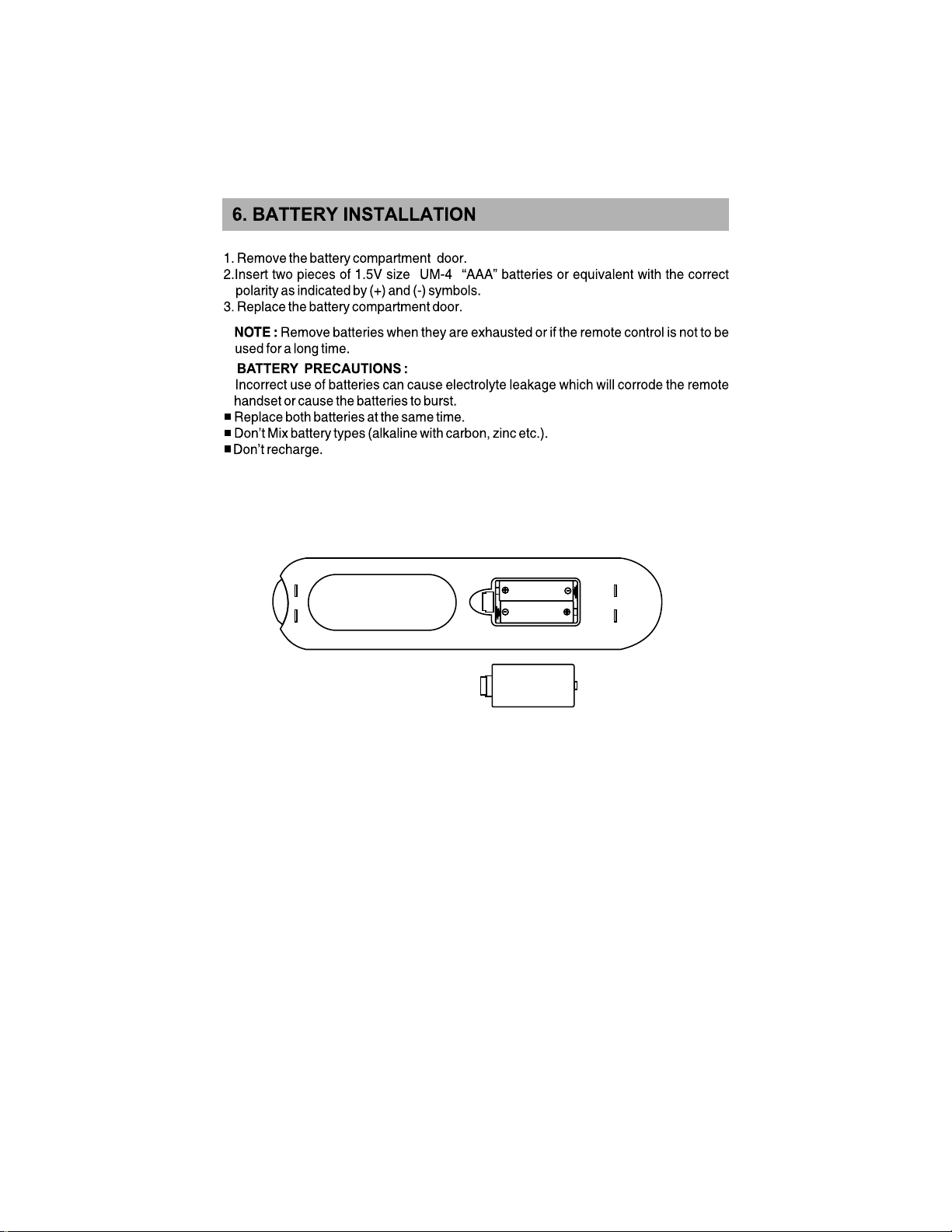
15
UM-4”AAA”
UM-4”AAA”
V-LP
Page 18
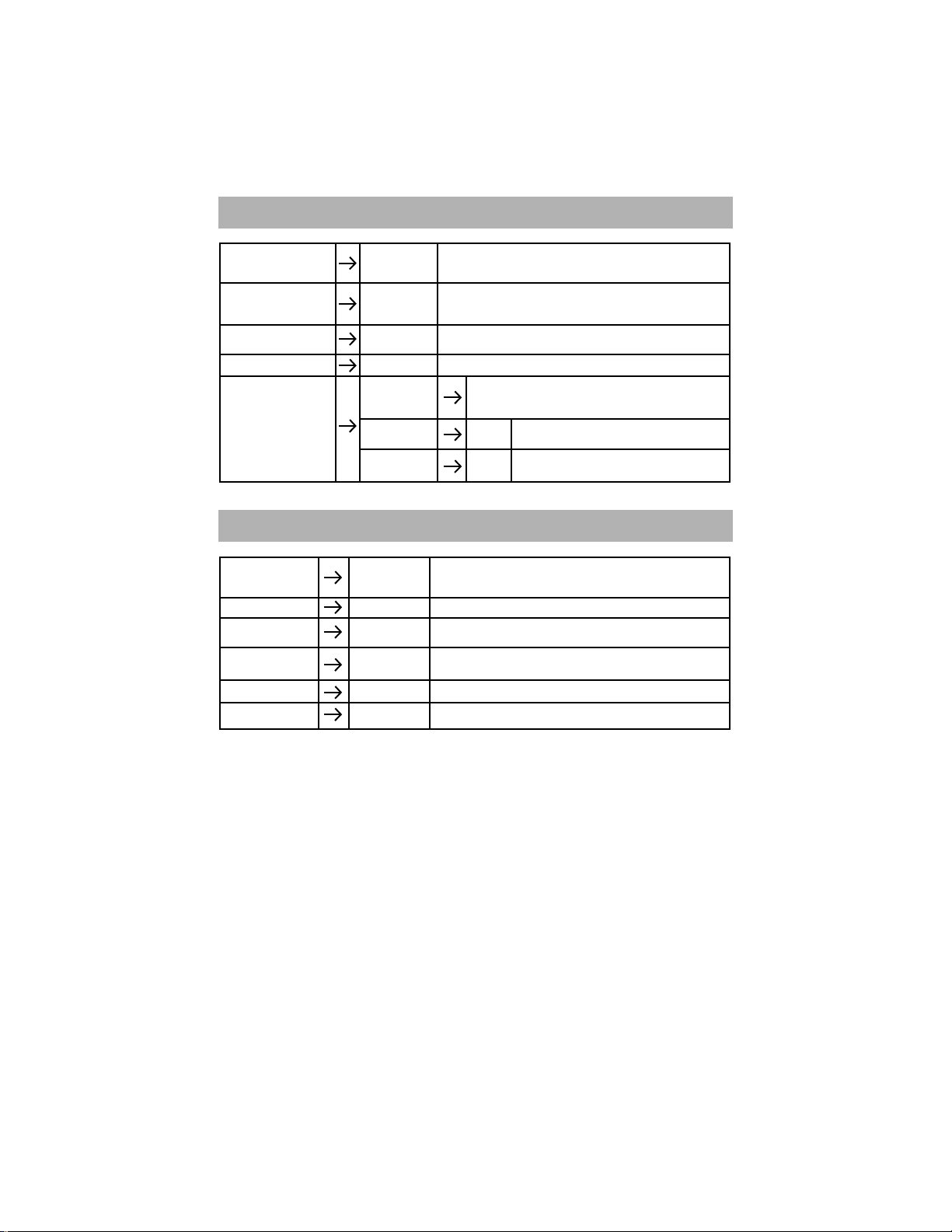
7. VIDEO MENU
Video Mode
Contrast, Brightness,
Color Sharpness
(0-12) Tint (-50 to +50)
Color Temperature
Noise Reduction
Advance
8. AUDIO MENU
Audio Menu
Balance
Bass, Treble
AVL
(Audio Volume Level)
Sub Woofer
Woofer Volume
Dynamic,
Standard, Mild,
Game, User
0 - 100
Normal, Warm,
Cool
On, Off
Flesh Tone,
Green Tone,
Blue Tone
Cinema Mode
DCI
User, Surround,
Flat, Music,
Movie, Sports
-50 to +50
0 - 100
On, Off
On, Off
0 - 100
This function is used to select the presetted picture
settings.
Use these functions to adjust the Contrast, Brightness,
Color, Sharpness and Tint settings.
NOTE :- TINT is available only for NTSC.
This function is used to adjust color temperature of the
picture Normal, Warm (Reddish) or Cool (Bluish)
This function is used reducing the Noise Level, present in Video.
These parameters are used to increase corresponding
Reddish, Greenish or Bluish color of picture.
This function is algorithm for auto delect
On, Off
and enable Cinema mode.
This function is adjust the contrast & brightness
On, Off
of picture depending on the picture contents.
This function is used to select the presetted sound
settings.
By using this function, User can adjust the balance of output sound.
These functions are used to adjust the corresponding
higher or lower frequency level in sound menu.
This function is used to adjust the sound level automatically
incase of distorted audio due to high audio modulation.
This function is used to ON/OFf the Sub Woofer.
By using this function user can set Woofer Volume 0 to 100.
NOTE :- Woofer is applicable for VIL32WBA/FBA model only.
16
Page 19
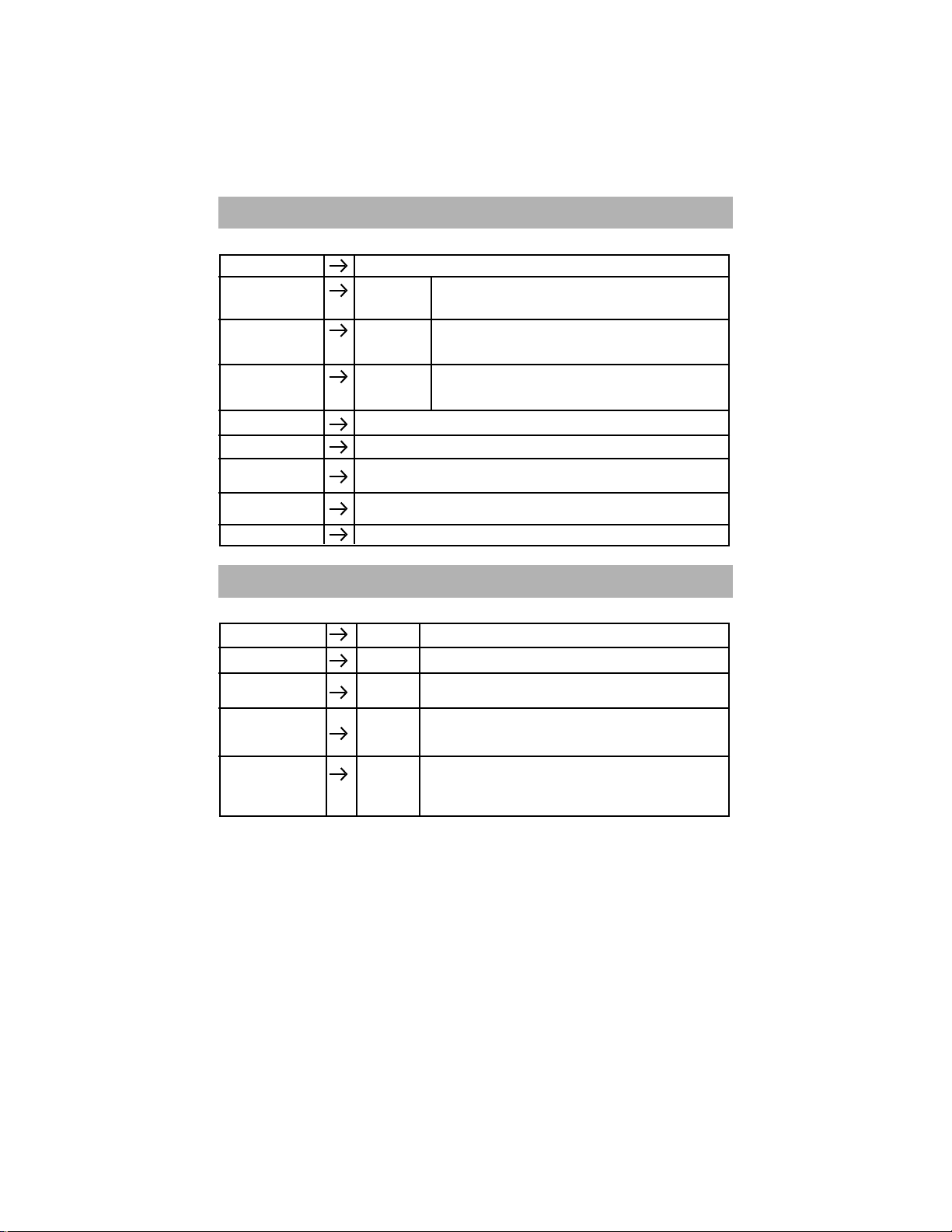
9. SEARCH MENU
Program
Color System
System
Country
AUTO, PAL,
SECAM
BG, I,
DK, L/L'
Other's + 25
Auto Search
Manual Search
Fine
Program Edit
Program Label
10. TIMER MENU
Current Time
Off Time
On Time, On Program
Reminder
Reminder Time
Auto Sleep
Channel,
OFF, 10,20,
30, 60,90,
120, 180,
240 Min.
This function indicates the current program number.
This setting is necessary if picture is not reproduced
correctly.
This setting is necessary if sound is not reproduced
correctly.
By selecting Country, TV set will automatically adjust
color and sound system corresponding to that country.
By selecting this function, TV set will start auto tuning.
By Manual Search, channels can be tuned manually.
Fine tunning is required for a channel at which either Picture or Sound
clarity is not OK even after Auto Searching.
This function is for sorting of program by pressing Color Key or
(1,2,3,4) on remote.
This parameter is used to give the label to the program.
-- : --
-- : --
-- : --
-- : --
This will display the time set by user as a current time.
This will switches the set to stand-by after presetted time.
These both settings will switches the set ON from stand-by
after presetted time to presetted program.
This is reminder and presently viewed channel gets
changed to the presetted program after executting the
presetted reminder time with reference to the Current time.
TV set goes to stand-by after presetted time in Auto Sleep.
Note : Timer will get reset if set switched to standby or powered off by mains supply.
17
Page 20
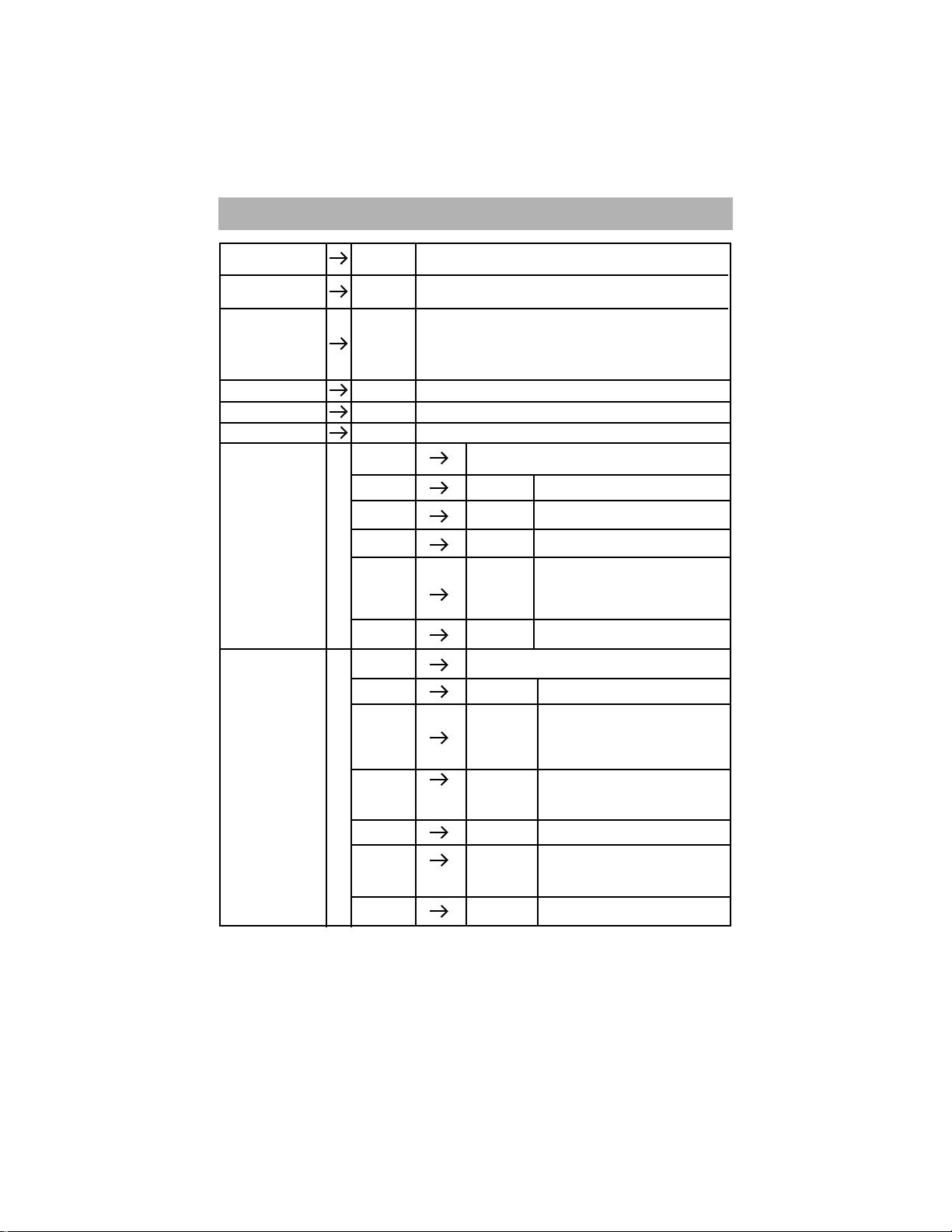
11. OPTION MENU
Language
Zoom
Blue Screen
Keypad Lock
OSD Transparent
Backlight
Child Lock
password is "000000"
by default
Hotel Mode
password
is "000000"
by default
English+16
16.9, Original,
4.3, Zoom
On, Off
On, Off
0 - 10
0 - 10
Change
passowrd
Child Lock
Enable
Channel
Number
Channel
Lock
Source
Source
Lock
Change
passowrd
Hotel Mode
Enable
Force Pos.
Force Video
Search
Disable
Max
Volume
Menu
Lock
This function is used to select OSD language as per
requirement.
By using this function user can select aspect ratio of
picture.
This function is used to control screen display in the
absence of signal.
NOTE :- If Blue Screen is ON, then displayed screen is
Blue. If Blue screen is OFF, then screen is raster in TV
source and black screen in Other mode.
This function is used to lock the operation of front panel keys.
This function is used to adjust transparency of menu OSD window.
This function is used to adjust brightness level of panel.
User can change the default password. To change the
password, enter new password two times.
On, Off
- - -
On, Off
TV,AV1, AV2,
AV3,S-VIDEO,
YPbPr, VGA,
HDMI1,
HDMI2
On, Off
User can change the default password. To change the
password, enter new password two times.
On, Off
- - -
TV,AV1, AV2,
AV3,S-VIDEO,
YPbPr, VGA,
HDMI1, HDMI2
On, Off
0 - 100
On, Off
User can enable or disable Child Lock by
selecting either On or Off.
Select channel number want to lock
User can On Or Off channel lock
Select SOURCE want to lock
User can On or Off Source lock
User can enable or disable Hotel Mode by
selecting either On or Off.
This parameter is used to set channel
number on which set goes forcefully
when On from Stand-by or Mains power
supply in case of Hotel Mode is enable &
Force Video set to TV source.
This function is used to set the source that
forcefully selected when TV set ON from
Stand-by or Mains power supply in case
of Hotel Mode is ON.
This function is used to set the Search menu
either On or Off in case of Hotel Mode is enable.
This function is used to set the maximum level
of volume in case Hotel Mode is enable.
User can increase the volume level
upto level presetted in Max
User can lock the Menu OSD
by setting menu lock to On.
18
Page 21
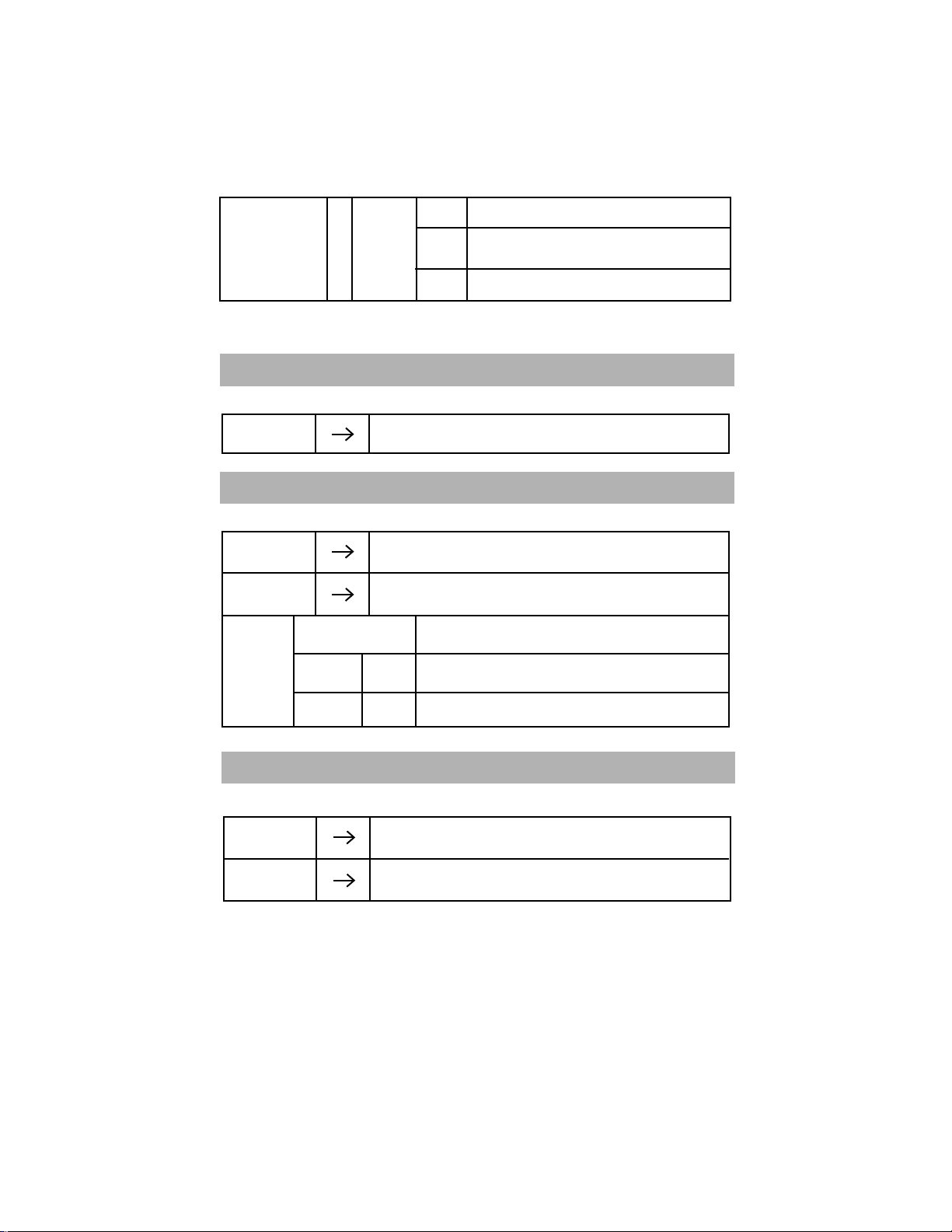
OFF/
Audio
only/
ECO Vision
Note : If you press any key on remote or front key TV set will comes out from Audio only
mode & will go to normal.
power
saving
Power
saving
Normal operation.
Off
If you select this mode then you can hear only sound but
Audio
picture will not be displayed & you can save 85% power
only
consumption.
If you select power saving mode the power consumption
will be reduced by 15%.
12. SETUP SETTINGS
SETUP function is available only for AV/S - VIDEO input source.
Color System
User can select either AUTO, PAL, NTSC, NTSC443, SECAM
color system.
13. YPbPr SCREEN SETTINGS
YPbPr/YCbCr POSITION function is available only for YPbPr/YCbCr source.
H - Position,
V - Position
By changing this parameters, user can change the picture
position according to requirement
RESET
PIP Setup
PIP
PIP I / P
Audio I / P
By selecting this parameter, the H-Position / V-Position value is
reset and TV is set to presetted value.
ON/OFF
TV/AV1/
AV2/AV3
PIP / MP
Set PIP On/Off if PIP is ON two sub option will come
on screen
With option PIP source can be select as
TV, AV1, AV2, AV3
With user can select Audio of either PIP or main window.
14. HDMI SCREEN SETTINGS
HDMI POSITION function is available only for the HDMI source.
H - Position,
V - Position
RESET
By changing this parameters, user can change the picture
position according to requirement
By selecting this parameter, the H-Position / V-Position value is
reset and TV is set to presetted value.
19
Page 22
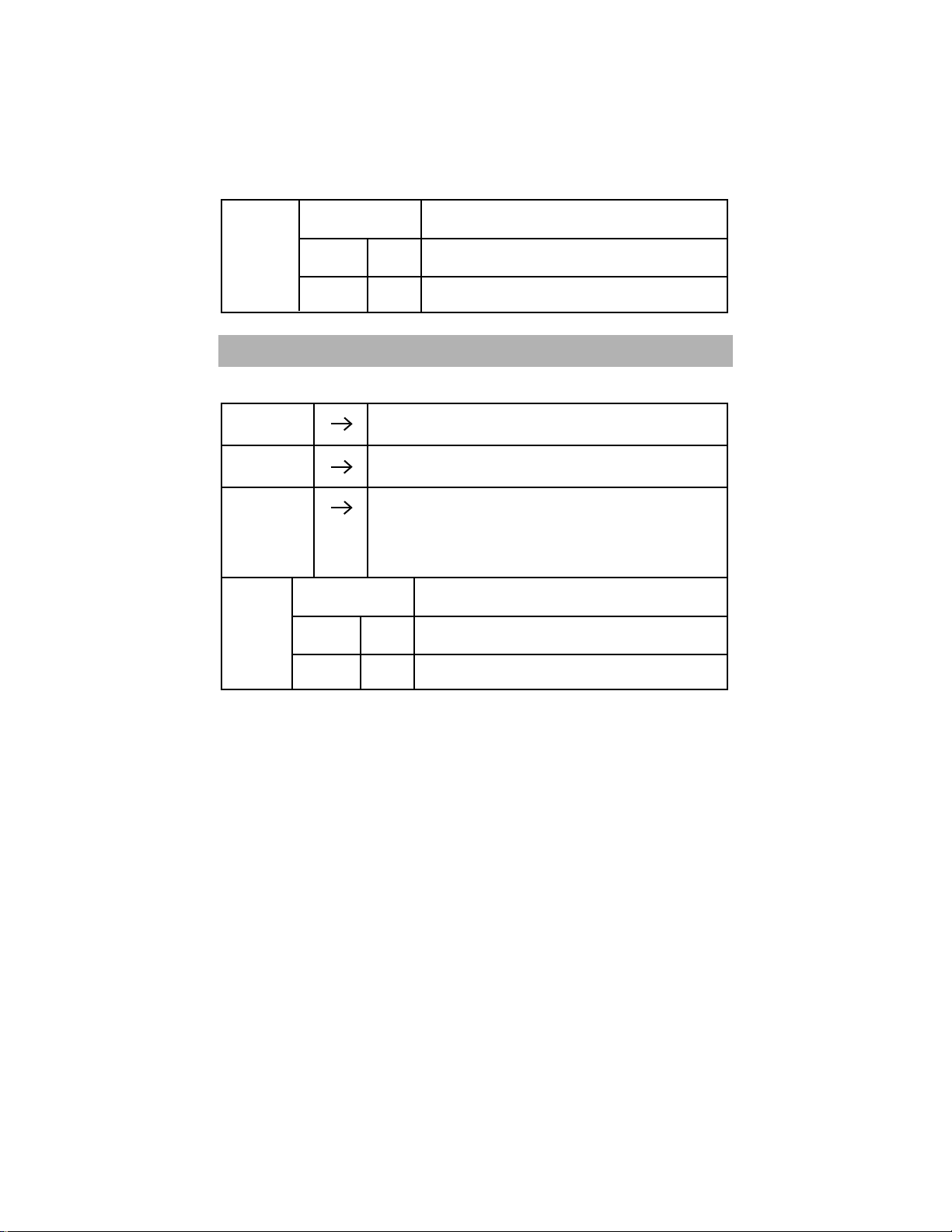
PIP Setup
PIP
PIP I / P
ON/OFF
TV/AV1/
AV2/AV3
Set PIP On/Off if PIP is ON two sub option will come
on screen
With option PIP source can be select as
TV, AV1, AV2, AV3
Audio I / P
PIP / MP
With user can select Audio of either PIP or main window.
15. PC SCREEN SETTINGS
PC POSITION function is available only for VGA input and deactivated for other input sources.
H - Position,
V - Position
Phase, Clock
Auto
Configuration
PIP Setup
PIP
PIP I / P
Audio I / P
Note : PIP is Applicable for Full HD Model only.
By changing this parameters, user can change the picture
position according to requirement
By changing this parameters, user can change the picture
phase and clock according to requirement.
This parameter is for Auto Configuration of LCD TV with
Personal Computer. This will automatically sets the
H-Position, V-Position, Phase & Clock.
NOTE - If picture is Not OK with Auto Config. Then adjust
H-Position, V-Position, Phase & Clock to adjust the picture.
ON/OFF
TV/AV1/
AV2/AV3
PIP / MP
Set PIP On/Off if PIP is ON two sub option will come
on screen
With option PIP source can be select as
TV, AV1, AV2, AV3
With user can select Audio of either PIP or main window.
20
Page 23
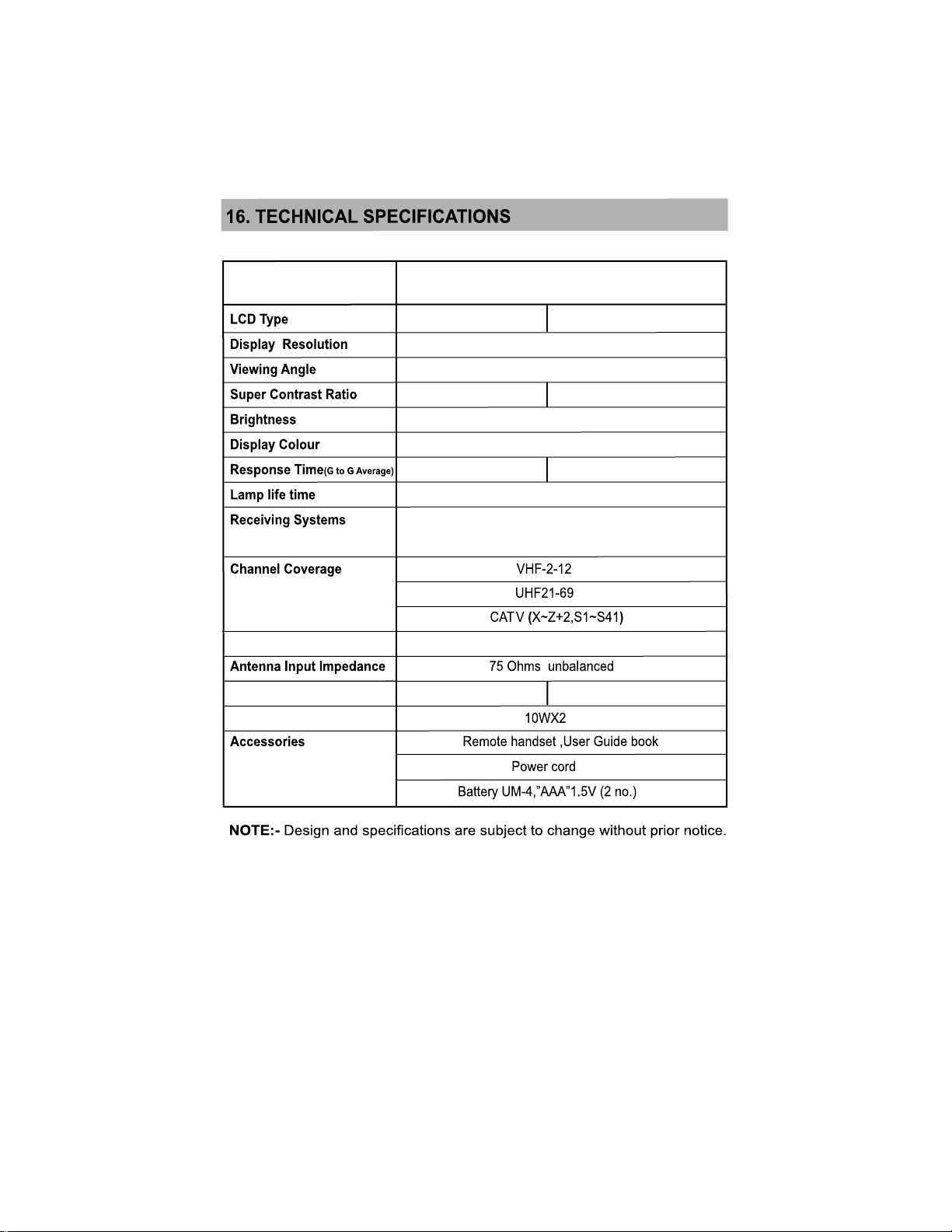
LCD TV
VBL26HBA / VBL32HBA / VDL32HBA
26”TFT LCD 32”TFT LCD
1366 X 768
178(H), 178(V) Deg.
35000:1
450cd/m
16.7 Million
8 ms 6.5 ms
50,000 Hours Minimum
PAL/SECAM BG/I/L/L’/DK and NTSC(3.58/4.43)
in playback only
50000:1
2
Power Supply
Power Consumption (MAX)
Audio Output (RMS)
AC 110~240V, 50/60Hz
135W
21
175W
Page 24
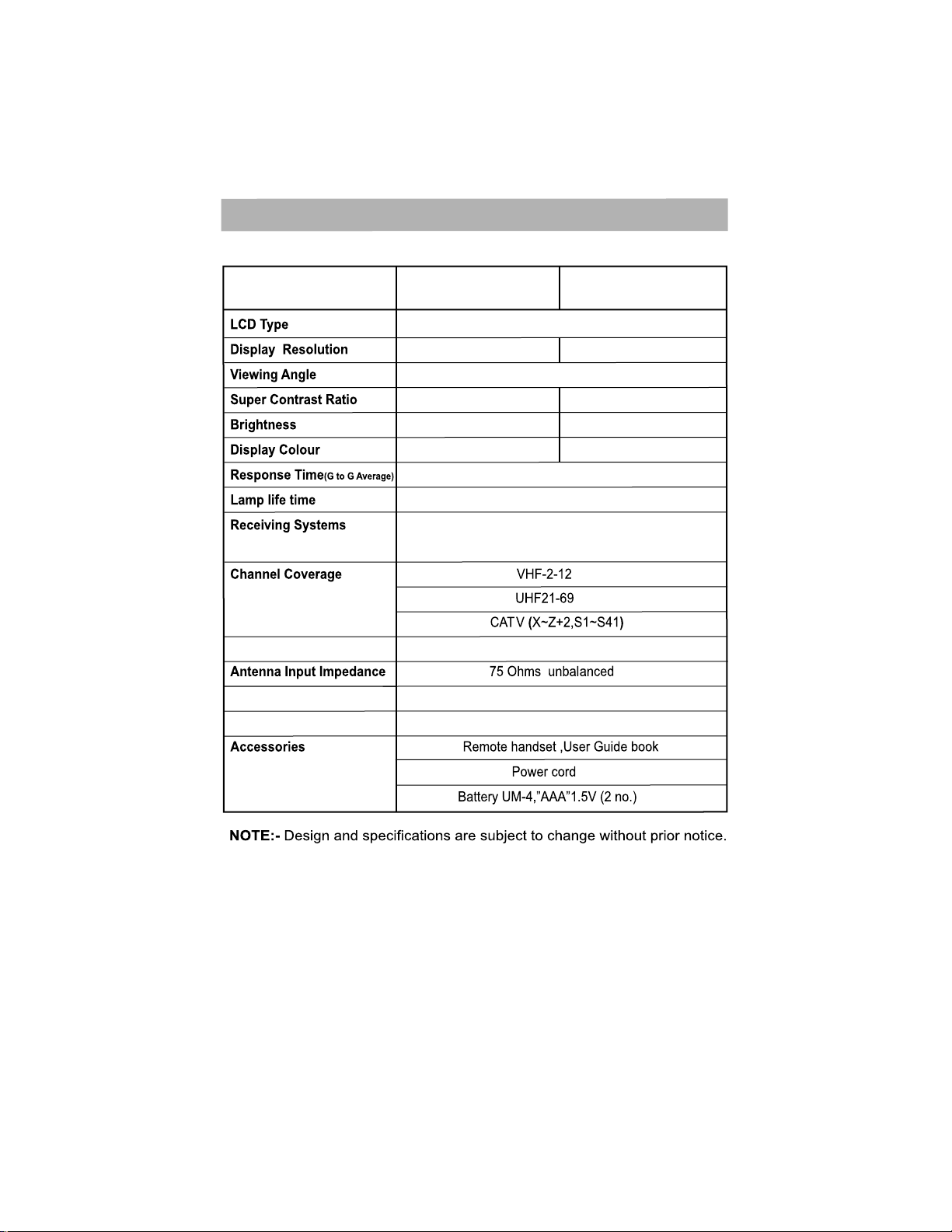
16. TECHNICAL SPECIFICATIONS
LCD TV
Power Supply
Power Consumption (MAX)
Audio Output (PMPO)
VIL32WBA
1366 X 768
178(H), 178(V) Deg.
75000:1
450cd/m
16.7 Million
50,000 Hours Minimum
PAL BG/I/L/L’/DK and NTSC(3.58/4.43)/ SECAM
AC 110~240V, 50/60Hz
32”TFT LCD
2
6.5 ms
in playback only
175W
600W
VIL32FBA
1920 X 1080
1,00,000:1
2
480cd/m
1.06 Billion
22
Page 25
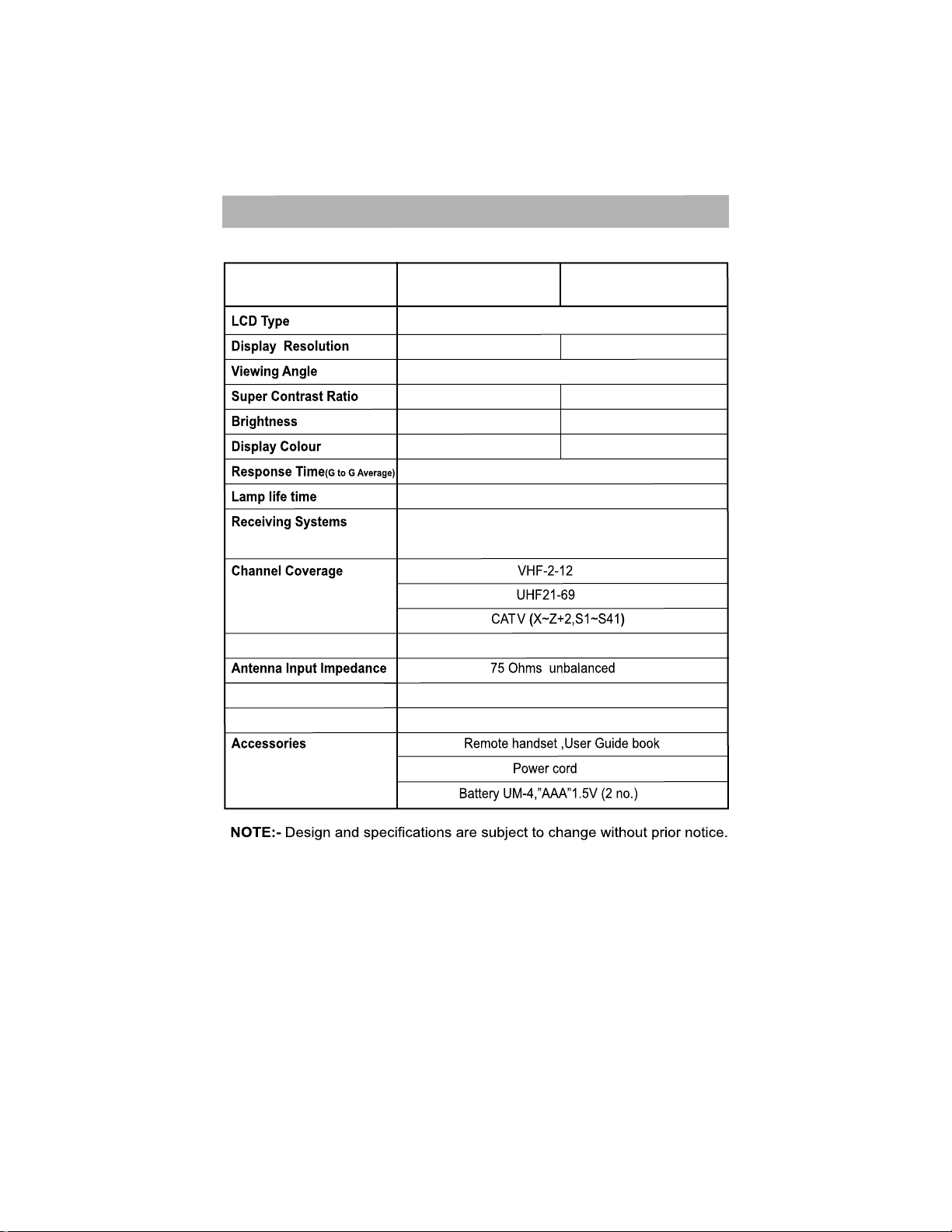
16. TECHNICAL SPECIFICATIONS
LCD TV
Power Supply
Power Consumption (MAX)
Audio Output (RMS)
VLL32HBA
1366 X 768
75000:1
450cd/m
16.7 Million
50,000 Hours Minimum
PAL BG/I/L/L’/DK and NTSC(3.58/4.43)/ SECAM
AC 110~240V, 50/60Hz
VLL32FBA
32”TFT LCD
1920 X 1080
178(H), 178(V) Deg.
1,00,000:1
2
6.5 ms
in playback only
175W
10W X 2
480cd/m
1.06 Billion
2
23
Page 26
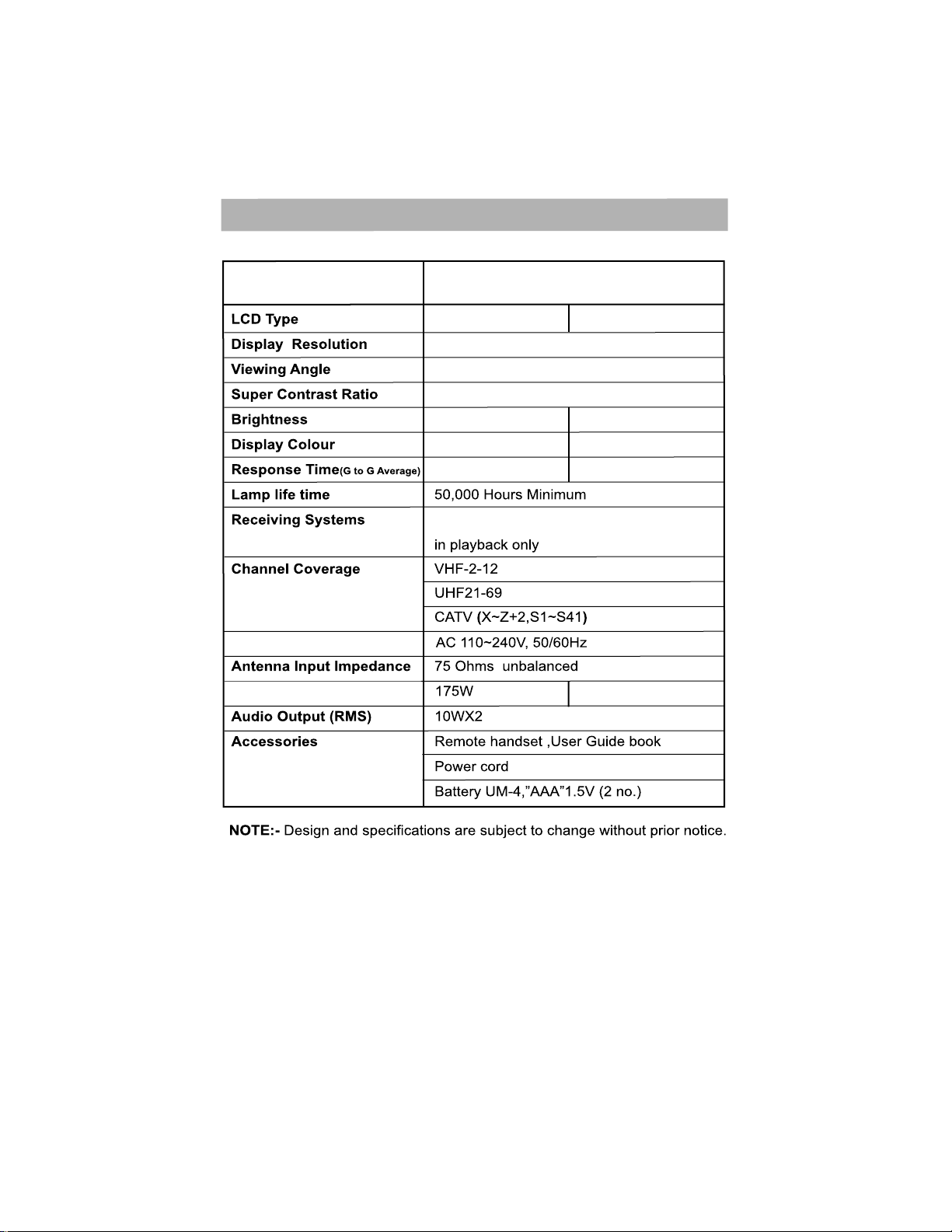
16. TECHNICAL SPECIFICATIONS
LCD TV
Power Supply
Power Consumption (MAX)
VDL32FBT / VCL42FBT
32”TFT LCD TV 42”TFT LCD TV
1920 X 1080
178(H), 178(V) Deg.
100000:1
2
480cd/m
1.06 Billion
6.5 ms 5 ms
PAL BG/I/L/L’/DK and NTSC(3.58/4.43)/ SECAM
225W
2
500cd/m
1.06 Billion
24
Page 27
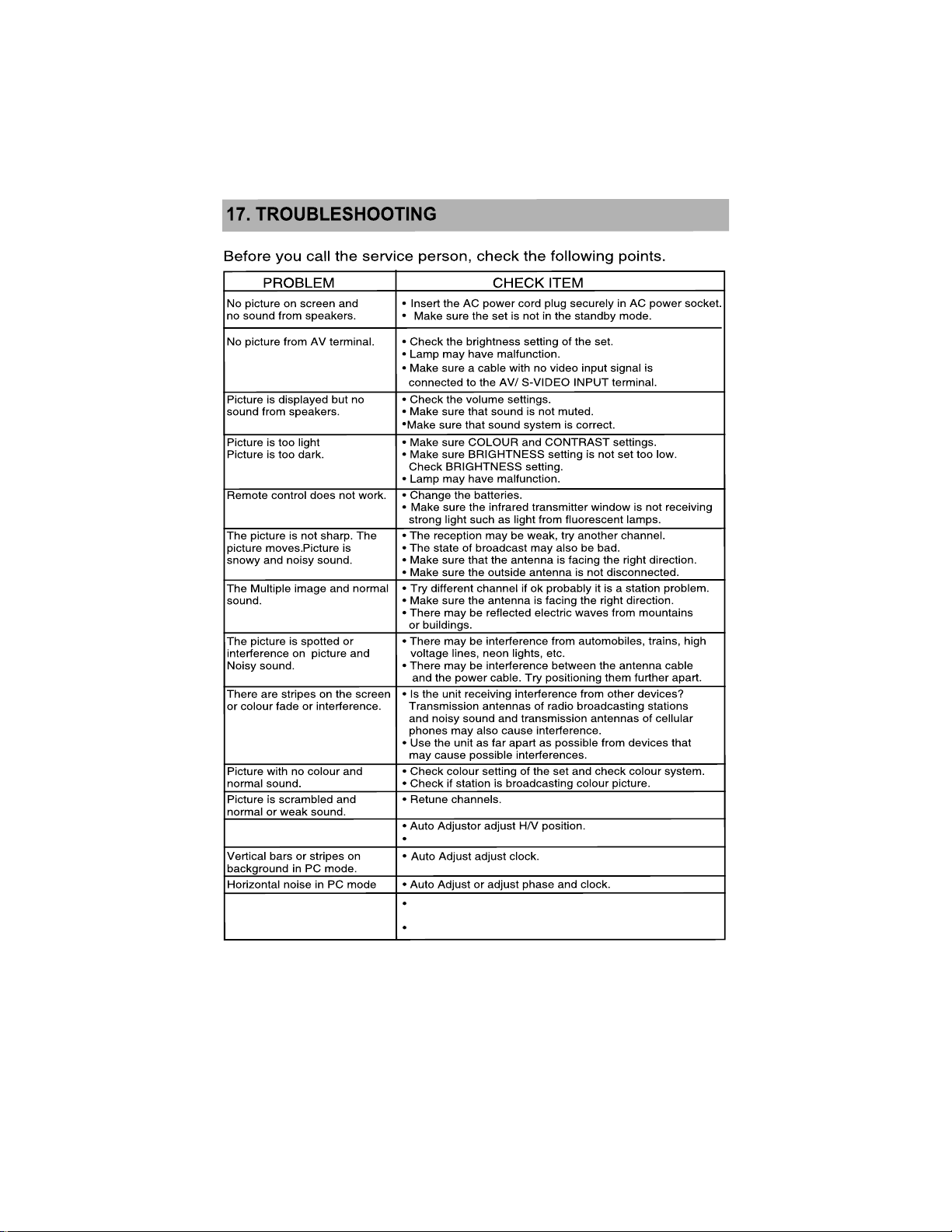
Incorrect position of picture in PC
mode. YPbPr / HDMI
Manually try to adjust H/V position.
No Picture only sound ECO VISION may be set to "Audio Only" mode. Press one key
on remote or front key to exit from Audio only mode.
Switch off from mains.
25
Page 28
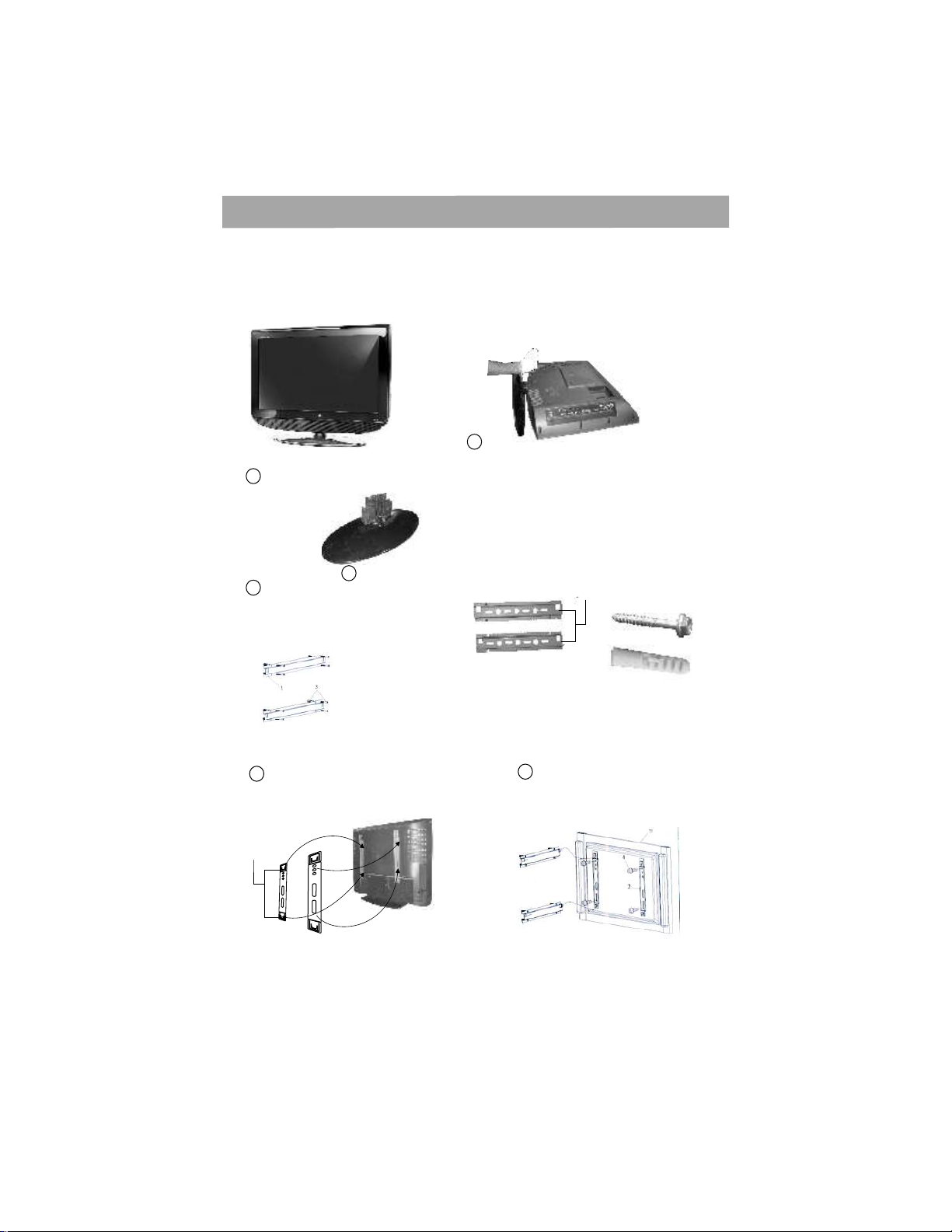
18. WALL MOUNTING INSTRUCTIONS
Mounting of Your LCD TV Unit on the Wall26" / 32"
MODEL NO. :
1
Base stand
3
4
Create 8 holes on the wall with Electric drill.
Screw the upper hanging channel on the wall 4 screws.
Then screw the lower hanging channel+wall mounting bracket
(FOR MULTIMEDIA SOUND PORT) on the wall by 4screws.
(Use the screws+grips provided in the kit
(Upper & lower hanging )channel
has been seperated
5
Assemble spare hanging (4 locations) by 4
+washer as shown in the fig. (Use the screws/washer
provided in the kit)
257.0 mm
plates screws
2
Turn set by 90 so that front surface of TV faces downword
(surface should be soft to avoid scratch on panel.) remove
base stand by unscrewing screws
0
257.0 mm
(Wall mounting bracket+Hanging
channel assembly)
Ensure the parallelity of both channels
by maintaining the dimensions 257.0 mm
as shown
(Screws+grips for wall mounting)
6
Insert Assembled LCD TV in
slots of wall hanging channelsbracket (LCD TV not
shown in the figure below)
NOTE - Refer instruction sheet given along with Wall Mounting kit for additional information.
26
Page 29
A Back B
Page 30
9 point terms and condition
B
Page 31
C back D
Page 32

(1100051871) Rev.00 Rajmudra
VDL32HBA / VVL32HBA
 Loading...