

Page 1

User Manual
- V1305
1
Page 2

Table of Contents
LEGAL NOTICES ............................................................................................................................................... 2
SECTION 1: INTRODUCTION .......................................................................................................................... 3
SAFETY PRECAUTION / MEASURES ...................................................................................................................... 3
SECTION 2: GETTING STARTED .................................................................................................................... 4
INSIDE THE BOX ................................................................................................................................................. 4
INSTALLING AND REMOVING THE BATTERY ......................................................................................................... 4
INSERTING SIM CARD ........................................................................................................................................ 4
INSERTING THE MEMORY CARD .......................................................................................................................... 4
CHARGING THE DEVICE ...................................................................................................................................... 4
SECTION 3: KNOW YOUR DEVICE ................................................................................................................ 6
PHONE LAYOUT ................................................................................................................................................ 6
SCREEN ICONS................................................................................................................................ .................... 7
SECTION 4: BASIC OPERATIONS ................................................................................................................... 8
MAKE A CALL .................................................................................................................................................... 8
MAKING A CALL USING CALL HISTORY .............................................................................................................. 8
SECTION 5: USING THE PHONE ..................................................................................................................... 9
MANAGING THE PHONEBOOK .............................................................................................................................. 9
Phonebook Settings ....................................................................................................................................... 9
VIEWING CALL HISTORY ..................................................................................................................................... 9
USER PROFILES ................................................................................................................................................ 10
MULTIMEDIA.................................................................................................................................................... 10
Audio Player ............................................................................................................................................... 10
FM radio..................................................................................................................................................... 10
Sound recorder............................................................................................................................................ 10
MESSAGES ....................................................................................................................................................... 10
SMS ............................................................................................................................................................ 10
Chat ............................................................................................................................................................ 10
Voicemail server ......................................................................................................................................... 11
Broadcast message ...................................................................................................................................... 11
GAMES............................................................................................................................................................. 11
STAYING ORGANIZED ................................................................................................................................ ....... 11
SERVICES ......................................................................................................................................................... 11
SIM applicator / STK ................................................................................................................................... 11
WAP ........................................................................................................................................................... 11
Data account ............................................................................................................................................... 11
SECTION 6: SETTINGS ................................................................................................................................... 12
SETTING DATE/TIME ........................................................................................................................................ 12
POWER ON/OFF ................................................................................................................................................. 12
SECURING YOUR PHONE ................................................................................................ .................................... 12
PIN code ..................................................................................................................................................... 12
Phone lock .................................................................................................................................................. 12
SIM lock ...................................................................................................................................................... 12
Auto keypad lock ......................................................................................................................................... 12
Anti - Thief .................................................................................................................................................. 12
1
Page 3

APPENDIX I TROUBLESHOOTING .............................................................................................................. 13
APPENDIX II ABBREVIATIONS AND EXPLANATION .............................................................................. 16
Legal Notices
All rights reserved. Reproduction, transfer, distribution or storage of part or all of the contents in
this document in any form without the prior written permission of VIDEOCON is prohibited.
VIDEOCON operates on a policy of continuous development. VIDEOCON reserves the right to
make changes and improvements to any of the products described in this document without prior
notice.
Under no circumstances shall VIDEOCON be responsible for any loss of data or income or any
special, incidental, consequential or indirect damages howsoever caused.
The contents of this document are provided "as it is". Except as required by applicable law, no
warranties of any kind, either expressed or implied, including, but not limited to, the implied
warranties of merchantability and fitness for a particular purpose, are made in relation to the
accuracy, reliability or contents of this document. VIDEOCON reserves the right to revise this
document or withdraw it at any time without prior notice.
The availability of particular products may vary by region. Please check with VIDEOCON
Executive.
2
Page 4

Section 1: Introduction
Safety Precaution / Measures
Please comply with these precautions / measures to avoid dangerous or illegal situation and
ensure peak performance of your phone.
Road safety
The use of a mobile phone while driving is illegal and should be avoided at all costs. If you need
to make or receive an urgent call, move your vehicle to the side of the road and allow it to come
to a complete stop before using your phone.
Switch off in potentially hazardous environments
Switch your phone off while boarding an aircraft. Signal from your phone can affect aircraft
system. You are legally obliged to comply with this recommendation.
Switch your phone off when entering any explosive area. Observe any provided guidelines or
regulations.
Emergency Calls
In case of an accident or an emergency, dial 100 (Police), 101 (Fire) or 102 (Ambulance) from
your phone. Being emergency numbers, these are toll free and can be reached even from areas
where the network signal strength is very poor.
Battery Use
First time charging must be done using the regular charger and not using the USB cable.
During the first 3-4 charge sessions, charge the battery until it has been fully charged according
to the battery level indicator. This ensures higher battery backup and extends the battery life.
Avoid partial charging. Wait for the battery to discharge completely before charging it again.
Charging through the USB Cable should be reserved during an emergency.
Use the device in vibrating mode only on rare occasions.
3
Page 5
Section 2: Getting Started
Note:
Please do not touch the metal area to avoid losing and breaking the information
in SIM card. Avoid SIM from putting it nearby electricity and magnetism.
Inside the Box
The device package consists of:
Base Transceiver
Phone
Battery
Charger
Hands free kit
User Manual
Service Guide
Installing and Removing the Battery
To install the battery:
1. Press gently the back cover and slide in downward direction to open.
2. Push the battery in the battery compartment in such a way that the connectors of the phone
are aligned with the connectors on the battery.
To remove the battery:
1. Turn off the phone and unplug other external power sources.
2. Remove the back cover.
3. Pull out the battery from the battery compartment.
Inserting SIM Card
1. Remove the back cover and the battery from the battery compartment.
2. Slide the SIM card in the slots (with metal connectors) facing down.
Inserting the Memory Card
1. Remove the battery back cover and the battery.
2. Unlock and lift the memory card cover.
3. Place the memory card with metal connectors facing down.
4. Lock the memory card cover;
Charging the Device
Insert the Plug of your charger to the charging port at the base of your phone.
4
Page 6

When you begin to charge the battery, the stripe of Signal Strength on the right corner of the
Note:
1. Please charge the battery, after it is completely consumed and then charge
full to make your battery in best state.
2. Using the phone while charging may extend the charging time.
3. If battery gets fully discharged, the phone will automatically get switched off.
screen starts to roll. When battery gets fully charged, the stripe becomes stable and stops rolling.
5
Page 7
Section 3: Know your device
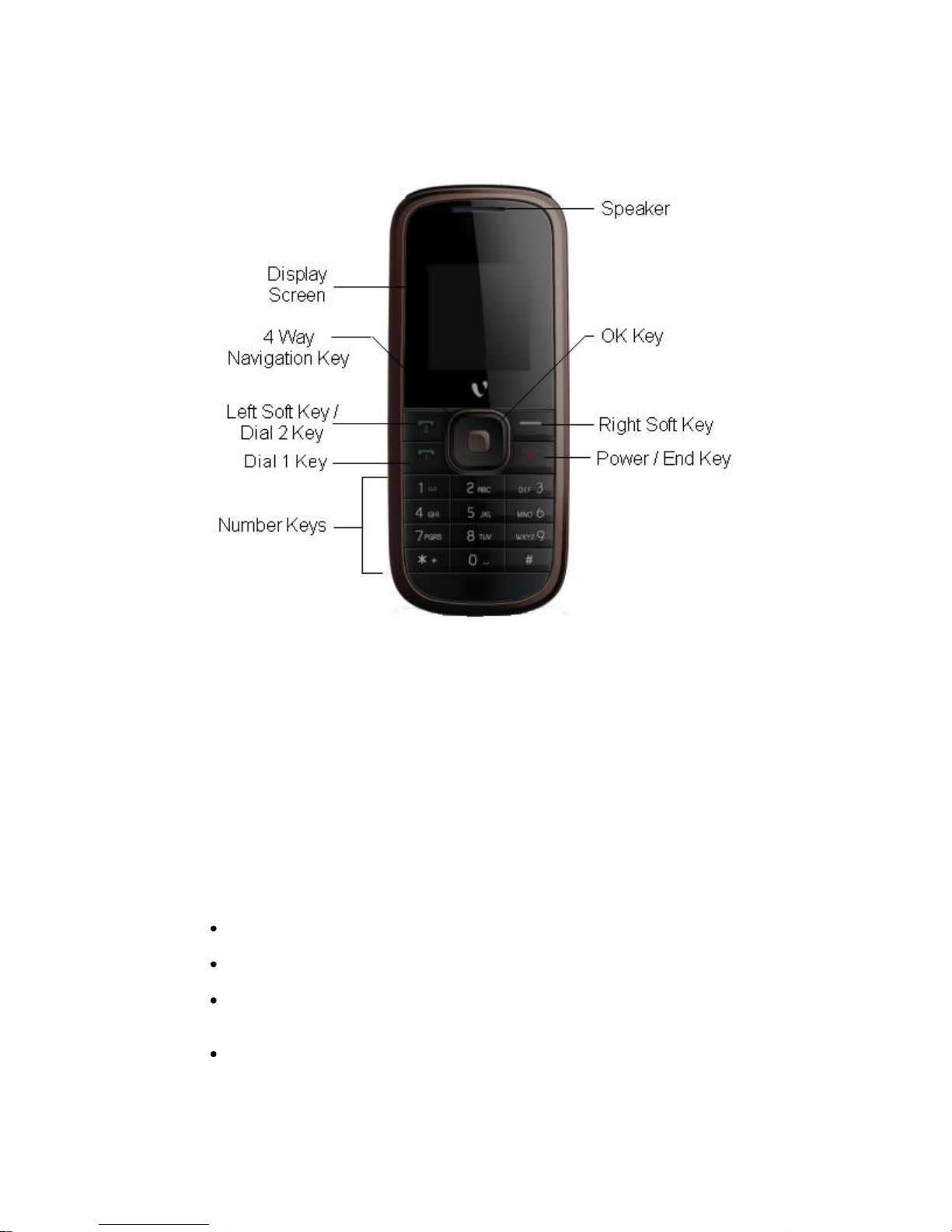
Phone Layout
Left Soft Key
Use to perform functions that display in the lower left of the display screen.
Right Soft Key
Use to perform functions that display in the lower right of the display screen.
Dial Key
Receive or make calls, and while in idle mode, click to view call history.
End Key
End or reject calls; Press and hold this key to turn phone on/off; cancel function and return to the
idle screen.
Up and Down Direction Keys
Scroll to select options.
In the idle screen, use up and down direction keys to open shortcut applications.
While creating a message, use up and down direction keys to select a word from the
dictionary.
In function menu, scroll to open desired function.
6
Page 8
Left and Right Direction Keys
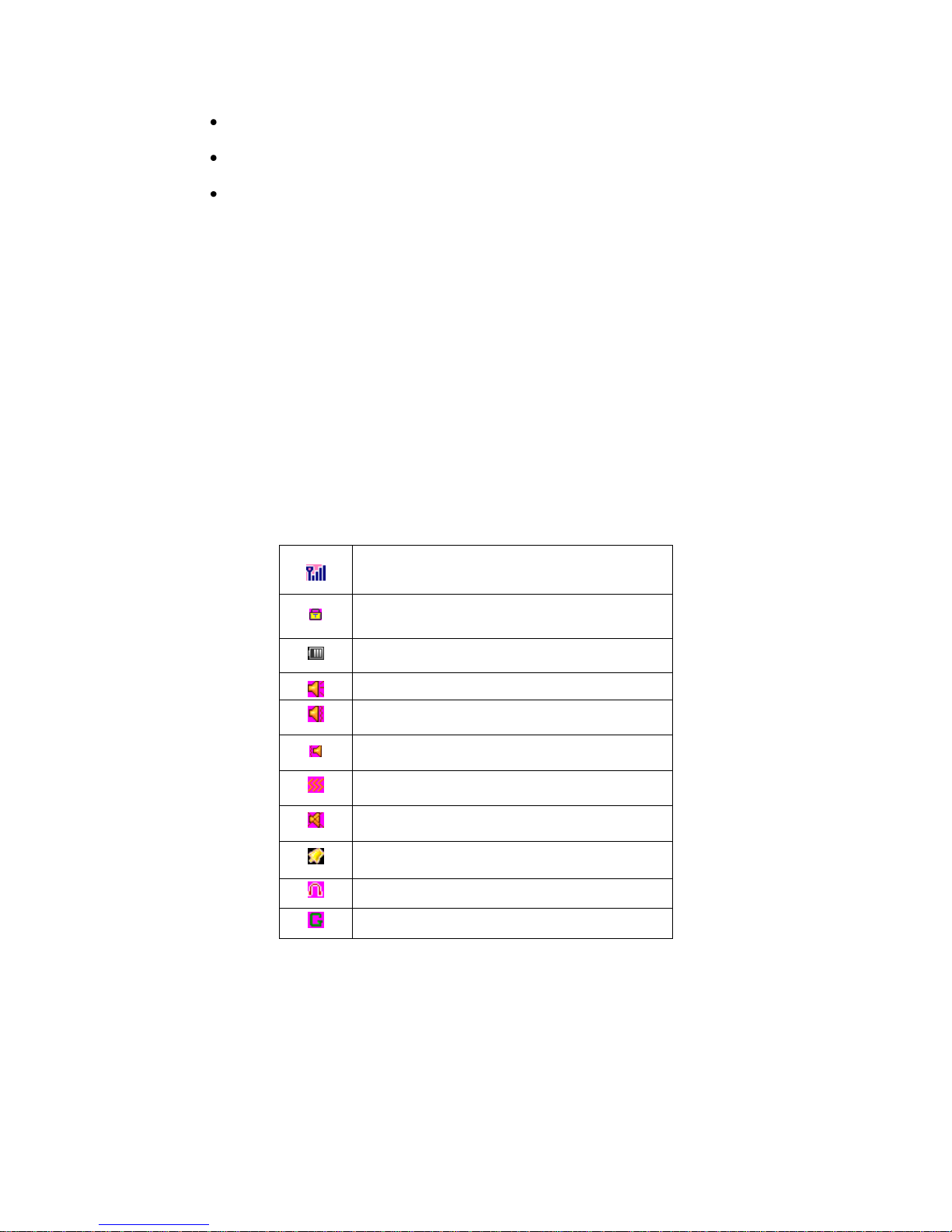
Network signal strength
Keypad locked
Battery Strength indicator
Phone is in ring mode
Ring and Vibrate mode are active
First ring then vibrate
Vibrate only
Silent mode activated
Alarm is active
Headset connected
GPRS activated
Scroll to select options.
In the idle screen, press to open shortcut applications.
In edit message status, press to select the required word.
0-9 Keys
In standby mode, press number keys to input dialing number. In standby mode, press and hold 1
key to enter Voice mailbox, press and hold 2-9 key to directly call the number set, in the speed
dial list. In edit status, press to input numbers and characters. In edit mode, except input number,
press 0 key to input space. In functional menu, press numbers to speed select submenu items.
* & # Key
Functions vary in different situations or function menus: On Input Screen, press "*" for symbols. In
standby and dial mode, press and hold "*" to input + for an international call. On Input Screen,
press "#" to switch between different input methods. In standby mode, press and hold # key to
switch between silent mode and previous mode. Press OK key and * key to lock/unlock the
keypad.
Screen Icons
Indicator icons provide information such as battery level, network signal strength, current date &
time and so forth.
NOTE: Depending on your country or service provider, the icons shown on the display may vary.
7
Page 9

Section 4: Basic Operations
Make a Call
In the idle mode:
Enter the phone number including the area code. Press Clear to erase a digit.
For international calls, insert the + character followed by the country code, area code
(without the initial zeroes) and phone number.
Press the dial key. Once the call is complete, press the End key.
To receive a call, press the Option „Answer‟ or receive it directly by pressing the Dial
key.
Making a Call Using Call History
The number and time of each call that you make or receive is stored in the Call history module of
the device. You can retrieve a number from call history and initiate a new call. To do so:
1. Press the Dial key to view a list of recently dialed numbers.
2. Use the up and down navigation keys to select the number you wish to call, and press
the Dial key.
8
Page 10

Section 5: Using the Phone
Managing the Phonebook
The Phonebook is a location in your phone‟s internal memory on which you can store numbers of
your contacts. The SIM card also allows you to store phone numbers, though the permissible limit
may vary from provider to provider. Even though, the SIM card and the phone‟s internal memory
are physically separate, they are used as a single entity known as the Phonebook on the phone.
Phonebook Settings
Go to Menu Phonebook Phonebook Settings. The available options are:
Memory Status: Enables to check out the memory status individually for both the SIM and
phone respectively.
Preferred Storage: The memory type you want to use for storing contacts. The options
available are SIM1, SIM2, and Phone.
Fields: Enables to set the different fields which are to be entered during addition of a
contact.
My vCard: Store your personal contact information as a vCard to allow quick sharing of
your details with contacts. Once you have entered your contact information, use the Send
my vCard option to send your vCard via SMS, MMS, or through file transfer over
Bluetooth.
vCard version: You can select the version of the vCard that you want to use.
Viewing Call history
Use this menu to view the dialled, received or missed calls. On the Idle screen, press Menu
History. The History sub-menu comprises the following:
Missed Calls: displays the list of latest missed calls.
Dialled Calls: displays the list of latest dialled calls.
Received Calls: displays the list of latest received calls.
Delete call logs: Delete Missed calls, Dialled calls, Received calls and Delete all on the
SIM card.
Call durations: view Last call time, Dialled calls, Received calls and Reset all time of the
SIM card.
Call cost: view Last call cost and Total cost and so forth of the SIM card. You can also
Reset cost and set the Maximum cost and the Price per unit of the SIM1 card. It requires
network support.
SMS counter: view and reset the numbers of text messages that are sent and received
from the SIM card.
GPRS counter: view and reset the volume of GPRS last sent, last received, all sent and
all received from the SIM card. You can also reset the counter on the SIM card.
9
Page 11

User Profiles
This menu allows you to set the ring tone, alert type, ring volume, answer mode and so forth
when you receive an incoming call or a new message so that you can adapt the use of your
phone to different types of call environments. The available profiles are, General, Meeting,
Outdoor, Indoor and Headset.
Multimedia
Audio Player
Your phone provides you a friendly audio player device for entertainment purpose. You may enter
the music player via main Menu You may also download the music content via USB or other
connection. Music tracks must be saved in My Music folder in File Manager in order to be
automatically detected and added into the default play list. You may listen to the music through
the headset or loudspeaker. The user-friendly interface is specially designed to allow easy access
to common functions such as play, pause, and stop.
FM radio
The FM Radio application turns the mobile phone into a portable FM Radio device. It primarily
provides users the interface to a single-chip electronically turned FM stereo radio for listening to
live-broadcast stations. You must connect the earphone to your phone as it works as an antenna.
Sound recorder
Your phone supports two kinds of recording formats: AMR and WAV. Select a format from
settings in options. A call may also be recorded and saved to the phone or the memory card.
Messages
In Messages, you can send and receive text messages. To launch messages, on the idle screen,
select Menu Messages to view the available functions. Message functions are available
depending on network services that your service provider supports.
SMS
Chat
Chat enables you to enter 2 different user‟s default settings (Chat room 1 and Chat room 2) to
enable sending and receiving the messages. Chat option enables you to see the complete
conversation on a single window.
Write Message: Create and send a message.
Inbox: Messages received using SMS are stored in the Inbox folder.
Outbox: Messages that are waiting to be sent are stored in the Outbox.
Templates: Your phone contains 10 SMS which can be used commonly. You can edit or
erase them.
SMS settings: You can edit the profile settings and the common settings, check the
memory status.
Signature settings: You can add a signature to be included in all the outgoing messages.
10
Page 12

Voicemail server
The Voicemail server is an interactive system for storing, processing and reproducing verbal
messages through a voicemail server. The service is operator dependant and the settings are
provided by the operator upon activating the service on the SIM card.
Broadcast message
Your phone is capable to receive and store broadcast messages. You can set the receive status
to ON/OFF. „Read message‟ folder stores the received messages.
Games
Select Menu Fun & Games, to access the Games menu. Game interface offers option to
select a game, user can select the following game from the interface
Riches
Puzzle
Staying Organized
Use this menu to keep track of your schedule. You can also use convenient features, such as
Calendar, tasks, Alarm, World Clock. To access this menu, press [Menu] in Idle mode and select
Organizer. The available options are:
Calendar: You can keep track of your monthly schedule
To do list: You can use your phone to keep track of all your Date, Call and Anniversary.
Alarm: Set the alarm to ring at a specific time.
Calculator: Your phone comes with a built-in conversion application. Using Convertor,
you can perform Currency, Length, Weight, Volume, Area, and Temperature conversions.
Stopwatch: The phone comes with 2 types of Stopwatch - Typical stopwatch and nWay
stopwatch.
World clock: Set your local time zone and find out the current time in another part of the
world.
EBook reader: With the function, you may read any file in TXT format saved in the
memory card.
Services
SIM applicator / STK
STK (SIM Tool Kit) is shown only if it is provided by your SIM card. For further details, please
contact your network operator.
WAP
WAP function enables you to use the phone to surf the Internet
Data account
This function enables to set the account information.
11
Page 13

Section 6: Settings
For more information on configuring phone settings, refer to the following chapter.
Setting Date/Time
This option enables you to set the time, time zone, time format, date and the date format.
Power on/off
This option enables you to set the auto power on/off and the auto power on/off status.
Securing your phone
PIN code
This option enables you to set a Personal Identification Number (PIN) for your phone that is
required each time you switch on your phone. You can also change your PIN from this option.
Phone lock
This option enables you to set a lock for your phone that is required each time you change the
SIM card of the phone.
SIM lock
This option enables you to set a lock for your SIM card that is required each time you switch on
your phone.
Auto keypad lock
This option enables you to set the auto lock time for the keypad.
Anti - Thief
This function enables you to track your phone in case it gets lost. The default password for the
mobile thief is “0000”. If someone inserts another SIM card in your mobile, you will receive an
SMS to the assigned number from the new SIM card to know who is using your mobile.
12
Page 14

Appendix I Troubleshooting
Problem
Possible causes
Possible solution
Poor
reception
The network signal is too
weak at your current location,
for example, in a basement or
near a tall building, because
wireless transmissions cannot
effectively reach it.
Move to a location where the
network signal can be properly
received.
The network is busy at the
current time, for example,
during peak times, because
there may be too much
network traffic to handle
additional calls.
Avoid using the phone at such time,
or try again after waiting a short
time.
You are too far away from a
base station for your service
provider.
You can request a service area
map from your service provider.
Echo or
noise
Poor network trunk quality on
the part of your service
provider.
Press the ending key and dial
again. You may be switched to a
better-quality network trunk or
phone line.
Poor local telephone line
quality
Press the ending key and dial
again. You may be switched to a
better-quality network trunk or
phone line.
Battery not
charging
properly
The battery or battery charger
is damaged.
Contact the dealer.
The temperature of the phone
is below -10°C or higher than
55°C.
Adjust the battery charging
environment to avoid extremes of
temperature.
Poor contact between the
battery and charger.
Check all connectors to make sure
all connections have been properly
made.
If you encounter problems while using the phone, or if it performs erratically, you can consult the
information in the following table. If a particular problem cannot be resolved by using the following
information, contact the dealer where you purchased the phone.
13
Page 15
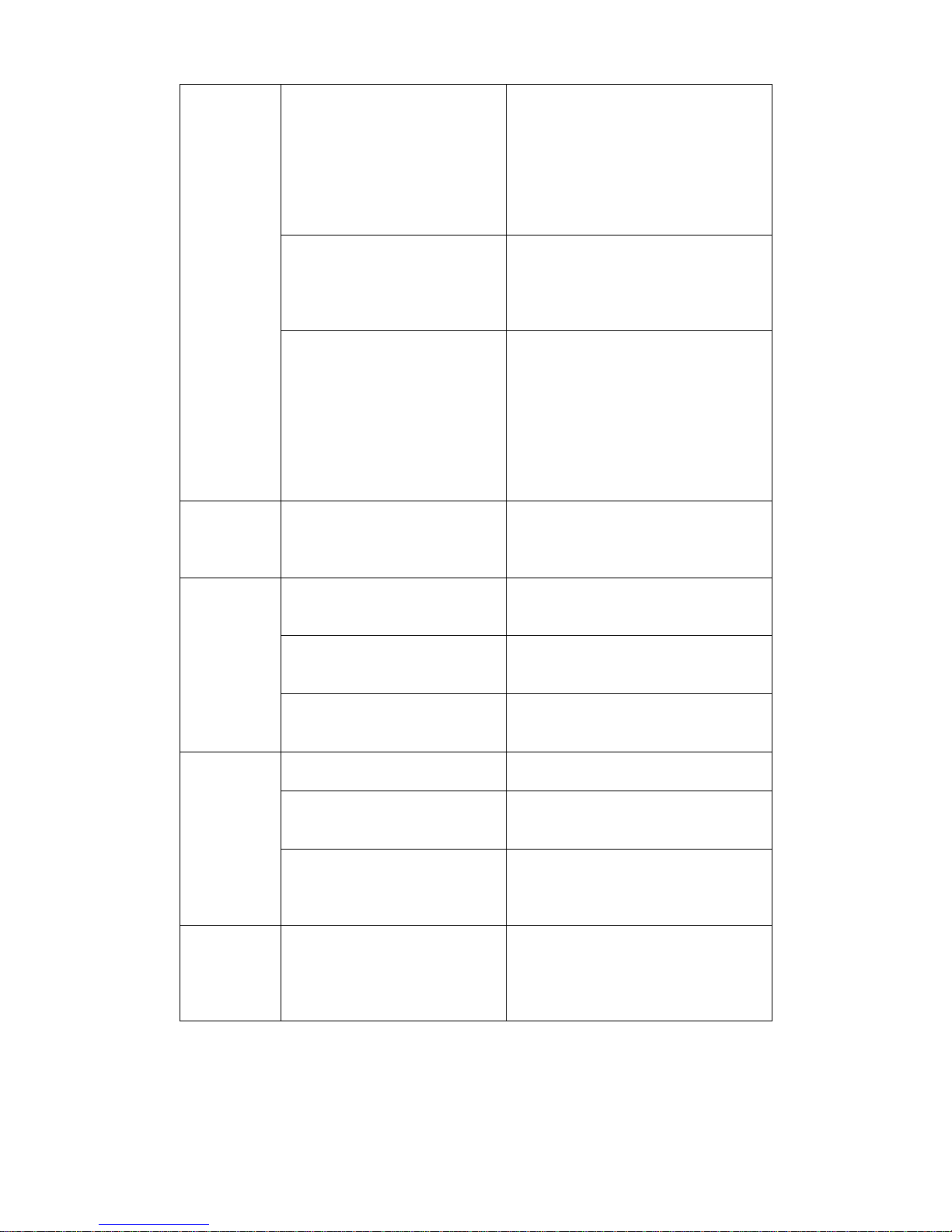
Shortened
standby
time
The standby time is related to
your service provider system
configuration. The same
phone used with different
service providers‟ systems
will not provide exactly the
same length of standby time.
If you are located in an area where
signaling is weak, temporarily
switch off the phone.
The battery is depleted. In
high temperature
environments, battery life will
be shortened.
Use a new battery.
If you are not able to connect
to the network, the phone will
continue to send out signals
as it attempts to locate a base
station. Doing so consumes
battery power and will
consequently shorten standby
time.
Change your location to one where
the network is accessible, or
temporarily turn off your phone.
You cannot
switch your
phone on.
Battery power has been
exhausted.
Recharge the battery.
SIM card
error
SIM card malfunction or
damage
Take the SIM card to your service
provider for testing.
SIM card is inserted
improperly.
Insert the SIM card properly.
Debris on the SIM card metal
area
Use a soft and dry cloth to clean the
SIM card metal area.
Unable to
connect to
the
network.
SIM card invalid.
Contact your service provider.
You are not within the service
area of the network.
Check the service area with your
service provider.
Poor signal.
Move to an open space, or if you
are inside a building, move closer to
a window.
PIN Code is
blocked.
You have entered an
incorrect PIN code three
consecutive times.
Contact your service provider. If the
service provider provides the PUK
code of the SIM card, use the PUK
code to unlock the SIM card.
14
Page 16

Unable to
enter
information
into the
phone
book.
The memory of the phone
book is already full.
Delete unnecessary data from the
phone book.
Unable to
select
certain
features.
Your service provider does
not support these features, or
you have not applied for
services that provide these
features.
Contact your service provider.
15
Page 17

Appendix II Abbreviations and Explanation
GSM
Global System of Mobile Communication
GPRS
General Packet Radio Service
SMS
Short Message Service
WAP
Wireless Application Protocol
FDN
Fixed Dialing Numbers
SIM
Subscriber Identity Module
PIN
Personal Identification Number
PUK
Personal Unblocking Key
IMEI
International Mobile Equipment Identity
MCC
Mobile Country Code
Call
waiting
A service provided by the network, which allows you to answer another
incoming call without interrupting the active call, but it is different from
conference call. You can only talk to one party while another party is
held at the same time.
Call divert
A service provided by the network, which allows you to divert an
incoming call to a specified number according to different
circumstances.
Roaming
The phone is not used in the area of its local registered network. It
includes international and domestic roaming. In this manual it refers to
international roaming only.
STK
SIM Toolkit
16
 Loading...