

Page 1
Videcon 1425
Page 2

PPAAGGEE iiii
Legal Notices . . . . . . . . . . . . . . . . . . .iv
Introduction . . . . . . . . . . . . . . . . . . . .1
Safety Precaution / Measures . . . . . . . . . . . . .1
Road safety . . . . . . . . . . . . . . . . . . . . . . . . . . . . . .1
Switch off in potentially
hazardous environments . . . . . . . . . . . . . . . . . .1
Emergency Calls . . . . . . . . . . . . . . . . . . . . . . . . . .1
Battery Use . . . . . . . . . . . . . . . . . . . . . . . . . . . . . . .2
Getting Started . . . . . . . . . . . . . . . . . .3
Installing and Removing the Battery . . . . . . . .3
Inserting SIM Cards . . . . . . . . . . . . . . . . . . . . . . .4
Inserting the Memory Card . . . . . . . . . . . . . . . . .5
Charging the Device . . . . . . . . . . . . . . . . . . . . . . .6
My V1425 . . . . . . . . . . . . . . . . . . . . . . .7
Phone Layout . . . . . . . . . . . . . . . . . . . . . . . . . . . . .7
Screen Icons . . . . . . . . . . . . . . . . . . . . . . . . . . . .10
Basic Operations . . . . . . . . . . . . . . .11
Make a Call . . . . . . . . . . . . . . . . . . . . . . . . . . . . .11
Making a Call using Call History . . . . . . . . . .11
v-connect . . . . . . . . . . . . . . . . . . . . . .12
SIM applicator / STK . . . . . . . . . . . . . . . . . . . . .12
Internet service . . . . . . . . . . . . . . . . . . . . . . . . . .12
Data account . . . . . . . . . . . . . . . . . . . . . . . . . . . .12
Call history . . . . . . . . . . . . . . . . . . . .13
Multimedia . . . . . . . . . . . . . . . . . . . .15
Camera . . . . . . . . . . . . . . . . . . . . . . . . . . . . . . . . .15
Image viewer . . . . . . . . . . . . . . . . . . . . . . . . . . . .16
Video recorder . . . . . . . . . . . . . . . . . . . . . . . . . . .16
Video player . . . . . . . . . . . . . . . . . . . . . . . . . . . . .16
Audio player . . . . . . . . . . . . . . . . . . . . . . . . . . . . .16
Table of contents
USER’S GUIDE
Page 3

PPAAGGEE iiii ii
Sound recorder . . . . . . . . . . . . . . . . . . . . . . . . . .17
FM radio . . . . . . . . . . . . . . . . . . . . . . . . . . . . . . . .17
Schedule FM record . . . . . . . . . . . . . . . . . . . . .17
Extras . . . . . . . . . . . . . . . . . . . . . . . . .18
Games . . . . . . . . . . . . . . . . . . . . . . . . . . . . . . . . . .18
Mobile Tracker . . . . . . . . . . . . . . . . . . . . . . . . . . .18
Private Protection . . . . . . . . . . . . . . . . . . . . . . . .18
SOS Settings . . . . . . . . . . . . . . . . . . . . . . . . . . . .18
Scheduled SMS . . . . . . . . . . . . . . . . . . . . . . . . . .19
SMS Filter . . . . . . . . . . . . . . . . . . . . . . . . . . . . . . .19
SMS Backup . . . . . . . . . . . . . . . . . . . . . . . . . . . .19
Contact Backup . . . . . . . . . . . . . . . . . . . . . . . . . .19
Messaging . . . . . . . . . . . . . . . . . . . . .20
SMS . . . . . . . . . . . . . . . . . . . . . . . . . . . . . . . . . . . .20
MMS . . . . . . . . . . . . . . . . . . . . . . . . . . . . . . . . . . . .21
Broadcast message . . . . . . . . . . . . . . . . . . . . . .21
File Manager . . . . . . . . . . . . . . . . . . .22
Settings . . . . . . . . . . . . . . . . . . . . . . .23
Dual SIM settings . . . . . . . . . . . . . . . . . . . . . . . .23
User profiles . . . . . . . . . . . . . . . . . . . . . . . . . . . . .23
Phone settings . . . . . . . . . . . . . . . . . . . . . . . . . . .23
Display setup . . . . . . . . . . . . . . . . . . . . . . . . . . . .24
Call settings . . . . . . . . . . . . . . . . . . . . . . . . . . . . .25
Network settings . . . . . . . . . . . . . . . . . . . . . . . . .26
Security settings . . . . . . . . . . . . . . . . . . . . . . . . .26
Connectivity . . . . . . . . . . . . . . . . . . . . . . . . . . . . .27
Restore factory settings . . . . . . . . . . . . . . . . . .27
Shortcuts . . . . . . . . . . . . . . . . . . . . . . . . . . . . . . . .27
Phonebook . . . . . . . . . . . . . . . . . . . . .28
Organizer . . . . . . . . . . . . . . . . . . . . . .30
Table of contents
USER’S GUIDE
Page 4

PPAAGGEE iivv
All rights reserved. Reproduction, transfer, distribution or storage of part or all of the contents
in this document in any form without the prior
written permission of VIDEOCON is prohibited.
VIDEOCON operates on a policy of continuous
development. VIDEOCON reserves the right to
make changes and improvements to any of the
products described in this document without
prior notice.
Under no circumstances shall VIDEOCON be
responsible for any loss of data or income or
any special, incidental, consequential or indirect
damages howsoever caused.
The contents of this document are provided
“as it is”. Except as required by applicable law,
no warranties of any kind, either expressed or
implied, including, but not limited to, the implied
warranties of merchantability and fitness for a
particular purpose, are made in relation to the
accuracy, reliability or contents of this document.
VIDEOCON reserves the right to revise this
document or withdraw it at any time without
prior notice.
The availability of particular products may vary by
region. Please check with VIDEOCON Executive.
Legal Notices
USER’S GUIDE
Page 5

PPAAGGEE 11 OOFF 3300
Safety Precaution / Measures
Please comply with these precautions / measures to avoid dangerous or illegal situation and
ensure peak performance of your phone.
Road safety
The use of a mobile phone while driving is illegal
and should be avoided at all costs. If you need to
make or receive an urgent call, move your vehicle
to the side of the road and allow it to come to a
complete stop before using your phone.
Switch off in potentially hazardous
environments
Switch your phone off while boarding an aircraft.
Signal from your phone can affect aircraft system.
You are legally obliged to comply with this
recommendation.
Switch your phone off when entering any explosive area. Observe any provided guidelines or
regulations.
Emergency Calls
In case of an accident or an emergency, dial 100
(Police), 101 (Fire) or 102 (Ambulance) from your
phone. Being emergency numbers, these are toll
free and can be reached even from areas where
the network signal strength is very poor.
Introduction
USER’S GUIDE
Page 6

PPAAGGEE 22 OOFF 3300
Battery Use
First time charging must be done using the
regular charger and not using the USB cable.
During the first 3-4 charge sessions, charge the
battery until it has been fully charged according
to the battery level indicator. This ensures higher
battery backup and extends the battery life.
Avoid partial charging. Wait for the battery to
discharge completely before charging it again.
Charging through the USB Cable should be
reserved during an emergency.
Use the device in vibrating mode only on
rare occasions.
Introduction
USER’S GUIDE
Page 7
PPAAGGEE 33 OOFF 3300
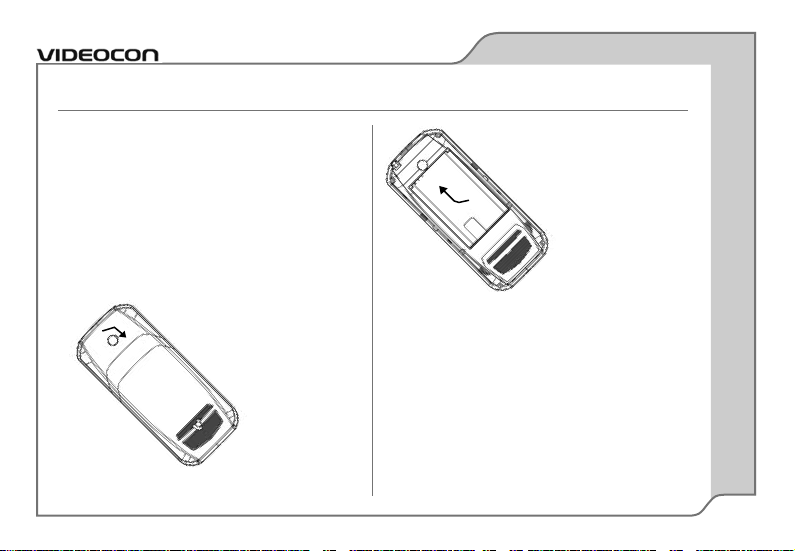
Installing and Removing the Battery
To install the battery:
1. Locate the groove at the top of the phone,
and pull the back cover to open.
2. Push the battery in the battery compartment in such a way that the connectors of
the phone are aligned with the connectors
on the battery.
To remove the battery:
1. Turn off the phone and unplug it, if it is
connected to an external power source.
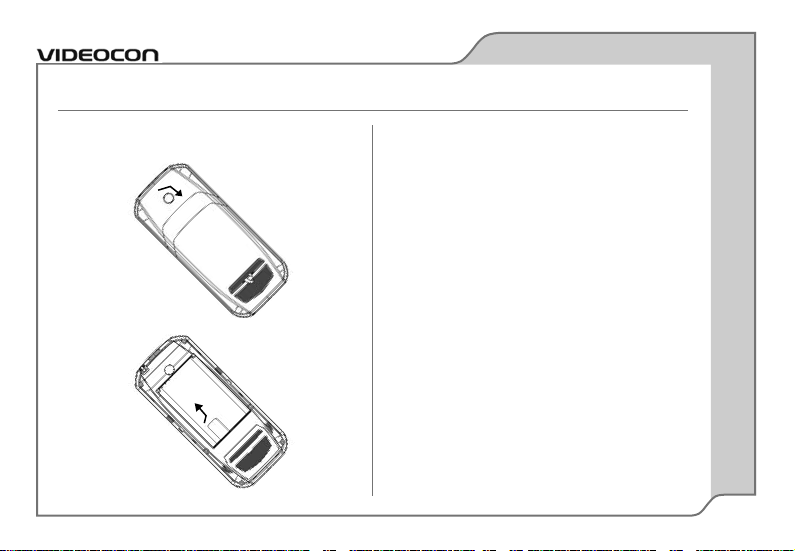
2. Locate the groove at the top of the phone,
and pull the back cover to open.
Getting Started
USER’S GUIDE
Page 8
PPAAGGEE 44 OOFF 3300
3. Pull out the flap on the battery to remove
from the battery compartment.
Inserting SIM Cards
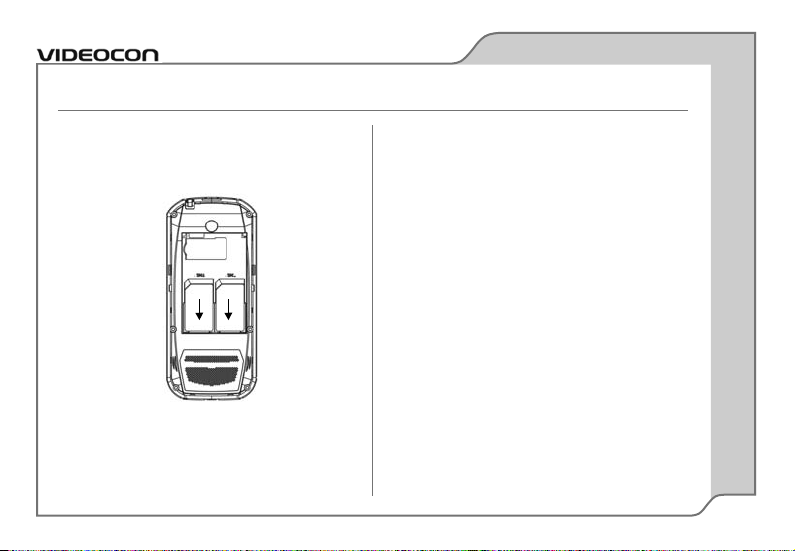
The V1425 supports dual-SIM cards. The procedure for inserting both SIM cards is identical, only
the slot for each is different. To insert SIM cards:
1. Turn off the phone and unplug it, if it is
connected to an external power source.
2. Locate the groove at the top of the
phone, and pull the back cover to open.
3. Remove the battery from the battery
compartment.
Getting Started
USER’S GUIDE
Page 9
PPAAGGEE 55 OOFF 3300
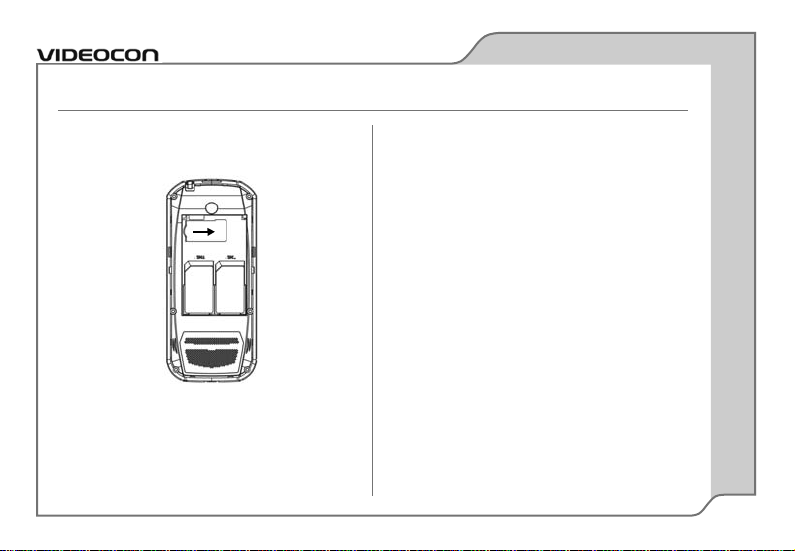
4. Slide the SIM card in the slots in such a
way that the metal connectors of the SIM
card are facing down.
Inserting the Memory Card
Use a microSD card of up to 4GB capacity to
store personal files such as photos, audio files,
and videos. To insert the memory card:
1. Turn off the phone and unplug it, if it is
connected to an external power source.
2. Locate the groove at the top of the phone,
and pull the back cover to open.
3. Remove the battery from the battery
compartment.
Getting Started
USER’S GUIDE
Page 10
PPAAGGEE 66 OOFF 3300
4. Slide the memory card in the memory card
slot with metal connectors facing down.
Charging the Device
Insert the plug of your charger to the charging
port at the bottom of the phone.
When you begin to charge the battery, the stripe
of battery on the top right corner of the screen
starts to roll. When battery gets fully charged,
the stripe becomes stable and stops rolling.
Getting Started
USER’S GUIDE
Page 11
PPAAGGEE 77 OOFF 3300
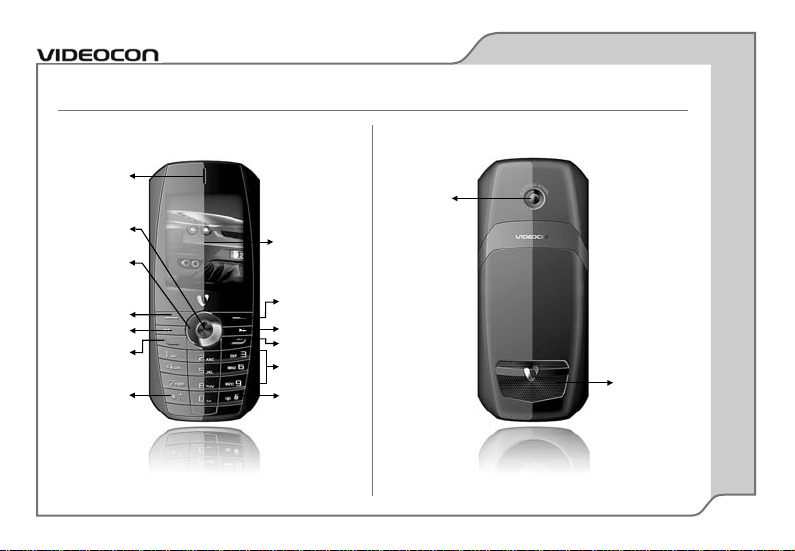
Phone Layout
My V1425
USER’S GUIDE
Earpiece
OK Key
Camera
4 Way
Navigation
Key
Left Soft Key
Dial Key
Asterisk Key
Pound Key
Right Soft Key
Display Screen
Speaker
Next Key
Power/ End Key
Keypad
Previous Key
Page 12

PPAAGGEE 88 OOFF 3300
Left Soft Key
Use to perform functions that display in the
lower left of the display screen. In idle mode
click to access the Menu.
Right Soft Key
Use to perform functions that display in the
lower right of the display screen. In idle mode,
click to access the phonebook contacts.
Dial Key
Press Dial key to view the Call history.
Choose the SIM for which you need to view
the recent calls.
End Key
End or reject calls; Press and hold this key to
turn phone on/off; cancel function and return
to the idle screen.
Previous and Next Keys
• In audio player, click to select the previous
or next song in the playlist.
• In FM, click to go to the previous or
next channel.
Navigation Keys
• Scroll to select options.
• In the idle screen, use direction keys to
open dedicated keys applications.
• While creating a message, use direction
keys to select a word from the dictionary.
• In function menu, scroll to select
desired function.
My V1425
USER’S GUIDE
Page 13

PPAAGGEE 99 OOFF 3300
0-9 Keys
In standby mode, use the 0-9 keys to enter a
number you wish to call. In standby mode,
press and hold 1 key to enter Voice mailbox,
press and hold 2-9 keys to directly call the
number set in the speed dial list. In edit status,
press to input numbers and characters. In edit
mode, except input number, press 0 key to
input space. In functional menu, press numbers
to speed select submenu items.
* & # Keys
Functions vary in different situations or function
menus: On Input Screen, press “*” for symbols.
In standby and dial mode, press and hold “*” to
input + for an international call. On Input Screen,
press “#” to switch between different input
methods. In standby mode, press and hold #
key to switch between Silent mode and
previous mode.
OK Key
• In idle mode, press to open the Audio player.
• In menu, use to perform the functions
that display in the lower left of the display
screen.
My V1425
USER’S GUIDE
Page 14
PPAAGGEE 1100 OOFF 3300
Screen Icons
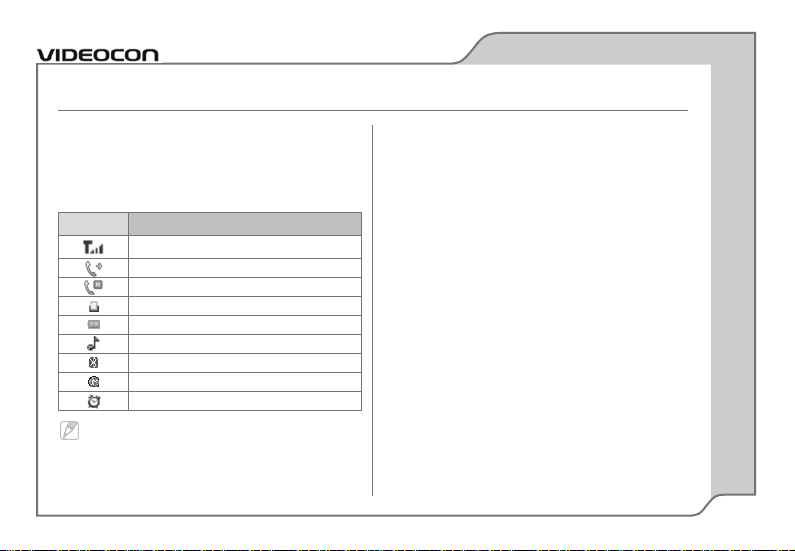
Indicator icons provide information such as battery level, network signal strength, current date
& time and so forth.
Depending on your country or service provider,
the icons shown on the display may vary.
My V1425
USER’S GUIDE
Icon Definition
Network signal strength
Active call
Call on hold
Keypad locked
Battery Strength indicator
Phone is in ring mode
Bluetooth active
GPRS active
Alarm active
Page 15

PPAAGGEE 1111 OOFF 3300
Make a Call
In the idle mode:
• Enter the phone number including the area
code. Press Clear to erase a digit.
• For international calls, insert the ‘+’ sign
followed by the country code, area code
(without the initial zero and phone number.
• Press the dial key. Once the call is
complete, press the End key.
To receive a call, press the Option Answer
or receive it directly by pressing the Dial key.
Making a Call using Call History
The number and time of each call that you make
or receive is stored in the Call history module of
the device. You can retrieve a number from call
history and initiate a new call. To do so:
1. Press the Dial key, and select the SIM to
view a list of recent call history.
2. Use the up and down navigation keys to
select the number you wish to call.
3. Press the Dial key, and select the SIM from
which you wish to make the call.
Basic Operations
USER’S GUIDE
Page 16

PPAAGGEE 1122 OOFF 3300
SIM applicator / STK
STK (SIM Tool Kit) is shown only if it is provided
by your SIM card. For further details, please
contact your network operator.
Internet service
Internet service enables you to use the phone to
surf the Internet. You can select the SIM card and
the associated profile from the Settings option.
Data account
This function enables to set the account
information. You can edit the account information from the GSM data and select the GPRS
data to use from GPRS option.
v-connect
USER’S GUIDE
Page 17

PPAAGGEE 1133 OOFF 3300
Use this menu to view the dialled, received
or missed calls. On the Idle screen, press
Menu Call history. The Call history submenu comprises of the following options for
both the SIM cards:
• All calls: displays the list of recently dialed,
received and missed calls.
• Dialled calls: displays the list of latest
dialled calls.
• Received calls: displays the list of latest
received calls.
• Missed calls: displays the list of latest
missed calls.
Press the options key to access the following
sub-options:
• View: view details of the selected number.
• Call: make a call to the selected number.
• Send SMS: send a text message to the
selected number.
• Send MMS: send a multimedia message
to the selected number.
• Save to phonebook: save the selected
number to the phonebook. This option is
enabled only if the selected number is not
saved in the phonebook.
• Add to Blacklist: add the selected number
to blacklist to block calls from that number.
• Edit before call: edit the number before
you make a call to the selected number.
Call history
USER’S GUIDE
Page 18

PPAAGGEE 1144 OOFF 3300
• Delete: delete the selected number from
the call history.
• Delete all: delete all the numbers from
call history.
• Advanced: view the advanced options of
the call history. These are:
Call timers: view the duration of the last
call, dialled calls, and received calls. You
can also reset the timers of all the calls.
Call cost: view last call cost and total
cost and so forth of the SIM card. You
can also reset cost and set the maximum
cost and the price per unit for SIM card.
It requires network support.
Text msg. counter: view and reset the
numbers of text messages that are
sent and received from the SIM card.
GPRS counter: view and reset the
total amount of data sent or received
from the SIM card.
Call history
USER’S GUIDE
Page 19

PPAAGGEE 1155 OOFF 3300
Camera
Your phone is equipped with a camera on the
back of the device that can be used to take still
photographs. Select Menu Multimedia
Camera to launch the camera application. Once
the camera application is enabled, press the OK
key to capture the image. Press the left soft key
to access the following sub-options:
• Photos: View the images captured by
your phone. You can view, set the image
as a wallpaper/screensaver/caller picture,
rename or delete the images.
• Camera Settings: select the shutter sound,
EV, Anti-flicker and the delay timer for the
camera. You can select the frequency of the
light using Anti-flicker.
• Image Settings: set the size and quality of
the captured image.
• White balance: select the white balance
for the camera to increase the intensity of
white light.
• Scene mode: select the scene mode to
activate night mode to capture images
in dark.
• Effect settings: set the effects that you
wish to use for the captured images such
as grayscale, sepia, or gray invert.
• Storage: select the storage location of the
captured images to phone memory or to
memory card.
• Restore default: restore the default settings of the camera.
Multimedia
USER’S GUIDE
Page 20

PPAAGGEE 1166 OOFF 3300
Image viewer
Image viewer stores all your pictures which
are captured by the phone camera. It provides
you the option to view, rename, and delete
the images.
Video recorder
You can record videos on your phone. Press the
OK Key to start the recording. The recorded
videos are automatically saved to Videos folder
in File Manager. Press left soft key to access
the following sub-options:
• Camcorder settings: set the anti-flicker
to select the frequency of light.
• Restore Default: restore the default set-
tings of the camcorder.
Video player
Use Video Player to watch videos directly from
the Videos folder in the File Manager.
Audio player
Your phone provides you a friendly audio player
device for entertainment purpose. You may enter
the audio player via main menu. Music tracks
must be saved in My Music folder in File
Manager in order to be automatically detected
and added into the default play list. You may listen to music through the headset or loudspeaker.
The user-friendly interface is specially designed
to allow easy access to common functions such
as play, pause, and stop.
Multimedia
USER’S GUIDE
Page 21

PPAAGGEE 1177 OOFF 3300
Sound recorder
Your phone supports two kinds of recording formats: AMR and WAV. Select a format from settings in options. A call may also be recorded and
saved to the phone or the memory card.
Depending upon the requirement, you may set
the quality of the recorded sound to high or low.
FM radio
The FM radio application turns the mobile phone
into a portable FM Radio device. It primarily provides users the interface to a single-chip electronically turned FM stereo radio for listening
to live-broadcast stations. You must connect
the hands free to your phone as it works as
an antenna.
Schedule FM record
You can program this phone to record certain FM
channel at a certain time and date.
Multimedia
USER’S GUIDE
Page 22

PPAAGGEE 1188 OOFF 3300
Games
Select Menu Extras Games, to access
the Games menu. Game interface offers option
to select a game. You can select the following
games from the interface:
• F1 race
• Copter
• Puzzle
• UFO
You can set the BGM (Background Sound)
Sound Effect, vibration and the Volume from
games settings option.
Mobile Tracker
This function enables you to track your phone in
case it gets lost. The default password for mobile
tracker is “0000”. If someone inserts another
SIM card in your mobile, you will receive an SMS
to the assigned number from the new SIM card
to know who is using your mobile.
Private Protection
This option enables you to password protect your
data such as messages and phonebook to avoid
unauthorized access. If you enable this option,
then you need to input the password to open your
protected folders. The default password is 0000.
SOS Settings
You can turn on this function from status,
and also edit the SMS content or the recipient
numbers. When you long press Right Soft Key,
SOS will send SMS to the recipient numbers
and also Auto answer them.
Extras
USER’S GUIDE
Page 23

PPAAGGEE 1199 OOFF 3300
Scheduled SMS
You can schedule your messages to be delivered at later time. You can schedule only the
messages saved in your drafts or in outbox
folder. You can edit the following information:
• Status: set the status of the scheduled
SMS to on/off.
• Time Setting: set the time and date at
which you wish to send the message.
SMS Filter
You can filter the text messages that you
receive using this option. You edit the
following sub-options:
• Firewall Engine: set the status of the
SMS filter.
• Recycle: the messages that you receive
from the blacklist numbers are saved in
the recycle.
• General Set: set the message tone and
the reject style whether you wish to reject
the text messages from the numbers or
you wish to save them in recycle folder.
• Black List: edit and add the numbers
from which you do not wish to receive
the text messages.
SMS Backup
Backup the text messages to the microSD
card, or the phone memory.
Contact Backup
Backup and retrieve the phone contacts to the
microSD card, or the phone memory.
Extras
USER’S GUIDE
Page 24

PPAAGGEE 2200 OOFF 3300
In Messaging, you can send and receive text
and multimedia messages. To launch messages,
on the idle screen, select Menu Messaging
to view the available functions. Message functions are available depending on network services that your service provider supports.
SMS
• Write message: create and send a
text message.
• Inbox: messages received using SMS are
stored in the Inbox folder.
• Outbox: sent messages are stored in the
Outbox folder.
• Drafts: saved messages are stored in the
Drafts folder.
• Templates: your phone contains pre-defined
templates for frequently used messages.
• SMS Settings: You can edit the profile
settings and the common settings, and
check the memory status for both the
SIM cards.
Messaging
USER’S GUIDE
Page 25

PPAAGGEE 2211 OOFF 3300
MMS
• Write message: create and send a
multimedia message.
• Inbox: messages received using MMS are
stored in the Inbox folder.
• Outbox: sent messages are stored in
the Outbox.
• Drafts: saved messages are stored in the
draft folder.
• Templates: your phone contains
pre-defined templates for frequently
used messages.
• MMS settings: you can edit the settings
for compose, send, retrieve, filter and the
server profile. You can also check the
memory status of the phone.
Broadcast message
Your phone is capable to receive and store broadcast messages. You can set the receive status to
ON/OFF. These messages are stored in the Read
Message folder.
Messaging
USER’S GUIDE
Page 26

PPAAGGEE 2222 OOFF 3300
View the files stored in the phone memory and
on the microSD card.
File Manager
USER’S GUIDE
Page 27

PPAAGGEE 2233 OOFF 3300
Dual SIM settings
You can select the SIM card that you wish to
use from the dual SIM settings. The available
options are:
• Dual SIM: This option activates both the
SIM cards.
• Only SIM1: This option activates
only SIM1.
• Only SIM2: This option activates
only SIM2.
• Flight mode: This option disables all RF
based communication for both SIM1 and
SIM2. However, you can use other features/functions of the phone, such as
games and alarm.
User profiles
This menu allows you to set the ring tone,
alert type, ring volume, etc when you receive an
incoming call or a new message so that you can
adapt the use of your phone to different types
of call environments. The available profiles are,
General, Meeting, Outdoor, Indoor, Headset,
and Bluetooth.
Phone settings
This option enables you to set the time,
schedule power on/off, language, and so
forth for the phone.
• Time and date: Lets you set the Time and
date on the phone.
• Schedule power on/off: Lets you set a
particular time on the phone when the
phone should Power on/off itself.
Settings
USER’S GUIDE
Page 28

PPAAGGEE 2244 OOFF 3300
• Language: Choose phone language you
wish to use.
• Pref. input methods: This enables you
to select the text input method. The available options are – Abc/abc/ABC, Smart
Abc/abc/ABC, Hindi, and Numeric input.
• Greeting text: Let you set your own
greeting message when you power ON
the phone.
• Dedicated key: Enables you to set the
dedicated keys for up, down, left and right
navigation keys.
• LCD backlight time: Enables you to set
the backlight time for the phone.
Display setup
Change the look and feel of your phone. The
options are:
• Wallpaper: Set your favorite wallpaper on
the phone.
• Screen saver: set an image as a
screen saver.
• Show date and time: Enables you to see
the date and time on the idle screen.
• Show owner number: Enables you to see
the owner number on the idle screen.
Settings
USER’S GUIDE
Page 29

PPAAGGEE 2255 OOFF 3300
Call settings
This option enables you to set the general call
settings of the phone. The options are:
• SIM1/2 call settings: Enables you to set
the call settings for SIM1 and SIM2. The
options are:
Caller ID: Enables to set the caller
ID status of the phone. It is a network
based service.
Call waiting: Enables to Activate /
Deactivate call waiting and check the
query status.
Call divert: Enable to Activate /
Deactivate call diversion and check
the query status.
Call barring: Enables you to restrict the
calls that you make and receive with your
phone. You can set outgoing calls, incoming calls, cancel all or change barring
password. It is a network based service.
• Advance settings: manage the advance
call settings of the phone. The options are:
Blacklist: enables you to add the number
in the black list and activating it enables
you to block calls from that number.
Auto redial: Enables to set the auto
redial to on/off.
Call time display: Enables you to display
the call duration.
Call time reminder: Set the call duration
(in seconds), after which the phone plays
a beep sound to indicate the call duration.
Settings
USER’S GUIDE
Page 30

PPAAGGEE 2266 OOFF 3300
Auto quick end: Set the duration
(in seconds), after which the call is
disconnected.
SMS Reject: Enables to send a text
message if you reject a call.
Network settings
A network setting gives you the option to select
a desired network and add a new network to the
network list. The network setting gives you the
following options:
• Network selection (Automatic/Manual)
• Preferences: Will list down the entire network IDs (depending on the SIM card used).
Security settings
This option enables you to set the SIM lock,
phone lock, mobile tracker to enhance the
security of your phone.
SIM1/2 security setup
This option enables you to set the SIM lock,
Fixed dial, Barred dial and change the SIM
password.
Phone lock
This option enables you to set a lock for your
phone that is required each time you change
the SIM card of the phone, or you power on
the phone.
Auto keypad lock
This option enables you to set the auto keypad
lock time. You can set the time so that the phone
keypad automatically locks when in idle screen.
Settings
USER’S GUIDE
Page 31

PPAAGGEE 2277 OOFF 3300
Security Keyguard
This option enables you to set the password to
unlock the keypad. The default password is 0000.
Change Password
This option enables you to change the default
password of the phone.
Mobile Tracker
This function enables you to track your phone in
case it gets lost. The default password for mobile
tracker is “0000”. If someone inserts another SIM
card in your mobile, you will receive an SMS to
the assigned number from the new SIM card to
know who is using your mobile.
Private protection
This option enables you to password protect your
data such as messages and phonebook to avoid
unauthorized access. If you enable this option,
then you need to input the password to open
your protected folders. The default password
is 0000.
Connectivity
Bluetooth
This function enables you to switch on/off
the Bluetooth, search for the new devices, and
change the settings of the Bluetooth such as
the visibility, device name and so forth.
Restore factory settings
Selecting this option will ask you to enter
the password to restore the phone to factory
settings. The default password is set as 0000.
Shortcuts
You can set the shortcut for various applications
so that they can be accessed from a single place.
Settings
USER’S GUIDE
Page 32

PPAAGGEE 2288 OOFF 3300
Phonebook is a location in your phone’s internal
memory on which you can store names and numbers of contacts. The SIM cards also allow you
to store phone numbers, though the service
provider decides the capacity. Even though, the
SIM card and the phone’s internal memory are
physically separate, they are used as a single
entity known as the Phonebook on the phone. In
phonebook, use the left and right navigation keys
to access the following options:
• Phonebook: displays the list of contacts
saved in SIM card/Phone memory.
• Caller groups: your V1425 has five
caller groups, in which you can group
your contacts for identification. You can
change the name of the group, assign
ringtone and picture to the groups.
• Add new contact: add a new contact to
the phonebook. You can choose to store
the contact in the SIM card or phone
memory. In addition, you can also copy
and move contacts from SIM to phone
and vice versa, or delete and take the
backup of the contacts.
• Phonebook settings: The available
sub-options in phonebook settings are:
Display Contacts: select the storage
you wish to see the contacts from. If
you wish to see all the contacts saved
in SIM cards as well as phone memory,
select All.
Smart search: switch on/off the smart
search option. If you switch on this
option, and input numbers in the idle
screen, the matching contacts from the
phonebook are displayed.
Phonebook
USER’S GUIDE
Page 33

PPAAGGEE 2299 OOFF 3300
Speed dial: Speed dialing allows you
to make a call by pressing and holding
a number key when on the idle screen.
You may assign the numbers between
2-9 from your phonebook.
My vCard: Store your personal contact
information as a vCard to allow quick
sharing of your details with contacts.
Once you have entered your contact
information, use the Send my vCard
option to send your vCard as SMS,
MMS or through file transfer over
Bluetooth.
vCard version: Enables to select the
vCard version that you wish to use.
Extra numbers: You can set the owner
number, service dialing number and
SOS number for SIM1 and SIM2.
Memory status: Check out the memo-
ry status individually for both the SIM
and phone respectively.
Phonebook
USER’S GUIDE
Page 34

PPAAGGEE 3300 OOFF 3300
Use this menu to keep track of your schedule.
You can also use convenient features, such as
Calendar, tasks, Alarm, World Clock, and so forth.
To access this menu, press [Menu] in Idle mode
and select Organizer. The available options are:
• Calendar: Helps you to keep track of your
monthly schedule.
• Tasks: You can use your phone to keep
track of all your Date, Call and Anniversary.
• Alarm: Set the alarm to ring at a
specific time.
• World clock: Set your local time zone and
find out the current time in another part of
the world.
• Calculator: You can use your phone’s
calculator to perform basic operations
such as addition, subtraction, multiplication
and division.
• Unit converter: Use this feature to convert
the units of weight and length.
• Currency converter: Use this feature for
the exchange rate conversion.
• Stopwatch: The phone comes with 2 types
of Stopwatch: Typical stopwatch and nWay
stopwatch. Now, burn the track while you
keep every move traced and counted.
• Ebook reader: With the function, you
may read any file in TXT format saved in
the memory card.
• Answer machine: Your V1425 is enabled
with an answer machine that records your
calls, if you are not able to pick up the call.
The recorded calls are saved in the Leaving
messages folder.
• Flashlight: switch on/off the flashlight on
top of the phone.
Organizer
USER’S GUIDE
 Loading...