

Page 1

Vico-DS2
Full HD
car camcorder
目 錄
產品保證 。。。。。。。。。。。。。。。。。。。。。。。。。 02
產品特性 。。。。。。。。。。。。。。。。。。。。。。。。。 02
支架安裝 。。。。。。。。。。。。。。。。。。。。。。。。。 05
按鍵功能 。。。。。。。。。。。。。。。。。。。。。。。。。 06
進入設定頁面 。。。。。。。。。。。。。。。。。。。。。。。 07
選單功能說明 。。。。。。。。。。。。。。。。。。。。。。。 08
解析度。。。08 時間設定 \ 錄音 \ 格式化。。。09
曝光值 \ G 值靈敏度。。。10 緊急錄影。。。11
螢幕自動關閉 \ 錄影時間記錄。。。14 個性化標籤。。。15
按鍵音量控制。。。16 自動錄影 \ 影像翻轉。。。17
電視系統 \ 回放檔案連續播放。。。18
回復原廠設定值 \ 語言設定。。。19
軟體版本 \ 數位變焦。。。20
連接電視 。。。。。。。。。。。。。。。。。。。。。。。。。 21
HDMI 連接示意圖 。。。。。。。。。。。。。。。。。。。。。 22
AV 連接示意圖 。。。。。。。。。。。。。。。。。。。。。。。 22
產品規格 。。。。。。。。。。。。。。。。。。。。。。。。。 23
安全注意事項 。。。。。。。。。。。。。。。。。。。。。。。 24
FAQ 。。。。。。。。。。。。。。。。。。。。。。。。。。。 25
1 / 53 Copyright© VicoVation®
Page 2
Vico-DS2
產品保證
本產品通過 ISO9001:2008 國際品質管理體系並通過 CE、FCC
和 BSMI (D33I02)等認證,消費者可安心使用。
產品特性
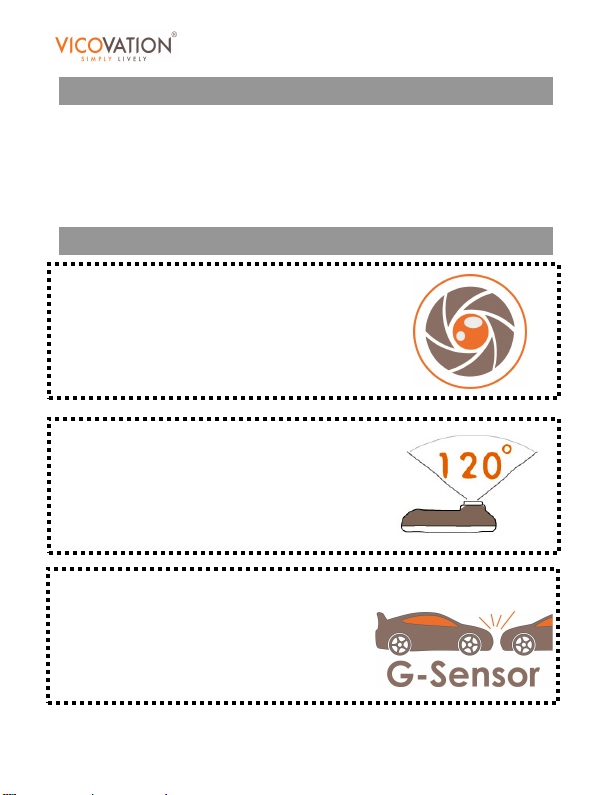
@ F2.0 大光圈,夜間高感光
@ 120 度超廣角,大視野
@ 內建三軸重力感測器,自動觸發緊急錄影
Full HD
car camcorder
2 / 53 Copyright© VicoVation®
Page 3
Vico-DS2
Full HD
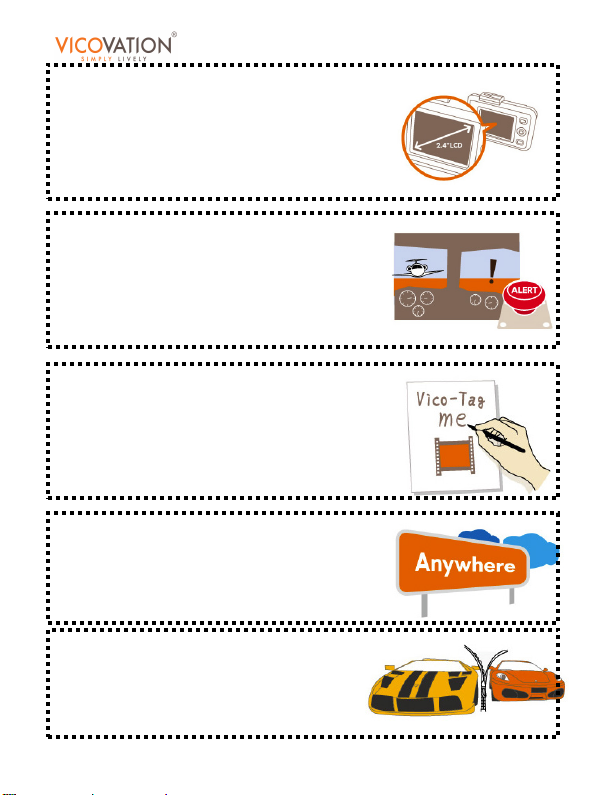
@ 2.4 吋高解析大螢幕瀏覽更清晰
@ 支援螢幕省電模式
@ 可立即回放影像
@ 緊急錄影!事件完整保留
@ 支援檔案保護,資料不被複寫
@ 自動循環錄影
@ Vico 個性化標籤,分享屬於“我”的影片
@ 日期時間浮水印
@ 雙支架 - 隨處安裝,操之在我
@ 無縫錄影,不錯過關鍵時刻
@ 汽車發動自動開機錄影
car camcorder
3 / 53 Copyright© VicoVation®
Page 4
Vico-DS2
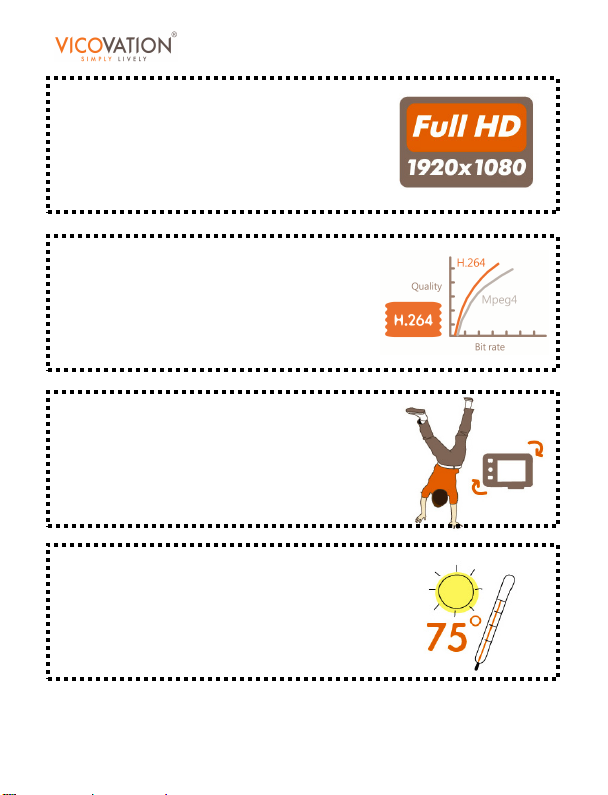
@ FULL-HD,就是要錄最多細節
@ 支援 HDMI 高畫質影像傳輸
@ 四段數位變焦
@ H.264,先進的視訊壓縮技術,不失真
@ 最大支援 32GB SDHC
@ 支援翻轉錄影,更多安裝選擇
@ 精密設計可耐 75 度高溫環境
Full HD
car camcorder
4 / 53 Copyright© VicoVation®
Page 5
Vico-DS2
支架安裝
Full HD
car camcorder
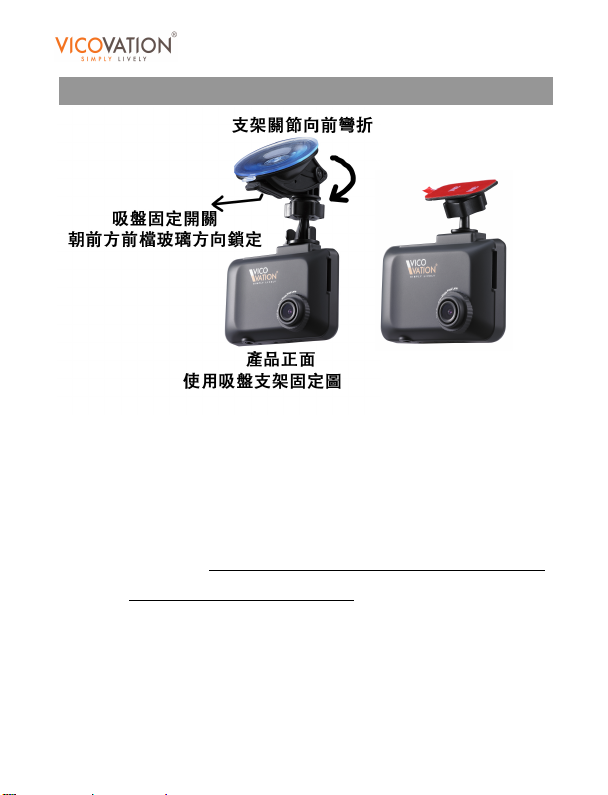
Vico-DS2 包裝配件附上兩種支架:
1.) 吸盤式支架:請注意正確安裝方向,支架關節向前彎折,吸
盤固定開關朝前方前檔玻璃方向扣下鎖定。
2.) 黏貼式支架:請注意此黏貼膠為 3M背膠,黏性強,不怕高溫
日曬脫落。
置 24 小時,再裝上Vico-DS2。
固定前請先清潔前檔玻璃的黏貼部位,貼上後靜
5 / 53 Copyright© VicoVation®
Page 6
Vico-DS2
按鍵功能
Full HD
car camcorder
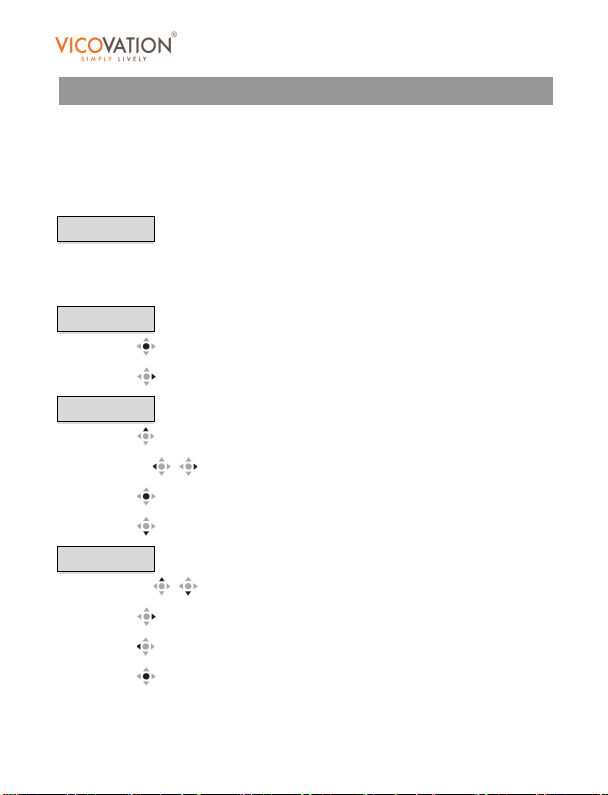
POWER 鍵: 長按兩秒可關機。螢幕自動關閉時,輕按可以喚醒。
REC 鍵: 手動開始錄影或停止錄影並進入待機模式。
白色五向鍵:
錄影模式下 :
為緊急錄影按鈕,按上或左或下壓即刻進入緊急錄影模式。
按下為快速靜音切換鍵,可快速靜音或開啟錄音。
待機模式下 :
下壓 可進入播放模式。
可進入設定選單。
按右
播放模式下 :
按上 選擇資料夾-緊急錄影資料夾或一般錄影資料夾。
左右鍵
下壓
按下
選單模式下 :
上下鍵 移動選擇。
按右
按左
下壓
可移動選擇欲播放的影片。
為確認鍵。可開始播放影片。
可進入檔案刪除以及檔案保護選單。
進入下一頁。若為最後一頁,則為確認。
返回上一頁。
為確認鍵。
6 / 53 Copyright© VicoVation®
Page 7
Vico-DS2
進入設定頁面
Full HD
car camcorder
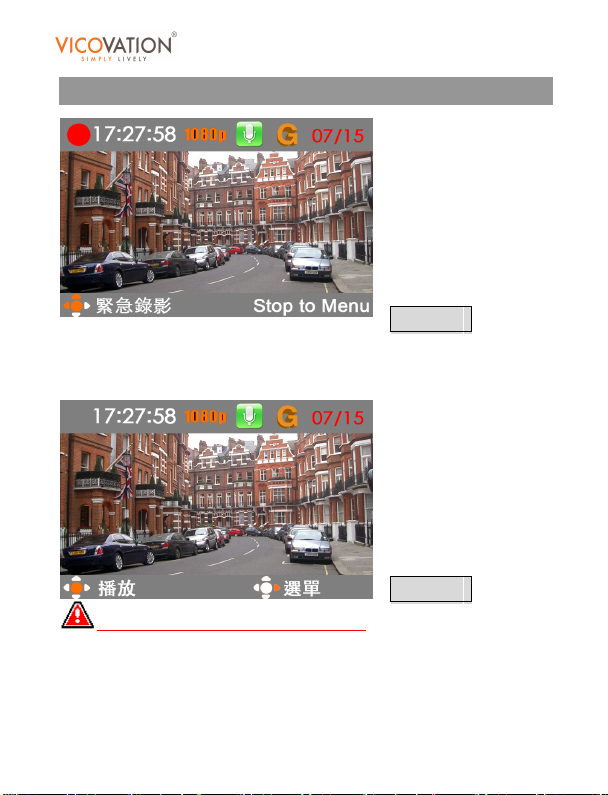
錄影模式
Vico-DS2 預設為開機自動錄影,若要進入設定頁面,請先按下 Stop
錄影鍵 (Stop to Menu),進入待機狀態下,按方向右鍵進入設定選單。
待機模式
Vico-DS2 錄影檔案大小最少為 3 秒鐘,開始錄影後 3 秒鐘方能
按壓錄影鍵Stop停止錄影,再進入設定選單。
7 / 53 Copyright© VicoVation®
Page 8
Vico-DS2
選單功能說明
Full HD
car camcorder
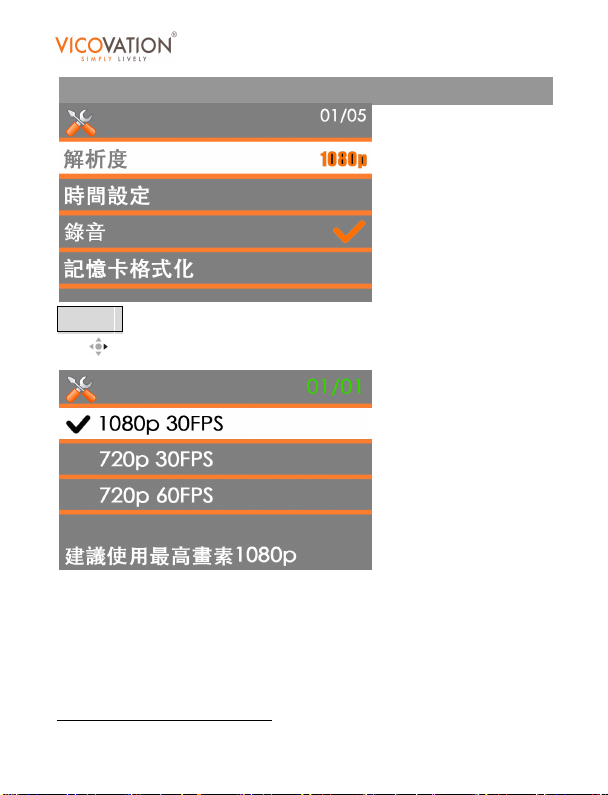
解析度
按右 可進入子選單。
在子選單裡,可選擇三種不同解析度
1080p 30FPS 為最高畫質,將可清晰細膩呈現錄影的畫面。
720p 30FPS 可延長記憶卡能錄影的時間。
720p 60FPS 此高禎率為特殊使用,行車紀錄不建議使用此模式。
出廠預設值為 1080p 30FPS。
8 / 53 Copyright© VicoVation®
Page 9
Vico-DS2
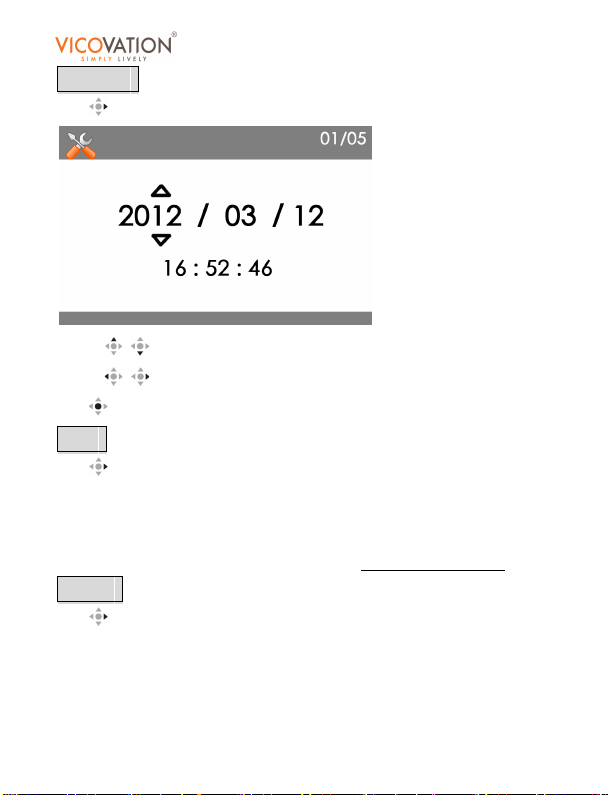
時間設定
按右 可進入子選單。
上下鍵
左右鍵
下壓
錄音
按右 可進入子選單。可選擇開啟或關閉。
設定開啟,可將聲音透過收音麥克風錄製進影片中。
設定關閉,聲音將不會錄製進影片中。
請參考盒內貼紙說明,可使用快速鍵切換。
格式化
按右 可進入子選單。
用於格式化 SDHC 卡,建議首次安裝請先使用格式化功能,將您的
SDHC 卡格式化。其他設備所使用過的 SDHC 卡,也建議先行格式化再
使用。
加減數值。
移動指標。
可確認並離開子選單。
Full HD
car camcorder
出廠預設值為開啟。
9 / 53 Copyright© VicoVation®
Page 10
Vico-DS2
建議使用Class 10 之SDHC卡,確保錄影不漏秒。
為支援緊急錄影功能,建議使用 8GB或以上大小之SDHC卡,請
避免使用 2GB或以下大小之SDHC卡。
Vico-DS2 使用標準SD卡插槽設計,請勿使用Micro SD卡(小卡轉
大卡),避免相容性問題發生。
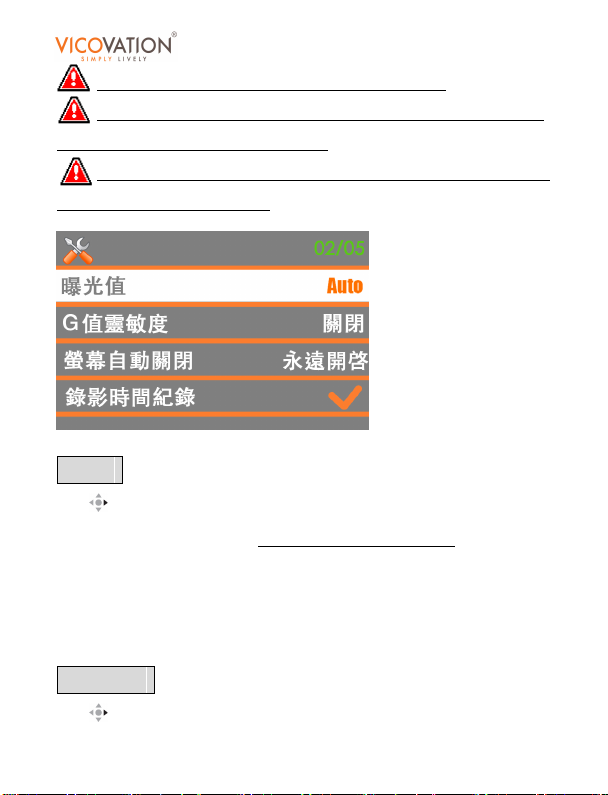
曝光值
按右 可進入子選單。
Vico-DS2 夜間感光度極佳,出廠預設值為自動(Auto)
特殊使用需求,可自行調整曝光值:
+2 +1 提高影像亮度
Full HD
car camcorder
,若使用者有
-2 -1 降低影像亮度
G 值靈敏度
按右 可進入子選單。
10 / 53 Copyright© VicoVation®
Page 11
Vico-DS2
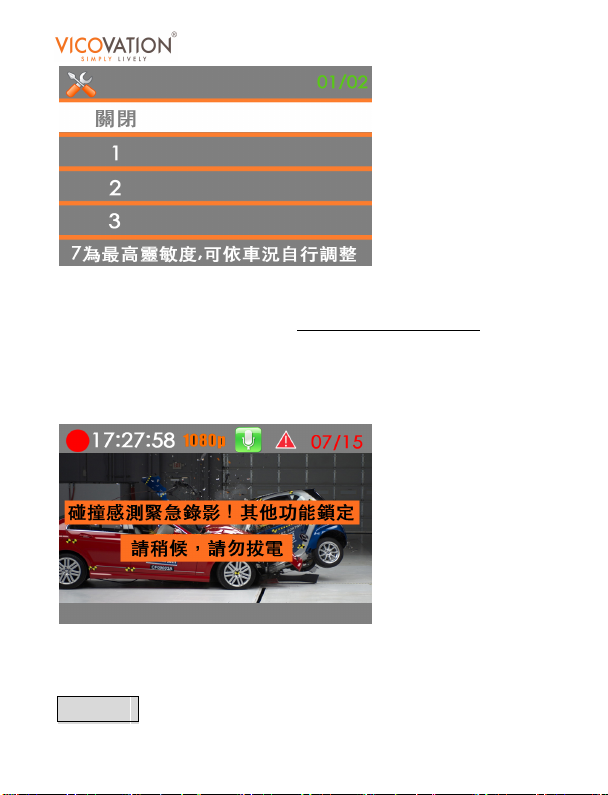
Vico-DS2 配備G-Sensor碰撞感側器,能在碰撞發生時,自動觸發緊急
錄影功能。為了避免誤動作發生,G-Sensor功能預設為關閉
內安裝完畢之後進入選單開啓此功能。
G-Sensor 設定開啓後,機器重新開機之後,開始錄影後 15 秒鐘,
G-Sensor 功能才會自動打開偵測,以減少誤動作的發生。
G 值靈敏度共有七個等級,7 為最靈敏;一般房車建議使用 4。請車主
依照自己愛車的避震器特性做調整。(建議以關閉車門不觸發為原則)
緊急錄影
Full HD
car camcorder
,請在車
11 / 53 Copyright© VicoVation®
Page 12
Vico-DS2
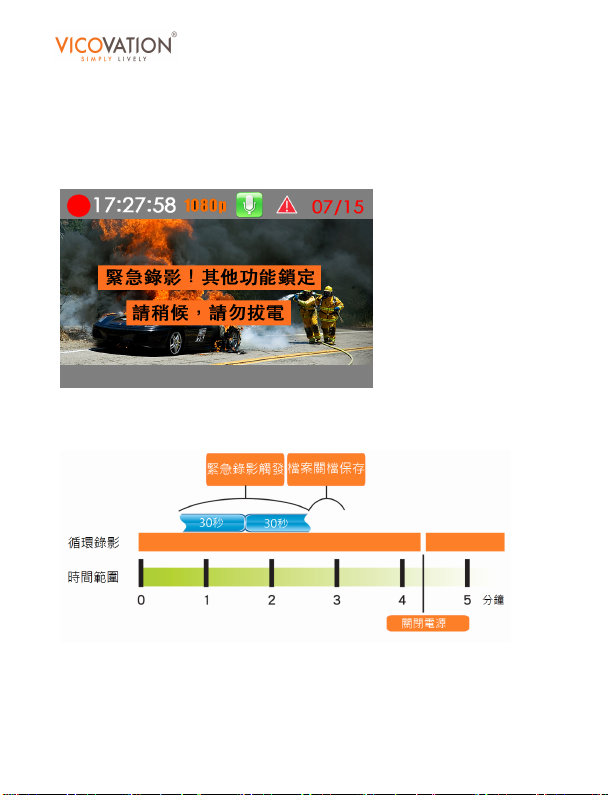
Vico-DS2 支援緊急錄影功能,除了碰撞感測可以自動觸發緊急錄影之
外,也可手動觸發緊急錄影。緊急按鈕為白色五向鍵,錄影中可隨時觸
發。錄影中按下白色緊急按鈕,主畫面會顯示緊急錄影訊息,右上方出
現警告之紅三角形警告標示,如下圖示:
Vico-DS2 會自動儲存前 30 秒與後 30 秒的重要畫面,讓事件完整保
存,不受循環錄影複寫,共有十五組事件錄影保護可使用。
緊急錄影事件結束後,Vico-DS2 會進行存檔動作,將事件資料存檔至
緊急錄影資料夾,此過程中不可進行選單操作,存檔時間需要 2~3 分
鐘。
Full HD
car camcorder
12 / 53 Copyright© VicoVation®
Page 13
Vico-DS2
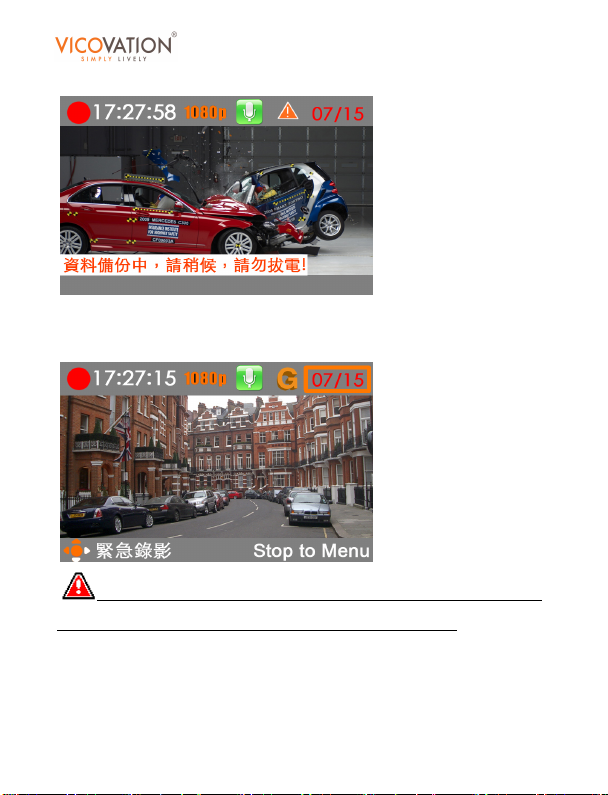
畫面右上角出現橘色三角形警告標誌,存檔中畫面顯示如下圖示:
螢幕右上角所顯示數字為十五組事件錄影與使用組數,請注意定期備
份,使用者備份完畢可自行刪除。
每次觸發緊急錄影之後錄影/存檔/備份總需時為兩分鐘,此兩分
鐘內為了確保錄影檔案存檔成功,不提供選單操作使用。
Vico-DS2 會自動將 SD 卡分割為正常錄影與緊急錄影兩個區塊(分開的
兩個資料夾),預留 1GB 空間給十五組緊急錄影使用,不受正常錄影循
環複寫影響。
Full HD
car camcorder
13 / 53 Copyright© VicoVation®
Page 14
Vico-DS2
注意:十五組緊急錄影區塊具有獨立之循環複寫功能,錄滿十五
組之後,再下一次緊急錄影觸發時會覆蓋最前面第一組的緊急錄影,以
此類推,建議使用者定期備份緊急錄影檔案並自行刪除。
螢幕自動關閉
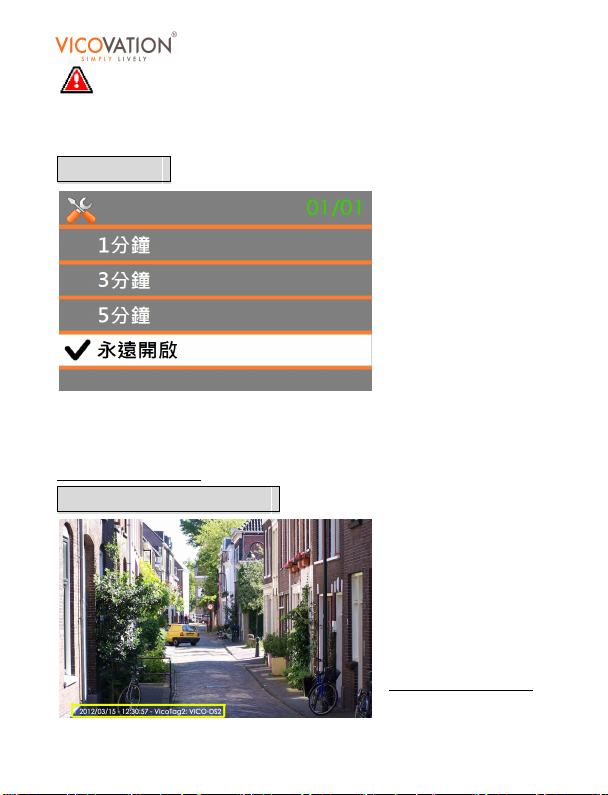
設定 1 分鐘/3 分鐘/5 分鐘,在錄影模式/待機模式/播放模式下,
超過所設定的時間無動作,螢幕就會自動關閉進入省電模式。
預設值為永遠開啟。
錄影時間紀錄 (Date Stamp)
Full HD
car camcorder
開啓錄影時間紀錄,
Vico-DS2 會將時間訊
息放入錄影影片裡,電
腦上回播AVI檔,時間
資訊會顯示在左下角。
出廠預設值為開啓。
14 / 53 Copyright© VicoVation®
Page 15
Vico-DS2
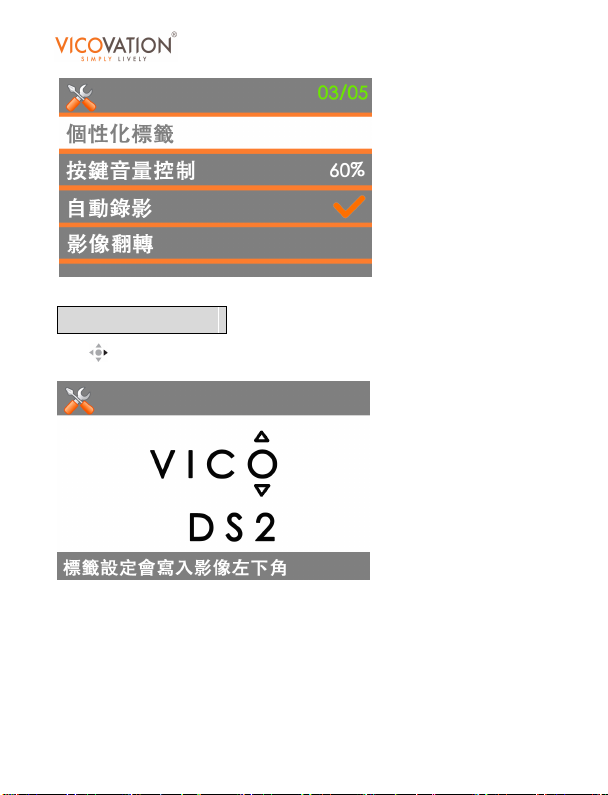
個性化標籤 Vico Tag
按右 可進入子選單。
Vico-DS2 提供個性化標籤功能,可以在影像中嵌入指定資訊,總共為
Full HD
car camcorder
八個字元,可選擇英文大小寫與數字 0 到 9。
15 / 53 Copyright© VicoVation®
Page 16
Vico-DS2
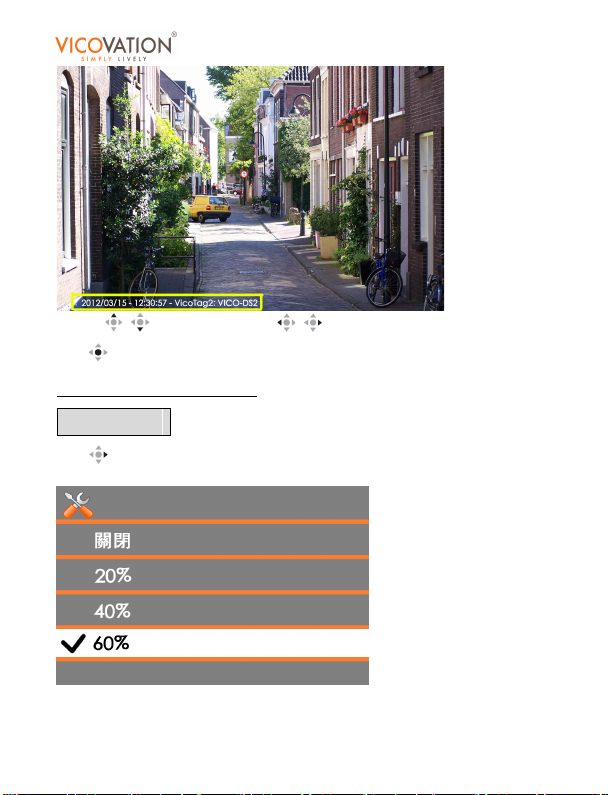
上下鍵
下壓
出廠預設字元為:Vico-DS2
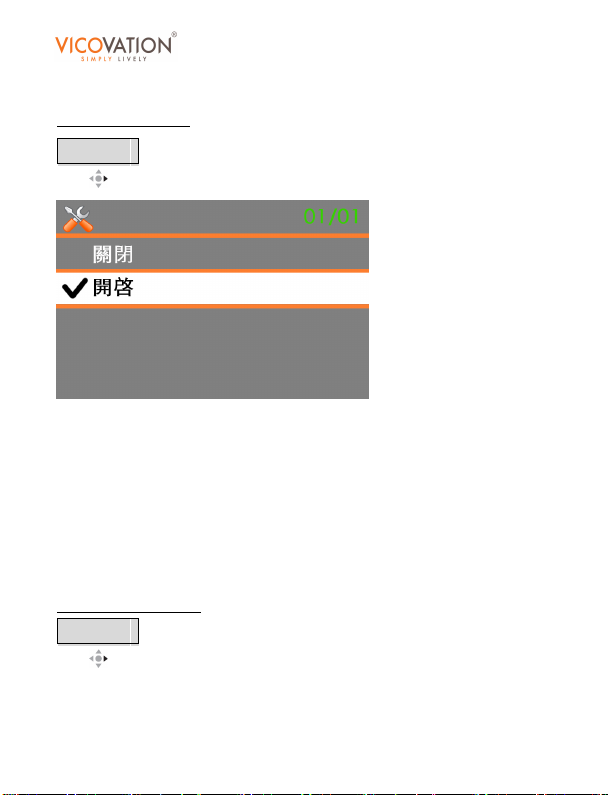
按鍵音量控制
按右 可進入子選單。
選擇數值。左右鍵 移動指標。
可確認並離開子選單。
Full HD
car camcorder
可選擇 Vico-DS2 內建蜂鳴器音量大小,包括按鍵音與回播影片的音
16 / 53 Copyright© VicoVation®
Page 17
Vico-DS2
量,可選擇 20%, 40%, 60%, 80%, 100%.
出廠預設值為 60%
自動錄影
按右 可進入子選單。可選擇開啟或關閉。
設定開啟,Vico-DS2 過電後會自動開機並進入錄影模式。
離開選單設定或離開播放模式後,也會自動進入錄影模式。
設定關閉,Vico-DS2 過電後會自動開機並進入待機模式,須手動按下
REC 鍵才會進入錄影模式。
離開選單設定或離開播放模式後,亦須手動按下 REC 鍵才會進入錄影
模式。
出廠預設值為開啟。
影像翻轉
按右 可進入子選單。
Vico-DS2 提供雙支架,保留安裝彈性。若使用吸盤式支架將 Vico-DS2
Full HD
car camcorder
17 / 53 Copyright© VicoVation®
Page 18
Vico-DS2
翻轉固定於車前儀表板上方(非前擋風玻璃上),可啓用此影像翻轉功
能,以利設定操作。
出廠預設值為關閉。
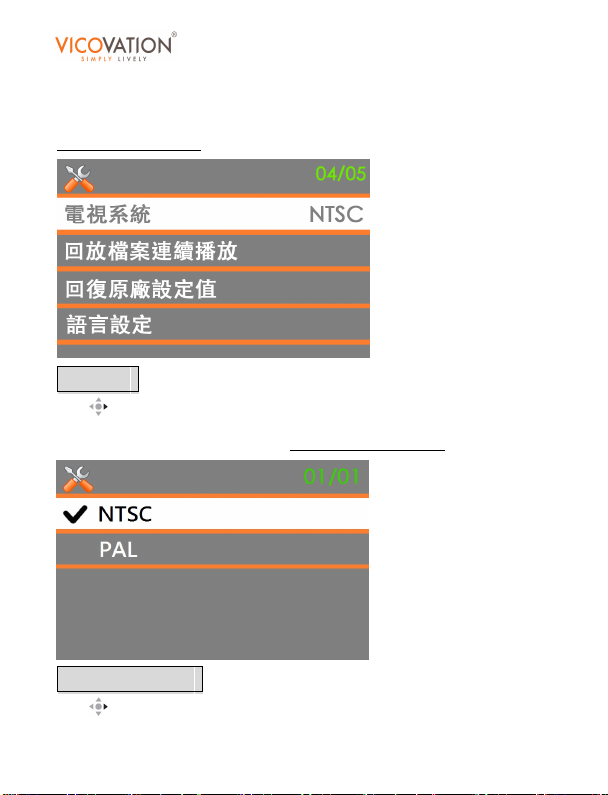
電視系統
按右 可進入子選單。
台灣一般光源頻率為NTSC體系。
回放檔案連續播放
按右 可進入子選單。
出廠預設值為NTSC。
Full HD
car camcorder
18 / 53 Copyright© VicoVation®
Page 19
Vico-DS2
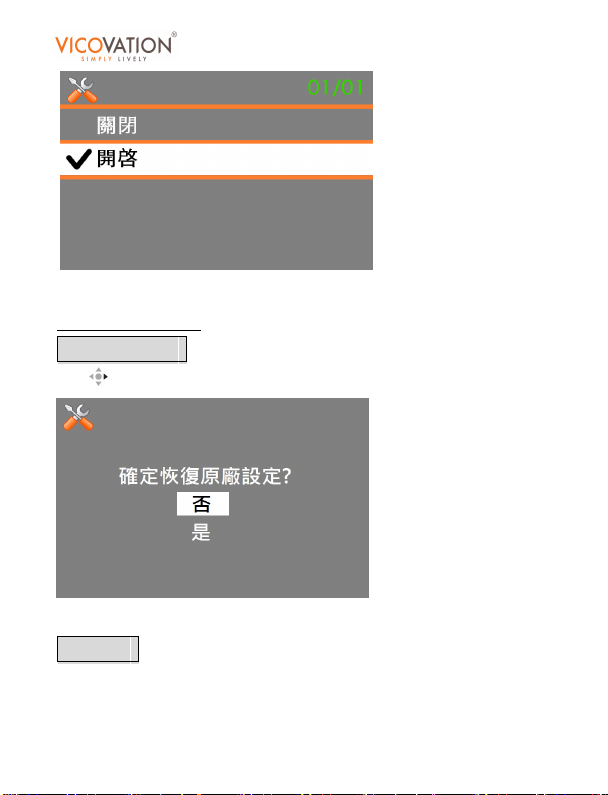
設定開啟,在播放模式下,一段影片播完會自動繼續播放下一段影片。
出廠預設值為關閉。
回復原廠設定值
按右 可進入子選單。
選擇是,所有設定將返回出廠值。
語言設定
Vico-DS2 OSD 選單頁面支援 18 國語言,包含:
Full HD
car camcorder
19 / 53 Copyright© VicoVation®
Page 20
Vico-DS2
繁中,簡中,英文,韓文,西班牙文,葡萄牙文,俄文,荷蘭文,德文,
法文,義大利文,阿拉伯文,土耳其文,瑞典文,馬來文,泰文,印尼
文,越南文。
出廠預設值為繁體中文。
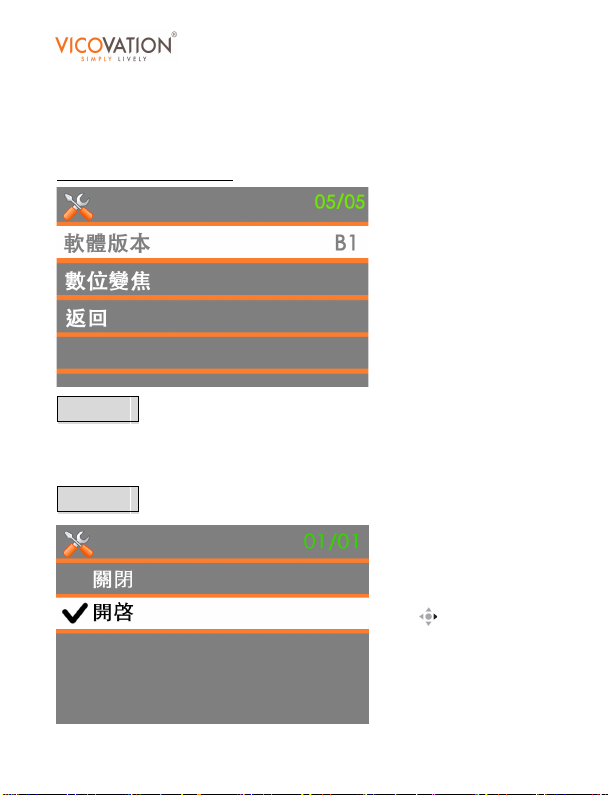
軟體版本
顯示軟體版本資訊。客服人員在解答您的疑問前,會需要您提供軟體版
本以便釐清問題。
數位變焦
Full HD
car camcorder
此功能在 1080p 模式下
無法開啟。請先調整至
720p 模式。
可進入子選單。
按右
可選擇開啟或關閉。
20 / 53 Copyright© VicoVation®
Page 21

Vico-DS2
開啟後,錄影模式下螢幕右下角會出現一條 1X 到 4X 的比例尺。左右
可進行放大縮小。
鍵
開啟此功能,錄影模式下白色按鍵的左右將不會觸發緊急錄影。
出廠預設值為關閉。
連接電視
Full HD
car camcorder
連接電視的操作
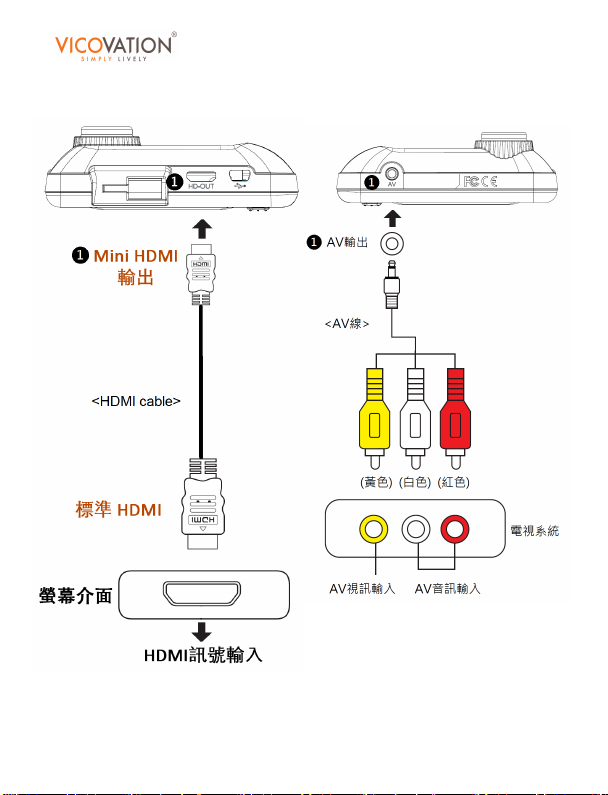
共有二種電視輸出方式;AV 和 HDMI
1、AV輸出:將AV輸出線一頭插在Vico-DS2 的AV插槽,另外一頭連接
到TV的"AV端子"(VIDEO插頭是黃色,AUDIO插頭是紅/白色)。
Vico-DS2 使用AV線連接到一般電視螢幕AV端子輸出時,
為SD 480p,並非高解析度,請特別注意。1080p高解析度必須使用SD
卡至電腦檔案回放時,才會是最高解析度 1080p,最高畫質。
2、HDMI輸出:HDMI插槽可以提供高達 1080i解晰度的影像輸出,將
HDMI輸出線一端插入Vico-DS2 的HDMI插槽,另一端接在電視機的
HDMI插槽即可。Vico-DS2 連接 HDMI線到螢幕輸出時,在一般錄影
模式下,為配合畫面底下圖示說明,解析度輸出為SD 480p
與錄影回放時才會切換為高解 1080i輸出。螢幕解析度切換時會有等待
的切換時間,依每個螢幕而不同。
解析度會降低
。暫停錄影
HDMI 連接示意圖 AV 連接示意圖
21 / 53 Copyright© VicoVation®
Page 22
Vico-DS2
Full HD
car camcorder
22 / 53 Copyright© VicoVation®
Page 23
Vico-DS2
產品規格
Full HD
car camcorder
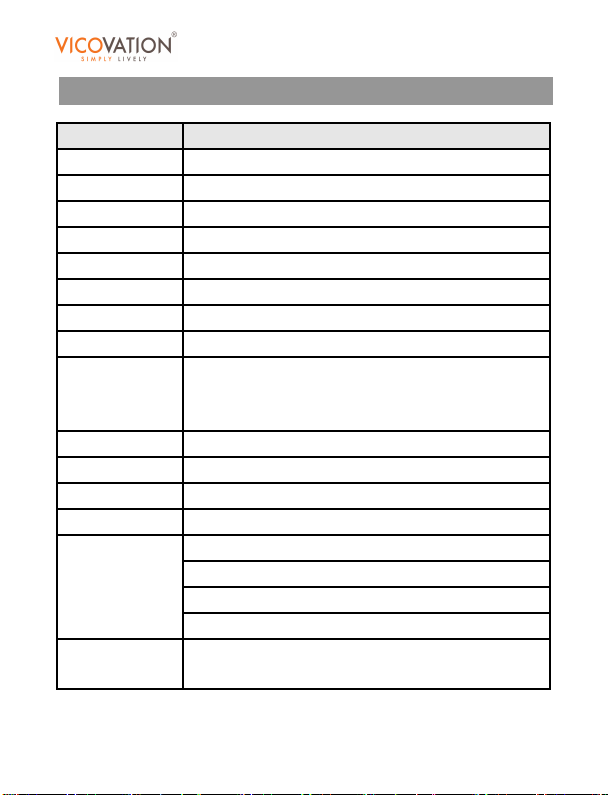
型號 Vico-DS2
鏡頭 F/2.0, 6G 百萬像素鏡頭
感光晶片 五百萬像素 CMOS
視角 120 度
液晶螢幕 2.4" TFT LCD
輸出 HDMI / AV / USB2.0
音訊 錄影同步錄音或靜音
安規 CE / FCC / BSMI (D33I02)
壓縮格式 H.264 @ .AVI file
最大 1920 x 1080 @ 30 張/秒 (預設)
錄影大小
儲存空間 內建 32M 記憶體 / SDHC card 最大支援 32GB
光頻 NTSC / PAL
語言 英文 / 中文 / 多國語言共 18 國
電源 USB / 車充
人性化科技
配件
4 米車充電源線 / 車用支架 x 2 / AV 線 / USB 線
1280 x 720 @ 60 張/秒
1280 x 720 @ 30 張/秒
汽車發動自動錄影 / 無縫錄影 / 循環錄影
手動緊急錄影 / 碰撞感測自動緊急錄影
翻轉錄影 / 日期時間浮水印 / 個性化標籤
4 倍數位變焦 (Full HD 格式下不支援)
使用手冊 / 快速安裝指南
23 / 53 Copyright© VicoVation®
Page 24

Vico-DS2
安全注意事項
Full HD
car camcorder
如果產品使用不當,可能會引起問題,請您務必按照安全規定使用。
警告事項:
1. 請注意不要將其他物體進入 Vico-DS2 機器內,這可能會造
成火災,觸電,產品缺陷等;如您將產品掉入水或液體中,
請關閉電源,並儘快檢測及維修。
2. 請不要將產品摔落到地上,這可能會造成產品破損缺陷及無
法正常使用。
3. 請讓產品遠離潮濕和灰塵多的地方。
4. 請不要隨意拆解 Vico-DS2,否則可能影響產品保固的正常維
修程續。
5. 請不要用化學品和洗滌劑清洗產品,可能會造成變色。
6. 在數據傳輸時請不要移除 USB 裝置,這可能對產品造成嚴重
影響。
7. 在 Vico-DS2 錄影時請勿移除 SD 卡,可能 對 SD 卡或錄影檔
案造成毀損。
8. 為了您的行車安全,請勿在車輛行駛中操作 Vico-DS2。
不專心的駕駛可能導致事故傷亡或財物損失。
24 / 53 Copyright© VicoVation®
Page 25

Vico-DS2
FAQ
在正常的操作下,如果產品出現問題,請參考以下方法解決;
Q 為何我引擎發動後,主機不會開始錄影?
A 請先確認使用的是 VICOVATION®原廠車充。若非原廠車充,
Q 為何影像會模糊不清楚?
A 可能是由於鏡頭不夠乾淨,請檢查鏡頭是否有髒汙,請使用拭
Q 為何車輛行駛中影像會劇烈跳動?
A 請檢查支架關節是否旋緊。
Q 為何我用電腦撥放影片不順暢?
25 / 53 Copyright© VicoVation®
恐有電源接觸不良之虞。
若您使用原廠車充:
請先檢查液晶螢幕左方的 LED 燈是否發亮。
若有亮紅燈,請先試著輕按電源鍵,看是否正在省電模式下。
若仍無螢幕顯示,可能液晶螢幕接觸不良或損壞。
若無亮燈顯示,請先確認車充是否亮燈。有可能車充損壞或是
車用點菸器電源供應有問題或線材接觸不良。
若車充亮綠燈,可能是主機接觸不良或硬體損壞,請與經銷商
聯繫。
若您是使用非原廠車充:
強烈建議您立刻更換成原廠車充,否則機子可能因為不穩定電
源而異常開關機或錄影行為異常導致主機損壞!
鏡紙將之擦拭乾淨。也可能是車窗有髒汙,請擦拭清洗車窗。
Full HD
car camcorder
Page 26

Vico-DS2
A 請將檔案複製到電腦後再行播放。
建議使用 dual core 以上等級 CPU,至少 512MB 記憶體空
間,並 採用 VLC player 或是 Windows Media player 來播 放。
Q 請問沒電池萬一突然斷電會不會影像沒錄到?
A Vico-DS2 採用超級電容。遇到車充突然無法供電情況,電容
可以支撐影像的正常關檔。絕不會錯過斷電前的任何影像。
Q 拔起車充後還能錄多久?
A 電容的電量只足夠關檔儲存並正常關機。一拔起車充,錄影就
立刻停止。
Q 播放模式下,檔案畫面呈現藍色驚嘆號
A 藍色驚嘆號表示檔案損壞。請留意不要在錄影時任意拔除 SD
卡造成檔案儲存失敗。請使用 Class 6 以上記憶卡。
Q 若使用 3M 黏貼式支架,未來要如何移除?
A 請使用酒精或去光水慢慢將黏膠推開以確保車窗上的隔熱片
不會脫落。
Q 錄製的影像中,光源部分有閃爍現象
A 這個是由於設置的"電視系統"不正確,必須設置正確的光源
頻率(台灣為 NTSC)
Q 我的電腦無法播放檔案
A 請下載必要之編碼器(Codec)或更新版之播放器。
Full HD
car camcorder
26 / 53 Copyright© VicoVation®
Page 27

Vico-DS2
Full HD
car camcorder
Index
Quality Assurance 。。。。。。。。。。。。。。。。。。。。。 28
Features 。。。。。。。。。。。。。。。。。。。。。。。。。 28
Bracket Connection 。。。。。。。。。。。。。。。。。。。。 31
Buttons 。。。。。。。。。。。。。。。。。。。。。。。。。 32
Enter Setup Menu 。。。。。。。。。。。。。。。。。。。。。 33
Setup Menu Functions 。。。。。。。。。。。。。。。。。。。 34
Resolution。。。34 Clock \ Audio Recording。。。35
Format \ EV Value。。。36 G-Sensor Value。。。37
Emergency Record。。。38 LCD Auto Off \ Date Stamp。。。41
Vico Tag。。。42 Volume Control 。。。43
Automatic Recording \ Image Inverse。。。。。。。。。。。。。44
TV System \ Slide Show。。。45 Default \ Language。。。46
Version \ Digital zoom。。。。。。。。。。。。。。。。。。。。47
TV Connection 。。。。。。。。。。。。。。。。。。。。。。 48
HDMI Connection 。。。。。。。。。。。。。。。。。。。。。 48
AV Connection 。。。。。。。。。。。。。。。。。。。。。。 48
Specifications 。。。。。。。。。。。。。。。。。。。。。。。 49
Safety Instructions 。。。。。。。。。。。。。。。。。。。。。 50
FAQ 。。。。。。。。。。。。。。。。。。。。。。。。。。。 51
27 / 53 Copyright© VicoVation®
Page 28
Vico-DS2
Full HD
car camcorder
Quality Assurance
Vico-DS2 passes ISO9001:2008, CE, FCC, and BSMI (D33I02)
certifications.
Features
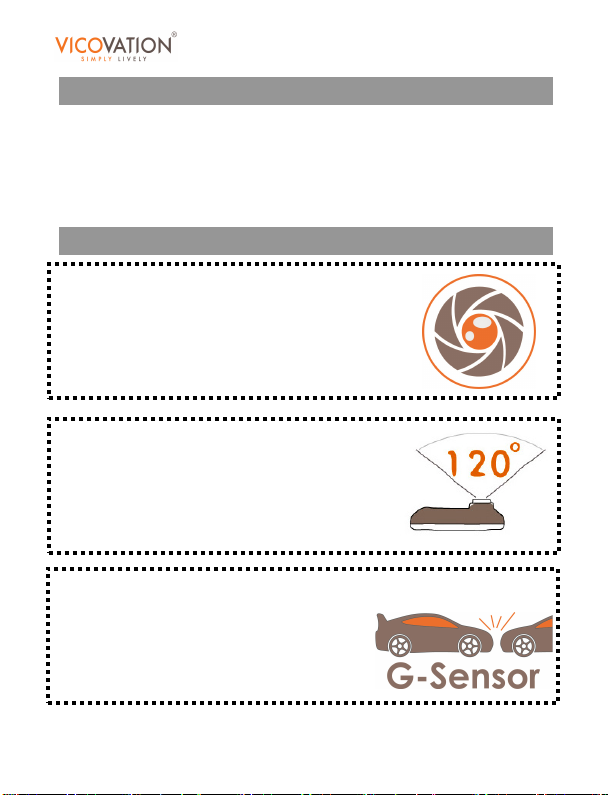
@ F2.0 high sensitivity megapixel lens
@ 120º sees more
@ Built-in G-Sensor, auto trigger emergency record
28 / 53 Copyright© VicoVation®
Page 29
Vico-DS2
Full HD
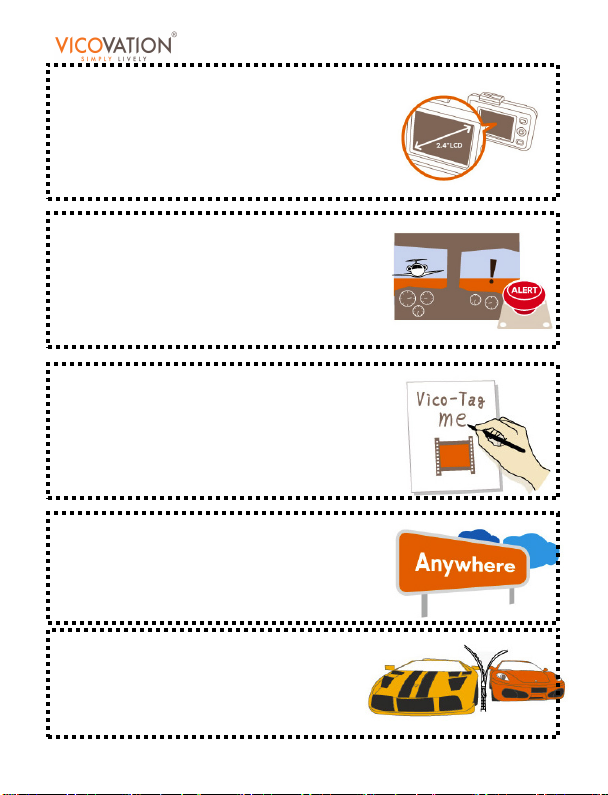
@ 2.4” LCD- Larger monitor, clearer display
@ Support LCD Auto off
@ Instant playback
@ Emergency record never drops
@ File lock keeps crucial videos
@ Support circular record
@ Vico Tag – Share “me-featured” video
@ Date/time stamp
@ Two brackets – adhere anywhere
@ Seamless record captures every second
@ Support Auto recording
car camcorder
29 / 53 Copyright© VicoVation®
Page 30
Vico-DS2
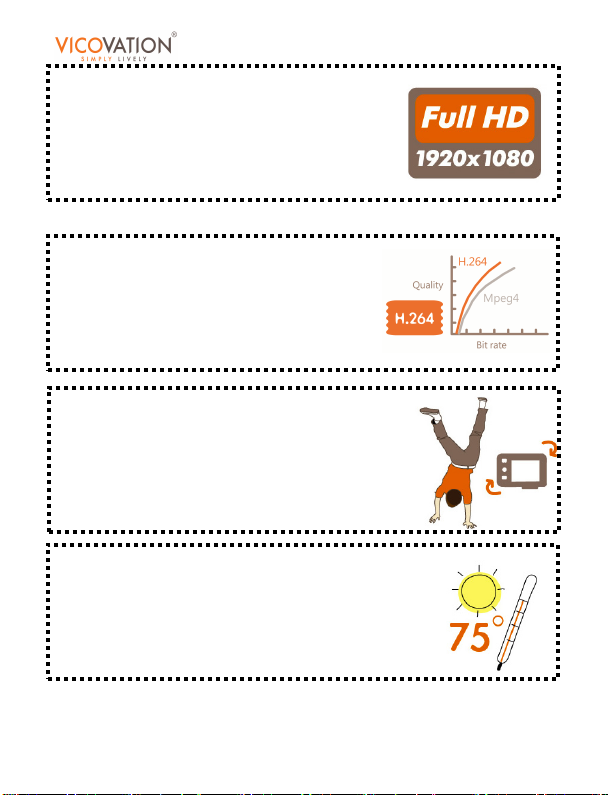
@ FULL HD, simply more details
@ Support HDMI output
@ 4X digital zoom
@ H.264 compression, less mosaic
@ Support 32GB SDHC
@ Image inverse makes versatile
@ 75ºC – the proof of quality
Full HD
car camcorder
30 / 53 Copyright© VicoVation®
Page 31
Vico-DS2
Full HD
car camcorder
Bracket Connection
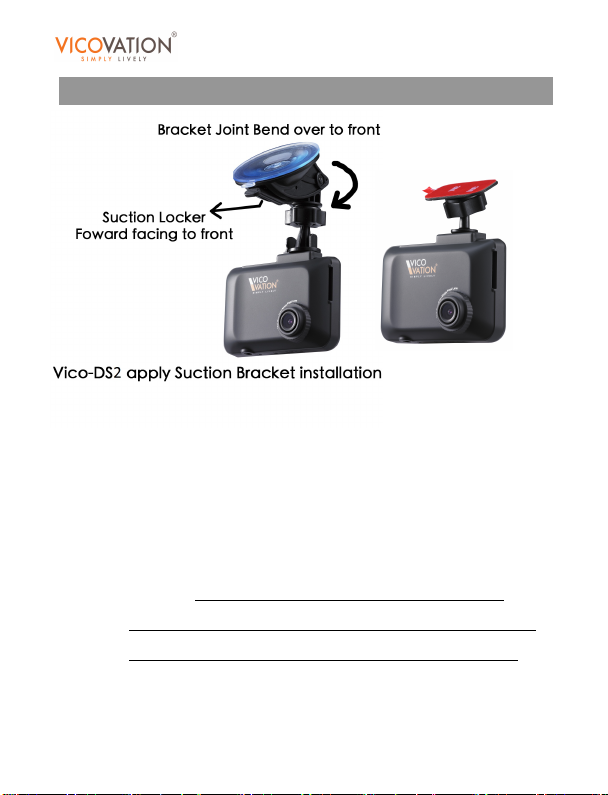
Vico-DS2 contains two brackets:
1.) Suction bracket: The best connection is to bend the
bracket joint over front and to forward suction locker to
the front.
2.) Sticker bracket:The 3M sticker has strong
viscidity.
window first. After the bracket adheres to the window,
wait for 24 hours and then connect Vico-DS2 with it.
Before adhering, please clean the area of
31 / 53 Copyright© VicoVation®
Page 32
Vico-DS2
Full HD
car camcorder
Buttons
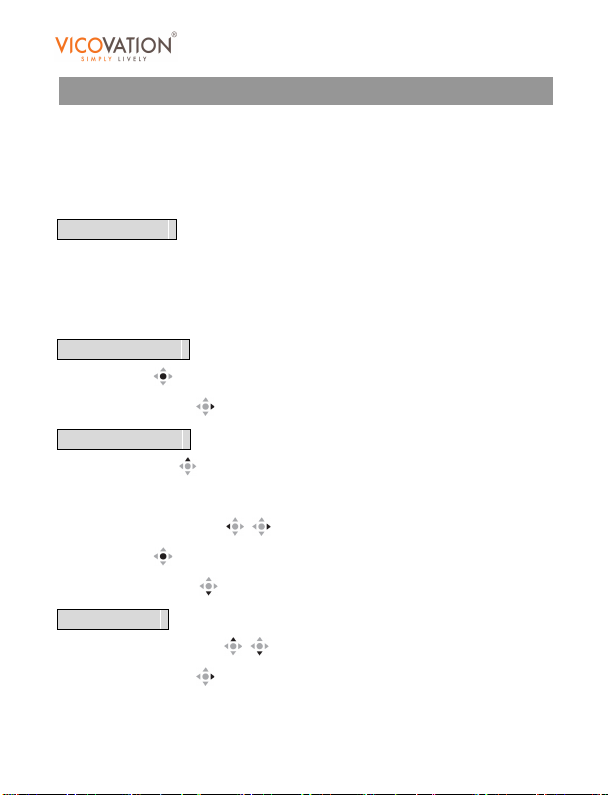
POWER:Press 2 sec. to power off. Short press to wake up LCD.
REC:Manually start recording or stop recording.
White button:
Record mode
It’s used as Emergency Record button. Press or roll it up/left to
enter emergency record process. Roll it down to switch audio record
on/off.
Stand-by mode
Press to enter playback mode.
Press Right
Playback mode
Press Up to switch the browsing folders between
emergency folder and normal record folder.
Press Left/Right
Press
Press Down
MENU mode
Press Up/Down to move the cursor.
Press Right
will be a confirmation.
to enter MENU.
to move the cursor.
to select the video and start playback.
to open action list to delete or lock files.
to enter sub menu. If there’s no sub menu, it
32 / 53 Copyright© VicoVation®
Page 33
Vico-DS2
Press Left to exit.
Press
to confirm.
Full HD
car camcorder
Enter Setup Menu
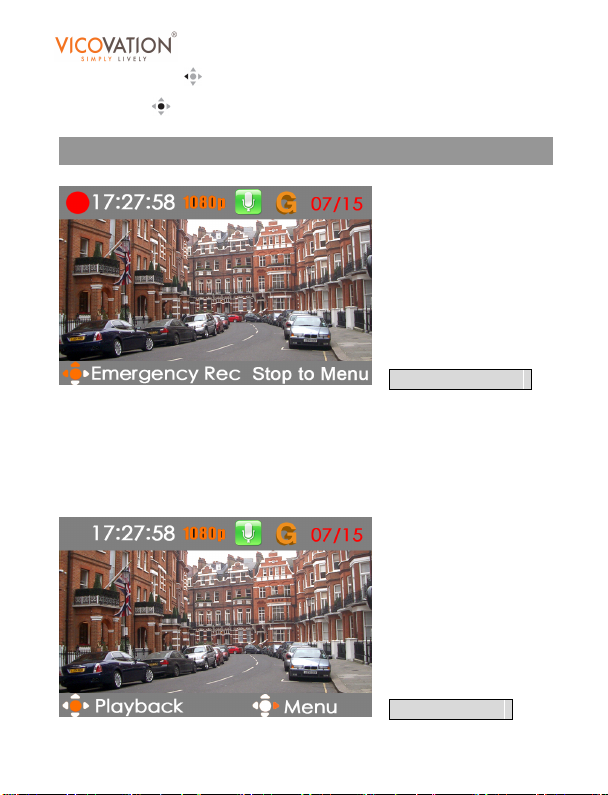
Recording Mode
Vico-DS2 default setting is Auto-Recording while power on. Please
stop recording first to enter Setup Menu. (Press Rec/Stop key to stop
recording.) Press Right key to enter Setup Menu under Stand-by Live
Mode.
Stand -by Mode
33 / 53 Copyright© VicoVation®
Page 34
Vico-DS2
Vico-DS2 minimum recording file size is 3 seconds, you may
stop recording after 3 seconds of each new recording cycle.
Full HD
car camcorder
Setup Menu Functions
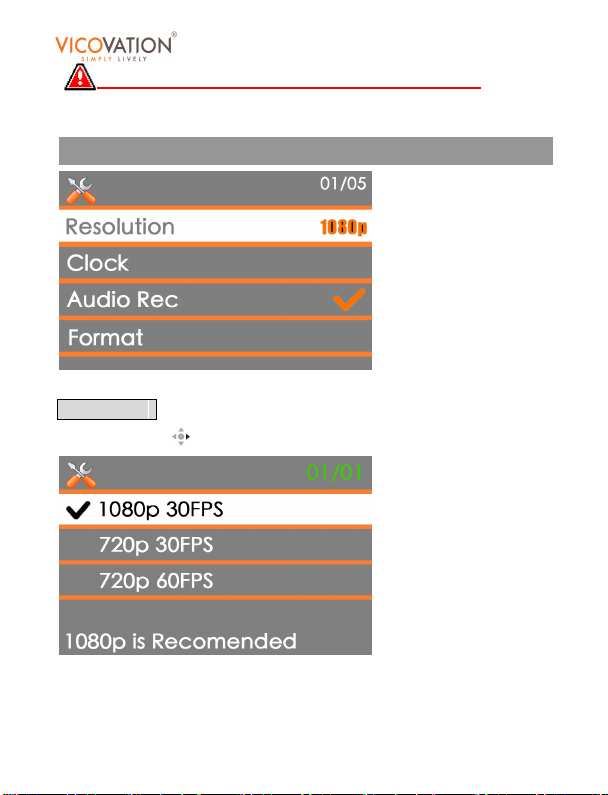
Resolution
Press Right Key to enter sub menu.
There are 3 different resolutions to select:
1080p 30FPS (Full HD) is the best resolution (Default), provides the
34 / 53 Copyright© VicoVation®
Page 35
Vico-DS2
most crystal clear image.
720p 30FPS (HD) provides longer recording time with great image
quality.
720p 60FPS (HD) is not recommended for vehicle use .
Default setting is 1080p 30FPS
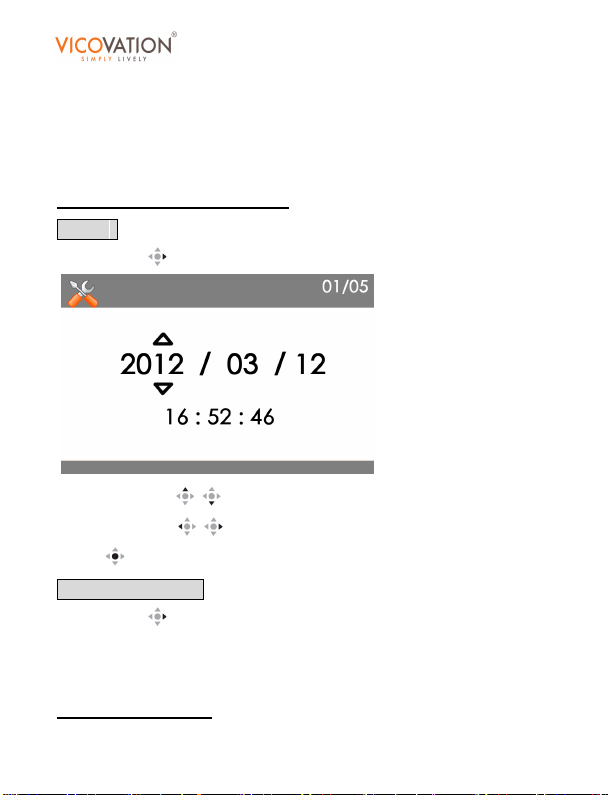
Clock
Press Right to enter sub menu.
Press Up/Down
Press Left/Right
Press
Audio Recording
Press Right to enter sub menu. Select On/Off.
Select On, the audio will be recorded into the video.
Select Off, the video will be mute.
Default setting is On
to confirm and exit.
to add/reduce the value.
to move the cursor.
Full HD
car camcorder
35 / 53 Copyright© VicoVation®
Page 36
Vico-DS2
Format
Press Right to enter sub menu.
When you use the SDHC with Vico-DS2 for the very first time, the
format process is highly recommended.
To ensure the seamless recording, suggest to use SDHC card
with class 10.
To ensure emergency record function, suggest to use 8G or
above SDHC card. 2GB or less is not recommended.
Vico-DS2 applies standard SD card slot. Please do not use
Micro SD + card adaptor. The compatibility issue might happen.
EV Value
Press Right to enter sub menu.
Vico-DS2 has excellent light sensitivity. Default setting is Auto.
Full HD
car camcorder
Users
can manually alter the value upon request:
36 / 53 Copyright© VicoVation®
Page 37
Vico-DS2
+2 +1 to make image brighter.
-2 -1 to reduce image brightness.
G-Sensor Value
Vico-DS2 can auto detect collisions to auto-trigger emergency
recording by built-in G-sensor, avoiding important events overwriting.
Full HD
car camcorder
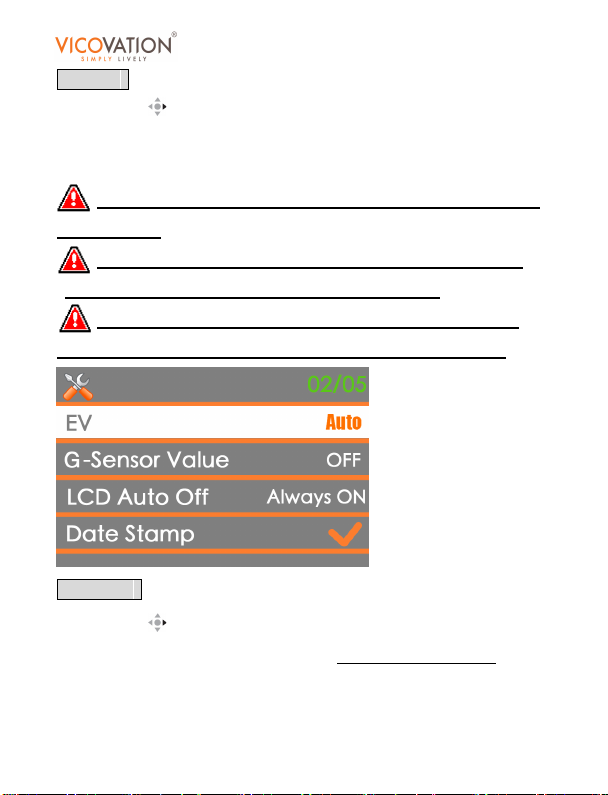
In order to avoid false alarms,
is OFF. Please activate this function manually after Vico-DS2
installation done in vehicle.
After activating G-sensor function in menu, Vico-DS2 will start
auto-detecting after 15 sec recording on each rebooting
reduce any false alarms happening.
There are 7 different sensitivity levels in G-sensor setting. Level 7 is
37 / 53 Copyright© VicoVation®
default setting on G-Sensor function
, in order to
Page 38
Vico-DS2
the most sensitive one. We recommend Level 4 for general vehicle
environment. You may adjust by yourself based on different
suspension and shock absorbers.
Emergency Record
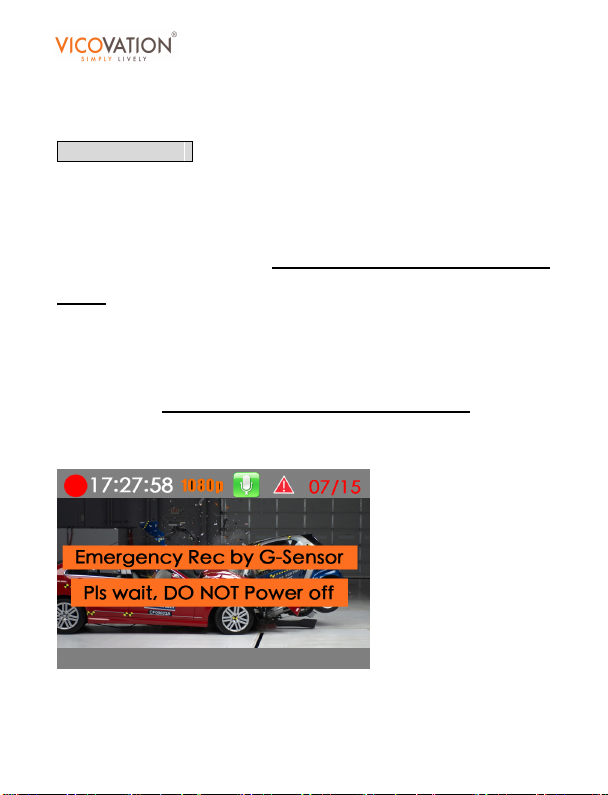
Vico-DS2 not only can trigger emergency record by G-Sensor but also
can manually trigger emergency record. The White key is
Emergency button, you may trigger Emergency Recording under
recording mode. While you press the White Emergency Button, it will
show you “Emergency Rec” Notification on screen. There will be a
Red Triangle Sign on up-right screen under Emergency Recording
triggered, as shown below:
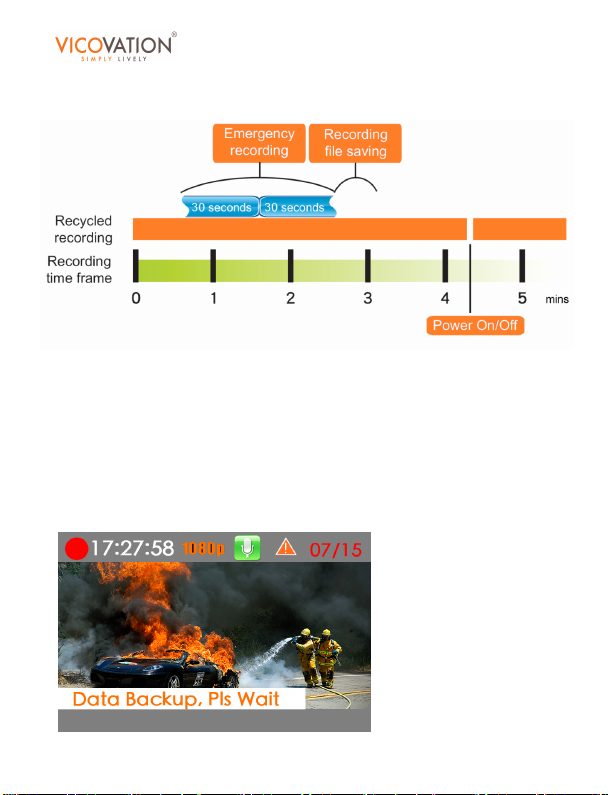
Vico-DS2 will pack 30 seconds before and after you trigger the
emergency record button (total 1 min video) into emergency folder.
Emergency Video locates in emergency folder independently, and it
Full HD
car camcorder
38 / 53 Copyright© VicoVation®
Page 39
Vico-DS2
won’t be overwritten by Normal Circular recording. There are 15 sets
of emergency events in emergency folder capacity.
After finishing emergency recording, Vico-DS2 will pack and save the
event video into emergency folder. It takes about 2~2 minutes to save
and back-up the event video. In order to ensure the file completion,
you are NOT able to operate Setup Menu during this saving period.
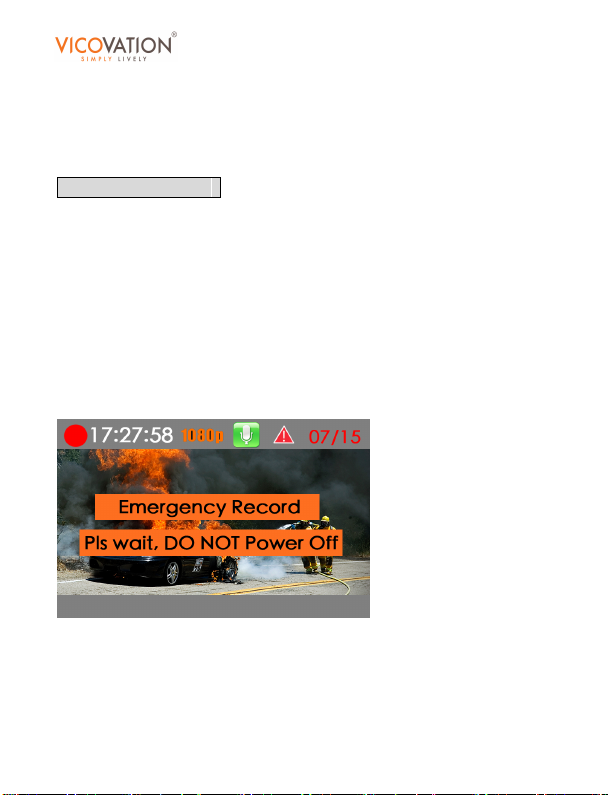
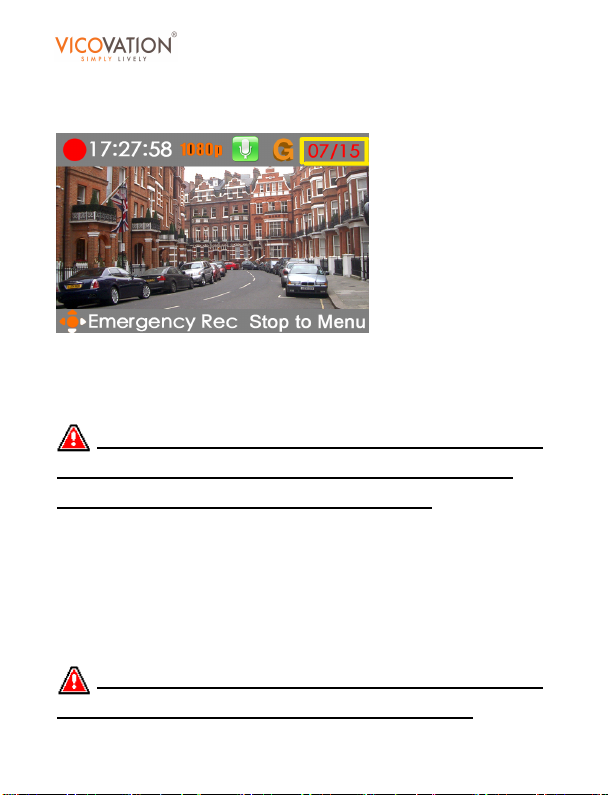
There will be an Orange Triangle Sign on up-right screen under
saving event video, as shown below:
Full HD
car camcorder
39 / 53 Copyright© VicoVation®
Page 40
Vico-DS2
Up-Right of main screen will show you the Emergency sets left
number out of 15 sets totally, as shown below:
Please back-up and delete the emergency event videos
manually/regularly on your PC, to remain enough space for new
emergency events.
Emergency Record takes about 2 mins totally from triggering it
for Recording/Saving, you are NOT able to operate Setup Menu
during this period in order to complete the file saving.
Vico-DS2 will create 2 partition folders on your memory card, one
folder for Normal Record and the other for Emergency Record.
Vico-DS2 reserves 1GB size for Emergency Record folder. It will not
be affected by Normal Circular Recording.
15 sets of Emergency Event Videos will be circular-overwritten
only by Emergency Record itself when more than 15 sets.
Full HD
car camcorder
40 / 53 Copyright© VicoVation®
Page 41
Vico-DS2
When Emergency events full, next new triggered emergency event
video will overwrite the first event video from 15 sets…and so on.
Please back-up and delete the emergency event videos
manually/regularly on your PC, to remain enough space for new
emergency events.
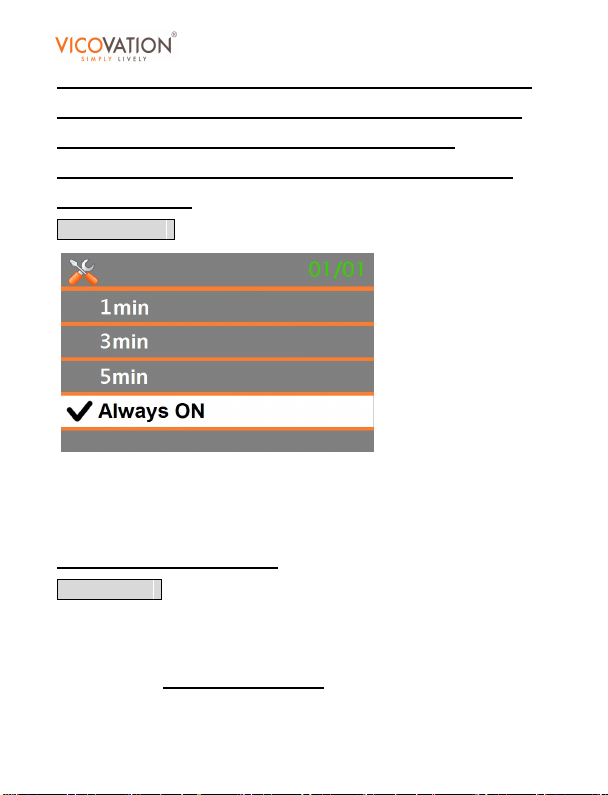
LCD Auto Off
Select 1min/3min/5min. In record mode/stand-by mode/playback
mode, if there’s no operation beyond the timeframe, LCD will be
switched off automatically.
Default setting is Always ON.
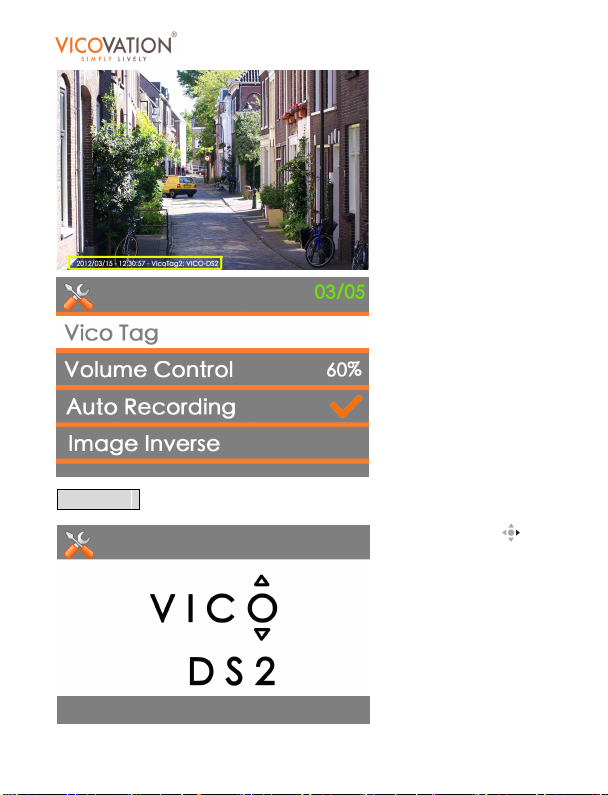
Date Stamp
Select On, Vico-DS2 will embed the date/time info into video. When
users play the AVI file in PC, date/time info will display on the left
bottom corner.
Default setting is On.
Full HD
car camcorder
41 / 53 Copyright© VicoVation®
Page 42
Vico-DS2
Vico Tag
Full HD
car camcorder
Press Right Key to
enter sub menu.
42 / 53 Copyright© VicoVation®
Page 43
Vico-DS2
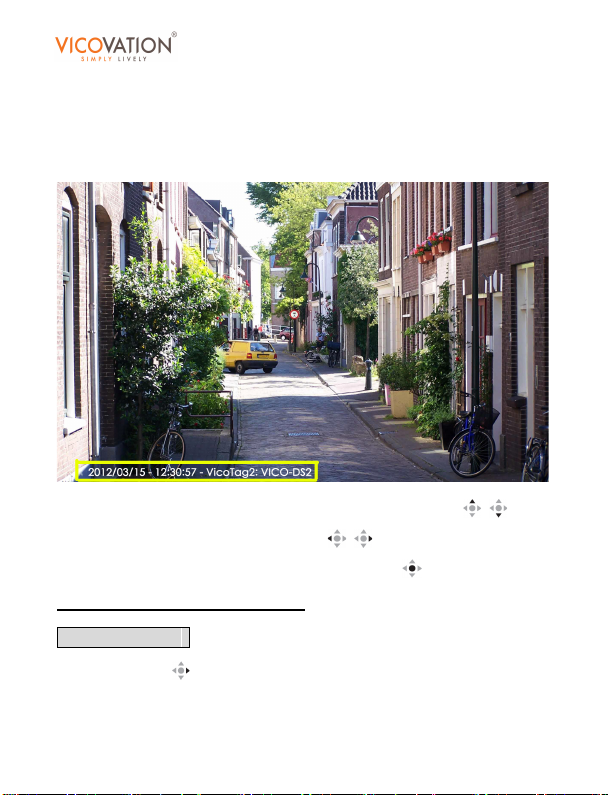
Vico-DS2 provides unique Vico Tag feature. You may tag your own
text into video with text overlay on saved video, totally with 8 digits.
You may choose English alphabet or Numbers, as shown below.
Full HD
car camcorder
Press Up/Down key for choose different alphabet/number
Press Left/Right key for moving cursor
Press Center key to confirm and leave sub menu
Default Text overlay is: Vico-DS2
Volume control
Press Right Key to enter sub menu.
43 / 53 Copyright© VicoVation®
.
.
.
Page 44
Vico-DS2
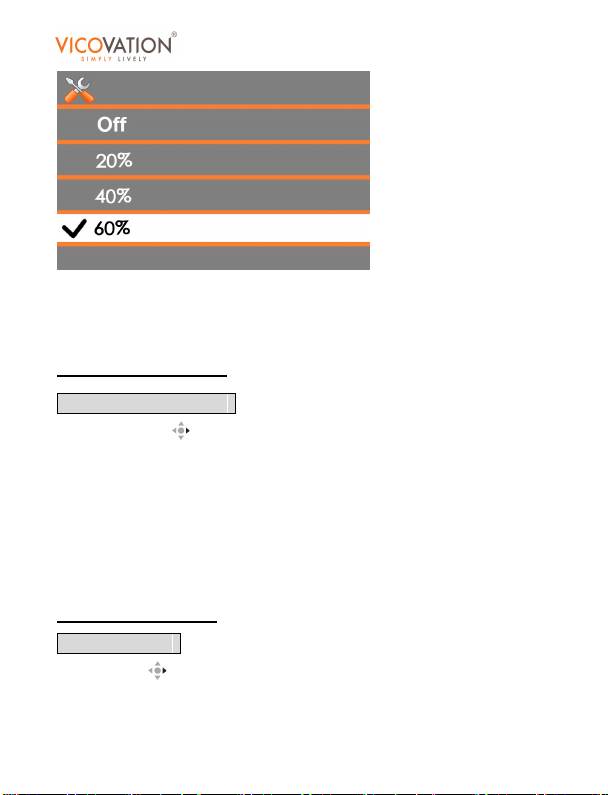
You may select different volume value for key beep and playback
volume, including 20%, 40%, 60%, 80%, 100%.
Default setting is 60%.
Automatic Recording
Press Right Key to enter sub menu. You may choose On/Off.
Turn On: Vico-DS2 will enter recording mode automatically after
power on the device. Exit from Setup Menu/Playback Mode will also
enter recording mode automatically.
Turn Off: Vico-DS2 will stay in stand-by live mode after power on, you
have to press Rec Key to manually start recording.
Default setting is On.
Image Inverse
Press Right to enter sub menu.
Vico-DS2 provides two brackets for flexible installation. When the
Full HD
car camcorder
44 / 53 Copyright© VicoVation®
Page 45
Vico-DS2
suction bracket is adhered to the dashboard, this function can make
sure the recording image is correct.
Default setting is Off.
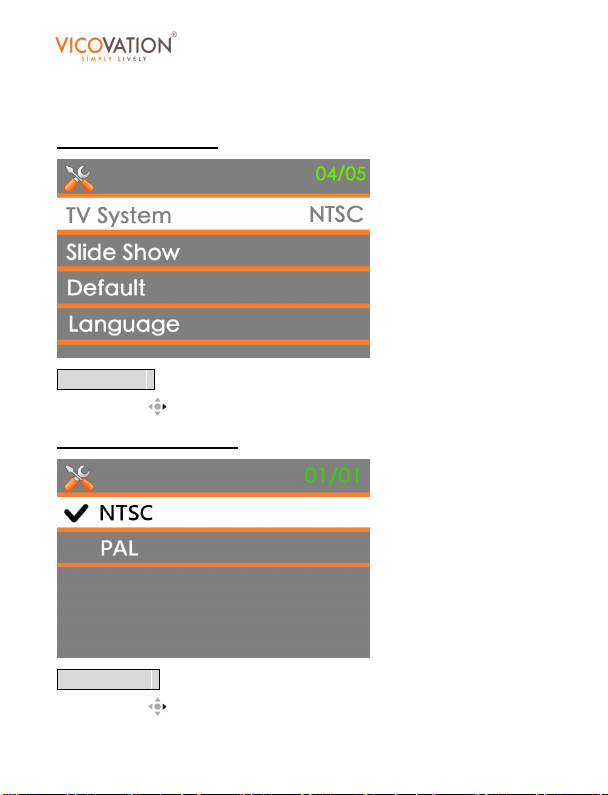
TV system
Press Right to enter sub menu.
Default setting is NTSC.
Slide Show
Press Right to enter sub menu.
Full HD
car camcorder
45 / 53 Copyright© VicoVation®
Page 46
Vico-DS2
Select On, in playback mode, the video will continuous display one by
one.
Default setting is Off.
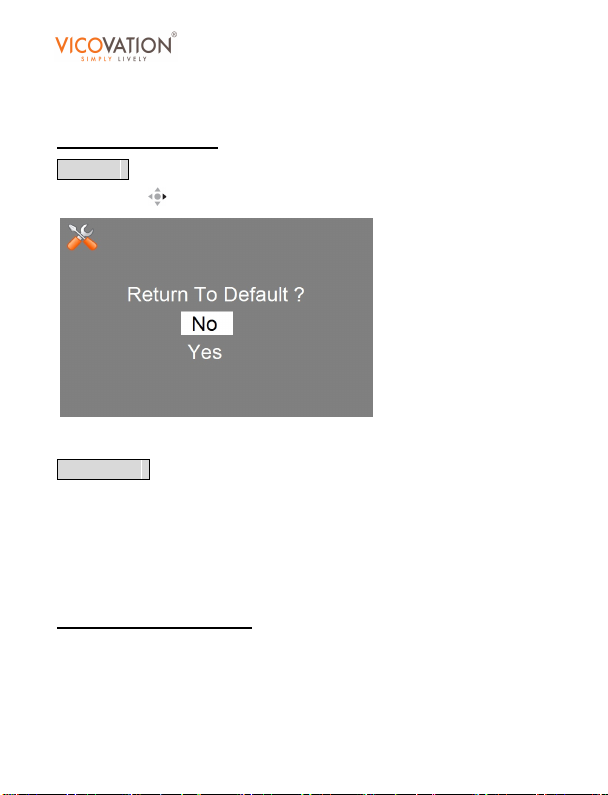
Default
Press Right to enter sub menu.
Select Yes will default all settings.
Language
Vico-DS2 OSD MENU contains 18 languages:
Traditional Chinese, Simplified Chinese, English, Korean, Spanish,
Portuguese, Russian, Dutch, German, French, Italian, Arabic,
Turkish, Swedish, Malay, Thai, Indonesia, Vietnamese.
Default setting is English.
Full HD
car camcorder
46 / 53 Copyright© VicoVation®
Page 47
Vico-DS2
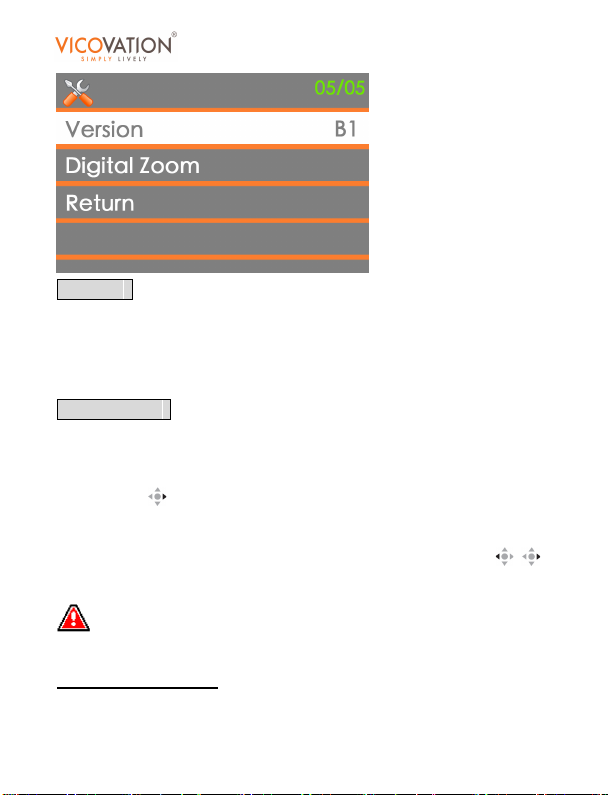
Version
The version info will help us to solve your problems during the
customer service process.
Digital Zoom
This function is not available in 1080p resolution. Please change to
720p to activate this function.
Press Right
Select On, in record mode, the right bottom corner will display
analogue bar to zoom in/out from 1X to 4X. Press Left/Right
to zoom in/out.
When this function is activated, in record mode, the Right/Left
direction will not trigger the emergency record.
Default setting is Off.
to enter sub menu. Select On/Off.
Full HD
car camcorder
47 / 53 Copyright© VicoVation®
Page 48
Vico-DS2
Full HD
car camcorder
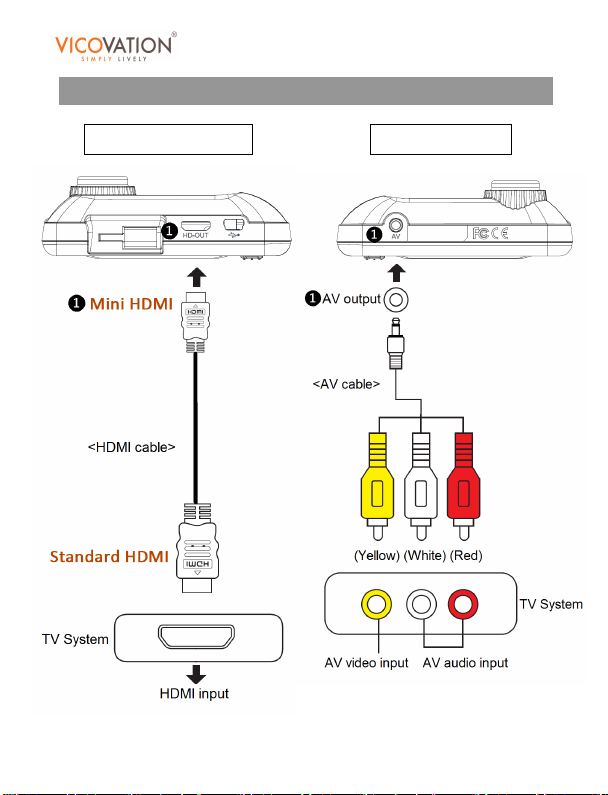
TV connection
HDMI connection AV connection
48 / 53 Copyright© VicoVation®
Page 49
Vico-DS2
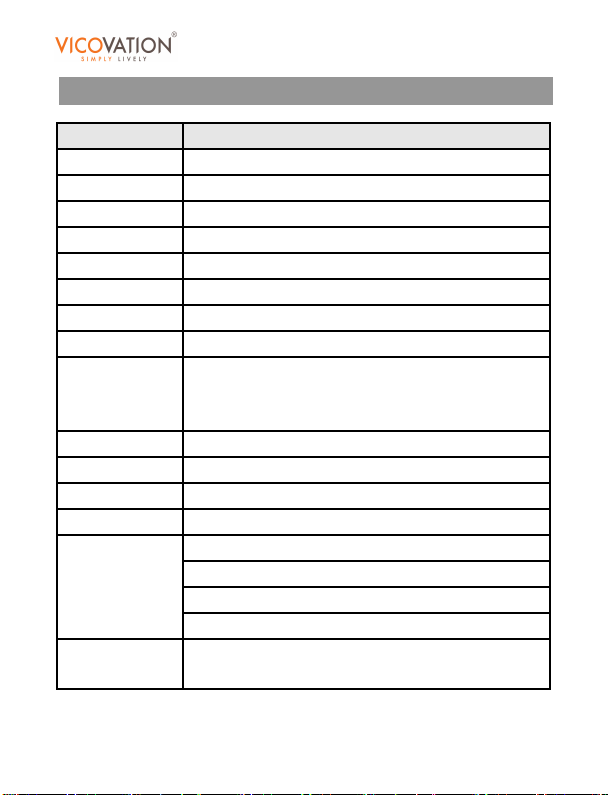
Model
Vico-DS2
Lens
F/2.0, 6G Megapixel lens
Sensor
5 Megapixel CMOS
View angle
120º
LCD monitor
2.4" TFT LCD
Output
HDMI / AV / USB2.0
Audio
Video/audio sync. Recording / mute
Certifications
CE / FCC / BSMI (D33I02)
Compression
H.264 @ .AVI file
1280 x 720 @ 30FPS
Storage
Built-in 32M memory / SDHC card up to 32GB
Frequency
NTSC / PAL
Language
English / Chinese / Japanese / total 19
Power
USB / cigar charger
Auto recording / seamless circular record
G-sensor Emergency record / File protection
Image inverse / Date stamp / Vico Tag
4X digital zoom (1080p mode not available)
USB cable / user’s manual / quick guide
Full HD
car camcorder
Specifications
Max. 1920 x 1080 @ 30FPS (Default)
Resolution
Humane Tech.
1280 x 720 @ 60FPS
Accessories
4 meter cigar charger / bracket x 2 / AV cable /
49 / 53 Copyright© VicoVation®
Page 50

Vico-DS2
Full HD
car camcorder
Safety Instructions
Improper use of Vico-DS2 may cause problems, please follow safety
instruction for more information.
Safety Instructions:
1. Do Not put any other things into Vico-DS2, it may damage
product. If Vico-DS2 drops into Water or other liquid, please
power-off and return for RMA repairing asap.
2. Do Not fall Vico-DS2 to the ground, it may damage product
seriously.
3. Keep Vico-DS2 away from high humidity and dust.
4. Do Not Disassemble Vido-DS2 by yourself. It may break the
normal warranty of product.
5. Do Not use any chemical cleaner to clean Vico-DS2. It may
cause product color change.
6. Do Not remove Vico-DS2 as USB device when data
transmitting with PC. It may damage files or memory card.
7. Do Not Remove SDHC card while recording. It may
damage files or memory card.
8. For your Safety, please do not operate Vico-DS2 while
driving, or while car is still moving.
50 / 53 Copyright© VicoVation®
Page 51

Vico-DS2
Full HD
car camcorder
FAQ
Q The vehicle engine is on while Vico-DS2 doesn’t start
recording.
A Firstly check whether the MENU setting => automatic
recording is off.
Please make sure you use VICOVATION® cigar charger.
If you use VICOVATION® cigar charger:
Please check whether LED on the left of monitor is lighting.
If it’s red, please try to press power. Maybe it’s just LCD off. If
the screen doesn’t display, the LCD monitor might be broken.
If LED light doesn’t work, please check whether the cigar
charger is working with LED on. It might be due to broken
cigar charger, broken power socket, or bad contact.
If the cigar charger is working with LED on, it might be due to
bad contact of USB cable with Vico-DS2 or hardware
damage.
If you don’t use VICOVATION® cigar charger:
Vico-DS2 might be damaged by unstable power, or the
operation will be odd.
Q The video image is blurry.
A Please clean the lens or the window. If Vico-DS2 drops to the
51 / 53 Copyright© VicoVation®
Page 52

Vico-DS2
floor, it might cause the bad lens connection with mainboard
and effect the image quality.
Q The image is shaking seriously while the vehicle is moving.
A Please check whether the bracket is fixed tightly.
Q The video plays back choppy.
A Please copy the files to PC and do not play back videos
directly off the SD card.
Dual core CPU, 512M RAM, VLC player or Windows Media
player are recommended.
Q If the power suddenly off, will the video file be corrupted?
A Vico-DS2 applies super capacitors. The sudden power-off
will not effect the file packing.
Q How long can Vico-DS2 keep recording after power source is
removed?
A The super capacitors can only sustain Vico-DS2 to close file,
save it, and power off correctly. The video recording will stop
right after the power source is removed.
Q In playback mode, some file shows a blue exclamation mark.
A It means the file is corrupted. Please do not remove the SD
card during recording. This will cause the file not to be
packed and to be corrupted.
Full HD
car camcorder
52 / 53 Copyright© VicoVation®
Page 53
Vico-DS2
Q How to remove 3M sticker bracket from my window?
A Please use alcohol or acetone to slowly remove it.
Q Video shows glittering light.
A Check the TV system to make sure it suits the light frequency
of the area.
Q My PC can not play the video files.
A Recording file is defaulted as 1920x1080 @ .AVI format. If
your PC can not decode the file, please download the
necessary codec or upgrade the media player.
Full HD
car camcorder
53 / 53 Copyright© VicoVation®
 Loading...