

Page 1
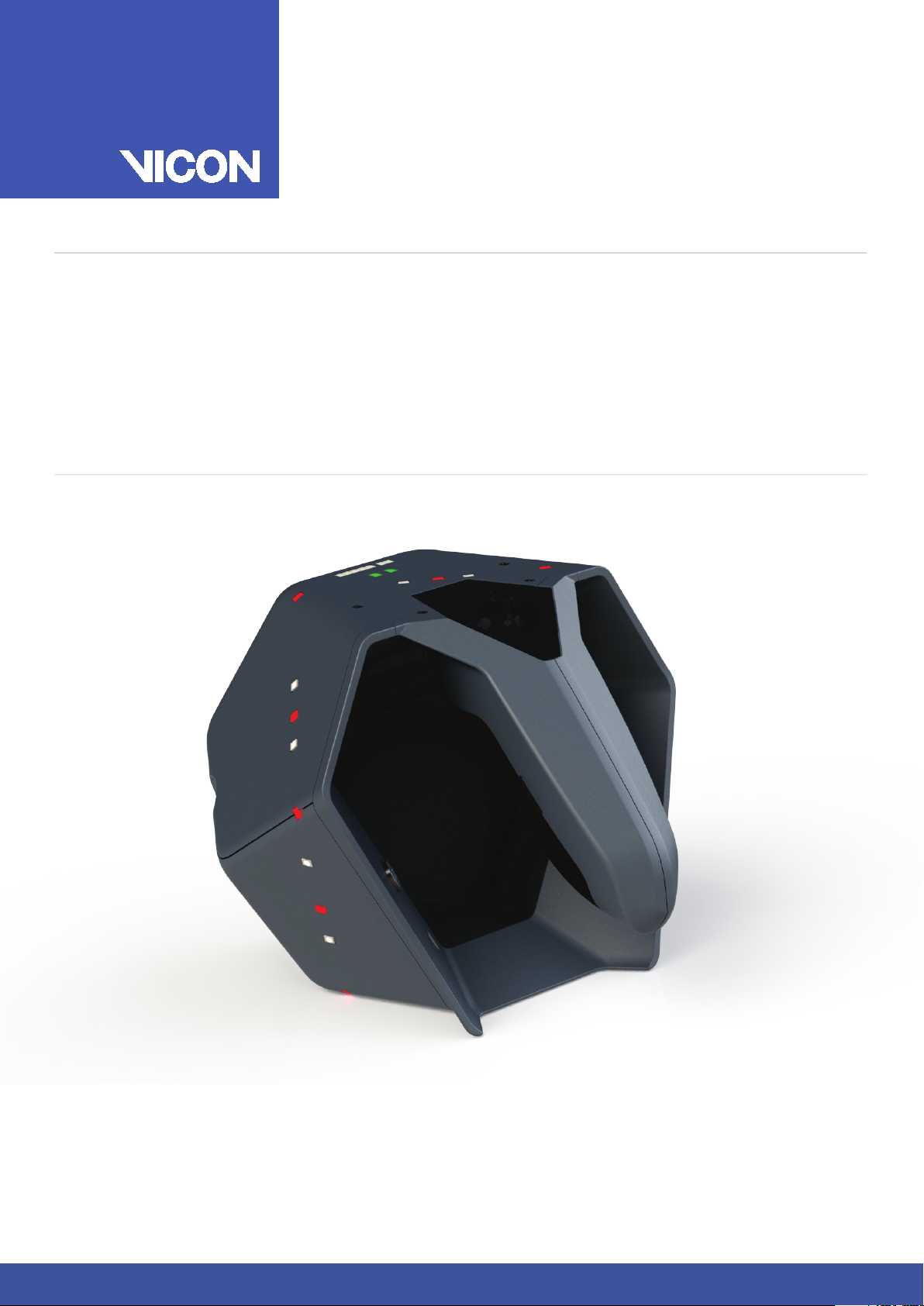
Vicon Apex
User Guide
Reliable.Responsive.Precise
Page 2
User Guide
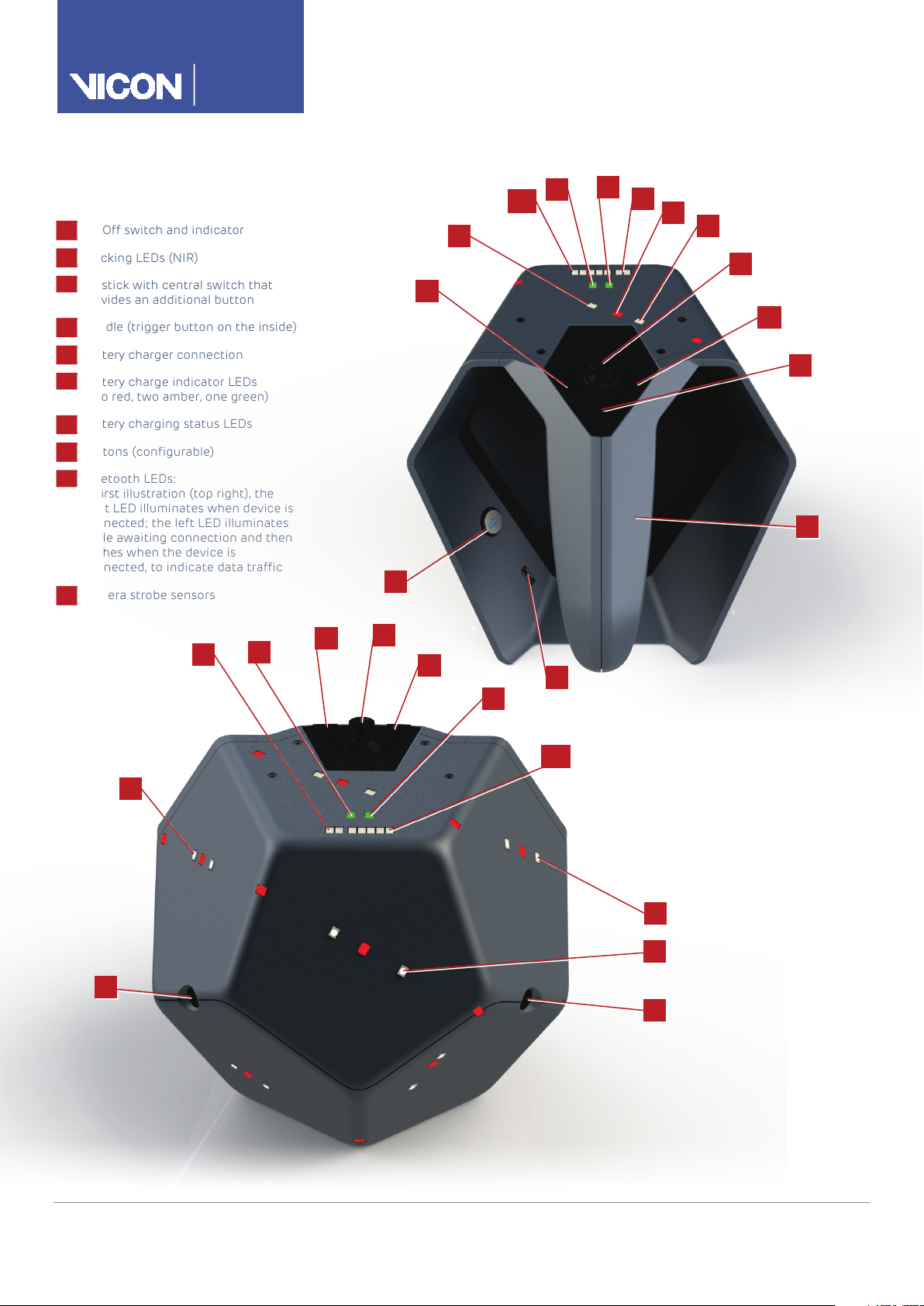
Apex controls
01
On/Off switch and indicator
02
Tracking LEDs (NIR)
03
Joystick with central switch that
provides an additional button
04
Handle (trigger button on the inside)
05
Battery charger connection
06
Battery charge indicator LEDs
(two red, two amber, one green)
07
Battery charging status LEDs
08
Buttons (configurable)
09
Bluetooth LEDs:
In first illustration (top right), the
connected, to indicate data traffic
10
Camera strobe sensors
03
10
02
06
07
08
09
08
09
02
05
06
09
08
07
04
03
02
01
08
08
09
02
02
02
10
Apex
right LED illuminates when device is
connected; the left LED illuminates
while awaiting connection and then
flashes when the device is
2 April 2013 Vicon Apex 1.0
Page 3
User Guide
Key benefits
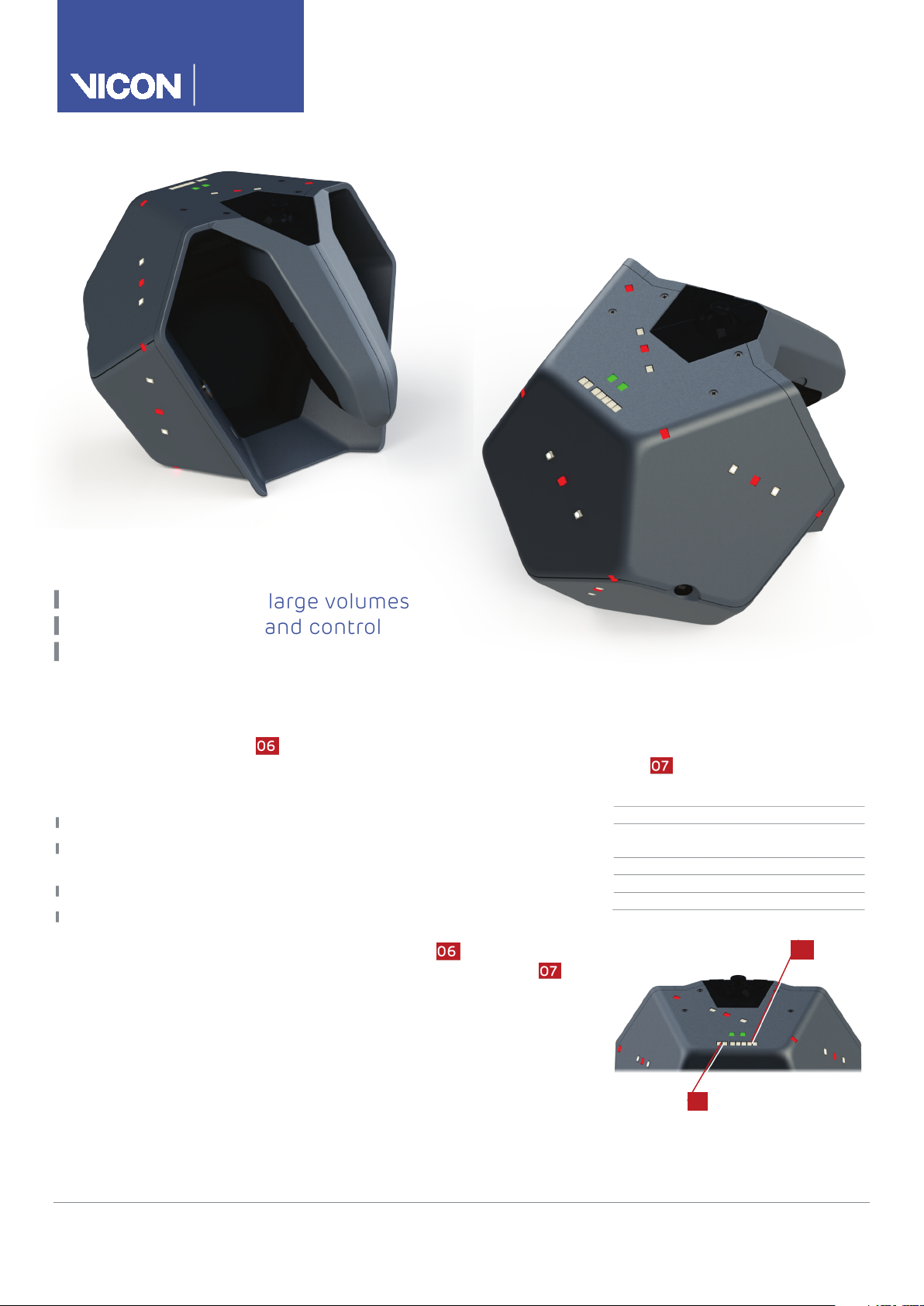
Checking the battery
When you turn on the
battery charge indicator
illuminate
seconds
charge in the battery:
Tip:
while using the Apex, simultaneously
press the two buttons on either side
of the joystick.
The battery charge indicator LEDs
illuminate, as described above.
Charging the Apex
Note: You cannot use the Apex while
it is charging.
battery, turn off the
Monitoring the battery charging status
Amber
Green
Status
Off
Off
Not charging/no
connection
On
Off
Charging
Off
On
Charge complete
On
On
Replace battery
To charge the battery:
07
06
Apex
Reliable tracking in large volumes
Flexible navigation and control
Plug and play
Apex, the
LEDs
for approximately five
to indicate the amount of
Red LEDs only: Recharge needed
Red plus amber LEDs: Less than
fully charged.
All five LEDs: Fully charged
No LEDs: Fully depleted
To check the battery status
Before charging the
Vicon Apex 1.0 April 2013 3
Apex.
1. Plug in the supplied Apex battery
charger.
Note: To charge the Apex, you can
use the supplied adaptor or any
micro-USB to USB 2.0 adaptor.
2. Insert the charger connector into
the Apex and leave it to charge.
Note: A full recharge takes up to
six hours, depending on the
charger used. To ensure the
battery is fully charged, leave it
charging until the five battery
charge LEDs and the amber
battery charging status LED
are no longer illuminated, and the
remaining battery charging status
LED is green.
3. When the battery is fully charged,
detach the charger.
The battery charge indicator LEDs
stay lit for about five seconds.
A fully charged Apex operates for
about seven to eight hours, unless it
is in Continuous mode (see page 4).
When the Apex is connected to a
charger, the battery charging status
LEDs
current charging status:
indicate the battery’s
Page 4
User Guide
Replacing the Battery
Warning:
battery, turn off the
To replac
1.
2.
3.
4.
5.
6.
7.
01
01
3.
brightness of the LEDs, and enable
discharged more quickly than using
and use
4.
to remember the
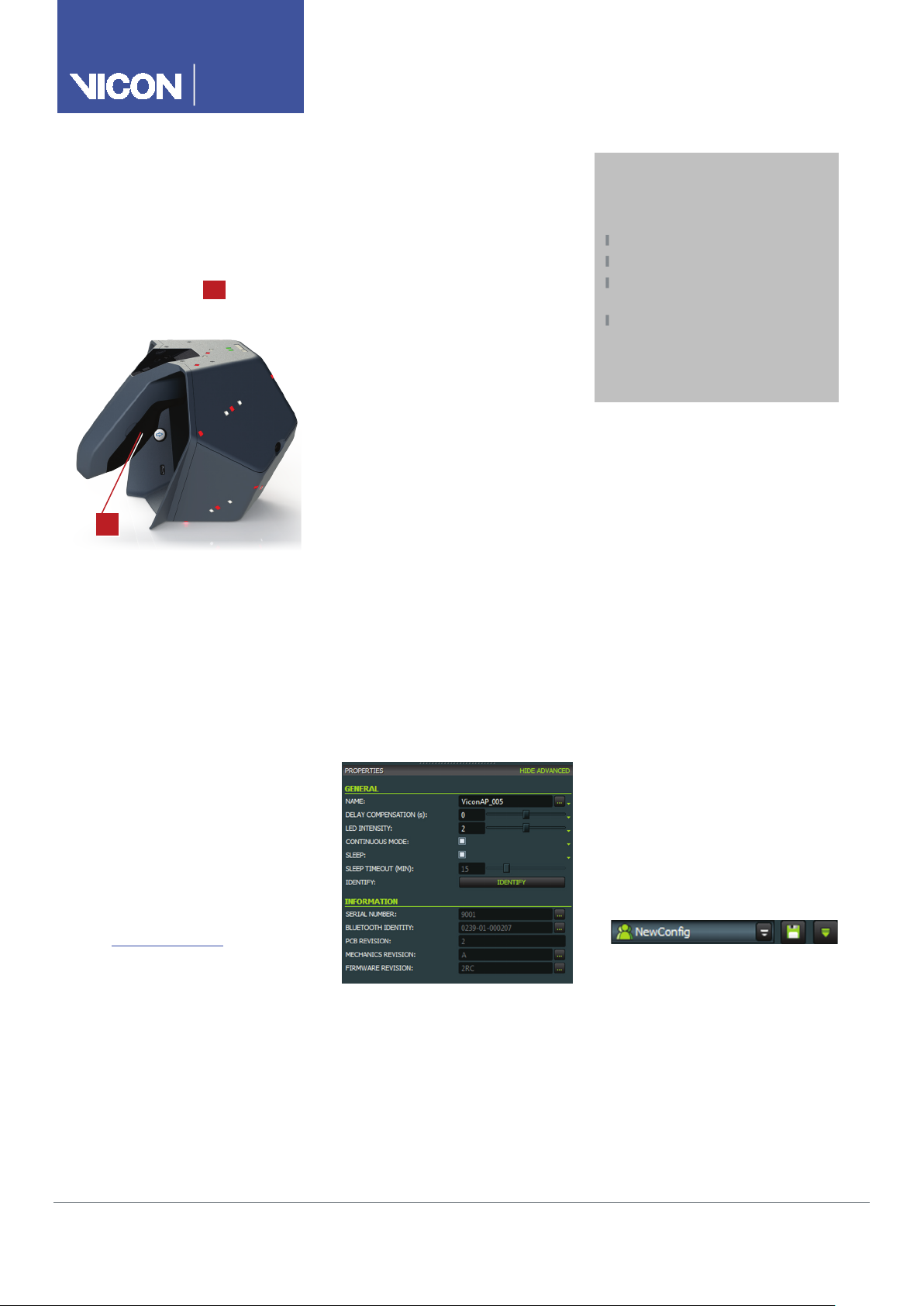
Using an Apex with Vicon Tracker
dialog box,
Apex
Before replacing the
Apex.
e the battery:
To remove the battery
compartment cover, squeeze the
back of the handle and push
it towards the inside of the Apex.
Remove the old battery.
Place the new battery into the
battery holder.
Replace the battery compartment
cover on the inside of the handle
and ensure it is snapped shut.
Turn on the Apex and run it until
the battery is flat. To speed up
this process, connect to the
device in Tracker and enable
Continuous Mode in the
Properties pane as described in
the following section,
Apex with Vicon Tracker
Fully recharge the Apex (see
page 3).
This enables it to calculate the
battery life.
To order replacement batteries,
email
Using an
Important: To enable Apex and
Tracker to communicate, you must
use the supplied Bluetooth dongle
with the standard Microsoft
Bluetooth stack and drivers on
the PC.
To use an Apex with Tracker:
1. Charge the Apex and switch it on
in the capture volume.
2. To ensure that the standard
Microsoft Bluetooth stack and
drivers are installed on the PC,
plug the supplied Bluetooth
dongle into the PC and restart
the PC.
3. Start Tracker.
4. To add the Apex to the current
configuration, in the System list,
right-click Other Devices and then
click Add Apex Device.
5. In the Add Apex Devices
select the device and click Add.
To change Apex properties:
1. In the System list, make sure the
required Apex is selected.
2. To see all the settings, if
necessary, at the top right of the
Properties pane, click Show
Advanced:
Warning: This product contains a
lithium ion battery.
Do not incinerate the battery.
Do not disassemble the battery.
Do not short the battery
terminals.
Do not expose the product or
the battery to high
temperatures (140°F/60°C).
In the Properties pane, you can
change the name of the selected
device, alter the delay
compensation, adjust the
the LEDs to be on continuously,
instead of being strobed.
You can also cause the handle of
the selected device to vibrate by
clicking Identify.
Tip: Use of Continuous Mode
causes the battery to be
strobe mode. To reduce power
consumption, select Sleep,
the Sleep Timeout controls to
specify the number of minutes of
inactivity after which the device
will turn off the tracking LEDs.
When you touch the joystick or
buttons, the LEDs are reactivated.
To enable Tracker
device that you have added for
future sessions, save the current
configuration using the
configuration management controls:
4 April 2013 Vicon Apex 1.0
Page 5

User Guide
Apex
Federal Communications Commission
This device complies with Part 15 of the FCC Rules. Operation is subject to the following
two conditions:
(1) this device may not cause harmful interference, and
(2) this device must accept any interference received, including interference that may
cause undesired operation.
This equipment has been tested and found to comply with the limits for a Class B digital
device, pursuant to Part 15 of the FCC Rules. These limits are designed to provide reasonable protection
against harmful interference in a residential installation. This equipment generates, uses and can radiate radio
frequency energy and, if not installed and used in accordance with the instructions, may cause harmful
interference to radio communications. However, there is no guarantee that interference will not occur in a
particular installation. If this equipment does cause harmful interference to radio or television reception,
which can be determined by turning the equipment off and on, the user is encouraged to try to correct the
interference by one or more of the following measures:
• Reorient or relocate the receiving antenna
• Increase the separation between the equipment and receiver
• Connect the equipment into an outlet on a circuit different from that to which the receiver is connected
Consult Vicon Motion Systems Limited or your local agent, or an experienced radio/TV technician for help.
Caution
Changes or modifications not expressly approved by Vicon Motion Systems Limited could void the user's
authority to operate the equipment.
EMI
FCC CFR47 Part 15, Subpart B: 2011 Class B.
This device contains:
FCC ID: PVH0925
IC: 5325A-0925
Industry Canada Compliance
Industry Canada ICES-003 Compliance Label:
CAN ICES-3 (A)/NMB-3(A)
Vicon Apex 1.0 April 2013 5
Page 6

User Guide
"2.4GHz band wide band low power data communication
system"
Apex
Japan Radio Equipment Compliance (TELEC)
The cB-0925 module with the product name cB-OBS411 contained within the Vicon Apex device complies with
the Japanese Technical Regulation Conformity Certification of Specified Radio Equipment (ordinance of MPT
N°. 37, 1981), Article 2, Paragraph 1, Item 19,
. The cB-0925 MIC certification number is 204WW11100300.
Japan Radio Certificate
The Vicon Apex Japan Radio Certificate is appended to this document.
Within the European Union
Restriction of the Use of certain Hazardous Substances in Electrical and Electronic
Equipment (RoHS)
The Vicon Apex hardware is fully RoHS-compliant. The European Union Directive 2002/95/EC provides that
new electrical and electronic equipment put on the market for the first time from 1 July 2006 shall not contain
more than permitted levels of lead, cadmium, mercury, hexavalent chromium, polybrominated biphenyls (PBB),
or polybrominated diphenyl ethers (PBDE).
Waste Electrical and Electronic Equipment (WEEE)
The use of the symbol indicates that this product may not be treated as household waste. By
ensuring this product is disposed of correctly, you will help prevent potential negative
consequences for the environment and human health, which could otherwise be caused by
inappropriate waste handling of this product.
For more detailed information about the recycling of this product, please contact Vicon Motion
Systems Limited or your nearest agent.
6 April 2013 Vicon Apex 1.0
Page 7
User Guide
Electromagnetic Compatibility to:
R&TTE Compatibility to:
General Requirements for Safety to:
Apex
Declaration of Conformity
Electromagnetic Compatibility to EMC Directive 2004/108/EC
the Radio and Telecommunications Equipment Directive 1999/5/EC
and General Requirements for Safety.
We, Vicon Motion Systems Limited
Unit 14 Minns Estate
Oxford OX2 0JB
United Kingdom
Declare that the Vicon Apex manufactured by VICON Motion Systems Limited has been designed and
manufactured within the ISO9001:2008 Quality Management System assessed by Lloyd’s Register Quality
Assurance for the design, manufacture and support of motion capture systems.
VICON MOTION SYSTEMS LIMITED has tested and demonstrated that the product meets 2004/108/EC and
1999/5/EC:
EN60601-1-2:2007 and EN301489-17v2.1.1 (EN301489-1v1.8.1)
EN 61000-6-2 (2005)
EN300328v.1.7.1 & EN301-893 v.1.4.1 ERC 99-23 DFS/TPC
EN60601-1:2006
R&TTE Health Requirement article 1(a) referring to EN50371:2002.
Thomas Shannon PhD FIE (Aust), CPEng (Biomedical)
Director of Regulatory Compliance
st
1
October 2012
Not for use in an operating theatre anaesthetic gas or oxygen-rich environments. Not for use where there is a
risk of compromising the essential performance of medical electrical equipment. Not suitable for use in high
magnetic flux, ionising radiation, sterile, or life- or safety-critical environments.
Vicon Apex 1.0 April 2013 7
Page 8

Contents list
© Copyright 2013 Vicon Motion Systems Limited. All rights reserved. Vicon® is a registered trademark of OMG plc. Vicon Apex™ and Vicon Tracker™ are trademarks of OMG plc.
Other product and company names herein may be the trademarks of their respective owners. Vicon Motion Systems is an OMG plc c
UK registered no. 1801446
Denver
7388 S. Revere Parkway, Suite 901
Centennial, CO 80112 USA
T: +1 303 799 8686
F: +1 303 799 8690
The following components are included in your Vicon Apex package:
Vicon Apex device
Bluetooth dongle
USB power supply
USB-to-micro USB cable
Contacts
For further information, contact
your nearest Vicon office or email
facebook.com/vicon
twitter.com/_vicon
youtube.com/vicon100
Vicon Motion Systems
Lo
s Angeles
3750 S. Robertson Blvd, Suite 100
Culver City, CA 90232, USA
T: +310.437.4499
F: +310.388.3200
ompany.
Oxford
Unit 6, Oxford Industrial Park
Mead Road, Yarnton
Oxford, OX5 1QU, UK
T: +44.1865.261800
 Loading...