

Page 1
Congratulations for purchasing this ne piece of riding gear to complement the spirit of your ride, regardless of
whether you are riding for pleasure or daily commute. It is always exciting to ride and feel the freedom on your
coveted machine and with friends!
All of us at VERTIX
TM
thank you (and your friends too!) for choosing this product which we believe delivers the
best performance and value to augment your riding pleasure. ENJOY!
Raptor-i Wireless Helmet Communicator
TAME THE NOISE, NOT YOUR SPIRIT!
IMPORTANT NOTICE
INTRODUCTION
WHAT YOU SHOULD HAVE
FUCTIONS
INSTALLATION
1
2
3
3
5
OPERATON AND USE
MODE PRIORITY
USING MOBILE PHONE
USING INTERCOM
6
9
10
11
USING MUSIC PLAYER
SPECIFICATIONS
TROUBLE-SHOOTING FAQS
TERMS AND CONDITIONS
OF LIMITED WARRANTY
12
12
CARE FOR YOUR RAPTOR
13
13
13
REFUND OPTION
18
CONFORMITY NOTICE
18
WARRANTY INFORMATION
19
TABLES OF CONTENTS
19
CERTICATE OF OWNERSHIP
THIS PROVES THAT
NAME
IS THE OWNER OF
MODEL NUMBER AND SERIAL NUMBER
DATE OF PURCHASE
*Please keep your receipt for warranty claims
This Product was purchased from :
Please read IMPORTANT Terms and Conditions
of Limited Warranty inside this user manual.
To activate your warranty, please log-in and register at : www.vertix.com.sg/warranty
www.vertix.co m.sg
For more infomation please contact us at support@xtreme- dsp.com
WARRANTY INFORMATION
User Manual
RAPTOR-00-02-10 Rev 2.0
B12
Page 2

The VERTIX™ Raptor series is a wireless 2.4GHz system designed for easy retrot on helmets. It allows you to
conveniently access audio entertainment, navigation information and communications when wearing your
helmet. The Raptor-i works with most mobile phones, GPS navigation devices and music players equipped with
Bluetooth® technology.
Your Raptor-i is designed with a high quality rubberized double injection molded outer membrane capable of
withstanding weather conditions you are accustomed to while riding or may encounter on longer journeys;
such as heavy rain, hot and cold temperatures. The Raptor-i is aerodynamically designed and when properly
installed will minimize turbulence and drag at high speeds, reducing disturbances and discomfort to the rider.
The Raptor-i comes with your choice of a boom or wired microphone headset with specially tuned speakers to
deliver high quality audio for your music and communications experience. With the Raptor-i's Cut-the-Noise™
Digital Signal Processing (DSP) and Automatic Gain Control (AGC) technologies, you are assured of communications quality which allows you to be heard clearly by the other party. Your Raptor-i will work through 20dB NRR
earplugs to ensure you can hear clearly while protecting your ears against very loud wind-noise levels at high
speeds. As the wind-noise level depends on the helmet design, type and brand, the maximum speed which you
can comfortably communicate will vary. As there are 4 dierent independent volume settings for the Raptor-i,
the volume settings will default to the 50% level everytime you Power ON the unit after a FULL Power OFF.
The Raptor-i’s controls are carefully researched, designed and tested for easy feel and operation with riding
gloves. To further improve ease of use, a handle mounted, ergonomically-designed remote control unit will
soon be available to complement your Remote-Ready Raptor-i.
INTRODUCTION
1
2
IMPORTANT NOTICE
Please comply with your local trac laws when using this product and where required, you can
detach one speaker. Safety must always be your top priority. You are advised not to use this
product under conditions which may put yourself or others at risk of injury. Pull over to the road
shoulder or a safe location to communicate when required.
Adjust the volume prior to riding for each available mode to your desired level bearing in mind that long
exposure to loud sounds can cause hearing impairments. Users are advised to test and acquaint themselves
with the Raptor’s Automatic Gain Control feature (only for mobile phone calls) which automatically increases
the volume when wind-noise is detected. The use of earplugs is highly recommended for riding speeds in
excess of 100kph (62mph) as wind-noise at high speeds is deafening.
By opening and using this product, you explicitly accept the terms and conditions for its use and should this
product be given or loaned to another user, it is your responsibility to inform the user of the above terms and
conditions of use which shall also be applicable to him/her.
Page 3

FUNCTIONS
WHAT YOU SHOULD HAVE
Main Unit
1) 1 x Raptor-i
2) 1 x USB charger
3) 1 x USB charging cable
4) 1 x Quick user guide
5) 1 x User manual
1) 1 x 2 Speakers + Boom Mic
2) 1 x EZ-Mount™
3) 1 x User Guide
1) 1 x 2 Speakers + Wired Mic
2) 1 x EZ-Mount™
3) 1 x User Guide
Boom Mic Headset Wired Mic Headset
+ or
Mobile phone functions
Voice dialing (dependent on your mobile phone)
Auto call answer (after approx 12s or 3 rings)
Call reject
Call redial
Last number redial
Call Transfer (between your Raptor-i and mobile phone)
Independent mobile phone volume control
Intercom functions
Supports 3 riders
Easy intercom operation
Full duplex conversations
Maximum intercom range up to 500m or 1,640 ft
(for Line-of-Sight conditions)
Independent intercom volume control
Auto switch to mobile phone for incoming calls
FM radio functions
Frequency Range : 76 – 108 MHz
Independent FM Radio volume control
Auto switch to mobile phone for incoming calls
GPS Sat-Nav functions
Receive audio information from your Bluetooth® GPS Sat-Nav unit
Connects with your mobile phone via your GPS Sat-Nav unit (GPS dependent, please consult your GPS Sat-Nav
user manual)
Independent GPS Sat-Nav volume control (please consult your GPS Sat-Nav user manual)
Auto switch to mobile phone for incoming calls
Music player functions
Compatible with Bluetooth® A2DP music players for High Fidelity Stereo music
Compatible with Bluetooth® AVRCP for music control functions (Next Track, Previous Track, Volume control)
Independent Music volume control
Auto switch to phone for incoming calls
NOTE : For Next Track, Previous Track and volume control to work, your mobile phone or media player MUST
support AVRCP (Audio Video Remote Control Protocol).
3
4
Page 4
INSTALLATION
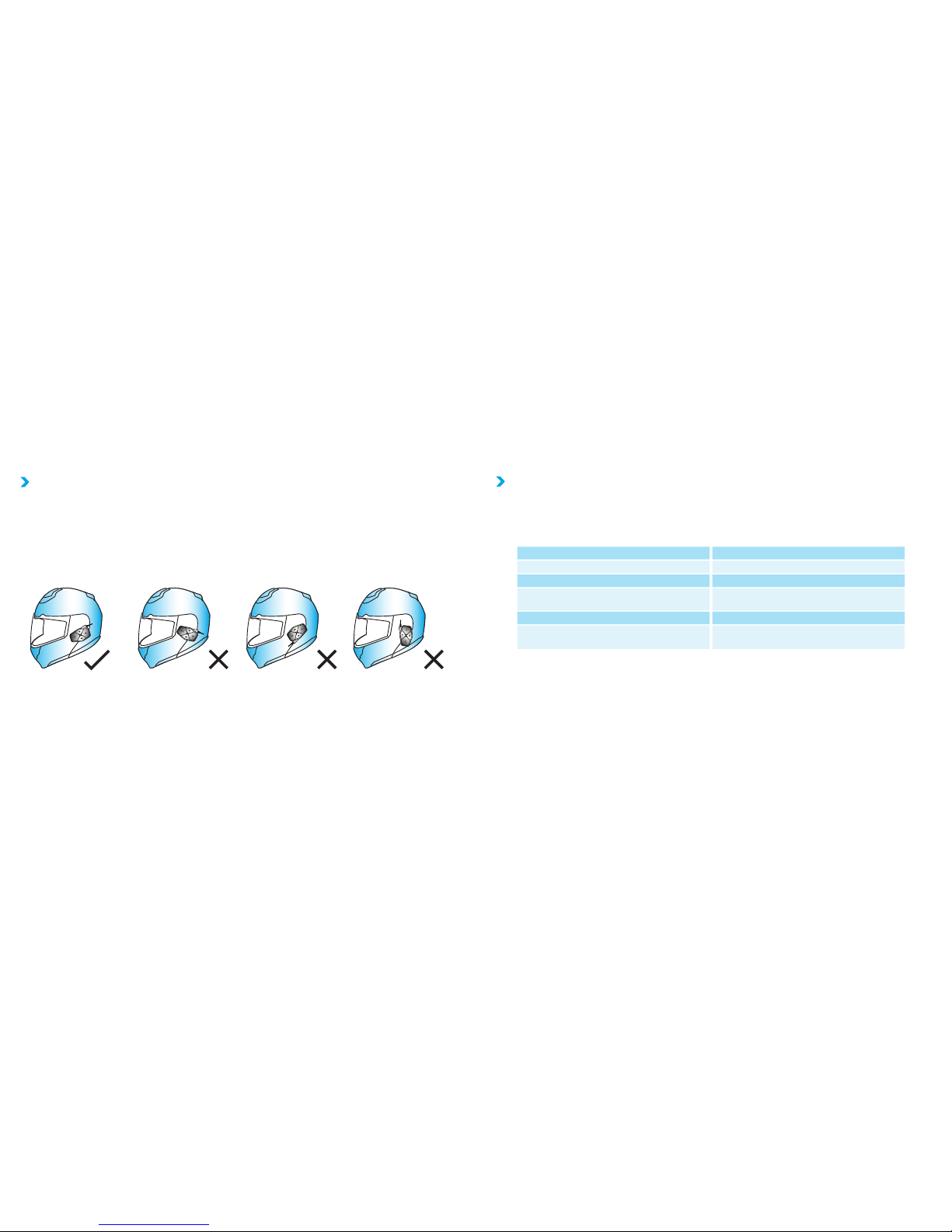
The Raptor-i can be installed on any helmet without aecting structure or nish. The EZ-Mount™ system
provides for a simple and secure means of mounting and removing your Raptor-i unit. You can also perform
aerodynamic adjustments of the Raptor-i’s attack angle to suit your riding posture on the motorcycle you are
riding.
** The Quick Start Guide will help you get started on using your Raptor-i in no time. Do also try to acquaint
yourself with this user guide to explore other functions which may be useful.
Adjusting Optimum Angle of Attack
OPERATION AND USE
Always prioritise your riding or activity above phone calls or entertainment. It is recommended to pull over and
stop current activity before answering or having a conversation. Always ride carefully and abide with the laws in
your area.
5
6
Note : You can adjust the angle of attack for your Raptor-i with no limitation on your desired angle of tilt. What
you need is to ensure the EZ-Mount™ contact for your Raptor-i and helmet is maximized. You can do this by
aligning the EZ-Mount™ on your helmet with your Raptor-i for maximum contact with each other (75% or more
would be good). To check, simply feel the force of trying to snap the Raptor-i o from your helmet and if you
cannot push if o easily (like the wind pushing against your Raptor-i from the front edge), you are good. The
EZ-Mount™ has been tested to securely hold your Raptor-i for speeds up to 220kph (136mph) when properly
mounted.
WHEN YOU SEE IT MEANS
What the Sounds Generally Mean
POSITIVE : Short high pitched tones (single or double “TEE” sounding tones) means connection OK, intercom
connected, pairing OK, etc
NEGATIVE : Longer low-pitched tones (single or double “TOO” sounding tones)means connection failure,
connection terminated, unsuccessful pairing, etc.
No lights
Red/Blue lights ashing alternately
Blue light with short ash every 3 seconds
Blue light with longer ash every 3 seconds
Red light ashing every 3 seconds
Steady Red light (when charger is connected)
and when the Red light goes o
The Power is OFF
You are in Pairing mode
The set is in Standby mode
The set is connected with your mobile phone
and is ready for use
The Battery is low
Your Raptor-i is being charged
Your Raptor-i is fully charged
Page 5

Turning On
Press and hold the ON-OFF / INT button. Release the button when you see the BLUE light starting to ash (after
approximately 4 seconds). The speaker will sound an audio warning (long high pitch beep followed by one or
two short high pitched beeps – 2 short beeps means it is connected to a paired device).
Turning O
Press and hold the ON-OFF / INT button. Do not release until you hear an audio warning (2 short low pitched
beeps followed by 1 long higher pitch beep) and both RED and BLUE lights are turned OFF.
BLUETOOTH® Pairing
The Raptor-i is compatible with Bluetooth® technology used for pairing mobile phones, music players and
between Raptor-i headsets.
Pairing Mode
Make sure your Raptor-i is OFF.
Press and do not release the ON-OFF / INT button until you see both Blue and Red lights ashing alternately.
You should hear a long high pitch tone followed by 2 low pitched tones. Your Raptor-i is now in Pairing Mode.
Note that the unit will automatically exit the Pairing Mode in about 60 seconds if pairing is not completed or
unsuccessful. Repeat again if this happens.
Mobile Phone Pairing
With the Raptor-i in Pairing Mode, turn ON your mobile phone’s Bluetooth® and search for devices. Please
refer to your mobile phone’s user manual if necessary.
Your mobile phone should detect “VTX RAPTOR-i".
Select this and enter the code 0000 (zero zero zero zero).
7
8
Note : To use the Raptor-i with a mobile phone and GPS Sat-Nav device at the same time, you will need to utilize
the GPS Sat-Nav unit’s phone function. Please refer to your GPS Sat-Nav user manual for more infomation.
Intercom Pairing
Switch OFF all Raptors-i near you if possible.
Bring the 2 sets you would like to begin pairing close to each other.
Put them into Pairing Mode. You will see Red and Blue ashing lights on BOTH sets.
Press the ON-OFF / INT button briey on ONE of the Raptor-i to initiate pairing.
When both Raptor-i show only a Blue ashing light, the pairing is completed and INTERCOM is established
between the 2 sets. Test by talking to conrm.
Repeat the process to pair using one of the units you just paired with another Raptor.
NOTE: Each Raptor-i unit can only pair with 2 other Raptor-i units. The last 2 sets to pair will have a higher priority
and a single INT button press on either of these 2 units will connect them together. The 3rd or last set to pair will
require 2 INT presses to communicate with either of the 2 earlier sets.
Music Player Pairing
Refer to Mobile Phone Pairing
GPS Sat-Nav Pairing
Models such as the Garmin® Zumo 500 and 600 series supports pairing with your mobile phone and oers an
easy and convenient way for you to enjoy both mobile phone and GPS Sat-Nav functions on your Raptor. Please
see your GPS Sat-Nav user manual on setting up and if the phone function is supported.
For GPS Sat-Nav devices without the integrated mobile phone feature, you will have to decide which one takes
higher priority as Raptor-i can only support ONE High Priority device, you may wish to note that most older or
entry level GPS Sat-Nav devices does not support phone pairing.
Page 6

Please note that only ONE (1) function or mode can be used or be ACTIVE at any time. Commands to the
Raptor-i to switch modes manually or automatically by incoming mobile or intercom calls will follow the priority
set out below:
Mobile phone commands
Highest Priority and will be switched over regardless of your current mode in use.
Intercom commands
Middle Priority. Will be switched over if you are listening to Music, FM Radio or GPS announcements.
GPS Sat-Nav commands
Priority depends on the GPS Sat-Nav device. GPS Sat-Nav models which support mobile phone pairing will be
accorded Highest Priority. Please consult your GPS Sat-Nav user manual.
Music, FM radio
For Music (MP3) and FM radio, it is best to turn OFF one before activating the other. As example, while in Music
(MP3) mode and you want to switch to FM radio, do a quick single press to turn OFF the Music (MP3) rst, then
do a quick double press to turn ON the FM radio.
You need not do this for incoming mobile or intercom calls as the Music (MP3) or FM radio will be automatically
switched out and resume after you end your mobile phone or intercom conversation.
MODE PRIORITY (Mobile Phone/Intercom/GPS/MP3 and FM)
USING MOBILE PHONE
The mobile phone has the highest priority order amongst all of the available functions. (See “MODE PRIORITY”)
Answer Call
When a call comes in, the speaker will emit the mobile phone’s ring tone. To answer, simply press and release
the call control button. Alternatively, you may leave it to ring and the auto pick up will answer after
approximately 12 secs or 3 rings.
Reject Call
When a call comes in, the speaker will emit the mobile phone’s ring. To reject the call, press and hold the call
control button for about 2 secs, release when you hear a low pitched “TOO” sound.
End Call
To end a call, simply press and release the call control button
Transfering Call between your Raptor and mobile phone
While you are on the call, press and hold the CALL CONTROL button for 2 secs. Your call will be transferred to
your mobile phone. To transfer back to your Raptor, simply do the same, ie hold the CALL CONTROL button for 2
secs.
Voice Call
Some mobile phones have Voice Control functions. To activate the Voice Control, press the “VOL UP“ button
twice quickly.
Volume Adjustment
To adjust the volume, press and hold the VOL UP or VOL DOWN buttons until the desired volume is reached.
NOTE: When Maximum volume is reached, you will hear 2 low pitched beeps
9
10
Clearing All Paired Devices
With the Raptor turned ON, you can clear all devices paired on your Raptor by pressing the CALL CONTROL and
VOL DOWN button together until you see 2 RED ashes.
Page 7

Any paired Raptor-i unit can activate the Intercom function of the other paired Raptor-i units based on the
command given and the current function priority of the other paired Raptor units. The Intercom has “Middle”
Priority. (See “MODE PRIORITY”)
Enable Intercom (Last communicated or Paired Raptor-i)
To enable intercom function with the last communicated or Paired Raptor-i, press and release the
POWER / INT button once.
To enable intercom function with the 2nd last communicated / Paired Raptor-i, press and release the
POWER / INT button twice.
If the Raptor-i unit is in range and the connection is successful, the speakers will produce a “TOO” sound
followed by a short high pitched beep.
If the connection was unsuccessful, the speakers will produce a long low pitched beep.
Upon successful connection, you may start speaking to the other Raptor-i in Full-Duplex.
NOTE: Any paired Raptor-i unit can activate the Intercom function of the other paired Raptor-i units based on
the command given and the current function priority of the other paired Raptor-i units. The Intercom has
“Middle” Priority. (See “MODE PRIORITY”)
Disable Intercom
To disable intercom function, press and release the POWER / INT button once to disable intercom function. You
should hear a long “TOO” sound.
Volume Adjustment
To adjust the volume, press and hold the VOL UP or VOL DOWN buttons until the desired volume is reached.
NOTE: When Maximum volume is reached, the speakers will produce 2 low pitched beeps
USING INTERCOM
USING MUSIC PLAYER
The Music Player has “Low” priority. (See “MODE PRIORITY”).
Bluetooth® compatible : v2.0 Class 1
Bluetooth® compatible proles : A2DP / AVRCP / HSP / HFP
Pairing : can recall up to 8 devices
Multipoint connection : up to four devices (e.g. 1 mobile phone + 2 intercom + 1 stereo (A2DP)
Frequency range : 2.4000 ~ 2.4835 GHz
Intercom : 3 users, Full-duplex, upto 500m (1,640ft) with Line-of-Sight
Remote Control Ready
FM Radio : 76-108MHz
SPECIFICATIONS
11
12
Play Music
Press and release the CALL CONTROL button once
to start playing Music. (the same applies if the
mobile phone or GPS Sat-Nav device has music
player function). Please consult the User Manual for
your music player device as they may work
dierently.
Previous Track
Press and release the VOL DOWN button.
NOTE : The Raptor-i supports ONE(1) Bluetooth® Stereo (A2DP) player. If your mobile phone is also used as your
music player, you CANNOT connect another Stereo music (A2DP) player.
Next Track
Press and release the VOL UP button.
Volume Adjustment
To adjust the volume, press and hold the VOL UP or VOL
DOWN buttons until the desired volume is reached.
NOTE: When Maximum volume is reached, the speakers
will produce 2 low pitched beeps.
Page 8

When you do not use your Raptor-i for an extended period of time, please charge the battery every 3 months to
keep the battery in a charged state.
Do not use any solvents or de-greasers to clean Raptor-i as it may damage the rubber or plastic body. You can
clean it with a warm damp sponge and neutral soap, if required. Remember to cover the USB charging port and
headset port before your clean the unit to avoid irreparable water damage to the electronics inside.
CARE FOR YOUR RAPTOR-i
Below is a list of commonly encountered issues
Before you contact us, please review the FAQs below and online for updates to help you quickly resolve the
issue and use your Raptor-i. If you are still unable to resolve it, contact your local dealer. If the issue is beyond
them, contact us at [email protected].
1. I cannot Power ON my set
There may not be sucient power. Try charging your battery with the supplied charger and charging cable. The
charging indicator should come on and if it does not, leave it for about 30 mins and check again.
2. There is no sound from my speakers or only one speaker is working
The connector may be loose. Ensure the connector is fully plugged in and the volume is set correctly.
3. My FM radio is unable to tune in properly
Turn the FM radio OFF and then ON again. The FM radio chip uses the wire of your headset as its antenna and
has a lower sensitivity compared to a dedicated FM receiver which you can use indoors. Stretching out the wire
to the detachable speaker as much as possible will help as this is the antenna. It should perform well when you
are riding provided the radio stations are not too far away or blocked by mountains or tall buildings.
TROUBLE-SHOOTING FAQS
13
14
4. I sometimes hear background noise while listening to music from my mobile phone/media player
If the noise is only heard sometimes, it could be due to static or noise from high voltage overhead cables, TV
stations or military radars. If this is not the case, simply turn o your Raptor-i and turn it on again to let it
perform a fresh pairing with your mobile phone/media player. In most cases, this should clear up the problem.
5. I hear echo and/or high-pitched sounds from my speakers
Your microphone may be too close to the speakers. Move it away and check. You may also be too close while
testing with your partner. Try moving further away from each other and try again.
6. I am having intermittent or poor connection with my mobile phone or other devices
Pair with a dierent mobile phone or device rst to conrm if there is a problem with your device. Check if your
battery is weak or there are metallic objects or obstructions nearby. If playing music or FM radio is good, try
using your mobile phone directly to determine if the connection is intermittent as you may be in a poor signal
location. Move closer if the distance between your Raptor-i and the device is too far apart. High voltage power
lines and heavy transformers in the vicinity can also cause such problems. Try moving away from these to check
if this is the cause.
7. I have diculty pairing with my mobile phone
Please conrm you mobile phone is Bluetooth® enabled and supports standard Bluetooth® HSP, HFP, A2DP and
AVRCP proles. Make sure your Raptor-i and your mobile phone are close to each other and enter the PIN code
"0000" (zero zero zero zero) correctly if promted. If you are still unable to pair, you may have previous pairing
information which were visually deleted but are still residing in your mobile phone's memory. Delete all Raptor-i
pairing information from your mobile phone. Consult your mobile phone’s user manual if required. Turn o
your mobile phone completely. Remove the battery and replace it after 20 secs. Turn on your mobile phone and
attempt pairing again. If you are still unable to pair successfully, delete ALL remaining pairing information and
repeat the procedure.
Page 9

a.
b.
c.
15
16
8. My Raptor-i does not automatically reconnect with my mobile phone
Delete all Bluetooth devices on your mobile phone and turn it o. Remove your mobile phone battery and
replace it after 20 secs. Turn on your mobile phone, when ready, turn on Bluetooth and pair your Raptor-i again.
When successfully paired, make sure you set the option for your Raptor-i to “Trusted/Automatic/Auto Connect
Enable/Always Connect/Discoverable”, consult your mobile phone’s user manual if required.
9. My Raptor-i "freezed" or stopped working unexpectedly
This may happen due to strong electromagnetic interference from lightning storms or when you ride through
areas with high RF energy such as high power TV transmitters, military and commercial radars and jammers.
These can overwhelm the electronics and cause your Raptor-i to "freeze". You can "unfreeze" your Raptor-i by
simply charging it for a few secs.
10. I am unable to charge my My Raptor-i
When left unused for an extended period, the battery may be in an over-discharged state. The charging light
may not show when you try to charge it initially. Leave it to charge for an hour and if the charging indicator
lights up, unplug and reconnect the charger. Leave it to charge until the charging indicator turns o.
You may have a faulty charging cable or power adapter. Replace and see if the charging is back to normal.
When your Raptor-i is already fully charged, the charging indicator lamp may not light up or it may light up
only for a while and then go o when you try to charge it again.
11. Can I charge my Raptor-i and use it at the same time?
Yes you can. Your Raptor has been designed with this feature in mind. Make sure you rmly seat the charging
connector on the Raptor to ensure the eectiveness of its water-resistant design. We recommend you use a
good quality portable power pack (Output : USB 5V, 0.5A or higher; Capacity : 1500mAh or higher) to provide
an additional 20 hours of use. You must FIRST connect your power pack to your Raptor BEFORE turning ON
your Raptor. Connecting the charger to an “already ON” Raptor will shut it down immediately. When this
happens, just follow the above procedure.
12. Can I use a Motorcycle cigarette charger?
Although it is possible, we do not recommend this as you may encounter interference such as noise or high
frequency humming sounds on your Raptor’s headset from the motorcycle’s power supply system. Damage
arising from the use of such charging means are not covered under our warranty.
Your Raptor-i unit comes with a 1-year limited product warranty from the date of original purchase. Please retain the retail sales receipt and your warranty
card (registration required) as proof of purchase. This limited warranty by Xtreme DSP Global Pte Ltd (the “Company”) warrants the Raptor-i unit and charger
against defects in material and workmanship under normal use for a period of one (1) year from date of purchase. The Company at its sole discretion, will
repair, replace or refund the purchase price of the product to the original purchaser during the warranty period provided the product has not been damaged
or tampered with and returned in accordance with the terms of this warranty to an authorized VERTIX Service Center or Agent. This warranty excludes
specically all shipping costs and taxes. Repair will be at the Company’s option and may include the replacement of parts, boards or batteries with
functionally equivalent reconditioned or new parts. This limited warranty is solely for the benet of the original purchaser and is not assignable or transferable
to others. This is the complete warranty for your Raptor-i unit and charger. The Company assumes no obligation or liability for additions or modications to
this warranty unless made in writing and approved by an authorized ocer of the Company.
This warranty is void if:
a. The Raptor-i unit has been opened or attempted to be opened by non-authorized parties or personnel.
b. The Raptor-i unit is damaged as a result of attachment or attempted attachment with accessories not provided or approved for use with the Raptor-i .
This warranty does not cover
1. Defects or damage from misuse, accident or neglect.
2. Defects caused by improper operation, maintenance, installation, adjustment or modications of any kind.
3. Defects or damage due to exposure to excessive temperatures and adverse weather conditions where riding is not possible, external impacts or exposure
to corrosive liquids, vapours or substances.
4. Cosmetics of the product, accessories and parts which are scratched or damaged after purchase.
Warranty Service
To receive warranty service, your product MUST BE REGISTERED within 14 days after purchase. You must email the attached Warranty registration card or
details to your Distributor or Agent indicated on the card and also to VERTIX Service Support ([email protected]) who will authorize the repair or
replacement . For services, please present the product, together with your Warranty registration card or details and sales receipt at any authorized VERTIX
Service Center or at the store from which you have purchased the product.
General Provisions
This warranty is given in lieu of all other express or implied warranties, including without limitation, implied warranties of merchantability and tness for a
particular purpose. The Company’s obligations under this section are limited to the duration of this limited warranty.
a. Certain limited-life components that are subject to normal wear and tear, such as decorative nishes, batteries, ttings or other accessories, are exempt
from any warranty.
b. The Company is not liable for any incidental or consequential damages arising from the use or misuse of any of the Company’s products.
c. The user should never attempt to perform service, adjustments or repairs of the Raptor-i unit. Doing so will void all warranties. During the term of the
TERMS AND CONDITIONS OF LIMITED WARRANTY
Page 10

17
18
warranty, all products must be returned to the point of purchase or the authorized VERTIX Service Center for all necessary work at the purchaser’s own cost.
d. The Company is not responsible for any loss or damage incurred during shipping. All repair work on VERTIX products by parties not explicitly authorized by
the Company will void any and all warranties.
e. The information in this Manual is furnished strictly for informational purposes and is subject to change without notice. The Company assumes no liability
or responsibility for any errors or inaccuracies that may appear in this User Guide. The Company retains the right to amend and change its products, manuals
and specications at any time without notice.
Waiver and General Release
By using the Raptor-i product you will waive substantial legal rights including the right to sue. Please read the following carefully before using the device. If
you do not accept the terms of this agreement, you should immediately return the product for a full refund. By using the Raptor-i product you agree to be
bound to this agreement and forfeit the right to sue. Using a communication device while riding a motorcycle, scooter, quad-bike, moped, ATV or any other
vehicle, whether on land, water or air (jointly referred to as “Vehicle”) requires your complete und undivided attention. The Company , including its Ocers,
Directors, Aliates, Parent Company, Representatives, Agents, Contractors, Sponsors, Employees, Suppliers, Distributors and Resellers (jointly referred to as
the “Company”) strongly advises you to take all necessary precautions and remain alert to the trac, weather and road conditions if you chose to use the
Raptor-i product, including all derivative products or models irrespective of its commercial name or branding (the “Device”), and stop your Vehicle on the
roadside prior to operating the device. Any publications, advertisements, announcements or similar notes that refer to using the Device while riding a
Vehicle are solely intended to address its technical capabilities and should not be misconstrued as encouraging users to operate the Device while actively
involved in operating the Vehicle in trac, on public or private roads, racing tracks, beaches, mountains, etc. By way of purchasing the Device and not
returning it for a full refund (see below), you are irrevocably releasing, indemnifying from any liability, loss, claim and expense (including attorneys fees) and
holding the Company harmless for any bodily injuries, harm or death as well as losses or damages in goods, to any Vehicles including your own, or to any
property or asset that belong to you or to third parties, any of which may result from using the Device under any circumstances or conditions and
irrespective of jurisdiction. The Company will not be responsible for any physical damages, irrespective of reasons, conditions or circumstances, including
malfunction of the Device, and all risks associated with operating it rest solely and entirely with the user of this Device, irrespective of whether the Device is
used by the original purchaser or any third party.
Xtreme DSP Global Pte Ltd (the “Company”) hereby noties you that using this Device may also be in contravention to local, federal, state or national laws
or regulations, and that any use of the Device is entirely at your sole risk and responsibility.
1. You, your heirs, legal representatives, successors or assigns, hereby voluntarily and forever release, discharge, indemnify and hold harmless the Company
from any and all litigation, claims, debts, demands, actions and liability which may arise, directly or indirectly, from using the Device for any distress, pain,
suering, discomfort, loss, injury, death, damages to or in respect to any person or property however caused, WHETHER ARISING FROM THE NEGLIGENCE OR
OTHERWISE, and which may hereafter accrue to you on some future date as a result of said use, to the fullest extent permitted by law.
2.You fully understand and assume the risks in using the Device, including risk of negligent acts or omissions by others.
3.You conrm that you are physically capable to use the Device and that you have no medical conditions or needs that may infringe upon your abilities to
do so in a safe manner. You conrm that you are at least eighteen (18) years of age (or of legal age and are legally permitted to ride a motor cycle in your
country of residence) and that you have been advised of the risks associated with the use of the Device. You further conrm that you will not consume any
alcohol or any mind-altering substances that may aect your alertness, and will not carry, use or consume these before or during the use of the Device.
4.You fully acknowledge our warnings and understand that:
(a) risks and dangers exist in using the Device while in trac, including but not limited to injury or illness, strains, fractures, partial and/or total paralysis, death
or other ailments that could cause serious disability;
(b) these risks and dangers may be caused by the negligence of the manufacturers or its agents or any third party involved in designing or manufacturing the
Device;
(c) these risks and dangers may arise from foreseeable or unforeseeable causes. You hereby assume all risks and dangers and all responsibility for any losses
and/or damages, whether caused in whole or in part by the negligence or other conduct of others, including the Company.
5.You conrm that you have read this release of liability and fully understand its terms and that you have given up substantial rights by not returning the
Device for a full refund (see refund option below).
DISCLAIMER OF WARRANTY
XTREME DSP GLOBAL PTE LTD DISCLAIMS ALL EXPRESS AND IMPLIED WARRANTIES WITH REGARD TO THE ENCLOSED DEVICE, INCLUDING WITHOUT
LIMITATION ANY IMPLIED WARRANTIES OF MERCHANTABILITY, FITNESS FOR A PARTICULAR PURPOSE, AND NON-INFRINGEMENT. THE DEVICE AND ITS
ACCESSORIES ARE PROVIDED "AS IS" AND "AS AVAILABLE" WITHOUT WARRANTY OF ANY KIND BEYOND THOSE ASSUMED IN THE ENCLOSED MANUAL.
LIMITATION OF LIABILITY
IN NO EVENT SHALL XTREME DSP GLOBAL PTE LTD BE LIABLE FOR ANY SPECIAL, INDIRECT, PUNITIVE, INCIDENTAL, EXEMPLARY OR CONSEQUENTIAL
DAMAGES, OR ANY DAMAGES WHATSOEVER RESULTING FROM THE USE OF THE DEVICE, WHETHER BASED ON BREACH OF CONTRACT, TORT (INCLUDING
NEGLIGENCE), PRODUCT LIABILITY OR OTHERWISE, EVEN IF ADVISED OF THE POSSIBILITY OF SUCH DAMAGES. YOU ACKNOWLEDGE AND AGREE THAT THE
LIMITATIONS SET FORTH ABOVE ARE FUNDAMENTAL ELEMENTS OF THIS AGREEMENT AND THE DEVICE WOULD NOT BE PROVIDED TO YOU ABSENT SUCH
LIMITATIONS. SOME STATE STATUTES MIGHT APPLY REGARDING LIMITATION OF LIABILITY.
You can seek a full refund for your purchase by visiting our website for instructions and to download a REFUND OPTION form which you must include the
mandatory requested information contained therein. Thereafter, you can proceed to your retailer with the Product in its original packaging and completed
form for the refund. You must not have any missing items and please note that you must do this within 7 days of your purchase and the product MUST NOT
be used.
FCC ID : XUR-VTX-RTR-IW
This device has been tested and found to comply with Part 15 of the FCC Rules
Operation is subject to the following two conditions:
1. This device may not cause harmful interference
2. This device must accept any interference received, including interference that may cause undesired operation
EUROPEAN CE NOTICE
This device is in conformity with the following directives:
EU Low Voltage, Directive 2006/95/EC
EU Electromagnetic Compatibility, Directive 2004/108/EC
R&TTE, Directive 1999/5/EC
This device is compatible with Bluetooth® enabled products.
Interoperability between this device and other Bluetooth® enabled products is not guaranteed.
Bluetooth® is a registered trademark of the Bluetooth SIG.
REFUND OPTION
CONFORMITY NOTICE
 Loading...